
Frame Guest Agent (FGA)
Overview
Frame Guest Agent (FGA) is a collection of Frame-specific services that manage VM configuration and functionality. FGA provides the following services:
-
Communication between the VM and Frame backplane.
-
VM configuration, orchestration, and session management.
-
Session customization and scripting (stateful/stateless sessions, scripting, etc.)
-
Verification, migration, and upgrade orchestration.
-
Collection of server diagnostics and a variety of logs.
-
Frame Remoting Protocol (FRP) which is responsible for the capture, encoding, and streaming of virtual applications/desktops to end user devices.
Network
The required ports/protocols for Frame Guest Agent 8 (using FRP7 or FRP8) are documented in the Networking Requirements based on your Frame account's deployment model.
OS Firewall
If your configuration relies on an OS-level firewall (e.g., Windows Firewall with Advanced Security or a third-party firewall) on a Sandbox, Utility Server, and/or persistent desktops, you will need to update firewall configurations on those workload VMs. For non-persistent Frame accounts, update the Windows Firewall on the Sandbox VM and publish, or use a GPO.
For example, using Windows Firewall with Advanced Security, Frame administrators would enable an inbound rule UDP ports 4503-4509 (either via GPO or directly within the workload VMs) for FRP8.
- Go to Windows Firewall with Advanced Security
- Select “Inbound Rules”
- Right click > “New Rule…”
- Port > UDP > Specific local ports:
4503-4509> Allow the connection > Check all, Domain, Private, Public > Enter a name > Finish
Refer to the [Networking Requirements](/platform/networking/requirements) for the complete list of inbound and outbound protocols/ports your OS firewall must allow for your workload VMs, specific to your deployment model, to work with your end users and Frame Platform using FRP7 and/or FRP8.
Windows Updates
For non-persistent Frame accounts, Frame requires Windows updates to be applied in the Sandbox. Frame admins can then publish those updates to their test or production pools. During the provisioning of test or production workload VMs (triggered by a publish or the increase in the max Default Capacity), the Frame Guest Agent will disable Windows Update Services in the newly-provisioned non-persistent workload VMs.
Frame does not disable Windows Update Services in Sandbox, Utility server, or persistent desktop VMs.
Windows OS Performance Counters
Frame administrators can monitor the behavior of Frame Agent in Windows OS workload VMs through a set of performance counters, as described in the following table. Admins can use Windows Reliability and Performance Monitor (perfmon) or third-party monitoring tools to capture and report on these counters.
| Name | Description | FRP Version | Value Range |
|---|---|---|---|
| AverageFrameQP-DisplayX | Average Quantization Parameter (QP) value for the specific display. Lower values result in lower compression and higher image quality. | FRP8 | 0 - 51 |
| CaptureFrameRate-DisplayX | Real-time video capture rate (fps) of captured video on the Frame workload VM for the specific display. | FRP8 | >0 |
| EncoderFramerate-DisplayX | Real-time video encoding rate (fps) of captured video on the Frame workload VM for the specific display. | FRP8 | >0 |
| EstimatedBandwidth-DisplayX | Estimated real-time bandwidth (kbps) required to send encoded data (audio and video) from Frame workload VM via Frame Remoting Protocol for the specific display. | FRP8 | >0 |
| Framerate-DisplayX | Real-time rate (fps) that encoded video is being sent via Frame Remoting Protocol for the specific display. | FRP8 | 0 - 60 fps |
| Height-DisplayX | Current height (pixels) of specific display. | FRP8 | >0 |
| MaxAudioBitrate-DisplayX | Max audio bitrate (kbps) that can be achieved during the session for the specific display. | FRP8 | 0 - 128 kbps |
| NumberOfActiveDisplays | Number of active displays within the session (1-4). | FRP8 | 1 - 4 |
| PixelRatio-DisplayX | Current pixel ratio (ratio between available logical pixels in the session versus available physical pixels on the end-user device) for the specific display. | FRP8 | 1 - 3 |
| VideoCapture-DisplayX | Video capture method used by the session for specific display | FRP8 | 1 = DXGI 2 = GDI 4 = X11 6 = NvFBC 7 = DXGI GPU |
| VideoCodec-DisplayX | Video codec used by the session for specific display. | FRP8 | 0 = H.264 1 = MPEG2 2 = MPEG1 3 = VP9 |
| VideoEncoder-DisplayX | Video encoder used by the session for specific display. | FRP8 | 1 = x264 3 = NVENC 4 = FFMPEG (CPU) |
| Width-DisplayX | Current width (pixels) of specific display. | FRP8 | >0 |
Troubleshooting
Frame Guest Agent logs can be found in the C:\ProgramData\Nutanix\Frame directory within the session.
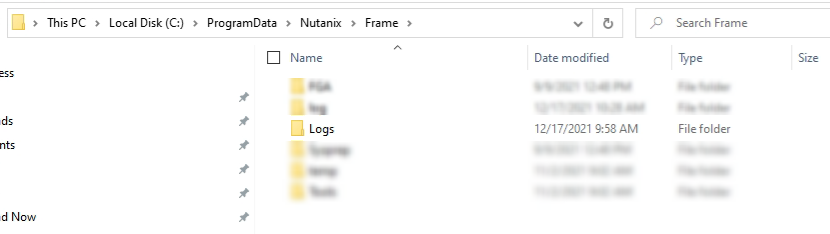
After filing a support ticket, you may be asked by Frame support personnel to provide these logs, if available.