Organizations who have users on the Internet must determine how their users will access their Frame workload VMs in a private network. For these use cases, organizations can provide their users with corporate VPN access or deploy the Frame Streaming Gateway Appliance (SGA), a secure reverse proxy that supports the Frame Remoting Protocol (FRP). SGA enables organizations to grant their users secure access to their virtualized applications and/or desktops without the use of a VPN.
Considerations
Frame provides two options for deploying one or more SGAs. Administrators should review the following considerations to determine which deployment approach fits their requirements.
Manual SGA Deployment
Auto SGA Deployment
Infrastructure
Required for AHV-based accounts. Supported for public cloud accounts.
Supported for public cloud accounts.
Networking
Requires customer-managed networking.
Requires Frame-managed networking.
Auto SGA Deployment: Frame will provision all of the required network resources (e.g., SGA VPC, security groups/firewall rules, SGA VM(s), VPC/VNET peer, and SGA VMs. SGA VMs will have public IP addresses. Frame will also provision, for SGA 3.X only, a load balancer if more than one SGA VM is required).
Manual SGA Deployment: Customers manually deploy and register their SGAs and configure their networking/firewall rules. They also provision and configure, for SGA 3.X only, a load balancer if more than one SGA VM is required.
Manual SGA deployments are required when customers have specifc networking requirements (e.g., inbound firewall, WAF, and/or load balancer requirements, prohibition on workload VMs having public IP addresses, outbound NAT or zero-trust Internet access requirements, etc.) that Auto SGA deployment cannot satisfy. In these scenarios, the customer ensures that all SGA and Frame VM network prerequisites are satisfied in order for users to be able to access their workload VMs via a manually deployed SGA Cluster.
IMPORTANT: Upgrading from one SGA version to the next version requires termination and recreation of the SGA VMs. Scheduled downtime may be required.
SGA Versions
SGA Version
Considerations
SGA 3 (out-of-support)
Supports FRP7 and FRP8.
Requires DNS A record with a wildcard SGA domain name, TLS/SSL public key
certificate with the wildcard SGA domain name, and load balancer for
high-availability deployments.
For FRP8, each SGA VM must be accessible through its own public IP address.
Each SGA VM must be accessible through its own public IP address.
SGA VM Sizing
For customers who are manually deploying SGA VMs (customer-managed networking), customers should start with a configuration for each SGA VM:
2 vCPUs
4 GB RAM
This configuration ensures the VM can support ~1 Gbps bandwidth of Frame Remoting Protocol data. Frame recommends a sizing target of 500 Mbps per 2 vCPUs to allow users to burst their bandwidth consumption.
The total number of concurrent users for the 500 Mbps bandwidth per 2 vCPU budget is dependent on the bandwidth consumed for the Frame sessions. Bandwidth consumption may be estimated based on user workload profiles:
1 Mbps per Frame session for office productivity applications, CPU-only VMs, under 30 fps, 2K or less monitors
5 Mbps per Frame session for CAD applications, GPU-backed VMs, up to 60 fps, 2K or less monitors
10 Mbps or greater per Frame session for video editing/animation/sustained playback, GPU-backed VMs, up to 60 fps, 2K or less monitors
In an office productivity use case, for example, where CPU-only VMs are used with standard 1920 x 1080 displays, the default (2 vCPU, 4 GB RAM) VM configuration could support 500 concurrent users. For 1,000 concurrent users, the same organization would need to leverage at least a 4 vCPU, 8 GB RAM VM. An 8 vCPU, 16 GB RAM VM could support 2,000 concurrent users for this use case.
Customers who are deploying SGA VMs behind a load balancer for high-availability can incrementally add SGA VMs as their Frame bandwidth consumption increases.
Note
Customers manually deploying SGA VMs in public cloud (customer-managed networking) should ensure they select a non-burstable instance type with sufficient network performance. Public cloud providers may constrain CPU utilization and/or restrict network bandwidth with lower cost instance types.
SGA 4
Introduction
Streaming Gateway Appliance (SGA) 4 simplifies the deployment and management of the SGA by eliminating the need for:
Public key certificates, as HTTPS is no longer used to communicate between Frame Terminal and the SGA.
Load balancer, as Frame control plane is responsible for load balancing user sessions across an SGA cluster.
SGA 4 supports:
Self-service features within Frame Console to:
View the status of all SGA clusters and SGA nodes (VMs).
Manage the lifecycle of both manually and auto-deployed SGA VMs.
Attach (and detach) a Frame account to an SGA cluster.
Ability to power on and off individual auto-deployed SGA nodes.
Add and delete SGA nodes for a given SGA cluster.
Customers who require outbound traffic to have a different source public IP address than the inbound public IP address of each SGA VM.
Customers who require their SGA VMs to have two virtual network interfaces (a virtual network interface for traffic between users on the Internet and the SGA VM and a private virtual network interface for traffic between the SGA VM and the workload VMs).
SGA 4 image for ESXi will be supported in a future release. SGA 4 is now Generally Available for all other infrastructures.
SGA 4 Clusters and Nodes
SGA 4 introduces two new concepts for customers: SGA Cluster and SGA Node. An SGA Cluster is composed of one or more SGA Nodes, where each node is an SGA 4 VM. Each SGA Cluster is deployed in a specific public cloud region to support Frame Accounts in that region or deployed on-premises to support one or more AHV VLANs. Customers may deploy more than one SGA Cluster. A Frame Account may only be associated to one SGA Cluster.
Once an SGA cluster with one or more nodes is created with at least one node powered on, customers can then in Frame Console:
Create a new Frame Account, specifying an existing SGA Cluster.
Attach a previously created Frame Account to an existing SGA Cluster (to be supported in a future release).
Detach a Frame Account from its SGA Cluster to ensure users can only access the Frame workload VMs in a private networking deployment model (to be supported in a future release).
Network Requirements
When deploying an SGA VM, the customer's network must: (1) allow Internet traffic to reach the SGA VM and (2) from the SGA VM to the network containing the Frame-managed workloads (e.g., Sandbox, test/production pools, Utility Servers). As a best practice, we recommend the SGA VM or VMs (if high availability is required) be deployed in a DMZ (e.g., VPC, VNET, or VLAN) network, separate from the workload VM network.
Customers who have previously configured their network for SGA 3.X will need to allow SGA 4 VMs to initiate outbound HTTPS/Secure WebSocket (tcp/443) connections to cch.console.nutanix.com for communication with Frame control plane.
Customers who are starting with a new network will need to configure their network to satisfy the Frame private networking with SGA 4 network requirements.
SGA 4 VM provides Frame Platform its public IP address based on the following:
For automated deployments of SGA 4, the public IP address returned from the cloud provider's Instance Metadata Service (IMDS) endpoint.
For manual deployments of SGA 4, the public IP address specified by the administrator before the SGA Node is registered to the Frame control plane using the Registration Code.
NOTE 1. While each SGA VM must have an associated public IP address, the public IP address does not have to be attached to virtual network interface of the SGA VM itself. Instead, the customer administrator can manually deploy an SGA VM with only a private IP addresses and then configure a NAT rule either on their firewall, web application firewall, or load balancer that maps the inbound public IP address of the SGA VM to the corresponding private IP address on the SGA VM.
2. SGA 4 no longer requires a corresponding DNS A record for its public IP address; however, customers can create DNS records for their SGA 4 public IP addresses, if desired.
3. SGA 4 does not support IPv6 addresses.
High Availability
With SGA 4, Frame control plane will handle load balancing user session requests across the available SGA nodes in the SGA cluster. A load balancer is no longer needed to perform the load balancing function.
High Availability SGA 4 Architecture (FRP8)
Typical FRP8 Workflow
Frame users log in to the Frame Platform and are directed to their Launchpad. When a user clicks the desktop or an application icon in their Launchpad, Frame Platform provides the user's browser with the public IP address of the SGA VM associated with the Frame account.
The user's browser or Frame App begins communicating directly with the specific SGA VM using the provided public IP address using (or ). The SGA VM validates the session start request and then forwards the session start request to the user's assigned Frame workload VM using . The Frame Agent on the workload VM validates the session start request and begins the Frame session video/audio stream. FRP8 traffic flows back from the Frame Agent on the workload VM through the SGA VM to the user's browser or Frame App.
Internal Access to SGA-enabled Workloads
SGA 4 also supports the scenario where end users within the private network access the workload VMs of an SGA-enabled Frame account while users on the Internet are accessing workload VMs trough the SGA.
During the WebRTC Interactive Connectivity Establishment (ICE) candidate exchange between user and workload VM, FRP8 will test all ICE candidate pairs and determine the best ICE candidate pair to use. If WebRTC verifies that the user and workload VM can communicate over an internal network path, then the FRP8 stream will use that internal network path.
For internal access by users to the workload VMs of an SGA-enabled Frame account, ensure that the users within their private network can route their traffic to the workload VMs in the private network following the private networking requirements for private networking (public cloud) or private networking (AHV) between the end user and workload VMs.
Multi-Frame Account Support
An SGA 4 cluster can be configured for one or more Frame accounts. If there are Frame accounts in different regions or data centers, we recommend you deploy SGA 4 clusters in each of those different regions or data centers to minimize unnecessary network latency.
Security
SGA 4 appliances use Ubuntu 22.04.3 LTS, hardened using CIS Level 1 Server profile (https://ubuntu.com/security/certifications/docs/usg/cis/compliance). SGA administrators can only access the SGA VM command line only through the infrastructure console. SSH is disabled.
The following ports are bound on the SGA VMs:
3478 – (udp/tcp) for FRP8
4369 – restricted to localhost requests only by SGA component
53 – (udp/tcp) restricted to localhost requests only for Ubuntu systemd-resolve service (DNS)
When a user connects to an SGA 4 node, SGA validates the user session request by confirming the validity of the request with the Frame control plane, before connecting the user with the assigned workload VM.
All communication between the SGA 4 VM and the Frame control plane is conducted using a Secure WebSocket (WSS) connection. The WSS connection is initiated by the SGA 4 VM using HTTPS. During the registration process, the SGA 4 VM will authenticate itself to the Frame control plane using a registration code generated by the control plane (and manually entered by the customer administrator for manually deployed SGA VMs) and provide the SGA 4 VM-specific metadata (UUID, SGA public-private key pair, SGA VM public IP address). Once the Secure WebSocket connection is established, the Frame control plane can communicate with the SGA VM to broker new user sessions, facilitate FRP8 WebRTC negotiation, and monitor the availability of the SGA VM.
The public/private key pair is used by the SGA VM to authenticate itself to Frame control plane each time the SGA VM needs to establish a Secure WebSocket connection to the Frame control plane. The private key is used to sign the initial HTTPS GET request by the SGA VM and the digital signature is sent as one of the HTTPS headers, including the timestamp, UUID, and nonce. The control plane validates the digital signature using the SGA VM public key before agreeing to switch to a Secure WebSocket for bidirectional communication.
SGA 4 Installation
To deploy an SGA 4 Cluster, first decide if you will have Frame automatically deploy the SGA Cluster and Nodes (public cloud only) or you will manually deploy the SGA Nodes (public cloud or Nutanix AHV) of an SGA Cluster yourself.
For automatic deployment, Frame will handle provisioning of all required public cloud resources in the public cloud region you designate.
Frame will provision the VNET/VPC, subnets, security groups, gateways, and requested number of SGA VMs.
When a Frame account is created using Frame-managed networking, Frame will peer the SGA VNET/VPC to the workload VM VNET/VPC. For IBM Cloud VPC, Frame will provision a Transit Gateway to connect the two VPCs.
For manual deployment, you will create the SGA Cluster in Frame Console and then obtain an SGA Node Registration Code for each SGA Node you wish to create for the cluster. You will then enter the SGA Node Registration Code when you provision the SGA VM in your infrastructure console. This registration process enables Frame Platform to know the association between the new SGA Node and the SGA Cluster in Frame.
The customer must provision the required network resources (e.g., VNET/VPC, subnets, security groups, gateways) to hold the SGA VMs and then provision the desired number of SGA VMs.
When a Frame account is created using customer-managed networking, the customer must peer the network containing the SGA VMs with the customer-managed network containing the workload VMs.
Once an SGA cluster has at least one available SGA node, you will then be able to create a new Frame Account referencing that SGA cluster and/or attach an existing Frame Account to that SGA cluster.
For public cloud, make sure that you create the SGA Cluster in the same region as the Frame Accounts you wish to attach to the SGA Cluster. For Nutanix AHV, make sure the SGA Cluster is in the same data center as the Frame Accounts you wish to attach to the SGA Cluster. If you do not, then users may experience unacceptable latency, limited bandwidth, and high packet loss, resulting in poor end user experience.
Administrators need to schedule a maintenance window to upgrade their SGA VM(s) to ensure users know not to access the SGA-enabled workload VMs while the SGA upgrade is in progress. Administrators can use the Maintenance Mode feature to alert users that the account is undergoing maintenance.
Caution The time to perform an SGA upgrade will depend on the infrastructure your account is using, infrastructure traffic, and the number of SGA Nodes to be deployed.
Automatically Deployed SGA Nodes
To upgrade your SGA 4 VMs, add new SGA nodes. Once the new SGA nodes are Available under Streaming Gateways page for the SGA Cluster, power off the old SGA 4 nodes to test the new SGA 4 nodes. If those new SGA 4 nodes work, then delete the old SGA 4 nodes.
Manually Deployed SGA Nodes
Add new SGA node(s) for the existing SGA Cluster in Streaming Gateways page to obtain the Registration Code(s). Then manually provision new SGA node(s) using those Registration Code(s).
Once the new SGA node(s) are availabe, power off the old SGA 4 nodes in your cloud infrastructure console to test the new SGA 4 nodes. If those new SGA 4 nodes work, then delete the old SGA 4 nodes from your cloud infrastructure console.
SGA 4 Management
Management of SGA 4 Nodes and Clusters is on the Streaming Gateway page at either the Customer or Organization entity level. The SGA management functionality will depend on whether you have deployed the SGA Cluster using Frame (Automatic Deployment) or manually (Manual Deployment).
Automatic Deployment
With automatic deployment of an SGA Cluster, Frame is responsible for the lifecycle of all network resources and the SGA VMs. The Frame Accounts must have been created using Frame-managed networking in order for administrators to use Automatic Deployment of SGA. If a Frame account was created using customer-managed networking, then the administrator must manually deploy the SGA cluster and nodes following the instructions under Manual Deployment.
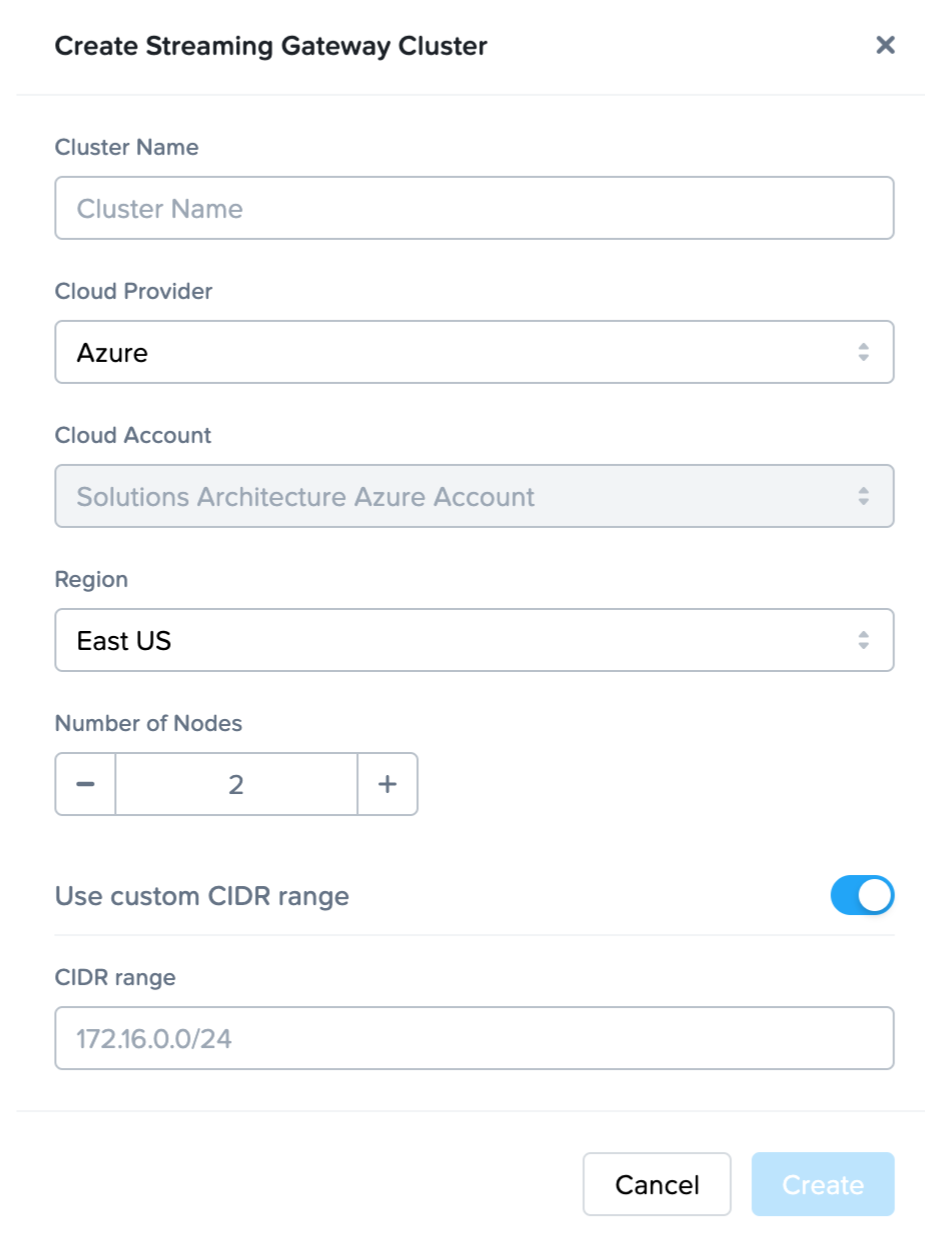
If you are creating an SGA 4 cluster with the expectation of upgrading from existing SGA 3.x Frame accounts, please ensure you use a non-overlapping CIDR for the SGA 4 cluster. To accomplish this, enable the "Use custom CIDR range" slider in the Create Streaming Gateway Cluster configuration form.
Create Cluster
To create a new SGA cluster, go to the Frame Console and at the Frame Customer or Organization entity level, click on Streaming Gateways on the lefthand menu.
Click on Create New Cluster in the upper right corner.
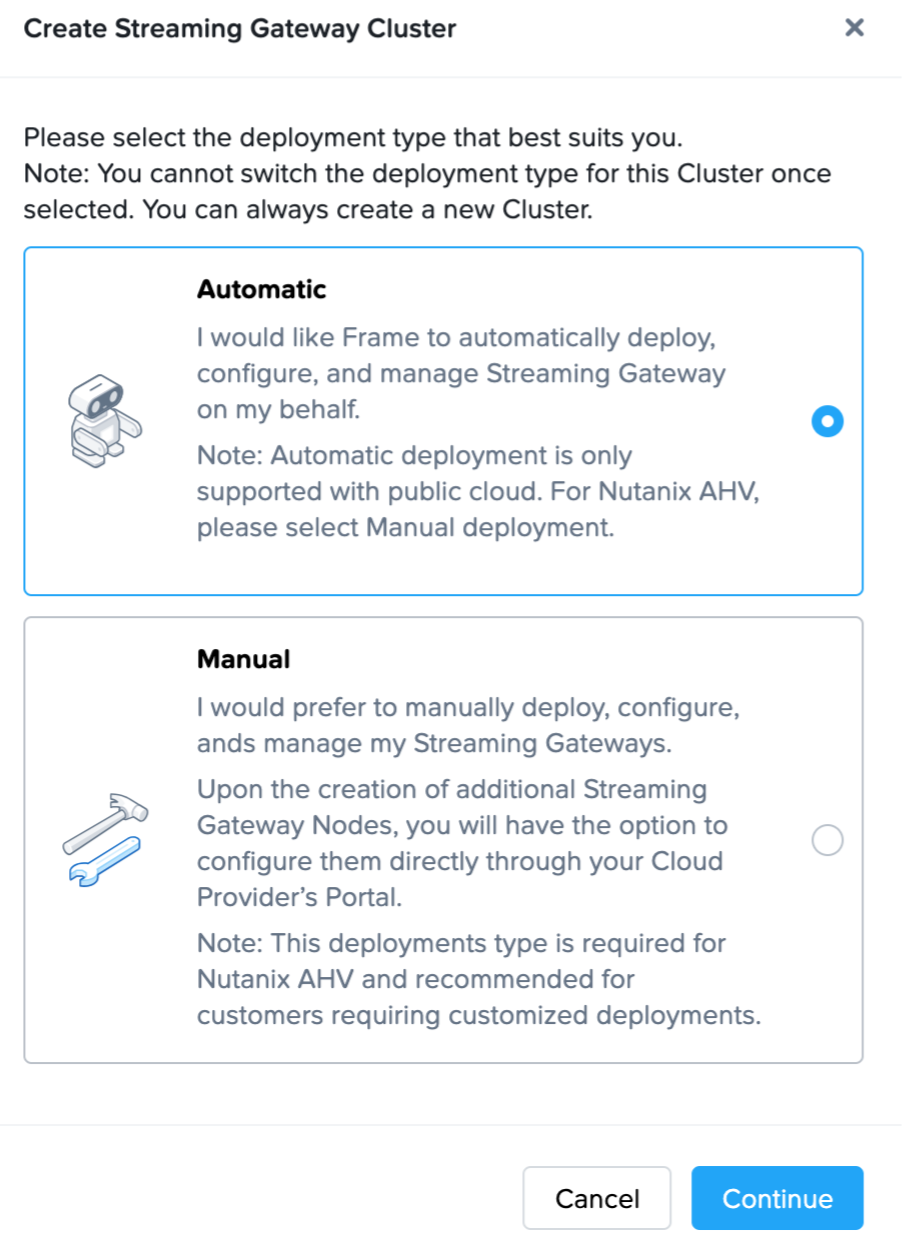
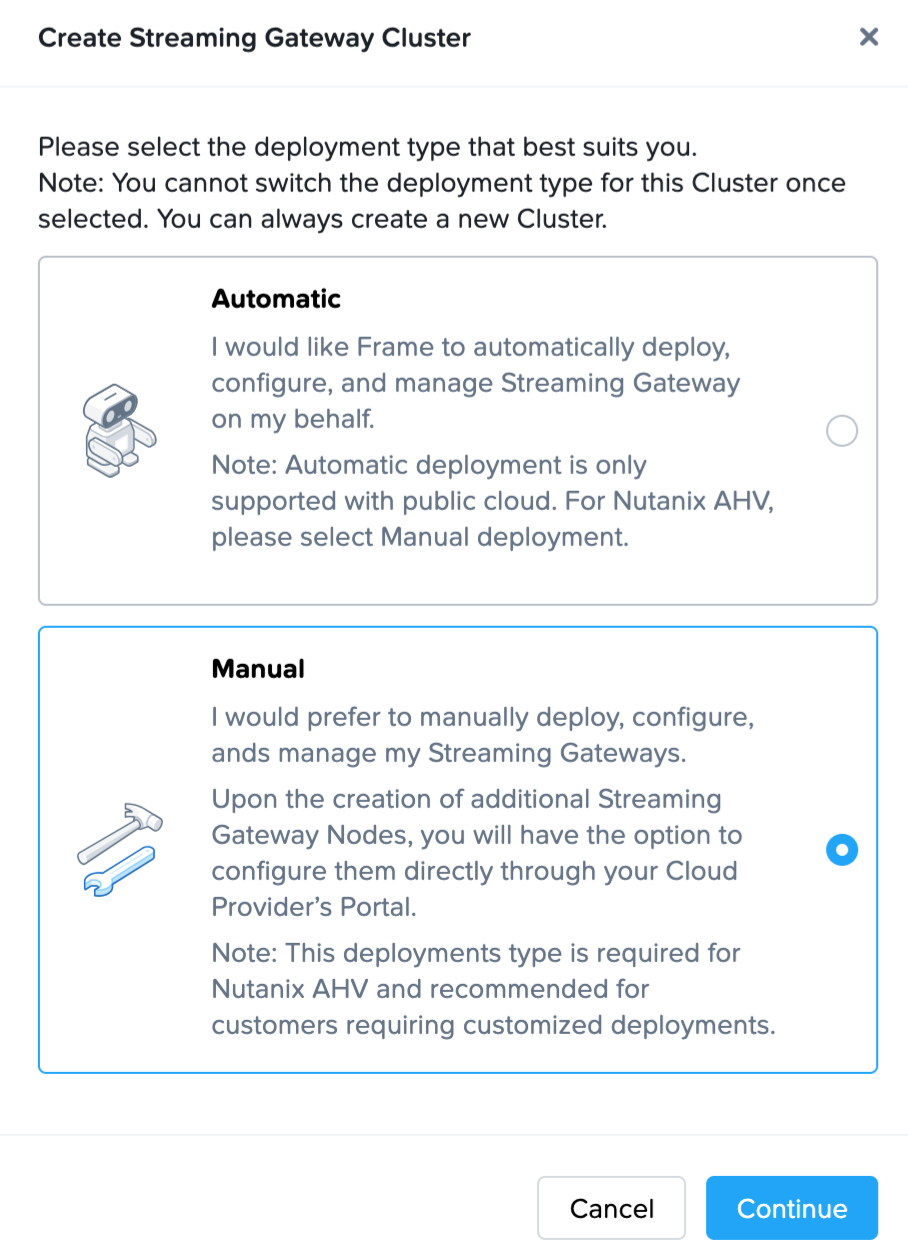
3. Select “Automatic” (Frame creates all resources) and then click the **Continue** button.
4. Complete the Create Streaming Gateway configuration form.
Name: Name of the SGA cluster. The name of each SGA node will be the SGA cluster name appended with a unique ID.
Cloud Provider: Select the cloud provider you wish to use for this SGA cluster. -
Cloud Account: Select the Cloud Account where the public cloud resources for this cluster will be provisioned. -
Region: Select the cloud region where the SGA cluster will reside.
Number of VMs: Specify the number of SGA nodes (VMs) to be provisioned.
Custom CIDR: Specify the CIDR range where the SGA nodes will be provisioned (default 172.16.0.0/24).
Once the required field values have been specified, click on the Create button to create the SGA Cluster and the SGA Nodes. You can view the status of the SGA Cluster on the Streaming Gateways page.
After your SGA cluster and SGA nodes have been created, you can then reference the SGA Cluster when creating your Frame Account so that your newly created Frame account uses the SGA Cluster.
Delete Cluster
A SGA Cluster can be deleted only if there are no Frame Accounts attached to the cluster.
To delete an SGA cluster, go to the Frame Console and at the Frame Customer or Organization entity level where the SGA Cluster is defined, click on Streaming Gateways on the lefthand menu.
Click on the kebab menu to the right of the SGA Cluster and select Delete.
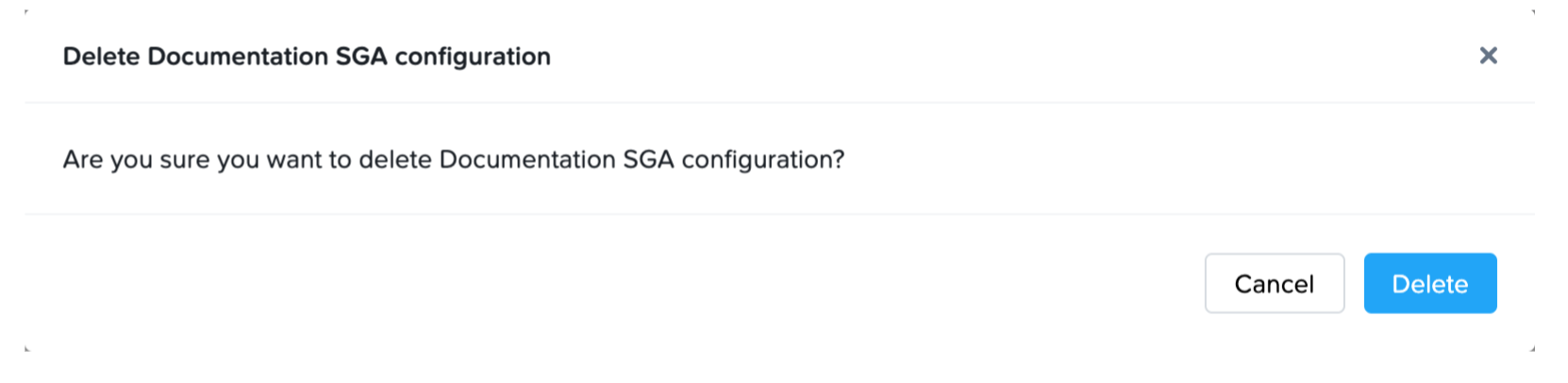
3. You will be asked to confirm that you wish to delete the SGA cluster. Click **Cancel** or **Delete**.
For SGA 4 clusters that were automatically deployed, Frame Console will terminate the SGA Nodes and the related SGA network resources (subnets, VPC/VNET) in the infrastructure and then delete the SGA Cluster.
Add Node
Customer administrators can add another SGA 4 Node to their SGA Cluster at any time.
For automatically deployed SGA Clusters, navigate to the Streaming Gateways page and locate the SGA Cluster you wish to add a new SGA Node.
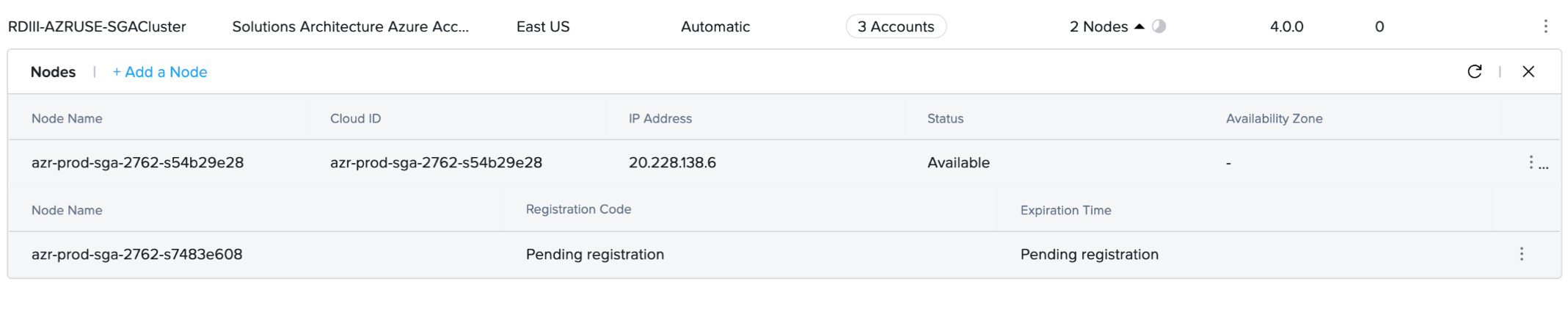
2. Click on **+ Add a Node**. Frame will provision a new SGA VM and wait for the VM to register.
3. The Status of the SGA Node will change from `Pending registration` to `Available` once the SGA Node registers.
SGA Instance types Frame Platform will provision SGA VM(s) on the following instance/machine types. These VMs will run 24x7 since users need to be able to access the workload VMs at any time. Administrators can manually power off and power on SGA VMs that are auto deployed.
AWS: c5.xlarge, 30 GB disk
Azure: D4 v3, 30 GB disk
GCP: e2-standard-4, 50 GB disk
IBM: cx3d-4x10, 130 GB disk
Delete Node
Customer administrators can delete an existing SGA 4 Node from their SGA Cluster at any time, except when:
The SGA 4 node is powered on.
There is only one SGA 4 node left and there are one or more Frame accounts attached to the SGA Cluster.
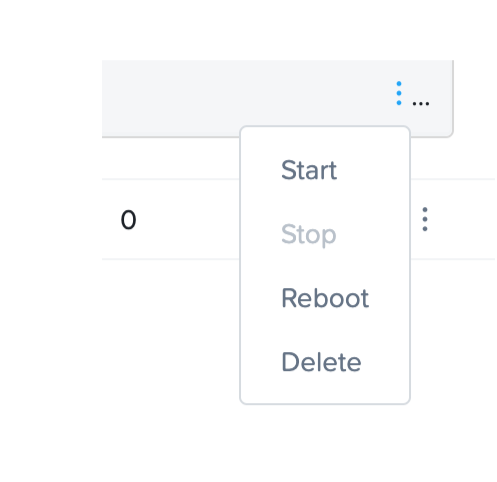
For automatically deployed SGA Clusters, navigate to the Streaming Gateways page and locate the SGA Cluster you wish to delete one of the existing SGA Nodes. Note that the SGA Node to be deleted must be powered off with status Unavailable.
2. Click on the kebab menu for the powered off SGA node and select **Delete**.
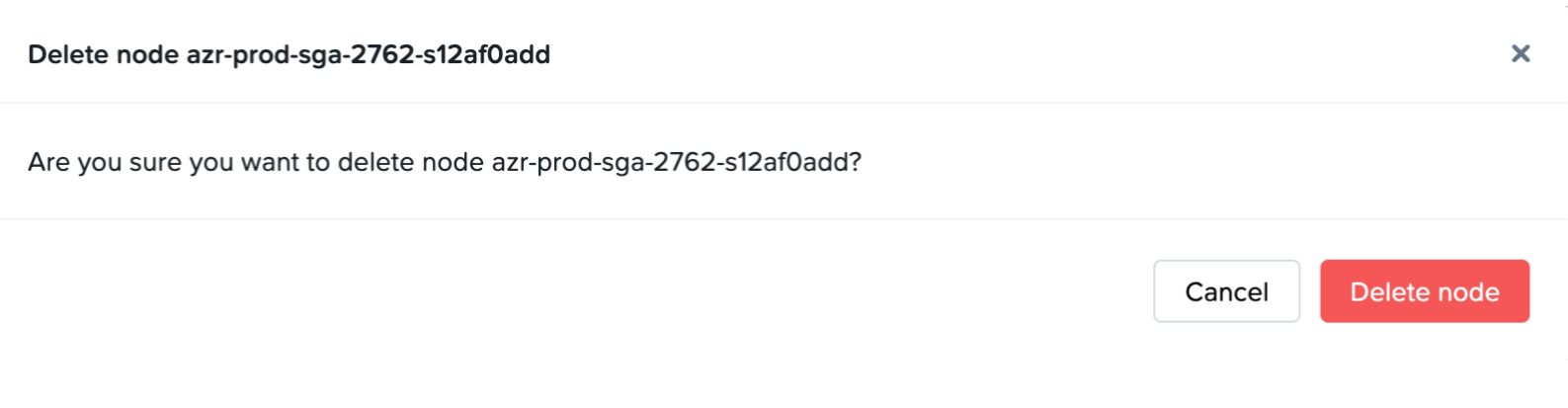
3. Confirm that you wish to delete the SGA Node by clicking on the **Delete node** button.
4. Once the SGA Node is deleted, the SGA Node will be removed from the list of nodes for the SGA Cluster.
Power On Node
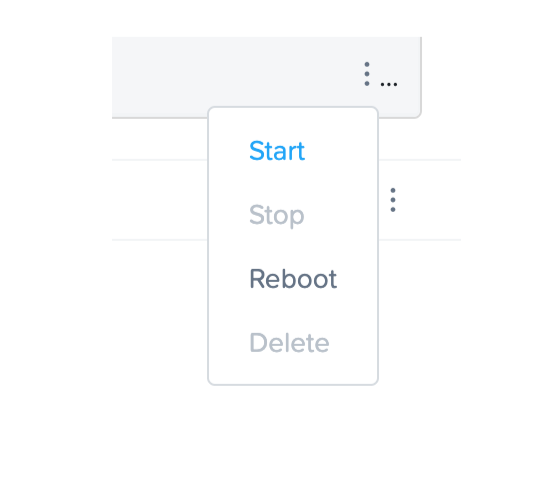
With automatically deployed SGA 4 Clusters, customer administrators can power on an existing automatically deployed SGA 4 Node, if the VM is powered off.
Navigate to the Streaming Gateways page and locate the SGA Cluster containing one or more SGA Nodes you wish to power on.
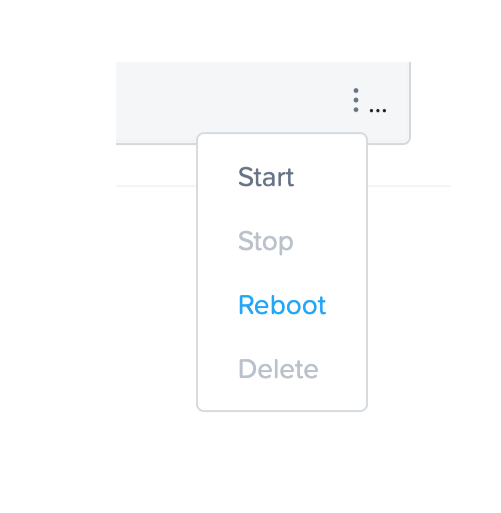
2. Click on the kebab menu and select **Start**.
3. You will be asked to confirm that you wish to power on the SGA Node.
Power Off Node
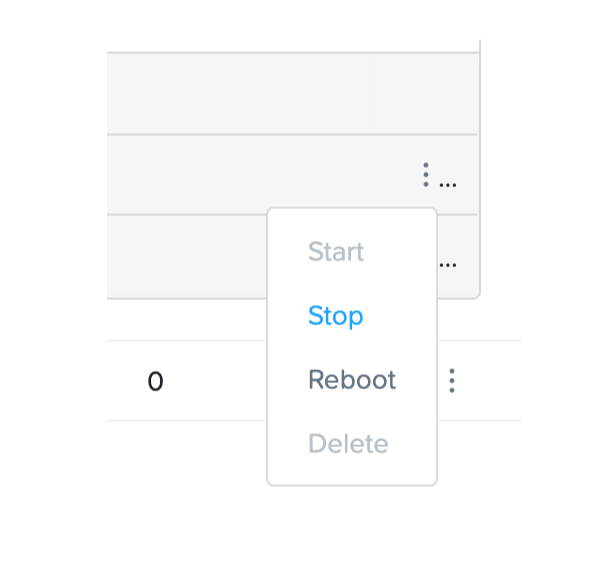
With automatically deployed SGA 4 Clusters, customer administrators can power off an existing automatically deployed SGA 4 Node, if the VM is powered on.
Navigate to the Streaming Gateways page and locate the SGA Cluster containing one or more SGA Nodes you wish to power off.
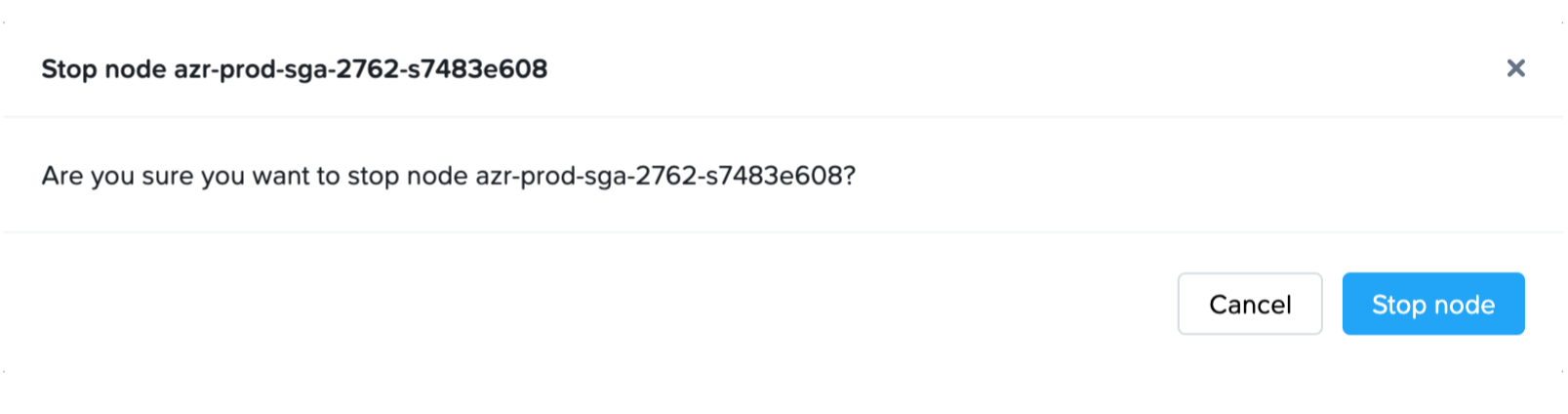
2. Click on the kebab menu and select **Stop**.
3. You will be asked to confirm that you wish to power off the SGA Node.
Reboot Node
With automatically deployed SGA 4 Clusters, customer administrators can reboot an existing automatically deployed SGA 4 Node.
Navigate to the Streaming Gateways page and locate the SGA Cluster containing one or more SGA Nodes you wish to power off.
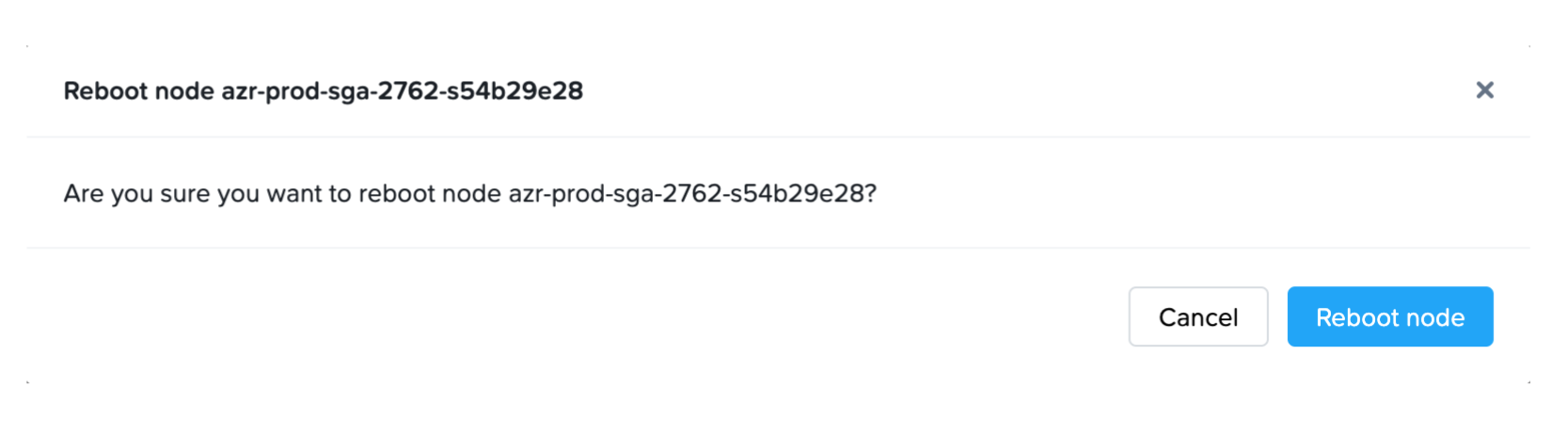
2. Click on the kebab menu and select **Reboot**.
3. You will be asked to confirm that you wish to reboot the SGA Node.
Manual Deployment
With manual deployment of an SGA Cluster, the customer is responsible for the lifecycle of all network resources and the SGA VMs. The Frame Accounts must have been created using customer-managed networking in order for administrators to use Manual Deployment of SGA. If a Frame account was created using Frame-managed networking, then the administrator must follow the instructions under Automatic Deployment of an SGA Cluster.
Create Cluster
To create a new SGA cluster, go to the Frame Console and at the Frame Customer or Organization entity level, click on Streaming Gateways on the lefthand menu.
Click on Create New Cluster in the upper right corner.
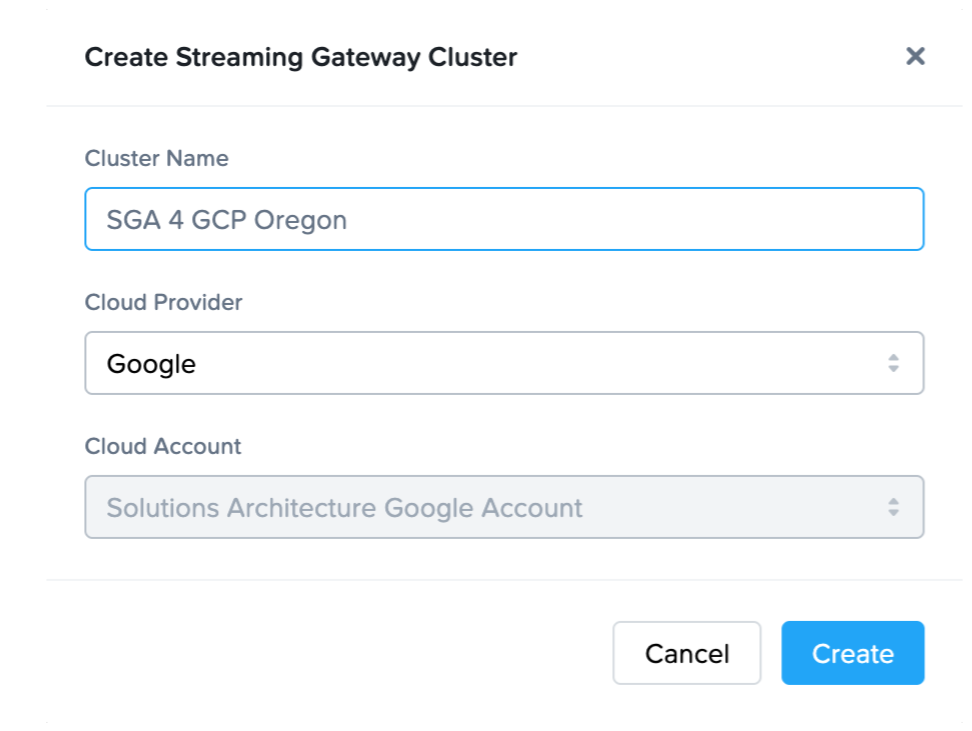
3. Select “Manual” and then click the **Continue** button. 4. Complete the Create Streaming Gateway configuration form.
Name: Name of the SGA cluster. The name of each SGA node will be the SGA cluster name appended with a unique ID.
Cloud Provider: Select the cloud provider you wish to use for this SGA cluster.
Cloud Account: Select the Cloud Account where the public cloud resources for this cluster will be provisioned.
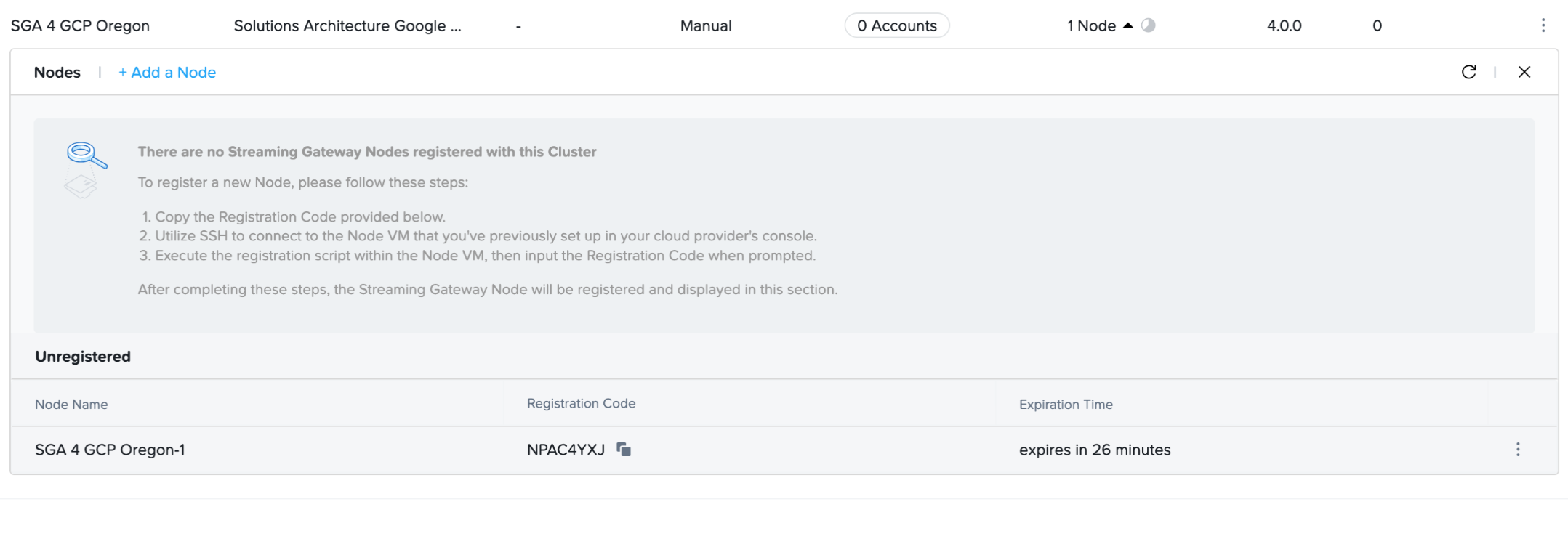
Frame Console will display the newly created SGA Cluster and one SGA Node entry. Notice that Frame Console provides the Activation Code for this first SGA Node. You will need this Activation Code to register the SGA Node you manually provision.
Once the SGA Cluster has at least one registered SGA Node, you can then reference the SGA cluster when creating new Frame accounts.
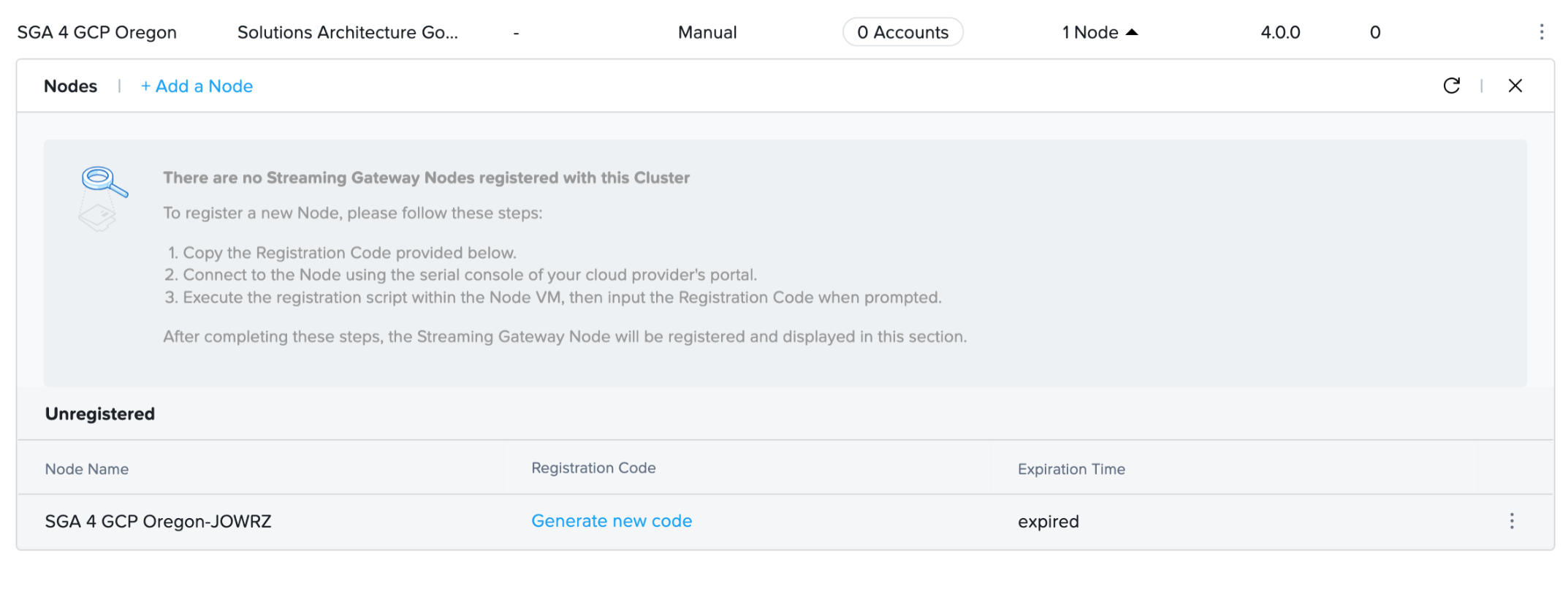
The Activation Code must be used within 30 minutes of creation. If the Activation Code expires, you may click on Generate new code on the SGA Node line to obtain a new Activation Code.
Delete Cluster
A SGA Cluster can be deleted only if there are no Frame Accounts attached to the cluster.
To delete an SGA cluster, go to the Frame Console and at the Frame Customer or Organization entity level where the SGA Cluster is defined, click on Streaming Gateways on the lefthand menu.
Click on the kebab menu to the right of the SGA Cluster and select Delete.
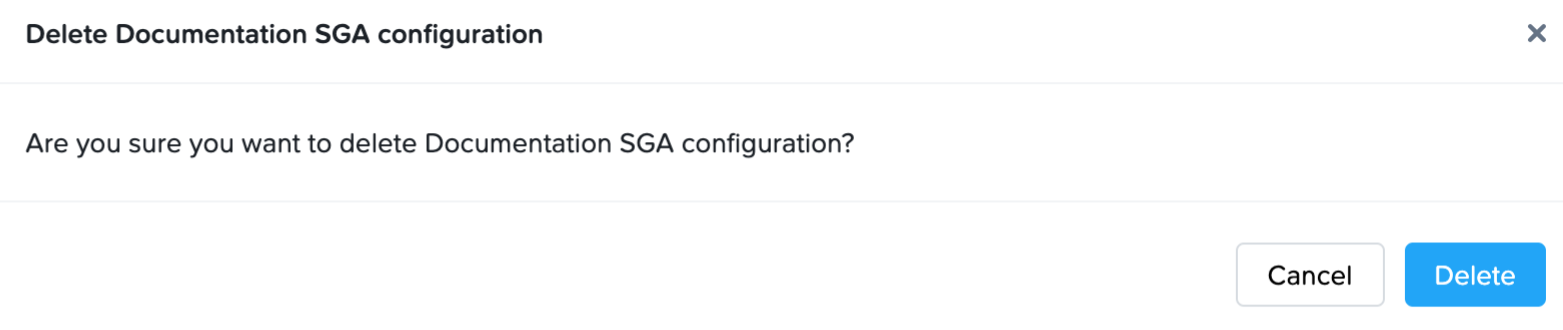
3. You will be asked to confirm that you wish to delete the SGA cluster. Click **Cancel** or **Delete**.
If the SGA 4 cluster was manually deployed, Frame Console will delete the SGA Cluster in Frame Console. However, the customer is responsible for terminating the SGA Nodes and any related SGA network resources in their infrastructure.
Add Node
For customers who are manually deploying an SGA Cluster, you must manually provision and configure the SGA Nodes from within your infrastructure console.
Prerequisites
SGA 4 prerequisites are as follows:
Download the Frame SGA disk image from the Downloads Page for the hypervisor/infrastructure on which you wish to deploy the SGA.
Determine which data center or public cloud region where the SGA Nodes for the SGA Cluster will be provisioned. To minimize network latency for the best user experience, the SGA Nodes for an SGA Cluster and the associated Frame accounts using that SGA Cluster should be in the same data center or public cloud region.
Configure the firewall(s) and networking to support the required FRP8 protocols/ports from the Internet to the SGA Cluster and from the SGA Cluster to the workload network (e.g., VLAN or VNET/VPC and subnet) as well as from the workload network back to the Internet via the SGA Cluster.
Assign a static private IP address to each SGA VM.
Assign a static public IP address to each SGA VM. The public IP address can be configured in a firewall or load balancer with network address translation (NAT) to the SGA VM private IP address.
Step 1: Provision the SGA Node
To manually create an SGA Node, go to the Streaming Gateways page and find the Manually Deployed SGA Cluster that will have this new SGA Node. You may need to click on + Add a Node to add a new SGA Node to the SGA Cluster.
2. Look for the **Activation Code** for that unregistered SGA Node and copy it. You may need to click on **Generate new code**.
You must enter the **Activation Code** into the unregistered SGA VM or provision the SGA VM using the SGA VM Cloud Configuration file within 30 minutes of the Activation Code being generated. Otherwise, you will need to generate a new Activation Code when the Activation Code expires.
The Activation Code will be provided to the SGA Node after you provision the SGA VM using your infrastructure provider's console and access the SGA VM via the serial console.
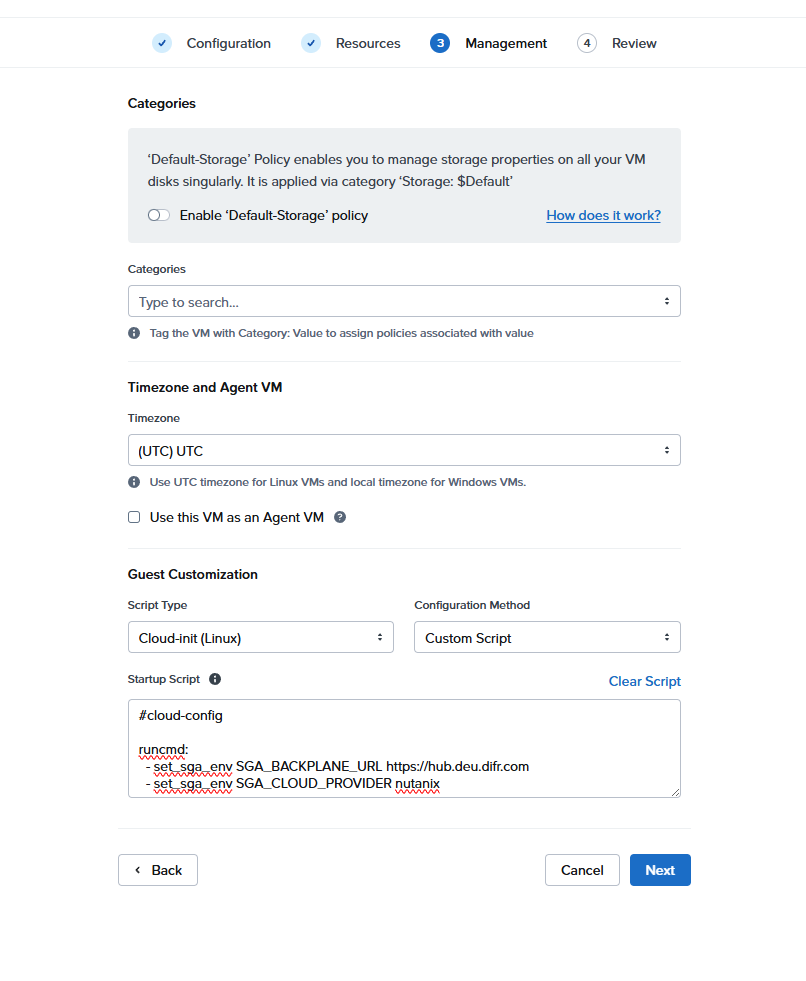
For manually deployed SGA VMs on AHV only, you must add #cloud-config parameters bellow for each Backend Region
You will use this file during VM creation in AHV Step 10 below.
Verify that you have #cloud-config as the first line in your SGA VM cloud configuration file.
Infrastructure Setup - AHV
The following instructions assume you have already identified the AHV VLAN that the SGA will be placed in. The VLAN containing the SGA Nodes will need to be “public” (have a route from/to the Internet) and will need network connectivity to the private VLAN where the workloads are placed.
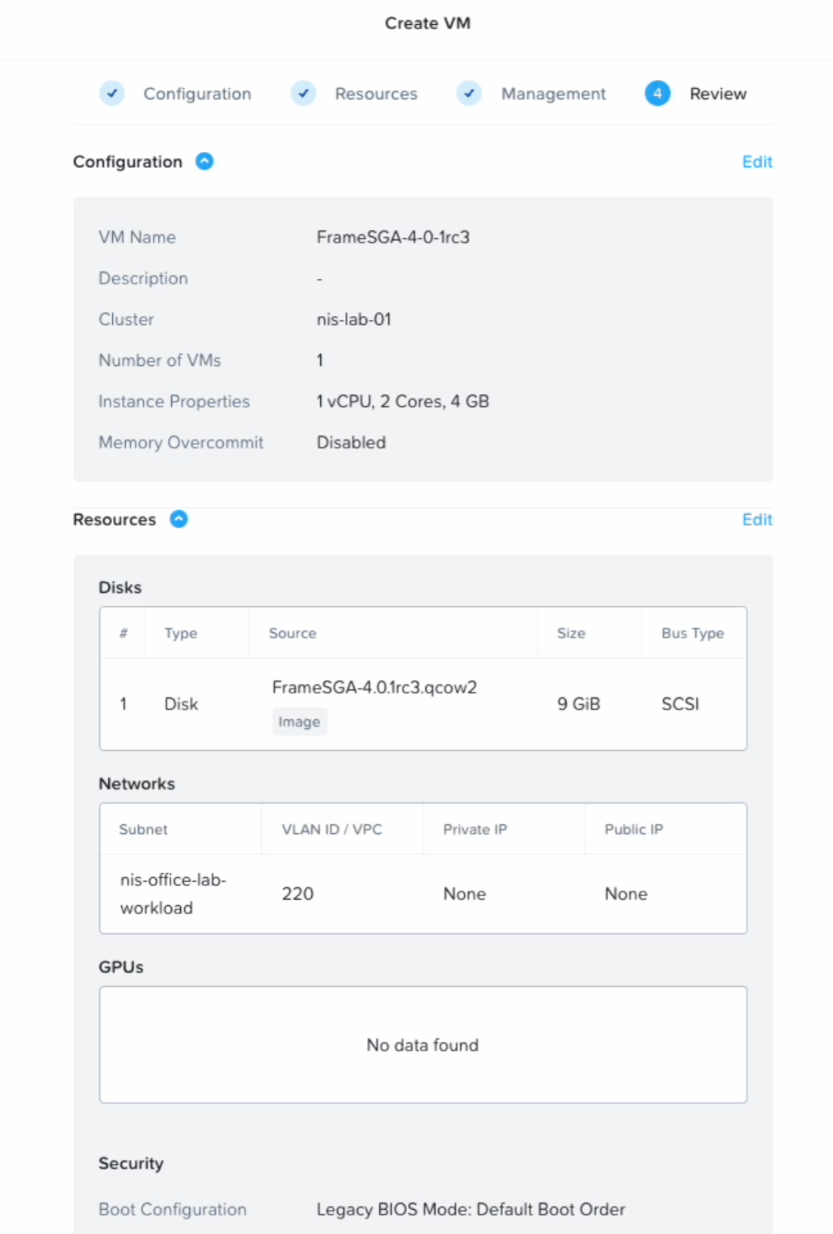
Create a new VM in Prism Central (or Prism Element), enter a name and set timezone to UTC.
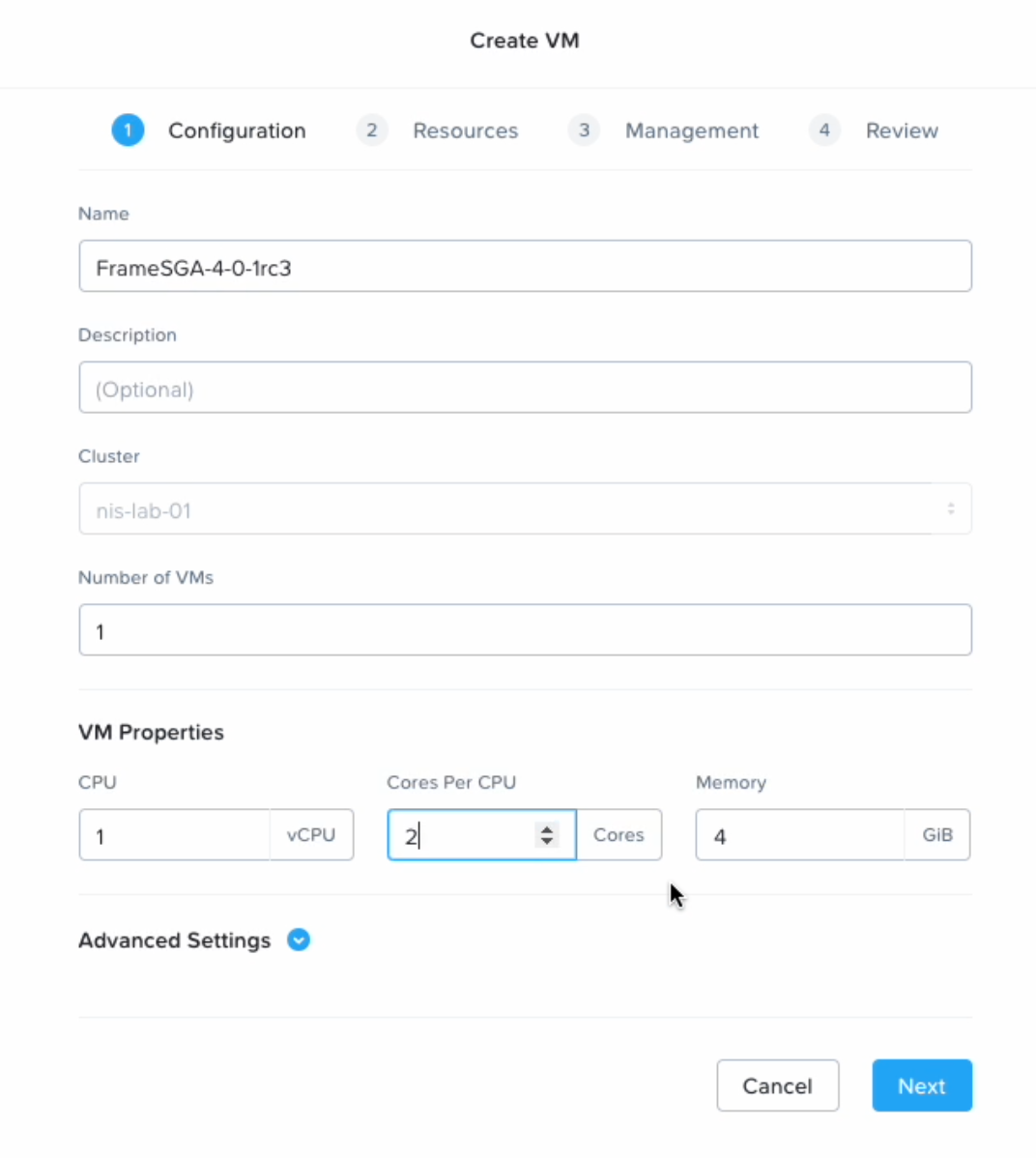
SGA VM Creation - VM Creation
**Warning** The timezone must be set to UTC.
Configure Compute Details: SGA VMs should have at least two (2) vCPUs and 4GB RAM. This configuration supports up to 500 concurrent user sessions. Click **Save**.
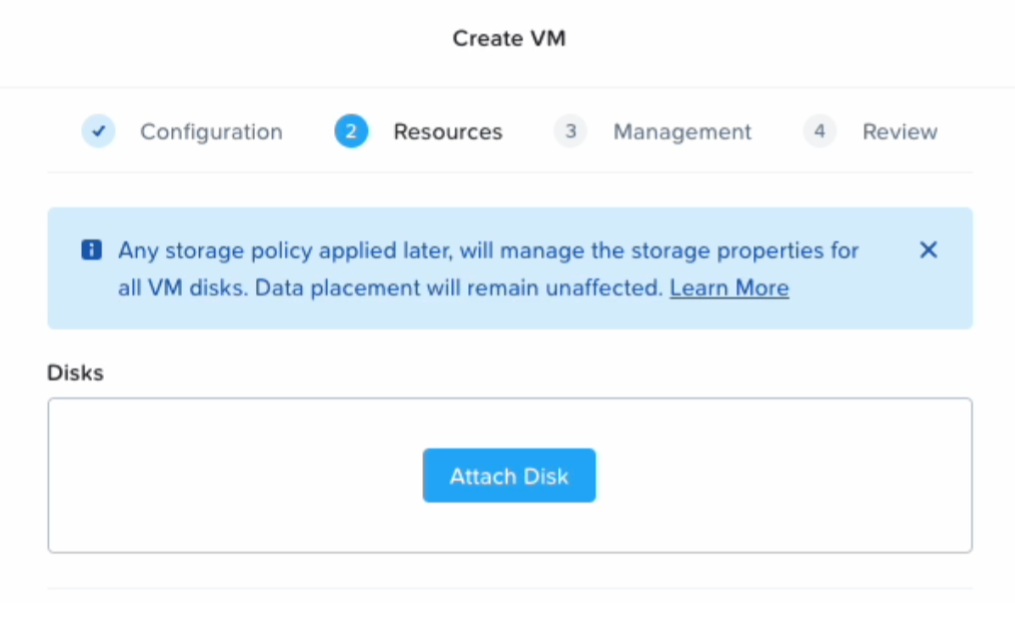
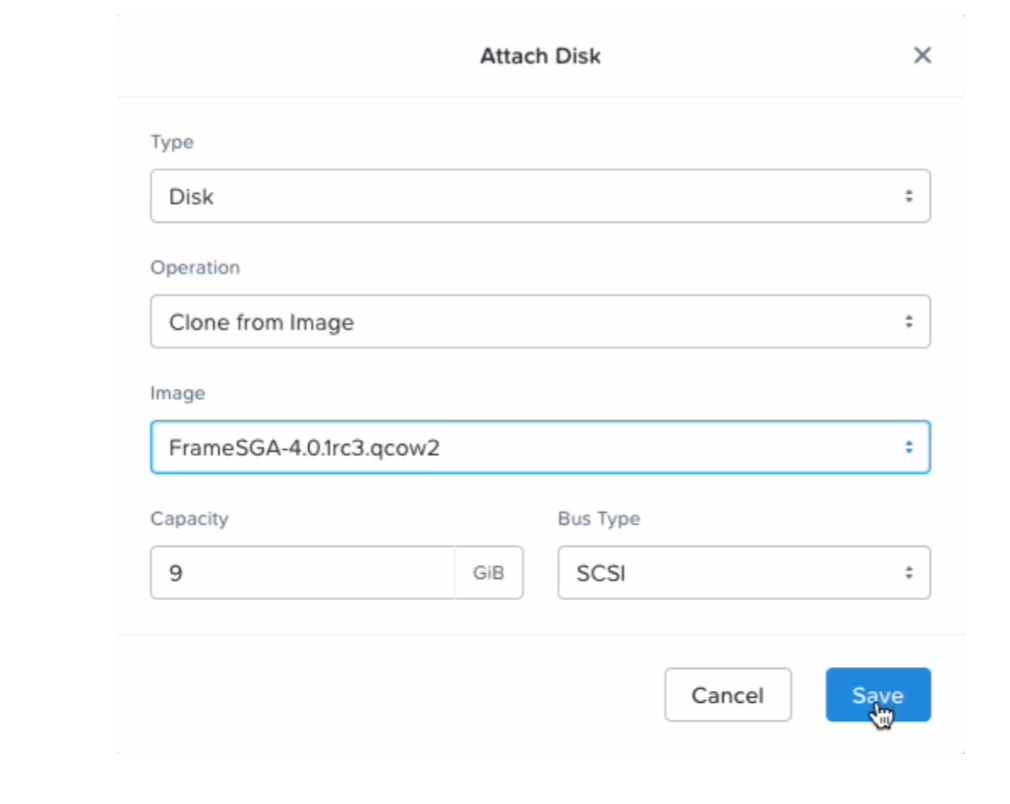
Add the SGA disk image by clicking Attach Disk.
Specify your Frame SGA disk image. Click Save.
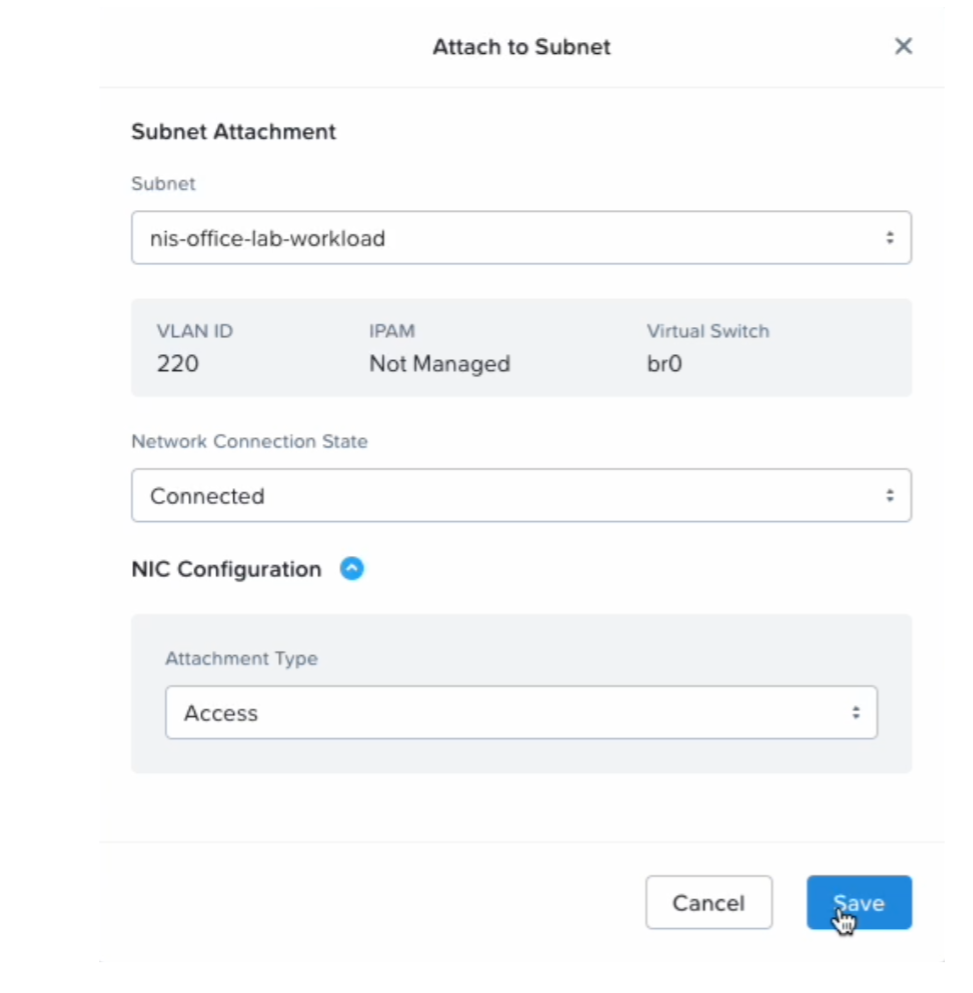
Under “Networks,” click Attach to Subnet to assign the appropriate VLAN to the new VM. You can set a static private IP address of the SGA VM at this point or use Option 4, as discussed below, once the VM has been provisioned.
Click on "Legacy BIOS Mode" and click the "Confirm" button.
Under Guest Customization, set Script Type to Cloud-init and enable the Custom Script option.
Paste in the SGA VM Cloud Configuration file from Step 3.
Select Next and then click Create VM on the final Review step.
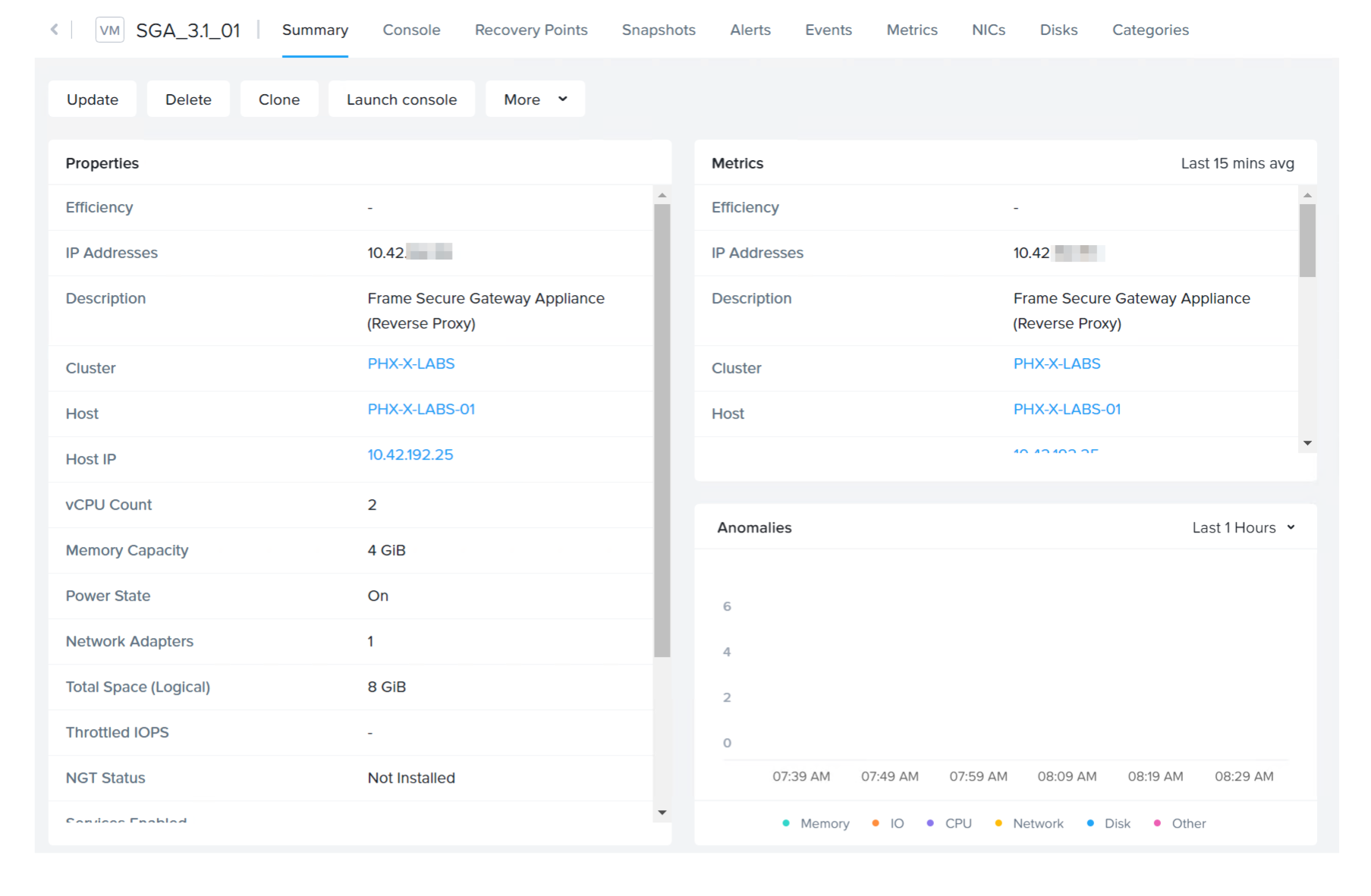
You should now be able to see the newly created VM in Prism.
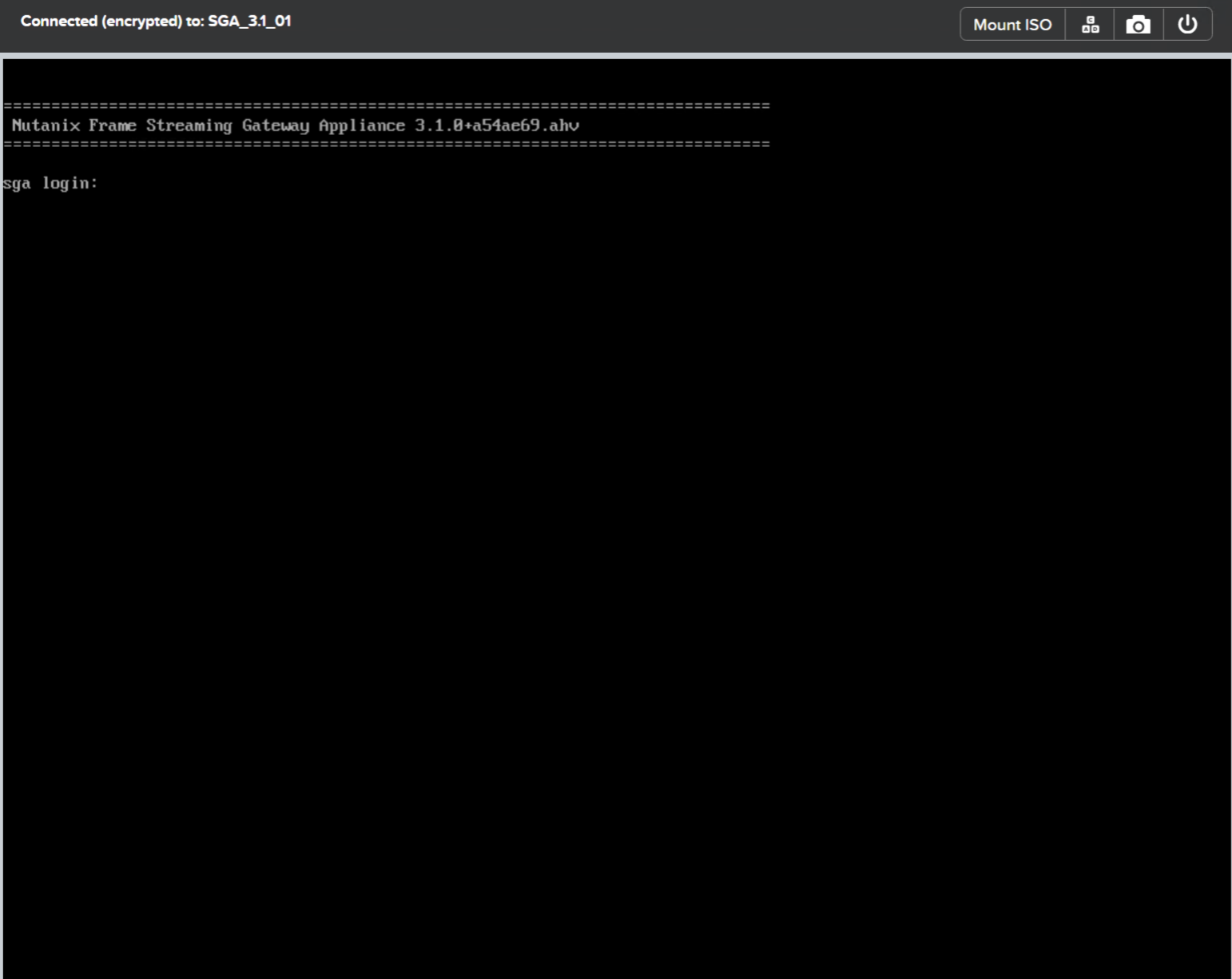
Power on the SGA VM. Connect to the SGA VM by clicking on the Launch console button near the top of the Prism dashboard to access the Virtual Network Console (VNC).
Infrastructure Setup - AWS
The following instructions assume you have already identified the AWS VPC and subnet that the SGA will be placed in. The subnet will need to be “public” (have a route from/to the Internet) and will need network connectivity to the private VPC and subnet(s) where the workloads are placed.
Before provisioning SGA VMs in AWS, ensure you enable serial console access to your SGA VMs. Otherwise, you will not be able to access the SGA VM. Consult AWS documentation on \[EC2 Serial Console\] (https://docs.aws.amazon.com/AWSEC2/latest/UserGuide/ec2-serial-console.html) for further details.
Download and Import an SGA Image: With access to the AWS Command Line Interface (CLI) and an AWS Access Key, you can download and import the SGA image into your AWS account.
Download the AWS SGA image file (.raw.gz) from the Downloads page.
Decompress the .gz file.
Create an S3 bucket and upload the uncompressed .raw file to the S3 bucket. The S3 bucket should be in the region where you plan to deploy the SGA. The image size is ~10 GB, so it may take some time to upload.
Create an import configuration file using the template below. Name the file “sgaimport.json” and place that file in the directory where the uncompressed raw file is. The description string can be customized. We recommend the description contain the name of the image and version number.
Once completed, the AMI should be available for you to launch and use.
Configure an Elastic IP: Deploying an SGA requires a static public IP, which Amazon calls an “Elastic IP” or “EIP.” The public IP address can be configured on your network security device with a corresponding NAT to the SGA VM's public IP address. If you wish to configure the public IP address on the SGA VM itself, you either need to obtain a static IP address from Amazon or set up a static IP addres you already own as an Elastic IP address. For more information, see AWS Official Documentation.
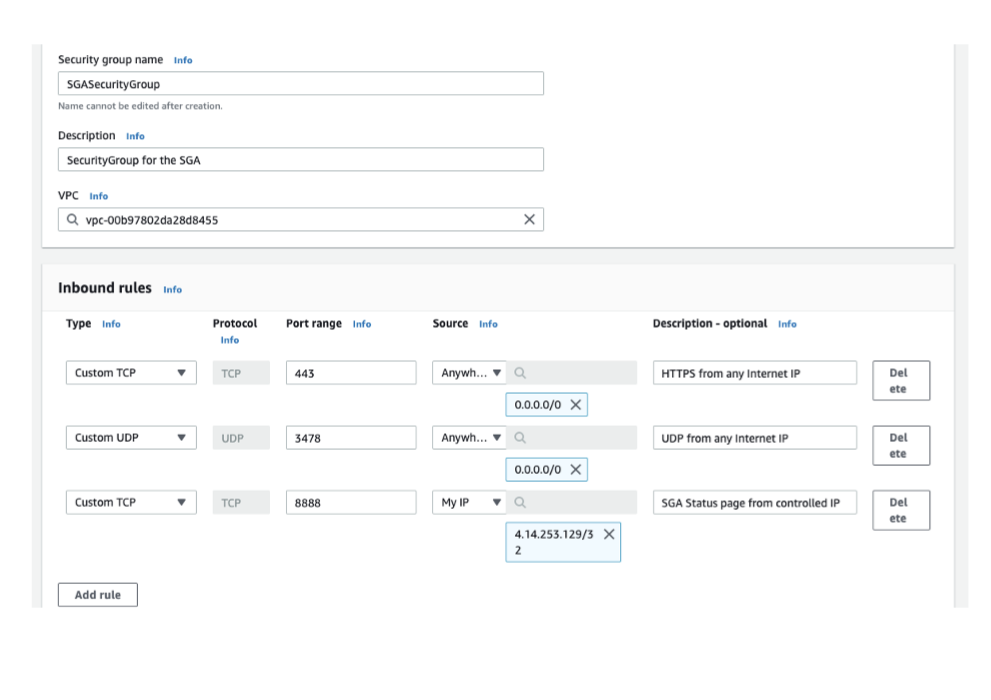
Create a Security Group: Next, administrators will want to create a security group for the SGA(s) they plan to deploy. The security group access should allow inbound connections to the SGA on udp/3478 and tcp/3478, outbound connections between udp/49152-65535 from the SGA to the Internet, and outbound connections between udp/4503-4509 from the SGA to the workload VM network.
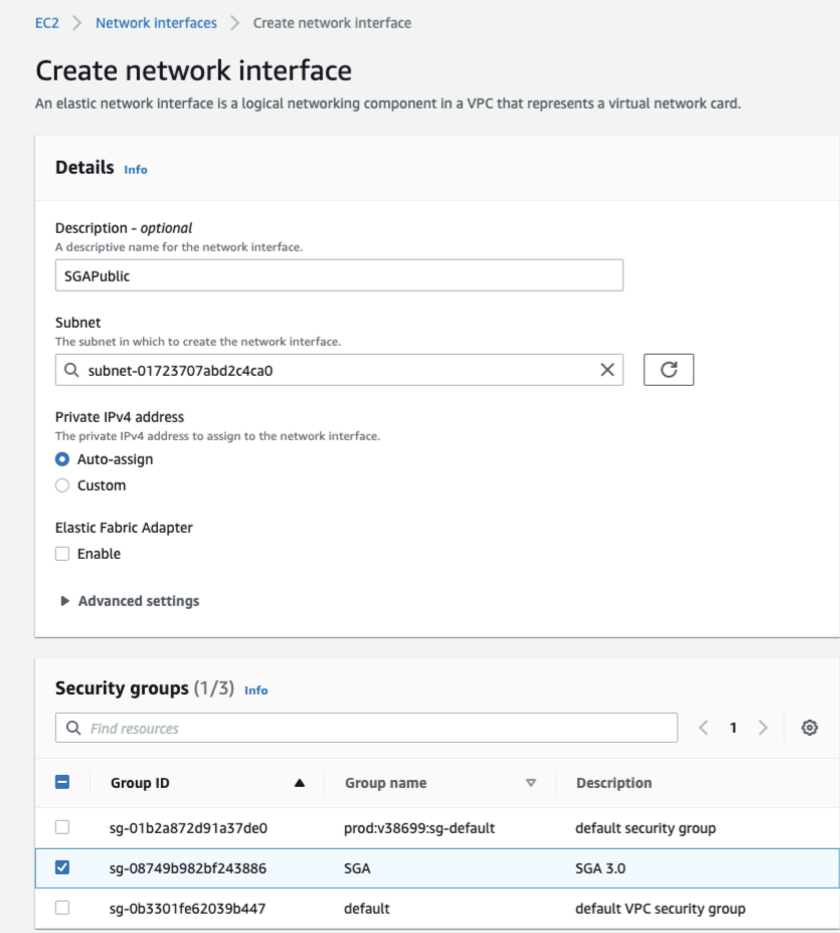
Create an Elastic Network Interface (ENI): Create an Elastic Network Interface that can be associated with the recently created EIP. The Elastic Network Interface should be placed in the proper subnet and assigned to the recently created security group.
**Important** Capture the ENI ID since it will need to be used later in the creation process.
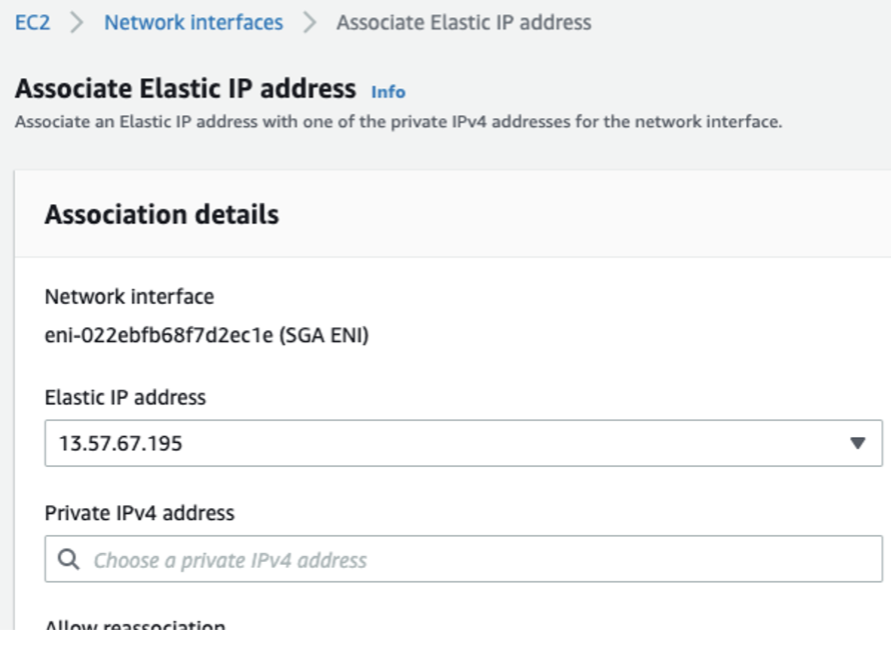
Associate the EIP with ENI: Administrators should now be able to associate the newly-created EIP with the ENI.
Launch the EC2 Instance:
From the Amazon EC2 console dashboard, click “Launch instance” and select the AMI.
Select the instance type. Frame recommends the c5.xlarge instance type. A lower vCPU and RAM configuration can be used if you plan to have more SGA Nodes in your SGA Cluster. When configuring the instance details, select the VPC and subnet.
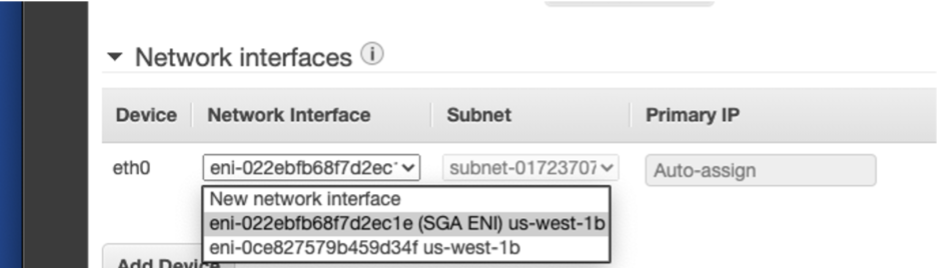
Switch to the newly-created ENI under “Network Interfaces."
4. Click "Review and Launch".
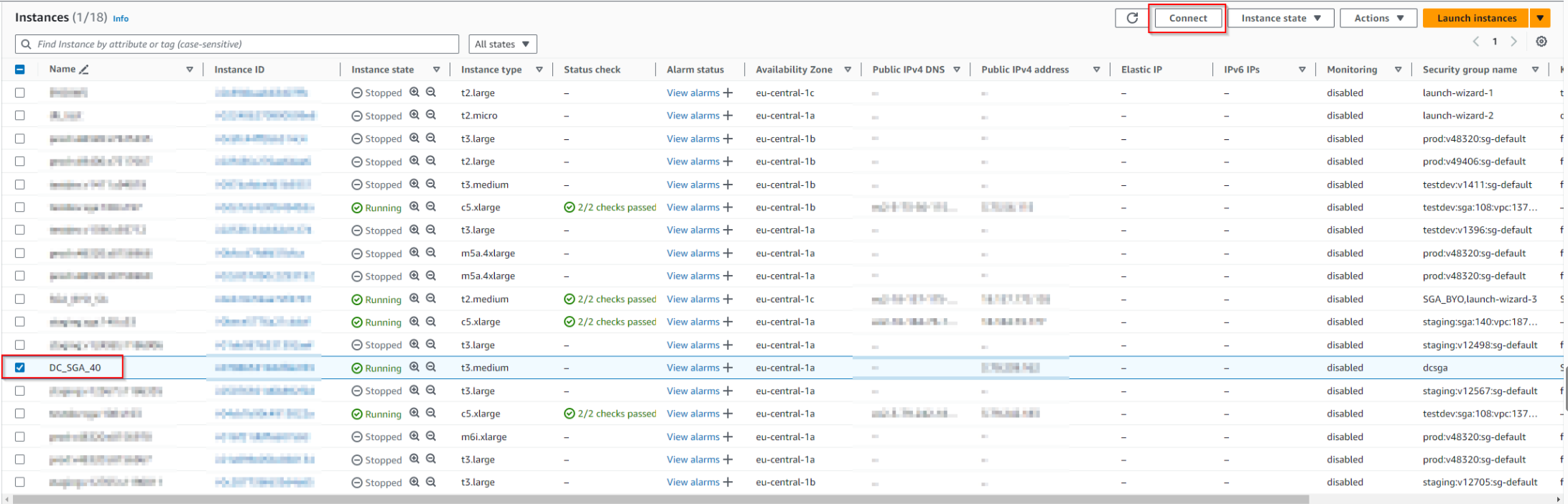
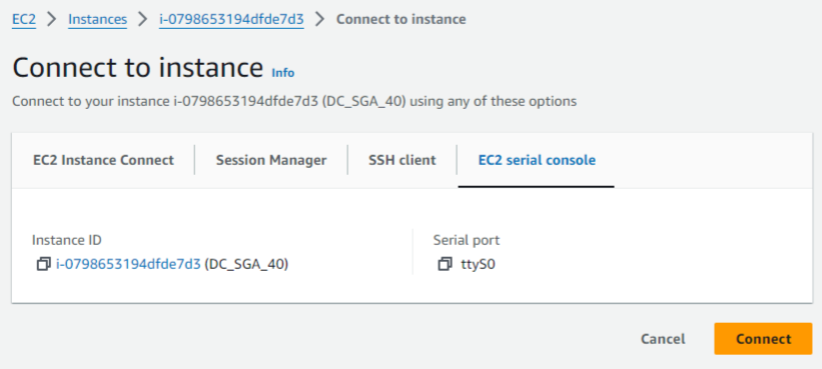
Once the SGA VM has been provisioned and is running, connect to the SGA VM by selecting the SGA VM instance in the Instances page and clicking the "Connect" button near the top of the AWS Console.
Select "EC2 serial console" tab and then "Connect".
Infrastructure Setup - AZURE
The following instructions assume you have already identified the Azure VNet and subnet that the SGA will be placed in. The subnet will need to be “public” (have a route from/to the Internet) and will need network connectivity to the private VNet and subnet(s) where the workloads are placed.
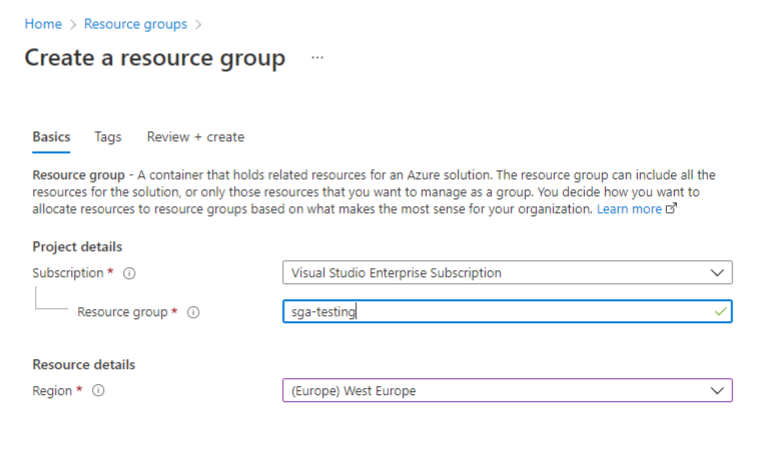
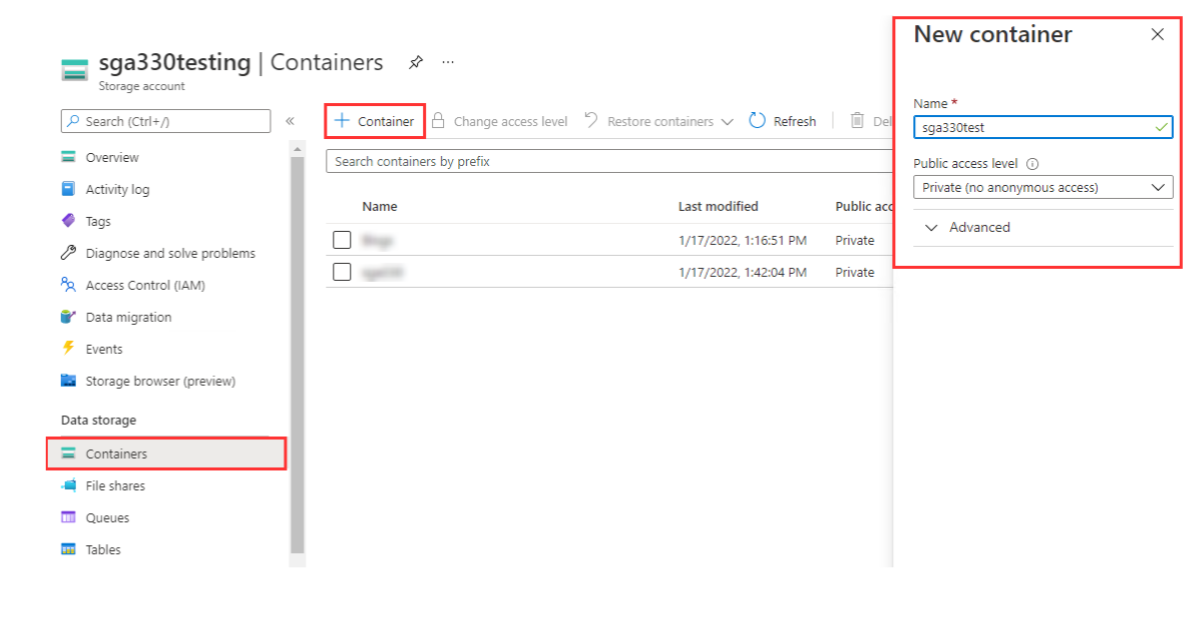
Upload the .vhd file as a page blob to Azure Storage. Ensure the “Upload .vhd files as page blobs (recommended)” box is checked.
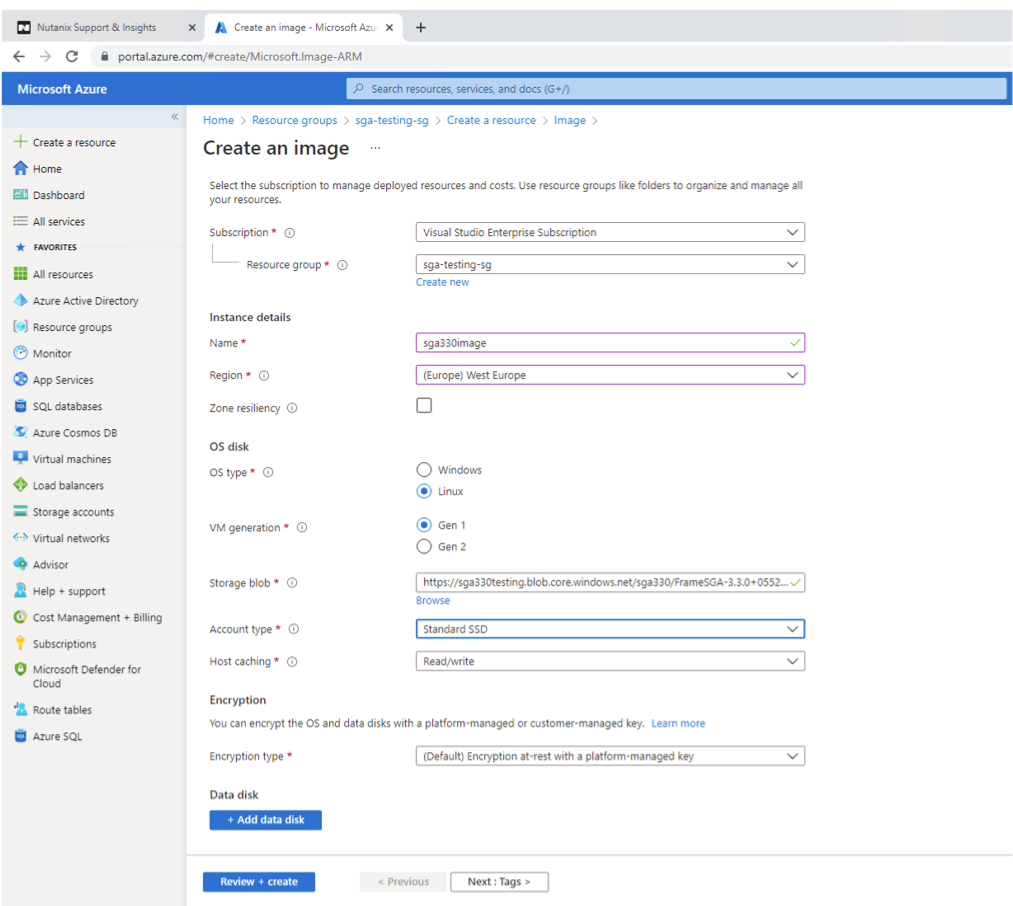
Create an image from the .vhd blob. Be sure to choose Linux for the OS type, and navigate to the previously uploaded .vhd blob for the Storage blob.
Create a VM from the image.
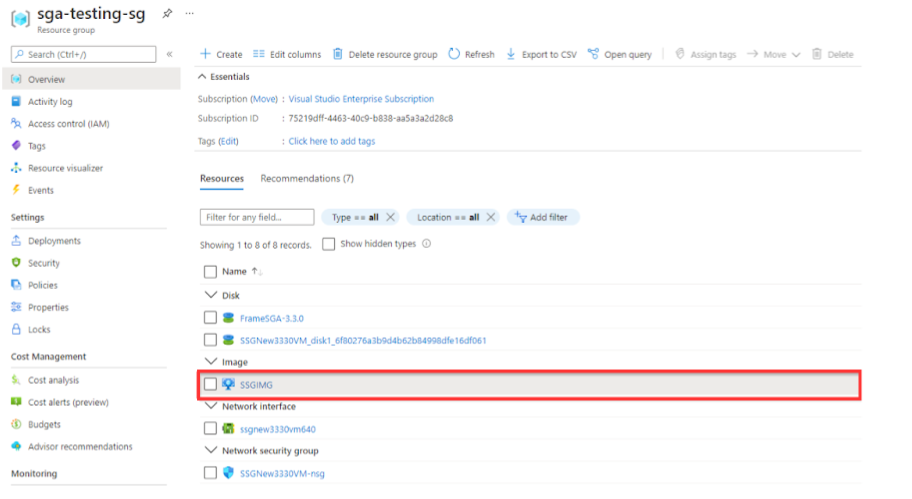
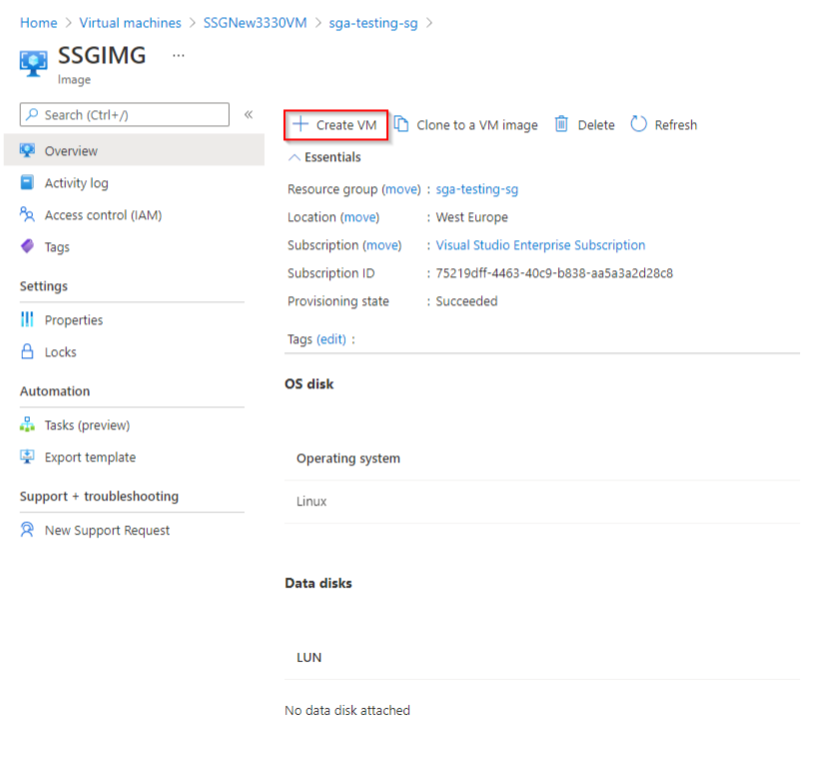
Locate your image and click on the image name.
Click the "Create VM" button in your Azure Console.
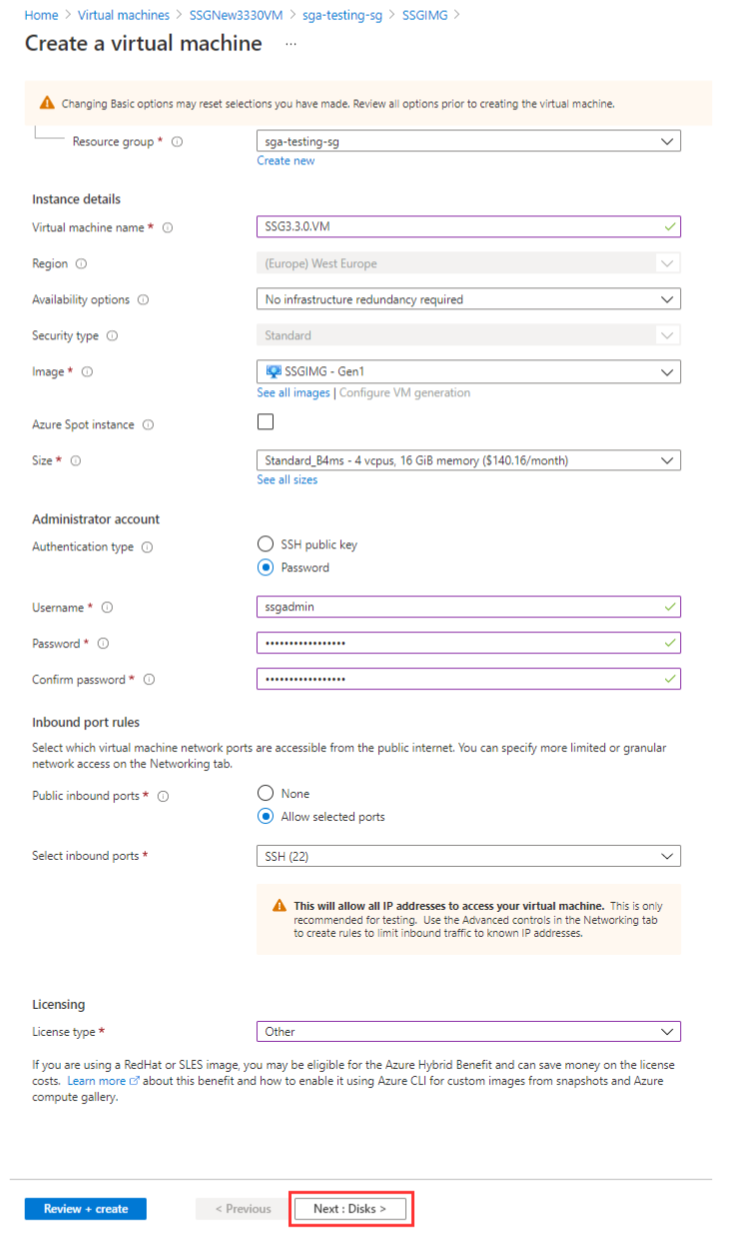
Configure your Virtual Machine by choosing a name, size (instance type), authentication model, and licensing type. Frame recommends a D4s v5 instance type. A lower vCPU and RAM configuration can be used if you plan to have more SGA Nodes in your SGA Cluster.
You should also specify an Administrator user account (SSH public key or password) so you can administer your SGA VM in the future. Click “Next:Disks>” when you're done.
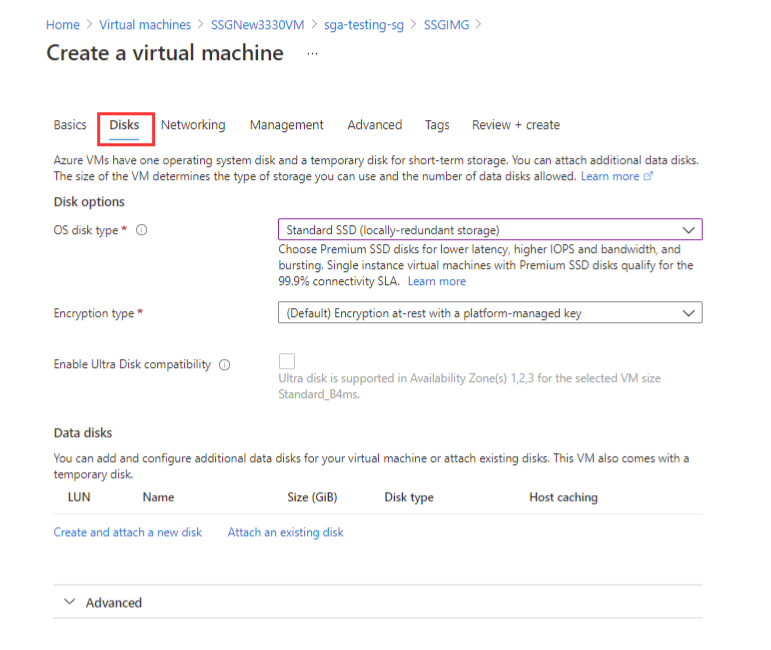
Next, configure the disks by selecting the OS disk type and encryption type.
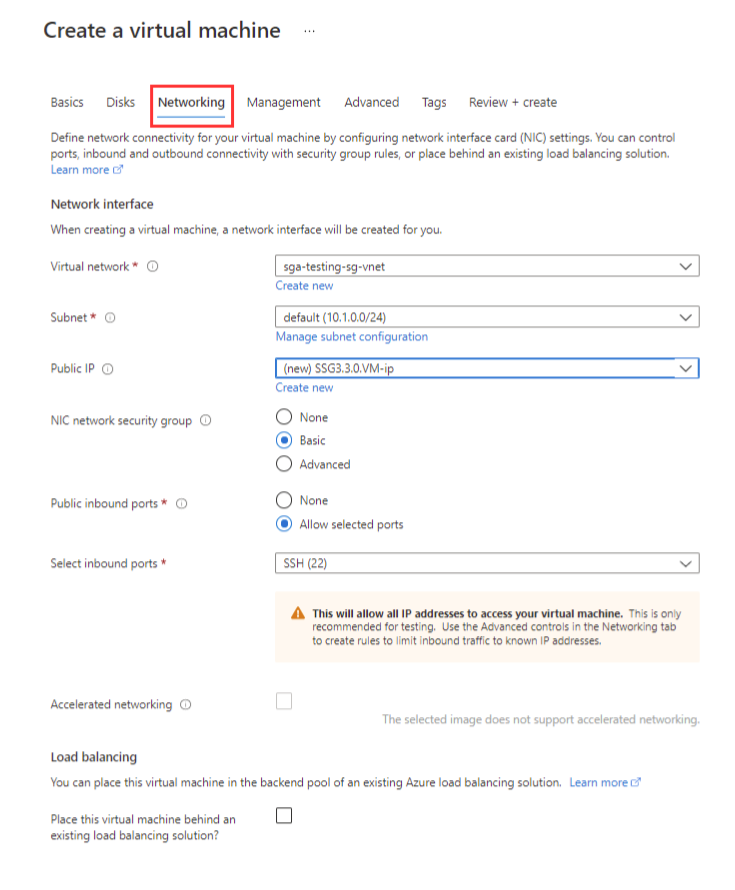
Move on to the "Networking" tab. Configure the networking for the VM. Either choose an existing VNet or create a new VNet. Ensure you are using a /18 CIDR block or smaller, and that your SGA has a public IP address (either on the SGA VM or on the firewall).
Next, configure your management options as desired in the "Management" tab.
Finish up the VM creation process by going through the rest of the wizard before the Activation Code expires.
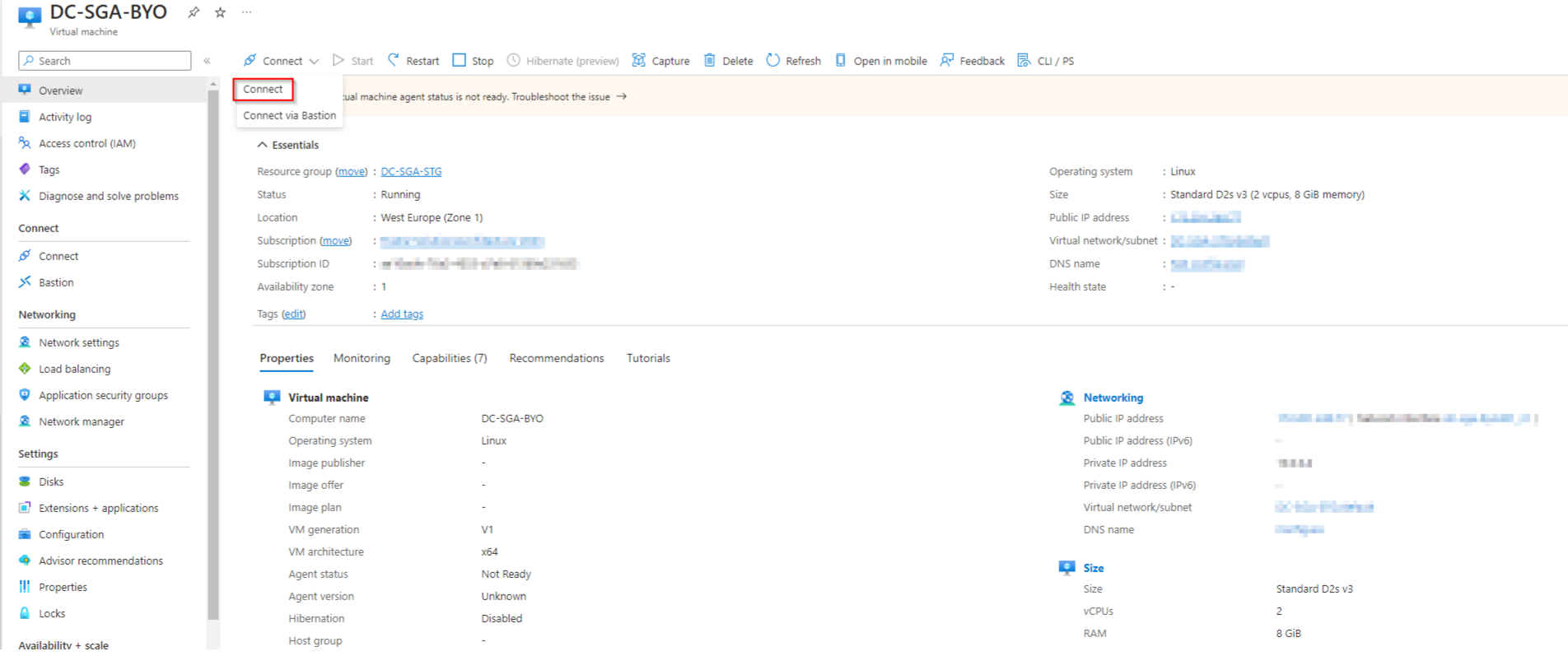
Once the SGA VM has been provisioned and is running, locate the SGA VM instance and click the "Connect" button near the top of the Azure Console.
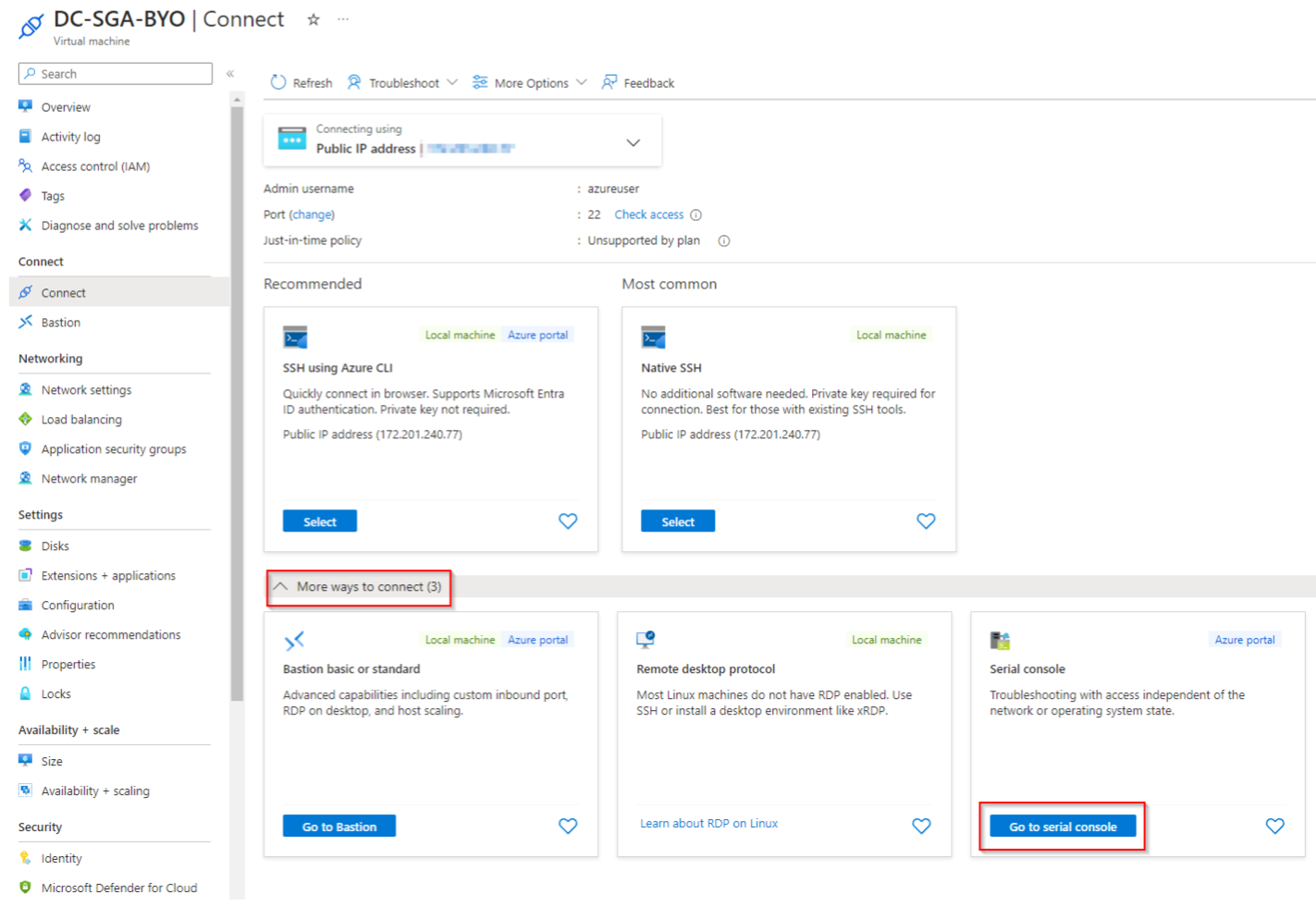
On the Connect page, select "More ways to connect" and then "Go to serial console".
Infrastructure Setup - GCP
The following instructions assume you have already identified the GCP VPC and subnet that the SGA will be placed in. The subnet will need to be “public” (have a route from/to the Internet) and will need network connectivity to the private VPC and subnet(s) where the workloads are placed.
Create a Cloud Storage bucket. The bucket should be in the region where you plan to deploy the SGA. Upload the .tar.gz file to the bucket, following Google's official instructions.
The compressed image is under 1 GB, so it may take awhile to upload.
Import the image from your bucket. This may take up to 30 minutes to complete.
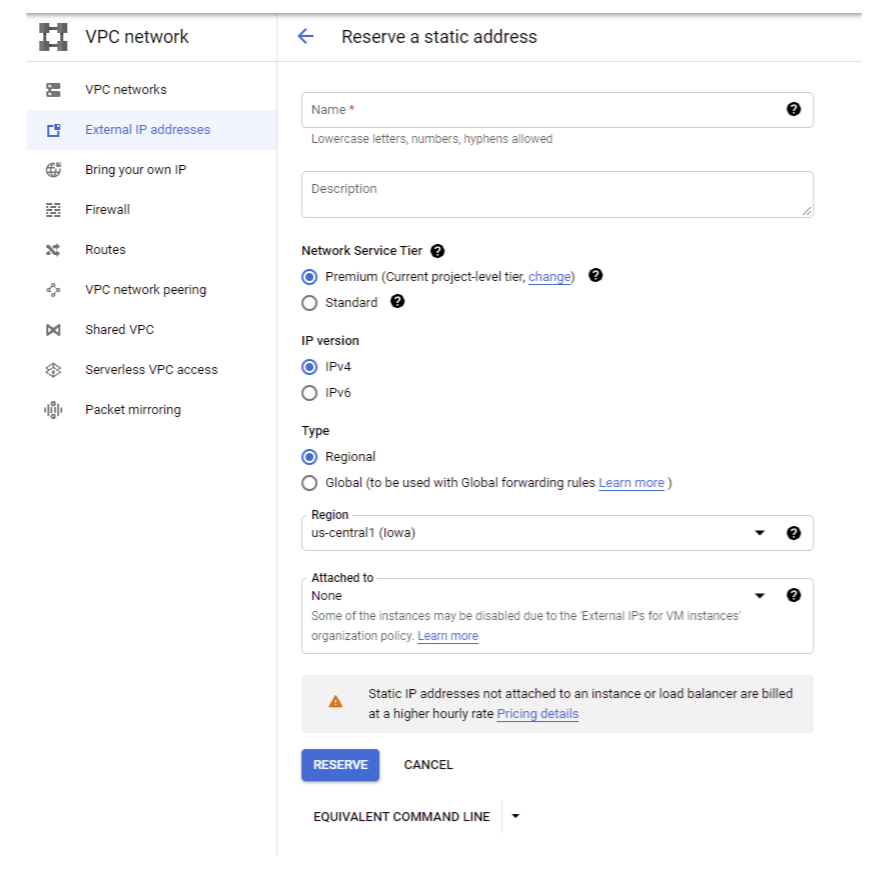
External IP: Deploying an SGA requires a Static Public IP address, which Google refers to as an “External IP address”. So first, we will need to reserve an External IP.
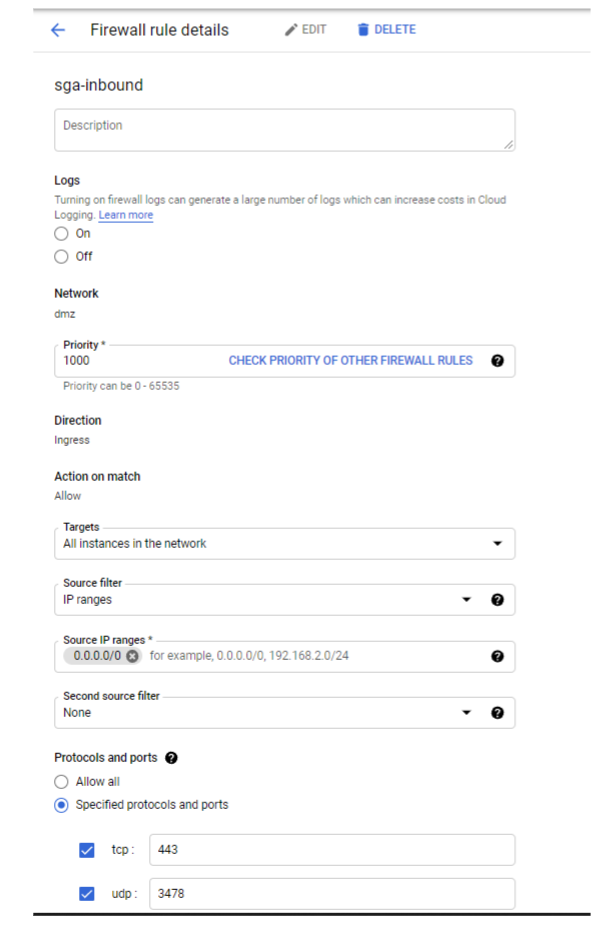
Firewall Rules: Next, we'll create a firewall rule for the SGA(s) you plan to deploy. The firewall rules should, at a minimum, allow the following:
Ingress connections for the SGA on udp/3478 and tcp/3478.
Ingress connections from SGA to the workloads on udp/4503-4509.
Create the VM Instance: Now you are ready to create the custom SGA instance. Start the official instance creation process. Frame recommends an n2-standard-4 instance type. A lower vCPU and RAM configuration can be used if you plan to have more SGA Nodes in your SGA Cluster.
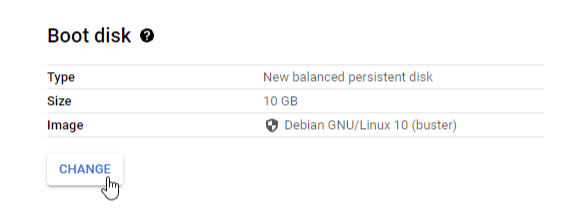
You will first want to change the boot disk for your SGA VM.
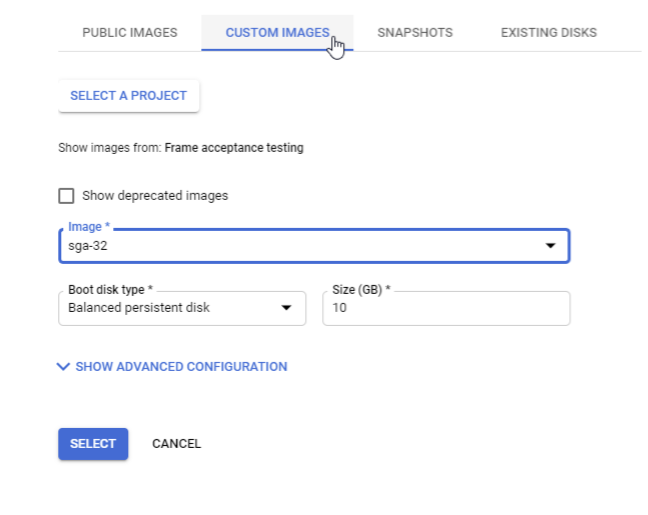
Choose your SGA custom image as the boot disk.
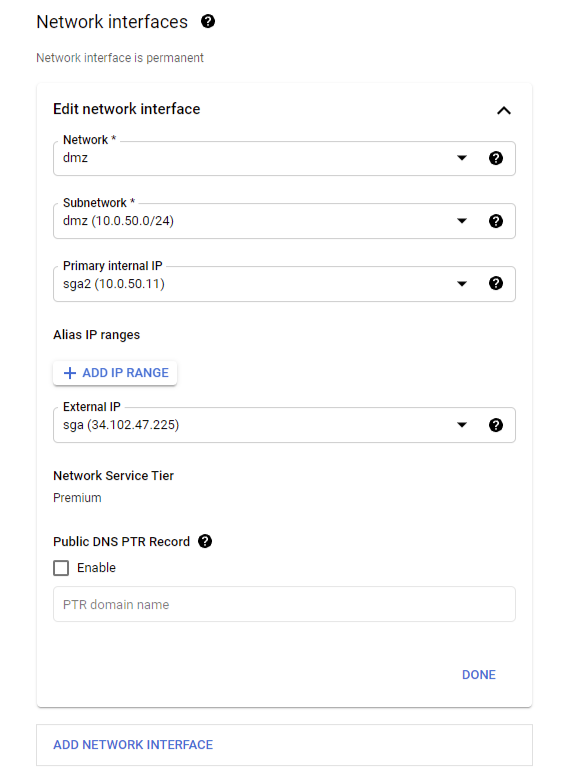
Reserve a static internal IP for your primary internal IP address, and then select your static External IP address from the drop-down menu as shown below.
Lastly, click “Create” to create the SGA VM.
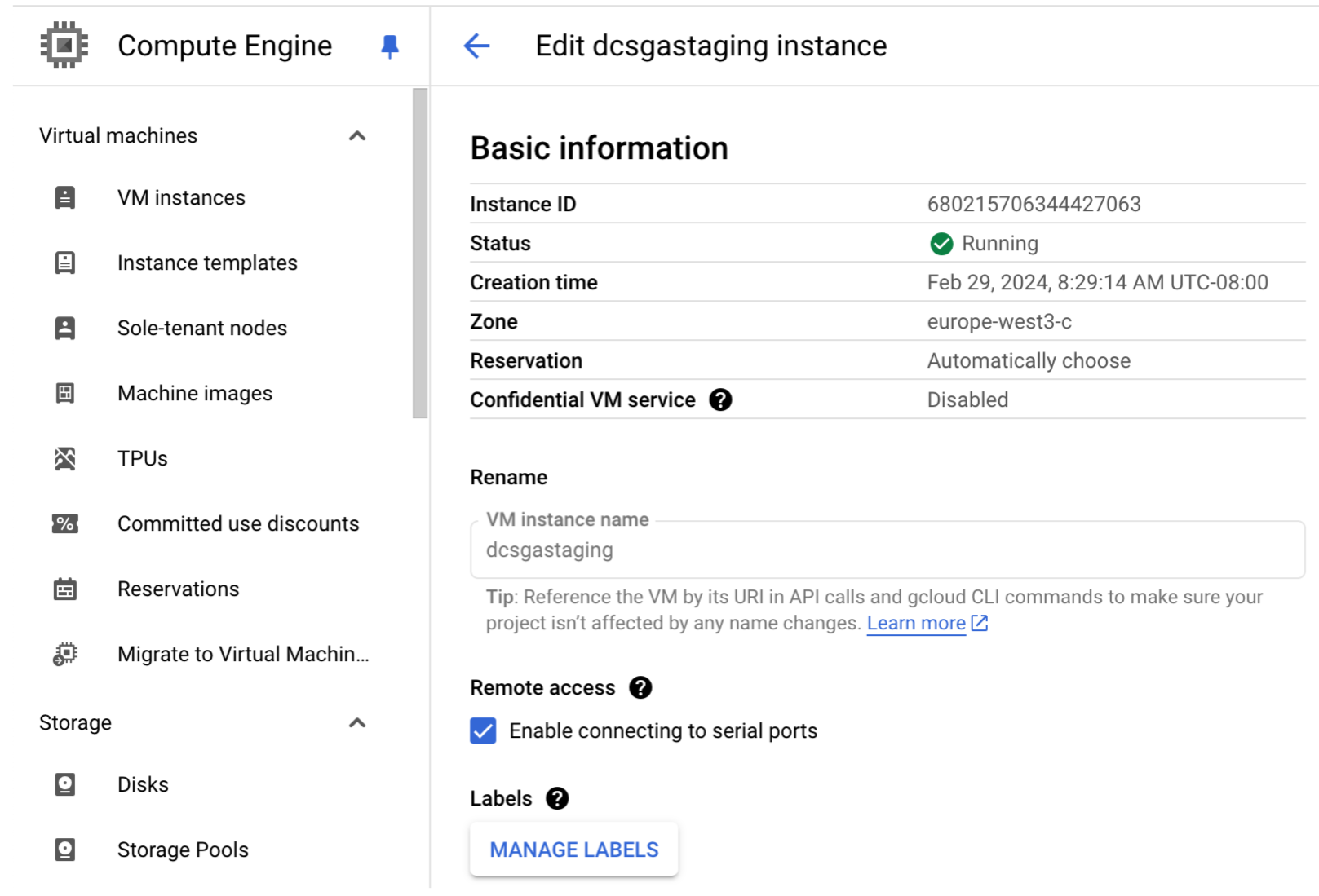
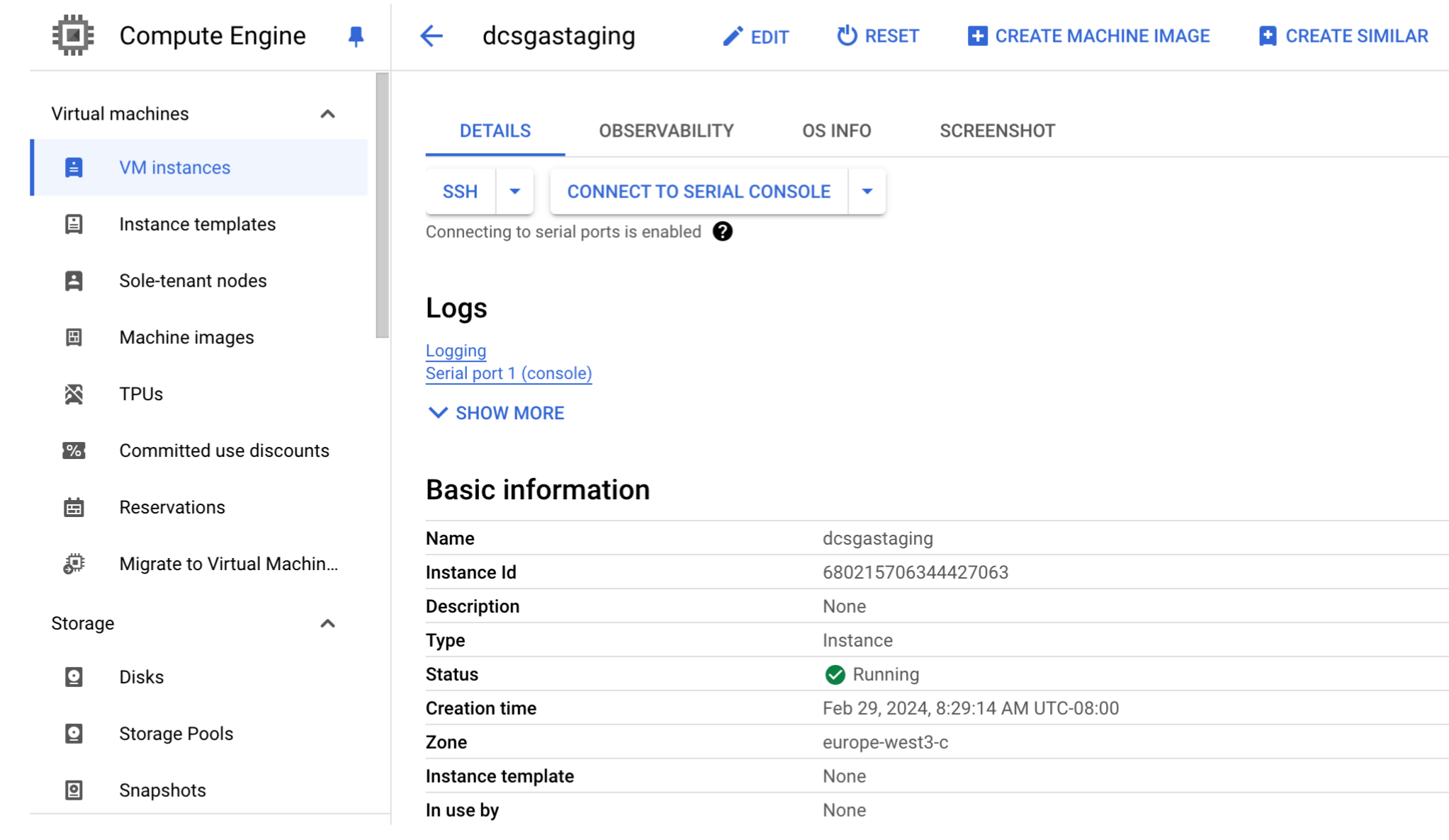
Once the SGA VM has been provisioned and is running, go to the VM instances page and locate the SGA VM instance. Verify that the SGA VM instance is enabled for you to connect to its serial console (under Remote access). Refer to Google Cloud documentation for further details.
On the SGA VM instance page, click Connect to serial console. Refer to Google Cloud documentation for further details.
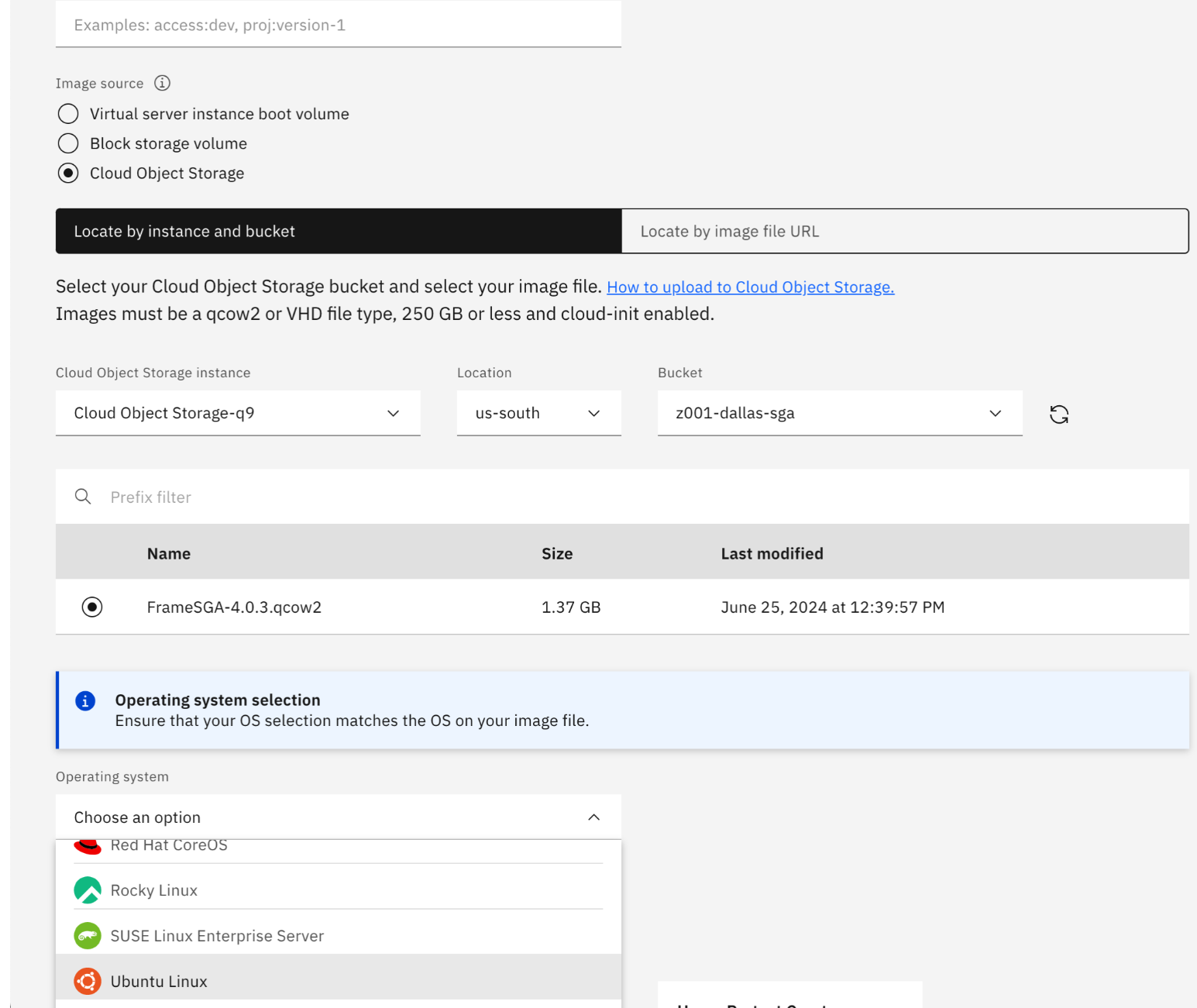
Create a Cloud Object Storage bucket. The bucket must be in the region where you plan to deploy the SGA. Upload the .qcow2 file to the bucket.
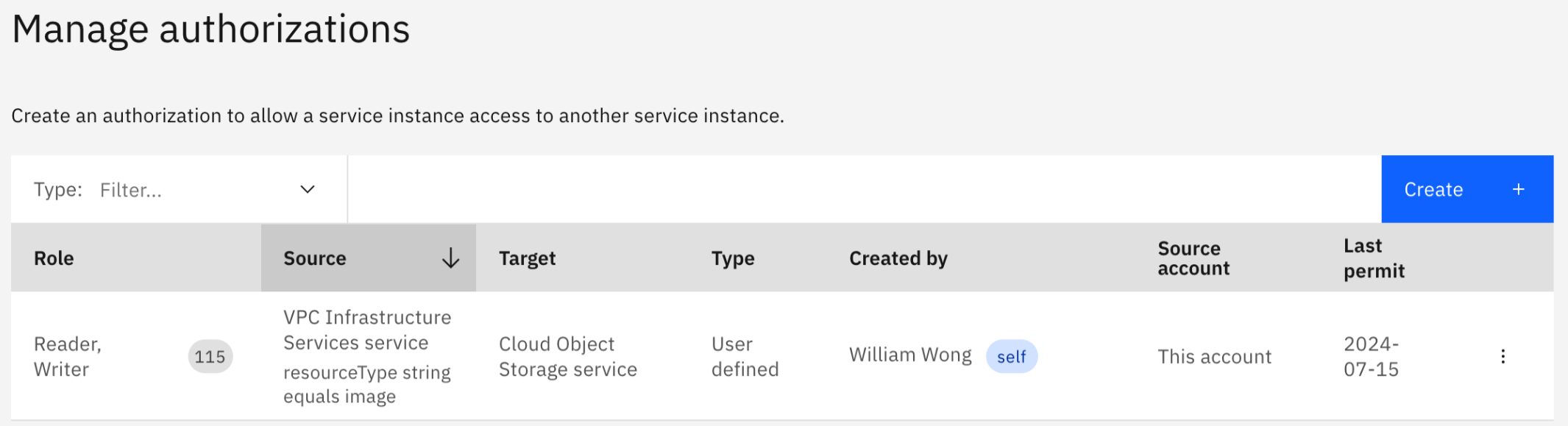
Grant the VPC Infrastructure Services service Reader and Writer access to the Cloud Object Storage service containing the .qcow2 file.
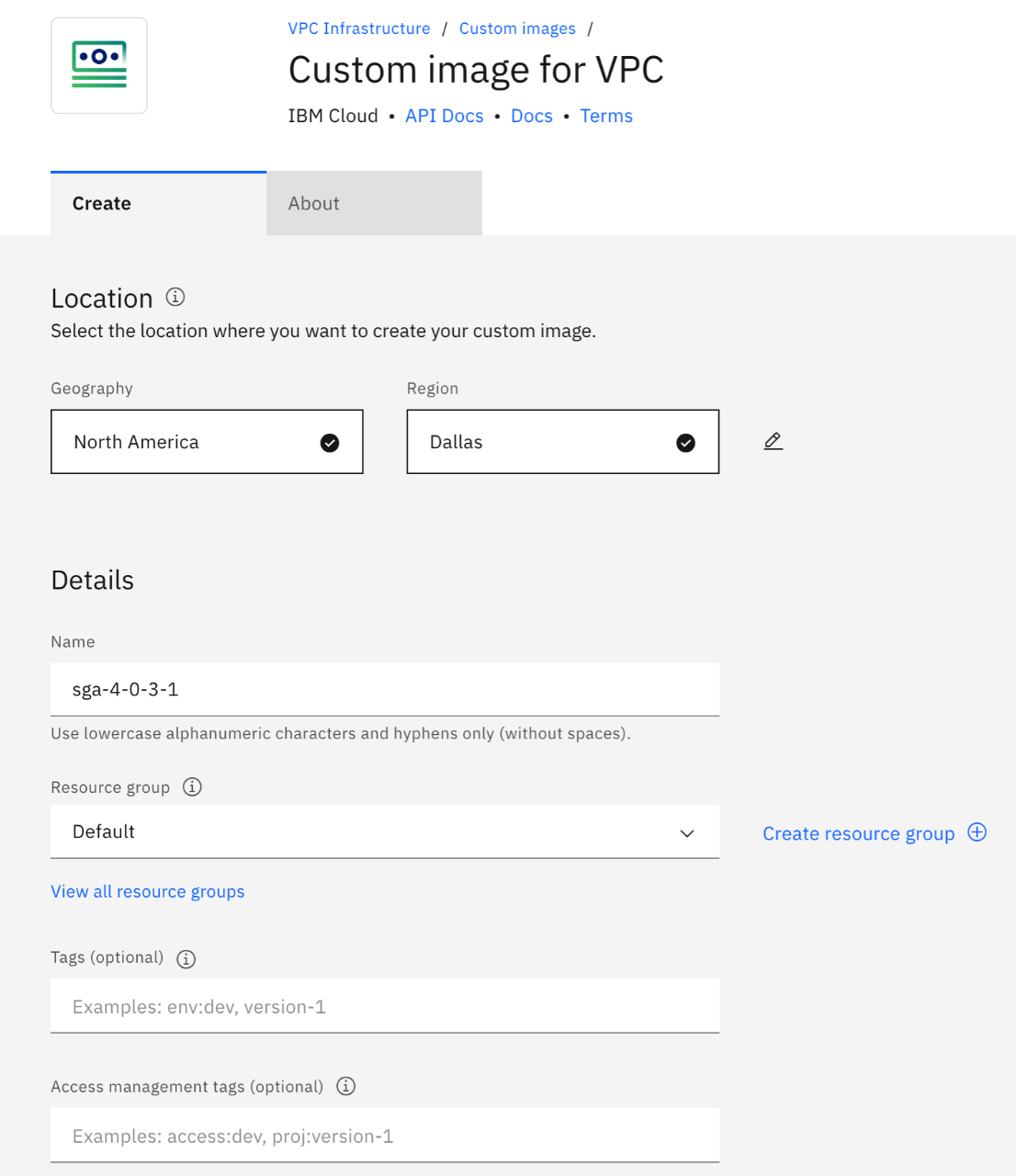
Create a custom image using the .qcow2 file in the Cloud Object Storage bucket.
a. Make sure it is in the region you plan to create a SGA VM.
b. For the image source, select `Cloud Object Storage`, the Cloud Object Storage instance, Location, and Bucket where the image file is located. Select `Ubuntu Linux` as the Operating system and `ubuntu-20-04-amd64` as the Version.
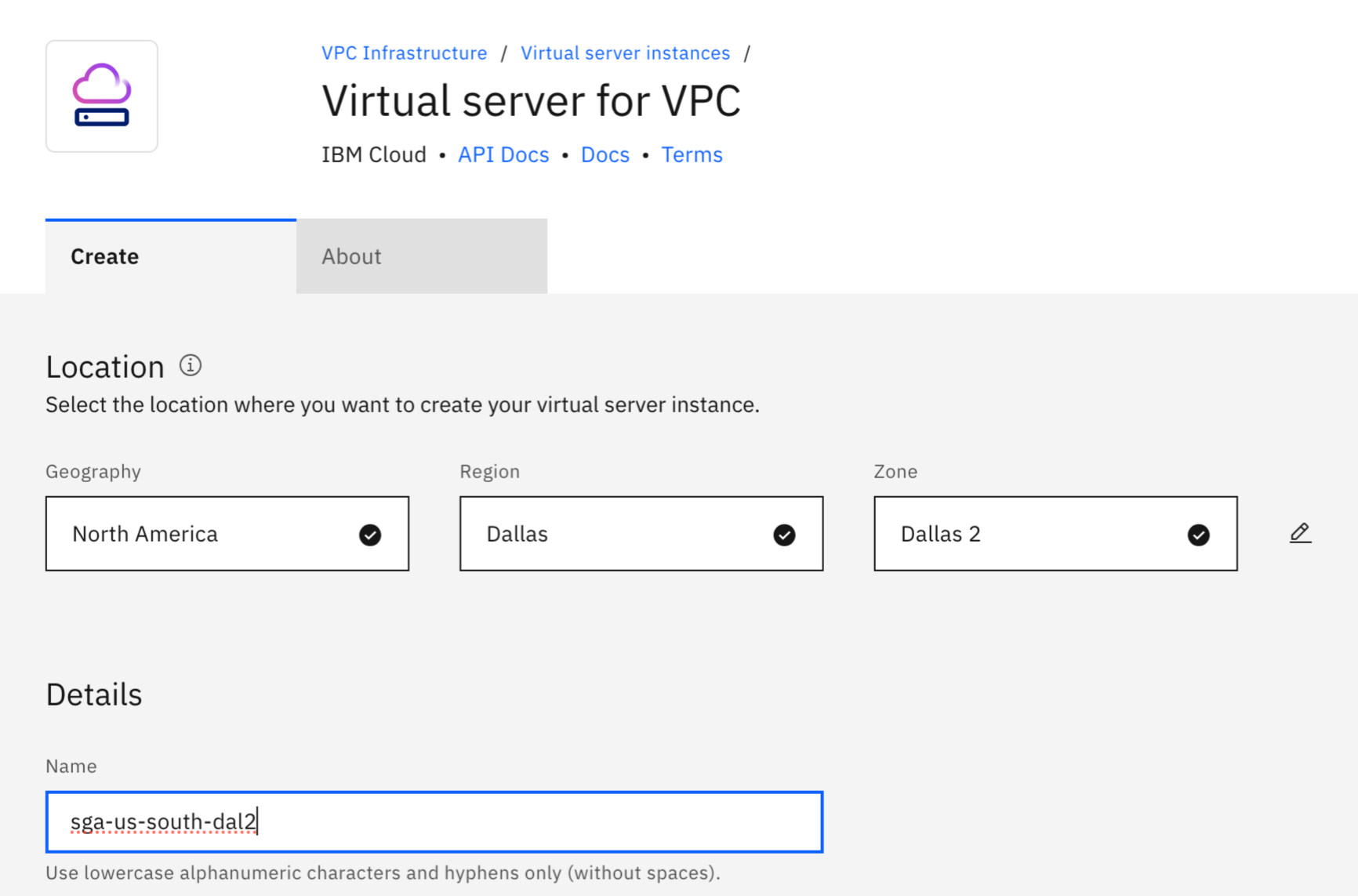
Create a virtual server instance.
a. Specify the region and zone, virtual server name.
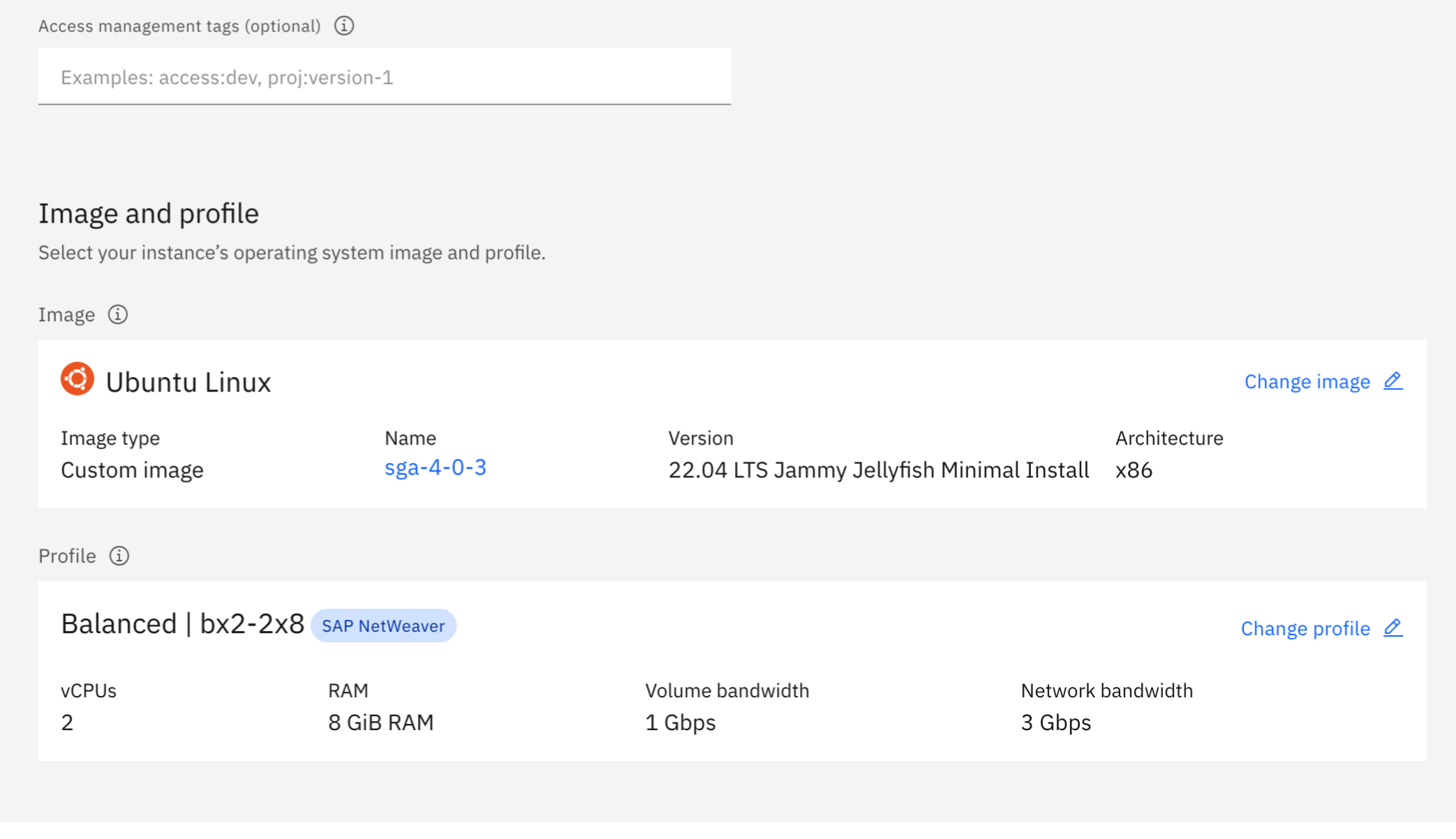
b. Specify the SGA 4 custom image and profile.
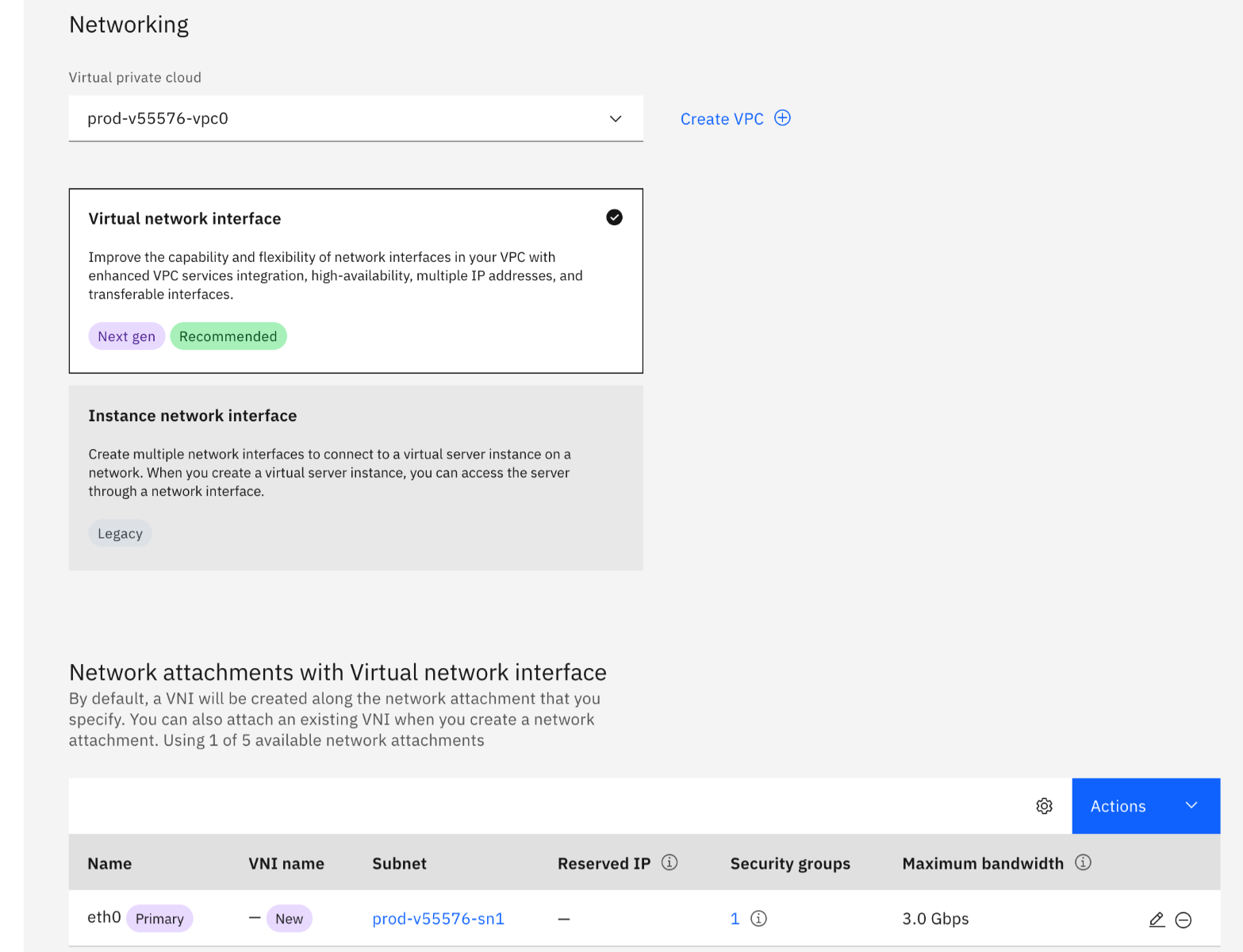
c. Specify the VPC and subnet that will contain the SGA VM.
Under Advanced options, enable the Metadata service.
Click on the Create virtual server button to create the SGA VM.
Reserve a floating IP address and bind it to the SGA VM. Record the floating IP address as you will use it when registering the SGA VM.
SGA Configuration
This step is needed for any one or more of the following configuration requirements:
Specify the SGA Activation Code if it was not specified during the creation of the SGA VM.
Configure the public IP address of the SGA VM that users will use to reach this SGA Node if the SGA VM does not have the public IP address attached to the network interface of the SGA VM.
Configure the private IP address of the network interface (relay IP address) that is used for traffic to the workloads (if there is more than one network interface attached to the SGA VM).
Configure the SGA VM's static private IP address used to accept inbound traffic from the Internet and the DNS server(s) to resolve Frame control plane FQDN.
The public IP address configured in the SGA VM will be provided to the Frame control plane during SGA registration. Frame control plane provide this public IP address to users when users request access to their Frame desktops in Frame Accounts attached to the SGA Cluster.
Once the SGA VM is powered up, connect to the serial console of the SGA VM through your infrastructure portal.
Log in to the SGA VM using the default credentials (username: sga, password: difr).
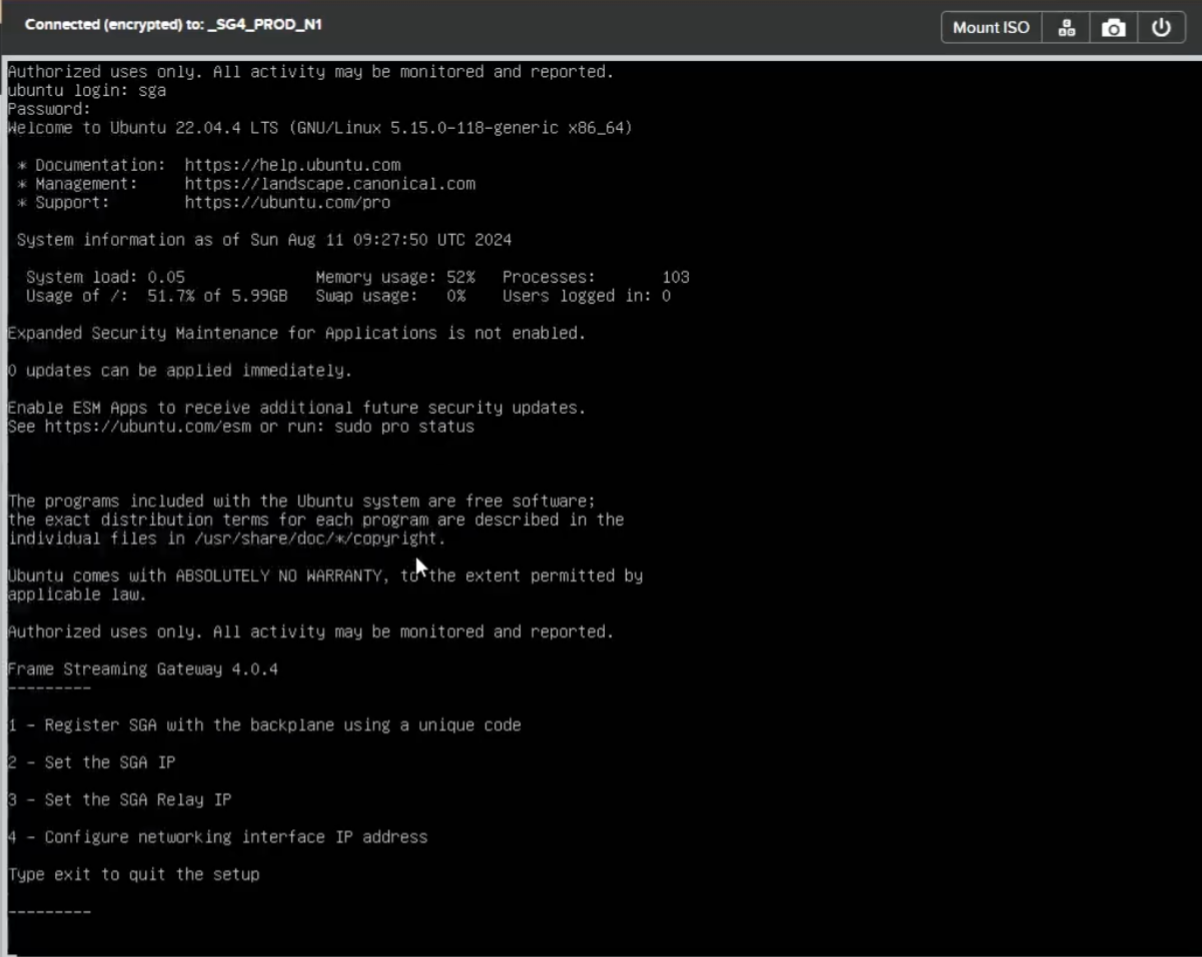
3. When you log in to the SGA VM, you'll see the following setup menu:
1 - Register SGA with the backplane using a unique code
2 - Set the SGA IP
3 - Set the SGA Relay IP
4 - Configure networking interface IP address
Type exit to quit the setup
Although the menu lists these options in numerical order, you must complete them in the following sequence below to avoid activation errors. Specifically, complete Steps 1 and 2 before entering the Activation Code in Step 3 to avoid errors.
**Step**
**Wizard Option**
**Action**
**Details / Notes**
1
Option `4`
Configure private IP, subnet, gateway, and DNS
Must be completed first. If skipped or done out of order, activation code validation will fail.
2
Option `2`
Set the public IP address for the SGA VM
This is the IP that users will connect to. Can be updated later, but only affects future sessions.
3
Option `1`
Enter the Activation Code (register with the backplane)
Only works if private and public IPs are configured. Activation code errors occur if done prematurely.
4 (if needed)
Option `3`
Set relay IP for multi-NIC configurations
Use when multiple NICs are present to forward traffic from the user to workload VMs.
When you have completed configuring the SGA and verified the SGA VM is available in Step 3: SGA Verification, be sure to log out. It may take a few minutes for the SGA VM to appear as available in the Admin Console.
Step 3: SGA Verification
Return to your Streaming Gateways page within the Frame Console. It may take a few minutes for the SGA Node to contact the Frame control plane and complete the registration process. Verify that the SGA Node is now available and has the expected public IP address.
2. Repeat the Add Node process to create additional SGA Nodes for a highly available SGA Cluster.
Delete Node
Customer administrators can delete an existing SGA 4 Node from their SGA Cluster at any time, except when:
The SGA 4 node is powered on.
There is only one SGA 4 node left and there are one or more Frame accounts attached to the SGA Cluster.
Follow the procedure as described for Automatic Deployment, Delete Node. Once the SGA Node is deleted from the Frame control plane, go to your cloud provider infrastructure console and terminate the VM (and any related network resources).
Attach Frame Account
Prerequisites
Before attaching a Frame account to an SGA cluster, there are several prerequisites:
Confirm there is no private IP address overlap between the network containing the SGA VMs and the network containing the workload VMs.
Frame account must be configured for private networking or private networking with SGA 3.5. Attaching an SGA 4 Cluster to a Frame account that is already using SGA 3.5 will configure the Frame account to use the SGA 4 Cluster. The SGA 3.5 VMs are not impacted.
If the Frame account was created using a Frame-managed network and the SGA 4 Cluster was automatically deployed, then Frame control plane will automatically peer the SGA 4 network and Frame account network together. If the Frame account was created using customer-managed networking and the SGA 4 Cluster was manually deployed, the customer must configure all networking elements to allow bidirectional traffic between the SGA 4 nodes and the Frame account workload VMs.
Procedure
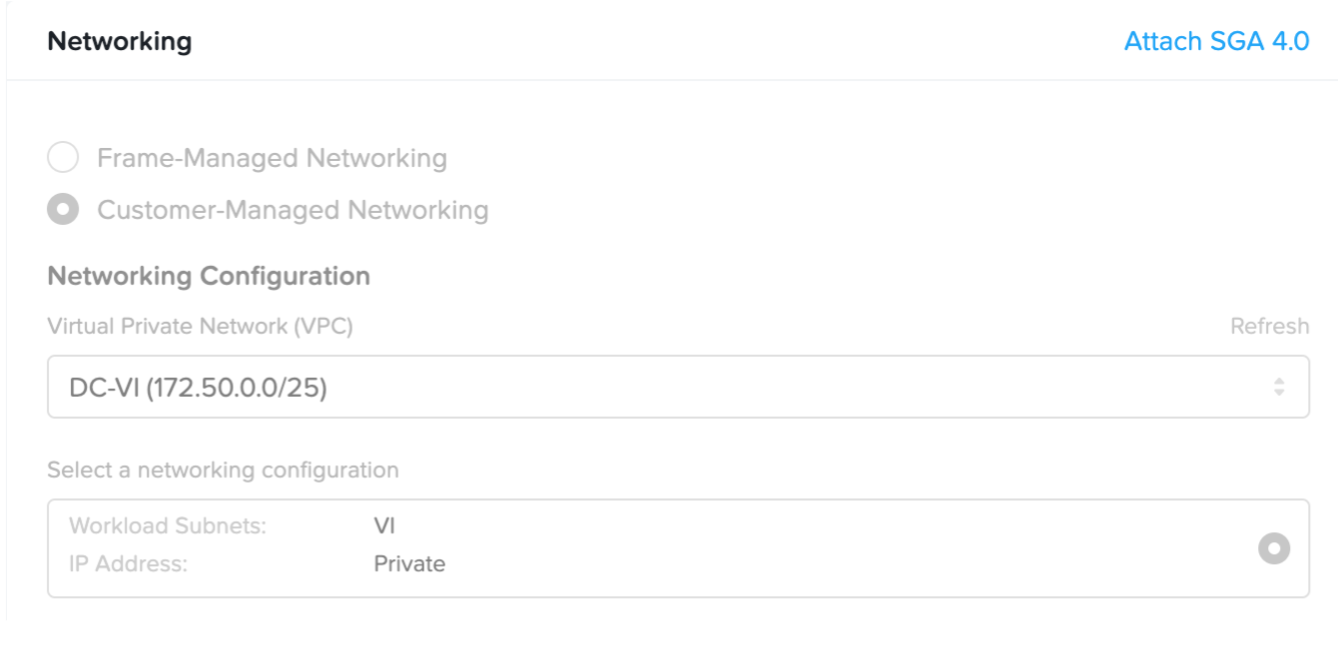
Navigate to the Settings page of the Frame Account Dashboard.
Click on the Networking tab and then Attach SGA 4.0.
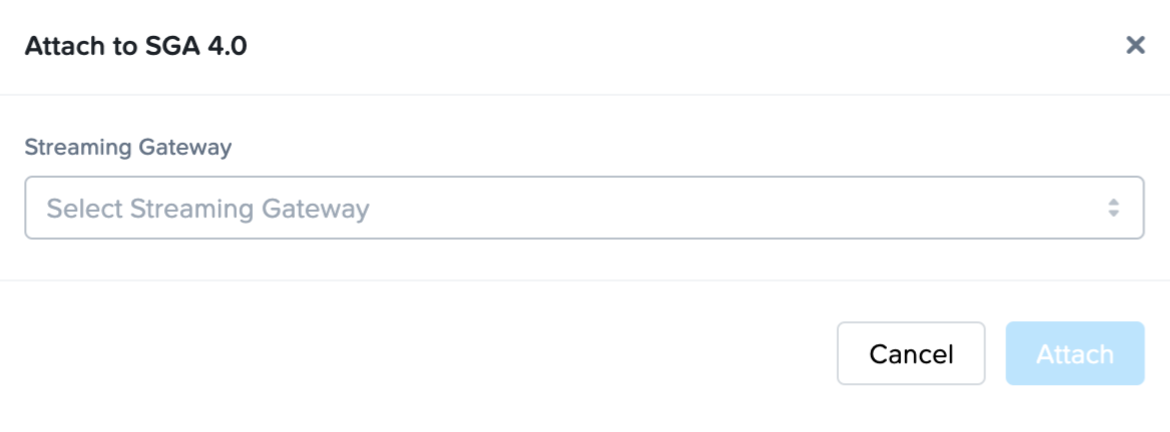
3. Specify the SGA cluster you wish to attach this Frame Account to from the list of SGA 4 clusters that have at least one available SGA 4 node will available.
4. Click **Attach** to attach Frame account to the SGA 4 Cluster.
Maintenance Mode
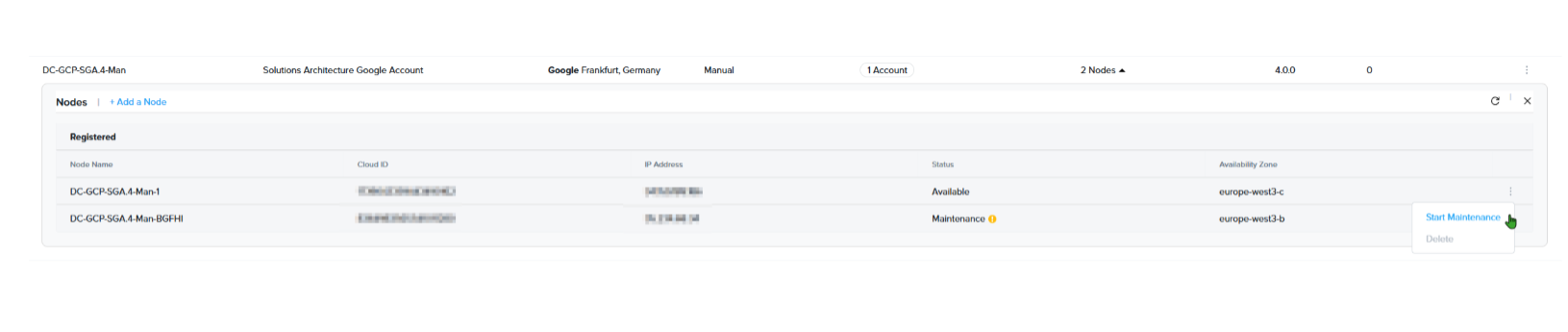
Manually-deployed SGA 4 clusters provide the option to place one or multiple nodes into Maintenance Mode. When this mode is activated, the selected SGA node enters Maintenance status, meaning it will no longer receive new session requests. Instead, incoming sessions will be forwarded to the remaining active nodes in the cluster.
Existing sessions currently hosted on nodes in Maintenance Mode will continue to run without interruption.
To enable Maintenance Mode for your manually-deployed SGA 4 cluster, simply click the kebab menu to the right of the node name and select Start Maintenance.
The status of the node will be reflected under the **Status** column in the Nodes list.
Lastly, Maintenance Mode can be stopped by again clicking on the kebab menu to the right of the desired node and selecting **End Maintenance**.
Detach Frame Account
Navigate to the Settings page of the Frame Account Dashboard.
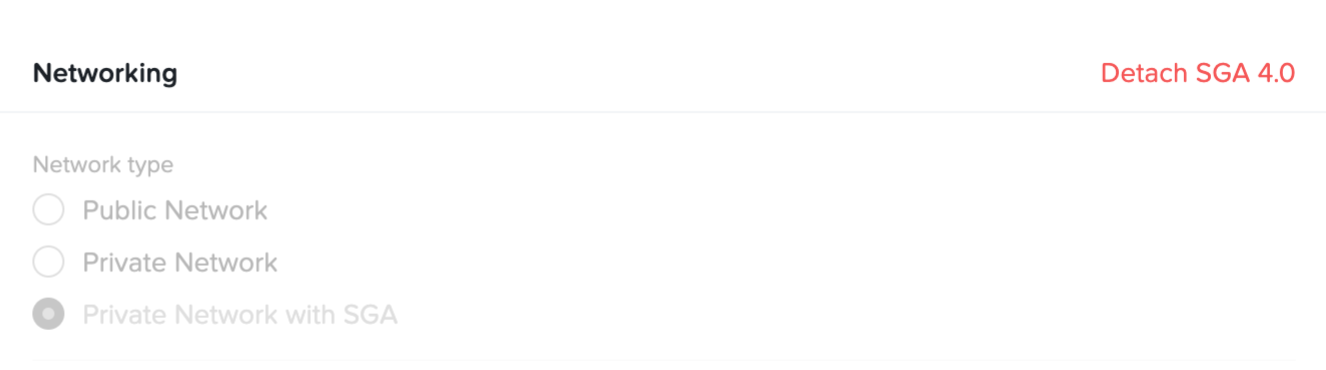
Click on the Networking tab and then Detach SGA 4.0.
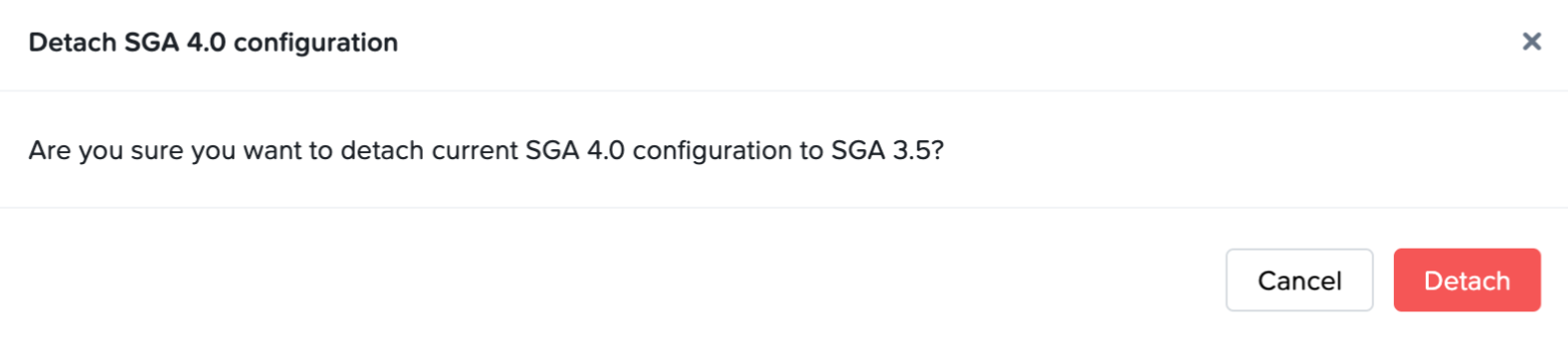
3. Click Detach to detach the Frame account from the SGA 4 Cluster.
If your Frame account was attached to SGA 3.X before the Frame account was attached to SGA 4, the SGA 4 detach operation will revert the Frame account to use SGA 3.X, as the above figure illustrates. This can be used to rollback to SGA 3.X if necessary (until SGA 3.X is end of life).
Automating Deployment of SGA Nodes
If you plan to automate SGA 4 VM deployment, prepare an SGA VM cloud configuration file (YAML file) that will be used when you provision your SGA VM by replacing <paste_activation_code_here> with the actual Activation Code value in the following template.
Verify that you have #cloud-config as the first line in your SGA VM cloud configuration file.
If you choose to specify the Activation Code in your SGA VM cloud configuration file for AHV, then make sure both SGA_CLOUD_PROVIDER and SGA_ACTIVATION_CODE environment variables are set in the configuration file. For example, in a manually deployed SGA 4 on AHV where the activation code is provided in the SGA VM Cloud Configuration file:
The YAML file contents will need to be added as a Cloud-init Custom Script (AHV), to User data (AWS, IBM), to Custom data (Azure), or as the value for the user-data metadata key (GCP) as part of the SGA VM provisioning workflow.
Manual Assignment of Static IP Address
For customers who require their SGA VM to have a static private IP address (versus a DHCP-provided private IP address), administrators can login to the SGA VM via their cloud provider's serial console and run the SGA configuration utility. Alternatively, while inside the SGA VM, they can use the following procedure to configure the static IP address of the Ubuntu VM’s network interface and the DNS servers needed to resolve Frame control plane endpoints.
After connecting into the SGA 4 VM, execute the following steps at the Ubuntu command line:
Create a netplan configuration file at /etc/netplan/99_config.yaml by executing:
sudo vi /etc/netplan/00-installer-config.yaml
with the following YAML file template, modifying the template for the static private IP address of the SGA VM and the gateway private IP address:
network:
version: 2
renderer: networkd
ethernets:
eth0:
addresses:
- 10.10.10.2/24 # Static private IP address of the SGA VM.
routes:
- to: default
via: 10.10.10.1 # Private IP address of the gateway
nameservers: # set DNS servers and search domains
search: [mydomain, otherdomain]
addresses: [10.10.10.1, 1.1.1.1]
2. Execute sudo netplan apply to set the static private IP address.
3. Execute sudo resolvectl dns ens3 8.8.8.8 8.8.4.4 1.1.1.1 to configure the DNS servers that will resolve domain names
4. Verify that your DNS configuration is configured as your network requires by running sudo resolvectl
Monitoring
You can monitor the availability of the SGA Nodes and Clusters in the Streaming Gateways page at the Customer or Organization entity levels. To monitor the CPU, memory, and bandwidth utilization of your SGA VMs, use the monitoring functionality provided by your infrastructure provider.
Adjust Your SGA VM Size
After you have created your SGA VM, you can adjust the size of the VM through the console of your infrastructure hosting your SGA VM. We do recommend the following procedure in your infrastructure console:
Power off your SGA VM.
Change the instance type to a smaller (or larger) instance type.
Power on your SGA VM.
Since users will not be able to reach the workload VMs behind your SGA VM during the time that your SGA VM is unavailable, you will need to schedule a maintenance window to perform this operation if you only have one SGA VM or have more than one SGA VM in a high-availablity configuration.
Troubleshooting
Networking
You can verify that the SGA VM can reach the Frame control plane by using the following command within the SGA VM OS:
curl -v 'https://cch.console.nutanix.com/sga/verify' -H "Content-Type: application/json" -X POST -d '{"code":"dummy_code"}'
This is useful if you encounter issues registering the SGA VM or if the SGA VM status is Unavailable in the Frame Console.
Services
If the SGA VM is not available in Frame Console, check the status of the SGA service.
sudo systemctl status sga.service - sga elixir app status
If the SGA node is not accepting FRP8 sessions, check the status of the coturn service.
sudo systemctl status coturn.service - coturn status
The logs for these two services can be viewed by executing one of the following commands:
sudo journalctl -fu coturn.service - follow the logs of coturn
sudo journalctl -fu sga.service - follow the logs of sga elixir app