Windows
Considerations
- OEM versions of Microsoft Windows Operating Systems may contain third-party software which can potentially cause issues and undesired side effects when used in a hypervisor. Frame strongly recommends the use of a Microsoft-provided OS image (instead of an OEM version from a third party) or an OS image provided by the public cloud provide, if you are using a public cloud.
- Before registering the template image VM to Frame, Windows sysprep will need to be run to generalize the template image VM. The sysprep step will remove your template image VM from your domain. You will need to configure your Frame account for Windows Domain Join if you wish to have domain-joined workload VMs for your users.
- During image generalization with sysprep, there are certain conditions where Microsoft Store apps (AppX packages) could cause sysprep to fail. Please reference this Microsoft article for additional details.
- If you require HTTPS traffic from your workload VMs to pass through an authenticated (or unauthenticated) proxy server to reach the Internet, you will need to:
- Configure the Frame Guest Agent proxy settings. Frame Guest Agent supports authenticated (username/password) and unauthenticated proxy servers, provided they can handle HTTPS and Secure WebSocket traffic. Refer to our FGA Proxy Server documentation page for further details.
- Configure your Windows proxy server settings for your end user applications.
- Create a local Windows user account with local administrator privileges, if one does not exist in your template image. Do not use the reserved Frame local Windows users (added to local Windows Administrators group) and .
- Enable Microsoft RDP in your template image before installing the Frame Guest Agent to access the template image VM. Verify you can access your template image using RDP with your local Windows administrator user.
- Verify that your template image does not have a Windows recovery partition using Windows Disk Management. A recovery partition within the template image will prevent Frame from successfully increasing the disk size of the Sandbox, Utility server(s), and persistent desktop VMs. Remove the recovery partition using Windows .
Note: Image Optimization
- Third-party image optimizers can be used to optimize the efficient operation of the Windows image during Sandbox configuration.
- Some examples of third-party image optimizers that can be used with Frame are Citrix Optimizer, Best Practice Analyzer, VMware Windows OS Optimization Tool, or the community-supported WOSTT.
- These third-party tools are used with no warranty or support.
Dizzion strongly recommends you create a backup of your Sandbox before running any of these optimizer tools.
Minimum Instance Type Configuration
End user experience is highly dependent on the underlying VM resources in combination with the demands of the operating system and user applications. For Windows OS, we recommend a minimum instance type configuration of:
- 2 vCPU
- 4 GB memory
- 45 GB disk
You may need to increase the vCPU count, memory, and disk space based on your use case(s), operating system, applications, and user experience expectations.
Supported Windows versions
Frame supports the following Windows operating system versions:
- Windows 10, 1909 and higher
- Windows 11, 21H2 and higher
- Windows Server 2019, 1809 and higher
- Windows Server 2022, Windows Server 2025
Prepare your Windows Template Image
Important: GPU Drivers
If you plan to use AMD or NVIDIA GPU-backed instance types, only use the Frame-verified drivers listed below. Frame cannot offer support for any other driver version or combinations. The following drivers have been validated:
Driver Version Details
AHV
- NVIDIA driver version:
527.41
AWS
- NVIDIA driver version:
513.46 - AMD driver version:
20.10.25.04
{" "}
Azure
- NVIDIA driver version:{" "}
512.78 - AMD driver version:{" "}
21Q2-1
GCP
- NVIDIA driver version:
513.46
Register Template Image
Once you have successfully created and tagged your template image(s) in your infrastructure, you will register your template image.
Frame Sysprep Helper Tool
The Frame Sysprep Helper Tool is designed to simplify the Microsoft Sysprep process by parsing errors reported by sysprep and immediately repairing them when possible. Sysprep is executed:
- When a Windows template image is prepared.
- Each time an administrator publishes a Sandbox in a domain-joined Frame account.
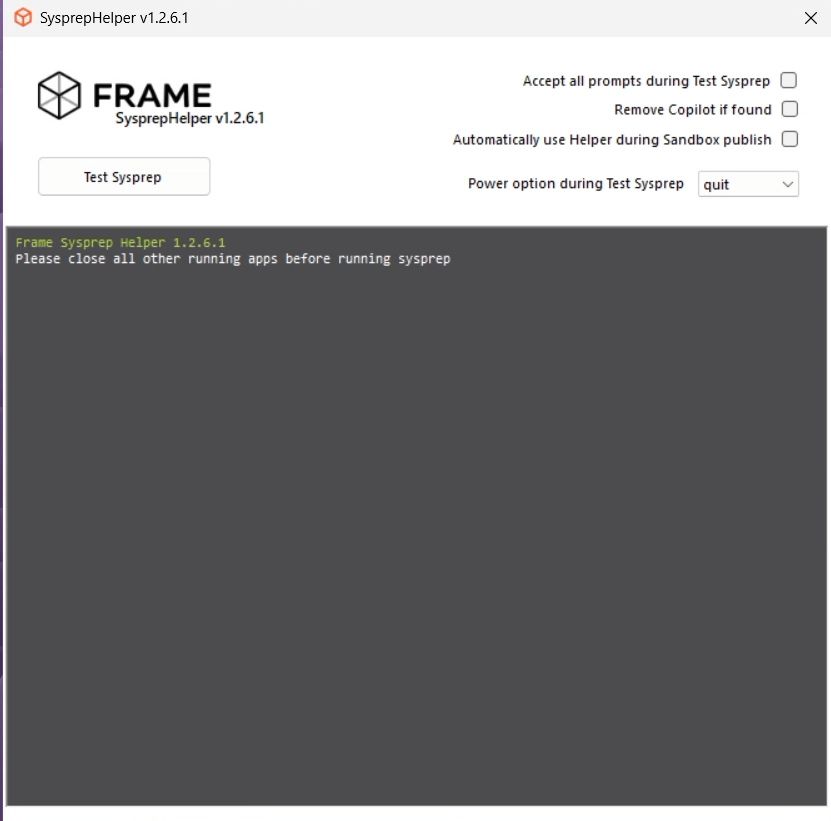
Frame Sysprep Helper can be used in two ways:
-
As a desktop application for Sysprep testing.
-
As a console app, used in scenarios where administrators want to automate sysprep error-fixing during account publishing.
If you start the Sysprep Helper Tool as a desktop application on your Sandbox and Sysprep succeeds, you must reboot your instance.
Using Sysprep Helper Tool
The Sysprep Helper Tool is included as part of Frame Tools. The executable is located in . The tool can be used instead of Microsoft-provided Sysprep.exe when attempting to automatically resolve issues during Sysprep execution.
To use the Frame Sysprep Helper Tool when publishing a DJI-enabled Frame account, add default Sysprep type key in the Windows system registry.
Key AdvancedSysprep
- for standard Sysprep
- for Sysprep using Sysprep Helper Tool
You can also enable/disable this setting by using the checkbox in the Sysprep Helper UI.
If the registry entry is missing or the value is , generalization during publish will run the standard Sysprep process.
Publishing Process
Sysprep is executed during a publish of persistent desktops (in non-domain-joined and domain-joined Frame accounts) and non-persistent domain-joined Frame accounts. The following PowerShell script is executed:
Sysprep script will perform various cleanup tasks and then execute a final generalization task: Sysprep.exe with appropriate arguments.
The workflow:
- Retrieves OS information
- Checks activation status
- Checks antivirus status
- Removes existing user profiles
Logging
Frame Sysprep Helper logs can be found in: C:\ProgramData\Nutanix\Frame\Logs\Sysprep-helper.txt