**IMPORTANT NOTE:** Enabling the Managed Updates feature for non-persistent Dizzion DaaS accounts requires creating additional VM(s), so please be aware of this before enabling the feature.
### Step 1 Go to the **Updates (EA)** page and click **Enable Managed Updates**. [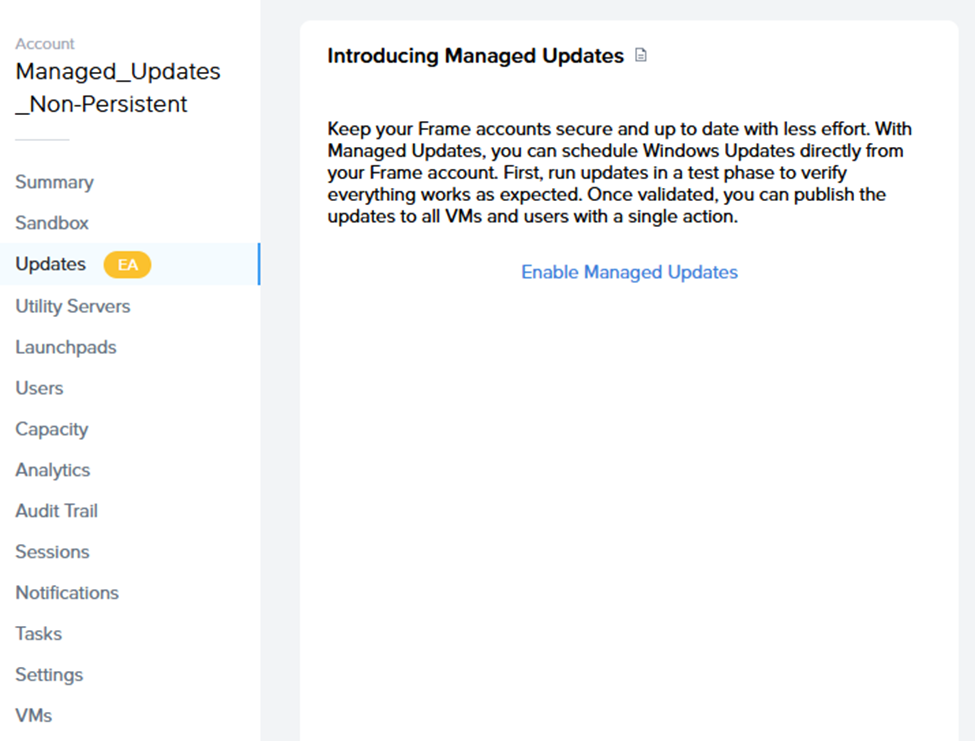](https://docs.difr.com/uploads/images/gallery/2025-10/image-1760698200551.png)**Note:** Managed Updates are per-account settings.
### Step 2 Ensure all requirements are set in the **Updates (EA)** page: [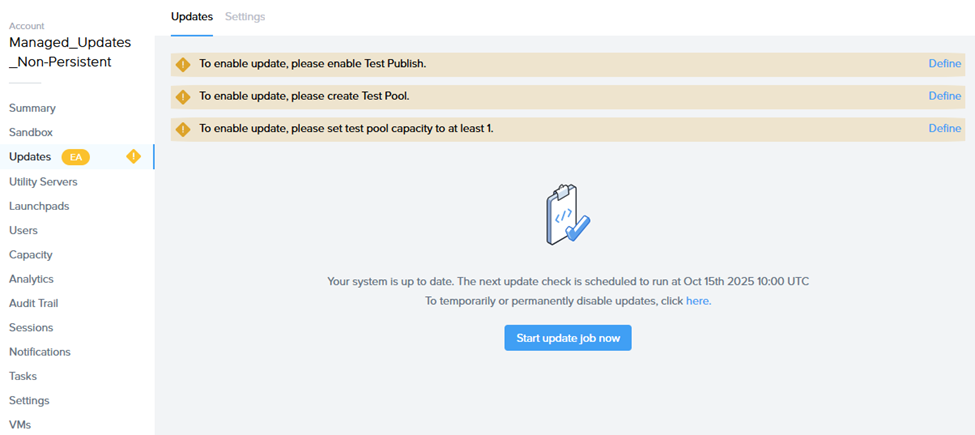](https://docs.difr.com/uploads/images/gallery/2025-10/image-1760698252780.png) - Enable **Test Publish**. - Create a **Test Pool**. - Set the Test Pool’s capacity to at least **1**. ### Step 3 Configure **Update Settings**: ### Schedule maintenance time As this feature covers only Windows Updates released on Microsoft Patch Tuesday, please make sure to set the correct time and date when the update tasks will execute.**IMPORTANT:** While update tasks are running, no actions can be performed on the Sandbox (publishing, power on, start session, etc.).
### User Acceptance Window **Logic:** Once updates are installed, Frame automatically publishes those changes to the **Test Pool** (hence the requirement for Test Publish and Test Pool setup). This provides administrators with a **buffer of up to 3 weeks** to log in to a VM from the Test Pool, verify functionality, and either: - **a)** Accept the test manually in the **Updates** page, or - **b)** Wait for the **User Acceptance Window** to expire — after which Frame automatically publishes the changes to Production Pool(s).**Note:** Define this process internally.
### Emails for VM Update Notifications – set the email address to receive update process notifications. [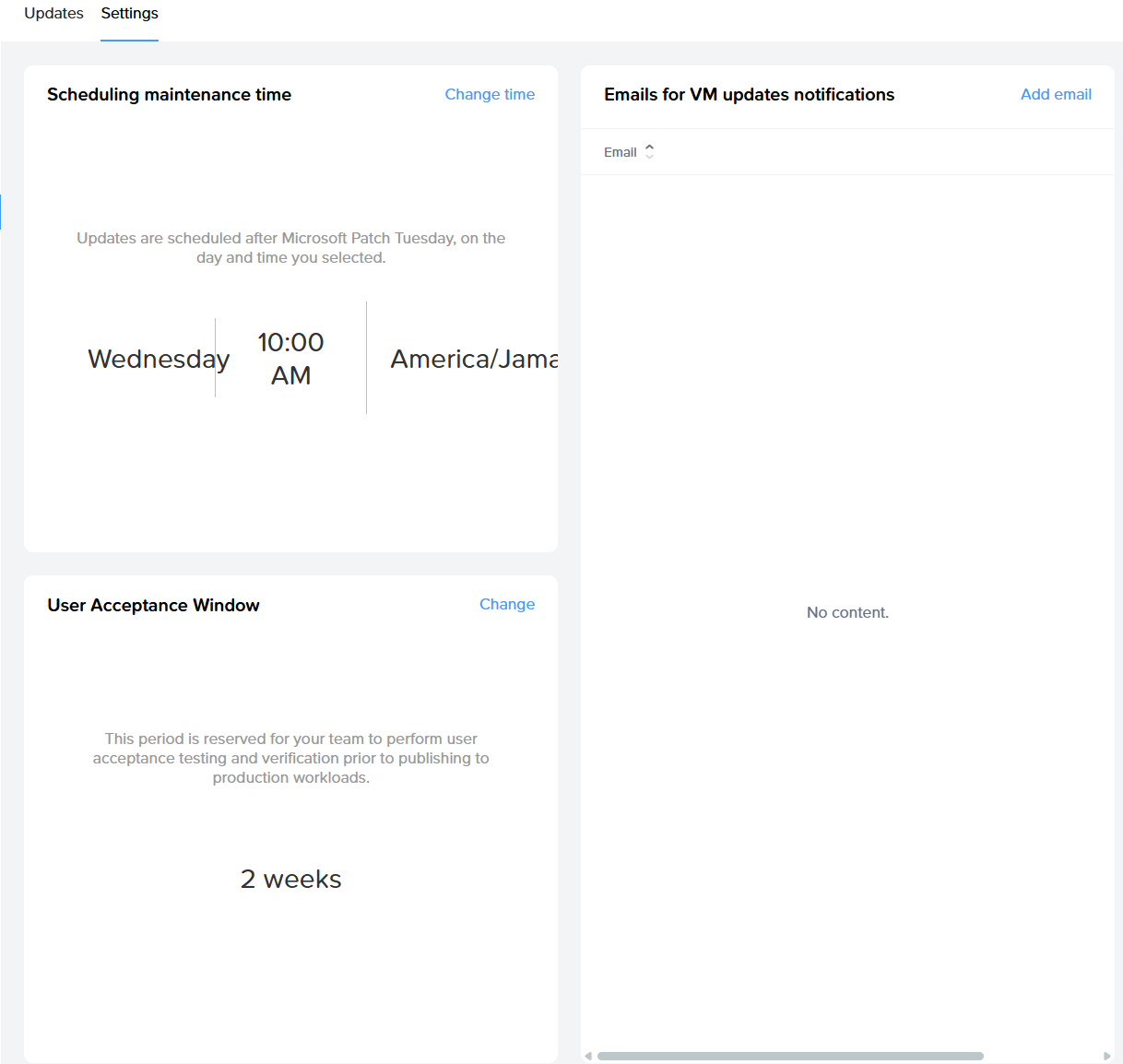](https://docs.difr.com/uploads/images/gallery/2025-10/image-1760698757345.png) ### Task List During Maintenance Window When the maintenance window starts, the system triggers the **Managed Updates – Phase 1 task**, which includes: - Backup Sandbox - Power on Sandbox - Identify available Windows updates and update internal records - Execute updates on Sandbox - Roll back if updates fail - Run test publish - Notify admin Progress can be tracked in the task progress list. After completion, you should accept the changes. **Task #2** will begin after the User Acceptance Window expires. **Managed Updates Phase 2 Tasks:** - Run Production Publish - Execute Windows Updates on Utility Servers (same process as Sandbox, without publish) --- # Managed Updates – Guide for Persistent Accounts ### Step 1 Go to the **Updates (EA)** page and click **Enable Managed Updates**. [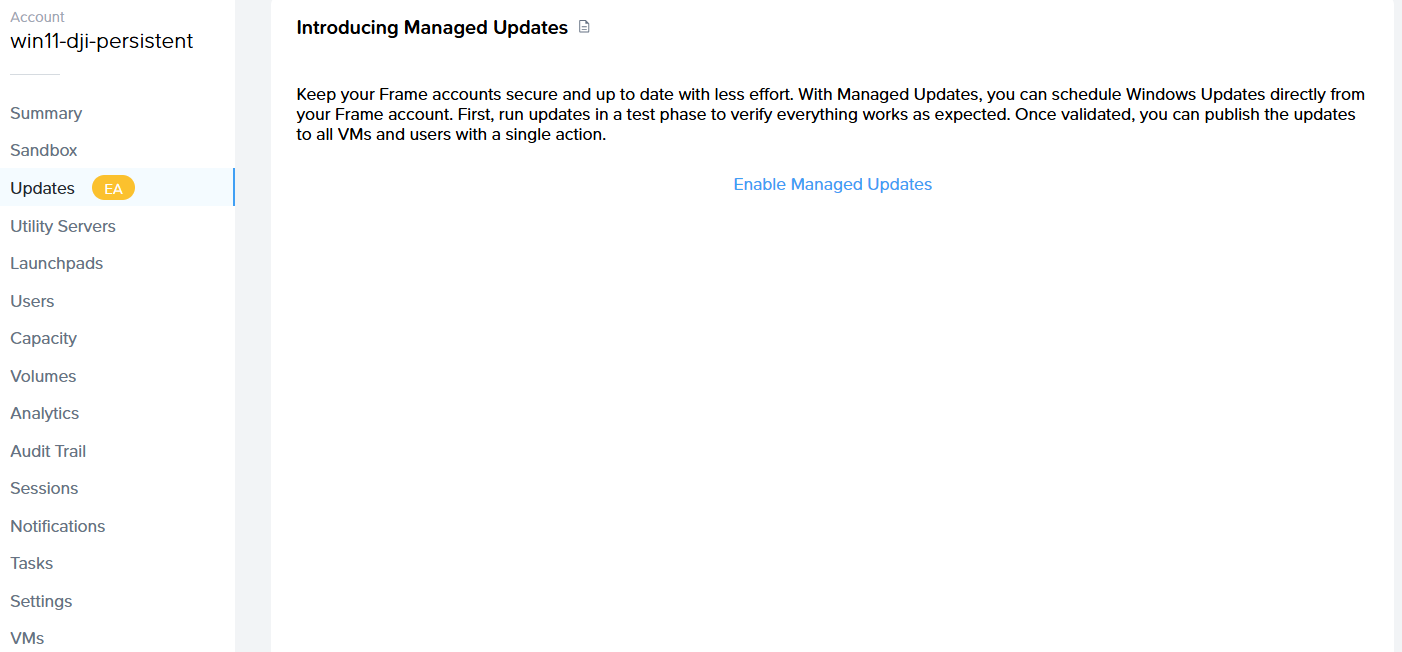](https://docs.difr.com/uploads/images/gallery/2025-10/d3Timage.png)**Note:** Managed Updates are per-account settings.
### Step 2 Configure **Update Settings**: - ### Schedule maintenance time - As this feature covers only Windows Updates released on Microsoft Patch Tuesday, please set the correct time and date for task execution.**IMPORTANT:** While update tasks are running, no actions can be performed on the Sandbox (publishing, power on, start session, etc.).
### User Acceptance VMs & Window - **User Acceptance VMs** – select which VMs will be part of User Acceptance. After the initial Sandbox update and publish, these VMs automatically receive the updates for validation. - **User Acceptance Window Logic:** Once updates are installed and published to the selected User Acceptance VMs, administrators have **up to 3 weeks** to log in, verify stability, and then either: - **a)** Accept the test in the **Updates** page, or - **b)** Wait for the User Acceptance Window to expire — after which Frame automatically publishes changes to all Production VMs. ### Emails for VM Update Notifications – set the email address to receive notifications about the update process. [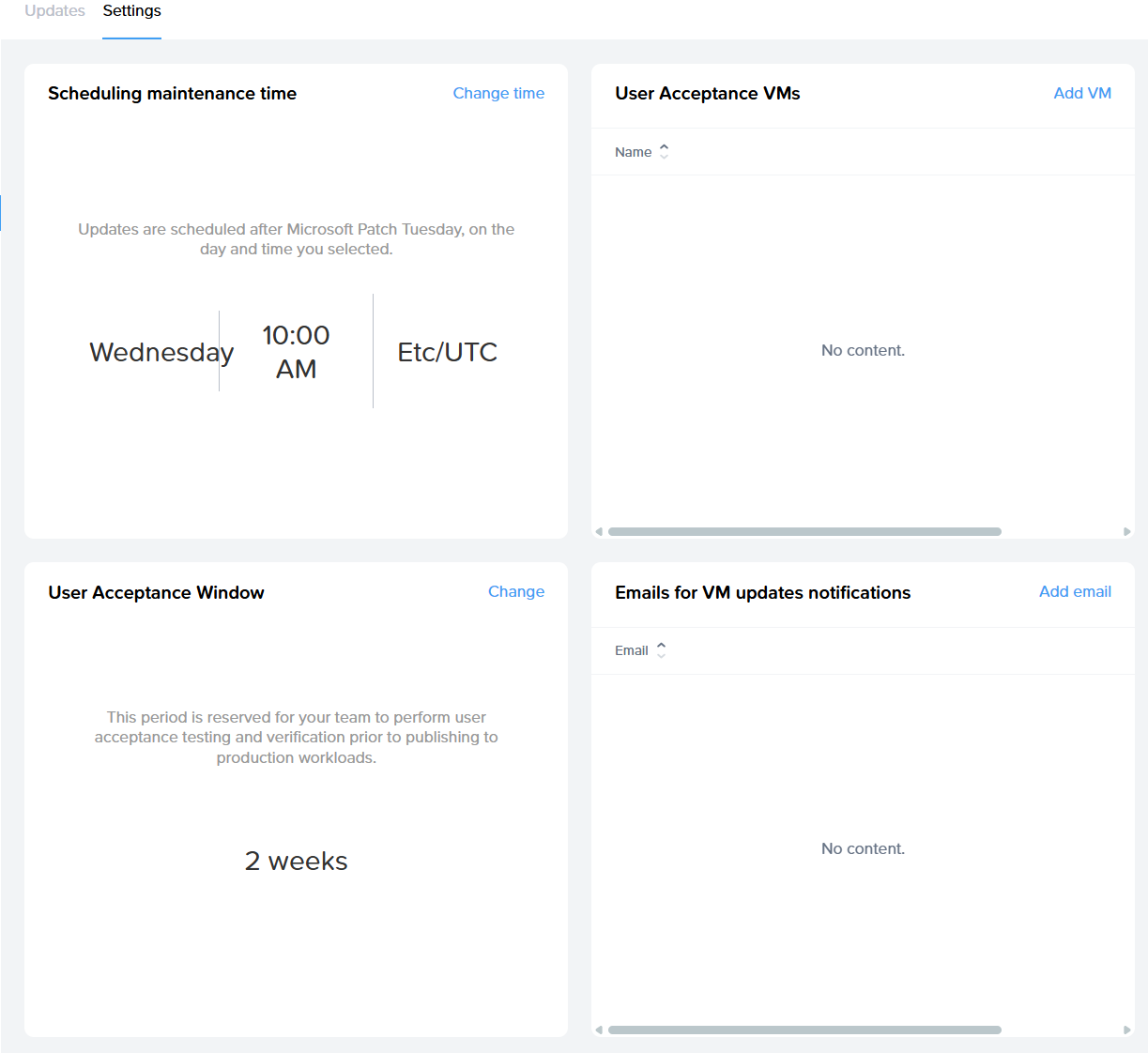](https://docs.difr.com/uploads/images/gallery/2025-10/image-1760698697337.png) ### Task List During Maintenance Window When the maintenance window starts, the system triggers the **Managed Updates – Phase 1 task**, which includes: - Backup Sandbox - Power on Sandbox - Identify available Windows updates and update internal records - Execute updates on Sandbox - Roll back if updates fail - Execute updates on User Acceptance VMs - Notify admin Progress can be monitored in the task progress list. After completion, the customer should accept the changes. **Task #2** will then start. **Managed Updates - Phase 2 tasks:** - Run Production Publish - Execute Windows Updates on Utility Servers (same process as Sandbox, without publish) - Execute Windows Updates on remaining VMs not included in the User Acceptance list