# Persistent
## Suspend/Resume Administration
The administrator can control the timeouts that will suspend a persistent desktop VM and they can also manually suspend or resume a session on a persistent desktop VM.
Enabling Suspend/Resume requires specific configurations. **Please review the [Requirements and Considerations](https://docs.difr.com/books/platform-administrators-guide/page/suspend-and-resume#bkmrk-requirements) before proceeding** to avoid unexpected issues.
### Time-based Suspend
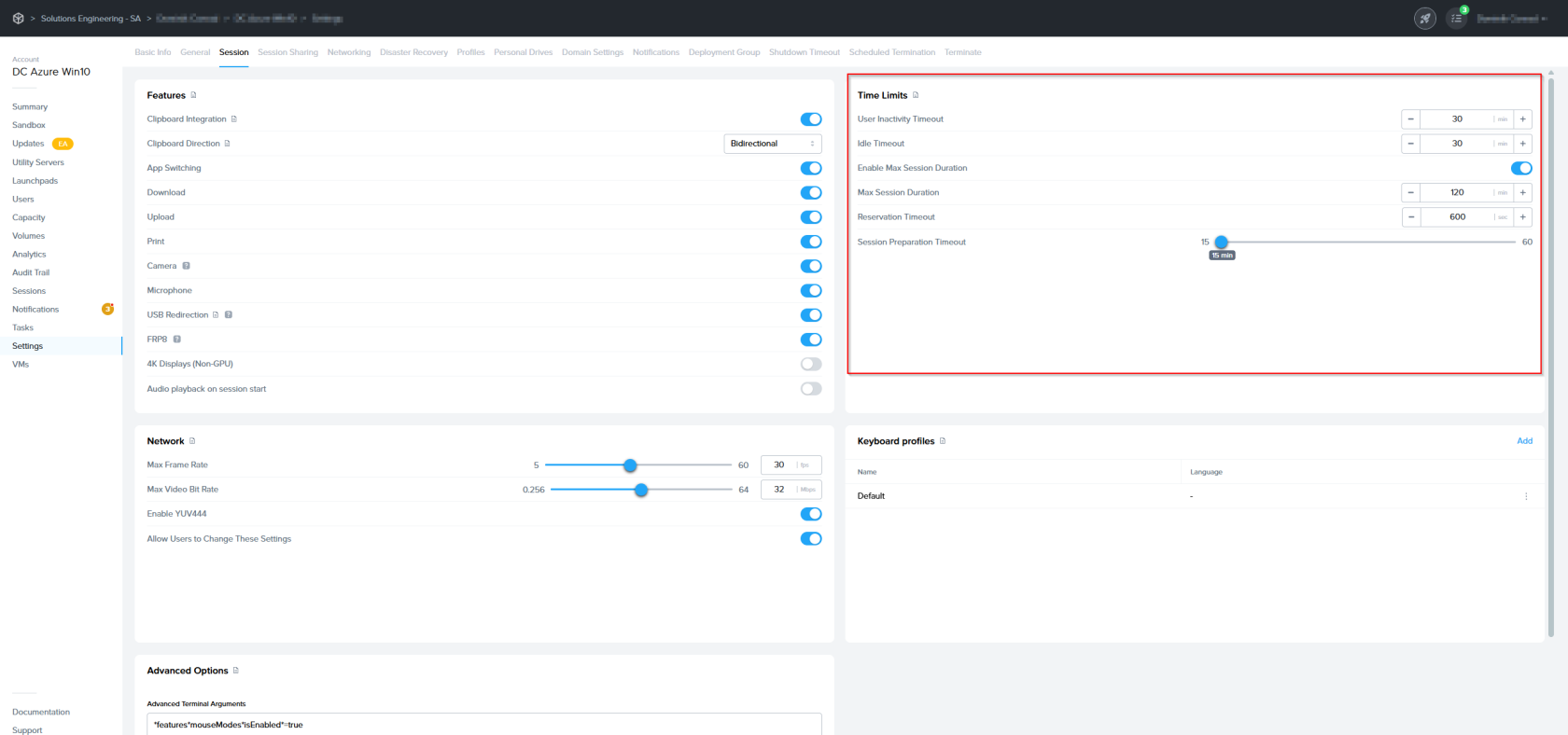
Within the Frame Account Dashboard, navigate to **Settings > Session Settings**. Under **Time Limits**, you can adjust the two values:
- **User Inactivity Timeout**: Upon reaching this timeout value, the session will become disconnected.
- **Idle Timeout**: Upon reaching this timeout value after a session is disconnected, the session will automatically be suspended.
[](https://docs.difr.com/uploads/images/gallery/2026-01/UW0image.png)
Session Settings - Time Limits
### Manual Suspend and Resume
Within the Frame Account Dashboard, navigate to **VMs** in the left-hand navigation column.
To suspend a session on a production workload VM with a status of `In session`, click the kebab menu to the right of the `Status` column and click **Suspend**. If the user is in session when the administrator suspends their desktop, the user will be disconnected from their session and returned to their Launchpad. The Launchpad will indicate that the session is being suspended.
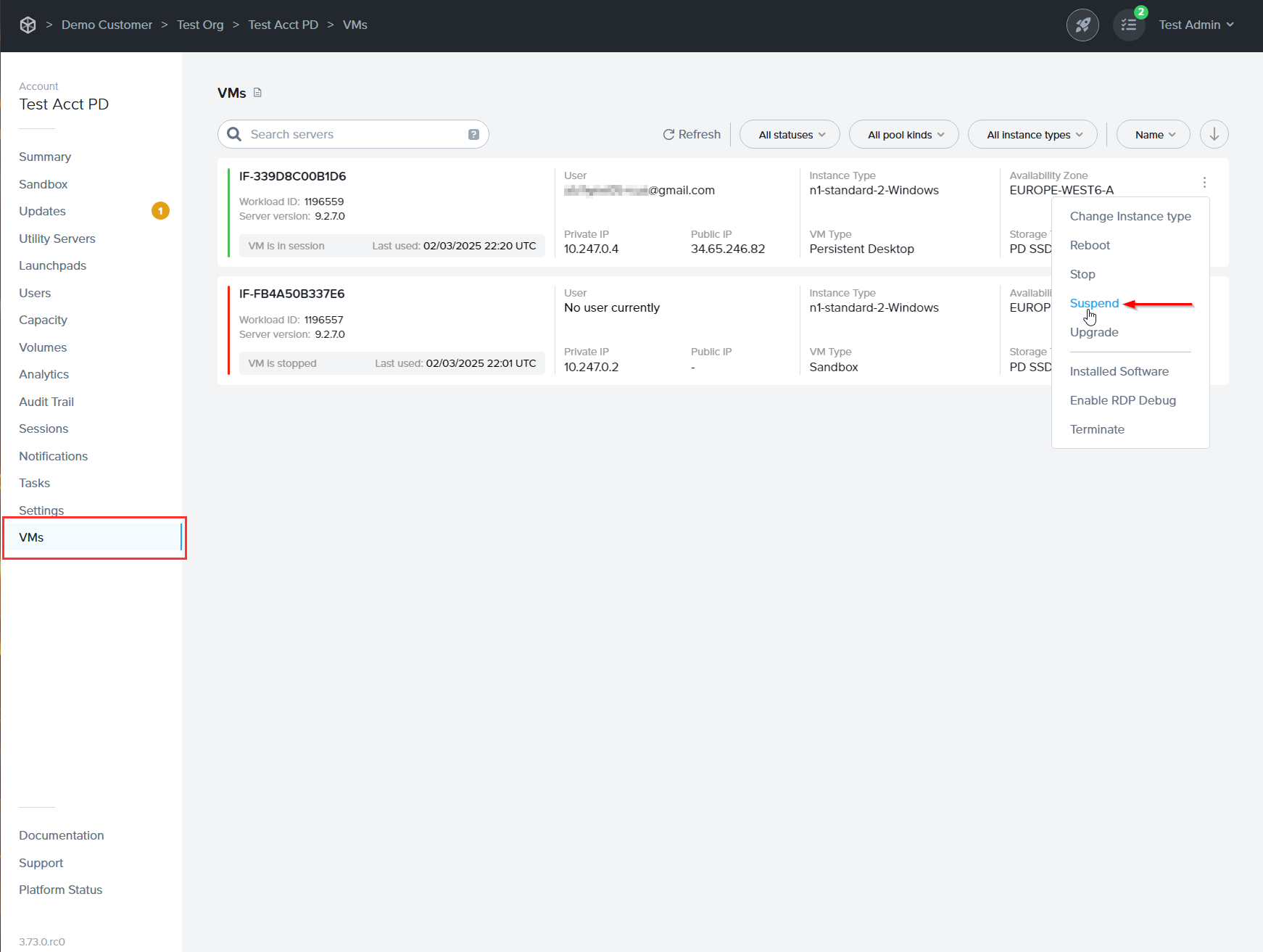
VMs - Manual Suspend of SessionTo resume a suspended session, click the ellipsis to the right of the `Status` column and click **Resume**. If the user is at their Launchpad, they will see the message “Your session is resuming” (instead of the “Resume” button) after the administrator has clicked **Resume**.