By default, Frame accounts are "stateless." This means that all changes made to an instance are lost after the session closes. The instance is then returned to a pool where it waits to be served to the next user. The Frame platform also offers an alternative option called "Persistent Desktops."
Persistent Desktops are stateful, desktop-only instances that are individually assigned to users. Users are given administrative control over their own desktop – they can install and manage their own unique application sets and settings in their own persistent environment. Account administrators can still monitor usage and basic session activity through the account Dashboard.
Persistent Desktop accounts can be created and configured:
Persistent Desktops were designed for organizations that prefer to give their users more control over their own environments. Frame Account administrators still configure the Sandbox image to serve as the base for all instances in the pool, but end users manage their own instances once assigned. If required, Persistent Desktops can be domain-joined so enterprises can manage them through a Windows domain.
Users must be able to authenticate to the platform using either:
If the persistent desktop Frame account is configured to join the persistent desktop VMs to a Windows domain, users may be required to authenticate to the Windows domain before accessing their assigned Windows desktop.
The Persistent Desktops feature is enabled upon account creation. It cannot be enabled on accounts that have already been created, since provisioning and infrastructure management of a Persistent Desktop account is handled differently than on a non-persistent Frame account.
The state of a persistent desktop instance can be defined in the following ways:
When a user starts a Frame session and has not been assigned a persistent desktop, Frame associates the user's identity (as defined by the combination of identity provider they used to authenticate to Frame and their email address) to a Shadow Persistent Desktop. This persistent desktop is now the user's Assigned Persistent Desktop. If there are no Shadow Persistent Desktops available, the user will receive an error. Once a Shadow Persistent Desktop has been assigned, then Frame will provision another Shadow Persistent Desktop using the last published Sandbox, provided that the sum total of Assigned, Unassigned, and Shadow Persistent Desktops is less than or equal to the Max possible number of users set in Capacity.
Each time the user authenticates to their identity provider and the identity provider passes to Frame the user's email address, Frame will broker the user into their Assigned Persistent Desktop instance.
Administrators can also unassign a user from their Assigned Persistent Desktops as well as reassign a previously logged in user to the Assigned Persistent Desktop.
Finally, if the administrator can terminate a persistent desktop whether the desktop is Assigned or Unassigned.
Account capacity settings work a little differently than a non-persistent Frame account as there is only one pool of persistent desktops.
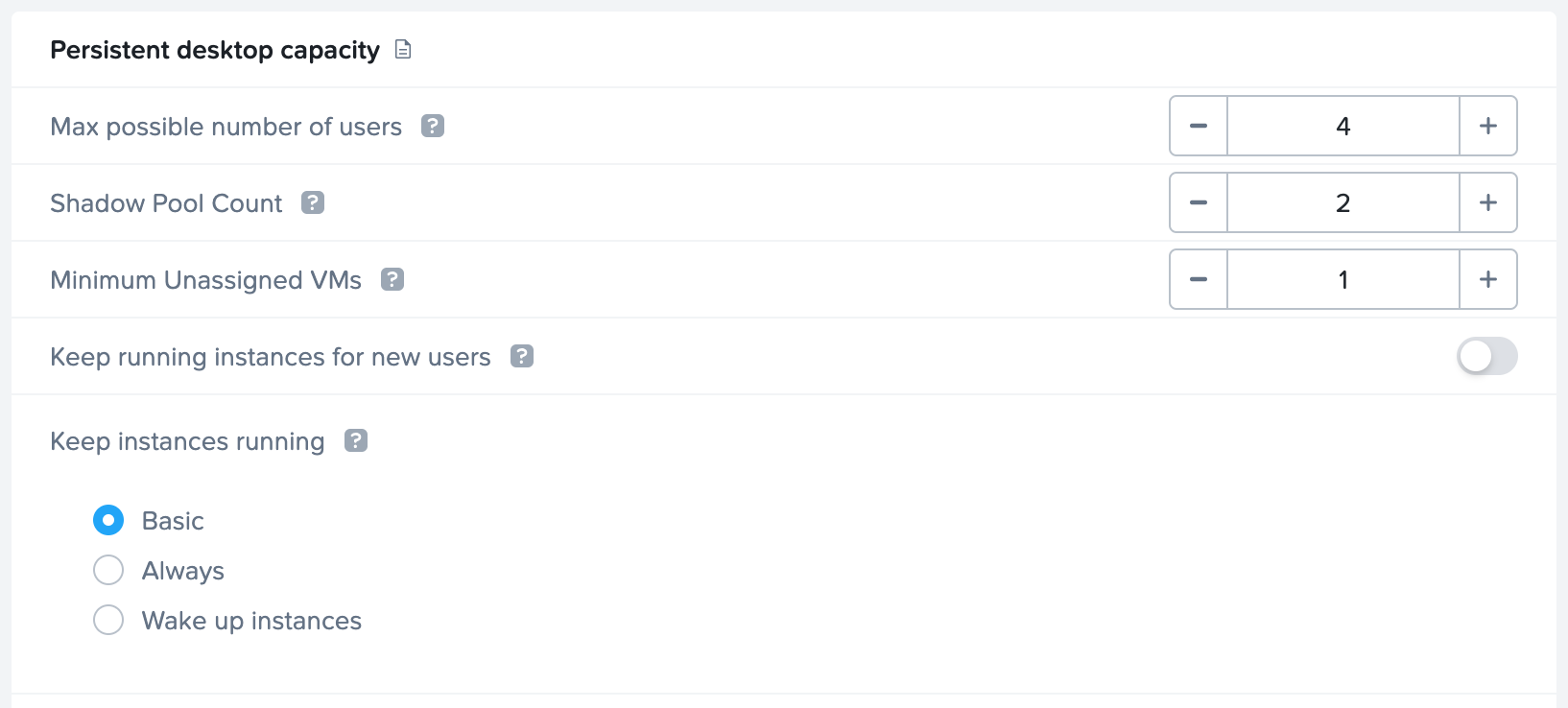
Max possible number of users: Enter the max number of expected users (instances) for the account in this field. This value governs the sum total number of Assigned, Unassigned, and Shadow Persistent Desktops that can exist at anytime in the Frame account. Frame will terminate shadow persistent desktops if this value is reduced below the sum of the number of assigned, unassigned, and shadow persistent desktops.
Shadow Pool Count: Frame will provision the specified number of shadow persistent desktop VMs at publish.
Minimum Unassigned VMs: Frame will attempt to maintain the specified number of minimum unsigned VMs as unassigned VMs are assigned to new users.
Keep running instances for new users: Enabling this toggle keeps a Shadow Persistent Desktop instance running at all times, so it is immediately available to new users (assuming the total number of Assigned, Unassigned, and Shadow Persistent Desktops is less than the specified Max possible number of users).
Once a Shadow Persistent Desktop instance is assigned to a user, Frame will provision a new Shadow Persistent Desktop subject to the Max possible number of users value. By default, the number of Shadow Persistent Desktop is set to 1. This value can be increased on request by contacting Support.
When using AWS, GCP, or Azure, enabling this toggle will result in infrastructure costs for the time that the Shadow Persistent Desktops are running, even though it is not being actively used. Keeping this toggle off eliminates those infrastructure costs, but a new user will need to wait for the instance to power on before the instance can be assigned to them for their first Frame session. This can take upwards of 10-15 minutes, depending on the infrastructure.
Managing your Sandbox image on a Persistent Desktop account is the same as a non-persistent, regular Frame account. The difference lies in how your changes are propagated to the workload instances. Since an instance is assigned to each user when they log in for the first time, any Sandbox updates published after the assignment will apply only to the Shadow Persistent Desktop. Assigned and Unassigned Persistent Desktops will not be affected by the publish of the Sandbox.
If the same changes to the Sandbox must be applied to Assigned or Unassigned Persistent Desktop instances, an account administrator must use them to those instances or terminate the Assigned or Unassigned Persistent Desktop, as discussed in Terminate a Persistent Desktop.
Terminating an instance will permanently delete all data on that instance. Any data a user needs from their instance, such as work files or software licenses, should be retrieved from their persistent desktop before the account administrator terminates their instance.
The Updates page of your Account Dashboard displays any required OS or Frame updates for your VMs. More details can be found in the Updates section of our documentation.
Administrators can manage the persistent desktop backups for individual users by navigating to the Volumes page in the account Dashboard. The first tab is the Volumes tab which provides a list of named user volumes, the volume size and status, and the available free space for each volume. There are also additional operations, described below, accessible under the kebab menu in the upper right corner of the page.
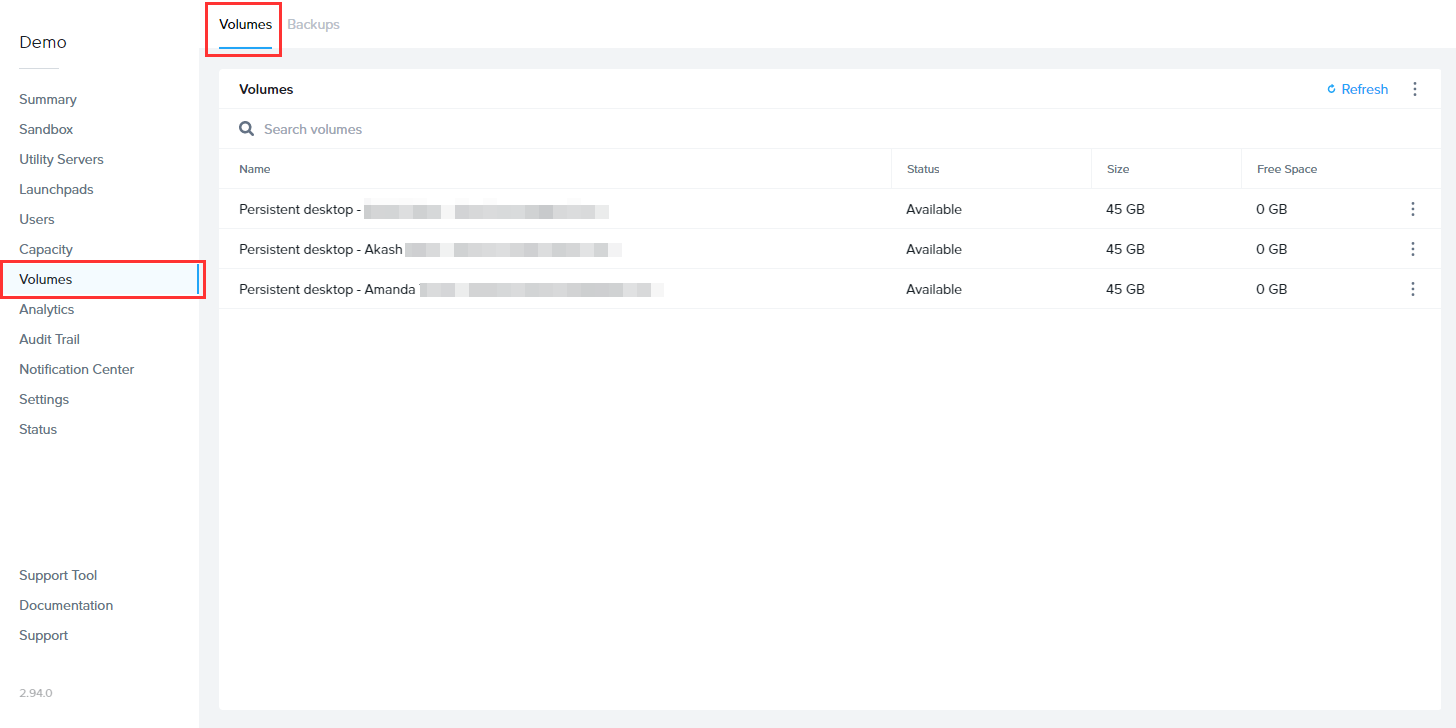
If you are looking for a specific volume, you can use the search bar at the top of the page to search by volume name.
If you anticipate that your users will need to increase their Persistent Desktop disk size regularly, you can set Frame parameters to scale up as needed automatically. To do this, navigate to the Volumes page, click on the kebab menu and select Autogrow settings. A new dialog box will appear:
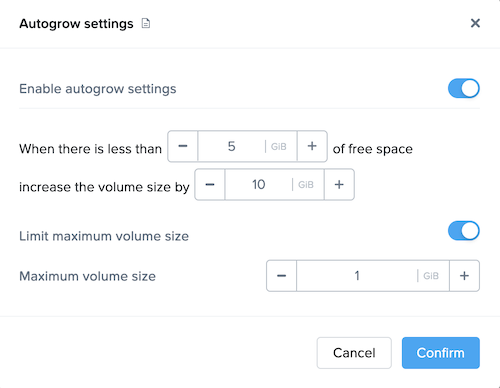
Here, you can specify the threshold at which the disk size will automatically increase for established users. By default, the disk volume will automatically be increased by 10 GB when there is less than 5 GB of free space remaining. You can adjust these values as you see fit for your users.
You can enforce a maximum disk volume size by enabling the Limit maximum volume size slider and setting the Maximum volume size. Enable autogrow settings must be enabled first. If you do not enable Limit maximum volume size, there is no limitation on how large the individual user's persistent desktop volume can autogrow.
Be sure to click Confirm once you have adjusted the settings as desired.
You can backup all persistent desktop volumes (versus individual persistent desktop volumes) by clicking on the kebab menu and select Backup all persistent desktop volumes. You will be asked to confirm that you wish to proceed.
You can clone the persistent desktops from one Frame account to another Frame account using the Clone persistent volumes feature. This feature is only for persistent desktop Frame accounts on Nutanix AHV clusters.
Before you initiate the clone operation, you can specify whether the clone operation will replace persistent desktops in the destination Frame account if the same owners have assigned persistent desktop in the source Frame Account:
Then click on Clone button to proceed or Cancel button to cancel the clone operation request.
The clone operation **will not** delete the persistent desktop volumes in the source Frame account.
The persistent desktop VMs in the source Frame account will be powered off before the clone operation commences. If there are any users in session, the clone operation will block until all users have finished their sessions and Frame can power off their persistent desktop VMs.
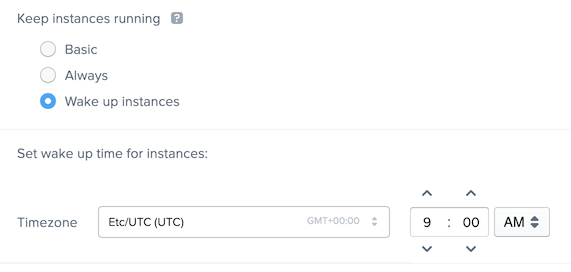
Once the clone operation completes, Frame Platform will power on the persistent desktop VMs based on Capacity Administration Keep instances running setting.
The Backups tab provides the account administrator with a detailed view of available backups for the volume specified under the Volume drop-down menu at the top of the window. Details include the name, time/date of creation, type of backup, and the number of backups for the volume (shown in the lower right corner of the window).
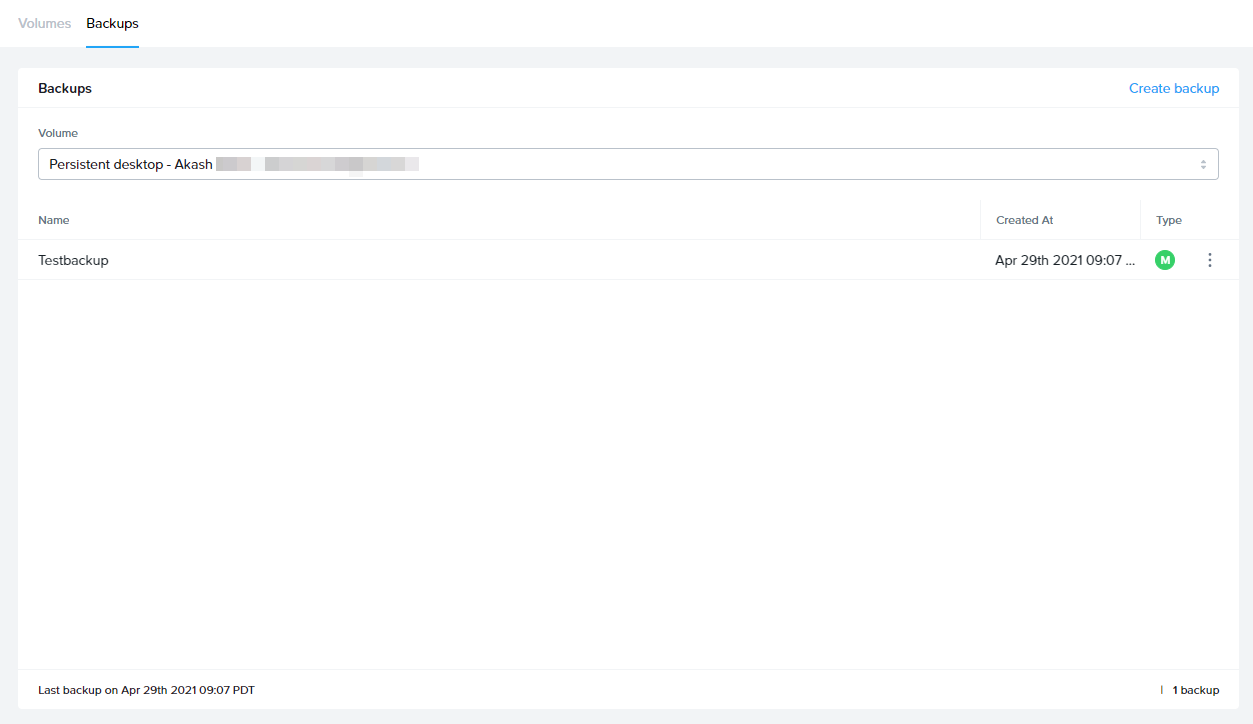
To create a backup, simply click the blue Create backup link in the upper right corner of the window. A new window will appear prompting you to select the volume you wish to backup from the drop-down menu. Be sure to provide a name for this backup as well. From there, click Create in the bottom right corner of the window.
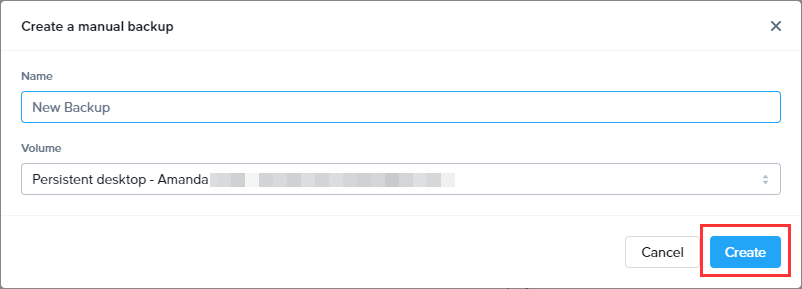
In order to create a persistent desktop volume backup, you must ensure the instance is in a **stopped** state.
The status of your backup will appear in your Notification Center:
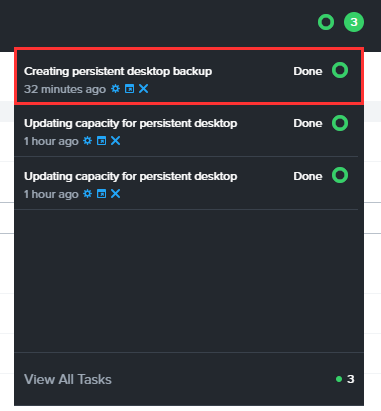
Once completed, the new backup will appear in your list. You can restore a backup at any time by clicking on the kebab menu to the right of the desired backup and clicking Restore.
Restoring from a previous backup will replace the volume with the backup image you select. Any changes made since the selected backup was created will be erased. 2. You can set the number of manual backups that are retained under Settings, Number of Manual Backups Retained.
To schedule automated backups of all persistent desktops, simply click the kebab menu in the upper right corner of the backups section and click on Settings. A new window will appear with a toggle to enable Scheduled Backups.
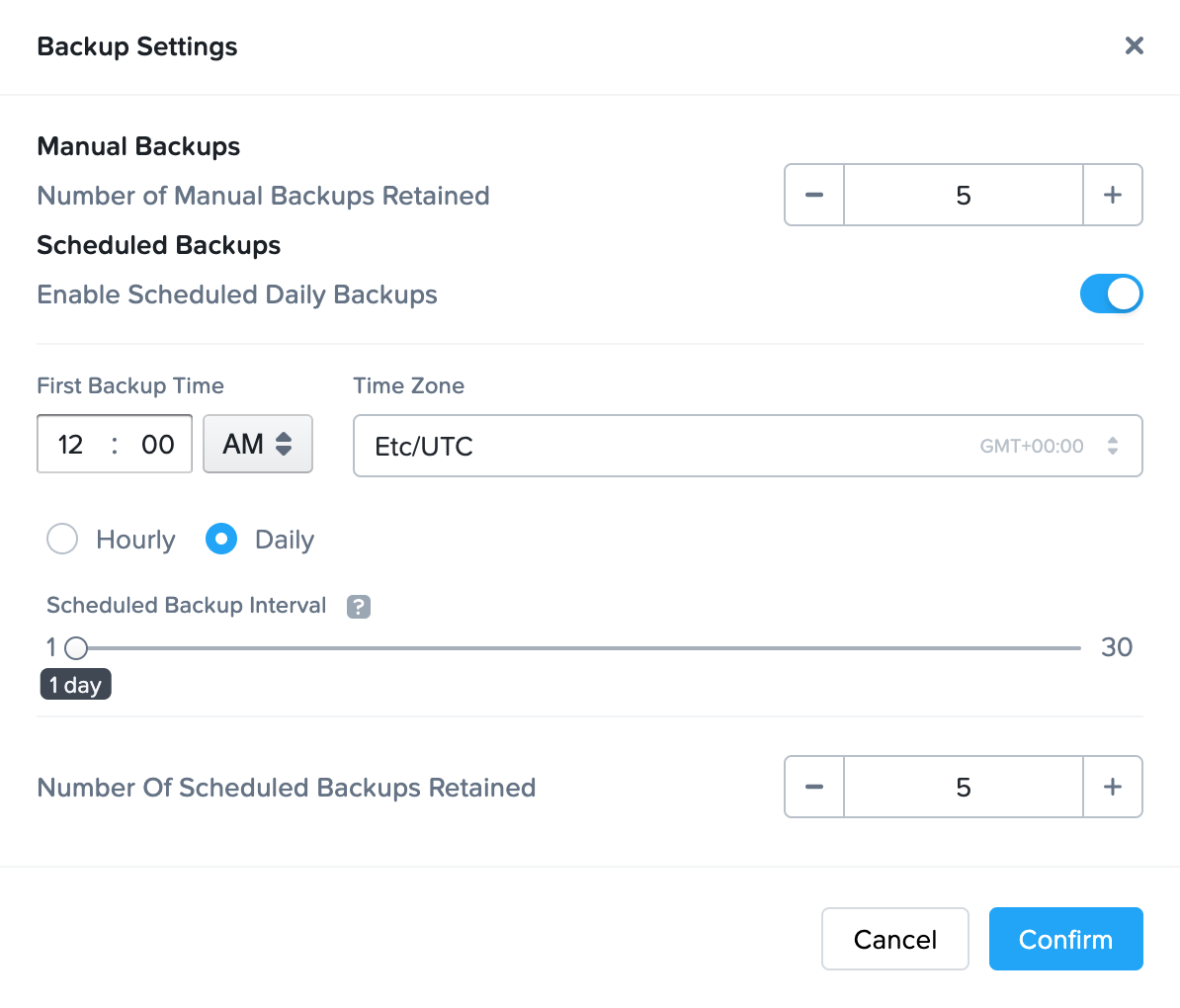
Enable the toggle and specify your scheduled backup settings.
Click Confirm to proceed.
In order for a persistent desktop to be included in the next scheduled backup event, the persistent desktop must:
1. Be in or status. If the persistent desktop is , Frame will power off the persistent desktop before the disk is backed up.
If a user is , the persistent desktop will not be included in the scheduled backup event.
2. Have been powered on for the disk to have changed since the last scheduled backup event.
If you change the backup schedule, the revised backup schedule takes effect on the next day.
You can delete a backup by clicking on the kebab menu mentioned above and selecting Delete.
info User-managed Backups
Administrators can decide whether or not they would like their users to manage their own system backups. User-managed backups can be enabled by navigating to the Settings page in the Dashboard and enabling the Are persistent desktops backups allowed toggle listed under General settings.
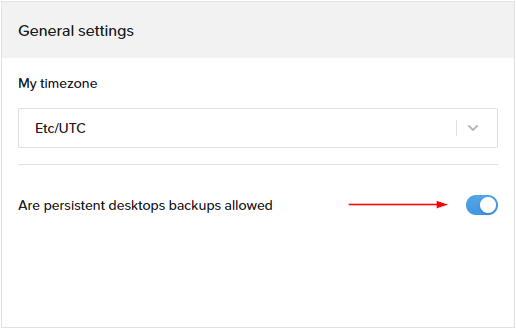
Once enabled, end users can manage their backups from their profile page. More information about this feature can be found in the Navigating your Frame Account Guide.
Some administrators may wish to change their Persistent Desktop user's instance type to accommodate the user's needs. For instance, the end user may need a higher-performing instance type after taking on a project which requires video editing and graphic design. Since Persistent Desktop accounts are structured differently than a standard Frame account, this process is also slightly different (but still simple!).
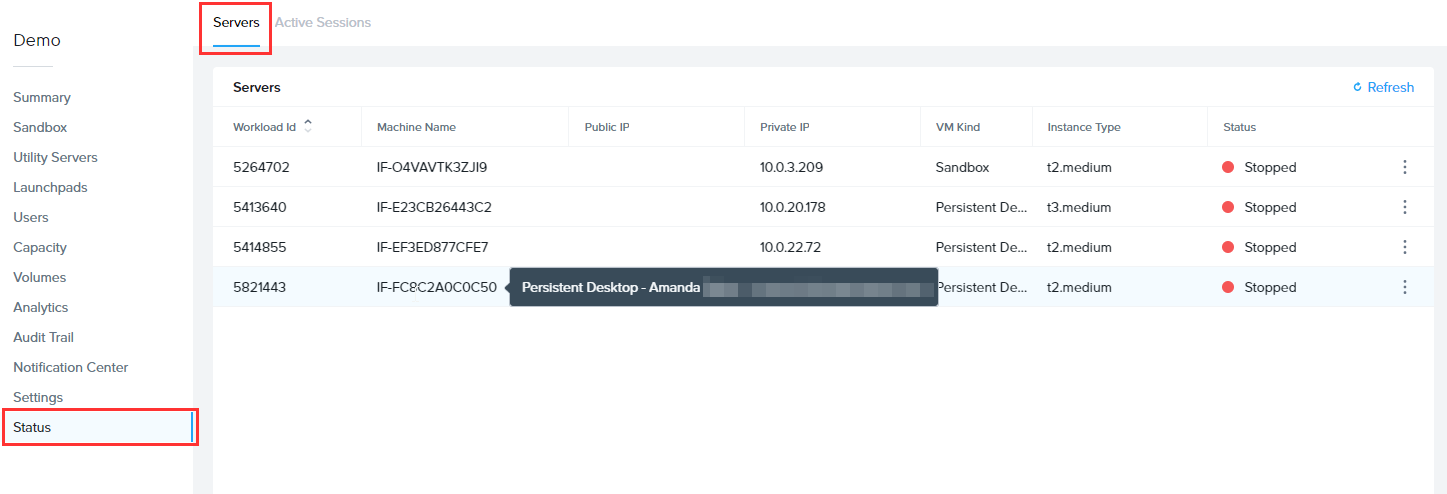
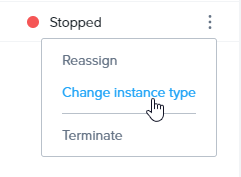
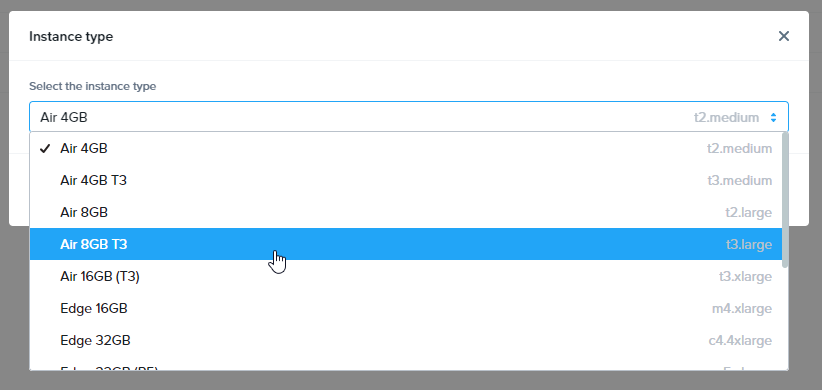
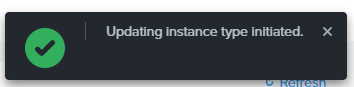
The instance type update will be reflected in the listed details under the Servers tab.
For public cloud infrastructure, changing the instance type requires the new VM to power on after the existing persistent desktop disk is attached to the new VM and the old VM is terminated.
Administrators can reassign an Assigned Persistent Desktop to a different user (or let an existing user be reassigned to their Persistent Desktop via a different Identity Provider) by going to the Status page within the Account Dashboard. Before proceeding to the instructions, please carefully read the considerations below:
The desired user must have already logged in to the Frame Account using the identity provider and email address specified by the administrator. If the user is not visible in the drop-down menu, then they have not logged in to Frame using that specific Identity Provider. Ensure the user first logs in to the Frame Account before reassigning the Assigned Persistent Desktop to the user.
Any existing applications, configurations, files, application data, local user profiles, etc. will still remain on the VM when you reassign a Persistent Desktop. If desired, administrators can reassign the VM to themselves first if they need to perform any maintenance before reassigning to a new user.
The VM cannot be in use by a Persistent Desktop user.
If a user already has a Persistent Desktop assigned to them within the same Frame account, they cannot be assigned to another Persistent Desktop. Administrators attempting to do so will see an error message that reads “Bad Request: Invalid request. Selected user already has assigned instance with same account.”
Navigate to the Status page on the Account Dashboard and select the Servers tab. You can hover over the machine name on this list to see more details (including the user name assigned to the Persistent Desktop VM).
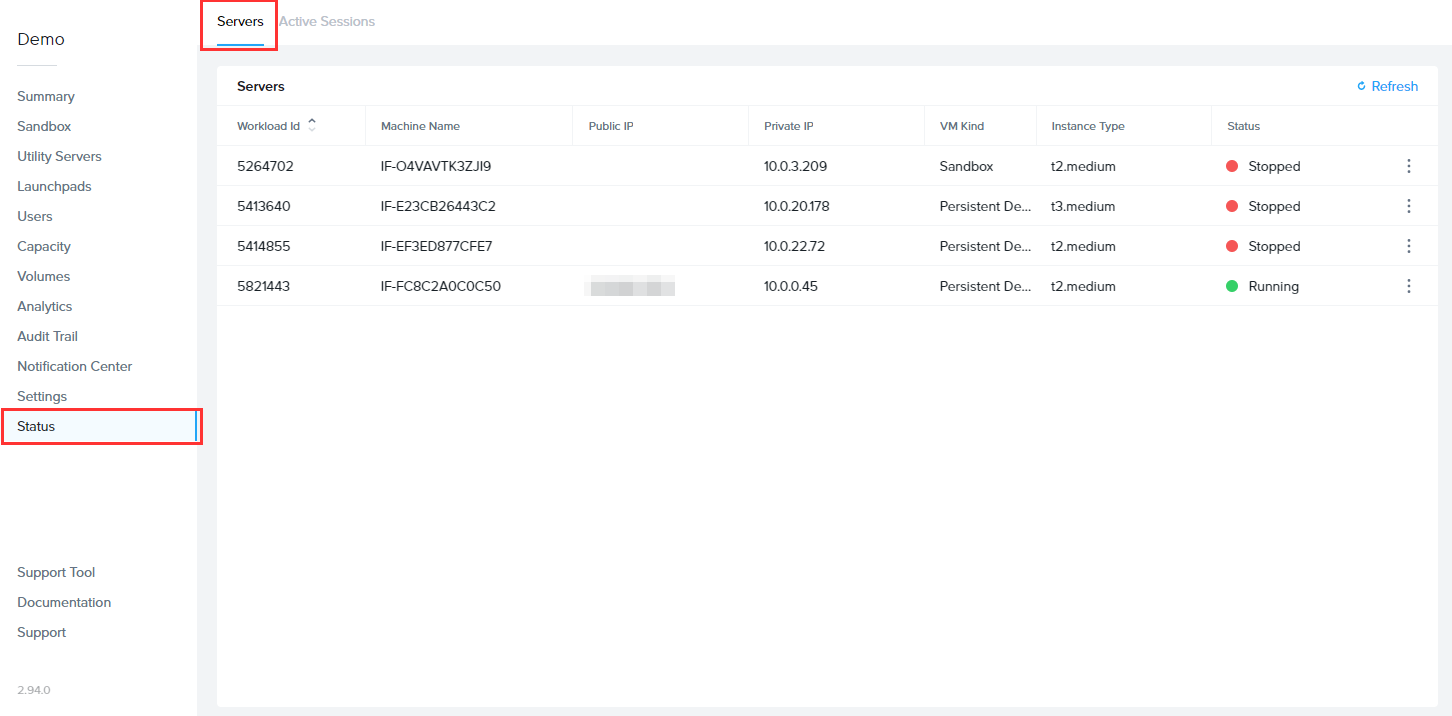
Click on the kebab menu to the right of the Persistent Desktop to be reassigned and click Reassign.

When you select Reassign, the following window will appear:
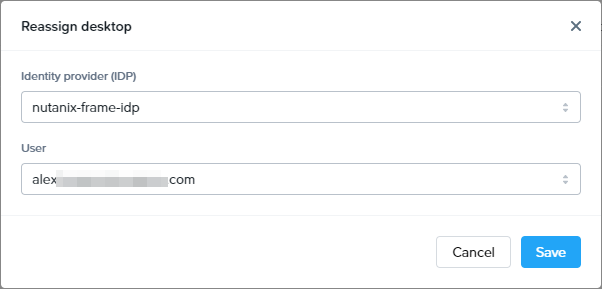
Use the drop-down menus to select the Identity Provider the user will be accessing the platform with and the new user's email address.
Click Save when you're ready. Once the desktop has been reassigned, you can hover over the machine name of the Persistent Desktop VM to verify the change has been made.
Administrators can unassign a user from their Assigned Persistent Desktop at anytime. Once the user is unassigned from their persistent desktop, the persistent desktop is an Unassigned Persistent Desktop.
The administrator cannot unassign an Assigned Persistent Desktop if the persistent desktop in use by a Persistent Desktop user.
If the user starts a session after they were unassigned from their Assigned Persistent Desktop, Frame will:
If the administrator does not want the user to get a new persistent desktop, then they must remove the user's authorization to access the Frame persistent desktop account.
If an assigned persistent desktop is no longer needed, you can terminate the persistent desktop with the following procedure:
Frame will not create a new instance to replace the terminated Persistent Desktop. The next time the user logs into Frame and requests a desktop, Frame will:
If the administrator does not want the user to get a new persistent desktop, then they must remove the user's authorization to access the Frame persistent desktop account.
Frame supports cloning Persistent Desktop (PD) workload VMs from one Frame account to another using the Clone feature. This functionality is available across all supported cloud providers, including Nutanix AHV, provided that both the source and destination accounts are deployed on the same Cloud Account.
The table below summarizes which cloning scenarios are supported:
| Cloning Scenario | Supported? | Additional Notes |
|---|---|---|
| Non-Domain Joined Instance (Non-DJI) → Non-DJI | ✅ | No restrictions. |
| Non-DJI → Domain-Joined Instance (DJI) | ✅ | Admins must configure the domain post-cloning. |
| DJI (Same Domain) → DJI (Same Domain) | ✅ (with additional steps) | Source VM is backed up before cloning. The original VM is deleted from the source account after cloning to maintain domain integrity. |
| DJI (Different Domains) → DJI (Different Domains) | ❌ | Domain trust/security constraints prevent this operation. |
| Other cloning scenarios | ❌ | Not allowed. |
Cloning a **persistent desktop to a different account has certain limitations if the source account is domain-joined**. Users will see a **warning message** in the UI before proceeding. The clone operation does not delete Persistent Desktop volumes in the source Frame account unless explicitly required by domain management policies.
Before initiating a clone, ensure the following requirements are met: