Sole tenancy flow is applied the moment the Windows 11 image family is selected when creating an account
#### Step 2 – Choose or Prepare the Windows 11 Image You can use a **Frame-managed Image** or prepare your own **BYO Windows 11 Image**. If you need to create your own image, follow the official GCP guidance for Windows image creation and import: [GCP Official Guide. ](https://docs.cloud.google.com/compute/docs/images/creating-custom-windows-byol-images)As a final step, install the **Frame Guest Agent**:[ Frame Agent Setup Tool (FAST), ](https://docs.difr.com/books/platform-administrators-guide/page/frame-agent-setup-tool-fast)then import the newly created master image into your GCP Cloud Account. **Extra guide:** Please note that preparing and importing BYO image can also be done by following this guide: **Step 1 – Create the Windows 11 VHD** • In VirtualBox, create a new VM and select Windows 11 (64-bit). • Enable UEFI boot in settings (System > Motherboard > Enable EFI). • Create the disk in VHD format. • Install Windows 11 and configure as needed. • Shut down the VM when ready. **Step 2 – Upload the VHD to Cloud Storage** • Create or choose a GCS bucket (e.g. `image-builder-raw-images`). • Upload the VHD: `gsutil cp "C:\Path\to\Windows11.vhd" gs://image-builder-raw-images/` **Step 3 – Import the Image into GCP** Run the following command to import your VHD as a custom image: `gcloud compute images import windows11baseimage --source-file gs://image-builder-raw-images/Windows11.vhd --guest-os-features=UEFI_COMPATIBLE --byol` #### Step 3 – Add Additional IAM Permissions Please make sure the following IAM roles are added for the GCP Cloud Account: - `roles/compute.storageAdmin` - `roles/dns.admin` - `roles/iam.serviceAccountUser` - `roles/compute.admin`**Note:** For customers who added a GCP Cloud Account after November 12th, **2024**, these IAM permissions are already assigned.
#### Step 4 – Deploy Frame Account on Sole-Tenant Nodes After enablement is complete, you can create **Frame Accounts** and deploy **workloads on Sole-Tenant Nodes** using your Windows 11 image. #### Step 5 – Validate Deployment Verify that virtual machines launch successfully on dedicated **Sole-Tenant Nodes**, and confirm that **licensing requirements** and **expected performance** characteristics are met. **Example from GCP Console:** 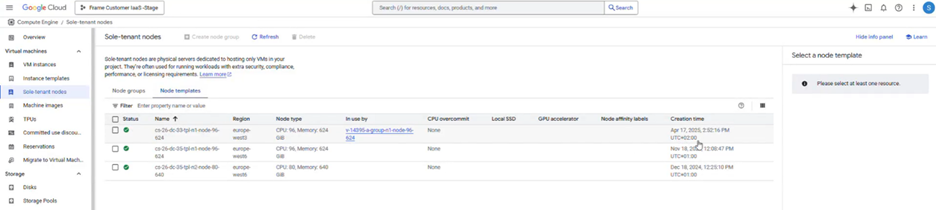 ### **Cost Considerations** GCP Sole-Tenant Nodes generally have **significantly higher costs** than standard shared compute instances. Customers should: - Work with their **GCP Account Team** to review pricing - Consider **Committed Use** or **Sustained Use** agreements - Evaluate costs **before deployment****Important:** Dizzion does **not control GCP pricing** and strongly recommends evaluating cost implications before enabling this feature.