# Expand Drive Size
The Frame platform gives admins the ability to expand the drive size of their Sandbox or Utility server as necessary from the Dashboard console.
- Once you start the drive size increase process, you cannot roll back to a smaller volume size.
- Customers using Azure infrastructure must adhere to their standardized disk sizes, as discussed in their official documentation.
1. First, navigate to the Dashboard of your account. You will land on the **Systems** page where your Sandbox and Utility Server can be managed.
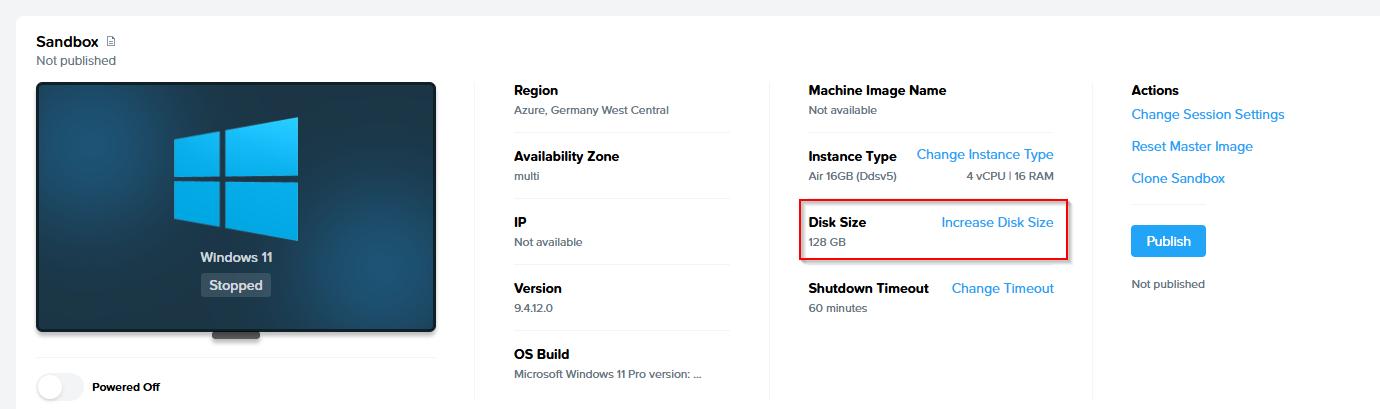
2. Click on the ellipsis icon next to your Sandbox or Utility server and select **Increase disk size** from the drop down menu.
[](https://docs.difr.com/uploads/images/gallery/2025-12/jIqimage.png)
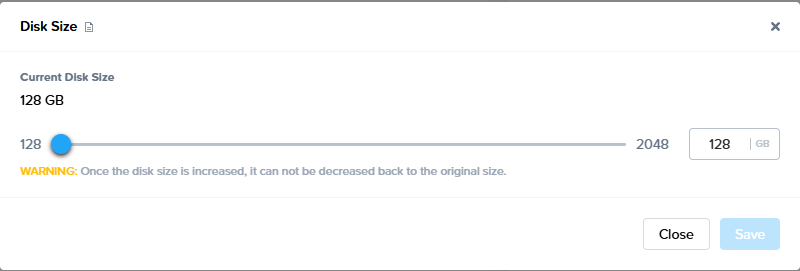
3. A dialog box will appear giving you a few options. Select the drive size increase you wish to implement.
[](https://docs.difr.com/uploads/images/gallery/2025-12/KuLimage.png)
4. Click **Save** to start the drive size increase.