# Dizzion C3
Dizzion Frame now supports Dizzion C3 as an authentication provider, allowing administrators to use the same credentials they already use for support.dizzion.com and c3.dizzion.com to access Frame. By enabling Dizzion C3 authentication, users can seamlessly log in without managing multiple credentials, improving security and streamlining access. This guide will walk you through the steps to enable Dizzion C3 as an authentication provider.
#### Prerequisites
Before enabling Dizzion C3 authentication for Frame, ensure the following:
- You have the **Frame Customer Admin role in Dizzion C3** (contact your [Dizzion Customer Success Manager](mailto:csm@dizzion.com) if needed)
- You have administrator access to the Frame Admin Console to configure authentication settings.
- Your Frame organization/account is set up and active.\\n- Users have valid **Dizzion C3 credentials** to authenticate.\\n\\n
By default, any user with the **Frame Customer Admin role** assigned within Dizzion C3 will automatically be assigned the **Customer Administrator role** within Frame.
#### Configuration
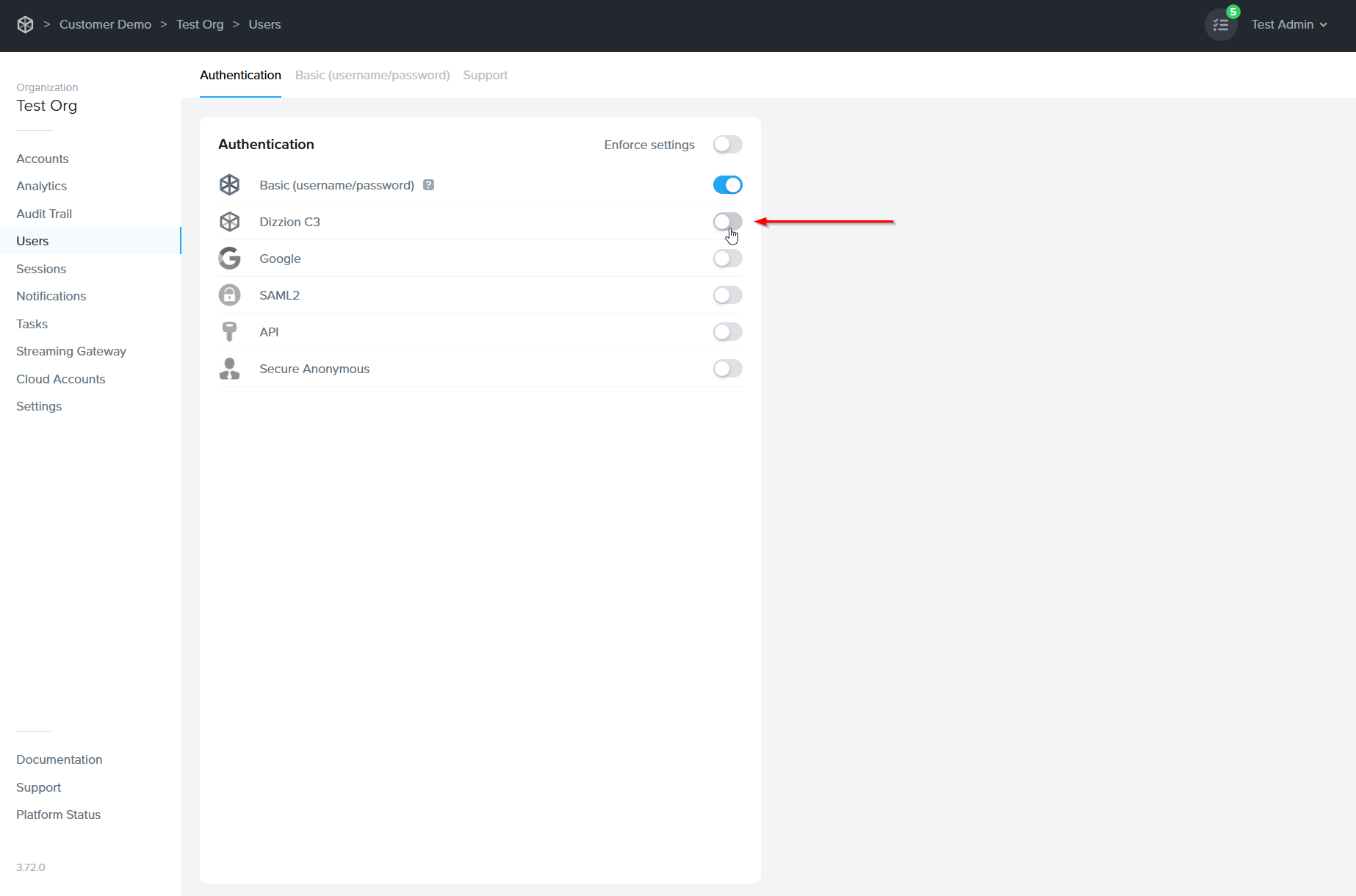
1. Log in to Frame and navigate to **Users > Authentication** from either the Organization or Account level of the Frame Console. (More details around authentication based on tenant hierarchy can be found [here](https://docs.difr.com/books/platform-administrators-guide/page/authentication#authentication-by-tier).
2. Enable **Dizzon C3** on this page (under the **Authentication** tab). Click **Save** in the upper right corner of the page.
3\. Once enabled, **Dizzion C3** will appear as a sign-in option on the Frame login page.
4\. Users can now simply click on the **Sign in with Dizzion C3** to be redirected to the Dizzion C3 authentication portal. If authentication is successful, you will be redirected back to Frame with access granted.
Users with the appropriate role can now log in using their Dizzion C3 credentials.#### Accessing Frame from the Dizzion C3 Portal
Administrators with the **Frame Customer Admin role** can also log in to Frame directly from the Dizzion C3 portal by following the steps below:
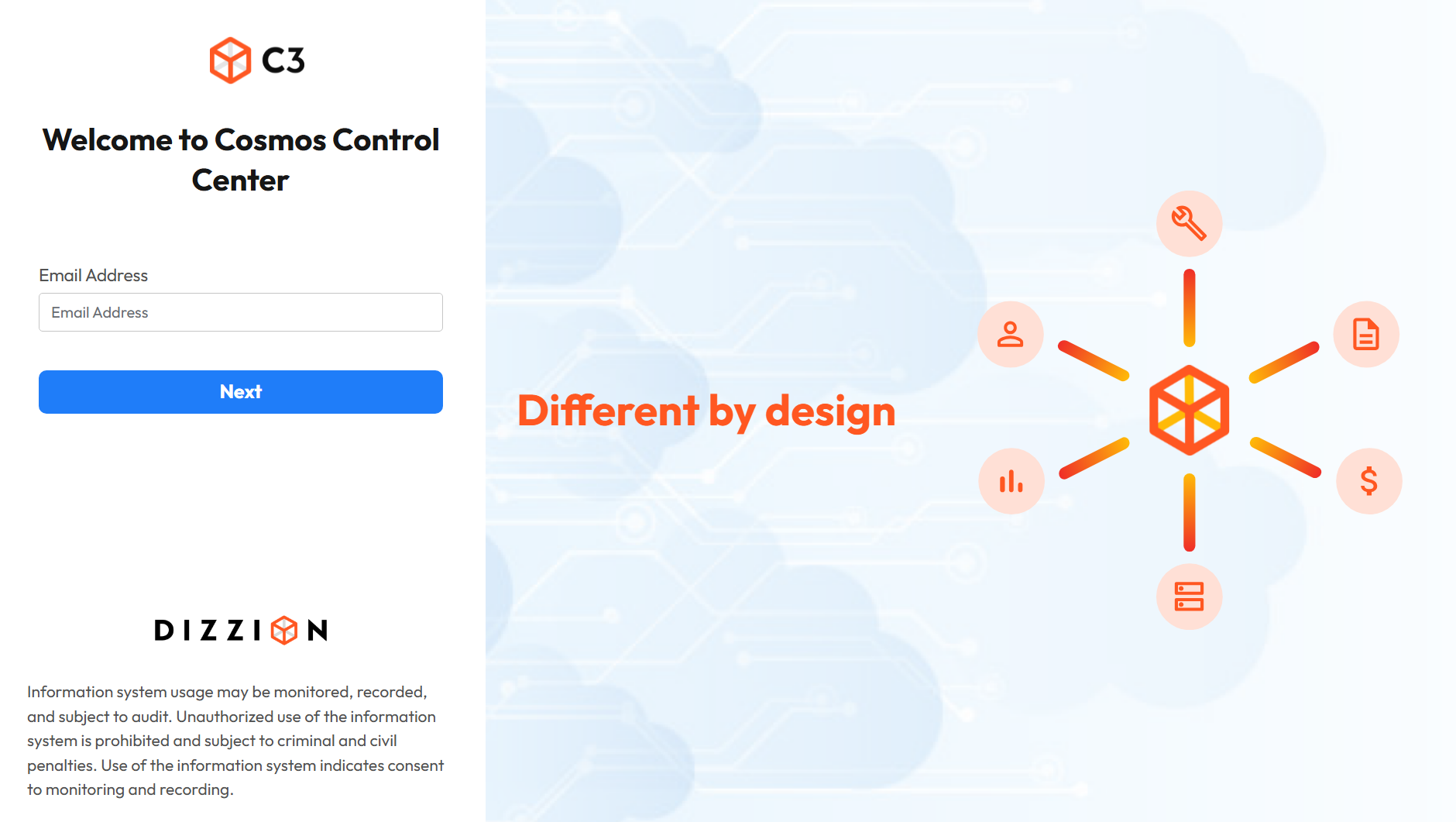
1. Navigate to the [Dizzion C3 Portal](https://c3.dizzion.com).
2. 2. Enter your email address and click **Next**.
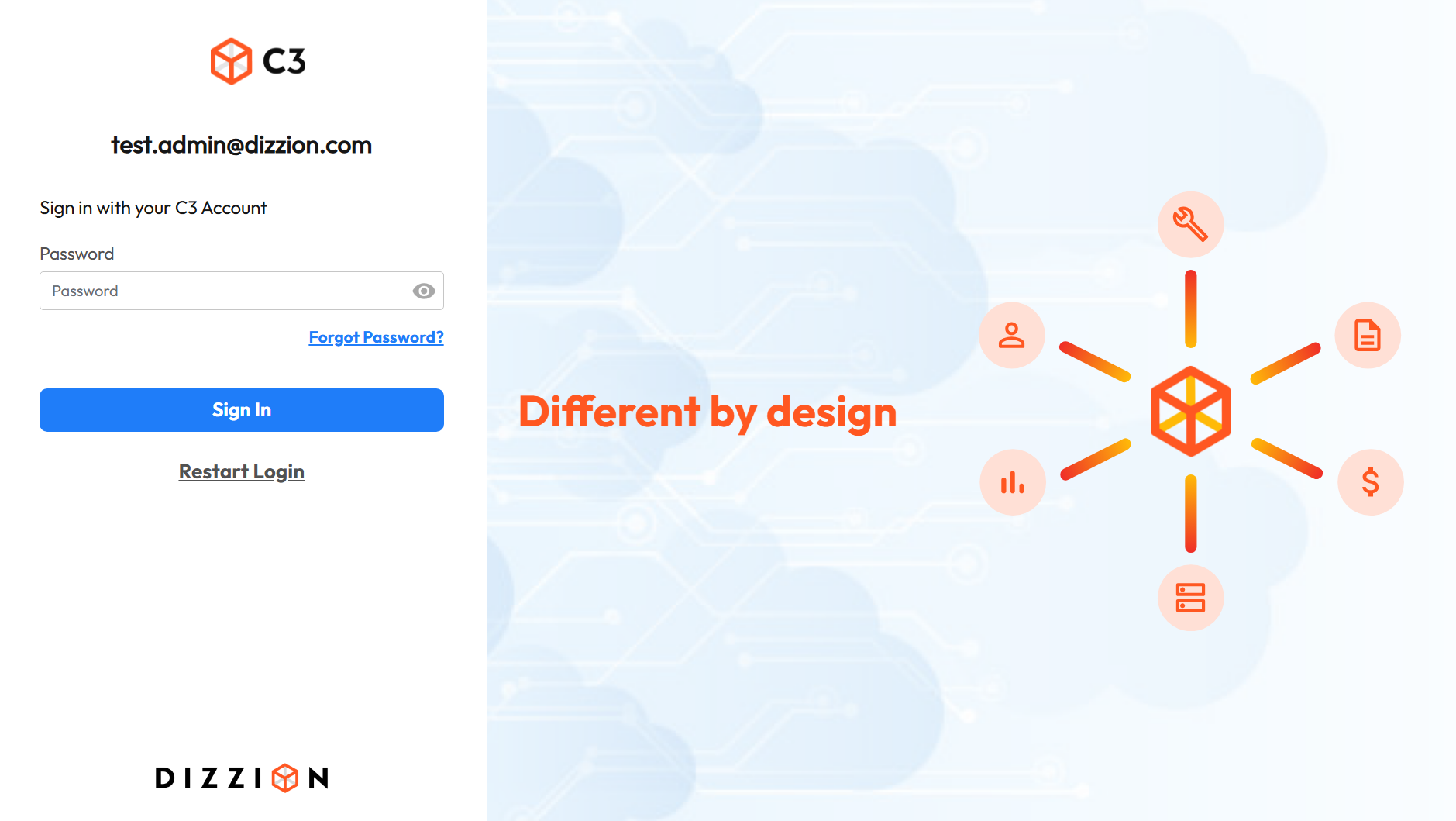
3. 3. Enter your password and click **Sign In**.
4\. Click on "Click here to launch Frame" to be redirected.
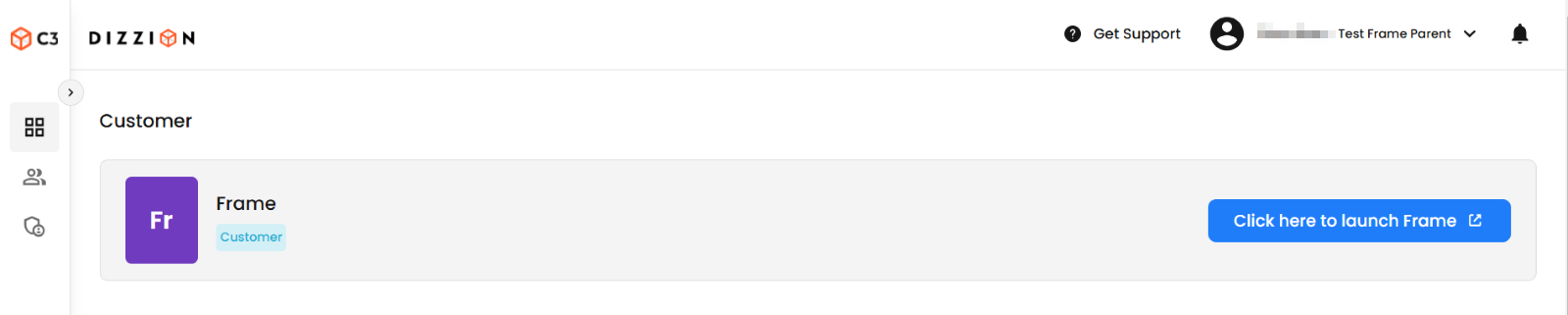5\. A new browser tab will open, and you will be automatically redirected to Frame.
#### Additional Resources
Enabling this feature allows user access to be managed through Dizzion's C3 Platform. If you wish to modify user access to the platform, you must do so via C3. More detailed information around C3 user management can be found in our [C3 Administration documentation.](https://docs.difr.com/books/c3-control-center/page/getting-started)