# AWS IAM Permissions
AWS-based Frame accounts will need to prepare their AWS account by adjusting the permissions as listed below before setting up Domain Joined Instances. This process takes about 5 minutes.
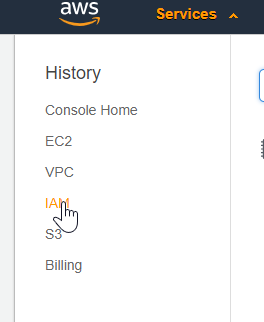
1. First, login to the AWS Console for the account you will be using to Domain Join with Frame. From the AWS Console, click on “IAM.”
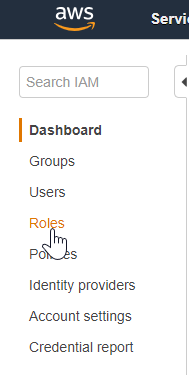
2. From the IAM page, click “Roles.”
3. Search for the role “FrameGatewayWorkload” and and click on the link when it populates.

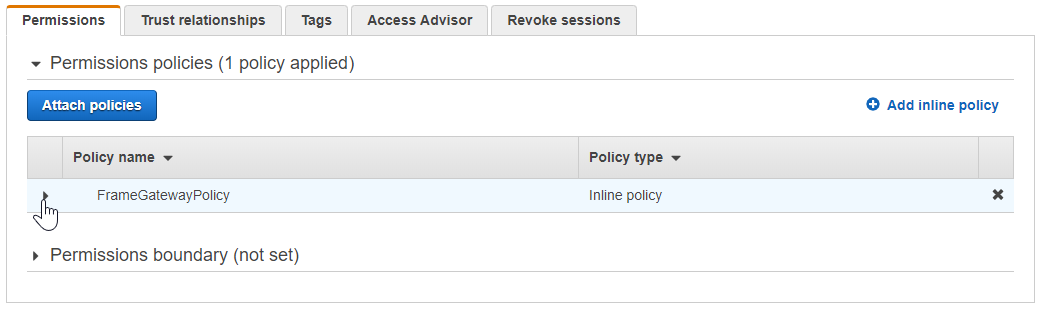
4. From the Roles page, navigate to the “Permissions” tab and click on the arrow next to the “FrameGatewayWorkloadPolicy” policy.
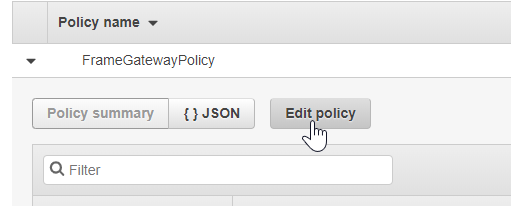
5. Click “Edit policy.”
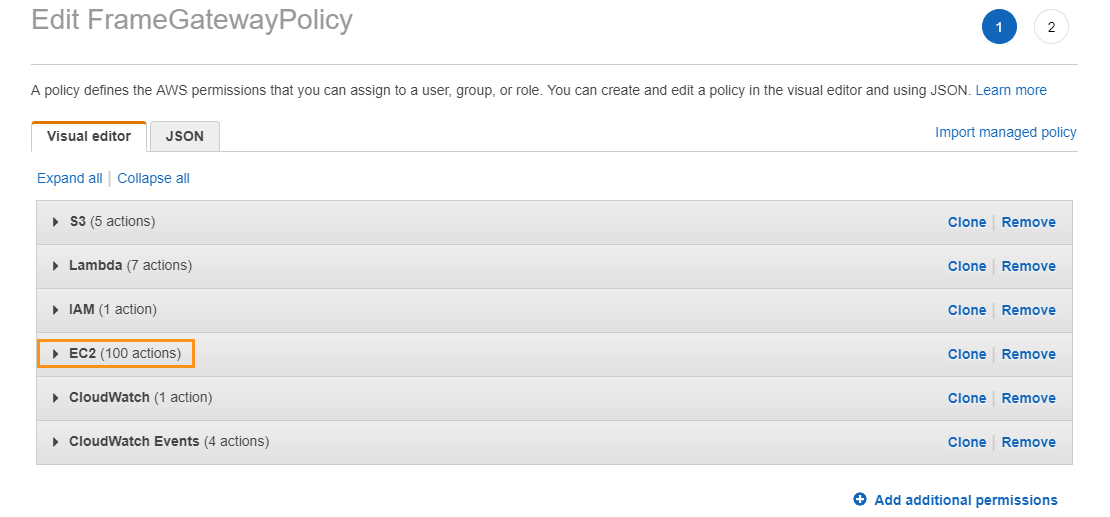
6. Next, under the “Visual editor” tab, expand the “EC2” section by clicking on the arrow listed next to it.
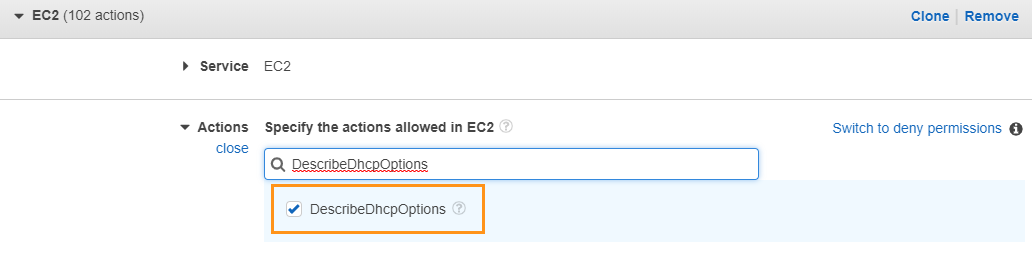
7. Click on the “Actions” section to expand it. Search for “DescribeDhcpOptions” in the filter search. Ensure the box is checked.
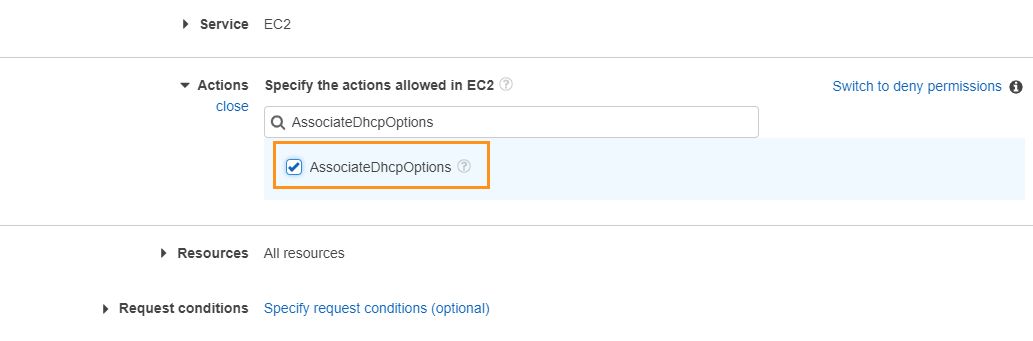
8. In the same filter search field, search for “AssociateDhcpOptions.” Ensure the associated box is checked.
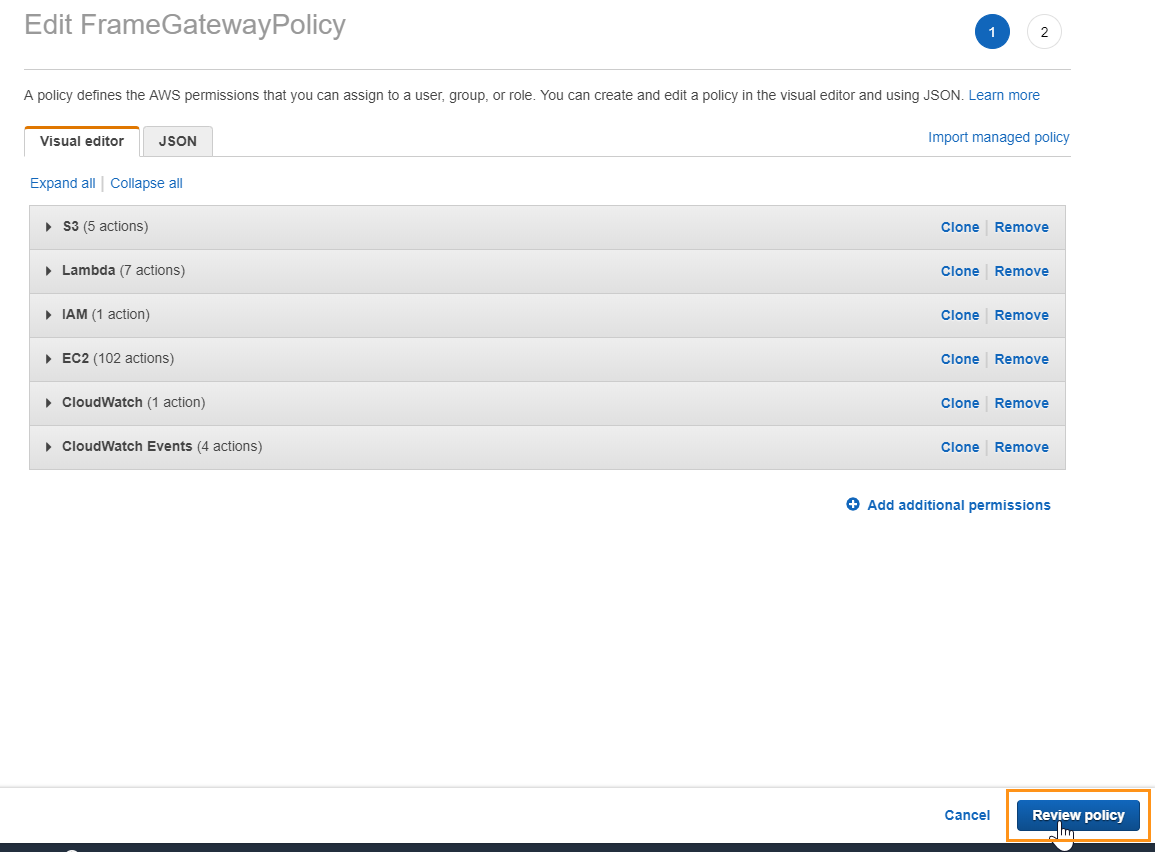
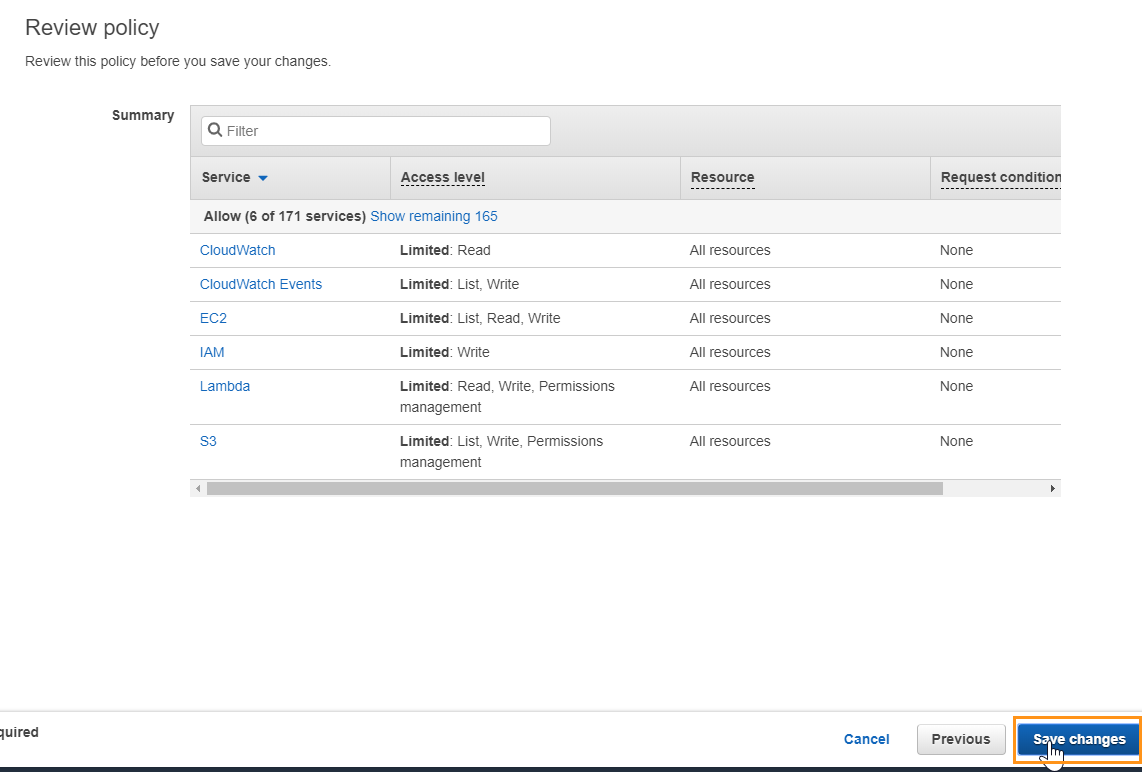
9. At the bottom of the “Edit FrameGatewayPolicy” page, click “Review policy.”
10. Click “Save changes” at the bottom right corner of the review policy page.
You have completed the steps necessary to prep your AWS account for Domain Join. You are now ready to set up Domain Joined Instances for your Frame account.