# Platform Administrators Guide

Comprehensive administration guide for Frame platform

# Platform Fundamentals

Hierarchy, Account Types, and Deployment Planning

# Hierarchy

The Frame platform uses a hierarchical approach to organizing administration and access to accounts. In this section, we'll define each tier and the intended configuration strategy at each level.

## Customers

The Customer tier is the highest tier within the Frame platform. This is the tenant with an attached subscription for a single business entity. Customers can attach their identity provider(s) and infrastructure at the Customer level.

<p class="callout info"> As a general rule, we advise you register your identity provider and infrastructure at the Customer level so all Organizations and Accounts can use those resources, unless you have a need to restrict use of identity providers and infrastructures to specific Organizations and Accounts.</p>

## Organizations

The Organization tier is the middle tier within the Frame platform, residing between Customers and Accounts. There can be many organizations listed under one Customer depending on the use case. A business may use organizations to set up unique environments for different departments within their company.

Customers can attach their identity provider(s) and infrastructure at the Organization level. If they do, then the identity provider and infrastructure integrations can only be used at that Organization and Accounts under the Organization.

## Accounts

This is where an admin will install and configure their applications and configure their production VMs. This is also where admins will create Launchpads for their end users. When an end user logs into Frame, they are accessing one of the accounts listed under an Organization and any of the workload VMs configured for it.

## Roles

The table below describes every available type of user and administrator role, including where they fall in the Frame entity hierarchy and their permissions.

## Launchpad Users

- Users with the **Customer Administrator** role can access all Launchpads for all Accounts on their Frame Platform.
- Users with **Organization Administrator** role can access all Launchpads within the Accounts owned by the Organizations that they have administrator rights to.
- Users with **Account Administrator** role can access all of the Launchpads within the Accounts that they have administrator rights to.
- Users with only **Launchpad User** permissions access Launchpads that are configured by the administrators. A user can access multiple Launchpads from multiple accounts if configured this way by the administrators. When logging into an account, the user will see their assigned Launchpads configured by their administrator and access their applications from there. Users can be given access to one or more accounts within multiple organizations as set by the admins of those respective levels.

# Account Types

<!-- TODO: Add reference to Create Accounts doc on line under Setup -->

Frame can provide a very customized experience to the end user depending on the unique needs of your organization. This section of the documentation reviews all available Frame account types and their benefits.

## Non-persistent (Default) vs. Persistent Desktop Accounts

### Non-persistent Accounts Overview

A non-persistent Frame account is used when a Frame administrator wants their user sessions to be “stateless.” When sessions are stateless, any changes made to an instance are completely erased once the session is closed. The instance is then returned to a pool where it waits to be served to the next user, starting from a clean slate.

**Non-persistent accounts can be created and configured with the following:**

- AHV, AWS, Azure, and Google Cloud Platform
- Domain Joined Instances

#### Applicability

Non-persistent Frame accounts were designed for organizations who wish to:

- Deliver virtualized applications (rather than desktops),
- Provide a consistent end-user experience between user sessions,
- Simplify image management by updating a single image when desired and easily making it available to a group of users, and
- Provide groups of users access to different combinations of compute, memory, and GPU resources (e.g., instance types) based on user profiles.

#### Requirements

- Users must be able to authenticate to the platform using either:
  - an [identity provider integration](/books/platform-administrators-guide/page/authentication)
  - [Frame Basic Authentication](/books/platform-administrators-guide/page/basic-authentication), **or**
  - [Frame Secure Anonymous Tokens Feature](/books/platform-administrators-guide/chapter/secure-anonymous-tokens)

#### Setup

Non-persistent Frame accounts are a selectable option during the "Create Accounts" process.

---

### Persistent Desktop Accounts Overview

In a typical Frame account, sessions are “stateless.” This means that all changes made to an instance are wiped from the instance after the session is closed. The instance is then returned to a pool where it waits to be served to the next user. The Frame platform also offers an alternative option called “Persistent Desktops.”

Persistent Desktops are stateful, desktop-only instances which are individually assigned to users. Users are given administrative control over their own desktop – they can install and manage their own unique application sets and settings in their own persistent environment. Account administrators can still monitor usage and basic session activity through the account Dashboard.

Persistent Desktop accounts can be created and configured with the following:

- AHV, AWS, Azure, and Google Cloud Platform
- Domain Joined Instances

#### Applicability

Persistent Desktops were designed for organizations who prefer to give their users more control over their own environments. Frame Account administrators still configure the Sandbox image to be used as a base for all instances in the pool, but end users manage their own instance once assigned. If required, Persistent Desktops can be domain joined, in order for enterprises to manage these persistent desktops through a Windows domain.

#### Requirements

- Users must be able to authenticate to the platform using either:

  - an [identity provider integration](/books/platform-administrators-guide/page/authentication)
  - [Frame Basic Authentication](/books/platform-administrators-guide/page/basic-authentication), **or**
  - [Frame Secure Anonymous Tokens Feature](/books/platform-administrators-guide/chapter/secure-anonymous-tokens)

- If the persistent desktop Frame account is configured to join the persistent desktop VMs to a Windows domain, the users can be required to authenticate to their Windows domain before accessing their assigned Windows desktop.

#### Setup

The Persistent Desktops feature is enabled upon account creation. It cannot be enabled on accounts that have already been created, since provisioning and infrastructure management of a Persistent Desktop account is handled differently than on a non-persistent Frame account.

### Administration

See the [Persistent Desktops Administration guide](/books/platform-administrators-guide/page/persistent-desktops-administration) for more details.

# Deployment Planning

Customers who wish to deliver virtualized applications and/or desktops to their end users should carefully consider the topics discussed below when planning the implementation of a Frame solution. The design and implementation of their unique Frame Platform solution will vary depending on the customer's use case requirements. The required roles and skill sets for the design, implementation, and operation of their solution are dictated by the customer's business, technical, and operational requirements. Additionally, customers will need to decide on how they will provide end user training, ensure end user adoption (based on what their end users are familiar with), and transition end users from their current environment to the Frame Platform.

This document outlines the key topics that should be considered during the **planning phase** before designing, implementing, and rolling out a Frame solution. The Deployment Planning document is intended to provide a *basis for planning your Frame implementation*. It does not provide every design consideration and tradeoff. Should you have questions, please contact your Dizzion account manager or customer success manager for additional assistance.

<details id="bkmrk-note-%C2%A0frame-discover"><summary>NOTE</summary>

**Frame Discovery Workbook**

Download and complete our Frame Discovery Workbook to summarize the high-level requirements for your use case(s). This workbook helps customers summarize their answers to the questions below and prepare for design and deployment activities.  
[https://files.difr.com/#resources](https://files.difr.com/#resources)

</details>## End User Experience

As a best practice, customers planning their Frame implementation should start by clearly establishing their **desired end user experience**. End user experience is defined by:

- How users will reach their virtualized applications and/or desktops through Frame
- What the users will be able to do while in the Frame session

Clearly defining your end user experience goals before getting started helps to ensure successful implementation and adoption of Frame.

### Accessing Frame

Part of defining the end user experience is determining how your users will access their virtual applications or desktop in Frame. The following table identifies the key questions you will want to answer.

<table id="bkmrk-topic-question-refer"><thead><tr><th>Topic</th><th>Question</th><th>References</th></tr></thead><tbody><tr><td>Authentication</td><td>Will your users need to authenticate to an Identity Provider (IdP) before reaching Frame?</td><td>[Authentication](https://docs.difr.com/books/platform-administrators-guide/page/authentication)</td></tr><tr><td>Authorization</td><td>How will you manage entitlements (e.g., role-based access control)?</td><td>[Authorization](https://docs.difr.com/books/platform-administrators-guide/page/authorization)</td></tr><tr><td>Integration</td><td>Will the users be accessing Frame from a web page you manage or will you simply give them a URL?</td><td> </td></tr><tr><td>Integration</td><td>Will the users access a Launchpad URL, a PWA, a Launch Link, or a custom JavaScript-based web integration?</td><td>[Launchpad](https://docs.difr.com/books/platform-administrators-guide/page/launchpads), [PWA](https://docs.difr.com/books/platform-administrators-guide/page/advanced-integrations), [Launch Link](https://docs.difr.com/books/platform-administrators-guide/page/advanced-integrations), [Frame Session API](https://docs.difr.com/books/developers-guide/page/session-api)</td></tr></tbody></table>

### Frame Session Experience

Next, use the questions below to determine what you would like your users to be able to do during and after their Frame session.

<table id="bkmrk-topic-question-refer-1"><thead><tr><th>Topic</th><th>Question</th><th>References</th></tr></thead><tbody><tr><td>Authentication</td><td>Will you require your users to authenticate to a Windows domain controller once they reach a Windows OS VM?</td><td>[Domain](https://docs.difr.com/books/platform-administrators-guide/page/domain)</td></tr><tr><td>Application Access</td><td>Are you providing your users with desktop environments or limiting their access to only specific applications?</td><td>[Install and Onboard Apps](https://docs.difr.com/books/platform-administrators-guide/page/install-and-onboard-apps), [Launchpad](https://docs.difr.com/books/platform-administrators-guide/page/launchpads)</td></tr><tr><td>Persistence</td><td>Will users need non-persistent VMs or persistent desktop environments?</td><td>[Account Types](https://docs.difr.com/books/platform-administrators-guide/page/account-types)</td></tr><tr><td>Profiles</td><td>Would you like your users to be able to persist their application profiles across sessions while using non-persistent VMs?</td><td>[Profiles](https://docs.difr.com/books/platform-administrators-guide/page/enterprise-profiles)</td></tr><tr><td>Data Storage</td><td>Will users need to be able to access/save their files with cloud storage providers or need a personal drive within the Frame account?</td><td>[Personal Drives](https://docs.difr.com/books/platform-administrators-guide/page/personal-drives), [Cloud Integrations](https://docs.difr.com/books/platform-administrators-guide/chapter/storage)</td></tr><tr><td>Applications</td><td>What specific applications will your users need access to within their Frame session? Do any of these applications require a GPU?</td><td> </td></tr><tr><td>Features</td><td>Will users be able to copy/paste between their device and the Frame session? What features will you allow them to have?</td><td>[Clipboard Integration](https://docs.difr.com/books/platform-administrators-guide/page/clipboard-integration), [Session Features](https://docs.difr.com/link/144#bkmrk-features)</td></tr><tr><td>Session Lifecycle</td><td>How long can the users stay in their Frame session?</td><td>[Time Limits](https://docs.difr.com/books/platform-administrators-guide/page/session-settings)</td></tr><tr><td>Session Lifecycle</td><td>Once the user's Frame session ends, what is the user allowed to do? Start a new session? Forced to re-authenticate to your identity provider? Redirected to a web page?</td><td> </td></tr></tbody></table>

### End User Devices

A consistent user experience requires an understanding of what user devices are to be used to access a Frame session and the peripherals your users need.

<table id="bkmrk-topic-question-refer-2"><thead><tr><th>Topic</th><th>Question</th><th>References</th></tr></thead><tbody><tr><td>Configuration</td><td>What devices are your users expected to use with Frame and what are the minimum requirements? </td><td>[System Requirements](https://docs.difr.com/link/30#bkmrk-system-requirements)</td></tr><tr><td>Configuration</td><td>Will your users be expecting to use more than one monitor?</td><td>[Multiple Monitors](https://docs.difr.com/books/platform-administrators-guide/page/advanced-displays)</td></tr><tr><td>Peripherals</td><td>What peripherals (besides keyboard and mouse) will your users need?</td><td>[USB Human Interface Device](https://docs.difr.com/books/desktop-users-guide/page/session-features)</td></tr><tr><td>Management</td><td>Do you manage your user's devices or are they allowed to bring their own devices?</td><td> </td></tr></tbody></table>

## Infrastructure

You will need to determine what infrastructure(s) you will be using to host your workload VMs and where these workload VMs are geographically, in relation to your end users.

<table id="bkmrk-topic-question-refer-3"><thead><tr><th>Topic</th><th>Question</th><th>References</th></tr></thead><tbody><tr><td>Infrastructure</td><td>What infrastructure(s) have you selected to host your workload VMs and where are they geographically located?</td><td>[Infrastructure](https://docs.difr.com/books/platform-administrators-guide/chapter/cloud-providers-daas-only)</td></tr></tbody></table>

## Networking

To ensure the best user experience, users must have the best network possible between their device and the workload VM selected for their application usage needs. Additionally, customer administrators must decide, from a networking standpoint, how their users will reach the workload VMs and what resources are available to the users from their workload VMs.

<table id="bkmrk-topic-question-refer-4"><thead><tr><th>Topic</th><th>Question</th><th>References</th></tr></thead><tbody><tr><td>Network Architecture</td><td>How do you want the users reach your workload VMs?</td><td>[Networking](https://docs.difr.com/books/platform-administrators-guide/page/networking)</td></tr><tr><td>Network Architecture</td><td>Once the users are in their Frame sessions, what can the workload VMs access on the network? What are users not allowed to reach from the workload VMs?</td><td>[Networking](https://docs.difr.com/books/platform-administrators-guide/page/networking)</td></tr><tr><td>Network Quality</td><td>What is the maximum latency, minimum bandwidth, and maximum packet loss between the end user devices and the workload VMs?</td><td>[Network Requirements](https://docs.difr.com/books/platform-administrators-guide/page/requirements)</td></tr><tr><td>Network Management</td><td>Are you able to apply QoS or prioritize Frame session traffic higher than other forms of traffic on your network?</td><td> </td></tr><tr><td>Data Center Network Quality</td><td>If you are using Nutanix AHV clusters on-premises and your users are accessing the workload VMs from the Internet, what is the network bandwidth between the Internet and your data center? Do you have sufficient bandwidth for the expected number of concurrent Frame sessions?</td><td> </td></tr></tbody></table>

## Operating System

Your choice of infrastructure and required applications will determine what operating system(s) you will use.

<table id="bkmrk-topic-question-refer-5"><thead><tr><th>Topic</th><th>Question</th><th>References</th></tr></thead><tbody><tr><td>BYO or Frame-provided</td><td>If you are using public cloud infrastructure, will you bring your own operating system images or start with Frame-provided images?</td><td>[Operating System](https://docs.difr.com/books/platform-administrators-guide/page/operating-system)</td></tr><tr><td>Windows Domain</td><td>If you require your users to use Windows domain-joined workload VMs, what computer/user GPOs do you require?</td><td>[Domain](https://docs.difr.com/books/platform-administrators-guide/page/domain)</td></tr></tbody></table>

## Security

Infrastructure, network, operating system, and Frame configuration must be evaluated based on your use case requirements. The following key questions are important for ensuring a secure design, implementation, and operation of a Frame solution.

<table id="bkmrk-topic-question-refer-6"><thead><tr><th>Topic</th><th>Question</th><th>References</th></tr></thead><tbody><tr><td>Anti-malware</td><td>What anti-virus/anti-malware solutions do you require in the workload VMs?</td><td>[Security Basics](https://docs.difr.com/books/platform-administrators-guide/page/security-basics)</td></tr><tr><td>Anti-malware</td><td>What anti-virus/anti-malware solutions do you require on end user devices?</td><td> </td></tr><tr><td>Firewall</td><td>Do you restrict outbound access from your private network to the Internet?</td><td>[Network Requirements](https://docs.difr.com/books/platform-administrators-guide/page/networking#bkmrk-requirements)</td></tr><tr><td>Firewall</td><td>Do you restrict inbound and outbound UDP traffic in your network or between end users and the workload VMs?</td><td>[Network Requirements](https://docs.difr.com/books/platform-administrators-guide/page/networking#bkmrk-requirements)</td></tr><tr><td>Firewall</td><td>Do you implement any SSL "break and inspect" solutions for inbound or outbound connections to your private network?</td><td>[SSL Break and Inspect](https://docs.difr.com/link/167#bkmrk-ssl-break-and-inspec)</td></tr><tr><td>Proxy Server</td><td>Do you require traffic from the network to the Internet where the workload VMs reside to go through an outbound proxy server? For what protocols?</td><td>[Proxy Server](https://docs.difr.com/books/platform-administrators-guide/page/outbound-proxy-server-support)</td></tr></tbody></table>

## Recommended Resources

The following table outlines the key roles and associated responsibilities needed for a successful design and implementation of a typical Frame solution. Additional roles are needed to leverage Frame Admin API endpoints for automation and create custom Frame integrations with existing websites.

<table id="bkmrk-role-responsibilitie"><thead><tr><th>Role</th><th>Responsibilities</th></tr></thead><tbody><tr><td>Business Sponsor</td><td>Defines business requirements, including business success criteria, and provides budget for the project.</td></tr><tr><td>End User / Use Case Owner</td><td>Expert on the desired end user experience(s) / use case(s). Defines the end user success criteria, requirements, and end user test plan. Serves as the “voice of the end user experience”.</td></tr><tr><td>Project Manager</td><td>Organizes and coordinates customer resources, tasks, reports on progress, and identifies / mitigate execution risks.</td></tr><tr><td>Solution Architect or Cloud Architect</td><td>Defines the technical requirements based on the business requirements, including technical success criteria, and responsible for overall solution design.</td></tr><tr><td>Network Engineer</td><td>Manages the customer’s network. Assigns CIDR block for the network containing Frame-managed workloads, manages routing between private network and Internet and from workloads to company’s network-accessible resources.</td></tr><tr><td>Information Security</td><td>Manages company firewalls and endpoint protection solutions (anti-virus/anti-malware) that will be used within the Frame-managed workloads.</td></tr><tr><td>Identity Provider Administrator</td><td>Manages and configures the customer’s SAML2 identity provider. Registers Frame Platform as a SAML2 Service Provider for federated authentication and configures their identity provider to generate SAML2 assertions to enforce role-based access control within Frame.</td></tr><tr><td>Windows Domain Administrator</td><td>Manages the customer’s Windows domain infrastructure and creates the domain service account for use in the Frame-managed workloads.</td></tr><tr><td>Application Administrator</td><td>Installs and configures customer’s applications for use by end users. Typically, this person is the first Frame “Customer Administrator”. For some organizations, this role maintains the template image(s) with the OS and applications. Understands application requirements, configuration, and dependencies (e.g., required file servers, data storage services, licensing servers, etc.).</td></tr><tr><td>Endpoint Administrator</td><td>Deploys and manages the end user endpoints (e.g., desktops, laptops, thin clients, mobile devices) to be used to access Frame-managed workloads.</td></tr><tr><td>End User Application/Desktop Tester</td><td>Verifies, from an end user's perspective, that the solution meets the needs of the end users.</td></tr></tbody></table>

# Licensing

OS and Applications, Microsoft Licensing Guide

# Operating Systems and Applications

The table below lists the operating systems available for the Frame platform and their corresponding licensing and image requirements based on the selected infrastructure.

<table id="bkmrk-operating-system-ahv" style="width: 100%; height: 352.825px;"><thead><tr style="height: 59.35px;"><th style="width: 20.2542%; height: 59.35px;">Operating System</th><th style="width: 15.6076%; height: 59.35px;">AHV</th><th style="width: 16.4416%; height: 59.35px;">AWS</th><th style="width: 16.4416%; height: 59.35px;">Azure</th><th style="width: 15.964%; height: 59.35px;">GCP</th><th style="width: 15.3704%; height: 59.35px;">IBM</th></tr></thead><tbody><tr style="height: 42.475px;"><td style="width: 20.2542%; height: 42.475px;">Windows 10 \*</td><td style="width: 15.6076%; height: 42.475px;">✓ <sup>[1](https://docs.difr.com/link/39#bkmrk-customer%27s-must-prov)</sup></td><td style="width: 16.4416%; height: 42.475px;">✓ <sup>[2](https://docs.difr.com/link/39#bkmrk-customer%27s-must-prov)</sup></td><td style="width: 16.4416%; height: 42.475px;">✓ <sup>[3](https://docs.difr.com/link/39#bkmrk-customer%27s-must-prov)</sup></td><td style="width: 15.964%; height: 42.475px;">✓ <sup>[2](https://docs.difr.com/link/39#bkmrk-customer%27s-must-prov)</sup></td><td style="width: 15.3704%; height: 42.475px;">✓ <sup>[2](https://docs.difr.com/link/39#bkmrk-customer%27s-must-prov)</sup></td></tr><tr style="height: 42.475px;"><td style="width: 20.2542%; height: 42.475px;">Windows 11</td><td style="width: 15.6076%; height: 42.475px;">✓ <sup>[1](https://docs.difr.com/link/39#bkmrk-customer%27s-must-prov)</sup></td><td style="width: 16.4416%; height: 42.475px;">✓ <sup>[2](https://docs.difr.com/link/39#bkmrk-customer%27s-must-prov)</sup></td><td style="width: 16.4416%; height: 42.475px;">✓ <sup>[3](https://docs.difr.com/link/39#bkmrk-customer%27s-must-prov)</sup></td><td style="width: 15.964%; height: 42.475px;">✓ <sup>[2](https://docs.difr.com/link/39#bkmrk-customer%27s-must-prov)</sup></td><td style="width: 15.3704%; height: 42.475px;">✓ <sup>[2](https://docs.difr.com/link/39#bkmrk-customer%27s-must-prov)</sup></td></tr><tr style="height: 55.35px;"><td style="width: 20.2542%; height: 55.35px;">Windows Server 2019</td><td style="width: 15.6076%; height: 55.35px;">✓ <sup>[1](https://docs.difr.com/link/39#bkmrk-customer%27s-must-prov)</sup></td><td style="width: 16.4416%; height: 55.35px;">✓ <sup>[3](https://docs.difr.com/link/39#bkmrk-customer%27s-must-prov)</sup></td><td style="width: 16.4416%; height: 55.35px;">✓ <sup>[3](https://docs.difr.com/link/39#bkmrk-customer%27s-must-prov)</sup></td><td style="width: 15.964%; height: 55.35px;">✓ <sup>[3](https://docs.difr.com/link/39#bkmrk-customer%27s-must-prov)</sup></td><td style="width: 15.3704%; height: 55.35px;">✓ <sup>[3](https://docs.difr.com/link/39#bkmrk-customer%27s-must-prov)</sup></td></tr><tr style="height: 55.35px;"><td style="width: 20.2542%; height: 55.35px;">Windows Server 2022</td><td style="width: 15.6076%; height: 55.35px;">✓ <sup>[1](https://docs.difr.com/link/39#bkmrk-customer%27s-must-prov)</sup></td><td style="width: 16.4416%; height: 55.35px;">✓ <sup>[3](https://docs.difr.com/link/39#bkmrk-customer%27s-must-prov)</sup></td><td style="width: 16.4416%; height: 55.35px;">✓ <sup>[3](https://docs.difr.com/link/39#bkmrk-customer%27s-must-prov)</sup></td><td style="width: 15.964%; height: 55.35px;">✓ <sup>[3](https://docs.difr.com/link/39#bkmrk-customer%27s-must-prov)</sup></td><td style="width: 15.3704%; height: 55.35px;">✓ <sup>[3](https://docs.difr.com/link/39#bkmrk-customer%27s-must-prov)</sup></td></tr><tr><td style="width: 20.2542%; height: 55.35px;">Windows Server 2025</td><td style="width: 15.6076%; height: 55.35px;">✓ <sup>[1](https://docs.difr.com/link/39#bkmrk-customer%27s-must-prov)</sup></td><td style="width: 16.4416%; height: 55.35px;">✓ <sup>[3](https://docs.difr.com/link/39#bkmrk-customer%27s-must-prov)</sup></td><td style="width: 16.4416%; height: 55.35px;">✓ <sup>[3](https://docs.difr.com/link/39#bkmrk-customer%27s-must-prov)</sup></td><td style="width: 15.964%; height: 55.35px;">✓ <sup>[3](https://docs.difr.com/link/39#bkmrk-customer%27s-must-prov)</sup></td><td style="width: 15.3704%; height: 55.35px;">✓ <sup>[3](https://docs.difr.com/link/39#bkmrk-customer%27s-must-prov)</sup></td></tr><tr style="height: 42.475px;"><td style="width: 20.2542%; height: 42.475px;">Ubuntu 20.04</td><td style="width: 15.6076%; height: 42.475px;">✓ <sup>[1](https://docs.difr.com/link/39#bkmrk-customer%27s-must-prov)</sup></td><td style="width: 16.4416%; height: 42.475px;">✓</td><td style="width: 16.4416%; height: 42.475px;">✓</td><td style="width: 15.964%; height: 42.475px;">✓</td><td style="width: 15.3704%; height: 42.475px;">✓ <sup>[3](https://docs.difr.com/link/39#bkmrk-customer%27s-must-prov)</sup></td></tr><tr><td style="width: 20.2542%; height: 42.475px;">Ubuntu 24.04</td><td style="width: 15.6076%; height: 42.475px;">✓ <sup>[1](https://docs.difr.com/link/39#bkmrk-customer%27s-must-prov)</sup></td><td style="width: 16.4416%; height: 42.475px;">✓</td><td style="width: 16.4416%; height: 42.475px;">✓</td><td style="width: 15.964%; height: 42.475px;">✓</td><td style="width: 15.3704%; height: 42.475px;">✓ <sup>[3](https://docs.difr.com/link/39#bkmrk-customer%27s-must-prov)</sup></td></tr></tbody></table>

<div align-items:="" center="" column="" id="bkmrk-" style="justify-content: center, display: flex, flex-direction:;"></div><p class="callout info"> \* Frame supports Windows 10 releases that have not yet met their [official end of service date](https://docs.microsoft.com/en-us/windows/release-information/).</p>

#### Footnotes

1. Customers must provide their own OS licenses and image for Nutanix AHV.
2. Customers must provide their own OS licenses.
3. OS license **included** in cost.

<details id="bkmrk-important-customers-"><summary>Important</summary>

Customers are responsible for applying operating system security updates to their accounts.

</details>1. Administrators are responsible for managing operating system and application updates for their accounts. As a best practice, administrators should ensure OS updates are compatible with any applications before installing them. Admins may choose to configure automatic updates or apply them manually. Similarly, this concept applies to configuring updates for any applications you have installed. Many Frame customers find that having a separate Frame account for testing significant system configuration changes is beneficial.

We also recommend testing any application and OS updates in the Sandbox environment and/or test pool before publishing to the production pool (or promoting a test publish to production). Any OS/application updates applied to the Sandbox will require a publish to propagate those changes to the test and production pools. If a new update has caused an issue, you can roll back to an older version of the application/OS and republish or restore from a Sandbox backup.

# Application Licensing

One of the more common challenges with onboarding applications to Frame, is supporting the various license models that come with the variety of software in the market. Most industry-standard licensing models can be supported by Frame with only a few exceptions. In cases where a particular licensing model is not supported, the software vendor will typically have an alternative license model that can be used. The following summarizes the common licensing approaches.

## Standalone Licensing

Apps that require standalone licensing may have trouble keeping their activation/licensing information active when published to production instances.

Standalone licensing sometimes fails in production environments due to the license being hardware-locked to a specific Windows hostname, network MAC address, hard drive unique ID, or some other hardware ID associated with the Windows installation. If you install the license on the Sandbox and then publish to production instances, the unique hardware fingerprint for the production instances will have changed and the licensing mechanism may prevent the sofwater from running. Note that sometimes these licensing mechanisms may allow some time period of use after being copied only to prompt for reactivation later. It's always best to consult with the software vendor first to understand how their licensing is intended to work.

In some cases, Frame can ensure that production instances have the exact same hostname as the Sandbox that they were originally configured for. This will enable support for standalone licensing that only relies on the hostname. This configuration resides in the Frame Gateway and is part of the Vendor configuration. By default, this value is set to create unique hostnames for all instances as shown below (contact Frame if you require this setting to be changed and don't have Gateway access for your deployment):

![Unique Hostnames](https://docs.difr.com/uploads/images/gallery/2025-10/t4Oinstanceshostnames.png)

Most applications that have standalone licensing models also have other licensing options including enterprise volume licensing and network licensing.

## Enterprise Volume Licensing

One of the most common licensing mechanisms available from software vendors is called enterprise volume licensing or volume activation. This approach makes it much easier for IT departments to distribute software across a large enterprise with many devices. Typically, a single key can be used to activate the software on the Sandbox (a.k.a. the “Template Image”) and the publishing process maintains the activation. This parallels the process used in physical PC environments where a template image is used to push entire hard drive images to PCs connected on the network.

Note that with some software, there is a limit to how many times an image can be created and copied before activation restrictions engage and prevent use of the software. For example, you may be able to install and activate on a Sandbox and then publish from that Sandbox to the production instances on that account. But you may not be able to clone the Sandbox to another account and then publish from that account (this constitutes a copy of a copy being published).

Ultimately, the licensing protections that software vendors use for enterprise licensing can vary significantly. It's therefore important to consult with the software vendor on what licensing approach is best for a managed environment like Frame.

## Network Licensing

Often, the best way to license applications for production instances is by configuring a dedicated network licensing server to serve licenses to production instances in real time. When a licensed instance is powered off, the license is then returned to the licensing server to become available to other instances.

+ This licensing server can exist within the same account (using Frame's Utility Server feature), AWS VPC, or can be accessible via a VPN tunnel.
+ The licensing server must have inbound TCP ports open on both the Windows Firewall and via AWS. If the account is within a VPC, the ports do not need to be opened via AWS.
+ Client-side access to a licensing server on AWS must be configured via IP address, as hostname resolution is disabled on AWS for security reasons.
+ Typically, if the Sandbox is properly configured and can connect to a licensing server and receive a valid license, one simply needs to publish (cloning the Sandbox image to production instances) in order for the licensing to work on production instances.

This licensing model is common with high-end engineering and graphics intensive applications.

## Cloud-based Licensing

Software vendors have been increasingly turning to cloud-based licensing. This means that the software license is more flexible and is tied to the user rather than to a device. Thus, a user can run the software on any device so long as it has internet connectivity and can reach the software vendor's cloud-based licensing system. Typically, a user login is required at the start of an application session. This login can be presented to a Frame user right after launching their Frame session. If entering a user's credentials is not desired, then an SSO integration may be an option when using this licensing approach.

## License Integration with Frame

ISVs can build their licensing models with Frame in mind. Frame offers unique data-handling tools that can be leveraged for licensing.

For example, if an ISV can tie their user authentication to their licensing for their users, this information can be passed from the ISV directly into a Frame session and the application can then access the licensing data as necessary. This, of course, is assuming that the ISV has written their app to expect this licensing data when a Frame session is started.

Similarly, if the ISV has their own authentication mechanism used to validate users, an SSO integration with Frame is another option.

## USB Dongle Licensing

While rare, some applications require physical dongles to be attached to the PC running the software. Naturally, this approach does not work with cloud-based virtual machines. In some cases, “soft” versions of the dongles can be used - but this typically requires close interaction with the software vendor.

# Microsoft Licensing Guide for Frame

Ultimately, Frame customers are responsible for ensuring their compliance with [Microsoft Licensing Terms](https://www.microsoft.com/en-us/licensing/product-licensing/products) and any other agreements pertaining to Microsoft.

This guide specifically covers Microsoft licensing from a Windows Operating System (OS) VM access perspective for use as a Frame workload VM. This does not include any relevant Windows endpoint device licensing, Microsoft Office/O365, or any other Microsoft or third-party software and/or subscription licensing that may be required.

<details id="bkmrk-warning-this-documen"><summary>Warning</summary>

This document is provided as-is for informational purposes only and may not reflect the most up-to-date requirements from Microsoft. The information in this guide is provided to help guide your authorized use of Microsoft products you are licensing; it is not your agreement with Microsoft. Frame customers are strongly encouraged to speak with their Microsoft representative to validate compliance.

</details>## Windows 10 and Windows 11

<details id="bkmrk-resources-official-w"><summary>Resources</summary>

- [Official Windows Licensing Brief for Virtual Desktops (PDF)](https://download.microsoft.com/download/3/D/4/3D42BDC2-6725-4B29-B75A-A5B04179958B/Licensing_brief_PLT_Windows_10_licensing_for_Virtual_Desktops.pdf)

</details>### Deploying on Amazon Web Services (AWS)

To comply with Microsoft's licensing terms, all virtualized Windows desktops and applications deployed in AWS must run on **Dedicated Instances**. This applies to both Frame-provided and customer BYO images running Windows 10 or 11. The Dedicated Instance infrastructure ensures that each virtual machine runs in an isolated environment, meeting the requirements outlined in the [Microsoft EULA](https://www.microsoft.com/en-us/windowsvirtualdesktop/eula). The AWS infrastructure must either be customer-managed (BYO) or Dizzion-provided (Complete customers only). Legacy Frame customers using Frame IaaS are not eligible.

<details id="bkmrk-user-licensing-requi"><summary>User Licensing Requirements</summary>

Every user accessing a Windows 10 or 11 desktop or application must have a VDA (Virtual Desktop Access) entitlement.

</details>#### Windows Activation via KMS or ADBA

When deploying BYO Windows 10 or 11 images, customers must configure an activation method to ensure compliance.

**Activation Options:**

- **KMS (Key Management Service)**
    - KMS can be configured within the customer’s infrastructure or on a utility server. Frame virtual machines must have network access to the KMS server.
- **ADBA (Active Directory-Based Activation)**
    - Recommended if KMS is not already in place. ADBA simplifies the activation process by leveraging existing Active Directory infrastructure.

<details id="bkmrk-resources-official-m"><summary>Resources</summary>

Official Microsoft Documentation for KMS activation  
Official Microsoft Documentation for ADBA activation

</details>If neither KMS nor ADBA is configured, Frame virtual machines may not activate properly, which can result in compliance issues.

### Deploying on Nutanix AHV

In order to access a Windows 10/11 VM hosted on-premises by Nutanix AHV, the device used to access the Windows 10/11 VM or the user must have a **Windows Virtualization Rights entitlement**. This entitlement is included with the Microsoft licenses listed in the table below:

<table id="bkmrk-model-microsoft-lice"><thead><tr><th>Model</th><th>Microsoft License</th><th>How to Purchase</th></tr></thead><tbody><tr><td rowspan="4">Per User</td><td>Windows Enterprise E3 Subscription License</td><td rowspan="0">Bring Your Own License</td></tr><tr><td>Windows Enterprise E5 Subscription License</td></tr><tr><td>Windows VDA E3 Subscription License</td></tr><tr><td>Windows VDA E5 Subscription License</td></tr><tr><td rowspan="2">Per Device</td><td>Windows VDA Subscription Licenses</td></tr><tr><td>Windows 10 Software Assurance</td></tr></tbody></table>

<details id="bkmrk-considerations-only-"><summary>Considerations</summary>

- Only one of the licenses in the table above are required on either a per-user or per-device basis.
- Microsoft 365 licenses that include Windows 10/11 Enterprise E3/E5 are only eligible for Windows Virtualization Rights entitlement if the user is the primary user of a device with a [Qualifying Operating System](https://download.microsoft.com/download/3/D/4/3D42BDC2-6725-4B29-B75A-A5B04179958B/Licensing_brief_PLT_Windows_10_qualifying_operating_%20system_requirements.pdf).

</details>### Deploying on Microsoft Azure

In order to access a Windows 10/11 VM hosted in Microsoft Azure, the user must have a Windows 10/11 Multi-tenant Hosting Rights entitlement. This entitlement is included with the Microsoft licenses listed in the table below:

<table id="bkmrk-model-microsoft-lice-1"><thead><tr><th>Model</th><th>Microsoft License</th><th>How to Purchase</th></tr></thead><tbody><tr><td rowspan="4">Per User</td><td>Windows Enterprise E3 Subscription License</td><td rowspan="0">Bring Your Own License</td></tr><tr><td>Windows Enterprise E5 Subscription License</td></tr><tr><td>Windows VDA E3 Subscription License</td></tr><tr><td>Windows VDA E5 Subscription License</td></tr></tbody></table>

<details id="bkmrk-considerations-only--1"><summary>Considerations</summary>

Only one of the licenses listed in the table above are required on a per-user basis.  
Microsoft 365 licenses that include Windows 10 Enterprise E3/E5 are only eligible for Windows 10 Multitenant Hosting Rights entitlement if the user is the primary user of a device with a Qualifying Operating System.

</details>## Windows Server

### Deploying on Nutanix AHV

In order to access a Windows Server (2012 R2, 2016, 2019) VM hosted on-premises on Nutanix AHV, the device used to access the Windows Server VM or the user must have both a Windows Server CAL (Client Access License) that matches the specific Windows Server OS version **and** a Microsoft RDS (Remote Desktop Services) CAL allocated.

<table id="bkmrk-model-microsoft-lice-2"><thead><tr><th>Model</th><th>Microsoft License</th><th>How to Purchase</th></tr></thead><tbody><tr><td>Per User</td><td>Windows Server CAL + Microsoft RDS CAL</td><td rowspan="2">Bring Your Own License</td></tr><tr><td>Per Device</td><td>Windows Server CAL + Microsoft RDS CAL</td></tr></tbody></table>

<details id="bkmrk-considerations-only--2"><summary>Considerations</summary>

Only one set of licenses listed in the table above are required on either a per-user or per-device basis.

Windows Server CAL may already be included with your Windows Server OS (depending on edition). The above does not include any required Windows Server Standard Edition or Datacenter Edition core-based licensing when deploying Windows Server VMs on-premises. These must be purchased as well.

</details>### Deploying on Microsoft Azure, AWS, or GCP

In order to access a Windows Server (2012 R2, 2016, 2019) VM hosted in Microsoft Azure, the Windows Server license must be included as part of the cloud provider's hourly pay-go pricing. As an exception that applies only to Azure, if the customer already owns on-premises Windows Server licenses with active Software Assurance, they can leverage the [Azure Hybrid Use Benefit](https://docs.microsoft.com/en-us/azure/virtual-machines/windows/hybrid-use-benefit-licensing) to pay a lower hourly rate for pay-go Windows Server VMs.

In addition, each device used to access the Windows Server VM or each user must have a Microsoft RDS CAL allocated with active Software Assurance. Alternatively, customers can purchase a Microsoft RDS SAL (Subscriber Access License), which is only available on a per-user per-month basis.

<table id="bkmrk-model-microsoft-lice-3"><thead><tr><th>Model</th><th>Microsoft License</th><th>How to Purchase</th></tr></thead><tbody><tr><td>Per User Per Month</td><td>Microsoft RDS SAL</td><td>Available for Purchase from Frame or Bring Your Own License</td></tr><tr><td>Per User</td><td>Microsoft RDS CAL with Software Assurance</td><td rowspan="2">Bring Your Own License</td></tr><tr><td>Per Device</td><td>Microsoft RDS CAL with Software Assurance</td></tr></tbody></table>

<details id="bkmrk-considerations-only--3"><summary>Considerations</summary>

- Only one of the licenses listed in the table above are required on either a per-user or per-device basis.

</details>### Purchasing Microsoft RDS SAL from Frame

Customers who elect to purchase Microsoft RDS SALs from Frame are still liable for ensuring compliance with [Microsoft Licensing Terms](https://www.microsoft.com/en-us/licensing/product-licensing/products) for the relevant Windows Server product being accessed.

### Using Frame Secure Anonymous Tokens

Customers using [Secure Anonymous Tokens](https://docs.difr.com/books/platform-administrators-guide/page/secure-anonymous-tokens) for user authentication in to Frame are required to maintain a detailed record of all unique users logging into Frame each month throughout the term of their Frame subscription. For these customers who purchased Microsoft RDS SALs via Frame, they are also required to send Frame the actual number of unique users who accessed Frame during the previous monthly billing cycle on a monthly basis for compliance purposes. The following information should be provided to Frame:

- Frame Customer entity name
- Monthly billing period (MM/DD/YY - MM/DD/YY)
- Number of unique users

# Cloud Providers - DaaS Only

Infrastructure, Cost Management, Supported Instance Types, Cloud Account, BYO, AWS, Azure, GCP, IBM, Nutanix, Amazon Workspaces Core

# Infrastructure

This next portion of our documentation describes the Frame-supported infrastructure options and detailed guides for bringing your own (BYO) infrastructure to the platform.

### BYO Infrastructure and Monitoring Responsibility

When you add your own BYO infrastructure (AHV Cluster or public cloud account), you acknowledge and agree that you are configuring your infrastructure(s) for use by Frame services. For public cloud accounts, this will incur costs for infrastructure regardless of whether end users are using the infrastructure or not and whether the usage is intentionally, unintentionally, or accidentally consumed.

While Frame provides automated orchestration of Frame resources within your BYO infrastructure, per Frame EULA, you are ultimately responsible for ensuring that any resources deployed within your BYO infrastructure(s) are accurately maintained (Your Content). Frame strongly recommends that proper monitoring and alerting of your BYO infrastructure(s) is implemented and utilized on a regular basis. Any inaccuracies should be reported to Frame via a support case as soon as possible.

Frame recommends customers review our Microsoft Licensing Guide for Frame as part of the infrastructure selection and configuration process.

# Cost Management

Infrastructure as a Service (IaaS) providers supply the underlying infrastructure (compute, storage, network) resources that power Frame accounts. You are expected to understand when and under what conditions you are charged for use of these resources. The primary cost drivers for IaaS usage are described in the following table.

<table id="bkmrk-public-cloud-resourc"><thead><tr><th>Public Cloud Resource</th><th>Cost</th><th>Cost Best Practices</th></tr></thead><tbody><tr><td>Virtual machines</td><td>Charged when VM instances are powered on</td><td>Keep VMs off unless absolutely needed. Use Frame Active Capacity min and buffer or Frame Admin API endpoints to manage when VMs are powered on.</td></tr><tr><td>  
</td><td>  
</td><td>  
</td></tr><tr><td>Storage</td><td>Charged when storage is used</td><td>Keep Sandbox disk size small unless there is a need to increase disk size for applications and user files. Regularly review the number of Sandbox, Utility server, profile disk, and personal drive backups to keep what is absolutely necessary.</td></tr></tbody></table>

See also

- Our [Capacity Management](https://docs.difr.com/books/platform-administrators-guide/page/capacity) documentation provides more information about managing your usage and conserving infrastructure costs.
- Our [Analytics](https://docs.difr.com/books/platform-administrators-guide/page/analytics) documentation discusses how to interpret usage trends through the Frame interface.

# DaaS Supported Instance Types

This table provides a comprehensive overview of the instance types that are currently supported on our DaaS platform. Each row details specific characteristics, including the provider, instance name, family, number of virtual CPUs (vCPUs), RAM allocation, and GPU availability. Notes on specific capabilities or limitations, like unlimited bursting, are also included.

<p class="callout info"> To request support for new instance types, please submit a support ticket detailing the requested instances and your use case. Support for new instance types will be added based on demand, availability, performance, and compatibility.</p>

<details id="bkmrk-aws-%28ec2%29-instance-n"><summary>AWS (EC2)</summary>

<table class="table table-bordered" style="width: 100.041%; height: 3389.96px;"><thead><tr style="height: 76.4792px;"><th style="width: 17.1605%; height: 76.4792px;"><span style="color: rgb(255, 255, 255);">Dizzion </span><span style="color: rgb(255, 255, 255);">Instance Name</span>

</th><th style="width: 14.1975%; height: 76.4792px;"><span style="color: rgb(255, 255, 255);">Cloud </span><span style="color: rgb(255, 255, 255);">Instance Name</span>

</th><th style="width: 7.77778%; height: 76.4792px;"><span style="color: rgb(255, 255, 255);">vCPU</span></th><th style="width: 9.38272%; height: 76.4792px;"><span style="color: rgb(255, 255, 255);">RAM</span></th><th style="width: 17.037%; height: 76.4792px;"><span style="color: rgb(255, 255, 255);">GPU Model</span></th><th style="width: 11.1111%; height: 76.4792px;"><span style="color: rgb(255, 255, 255);">GPU RAM</span></th><th style="width: 9.87654%; height: 76.4792px;"><span style="color: rgb(255, 255, 255);">IaaS Credits</span></th><th style="width: 13.4568%; height: 76.4792px;"><span style="color: rgb(255, 255, 255);">Notes</span></th></tr></thead><tbody><tr style="height: 41.9375px;"><td style="width: 17.1605%; height: 41.9375px;">Air 4GB (T2)</td><td style="width: 14.1975%; height: 41.9375px;">t2.medium</td><td style="width: 7.77778%; height: 41.9375px;">1</td><td style="width: 9.38272%; height: 41.9375px;">4 GB</td><td style="width: 17.037%; height: 41.9375px;">N/A</td><td style="width: 11.1111%; height: 41.9375px;">N/A</td><td style="width: 9.87654%; height: 41.9375px;">12</td><td style="width: 13.4568%; height: 41.9375px;"> </td></tr><tr style="height: 59.2083px;"><td style="width: 17.1605%; height: 59.2083px;">Air 4GB (T3)</td><td style="width: 14.1975%; height: 59.2083px;">t3.medium</td><td style="width: 7.77778%; height: 59.2083px;">1</td><td style="width: 9.38272%; height: 59.2083px;">4 GB</td><td style="width: 17.037%; height: 59.2083px;">N/A</td><td style="width: 11.1111%; height: 59.2083px;">N/A</td><td style="width: 9.87654%; height: 59.2083px;">20</td><td style="width: 13.4568%; height: 59.2083px;">unlimited bursting</td></tr><tr style="height: 41.9375px;"><td style="width: 17.1605%; height: 41.9375px;">Air 8GB (T2</td><td style="width: 14.1975%; height: 41.9375px;">t2.large</td><td style="width: 7.77778%; height: 41.9375px;">2</td><td style="width: 9.38272%; height: 41.9375px;">8 GB</td><td style="width: 17.037%; height: 41.9375px;">N/A</td><td style="width: 11.1111%; height: 41.9375px;">N/A</td><td style="width: 9.87654%; height: 41.9375px;">24</td><td style="width: 13.4568%; height: 41.9375px;"> </td></tr><tr style="height: 59.2083px;"><td style="width: 17.1605%; height: 59.2083px;">Air 8GB (T3)</td><td style="width: 14.1975%; height: 59.2083px;">t3.large</td><td style="width: 7.77778%; height: 59.2083px;">2</td><td style="width: 9.38272%; height: 59.2083px;">8 GB</td><td style="width: 17.037%; height: 59.2083px;">N/A</td><td style="width: 11.1111%; height: 59.2083px;">N/A</td><td style="width: 9.87654%; height: 59.2083px;">32</td><td style="width: 13.4568%; height: 59.2083px;">unlimited bursting</td></tr><tr style="height: 59.2083px;"><td style="width: 17.1605%; height: 59.2083px;">Air 16GB (T3)</td><td style="width: 14.1975%; height: 59.2083px;">t3.xlarge</td><td style="width: 7.77778%; height: 59.2083px;">4</td><td style="width: 9.38272%; height: 59.2083px;">16 GB</td><td style="width: 17.037%; height: 59.2083px;">N/A</td><td style="width: 11.1111%; height: 59.2083px;">N/A</td><td style="width: 9.87654%; height: 59.2083px;">54</td><td style="width: 13.4568%; height: 59.2083px;">unlimited bursting</td></tr><tr style="height: 59.2083px;"><td style="width: 17.1605%; height: 59.2083px;">Air 32GB (T3)</td><td style="width: 14.1975%; height: 59.2083px;">t3.2xlarge</td><td style="width: 7.77778%; height: 59.2083px;">8</td><td style="width: 9.38272%; height: 59.2083px;">32 GB</td><td style="width: 17.037%; height: 59.2083px;">N/A</td><td style="width: 11.1111%; height: 59.2083px;">N/A</td><td style="width: 9.87654%; height: 59.2083px;">54</td><td style="width: 13.4568%; height: 59.2083px;">unlimited bursting</td></tr><tr style="height: 59.2083px;"><td style="width: 17.1605%; height: 59.2083px;">Air 4GB (T3A)</td><td style="width: 14.1975%; height: 59.2083px;">t3a.medium</td><td style="width: 7.77778%; height: 59.2083px;">1</td><td style="width: 9.38272%; height: 59.2083px;">4 GB</td><td style="width: 17.037%; height: 59.2083px;">N/A</td><td style="width: 11.1111%; height: 59.2083px;">N/A</td><td style="width: 9.87654%; height: 59.2083px;">20</td><td style="width: 13.4568%; height: 59.2083px;">unlimited bursting</td></tr><tr style="height: 59.2083px;"><td style="width: 17.1605%; height: 59.2083px;">Air 8GB (T3A)</td><td style="width: 14.1975%; height: 59.2083px;">t3a.large</td><td style="width: 7.77778%; height: 59.2083px;">2</td><td style="width: 9.38272%; height: 59.2083px;">8 GB</td><td style="width: 17.037%; height: 59.2083px;">N/A</td><td style="width: 11.1111%; height: 59.2083px;">N/A</td><td style="width: 9.87654%; height: 59.2083px;">28</td><td style="width: 13.4568%; height: 59.2083px;">unlimited bursting</td></tr><tr style="height: 59.2083px;"><td style="width: 17.1605%; height: 59.2083px;">Air 16GB (T3A)</td><td style="width: 14.1975%; height: 59.2083px;">t3a.xlarge</td><td style="width: 7.77778%; height: 59.2083px;">4</td><td style="width: 9.38272%; height: 59.2083px;">16 GB</td><td style="width: 17.037%; height: 59.2083px;">N/A</td><td style="width: 11.1111%; height: 59.2083px;">N/A</td><td style="width: 9.87654%; height: 59.2083px;">50</td><td style="width: 13.4568%; height: 59.2083px;">unlimited bursting</td></tr><tr style="height: 59.2083px;"><td style="width: 17.1605%; height: 59.2083px;">Air 32GB (T3A)</td><td style="width: 14.1975%; height: 59.2083px;">t3a.2xlarge</td><td style="width: 7.77778%; height: 59.2083px;">8</td><td style="width: 9.38272%; height: 59.2083px;">32 GB</td><td style="width: 17.037%; height: 59.2083px;">N/A</td><td style="width: 11.1111%; height: 59.2083px;">N/A</td><td style="width: 9.87654%; height: 59.2083px;">90</td><td style="width: 13.4568%; height: 59.2083px;">unlimited bursting</td></tr><tr><td style="width: 17.1605%;"> </td><td style="width: 14.1975%;"> </td><td style="width: 7.77778%;"> </td><td style="width: 9.38272%;"> </td><td style="width: 17.037%;"> </td><td style="width: 11.1111%;"> </td><td style="width: 9.87654%;"> </td><td style="width: 13.4568%;"> </td></tr><tr style="height: 59.2083px;"><td style="width: 17.1605%; height: 59.2083px;">Edge 8GB</td><td style="width: 14.1975%; height: 59.2083px;">c4.xlarge</td><td style="width: 7.77778%; height: 59.2083px;">4</td><td style="width: 9.38272%; height: 59.2083px;">7.5 GB</td><td style="width: 17.037%; height: 59.2083px;">N/A</td><td style="width: 11.1111%; height: 59.2083px;">N/A</td><td style="width: 9.87654%; height: 59.2083px;">60</td><td style="width: 13.4568%; height: 59.2083px;">compute-optimized</td></tr><tr style="height: 59.2083px;"><td style="width: 17.1605%; height: 59.2083px;">Edge 16GB</td><td style="width: 14.1975%; height: 59.2083px;">m4.xlarge</td><td style="width: 7.77778%; height: 59.2083px;">4</td><td style="width: 9.38272%; height: 59.2083px;">16 GB</td><td style="width: 17.037%; height: 59.2083px;">N/A</td><td style="width: 11.1111%; height: 59.2083px;">N/A</td><td style="width: 9.87654%; height: 59.2083px;">60</td><td style="width: 13.4568%; height: 59.2083px;">memory-optimized</td></tr><tr style="height: 59.2083px;"><td style="width: 17.1605%; height: 59.2083px;">Edge 32GB</td><td style="width: 14.1975%; height: 59.2083px;">c4.4xlarge</td><td style="width: 7.77778%; height: 59.2083px;">16</td><td style="width: 9.38272%; height: 59.2083px;">32 GB</td><td style="width: 17.037%; height: 59.2083px;">N/A</td><td style="width: 11.1111%; height: 59.2083px;">N/A</td><td style="width: 9.87654%; height: 59.2083px;">240</td><td style="width: 13.4568%; height: 59.2083px;">compute-optimized</td></tr><tr style="height: 59.2083px;"><td style="width: 17.1605%; height: 59.2083px;">Edge 32GB (R5)</td><td style="width: 14.1975%; height: 59.2083px;">r5.xlarge</td><td style="width: 7.77778%; height: 59.2083px;">4</td><td style="width: 9.38272%; height: 59.2083px;">32 GB</td><td style="width: 17.037%; height: 59.2083px;">N/A</td><td style="width: 11.1111%; height: 59.2083px;">N/A</td><td style="width: 9.87654%; height: 59.2083px;">70</td><td style="width: 13.4568%; height: 59.2083px;">memory-optimized</td></tr><tr style="height: 59.2083px;"><td style="width: 17.1605%; height: 59.2083px;">Edge 64GB (Z1D)</td><td style="width: 14.1975%; height: 59.2083px;">z1d.2xlarge</td><td style="width: 7.77778%; height: 59.2083px;">8</td><td style="width: 9.38272%; height: 59.2083px;">64 GB</td><td style="width: 17.037%; height: 59.2083px;">N/A</td><td style="width: 11.1111%; height: 59.2083px;">N/A</td><td style="width: 9.87654%; height: 59.2083px;">160</td><td style="width: 13.4568%; height: 59.2083px;">compute-optimized</td></tr><tr style="height: 59.2083px;"><td style="width: 17.1605%; height: 59.2083px;">Edge 64GB</td><td style="width: 14.1975%; height: 59.2083px;">m5a.4xlarge</td><td style="width: 7.77778%; height: 59.2083px;">16</td><td style="width: 9.38272%; height: 59.2083px;">64 GB</td><td style="width: 17.037%; height: 59.2083px;">N/A</td><td style="width: 11.1111%; height: 59.2083px;">N/A</td><td style="width: 9.87654%; height: 59.2083px;">220</td><td style="width: 13.4568%; height: 59.2083px;">memory-optimized</td></tr><tr style="height: 41.9375px;"><td style="width: 17.1605%; height: 41.9375px;">Edge 8GB (M6)</td><td style="width: 14.1975%; height: 41.9375px;">m6i.large</td><td style="width: 7.77778%; height: 41.9375px;">2</td><td style="width: 9.38272%; height: 41.9375px;">8 GB</td><td style="width: 17.037%; height: 41.9375px;">N/A</td><td style="width: 11.1111%; height: 41.9375px;">N/A</td><td style="width: 9.87654%; height: 41.9375px;">28</td><td style="width: 13.4568%; height: 41.9375px;"> </td></tr><tr style="height: 41.9375px;"><td style="width: 17.1605%; height: 41.9375px;">Edge 16GB (M6)</td><td style="width: 14.1975%; height: 41.9375px;">m6i.xlarge</td><td style="width: 7.77778%; height: 41.9375px;">4</td><td style="width: 9.38272%; height: 41.9375px;">16 GB</td><td style="width: 17.037%; height: 41.9375px;">N/A</td><td style="width: 11.1111%; height: 41.9375px;">N/A</td><td style="width: 9.87654%; height: 41.9375px;">56</td><td style="width: 13.4568%; height: 41.9375px;"> </td></tr><tr style="height: 41.9375px;"><td style="width: 17.1605%; height: 41.9375px;">Edge 32GB (M6)</td><td style="width: 14.1975%; height: 41.9375px;">m6i.2xlarge</td><td style="width: 7.77778%; height: 41.9375px;">8</td><td style="width: 9.38272%; height: 41.9375px;">32 GB</td><td style="width: 17.037%; height: 41.9375px;">N/A</td><td style="width: 11.1111%; height: 41.9375px;">N/A</td><td style="width: 9.87654%; height: 41.9375px;">112</td><td style="width: 13.4568%; height: 41.9375px;"> </td></tr><tr style="height: 41.9375px;"><td style="width: 17.1605%; height: 41.9375px;">Edge 64GB (M6)</td><td style="width: 14.1975%; height: 41.9375px;">m6i.4xlarge</td><td style="width: 7.77778%; height: 41.9375px;">16</td><td style="width: 9.38272%; height: 41.9375px;">64 GB</td><td style="width: 17.037%; height: 41.9375px;">N/A</td><td style="width: 11.1111%; height: 41.9375px;">N/A</td><td style="width: 9.87654%; height: 41.9375px;">224</td><td style="width: 13.4568%; height: 41.9375px;"> </td></tr><tr style="height: 41.9375px;"><td style="width: 17.1605%; height: 41.9375px;">Edge 4GB (C6)</td><td style="width: 14.1975%; height: 41.9375px;">c6i.large</td><td style="width: 7.77778%; height: 41.9375px;">2</td><td style="width: 9.38272%; height: 41.9375px;">4 GB</td><td style="width: 17.037%; height: 41.9375px;">N/A</td><td style="width: 11.1111%; height: 41.9375px;">N/A</td><td style="width: 9.87654%; height: 41.9375px;">28</td><td style="width: 13.4568%; height: 41.9375px;"> </td></tr><tr style="height: 41.9375px;"><td style="width: 17.1605%; height: 41.9375px;">Edge 8GB (C6)</td><td style="width: 14.1975%; height: 41.9375px;">c6i.xlarge</td><td style="width: 7.77778%; height: 41.9375px;">4</td><td style="width: 9.38272%; height: 41.9375px;">8 GB</td><td style="width: 17.037%; height: 41.9375px;">N/A</td><td style="width: 11.1111%; height: 41.9375px;">N/A</td><td style="width: 9.87654%; height: 41.9375px;">56</td><td style="width: 13.4568%; height: 41.9375px;"> </td></tr><tr style="height: 41.9375px;"><td style="width: 17.1605%; height: 41.9375px;">Edge 16GB (C6)</td><td style="width: 14.1975%; height: 41.9375px;">c6i.2xlarge</td><td style="width: 7.77778%; height: 41.9375px;">8</td><td style="width: 9.38272%; height: 41.9375px;">16 GB</td><td style="width: 17.037%; height: 41.9375px;">N/A</td><td style="width: 11.1111%; height: 41.9375px;">N/A</td><td style="width: 9.87654%; height: 41.9375px;">112</td><td style="width: 13.4568%; height: 41.9375px;"> </td></tr><tr style="height: 41.9375px;"><td style="width: 17.1605%; height: 41.9375px;">Edge 32GB (C6)</td><td style="width: 14.1975%; height: 41.9375px;">c6i.4xlarge</td><td style="width: 7.77778%; height: 41.9375px;">16</td><td style="width: 9.38272%; height: 41.9375px;">32 GB</td><td style="width: 17.037%; height: 41.9375px;">N/A</td><td style="width: 11.1111%; height: 41.9375px;">N/A</td><td style="width: 9.87654%; height: 41.9375px;">224</td><td style="width: 13.4568%; height: 41.9375px;"> </td></tr><tr style="height: 41.9375px;"><td style="width: 17.1605%; height: 41.9375px;">Edge 64GB (C6)</td><td style="width: 14.1975%; height: 41.9375px;">c6i.8xlarge</td><td style="width: 7.77778%; height: 41.9375px;">32</td><td style="width: 9.38272%; height: 41.9375px;">64 GB</td><td style="width: 17.037%; height: 41.9375px;">N/A</td><td style="width: 11.1111%; height: 41.9375px;">N/A</td><td style="width: 9.87654%; height: 41.9375px;">448</td><td style="width: 13.4568%; height: 41.9375px;"> </td></tr><tr style="height: 41.9375px;"><td style="width: 17.1605%; height: 41.9375px;">Edge 4GB (C7)</td><td style="width: 14.1975%; height: 41.9375px;">c7i.large</td><td style="width: 7.77778%; height: 41.9375px;">2</td><td style="width: 9.38272%; height: 41.9375px;">4 GB</td><td style="width: 17.037%; height: 41.9375px;">N/A</td><td style="width: 11.1111%; height: 41.9375px;">N/A</td><td style="width: 9.87654%; height: 41.9375px;">30</td><td style="width: 13.4568%; height: 41.9375px;"> </td></tr><tr style="height: 41.9375px;"><td style="width: 17.1605%; height: 41.9375px;">Edge 8GB (C7)</td><td style="width: 14.1975%; height: 41.9375px;">c7i.xlarge</td><td style="width: 7.77778%; height: 41.9375px;">4</td><td style="width: 9.38272%; height: 41.9375px;">8 GB</td><td style="width: 17.037%; height: 41.9375px;">N/A</td><td style="width: 11.1111%; height: 41.9375px;">N/A</td><td style="width: 9.87654%; height: 41.9375px;">60</td><td style="width: 13.4568%; height: 41.9375px;"> </td></tr><tr style="height: 41.9375px;"><td style="width: 17.1605%; height: 41.9375px;">Edge 16GB (C7)</td><td style="width: 14.1975%; height: 41.9375px;">c7i.2xlarge</td><td style="width: 7.77778%; height: 41.9375px;">8</td><td style="width: 9.38272%; height: 41.9375px;">16 GB</td><td style="width: 17.037%; height: 41.9375px;">N/A</td><td style="width: 11.1111%; height: 41.9375px;">N/A</td><td style="width: 9.87654%; height: 41.9375px;">120</td><td style="width: 13.4568%; height: 41.9375px;"> </td></tr><tr style="height: 41.9375px;"><td style="width: 17.1605%; height: 41.9375px;">Edge 32GB (C7)</td><td style="width: 14.1975%; height: 41.9375px;">c7i.4xlarge</td><td style="width: 7.77778%; height: 41.9375px;">16</td><td style="width: 9.38272%; height: 41.9375px;">32 GB</td><td style="width: 17.037%; height: 41.9375px;">N/A</td><td style="width: 11.1111%; height: 41.9375px;">N/A</td><td style="width: 9.87654%; height: 41.9375px;">240</td><td style="width: 13.4568%; height: 41.9375px;"> </td></tr><tr style="height: 41.9375px;"><td style="width: 17.1605%; height: 41.9375px;">Edge 64GB (C7)</td><td style="width: 14.1975%; height: 41.9375px;">c7i.8xlarge</td><td style="width: 7.77778%; height: 41.9375px;">32</td><td style="width: 9.38272%; height: 41.9375px;">64 GB</td><td style="width: 17.037%; height: 41.9375px;">N/A</td><td style="width: 11.1111%; height: 41.9375px;">N/A</td><td style="width: 9.87654%; height: 41.9375px;">480</td><td style="width: 13.4568%; height: 41.9375px;"> </td></tr><tr style="height: 43.1875px;"><td style="width: 17.1605%; height: 43.1875px;">Edge 8GB (M7)</td><td style="width: 14.1975%; height: 43.1875px;">m7i.large</td><td style="width: 7.77778%; height: 43.1875px;">2</td><td style="width: 9.38272%; height: 43.1875px;">8 GB</td><td style="width: 17.037%; height: 43.1875px;">N/A</td><td style="width: 11.1111%; height: 43.1875px;">N/A</td><td style="width: 9.87654%; height: 43.1875px;">30</td><td style="width: 13.4568%; height: 43.1875px;"> </td></tr><tr style="height: 41.9375px;"><td style="width: 17.1605%; height: 41.9375px;">Edge 16GB (M7)</td><td style="width: 14.1975%; height: 41.9375px;">m7i.xlarge</td><td style="width: 7.77778%; height: 41.9375px;">4</td><td style="width: 9.38272%; height: 41.9375px;">16 GB</td><td style="width: 17.037%; height: 41.9375px;">N/A</td><td style="width: 11.1111%; height: 41.9375px;">N/A</td><td style="width: 9.87654%; height: 41.9375px;">60</td><td style="width: 13.4568%; height: 41.9375px;"> </td></tr><tr style="height: 41.9375px;"><td style="width: 17.1605%; height: 41.9375px;">Edge 32GB (M7)</td><td style="width: 14.1975%; height: 41.9375px;">m7i.2xlarge</td><td style="width: 7.77778%; height: 41.9375px;">8</td><td style="width: 9.38272%; height: 41.9375px;">32 GB</td><td style="width: 17.037%; height: 41.9375px;">N/A</td><td style="width: 11.1111%; height: 41.9375px;">N/A</td><td style="width: 9.87654%; height: 41.9375px;">120</td><td style="width: 13.4568%; height: 41.9375px;"> </td></tr><tr style="height: 42.1875px;"><td style="width: 17.1605%; height: 42.1875px;">Edge 64GB (M7)</td><td style="width: 14.1975%; height: 42.1875px;">m7i.4xlarge</td><td style="width: 7.77778%; height: 42.1875px;">16</td><td style="width: 9.38272%; height: 42.1875px;">64 GB</td><td style="width: 17.037%; height: 42.1875px;">N/A</td><td style="width: 11.1111%; height: 42.1875px;">N/A</td><td style="width: 9.87654%; height: 42.1875px;">240</td><td style="width: 13.4568%; height: 42.1875px;"> </td></tr><tr style="height: 41.9375px;"><td style="width: 17.1605%; height: 41.9375px;"> </td><td style="width: 14.1975%; height: 41.9375px;"> </td><td style="width: 7.77778%; height: 41.9375px;"> </td><td style="width: 9.38272%; height: 41.9375px;"> </td><td style="width: 17.037%; height: 41.9375px;"> </td><td style="width: 11.1111%; height: 41.9375px;"> </td><td style="width: 9.87654%; height: 41.9375px;"> </td><td style="width: 13.4568%; height: 41.9375px;"> </td></tr><tr style="height: 41.9375px;"><td style="width: 17.1605%; height: 41.9375px;">Pro 16GB</td><td style="width: 14.1975%; height: 41.9375px;">g2.2xlarge</td><td style="width: 7.77778%; height: 41.9375px;">8</td><td style="width: 9.38272%; height: 41.9375px;">16 GB</td><td style="width: 17.037%; height: 41.9375px;">NVIDIA K520</td><td style="width: 11.1111%; height: 41.9375px;">4 GB</td><td style="width: 9.87654%; height: 41.9375px;"> </td><td style="width: 13.4568%; height: 41.9375px;"> </td></tr><tr style="height: 41.9375px;"><td style="width: 17.1605%; height: 41.9375px;">Pro 32GB</td><td style="width: 14.1975%; height: 41.9375px;">g2.4xlarge</td><td style="width: 7.77778%; height: 41.9375px;">16</td><td style="width: 9.38272%; height: 41.9375px;">32 GB</td><td style="width: 17.037%; height: 41.9375px;">NVIDIA K520</td><td style="width: 11.1111%; height: 41.9375px;">4 GB</td><td style="width: 9.87654%; height: 41.9375px;"> </td><td style="width: 13.4568%; height: 41.9375px;"> </td></tr><tr style="height: 41.9375px;"><td style="width: 17.1605%; height: 41.9375px;">Pro 16GB (G4)</td><td style="width: 14.1975%; height: 41.9375px;">g4dn.xlarge</td><td style="width: 7.77778%; height: 41.9375px;">4</td><td style="width: 9.38272%; height: 41.9375px;">16 GB</td><td style="width: 17.037%; height: 41.9375px;">NVIDIA T4</td><td style="width: 11.1111%; height: 41.9375px;">16 GB</td><td style="width: 9.87654%; height: 41.9375px;">125</td><td style="width: 13.4568%; height: 41.9375px;"> </td></tr><tr style="height: 41.9375px;"><td style="width: 17.1605%; height: 41.9375px;">Pro 32GB</td><td style="width: 14.1975%; height: 41.9375px;">g3s.xlarge</td><td style="width: 7.77778%; height: 41.9375px;">4</td><td style="width: 9.38272%; height: 41.9375px;">32 GB</td><td style="width: 17.037%; height: 41.9375px;">NVIDIA M60</td><td style="width: 11.1111%; height: 41.9375px;">8 GB</td><td style="width: 9.87654%; height: 41.9375px;">170</td><td style="width: 13.4568%; height: 41.9375px;"> </td></tr><tr style="height: 41.9375px;"><td style="width: 17.1605%; height: 41.9375px;">Pro 32GB (G4)</td><td style="width: 14.1975%; height: 41.9375px;">g4dn.2xlarge</td><td style="width: 7.77778%; height: 41.9375px;">8</td><td style="width: 9.38272%; height: 41.9375px;">32 GB</td><td style="width: 17.037%; height: 41.9375px;">NVIDIA T4</td><td style="width: 11.1111%; height: 41.9375px;">16 GB</td><td style="width: 9.87654%; height: 41.9375px;">170</td><td style="width: 13.4568%; height: 41.9375px;"> </td></tr><tr style="height: 41.9375px;"><td style="width: 17.1605%; height: 41.9375px;">Pro 122GB</td><td style="width: 14.1975%; height: 41.9375px;">g3.4xlarge</td><td style="width: 7.77778%; height: 41.9375px;">8</td><td style="width: 9.38272%; height: 41.9375px;">122 GB</td><td style="width: 17.037%; height: 41.9375px;">NVIDIA M60</td><td style="width: 11.1111%; height: 41.9375px;">8 GB</td><td style="width: 9.87654%; height: 41.9375px;">340</td><td style="width: 13.4568%; height: 41.9375px;"> </td></tr><tr style="height: 41.9375px;"><td style="width: 17.1605%; height: 41.9375px;">Pro 64GB (G4)</td><td style="width: 14.1975%; height: 41.9375px;">g4dn.4xlarge</td><td style="width: 7.77778%; height: 41.9375px;">16</td><td style="width: 9.38272%; height: 41.9375px;">64 GB</td><td style="width: 17.037%; height: 41.9375px;">NVIDIA T4</td><td style="width: 11.1111%; height: 41.9375px;">16 GB</td><td style="width: 9.87654%; height: 41.9375px;">340</td><td style="width: 13.4568%; height: 41.9375px;"> </td></tr><tr style="height: 41.9375px;"><td style="width: 17.1605%; height: 41.9375px;">Pro 128GB (G4)</td><td style="width: 14.1975%; height: 41.9375px;">g4dn.8xlarge</td><td style="width: 7.77778%; height: 41.9375px;">32</td><td style="width: 9.38272%; height: 41.9375px;">128 GB</td><td style="width: 17.037%; height: 41.9375px;">NVIDIA T4</td><td style="width: 11.1111%; height: 41.9375px;">16 GB</td><td style="width: 9.87654%; height: 41.9375px;">680</td><td style="width: 13.4568%; height: 41.9375px;"> </td></tr><tr style="height: 41.9375px;"><td style="width: 17.1605%; height: 41.9375px;">Pro 16GB (AMD)</td><td style="width: 14.1975%; height: 41.9375px;">g4ad.xlarge</td><td style="width: 7.77778%; height: 41.9375px;">4</td><td style="width: 9.38272%; height: 41.9375px;">16 GB</td><td style="width: 17.037%; height: 41.9375px;">AMD V520</td><td style="width: 11.1111%; height: 41.9375px;">32 GB</td><td style="width: 9.87654%; height: 41.9375px;">80</td><td style="width: 13.4568%; height: 41.9375px;"> </td></tr><tr style="height: 41.9375px;"><td style="width: 17.1605%; height: 41.9375px;">Pro 32GB (AMD)</td><td style="width: 14.1975%; height: 41.9375px;">g4ad.2xlarge</td><td style="width: 7.77778%; height: 41.9375px;">8</td><td style="width: 9.38272%; height: 41.9375px;">32 GB</td><td style="width: 17.037%; height: 41.9375px;">AMD V520</td><td style="width: 11.1111%; height: 41.9375px;">32 GB</td><td style="width: 9.87654%; height: 41.9375px;">110</td><td style="width: 13.4568%; height: 41.9375px;"> </td></tr><tr style="height: 41.9375px;"><td style="width: 17.1605%; height: 41.9375px;">Pro 64GB (AMD)</td><td style="width: 14.1975%; height: 41.9375px;">g4ad.4xlarge</td><td style="width: 7.77778%; height: 41.9375px;">16</td><td style="width: 9.38272%; height: 41.9375px;">64 GB</td><td style="width: 17.037%; height: 41.9375px;">AMD V520</td><td style="width: 11.1111%; height: 41.9375px;">32 GB</td><td style="width: 9.87654%; height: 41.9375px;">220</td><td style="width: 13.4568%; height: 41.9375px;"> </td></tr><tr style="height: 41.9375px;"><td style="width: 17.1605%; height: 41.9375px;">Pro 128GB (AMD)</td><td style="width: 14.1975%; height: 41.9375px;">g4ad.8xlarge</td><td style="width: 7.77778%; height: 41.9375px;">32</td><td style="width: 9.38272%; height: 41.9375px;">128 GB</td><td style="width: 17.037%; height: 41.9375px;">AMD V520</td><td style="width: 11.1111%; height: 41.9375px;">32 GB</td><td style="width: 9.87654%; height: 41.9375px;">440</td><td style="width: 13.4568%; height: 41.9375px;"> </td></tr><tr style="height: 33.1875px;"><td style="width: 17.1605%; height: 33.1875px;">Pro 256GB (AMD)</td><td style="width: 14.1975%; height: 33.1875px;">g4ad.16xlarge</td><td style="width: 7.77778%; height: 33.1875px;">64</td><td style="width: 9.38272%; height: 33.1875px;">256 GB</td><td style="width: 17.037%; height: 33.1875px;">\*\*4 x\*\* AMD V520</td><td style="width: 11.1111%; height: 33.1875px;">4 x 32 GB</td><td style="width: 9.87654%; height: 33.1875px;">880</td><td style="width: 13.4568%; height: 33.1875px;"> </td></tr><tr style="height: 41.9375px;"><td style="width: 17.1605%; height: 41.9375px;">Pro 192GB (G4)</td><td style="width: 14.1975%; height: 41.9375px;">g4dn.12xlarge</td><td style="width: 7.77778%; height: 41.9375px;">24</td><td style="width: 9.38272%; height: 41.9375px;">192 GB</td><td style="width: 17.037%; height: 41.9375px;">\*\*4 x\*\* NVIDIA T4</td><td style="width: 11.1111%; height: 41.9375px;">4 x 16 GB</td><td style="width: 9.87654%; height: 41.9375px;">1150</td><td style="width: 13.4568%; height: 41.9375px;"> </td></tr><tr style="height: 41.9375px;"><td style="width: 17.1605%; height: 41.9375px;">Pro 256GB (G4)</td><td style="width: 14.1975%; height: 41.9375px;">g4dn.16xlarge</td><td style="width: 7.77778%; height: 41.9375px;">32</td><td style="width: 9.38272%; height: 41.9375px;">256 GB</td><td style="width: 17.037%; height: 41.9375px;">NVIDIA T4</td><td style="width: 11.1111%; height: 41.9375px;">16 GB</td><td style="width: 9.87654%; height: 41.9375px;">1350</td><td style="width: 13.4568%; height: 41.9375px;"> </td></tr><tr style="height: 41.9375px;"><td style="width: 17.1605%; height: 41.9375px;">Pro 16GB (G5)</td><td style="width: 14.1975%; height: 41.9375px;">g5.xlarge</td><td style="width: 7.77778%; height: 41.9375px;">4</td><td style="width: 9.38272%; height: 41.9375px;">16 GB</td><td style="width: 17.037%; height: 41.9375px;">NVIDIA A10G</td><td style="width: 11.1111%; height: 41.9375px;">24 GB</td><td style="width: 9.87654%; height: 41.9375px;">170</td><td style="width: 13.4568%; height: 41.9375px;"> </td></tr><tr style="height: 41.9375px;"><td style="width: 17.1605%; height: 41.9375px;">Pro 32GB (G5)</td><td style="width: 14.1975%; height: 41.9375px;">g5.2xlarge</td><td style="width: 7.77778%; height: 41.9375px;">8</td><td style="width: 9.38272%; height: 41.9375px;">32 GB</td><td style="width: 17.037%; height: 41.9375px;">NVIDIA A10G</td><td style="width: 11.1111%; height: 41.9375px;">24 GB</td><td style="width: 9.87654%; height: 41.9375px;">220</td><td style="width: 13.4568%; height: 41.9375px;"> </td></tr><tr style="height: 41.9375px;"><td style="width: 17.1605%; height: 41.9375px;">Pro 64GB (G5)</td><td style="width: 14.1975%; height: 41.9375px;">g5.4xlarge</td><td style="width: 7.77778%; height: 41.9375px;">16</td><td style="width: 9.38272%; height: 41.9375px;">64 GB</td><td style="width: 17.037%; height: 41.9375px;">NVIDIA A10G</td><td style="width: 11.1111%; height: 41.9375px;">24 GB</td><td style="width: 9.87654%; height: 41.9375px;">340</td><td style="width: 13.4568%; height: 41.9375px;"> </td></tr><tr style="height: 41.9375px;"><td style="width: 17.1605%; height: 41.9375px;">Pro 128GB (G5)</td><td style="width: 14.1975%; height: 41.9375px;">g5.8xlarge</td><td style="width: 7.77778%; height: 41.9375px;">32</td><td style="width: 9.38272%; height: 41.9375px;">128 GB</td><td style="width: 17.037%; height: 41.9375px;">NVIDIA A10G</td><td style="width: 11.1111%; height: 41.9375px;">24 GB</td><td style="width: 9.87654%; height: 41.9375px;">560</td><td style="width: 13.4568%; height: 41.9375px;"> </td></tr><tr style="height: 59.1875px;"><td style="width: 17.1605%; height: 59.1875px;">Pro 192GB (G5)</td><td style="width: 14.1975%; height: 59.1875px;">g5.12xlarge</td><td style="width: 7.77778%; height: 59.1875px;">48</td><td style="width: 9.38272%; height: 59.1875px;">192 GB</td><td style="width: 17.037%; height: 59.1875px;">\*\*4 x\*\* NVIDIA A10G</td><td style="width: 11.1111%; height: 59.1875px;">24 GB</td><td style="width: 9.87654%; height: 59.1875px;">1300</td><td style="width: 13.4568%; height: 59.1875px;"> </td></tr><tr style="height: 41.9375px;"><td style="width: 17.1605%; height: 41.9375px;">Pro 256GB (G5)</td><td style="width: 14.1975%; height: 41.9375px;">g5.16xlarge</td><td style="width: 7.77778%; height: 41.9375px;">64</td><td style="width: 9.38272%; height: 41.9375px;">256 GB</td><td style="width: 17.037%; height: 41.9375px;">NVIDIA A10G</td><td style="width: 11.1111%; height: 41.9375px;">24 GB</td><td style="width: 9.87654%; height: 41.9375px;">1550</td><td style="width: 13.4568%; height: 41.9375px;"> </td></tr><tr style="height: 41.9375px;"><td style="width: 17.1605%; height: 41.9375px;">Pro 16GB (G6)</td><td style="width: 14.1975%; height: 41.9375px;">g6.xlarge</td><td style="width: 7.77778%; height: 41.9375px;">4</td><td style="width: 9.38272%; height: 41.9375px;">16 GB</td><td style="width: 17.037%; height: 41.9375px;">NVIDIA L4</td><td style="width: 11.1111%; height: 41.9375px;">24 GB</td><td style="width: 9.87654%; height: 41.9375px;">190</td><td style="width: 13.4568%; height: 41.9375px;"> </td></tr><tr style="height: 41.9375px;"><td style="width: 17.1605%; height: 41.9375px;">Pro 32GB (G6)</td><td style="width: 14.1975%; height: 41.9375px;">g6.2xlarge</td><td style="width: 7.77778%; height: 41.9375px;">8</td><td style="width: 9.38272%; height: 41.9375px;">32 GB</td><td style="width: 17.037%; height: 41.9375px;">NVIDIA L4</td><td style="width: 11.1111%; height: 41.9375px;">24 GB</td><td style="width: 9.87654%; height: 41.9375px;">220</td><td style="width: 13.4568%; height: 41.9375px;"> </td></tr><tr style="height: 41.9375px;"><td style="width: 17.1605%; height: 41.9375px;">Pro 64GB (G6)</td><td style="width: 14.1975%; height: 41.9375px;">g6.4xlarge</td><td style="width: 7.77778%; height: 41.9375px;">16</td><td style="width: 9.38272%; height: 41.9375px;">64 GB</td><td style="width: 17.037%; height: 41.9375px;">NVIDIA L4</td><td style="width: 11.1111%; height: 41.9375px;">24 GB</td><td style="width: 9.87654%; height: 41.9375px;">360</td><td style="width: 13.4568%; height: 41.9375px;"> </td></tr><tr style="height: 41.9375px;"><td style="width: 17.1605%; height: 41.9375px;">Pro 128GB (G6)</td><td style="width: 14.1975%; height: 41.9375px;">g6.8xlarge</td><td style="width: 7.77778%; height: 41.9375px;">32</td><td style="width: 9.38272%; height: 41.9375px;">128 GB</td><td style="width: 17.037%; height: 41.9375px;">NVIDIA L4</td><td style="width: 11.1111%; height: 41.9375px;">24 GB</td><td style="width: 9.87654%; height: 41.9375px;">580</td><td style="width: 13.4568%; height: 41.9375px;"> </td></tr><tr style="height: 41.9375px;"><td style="width: 17.1605%; height: 41.9375px;">Pro 192GB (G6)</td><td style="width: 14.1975%; height: 41.9375px;">g6.12xlarge</td><td style="width: 7.77778%; height: 41.9375px;">48</td><td style="width: 9.38272%; height: 41.9375px;">192 GB</td><td style="width: 17.037%; height: 41.9375px;">4 x NVIDIA L4</td><td style="width: 11.1111%; height: 41.9375px;">4 x 24 GB</td><td style="width: 9.87654%; height: 41.9375px;">1300</td><td style="width: 13.4568%; height: 41.9375px;"> </td></tr><tr style="height: 42.1875px;"><td style="width: 17.1605%; height: 42.1875px;">Pro 256GB (G6)</td><td style="width: 14.1975%; height: 42.1875px;">g6.16xlarge</td><td style="width: 7.77778%; height: 42.1875px;">64</td><td style="width: 9.38272%; height: 42.1875px;">256 GB</td><td style="width: 17.037%; height: 42.1875px;">1 GPU</td><td style="width: 11.1111%; height: 42.1875px;">g6</td><td style="width: 9.87654%; height: 42.1875px;">1150</td><td style="width: 13.4568%; height: 42.1875px;"> </td></tr><tr style="height: 41.9375px;"><td style="width: 17.1605%; height: 41.9375px;">Pro 8GB (G6f)</td><td style="width: 14.1975%; height: 41.9375px;">g6f.large</td><td style="width: 7.77778%; height: 41.9375px;">2</td><td style="width: 9.38272%; height: 41.9375px;">8 GB</td><td style="width: 17.037%; height: 41.9375px;">1/8 NVIDIA L4</td><td style="width: 11.1111%; height: 41.9375px;">3 GB</td><td style="width: 9.87654%; height: 41.9375px;">60</td><td style="width: 13.4568%; height: 41.9375px;"> </td></tr><tr style="height: 41.9375px;"><td style="width: 17.1605%; height: 41.9375px;">Pro 16GB (G6f)</td><td style="width: 14.1975%; height: 41.9375px;">g6f.xlarge</td><td style="width: 7.77778%; height: 41.9375px;">4</td><td style="width: 9.38272%; height: 41.9375px;">16 GB</td><td style="width: 17.037%; height: 41.9375px;">1/8 NVIDIA L4</td><td style="width: 11.1111%; height: 41.9375px;">3 GB</td><td style="width: 9.87654%; height: 41.9375px;">80</td><td style="width: 13.4568%; height: 41.9375px;"> </td></tr><tr style="height: 41.9375px;"><td style="width: 17.1605%; height: 41.9375px;">Pro 32GB (G6f)</td><td style="width: 14.1975%; height: 41.9375px;">g6f.2xlarge</td><td style="width: 7.77778%; height: 41.9375px;">8</td><td style="width: 9.38272%; height: 41.9375px;">32 GB</td><td style="width: 17.037%; height: 41.9375px;">1/4 NVIDIA L4</td><td style="width: 11.1111%; height: 41.9375px;">6 GB</td><td style="width: 9.87654%; height: 41.9375px;">160</td><td style="width: 13.4568%; height: 41.9375px;"> </td></tr><tr style="height: 41.9375px;"><td style="width: 17.1605%; height: 41.9375px;">Pro 64GB (G6f)</td><td style="width: 14.1975%; height: 41.9375px;">g6f.4xlarge</td><td style="width: 7.77778%; height: 41.9375px;">16</td><td style="width: 9.38272%; height: 41.9375px;">64</td><td style="width: 17.037%; height: 41.9375px;">1/2 NVIDIA L4</td><td style="width: 11.1111%; height: 41.9375px;">12 GB</td><td style="width: 9.87654%; height: 41.9375px;">310</td><td style="width: 13.4568%; height: 41.9375px;"> </td></tr><tr style="height: 41.9375px;"><td style="width: 17.1605%; height: 41.9375px;">Pro 128GB (GR6)</td><td style="width: 14.1975%; height: 41.9375px;">gr6f.4xlarge</td><td style="width: 7.77778%; height: 41.9375px;">16</td><td style="width: 9.38272%; height: 41.9375px;">64</td><td style="width: 17.037%; height: 41.9375px;">1/2 NVIDIA L4</td><td style="width: 11.1111%; height: 41.9375px;">12 GB</td><td style="width: 9.87654%; height: 41.9375px;">340</td><td style="width: 13.4568%; height: 41.9375px;"> </td></tr><tr><td style="width: 17.1605%;">Pro 256GB (GR6) </td><td style="width: 14.1975%;">gr6.8xlarge</td><td style="width: 7.77778%;">32</td><td style="width: 9.38272%;">256</td><td style="width: 17.037%;">1 NVIDIA L4</td><td style="width: 11.1111%;">24 GB</td><td style="width: 9.87654%;">700</td><td style="width: 13.4568%;">  
</td></tr></tbody></table>

</details><details id="bkmrk-azure-instance-name-"><summary>Azure</summary>

<table class="table table-bordered" id="bkmrk-instance-name-instan" style="width: 100.041%; height: 2590.46px;"><thead><tr style="height: 76.4792px;"><th style="width: 20.9877%; height: 76.4792px;"><span style="color: rgb(255, 255, 255);">Dizzion </span><span style="color: rgb(255, 255, 255);">Instance Name</span>

</th><th style="width: 17.5309%; height: 76.4792px;"><span style="color: rgb(255, 255, 255);">Cloud </span><span style="color: rgb(255, 255, 255);">Instance Name</span>

</th><th style="width: 7.65432%; height: 76.4792px;"><span style="color: rgb(255, 255, 255);">vCPU</span></th><th style="width: 8.88889%; height: 76.4792px;"><span style="color: rgb(255, 255, 255);">RAM</span></th><th style="width: 13.0864%; height: 76.4792px;"><span style="color: rgb(255, 255, 255);">GPU Model</span></th><th style="width: 7.77778%; height: 76.4792px;"><span style="color: rgb(255, 255, 255);">GPU RAM</span></th><th style="width: 9.50526%; height: 76.4792px;"><span style="color: rgb(255, 255, 255);">IaaS Credits</span></th><th style="width: 14.3219%; height: 76.4792px;"><span style="color: rgb(255, 255, 255);">Notes</span></th></tr></thead><tbody><tr style="height: 41.9375px;"><td style="width: 20.9877%; height: 41.9375px;"> </td><td style="width: 17.5309%; height: 41.9375px;"> </td><td style="width: 7.65432%; height: 41.9375px;"> </td><td style="width: 8.88889%; height: 41.9375px;"> </td><td style="width: 13.0864%; height: 41.9375px;"> </td><td style="width: 7.77778%; height: 41.9375px;"> </td><td style="width: 9.50526%; height: 41.9375px;"> </td><td style="width: 14.3219%; height: 41.9375px;"> </td></tr><tr style="height: 41.9375px;"><td style="width: 20.9877%; height: 41.9375px;">Air 8GB (Dsv3)</td><td style="width: 17.5309%; height: 41.9375px;">D2s\\\_v3</td><td style="width: 7.65432%; height: 41.9375px;">2</td><td style="width: 8.88889%; height: 41.9375px;">8 GB</td><td style="width: 13.0864%; height: 41.9375px;">N/A</td><td style="width: 7.77778%; height: 41.9375px;">N/A</td><td style="width: 9.50526%; height: 41.9375px;">30</td><td style="width: 14.3219%; height: 41.9375px;"> </td></tr><tr style="height: 41.9375px;"><td style="width: 20.9877%; height: 41.9375px;">Air 8GB (Ddsv5)</td><td style="width: 17.5309%; height: 41.9375px;">D2ds\\\_v5</td><td style="width: 7.65432%; height: 41.9375px;">2</td><td style="width: 8.88889%; height: 41.9375px;">8 GB</td><td style="width: 13.0864%; height: 41.9375px;">N/A</td><td style="width: 7.77778%; height: 41.9375px;">N/A</td><td style="width: 9.50526%; height: 41.9375px;">32</td><td style="width: 14.3219%; height: 41.9375px;"> </td></tr><tr style="height: 41.9375px;"><td style="width: 20.9877%; height: 41.9375px;">Air 8GB (Dsv5)</td><td style="width: 17.5309%; height: 41.9375px;">D2s\\\_v5</td><td style="width: 7.65432%; height: 41.9375px;">2</td><td style="width: 8.88889%; height: 41.9375px;">8 GB</td><td style="width: 13.0864%; height: 41.9375px;">N/A</td><td style="width: 7.77778%; height: 41.9375px;">N/A</td><td style="width: 9.50526%; height: 41.9375px;">35</td><td style="width: 14.3219%; height: 41.9375px;"> </td></tr><tr style="height: 41.9375px;"><td style="width: 20.9877%; height: 41.9375px;">Air 8GB (Dv5)</td><td style="width: 17.5309%; height: 41.9375px;">D2\\\_v5</td><td style="width: 7.65432%; height: 41.9375px;">2</td><td style="width: 8.88889%; height: 41.9375px;">8 GB</td><td style="width: 13.0864%; height: 41.9375px;">N/A</td><td style="width: 7.77778%; height: 41.9375px;">N/A</td><td style="width: 9.50526%; height: 41.9375px;">30</td><td style="width: 14.3219%; height: 41.9375px;"> </td></tr><tr style="height: 41.9375px;"><td style="width: 20.9877%; height: 41.9375px;">Air 16GB</td><td style="width: 17.5309%; height: 41.9375px;">D4\\\_v3</td><td style="width: 7.65432%; height: 41.9375px;">4</td><td style="width: 8.88889%; height: 41.9375px;">16 GB</td><td style="width: 13.0864%; height: 41.9375px;">N/A</td><td style="width: 7.77778%; height: 41.9375px;">N/A</td><td style="width: 9.50526%; height: 41.9375px;">60</td><td style="width: 14.3219%; height: 41.9375px;"> </td></tr><tr style="height: 41.9375px;"><td style="width: 20.9877%; height: 41.9375px;">Air 16GB (Dsv3)</td><td style="width: 17.5309%; height: 41.9375px;">D4s\\\_v3</td><td style="width: 7.65432%; height: 41.9375px;">4</td><td style="width: 8.88889%; height: 41.9375px;">16 GB</td><td style="width: 13.0864%; height: 41.9375px;">N/A</td><td style="width: 7.77778%; height: 41.9375px;">N/A</td><td style="width: 9.50526%; height: 41.9375px;">60</td><td style="width: 14.3219%; height: 41.9375px;"> </td></tr><tr style="height: 41.9375px;"><td style="width: 20.9877%; height: 41.9375px;">Air4GB (Dv4)</td><td style="width: 17.5309%; height: 41.9375px;">D4\\\_v4</td><td style="width: 7.65432%; height: 41.9375px;">4</td><td style="width: 8.88889%; height: 41.9375px;">16 GB</td><td style="width: 13.0864%; height: 41.9375px;">N/A</td><td style="width: 7.77778%; height: 41.9375px;">N/A</td><td style="width: 9.50526%; height: 41.9375px;">60</td><td style="width: 14.3219%; height: 41.9375px;"> </td></tr><tr style="height: 41.9375px;"><td style="width: 20.9877%; height: 41.9375px;">Air 16GB (Dv5)</td><td style="width: 17.5309%; height: 41.9375px;">D4ds\\\_v5</td><td style="width: 7.65432%; height: 41.9375px;">4</td><td style="width: 8.88889%; height: 41.9375px;">16 GB</td><td style="width: 13.0864%; height: 41.9375px;">N/A</td><td style="width: 7.77778%; height: 41.9375px;">N/A</td><td style="width: 9.50526%; height: 41.9375px;">64</td><td style="width: 14.3219%; height: 41.9375px;"> </td></tr><tr style="height: 41.9375px;"><td style="width: 20.9877%; height: 41.9375px;">Air 16GB (Dv5)</td><td style="width: 17.5309%; height: 41.9375px;">D4ds\\\_v5</td><td style="width: 7.65432%; height: 41.9375px;">4</td><td style="width: 8.88889%; height: 41.9375px;">16 GB</td><td style="width: 13.0864%; height: 41.9375px;">N/A</td><td style="width: 7.77778%; height: 41.9375px;">N/A</td><td style="width: 9.50526%; height: 41.9375px;">64</td><td style="width: 14.3219%; height: 41.9375px;"> </td></tr><tr style="height: 41.9375px;"><td style="width: 20.9877%; height: 41.9375px;">Air 16GB (Dv5)</td><td style="width: 17.5309%; height: 41.9375px;">D4\\\_v5</td><td style="width: 7.65432%; height: 41.9375px;">4</td><td style="width: 8.88889%; height: 41.9375px;">16 GB</td><td style="width: 13.0864%; height: 41.9375px;">N/A</td><td style="width: 7.77778%; height: 41.9375px;">N/A</td><td style="width: 9.50526%; height: 41.9375px;">64</td><td style="width: 14.3219%; height: 41.9375px;"> </td></tr><tr><td style="width: 20.9877%;"> </td><td style="width: 17.5309%;"> </td><td style="width: 7.65432%;"> </td><td style="width: 8.88889%;"> </td><td style="width: 13.0864%;"> </td><td style="width: 7.77778%;"> </td><td style="width: 9.50526%;"> </td><td style="width: 14.3219%;"> </td></tr><tr style="height: 41.9375px;"><td style="width: 20.9877%; height: 41.9375px;">Edge 8GB (Fsv2)</td><td style="width: 17.5309%; height: 41.9375px;">F4s\\\_v2</td><td style="width: 7.65432%; height: 41.9375px;"> </td><td style="width: 8.88889%; height: 41.9375px;"> </td><td style="width: 13.0864%; height: 41.9375px;">N/A</td><td style="width: 7.77778%; height: 41.9375px;">N/A</td><td style="width: 9.50526%; height: 41.9375px;">60</td><td style="width: 14.3219%; height: 41.9375px;"> </td></tr><tr style="height: 41.9375px;"><td style="width: 20.9877%; height: 41.9375px;">Edge 32GB (DS8 v3)</td><td style="width: 17.5309%; height: 41.9375px;">D8s\\\_v3</td><td style="width: 7.65432%; height: 41.9375px;">8</td><td style="width: 8.88889%; height: 41.9375px;">32 GB</td><td style="width: 13.0864%; height: 41.9375px;">N/A</td><td style="width: 7.77778%; height: 41.9375px;">N/A</td><td style="width: 9.50526%; height: 41.9375px;">110</td><td style="width: 14.3219%; height: 41.9375px;"> </td></tr><tr style="height: 41.9375px;"><td style="width: 20.9877%; height: 41.9375px;"> </td><td style="width: 17.5309%; height: 41.9375px;"> </td><td style="width: 7.65432%; height: 41.9375px;"> </td><td style="width: 8.88889%; height: 41.9375px;"> </td><td style="width: 13.0864%; height: 41.9375px;"> </td><td style="width: 7.77778%; height: 41.9375px;"> </td><td style="width: 9.50526%; height: 41.9375px;"> </td><td style="width: 14.3219%; height: 41.9375px;"> </td></tr><tr style="height: 41.9375px;"><td style="width: 20.9877%; height: 41.9375px;">Edge 128GB (Ev4)</td><td style="width: 17.5309%; height: 41.9375px;">E16\\\_v4</td><td style="width: 7.65432%; height: 41.9375px;">16</td><td style="width: 8.88889%; height: 41.9375px;">128 GB</td><td style="width: 13.0864%; height: 41.9375px;">N/A</td><td style="width: 7.77778%; height: 41.9375px;">N/A</td><td style="width: 9.50526%; height: 41.9375px;">320</td><td style="width: 14.3219%; height: 41.9375px;"> </td></tr><tr style="height: 41.9375px;"><td style="width: 20.9877%; height: 41.9375px;">Edge 256GB (Ev4)</td><td style="width: 17.5309%; height: 41.9375px;">E32\\\_v4</td><td style="width: 7.65432%; height: 41.9375px;">32</td><td style="width: 8.88889%; height: 41.9375px;">256 GB</td><td style="width: 13.0864%; height: 41.9375px;">N/A</td><td style="width: 7.77778%; height: 41.9375px;">N/A</td><td style="width: 9.50526%; height: 41.9375px;">640</td><td style="width: 14.3219%; height: 41.9375px;"> </td></tr><tr style="height: 41.9375px;"><td style="width: 20.9877%; height: 41.9375px;">Edge 32GB (Ev5)</td><td style="width: 17.5309%; height: 41.9375px;">E4\\\_v4</td><td style="width: 7.65432%; height: 41.9375px;"> </td><td style="width: 8.88889%; height: 41.9375px;"> </td><td style="width: 13.0864%; height: 41.9375px;">N/A</td><td style="width: 7.77778%; height: 41.9375px;">N/A</td><td style="width: 9.50526%; height: 41.9375px;">55</td><td style="width: 14.3219%; height: 41.9375px;"> </td></tr><tr style="height: 41.9375px;"><td style="width: 20.9877%; height: 41.9375px;">Edge 64GB (Ev4)</td><td style="width: 17.5309%; height: 41.9375px;">E8\\\_v4</td><td style="width: 7.65432%; height: 41.9375px;">8</td><td style="width: 8.88889%; height: 41.9375px;">64 GB</td><td style="width: 13.0864%; height: 41.9375px;">N/A</td><td style="width: 7.77778%; height: 41.9375px;">N/A</td><td style="width: 9.50526%; height: 41.9375px;">160</td><td style="width: 14.3219%; height: 41.9375px;"> </td></tr><tr><td style="width: 20.9877%;"> </td><td style="width: 17.5309%;"> </td><td style="width: 7.65432%;"> </td><td style="width: 8.88889%;"> </td><td style="width: 13.0864%;"> </td><td style="width: 7.77778%;"> </td><td style="width: 9.50526%;"> </td><td style="width: 14.3219%;"> </td></tr><tr style="height: 41.9375px;"><td style="width: 20.9877%; height: 41.9375px;">Pro 28GB (NCasv3)</td><td style="width: 17.5309%; height: 41.9375px;">NC4as\\\_T4\\\_v3</td><td style="width: 7.65432%; height: 41.9375px;">4</td><td style="width: 8.88889%; height: 41.9375px;">28 GB</td><td style="width: 13.0864%; height: 41.9375px;">NVIDIA T4</td><td style="width: 7.77778%; height: 41.9375px;">16 GB</td><td style="width: 9.50526%; height: 41.9375px;">140</td><td style="width: 14.3219%; height: 41.9375px;"> </td></tr><tr style="height: 41.9375px;"><td style="width: 20.9877%; height: 41.9375px;">Pro 56GB (NCasv3)</td><td style="width: 17.5309%; height: 41.9375px;">NC8as\\\_T4\\\_v3</td><td style="width: 7.65432%; height: 41.9375px;">8</td><td style="width: 8.88889%; height: 41.9375px;">56 GB</td><td style="width: 13.0864%; height: 41.9375px;">NVIDIA T4</td><td style="width: 7.77778%; height: 41.9375px;">16 GB</td><td style="width: 9.50526%; height: 41.9375px;">220</td><td style="width: 14.3219%; height: 41.9375px;"> </td></tr><tr style="height: 41.9375px;"><td style="width: 20.9877%; height: 41.9375px;">Pro 110GB (NCasv3)</td><td style="width: 17.5309%; height: 41.9375px;">NC16as\\\_T4\\\_v3</td><td style="width: 7.65432%; height: 41.9375px;">16</td><td style="width: 8.88889%; height: 41.9375px;">110 GB</td><td style="width: 13.0864%; height: 41.9375px;">NVIDIA T4</td><td style="width: 7.77778%; height: 41.9375px;">16 GB</td><td style="width: 9.50526%; height: 41.9375px;">360</td><td style="width: 14.3219%; height: 41.9375px;"> </td></tr><tr style="height: 47.4792px;"><td style="width: 20.9877%; height: 47.4792px;">Pro 440GB (NCasv3)</td><td style="width: 17.5309%; height: 47.4792px;">NC64as\\\_T4\\\_v3</td><td style="width: 7.65432%; height: 47.4792px;">64</td><td style="width: 8.88889%; height: 47.4792px;">448 GB</td><td style="width: 13.0864%; height: 47.4792px;">NVIDIA T4</td><td style="width: 7.77778%; height: 47.4792px;">16 GB</td><td style="width: 9.50526%; height: 47.4792px;">1440</td><td style="width: 14.3219%; height: 47.4792px;"> </td></tr><tr style="height: 59.2083px;"><td style="width: 20.9877%; height: 59.2083px;">Pro 14GB (NVasv4)</td><td style="width: 17.5309%; height: 59.2083px;">NV4as\\\_v4</td><td style="width: 7.65432%; height: 59.2083px;">4</td><td style="width: 8.88889%; height: 59.2083px;">148</td><td style="width: 13.0864%; height: 59.2083px;">1/8 AMD MI25</td><td style="width: 7.77778%; height: 59.2083px;">2 GB</td><td style="width: 9.50526%; height: 59.2083px;">70</td><td style="width: 14.3219%; height: 59.2083px;"> </td></tr><tr style="height: 59.2083px;"><td style="width: 20.9877%; height: 59.2083px;">Pro 28GB (NVasv4)</td><td style="width: 17.5309%; height: 59.2083px;">NV8as\\\_v4</td><td style="width: 7.65432%; height: 59.2083px;">8</td><td style="width: 8.88889%; height: 59.2083px;">28 GB</td><td style="width: 13.0864%; height: 59.2083px;">1/4 AMD MI25</td><td style="width: 7.77778%; height: 59.2083px;">4 GB</td><td style="width: 9.50526%; height: 59.2083px;">140</td><td style="width: 14.3219%; height: 59.2083px;"> </td></tr><tr style="height: 59.2083px;"><td style="width: 20.9877%; height: 59.2083px;">Pro 56GB (NVasv4)</td><td style="width: 17.5309%; height: 59.2083px;">NV16as\\\_v4</td><td style="width: 7.65432%; height: 59.2083px;">16</td><td style="width: 8.88889%; height: 59.2083px;">56 GB</td><td style="width: 13.0864%; height: 59.2083px;">1/2 AMD MI25</td><td style="width: 7.77778%; height: 59.2083px;">8 GB</td><td style="width: 9.50526%; height: 59.2083px;">280</td><td style="width: 14.3219%; height: 59.2083px;"> </td></tr><tr style="height: 59.1875px;"><td style="width: 20.9877%; height: 59.1875px;">Pro 112GB (NVasv4)</td><td style="width: 17.5309%; height: 59.1875px;">NV32as\\\_v4</td><td style="width: 7.65432%; height: 59.1875px;">32</td><td style="width: 8.88889%; height: 59.1875px;">112 GB</td><td style="width: 13.0864%; height: 59.1875px;">AMD MI25</td><td style="width: 7.77778%; height: 59.1875px;">16 GB</td><td style="width: 9.50526%; height: 59.1875px;">560</td><td style="width: 14.3219%; height: 59.1875px;"> </td></tr><tr style="height: 71.3958px;"><td style="width: 20.9877%; height: 71.3958px;">Pro 112GB (NVsv3)</td><td style="width: 17.5309%; height: 71.3958px;">NV12s\\\_v3</td><td style="width: 7.65432%; height: 71.3958px;">12</td><td style="width: 8.88889%; height: 71.3958px;">112 GB</td><td style="width: 13.0864%; height: 71.3958px;">NVIDIA M60</td><td style="width: 7.77778%; height: 71.3958px;">16 GB</td><td style="width: 9.50526%; height: 71.3958px;">300</td><td style="width: 14.3219%; height: 71.3958px;">\[Retire Sept 2026 \](https://learn.microsoft.com/en-us/azure/virtual-machines/sizes/gpu-accelerated/nvv3-series?tabs=sizebasic)</td></tr><tr style="height: 71.3958px;"><td style="width: 20.9877%; height: 71.3958px;">Pro 224GB (NVsv3)</td><td style="width: 17.5309%; height: 71.3958px;">NV24s\\\_v3</td><td style="width: 7.65432%; height: 71.3958px;">24</td><td style="width: 8.88889%; height: 71.3958px;">224 GB</td><td style="width: 13.0864%; height: 71.3958px;">\*\*2 x\*\* NVIDIA M60</td><td style="width: 7.77778%; height: 71.3958px;">2 x 16 GB</td><td style="width: 9.50526%; height: 71.3958px;">600</td><td style="width: 14.3219%; height: 71.3958px;">\[Retire Sept 2026 \](https://learn.microsoft.com/en-us/azure/virtual-machines/sizes/gpu-accelerated/nvv3-series?tabs=sizebasic)</td></tr><tr style="height: 71.3958px;"><td style="width: 20.9877%; height: 71.3958px;">Pro 448GB (NVsv3)</td><td style="width: 17.5309%; height: 71.3958px;">NV48s\\\_v3</td><td style="width: 7.65432%; height: 71.3958px;">48</td><td style="width: 8.88889%; height: 71.3958px;">448 GB</td><td style="width: 13.0864%; height: 71.3958px;">\*\*4 x\*\* NVIDIA M60</td><td style="width: 7.77778%; height: 71.3958px;">4 x 16 GB</td><td style="width: 9.50526%; height: 71.3958px;">1200</td><td style="width: 14.3219%; height: 71.3958px;">\[Retire Sept 2026 \](https://learn.microsoft.com/en-us/azure/virtual-machines/sizes/gpu-accelerated/nvv3-series?tabs=sizebasic)</td></tr><tr style="height: 59.2083px;"><td style="width: 20.9877%; height: 59.2083px;">Pro 55GB (NVadsv5)</td><td style="width: 17.5309%; height: 59.2083px;">NV6ads\\\_A10\\\_v5</td><td style="width: 7.65432%; height: 59.2083px;">6</td><td style="width: 8.88889%; height: 59.2083px;">55 GB</td><td style="width: 13.0864%; height: 59.2083px;">1/6 NVIDIA A10</td><td style="width: 7.77778%; height: 59.2083px;">4 GB</td><td style="width: 9.50526%; height: 59.2083px;">125</td><td style="width: 14.3219%; height: 59.2083px;"> </td></tr><tr style="height: 59.2083px;"><td style="width: 20.9877%; height: 59.2083px;">Pro 110GB (NVasdv5)</td><td style="width: 17.5309%; height: 59.2083px;">NV12ads\\\_A10\\\_v5</td><td style="width: 7.65432%; height: 59.2083px;">12</td><td style="width: 8.88889%; height: 59.2083px;">110 GB</td><td style="width: 13.0864%; height: 59.2083px;">1/3 NVIDIA A10</td><td style="width: 7.77778%; height: 59.2083px;">8 GB</td><td style="width: 9.50526%; height: 59.2083px;">250</td><td style="width: 14.3219%; height: 59.2083px;"> </td></tr><tr style="height: 59.2083px;"><td style="width: 20.9877%; height: 59.2083px;">Pro 220GB (NVasdv5)</td><td style="width: 17.5309%; height: 59.2083px;">NV18ads\\\_A10\\\_v5</td><td style="width: 7.65432%; height: 59.2083px;">18</td><td style="width: 8.88889%; height: 59.2083px;">220 GB</td><td style="width: 13.0864%; height: 59.2083px;">1/2 NVIDIA A10</td><td style="width: 7.77778%; height: 59.2083px;">12 GB</td><td style="width: 9.50526%; height: 59.2083px;">450</td><td style="width: 14.3219%; height: 59.2083px;"> </td></tr><tr style="height: 59.1875px;"><td style="width: 20.9877%; height: 59.1875px;">Pro 440GB (NVasdv5)</td><td style="width: 17.5309%; height: 59.1875px;">NV36ads\\\_A10\\\_v5</td><td style="width: 7.65432%; height: 59.1875px;">36</td><td style="width: 8.88889%; height: 59.1875px;">440 GB</td><td style="width: 13.0864%; height: 59.1875px;">NVIDIA A10</td><td style="width: 7.77778%; height: 59.1875px;">24 GB</td><td style="width: 9.50526%; height: 59.1875px;">850</td><td style="width: 14.3219%; height: 59.1875px;"> </td></tr><tr style="height: 41.9375px;"><td style="width: 20.9877%; height: 41.9375px;">Pro 16GB (NV4ads\\\_V710)</td><td style="width: 17.5309%; height: 41.9375px;">NV4ads\\\_V710\\\_v5</td><td style="width: 7.65432%; height: 41.9375px;">4</td><td style="width: 8.88889%; height: 41.9375px;">16 GB</td><td style="width: 13.0864%; height: 41.9375px;">1/6 AMD V720</td><td style="width: 7.77778%; height: 41.9375px;">4 GB</td><td style="width: 9.50526%; height: 41.9375px;">60</td><td style="width: 14.3219%; height: 41.9375px;"> </td></tr><tr style="height: 41.9375px;"><td style="width: 20.9877%; height: 41.9375px;">Pro 32GB (NV4ads\\\_V710)</td><td style="width: 17.5309%; height: 41.9375px;">NV8ads\\\_V710\\\_v5</td><td style="width: 7.65432%; height: 41.9375px;">8</td><td style="width: 8.88889%; height: 41.9375px;">32 GB</td><td style="width: 13.0864%; height: 41.9375px;">1/3 AMD V720</td><td style="width: 7.77778%; height: 41.9375px;">8 GB</td><td style="width: 9.50526%; height: 41.9375px;">120</td><td style="width: 14.3219%; height: 41.9375px;"> </td></tr><tr style="height: 41.9375px;"><td style="width: 20.9877%; height: 41.9375px;">Pro 64GB (NV4ads\\\_V710)</td><td style="width: 17.5309%; height: 41.9375px;">NV12ads\\\_V710\\\_v5</td><td style="width: 7.65432%; height: 41.9375px;">16</td><td style="width: 8.88889%; height: 41.9375px;">64 GB</td><td style="width: 13.0864%; height: 41.9375px;">1/2 AMD V720</td><td style="width: 7.77778%; height: 41.9375px;">12 GB</td><td style="width: 9.50526%; height: 41.9375px;">180</td><td style="width: 14.3219%; height: 41.9375px;"> </td></tr><tr style="height: 41.9375px;"><td style="width: 20.9877%; height: 41.9375px;">Pro 128GB (NV4ads\\\_V710)</td><td style="width: 17.5309%; height: 41.9375px;">NV24ads\\\_V710\\\_v5</td><td style="width: 7.65432%; height: 41.9375px;">24</td><td style="width: 8.88889%; height: 41.9375px;">128 GB</td><td style="width: 13.0864%; height: 41.9375px;">AMD V720</td><td style="width: 7.77778%; height: 41.9375px;">24 GB</td><td style="width: 9.50526%; height: 41.9375px;">340</td><td style="width: 14.3219%; height: 41.9375px;"> </td></tr></tbody></table>

</details><details id="bkmrk-gcp-instance-name-in"><summary>GCP</summary>

<table class="table table-bordered" id="bkmrk-instance-name-instan-1" style="width: 100.041%; height: 1351.04px;"><thead><tr style="height: 76.4792px;"><th style="width: 17.533%; height: 76.4792px;"><span style="color: rgb(255, 255, 255);">Dizzion </span><span style="color: rgb(255, 255, 255);">Instance Name</span>

</th><th style="width: 26.0473%; height: 76.4792px;"><span style="color: rgb(255, 255, 255);">Cloud </span><span style="color: rgb(255, 255, 255);">Instance Name</span>

</th><th style="width: 7.90123%; height: 76.4792px;"><span style="color: rgb(255, 255, 255);">vCPU</span></th><th style="width: 8.76543%; height: 76.4792px;"><span style="color: rgb(255, 255, 255);">RAM</span></th><th style="width: 11.4815%; height: 76.4792px;"><span style="color: rgb(255, 255, 255);">GPU Model</span></th><th style="width: 7.77778%; height: 76.4792px;"><span style="color: rgb(255, 255, 255);">GPU RAM</span></th><th style="width: 9.38272%; height: 76.4792px;"><span style="color: rgb(255, 255, 255);">IaaS Credits</span></th><th style="width: 11.1111%; height: 76.4792px;"><span style="color: rgb(255, 255, 255);">Notes</span></th></tr></thead><tbody><tr style="height: 41.9375px;"><td style="width: 17.533%; height: 41.9375px;">Air 4GB</td><td style="width: 26.0473%; height: 41.9375px;">custom-2-4096-Windows</td><td style="width: 7.90123%; height: 41.9375px;">2</td><td style="width: 8.76543%; height: 41.9375px;">4 GB</td><td style="width: 11.4815%; height: 41.9375px;">N/A</td><td style="width: 7.77778%; height: 41.9375px;">N/A</td><td style="width: 9.38272%; height: 41.9375px;"> </td><td style="width: 11.1111%; height: 41.9375px;"> </td></tr><tr style="height: 41.9375px;"><td style="width: 17.533%; height: 41.9375px;">Air 8GB (N1)</td><td style="width: 26.0473%; height: 41.9375px;">n1-standard-2-Windows</td><td style="width: 7.90123%; height: 41.9375px;">2</td><td style="width: 8.76543%; height: 41.9375px;">8 GB</td><td style="width: 11.4815%; height: 41.9375px;">N/A</td><td style="width: 7.77778%; height: 41.9375px;">N/A</td><td style="width: 9.38272%; height: 41.9375px;">30</td><td style="width: 11.1111%; height: 41.9375px;"> </td></tr><tr style="height: 41.9375px;"><td style="width: 17.533%; height: 41.9375px;">Air 8GB (E2)</td><td style="width: 26.0473%; height: 41.9375px;">e2-standard-2-Windows</td><td style="width: 7.90123%; height: 41.9375px;">2</td><td style="width: 8.76543%; height: 41.9375px;">8 GB</td><td style="width: 11.4815%; height: 41.9375px;">N/A</td><td style="width: 7.77778%; height: 41.9375px;">N/A</td><td style="width: 9.38272%; height: 41.9375px;">24</td><td style="width: 11.1111%; height: 41.9375px;"> </td></tr><tr style="height: 41.9375px;"><td style="width: 17.533%; height: 41.9375px;">Air 8GB (N2D)</td><td style="width: 26.0473%; height: 41.9375px;">n2d-standard-2-Windows</td><td style="width: 7.90123%; height: 41.9375px;">2</td><td style="width: 8.76543%; height: 41.9375px;">8 GB</td><td style="width: 11.4815%; height: 41.9375px;">N/A</td><td style="width: 7.77778%; height: 41.9375px;">N/A</td><td style="width: 9.38272%; height: 41.9375px;">28</td><td style="width: 11.1111%; height: 41.9375px;"> </td></tr><tr style="height: 41.9375px;"><td style="width: 17.533%; height: 41.9375px;">Air 16GB (N1)</td><td style="width: 26.0473%; height: 41.9375px;">n1-standard-4-Windows</td><td style="width: 7.90123%; height: 41.9375px;">4</td><td style="width: 8.76543%; height: 41.9375px;">15 GB</td><td style="width: 11.4815%; height: 41.9375px;">N/A</td><td style="width: 7.77778%; height: 41.9375px;">N/A</td><td style="width: 9.38272%; height: 41.9375px;">60</td><td style="width: 11.1111%; height: 41.9375px;"> </td></tr><tr style="height: 41.9375px;"><td style="width: 17.533%; height: 41.9375px;">Air 16GB (N2)</td><td style="width: 26.0473%; height: 41.9375px;">n2-standard-4-Windows</td><td style="width: 7.90123%; height: 41.9375px;">4</td><td style="width: 8.76543%; height: 41.9375px;">15 GB</td><td style="width: 11.4815%; height: 41.9375px;">N/A</td><td style="width: 7.77778%; height: 41.9375px;">N/A</td><td style="width: 9.38272%; height: 41.9375px;">40</td><td style="width: 11.1111%; height: 41.9375px;"> </td></tr><tr style="height: 41.9375px;"><td style="width: 17.533%; height: 41.9375px;">Air 16GB (E2)</td><td style="width: 26.0473%; height: 41.9375px;">e2-standard-4-Windows</td><td style="width: 7.90123%; height: 41.9375px;">4</td><td style="width: 8.76543%; height: 41.9375px;">16 GB</td><td style="width: 11.4815%; height: 41.9375px;">N/A</td><td style="width: 7.77778%; height: 41.9375px;">N/A</td><td style="width: 9.38272%; height: 41.9375px;">48</td><td style="width: 11.1111%; height: 41.9375px;"> </td></tr><tr style="height: 41.9375px;"><td style="width: 17.533%; height: 41.9375px;">Air 16GB (N2D)</td><td style="width: 26.0473%; height: 41.9375px;">n2d-standard-4-Windows</td><td style="width: 7.90123%; height: 41.9375px;">4</td><td style="width: 8.76543%; height: 41.9375px;">15 GB</td><td style="width: 11.4815%; height: 41.9375px;">N/A</td><td style="width: 7.77778%; height: 41.9375px;">N/A</td><td style="width: 9.38272%; height: 41.9375px;">56</td><td style="width: 11.1111%; height: 41.9375px;"> </td></tr><tr style="height: 41.9375px;"><td style="width: 17.533%; height: 41.9375px;">Air 30GB (N2D)</td><td style="width: 26.0473%; height: 41.9375px;">n2d-standard-8-Windows</td><td style="width: 7.90123%; height: 41.9375px;">8</td><td style="width: 8.76543%; height: 41.9375px;">30 GB</td><td style="width: 11.4815%; height: 41.9375px;">N/A</td><td style="width: 7.77778%; height: 41.9375px;">N/A</td><td style="width: 9.38272%; height: 41.9375px;">112</td><td style="width: 11.1111%; height: 41.9375px;"> </td></tr><tr style="height: 41.9375px;"><td style="width: 17.533%; height: 41.9375px;"> </td><td style="width: 26.0473%; height: 41.9375px;"> </td><td style="width: 7.90123%; height: 41.9375px;"> </td><td style="width: 8.76543%; height: 41.9375px;"> </td><td style="width: 11.4815%; height: 41.9375px;"> </td><td style="width: 7.77778%; height: 41.9375px;"> </td><td style="width: 9.38272%; height: 41.9375px;"> </td><td style="width: 11.1111%; height: 41.9375px;"> </td></tr><tr style="height: 41.9375px;"><td style="width: 17.533%; height: 41.9375px;">Edge 8GB (N1)</td><td style="width: 26.0473%; height: 41.9375px;">n1-highcpu-8-Windows</td><td style="width: 7.90123%; height: 41.9375px;">8</td><td style="width: 8.76543%; height: 41.9375px;">7.2 GB</td><td style="width: 11.4815%; height: 41.9375px;">N/A</td><td style="width: 7.77778%; height: 41.9375px;">N/A</td><td style="width: 9.38272%; height: 41.9375px;">100</td><td style="width: 11.1111%; height: 41.9375px;"> </td></tr><tr style="height: 41.9375px;"><td style="width: 17.533%; height: 41.9375px;">Edge 26GB (N1)</td><td style="width: 26.0473%; height: 41.9375px;">n1-highmem-4-Windows</td><td style="width: 7.90123%; height: 41.9375px;">4</td><td style="width: 8.76543%; height: 41.9375px;">26 GB</td><td style="width: 11.4815%; height: 41.9375px;">N/A</td><td style="width: 7.77778%; height: 41.9375px;">N/A</td><td style="width: 9.38272%; height: 41.9375px;">70</td><td style="width: 11.1111%; height: 41.9375px;"> </td></tr><tr style="height: 41.9375px;"><td style="width: 17.533%; height: 41.9375px;">Edge 104GB (N1)</td><td style="width: 26.0473%; height: 41.9375px;">n1-highmem-16-Windows</td><td style="width: 7.90123%; height: 41.9375px;">16</td><td style="width: 8.76543%; height: 41.9375px;">104 GB</td><td style="width: 11.4815%; height: 41.9375px;">N/A</td><td style="width: 7.77778%; height: 41.9375px;">N/A</td><td style="width: 9.38272%; height: 41.9375px;">280</td><td style="width: 11.1111%; height: 41.9375px;"> </td></tr><tr style="height: 41.9375px;"><td style="width: 17.533%; height: 41.9375px;">Edge 208GB (N1)</td><td style="width: 26.0473%; height: 41.9375px;">n1-highmem-32-Windows</td><td style="width: 7.90123%; height: 41.9375px;">32</td><td style="width: 8.76543%; height: 41.9375px;">208 GB</td><td style="width: 11.4815%; height: 41.9375px;">N/A</td><td style="width: 7.77778%; height: 41.9375px;">N/A</td><td style="width: 9.38272%; height: 41.9375px;">560</td><td style="width: 11.1111%; height: 41.9375px;"> </td></tr><tr style="height: 41.9375px;"><td style="width: 17.533%; height: 41.9375px;"> </td><td style="width: 26.0473%; height: 41.9375px;"> </td><td style="width: 7.90123%; height: 41.9375px;"> </td><td style="width: 8.76543%; height: 41.9375px;"> </td><td style="width: 11.4815%; height: 41.9375px;"> </td><td style="width: 7.77778%; height: 41.9375px;"> </td><td style="width: 9.38272%; height: 41.9375px;"> </td><td style="width: 11.1111%; height: 41.9375px;"> </td></tr><tr style="height: 36.2083px;"><td style="width: 17.533%; height: 36.2083px;">Pro 16GB (P4)</td><td style="width: 26.0473%; height: 36.2083px;">n1-standard-4-GPU-P4-Windows</td><td style="width: 7.90123%; height: 36.2083px;">4</td><td style="width: 8.76543%; height: 36.2083px;">15 GB</td><td style="width: 11.4815%; height: 36.2083px;">NVIDIA P4</td><td style="width: 7.77778%; height: 36.2083px;">8 GB</td><td style="width: 9.38272%; height: 36.2083px;">150</td><td style="width: 11.1111%; height: 36.2083px;"> </td></tr><tr style="height: 59.2083px;"><td style="width: 17.533%; height: 59.2083px;">Pro 30GB (P4)</td><td style="width: 26.0473%; height: 59.2083px;">n1-standard-8-GPU-P4-Windows</td><td style="width: 7.90123%; height: 59.2083px;">8</td><td style="width: 8.76543%; height: 59.2083px;">30 GB</td><td style="width: 11.4815%; height: 59.2083px;">NVIDIA P4</td><td style="width: 7.77778%; height: 59.2083px;">8 GB</td><td style="width: 9.38272%; height: 59.2083px;"> </td><td style="width: 11.1111%; height: 59.2083px;"> </td></tr><tr style="height: 59.2083px;"><td style="width: 17.533%; height: 59.2083px;">Pro 60GB (P4)</td><td style="width: 26.0473%; height: 59.2083px;">n1-standard-16-GPU-P4-Windows</td><td style="width: 7.90123%; height: 59.2083px;">16</td><td style="width: 8.76543%; height: 59.2083px;">60 GB</td><td style="width: 11.4815%; height: 59.2083px;">NVIDIA P4</td><td style="width: 7.77778%; height: 59.2083px;">8 GB</td><td style="width: 9.38272%; height: 59.2083px;">300</td><td style="width: 11.1111%; height: 59.2083px;"> </td></tr><tr style="height: 59.2083px;"><td style="width: 17.533%; height: 59.2083px;">Pro 8GB (T4)</td><td style="width: 26.0473%; height: 59.2083px;">n1-standard-2-GPU-T4-Windows</td><td style="width: 7.90123%; height: 59.2083px;">2</td><td style="width: 8.76543%; height: 59.2083px;">8 GB</td><td style="width: 11.4815%; height: 59.2083px;">NVIDIA T4</td><td style="width: 7.77778%; height: 59.2083px;">16 GB</td><td style="width: 9.38272%; height: 59.2083px;">105</td><td style="width: 11.1111%; height: 59.2083px;"> </td></tr><tr style="height: 59.2083px;"><td style="width: 17.533%; height: 59.2083px;">Pro 16GB (T4)</td><td style="width: 26.0473%; height: 59.2083px;">n1-standard-4-GPU-T4-Windows</td><td style="width: 7.90123%; height: 59.2083px;">4</td><td style="width: 8.76543%; height: 59.2083px;">30 GB</td><td style="width: 11.4815%; height: 59.2083px;">NVIDIA T4</td><td style="width: 7.77778%; height: 59.2083px;">16 GB</td><td style="width: 9.38272%; height: 59.2083px;">130</td><td style="width: 11.1111%; height: 59.2083px;"> </td></tr><tr style="height: 59.2083px;"><td style="width: 17.533%; height: 59.2083px;">Pro 30GB (T4)</td><td style="width: 26.0473%; height: 59.2083px;">n1-standard-8-GPU-T4-Windows</td><td style="width: 7.90123%; height: 59.2083px;">8</td><td style="width: 8.76543%; height: 59.2083px;">30 GB</td><td style="width: 11.4815%; height: 59.2083px;">NVIDIA T4</td><td style="width: 7.77778%; height: 59.2083px;">16 GB</td><td style="width: 9.38272%; height: 59.2083px;">185</td><td style="width: 11.1111%; height: 59.2083px;"> </td></tr><tr style="height: 59.2083px;"><td style="width: 17.533%; height: 59.2083px;">Pro 60GB (T4)</td><td style="width: 26.0473%; height: 59.2083px;">n1-standard-16-GPU-T4-Windows</td><td style="width: 7.90123%; height: 59.2083px;">16</td><td style="width: 8.76543%; height: 59.2083px;">60 GB</td><td style="width: 11.4815%; height: 59.2083px;">NVIDIA T4</td><td style="width: 7.77778%; height: 59.2083px;">16 GB</td><td style="width: 9.38272%; height: 59.2083px;">240</td><td style="width: 11.1111%; height: 59.2083px;"> </td></tr><tr style="height: 76.4792px;"><td style="width: 17.533%; height: 76.4792px;">Pro 240GB (4xT4)</td><td style="width: 26.0473%; height: 76.4792px;">n1-standard-64-GPU-4-T4-Windows</td><td style="width: 7.90123%; height: 76.4792px;">64</td><td style="width: 8.76543%; height: 76.4792px;">240 GB</td><td style="width: 11.4815%; height: 76.4792px;">\*\*4 x\*\* NVIDIA T4</td><td style="width: 7.77778%; height: 76.4792px;">\*\*4 x\*\* 16 GB</td><td style="width: 9.38272%; height: 76.4792px;">1250</td><td style="width: 11.1111%; height: 76.4792px;"> </td></tr><tr style="height: 59.1875px;"><td style="width: 17.533%; height: 59.1875px;">Pro 16GB (L4)</td><td style="width: 26.0473%; height: 59.1875px;">g2-standard-4-Windows</td><td style="width: 7.90123%; height: 59.1875px;">4</td><td style="width: 8.76543%; height: 59.1875px;">16 GB</td><td style="width: 11.4815%; height: 59.1875px;">NVIDIA L4</td><td style="width: 7.77778%; height: 59.1875px;">24 GB</td><td style="width: 9.38272%; height: 59.1875px;">140</td><td style="width: 11.1111%; height: 59.1875px;"> </td></tr><tr style="height: 59.1875px;"><td style="width: 17.533%; height: 59.1875px;">Pro 32GB (L4)</td><td style="width: 26.0473%; height: 59.1875px;">g2-standard-8-Windows</td><td style="width: 7.90123%; height: 59.1875px;">8</td><td style="width: 8.76543%; height: 59.1875px;">32 GB</td><td style="width: 11.4815%; height: 59.1875px;">NVIDIA L4</td><td style="width: 7.77778%; height: 59.1875px;">24 GB</td><td style="width: 9.38272%; height: 59.1875px;">180</td><td style="width: 11.1111%; height: 59.1875px;"> </td></tr><tr style="height: 59.1875px;"><td style="width: 17.533%; height: 59.1875px;">Pro 64GB (L4)</td><td style="width: 26.0473%; height: 59.1875px;">g2-standard-16-Windows</td><td style="width: 7.90123%; height: 59.1875px;">16</td><td style="width: 8.76543%; height: 59.1875px;">64 GB</td><td style="width: 11.4815%; height: 59.1875px;">NVIDIA L4</td><td style="width: 7.77778%; height: 59.1875px;">24 GB</td><td style="width: 9.38272%; height: 59.1875px;">250</td><td style="width: 11.1111%; height: 59.1875px;"> </td></tr></tbody></table>

</details><details id="bkmrk-ibm-cloud-vpc-instan"><summary>IBM Cloud VPC</summary>

<table class="table table-bordered" id="bkmrk-instance-name-instan-2" style="width: 100.041%; height: 887.833px;"><thead><tr style="height: 76.4792px;"><th style="width: 16.5432%; height: 76.4792px;"><span style="color: rgb(255, 255, 255);">Dizzion </span><span style="color: rgb(255, 255, 255);">Instance Name</span>

</th><th style="width: 18.0247%; height: 76.4792px;"><span style="color: rgb(255, 255, 255);">Cloud </span><span style="color: rgb(255, 255, 255);">Instance Name</span>

</th><th style="width: 7.53086%; height: 76.4792px;"><span style="color: rgb(255, 255, 255);">vCPU</span></th><th style="width: 9.1358%; height: 76.4792px;"><span style="color: rgb(255, 255, 255);">RAM</span></th><th style="width: 14.1975%; height: 76.4792px;"><span style="color: rgb(255, 255, 255);">GPU Model</span></th><th style="width: 7.90123%; height: 76.4792px;"><span style="color: rgb(255, 255, 255);">GPU RAM</span></th><th style="width: 9.14189%; height: 76.4792px;"><span style="color: rgb(255, 255, 255);">IaaS Credits</span></th><th style="width: 17.5248%; height: 76.4792px;"><span style="color: rgb(255, 255, 255);">Notes</span></th></tr></thead><tbody><tr style="height: 41.9375px;"><td style="width: 16.5432%; height: 41.9375px;">Air 10GB (BX3D)</td><td style="width: 18.0247%; height: 41.9375px;">bx3d-2x10</td><td style="width: 7.53086%; height: 41.9375px;">2</td><td style="width: 9.1358%; height: 41.9375px;">10 GB</td><td style="width: 14.1975%; height: 41.9375px;">N/A</td><td style="width: 7.90123%; height: 41.9375px;">N/A</td><td style="width: 9.14189%; height: 41.9375px;">25</td><td style="width: 17.5248%; height: 41.9375px;"> </td></tr><tr style="height: 41.9375px;"><td style="width: 16.5432%; height: 41.9375px;">Air 20GB (BX3D)</td><td style="width: 18.0247%; height: 41.9375px;">bx3d-4x20</td><td style="width: 7.53086%; height: 41.9375px;">4</td><td style="width: 9.1358%; height: 41.9375px;">20 GB</td><td style="width: 14.1975%; height: 41.9375px;">N/A</td><td style="width: 7.90123%; height: 41.9375px;">N/A</td><td style="width: 9.14189%; height: 41.9375px;">45</td><td style="width: 17.5248%; height: 41.9375px;"> </td></tr><tr style="height: 41.9375px;"><td style="width: 16.5432%; height: 41.9375px;">Air 40GB (BX3D)</td><td style="width: 18.0247%; height: 41.9375px;">bx3d-8x40</td><td style="width: 7.53086%; height: 41.9375px;">8</td><td style="width: 9.1358%; height: 41.9375px;">40 GB</td><td style="width: 14.1975%; height: 41.9375px;">N/A</td><td style="width: 7.90123%; height: 41.9375px;">N/A</td><td style="width: 9.14189%; height: 41.9375px;">90</td><td style="width: 17.5248%; height: 41.9375px;"> </td></tr><tr style="height: 41.9375px;"><td style="width: 16.5432%; height: 41.9375px;">Air 5GB (CX3D)</td><td style="width: 18.0247%; height: 41.9375px;">cx3d-2x5</td><td style="width: 7.53086%; height: 41.9375px;">2</td><td style="width: 9.1358%; height: 41.9375px;">5 GB</td><td style="width: 14.1975%; height: 41.9375px;">N/A</td><td style="width: 7.90123%; height: 41.9375px;">N/A</td><td style="width: 9.14189%; height: 41.9375px;">25</td><td style="width: 17.5248%; height: 41.9375px;"> </td></tr><tr style="height: 41.9375px;"><td style="width: 16.5432%; height: 41.9375px;">Air 10GB (CX3D)</td><td style="width: 18.0247%; height: 41.9375px;">cx3d-4x10</td><td style="width: 7.53086%; height: 41.9375px;">4</td><td style="width: 9.1358%; height: 41.9375px;">10 GB</td><td style="width: 14.1975%; height: 41.9375px;">N/A</td><td style="width: 7.90123%; height: 41.9375px;">N/A</td><td style="width: 9.14189%; height: 41.9375px;">45</td><td style="width: 17.5248%; height: 41.9375px;"> </td></tr><tr style="height: 41.9375px;"><td style="width: 16.5432%; height: 41.9375px;">Air 20GB (CX3D)</td><td style="width: 18.0247%; height: 41.9375px;">cx3d-8x20</td><td style="width: 7.53086%; height: 41.9375px;">8</td><td style="width: 9.1358%; height: 41.9375px;">20 GB</td><td style="width: 14.1975%; height: 41.9375px;">N/A</td><td style="width: 7.90123%; height: 41.9375px;">N/A</td><td style="width: 9.14189%; height: 41.9375px;">85</td><td style="width: 17.5248%; height: 41.9375px;"> </td></tr><tr style="height: 59.2083px;"><td style="width: 16.5432%; height: 59.2083px;">Pro 80GB (GX3)</td><td style="width: 18.0247%; height: 59.2083px;">gx3-16x80x1l4</td><td style="width: 7.53086%; height: 59.2083px;">16</td><td style="width: 9.1358%; height: 59.2083px;">80 GB</td><td style="width: 14.1975%; height: 59.2083px;">NVIDIA L4\\\*</td><td style="width: 7.90123%; height: 59.2083px;">24 GB</td><td style="width: 9.14189%; height: 59.2083px;">250</td><td style="width: 17.5248%; height: 59.2083px;">BYO NVIDIA license</td></tr><tr style="height: 39.2083px;"><td style="width: 16.5432%; height: 39.2083px;">Pro 120GB (GX3)</td><td style="width: 18.0247%; height: 39.2083px;">gx3-24x120x1l40s</td><td style="width: 7.53086%; height: 39.2083px;">24</td><td style="width: 9.1358%; height: 39.2083px;">120 GB</td><td style="width: 14.1975%; height: 39.2083px;">NVIDIA L40S\\\*</td><td style="width: 7.90123%; height: 39.2083px;">48 GB</td><td style="width: 9.14189%; height: 39.2083px;">565</td><td style="width: 17.5248%; height: 39.2083px;">BYO NVIDIA license</td></tr><tr style="height: 41.9375px;"><td style="width: 16.5432%; height: 41.9375px;">Air 8GB (CX2)</td><td style="width: 18.0247%; height: 41.9375px;">cx2-4x8</td><td style="width: 7.53086%; height: 41.9375px;">4</td><td style="width: 9.1358%; height: 41.9375px;">8 GB</td><td style="width: 14.1975%; height: 41.9375px;">N/A</td><td style="width: 7.90123%; height: 41.9375px;">N/A</td><td style="width: 9.14189%; height: 41.9375px;">40</td><td style="width: 17.5248%; height: 41.9375px;"> </td></tr><tr style="height: 41.9375px;"><td style="width: 16.5432%; height: 41.9375px;">Air 16GB (CX2)</td><td style="width: 18.0247%; height: 41.9375px;">cx2-8x16</td><td style="width: 7.53086%; height: 41.9375px;">8</td><td style="width: 9.1358%; height: 41.9375px;">16 GB</td><td style="width: 14.1975%; height: 41.9375px;">N/A</td><td style="width: 7.90123%; height: 41.9375px;">N/A</td><td style="width: 9.14189%; height: 41.9375px;">80</td><td style="width: 17.5248%; height: 41.9375px;"> </td></tr><tr style="height: 41.9375px;"><td style="width: 16.5432%; height: 41.9375px;">Air 32GB (CX2)</td><td style="width: 18.0247%; height: 41.9375px;">cx2-16x32</td><td style="width: 7.53086%; height: 41.9375px;">16</td><td style="width: 9.1358%; height: 41.9375px;">32 GB</td><td style="width: 14.1975%; height: 41.9375px;">N/A</td><td style="width: 7.90123%; height: 41.9375px;">N/A</td><td style="width: 9.14189%; height: 41.9375px;">155</td><td style="width: 17.5248%; height: 41.9375px;"> </td></tr><tr style="height: 41.9375px;"><td style="width: 16.5432%; height: 41.9375px;">Air 8GB (BX2)</td><td style="width: 18.0247%; height: 41.9375px;">bx2-2x8</td><td style="width: 7.53086%; height: 41.9375px;">2</td><td style="width: 9.1358%; height: 41.9375px;">8 GB</td><td style="width: 14.1975%; height: 41.9375px;">N/A</td><td style="width: 7.90123%; height: 41.9375px;">N/A</td><td style="width: 9.14189%; height: 41.9375px;">25</td><td style="width: 17.5248%; height: 41.9375px;"> </td></tr><tr style="height: 41.9375px;"><td style="width: 16.5432%; height: 41.9375px;">Air 16GB (BX2)</td><td style="width: 18.0247%; height: 41.9375px;">bx2-4x16</td><td style="width: 7.53086%; height: 41.9375px;">4</td><td style="width: 9.1358%; height: 41.9375px;">16 GB</td><td style="width: 14.1975%; height: 41.9375px;">N/A</td><td style="width: 7.90123%; height: 41.9375px;">N/A</td><td style="width: 9.14189%; height: 41.9375px;">45</td><td style="width: 17.5248%; height: 41.9375px;"> </td></tr><tr style="height: 41.9375px;"><td style="width: 16.5432%; height: 41.9375px;">Air 32GB (BX2)</td><td style="width: 18.0247%; height: 41.9375px;">bx2-8x32</td><td style="width: 7.53086%; height: 41.9375px;">8</td><td style="width: 9.1358%; height: 41.9375px;">32 GB</td><td style="width: 14.1975%; height: 41.9375px;">N/A</td><td style="width: 7.90123%; height: 41.9375px;">N/A</td><td style="width: 9.14189%; height: 41.9375px;">85</td><td style="width: 17.5248%; height: 41.9375px;"> </td></tr><tr style="height: 41.9375px;"><td style="width: 16.5432%; height: 41.9375px;">Air 64GB (BX2)</td><td style="width: 18.0247%; height: 41.9375px;">bx2-16x64</td><td style="width: 7.53086%; height: 41.9375px;">16</td><td style="width: 9.1358%; height: 41.9375px;">64 GB</td><td style="width: 14.1975%; height: 41.9375px;">N/A</td><td style="width: 7.90123%; height: 41.9375px;">N/A</td><td style="width: 9.14189%; height: 41.9375px;">165</td><td style="width: 17.5248%; height: 41.9375px;"> </td></tr><tr style="height: 41.9375px;"><td style="width: 16.5432%; height: 41.9375px;">Air 8GB (BX2A)</td><td style="width: 18.0247%; height: 41.9375px;">bx2a-2x8</td><td style="width: 7.53086%; height: 41.9375px;">2</td><td style="width: 9.1358%; height: 41.9375px;">8 GB</td><td style="width: 14.1975%; height: 41.9375px;">N/A</td><td style="width: 7.90123%; height: 41.9375px;">N/A</td><td style="width: 9.14189%; height: 41.9375px;">25</td><td style="width: 17.5248%; height: 41.9375px;"> </td></tr><tr style="height: 41.9375px;"><td style="width: 16.5432%; height: 41.9375px;">Air 16GB (BX2A)</td><td style="width: 18.0247%; height: 41.9375px;">bx2a-4x16</td><td style="width: 7.53086%; height: 41.9375px;">4</td><td style="width: 9.1358%; height: 41.9375px;">16 GB</td><td style="width: 14.1975%; height: 41.9375px;">N/A</td><td style="width: 7.90123%; height: 41.9375px;">N/A</td><td style="width: 9.14189%; height: 41.9375px;">45</td><td style="width: 17.5248%; height: 41.9375px;"> </td></tr><tr style="height: 41.9375px;"><td style="width: 16.5432%; height: 41.9375px;">Air 32GB (BX2A)</td><td style="width: 18.0247%; height: 41.9375px;">bx2a-8x32</td><td style="width: 7.53086%; height: 41.9375px;">8</td><td style="width: 9.1358%; height: 41.9375px;">32 GB</td><td style="width: 14.1975%; height: 41.9375px;">N/A</td><td style="width: 7.90123%; height: 41.9375px;">N/A</td><td style="width: 9.14189%; height: 41.9375px;">85</td><td style="width: 17.5248%; height: 41.9375px;"> </td></tr><tr style="height: 41.9375px;"><td style="width: 16.5432%; height: 41.9375px;">Air 64GB (BX2A)</td><td style="width: 18.0247%; height: 41.9375px;">bx2a-16x64</td><td style="width: 7.53086%; height: 41.9375px;">16</td><td style="width: 9.1358%; height: 41.9375px;">64 GB</td><td style="width: 14.1975%; height: 41.9375px;">N/A</td><td style="width: 7.90123%; height: 41.9375px;">N/A</td><td style="width: 9.14189%; height: 41.9375px;">165</td><td style="width: 17.5248%; height: 41.9375px;"> </td></tr></tbody></table>

</details>

# Cloud Accounts

Frame provides administrators with the ability to manage various components of their cloud accounts easily from the Frame console. This guide discusses how administrators can manage their virtual networks, master images, and instance types associated with each of their cloud accounts.

Administrators with the appropriate role can add new public cloud accounts and review the list and status of existing cloud accounts by navigating to the Customer or Organization Dashboard in the [Admin Console](https://docs.difr.com/books/platform-administrators-guide/page/administration) and selecting **Cloud Accounts** in the left-hand menu.

To inspect or manage a specific cloud account, click on adjacent kebab menu icon of a specific cloud account and select **Update.**

## Options by Infrastructure

The tabs you see at the top of the Cloud Account page will vary depending on the type of cloud account (infrastructure) you are accessing.

<table id="bkmrk-infrastructure-confi"><thead><tr><th>Infrastructure</th><th>Configuration</th><th>Master/Template Images</th><th>Virtual Networks</th><th>Shared VPCs</th></tr></thead><tbody><tr><td>AWS</td><td>X</td><td>X</td><td> </td><td> </td></tr><tr><td>GCP</td><td> </td><td>X</td><td> </td><td>X</td></tr><tr><td>IBM Cloud</td><td>X</td><td>X</td><td> </td><td> </td></tr><tr><td>Microsoft Azure</td><td>X</td><td>X</td><td> </td><td> </td></tr><tr><td>Nutanix AHV</td><td> </td><td>X</td><td>X</td><td> </td></tr></tbody></table>

> **Backplane Separation and Cloud Account Usage**
> 
> Dizzion Platform runs in two geographical backplanes: **U.S.** and **EMEA (DEU)**.  
> This separation exists for **data protection, compliance, and disaster recovery (DR)** reasons.
> 
> Customers should **never reuse or connect the same cloud environment across multiple backplanes**.  
> For example:
> 
> - Do not use the same **AWS Account** in both U.S. and DEU backplanes.
> - Do not reuse one **Azure Subscription** for different backplanes.
> - Do not connect the same **GCP Project** to more than one backplane.
> - Do not reuse the same **IBM Cloud Resource Group** (or **IBM Account**, depending on setup).
> 
> Each backplane must have its **own cloud account**. Using the same cloud account in multiple backplanes may cause **unexpected issues**, including **problems with VM deletion and synchronization**.

<p class="callout warning"> Always create a new cloud account per backplane to ensure proper operation, separation, and compliance.</p>

## Virtual Networks (AHV only)

The **Virtual Networks** tab is available for AHV cloud accounts. Under **Virtual Networks**, administrators can see which virtual networks have already been used to create Frame accounts with Frame workload VMs.

Each time you go to this tab, Frame control plane will retrieve the list of VLANs from your AHV cluster and display them in this tab.

<figure id="bkmrk-%5C%5C%5C%5Cn%5C%5C%5C%5Cn-ahv-cloud" style="max-width: 650px;">[![image.png](https://docs.difr.com/uploads/images/gallery/2025-12/scaled-1680-/Dpbimage.png)](https://docs.difr.com/uploads/images/gallery/2025-12/Dpbimage.png)

</figure><figure id="bkmrk-" style="max-width: 650px;"></figure>If you would like to make another virtual network available to chose from when creating a new Frame account, you can click on **"Import Virtual Network"** from there you can sync to get the latest list of available networks to import

[![image.png](https://docs.difr.com/uploads/images/gallery/2025-12/scaled-1680-/niOimage.png)](https://docs.difr.com/uploads/images/gallery/2025-12/niOimage.png)

### Instance Types (AHV only)

Administrators can add and remove custom instance types for AHV from the **Instance Types** tab by following the instructions below.

#### Add an Instance Type

1\. Select the **Instance Types** tab at the top of the page and then click the blue **Add instance type** link.

<figure id="bkmrk-%5C%5C%5C%5Cn%5C%5C%5C%5Cn%5C%5C%5C%5Cn%5C%5C%5C%5Cn" style="max-width: 650px;">[![image.png](https://docs.difr.com/uploads/images/gallery/2025-12/scaled-1680-/3bDimage.png)](https://docs.difr.com/uploads/images/gallery/2025-12/3bDimage.png)

  
<figcaption>2. Within the Edit instance type page, specify the following information:  
  
[![image.png](https://docs.difr.com/uploads/images/gallery/2025-12/scaled-1680-/Nemimage.png)](https://docs.difr.com/uploads/images/gallery/2025-12/Nemimage.png)

  
</figcaption></figure><figure id="bkmrk-%5C%5C%5C%5Cn%5C%5C%5C%5Cn%5C%5C%5C%5Cn%5C%5C%5C%5Cn-1" style="max-width: 650px;">  
<figcaption></figcaption>- **Display Name:** Name of the instance type that will appear to administrators and users within Frame Console and Launchpad, respectively.

</figure><figure id="bkmrk---image-families%3A-th" style="max-width: 650px;">- I**mage Families:** The operating systems that can run on this instance type.

</figure><figure id="bkmrk---gpu%3A-if-you-have-n" style="max-width: 650px;">- **GPU:** If you have NVIDIA vGPUs configured in Prism, the list of vGPU profiles will be displayed. You may pick a vGPU profile if you wish for the instance type to have a vGPU when VMs of this instance type are provisioned.

</figure><figure id="bkmrk---cores%3A-number-of-c" style="max-width: 650px;">- **Cores: :** Number of cores for each vCPU.

</figure><figure id="bkmrk---cpu%3A-number-of-vcp" style="max-width: 650px;">- **CPU :** Number of vCPUs for this instance type.

</figure><figure id="bkmrk---memory%3A-amount-of-" style="max-width: 650px;">- **Memory :** Amount of memory in GiB.

</figure><p class="callout info"> Frame recommends giving the instance type a name (e.g., "Air 2vCPU 8GB") that provides sizing information at-a-glance.</p>

3 . Click Create at the bottom of the window when you are done.

Once you have defined the instance type under your AHV Cloud Account, you can go to [Capacity](https://docs.difr.com/link/114#bkmrk-page-title) of your Frame account(s) to add a [test pool](https://docs.difr.com/link/114#bkmrk-add-test-pool) and/or [production pool](https://docs.difr.com/link/114#bkmrk-add-production-pool) of this instance type.

#### Remove an Instance Type

If all pools using an instance type have been deleted from your Frame accounts, you can fully remove the instance type from the Cloud Accounts page.

1\. Navigate to the Customer or Organization Dashboard in the [Admin Console](https://docs.difr.com/books/platform-administrators-guide/page/administration) where the cloud account is registered.  
2\. Select **Cloud Accounts** in the left-hand menu.  
3\. Navigate to the cloud account where you will be deleting the instance type. Click on the adjacent kebab menu and select **Update**.  
4\. Click on the **Instance Types** tab at the top of the page. Click the red **Delete** link next to the instance type you would like to delete.

[![image.png](https://docs.difr.com/uploads/images/gallery/2025-12/scaled-1680-/mqYimage.png)](https://docs.difr.com/uploads/images/gallery/2025-12/mqYimage.png)

5\. Click **Remove** in the bottom corner of the prompt that appears to confirm your choice.

Notification Center will notify you when the instance type has successfully been removed from your cloud account.

### Update Configuration

The **Configuration** tab is available on the cloud account management page for AWS, Azure, IBM Cloud, and Nutanix AHV. The sections below discuss what is provided for each provider.

#### AWS

For an AWS cloud account, there are two sub-tabs: **Update Stack** and **Recreate Stack**.

#### Update Stack

<figure id="bkmrk-%5C%5C%5C%5Cn%5C%5C%5C%5Cn%5C%5C%5C%5Cn%5C%5C%5C%5Cn-3">[![image.png](https://docs.difr.com/uploads/images/gallery/2025-12/scaled-1680-/04Yimage.png)](https://docs.difr.com/uploads/images/gallery/2025-12/04Yimage.png)

</figure>The Update Stack tab provides you with your CloudFormation Stack template URL and Stack parameters, as shown above. These details can be used to update IAM (Identity and Access Management) roles as needed. As an example, you may need to use the CloudFormation Stack template URL to expand your IAM permissions after a Frame product update in order to use new product features.

#### Recreate Stack

Use the **Recreate Stack** sub-tab to recreate your CloudFormation stack to a known good state and verify the connection. Typically, most administrators will access this page when troubleshooting permissions/account setup issues.

#### ![Configuration - Recreate Stack (AWS)](https://docs.difr.com/uploads/images/gallery/2025-10/aws-config2.png)

<p class="callout info"> In order to recreate your CloudFormation stack, you must delete the existing stack in your AWS Console which you can access directly from the **Recreate Stack** sub-tab.</p>

### Azure

The configuration tab for Azure can be used to update your Azure credentials found in the [Azure Portal](https://portal.azure.com/). Most administrators will need to access this page in order to update the client secret before it expires. Microsoft Azure limits client secrets to expire 2 years or less after their creation date.  
  
![Configuration - Update Credentials (Azure)](https://docs.difr.com/uploads/images/gallery/2025-10/azure-config1.png)

<p class="callout warning"> The client secret is used by Frame to manage your BYO Azure account. Microsoft implemented a maximum expiration date of 2 years from the client secret creation date. When your key expires, you will need to [re-enter your cloud account credentials](https://docs.difr.com/link/47#bkmrk-create-an-azure-appl-1) registration) from the cloud account management view of your Frame console. If you fail to update your client secret before it expires, Frame will no longer be able to manage your Azure account and you will likely experience an outage.</p>

If your client secret has expired, you can simply re-enter your cloud credentials here and click the **Verify Connection** button. Your Application ID and Directory ID can be found in the **Overview** section of your Frame app registration in the Azure Portal.

<figure id="bkmrk-%5C%5C%5C%5Cn%5C%5C%5C%5Cn%5C%5C%5C%5Cn%5C%5C%5C%5Cn-6">[![image.png](https://docs.difr.com/uploads/images/gallery/2025-12/scaled-1680-/tOCimage.png)](https://docs.difr.com/uploads/images/gallery/2025-12/tOCimage.png)

</figure>The **Template Image** (aka **Master Images**) tab enables administrators to select the desired images they would like to use as the base images for Frame account Sandboxes. Please refer to the [BYO OS Images](https://docs.difr.com/link/44#bkmrk-page-title) of our documentation for detailed instructions on how to prepare and add your own template images to your infrastructure. The guides outline how to add your desired template images through your infrastructure provider and then make them visible in the Frame Console. Once they are added to your cloud account using the **Master images** tab, you can then use them to create a new Frame account or to reset the Sandbox image of an existing Frame account. You can also remove the template image from the list of template images.

#### Add a Template Image (AHV)

To add a new template image that has already been prepared and uploaded to your AHV cluster, perform the following steps:

1. Navigate to the Customer or Organization Dashboard in the [Admin Console](https://docs.difr.com/books/platform-administrators-guide/page/administration) where the cloud account is registered.
2. Select **Cloud Accounts** in the left-hand menu.
3. Navigate to the cloud account you will be managing. Click on the adjacent kebab menu and select **Update**.
4. From there, navigate to the **Master Images** tab at the top of the page. There you can select **"Import Image"** in the upper right corner  
      
    [![image.png](https://docs.difr.com/uploads/images/gallery/2025-12/scaled-1680-/TcFimage.png)](https://docs.difr.com/uploads/images/gallery/2025-12/TcFimage.png)

<figure id="bkmrk-%5C%5C%5C%5Cn%5C%5C%5C%5Cn%5C%5C%5C%5Cn%5C%5C%5C%5Cn-7">  
</figure>5\. Click sync to get the latest available images, select the desired image and select Import.

<figure id="bkmrk-%5C%5C%5C%5Cn%5C%5C%5C%5Cn%5C%5C%5C%5Cn%5C%5C%5C%5Cn-8" style="max-width: 650px;">[![image.png](https://docs.difr.com/uploads/images/gallery/2025-12/scaled-1680-/gOximage.png)](https://docs.difr.com/uploads/images/gallery/2025-12/gOximage.png)</figure>6\. If your template image has not been imported into Frame before, click \\\*\\\*Sync\\\*\\\* so Frame Platform will query your infrastructure for the list of available images. Then, complete the remainder of the form:

- **Region:** Select the Region/Cluster from which you want to select the image
- **Select Image**: Select the image to import from the picklist.
- **Image Family**: Specify the OS type for this image.
- **Display Name**: Enter the display name of image.

Click **Import** for Frame Platform to import your template image to your **Cloud Account**.

#### Add a Template Image (Public Cloud)

To add a new template image that has already been prepared and uploaded to a specific region in your public cloud infrastructure, perform the following steps:

1. Navigate to the Customer or Organization Dashboard in the [Admin Console](https://docs.difr.com/link/93#bkmrk-page-title) where the cloud account is registered.
2. Select **Cloud Accounts** in the left-hand menu.
3. Navigate to the cloud account you will be managing. Click on the adjacent kebab menu and select **Update**.
4. From there, navigate to the **Master Images** tab at the top of the page. There you can select **"Import Image"** in the upper right corner

<figure id="bkmrk-%5C%5C%5C%5Cn%5C%5C%5C%5Cn%5C%5C%5C%5Cn%5C%5C%5C%5Cn-9">[![image.png](https://docs.difr.com/uploads/images/gallery/2025-12/scaled-1680-/VjAimage.png)](https://docs.difr.com/uploads/images/gallery/2025-12/VjAimage.png)

</figure>5\. Click sync to get the latest available images, select the desired image and select Import.

[![image.png](https://docs.difr.com/uploads/images/gallery/2025-12/scaled-1680-/KQbimage.png)](https://docs.difr.com/uploads/images/gallery/2025-12/KQbimage.png)

<figure id="bkmrk-%5C%5C%5C%5Cn%5C%5C%5C%5Cn%5C%5C%5C%5Cn%5C%5C%5C%5Cn-10" style="max-width: 700px;">6. Select the region where your new template image is located. If your template image has not been imported into Frame before, click Sync so Frame Platform will query your infrastructure region for the list of available images.   
  
Then, complete the remainder of the form:</figure><figure id="bkmrk--6" style="max-width: 700px;"></figure>- Select Image: Select the image to import from the picklist.
- Image Family: Specify the OS type for this image
- Display Name: Enter the display name of image.
- No validation: The image will be added to your cloud account, but will not be verified. There is no guarantee that this image will work.

<figure id="bkmrk--%C2%A0public-cloud%3A-the-" style="max-width: 700px;">- Public cloud: The image will be used to create a new test Frame account with a standalone VPC and Sandbox. The Frame platform will then verify that the Sandbox can communicate with the Frame Platform before terminating the test Frame account and deleting all associated cloud resources created by Frame.

</figure><figure id="bkmrk---private-vpc%3A-after" style="max-width: 700px;">- Private VPC: After you specify an existing VPC/VNET ID, the Frame platform will use the image to create a new test Frame account in the specified VPC/VNET. Frame will then verify that the Sandbox can communicate with Frame Platform before terminating the Frame account and deleting all associated cloud resources created by Frame.

</figure><figure id="bkmrk--7" style="max-width: 700px;"></figure><figure id="bkmrk-click-%5C%2A%5C%2Aimport%5C%2A%5C%2A" style="max-width: 700px;">Click Import for Frame Platform to import your template image to your \\\*\\\*Cloud Account\\\*\\\*.</figure><p class="callout info"> During the validation process, you will see an active task running in the Notification Center. However, the test Frame Account will not be visible within the Frame Admin user interface. Depending on the public cloud provider, this validation process may take 30 minutes to an hour to complete.</p>

7\. Once registration and validation (optional) of the image is complete, you can create new Frame accounts using your new template image or reset an existing Frame account Sandbox to the new template image.

<p class="callout info"> You can check your infrastructure console to monitor the provisioning and de-provisioning of resources during the validation process.</p>

#### Discard a Template Image

<p class="callout info"> 1. Before you remove an unnecessary template image from your cloud account, you must ensure that there are no Frame accounts using that template image.</p>

<p class="callout info"> 2. Discarding an imported template image simply unregisters the template image from your cloud account.   
 This action does not delete the source template image within your infrastructure.</p>

1. Navigate to the Customer or Organization Dashboard in the [Admin Console](https://docs.difr.com/link/93#bkmrk-page-title) where the cloud account is registered.
2. Select **Cloud Accounts** in the left-hand menu.
3. Navigate to the cloud account you will be managing. Click on the adjacent kebab menu and select Update.
4. From there, navigate to the **Master Images** tab at the top of the page.  
      
    [![image.png](https://docs.difr.com/uploads/images/gallery/2025-12/scaled-1680-/L4Nimage.png)](https://docs.difr.com/uploads/images/gallery/2025-12/L4Nimage.png)
5. Identify the image you wish to remove and select the kebab menu to the right of the image.  
      
    [![image.png](https://docs.difr.com/uploads/images/gallery/2025-12/scaled-1680-/ggDimage.png)](https://docs.difr.com/uploads/images/gallery/2025-12/ggDimage.png)
6. Click on Discard and Frame Platform will remove the imported template image from your cloud account.

## Shared VPCs (GCP only)

Frame supports the ability for customers to use Google Cloud Platform's Shared VPCs, where a Google Host Project owns a VPC with specific subnets shared with other Google Service Projects. Once the GCP administrator has configured the GCP Host and Service Projects, the Frame administrators can follow the procedure below to set up the GCP Cloud Accounts in Frame to create Frame accounts in a Google Service Project.

### Prerequisites

Before the Frame administrator can specify within Frame Console the Shared VPC subnets to use in a Google Service Project, the following conditions must be satisfied:

1. The GCP Host Project has been configured in GCP to have shared one or more subnets in the [Shared VPC](https://cloud.google.com/vpc/docs/shared-vpc) with the GCP Service Project.
2. The GCP Host and Service Projects are [registered in Frame](https://docs.difr.com/books/platform-administrators-guide/page/infrastructure) as separate GCP Cloud Accounts at the same level in the Frame Platform Hierarchy.

## Share a Subnet

Once the two projects are registered in Frame, the Frame administrator can share the subnet(s) from the Shared VPC in the Google Host Project by doing the following:

1. Navigate to the Customer or Organization Dashboard where the two GCP Cloud Accounts are registered.
2. Select **Cloud Accounts** in the lefthand menu.
3. Click on the kebab menu for the GCP Host Cloud Account and click on **Update**.
4. Select the **Shared VPCs** tab.
5. Click **Share Subnet** in the upper right corner of the Shared VPCs page.
6. In the Share Subnets configuration window, specify the GCP Service Cloud Account in the **Destination Cloud Service** pick list that will have access to the Shared VPC subnet(s).
7. Specify one or more Shared VPC subnets which are to be accessible to the GCP Service Cloud Account within Frame.
8. Click **Share Subnets** button to save the configuration.

A new entry in the Shared Subnets list will appear. These Shared VPC subnets are now visible in the [Account Creation](https://docs.difr.com/books/platform-administrators-guide/page/account-creation) workflow when you create the Frame Account using the Destination GCP Cloud Account and customer-managed networking.

## Revoke a Shared Subnet

If you wish to stop using a shared subnet, you will need to ensure that the shared subnet is no longer has Frame-managed workload VMs (e.g,. terminate Frame accounts using that shared subnet) and then:

1. Navigate to the Customer or Organization Dashboard where the two GCP Cloud Accounts are registered.
2. Select **Cloud Accounts** in the lefthand menu.
3. Click on the kebab menu for the GCP Host Cloud Account and click on **Update**.
4. Select the **Shared VPCs** tab.
5. Under the Shared Subnets list, click on the kebab menu for the Destination Cloud Service/Subnet combination you want to revoke.
6. Confirm you wish to revoke the access to the Shared VPC subnet by the GCP Service Cloud Account.

Add a Cloud Account Region

Administrators can add additional regions after their cloud account has been setup using the **Add Regions** function.

1. Navigate to the Customer or Organization Dashboard in the [Admin Console](https://docs.difr.com/link/93#bkmrk-page-title) where the cloud account is registered.
2. Select **Cloud Accounts** in the left-hand menu.
3. Find the cloud account where you want to add a new cloud region. Click **Add Region** in the upper right corner

<p class="callout info"> Administrators should ensure they have sufficient resource limits in the regions they decide to add before adding them through the Frame Console.</p>

4 . A new window will appear. You have two options to choose from:

<figure id="bkmrk-%5C%5C%5C%5Cn%5C%5C%5C%5Cn%5C%5C%5C%5Cn%5C%5C%5C%5Cn-13" style="max-width: 600px;">[![image.png](https://docs.difr.com/uploads/images/gallery/2025-12/scaled-1680-/88iimage.png)](https://docs.difr.com/uploads/images/gallery/2025-12/88iimage.png)

  
<figcaption></figcaption>- **All supported regions:** Select this option if you would like to add all other supported regions aside from the ones you have already specified.
- **Specify regions:** Select this option if you would like to add just a few additional supported regions to your cloud account. Simply click inside the regions field and select as many regions as you wish from the drop-down menu.

[![image.png](https://docs.difr.com/uploads/images/gallery/2025-12/scaled-1680-/Q74image.png)](https://docs.difr.com/uploads/images/gallery/2025-12/Q74image.png)

</figure><figure id="bkmrk-%5C%5C%5C%5Cn%5C%5C%5C%5Cn%5C%5C%5C%5Cn%5C%5C%5C%5Cn-14" style="max-width: 600px;">  
</figure>5\. Once you have made your selection, click Save in the bottom right corner of the window. You will receive updates in your notification center regarding the status.

<figure id="bkmrk-%5C%5C%5C%5Cn%5C%5C%5C%5Cn%5C%5C%5C%5Cn%5C%5C%5C%5Cn-15" style="max-width: 450px;">[![image.png](https://docs.difr.com/uploads/images/gallery/2025-12/scaled-1680-/VjMimage.png)](https://docs.difr.com/uploads/images/gallery/2025-12/VjMimage.png)

</figure><figure id="bkmrk--8" style="max-width: 450px;"></figure>#### Deactivate a Cloud Account

<figure id="bkmrk-frame-administrators" style="max-width: 450px;">Frame administrators can deactivate a cloud account from Frame when they wish to de-register a cloud account from their Customer or Organization entity. Once the cloud account is deactivated, the cloud administrator can terminate the corresponding resources that are not managed by Frame.</figure><p class="callout info">A cloud account that has existing Frame accounts cannot be deactivated. You must [terminate all Frame accounts](https://docs.difr.com/link/142#bkmrk-page-title) using the cloud account resources first.</p>

1. Navigate to the Customer or Organization Dashboard in the [Admin Console](https://docs.difr.com/link/93#bkmrk-page-title) where the cloud account is registered.
2. Select Cloud Accounts in the left-hand menu.
3. Find the cloud account where you want to deactivate. Click on the adjacent kebab menu and select Deactivate.

For AHV, once the AHV Cloud Account is deactivated, the Cloud Connector Appliance (CCA) VM(s) and Streaming Gateway Appliance (SGA) VMs can be terminated in Prism Element and categories removed from Prism Central.

## Reconnect Cloud Account

When the Frame control plane is unable to communicate with the cloud account infrastructure, the status for the cloud account in the Cloud Accounts list will be displayed as "U" for Unavailable (instead of "R" for Ready). The administrator will need to correct the issue and may need to manually trigger a reconnection of the cloud account.

Common reasons for an unavailable cloud account are:

AHV:

- Prism Element service account username/password was changed or expired
- Cloud Connector Appliance (CCA) VMs are unresponsive or powered off
- Cloud Connector Appliance (CCA) is unable to connect to the Frame control plane (cch.console.nutanix.com)

Public cloud:

- Azure shared secret expired
- Required IAM roles/permissions were removed from AWS IAM role or GCP service account
- To reconnect an unavailable cloud account after the issues have been addressed: 
    1. Navigate to the Customer or Organization Dashboard in the [Admin Console](https://docs.difr.com/books/platform-administrators-guide/page/administration) where the cloud account is registered.
    
    
    2. Select **Cloud Accounts** in the left-hand menu.
    
    
    3. Find the cloud account you want to reconnect. Click on the adjacent kebab menu and select **Reconnect**.
    
    
    4. If the underlying issue(s) were addressed and Frame control plane is able to communicate with the cloud account infrastructure, the account status will change to "R".

<p class="callout info"> When a Cloud Account becomes unavailable, Frame will not reboot any workload VM if that workload has an active user session once the Cloud Account becomes available. Frame will also queue any session close requests when Cloud Account is unavailable and process those requests once the Cloud Account becomes available. This behavior ensures sessions will not be left incorrectly in an active state.</p>

#### CCA Dashboard - Change


[![image.png](https://docs.difr.com/uploads/images/gallery/2025-12/scaled-1680-/cdEimage.png)](https://docs.difr.com/uploads/images/gallery/2025-12/cdEimage.png)

If you need to update your Prism Central or Prism Element credentials, you will need to:

1. Go to the CCA Dashboard by specifying in your browser: `https://<CCA VM IP address>/`
2. Log in with your current Prism Central credentials.
3. Click Profile in the top right menu and launch the update password wizard. The CCA wizard allows you to change Prism Central user and password and click save.

# Bring Your Own

You can register your Amazon Web Services (AWS), Google Cloud Platform (GCP), IBM Cloud, Microsoft Azure, and/or Nutanix AHV infrastructure in your Frame tenant and use one or more of these infrastructures to deliver your virtualized applications and desktops.

Common reasons why you would bring your own public cloud or on-premises Nutanix AHV infrastructure are:

1. You wish to take advantage of existing billing arrangements with your cloud provider for convenience and/or pricing. For example, your organization may already have certain consumption commitments or pre-payments – you can use Frame to consume those public cloud resources associated with your subscription.
2. You want to have additional administrative control over your Frame workloads for more detailed monitoring and metrics.
3. You want to configure other network integrations (VPN gateways, Direct Connects, ExpressRoutes, Interconnects, SD-WAN gateways, peering to existing VPCs or VNETs) which you cannot do using Frame-managed public cloud subscriptions.
4. You must meet industry-specific compliance regimes (e.g., HIPAA, PCI) that require you to fully manage and control your cloud resources.

The guides in this section of our documentation are for customers who choose to bring their own public cloud or on-premises Nutanix AHV infrastructure. The guides provide detailed instructions on how to configure your existing cloud infrastructure to host your Frame workload virtual machines. You may choose to use one or more cloud infrastructures with Frame.

NOTE: For public cloud infrastructure (AWS, Azure, GCP, or IBM Cloud), Dizzion does offer customers the option to use a Dizzion-managed public cloud subscription that Dizzion controls and manages.

You must purchase Dizzion IaaS credits in order to use Dizzion-managed public cloud subscriptions.

## Registering your Infrastructure

BYO public cloud accounts can be created either at the "customer" or "organization" tiers of Frame's logical hierarchy. More information about Frame's hierarchy concepts can be referenced [here](https://docs.difr.com/books/platform-administrators-guide/page/hierarchy).

A BYO cloud account created at the "customer" (highest) tier will be accessible to all hierarchical children ("organizations" and their accounts). If you choose to add the BYO cloud account at the “organization” tier, the BYO cloud account will only be available to the chosen organization and any accounts underneath it. Customer Administrators can add a BYO cloud account at the Customer or Organization level while Organization Administrators may only add a BYO cloud account at the Organization tier.

NOTE: A particular cloud subscription can only be associated with a single entity on the Frame platform. If you associate your cloud subscription to one Organization, it cannot be associated with another Organization or Customer. If your use case requires that multiple Organizations will have access to your public cloud subscription, you must associate the cloud account to your Customer entity.

## Supported Infrastructure

Use the links below to navigate to the infrastructure you wish to bring.

- [Amazon Web Services](https://docs.difr.com/books/platform-administrators-guide/page/amazon-web-services)
- [Google Cloud Platform](https://docs.difr.com/books/platform-administrators-guide/page/google-cloud-platform)
- [IBM Cloud](https://docs.difr.com/books/platform-administrators-guide/page/ibm-cloud-early-access)
- [Microsoft Azure](https://docs.difr.com/books/platform-administrators-guide/page/microsoft-azure)
- [Nutanix AHV](https://docs.difr.com/books/platform-administrators-guide/page/nutanix-ahv)

Once you have registered your infrastructure with Frame, check out the “Manage Cloud Accounts” guide to learn more about managing your cloud account, adding template images, defining instance types (for Nutanix AHV), etc.

## Additional Infrastructure Guides

- [Manage Cloud Accounts](https://docs.difr.com/books/platform-administrators-guide/page/cloud-accounts)

# Amazon Web Services

## Overview

The **Bring Your Own AWS** (BYO AWS) feature allows customers to seamlessly connect their AWS account with the Frame Platform, enabling full control over infrastructure while leveraging Frame’s virtual desktop and application delivery capabilities. With BYO AWS, customers can deploy Windows and Linux workloads directly into their own cloud environment, customize virtual machines to meet specific needs, and manage resource consumption according to their business goals. This flexibility provides the benefits of cloud infrastructure alongside the simplicity of Frame's remote desktop solution.

The following AWS infrastructure deployment models are supported for DaaS:

- AWS EC2
- AWS WorkSpaces Core Managed Instances (v2)

For more information on the deployment models, see [Dizzion DaaS on AWS: Compare EC2, WorkSpaces Core Bundles &amp; Managed Instances](https://www.dizzion.com/post/dizzion-daas-on-aws-infrastructure-options "Dizzion DaaS on AWS: Compare EC2, WorkSpaces Core Bundles & Managed Instances")

## Setup

### Requirements

In order to register your AWS or AWS GovCloud account with Frame, you need to ensure that you have addressed the following before proceeding:

1. IAM user who can create the CloudFormation stack with the Frame-provided CloudFormation script. The IAM user must have, at a minimum, the following permissions:

- AWS Console login
- AmazonEC2FullAccess
- IAMFullAccess
- AWS\_ConfigRole
- AWSCloudFormationFullAccess

<p class="callout info"> Due to the way that AWS CloudFormation Stacks operate, the orchestration of Frame resources in your AWS subscription is not tied to a particular IAM user account. Frame Platform does not rely on the IAM user that was used to associate your AWS subscription to the Frame Platform. The IAM user can be deleted or disabled at any time without disabling your integration with Frame. If you do wish to disable your integration with Frame manually, please delete the Nutanix-Frame- High-Cloud-Stack-Prod CloudFormation``` stack, as well as the FrameGatewayRole, FrameLambdaRole IAM Roles</p>

2. You know your AWS Account ID that will be registered with Frame. The AWS Account ID can be found by going to your “My Account” page in your AWS Console. Click on the drop down menu next to your account name in the upper right corner of your AWS Console to access this page.  
      
    ![AWS Console - Account Settings](https://docs.difr.com/uploads/images/gallery/2025-10/aws-accountid.png)
3. Determine whether you are registering your cloud subscription on your Frame Customer Entity or an Organization entity.
4. **Streaming Gateway Appliance**: If you plan to deploy Streaming Gateway Appliances in AWS (either during the Frame account creation process or manually after the Frame account is created), you will need to accept the CentOS 7 license terms in the AWS Marketplace first. Visit [https://aws.amazon.com/marketplace/pp/B00O7WM7QW/](https://aws.amazon.com/marketplace/pp/B00O7WM7QW/) and subscribe to CentOS 7 (x86\_64).

<p class="callout info"> Costs may begin to accrue immediately after completing the CloudFormation Stack creation.</p>

<p class="callout info"> You will need to be logged in to the AWS console with your IAM user in a separate tab or window in order to complete the CloudFormation Stack creation. Frame Platform will not have access to your AWS user credentials.</p>

### AWS Dedicated Instances

When deploying Windows 10 or 11 VMs using your BYO AWS account, Frame now leverages **AWS Dedicated Instances** by default. Dedicated Instances provide isolated hardware environments to ensure compliance with Microsoft’s EULA for virtualized desktops. This feature helps maintain licensing integrity for both Frame-provided and customer-provided Windows images. More details around licensing with AWS Dedicated Instances can be found in our [Microsoft Licensing Guide](https://docs.difr.com/platform/key-concepts/licensing/msft-licensing)

<details id="bkmrk-note-pricing-reminde"><summary>Note</summary>

**Pricing Reminder**

AWS Dedicated Instances follow a pay-as-you-go model, with an additional regional fee (per hour, per region) applied whenever a dedicated instance is active. You can find more information about regional fees in the [AWS Dedicated Instance Pricing Guide.](https://aws.amazon.com/ec2/pricing/dedicated-instances/)

</details>## Adding your Cloud Account

### Procedure

1. Go to your Frame Admin Console.
2. Navigate to the **Customer** or the **Organization** Dashboard (depending on where you wish to add the cloud account).
3. Click on **Cloud Accounts** in the left-hand menu.
4. Click the **Add Cloud Account** button on the top-right corner of the page.
5. Select the Cloud Provider that should be added  
      
    [![image.png](https://docs.difr.com/uploads/images/gallery/2025-12/scaled-1680-/7siimage.png)](https://docs.difr.com/uploads/images/gallery/2025-12/7siimage.png)
6. A new window will appear prompting you for the following information:  
      
    [![image.png](https://docs.difr.com/uploads/images/gallery/2025-12/scaled-1680-/ezHimage.png)](https://docs.difr.com/uploads/images/gallery/2025-12/ezHimage.png)

- **Cloud Provider**: Select AWS.
- **Name**: Enter the desired name of your cloud service. This will be the name of the Cloud Account in Frame Console.
- **Cloud Account ID**: Enter your AWS Account ID (without dashes) in this field.

6. Once you have entered the information, click the “Open AWS Console” button.

- At this point, your browser will be redirected to the AWS console in a new tab. If you are not logged in to AWS with the desired BYO AWS account, you will be prompted for credentials.
- Make sure you are logged in with the correct AWS account you wish to use (if you have multiple AWS accounts).

7. The first page you will be taken to is the CloudFormation Stack Quick Stack Creation page. All information should be automatically filled out for you. ![AWS Console - CloudFormation Stack Creation](https://docs.difr.com/uploads/images/gallery/2025-10/aws-cf-1.png)

<p class="callout warning"> **Caution   
 Deploying Windows 10 or 11 VMs in AWS** When deploying **Windows 10 or 11 VMs** using your BYO AWS account, Frame now leverages **AWS Dedicated Instances** by default. Dedicated Instances provide isolated hardware environments to ensure compliance with Microsoft’s EULA for virtualized desktops. This feature helps maintain licensing integrity for both Frame-provided and customer-provided Windows images. More details around licensing with AWS Dedicated Instances can be found in our [Microsoft Licensing Guide](https://docs.difr.com/platform/key-concepts/licensing/msft-licensing) </p>

8. Simply scroll to the bottom and check the box to allow CloudFormation to create IAM resources for you, then click “Create stack”  
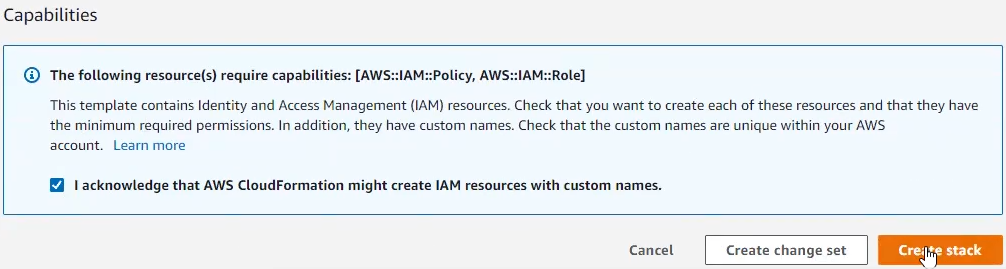
      
    ![AWS Console - IAM Policy/Role Acknowledgement](https://docs.difr.com/uploads/images/gallery/2025-10/aws-cf-2.png)
9. Once the above process is complete, you will be directed to a page which lists the events for this CloudFormation Stack. The creation process will proceed automatically. You may need to refresh the page to see new events. Once events appear named `Nutanix-Frame-High-Orchestrator-Role-Prod`, `Nutanix-Frame-High-Lambda-Role-Prod`, and `Nutanix-Frame-High-Workload-Role-Prod` and are marked as status “CREATE\_COMPLETE”, the stack creation has completed. This typically takes less than two minutes.  
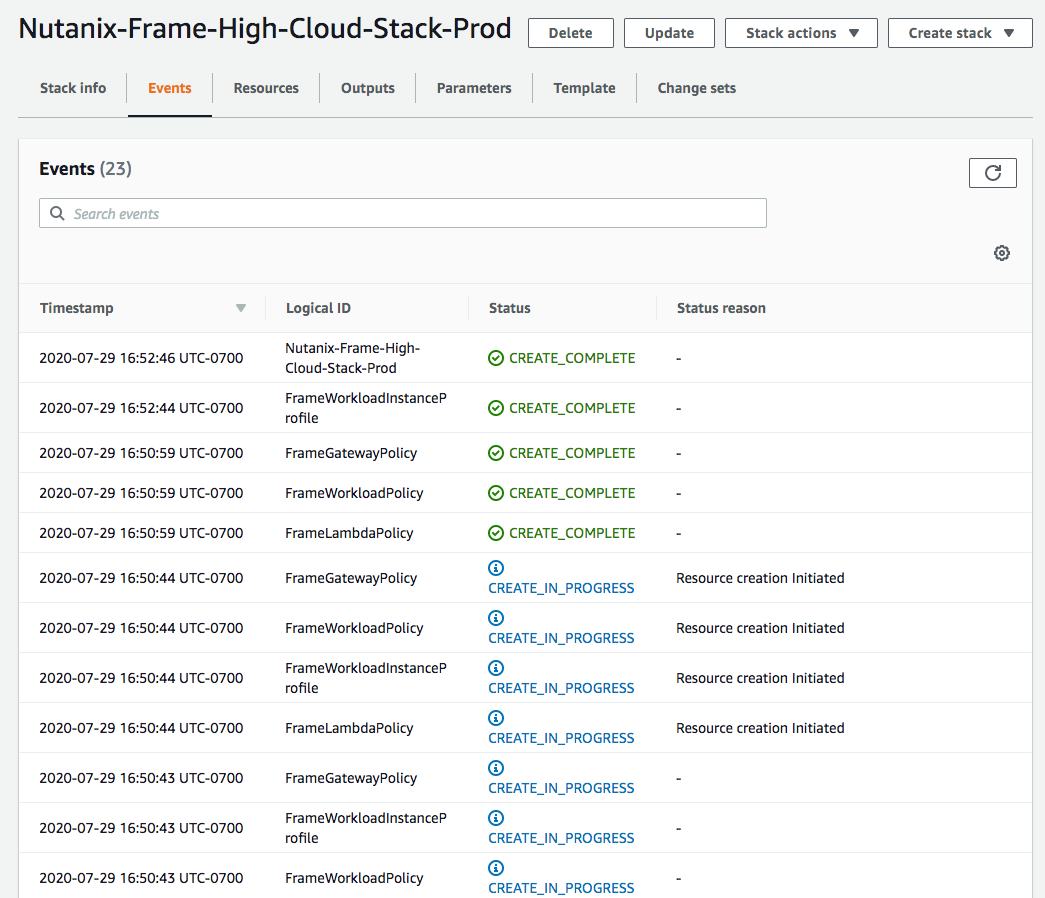
      
    ![AWS Console - CloudFormation Stack Creation Status](https://docs.difr.com/uploads/images/gallery/2025-10/aws-cf-3.png)
10. Once the stack has been created, navigate back to your Frame tab and select “Verify Credentials”.
11. Once your credentials are verified, you can select the data centers (AWS regions) for your Frame accounts. You may add additional data centers in the future.
12. Check the box at the bottom informing you of possible resource usage on your AWS cloud infrastructure and then click "Add Account". After a few minutes, you will see your AWS Cloud Account listed as "Ready". ![Frame Console - AWS Cloud Account Status](https://docs.difr.com/uploads/images/gallery/2025-10/aws-cloud-account-status.png)

Now that your AWS Cloud Account is created and accessible within Frame, you will be able to create Frame accounts using this BYO cloud account.

### Resources Created During BYO AWS Cloud Account Creation

During the creation of a BYO AWS or BYO AWS GovCloud Cloud Account, the Cloud Formation template creates three IAM Roles.

- FrameGatewayRole allows Frame Platform to provision and deprovision AWS resources for Frame-managed workloads.
- FrameLambdaRole allows log entries to be captured by Frame Platform.
- FrameWorkloadRole enables Frame Platform to store and retrieve Dizzion-provided OS images in an S3 bucket in each of the AWS regions where you create Frame accounts.

## Service Limits

By default, a newly created AWS account will impose certain service limits on available resources. Depending on the number of the Frame workload VMs required of a given machine type (e.g., number of concurrent users on g4dn.2xlarge), how the Frame account is created (e.g., Frame networking with or without an SGA), and whether you use Publish or Quick Publish, you will likely need to adjust the default limits imposed on the AWS account. If these limits are set to values that are lower than what is required by the Frame platform, you can expect certain functions to either fail, or be substantially delayed. The requirements by Frame for these service limits depends on the desired workload and required resources. The recommended service limit increases include the following:

<table id="bkmrk-aws-resource-recomme"><thead><tr><th>AWS Resource</th><th>Recommendation</th></tr></thead><tbody><tr><td>EC2 (CPU-only and GPU instance types)</td><td>AWS has service quotas on the total number of vCPUs for any given instance family, on a per-region basis. We recommend you first determine the expected max number of instances by instance type (per Frame account) for your needs. Next, calculate the required number of instance family-specific vCPUs based on the expected max number of instances and the required number of vCPUs per instance type (for that family). If you use Publish, set your vCPU quota to 2.2 times the number of instance family-specific vCPUs. The additional 20% will accommodate any additional resources such as Sandboxes, Utility servers, etc. If you use Quick Publish, you can use a minimum factor of 1.X times to calculate the required number of instance family-specific vCPUs. X is computed as the “Number of production instances created on publish” divided by expected max instances. By default, the “Number of production instances created on publish” value is configured to be 10 VMs. A factor of 1.3-1.5 should be sufficient to account for typical Quick Publishes and overhead.</td></tr><tr><td>EBS</td><td>Typically, this resource does not need to be modified. To estimate total disk storage consumption, multiply the total number of VMs you expect to provision by the size of the Sandbox VM (e.g., 80 GiB) across all Frame accounts you plan to provision. Number and size of any utility servers, number of Sandbox image backups, number and size of personal drives, and number and size of enterprise profile disks would be additional storage to consider.</td></tr><tr><td>IP Addresses</td><td>AWS does not have any service quotas on public or private IP addresses that are assigned when an EC2 instance is powered on and removed when an EC2 instance is powered off.  
  
If a Frame account is created with Frame public networking, each workload VM will have both a public and private IP address.  
  
If the Frame account is created using Frame private networking, all workload VMs will only have private IP addresses.  
  
If the Frame account is created using Frame private networking with Streaming Gateway Appliance (SGA), then Frame will provision 1 public IP address for each SGA VM and 1 public IP address for the load balancer in front of the SGA VMs. All of the workload VMs will only have private IP addresses.  
  
You will also need to account for the temporary increase of in-use IP addresses during a Publish or Quick Publish when the new production VMs are created and before the old production VMs are terminated.</td></tr><tr><td>Elastic IP Addresses</td><td>Elastic IP addresses are static, public IPv4 addresses. Frame does not provision Elastic IP addresses. However, if you plan to use VPN endpoints, you will need to factor into your service quota calculations the 1 or 2 Elastic IP Addresses needed for configuring the VPN gateway.</td></tr><tr><td>Network interfaces</td><td>By default, you should have 5,000 network interfaces per region. If a Frame account is created with Frame public networking, you will have need 2 network interfaces (private IP address and public IP address) per workload VM. If a Frame account is created with Frame private networking with SGA, you will have need 1 network interfaces (private IP address) per workload VM.</td></tr><tr><td>VPCs</td><td>If Frame public networking or Frame private networking is used to create Frame accounts, the number of VPCs equals the number of Frame accounts. If Frame private networking with SGA is used to create Frame accounts, the required number of VPCs is two times the number of Frame accounts. For BYO networking, no new networks are created.</td></tr></tbody></table>

To modify service limits on your AWS account, you will need to click on the “Limits” link in the navigation panel on the left of the AWS console (pictured below): ![AWS Console - Limits](https://docs.difr.com/uploads/images/gallery/2025-10/aws-limits.png)

<p class="callout info"> Service limit increases may not be necessary for smaller production environments or trial accounts.</p>

### Tips

- If possible, group your service limit increases by geographic region. Each geographic region has its own approval team. A limit increase across multiple regions can take multiple weeks.
- Approval time can vary by the size of the request. For instance, two or three small service limit increase requests are generally approved more quickly than one large request.
- Since capacity is limited, increasing service limits on GPU-backed instances generally takes longer than general purpose limit increases.
- T3 instance limit increase requests are usually approved and implemented within 24 hours of the request. G4/G5 instance limit increases take longer (especially for larger quantities).

## Instance Types

Each IaaS provider has a unique naming scheme for their instance types. AWS categorizes their “Elastic Cloud Compute instances” (a.k.a. “EC2 instances”) based on compute, memory, and GPU configuration. More information about Amazon EC2 instances can be found in their [official AWS documentation](https://aws.amazon.com/ec2/instance-types/).

For the latest AWS instances supported by Frame, refer to our [Supported Instance Types table](https://docs.difr.com/books/platform-administrators-guide/page/supported-instance-types).

## Resource Naming

Frame provisions the resources below based on a specific naming convention. The resource name value is also saved as value for the tag `Name`.

<table id="bkmrk-resource-resource-na"><thead><tr><th>Resource</th><th>Resource Name</th><th>Example</th></tr></thead><tbody><tr><td>Workload VM</td><td>prod:v\\{vendor\_id}:s\\{server.id}</td><td>`prod:v53209:s8059811`</td></tr><tr><td>Workload VM root volume</td><td>prod:v\\{vendor\_id}:s\\{server.id}:root</td><td>`prod:v53209:s8059811:root`</td></tr><tr><td>User Volume</td><td>prod:v\\{vendor\_id}:\\{random 8 character}:\\{type}</td><td>`prod:v48287:8206856b:profile`</td></tr><tr><td>User Volume backup (Snapshot)</td><td>prod:v\\{vendor\_id}:d\\{user\_volume\_id}</td><td>`prod:v48287:d169928`</td></tr><tr><td>Image</td><td>prod-v\\{vendor\_id}-s\\{server\_id}-\\{image\_type}-\\{random 5 characters} OR prod-v\\{vendor\_id}-\\{image\_type}-\\{random 5 characters}</td><td>`prod-v53209-s8059811-publish-64d3d` or `prod-v48287-manual-8e750`</td></tr><tr><td>Master Image</td><td>prod-master\_image-src-\\{source\_image\_id}-\\{random 5 characters}</td><td>`prod-master_image-src-239323-d06e8`</td></tr><tr><td>VPC</td><td>prod:v\\{vendor.id}:vpc\\{vendor.vpc\_set.count()}</td><td>`prod:v7538:vpc0`</td></tr><tr><td>Subnet</td><td>prod:v\\{vendor.id}:sn\\{idx}</td><td>`prod:v53209:sn3`</td></tr><tr><td>Security group</td><td>prod:v\\{vendor.id}:sg-default</td><td>`prod:v53209:sg-default`</td></tr><tr><td>Static Public IP</td><td>prod:v\\{vendor.id}:sg-default</td><td>`prod:v53242:sg-default`</td></tr><tr><td>NAT Gateway</td><td>prod:v\\{vendor.id}:sg-default</td><td>`prod:v53242:sg-default`</td></tr><tr><td>Routing table</td><td>prod:v\\{vendor.id}:sg-default</td><td>`prod:v53242:sg-default`</td></tr><tr><td>SGA VPC</td><td>prod:sga:\\{streaming\_configuration\_id}:vpc</td><td>`prod:sga:2425:vpc`</td></tr><tr><td>SGA subnet</td><td>prod:sga:\\{streaming\_configuration\_id}:vpc\\{vpc.id}:sn\\{str(i)}</td><td>`prod:sga:2425:vpc69807:sn1`</td></tr><tr><td>SGA security group</td><td>prod:sga:\\{streaming\_configuration\_id}:vpc:\\{vpc.id}:sg-default</td><td>`prod:sga:2420:vpc:69784:sg-default`</td></tr><tr><td>SGA VM</td><td>prod:sga:\\{streaming\_configuration\_id}:s\\{server.id}</td><td>`prod:sga:2420:s1f175e3d`</td></tr><tr><td>SGA VM root disk</td><td>prod:sga:\\{streaming\_configuration\_id}:s\\{server.id}</td><td>`prod:sga:2425:sc95b63e7`</td></tr><tr><td>SGA load balancer</td><td>prod:sga:\\{streaming\_configuration\_id}:nlb</td><td>`prod:sga:2425:nlb`</td></tr></tbody></table>

{image\_type} can be one of the following values:

- `manual` - for manual backups
- `publish` - for backups created for publishing purpose
- `test_publish` - for backups created for test publish
- `auto` - for scheduled backups
- `system` - for backups created internally in various processes (e.g. cloning, generalization)
- `master` - from a master image

{disk\_type} can be one of the following values:

- `profile` - Enterprise profile disk
- `personal` - Personal drive

<details id="bkmrk-note-the-streaming-g"><summary>Note</summary>

The Streaming Gateway Appliance (SGA) resource naming applies only to Frame-provisioned and managed SGAs.

</details>

# Microsoft Azure

## Overview

The **Bring Your Own Azure (BYO Azure)** capability allows customers to connect their Microsoft Azure cloud environment directly to the Frame Platform, enabling seamless deployment of virtual desktops and applications within their own Azure subscription. With BYO Azure, customers maintain full control over their infrastructure and resource management while leveraging Frame’s powerful orchestration tools. This flexibility ensures organizations can dynamically scale their workloads, optimize cloud spending, and deliver high-performance virtual workspaces to meet their evolving business needs.

## Setup

### Requirements

In order to register your Azure account with Frame, ensure that you have the met the following requirements before proceeding:

1. Microsoft Azure account with a valid Azure subscription
2. Permissions to add and modify role assignments for the Azure Subscription ID.
3. The Azure subscription has the following Resource Providers registered.
    
    
    - Microsoft.Compute
    - Microsoft.Network
    - Microsoft.Storage

<p class="callout info"> Costs (e.g., storage) may begin to accrue immediately after completing the registration of your Azure account on your Frame Customer or Organization entity.</p>

## Preparation

Before your Azure account can be registered with Frame, you will need to complete two tasks:

1. Create an Azure application registration
2. Add Azure subscription owner permissions to your Azure application registration

### Create an Azure Application Registration

You will need to create an Azure app registration for Frame. The app registration is the mechanism by which you'll give Frame access to create and manage network, virtual machines, and storage resources in your Azure subscription.

1. Open the Microsoft Entra ID (formerly Azure Active Directory) option and App registration section. From there, click on the "Add" button and select "App registration” to create a new app.

[![image.png](https://docs.difr.com/uploads/images/gallery/2026-01/scaled-1680-/PjGimage.png)](https://docs.difr.com/uploads/images/gallery/2026-01/PjGimage.png)
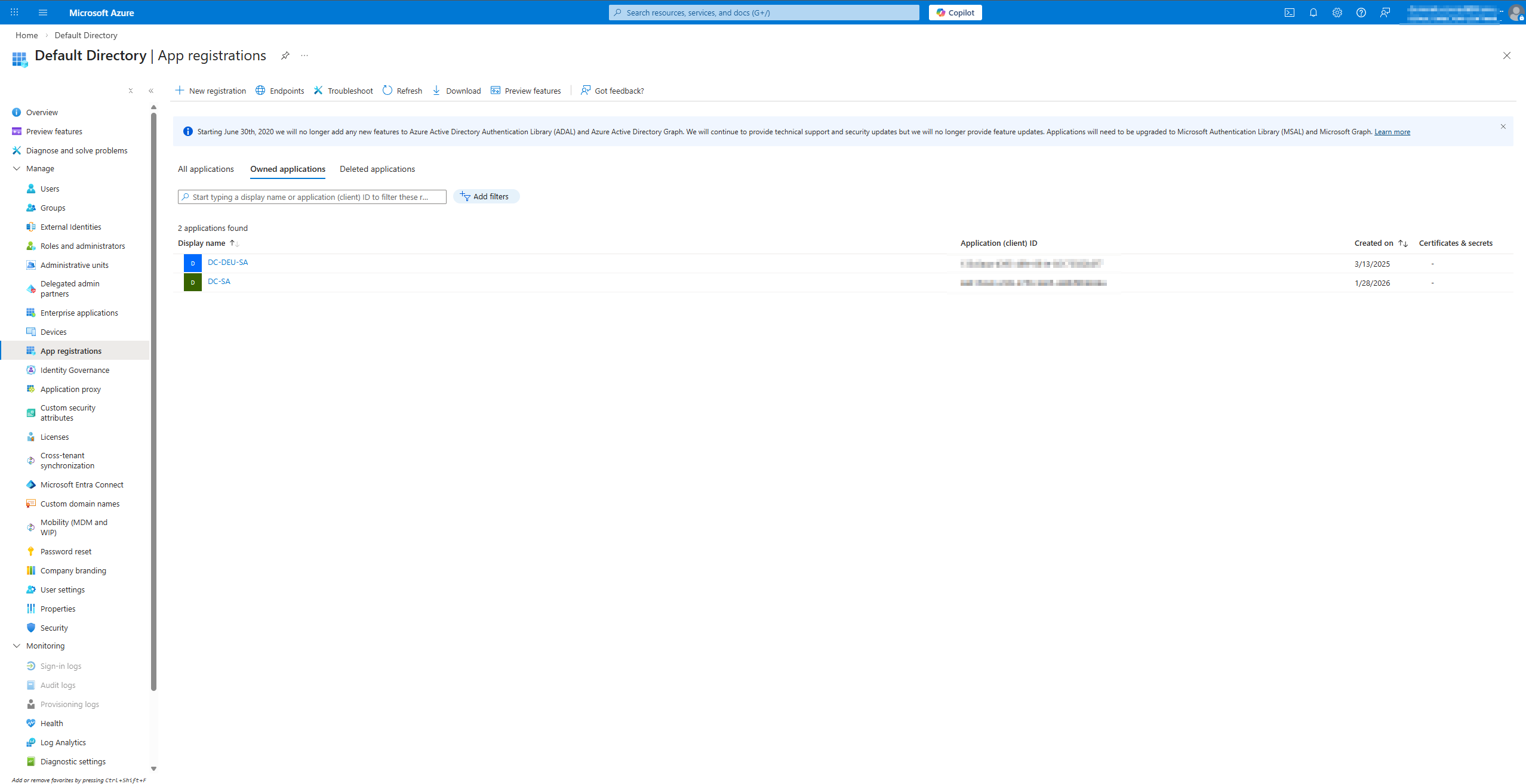
2. You'll see a panel titled “Register an application.” You'll be asked for the following information:
    
    
    - **Name**: you can choose any name. Some customers simply use the name "Frame". Others will append some identifying information for internal reporting purposes to "Frame". This name will appear in the list of Application Registrations.
    - **Supported account types**: Specify who has access to the application. "Accounts in this organization directory only" is the standard selection for customers.
    - **Redirect URI (Optional)**: This value can be left blank.
    
      
    <figure></figure>

[![image.png](https://docs.difr.com/uploads/images/gallery/2026-01/scaled-1680-/ccNimage.png)](https://docs.difr.com/uploads/images/gallery/2026-01/ccNimage.png)

3. Click “Register” at the bottom of the "Register an Application" page.
4. A notification will appear informing you that your application has been created successfully. It should now be available in your “App registrations” list.
5. Next, select your new application from the list and copy or write down the values for the “Application (client) ID” and “Directory (tenant) ID.” These IDs are two of the four values you will need for setting up your Frame integration (note that you do NOT need the “Object ID”).

[![image.png](https://docs.difr.com/uploads/images/gallery/2025-12/scaled-1680-/la4image.png)](https://docs.difr.com/uploads/images/gallery/2025-12/la4image.png)

6. Once you have written down the Application (client) ID, navigate to the “Branding” page listed in the menu on the left side of your Azure portal.

[![image.png](https://docs.difr.com/uploads/images/gallery/2025-12/scaled-1680-/yN8image.png)](https://docs.difr.com/uploads/images/gallery/2025-12/yN8image.png)

7. Download the application icon shown below and upload the Frame logo file to Azure by clicking on the folder browser icon to the right of Upload new logo and selecting the Frame logo file you downloaded. Click “Save” to save the Frame logo for your App Registration.

![Azure Portal - Frame Logo](https://docs.difr.com/uploads/images/gallery/2025-10/pSpframe-logo.png) Azure Portal - Frame Logo

8. Next, you'll need to create a “Client Secret” for Frame to use as a password to manage your Azure resources. Click “Certificates &amp; secrets” under your application's management options. Click the “New client secret” button under “Client secrets”.
9. You will be prompted to add a new client secret. Simply add a description and select the desired expiration duration from the drop-down menu next to “Expires.” Click “Add.”

![Azure Portal - Certificates & secrets](https://docs.difr.com/uploads/images/gallery/2025-10/azure-appreg-5.png) Azure Portal - Certificates &amp; secrets

10. On the “Client secrets” page, copy your newly-created client secret. Your client secret can only be copied right after the secret is created. You will need this value when you [add your Azure subscription](https://docs.difr.com/books/platform-administrators-guide/page/azure#adding-your-cloud-acount) to Frame.

![Azure Portal - Client secrets](https://docs.difr.com/uploads/images/gallery/2025-10/azure-appreg-6.png) Azure Portal - Client secrets

<p class="callout info"> The client secret is used by Frame to manage your BYO Azure account. Microsoft Azure has a maximum expiration date of 2 years from the client secret creation date. If you fail to update your client secret before it expires, Frame will no longer be able to manage the resources in your Azure account and you will likely experience a service outage.</p>

Before your client secret expires, you will need to generate a new client secret (following Steps 9 and 10 above) and [re-enter your cloud account secret](https://docs.difr.com/books/platform-administrators-guide/page/cloud-accounts#azure) in the Configuration tab of your Azure Cloud Account.

### Configuring your Azure Subscription

This section assumes that you already have an active Azure account with a subscription that can be used for Frame workloads. At this point, you should have also set the resource limits for your subscription to levels high enough to accommodate your expected loads. To confirm your subscription status, login to the Azure web portal, navigate to your subscription, and confirm that its status is “active”:
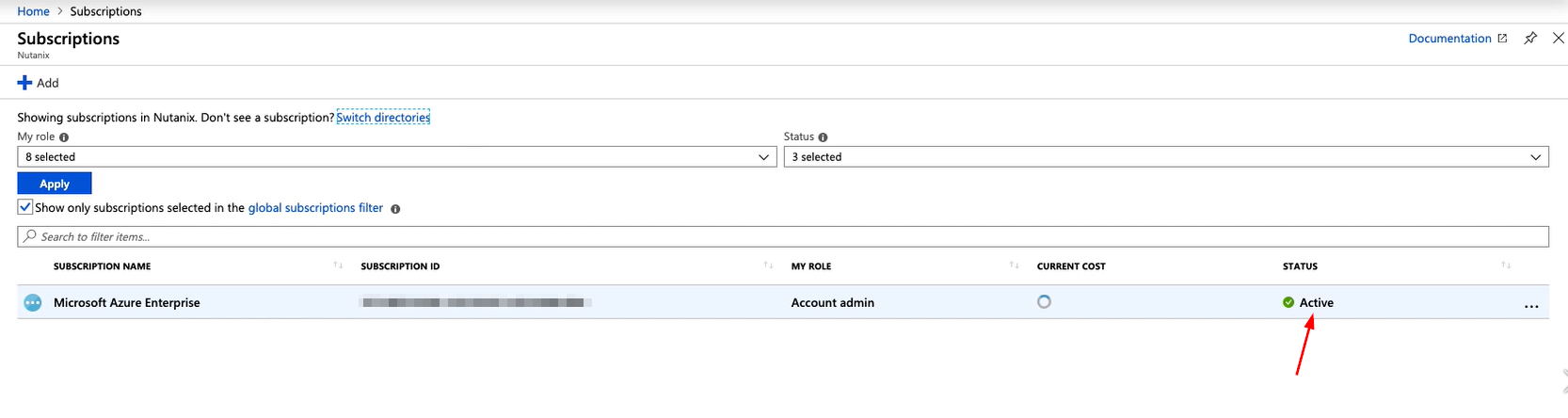
![Azure Portal - Active Subscription](https://docs.difr.com/uploads/images/gallery/2025-10/azure-subscription-1.png) Azure Portal - Active Subscription

Before registering your Azure account with Frame, you will grant owner permissions to your new Azure App Registration.

1. At the top of your Azure portal, search for “Subscriptions” and click on the first option that appears.
![Azure Portal - Subscriptions](https://docs.difr.com/uploads/images/gallery/2025-10/azure-subscription-2.png)

2. Find the subscription that you will use with Frame. Copy the Subscription ID and set it aside to be used in the final steps of this guide.

[![image.png](https://docs.difr.com/uploads/images/gallery/2026-01/scaled-1680-/qXTimage.png)](https://docs.difr.com/uploads/images/gallery/2026-01/qXTimage.png)

3. Now, click on the subscription to open its properties. Click on the "Access Control (IAM)" page, and then click the "Add" button on the top of the Access Control panel. Select "Add role assignment."

[![image.png](https://docs.difr.com/uploads/images/gallery/2026-01/scaled-1680-/t3wimage.png)](https://docs.difr.com/uploads/images/gallery/2026-01/t3wimage.png)
4. A new window will appear. On the **Role** tab, select “Owner” or “Contributor” from the Privileged administrator roles tab.

[![image.png](https://docs.difr.com/uploads/images/gallery/2026-01/scaled-1680-/Soeimage.png)](https://docs.difr.com/uploads/images/gallery/2026-01/Soeimage.png)
5. Go to the **Members** tab.

[![image.png](https://docs.difr.com/uploads/images/gallery/2026-01/scaled-1680-/e1Uimage.png)](https://docs.difr.com/uploads/images/gallery/2026-01/e1Uimage.png)
 Azure Portal - Specify Members

- **Assign access to**: Select "User, groups or service principals"
- **Members**: Click on "+Select members", search for the name of app registration (in this example, it starts with Frame), and then select the app registration and click on the Select button.

6. Go to **Review + assign** tab and finish the process of assigning role to app registration by clicking on the "Review + assign" button.

[![image.png](https://docs.difr.com/uploads/images/gallery/2026-01/scaled-1680-/ZeBimage.png)](https://docs.difr.com/uploads/images/gallery/2026-01/ZeBimage.png)
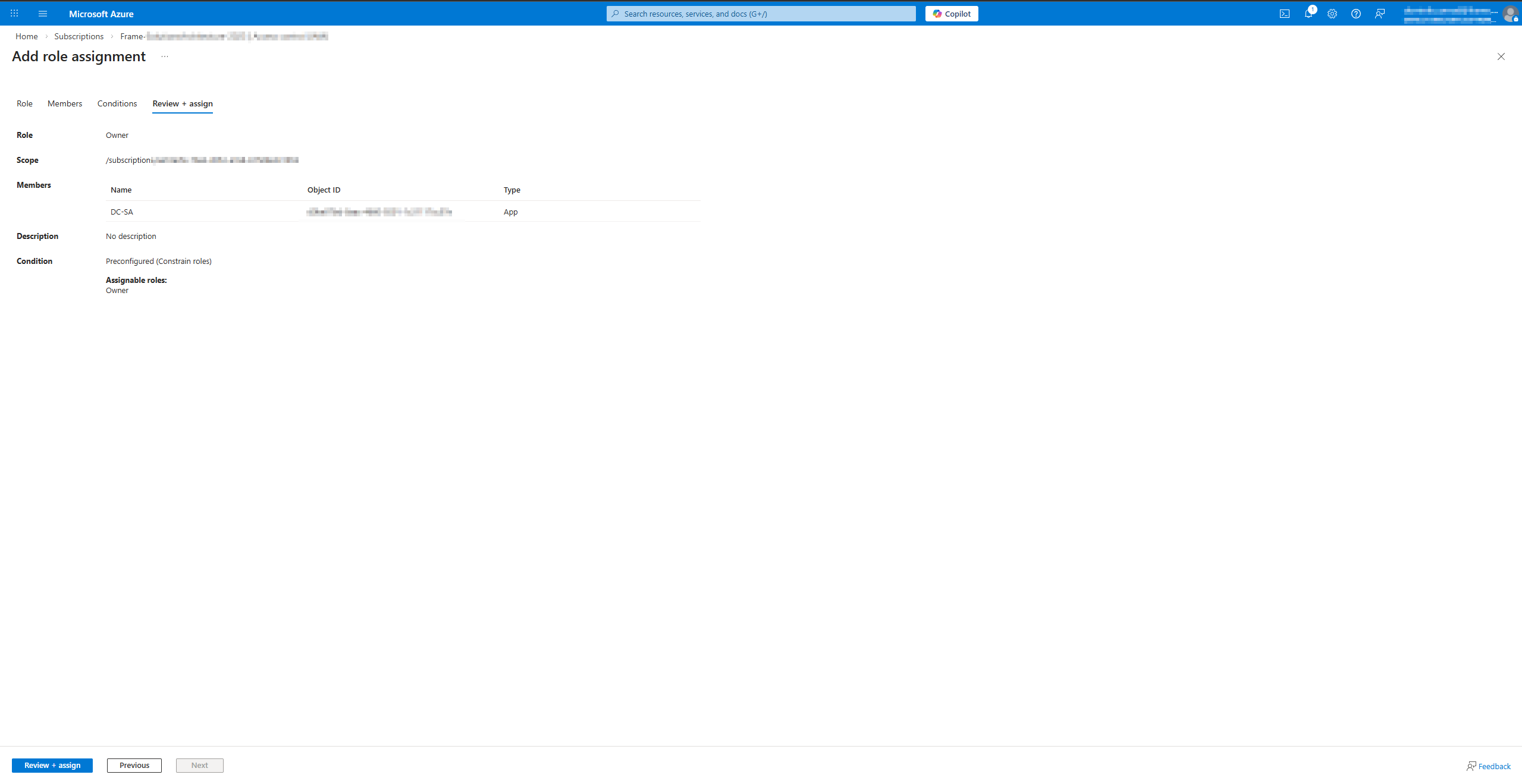
 Azure Portal - Review and Assign

7. Before moving on, ensure you have obtained the following values.
    
    
    - Azure Application ID
    - Azure Directory ID
    - Azure Subscription ID
    - Azure Client Secret
    
    You will use these values for the Frame setup below.

## Adding your Cloud Account

### Procedure

1. Go to your Frame Admin Console.
2. Navigate to the **Customer** or the **Organization** page (depending on where you wish to add the cloud account).
3. Click on **Cloud Accounts** in the left-hand menu.
4. Click the **Add Cloud Account** button on the top-right corner of the page.
5. A new window will appear prompting you for the following information:

[![image.png](https://docs.difr.com/uploads/images/gallery/2025-12/scaled-1680-/NAlimage.png)](https://docs.difr.com/uploads/images/gallery/2025-12/NAlimage.png)
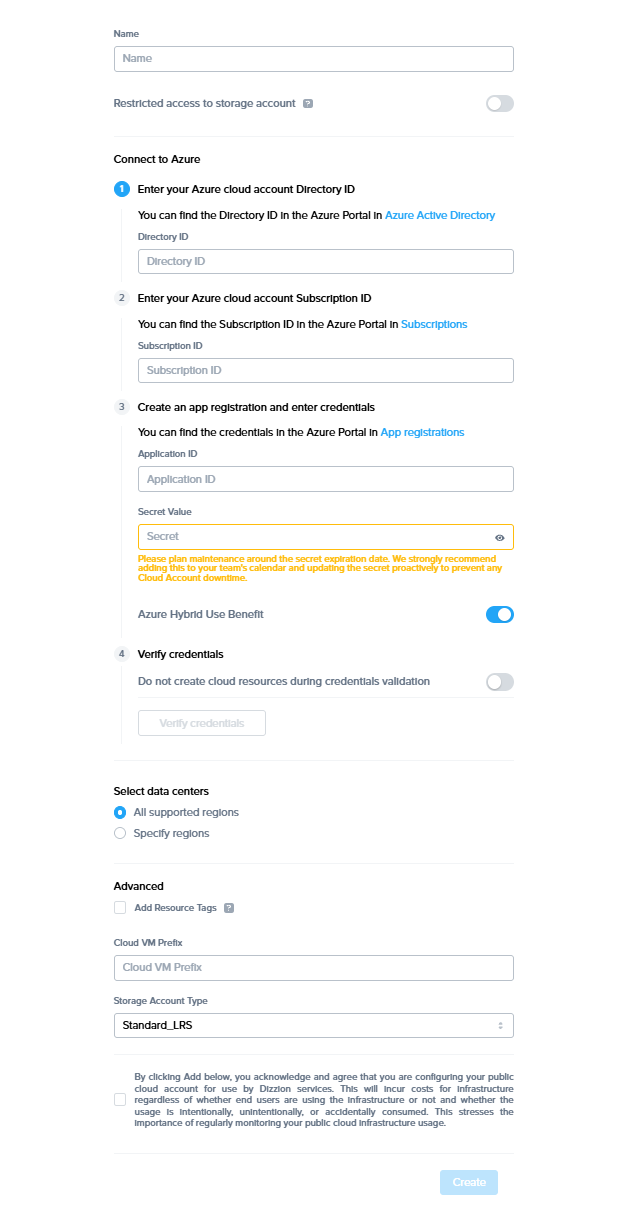
 Frame Console - Add Cloud Account

- **Cloud Provider**: Select Azure.
- **Name**: Enter the desired name of your cloud service. This will be the name of the Cloud Account in Frame Console.
- **Restricted access to storage account**: Enable slider to restrict Azure storage container access to only Frame Platform public IP addresses.
- **Directory ID**: Enter the Azure Directory ID.
- **Subscription ID**: Enter the Azure Subscription ID.
- **Application ID**: Enter the Azure Application ID.
- **Secret**: Enter the Azure Secret key value. 
    - **Note:**  
        Under the **Secret** section, you will see the following message:
        
        > *“Please plan maintenance around the secret expiration date. We strongly recommend adding this to your team's calendar and updating the secret proactively to prevent any Cloud Account downtime.”*
        
        This note is included because the current Microsoft Azure UI only allows you to create secrets with a **maximum validity of 2 years**. Once the secret expires, you will need to **renew it in the Azure Portal** and **update the new secret in the Dizzion Console**. Therefore, please plan maintenance activities before the expiration date to ensure uninterrupted access.
        
        There are unofficial methods to create App Registration secrets through the Azure CLI with expiration periods of up to 99 years. However, this approach is not officially documented by Microsoft, and its usage should depend on your organization’s internal security policy. Dizzion does not recommend this method.
- **Azure Hybrid Use Benefit**: Enable if your Microsoft Azure Agreement entitles you to have Azure Hybrid Use Benefit.
- **Do not create cloud resources during credentials validation**: Enable to skip the test where Frame Platform verifies it can create Azure resources during the credential validation process.

6. Once you have entered the above information, click the “Verify credentials” button.

<details id="bkmrk-what%27s-happening-beh"><summary>What's happening behind the scenes?</summary>

When you click the "verify credentials" button in Step 6, our system performs a series of actions to ensure that the API credentials you provided have the necessary permissions to orchestrate resources within your Azure Subscription. Specifically, the system will:

- Create a temporary resource group named `frame-cred-test*` to verify initial API credentials.
- Attempt to create the following resources within this resource group: 
    - A disk
    - A public IP address
    - A storage account

These resources are created and then promptly deleted to confirm that the credentials provided have the appropriate permissions for our platform to function correctly in your Azure environment. This process ensures that your credentials can manage and orchestrate the necessary resources for the Frame platform.

</details>6. Once your credentials are verified, you can select the data centers (Azure regions) for your Frame accounts. You may add additional data centers in the future.

![Frame Console - Verify Credentials](https://docs.difr.com/uploads/images/gallery/2025-10/new-azure-cloud-account-create.png) Frame Console - Verify Credentials

8. Finally, acknowledge the statement informing you of possible resource usage on your Azure cloud infrastructure and then click **Create**. After a few minutes, you will see your Azure Cloud Account listed as "Ready".

Now that your Azure Cloud Account is created and accessible within Frame, you will be able to create Frame accounts using this BYO cloud account. Be aware that the first Frame account created in an Azure datacenter region may take 30+ minutes as Frame Platform must copy the Dizzion-provided OS images to the Azure datacenter before the Frame account is created.

#### Subscription Configurations

### Resources Created During BYO Azure Cloud Account Creation

Frame provisions a single storage account for every datacenter region selected upon cloud account creation. The Frame-provided OS master images (Windows 10, Windows Server 2016, Windows Server 2019, Ubuntu 20.04, etc.) are copied to each storage account and will be used when the first Frame account is created in that region.

## Service Limits

By default, a newly created Azure account will impose certain service limits on available resources. Depending on the number of the Frame workload VMs required of a given machine family (e.g., number of concurrent users on NV6), how the Frame account is created (e.g., Frame networking with or without an SGA), and whether you use Publish or Quick Publish, you will likely need to adjust the default limits imposed by Microsoft on the Azure account. If these limits are set to values that are lower than what is required by the Frame platform, you can expect certain functions to either fail, or be substantially delayed. The requirements by Frame for these service limits depends on the desired workload and required resources. The recommended service limit increases include the following:

<table id="bkmrk-azure-resource-recom"><thead><tr><th>Azure Resource</th><th>Recommendation</th></tr></thead><tbody><tr><td>Virtual Machines-Family vCPUs (CPU-only and GPU instance types)</td><td>Azure has quotas on the total number of vCPUs and the total number of family-specific vCPUs, on a per-location basis. We recommend you first determine the expected max number of instances by instance type (per Frame account) for your needs. Next, calculate the number of vCPUs and family-specific vCPUs based on the expected max number of instances and the required number of vCPUs per instance type (for that family). If you use Publish, set your vCPU quota to 2.2 times the required number of vCPUs and specific family-specific vCPUs quotas to 2.2 times your expected max number of instances. The additional 20% will accommodate any additional resources such as Sandboxes, Utility servers, etc. If you use Quick Publish, you can use a minimum factor of 1.X times to calculate the required number of vCPUs and family-specific vCPUs. X is computed as the “Number of production instances created on publish” divided by expected max instances. By default, the “Number of production instances created on publish” value is configured to be 10 VMs. A factor of 1.3-1.5 should be sufficient to account for typical Quick Publishes and overhead.</td></tr><tr><td>Azure Managed Disks</td><td>Typically, this resource quota does not need to be modified. To estimate total disk storage consumption, multiply the total number of VMs you expect to provision by the size of the Sandbox VM (e.g., Windows 10 images 128 GiB; Windows Server images 64 GiB) across all Frame accounts you plan to provision. Number and size of any utility servers, number of Sandbox image backups, number and size of personal drives, and number and size of enterprise profile disks would be additional storage to consider.</td></tr><tr><td>Public IPs</td><td>If a Frame account is created with Frame public networking, each workload VM will have both a public and private IP address.  
  
If the Frame account is created using Frame private networking, all workload VMs will only have private IP addresses.  
  
If the Frame account is created using Frame private networking with Streaming Gateway Appliance (SGA), then you will need 1 public IP address for each SGA VM (and 1 public IP address for the load balancer in front of the SGA VMs). All of the workload VMs will only have private IP addresses.  
  
You will also need to account for the temporary increase of public IP addresses during a Publish or Quick Publish when the new production VMs are created and before the old production VMs are terminated.</td></tr><tr><td>VNets</td><td>If Frame public networking or Frame private networking is used to create Frame accounts, the number of VNets equals the number of Frame accounts. If Frame private networking with SGA is used to create Frame accounts, the required number of VNets is two times the number of Frame accounts. For BYO networking, no new networks are created.</td></tr></tbody></table>

note

Service limit increases may not be necessary for smaller production environments or trial accounts. :::

## Instance Types

Each IaaS provider has a unique naming scheme for their instance types. Azure names their instance types based on the "virtual machine type" Microsoft has created for specific workload use cases. More information about virtual machine types can be found in [Microsoft's official documentation](https://docs.microsoft.com/en-us/azure/virtual-machines/windows/sizes).

For the latest Azure instances supported by Frame, refer to [Supported Instance Types](https://docs.difr.com/books/platform-administrators-guide/page/daas-supported-instance-types).

:::danger Attention

Promotional instances provided by Microsoft by default are not supported by Frame. If you wish to use an account with an existing promotion, you will need to either exhaust promotional hours first or contact Azure support to remove those instances. :::

## Resource Naming

Frame provisions the resources below based on a specific naming convention. The resource name value is also saved as value for the tag `Name`.

<table id="bkmrk-resource-resource-na"><thead><tr><th>Resource</th><th>Resource Name</th><th>Example</th></tr></thead><tbody><tr><td>Vendor resource group</td><td>azr-prod-v{vendor\_id}-instances-{3\_digits}</td><td>`azr-prod-v53273-instances-001`</td></tr><tr><td>Workload VM</td><td>azr-prod-v{server.vendor\_id}-s{server.id}</td><td>`azr-prod-v53209-s8059811`</td></tr><tr><td>Workload VM root volume</td><td>azr-prod-v{server.vendor\_id}-s{server.id}-root</td><td>`azr-prod-v53209-s8059811-root`</td></tr><tr><td>User Volume</td><td>azr-prod-v{server.vendor\_id}-d{disk.id}-{random 5 characters}-{disk\_type}</td><td>`azr-prod-v53273-d170923-857e4-profile`</td></tr><tr><td>User Volume backup (Snapshot)</td><td>azr-prod-v{vendor\_id}-{user\_volume\_id}-{snapshot\_type}-{random 5 characters}</td><td>`azr-prod-v53273-6f4ee921-profile-d1101`</td></tr><tr><td>Image (Snapshot)</td><td>azr-prod-v{vendor\_id}-s{server\_id}-{random 5 characters}-{snapshot\_type}</td><td>`azr-prod-v53273-s8066212-6afc7-publish`</td></tr><tr><td>Master Image</td><td>azr-prod-v{vendor\_id}-s{server\_id}-{random 5 characters}-{snapshot\_type}</td><td>`azr-prod-v53273-s8066212-6afc7-publish`</td></tr><tr><td>VNET</td><td>azr-prod-v{vendor\_id}-vnet-{random 5 characters}</td><td>`azr-prod-v53273-vnet-c56be`</td></tr><tr><td>VNET resource group</td><td>prod-vnets-{azure\_region}</td><td>`prod-vnets-eastus`</td></tr><tr><td>Subnet</td><td>azr-prod-v{vendor\_id}-sn-{random 5 characters}</td><td>`azr-prod-v53273-sn-42423`</td></tr><tr><td>Security group</td><td>azr-prod-v{vendor\_id}-sn-{random 5 characters}</td><td>`azr-prod-v53273-sg-da34f`</td></tr><tr><td>SGA resource group</td><td>azr-prod-sga-{random 4 characters}</td><td>`azr-prod-sga-2431`</td></tr><tr><td>SGA availability set</td><td>sga-availability-set-c{streaming\_configuration\_id}</td><td>`sga-availability-set-c2431`</td></tr><tr><td>SGA load balancer</td><td>azr-prod-sga-{streaming\_configuration\_id}-lb</td><td>`azr-prod-sga-2431-lb`</td></tr><tr><td>SGA load balancer public IP</td><td>azr-prod-sga-{streaming\_configuration\_id}-lb-ip</td><td>`azr-prod-sga-2431-lb-ip`</td></tr><tr><td>SGA VNET</td><td>azr-prod-sga-{streaming\_configuration\_id}-vpc</td><td>`azr-prod-sga-2431-vpc`</td></tr><tr><td>SGA security group</td><td>azr-prod-sga-{streaming\_configuration\_id}-vpc-sg-default</td><td>`azr-prod-sga-2431-vpc-sg-default`</td></tr><tr><td>SGA VM</td><td>azr-prod-sga-{workload\_streaming\_configuration\_id}-s{random 8 characters}</td><td>`azr-prod-sga-2431-s0f532a75`</td></tr><tr><td>SGA VM root disk</td><td>azr-prod-sga-{workload\_streaming\_configuration\_id}-s{random 8 characters}</td><td>`azr-prod-sga-2431-s0f532a75`</td></tr></tbody></table>

{snapshot\_type} can be one of the following values:

- `manual` - for manual backups
- `publish` - for backups created for publishing purpose
- `test_publish` - for backups created for test publish
- `auto` - for scheduled backups
- `system` - for backups created internally in various processes (e.g. cloning, generalization)
- `master` - from a master image

{disk\_type} can be one of the following values:

- `profile` - Enterprise profile disk
- `personal` - Personal drive

<p class="callout info"> The Streaming Gateway Appliance (SGA) resource naming applies only to Frame-provisioned and managed SGAs.</p>

## Disk Options

Frame supports two types of Azure-managed disk types. By default, Frame provisions [Standard SSD-managed](https://learn.microsoft.com/en-us/azure/virtual-machines/disks-types#standard-ssds) disks for VM boot disks and user volumes.

If a customer needs higher performing, low-latency disks for a given Frame account, the customer can contact Support and request that the Frame account be re-configured to use [Premium SSD](https://learn.microsoft.com/en-us/azure/virtual-machines/disks-types#premium-ssds) managed disks for VM boot disks and user volumes. Azure Premium SSDs do cost more than Standard SSDs.

<p class="callout info"> Disks of a particular type that were provisioned prior to the disk type configuration change will remain as they were provisioned. Therefore, customers are advised to create the Frame account, request Support update the disk type to the desired disk type, and terminate the Sandbox, in order for the Sandbox disk to be re-created with the newly-configured disk type. Then, verify the Sandbox disk was provisioned with the desired disk type before continuing on to configure the Frame account, including installing applications in the Sandbox and publishing.</p>

# Google Cloud Platform

## Overview

The **Bring Your Own Google Cloud Platform (BYO GCP)** feature allows customers to integrate their GCP environment with the Frame Platform, enabling direct deployment of virtual desktops and applications within their own GCP infrastructure. With BYO GCP, customers retain complete control over their cloud resources while leveraging Frame’s orchestration capabilities for seamless workload management. This approach ensures organizations can optimize performance, control costs, and scale their virtual workspaces efficiently to meet evolving business needs.

## Setup

### Requirements

In order to register your GCP Project (account) with Frame, ensure that you have addressed the following before proceeding:

1. The GCP Project principal who will execute the Frame-provided script has the role of “Owner” or has sufficient permissions to grant the required GCP roles to the Frame Platform service user . Once the deploy.sh script is executed, the principal who executed the script is no longer needed for Frame.
2. The specific GCP roles granted to the Frame Platform service user will depend on the desired Frame functionality to be used with your GCP Project.
    
    
    - To use all Frame features, the Frame Platform service user must have the following roles, which are granted when the default script is executed:
        
        
        - compute.instanceAdmin
        - compute.networkAdmin
        - compute.securityAdmin
        - compute.storageAdmin
        - dns.admin
    - For customers who must control and manage all GCP networking resources and will only use Frame accounts deployed using customer-managed [private networking](https://docs.difr.com/books/platform-administrators-guide/page/requirements), the Frame Platform service user must have the following roles, at a minimum. The script will need to be modified before the script is executed:
        
        
        - compute/instanceAdmin
        - compute.networks.getEffectiveFirewalls
    - For customers who want to use their own OS images (BYO OS image), rather than Frame-provided images, Frame must be able to list the images in the project, read those images, and create instances from those images. Frame will not delete, tag, or create BYO images. The operations necessitates the Frame Platform service user being granted the role:
        
        
        - compute.imageUser
3. You know your GCP Account ID that will be registered with Frame. The GCP Account ID can be found by going to the Dashboard of your GCP console.

### Shared VPC

For customers who wish to use GCP Shared VPCs, you will need to register both your GCP Host and Service Projects in Frame.

- **GCP Host Project**: After the GCP Host Project has been added as a Cloud Account in Frame, the GCP Administrator can remove assigned roles described above and assign the role.
- **GCP Service Project**: The GCP Service Project which will use the Shared VPC and specific subnets within the Shared VPC must then be added as a second Cloud Account in Frame.

Once you have registered the two GCP projects, you can configure Frame to [share specific subnets](https://docs.difr.com/books/platform-administrators-guide/page/cloud-accounts#shared-vpcs-gcp-only) from your Shared VPC in your GCP Host Project Cloud Acount with your GCP Service Project Cloud Account.

<p class="callout info"> Both the GCP Host and Service Projects should only be registered (imported) once, even if additional subnets are created later in the Host Project and shared with one or more Service Projects.</p>

### Workload VM Service Account

Frame allows customers to attach a GCP service account to each workload VM Frame Platform provisions. The GCP service account can be specified at the Frame Cloud Account level (by default, all VMs created within the Cloud Account will have this service account assigned) or for a specific Frame Account. The service account specified for an Account takes precedence over the service account specified for the Cloud Account.

Once the GCP Cloud Account is registered in Frame, open a support case and specify the name of your Frame Customer (or Organization) entity, name of the GCP Cloud Account, and the GCP service account (email address).

If you want to use a different GCP service account with the specific Frame Account, create the Frame Account and then open a support case with the name of the Frame Account, Frame Vendor ID, and the GCP service account (email address). Once the GCP service account is attached to your Frame Account, you will need to terminate the Sandbox (and any other workload VMs) in the Frame Account in order for Frame Platform to reprovision the workload VMs with the GCP service account.

<p class="callout info"> Before a GCP service account can be attached to each workload VM, the customer must add the role to the Frame Platform service user .</p>

### Customer-Managed Encryption Keys

Frame allows customers to specify a customer-managed encryption key (CMEK) for [encryption of persistent disks](https://cloud.google.com/compute/docs/disks/customer-supplied-encryption) at the GCP Cloud Account level or at the Frame Account level. The CMEK specified at the Frame Account level will take precedence over the CMEK specified at the GCP Cloud Account level.

You must open a support case with the name of the GCP Cloud Account or Frame Account and the name of the key used to encrypt the persistent disks.

## Adding your Cloud Acount

### Procedure

1. Navigate to your Google Cloud Platform console by going to [https://console.cloud.google.com/](https://console.cloud.google.com/).
2. Locate and copy the Project ID found in your GCP console Dashboard.

<figure id="bkmrk-gcp-console---projec">[![image.png](https://docs.difr.com/uploads/images/gallery/2025-12/scaled-1680-/pbximage.png)](https://docs.difr.com/uploads/images/gallery/2025-12/pbximage.png)

<figcaption>GCP Console - Project ID</figcaption></figure>3. Go to your Frame Admin Console.
4. Navigate to the **Customer** or the **Organization** page (depending on where you wish to add the cloud account).
5. Click on **Cloud Accounts** in the left-hand menu.
6. Click the **Add Cloud Account** button on the top-right corner of the page.
7. A new window will appear prompting you for the following information:

<figure id="bkmrk-%C2%A0-frame-console---ad">[![image.png](https://docs.difr.com/uploads/images/gallery/2025-12/scaled-1680-/Araimage.png)](https://docs.difr.com/uploads/images/gallery/2025-12/Araimage.png)

<figcaption>Frame Console - Add Cloud Account</figcaption></figure>- **Cloud Provider**: Select GCP.
- **Name**: Enter the desired name of your cloud service. This will be the name of the Cloud Account in Frame Console.
- **Cloud Project ID**: Enter your GCP Project ID in this field.

8. Once you have entered the information, click the “Open GCP Cloud Shell" button. A new tab will open, taking you to your GCP Console.
9. A prompt will appear asking you to confirm that you trust the Github repo storing the deploy.sh file. Select the Trust checkbox and click “Confirm.”

<p class="callout info"> The GCP Project principal who will execute the Frame-provided deploy.sh script has the role of “Owner” or has sufficient permissions to grant the required GCP roles to the Frame Platform service user . Once the deploy.sh script is executed, the principal who executed the script is no longer needed for Frame.</p>

If required, you can modify the deploy.sh script to remove or add specific GCP IAM role/permission lines to grant the required roles, based on your use case (as described in the [Requirements](#requirements)).

<figure id="bkmrk-gcp-console---confir">![GCP Console - Confirm Github Repo](https://docs.difr.com/uploads/images/gallery/2025-10/gcp-deploy-1.png)

<figcaption>GCP Console - Confirm Github Repo</figcaption></figure>10. After the Cloud Shell has initialized, paste the deployment command into the cloud shell and press “Enter.” You will be asked to authorize the use of your credentials to make a GCP API call. Once the command has completed successfully, you can close the Google Cloud Shell tab.

<figure id="bkmrk-gcp-console---execut">[![image.png](https://docs.difr.com/uploads/images/gallery/2026-01/scaled-1680-/rfPimage.png)](https://docs.difr.com/uploads/images/gallery/2026-01/rfPimage.png)

<figcaption>GCP Console - Execute deploy.sh</figcaption></figure>11. Navigate back to your browser tab containing your Add new Frame cloud account configuration window and click the “Verify credentials” button.
12. Once your credentials are verified, you can select the data centers (GCP regions) for your Frame accounts. You may add additional data centers in the future.
13. Check the box at the bottom informing you of possible resource usage on your GCP cloud infrastructure and then click "Add Account." After a few minutes, you will see your GCP Cloud Account listed as “Ready”.

Now that your GCP Cloud Account is created and accessible within Frame, you will be able to create Frame accounts using this BYO cloud account.

### Resources Created During BYO GCP Cloud Account Creation

During the creation of a BYO GCP Cloud Account, Frame will immediately create multiple roles comprised of the minimum required permissions for Frame Platform communication and orchestration with Google API Gateway on behalf of your Google Project. Frame also enables Google's Compute Engine and Cloud DNS APIs.

## Service Limits

By default, a newly created GCP account will impose certain service limits on available resources. Depending on the number of the Frame workload VMs required of a given machine type (e.g., number of concurrent users on n1-standard-4-GPU-P4-Windows), how the Frame account is created (e.g., Frame networking with or without an SGA), and whether you use Publish or Quick Publish, you will likely need to adjust the default limits imposed on the GCP account. If these limits are set to values that are lower than what is required by the Frame platform, you can expect certain functions to either fail, or be substantially delayed. The requirements by Frame for these service limits depends on the desired workload and required resources. The recommended service limit increases include the following:

<table id="bkmrk-gcp-resource-recomme"><thead><tr><th>GCP Resource</th><th>Recommendation</th></tr></thead><tbody><tr><td>CPUs and Machine Types</td><td>GCP has quota metrics on the total number of CPUs and number of CPUs for specific machine types, on a per-location basis. We recommend you first determine the expected max number of instances by machine type (per Frame account) for your needs. Next, calculate the total number of CPUs based on the expected max number of instances and the required number of CPUs for a specific machine type. If you use Publish, set your CPU quota to 2.2 times the required number of CPUs and specific machine type quotas to 2.2 times your expected max number of instances. The additional 20% will accommodate any additional resources such as Sandboxes, Utility servers, etc. If you use Quick Publish, you can use a minimum factor of 1.X times to calculate the required number of CPUs and the max instances. X is computed as the “Number of production instances created on publish” divided by expected max instances. By default, the “Number of production instances created on publish” value is configured to be 10 VMs. A factor of 1.3-1.5 should be sufficient to account for typical Quick Publishes and overhead.</td></tr><tr><td>Persistent Disk SSD</td><td>Frame provisions [Persistent Disks](https://cloud.google.com/persistent-disk) for all workload VM disks. These persistent disks are zonal SSDs. Typically, this resource does not need to be modified. To estimate total disk storage consumption, multiply the total number of VMs you expect to provision by the size of the Sandbox VM (e.g., 80 GiB) across all Frame accounts you plan to provision. Number and size of any utility servers, number of Sandbox image backups, number and size of personal drives, and number and size of enterprise profile disks would be additional storage to consider.</td></tr><tr><td>GPU-backed Instances</td><td>If you plan to use GPU-backed instances, you will need to increase the specific Virtual Workstation GPU (e.g., “NVIDIA T4 Virtual Workstation GPUs”) quota to the maximum number of workload VMs that will be provisioned. As was discussed in the CPU recommendation, make sure to account for the temporary increase of GPU VMs during a Publish or Quick Publish when the new production VMs with attached GPUs are created and before the old production VMs with attached GPUs are terminated.</td></tr><tr><td>IP Addresses</td><td>If a Frame account is created with Frame public networking, each workload VM will have both an ephemeral external IP address and a private IP address.  
  
If the Frame account is created using Frame private networking, all workload VMs will only have private IP addresses.  
  
If the Frame account is created using Frame private networking with Streaming Gateway Appliance (SGA), then Frame will provision 1 ephemeral external IP address and 1 private IP address for each SGA VM as well as 1 ephemeral external IP address and 1 private IP address for the load balancer in front of the SGA VMs. All of the workload VMs will only have private IP addresses.  
  
You will also need to account for the temporary increase of in-use IP addresses during a Publish or Quick Publish when the new production VMs are created and before the old production VMs are terminated.</td></tr><tr><td>Networks</td><td>If Frame public networking or Frame private networking is used to create Frame accounts, the number of VPC networks equals the number of Frame accounts. If Frame private networking with SGA is used to create Frame accounts, the required number of VPC networks is two times the number of Frame accounts. For BYO networking, no new networks are created.</td></tr><tr><td>Subnetworks</td><td>If Frame networking is used to create Frame accounts, the number of subnetworks equals the number of Frame accounts. For BYO networking, no new subnetworks are created.</td></tr></tbody></table>

To review all of your quota metrics and current usage on your GCP account, you will need to click on the “IAM &amp; Admin” link in the navigation panel on the left of the GCP console and select “Quotas” at the bottom of the IAM &amp; Admin navigation panel.

<div class="callout callout-info" id="bkmrk-service-limit-increa">Service limit increases may not be necessary for smaller production environments or trial accounts.</div>## Instance Types

Each IaaS provider has a unique naming scheme for their instance types. GCP names their instance types (or “machine types”) based on the “machine type families” they have created for specific workload use cases. More information about machine types and machine type families can be found in [GCP's official documentation](https://cloud.google.com/compute/docs/machine-types).

For the latest GCP instances supported by Frame, refer to our [Supported Instance Types table](https://docs.difr.com/books/platform-administrators-guide/page/supported-instance-types).

## Resource Naming

Frame provisions the resources below based on a specific naming convention. The resource name value is also saved as value for the tag .

<table id="bkmrk-resource-resource-na"><thead><tr><th>Resource</th><th>Resource Name</th><th>Example</th></tr></thead><tbody><tr><td>Workload VM</td><td>ins-prod-v{vendor\_id}-s{server.id}</td><td> </td></tr><tr><td>Workload VM root volume</td><td>ins-prod-v{vendor\_id}-s{server.id}</td><td> </td></tr><tr><td>User Volume</td><td>usrd-prod-v{vendor\_id}-{random 8 characters}-{disk\_type}</td><td> </td></tr><tr><td>User Volume backup (Snapshot)</td><td>usrd-snp-prod-v{vendor\_id}-d{user\_volume\_id}-{random 5 characters}</td><td> </td></tr><tr><td>Image</td><td>img-prod-v{vendor\_id}-s{server\_id}-{image\_type}-{random 5 characters} OR img-prod-v{vendor\_id}-{image\_type}-{random 5 characters}</td><td> </td></tr><tr><td>Master Image</td><td>img-prod-master\_image-src-{source\_image\_id}-{random 5 characters}</td><td> </td></tr><tr><td>VPC</td><td>vpc-prod-v{vendor.id}-i{index}</td><td> </td></tr><tr><td>Subnet</td><td>vpc-prod-v{vendor.id}-i{index}-sn</td><td> </td></tr><tr><td>NAT router</td><td>vpc-prod-v{vendor.id}-i{index}-nat-router</td><td> </td></tr><tr><td>NAT gateway</td><td>vpc-prod-v{vendor.id}-i{index}-nat-gateway</td><td> </td></tr><tr><td>SGA VPC</td><td>sga-vpc-prod-{streaming\_configuration\_id}</td><td> </td></tr><tr><td>SGA subnet</td><td>sga-vpc-prod-{streaming\_configuration\_id}-sn</td><td> </td></tr><tr><td>SGA VM</td><td>sga-vpc-prod-{streaming\_configuration\_id}-s{sga\_server\_id}</td><td> </td></tr><tr><td>SGA VM root disk</td><td>sga-vpc-prod-{streaming\_configuration\_id}-s{sga\_server\_id}</td><td> </td></tr><tr><td>SGA load balancer static public IP</td><td>sga-{sga\_vpc\_id}-static-ip</td><td> </td></tr><tr><td>SGA load balancer target pool</td><td>sga-{sga\_vpc\_id}-target-pool</td><td> </td></tr><tr><td>SGA load balancer forward rule</td><td>sga-{sga\_vpc\_id}-forwarding-rule</td><td> </td></tr></tbody></table>

{image\_type} can be one of the following values:

- for manual backups
- for backups created for publishing purpose
- for backups created for test publish
- for scheduled backups
- for backups created internally in various processes (e.g. cloning, generalization)
- from a master image

{disk\_type} can be one of the following values:

- Enterprise profile disk
- Personal drive

<p class="callout info"> The Streaming Gateway Appliance (SGA) resource naming applies only to Frame-provisioned and managed SGAs.</p>

## Disk Options

Frame supports two types of [GCP persistent disk types](https://cloud.google.com/compute/docs/disks#disk-types). By default, Frame provisions zonal **performance (SSD) persistent disks** (pd-ssd) for VM boot disks and user volumes.

If a customer needs lower cost, albeit slower performing disks, for a given Frame account, the customer can contact Support and request that the Frame account be configured to use zonal **balanced persistent disks** (pd-balanced) for VM boot disks and user volumes.

<p class="callout info"> Disks of a particular disk type that were provisioned prior to the disk type configuration change will remain as they were provisioned. Therefore, customers are advised to create the Frame account, request Support update the disk type to the desired disk type and terminate the Sandbox, in order for the Sandbox disk to be re-created with the newly configured disk type. Then, verify the Sandbox disk was provisioned with the desired disk type before continuing on to configure the Frame account, including installing applications in the Sandbox and publishing.</p>

# IBM Cloud

Frame supports the orchestration of IBM Cloud Virtual Private Cloud (VPC) and virtual server resources in the customer's own IBM Cloud account.

## Requirements

In order to register your IBM Cloud account with Frame, ensure that you have the met the following requirements before proceeding:

1. Valid IBM Cloud account
2. Permissions to add and modify role assignments for the IBM Cloud account.

<p class="callout info"> Costs (e.g., storage) may begin to accrue immediately after completing the registration of your IBM Cloud account on your Frame Customer or Organization entity.</p>

## Preparation

Before your IBM Cloud account can be registered with Frame, you will need to complete two tasks:

1. Obtain your IBM Cloud Account ID.
2. Create an IBM Cloud [Service ID](https://cloud.ibm.com/docs/account?topic=account-serviceids&interface=ui) for the Dizzion DaaS Service.
3. Generate an IBM Cloud API key for your IBM Cloud Account ID.

### Obtain your IBM Cloud Account ID

You will need to obtain your IBM Cloud Account ID for the IBM Cloud Account you wish to register in your Frame tenant.

1. Open the IBM Cloud Console and navigate to Manage &gt; Account &gt; Account settings.
    
    <figure>![IBM Cloud Console - Account Settings](https://docs.difr.com/uploads/images/gallery/2025-10/ibm-account-settings.png)
    
    <figcaption>IBM Cloud Console - Account Settings</figcaption></figure>
2. Copy the Account ID and save the value.

### Create a Service ID

In order to programmatically provision and access resources in your IBM Cloud account, you will need to create a Service ID that identifies the Dizzion DaaS service within IBM Cloud. You will be able to assign specific access policies to the Dizzion DaaS-specific Service ID so that the Frame control plane can only use specific IBM Cloud services.

1. In the IBM Cloud Console, go to the IAM page (Manage &gt; Access (IAM)) and select Service IDs in the menu.
    
    <figure>![IBM Cloud Console - Service IDs](https://docs.difr.com/uploads/images/gallery/2025-10/ibm-serviceid1.png)
    
    <figcaption>IBM Cloud Console - Service IDs</figcaption></figure>
2. Click on the blue button "Create +". Enter a name and description for this Service ID.
    
    <figure style="max-width: 80%;">![IBM Cloud Console - Create Service ID](https://docs.difr.com/uploads/images/gallery/2025-10/ibm-serviceid2.png)
    
    <figcaption>IBM Cloud Console - Create Service ID</figcaption></figure>
3. Assign to your Service ID the following IBM Cloud service access with the specified access levels (Roles and Actions). This will allow Dizzion Frame control plane to orchestrate and manage the IBM Cloud resources in your IBM Cloud account that are required to deliver virtual applications and desktops.

<figure id="bkmrk-service-roles-and-ac" style="display: flex, justify-content:center, align-items:center;"><table style="width: auto;"><thead><tr><th>Service</th><th>Roles and Actions</th></tr></thead><tbody><tr><td>All IAM Account Management Services</td><td>Administrator</td></tr><tr><td>Cloud Object Storage</td><td>Editor, Manager</td></tr><tr><td>VPC Infrastructure Services</td><td>Administrator</td></tr><tr><td>Key Protect</td><td>Editor, Reader</td></tr><tr><td>Transit Gateway</td><td>Editor</td></tr><tr><td>All Account Management</td><td>Administrator</td></tr></tbody></table>

</figure><figure id="bkmrk-ibm-cloud-console---">![IBM Cloud Console - Service ID Access Policies](https://docs.difr.com/uploads/images/gallery/2025-10/ibm-serviceid3.png)

<figcaption>IBM Cloud Console - Service ID Access Policies</figcaption></figure>### Generate your API Key

Next, you will need to generate an API key. You will enter this API key, in conjunction with the IBM Cloud Account ID, into Frame to register your IBM Cloud account.

1. On the Service IDs page, select API Keys tab.
    
    <figure>![IBM Cloud Console - API Key](https://docs.difr.com/uploads/images/gallery/2025-10/ibm-apikey1.png)
    
    <figcaption>IBM Cloud Console - API Key</figcaption></figure>
2. Click on the blue button "Create +". Enter a name and description for this API key.
    
    <figure style="max-width: 80%;">![IBM Cloud Console - Create API Key](https://docs.difr.com/uploads/images/gallery/2025-10/ibm-apikey2.png)
    
    <figcaption>IBM Cloud Console - Create API Key</figcaption></figure>
3. Once the API key is generated, be sure to copy or download the key immediately. This key will not be shown again.
    
    <figure style="max-width: 80%;">![IBM Cloud Console - Copy API Key](https://docs.difr.com/uploads/images/gallery/2025-10/ibm-apikey3.png)
    
    <figcaption>IBM Cloud Console - Copy API Key</figcaption></figure>
4. Before moving on, ensure you have obtained the following values.
    
    
    - IBM Cloud Account ID
    - IBM Cloud Account API Key
    
    You will use these values for the Frame setup below.

## Adding your Cloud Acount

### Procedure

1. Go to your Frame Admin Console.
2. Navigate to the **Customer** or the **Organization** page (depending on where you wish to add the cloud account).
3. Click on **Cloud Accounts** in the left-hand menu.
4. Click the **Add Cloud Account** button on the top-right corner of the page.
5. Select **IBM Cloud**.
6. A new window will appear prompting you for the following information:
    
    <figure style="max-width: 80%;">![Frame Console - Add Cloud Account](https://docs.difr.com/uploads/images/gallery/2025-10/ibm-cloud-account1.png)
    
    <figcaption>Frame Console - Add Cloud Account</figcaption></figure>
    - **Name**: Enter the desired name of your cloud service. This will be the name of the Cloud Account in Frame Console.
    - **Account ID**: Enter the IBM Cloud Account ID.
    - **API Key**: Enter the IBM Cloud API key.
7. Once you have entered the information, click the “Verify credentials” button.
8. Once your credentials are verified, you can select the data centers (IBM Cloud Multi-Zone Regions) for your Frame accounts. You may add additional data centers in the future.
9. Check the box at the bottom informing you of possible resource usage on your IBM Cloud infrastructure and then click "Add Account". After a few minutes, you will see your IBM Cloud Account listed as "Ready".

Now that your IBM Cloud Account is created and accessible within Frame, you will be able to create Frame accounts using this BYO cloud account. Be aware that the first Frame account created in an IBM Cloud region may take 30+ minutes as Frame Platform must copy the Dizzion-provided OS images to the IBM Cloud datacenter before the Frame account is created.

### Resources Created During BYO IBM Cloud Account Creation

Once the API Key has been validated, Frame provisions the following IBM Cloud Account resources for each multi-zone region added.

- Resource group
- SSH Key

## Quotas and Service Limits

By default, a newly created IBM Cloud account will impose certain service limits on available resources. Depending on the number of the Frame workload VMs required of a given instance profile, how the Frame account is created (e.g., Frame-managed networking with or without an SGA), and whether you use Publish or Quick Publish, you will likely need to request increases to the default quotas and service limits imposed by IBM on your IBM Cloud account. If these limits are set to values that are lower than what is required by the Frame platform, you can expect certain functions to either fail, or be substantially delayed. The requirements by Frame for these service limits depends on the desired workload and required resources.

Further documentation on IBM Quotas and Service Limits can be found in official [IBM Cloud VPC documentation](https://cloud.ibm.com/docs/vpc?topic=vpc-quotas).

The recommended service limit increases include the following:

<table id="bkmrk-ibm-cloud-vpc-resour"><thead><tr><th>IBM Cloud VPC Resource</th><th>Recommendation</th></tr></thead><tbody><tr><td>vCPU</td><td>IBM has a default quota of 200 vCPUs per region. We recommend you first determine the expected max number of instances by instance profile across all Frame accounts for each region. Next, calculate the number of vCPUs based on the expected max number of instances and the required number of vCPUs per instance profile. If you use Publish, set your vCPU quota to 2.2 times the required number of vCPUs. The additional 20% will accommodate any additional resources such as Sandboxes, Utility servers, etc. If you use Quick Publish, you can use a minimum factor of 1.X times to calculate the required number of vCPUs. X is computed as the “Number of production instances created on publish” divided by expected max instances. By default, the “Number of production instances created on publish” value is configured to be 10 VMs. A factor of 1.3-1.5 should be sufficient to account for typical Quick Publishes and overhead.</td></tr><tr><td>RAM</td><td>IBM has a default quota of 5600 GB per region. We recommend you first determine the expected max number of instances, by instance profile, across all Frame accounts for each region. Next, calculate the total amount of RAM by summing the products of the max number of instances and the memory for each instance profile.</td></tr><tr><td>Instance Storage</td><td>IBM has a default quota of 18 TB per region. Typically, this resource quota does not need to be modified. To estimate total disk storage consumption, multiply the total number of VMs you expect to provision by the size of the Sandbox VM (e.g., Windows 10/11 images 128 GiB; Windows Server images 64 GiB) across all Frame accounts you plan to provision. Number and size of any utility servers, number of Sandbox image backups, number and size of personal drives, and number and size of enterprise profile disks would be additional storage to consider.</td></tr><tr><td>Floating IPs</td><td>If a Frame account is created with Frame public networking, each workload VM will have both a public and private IP address.  
  
If the Frame account is created using Frame private networking, all workload VMs will only have private IP addresses.  
  
If the Frame account is created using Frame private networking with Streaming Gateway Appliance (SGA), version 3, then you will need 1 Floating IP address for each SGA VM (and 1 Floating IP address for the load balancer in front of the SGA VMs). For SGA 4, you will need 1 Floating IP address for each SGA VM. All of the workload VMs will only have private IP addresses.  
  
You will also need to account for the temporary increase of public IP addresses during a Publish or Quick Publish when the new production VMs are created and before the old production VMs are terminated.</td></tr><tr><td>GPU</td><td>IBM has a default quota of 16 per IBM Cloud account. If you plan to use GPU-backed instance profiles, you will need to request an increase to this quota.</td></tr><tr><td>VPCs</td><td>IBM has a default quota of 10 VPCs per region. If Frame public networking or Frame private networking is used to create Frame accounts, the number of VPCs equals the number of Frame accounts. If Frame private networking with SGA is used to create Frame accounts, then the SGA cluster will require its own VPC (independent of the number of Frame accounts attached to the SGA cluster). For customer-managed networking, no new networks are created.</td></tr></tbody></table>

<div class="callout callout-info" id="bkmrk-service-limit-increa">Service limit increases may not be necessary for smaller production environments or trial accounts.</div>## Instance Profiles

Dizzion supports both 2nd and 3rd generation IBM Cloud Virtual Servers for VPC. For Windows 10/11 desktops requiring UEFI, only 3rd generation IBM profiles are supported.

More information about IBM Cloud VPC instance profiles can be found in [IBM Cloud's official documentation](https://cloud.ibm.com/docs/vpc?topic=vpc-profiles&interface=ui).

For the latest IBM Cloud VPC instance profiles supported by Dizzion, refer to [Supported Instance Types](https://docs.difr.com/books/platform-administrators-guide/page/daas-supported-instance-types).

## Resource Naming

Frame provisions the resources below based on a specific naming convention. The resource name value is also saved as value for the tag `Name`.

<table id="bkmrk-resource-resource-na"><thead><tr><th>Resource</th><th>Resource Name</th><th>Example</th></tr></thead><tbody><tr><td>Workload VM</td><td>prod-v{server.vendor\_id}-s{server.id}</td><td>`prod-v53209-s8059811`</td></tr><tr><td>Workload VM root volume</td><td>prod-v{server.vendor\_id}-s{server.id}-root</td><td>`prod-v53209-s8059811-root`</td></tr><tr><td>User Volume</td><td>prod-v{server.vendor\_id}-d{disk.id}-{random 5 characters}-{disk\_type}</td><td>`prod-v53273-d170923-857e4-profile`</td></tr><tr><td>User Volume backup (Snapshot)</td><td>prod-v{vendor\_id}-{user\_volume\_id}-{snapshot\_type}-{random 5 characters}</td><td>`prod-v53273-6f4ee921-profile-d1101`</td></tr><tr><td>Image (Snapshot)</td><td>prod-v{vendor\_id}-s{server\_id}-{random 5 characters}-{snapshot\_type} or prod-v{vendor\_id}-{image\_type}-{random 5 characters}</td><td>`prod-v53273-s8066212-6afc7-publish` or `prod-v48287-manual-8e750`</td></tr><tr><td>Master Image</td><td>prod-master-image-src-{source\_image\_id}-{random 5 characters}</td><td>`prod-master-image-src-239323-d06e8`</td></tr><tr><td>VPC</td><td>prod-v{vendor\_id}-vpc{index}</td><td>`prod-v53273-vpc0`</td></tr><tr><td>Subnet</td><td>prod-v{vendor\_id}-sn{index}</td><td>`prod-v53273-sn1`</td></tr><tr><td>Security group</td><td>prod-v{vendor\_id}-sn{index}</td><td>`prod-v53273-sg0`</td></tr><tr><td>Static Public IP address</td><td>prod-v{server.vendor\_id}-s{server.id} or prod-v{vendor\_id}-vpc{index}-natgw-{index}</td><td>`prod-v53209-s8059811` or `prod-v7538-vpc0-natgw-0`</td></tr><tr><td>NAT Gateway</td><td>prod-v{vendor.id}-vpc{vpc\_idx}-natgw-{idx}</td><td>`prod-v7538-vpc0-natgw-0`</td></tr><tr><td>Routing table</td><td>frame-prod-{random words separated by ‘-’}-{rtb\_db\_id}</td><td>`frame-prod-remold-daffy-unmarked--01hrywf31kevm2k2rp9vn2sv5z`</td></tr><tr><td>SGA VPC</td><td>prod-sga-{streaming\_configuration\_id}-vpc</td><td>`prod-sga-2431-vpc`</td></tr><tr><td>SGA subnet</td><td>prod-sga-{streaming\_configuration\_id}-vpc{index}</td><td>`prod-sga-2425-vpc3`</td></tr><tr><td>SGA security group</td><td>prod-sga-{streaming\_configuration\_id}-vpc-sg-default</td><td>`prod-sga-2431-vpc-sg-default`</td></tr><tr><td>SGA VM</td><td>prod-sga-{workload\_streaming\_configuration\_id}-s{random 8 characters}</td><td>`prod-sga-2431-s0f532a75`</td></tr><tr><td>SGA VM root disk</td><td>prod-sga-{workload\_streaming\_configuration\_id}-s{random 8 characters}</td><td>`prod-sga-2431-s0f532a75`</td></tr><tr><td>Resource group</td><td>frame-prod-mr-{random 25 characters}</td><td>`frame-prod-mr-01hybt5xcqyp1x4q3jvdmyd5ah`</td></tr></tbody></table>

{snapshot\_type} can be one of the following values:

- `manual` - for manual backups
- `publish` - for backups created for publishing purpose
- `test_publish` - for backups created for test publish
- `auto` - for scheduled backups
- `system` - for backups created internally in various processes (e.g. cloning, generalization)
- `master` - from a master image

{disk\_type} can be one of the following values:

- `profile` - Enterprise profile disk
- `personal` - Personal drive

<p class="callout info"> The Streaming Gateway Appliance (SGA) resource naming applies only to Frame-provisioned and managed SGAs.</p>

# Nutanix AHV

## Overview

**Frame's integration with Nutanix AHV** allows customers to seamlessly connect their AHV clusters to the Frame Platform, enabling them to run virtual desktops and applications directly within their on-premises infrastructure. By registering their AHV cluster with their Frame tenant, customers gain the flexibility to manage workloads locally while leveraging Frame’s remote desktop delivery and orchestration capabilities. This hybrid model empowers organizations to maintain full control over their virtual environment while offering end-users a high-performance experience across any device.

## Setup

### Requirements

In order to register your AHV cluster with Frame, you need to ensure that you have addressed the following before proceeding:

1. The Nutanix hyperconverged cluster must have:
    
    
    - Acropolis Operating System (AOS) 7.0.0.5 (minimum) or newer
    - Acropolis Hypervisor (AHV) compatible with the cluster hardware and AOS version
    - Prism Central 2024.3 or newer, with your Prism Central VM configured with at least 26 GB of RAM

For further details on the supported combinations of AOS, AHV, and Prism Central for a given Ubuntu or Windows guest OS, consult with Nutanix's [AOS Software Interoperability Matrix](https://portal.nutanix.com/page/documents/compatibility-interoperability-matrix/software) and [AHV Guest OS Compatability and Interoperability Matrix](https://portal.nutanix.com/page/documents/compatibility-interoperability-matrix/guestos).

Frame, unlike other Nutanix services hosted on a Prism Central-managed cluster, does not require any additional compute resources for Prism Central. Frame uses:

- Prism Central APIs to query categories, obtain the list of template images tagged with Frame-specific categories, and query for the list of available VLANs in the AHV cluster as well as AHV cluster-based resources (e.g., provision/deprovision VMs/storage, power on/off VMs, attach/detach disks, replicate backups, etc.)

For sizing the Prism Central VM, consider your specific number of virtual machines across your AHV cluster(s). Refer to the [Nutanix KB article](https://portal.nutanix.com/page/documents/details?targetId=Prism-Central-Guide-vpc_2024_2:upg-pc-upgrade-prerequisites-c.html) as a reference for right sizing your Prism Central VM.

1. If vGPUs are to be used, then the following NVIDIA components must be installed, as documented in the [Nutanix AHV Administration Guide](https://portal.nutanix.com/page/documents/details?targetId=NVIDIA-Grid-Host-Driver-For-AHV-Install-Guide:NVIDIA-Grid-Host-Driver-For-AHV-Install-Guide):
    
    
    - NVIDIA vGPU Software License Server with a valid NVIDIA license file
    - NVIDIA GRID vGPU Host drivers
    - NVIDIA GRID vGPU Guest OS drivers
    
    AHV-compatible host drivers are available for download from [Nutanix Portal](https://portal.nutanix.com/page/downloads?product=ahv). All other NVIDIA components are obtained via NVIDIA Licensing Software Downloads site.
2. Network has been configured for the AHV cluster to communicate with the Frame control plane and for users to access the workload VMs on the AHV cluster following one of two network deployment models, as described in [Private Networking](https://docs.difr.com/books/platform-administrators-guide/page/requirements) or [Private Networking with SGA](https://docs.difr.com/books/platform-administrators-guide/page/private-networking-with-sga-ahv).
3. DHCP must be available for the Frame workload VMs.
4. At least one template OS image installed with Frame Agent.

### Supported NVIDIA GPUs

A list of supported NVIDIA GPUs can be found in official [Nutanix AHV documentation](https://portal.nutanix.com/page/documents/compatibility-interoperability-matrix/nvidia-drivers).

<details id="bkmrk-note-depending-on-th"><summary>Note</summary>

Depending on the specific HCI hardware model and the Nutanix AHV/AOS version to be used, the hardware and/or AHV version may or may not support all of the GPU cards above.

</details>## Preparation

Adding your AHV cluster to your Frame customer or organization entity in order for you to create Frame account(s) on your AHV cluster requires the following 3 tasks:

1. Preparing your Nutanix AHV cluster
2. Preparing at least one template image
3. Connecting your AHV cluster to Frame

This section discusses the two preparation tasks that are required before you can connect your AHV cluster to Frame.

### Nutanix Cluster

You will start by creating **one** (1) Prism Central user account, and **one** (1) Prism Central category to be used by Frame for provisioning and infrastructure management.

4. Save your Prism Element user name and password. You will need this Prism Element user name and password later on in the process.

#### Prism Central service user

5. Log in to your Prism Central Management Console and go to your Prism Central settings by clicking on the "Admin Center" drop down menu in the top left corner of the management console.
    
    <figure>[![image.png](https://docs.difr.com/uploads/images/gallery/2025-11/scaled-1680-/Bh4image.png)](https://docs.difr.com/uploads/images/gallery/2025-11/Bh4image.png)
    
    </figure>
6. Click on “IAM” from the menu on the left-hand side and then "Identities". Click the "+ Add Local User” button.
    
    <figure>[![image.png](https://docs.difr.com/uploads/images/gallery/2025-11/scaled-1680-/DWEimage.png)](https://docs.difr.com/uploads/images/gallery/2025-11/DWEimage.png)
    
    </figure>
7. Fill out the "Add Local User” form that appears and click on the "Create" button.
    
    <figure>[![image.png](https://docs.difr.com/uploads/images/gallery/2025-11/scaled-1680-/mskimage.png)](https://docs.difr.com/uploads/images/gallery/2025-11/mskimage.png)
    
    </figure>
8. Save your Prism Central user name and password. You will need this Prism Central user name and password later on in the process.
9. Next, create a new Authorization Policy for this service user by navigating from "IAM" to "Authorization Policies". Click on the "+ Create new Authorization Policy" button.

a. In the **Choose Role** step, enter "Super Admin" for the role to add to this policy.

<figure id="bkmrk-prism-central---add-">[![image.png](https://docs.difr.com/uploads/images/gallery/2025-11/scaled-1680-/KOJimage.png)](https://docs.difr.com/uploads/images/gallery/2025-11/KOJimage.png)

</figure>b. In the \*\*Define Scope\*\* step, select "Full Access" and "Future Access".

<figure id="bkmrk-prism-central---enab">[![image.png](https://docs.difr.com/uploads/images/gallery/2025-11/scaled-1680-/Ygpimage.png)](https://docs.difr.com/uploads/images/gallery/2025-11/Ygpimage.png)

</figure>c. In the \*\*Assign Users\*\* step, add the local user you created in Step 7.

<figure id="bkmrk-prism-central---enab-1">[![image.png](https://docs.difr.com/uploads/images/gallery/2025-11/scaled-1680-/La1image.png)](https://docs.difr.com/uploads/images/gallery/2025-11/La1image.png)

</figure>d. Click "Save" to save the authorization policy configuration.

#### Prism Central Category

10. Click on the hamburger menu icon in the upper left portion of your Prism Central interface.
11. Expand the "Administration" menu item and select "Categories."
12. Click on the "New Category" button.

<figure id="bkmrk-prism-central---cate">[![image.png](https://docs.difr.com/uploads/images/gallery/2025-11/scaled-1680-/Hhsimage.png)](https://docs.difr.com/uploads/images/gallery/2025-11/Hhsimage.png)

</figure>13\. Fill in the form with the following values:

<figure id="bkmrk-prism-central---crea">[![image.png](https://docs.difr.com/uploads/images/gallery/2025-11/scaled-1680-/JpCimage.png)](https://docs.difr.com/uploads/images/gallery/2025-11/JpCimage.png)

</figure>- **Name: <span style="color: rgb(163, 90, 26);">FrameRole</span>**
- **Purpose: <span style="color: rgb(163, 90, 26);">Categorizes VMs as Frame managed workload VMs</span>**
- **Values: <span style="color: rgb(163, 90, 26);">MasterTemplate</span>**- Add this value.

14. Click "Save" to save your Category defintion.

### Template Image

Frame supports the use of Windows client/server operating systems and Ubuntu on Nutanix AHV. To bring a specific template OS image to Frame, refer to our [BYO Image documentation ](https://docs.difr.com/books/platform-administrators-guide/page/byo-images-on-nutanix-ahv)for details on how to prepare one or more template OS images for Frame.

## Connecting your AHV Cluster to Frame

Once you have satisfied the prerequisites, you are ready to register your AHV cluster on Frame. This section provides a step-by-step guide for how to create a CCA VM in Prism Central, as a first step of the AHV cluster registration process.

#### CCA qcow Download

You must first download the Frame Cloud Connector Appliance (CCA) qcow from our [Downloads page](https://files.difr.com/) and upload it to your Prism Image Library. You will use this CCA qcow disk to create a CCA VM in Prism Central.

#### Create a CCA VM

1. First, in your Prism Central console, navigate to your VMs page and select "Create VM."
    
    <figure>[![image.png](https://docs.difr.com/uploads/images/gallery/2025-11/scaled-1680-/113image.png)](https://docs.difr.com/uploads/images/gallery/2025-11/113image.png)
    
    </figure>
2. Create a new VM for the Frame Cloud Connector Appliance (CCA) in a VLAN that meets the network requirements, as described in [Private Networking](https://docs.difr.com/books/platform-administrators-guide/page/private-networking-ahv) or [Private Networking with SGA](https://docs.difr.com/books/platform-administrators-guide/page/private-networking-with-sga-ahv).
    
    <figure>[![image.png](https://docs.difr.com/uploads/images/gallery/2025-11/scaled-1680-/zveimage.png)](https://docs.difr.com/uploads/images/gallery/2025-11/zveimage.png)
    
    </figure>

For use cases with up to 500 concurrent users, Frame recommends configuring your CCA with 1 vCPU, 2 cores, and 4 GB RAM. For additional concurrent users, add additional CCA VMs after you have registered your AHV cluster.

3. Click "+ Add New Disk" in the upper right corner of the window.
    
    <figure>[![image.png](https://docs.difr.com/uploads/images/gallery/2025-11/scaled-1680-/4ukimage.png)](https://docs.difr.com/uploads/images/gallery/2025-11/4ukimage.png)
    
    </figure>
4. Under the **Operation** drop down menu, select "Clone from Image" and then select the CCA4 qcow2 disk. Finally, click "Update"
    
    <figure>[![image.png](https://docs.difr.com/uploads/images/gallery/2025-11/scaled-1680-/VeYimage.png)](https://docs.difr.com/uploads/images/gallery/2025-11/VeYimage.png)
    
    </figure>
5. The Boot Configuration should be set to "Legacy BIOS" (default).
    
    <figure>[![image.png](https://docs.difr.com/uploads/images/gallery/2025-11/scaled-1680-/WfXimage.png)](https://docs.difr.com/uploads/images/gallery/2025-11/WfXimage.png)
    
    </figure>
6. Next, select "+ Add New NIC."
    
    <figure>[![image.png](https://docs.difr.com/uploads/images/gallery/2025-11/scaled-1680-/6z1image.png)](https://docs.difr.com/uploads/images/gallery/2025-11/6z1image.png)
    
    </figure>
7. Select your network for the CCA VM, then click “Add.” In this example, we're using VLAN as the network. Your network configuration may be different.
    
    <figure>[![image.png](https://docs.difr.com/uploads/images/gallery/2025-11/scaled-1680-/8y5image.png)](https://docs.difr.com/uploads/images/gallery/2025-11/8y5image.png)
    
    </figure>
8. Next, check the “Custom Script” check box and click on the “Type or Paste Script option.” Enter as shown below. Click “Save” and close the VM.

<figure id="bkmrk-">[![image.png](https://docs.difr.com/uploads/images/gallery/2025-11/scaled-1680-/op3image.png)](https://docs.difr.com/uploads/images/gallery/2025-11/op3image.png)

  
<figcaption></figcaption></figure><p class="callout info">**<span style="color: rgb(255, 255, 255);">\*\*EU Control Plane\*\*</span> <span style="color: rgb(255, 255, 255);">If you are configuring your CCA for Dizzion's EU control plane, paste the following script into the “Type or Paste Script” field:  
  
</span>**\#cloud-config  
runcmd:  
 - set\_cca\_env CCA\_BACKPLANE\_URL https://hub.deu.difr.com  
</p>

11. Save the VM with the preferences specified and power it on. By default, the CCA will try to acquire an IP address from a DHCP server. To set a static IP, follow the [CCA Static IP Address instructions](https://docs.difr.com/link/49#bkmrk-cca-static-ip-addres).
12. Once the VM is powered on, continue with the step-by-step procedure for [Configuring Your CCA VM](https://docs.difr.com/link/49#bkmrk-configuring-your-cca) for a new AHV Cloud Account or [Adding a CCA to an Existing AHV Cloud Account](https://docs.difr.com/link/49#bkmrk-adding-a-cca-to-an-e).

## Configuring your CCA VM

### Generate Registration Key

1. Log in to you Frame Account, navigate to “Cloud Accounts” either under Customer or Organization Level, and select “Add Cloud Account”
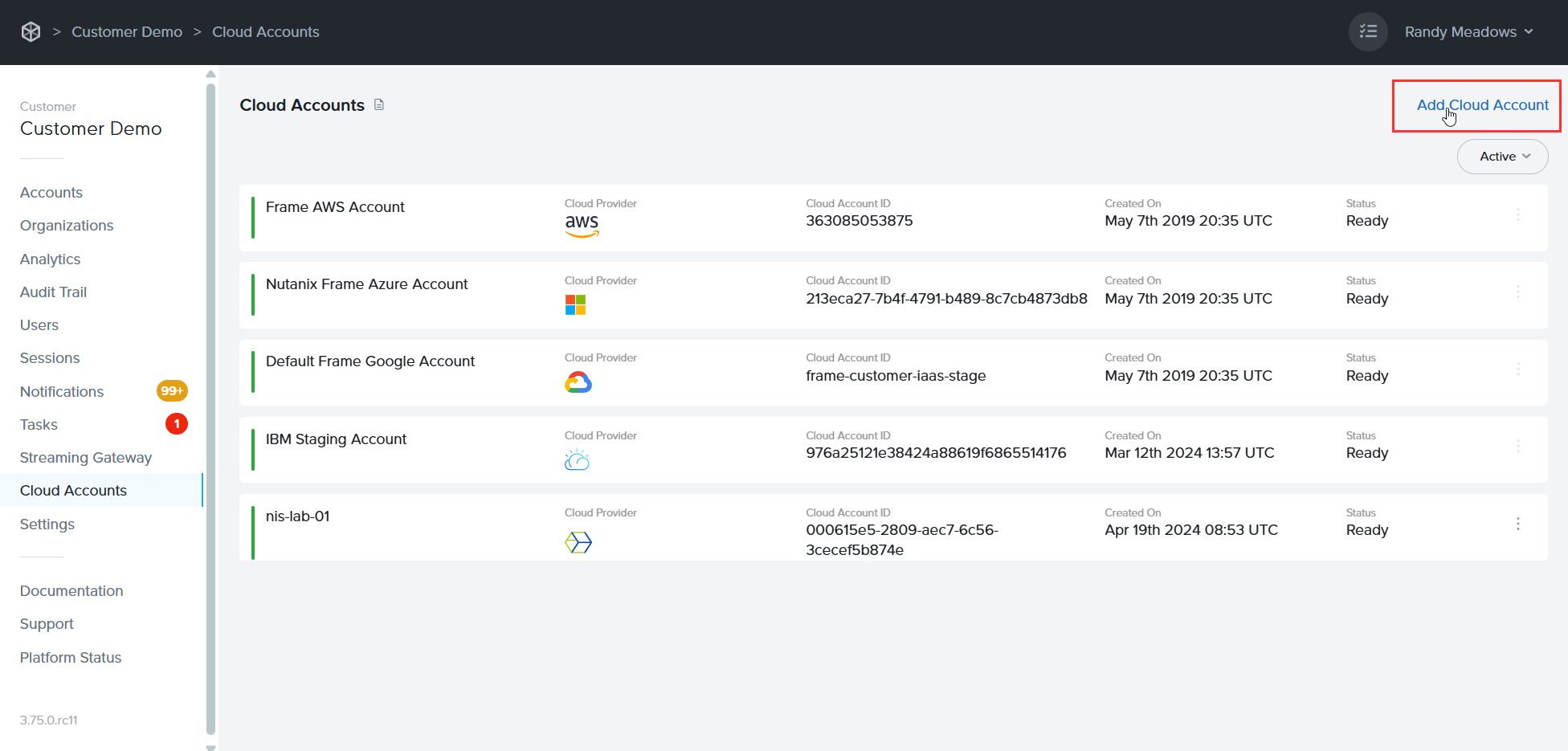
    
    ![Frame - Add Cloud Account](https://docs.difr.com/uploads/images/gallery/2025-10/add-cloudacct1.png)
2. A new page will appear, select "Nutanix-AHV".
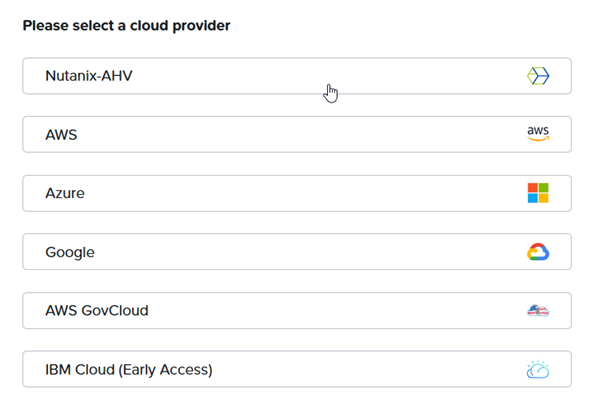
    
    ![Frame - Add Cloud Account](https://docs.difr.com/uploads/images/gallery/2025-10/select-ahv.png)
3. Enter a name for the new CCA 4 Cluster and click "Create."
4. Select "Show Nodes" to expand the cluster overview.
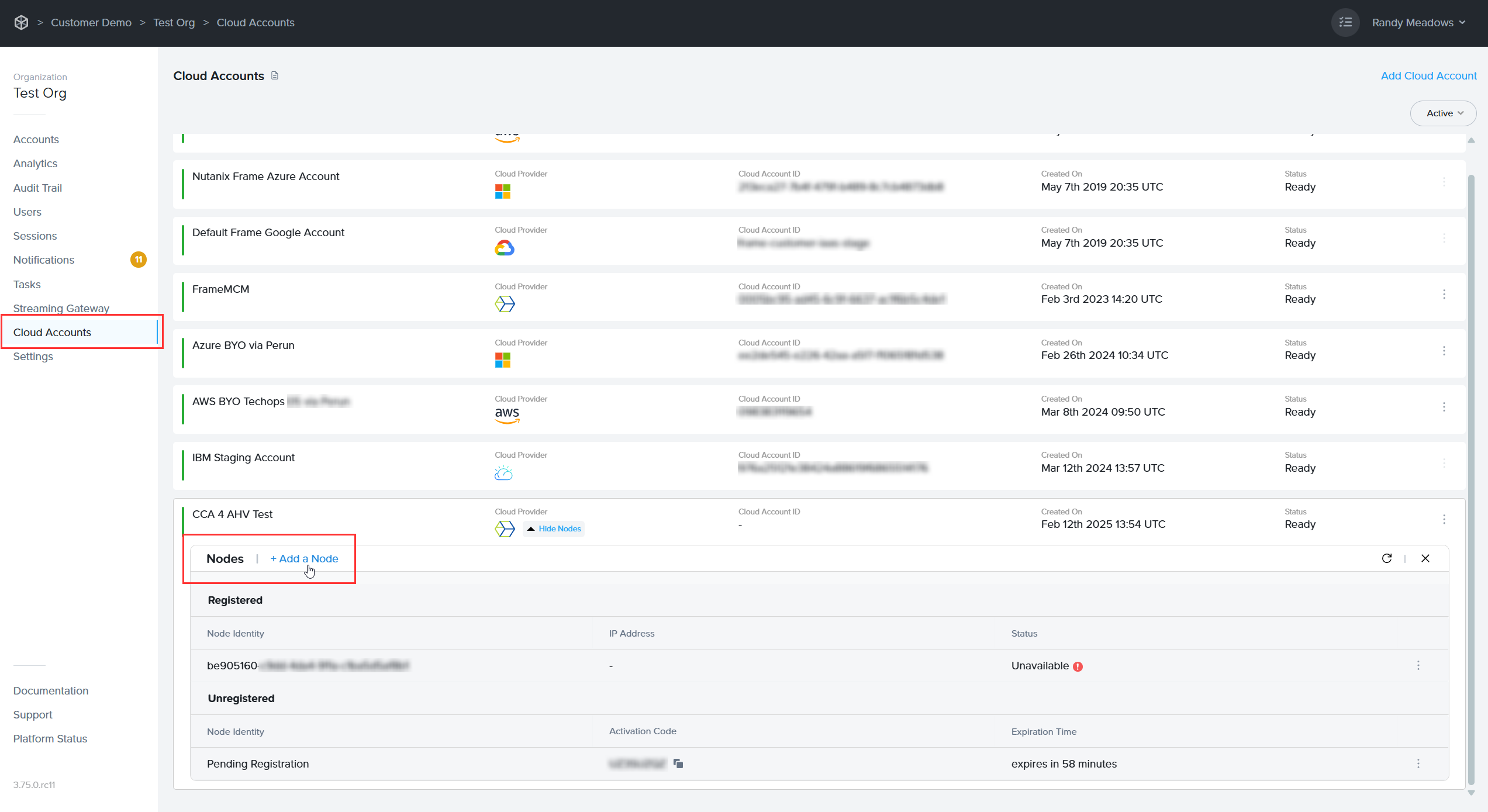
    
    ![Add a Node](https://docs.difr.com/uploads/images/gallery/2025-10/new-node.png)
5. Click on "Add a Node" to create a new registration key for your CCA VM.
    
    ![Add a Node](https://docs.difr.com/uploads/images/gallery/2025-10/add-node.png)

### Register CCA Nodes

1. Once the registration key has been generated and the previously created CCA is running, navigate to your CCA VM's IP address () in your browser to connect to the CCA wizard.
2. To log in to the CCA wizard, use the Prism Central user credentials that you created earlier for Frame and specify the Prism Central URL.
    
    ![Cloud Connector Appliance - User Authentication](https://docs.difr.com/uploads/images/gallery/2025-10/ahv-connect1.png)
3. CCA can communicate via an HTTPS proxy server to the Frame control plane. If a proxy server is not required, just click "Continue". Otherwise, enable the “Use proxy” slider.
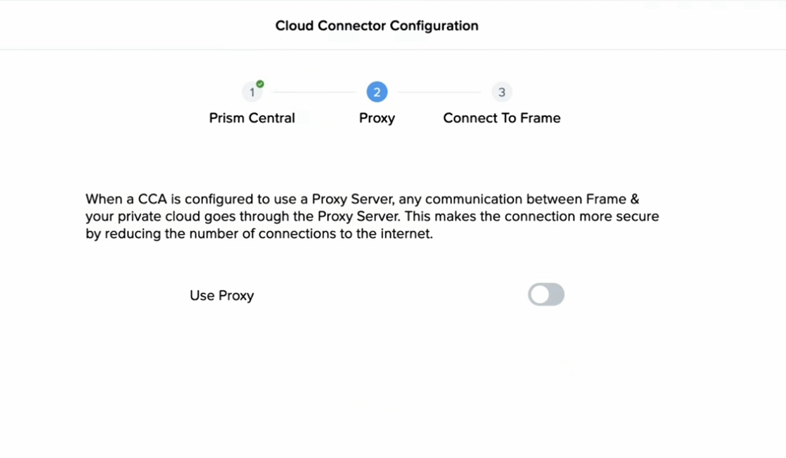
    
    ![Cloud Connector Appliance - Proxy Server Option](https://docs.difr.com/uploads/images/gallery/2025-10/proxy-slider.png)
4. Specify the proxy server URL which the CCA will use to reach the proxy server. If the proxy server requires a service username and password, specify the service username and password required for the CCA to authenticate to the proxy server. Otherwise, leave the proxy username and password blank. Use the "Verify" button to validate your proxy server configuration.
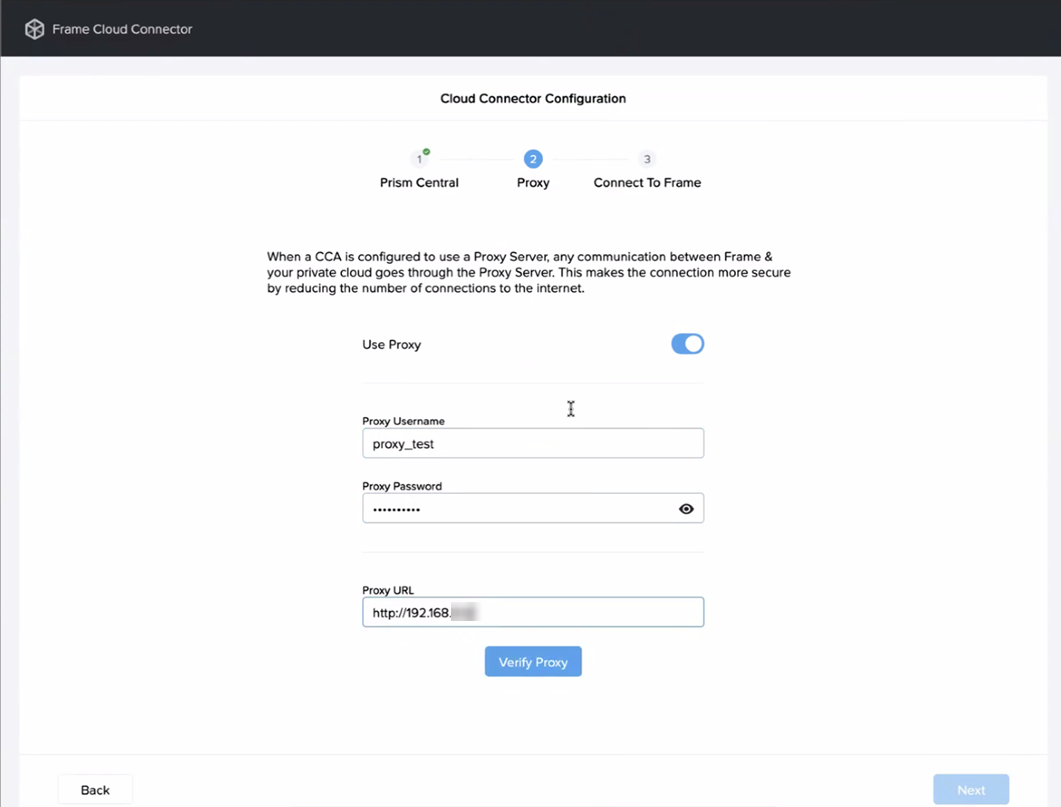
    
    ![Cloud Connector Appliance - Proxy Server Configuration](https://docs.difr.com/uploads/images/gallery/2025-10/proxy.png)
5. Copy and enter the activation key that was created in Step 3 under the [Generate Registration Key section](#generate-reg-key).
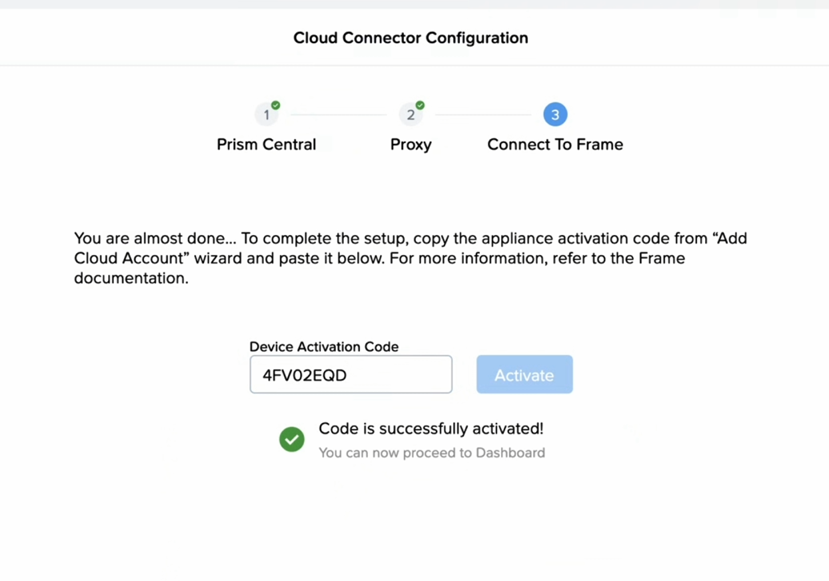
    
    ![Cloud Connector Appliance - Proxy Server Configuration](https://docs.difr.com/uploads/images/gallery/2025-10/activation-code.png)

From there, wait until the registration of the new node is complete:

![Cloud Connector Appliance - Proxy Server Configuration](https://docs.difr.com/uploads/images/gallery/2025-10/proxy-complete.png)

## Cloud Connector Appliance (CCA) 4 Setup

1. To check the status of the current CCA setup, simply expand the Cluster overview. The status will be displayed under the "Status" column on the right-hand side.

    
    ![Cloud Connector Appliance - Configuration Status](https://docs.difr.com/uploads/images/gallery/2025-10/cca4-status.png)
2. Under the status overview select "Regions." On the next screen, click “Add Region” to choose the AHV cluster which should be connected. Click "Sync” to get a list of all available AHV clusters that can be connected, select the desired one, and finally complete the process by clicking on "Add Regions".
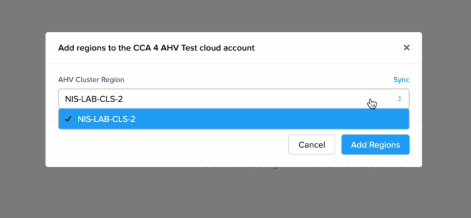
    
    ![Cloud Connector Appliance - Add Regions](https://docs.difr.com/uploads/images/gallery/2025-10/add-region1.png)
    
    ![Cloud Connector Appliance - Add Regions Complete](https://docs.difr.com/uploads/images/gallery/2025-10/add-region-complete.png)

### Import the Virtual Network

3. Next, add the Virtual Network to be used for the Frame Accounts by clicking on the "Import Virtual Network" link in the top right corner of the page.
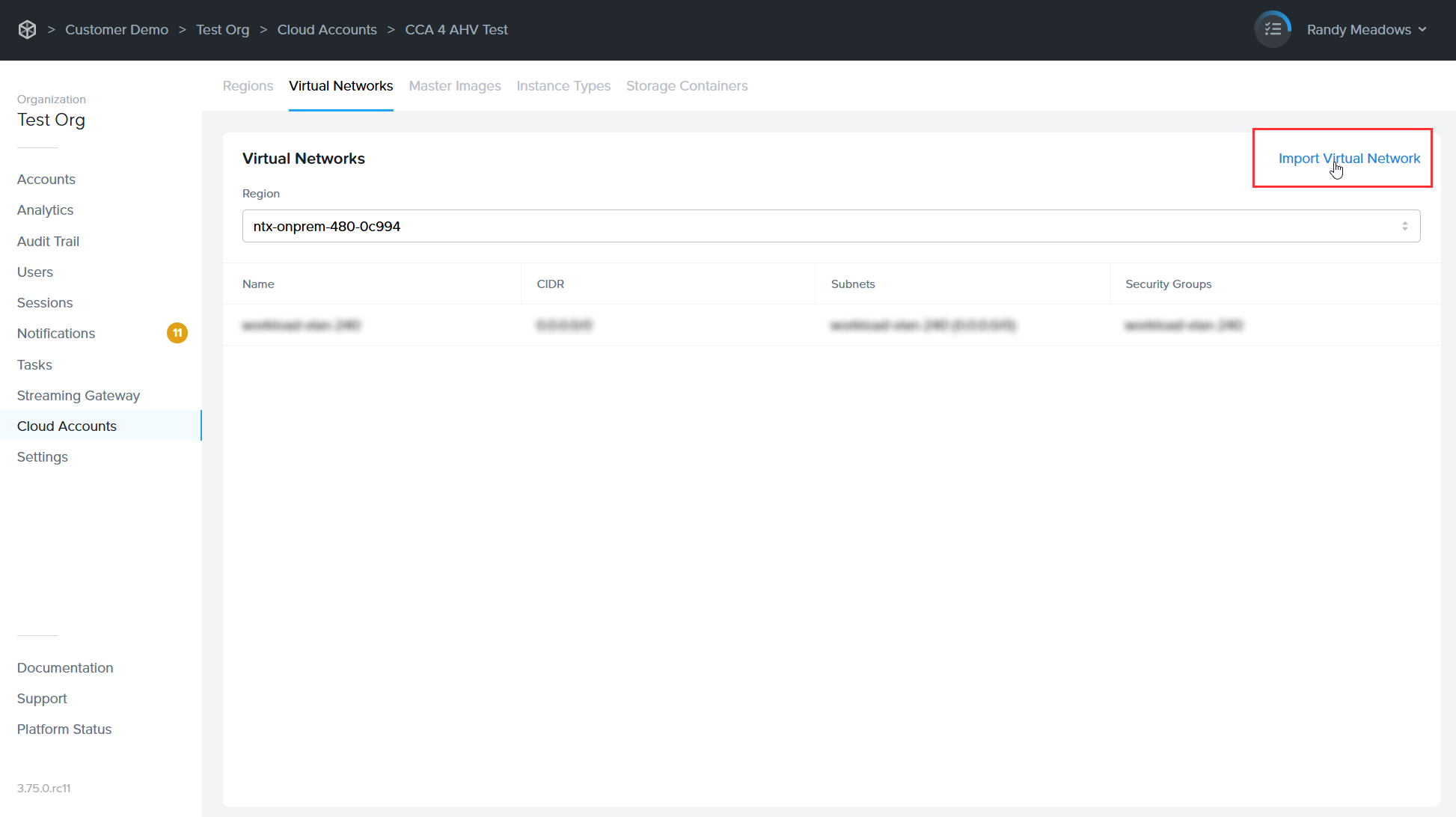
    
    ![Cloud Connector Appliance - Import Virtual Network](https://docs.difr.com/uploads/images/gallery/2025-10/import-virtualnetwork.png)
    
    
    1. Click on the "Sync" link next to the "Select Virtual Network" dropdown menu to get a list of all available networks the target cluster.  
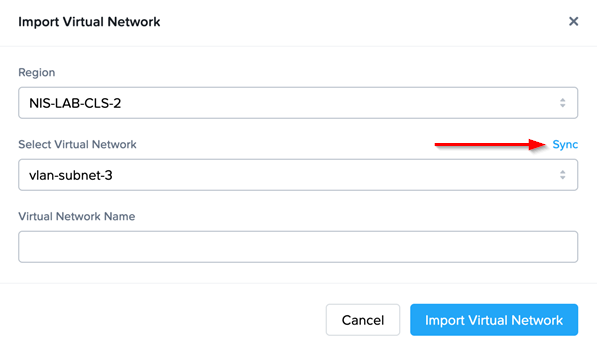
        ![Cloud Connector Appliance - Import Virtual Network](https://docs.difr.com/uploads/images/gallery/2025-10/sync-network.png)
    2. Select the one that needs to be imported.
    3. Enter a display name for the virtual network.
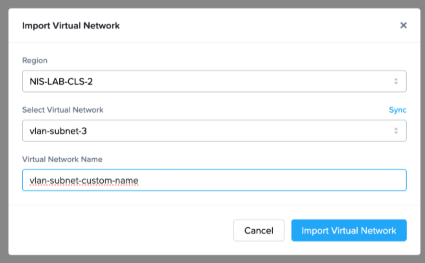
        
        ![Cloud Connector Appliance - Name Virtual Network](https://docs.difr.com/uploads/images/gallery/2025-10/name-virtualnetwork.png)
    4. Click "Import Virtual Network" at the bottom of the dialog.

### Import the Image

4. Next, switch to the Master Image category on the top row and select the "Import Image" link in the upper right corner.
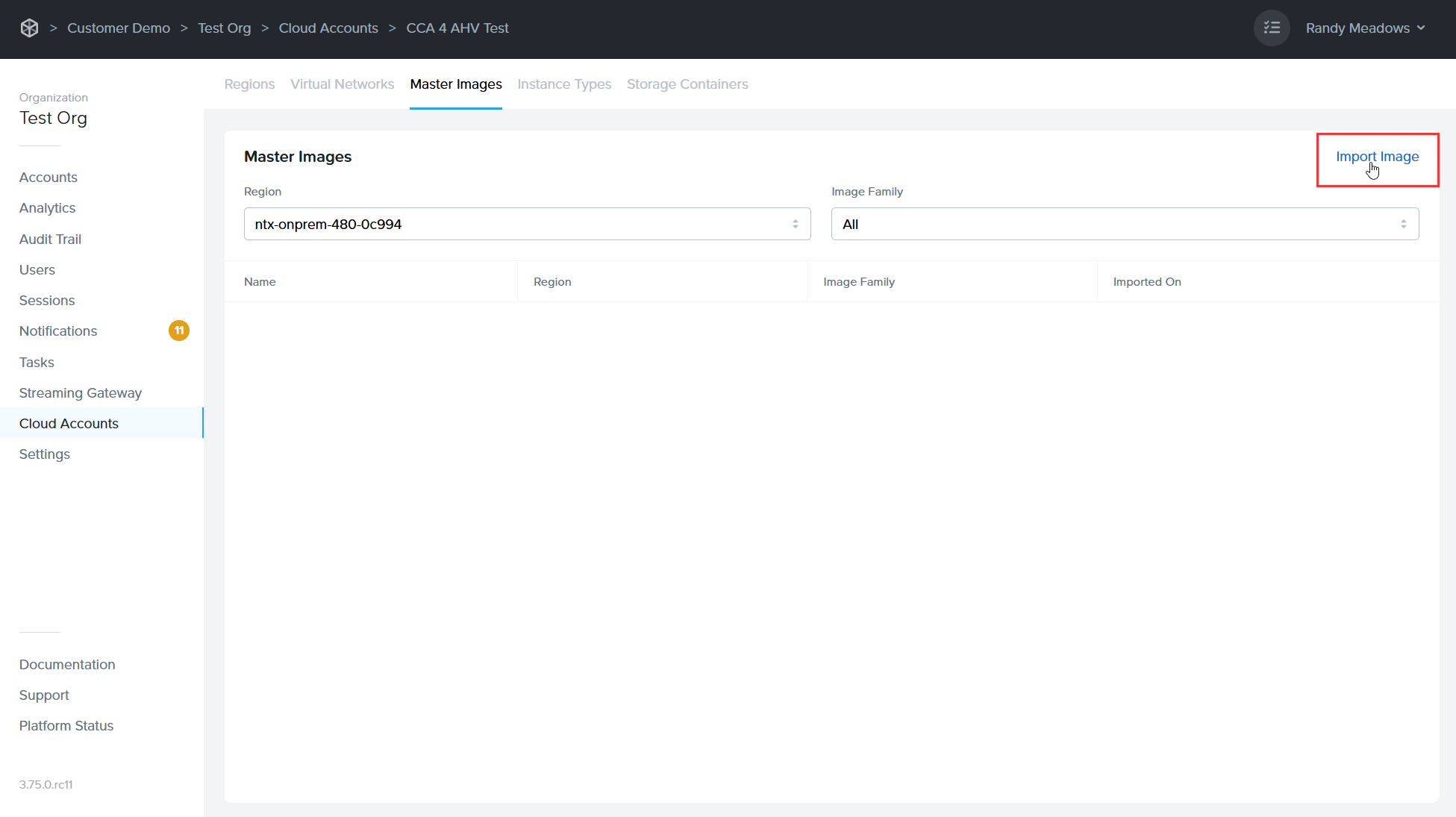
    
    ![Cloud Connector Appliance - Import Image](https://docs.difr.com/uploads/images/gallery/2025-10/import-image.png)
    
    
    1. Click "Sync" to get a list of all available images that can be imported as a new Master Image.
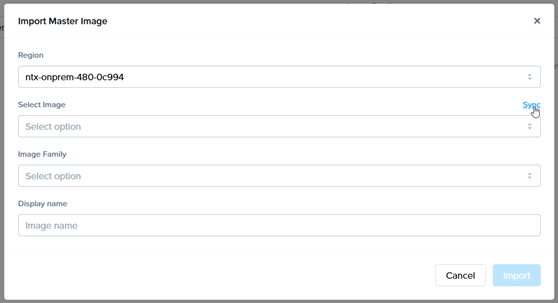
        
        ![Cloud Connector Appliance - Sync Image](https://docs.difr.com/uploads/images/gallery/2025-10/sync-image.png)
    2. Select the image you wish to use.  
          
        ![Cloud Connector Appliance - Select Image](https://docs.difr.com/uploads/images/gallery/2025-10/select-image.png)
    3. Enter a display name for the Image.
    4. Click "Import" to complete the image setup process.  
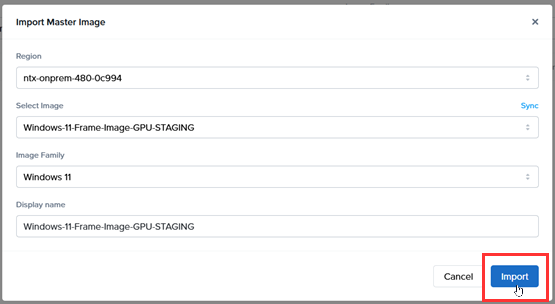
          
        ![Cloud Connector Appliance - Complete Image Import](https://docs.difr.com/uploads/images/gallery/2025-10/import-image-finish.png)

### Add Instance Types

5. Next, navigate to the "Instance Types" tab. You can either create new instance types or edit existing ones. To add an instance type, click the blue "Add Instance Type" link in the upper right corner of the page. To edit an existing one, click the kebab menu within the row of the instance type you'd like to modify. For this example, we'll create a new instance type:
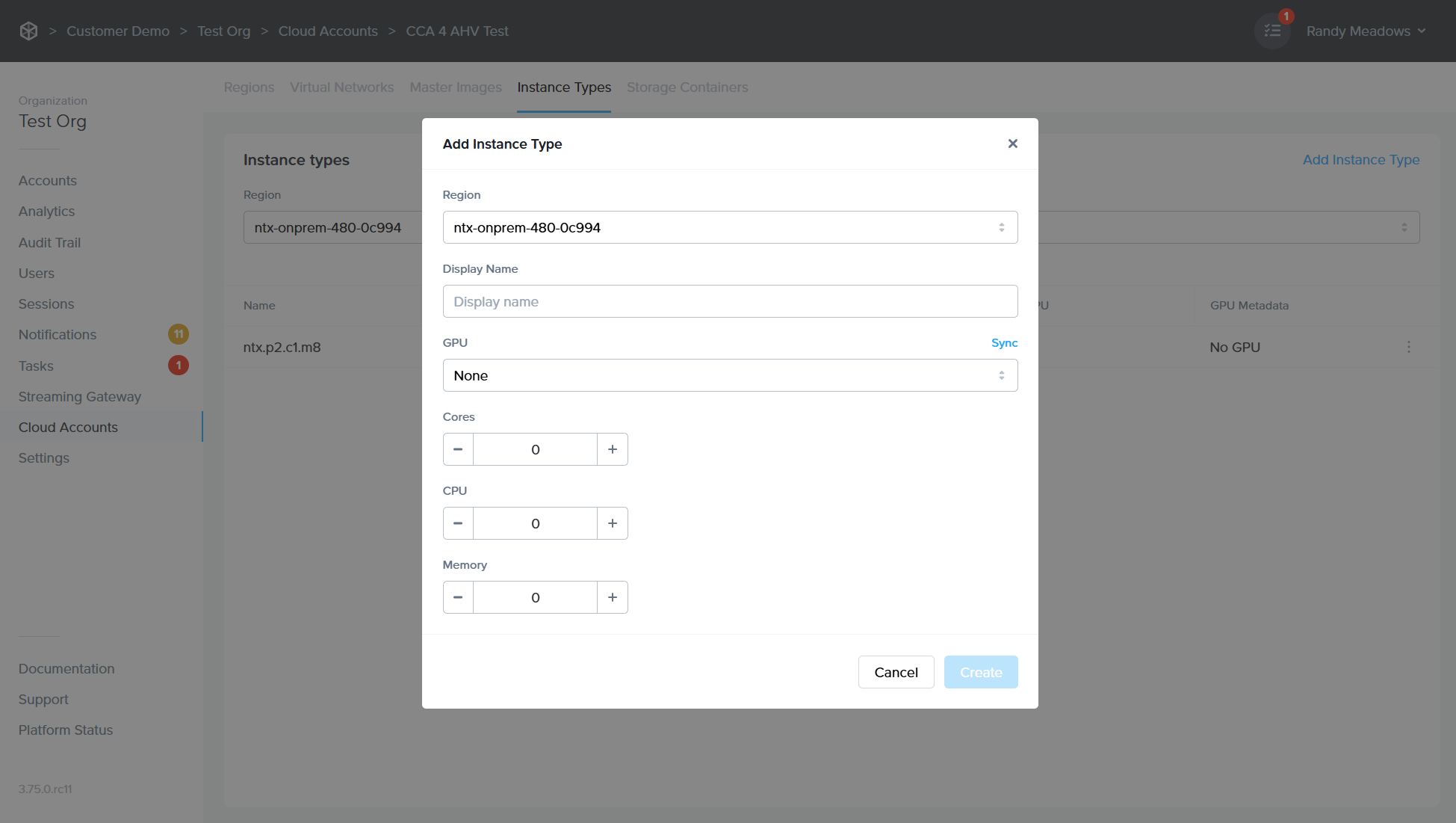
    
    ![Cloud Connector Appliance - Add Instance Type](https://docs.difr.com/uploads/images/gallery/2025-10/add-instancetype2.png)
    
    
    - **Display Name**: Name of the instance type that will appear to administrators and users within Frame Console and Launchpad, respectively.
    - **GPU**: If you have NVIDIA vGPUs configured in Prism, the list of vGPU profiles will be displayed. You may select a vGPU profile if you wish for the instance type to have a vGPU when VMs of this instance type are provisioned.
    - **Cores**: Number of cores for each vCPU.
    - **CPUs**: Number of vCPUs for this instance type.
    - **Memory**: The amount of RAM assigned to the instance type in GiB.

### Add Storage Container

6. Our next and final step is to add a storage capacity target for the use of enterprise profiles/personal drives. Select the “Storage Container” tab from the top row.
    
    
    1. Click “Add Storage Container” in the upper right corner. From there, click "Sync" to get a list of all available containers on the target cluster.
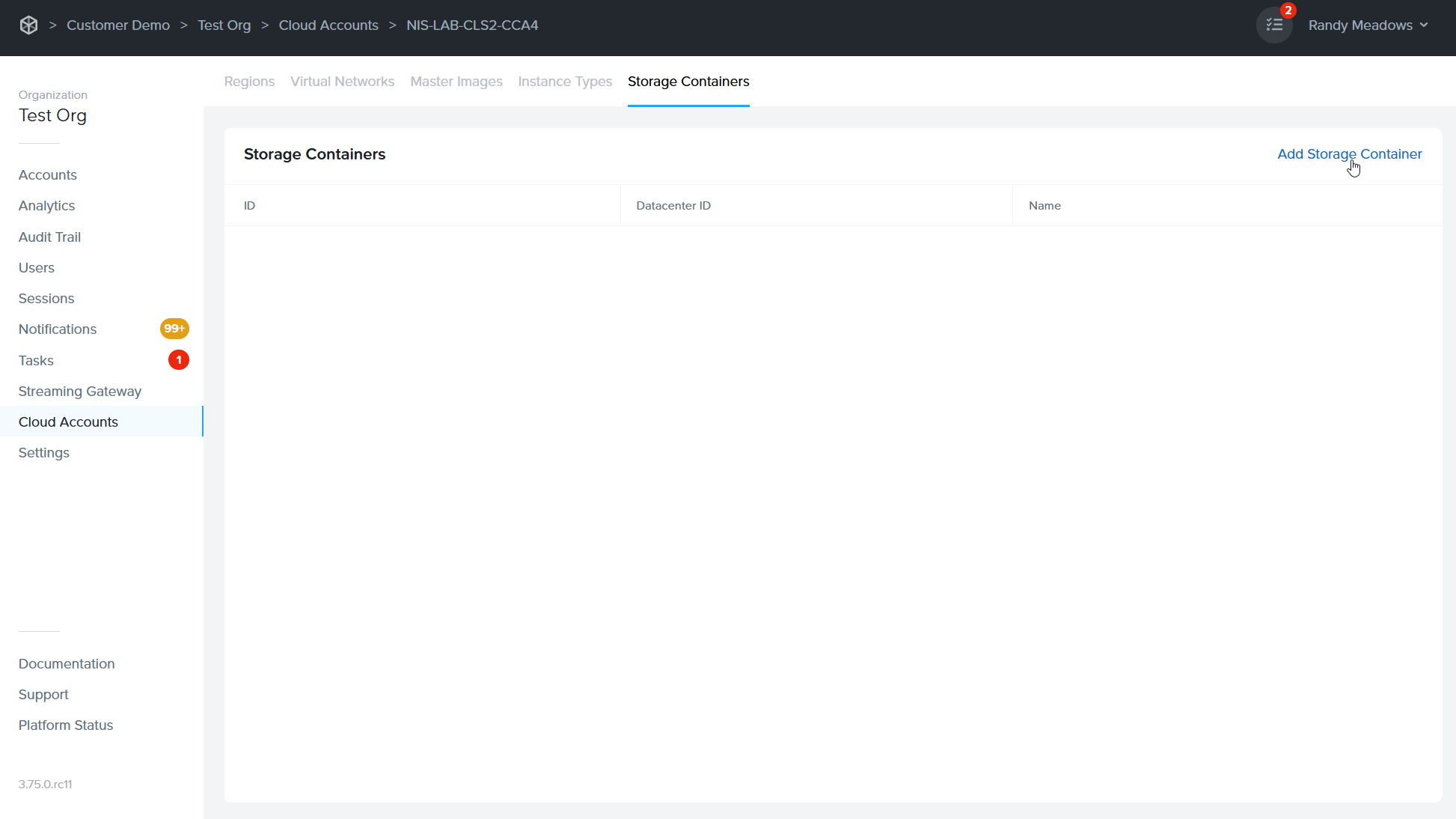
        
        ![Cloud Connector Appliance - Add Storage Container](https://docs.difr.com/uploads/images/gallery/2025-10/add-storage.png)
    2. Select the storage container which should be used for profile/personal drives and click the "Add" button.
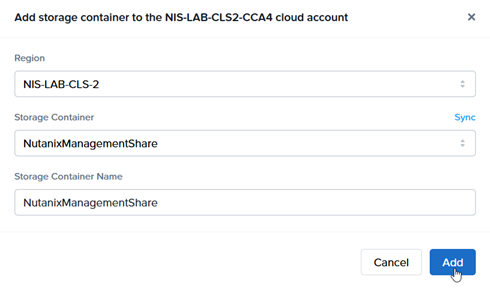
        
        ![Cloud Connector Appliance - Save Storage Container](https://docs.difr.com/uploads/images/gallery/2025-10/storage-container.png)

### CCA Static IP Address

By default, CCA VMs are assumed to obtain their IP address from a DHCP server provided by you. If a static IP address is required for the CCA, then the IP address of the VM will need to be manually configured.

1. After the CCA has been provisioned, open the console of the CCA VM from Prism Central (or Prism Element) and login as user <span style="color: rgb(230, 126, 35);">cca </span>password <span style="color: rgb(230, 126, 35);">difr</span>.
2. Select option 1 from the screen:
    
    <figure>[![image.png](https://docs.difr.com/uploads/images/gallery/2025-11/scaled-1680-/E0Cimage.png)](https://docs.difr.com/uploads/images/gallery/2025-11/E0Cimage.png)
    
    </figure>
3. Chose the network interface to configure:
    
    <figure>[![image.png](https://docs.difr.com/uploads/images/gallery/2025-11/scaled-1680-/y6Simage.png)](https://docs.difr.com/uploads/images/gallery/2025-11/y6Simage.png)
    
    </figure>
4. Enter the following information for the CCA VM:
    
    <figure>[![image.png](https://docs.difr.com/uploads/images/gallery/2025-11/scaled-1680-/cG8image.png)](https://docs.difr.com/uploads/images/gallery/2025-11/cG8image.png)
    
    </figure>  
    \**- Address**: Static IP address of the CCA VM. Make sure to append the correct `/XX` to the IP address.  
    \**- Gateway**: IP address of the gateway for the CCA VM.  
    \**- DNS address**: IP address(es) of the DNS server(s) which can resolve public DNS records, including the FQDNs for the Frame control plane.
5. Make sure to save your settings.

## Adding a CCA to an Existing AHV Cloud Account

This section describes the workflow if you have an existing AHV Cloud Account and would like to perform any of the following operations:

- Setup a highly available CCA configuration
- Update the version of a CCA VM
- Changed the AHV cluster's IP address and need to create a new CCA VM
- Enable Enterprise Profiles, Personal Drives, or proxy server for an existing AHV Cloud Account
- Modify settings for Enterprise Profiles, Personal Drives, or an existing proxy server configuration

First, create a new CCA VM following the instructions in the [Create a CCA VM](#create-a-cca-vm) procedure.

Once your new CCA VM is powered on and you have logged in to your new CCA VM using your Prism Central user credentials, as described in [Configuring your CCA VM](https://docs.difr.com/link/49#bkmrk-configuring-your-cca), Steps 5-6, you can use the following workflow to update your proxy server settings (Steps 1 and 2 below) or make additional configuration changes (Steps 3 through 7).

1. If you want to update the CCA configuration for your existing AHV Cloud Account to use a proxy server, then click on the slider to "Use Proxy."
    
    <figure>[![image.png](https://docs.difr.com/uploads/images/gallery/2025-11/scaled-1680-/9reimage.png)](https://docs.difr.com/uploads/images/gallery/2025-11/9reimage.png)
    
      
    <figcaption>  
    </figcaption></figure>
2. Specify the proxy server URL which the CCA will use to reach the proxy server. If the proxy server requires a service username and password, specify the service username and password required for the CCA to authenticate to the proxy server. Otherwise, leave the proxy username and password blank. Use the "Verify" button to validate a valid proxy server configuration.
    
    <figure>[![image.png](https://docs.difr.com/uploads/images/gallery/2025-11/scaled-1680-/LbIimage.png)](https://docs.difr.com/uploads/images/gallery/2025-11/LbIimage.png)
    
      
    <figcaption>  
    </figcaption></figure>
3. Since you are adding a CCA instance to an existing AHV cloud account, choose the Attach Appliance to Frame option.
    
    <figure>[![image.png](https://docs.difr.com/uploads/images/gallery/2025-11/scaled-1680-/GZGimage.png)](https://docs.difr.com/uploads/images/gallery/2025-11/GZGimage.png)
    
      
    <figcaption>  
    </figcaption></figure>
4. Confirm the AHV cluster and specify its Prism Element credentials. At this step, you can update the Enterprise Profiles and Personal Drives settings as well for the existing AHV Cloud Account.
    
    <figure>[![image.png](https://docs.difr.com/uploads/images/gallery/2025-11/scaled-1680-/3Riimage.png)](https://docs.difr.com/uploads/images/gallery/2025-11/3Riimage.png)
    
    </figure>
5. Select the Customer or Organization entity you created earlier in the Frame account setup. Choose the AHV Cloud Account for which high availability configuration is required and Click "Attach."
    
    <figure>  
    </figure>[![image.png](https://docs.difr.com/uploads/images/gallery/2025-11/scaled-1680-/tNrimage.png)](https://docs.difr.com/uploads/images/gallery/2025-11/tNrimage.png)
6. The wizard should inform you that your CCA VM has successfully connected to Frame control plane.
    
    <figure>[![image.png](https://docs.difr.com/uploads/images/gallery/2025-11/scaled-1680-/0FGimage.png)](https://docs.difr.com/uploads/images/gallery/2025-11/0FGimage.png)
    
    </figure>
7. Once you have attached the new version of the CCA to the AHV cloud account, you can power off the CCA VM running the older version of CCA and terminate the VM. You can perform the above steps again to add additional CCA VMs of the new version for high availability and scalability.

## Troubleshooting

If you experience issues with CCA 4, administrators can troubleshoot by reviewing logs or accessing network configuration through AHV’s VNC console.

If the CCA web interface does not display the Prism Central URL field, verify the following:

- Ensure that the CCA VM was deployed using the latest CCA 4 image.
- Confirm that the VM is properly connected to the network and can communicate with Prism Central.
- Check that no additional "volume groups" are attached to the VM.

The CCA 4 Dashboard provides real-time visibility into the connection status between CCA and Frame, as well as CCA and Prism Central. It also displays the latest API requests and a summary of Prism Central activity since the CCA VM was last powered on. To access the Dashboard, open a browser and navigate to:  
  
<span style="color: rgb(163, 90, 26);">**https://&lt;CCA VM IP address&gt;/**</span>

Log in using your Prism Central service account credentials.

# Amazon Workspaces Core (WSC) Managed Instances (Early Access)

### <span class="TextRun SCXW259132631 BCX0" data-contrast="none" lang="EN-US" xml:lang="EN-US"><span class="NormalTextRun SCXW259132631 BCX0" data-ccp-parastyle="heading 1">Overview</span></span><span class="EOP SCXW259132631 BCX0" data-ccp-props="{"134245418":true,"134245529":true,"335559738":360,"335559739":80}"> </span>

<span class="TextRun SCXW259132631 BCX0" data-contrast="auto" lang="EN-US" xml:lang="EN-US"><span class="NormalTextRun SCXW259132631 BCX0">Amazon </span><span class="NormalTextRun SpellingErrorV2Themed SCXW259132631 BCX0">WorkSpaces</span><span class="NormalTextRun SCXW259132631 BCX0"> Core Managed Instances </span><span class="NormalTextRun SCXW259132631 BCX0">(</span></span><span class="TextRun SCXW259132631 BCX0" data-contrast="auto" lang="EN-US" xml:lang="EN-US"><span class="NormalTextRun SCXW259132631 BCX0">WCMI - </span></span><span class="TextRun SCXW259132631 BCX0" data-contrast="auto" lang="EN-US" xml:lang="EN-US"><span class="NormalTextRun SCXW259132631 BCX0">Workspace Core v2) offer maximum flexibility, supporting customer-supplied Windows 11 images, persistent or non-persistent desktops, and Microsoft 365 Apps via</span><span class="NormalTextRun SCXW259132631 BCX0"> BYOL. The pricing model is usage-based, allowing customers to choose from a wide range of EC2 instance types, including GPU-enabled options. Designed for organizations that want to run Windows 11 </span><span class="NormalTextRun SCXW259132631 BCX0">and</span><span class="NormalTextRun SCXW259132631 BCX0">/</span><span class="NormalTextRun SCXW259132631 BCX0">or </span><span class="NormalTextRun SCXW259132631 BCX0">Microso</span><span class="NormalTextRun SCXW259132631 BCX0">ft 365</span> <span class="NormalTextRun SCXW259132631 BCX0">under their own licenses, this model offers a managed yet flexible way to deploy desktops on Amazon </span><span class="NormalTextRun SpellingErrorV2Themed SCXW259132631 BCX0">WorkSpaces</span><span class="NormalTextRun SCXW259132631 BCX0"> Core while leveraging </span><span class="NormalTextRun SpellingErrorV2Themed SCXW259132631 BCX0">Dizzion’s</span> <span class="NormalTextRun SCXW259132631 BCX0">Daa</span><span class="NormalTextRun SCXW259132631 BCX0">S </span><span class="NormalTextRun SCXW259132631 BCX0">platform for orchestration, security, and user access. It enables license portability and ensures compliance with existing Microsoft agreements</span></span><span class="TextRun SCXW259132631 BCX0" data-contrast="auto" lang="EN-US" xml:lang="EN-US"><span class="NormalTextRun SCXW259132631 BCX0">.</span></span><span class="EOP SCXW259132631 BCX0" data-ccp-props="{}"> </span>

#### <span class="TextRun SCXW259132631 BCX0" data-contrast="none" lang="EN-US" xml:lang="EN-US"><span class="NormalTextRun SCXW259132631 BCX0" data-ccp-parastyle="heading 1">Prerequisites </span></span><span class="EOP SCXW259132631 BCX0" data-ccp-props="{"134245418":true,"134245529":true,"335559738":360,"335559739":80}"> </span>

<span class="TextRun SCXW259132631 BCX0" data-contrast="auto" lang="EN-US" xml:lang="EN-US"><span class="NormalTextRun SCXW259132631 BCX0">Before registering workloads, ensure the following conditions are met:</span></span><span class="EOP SCXW259132631 BCX0" data-ccp-props="{}"> </span>

<div class="SCXW259132631 BCX0" id="bkmrk-the-aws-cloud-accoun"><div class="ListContainerWrapper SCXW259132631 BCX0">- <span class="TextRun SCXW259132631 BCX0" data-contrast="auto" lang="EN-US" xml:lang="EN-US"><span class="NormalTextRun SCXW259132631 BCX0">The AWS cloud account has been imported into Frame using the standard AWS Cloud Account creation procedure. For detailed instructions, see </span></span>[<span class="TextRun Underlined SCXW259132631 BCX0" data-contrast="none" lang="EN-US" xml:lang="EN-US"><span class="NormalTextRun SCXW259132631 BCX0" data-ccp-charstyle="Hyperlink">AWS Add Cloud Account</span></span>](https://docs.difr.com/books/platform-administrators-guide/page/amazon-web-services)<span class="TextRun SCXW259132631 BCX0" data-contrast="auto" lang="EN-US" xml:lang="EN-US"><span class="NormalTextRun SCXW259132631 BCX0">.</span></span><span class="EOP SCXW259132631 BCX0" data-ccp-props="{}"> </span>
- <span class="TextRun SCXW259132631 BCX0" data-contrast="auto" lang="EN-US" xml:lang="EN-US"><span class="NormalTextRun SpellingErrorV2Themed SCXW259132631 BCX0">WorkSpaces</span><span class="NormalTextRun SCXW259132631 BCX0"> V2 </span><span class="NormalTextRun ContextualSpellingAndGrammarErrorV2Themed SCXW259132631 BCX0">supports only</span><span class="NormalTextRun SCXW259132631 BCX0"> Windows 11 and </span><span class="NormalTextRun SCXW259132631 BCX0">operates</span><span class="NormalTextRun SCXW259132631 BCX0"> under a Bring Your Own License (BYOL) model.</span></span>
- <span class="NormalTextRun SCXW259132631 BCX0">Both persistent and non-persistent workloads are supported.</span><span class="EOP SCXW259132631 BCX0" data-ccp-props="{}"> </span>
- <span class="TextRun SCXW259132631 BCX0" data-contrast="auto" lang="EN-US" xml:lang="EN-US"><span class="NormalTextRun SCXW259132631 BCX0">You have granted permission for the creation of the required service-linked role (workspaces-instances.amazonaws.com), as described in the Workflow</span></span><span data-contrast="auto" lang="EN-US" xml:lang="EN-US"> section.</span>

</div></div><p class="callout warning"> **Important Note!**  The sandbox runs as an EC2 instance on Dedicated Instances, as required for Windows 11 licensing compliance. This setup also enables platform features like publish, backup, and clone which are mandatory. Production desktops, however, run as WorkSpaces Core Managed Instances, optimized for scalability and end-user performance.<span class="TextRun SCXW259132631 BCX0" data-contrast="auto" lang="EN-US" xml:lang="EN-US"><span class="NormalTextRun SCXW259132631 BCX0">  
</span></span>  
</p>

## <span class="TextRun SCXW259132631 BCX0" data-contrast="none" lang="EN-US" xml:lang="EN-US"><span class="NormalTextRun SCXW259132631 BCX0" data-ccp-parastyle="heading 1">Workflow</span></span><span class="EOP SCXW259132631 BCX0" data-ccp-props="{"134245418":true,"134245529":true,"335559738":360,"335559739":80}"> </span>

#### <span class="TextRun SCXW259132631 BCX0" data-contrast="none" lang="EN-US" xml:lang="EN-US"><span class="NormalTextRun SCXW259132631 BCX0" data-ccp-parastyle="heading 2">Step 1 – </span><span class="NormalTextRun SCXW259132631 BCX0" data-ccp-parastyle="heading 2">Add AWS Cloud Account </span></span><span class="EOP SCXW259132631 BCX0" data-ccp-props="{"134245418":true,"134245529":true,"335559738":160,"335559739":80}"> </span>

<span class="TextRun SCXW259132631 BCX0" data-contrast="auto" lang="EN-US" xml:lang="EN-US"><span class="NormalTextRun SCXW259132631 BCX0" data-ccp-parastyle="heading 2">If you have not already done so, follow the instructions in </span></span>[<span class="TextRun Underlined SCXW259132631 BCX0" data-contrast="none" lang="EN-US" xml:lang="EN-US"><span class="NormalTextRun SCXW259132631 BCX0" data-ccp-charstyle="Hyperlink">AWS Add Cloud Account</span></span>](https://docs.difr.com/books/platform-administrators-guide/page/amazon-web-services)<span class="TextRun SCXW259132631 BCX0" data-contrast="auto" lang="EN-US" xml:lang="EN-US"><span class="NormalTextRun SCXW259132631 BCX0" data-ccp-parastyle="heading 2"> to connect your own AWS account</span><span class="NormalTextRun SCXW259132631 BCX0" data-ccp-parastyle="heading 2">.</span></span><span class="EOP SCXW259132631 BCX0" data-ccp-props="{"134245418":true,"134245529":true,"335559738":160,"335559739":80}"> </span>

#### <span class="TextRun SCXW259132631 BCX0" data-contrast="none" lang="EN-US" xml:lang="EN-US"><span class="NormalTextRun SCXW259132631 BCX0" data-ccp-parastyle="heading 2">Step </span><span class="NormalTextRun SCXW259132631 BCX0" data-ccp-parastyle="heading 2">2</span><span class="NormalTextRun SCXW259132631 BCX0" data-ccp-parastyle="heading 2"> – </span><span class="NormalTextRun SCXW259132631 BCX0" data-ccp-parastyle="heading 2">Enable Workspace v</span><span class="NormalTextRun SCXW259132631 BCX0" data-ccp-parastyle="heading 2">2</span></span><span class="EOP SCXW259132631 BCX0" data-ccp-props="{"134245418":true,"134245529":true,"335559738":160,"335559739":80}"> </span>

<span class="TextRun SCXW259132631 BCX0" data-contrast="auto" lang="EN-US" xml:lang="EN-US"><span class="NormalTextRun SCXW259132631 BCX0">Since AWS </span><span class="NormalTextRun SpellingErrorV2Themed SCXW259132631 BCX0">WorkSpaces</span> <span class="NormalTextRun SCXW259132631 BCX0">Core Managed Instances </span><span class="NormalTextRun SCXW259132631 BCX0">(</span><span class="NormalTextRun SCXW259132631 BCX0">WCMI) </span><span class="NormalTextRun SCXW259132631 BCX0">V2 is currently a Tech Preview feature, you will need to contact </span><span class="NormalTextRun SpellingErrorV2Themed SCXW259132631 BCX0">Dizzion</span><span class="NormalTextRun SCXW259132631 BCX0"> Support to have this feature enabled for your account.</span><span class="NormalTextRun SCXW259132631 BCX0"> </span></span><span class="EOP SCXW259132631 BCX0" data-ccp-props="{}"> </span>

<span class="SCXW259132631 BCX0"><span class="WACImageContainer NoPadding BlobObject SCXW259132631 BCX0" role="presentation">![A screenshot of a computer

AI-generated content may be incorrect.](https://docs.difr.com/uploads/images/gallery/2025-10/embedded-image-ejvfowlc.png)</span></span><span class="EOP SCXW259132631 BCX0" data-ccp-props="{}"> </span>

#### <span class="TextRun SCXW259132631 BCX0" data-contrast="none" lang="EN-US" xml:lang="EN-US"><span class="NormalTextRun SCXW259132631 BCX0" data-ccp-parastyle="heading 2">Step 3 – </span><span class="NormalTextRun SCXW259132631 BCX0" data-ccp-parastyle="heading 2">Initialize</span> <span class="NormalTextRun SCXW259132631 BCX0" data-ccp-parastyle="heading 2">AWS permissions </span></span><span class="EOP SCXW259132631 BCX0" data-ccp-props="{"134245418":true,"134245529":true,"335559738":160,"335559739":80}"> </span>

<span class="TextRun SCXW259132631 BCX0" data-contrast="auto" lang="EN-US" xml:lang="EN-US"><span class="NormalTextRun SCXW259132631 BCX0">Once the feature is enabled, </span><span class="NormalTextRun ContextualSpellingAndGrammarErrorV2Themed SCXW259132631 BCX0">navigate to</span><span class="NormalTextRun SCXW259132631 BCX0"> Cloud Accounts, </span><span class="NormalTextRun SCXW259132631 BCX0">locate</span><span class="NormalTextRun SCXW259132631 BCX0"> your AWS cloud account, select the three-dot menu, and choose Update. Then, open the </span><span class="NormalTextRun SpellingErrorV2Themed SCXW259132631 BCX0">WorkSpaces</span><span class="NormalTextRun SCXW259132631 BCX0"> Core V2 tab and click Initialize environment for </span><span class="NormalTextRun SpellingErrorV2Themed SCXW259132631 BCX0">WorkSpaces</span><span class="NormalTextRun SCXW259132631 BCX0"> Managed Instances</span><span class="NormalTextRun SCXW259132631 BCX0">.</span></span><span class="EOP SCXW259132631 BCX0" data-ccp-props="{}"> </span>

<span class="SCXW259132631 BCX0"><span class="WACImageContainer NoPadding BlobObject SCXW259132631 BCX0" role="presentation">![A screenshot of a computer

AI-generated content may be incorrect.](https://docs.difr.com/uploads/images/gallery/2025-10/embedded-image-sppz5vv7.png)</span></span><span class="EOP SCXW259132631 BCX0" data-ccp-props="{}"> </span>

<span class="SCXW259132631 BCX0"><span class="WACImageContainer NoPadding BlobObject SCXW259132631 BCX0" role="presentation">![A screenshot of a computer

AI-generated content may be incorrect.](https://docs.difr.com/uploads/images/gallery/2025-10/embedded-image-gkksj9ix.png)</span></span><span class="EOP SCXW259132631 BCX0" data-ccp-props="{}"> </span>

<span class="TextRun SCXW259132631 BCX0" data-contrast="auto" lang="EN-US" xml:lang="EN-US"><span class="NormalTextRun SCXW259132631 BCX0" data-ccp-parastyle="heading 2">This action is required by AWS and creates a service-linked role for the </span></span><span class="TextRun SCXW259132631 BCX0" data-contrast="auto" lang="EN-US" xml:lang="EN-US"><span class="NormalTextRun SCXW259132631 BCX0" data-ccp-parastyle="heading 2">service workspaces-instances.amazonaws.com</span></span><span class="TextRun SCXW259132631 BCX0" data-contrast="auto" lang="EN-US" xml:lang="EN-US"><span class="NormalTextRun SCXW259132631 BCX0" data-ccp-parastyle="heading 2">, which is necessary for managing </span><span class="NormalTextRun SpellingErrorV2Themed SCXW259132631 BCX0" data-ccp-parastyle="heading 2">WorkSpace</span><span class="NormalTextRun SpellingErrorV2Themed SCXW259132631 BCX0" data-ccp-parastyle="heading 2">s</span><span class="NormalTextRun SCXW259132631 BCX0" data-ccp-parastyle="heading 2">.</span></span><span class="EOP SCXW259132631 BCX0" data-ccp-props="{"134245418":true,"134245529":true,"335559738":160,"335559739":80}"> </span>

#### <span class="TextRun SCXW259132631 BCX0" data-contrast="none" lang="EN-US" xml:lang="EN-US"><span class="NormalTextRun SCXW259132631 BCX0" data-ccp-parastyle="heading 2">Step 4 – Create </span><span class="NormalTextRun SCXW259132631 BCX0" data-ccp-parastyle="heading 2">Account using Workspace Core Managed Instances</span></span><span class="EOP SCXW259132631 BCX0" data-ccp-props="{"134245418":true,"134245529":true,"335559738":160,"335559739":80}"> </span>

<span class="TextRun SCXW259132631 BCX0" data-contrast="auto" lang="EN-US" xml:lang="EN-US"><span class="NormalTextRun SCXW259132631 BCX0">You are now ready to create a Frame Account using </span><span class="NormalTextRun SpellingErrorV2Themed SCXW259132631 BCX0">WorkSpaces</span><span class="NormalTextRun SCXW259132631 BCX0"> Managed Instances.</span></span><span class="LineBreakBlob BlobObject DragDrop SCXW259132631 BCX0"><span class="SCXW259132631 BCX0"> </span>  
</span><span class="TextRun SCXW259132631 BCX0" data-contrast="auto" lang="EN-US" xml:lang="EN-US"><span class="NormalTextRun SCXW259132631 BCX0">When selecting AWS as the cloud provider, two options will be available: EC2 and </span><span class="NormalTextRun SpellingErrorV2Themed SCXW259132631 BCX0">WorkSpaces</span><span class="NormalTextRun SCXW259132631 BCX0"> Core V2.</span></span><span class="LineBreakBlob BlobObject DragDrop SCXW259132631 BCX0"><span class="SCXW259132631 BCX0"> </span>  
</span><span class="SCXW259132631 BCX0"><span class="WACImageContainer NoPadding BlobObject SCXW259132631 BCX0" role="presentation">![A screenshot of a computer

AI-generated content may be incorrect.](https://docs.difr.com/uploads/images/gallery/2025-10/embedded-image-plghusuc.png)</span></span><span class="LineBreakBlob BlobObject DragDrop SCXW259132631 BCX0"><span class="SCXW259132631 BCX0"> </span>  
</span><span class="TextRun SCXW259132631 BCX0" data-contrast="auto" lang="EN-US" xml:lang="EN-US"><span class="NormalTextRun SCXW259132631 BCX0">The created account will have all the same functionalities as any other Frame non-persistent or persistent account.</span></span><span class="EOP SCXW259132631 BCX0" data-ccp-props="{}"> </span>

<span class="EOP SCXW259132631 BCX0" data-ccp-props="{}"> </span>

## <span class="TextRun SCXW259132631 BCX0" data-contrast="none" lang="EN-US" xml:lang="EN-US"><span class="NormalTextRun SCXW259132631 BCX0" data-ccp-parastyle="heading 1">Limitations</span></span><span class="EOP SCXW259132631 BCX0" data-ccp-props="{"134245418":true,"134245529":true,"335559738":360,"335559739":80}"> </span>

<span class="TextRun SCXW259132631 BCX0" data-contrast="auto" lang="EN-US" xml:lang="EN-US"><span class="NormalTextRun SCXW259132631 BCX0">Please note that</span><span class="NormalTextRun SCXW259132631 BCX0">:</span></span><span class="EOP SCXW259132631 BCX0" data-ccp-props="{}"> </span>

<div class="SCXW259132631 BCX0" id="bkmrk-this-feature-only-wo"><div class="ListContainerWrapper SCXW259132631 BCX0">- <span class="TextRun SCXW259132631 BCX0" data-contrast="auto" lang="EN-US" xml:lang="EN-US"><span class="NormalTextRun SCXW259132631 BCX0">This feature only works for Windows 11 and Bring-Your-Own-Licensing model (BYOL) </span></span><span class="EOP SCXW259132631 BCX0" data-ccp-props="{}"> </span>
- <span class="TextRun SCXW259132631 BCX0" data-contrast="auto" lang="EN-US" xml:lang="EN-US"><span class="NormalTextRun SCXW259132631 BCX0">Flow</span> <span class="NormalTextRun SCXW259132631 BCX0">for c</span><span class="NormalTextRun SCXW259132631 BCX0">hanging</span><span class="NormalTextRun SCXW259132631 BCX0"> the instance type </span><span class="NormalTextRun SCXW259132631 BCX0">of assigned persistent desktop </span><span class="NormalTextRun SCXW259132631 BCX0">is </span><span class="NormalTextRun SCXW259132631 BCX0">specific</span><span class="NormalTextRun SCXW259132631 BCX0">:</span> <span class="NormalTextRun SCXW259132631 BCX0">the Work</span><span class="NormalTextRun SCXW259132631 BCX0">s</span><span class="NormalTextRun SCXW259132631 BCX0">pace </span><span class="NormalTextRun SCXW259132631 BCX0">will </span><span class="NormalTextRun SCXW259132631 BCX0">be</span> <span class="NormalTextRun SCXW259132631 BCX0">backed up and </span><span class="NormalTextRun SCXW259132631 BCX0">re</span><span class="NormalTextRun SCXW259132631 BCX0">stored</span> <span class="NormalTextRun SCXW259132631 BCX0">with </span><span class="NormalTextRun SCXW259132631 BCX0">desired instance </span><span class="NormalTextRun SCXW259132631 BCX0">type</span> <span class="NormalTextRun SCXW259132631 BCX0">because</span> <span class="NormalTextRun SCXW259132631 BCX0">AWS does not </span><span class="NormalTextRun SCXW259132631 BCX0">support in-</span><span class="NormalTextRun SCXW259132631 BCX0">place </span><span class="NormalTextRun SCXW259132631 BCX0">modification of </span><span class="NormalTextRun SCXW259132631 BCX0">Workspace </span><span class="NormalTextRun SCXW259132631 BCX0">Managed Instances.</span></span>
- <span class="NormalTextRun SCXW259132631 BCX0">Not all regions are supported - check the available regions within console UI.</span>
- <span class="NormalTextRun SCXW259132631 BCX0">Not all instance types are supported either, but most of them are already added.</span><span class="EOP SCXW259132631 BCX0" data-ccp-props="{}"> </span>

</div><div class="OutlineElement Ltr SCXW259132631 BCX0">  
</div></div><span class="EOP SCXW259132631 BCX0" data-ccp-props="{}"></span>

# GCP Sole-Tenant Nodes - Windows 11 on GCP

### Overview

The **GCP Sole-Tenant Nodes with Frame** deployment option allows customers to run virtual desktops and applications on **dedicated physical hosts within Google Cloud Platform (GCP)**.  
This model is required for **Windows 11 workloads** on GCP and is currently supported **only for customers using Bring-Your-Own (BYO) Microsoft licensing**.

This option is ideal for customers with **strict regulatory, licensing, or workload-isolation needs** who want to leverage Frame on GCP while retaining full hardware control.

By provisioning workloads on GCP Sole-Tenant Nodes, organizations gain:

- **Dedicated hardware isolation** for improved security and compliance
- **Full control over VM placement** to meet software licensing requirements
- **Predictable performance** by preventing noisy-neighbor scenarios

### Description

To run **Windows 11 workloads** on Google Cloud Platform (GCP) within the Dizzion Frame platform, the deployment **must use GCP Sole-Tenant Nodes**.  
This configuration ensures compliance with **Microsoft licensing requirements** and supports the use of **customer-provided Windows 11 images**.

### Prerequisites

Before enabling GCP Sole-Tenant Nodes in Frame, ensure the following requirements are in place:

- An existing **GCP Cloud Account** [integrated with Frame](https://docs.difr.com/books/platform-administrators-guide/page/google-cloud-platform)
- **BYO Windows licensing** for Windows 11 workloads
- If using a **BYO Image**, a Windows 11 image must be prepared and imported according to GCP requirements **or** you can use a **Frame-managed Image (recommended)**
- **Required IAM permissions** in the GCP project to support Sole-Tenant Node deployment and image operations
- An **active Dizzion Support request** to enable Sole-Tenant configuration for the Frame account

### Workflow

#### Step 1 – Contact Dizzion Support

<p class="callout info"> Sole tenancy flow is applied the moment the Windows 11 image family is selected when creating an account</p>

#### Step 2 – Choose or Prepare the Windows 11 Image

You can use a **Frame-managed Image** or prepare your own **BYO Windows 11 Image**.

If you need to create your own image, follow the official GCP guidance for Windows image creation and import:  
[GCP Official Guide. ](https://docs.cloud.google.com/compute/docs/images/creating-custom-windows-byol-images)As a final step, install the **Frame Guest Agent**:[ Frame Agent Setup Tool (FAST), ](https://docs.difr.com/books/platform-administrators-guide/page/frame-agent-setup-tool-fast)then import the newly created master image into your GCP Cloud Account.

**Extra guide:** Please note that preparing and importing BYO image can also be done by following this guide:

**Step 1 – Create the Windows 11 VHD**  
• In VirtualBox, create a new VM and select Windows 11 (64-bit).  
• Enable UEFI boot in settings (System &gt; Motherboard &gt; Enable EFI).  
• Create the disk in VHD format.  
• Install Windows 11 and configure as needed.  
• Shut down the VM when ready.

**Step 2 – Upload the VHD to Cloud Storage**  
• Create or choose a GCS bucket (e.g. `image-builder-raw-images`).  
• Upload the VHD:  
`gsutil cp "C:\Path\to\Windows11.vhd" <a href="gs://image-builder-raw-images/">gs://image-builder-raw-images/</a>`

**Step 3 – Import the Image into GCP**  
Run the following command to import your VHD as a custom image:  
`gcloud compute images import windows11baseimage --source-file gs://image-builder-raw-images/Windows11.vhd --guest-os-features=UEFI_COMPATIBLE --byol`

#### Step 3 – Add Additional IAM Permissions

Please make sure the following IAM roles are added for the GCP Cloud Account:

- `roles/compute.storageAdmin`
- `roles/dns.admin`
- `roles/iam.serviceAccountUser`
- `roles/compute.admin`

<p class="callout info"> **Note:** For customers who added a GCP Cloud Account after November 12th, **2024**, these IAM permissions are already assigned.</p>

#### Step 4 – Deploy Frame Account on Sole-Tenant Nodes

After enablement is complete, you can create **Frame Accounts** and deploy **workloads on Sole-Tenant Nodes** using your Windows 11 image.

#### Step 5 – Validate Deployment

Verify that virtual machines launch successfully on dedicated **Sole-Tenant Nodes**, and confirm that **licensing requirements** and **expected performance** characteristics are met.

**Example from GCP Console:**  
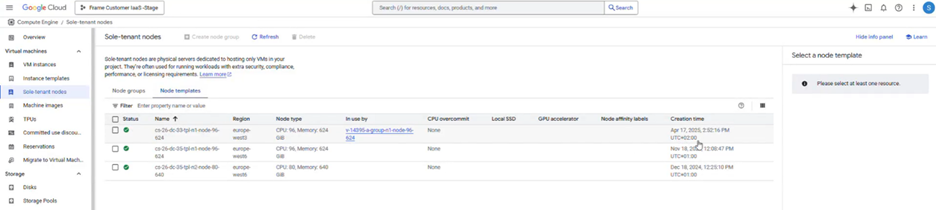
![Example GCP Console Screenshot](https://docs.difr.com/uploads/images/gallery/2025-11/embedded-image-naafqaz9.png)

### **Cost Considerations**

GCP Sole-Tenant Nodes generally have **significantly higher costs** than standard shared compute instances.

Customers should:

- Work with their **GCP Account Team** to review pricing
- Consider **Committed Use** or **Sustained Use** agreements
- Evaluate costs **before deployment**

<p class="callout info"> **Important:** Dizzion does **not control GCP pricing** and strongly recommends evaluating cost implications before enabling this feature.</p>

# Cloud Providers - Cloud PC Only

Infrastructure, Cloud Accounts, Amazon Workspaces Core, IBM Cloud VPC

# Infrastructure

This next portion of our documentation describes the Dizzion-supported and Dizzion-provided infrastructure options for Cloud PC. All infrastructure (RAM, CPU, GPU, Storage) for Cloud PC is included in the monthly, per-VM fee. To view Cloud PC size options and pricing, see [Cloud PC Flex Credit Rates.](https://docs.difr.com/books/subscription-management/page/cloud-pc-flex-credit-rates "Cloud PC Flex Credit Rates")

# Cloud Accounts

Dizzion manages the purchasing, setup, integration, and all management of the Cloud Accounts for Cloud PC customers. Frame Administrators with the appropriate roles can view the list and status of existing cloud accounts by navigating to the Customer or Organization Dashboard in the [Admin Console](https://docs.difr.com/books/platform-administrators-guide/page/administration) and selecting **Cloud Accounts** in the left-hand menu.

# Amazon Web Services (AWS) Workspaces Core

Dizzion Cloud PC on AWS Workspaces Core supports **dedicated/named instances** in the following AWS regions:

- NA - US (East)
- NA - US (West)
- NA - Canada
- AP - Mumbai
- AP - Seoul
- AP - Singapore
- AP - Sydney
- AP - Tokyo
- EU - Frankfurt
- EU - Ireland
- EU - London
- EU - Paris
- Israel - Tel Aviv
- SA - Sao Paulo

The following instance names and sizes are supported in each region:

<div ccp_infra_copy_id="75bca55c-71b3-49cd-8196-0f5e5278fd7c" ccp_infra_timestamp="1761234982799" ccp_infra_user_hash="2281329414" ccp_infra_version="3" data-ccp-timestamp="1761234982799" id="bkmrk-instance-name%C2%A0-vcpu-"><table style="height: 1151.87px;" width="603"><colgroup><col style="width: 202px;" width="164"></col><col style="width: 84px;" width="42"></col><col style="width: 92px;" width="58"></col><col style="width: 98px;" width="78"></col><col span="3" style="width: 121px;" width="87"></col></colgroup><tbody><tr style="height: 80px;"><td class="xl81" height="80" style="height: 80px;" width="164">**Instance Name** </td><td class="xl81" style="height: 80px;" width="42">**vCPU**</td><td class="xl81" style="height: 80px;" width="58">**Memory**</td><td class="xl81" style="height: 80px;" width="78">**GPU**</td><td class="xl82" style="height: 80px;" width="87">**Root Volume (GB)**</td><td class="xl82" style="height: 80px;" width="87">**User Volume (GB)**</td><td class="xl82" style="height: 80px;" width="87">**Total Disk (GB)**</td></tr><tr style="height: 38.2812px;"><td height="20" style="height: 38.2812px;">Lite - 2x8-8010</td><td align="right" style="height: 38.2812px;">2</td><td align="right" style="height: 38.2812px;">8</td><td style="height: 38.2812px;">-</td><td align="right" style="height: 38.2812px;">80</td><td align="right" style="height: 38.2812px;">10</td><td align="right" style="height: 38.2812px;">90</td></tr><tr style="height: 38.2812px;"><td height="20" style="height: 38.2812px;">Lite - 2x8-8050</td><td align="right" style="height: 38.2812px;">2</td><td align="right" style="height: 38.2812px;">8</td><td style="height: 38.2812px;">-</td><td align="right" style="height: 38.2812px;">80</td><td align="right" style="height: 38.2812px;">50</td><td align="right" style="height: 38.2812px;">130</td></tr><tr style="height: 38.2812px;"><td height="20" style="height: 38.2812px;">Lite - 2x8-80100</td><td align="right" style="height: 38.2812px;">2</td><td align="right" style="height: 38.2812px;">8</td><td style="height: 38.2812px;">-</td><td align="right" style="height: 38.2812px;">80</td><td align="right" style="height: 38.2812px;">100</td><td align="right" style="height: 38.2812px;">180</td></tr><tr style="height: 38.2812px;"><td height="20" style="height: 38.2812px;">Lite - 2x8-175100</td><td align="right" style="height: 38.2812px;">2</td><td align="right" style="height: 38.2812px;">8</td><td style="height: 38.2812px;">-</td><td align="right" style="height: 38.2812px;">175</td><td align="right" style="height: 38.2812px;">100</td><td align="right" style="height: 38.2812px;">275</td></tr><tr style="height: 38.2812px;"><td height="20" style="height: 38.2812px;">Standard - 4x16-8010</td><td align="right" style="height: 38.2812px;">4</td><td align="right" style="height: 38.2812px;">16</td><td style="height: 38.2812px;">-</td><td align="right" style="height: 38.2812px;">80</td><td align="right" style="height: 38.2812px;">10</td><td align="right" style="height: 38.2812px;">90</td></tr><tr style="height: 38.2812px;"><td height="20" style="height: 38.2812px;">Standard - 4x16-8050</td><td align="right" style="height: 38.2812px;">4</td><td align="right" style="height: 38.2812px;">16</td><td style="height: 38.2812px;">-</td><td align="right" style="height: 38.2812px;">80</td><td align="right" style="height: 38.2812px;">50</td><td align="right" style="height: 38.2812px;">130</td></tr><tr style="height: 38.2812px;"><td height="20" style="height: 38.2812px;">Standard - 4x16-80100</td><td align="right" style="height: 38.2812px;">4</td><td align="right" style="height: 38.2812px;">16</td><td style="height: 38.2812px;">-</td><td align="right" style="height: 38.2812px;">80</td><td align="right" style="height: 38.2812px;">100</td><td align="right" style="height: 38.2812px;">180</td></tr><tr style="height: 38.2812px;"><td height="20" style="height: 38.2812px;">Standard - 4x16-175100</td><td align="right" style="height: 38.2812px;">4</td><td align="right" style="height: 38.2812px;">16</td><td style="height: 38.2812px;">-</td><td align="right" style="height: 38.2812px;">175</td><td align="right" style="height: 38.2812px;">100</td><td align="right" style="height: 38.2812px;">275</td></tr><tr style="height: 38.2812px;"><td height="20" style="height: 38.2812px;">Power - 8x32-8010</td><td align="right" style="height: 38.2812px;">8</td><td align="right" style="height: 38.2812px;">32</td><td style="height: 38.2812px;">-</td><td align="right" style="height: 38.2812px;">80</td><td align="right" style="height: 38.2812px;">10</td><td align="right" style="height: 38.2812px;">90</td></tr><tr style="height: 38.2812px;"><td height="20" style="height: 38.2812px;">Power - 8x32-8050</td><td align="right" style="height: 38.2812px;">8</td><td align="right" style="height: 38.2812px;">32</td><td style="height: 38.2812px;">-</td><td align="right" style="height: 38.2812px;">80</td><td align="right" style="height: 38.2812px;">50</td><td align="right" style="height: 38.2812px;">130</td></tr><tr style="height: 38.2812px;"><td height="20" style="height: 38.2812px;">Power - 8x32-80100</td><td align="right" style="height: 38.2812px;">8</td><td align="right" style="height: 38.2812px;">32</td><td style="height: 38.2812px;">-</td><td align="right" style="height: 38.2812px;">80</td><td align="right" style="height: 38.2812px;">100</td><td align="right" style="height: 38.2812px;">180</td></tr><tr style="height: 38.2812px;"><td height="20" style="height: 38.2812px;">Power - 8x32-175100</td><td align="right" style="height: 38.2812px;">8</td><td align="right" style="height: 38.2812px;">32</td><td style="height: 38.2812px;">-</td><td align="right" style="height: 38.2812px;">175</td><td align="right" style="height: 38.2812px;">100</td><td align="right" style="height: 38.2812px;">275</td></tr><tr style="height: 38.2812px;"><td height="20" style="height: 38.2812px;">Pro-GPU - 4x16-100100</td><td align="right" style="height: 38.2812px;">4</td><td align="right" style="height: 38.2812px;">16</td><td style="height: 38.2812px;">1 NVIDIA T4</td><td align="right" style="height: 38.2812px;">100</td><td align="right" style="height: 38.2812px;">100</td><td align="right" style="height: 38.2812px;">200</td></tr><tr style="height: 38.2812px;"><td height="20" style="height: 38.2812px;">Max-GPU - 16x64-100100</td><td align="right" style="height: 38.2812px;">16</td><td align="right" style="height: 38.2812px;">64</td><td style="height: 38.2812px;">1 NVIDIA T4</td><td align="right" style="height: 38.2812px;">100</td><td align="right" style="height: 38.2812px;">100</td><td align="right" style="height: 38.2812px;">200</td></tr></tbody></table>

</div>

# IBM Cloud VPC

Dizzion Cloud PC on IBM Cloud VPC supports **dedicated/persistent instances** **&amp; floating/pooled instances** in the following IBM regions:

- NA Dallas
- NA Montreal
- NA Toronto
- NA WDC
- EU Frankfurt
- EU London
- EU Madrid
- AP Osaka
- AP Sydney
- AP Tokyo
- SA Sao Paulo

The following instance names and sizes are supported in each region:

<div ccp_infra_copy_id="af41e691-5451-48ad-96d3-00ac9273e170" ccp_infra_timestamp="1761235409143" ccp_infra_user_hash="2281329414" ccp_infra_version="3" data-ccp-timestamp="1761235409143" id="bkmrk-instance-name-vcpu-m"><table style="width: 975px; height: 252.406px;" width="406"><colgroup><col style="width: 238px;" width="174"></col><col style="width: 146px;" width="42"></col><col style="width: 154px;" width="58"></col><col style="width: 130px;" width="78"></col><col style="width: 177px;" width="54"></col></colgroup><tbody><tr style="height: 61px;"><td class="xl82" height="80" style="height: 61px;" width="174">**Instance Name**</td><td class="xl82" style="height: 61px;" width="42">**vCPU**</td><td class="xl82" style="height: 61px;" width="58">**Memory**</td><td class="xl82" style="height: 61px;" width="78">**GPU**</td><td class="xl82" style="height: 61px;" width="54">**Storage Volume (GB)**</td></tr><tr style="height: 38.2812px;"><td height="20" style="height: 38.2812px;">Lite - 2x10-100</td><td align="right" style="height: 38.2812px;">2</td><td align="right" style="height: 38.2812px;">10</td><td style="height: 38.2812px;">-</td><td align="right" style="height: 38.2812px;">100</td></tr><tr style="height: 38.2812px;"><td height="20" style="height: 38.2812px;">Standard - 4x20-100</td><td align="right" style="height: 38.2812px;">4</td><td align="right" style="height: 38.2812px;">20</td><td style="height: 38.2812px;">-</td><td align="right" style="height: 38.2812px;">100</td></tr><tr style="height: 38.2812px;"><td height="20" style="height: 38.2812px;">Power - 8x40-100</td><td align="right" style="height: 38.2812px;">8</td><td align="right" style="height: 38.2812px;">40</td><td style="height: 38.2812px;">-</td><td align="right" style="height: 38.2812px;">100</td></tr><tr style="height: 38.2812px;"><td height="20" style="height: 38.2812px;">Pro-GPU - 16x80-100</td><td align="right" style="height: 38.2812px;">16</td><td align="right" style="height: 38.2812px;">80</td><td style="height: 38.2812px;">1 NVIDIA L4</td><td align="right" style="height: 38.2812px;">100</td></tr><tr style="height: 38.2812px;"><td height="20" style="height: 38.2812px;">Max-GPU - 24x120-100</td><td align="right" style="height: 38.2812px;">24</td><td align="right" style="height: 38.2812px;">120</td><td style="height: 38.2812px;">1 NVIDIA L40S</td><td align="right" style="height: 38.2812px;">100</td></tr></tbody></table>

</div>

# Networking

Requirements, Public Networking, Private Networking, Streaming Gateway, VPN Configurations

# Networking

Decide on the following before creating your Frame account:

1. How will your users reach their workload VMs? From the Internet or from a private network?
2. Do you want Frame Control Plane to provision and manage the network where the workload VMs reside ("[Frame-managed Networking](#frame-managed-networking)") or whether you wish to manage the network yourself ("[Customer-managed Networking](#customer-managed-networking)")?
3. Will the workload VMs run in a public cloud or on-premises on a Nutanix AHV cluster?

This guide outlines the differences and tradeoffs between Frame-managed versus customer-managed networking and summarizes the network requirements based on the above choices for Frame and network administrators.

## Management Responsibility

<details id="bkmrk-note-considerations-"><summary>Note</summary>

**Considerations**

1. Frame-managed networking is only available when a Frame account is provisioned on public cloud infrastructure.
2. Customer-managed networking is required for Frame accounts provisioned on Nutanix AHV infrastructure.
3. Customer-managed networking is an option for Frame accounts provisioned on customer-managed public cloud infrastructure.
4. Customer-managed networking is not available when using Frame-provided public cloud infrastructure.

</details>### Frame-managed Networking

When Frame-managed networking is selected during Frame account creation in [public cloud](https://docs.difr.com/books/platform-administrators-guide/page/account-creation#public-cloud), Frame will provision all **public cloud** networking elements required for the operation of the platform:

- VPC/VNET
- Subnets
- Routes
- Security groups/firewall rules
- NAT gateway
- DNS
- DHCP
- Load balancer (if required for SGA high availability).

When a Frame account is terminated, Frame control plane will deprovision all network elements it previously provisioned.

<p class="callout info"> If you attach network elements to the Frame-managed VNET or VPC after the Frame account is provisioned, Frame Control Plane will return an error and not deprovision the network elements when you terminate the Frame account.</p>

### Customer-managed Networking

When customer-managed networking is selected during Frame account creation in [public cloud](https://docs.difr.com/books/platform-administrators-guide/page/account-creation#public-cloud) or on [AHV clusters](https://docs.difr.com/books/platform-administrators-guide/page/account-creation#ahv-infrastructure), the customer is responsible for provisioning and managing all **public cloud** or **AHV** networking elements required for the operation of Frame:

- VPC/VNET
- Subnets
- Routes
- Security groups/firewall rules
- NAT gateway
- DNS
- DHCP
- Load balancer (if required for SGA high availability).

The [Frame account creation](https://docs.difr.com/books/platform-administrators-guide/page/account-creation) process requires the following information, which can be obtained from the console of your infrastructure provider. This information dictates where Frame control plane will provision the workload VMs.

<table id="bkmrk-infrastructure-confi"><thead><tr><th align="center">Infrastructure</th><th>Configuration Parameters</th></tr></thead><tbody><tr><td align="center">AWS</td><td>VPC name and CIDR  
Subnet name and CIDR  
Security Group</td></tr><tr><td align="center">Azure</td><td>Resource group name  
VNET name  
Subnet name and CIDR</td></tr><tr><td align="center">AHV</td><td>VLAN name</td></tr><tr><td align="center">GCP</td><td>VPC name  
Subnet name</td></tr></tbody></table>

Frame will only provision and deprovision virtual machines, volumes, and snapshots.

## Requirements

Frame DaaS requires the Frame workload virtual machines (Sandbox, production, test, and Utility server) to be able to communicate with Frame control plane. It also requires end users to be able to communicate with the Frame control plane and the Frame workload VMs. Additionally, for Frame-managed workloads on Nutanix AHV clusters, the Frame Platform must be able to communicate with Prism Element and Prism Central via one or more Frame Cloud Connector Appliances (CCAs), a Frame-provided appliance you deploy in your AHV cluster(s).

Based on your overall configuration (user access, network responsibility, and infrastructure), choose and implement one of the deployment models in [Network Requirements](https://docs.difr.com/books/platform-administrators-guide/page/requirements).

<p class="callout info"> If you choose \*\*customer-managed networking\*\*, you must ensure that your networking (CIDR, routes, security group/firewall rules) meets the \[network requirements\](/platform/networking/requirements) for the deployment model you wish to use \*\*before\*\* you attempt to create a Frame account.</p>

<details id="bkmrk-warning-fqdn-vs.-ip-"><summary>WARNING</summary>

**FQDN vs. IP Address**

Frame protects its control plane from DDoS and external threats using a global content distribution network (CDN) and web application firewall. The public IP addresses associated with the Frame Fully-Qualified Domain Names (FQDNs) may change without notice and vary globally due to this CDN service.

Customers who deploy Frame into a private network (in public cloud or on-premises with AHV) may need to configure their network security appliances to allow Frame workload VMs (and Frame Streaming Gateway Appliances and Cloud Connector Appliances, if required) in their network to communicate with the Frame control plane. These customers are **strongly recommended** to use the Frame Fully-Qualified Domain Names (FQDNs) instead of public IP addresses. Alternatively, they may use an outbound proxy supporting HTTP/HTTPS and Secure WebSocket (WSS) in conjunction with their firewall.

If a customer chooses to use public IP addresses within their security appliances (instead of the Frame FQDNs), customers will need to monitor these Frame control plane DNS records and update their security appliances with the new Frame public IP addresses, if they change.

</details>

# Requirements

## Deployment Models

When deploying Frame workloads, customers can choose from five primary deployment models—**three for public cloud environments** and **two for Nutanix AHV clusters**. The choice of deployment model depends on your organization’s specific use case(s) and security policies. Whether your workloads require public or private networking, or need to leverage static IP addresses or DHCP for dynamic assignment, each Frame account can be tailored to meet these requirements.

For further details on each deployment model and the networking requirements, select the specific hyperlink in the table below.

<p class="callout info"> **Considerations**  
 Customers provisioning Frame accounts in their own network (**customer-managed networking**) in public cloud should select either *Private Networking* or *Private Networking with SGA* deployment models.</p>

<table class="wrap-table" id="bkmrk-deployment-type-depl"><thead><tr><th>Deployment Type</th><th>Deployment Model</th><th>Description</th></tr></thead><tbody><tr><td rowspan="3">**Public Cloud**</td><td>[Public Networking](https://docs.difr.com/books/platform-administrators-guide/page/public-networking-public-cloud)</td><td>All workload VMs (Sandbox, Test, Production, and Utility Server VMs) hosted in a public cloud infrastructure have public IP addresses and are directly accessed by users from the Internet.</td></tr><tr><td>[Private Networking](https://docs.difr.com/books/platform-administrators-guide/page/private-networking-public-cloud)</td><td>All workload VMs (Sandbox, Test, Production, and Utility Server VMs) hosted in a public cloud infrastructure only have private IP addresses. Users must access the workload VMs through a private network connection.</td></tr><tr><td>[Private Networking with SGA](https://docs.difr.com/books/platform-administrators-guide/page/private-networking-with-sga-public-cloud)</td><td>All workload VMs (Sandbox, Test, Production, and Utility Server VMs) hosted in a public cloud infrastructure have private IP addresses. However, users can access the workload VMs through a Streaming Gateway Appliance (SGA) from the Internet.</td></tr><tr><td rowspan="2">**AHV**</td><td>[Private Networking](https://docs.difr.com/books/platform-administrators-guide/page/private-networking-ahv)</td><td>All workload VMs (Sandbox, Test, Production, and Utility Server VMs) hosted on a Nutanix AHV cluster only have private IP addresses. Users must access the workload VMs through a private network connection.</td></tr><tr><td>[Private Networking with SGA](https://docs.difr.com/books/platform-administrators-guide/page/private-networking-with-sga-ahv)</td><td>All workload VMs (Sandbox, Test, Production, and Utility Server VMs) hosted on a Nutanix AHV cluster have private IP addresses. However, users can access the workload VMs through a Streaming Gateway Appliance (SGA) from the Internet.</td></tr></tbody></table>

## Dynamic vs. Static IP Addresses

All Frame-managed workload VMs require access to a DHCP service to obtain a dynamic IP address when they are created. The SGA and CCA Frame appliances, however, can be assigned static IP addresses.

<table class="wrap-table" id="bkmrk-workload-type-ip-add"><thead><tr><th>Workload Type</th><th>IP Address Assignment</th></tr></thead><tbody><tr><td>[Sandbox](https://docs.difr.com/books/platform-administrators-guide/page/sandbox)</td><td rowspan="4">**DHCP (Dynamic IP)**</td></tr><tr><td>[Utility Server](https://docs.difr.com/books/platform-administrators-guide/page/utility-servers)</td></tr><tr><td>[Persistent Desktops](https://docs.difr.com/books/platform-administrators-guide/page/persistent-desktops-administration)</td></tr><tr><td>[Test/Production VMs](https://docs.difr.com/books/platform-administrators-guide/page/capacity)</td></tr><tr><td>[Streaming Gateway Appliance (SGA)](https://docs.difr.com/books/platform-administrators-guide/page/streaming-gateway-appliance)</td><td rowspan="2">**Static IP**</td></tr><tr><td>[Cloud Connector Appliance (AHV only)](https://docs.difr.com/books/platform-administrators-guide/page/nutanix-ahv#bkmrk-connecting-your-ahv-)</td></tr></tbody></table>

# Public Networking (Public Cloud)

Customers using public cloud infrastructure can create a Frame account using Frame-managed networking, Public Networking so users on the Internet can directly access the Frame workload VMs using the public IP addresses of the Frame workload VMs. For egress to the Internet, these workload VMs communicate directly to the Internet for publicly-accessible resources.

If users must access network resources on-premises or in a private network, a [private network connection](https://docs.difr.com/books/platform-administrators-guide/page/vpn-configurations) (e.g., VPN, direct connection, SD-WAN, VPC/VNET peering) with the appropriate routing must be implemented.

<p class="callout info"> To ensure proper network communication to the Frame Platform there are two Backends available depending on which one should be used for the connection for services and VMs please refer to the corresponding networking requirements:  
 [USE ](https://docs.difr.com/link/56#bkmrk-private-networking-%28)(located in the United states- Location AWS us-east-1Virginia)   
 [DEU ](https://docs.difr.com/link/56#bkmrk-deu%3A-private-network)( located in European Union - Location AWS eu-central-1 Frankfurt)</p>

## FRP8 Networking

[FRP8](https://docs.difr.com/books/platform-administrators-guide/page/frame-remoting-protocol#bkmrk-frame-remoting-proto-1) is a udp-based protocol for all communication between the end user and the Frame workload VMs.
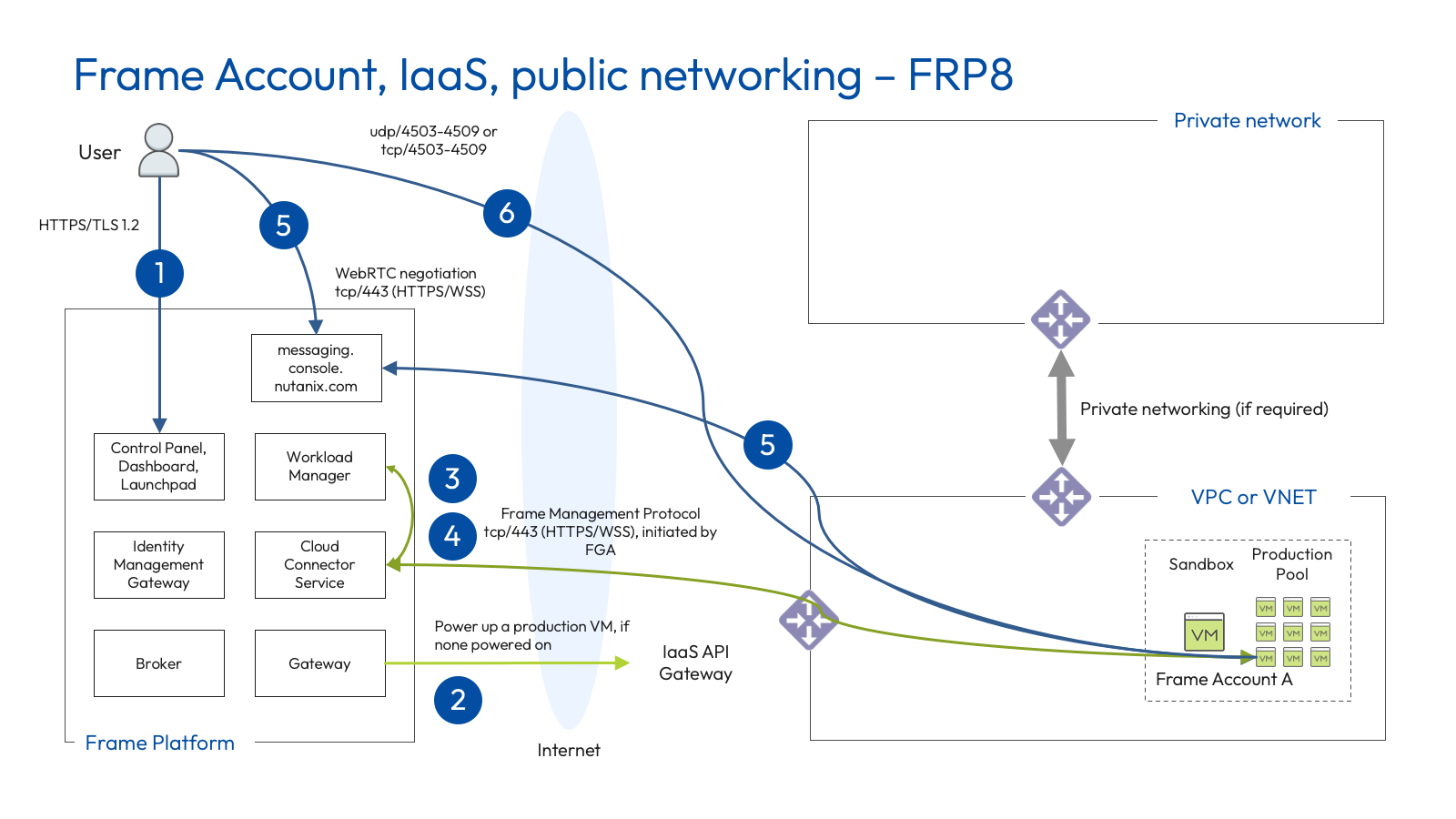
![Public IaaS - Public Networking (FRP8)](https://docs.difr.com/uploads/images/gallery/2025-10/public-public-frp8.png)

<p class="callout warning">**<span dir="ltr" role="presentation"> Dizzion is in the process of migrating from \*.nutanix.com to \*.difr.com domain. For the</span>**  
**<span dir="ltr" role="presentation"> time being, the additional</span> <span dir="ltr" role="presentation">difr.com domain</span><span dir="ltr" role="presentation">s will need to be whitelisted</span> <span dir="ltr" role="presentation">in addition to</span> <span dir="ltr" role="presentation">the</span>**  
**<span dir="ltr" role="presentation"> existing nutanix.com domains. At a later</span> <span dir="ltr" role="presentation">time</span><span dir="ltr" role="presentation">, once Dizzion has confirmed there is no</span>**  
**<span dir="ltr" role="presentation"> dependencies on the nutanix.com domains, we will send out a communication notifying</span>**  
**<span dir="ltr" role="presentation"> customers that all nutanix</span><span dir="ltr" role="presentation">.com domains can be safely removed from your whitelist</span>**  
**<span dir="ltr" role="presentation"> configurations.</span>**</p>

<p class="callout danger">**<span dir="ltr" role="presentation"> IMPORTANT:</span> <span dir="ltr" role="presentation">For IMG Domains, Customers can</span> <span dir="ltr" role="presentation">whitelist</span> <span dir="ltr" role="presentation">new IMG difr</span> <span dir="ltr" role="presentation">domains but</span>**  
**<span dir="ltr" role="presentation"> should</span> <span dir="ltr" role="presentation">NOT</span> <span dir="ltr" role="presentation">change SAML 2 configurations to use new</span> <span dir="ltr" role="presentation">difr.com</span> <span dir="ltr" role="presentation">domains. SAML 2</span>**  
**<span dir="ltr" role="presentation"> configurations</span> <span dir="ltr" role="presentation">should continue to use img.console.nutanix.com and</span>**  
**<span dir="ltr" role="presentation"> img.frame.nutanix.com until further direction from Dizzion.</span>**</p>

## USE: Public IaaS - Public Networking (FRP8)

The following table lists the required protocols and ports for Frame accounts using Public Networking and FRP8.

<table class="wrap-table" id="bkmrk-source-to-destinatio" style="width: 100%;"><thead><tr><th style="width: 25.0298%;">Source to Destination

</th><th style="width: 25.0298%;">Source IP address</th><th style="width: 38.8528%;">Destination FQDN(s)</th><th style="width: 11.0876%;">Protocol/port</th></tr></thead><tbody><tr><td style="width: 25.0298%;">Workload VMs to Frame Platform</td><td style="width: 25.0298%;">Public IP address</td><td style="width: 38.8528%;">- <span class="TextRun SCXW197842241 BCX0" data-contrast="auto" lang="EN-US" xml:lang="EN-US"><span class="NormalTextRun SCXW197842241 BCX0">api.use.difr.com</span></span><span class="EOP SCXW197842241 BCX0" data-ccp-props="{}"> </span>
- <span class="TextRun SCXW197842241 BCX0" data-contrast="none" lang="EN-US" xml:lang="EN-US"><span class="NormalTextRun SCXW197842241 BCX0">hub.deu.difr.com</span></span> <span class="EOP SCXW197842241 BCX0" data-ccp-props="{}"> </span>
- <span class="TextRun SCXW197842241 BCX0" data-contrast="auto" lang="EN-US" xml:lang="EN-US"><span class="NormalTextRun SCXW197842241 BCX0">logging.use.difr.com</span></span><span class="EOP SCXW197842241 BCX0" data-ccp-props="{}"> </span>
- <span class="TextRun SCXW197842241 BCX0" data-contrast="auto" lang="EN-US" xml:lang="EN-US"><span class="NormalTextRun SCXW197842241 BCX0">downloads.difr.com</span></span><span class="EOP SCXW197842241 BCX0" data-ccp-props="{}"> </span>
- <span class="TextRun SCXW197842241 BCX0" data-contrast="auto" lang="EN-US" xml:lang="EN-US"><span class="NormalTextRun SCXW197842241 BCX0">download.visualstudio.microsoft.com</span></span>
- <span class="TextRun SCXW213032086 BCX0" data-contrast="auto" lang="EN-US" xml:lang="EN-US"><span class="NormalTextRun SCXW213032086 BCX0">gateway-external-api-prod.frame.nutanix.com</span></span> <span class="EOP SCXW213032086 BCX0" data-ccp-props="{}"> </span>
- <span class="TextRun SCXW213032086 BCX0" data-contrast="auto" lang="EN-US" xml:lang="EN-US"><span class="NormalTextRun SCXW213032086 BCX0">downloads.console.nutanix.com</span></span><span class="EOP SCXW213032086 BCX0" data-ccp-props="{}"> </span>
- <span class="TextRun SCXW213032086 BCX0" data-contrast="auto" lang="EN-US" xml:lang="EN-US"><span class="NormalTextRun SCXW213032086 BCX0">logging.console.nutanix.com</span></span><span class="EOP SCXW213032086 BCX0" data-ccp-props="{}"> </span>
- <span class="TextRun SCXW213032086 BCX0" data-contrast="none" lang="EN-US" xml:lang="EN-US"><span class="NormalTextRun SCXW213032086 BCX0">cch.console.nutanix.com</span></span><span class="EOP SCXW213032086 BCX0" data-ccp-props="{}"> </span>

</td><td style="width: 11.0876%;">tcp/443 (HTTPS)</td></tr><tr><td style="width: 25.0298%;">Workload VMs to Frame Platform</td><td style="width: 25.0298%;">Public IP address</td><td style="width: 38.8528%;">- <span class="TextRun SCXW41632702 BCX0" data-contrast="auto" lang="EN-US" xml:lang="EN-US"><span class="NormalTextRun SCXW41632702 BCX0">hub.use.difr.com</span></span><span class="EOP SCXW41632702 BCX0" data-ccp-props="{}"> </span>
- <span class="TextRun SCXW41632702 BCX0" data-contrast="none" lang="EN-US" xml:lang="EN-US"><span class="NormalTextRun SCXW41632702 BCX0">logging.</span><span class="NormalTextRun SCXW41632702 BCX0">use</span><span class="NormalTextRun SCXW41632702 BCX0">.difr.com</span></span><span class="EOP SCXW41632702 BCX0" data-ccp-props="{}"> </span>
- <span class="TextRun SCXW41632702 BCX0" data-contrast="auto" lang="EN-US" xml:lang="EN-US"><span class="NormalTextRun SCXW41632702 BCX0">api.use.difr.com</span></span><span class="EOP SCXW41632702 BCX0" data-ccp-props="{}"> </span>
- <span class="TextRun SCXW257212460 BCX0" data-contrast="auto" lang="EN-US" xml:lang="EN-US"><span class="NormalTextRun SCXW257212460 BCX0">cch.console.nutanix.com</span></span><span class="EOP SCXW257212460 BCX0" data-ccp-props="{}"> </span>
- <span class="TextRun SCXW257212460 BCX0" data-contrast="none" lang="EN-US" xml:lang="EN-US"><span class="NormalTextRun SCXW257212460 BCX0">logging.console.nutanix.com</span></span><span class="EOP SCXW257212460 BCX0" data-ccp-props="{}"> </span>
- <span class="TextRun SCXW257212460 BCX0" data-contrast="auto" lang="EN-US" xml:lang="EN-US"><span class="NormalTextRun SCXW257212460 BCX0">messaging.console.nutanix.com</span></span><span class="EOP SCXW257212460 BCX0" data-ccp-props="{}"> </span>

</td><td style="width: 11.0876%;">tcp/443 (HTTPS, WSS)</td></tr><tr><td style="width: 25.0298%;">Workload VMs to Frame Platform</td><td style="width: 25.0298%;">Public IP address</td><td style="width: 38.8528%;">- <span class="TextRun SCXW67671154 BCX0" data-contrast="auto" lang="EN-US" xml:lang="EN-US"><span class="NormalTextRun SCXW67671154 BCX0">stun.use.difr.com</span></span>

<span class="EOP SCXW67671154 BCX0" data-ccp-props="{}"> </span></td><td style="width: 11.0876%;">udp/3478</td></tr><tr><td style="width: 25.0298%;">End user to Frame Platform</td><td style="width: 25.0298%;">Public IP address</td><td style="width: 38.8528%;">- <span class="TextRun SCXW182612331 BCX0" data-contrast="auto" lang="EN-US" xml:lang="EN-US"><span class="NormalTextRun SCXW182612331 BCX0">use.difr.com</span></span><span class="EOP SCXW182612331 BCX0" data-ccp-props="{}"> </span>
- <span class="TextRun SCXW182612331 BCX0" data-contrast="auto" lang="EN-US" xml:lang="EN-US"><span class="NormalTextRun SCXW182612331 BCX0">api.use.difr.com</span></span><span class="EOP SCXW182612331 BCX0" data-ccp-props="{}"> </span>
- <span class="TextRun SCXW182612331 BCX0" data-contrast="auto" lang="EN-US" xml:lang="EN-US"><span class="NormalTextRun SCXW182612331 BCX0">img.use.difr.com</span></span><span class="EOP SCXW182612331 BCX0" data-ccp-props="{}"> </span>
- <span class="TextRun SCXW182612331 BCX0" data-contrast="none" lang="EN-US" xml:lang="EN-US"><span class="NormalTextRun SCXW182612331 BCX0">assets.use.difr.com</span></span><span class="EOP SCXW182612331 BCX0" data-ccp-props="{}"> </span>
- <span class="TextRun SCXW182612331 BCX0" data-contrast="auto" lang="EN-US" xml:lang="EN-US"><span class="NormalTextRun SCXW182612331 BCX0">login.use.difr.com</span></span><span class="EOP SCXW182612331 BCX0" data-ccp-props="{}"> </span>
- <span class="TextRun SCXW182612331 BCX0" data-contrast="auto" lang="EN-US" xml:lang="EN-US"><span class="NormalTextRun SCXW182612331 BCX0">logging.use.difr.com</span></span>
- <span class="TextRun SCXW182612331 BCX0" data-contrast="none" lang="EN-US" xml:lang="EN-US"><span class="NormalTextRun SCXW182612331 BCX0">downloads.difr.com</span></span>
- <span class="TextRun SCXW34162689 BCX0" data-contrast="auto" lang="EN-US" xml:lang="EN-US"><span class="NormalTextRun CommentStart CommentHighlightPipeRest CommentHighlightRest SCXW34162689 BCX0">console.nutanix.com</span></span>
- <span class="TextRun SCXW34162689 BCX0" data-contrast="auto" lang="EN-US" xml:lang="EN-US"><span class="NormalTextRun SCXW34162689 BCX0">img.frame.nutanix.com</span></span>
- <span class="TextRun SCXW34162689 BCX0" data-contrast="auto" lang="EN-US" xml:lang="EN-US"><span class="NormalTextRun SCXW34162689 BCX0">img.console.nutanix.com</span></span>
- <span class="TextRun SCXW34162689 BCX0" data-contrast="auto" lang="EN-US" xml:lang="EN-US"><span class="NormalTextRun SCXW34162689 BCX0">cpanel-backend.console.nutanix.com</span></span>
- <span class="TextRun SCXW34162689 BCX0" data-contrast="auto" lang="EN-US" xml:lang="EN-US"><span class="NormalTextRun SCXW34162689 BCX0">terminal-prod.frame.nutanix.com</span></span>
- <span class="TextRun SCXW34162689 BCX0" data-contrast="auto" lang="EN-US" xml:lang="EN-US"><span class="NormalTextRun SCXW34162689 BCX0">logging.console.nutanix.com</span></span><span class="EOP SCXW34162689 BCX0" data-ccp-props="{}"> </span>
- <span class="TextRun SCXW34162689 BCX0" data-contrast="auto" lang="EN-US" xml:lang="EN-US"><span class="NormalTextRun SCXW34162689 BCX0">login.console.nutanix.com (for Frame IdP, if used)</span></span><span class="EOP SCXW34162689 BCX0" data-ccp-props="{}"> </span>

</td><td style="width: 11.0876%;">tcp/443 (HTTPS)</td></tr><tr><td style="width: 25.0298%;">End user to Frame Platform</td><td style="width: 25.0298%;">Public IP address</td><td style="width: 38.8528%;">- <span class="TextRun SCXW24713369 BCX0" data-contrast="auto" lang="EN-US" xml:lang="EN-US"><span class="NormalTextRun SCXW24713369 BCX0">api.use.difr.com</span></span><span class="EOP SCXW24713369 BCX0" data-ccp-props="{}"> </span>
- <span class="EOP SCXW24713369 BCX0" data-ccp-props="{}"><span class="TextRun SCXW52250261 BCX0" data-contrast="auto" lang="EN-US" xml:lang="EN-US"><span class="NormalTextRun SCXW52250261 BCX0">messaging.console.nutanix.com</span></span><span class="EOP SCXW52250261 BCX0" data-ccp-props="{}"> </span></span>

</td><td style="width: 11.0876%;">tcp/443 (HTTPS, WSS)</td></tr><tr><td style="width: 25.0298%;">End user to Workload VM</td><td style="width: 25.0298%;">Public IP address</td><td style="width: 38.8528%;">- <span class="TextRun SCXW67719475 BCX0" data-contrast="none" lang="EN-US" xml:lang="EN-US"><span class="NormalTextRun SCXW67719475 BCX0">Workload’s dynamic private IP address within VPC/VNET</span></span><span class="EOP SCXW67719475 BCX0" data-ccp-props="{}"> </span>

</td><td style="width: 11.0876%;">udp/4503-4509, tcp/4503-4509 (optional)</td></tr></tbody></table>

## DEU: Public IaaS - Public Networking (FRP8

The following table lists the required protocols and ports for Frame accounts using Public Networking and FRP8, specifically for organizations electing to use Dizzion's EU control plane.

DEU: Public Networking (Public Cloud)

<table class="wrap-table" id="bkmrk-source-to-destinatio-1" style="width: 100%;"><thead><tr><th style="width: 25.0298%;">Source to Destination</th><th style="width: 25.0298%;">Source IP address</th><th style="width: 38.8549%;">Destination FQDN(s)</th><th style="width: 11.0855%;">Protocol/port</th></tr></thead><tbody><tr><td style="width: 25.0298%;">Workload VMs to Frame Platform</td><td style="width: 25.0298%;">Public IP address</td><td style="width: 38.8549%;">- <span class="TextRun SCXW138842203 BCX0" data-contrast="auto" lang="EN-US" xml:lang="EN-US"><span class="NormalTextRun SCXW138842203 BCX0">api.deu.difr.com</span></span><span class="EOP SCXW138842203 BCX0" data-ccp-props="{}"> </span>
- <span class="TextRun SCXW138842203 BCX0" data-contrast="auto" lang="EN-US" xml:lang="EN-US"><span class="NormalTextRun SCXW138842203 BCX0">hub.deu.difr.com</span></span><span class="EOP SCXW138842203 BCX0" data-ccp-props="{}"> </span>
- <span class="TextRun SCXW138842203 BCX0" data-contrast="auto" lang="EN-US" xml:lang="EN-US"><span class="NormalTextRun SCXW138842203 BCX0">logging.deu.difr.com</span></span><span class="EOP SCXW138842203 BCX0" data-ccp-props="{}"> </span>
- <span class="TextRun SCXW138842203 BCX0" data-contrast="auto" lang="EN-US" xml:lang="EN-US"><span class="NormalTextRun SCXW138842203 BCX0">downloads.difr.com</span></span><span class="EOP SCXW138842203 BCX0" data-ccp-props="{}"> </span>
- <span class="TextRun SCXW138842203 BCX0" data-contrast="auto" lang="EN-US" xml:lang="EN-US"><span class="NormalTextRun SCXW138842203 BCX0">download.visualstudio.microsoft.com</span></span><span class="EOP SCXW138842203 BCX0" data-ccp-props="{}"> </span>

</td><td style="width: 11.0855%;">tcp/443 (HTTPS)</td></tr><tr><td style="width: 25.0298%;">Workload VMs to Frame Platform</td><td style="width: 25.0298%;">Public IP address</td><td style="width: 38.8549%;">- <span class="TextRun SCXW203721781 BCX0" data-contrast="auto" lang="EN-US" xml:lang="EN-US"><span class="NormalTextRun SCXW203721781 BCX0">hub.deu.difr.com</span></span><span class="EOP SCXW203721781 BCX0" data-ccp-props="{}"> </span>
- <span class="TextRun SCXW203721781 BCX0" data-contrast="none" lang="EN-US" xml:lang="EN-US"><span class="NormalTextRun SCXW203721781 BCX0">logging.deu.difr.com</span></span><span class="EOP SCXW203721781 BCX0" data-ccp-props="{}"> </span>
- <span class="TextRun SCXW203721781 BCX0" data-contrast="auto" lang="EN-US" xml:lang="EN-US"><span class="NormalTextRun SCXW203721781 BCX0">api.deu.difr.com</span></span><span class="EOP SCXW203721781 BCX0" data-ccp-props="{}"> </span>

<span class="EOP SCXW203721781 BCX0" data-ccp-props="{}"> </span>

</td><td style="width: 11.0855%;">tcp/443 (HTTPS, WSS)</td></tr><tr><td style="width: 25.0298%;">Workload VMs to Frame Platform</td><td style="width: 25.0298%;">Public IP address</td><td style="width: 38.8549%;">- <span class="TextRun SCXW70989494 BCX0" data-contrast="auto" lang="EN-US" xml:lang="EN-US"><span class="NormalTextRun SCXW70989494 BCX0">stun.deu.difr.com</span></span>

<span class="EOP SCXW70989494 BCX0" data-ccp-props="{}"> </span></td><td style="width: 11.0855%;">udp/3478</td></tr><tr><td style="width: 25.0298%;">End user to Frame Platform</td><td style="width: 25.0298%;">Public IP address</td><td style="width: 38.8549%;">- <span class="TextRun SCXW201068701 BCX0" data-contrast="auto" lang="EN-US" xml:lang="EN-US"><span class="NormalTextRun SCXW201068701 BCX0">deu.difr.com</span></span><span class="EOP SCXW201068701 BCX0" data-ccp-props="{}"> </span>
- <span class="TextRun SCXW201068701 BCX0" data-contrast="auto" lang="EN-US" xml:lang="EN-US"><span class="NormalTextRun SCXW201068701 BCX0">api.deu.difr.com</span></span><span class="EOP SCXW201068701 BCX0" data-ccp-props="{}"> </span>
- <span class="TextRun SCXW201068701 BCX0" data-contrast="none" lang="EN-US" xml:lang="EN-US"><span class="NormalTextRun SpellingErrorV2Themed SCXW201068701 BCX0">img</span><span class="NormalTextRun SCXW201068701 BCX0">.deu.difr.com</span></span><span class="EOP SCXW201068701 BCX0" data-ccp-props="{}"> </span>
- <span class="TextRun SCXW201068701 BCX0" data-contrast="auto" lang="EN-US" xml:lang="EN-US"><span class="NormalTextRun SCXW201068701 BCX0">assets.deu.difr.com</span></span><span class="EOP SCXW201068701 BCX0" data-ccp-props="{}"> </span>
- <span class="TextRun SCXW201068701 BCX0" data-contrast="auto" lang="EN-US" xml:lang="EN-US"><span class="NormalTextRun ContextualSpellingAndGrammarErrorV2Themed SCXW201068701 BCX0">login</span><span class="NormalTextRun SCXW201068701 BCX0">.deu.difr.com</span></span><span class="EOP SCXW201068701 BCX0" data-ccp-props="{}"> </span>
- <span class="TextRun SCXW201068701 BCX0" data-contrast="none" lang="EN-US" xml:lang="EN-US"><span class="NormalTextRun ContextualSpellingAndGrammarErrorV2Themed SCXW201068701 BCX0">logging</span><span class="NormalTextRun SCXW201068701 BCX0">.deu.difr.com</span></span><span class="EOP SCXW201068701 BCX0" data-ccp-props="{}"> </span>
- <span class="TextRun SCXW201068701 BCX0" data-contrast="auto" lang="EN-US" xml:lang="EN-US"><span class="NormalTextRun SCXW201068701 BCX0">downloads.difr.com</span></span><span class="EOP SCXW201068701 BCX0" data-ccp-props="{}"> </span>

</td><td style="width: 11.0855%;">tcp/443 (HTTPS)</td></tr><tr><td style="width: 25.0298%;">End user to Frame Platform</td><td style="width: 25.0298%;">Public IP address</td><td style="width: 38.8549%;">- <span class="TextRun SCXW242729552 BCX0" data-contrast="auto" lang="EN-US" xml:lang="EN-US"><span class="NormalTextRun SCXW242729552 BCX0">api.deu.difr.com</span></span>

<span class="EOP SCXW242729552 BCX0" data-ccp-props="{}"> </span></td><td style="width: 11.0855%;">tcp/443 (HTTPS, WSS)</td></tr><tr><td style="width: 25.0298%;">End user to Workload VM</td><td style="width: 25.0298%;">Public IP address</td><td style="width: 38.8549%;">- <span class="TextRun SCXW67719475 BCX0" data-contrast="none" lang="EN-US" xml:lang="EN-US"><span class="NormalTextRun SCXW67719475 BCX0">Workload’s dynamic private IP address within VPC/VNET</span></span><span class="EOP SCXW67719475 BCX0" data-ccp-props="{}"> </span>

</td><td style="width: 11.0855%;">udp/4503-4509, tcp/4503-4509 (optional)</td></tr></tbody></table>

#### FRP7 Networking End of Life

**<span style="color: rgb(224, 62, 45);">Warning</span>**  
**<span style="color: rgb(224, 62, 45);">FRP7 reached end-of-life (EOL) effective June 30, 2024. Refer to the EOL Announcement of December 18, 2023 for further details.</span>**

# Private Networking (Public Cloud)

Customers using public cloud infrastructure can create a Frame account using Frame-managed networking, Private Networking so users must access the Frame workload VMs using the private IP addresses of the Frame workload VMs. Since the Frame workload VMs have no public IP addresses, the customer must provide a network path between the end user and the private Frame workload VMs. For egress to the Internet, these workload VMs communicate directly to the Internet through a NAT gateway in the public cloud infrastructure.

<p class="callout info"> Customers who choose to create a Frame account in their own managed network where all users access the Frame workload VMs within their private network must follow the networking requirements defined below.</p>

If users must access network resources on-premises or in a private network, a [private network connection](https://docs.difr.com/books/platform-administrators-guide/page/vpn-configurations) (e.g., VPN, direct connection, SD-WAN, VPC/VNET peering) with the appropriate routing must be implemented.

<p class="callout info"> To ensure proper network communication to the Frame Platform there are two Backends available depending on which one should be used for the connection for services and VMs please refer to the corresponding networking requirements:  
 [USE ](https://docs.difr.com/link/56#bkmrk-private-networking-%28)(located in the United states- Location AWS Datacenter Virginia)   
 [DEU ](https://docs.difr.com/link/56#bkmrk-deu%3A-private-network)( located in European Union - Location AWS Datacenter Frankfurt)</p>

## FRP8 Networking

[FRP8](https://docs.difr.com/books/platform-administrators-guide/page/frame-remoting-protocol#bkmrk-frame-remoting-proto-1) is a udp-based protocol for all communication between the end user and the Frame workload VMs.

<figure id="bkmrk-public-iaas---privat">![Public IaaS - Private Networking (FRP8)](https://docs.difr.com/uploads/images/gallery/2025-10/public-private-frp8.png)

<figcaption>Public IaaS - Private Networking (FRP8)</figcaption></figure>The following table describes the required protocols and ports for Frame accounts using Private Networking and FRP8.

<p class="callout warning">**<span dir="ltr" role="presentation"> Dizzion is in the process of migrating from \*.nutanix.com to \*.difr.com domain. For the</span>**  
**<span dir="ltr" role="presentation"> time being, the additional</span> <span dir="ltr" role="presentation">difr.com domain</span><span dir="ltr" role="presentation">s will need to be whitelisted</span> <span dir="ltr" role="presentation">in addition to</span> <span dir="ltr" role="presentation">the</span>**  
**<span dir="ltr" role="presentation"> existing nutanix.com domains. At a later</span> <span dir="ltr" role="presentation">time</span><span dir="ltr" role="presentation">, once Dizzion has confirmed there is no</span>**  
**<span dir="ltr" role="presentation"> dependencies on the nutanix.com domains, we will send out a communication notifying</span>**  
**<span dir="ltr" role="presentation"> customers that all nutanix</span><span dir="ltr" role="presentation">.com domains can be safely removed from your whitelist</span>**  
**<span dir="ltr" role="presentation"> configurations.</span>**</p>

<p class="callout danger">**<span dir="ltr" role="presentation"> IMPORTANT: For IMG Domains, Customers can whitelist new IMG difr domains but  
 should NOT change SAML 2 configurations to use new difr.com domains. SAML 2  
 configurations should continue to use img.console.nutanix.com and  
 img.frame.nutanix.com until further direction from Dizzion.</span>**</p>

## USE: Private Networking (Public Cloud)

<div class="wrap-table" id="bkmrk-source-to-destinatio"><div class="table-container"><table class="wrap-table" style="width: 100%; height: 935.063px;"><thead><tr style="height: 59.5625px;"><th style="width: 25.0298%; height: 59.5625px;">Source to Destination</th><th style="width: 25.0298%; height: 59.5625px;">Source IP address</th><th style="width: 39.8075%; height: 59.5625px;">Destination FQDN(s)</th><th style="width: 10.2521%; height: 59.5625px;">Protocol/port</th></tr></thead><tbody><tr style="height: 217.922px;"><td style="width: 25.0298%; height: 217.922px;">Workload VMs to Frame Platform</td><td style="width: 25.0298%; height: 217.922px;">Public IP address</td><td style="width: 39.8075%; height: 217.922px;">- <span class="TextRun SCXW101316735 BCX0" data-contrast="auto" lang="EN-US" xml:lang="EN-US"><span class="NormalTextRun SCXW101316735 BCX0">api.use.difr.com</span></span><span class="EOP SCXW101316735 BCX0" data-ccp-props="{}"> </span>
- <span class="TextRun SCXW101316735 BCX0" data-contrast="none" lang="EN-US" xml:lang="EN-US"><span class="NormalTextRun SCXW101316735 BCX0">hub.deu.difr.com</span></span><span class="EOP SCXW101316735 BCX0" data-ccp-props="{}"> </span>
- <span class="TextRun SCXW101316735 BCX0" data-contrast="auto" lang="EN-US" xml:lang="EN-US"><span class="NormalTextRun SCXW101316735 BCX0">logging.use.difr.com</span></span><span class="EOP SCXW101316735 BCX0" data-ccp-props="{}"> </span>
- <span class="TextRun SCXW101316735 BCX0" data-contrast="auto" lang="EN-US" xml:lang="EN-US"><span class="NormalTextRun SCXW101316735 BCX0">downloads.difr.com</span></span><span class="EOP SCXW101316735 BCX0" data-ccp-props="{}"> </span>
- <span class="TextRun SCXW101316735 BCX0" data-contrast="auto" lang="EN-US" xml:lang="EN-US"><span class="NormalTextRun SCXW101316735 BCX0">download.visualstudio.microsoft.com</span></span><span class="EOP SCXW101316735 BCX0" data-ccp-props="{}"> </span>
- <span class="TextRun SCXW213032086 BCX0" data-contrast="auto" lang="EN-US" xml:lang="EN-US"><span class="NormalTextRun SCXW213032086 BCX0">gateway-external-api-prod.frame.nutanix.com</span></span>
- <span class="TextRun SCXW25493509 BCX0" data-contrast="auto" lang="EN-US" xml:lang="EN-US"><span class="NormalTextRun SCXW25493509 BCX0">downloads.console.nutanix.com</span></span><span class="EOP SCXW25493509 BCX0" data-ccp-props="{}"> </span>
- <span class="TextRun SCXW25493509 BCX0" data-contrast="auto" lang="EN-US" xml:lang="EN-US"><span class="NormalTextRun SCXW25493509 BCX0">logging.console.nutanix.com</span></span><span class="EOP SCXW25493509 BCX0" data-ccp-props="{}"> </span>
- <span class="TextRun SCXW25493509 BCX0" data-contrast="none" lang="EN-US" xml:lang="EN-US"><span class="NormalTextRun SCXW25493509 BCX0">cch.console.nutanix.com</span></span><span class="EOP SCXW25493509 BCX0" data-ccp-props="{}"> </span>

</td><td style="width: 10.2521%; height: 217.922px;">tcp/443 (HTTPS)</td></tr><tr style="height: 148.797px;"><td style="width: 25.0298%; height: 148.797px;">Workload VMs to Frame Platform</td><td style="width: 25.0298%; height: 148.797px;">Public IP address</td><td style="width: 39.8075%; height: 148.797px;">- <span class="TextRun SCXW209674647 BCX0" data-contrast="auto" lang="EN-US" xml:lang="EN-US"><span class="NormalTextRun SCXW209674647 BCX0">hub.use.difr.com</span></span><span class="EOP SCXW209674647 BCX0" data-ccp-props="{}"> </span>
- <span class="TextRun SCXW209674647 BCX0" data-contrast="none" lang="EN-US" xml:lang="EN-US"><span class="NormalTextRun SCXW209674647 BCX0">logging.</span><span class="NormalTextRun SCXW209674647 BCX0">use</span><span class="NormalTextRun SCXW209674647 BCX0">.difr.com</span></span><span class="EOP SCXW209674647 BCX0" data-ccp-props="{}"> </span>
- <span class="TextRun SCXW209674647 BCX0" data-contrast="auto" lang="EN-US" xml:lang="EN-US"><span class="NormalTextRun SCXW209674647 BCX0">api.use.difr.com</span></span><span class="EOP SCXW209674647 BCX0" data-ccp-props="{}"> </span>
- <span class="TextRun SCXW157897686 BCX0" data-contrast="auto" lang="EN-US" xml:lang="EN-US"><span class="NormalTextRun SCXW157897686 BCX0">cch.console.nutanix.com</span></span><span class="EOP SCXW157897686 BCX0" data-ccp-props="{}"> </span>
- <span class="TextRun SCXW157897686 BCX0" data-contrast="none" lang="EN-US" xml:lang="EN-US"><span class="NormalTextRun SCXW157897686 BCX0">logging.console.nutanix.com</span></span><span class="EOP SCXW157897686 BCX0" data-ccp-props="{}"> </span>
- <span class="TextRun SCXW157897686 BCX0" data-contrast="auto" lang="EN-US" xml:lang="EN-US"><span class="NormalTextRun SCXW157897686 BCX0">messaging.console.nutanix.com</span></span><span class="EOP SCXW157897686 BCX0" data-ccp-props="{}"> </span>

</td><td style="width: 10.2521%; height: 148.797px;">tcp/443 (HTTPS, WSS)</td></tr><tr style="height: 338.891px;"><td style="width: 25.0298%; height: 338.891px;">End user to Frame Platform</td><td style="width: 25.0298%; height: 338.891px;">Public IP address</td><td style="width: 39.8075%; height: 338.891px;">- <span class="TextRun SCXW130197537 BCX0" data-contrast="auto" lang="EN-US" xml:lang="EN-US"><span class="NormalTextRun SCXW130197537 BCX0">use.difr.com</span></span><span class="EOP SCXW130197537 BCX0" data-ccp-props="{}"> </span>
- <span class="TextRun SCXW130197537 BCX0" data-contrast="auto" lang="EN-US" xml:lang="EN-US"><span class="NormalTextRun SCXW130197537 BCX0">api.use.difr.com</span></span><span class="EOP SCXW130197537 BCX0" data-ccp-props="{}"> </span>
- <span class="TextRun SCXW130197537 BCX0" data-contrast="auto" lang="EN-US" xml:lang="EN-US"><span class="NormalTextRun SCXW130197537 BCX0">img.use.difr.com</span></span><span class="EOP SCXW130197537 BCX0" data-ccp-props="{}"> </span>
- <span class="TextRun SCXW130197537 BCX0" data-contrast="none" lang="EN-US" xml:lang="EN-US"><span class="NormalTextRun SCXW130197537 BCX0">assets.use.difr.com</span></span><span class="EOP SCXW130197537 BCX0" data-ccp-props="{}"> </span>
- <span class="TextRun SCXW130197537 BCX0" data-contrast="auto" lang="EN-US" xml:lang="EN-US"><span class="NormalTextRun SCXW130197537 BCX0">login.use.difr.com</span></span><span class="EOP SCXW130197537 BCX0" data-ccp-props="{}"> </span>
- <span class="TextRun SCXW130197537 BCX0" data-contrast="auto" lang="EN-US" xml:lang="EN-US"><span class="NormalTextRun SCXW130197537 BCX0">logging.use.difr.com</span></span><span class="EOP SCXW130197537 BCX0" data-ccp-props="{}"> </span>
- <span class="TextRun SCXW130197537 BCX0" data-contrast="none" lang="EN-US" xml:lang="EN-US"><span class="NormalTextRun SCXW130197537 BCX0">downloads.difr.com</span></span><span class="EOP SCXW130197537 BCX0" data-ccp-props="{}"> </span>
- <span class="TextRun SCXW66573783 BCX0" data-contrast="auto" lang="EN-US" xml:lang="EN-US"><span class="NormalTextRun CommentStart CommentHighlightPipeRest CommentHighlightRest SCXW66573783 BCX0">c</span><span class="NormalTextRun CommentHighlightRest SCXW66573783 BCX0">onsole.nutanix</span><span class="NormalTextRun CommentHighlightRest SCXW66573783 BCX0">.com</span></span><span class="EOP CommentHighlightPipeRest SCXW66573783 BCX0" data-ccp-props="{}"> </span>
- <span class="TextRun SCXW66573783 BCX0" data-contrast="auto" lang="EN-US" xml:lang="EN-US"><span class="NormalTextRun SCXW66573783 BCX0">img.frame.nutanix.com</span></span><span class="EOP SCXW66573783 BCX0" data-ccp-props="{}"> </span>
- <span class="TextRun SCXW66573783 BCX0" data-contrast="auto" lang="EN-US" xml:lang="EN-US"><span class="NormalTextRun SCXW66573783 BCX0">img.console.nutanix.com</span></span><span class="EOP SCXW66573783 BCX0" data-ccp-props="{}"> </span>
- <span class="TextRun SCXW66573783 BCX0" data-contrast="auto" lang="EN-US" xml:lang="EN-US"><span class="NormalTextRun SCXW66573783 BCX0">cpanel-backend.console.nutanix.com</span></span><span class="EOP SCXW66573783 BCX0" data-ccp-props="{}"> </span>
- <span class="TextRun SCXW66573783 BCX0" data-contrast="auto" lang="EN-US" xml:lang="EN-US"><span class="NormalTextRun SCXW66573783 BCX0">terminal-prod.frame.nutanix.com</span></span><span class="EOP SCXW66573783 BCX0" data-ccp-props="{}"> </span>
- <span class="TextRun SCXW66573783 BCX0" data-contrast="auto" lang="EN-US" xml:lang="EN-US"><span class="NormalTextRun SCXW66573783 BCX0">logging.console.nutanix.com</span></span><span class="EOP SCXW66573783 BCX0" data-ccp-props="{}"> </span>
- <span class="TextRun SCXW66573783 BCX0" data-contrast="auto" lang="EN-US" xml:lang="EN-US"><span class="NormalTextRun SCXW66573783 BCX0">login.console.nutanix.com (for Frame IdP, if used)</span></span><span class="EOP SCXW66573783 BCX0" data-ccp-props="{}"> </span>

</td><td style="width: 10.2521%; height: 338.891px;">tcp/443 (HTTPS)</td></tr><tr style="height: 84.375px;"><td style="width: 25.0298%; height: 84.375px;">End user to Frame Platform</td><td style="width: 25.0298%; height: 84.375px;">Public IP address</td><td style="width: 39.8075%; height: 84.375px;">- <span class="TextRun SCXW91067416 BCX0" data-contrast="auto" lang="EN-US" xml:lang="EN-US"><span class="NormalTextRun SCXW91067416 BCX0">api.use.difr.com</span></span><span class="EOP SCXW91067416 BCX0" data-ccp-props="{}"> </span>
- <span class="EOP SCXW91067416 BCX0" data-ccp-props="{}"><span class="TextRun SCXW249124552 BCX0" data-contrast="auto" lang="EN-US" xml:lang="EN-US"><span class="NormalTextRun SCXW249124552 BCX0">messaging.console.nutanix.com</span></span><span class="EOP SCXW249124552 BCX0" data-ccp-props="{}"> </span></span>

</td><td style="width: 10.2521%; height: 84.375px;">tcp/443 (HTTPS, WSS)</td></tr><tr style="height: 85.516px;"><td style="width: 25.0298%; height: 85.516px;">End user to Workload VM</td><td style="width: 25.0298%; height: 85.516px;">Private IP address</td><td style="width: 39.8075%; height: 85.516px;">- <span class="TextRun SCXW109713498 BCX0" data-contrast="none" lang="EN-US" xml:lang="EN-US"><span class="NormalTextRun SCXW109713498 BCX0">Workload’s dynamic private IP address within VPC/VNET</span></span><span class="EOP SCXW109713498 BCX0" data-ccp-props="{}"> </span>

</td><td style="width: 10.2521%; height: 85.516px;">udp/4503-4509, tcp/4503-4509 (optional)</td></tr></tbody></table>

</div></div>## FRP8 Networking - EU

The following table lists the required protocols and ports for Frame accounts using Private Networking and FRP8, specifically for organizations electing to use Dizzion's EU control plane.

## DEU: Private Networking (Public Cloud)

<div class="wrap-table" id="bkmrk-source-to-destinatio-1">  
<div class="table-container"><table class="wrap-table" style="width: 100%;"><thead><tr><th style="width: 25.0298%;">Source to Destination</th><th style="width: 25.0298%;">Source IP address</th><th style="width: 39.5536%;">Destination FQDN(s)</th><th style="width: 10.506%;">Protocol/port</th></tr></thead><tbody><tr><td style="width: 25.0298%;">Workload VMs to Frame Platform</td><td style="width: 25.0298%;">Public IP address</td><td style="width: 39.5536%;">- <span class="TextRun SCXW113671561 BCX0" data-contrast="auto" lang="EN-US" xml:lang="EN-US"><span class="NormalTextRun SCXW113671561 BCX0">api.deu.difr.com</span></span><span class="EOP SCXW113671561 BCX0" data-ccp-props="{}"> </span>
- <span class="TextRun SCXW113671561 BCX0" data-contrast="auto" lang="EN-US" xml:lang="EN-US"><span class="NormalTextRun SCXW113671561 BCX0">hub.deu.difr.com</span></span><span class="EOP SCXW113671561 BCX0" data-ccp-props="{}"> </span>
- <span class="TextRun SCXW113671561 BCX0" data-contrast="auto" lang="EN-US" xml:lang="EN-US"><span class="NormalTextRun SCXW113671561 BCX0">logging.deu.difr.com</span></span><span class="EOP SCXW113671561 BCX0" data-ccp-props="{}"> </span>
- <span class="TextRun SCXW113671561 BCX0" data-contrast="auto" lang="EN-US" xml:lang="EN-US"><span class="NormalTextRun SCXW113671561 BCX0">downloads.difr.com</span></span><span class="EOP SCXW113671561 BCX0" data-ccp-props="{}"> </span>
- <span class="TextRun SCXW113671561 BCX0" data-contrast="auto" lang="EN-US" xml:lang="EN-US"><span class="NormalTextRun SCXW113671561 BCX0">download.visualstudio.microsoft.com</span></span><span class="EOP SCXW113671561 BCX0" data-ccp-props="{}"> </span>

</td><td style="width: 10.506%;">tcp/443 (HTTPS)</td></tr><tr><td style="width: 25.0298%;">Workload VMs to Frame Platform</td><td style="width: 25.0298%;">Public IP address</td><td style="width: 39.5536%;">- <span class="TextRun SCXW18862686 BCX0" data-contrast="auto" lang="EN-US" xml:lang="EN-US"><span class="NormalTextRun SCXW18862686 BCX0">hub.deu.difr.com</span></span><span class="EOP SCXW18862686 BCX0" data-ccp-props="{}"> </span>
- <span class="TextRun SCXW18862686 BCX0" data-contrast="none" lang="EN-US" xml:lang="EN-US"><span class="NormalTextRun SCXW18862686 BCX0">logging.deu.difr.com</span></span><span class="EOP SCXW18862686 BCX0" data-ccp-props="{}"> </span>
- <span class="TextRun SCXW18862686 BCX0" data-contrast="auto" lang="EN-US" xml:lang="EN-US"><span class="NormalTextRun SCXW18862686 BCX0">api.deu.difr.com</span></span><span class="EOP SCXW18862686 BCX0" data-ccp-props="{}"> </span>

</td><td style="width: 10.506%;">tcp/443 (HTTPS, WSS)</td></tr><tr><td style="width: 25.0298%;">End user to Frame Platform</td><td style="width: 25.0298%;">Public IP address</td><td style="width: 39.5536%;">- <span class="TextRun SCXW232137899 BCX0" data-contrast="auto" lang="EN-US" xml:lang="EN-US"><span class="NormalTextRun SCXW232137899 BCX0">deu.difr.com</span></span><span class="EOP SCXW232137899 BCX0" data-ccp-props="{}"> </span>
- <span class="TextRun SCXW232137899 BCX0" data-contrast="auto" lang="EN-US" xml:lang="EN-US"><span class="NormalTextRun SCXW232137899 BCX0">api.deu.difr.com</span></span><span class="EOP SCXW232137899 BCX0" data-ccp-props="{}"> </span>
- <span class="TextRun SCXW232137899 BCX0" data-contrast="none" lang="EN-US" xml:lang="EN-US"><span class="NormalTextRun SpellingErrorV2Themed SCXW232137899 BCX0">img</span><span class="NormalTextRun SCXW232137899 BCX0">.deu.difr.com</span></span><span class="EOP SCXW232137899 BCX0" data-ccp-props="{}"> </span>
- <span class="TextRun SCXW232137899 BCX0" data-contrast="auto" lang="EN-US" xml:lang="EN-US"><span class="NormalTextRun SCXW232137899 BCX0">assets.deu.difr.com</span></span><span class="EOP SCXW232137899 BCX0" data-ccp-props="{}"> </span>
- <span class="TextRun SCXW232137899 BCX0" data-contrast="auto" lang="EN-US" xml:lang="EN-US"><span class="NormalTextRun ContextualSpellingAndGrammarErrorV2Themed SCXW232137899 BCX0">login</span><span class="NormalTextRun SCXW232137899 BCX0">.deu.difr.com</span></span><span class="EOP SCXW232137899 BCX0" data-ccp-props="{}"> </span>
- <span class="TextRun SCXW232137899 BCX0" data-contrast="none" lang="EN-US" xml:lang="EN-US"><span class="NormalTextRun ContextualSpellingAndGrammarErrorV2Themed SCXW232137899 BCX0">logging</span><span class="NormalTextRun SCXW232137899 BCX0">.deu.difr.com</span></span><span class="EOP SCXW232137899 BCX0" data-ccp-props="{}"> </span>
- <span class="TextRun SCXW232137899 BCX0" data-contrast="auto" lang="EN-US" xml:lang="EN-US"><span class="NormalTextRun SCXW232137899 BCX0">downloads.difr.com</span></span><span class="EOP SCXW232137899 BCX0" data-ccp-props="{}"> </span>

</td><td style="width: 10.506%;">tcp/443 (HTTPS)</td></tr><tr><td style="width: 25.0298%;">End user to Frame Platform</td><td style="width: 25.0298%;">Public IP address</td><td style="width: 39.5536%;">- <span class="TextRun SCXW201038858 BCX0" data-contrast="auto" lang="EN-US" xml:lang="EN-US"><span class="NormalTextRun SCXW201038858 BCX0">api.deu.difr.com</span></span><span class="EOP SCXW201038858 BCX0" data-ccp-props="{}"> </span>

</td><td style="width: 10.506%;">tcp/443 (HTTPS, WSS)</td></tr><tr><td style="width: 25.0298%; height: 85.516px;">End user to Workload VM</td><td style="width: 25.0298%; height: 85.516px;">Private IP address</td><td style="width: 39.5536%; height: 85.516px;">- <span class="TextRun SCXW109713498 BCX0" data-contrast="none" lang="EN-US" xml:lang="EN-US"><span class="NormalTextRun SCXW109713498 BCX0">Workload’s dynamic private IP address within VPC/VNET</span></span><span class="EOP SCXW109713498 BCX0" data-ccp-props="{}"> </span>

</td><td style="width: 10.506%; height: 85.516px;">udp/4503-4509, tcp/4503-4509 (optional)</td></tr></tbody></table>

</div></div>### FRP7 Networking [<span class="badge frame-badge badge--eol margin-left--xs cursor-pointer hover:opacity-90">End of Life</span>](https://docs.dizzion.com/support#dizzion-product-release-stages "View Product Release Stages Documentation")

<div class="theme-admonition theme-admonition-warning admonition_xJq3 alert alert--warning" id="bkmrk-warning"><div class="admonitionHeading_Gvgb"><span style="color: rgb(186, 55, 42);">**Warning**</span></div></div><span style="color: rgb(186, 55, 42);">**FRP7 reached end-of-life (EOL) as of June 30, 2024. Refer to the [EOL Announcement of December 18, 2023](https://docs.dizzion.com/releases/2023/12/18/announcement) for further details.**</span>

# Private Networking with SGA (Public Cloud)

Customers using public cloud infrastructure can create a Frame account using Frame-managed networking, Private Networking with Streaming Gateway Appliance (SGA) so users can access the Frame workload VMs through the SGA. The Internet-accessible SGA serves as a reverse proxy for Frame sessions between the end users and their Frame workload VMs in the private network. The Frame workload VMs only have private IP addresses. For egress from the workload VMs to the Internet, these workload VMs are configured to communicate directly to the Internet through a NAT gateway in the public cloud infrastructure.

If users must access network resources on-premises or in a private network, a [private network connection](https://docs.difr.com/books/platform-administrators-guide/page/vpn-configurations) (e.g., VPN, direct connection, SD-WAN, VPC/VNET peering) with the appropriate routing must be implemented.

<p class="callout warning"> Customers who choose to create a Frame account in their own managed network where users will access the Frame workload VMs from the Internet through an SGA must follow the networking requirements defined below.</p>

<p class="callout info"> To ensure proper network communication to the Frame Platform there are two Backends available depending on which one should be used for the connection for services and VMs please refer to the corresponding networking requirements:  
 [USE ](https://docs.difr.com/link/56#bkmrk-private-networking-%28)(located in the United states- Location AWS Datacenter Virginia)   
 [DEU ](https://docs.difr.com/link/56#bkmrk-deu%3A-private-network)( located in European Union - Location AWS Datacenter Frankfurt)</p>

## FRP8 Networking (SGA 4)

[FRP8](https://docs.difr.com/books/platform-administrators-guide/page/frame-remoting-protocol#bkmrk-frame-remoting-proto-1) is a udp-based protocol for all communication between the end user and the Frame workload VMs.

<figure id="bkmrk-public-iaas---privat">![Public IaaS - Private Networking with SGA 4 (FRP8)](https://docs.difr.com/uploads/images/gallery/2025-10/public-private-sga4-frp8.png)

<figcaption>Public IaaS - Private Networking with SGA 4 (FRP8)</figcaption></figure>The following table describes the required protocols and ports for Frame accounts using Private Networking with SGA 4 and FRP8.

<p class="callout warning">**<span dir="ltr" role="presentation"> Dizzion is in the process of migrating from \*.nutanix.com to \*.difr.com domain. For the</span>**  
**<span dir="ltr" role="presentation"> time being, the additional</span> <span dir="ltr" role="presentation">difr.com domain</span><span dir="ltr" role="presentation">s will need to be whitelisted</span> <span dir="ltr" role="presentation">in addition to</span> <span dir="ltr" role="presentation">the</span>**  
**<span dir="ltr" role="presentation"> existing nutanix.com domains. At a later</span> <span dir="ltr" role="presentation">time</span><span dir="ltr" role="presentation">, once Dizzion has confirmed there is no</span>**  
**<span dir="ltr" role="presentation"> dependencies on the nutanix.com domains, we will send out a communication notifying</span>**  
**<span dir="ltr" role="presentation"> customers that all nutanix</span><span dir="ltr" role="presentation">.com domains can be safely removed from your whitelist</span>**  
**<span dir="ltr" role="presentation"> configurations.</span>**</p>

<p class="callout danger">**<span dir="ltr" role="presentation"> IMPORTANT:</span> <span dir="ltr" role="presentation">For IMG Domains, Customers can</span> <span dir="ltr" role="presentation">whitelist</span> <span dir="ltr" role="presentation">new IMG difr</span> <span dir="ltr" role="presentation">domains but</span>**  
**<span dir="ltr" role="presentation"> should</span> <span dir="ltr" role="presentation">NOT</span> <span dir="ltr" role="presentation">change SAML 2 configurations to use new</span> <span dir="ltr" role="presentation">difr.com</span> <span dir="ltr" role="presentation">domains. SAML 2</span>**  
**<span dir="ltr" role="presentation"> configurations</span> <span dir="ltr" role="presentation">should continue to use img.console.nutanix.com and</span>**  
**<span dir="ltr" role="presentation"> img.frame.nutanix.com until further direction from Dizzion.</span>**</p>

## USE: Private Networking (Public Cloud) - Streaming Gateway 4

<div class="wrap-table" id="bkmrk-source-to-destinatio"><div class="table-container"><table class="wrap-table" style="width: 100%;"><thead><tr><th style="width: 23.7187%;">Source to Destination</th><th style="width: 21.3349%;">Source IP address</th><th style="width: 41.9441%;">Destination FQDN(s)</th><th style="width: 13.1215%;">Protocol/port</th></tr></thead><tbody><tr><td style="width: 23.7187%;">Workload VMs to Frame Platform</td><td style="width: 21.3349%;">Public IP address</td><td style="width: 41.9441%;">- <span class="TextRun SCXW80693059 BCX0" data-contrast="auto" lang="EN-US" xml:lang="EN-US"><span class="NormalTextRun SCXW80693059 BCX0">api.use.difr.com</span></span><span class="EOP SCXW80693059 BCX0" data-ccp-props="{}"> </span>
- <span class="TextRun SCXW80693059 BCX0" data-contrast="none" lang="EN-US" xml:lang="EN-US"><span class="NormalTextRun SCXW80693059 BCX0">hub.deu.difr.com</span></span><span class="EOP SCXW80693059 BCX0" data-ccp-props="{}"> </span>
- <span class="TextRun SCXW80693059 BCX0" data-contrast="auto" lang="EN-US" xml:lang="EN-US"><span class="NormalTextRun SCXW80693059 BCX0">logging.use.difr.com</span></span><span class="EOP SCXW80693059 BCX0" data-ccp-props="{}"> </span>
- <span class="TextRun SCXW80693059 BCX0" data-contrast="auto" lang="EN-US" xml:lang="EN-US"><span class="NormalTextRun SCXW80693059 BCX0">downloads.difr.com</span></span><span class="EOP SCXW80693059 BCX0" data-ccp-props="{}"> </span>
- <span class="TextRun SCXW80693059 BCX0" data-contrast="auto" lang="EN-US" xml:lang="EN-US"><span class="NormalTextRun SCXW80693059 BCX0">download.visualstudio.microsoft.com</span></span><span class="EOP SCXW80693059 BCX0" data-ccp-props="{}"> </span>
- <span class="TextRun SCXW153883077 BCX0" data-contrast="auto" lang="EN-US" xml:lang="EN-US"><span class="NormalTextRun SCXW153883077 BCX0">gateway-external-api-</span></span>
- <span class="TextRun SCXW153883077 BCX0" data-contrast="auto" lang="EN-US" xml:lang="EN-US"><span class="NormalTextRun SCXW153883077 BCX0">downloads.console.nutanix.com</span></span><span class="EOP SCXW153883077 BCX0" data-ccp-props="{}"> </span>
- <span class="TextRun SCXW153883077 BCX0" data-contrast="auto" lang="EN-US" xml:lang="EN-US"><span class="NormalTextRun SCXW153883077 BCX0">logging.console.nutanix.com</span></span><span class="EOP SCXW153883077 BCX0" data-ccp-props="{}"> </span>
- <span class="TextRun SCXW153883077 BCX0" data-contrast="none" lang="EN-US" xml:lang="EN-US"><span class="NormalTextRun SCXW153883077 BCX0">cch.console.nutanix.com</span></span><span class="EOP SCXW153883077 BCX0" data-ccp-props="{}"> </span>

</td><td style="width: 13.1215%;">tcp/443 (HTTPS)</td></tr><tr><td style="width: 23.7187%;">Workload VMs to Frame Platform</td><td style="width: 21.3349%;">Public IP address</td><td style="width: 41.9441%;">- <span class="NormalTextRun SCXW145593086 BCX0">hub.use.difr.com</span><span class="EOP SCXW145593086 BCX0" data-ccp-props="{}"> </span>
- <span class="TextRun SCXW145593086 BCX0" data-contrast="none" lang="EN-US" xml:lang="EN-US"><span class="NormalTextRun SCXW145593086 BCX0">logging.</span><span class="NormalTextRun SCXW145593086 BCX0">use</span><span class="NormalTextRun SCXW145593086 BCX0">.difr.com</span></span><span class="EOP SCXW145593086 BCX0" data-ccp-props="{}"> </span>
- <span class="TextRun SCXW145593086 BCX0" data-contrast="auto" lang="EN-US" xml:lang="EN-US"><span class="NormalTextRun SCXW145593086 BCX0">api.use.difr.com</span></span><span class="EOP SCXW145593086 BCX0" data-ccp-props="{}"> </span>
- <span class="TextRun SCXW55668491 BCX0" data-contrast="auto" lang="EN-US" xml:lang="EN-US"><span class="NormalTextRun SCXW55668491 BCX0">cch.console.nutanix.com</span></span><span class="EOP SCXW55668491 BCX0" data-ccp-props="{}"> </span>
- <span class="TextRun SCXW55668491 BCX0" data-contrast="none" lang="EN-US" xml:lang="EN-US"><span class="NormalTextRun SCXW55668491 BCX0">logging.console.nutanix.com</span></span><span class="EOP SCXW55668491 BCX0" data-ccp-props="{}"> </span>

</td><td style="width: 13.1215%;">tcp/443 (HTTPS, WSS)</td></tr><tr><td style="width: 23.7187%;">End user to Frame Platform</td><td style="width: 21.3349%;">Public IP address</td><td style="width: 41.9441%;">- <span class="NormalTextRun SCXW64786097 BCX0">use.difr.com</span><span class="EOP SCXW64786097 BCX0" data-ccp-props="{}"> </span>
- <span class="TextRun SCXW64786097 BCX0" data-contrast="auto" lang="EN-US" xml:lang="EN-US"><span class="NormalTextRun SCXW64786097 BCX0">api.use.difr.com</span></span><span class="EOP SCXW64786097 BCX0" data-ccp-props="{}"> </span>
- <span class="TextRun SCXW64786097 BCX0" data-contrast="auto" lang="EN-US" xml:lang="EN-US"><span class="NormalTextRun SCXW64786097 BCX0">img.use.difr.com</span></span><span class="EOP SCXW64786097 BCX0" data-ccp-props="{}"> </span>
- <span class="TextRun SCXW64786097 BCX0" data-contrast="none" lang="EN-US" xml:lang="EN-US"><span class="NormalTextRun SCXW64786097 BCX0">assets.use.difr.com</span></span><span class="EOP SCXW64786097 BCX0" data-ccp-props="{}"> </span>
- <span class="TextRun SCXW64786097 BCX0" data-contrast="auto" lang="EN-US" xml:lang="EN-US"><span class="NormalTextRun SCXW64786097 BCX0">login.use.difr.com</span></span><span class="EOP SCXW64786097 BCX0" data-ccp-props="{}"> </span>
- <span class="TextRun SCXW64786097 BCX0" data-contrast="auto" lang="EN-US" xml:lang="EN-US"><span class="NormalTextRun SCXW64786097 BCX0">logging.use.difr.com</span></span><span class="EOP SCXW64786097 BCX0" data-ccp-props="{}"> </span>
- <span class="TextRun SCXW64786097 BCX0" data-contrast="none" lang="EN-US" xml:lang="EN-US"><span class="NormalTextRun SCXW64786097 BCX0">downloads.difr.com</span></span><span class="EOP SCXW64786097 BCX0" data-ccp-props="{}"> </span>
- <span class="TextRun SCXW151176972 BCX0" data-contrast="auto" lang="EN-US" xml:lang="EN-US"><span class="NormalTextRun CommentStart CommentHighlightPipeRest CommentHighlightRest SCXW151176972 BCX0">console.nutanix.com</span></span><span class="EOP CommentHighlightPipeRest SCXW151176972 BCX0" data-ccp-props="{}"> </span>
- <span class="TextRun SCXW151176972 BCX0" data-contrast="auto" lang="EN-US" xml:lang="EN-US"><span class="NormalTextRun SCXW151176972 BCX0">img.frame.nutanix.com</span></span><span class="EOP SCXW151176972 BCX0" data-ccp-props="{}"> </span>
- <span class="TextRun SCXW151176972 BCX0" data-contrast="auto" lang="EN-US" xml:lang="EN-US"><span class="NormalTextRun SCXW151176972 BCX0">img.console.nutanix.com</span></span><span class="EOP SCXW151176972 BCX0" data-ccp-props="{}"> </span>
- <span class="TextRun SCXW151176972 BCX0" data-contrast="auto" lang="EN-US" xml:lang="EN-US"><span class="NormalTextRun SCXW151176972 BCX0">cpanel-backend.console.nutanix.com</span></span><span class="EOP SCXW151176972 BCX0" data-ccp-props="{}"> </span>
- <span class="TextRun SCXW151176972 BCX0" data-contrast="auto" lang="EN-US" xml:lang="EN-US"><span class="NormalTextRun SCXW151176972 BCX0">terminal-prod.frame.nutanix.com</span></span><span class="EOP SCXW151176972 BCX0" data-ccp-props="{}"> </span>
- <span class="TextRun SCXW151176972 BCX0" data-contrast="auto" lang="EN-US" xml:lang="EN-US"><span class="NormalTextRun SCXW151176972 BCX0">logging.console.nutanix.com</span></span><span class="EOP SCXW151176972 BCX0" data-ccp-props="{}"> </span>
- <span class="TextRun SCXW151176972 BCX0" data-contrast="auto" lang="EN-US" xml:lang="EN-US"><span class="NormalTextRun SCXW151176972 BCX0">login.console.nutanix.com (for Frame IdP, if used)</span></span><span class="EOP SCXW151176972 BCX0" data-ccp-props="{}"> </span>

</td><td style="width: 13.1215%;">tcp/443 (HTTPS)</td></tr><tr><td style="width: 23.7187%;">End user to Frame Platform</td><td style="width: 21.3349%;">Public IP address</td><td style="width: 41.9441%;">- <span class="TextRun SCXW239256747 BCX0" data-contrast="auto" lang="EN-US" xml:lang="EN-US"><span class="NormalTextRun SCXW239256747 BCX0">api.use.difr.com</span></span><span class="EOP SCXW239256747 BCX0" data-ccp-props="{}"> </span>
- <span class="EOP SCXW239256747 BCX0" data-ccp-props="{}"><span class="TextRun SCXW43704732 BCX0" data-contrast="auto" lang="EN-US" xml:lang="EN-US"><span class="NormalTextRun SCXW43704732 BCX0">messaging.console.nutanix.com</span></span><span class="EOP SCXW43704732 BCX0" data-ccp-props="{}"> </span></span>

</td><td style="width: 13.1215%;">tcp/443 (HTTPS, WSS)</td></tr><tr><td style="width: 23.7187%;">SGA VMs to Frame Platform</td><td style="width: 21.3349%;">Public IP address</td><td style="width: 41.9441%;">- <span class="TextRun SCXW18403253 BCX0" data-contrast="auto" lang="EN-US" xml:lang="EN-US"><span class="NormalTextRun SCXW18403253 BCX0">hub.use.difr.com</span></span><span class="EOP SCXW18403253 BCX0" data-ccp-props="{}"> </span>
- <span class="TextRun SCXW18403253 BCX0" data-contrast="auto" lang="EN-US" xml:lang="EN-US"><span class="NormalTextRun SCXW18403253 BCX0">ntp.ubuntu.com</span></span><span class="EOP SCXW18403253 BCX0" data-ccp-props="{}"> </span>
- <span class="TextRun SCXW18403253 BCX0" data-contrast="auto" lang="EN-US" xml:lang="EN-US"><span class="NormalTextRun SCXW18403253 BCX0">api.snapcraft.io</span></span><span class="EOP SCXW18403253 BCX0" data-ccp-props="{}"> </span>
- <span class="EOP SCXW18403253 BCX0" data-ccp-props="{}"><span class="TextRun SCXW144514475 BCX0" data-contrast="auto" lang="EN-US" xml:lang="EN-US"><span class="NormalTextRun SCXW144514475 BCX0">cch.console.nutanix.com</span></span><span class="EOP SCXW144514475 BCX0" data-ccp-props="{}"> </span></span>

</td><td style="width: 13.1215%;">tcp/443 (HTTPS, WSS)</td></tr><tr><td style="width: 23.7187%;">End user to SGA VM</td><td style="width: 21.3349%;">Public IP address</td><td style="width: 41.9441%;">- <span class="TextRun SCXW118098946 BCX0" data-contrast="auto" lang="EN-US" xml:lang="EN-US"><span class="NormalTextRun SCXW118098946 BCX0">SGA VM-specific public IP address</span></span>

<span class="EOP SCXW118098946 BCX0" data-ccp-props="{}"> </span></td><td style="width: 13.1215%;">udp/3478 and tcp/3478</td></tr><tr><td style="width: 23.7187%;">SGA VM to End user</td><td style="width: 21.3349%;">Public IP address</td><td style="width: 41.9441%;">- <span class="TextRun SCXW226936122 BCX0" data-contrast="auto" lang="EN-US" xml:lang="EN-US"><span class="NormalTextRun SCXW226936122 BCX0">End user-specific public IP address</span></span>

<span class="EOP SCXW226936122 BCX0" data-ccp-props="{}"> </span></td><td style="width: 13.1215%;">udp/49152–65535</td></tr><tr><td style="width: 23.7187%;">SGA VM to Workload VM</td><td style="width: 21.3349%;">Private IP address</td><td style="width: 41.9441%;">- <span class="TextRun SCXW242350850 BCX0" data-contrast="auto" lang="EN-US" xml:lang="EN-US"><span class="NormalTextRun SCXW242350850 BCX0">Dynamic private IP address within VPC/VNET</span></span>

<span class="EOP SCXW242350850 BCX0" data-ccp-props="{}"> </span></td><td style="width: 13.1215%;">udp/4503–4509</td></tr><tr><td style="width: 23.7187%;">Workload VM to SGA VM</td><td style="width: 21.3349%;">Private IP address</td><td style="width: 41.9441%;">- <span class="TextRun SCXW120089714 BCX0" data-contrast="auto" lang="EN-US" xml:lang="EN-US"><span class="NormalTextRun SCXW120089714 BCX0">SGA VM-specific private IP address</span></span>

<span class="EOP SCXW120089714 BCX0" data-ccp-props="{}"> </span></td><td style="width: 13.1215%;">udp/49152–65535</td></tr></tbody></table>

</div></div>## FRP8 Networking (SGA 4) 

The following table lists the required protocols and ports for Frame accounts using Private Networking with SGA 4 and FRP8, specifically for organizations electing to use Dizzion's EU control plane.

## DEU: Private Networking (Public Cloud) - Streaming Gateway 4

<div class="wrap-table" id="bkmrk-source-to-destinatio-1">  
<div class="table-container"><table class="wrap-table" style="width: 100%;"><thead><tr><th style="width: 25.0298%;">Source to Destination</th><th style="width: 25.0298%;">Source IP address</th><th style="width: 36.7011%;">Destination FQDN(s)</th><th style="width: 13.3584%;">Protocol/port</th></tr></thead><tbody><tr><td style="width: 25.0298%;">Workload VMs to Frame Platform</td><td style="width: 25.0298%;">Public IP address</td><td style="width: 36.7011%;">- <span class="TextRun SCXW46264573 BCX0" data-contrast="auto" lang="EN-US" xml:lang="EN-US"><span class="NormalTextRun SCXW46264573 BCX0">api.deu.difr.com</span></span><span class="EOP SCXW46264573 BCX0" data-ccp-props="{}"> </span>
- <span class="TextRun SCXW46264573 BCX0" data-contrast="auto" lang="EN-US" xml:lang="EN-US"><span class="NormalTextRun SCXW46264573 BCX0">hub.deu.difr.com</span></span><span class="EOP SCXW46264573 BCX0" data-ccp-props="{}"> </span>
- <span class="TextRun SCXW46264573 BCX0" data-contrast="auto" lang="EN-US" xml:lang="EN-US"><span class="NormalTextRun SCXW46264573 BCX0">logging.deu.difr.com</span></span><span class="EOP SCXW46264573 BCX0" data-ccp-props="{}"> </span>
- <span class="TextRun SCXW46264573 BCX0" data-contrast="auto" lang="EN-US" xml:lang="EN-US"><span class="NormalTextRun SCXW46264573 BCX0">downloads.difr.com</span></span><span class="EOP SCXW46264573 BCX0" data-ccp-props="{}"> </span>
- <span class="TextRun SCXW46264573 BCX0" data-contrast="auto" lang="EN-US" xml:lang="EN-US"><span class="NormalTextRun SCXW46264573 BCX0">download.visualstudio.microsoft.com</span></span><span class="EOP SCXW46264573 BCX0" data-ccp-props="{}"> </span>

</td><td style="width: 13.3584%;">tcp/443 (HTTPS)</td></tr><tr><td style="width: 25.0298%;">Workload VMs to Frame Platform</td><td style="width: 25.0298%;">Public IP address</td><td style="width: 36.7011%;">- <span class="TextRun SCXW54922117 BCX0" data-contrast="auto" lang="EN-US" xml:lang="EN-US"><span class="NormalTextRun SCXW54922117 BCX0">hub.deu.difr.com</span></span><span class="EOP SCXW54922117 BCX0" data-ccp-props="{}"> </span>
- <span class="TextRun SCXW54922117 BCX0" data-contrast="none" lang="EN-US" xml:lang="EN-US"><span class="NormalTextRun SCXW54922117 BCX0">logging.deu.difr.com</span></span><span class="EOP SCXW54922117 BCX0" data-ccp-props="{}"> </span>
- <span class="TextRun SCXW54922117 BCX0" data-contrast="auto" lang="EN-US" xml:lang="EN-US"><span class="NormalTextRun SCXW54922117 BCX0">api.deu.difr.com</span></span><span class="EOP SCXW54922117 BCX0" data-ccp-props="{}"> </span>

</td><td style="width: 13.3584%;">tcp/443 (HTTPS, WSS)</td></tr><tr><td style="width: 25.0298%;">End user to Frame Platform</td><td style="width: 25.0298%;">Public IP address</td><td style="width: 36.7011%;">- <span class="TextRun SCXW222973320 BCX0" data-contrast="auto" lang="EN-US" xml:lang="EN-US"><span class="NormalTextRun SCXW222973320 BCX0">deu.difr.com</span></span><span class="EOP SCXW222973320 BCX0" data-ccp-props="{}"> </span>
- <span class="TextRun SCXW222973320 BCX0" data-contrast="auto" lang="EN-US" xml:lang="EN-US"><span class="NormalTextRun SCXW222973320 BCX0">api.deu.difr.com</span></span><span class="EOP SCXW222973320 BCX0" data-ccp-props="{}"> </span>
- <span class="TextRun SCXW222973320 BCX0" data-contrast="none" lang="EN-US" xml:lang="EN-US"><span class="NormalTextRun SpellingErrorV2Themed SCXW222973320 BCX0">img</span><span class="NormalTextRun SCXW222973320 BCX0">.deu.difr.com</span></span><span class="EOP SCXW222973320 BCX0" data-ccp-props="{}"> </span>
- <span class="TextRun SCXW222973320 BCX0" data-contrast="auto" lang="EN-US" xml:lang="EN-US"><span class="NormalTextRun SCXW222973320 BCX0">assets.deu.difr.com</span></span><span class="EOP SCXW222973320 BCX0" data-ccp-props="{}"> </span>
- <span class="TextRun SCXW222973320 BCX0" data-contrast="auto" lang="EN-US" xml:lang="EN-US"><span class="NormalTextRun ContextualSpellingAndGrammarErrorV2Themed SCXW222973320 BCX0">login</span><span class="NormalTextRun SCXW222973320 BCX0">.deu.difr.com</span></span><span class="EOP SCXW222973320 BCX0" data-ccp-props="{}"> </span>
- <span class="TextRun SCXW222973320 BCX0" data-contrast="none" lang="EN-US" xml:lang="EN-US"><span class="NormalTextRun ContextualSpellingAndGrammarErrorV2Themed SCXW222973320 BCX0">logging</span><span class="NormalTextRun SCXW222973320 BCX0">.deu.difr.com</span></span><span class="EOP SCXW222973320 BCX0" data-ccp-props="{}"> </span>
- <span class="TextRun SCXW222973320 BCX0" data-contrast="auto" lang="EN-US" xml:lang="EN-US"><span class="NormalTextRun SCXW222973320 BCX0">downloads.difr.com</span></span><span class="EOP SCXW222973320 BCX0" data-ccp-props="{}"> </span>

</td><td style="width: 13.3584%;">tcp/443 (HTTPS)</td></tr><tr><td style="width: 25.0298%;">End user to Frame Platform</td><td style="width: 25.0298%;">Public IP address</td><td style="width: 36.7011%;">- <span class="TextRun SCXW7164076 BCX0" data-contrast="auto" lang="EN-US" xml:lang="EN-US"><span class="NormalTextRun SCXW7164076 BCX0">api.deu.difr.com</span></span><span class="EOP SCXW7164076 BCX0" data-ccp-props="{}"> </span>

</td><td style="width: 13.3584%;">t<span class="TextRun SCXW123010797 BCX0" data-contrast="auto" lang="EN-US" xml:lang="EN-US"><span class="NormalTextRun SpellingErrorV2Themed SCXW123010797 BCX0">cp</span><span class="NormalTextRun SCXW123010797 BCX0">/443 (HTTPS, WSS)</span></span><span class="EOP SCXW123010797 BCX0" data-ccp-props="{}"> </span></td></tr><tr><td style="width: 25.0298%;">SGA VMs to Frame Platform</td><td style="width: 25.0298%;">Public IP address</td><td style="width: 36.7011%;">- <span class="TextRun SCXW250474372 BCX0" data-contrast="auto" lang="EN-US" xml:lang="EN-US"><span class="NormalTextRun SCXW250474372 BCX0">hub.deu.difr.com</span></span><span class="EOP SCXW250474372 BCX0" data-ccp-props="{}"> </span>
- <span class="TextRun SCXW250474372 BCX0" data-contrast="auto" lang="EN-US" xml:lang="EN-US"><span class="NormalTextRun SCXW250474372 BCX0">ntp.ubuntu.com</span></span><span class="EOP SCXW250474372 BCX0" data-ccp-props="{}"> </span>
- <span class="TextRun SCXW250474372 BCX0" data-contrast="auto" lang="EN-US" xml:lang="EN-US"><span class="NormalTextRun SCXW250474372 BCX0">api.snapcraft.io</span></span><span class="EOP SCXW250474372 BCX0" data-ccp-props="{}"> </span>

</td><td style="width: 13.3584%;">tcp/443 (HTTPS, WSS)

</td></tr><tr><td style="width: 25.0298%;">End user to SGA VM</td><td style="width: 25.0298%;"><span data-sheets-root="1">Public IP address</span></td><td style="width: 36.7011%;">- <span class="TextRun SCXW5487219 BCX0" data-contrast="auto" lang="EN-US" xml:lang="EN-US"><span class="NormalTextRun SCXW5487219 BCX0">SGA VM-specific public IP address</span></span><span class="EOP SCXW5487219 BCX0" data-ccp-props="{}"> </span>

</td><td style="width: 13.3584%;">udp/3478 and tcp/3478

</td></tr><tr><td style="width: 25.0298%;">SGA VM to End user</td><td style="width: 25.0298%;">Public IP address</td><td style="width: 36.7011%;">- <span class="TextRun SCXW136003858 BCX0" data-contrast="auto" lang="EN-US" xml:lang="EN-US"><span class="NormalTextRun SCXW136003858 BCX0">End user-specific public IP address</span></span><span class="EOP SCXW136003858 BCX0" data-ccp-props="{}"> </span>

</td><td style="width: 13.3584%;">udp/49152–65535

</td></tr><tr><td style="width: 25.0298%;">SGA VM to Workload VM</td><td style="width: 25.0298%;">Private IP address</td><td style="width: 36.7011%;">- <span class="TextRun SCXW174795340 BCX0" data-contrast="auto" lang="EN-US" xml:lang="EN-US"><span class="NormalTextRun SCXW174795340 BCX0">Dynamic private IP address within VPC/VNET</span></span><span class="EOP SCXW174795340 BCX0" data-ccp-props="{}"> </span>

</td><td style="width: 13.3584%;">udp/4503–4509

</td></tr><tr><td style="width: 25.0298%;">Workload VM to SGA VM</td><td style="width: 25.0298%;">Private IP address</td><td style="width: 36.7011%;">- <span class="TextRun SCXW33161892 BCX0" data-contrast="auto" lang="EN-US" xml:lang="EN-US"><span class="NormalTextRun SCXW33161892 BCX0">SGA VM-specific private IP address</span></span><span class="EOP SCXW33161892 BCX0" data-ccp-props="{}"> </span>

</td><td style="width: 13.3584%;">udp/49152–65535

</td></tr></tbody></table>

</div></div>

# Private Networking (AHV)

Customers using Nutanix AHV infrastructure can create a Frame account using Customer-managed networking, Private Networking so users must access the Frame workload VMs using the private IP addresses of the Frame workload VMs. Since the Frame workload VMs have no public IP addresses, the customer must provide a network path between the end user and the private Frame workload VMs. Customers will also need to ensure these workload VMs and Cloud Connector Appliances (CCAs) can communicate to the Frame control plane on the Internet.

<p class="callout warning"> If a customer requires an outbound proxy server for any communication to the Internet, the outbound proxy server must support both HTTPS and Secure WebSocket (WSS) in order for the Frame Guest Agent (FGA) and CCAs to establish HTTPS and WSS connections to Frame Platform.</p>

<p class="callout info"> To ensure proper network communication to the Frame Platform there are two Backends available depending on which one should be used for the connection for services and VMs please refer to the corresponding networking requirements:  
 [USE ](https://docs.difr.com/link/57#bkmrk-nutanix-ahv---privat-1)(located in the United states- Location AWS Datacenter Virginia)   
 [DEU ](https://docs.difr.com/link/57#bkmrk-deu%3A-nutanix-ahv---p)( located in European Union - Location AWS Datacenter Frankfurt)</p>

## FRP8 Networking

[FRP8](https://docs.difr.com/books/platform-administrators-guide/page/frame-remoting-protocol#bkmrk-frame-remoting-proto-1) is a udp-based protocol for all communication between the end user and the Frame workload VMs.

<figure id="bkmrk-nutanix-ahv---privat">![Nutanix AHV - Private Networking (FRP8)](https://docs.difr.com/uploads/images/gallery/2025-10/ahv-private-frp8.png)

<figcaption>Nutanix AHV - Private Networking (FRP8)</figcaption></figure>The following table describes the required protocols and ports for Frame accounts using Private Networking and FRP8.

<p class="callout warning">**<span dir="ltr" role="presentation"> Dizzion is in the process of migrating from \*.nutanix.com to \*.difr.com domain. For the</span>**  
**<span dir="ltr" role="presentation"> time being, the additional</span> <span dir="ltr" role="presentation">difr.com domain</span><span dir="ltr" role="presentation">s will need to be whitelisted</span> <span dir="ltr" role="presentation">in addition to</span> <span dir="ltr" role="presentation">the</span>**  
**<span dir="ltr" role="presentation"> existing nutanix.com domains. At a later</span> <span dir="ltr" role="presentation">time</span><span dir="ltr" role="presentation">, once Dizzion has confirmed there is no</span>**  
**<span dir="ltr" role="presentation"> dependencies on the nutanix.com domains, we will send out a communication notifying</span>**  
**<span dir="ltr" role="presentation"> customers that all nutanix</span><span dir="ltr" role="presentation">.com domains can be safely removed from your whitelist</span>**  
**<span dir="ltr" role="presentation"> configurations.</span>**</p>

<p class="callout danger">**<span dir="ltr" role="presentation"> IMPORTANT:</span> <span dir="ltr" role="presentation">For IMG Domains, Customers can</span> <span dir="ltr" role="presentation">whitelist</span> <span dir="ltr" role="presentation">new IMG difr</span> <span dir="ltr" role="presentation">domains but</span>**  
**<span dir="ltr" role="presentation"> should</span> <span dir="ltr" role="presentation">NOT</span> <span dir="ltr" role="presentation">change SAML 2 configurations to use new</span> <span dir="ltr" role="presentation">difr.com</span> <span dir="ltr" role="presentation">domains. SAML 2</span>**  
**<span dir="ltr" role="presentation"> configurations</span> <span dir="ltr" role="presentation">should continue to use img.console.nutanix.com and</span>**  
**<span dir="ltr" role="presentation"> img.frame.nutanix.com until further direction from Dizzion</span>**</p>

## USE: Nutanix AHV - Private Networking

<div class="wrap-table" id="bkmrk-source-to-destinatio"><div class="table-container"><table class="wrap-table" style="width: 100%;"><thead><tr><th style="width: 25.0298%;">Source to Destination</th><th style="width: 18.8393%;">Source IP address</th><th style="width: 41.8281%;">Destination FQDN(s)</th><th style="width: 14.4219%;">Protocol/port</th></tr></thead><tbody><tr><td style="width: 25.0298%;">Cloud Connector Appliance (CCA) to Frame Platform</td><td style="width: 18.8393%;">Public IP address</td><td style="width: 41.8281%;">- <span class="TextRun SCXW232859286 BCX0" data-contrast="auto" lang="EN-US" xml:lang="EN-US"><span class="NormalTextRun SCXW232859286 BCX0">use.difr.com</span></span><span class="EOP SCXW232859286 BCX0" data-ccp-props="{}"> </span>
- <span class="TextRun SCXW34445153 BCX0" data-contrast="auto" lang="EN-US" xml:lang="EN-US"><span class="NormalTextRun SCXW34445153 BCX0"><span class="EOP SCXW34445153 BCX0" data-ccp-props="{}"><span class="TextRun SCXW146864537 BCX0" data-contrast="auto" lang="EN-US" xml:lang="EN-US"><span class="NormalTextRun SCXW146864537 BCX0">api.use.difr.com</span></span><span class="EOP SCXW146864537 BCX0" data-ccp-props="{}"> </span></span></span></span>
- <span class="TextRun SCXW34445153 BCX0" data-contrast="auto" lang="EN-US" xml:lang="EN-US"><span class="NormalTextRun SCXW34445153 BCX0"><span class="EOP SCXW34445153 BCX0" data-ccp-props="{}"><span class="TextRun SCXW167308575 BCX0" data-contrast="auto" lang="EN-US" xml:lang="EN-US"><span class="NormalTextRun SCXW167308575 BCX0">console.nutanix.com</span></span><span class="EOP SCXW167308575 BCX0" data-ccp-props="{}"> </span></span></span></span>
- <span class="TextRun SCXW34445153 BCX0" data-contrast="auto" lang="EN-US" xml:lang="EN-US"><span class="NormalTextRun SCXW34445153 BCX0"><span class="EOP SCXW34445153 BCX0" data-ccp-props="{}"><span class="EOP SCXW167308575 BCX0" data-ccp-props="{}"><span class="TextRun SCXW157691979 BCX0" data-contrast="auto" lang="EN-US" xml:lang="EN-US"><span class="NormalTextRun SCXW157691979 BCX0">cpanel-backend.console.nutanix.com</span></span><span class="EOP SCXW157691979 BCX0" data-ccp-props="{}"> </span></span></span></span></span>
- <span class="TextRun SCXW34445153 BCX0" data-contrast="auto" lang="EN-US" xml:lang="EN-US"><span class="NormalTextRun SCXW34445153 BCX0"><span class="EOP SCXW34445153 BCX0" data-ccp-props="{}"><span class="EOP SCXW167308575 BCX0" data-ccp-props="{}"><span class="EOP SCXW157691979 BCX0" data-ccp-props="{}"><span class="TextRun SCXW238139804 BCX0" data-contrast="auto" lang="EN-US" xml:lang="EN-US"><span class="NormalTextRun SCXW238139804 BCX0">gateway-external-api.console.nutanix.com</span></span><span class="EOP SCXW238139804 BCX0" data-ccp-props="{}"> </span></span></span></span></span></span>

</td><td style="width: 14.4219%;">tcp/443 (HTTPS)</td></tr><tr><td style="width: 25.0298%;">Cloud Connector Appliance (CCA) to Frame Platform</td><td style="width: 18.8393%;">Public IP address</td><td style="width: 41.8281%;">- <span class="TextRun SCXW130291014 BCX0" data-contrast="auto" lang="EN-US" xml:lang="EN-US"><span class="NormalTextRun SCXW130291014 BCX0">hub.use.difr.com</span></span><span class="EOP SCXW130291014 BCX0" data-ccp-props="{}"> </span>
- <span class="EOP SCXW130291014 BCX0" data-ccp-props="{}"><span class="TextRun SCXW163256326 BCX0" data-contrast="auto" lang="EN-US" xml:lang="EN-US"><span class="NormalTextRun SCXW163256326 BCX0">cch.console.nutanix.com</span></span><span class="EOP SCXW163256326 BCX0" data-ccp-props="{}"> </span></span>

</td><td style="width: 14.4219%;">tcp/443 (HTTPS, WSS)</td></tr><tr><td style="width: 25.0298%;">Prism Central to Frame Platform</td><td style="width: 18.8393%;">Public IP address</td><td style="width: 41.8281%;">- <span class="TextRun SCXW214409971 BCX0" data-contrast="auto" lang="EN-US" xml:lang="EN-US"><span class="NormalTextRun SCXW214409971 BCX0">downloads.difr.com</span></span>
- <span class="TextRun SCXW214409971 BCX0" data-contrast="auto" lang="EN-US" xml:lang="EN-US"><span class="NormalTextRun SCXW214409971 BCX0"><span class="TextRun SCXW192718304 BCX0" data-contrast="auto" lang="EN-US" xml:lang="EN-US"><span class="NormalTextRun SCXW192718304 BCX0">downloads.console.nutanix.com</span></span></span></span>

</td><td style="width: 14.4219%;">tcp/443 (HTTPS)</td></tr><tr><td style="width: 25.0298%;">CCA to Prism Central</td><td style="width: 18.8393%;">Private IP address</td><td style="width: 41.8281%;">- Prism Central IP address<button class="copy-button"><svg class="frame-icon frame-icon--xxs" fill="none" height="10" viewbox="0 0 10 10" width="10" xmlns="http://www.w3.org/2000/svg"><path d="M3.5 7.333q-.48 0-.824-.342a1.12 1.12 0 0 1-.343-.824v-5q0-.482.343-.824Q3.019 0 3.5 0h5.25q.48 0 .824.343.342.342.343.824v5q0 .48-.343.824a1.12 1.12 0 0 1-.824.342zm0-1.166h5.25v-5H3.5zm-2.333 3.5q-.482 0-.824-.343A1.12 1.12 0 0 1 0 8.5V2.333h1.167V8.5h6.416v1.167z" fill="#4DA5F0"></path></svg></button>

</td><td style="width: 14.4219%;">tcp/443 (HTTPS)</td></tr><tr><td style="width: 25.0298%;">CCA to Prism Element</td><td style="width: 18.8393%;">Private IP address</td><td style="width: 41.8281%;">- Prism Element IP address<button class="copy-button"><svg class="frame-icon frame-icon--xxs" fill="none" height="10" viewbox="0 0 10 10" width="10" xmlns="http://www.w3.org/2000/svg"><path d="M3.5 7.333q-.48 0-.824-.342a1.12 1.12 0 0 1-.343-.824v-5q0-.482.343-.824Q3.019 0 3.5 0h5.25q.48 0 .824.343.342.342.343.824v5q0 .48-.343.824a1.12 1.12 0 0 1-.824.342zm0-1.166h5.25v-5H3.5zm-2.333 3.5q-.482 0-.824-.343A1.12 1.12 0 0 1 0 8.5V2.333h1.167V8.5h6.416v1.167z" fill="#4DA5F0"></path></svg></button>

</td><td style="width: 14.4219%;">tcp/443 (HTTPS)</td></tr><tr><td style="width: 25.0298%;">Workload VMs to Frame Platform</td><td style="width: 18.8393%;">Public IP address</td><td style="width: 41.8281%;">- <span class="TextRun SCXW223825245 BCX0" data-contrast="auto" lang="EN-US" xml:lang="EN-US"><span class="NormalTextRun SCXW223825245 BCX0">api.use.difr.com</span></span><span class="EOP SCXW223825245 BCX0" data-ccp-props="{}"> </span>
- <span class="TextRun SCXW223825245 BCX0" data-contrast="none" lang="EN-US" xml:lang="EN-US"><span class="NormalTextRun SCXW223825245 BCX0">hub.deu.difr.com</span></span><span class="EOP SCXW223825245 BCX0" data-ccp-props="{}"> </span>
- <span class="TextRun SCXW223825245 BCX0" data-contrast="auto" lang="EN-US" xml:lang="EN-US"><span class="NormalTextRun SCXW223825245 BCX0">logging.use.difr.com</span></span><span class="EOP SCXW223825245 BCX0" data-ccp-props="{}"> </span>
- <span class="TextRun SCXW223825245 BCX0" data-contrast="auto" lang="EN-US" xml:lang="EN-US"><span class="NormalTextRun SCXW223825245 BCX0">downloads.difr.com</span></span><span class="EOP SCXW223825245 BCX0" data-ccp-props="{}"> </span>
- <span class="TextRun SCXW223825245 BCX0" data-contrast="auto" lang="EN-US" xml:lang="EN-US"><span class="NormalTextRun SCXW223825245 BCX0">download.visualstudio.microsoft.com</span></span><span class="EOP SCXW223825245 BCX0" data-ccp-props="{}"> </span>
- <span class="TextRun SCXW176761083 BCX0" data-contrast="auto" lang="EN-US" xml:lang="EN-US"><span class="NormalTextRun SCXW176761083 BCX0">gateway-external-api-prod.frame.nutanix.com</span></span><span class="EOP SCXW176761083 BCX0" data-ccp-props="{}"> </span>
- <span class="TextRun SCXW176761083 BCX0" data-contrast="auto" lang="EN-US" xml:lang="EN-US"><span class="NormalTextRun SCXW176761083 BCX0">downloads.console.nutanix.com</span></span><span class="EOP SCXW176761083 BCX0" data-ccp-props="{}"> </span>
- <span class="TextRun SCXW176761083 BCX0" data-contrast="auto" lang="EN-US" xml:lang="EN-US"><span class="NormalTextRun SCXW176761083 BCX0">logging.console.nutanix.com</span></span><span class="EOP SCXW176761083 BCX0" data-ccp-props="{}"> </span>
- <span class="TextRun SCXW176761083 BCX0" data-contrast="none" lang="EN-US" xml:lang="EN-US"><span class="NormalTextRun SCXW176761083 BCX0">cch.console.nutanix.com</span></span><span class="EOP SCXW176761083 BCX0" data-ccp-props="{}"> </span>
- <span class="TextRun SCXW176761083 BCX0" data-contrast="auto" lang="EN-US" xml:lang="EN-US"><span class="NormalTextRun SCXW176761083 BCX0">download.visualstudio.microsoft.com</span></span><span class="EOP SCXW176761083 BCX0" data-ccp-props="{}"> </span>

</td><td style="width: 14.4219%;">tcp/443 (HTTPS)</td></tr><tr><td style="width: 25.0298%;">Workload VMs to Frame Platform</td><td style="width: 18.8393%;">Public IP address</td><td style="width: 41.8281%;">- <span class="TextRun SCXW164666324 BCX0" data-contrast="auto" lang="EN-US" xml:lang="EN-US"><span class="NormalTextRun SCXW164666324 BCX0">hub.use.difr.com</span></span><span class="EOP SCXW164666324 BCX0" data-ccp-props="{}"> </span>
- <span class="TextRun SCXW164666324 BCX0" data-contrast="none" lang="EN-US" xml:lang="EN-US"><span class="NormalTextRun SCXW164666324 BCX0">logging.</span><span class="NormalTextRun SCXW164666324 BCX0">use</span><span class="NormalTextRun SCXW164666324 BCX0">.difr.com</span></span><span class="EOP SCXW164666324 BCX0" data-ccp-props="{}"> </span>
- <span class="TextRun SCXW164666324 BCX0" data-contrast="auto" lang="EN-US" xml:lang="EN-US"><span class="NormalTextRun SCXW164666324 BCX0">api.use.difr.com</span></span><span class="EOP SCXW164666324 BCX0" data-ccp-props="{}"> </span>
- <span class="EOP SCXW164666324 BCX0" data-ccp-props="{}"><span class="TextRun SCXW55258143 BCX0" data-contrast="auto" lang="EN-US" xml:lang="EN-US"><span class="NormalTextRun SCXW55258143 BCX0">cch.console.nutanix.com</span></span><span class="EOP SCXW55258143 BCX0" data-ccp-props="{}"> </span></span>

</td><td style="width: 14.4219%;">tcp/443 (HTTPS, WSS)</td></tr><tr><td style="width: 25.0298%;">End user to Frame Platform</td><td style="width: 18.8393%;">Public IP address</td><td style="width: 41.8281%;">- <span class="TextRun SCXW117623456 BCX0" data-contrast="auto" lang="EN-US" xml:lang="EN-US"><span class="NormalTextRun SCXW117623456 BCX0">use.difr.com</span></span><span class="EOP SCXW117623456 BCX0" data-ccp-props="{}"> </span>
- <span class="TextRun SCXW117623456 BCX0" data-contrast="auto" lang="EN-US" xml:lang="EN-US"><span class="NormalTextRun SCXW117623456 BCX0">api.use.difr.com</span></span><span class="EOP SCXW117623456 BCX0" data-ccp-props="{}"> </span>
- <span class="TextRun SCXW117623456 BCX0" data-contrast="auto" lang="EN-US" xml:lang="EN-US"><span class="NormalTextRun SCXW117623456 BCX0">img.use.difr.com</span></span><span class="EOP SCXW117623456 BCX0" data-ccp-props="{}"> </span>
- <span class="TextRun SCXW117623456 BCX0" data-contrast="none" lang="EN-US" xml:lang="EN-US"><span class="NormalTextRun SCXW117623456 BCX0">assets.use.difr.com</span></span><span class="EOP SCXW117623456 BCX0" data-ccp-props="{}"> </span>
- <span class="TextRun SCXW117623456 BCX0" data-contrast="auto" lang="EN-US" xml:lang="EN-US"><span class="NormalTextRun SCXW117623456 BCX0">login.use.difr.com</span></span><span class="EOP SCXW117623456 BCX0" data-ccp-props="{}"> </span>
- <span class="TextRun SCXW117623456 BCX0" data-contrast="auto" lang="EN-US" xml:lang="EN-US"><span class="NormalTextRun SCXW117623456 BCX0">logging.use.difr.com</span></span><span class="EOP SCXW117623456 BCX0" data-ccp-props="{}"> </span>
- <span class="TextRun SCXW117623456 BCX0" data-contrast="none" lang="EN-US" xml:lang="EN-US"><span class="NormalTextRun SCXW117623456 BCX0">downloads.difr.com</span></span><span class="EOP SCXW117623456 BCX0" data-ccp-props="{}"> </span>
- <span class="TextRun SCXW224324710 BCX0" data-contrast="auto" lang="EN-US" xml:lang="EN-US"><span class="NormalTextRun CommentStart CommentHighlightPipeRest CommentHighlightRest SCXW224324710 BCX0">console.nutanix.com</span></span><span class="EOP CommentHighlightPipeRest SCXW224324710 BCX0" data-ccp-props="{}"> </span>
- <span class="TextRun SCXW224324710 BCX0" data-contrast="auto" lang="EN-US" xml:lang="EN-US"><span class="NormalTextRun SCXW224324710 BCX0">img.frame.nutanix.com</span></span><span class="EOP SCXW224324710 BCX0" data-ccp-props="{}"> </span>
- <span class="TextRun SCXW224324710 BCX0" data-contrast="auto" lang="EN-US" xml:lang="EN-US"><span class="NormalTextRun SCXW224324710 BCX0">img.console.nutanix.com</span></span><span class="EOP SCXW224324710 BCX0" data-ccp-props="{}"> </span>
- <span class="TextRun SCXW224324710 BCX0" data-contrast="auto" lang="EN-US" xml:lang="EN-US"><span class="NormalTextRun SCXW224324710 BCX0">cpanel-backend.console.nutanix.com</span></span><span class="EOP SCXW224324710 BCX0" data-ccp-props="{}"> </span>
- <span class="TextRun SCXW224324710 BCX0" data-contrast="auto" lang="EN-US" xml:lang="EN-US"><span class="NormalTextRun SCXW224324710 BCX0">terminal-prod.frame.nutanix.com</span></span><span class="EOP SCXW224324710 BCX0" data-ccp-props="{}"> </span>
- <span class="TextRun SCXW224324710 BCX0" data-contrast="auto" lang="EN-US" xml:lang="EN-US"><span class="NormalTextRun SCXW224324710 BCX0">logging.console.nutanix.com</span></span><span class="EOP SCXW224324710 BCX0" data-ccp-props="{}"> </span>
- <span class="TextRun SCXW224324710 BCX0" data-contrast="auto" lang="EN-US" xml:lang="EN-US"><span class="NormalTextRun SCXW224324710 BCX0">login.console.nutanix.com (for Frame IdP, if used)</span></span><span class="EOP SCXW224324710 BCX0" data-ccp-props="{}"> </span>

</td><td style="width: 14.4219%;">tcp/443 (HTTPS)</td></tr><tr><td style="width: 25.0298%;">End user to Frame Platform</td><td style="width: 18.8393%;">Public IP address</td><td style="width: 41.8281%;"><span class="TextRun SCXW97913288 BCX0" data-contrast="auto" lang="EN-US" xml:lang="EN-US"><span class="NormalTextRun SCXW97913288 BCX0">api.use.difr.com</span></span><span class="EOP SCXW97913288 BCX0" data-ccp-props="{}"> </span></td><td style="width: 14.4219%;">tcp/443 (HTTPS, WSS)</td></tr><tr><td style="width: 25.0298%;"><span class="TextRun SCXW163082403 BCX0" data-contrast="none" lang="EN-US" xml:lang="EN-US"><span class="NormalTextRun SCXW163082403 BCX0">End user to Workload VM</span></span><span class="EOP SCXW163082403 BCX0" data-ccp-props="{}"> </span></td><td style="width: 18.8393%;"><span class="TextRun SCXW47945783 BCX0" data-contrast="none" lang="EN-US" xml:lang="EN-US"><span class="NormalTextRun SCXW47945783 BCX0">Private IP address</span></span><span class="EOP SCXW47945783 BCX0" data-ccp-props="{}"> </span></td><td style="width: 41.8281%;"><span class="TextRun SCXW97913288 BCX0" data-contrast="auto" lang="EN-US" xml:lang="EN-US"><span class="NormalTextRun SCXW97913288 BCX0"><span class="TextRun SCXW97949505 BCX0" data-contrast="none" lang="EN-US" xml:lang="EN-US"><span class="NormalTextRun SCXW97949505 BCX0">Workload’s dynamic private IP address within VPC/VNET</span></span><span class="EOP SCXW97949505 BCX0" data-ccp-props="{}"> </span></span></span></td><td style="width: 14.4219%;"><span class="TextRun SCXW57243873 BCX0" data-contrast="none" lang="EN-US" xml:lang="EN-US"><span class="NormalTextRun SpellingErrorV2Themed SCXW57243873 BCX0">udp</span><span class="NormalTextRun SCXW57243873 BCX0">/4503-4509, </span><span class="NormalTextRun SpellingErrorV2Themed SCXW57243873 BCX0">tcp</span><span class="NormalTextRun SCXW57243873 BCX0">/4503-4509 (optional)</span></span><span class="EOP SCXW57243873 BCX0" data-ccp-props="{}"> </span></td></tr></tbody></table>

</div></div>## FRP8 Networking

The following table describes the required protocols and ports for Frame accounts using Private Networking and FRP8, , specifically for organizations electing to use Dizzion's EU control plane.

## DEU: Nutanix AHV - Private Networking

<div class="wrap-table" id="bkmrk-s-source-to-destinat">  
<div class="table-container"><table class="wrap-table" style="width: 100%;"><thead><tr><th style="width: 25.0298%;">Source to Destination</th><th style="width: 25.0298%;">Source IP address</th><th style="width: 35.1609%;">Destination FQDN(s)</th><th style="width: 14.8987%;">Protocol/port</th></tr></thead><tbody><tr><td style="width: 25.0298%;">Cloud Connector Appliance (CCA) to Frame Platform</td><td style="width: 25.0298%;">Public IP address</td><td style="width: 35.1609%;">- deu.difr.com
- api.use.difr.com

</td><td style="width: 14.8987%;">tcp/443 (HTTPS)</td></tr><tr><td style="width: 25.0298%;">Cloud Connector Appliance (CCA) to Frame Platform</td><td style="width: 25.0298%;">Public IP address</td><td style="width: 35.1609%;">- hub.deu.difr.com

</td><td style="width: 14.8987%;">tcp/443 (HTTPS, WSS)</td></tr><tr><td style="width: 25.0298%;">Prism Central to Frame Platform</td><td style="width: 25.0298%;">Public IP address</td><td style="width: 35.1609%;">- downloads.difr.com

</td><td style="width: 14.8987%;">tcp/443 (HTTPS)</td></tr><tr><td style="width: 25.0298%;">Workload VMs to Frame Platform</td><td style="width: 25.0298%;">Public IP address</td><td style="width: 35.1609%;">- <span class="TextRun SCXW43044718 BCX0" data-contrast="auto" lang="EN-US" xml:lang="EN-US"><span class="NormalTextRun SCXW43044718 BCX0">api.deu.difr.com</span></span><span class="EOP SCXW43044718 BCX0" data-ccp-props="{}"> </span>
- <span class="TextRun SCXW43044718 BCX0" data-contrast="auto" lang="EN-US" xml:lang="EN-US"><span class="NormalTextRun SCXW43044718 BCX0">hub.deu.difr.com</span></span><span class="EOP SCXW43044718 BCX0" data-ccp-props="{}"> </span>
- <span class="TextRun SCXW43044718 BCX0" data-contrast="auto" lang="EN-US" xml:lang="EN-US"><span class="NormalTextRun SCXW43044718 BCX0">logging.deu.difr.com</span></span><span class="EOP SCXW43044718 BCX0" data-ccp-props="{}"> </span>
- <span class="TextRun SCXW43044718 BCX0" data-contrast="auto" lang="EN-US" xml:lang="EN-US"><span class="NormalTextRun SCXW43044718 BCX0">downloads.difr.com</span></span><span class="EOP SCXW43044718 BCX0" data-ccp-props="{}"> </span>
- <span class="TextRun SCXW43044718 BCX0" data-contrast="auto" lang="EN-US" xml:lang="EN-US"><span class="NormalTextRun SCXW43044718 BCX0">download.visualstudio.microsoft.com</span></span><span class="EOP SCXW43044718 BCX0" data-ccp-props="{}"> </span>

</td><td style="width: 14.8987%;">tcp/443 (HTTPS)</td></tr><tr><td style="width: 25.0298%;">Workload VMs to Frame Platform</td><td style="width: 25.0298%;">Public IP address</td><td style="width: 35.1609%;">- <span class="TextRun SCXW154499867 BCX0" data-contrast="auto" lang="EN-US" xml:lang="EN-US"><span class="NormalTextRun SCXW154499867 BCX0">hub.deu.difr.com</span></span><span class="EOP SCXW154499867 BCX0" data-ccp-props="{}"> </span>
- <span class="TextRun SCXW154499867 BCX0" data-contrast="none" lang="EN-US" xml:lang="EN-US"><span class="NormalTextRun SCXW154499867 BCX0">logging.deu.difr.com</span></span><span class="EOP SCXW154499867 BCX0" data-ccp-props="{}"> </span>
- <span class="TextRun SCXW154499867 BCX0" data-contrast="auto" lang="EN-US" xml:lang="EN-US"><span class="NormalTextRun SCXW154499867 BCX0">api.deu.difr.com</span></span><span class="EOP SCXW154499867 BCX0" data-ccp-props="{}"> </span>

</td><td style="width: 14.8987%;">tcp/443 (HTTPS, WSS)</td></tr><tr><td style="width: 25.0298%;">End user to Frame Platform</td><td style="width: 25.0298%;">Public IP address</td><td style="width: 35.1609%;">- <span class="TextRun SCXW141225384 BCX0" data-contrast="auto" lang="EN-US" xml:lang="EN-US"><span class="NormalTextRun SCXW141225384 BCX0">deu.difr.com</span></span><span class="EOP SCXW141225384 BCX0" data-ccp-props="{}"> </span>
- <span class="TextRun SCXW141225384 BCX0" data-contrast="auto" lang="EN-US" xml:lang="EN-US"><span class="NormalTextRun SCXW141225384 BCX0">api.deu.difr.com</span></span><span class="EOP SCXW141225384 BCX0" data-ccp-props="{}"> </span>
- <span class="TextRun SCXW141225384 BCX0" data-contrast="none" lang="EN-US" xml:lang="EN-US"><span class="NormalTextRun SpellingErrorV2Themed SCXW141225384 BCX0">img</span><span class="NormalTextRun SCXW141225384 BCX0">.deu.difr.com</span></span><span class="EOP SCXW141225384 BCX0" data-ccp-props="{}"> </span>
- <span class="TextRun SCXW141225384 BCX0" data-contrast="auto" lang="EN-US" xml:lang="EN-US"><span class="NormalTextRun SCXW141225384 BCX0">assets.deu.difr.com</span></span><span class="EOP SCXW141225384 BCX0" data-ccp-props="{}"> </span>
- <span class="TextRun SCXW141225384 BCX0" data-contrast="auto" lang="EN-US" xml:lang="EN-US"><span class="NormalTextRun ContextualSpellingAndGrammarErrorV2Themed SCXW141225384 BCX0">login</span><span class="NormalTextRun SCXW141225384 BCX0">.deu.difr.com</span></span><span class="EOP SCXW141225384 BCX0" data-ccp-props="{}"> </span>
- <span class="TextRun SCXW141225384 BCX0" data-contrast="none" lang="EN-US" xml:lang="EN-US"><span class="NormalTextRun ContextualSpellingAndGrammarErrorV2Themed SCXW141225384 BCX0">logging</span><span class="NormalTextRun SCXW141225384 BCX0">.deu.difr.com</span></span><span class="EOP SCXW141225384 BCX0" data-ccp-props="{}"> </span>
- <span class="TextRun SCXW141225384 BCX0" data-contrast="auto" lang="EN-US" xml:lang="EN-US"><span class="NormalTextRun SCXW141225384 BCX0">downloads.difr.com</span></span><span class="EOP SCXW141225384 BCX0" data-ccp-props="{}"> </span>

</td><td style="width: 14.8987%;">tcp/443 (HTTPS)</td></tr><tr><td style="width: 25.0298%;">End user to Frame Platform</td><td style="width: 25.0298%;">Public IP address</td><td style="width: 35.1609%;">- <span class="TextRun SCXW61285417 BCX0" data-contrast="auto" lang="EN-US" xml:lang="EN-US"><span class="NormalTextRun SCXW61285417 BCX0">api.deu.difr.com</span></span><span class="EOP SCXW61285417 BCX0" data-ccp-props="{}"> </span>

</td><td style="width: 14.8987%;">tcp/443 (HTTPS, WSS)</td></tr><tr><td style="width: 25.0298%;"><span class="TextRun SCXW163082403 BCX0" data-contrast="none" lang="EN-US" xml:lang="EN-US"><span class="NormalTextRun SCXW163082403 BCX0">End user to Workload VM</span></span><span class="EOP SCXW163082403 BCX0" data-ccp-props="{}"> </span></td><td style="width: 25.0298%;"><span class="TextRun SCXW47945783 BCX0" data-contrast="none" lang="EN-US" xml:lang="EN-US"><span class="NormalTextRun SCXW47945783 BCX0">Private IP address</span></span><span class="EOP SCXW47945783 BCX0" data-ccp-props="{}"> </span></td><td style="width: 35.1609%;"><span class="TextRun SCXW97913288 BCX0" data-contrast="auto" lang="EN-US" xml:lang="EN-US"><span class="NormalTextRun SCXW97913288 BCX0"><span class="TextRun SCXW97949505 BCX0" data-contrast="none" lang="EN-US" xml:lang="EN-US"><span class="NormalTextRun SCXW97949505 BCX0">Workload’s dynamic private IP address within VPC/VNET</span></span><span class="EOP SCXW97949505 BCX0" data-ccp-props="{}"> </span></span></span></td><td style="width: 14.8987%;"><span class="TextRun SCXW57243873 BCX0" data-contrast="none" lang="EN-US" xml:lang="EN-US"><span class="NormalTextRun SpellingErrorV2Themed SCXW57243873 BCX0">udp</span><span class="NormalTextRun SCXW57243873 BCX0">/4503-4509, </span><span class="NormalTextRun SpellingErrorV2Themed SCXW57243873 BCX0">tcp</span><span class="NormalTextRun SCXW57243873 BCX0">/4503-4509 (optional)</span></span><span class="EOP SCXW57243873 BCX0" data-ccp-props="{}"> </span></td></tr></tbody></table>

</div></div>

# Private Networking with SGA (AHV)

Customers using Nutanix AHV infrastructure can create a Frame account using Customer-managed networking, Private Networking with Streaming Gateway Appliance (SGA) so users can access the Frame workload VMs through the public IP address of the SGA VM. The Internet-accessible SGA VM serves as a reverse proxy for Frame sessions between the end users and their Frame workload VMs in the private network. The Frame workload VMs only have private IP addresses. Customers will also need to ensure these workload VMs, Cloud Connector Appliances (CCAs), and Streaming Gateway Appliances (SGAs) can communicate to the Frame control plane on the Internet.

<p class="callout info"> If a customer requires an outbound proxy server for any communication to the Internet, the outbound proxy server must support both HTTPS and Secure WebSocket (WSS) in order for the Frame Guest Agent (FGA), CCAs, and SGAs to establish HTTPS and WSS connections to Frame Platform.</p>

<p class="callout info"> To ensure proper network communication to the Frame Platform there are two Backends available depending on which one should be used for the connection for services and VMs please refer to the corresponding networking requirements:  
 [USE ](https://docs.difr.com/link/58#bkmrk-nutanix-ahv---privat-1)(located in the United states- Location AWS us-east-1Virginia)   
 [DEU ](https://docs.difr.com/link/58#bkmrk-deu%3A-nutanix-ahv---p)( located in European Union - Location AWS eu-central-1 Frankfurt)</p>

## FRP8 Networking (SGA 4)

[FRP8](https://docs.difr.com/books/platform-administrators-guide/page/frame-remoting-protocol#bkmrk-frame-remoting-proto-1) is a udp-based protocol for all communication between the end user and the Frame workload VMs.

<figure id="bkmrk-nutanix-ahv---privat">![Nutanix AHV - Private Networking with SGA (FRP8)](https://docs.difr.com/uploads/images/gallery/2025-10/ahv-private-sga4-frp8.png)

<figcaption>Nutanix AHV - Private Networking with SGA (FRP8)</figcaption></figure>The following table describes the required protocols and ports for Frame accounts using Private Networking with SGA 4 and FRP8.

<p class="callout warning">**<span dir="ltr" role="presentation"> Dizzion is in the process of migrating from \*.nutanix.com to \*.difr.com domain. For the</span>**  
**<span dir="ltr" role="presentation"> time being, the additional</span> <span dir="ltr" role="presentation">difr.com domain</span><span dir="ltr" role="presentation">s will need to be whitelisted</span> <span dir="ltr" role="presentation">in addition to</span> <span dir="ltr" role="presentation">the</span>**  
**<span dir="ltr" role="presentation"> existing nutanix.com domains. At a later</span> <span dir="ltr" role="presentation">time</span><span dir="ltr" role="presentation">, once Dizzion has confirmed there is no</span>**  
**<span dir="ltr" role="presentation"> dependencies on the nutanix.com domains, we will send out a communication notifying</span>**  
**<span dir="ltr" role="presentation"> customers that all nutanix</span><span dir="ltr" role="presentation">.com domains can be safely removed from your whitelist</span>**  
**<span dir="ltr" role="presentation"> configurations.</span>**</p>

<p class="callout danger">**<span dir="ltr" role="presentation"> IMPORTANT: For IMG Domains, Customers can whitelist new IMG difr domains but  
 should NOT change SAML 2 configurations to use new difr.com domains. SAML 2  
 configurations should continue to use img.console.nutanix.com and  
 img.frame.nutanix.com until further direction from Dizzion</span>**</p>

## USE: Nutanix AHV - Private Networking with Streaming Gateway 4

<div class="wrap-table" id="bkmrk-source-to-destinatio">  
<div class="table-container"><table class="wrap-table" style="width: 100.238%;"><thead><tr><th style="width: 25.149%;">Source to Destination</th><th style="width: 24.9106%;">Source IP address</th><th style="width: 38.0226%;">Destination FQDN(s)</th><th style="width: 12.037%;">Protocol/port</th></tr></thead><tbody><tr><td style="width: 25.149%;">Cloud Connector Appliance (CCA) to Frame Platform</td><td style="width: 24.9106%;">Public IP address</td><td style="width: 38.0226%;">- <span class="TextRun SCXW216117800 BCX0" data-contrast="auto" lang="EN-US" xml:lang="EN-US"><span class="NormalTextRun SCXW216117800 BCX0">use.difr.com</span></span><span class="EOP SCXW216117800 BCX0" data-ccp-props="{}"> </span>
- <span class="TextRun SCXW216117800 BCX0" data-contrast="auto" lang="EN-US" xml:lang="EN-US"><span class="NormalTextRun SCXW216117800 BCX0">api.use.difr.com</span></span><span class="EOP SCXW216117800 BCX0" data-ccp-props="{}"> </span>
- <span class="TextRun SCXW258239157 BCX0" data-contrast="auto" lang="EN-US" xml:lang="EN-US"><span class="NormalTextRun SCXW258239157 BCX0">console.nutanix.com</span></span><span class="EOP SCXW258239157 BCX0" data-ccp-props="{}"> </span>
- <span class="TextRun SCXW258239157 BCX0" data-contrast="auto" lang="EN-US" xml:lang="EN-US"><span class="NormalTextRun SCXW258239157 BCX0">cpanel-backend.console.nutanix.com</span></span><span class="EOP SCXW258239157 BCX0" data-ccp-props="{}"> </span>
- <span class="TextRun SCXW258239157 BCX0" data-contrast="auto" lang="EN-US" xml:lang="EN-US"><span class="NormalTextRun SCXW258239157 BCX0">gateway-external-api.console.nutanix.com</span></span><span class="EOP SCXW258239157 BCX0" data-ccp-props="{}"> </span>

</td><td style="width: 12.037%;">tcp/443 (HTTPS)</td></tr><tr><td style="width: 25.149%;">Cloud Connector Appliance (CCA) to Frame Platform</td><td style="width: 24.9106%;">Public IP address</td><td style="width: 38.0226%;">- <span class="TextRun SCXW10434102 BCX0" data-contrast="auto" lang="EN-US" xml:lang="EN-US"><span class="NormalTextRun SCXW10434102 BCX0">hub.use.difr.com</span></span><span class="EOP SCXW10434102 BCX0" data-ccp-props="{}"> </span>
- <span class="EOP SCXW7244100 BCX0" data-ccp-props="{}"><span class="TextRun SCXW124558926 BCX0" data-contrast="auto" lang="EN-US" xml:lang="EN-US"><span class="NormalTextRun SCXW124558926 BCX0">cch.console.nutanix.com</span></span><span class="EOP SCXW124558926 BCX0" data-ccp-props="{}"> </span></span>

</td><td style="width: 12.037%;">tcp/443 (HTTPS, WSS)</td></tr><tr><td style="width: 25.149%;">Prism Central to Frame Platform</td><td style="width: 24.9106%;">- Public IP address

</td><td style="width: 38.0226%;">- <span class="TextRun SCXW17617118 BCX0" data-contrast="auto" lang="EN-US" xml:lang="EN-US"><span class="NormalTextRun SCXW17617118 BCX0">downloads.difr.com</span></span>
- <span class="EOP SCXW17617118 BCX0" data-ccp-props="{}"><span class="TextRun SCXW222362731 BCX0" data-contrast="auto" lang="EN-US" xml:lang="EN-US"><span class="NormalTextRun SCXW222362731 BCX0">downloads.console.nutanix.com</span></span><span class="EOP SCXW222362731 BCX0" data-ccp-props="{}"> </span></span>

</td><td style="width: 12.037%;">tcp/443 (HTTPS)</td></tr><tr><td style="width: 25.149%;">CCA to Prism Central</td><td style="width: 24.9106%;">Private IP address</td><td style="width: 38.0226%;">- <span class="TextRun SCXW202958749 BCX0" data-contrast="auto" lang="EN-US" xml:lang="EN-US"><span class="NormalTextRun SCXW202958749 BCX0">Prism Central IP address</span></span><span class="EOP SCXW202958749 BCX0" data-ccp-props="{}"> </span>

</td><td style="width: 12.037%;">tcp/443 (HTTPS)</td></tr><tr><td style="width: 25.149%;">Workload VMs to Frame Platform</td><td style="width: 24.9106%;">Public IP address</td><td style="width: 38.0226%;">- <span class="TextRun SCXW266327092 BCX0" data-contrast="auto" lang="EN-US" xml:lang="EN-US"><span class="NormalTextRun SCXW266327092 BCX0">api.use.difr.com</span></span><span class="EOP SCXW266327092 BCX0" data-ccp-props="{}"> </span>
- <span class="TextRun SCXW266327092 BCX0" data-contrast="none" lang="EN-US" xml:lang="EN-US"><span class="NormalTextRun SCXW266327092 BCX0">hub.deu.difr.com</span></span><span class="EOP SCXW266327092 BCX0" data-ccp-props="{}"> </span>
- <span class="TextRun SCXW266327092 BCX0" data-contrast="auto" lang="EN-US" xml:lang="EN-US"><span class="NormalTextRun SCXW266327092 BCX0">logging.use.difr.com</span></span><span class="EOP SCXW266327092 BCX0" data-ccp-props="{}"> </span>
- <span class="TextRun SCXW266327092 BCX0" data-contrast="auto" lang="EN-US" xml:lang="EN-US"><span class="NormalTextRun SCXW266327092 BCX0">downloads.difr.com</span></span><span class="EOP SCXW266327092 BCX0" data-ccp-props="{}"> </span>
- <span class="TextRun SCXW266327092 BCX0" data-contrast="auto" lang="EN-US" xml:lang="EN-US"><span class="NormalTextRun SCXW266327092 BCX0">download.visualstudio.microsoft.com</span></span>
- <span class="TextRun SCXW241958274 BCX0" data-contrast="auto" lang="EN-US" xml:lang="EN-US"><span class="NormalTextRun SCXW241958274 BCX0">gateway-external-api-prod.frame.nutanix.com</span></span><span class="EOP SCXW241958274 BCX0" data-ccp-props="{}"> </span>
- <span class="TextRun SCXW241958274 BCX0" data-contrast="auto" lang="EN-US" xml:lang="EN-US"><span class="NormalTextRun SCXW241958274 BCX0">downloads.console.nutanix.com</span></span><span class="EOP SCXW241958274 BCX0" data-ccp-props="{}"> </span>
- <span class="TextRun SCXW241958274 BCX0" data-contrast="auto" lang="EN-US" xml:lang="EN-US"><span class="NormalTextRun SCXW241958274 BCX0">logging.console.nutanix.com</span></span><span class="EOP SCXW241958274 BCX0" data-ccp-props="{}"> </span>
- <span class="TextRun SCXW241958274 BCX0" data-contrast="none" lang="EN-US" xml:lang="EN-US"><span class="NormalTextRun SCXW241958274 BCX0">cch.console.nutanix.com</span></span><span class="EOP SCXW241958274 BCX0" data-ccp-props="{}"> </span>
- <span class="TextRun SCXW241958274 BCX0" data-contrast="auto" lang="EN-US" xml:lang="EN-US"><span class="NormalTextRun SCXW241958274 BCX0">download.visualstudio.microsoft.com</span></span><span class="EOP SCXW241958274 BCX0" data-ccp-props="{}"> </span>

</td><td style="width: 12.037%;">tcp/443 (HTTPS)</td></tr><tr><td style="width: 25.149%;">Workload VMs to Frame Platform</td><td style="width: 24.9106%;">Public IP address</td><td style="width: 38.0226%;">- <span class="NormalTextRun SCXW223290269 BCX0">hub.use.difr.com</span><span class="EOP SCXW223290269 BCX0" data-ccp-props="{}"> </span>
- <span class="TextRun SCXW223290269 BCX0" data-contrast="none" lang="EN-US" xml:lang="EN-US"><span class="NormalTextRun SCXW223290269 BCX0">logging.</span><span class="NormalTextRun SCXW223290269 BCX0">use</span><span class="NormalTextRun SCXW223290269 BCX0">.difr.com</span></span><span class="EOP SCXW223290269 BCX0" data-ccp-props="{}"> </span>
- <span class="TextRun SCXW223290269 BCX0" data-contrast="auto" lang="EN-US" xml:lang="EN-US"><span class="NormalTextRun SCXW223290269 BCX0">api.use.difr.com</span></span>
- <span class="TextRun SCXW46262566 BCX0" data-contrast="auto" lang="EN-US" xml:lang="EN-US"><span class="NormalTextRun SCXW46262566 BCX0">cch.console.nutanix.com</span></span><span class="EOP SCXW46262566 BCX0" data-ccp-props="{}"> </span>
- <span class="TextRun SCXW46262566 BCX0" data-contrast="none" lang="EN-US" xml:lang="EN-US"><span class="NormalTextRun SCXW46262566 BCX0">logging.console.nutanix.com</span></span><span class="EOP SCXW46262566 BCX0" data-ccp-props="{}"> </span>
- <span class="TextRun SCXW46262566 BCX0" data-contrast="auto" lang="EN-US" xml:lang="EN-US"><span class="NormalTextRun SCXW46262566 BCX0">messaging.console.nutanix.com</span></span><span class="EOP SCXW46262566 BCX0" data-ccp-props="{}"> </span>

</td><td style="width: 12.037%;">tcp/443 (HTTPS, WSS)</td></tr><tr><td style="width: 25.149%;">End user to Frame Platform</td><td style="width: 24.9106%;">Public IP address</td><td style="width: 38.0226%;">- <span class="TextRun SCXW67350772 BCX0" data-contrast="auto" lang="EN-US" xml:lang="EN-US"><span class="NormalTextRun SCXW67350772 BCX0">use.difr.com</span></span><span class="EOP SCXW67350772 BCX0" data-ccp-props="{}"> </span>
- <span class="TextRun SCXW67350772 BCX0" data-contrast="auto" lang="EN-US" xml:lang="EN-US"><span class="NormalTextRun SCXW67350772 BCX0">api.use.difr.com</span></span><span class="EOP SCXW67350772 BCX0" data-ccp-props="{}"> </span>
- <span class="TextRun SCXW67350772 BCX0" data-contrast="auto" lang="EN-US" xml:lang="EN-US"><span class="NormalTextRun SCXW67350772 BCX0">img.use.difr.com</span></span><span class="EOP SCXW67350772 BCX0" data-ccp-props="{}"> </span>
- <span class="TextRun SCXW67350772 BCX0" data-contrast="none" lang="EN-US" xml:lang="EN-US"><span class="NormalTextRun SCXW67350772 BCX0">assets.use.difr.com</span></span><span class="EOP SCXW67350772 BCX0" data-ccp-props="{}"> </span>
- <span class="TextRun SCXW67350772 BCX0" data-contrast="auto" lang="EN-US" xml:lang="EN-US"><span class="NormalTextRun SCXW67350772 BCX0">login.use.difr.com</span></span><span class="EOP SCXW67350772 BCX0" data-ccp-props="{}"> </span>
- <span class="TextRun SCXW67350772 BCX0" data-contrast="auto" lang="EN-US" xml:lang="EN-US"><span class="NormalTextRun SCXW67350772 BCX0">logging.use.difr.com</span></span><span class="EOP SCXW67350772 BCX0" data-ccp-props="{}"> </span>
- <span class="TextRun SCXW67350772 BCX0" data-contrast="none" lang="EN-US" xml:lang="EN-US"><span class="NormalTextRun SCXW67350772 BCX0">downloads.difr.com</span></span><span class="EOP SCXW67350772 BCX0" data-ccp-props="{}">   
    </span>
- <span class="TextRun SCXW214252509 BCX0" data-contrast="auto" lang="EN-US" xml:lang="EN-US"><span class="NormalTextRun CommentStart CommentHighlightPipeRest CommentHighlightRest SCXW214252509 BCX0">console.nutanix.com</span></span><span class="EOP CommentHighlightPipeRest SCXW214252509 BCX0" data-ccp-props="{}"> </span>
- <span class="TextRun SCXW214252509 BCX0" data-contrast="auto" lang="EN-US" xml:lang="EN-US"><span class="NormalTextRun SCXW214252509 BCX0">img.frame.nutanix.com</span></span><span class="EOP SCXW214252509 BCX0" data-ccp-props="{}"> </span>
- <span class="TextRun SCXW214252509 BCX0" data-contrast="auto" lang="EN-US" xml:lang="EN-US"><span class="NormalTextRun SCXW214252509 BCX0">img.console.nutanix.com</span></span><span class="EOP SCXW214252509 BCX0" data-ccp-props="{}"> </span>
- <span class="TextRun SCXW214252509 BCX0" data-contrast="auto" lang="EN-US" xml:lang="EN-US"><span class="NormalTextRun SCXW214252509 BCX0">cpanel-backend.console.nutanix.com</span></span><span class="EOP SCXW214252509 BCX0" data-ccp-props="{}"> </span>
- <span class="TextRun SCXW214252509 BCX0" data-contrast="auto" lang="EN-US" xml:lang="EN-US"><span class="NormalTextRun SCXW214252509 BCX0">terminal-prod.frame.nutanix.com</span></span><span class="EOP SCXW214252509 BCX0" data-ccp-props="{}"> </span>
- <span class="TextRun SCXW214252509 BCX0" data-contrast="auto" lang="EN-US" xml:lang="EN-US"><span class="NormalTextRun SCXW214252509 BCX0">logging.console.nutanix.com</span></span><span class="EOP SCXW214252509 BCX0" data-ccp-props="{}"> </span>
- <span class="TextRun SCXW214252509 BCX0" data-contrast="auto" lang="EN-US" xml:lang="EN-US"><span class="NormalTextRun SCXW214252509 BCX0">login.console.nutanix.com (for Frame IdP, if used)</span></span><span class="EOP SCXW214252509 BCX0" data-ccp-props="{}"> </span>

<span class="EOP SCXW67350772 BCX0" data-ccp-props="{}">  
</span>

</td><td style="width: 12.037%;">tcp/443 (HTTPS)</td></tr><tr><td style="width: 25.149%;">End user to Frame Platform</td><td style="width: 24.9106%;">Public IP address</td><td style="width: 38.0226%;">- <span class="TextRun SCXW245555773 BCX0" data-contrast="auto" lang="EN-US" xml:lang="EN-US"><span class="NormalTextRun SCXW245555773 BCX0">api.use.difr.com</span></span>
- <span class="TextRun SCXW6505717 BCX0" data-contrast="auto" lang="EN-US" xml:lang="EN-US"><span class="NormalTextRun SCXW6505717 BCX0">messaging.console.nutanix.com</span></span>

</td><td style="width: 12.037%;">tcp/443 (HTTPS, WSS)</td></tr><tr><td style="width: 25.149%;">SGA VMs to Frame Platform</td><td style="width: 24.9106%;">Public IP address</td><td style="width: 38.0226%;">- <span class="TextRun SCXW91193733 BCX0" data-contrast="auto" lang="EN-US" xml:lang="EN-US"><span class="NormalTextRun SCXW91193733 BCX0">hub.use.difr.com</span></span><span class="EOP SCXW91193733 BCX0" data-ccp-props="{}"> </span>
- <span class="EOP SCXW162571585 BCX0" data-ccp-props="{}"><span class="TextRun SCXW109222416 BCX0" data-contrast="auto" lang="EN-US" xml:lang="EN-US"><span class="NormalTextRun ContextualSpellingAndGrammarErrorV2Themed SCXW109222416 BCX0">cch.console.nutanix.com  
    </span></span></span>
- ntp.ubuntu.com
- api.snapcraft.io (Canonical Snapcraft)

</td><td style="width: 12.037%;"><span class="TextRun SCXW54803286 BCX0" data-contrast="none" lang="EN-US" xml:lang="EN-US"><span class="NormalTextRun SpellingErrorV2Themed SCXW54803286 BCX0">tcp</span><span class="NormalTextRun SCXW54803286 BCX0">/443 (HTTPS, WSS)</span></span><span class="EOP SCXW54803286 BCX0" data-ccp-props="{}"> </span></td></tr><tr><td style="width: 25.149%;">End user to SGA VM</td><td style="width: 24.9106%;">Public IP address</td><td style="width: 38.0226%;">- <span class="TextRun SCXW54369262 BCX0" data-contrast="auto" lang="EN-US" xml:lang="EN-US"><span class="NormalTextRun SCXW54369262 BCX0">SGA VM-specific public IP address</span></span><span class="EOP SCXW54369262 BCX0" data-ccp-props="{}"> </span>

</td><td style="width: 12.037%;">udp/3478 and tcp/3478</td></tr><tr><td style="width: 25.149%;">SGA VM to End user</td><td style="width: 24.9106%;">Public IP address</td><td style="width: 38.0226%;">- <span class="TextRun SCXW258968256 BCX0" data-contrast="auto" lang="EN-US" xml:lang="EN-US"><span class="NormalTextRun SCXW258968256 BCX0">End user-specific public IP address</span></span><span class="EOP SCXW258968256 BCX0" data-ccp-props="{}"> </span>

</td><td style="width: 12.037%;">udp/49152–65535</td></tr><tr><td style="width: 25.149%;">SGA VM to Workload VM</td><td style="width: 24.9106%;">Private IP address</td><td style="width: 38.0226%;">- <span class="TextRun SCXW41693948 BCX0" data-contrast="auto" lang="EN-US" xml:lang="EN-US"><span class="NormalTextRun SCXW41693948 BCX0">Dynamic private IP address within VPC/VNET</span></span><span class="EOP SCXW41693948 BCX0" data-ccp-props="{}"> </span>

</td><td style="width: 12.037%;">udp/4503–4509</td></tr><tr><td style="width: 25.149%;">Workload VM to SGA VM</td><td style="width: 24.9106%;">Private IP address</td><td style="width: 38.0226%;">- <span class="TextRun SCXW100560211 BCX0" data-contrast="auto" lang="EN-US" xml:lang="EN-US"><span class="NormalTextRun SCXW100560211 BCX0">SGA VM-specific private IP address</span></span><span class="EOP SCXW100560211 BCX0" data-ccp-props="{}"> </span>

</td><td style="width: 12.037%;">udp/49152–65535</td></tr></tbody></table>

</div></div>## FRP8 Networking (SGA 4)

The following table lists the required protocols and ports for Frame accounts using Private Networking with SGA 4 and FRP8, specifically for organizations electing to use Dizzion's EU control plane.

## DEU: Nutanix AHV - Private Networking with Streaming Gateway 4

<div class="wrap-table" id="bkmrk-source-to-destinatio-1">  
<div class="table-container"><table class="wrap-table" style="width: 100%;"><thead><tr><th style="width: 25.0298%;">Source to Destination</th><th style="width: 25.0298%;">Source IP address</th><th style="width: 38.379%;">Destination FQDN(s)</th><th style="width: 11.6806%;">Protocol/port</th></tr></thead><tbody><tr><td style="width: 25.0298%;">Cloud Connector Appliance (CCA) to Frame Platform</td><td style="width: 25.0298%;">Public IP address</td><td style="width: 38.379%;">- <span class="TextRun SCXW36933737 BCX0" data-contrast="auto" lang="EN-US" xml:lang="EN-US"><span class="NormalTextRun SCXW36933737 BCX0">deu.difr.com</span></span><span class="EOP SCXW36933737 BCX0" data-ccp-props="{}"> </span>
- <span class="TextRun SCXW36933737 BCX0" data-contrast="auto" lang="EN-US" xml:lang="EN-US"><span class="NormalTextRun SCXW36933737 BCX0">api.deu.difr.com</span></span><span class="EOP SCXW36933737 BCX0" data-ccp-props="{}"> </span>

</td><td style="width: 11.6806%;">tcp/443 (HTTPS)</td></tr><tr><td style="width: 25.0298%;">Cloud Connector Appliance (CCA) to Frame Platform</td><td style="width: 25.0298%;">Public IP address</td><td style="width: 38.379%;">- <span class="TextRun SCXW215582223 BCX0" data-contrast="auto" lang="EN-US" xml:lang="EN-US"><span class="NormalTextRun SCXW215582223 BCX0">hub.deu.difr.com</span></span><span class="EOP SCXW215582223 BCX0" data-ccp-props="{}"> </span>

</td><td style="width: 11.6806%;">tcp/443 (HTTPS, WSS)</td></tr><tr><td style="width: 25.0298%;">Prism Central to Frame Platform (not required starting with PC 2023.4)</td><td style="width: 25.0298%;">Public IP address</td><td style="width: 38.379%;">- <span class="TextRun SCXW249417835 BCX0" data-contrast="auto" lang="EN-US" xml:lang="EN-US"><span class="NormalTextRun SCXW249417835 BCX0">downloads.difr.com</span></span><span class="EOP SCXW249417835 BCX0" data-ccp-props="{}"> </span>

</td><td style="width: 11.6806%;">tcp/443 (HTTPS)</td></tr><tr><td style="width: 25.0298%;">Workload VMs to Frame Platform</td><td style="width: 25.0298%;">Public IP address</td><td style="width: 38.379%;">- <span class="NormalTextRun SCXW234767590 BCX0">api.deu.difr.com</span><span class="EOP SCXW234767590 BCX0" data-ccp-props="{}"> </span>
- <span class="TextRun SCXW234767590 BCX0" data-contrast="auto" lang="EN-US" xml:lang="EN-US"><span class="NormalTextRun SCXW234767590 BCX0">hub.deu.difr.com</span></span><span class="EOP SCXW234767590 BCX0" data-ccp-props="{}"> </span>
- <span class="TextRun SCXW234767590 BCX0" data-contrast="auto" lang="EN-US" xml:lang="EN-US"><span class="NormalTextRun SCXW234767590 BCX0">logging.deu.difr.com</span></span><span class="EOP SCXW234767590 BCX0" data-ccp-props="{}"> </span>
- <span class="TextRun SCXW234767590 BCX0" data-contrast="auto" lang="EN-US" xml:lang="EN-US"><span class="NormalTextRun SCXW234767590 BCX0">downloads.difr.com</span></span><span class="EOP SCXW234767590 BCX0" data-ccp-props="{}"> </span>
- <span class="TextRun SCXW234767590 BCX0" data-contrast="auto" lang="EN-US" xml:lang="EN-US"><span class="NormalTextRun SCXW234767590 BCX0">download.visualstudio.microsoft.com</span></span><span class="EOP SCXW234767590 BCX0" data-ccp-props="{}"> </span>

</td><td style="width: 11.6806%;">tcp/443 (HTTPS)</td></tr><tr><td style="width: 25.0298%;">Workload VMs to Frame Platform</td><td style="width: 25.0298%;">Public IP address</td><td style="width: 38.379%;">- <span class="TextRun SCXW190588478 BCX0" data-contrast="auto" lang="EN-US" xml:lang="EN-US"><span class="NormalTextRun SCXW190588478 BCX0">hub.deu.difr.com</span></span><span class="EOP SCXW190588478 BCX0" data-ccp-props="{}"> </span>
- <span class="TextRun SCXW190588478 BCX0" data-contrast="none" lang="EN-US" xml:lang="EN-US"><span class="NormalTextRun SCXW190588478 BCX0">logging.deu.difr.com</span></span><span class="EOP SCXW190588478 BCX0" data-ccp-props="{}"> </span>
- <span class="TextRun SCXW190588478 BCX0" data-contrast="auto" lang="EN-US" xml:lang="EN-US"><span class="NormalTextRun SCXW190588478 BCX0">api.deu.difr.com</span></span><span class="EOP SCXW190588478 BCX0" data-ccp-props="{}"> </span>

</td><td style="width: 11.6806%;">tcp/443 (HTTPS, WSS)</td></tr><tr><td style="width: 25.0298%;">End user to Frame Platform</td><td style="width: 25.0298%;">Public IP address</td><td style="width: 38.379%;">- <span class="TextRun SCXW191977199 BCX0" data-contrast="auto" lang="EN-US" xml:lang="EN-US"><span class="NormalTextRun SCXW191977199 BCX0">deu.difr.com</span></span><span class="EOP SCXW191977199 BCX0" data-ccp-props="{}"> </span>
- <span class="TextRun SCXW191977199 BCX0" data-contrast="auto" lang="EN-US" xml:lang="EN-US"><span class="NormalTextRun SCXW191977199 BCX0">api.deu.difr.com</span></span><span class="EOP SCXW191977199 BCX0" data-ccp-props="{}"> </span>
- <span class="TextRun SCXW191977199 BCX0" data-contrast="none" lang="EN-US" xml:lang="EN-US"><span class="NormalTextRun SpellingErrorV2Themed SCXW191977199 BCX0">img</span><span class="NormalTextRun SCXW191977199 BCX0">.deu.difr.com</span></span><span class="EOP SCXW191977199 BCX0" data-ccp-props="{}"> </span>
- <span class="TextRun SCXW191977199 BCX0" data-contrast="auto" lang="EN-US" xml:lang="EN-US"><span class="NormalTextRun SCXW191977199 BCX0">assets.deu.difr.com</span></span><span class="EOP SCXW191977199 BCX0" data-ccp-props="{}"> </span>
- <span class="TextRun SCXW191977199 BCX0" data-contrast="auto" lang="EN-US" xml:lang="EN-US"><span class="NormalTextRun ContextualSpellingAndGrammarErrorV2Themed SCXW191977199 BCX0">login</span><span class="NormalTextRun SCXW191977199 BCX0">.deu.difr.com</span></span><span class="EOP SCXW191977199 BCX0" data-ccp-props="{}"> </span>
- <span class="TextRun SCXW191977199 BCX0" data-contrast="none" lang="EN-US" xml:lang="EN-US"><span class="NormalTextRun ContextualSpellingAndGrammarErrorV2Themed SCXW191977199 BCX0">logging</span><span class="NormalTextRun SCXW191977199 BCX0">.deu.difr.com</span></span><span class="EOP SCXW191977199 BCX0" data-ccp-props="{}"> </span>
- <span class="TextRun SCXW191977199 BCX0" data-contrast="auto" lang="EN-US" xml:lang="EN-US"><span class="NormalTextRun SCXW191977199 BCX0">downloads.difr.com</span></span><span class="EOP SCXW191977199 BCX0" data-ccp-props="{}"> </span>

</td><td style="width: 11.6806%;">tcp/443 (HTTPS)</td></tr><tr><td style="width: 25.0298%;">End user to Frame Platform</td><td style="width: 25.0298%;">Public IP address</td><td style="width: 38.379%;">- <span class="TextRun SCXW129982464 BCX0" data-contrast="auto" lang="EN-US" xml:lang="EN-US"><span class="NormalTextRun SCXW129982464 BCX0">api.deu.difr.com</span></span><span class="EOP SCXW129982464 BCX0" data-ccp-props="{}"> </span>

</td><td style="width: 11.6806%;">tcp/443 (HTTPS, WSS)</td></tr><tr><td style="width: 25.0298%;">SGA VMs to Frame Platform</td><td style="width: 25.0298%;">Public IP address</td><td style="width: 38.379%;">- <span class="TextRun SCXW149155611 BCX0" data-contrast="auto" lang="EN-US" xml:lang="EN-US"><span class="NormalTextRun SCXW149155611 BCX0">hub.use.difr.com</span></span><span class="EOP SCXW149155611 BCX0" data-ccp-props="{}"> </span>
- ntp.ubuntu.com
- api.snapcraft.io (Canonical Snapcraft)

</td><td style="width: 11.6806%;"><span class="TextRun SCXW54803286 BCX0" data-contrast="none" lang="EN-US" xml:lang="EN-US"><span class="NormalTextRun SpellingErrorV2Themed SCXW54803286 BCX0">tcp</span><span class="NormalTextRun SCXW54803286 BCX0">/443 (HTTPS, WSS)</span></span><span class="EOP SCXW54803286 BCX0" data-ccp-props="{}"> </span></td></tr><tr><td style="width: 25.0298%;">End user to SGA VM</td><td style="width: 25.0298%;">Public IP address</td><td style="width: 38.379%;">- <span class="TextRun SCXW37585109 BCX0" data-contrast="auto" lang="EN-US" xml:lang="EN-US"><span class="NormalTextRun SCXW37585109 BCX0">SGA VM-specific public IP address</span></span><span class="EOP SCXW37585109 BCX0" data-ccp-props="{}"> </span>

</td><td style="width: 11.6806%;">udp/3478 and tcp/3478</td></tr><tr><td style="width: 25.0298%;">SGA VM to End user</td><td style="width: 25.0298%;">Public IP address</td><td style="width: 38.379%;">- <span class="TextRun SCXW97511625 BCX0" data-contrast="auto" lang="EN-US" xml:lang="EN-US"><span class="NormalTextRun SCXW97511625 BCX0">End user-specific public IP address</span></span><span class="EOP SCXW97511625 BCX0" data-ccp-props="{}"> </span>

</td><td style="width: 11.6806%;">udp/49152–65535</td></tr><tr><td style="width: 25.0298%;">SGA VM to Workload VM</td><td style="width: 25.0298%;">Private IP address</td><td style="width: 38.379%;">- <span class="TextRun SCXW66617184 BCX0" data-contrast="auto" lang="EN-US" xml:lang="EN-US"><span class="NormalTextRun SCXW66617184 BCX0">Dynamic private IP address within VPC/VNET</span></span><span class="EOP SCXW66617184 BCX0" data-ccp-props="{}"> </span>

</td><td style="width: 11.6806%;">udp/4503–4509</td></tr><tr><td style="width: 25.0298%;">Workload VM to SGA VM</td><td style="width: 25.0298%;">Private IP address</td><td style="width: 38.379%;">- <span class="TextRun SCXW105043142 BCX0" data-contrast="auto" lang="EN-US" xml:lang="EN-US"><span class="NormalTextRun SCXW105043142 BCX0">SGA VM-specific private IP address</span></span><span class="EOP SCXW105043142 BCX0" data-ccp-props="{}"> </span>

</td><td style="width: 11.6806%;">udp/49152–65535</td></tr></tbody></table>

</div></div>

# VPN Configurations

Some customers need to integrate Frame into a network where VPNs are used. This guide discusses the use of VPNs for common Frame solution architectures.

## End User Access to Frame Workloads

Customers who have end users on the Internet who need to access Frame workloads in a private network can use a point-to-site VPN between the end user and the workloads or Streaming Gateway Appliance (SGA). If the customer requires a point-to-site VPN, the client VPN software can be configured for split-tunnel or full-tunnel, provided that the client's endpoint can still resolve Frame-related public fully-qualified domain names (FQDNs).

## Frame Workload Access to Private Networks

Customers who need their users to access an existing private network (usually on-premises) from Frame workloads in public cloud need a secure way to connect to the private network. Once this connection is established, users running on Frame can securely access resources from the network such as file servers or license servers. Customers can chose from a number of different options, based on the desired end user experience, security, cost, and performance.

### Software VPN Client

Installing a software VPN client within the Frame workload VMs will allow you to quickly publish a VPN client to all of your users. Simply install the VPN client software in the Sandbox and test the connection before publishing to your production instances.

When setting up your VPN client, you must use a **split-tunnel configuration** to ensure:

1. Frame workload VMs can continue communicate to the Frame Control Plane
2. The Frame Remoting Protocol traffic between end user and their Frame workload VM can continue to flow. If the Frame Remoting Protocol traffic is unable to route back from the workload VM to the end user's endpoint after the software VPN client starts up its VPN connection, the end user will be abruptly disconnected from their Frame session.

<p class="callout info"> It is also possible to automatically prompt users to login via VPN when they start a session on Frame by using \[pre-session scripts\](/books/platform-administrators-guide/page/scripting).</p>

Frame works with Cisco AnyConnect, GlobalProtect, OpenVPN, and SonicWall services. Any other VPN clients that support split-tunnel configurations should work as well.

### Site-to-Site VPN

For customers who deploy Frame workloads in public cloud and require end users to access network services in their private, on-premises network, customers can design and implement a site-to-site Virtual Private Network (VPN) using their public cloud provider's VPN Gateway solution. Use of a site-to-site VPN eliminates the need for end users to authenticate to a VPN Gateway while in a Frame session.

To learn more about VPN gateways, review the documentation below for each of the supported public cloud infrastructures:

- [AWS](https://docs.aws.amazon.com/vpn/latest/s2svpn/SetUpVPNConnections.html)
- [Azure](https://docs.microsoft.com/en-us/azure/vpn-gateway/vpn-gateway-about-vpngateways)
- [GCP](https://cloud.google.com/network-connectivity/docs/vpn/how-to)
- [IBM](https://cloud.ibm.com/docs/vpc?topic=vpc-using-vpn)

### Other Private Inter-Networking Solutions

Customers can use other private inter-networking solutions:

- VPC/VNET peering, if the Frame workloads in one VPC/VNET need to communicate with resources in a different VPC/VNET on the same public cloud infrastructure
- AWS Direct Connect, Azure ExpressRoute, or Google Cloud Interconnect
- SD-WAN

The design, deployment, and management of these inter-networking solutions are the responsibility of the customer.

# Streaming Gateway Appliance

Streaming Gateway Appliance (SGA) Installation, Upgrade, Management

# Streaming Gateway Appliance

Organizations who have users on the Internet must determine how their users will access their Frame workload VMs in a private network. For these use cases, organizations can provide their users with corporate VPN access or deploy the Frame Streaming Gateway Appliance (SGA), a secure reverse proxy that supports the Frame Remoting Protocol (FRP). SGA enables organizations to grant their users secure access to their virtualized applications and/or desktops without the use of a VPN.

## Considerations

Frame provides two options for deploying one or more SGAs. Administrators should review the following considerations to determine which deployment approach fits their requirements.

|                | Manual SGA Deployment                                                     | Auto SGA Deployment                  |
| -------------- | ------------------------------------------------------------------------- | ------------------------------------ |
| Infrastructure | Required for AHV-based accounts.<br/>Supported for public cloud accounts. | Supported for public cloud accounts. |
| Networking     | Requires customer-managed networking.                                     | Requires Frame-managed networking.   |

1. <b>Auto SGA Deployment:</b> Frame will provision all of the required network resources (e.g., SGA VPC, security groups/firewall rules, SGA VM(s), VPC/VNET peer, and SGA VMs. SGA VMs will have public IP addresses. Frame will also provision, for SGA 3.X only, a load balancer if more than one SGA VM is required).
2. <b>Manual SGA Deployment:</b> Customers manually deploy and register their SGAs and configure their networking/firewall rules. They also provision and configure, for SGA 3.X only, a load balancer if more than one SGA VM is required. <br/><br/>

   
Manual SGA deployments are required when customers have specifc networking requirements (e.g., inbound firewall, WAF, and/or load balancer requirements, prohibition on workload VMs having public IP addresses, outbound NAT or zero-trust Internet access requirements, etc.) that Auto SGA deployment cannot satisfy. In these scenarios, the customer ensures that all SGA and Frame VM network prerequisites are satisfied in order for users to be able to access their workload VMs via a manually deployed SGA Cluster.


<b>IMPORTANT:</b> Upgrading from one SGA version to the next version requires termination and recreation of the SGA VMs. Scheduled downtime may be required.

## SGA Versions

<table class="wrap-table">
  <thead>
    <tr>
      <th>SGA Version</th>
      <th>Considerations</th>
    </tr>
  </thead>
  <tbody>
    <tr>
      <td>
        SGA 3 (out-of-support)
      </td>
      <td>
        <ul>
          <li>Supports FRP7 and FRP8.</li>
          <li>
            Requires DNS A record with a wildcard SGA domain name, TLS/SSL public key
            certificate with the wildcard SGA domain name, and load balancer for
            high-availability deployments.
          </li>
          <li>For FRP8, each SGA VM must be accessible through its own public IP address.</li>
        </ul>
      </td>
    </tr>
    <tr>
      <td>
        <a href="/platform/networking/sga/sga4">SGA 4</a>
      </td>
      <td>
        <ul>
          <li>Supports FRP8 only.</li>
          <li>Managed within Frame Console.</li>
          <li>Each SGA VM must be accessible through its own public IP address.</li>
        </ul>
      </td>
    </tr>
  </tbody>
</table>

## SGA VM Sizing

For customers who are manually deploying SGA VMs (customer-managed networking), customers should start with a configuration for each SGA VM:

- 2 vCPUs
- 4 GB RAM

This configuration ensures the VM can support ~1 Gbps bandwidth of Frame Remoting Protocol data. Frame recommends a sizing target of 500 Mbps per 2 vCPUs to allow users to burst their bandwidth consumption.

The total number of concurrent users for the 500 Mbps bandwidth per 2 vCPU budget is dependent on the bandwidth consumed for the Frame sessions. Bandwidth consumption may be estimated based on user workload profiles:

- 1 Mbps per Frame session for office productivity applications, CPU-only VMs, under 30 fps, 2K or less monitors
- 5 Mbps per Frame session for CAD applications, GPU-backed VMs, up to 60 fps, 2K or less monitors
- 10 Mbps or greater per Frame session for video editing/animation/sustained playback, GPU-backed VMs, up to 60 fps, 2K or less monitors

In an office productivity use case, for example, where CPU-only VMs are used with standard 1920 x 1080 displays, the default (2 vCPU, 4 GB RAM) VM configuration could support 500 concurrent users. For 1,000 concurrent users, the same organization would need to leverage at least a 4 vCPU, 8 GB RAM VM. An 8 vCPU, 16 GB RAM VM could support 2,000 concurrent users for this use case.

Customers who are deploying SGA VMs behind a load balancer for high-availability can incrementally add SGA VMs as their Frame bandwidth consumption increases.
</div>


<details>
  <summary>Note</summary>
  
  
  Customers manually deploying SGA VMs in public cloud (customer-managed networking) should ensure they select a non-burstable instance type with sufficient network performance. Public cloud providers may constrain CPU utilization and/or restrict network bandwidth with lower cost instance types.

</details>

# SGA 4

## Introduction

Streaming Gateway Appliance (SGA) 4 simplifies the deployment and management of the SGA by eliminating the need for:

- Public key certificates, as HTTPS is no longer used to communicate between Frame Terminal and the SGA.
- Load balancer, as Frame control plane is responsible for load balancing user sessions across an SGA cluster.

SGA 4 supports:

- Self-service features within Frame Console to: 
    - View the status of all SGA clusters and SGA nodes (VMs).
    - Manage the lifecycle of both manually and auto-deployed SGA VMs.
    - Attach (and detach) a Frame account to an SGA cluster.
    - Ability to power on and off individual auto-deployed SGA nodes.
    - Add and delete SGA nodes for a given SGA cluster.
- Customers who require outbound traffic to have a different source public IP address than the inbound public IP address of each SGA VM.
- Customers who require their SGA VMs to have two virtual network interfaces (a virtual network interface for traffic between users on the Internet and the SGA VM and a private virtual network interface for traffic between the SGA VM and the workload VMs).

SGA 4 can only be used with [Frame Remoting Protocol (FRP) 8](https://docs.difr.com/books/platform-administrators-guide/page/frame-remoting-protocol#bkmrk-frame-remoting-proto-1).

## Limitations

- SGA 4 image for ESXi will be supported in a future release. SGA 4 is now [Generally Available](https://docs.difr.com/books/dizzion-support/page/dizzion-product-release-stages) for all other infrastructures.

## SGA 4 Clusters and Nodes

SGA 4 introduces two new concepts for customers: SGA Cluster and SGA Node. An SGA Cluster is composed of one or more SGA Nodes, where each node is an SGA 4 VM. Each SGA Cluster is deployed in a specific public cloud region to support Frame Accounts in that region or deployed on-premises to support one or more AHV VLANs. Customers may deploy more than one SGA Cluster. A Frame Account may only be associated to one SGA Cluster.

Once an SGA cluster with one or more nodes is created with at least one node powered on, customers can then in Frame Console:

1. Create a new Frame Account, specifying an existing SGA Cluster.
2. Attach a previously created Frame Account to an existing SGA Cluster (to be supported in a future release).
3. Detach a Frame Account from its SGA Cluster to ensure users can only access the Frame workload VMs in a private networking deployment model (to be supported in a future release).

## Network Requirements

When deploying an SGA VM, the customer's network must: (1) allow Internet traffic to reach the SGA VM and (2) from the SGA VM to the network containing the Frame-managed workloads (e.g., Sandbox, test/production pools, Utility Servers). As a best practice, we recommend the SGA VM or VMs (if high availability is required) be deployed in a DMZ (e.g., VPC, VNET, or VLAN) network, separate from the workload VM network.

Customers who have previously configured their network for SGA 3.X will need to allow SGA 4 VMs to initiate outbound HTTPS/Secure WebSocket (tcp/443) connections to cch.console.nutanix.com for communication with Frame control plane.

Customers who are starting with a new network will need to configure their network to satisfy the Frame private networking with SGA 4 network requirements.

Consult [Public Cloud with Private Networking and SGA](https://docs.difr.com/books/platform-administrators-guide/page/private-networking-with-sga-public-cloud) or [Nutanix AHV with Private Networking and SGA](https://docs.difr.com/books/platform-administrators-guide/page/private-networking-with-sga-ahv) to ensure that network requirements are satisfied before continuing to SGA 4 installation and configuration.

SGA 4 VM provides Frame Platform its public IP address based on the following:

1. For automated deployments of SGA 4, the public IP address returned from the cloud provider's Instance Metadata Service (IMDS) endpoint.
2. For manual deployments of SGA 4, the public IP address specified by the administrator before the SGA Node is registered to the Frame control plane using the Registration Code.  
      
    <p class="callout info">**NOTE**   
     1. While each SGA VM must have an associated public IP address, the public IP address does not have to be attached to virtual network interface of the SGA VM itself. Instead, the customer administrator can manually deploy an SGA VM with only a private IP addresses and then configure a NAT rule either on their firewall, web application firewall, or load balancer that maps the inbound public IP address of the SGA VM to the corresponding private IP address on the SGA VM.  
      
     2. SGA 4 no longer requires a corresponding DNS A record for its public IP address; however, customers can create DNS records for their SGA 4 public IP addresses, if desired.  
      
     3. SGA 4 does not support IPv6 addresses.</p>

### High Availability

With SGA 4, Frame control plane will handle load balancing user session requests across the available SGA nodes in the SGA cluster. A load balancer is no longer needed to perform the load balancing function.

<figure id="bkmrk-high-availability-sg">![High Availability SGA 4 Architecture (FRP8)](https://docs.difr.com/uploads/images/gallery/2025-10/sga4-ha-frp8.png)

<figcaption>High Availability SGA 4 Architecture (FRP8)</figcaption></figure>#### Typical FRP8 Workflow

Frame users log in to the Frame Platform and are directed to their Launchpad. When a user clicks the desktop or an application icon in their Launchpad, Frame Platform provides the user's browser with the public IP address of the SGA VM associated with the Frame account.

The user's browser or Frame App begins communicating directly with the specific SGA VM using the provided public IP address using (or ). The SGA VM validates the session start request and then forwards the session start request to the user's assigned Frame workload VM using . The Frame Agent on the workload VM validates the session start request and begins the Frame session video/audio stream. FRP8 traffic flows back from the Frame Agent on the workload VM through the SGA VM to the user's browser or Frame App.

## Internal Access to SGA-enabled Workloads

SGA 4 also supports the scenario where end users within the private network access the workload VMs of an SGA-enabled Frame account while users on the Internet are accessing workload VMs trough the SGA.

During the WebRTC Interactive Connectivity Establishment (ICE) candidate exchange between user and workload VM, FRP8 will test all ICE candidate pairs and determine the best ICE candidate pair to use. If WebRTC verifies that the user and workload VM can communicate over an internal network path, then the FRP8 stream will use that internal network path.

For internal access by users to the workload VMs of an SGA-enabled Frame account, ensure that the users within their private network can route their traffic to the workload VMs in the private network following the private networking requirements for [private networking (public cloud)](https://docs.difr.com/books/platform-administrators-guide/page/requirements) or [private networking (AHV)](https://docs.difr.com/books/platform-administrators-guide/page/requirements) between the end user and workload VMs.

## Multi-Frame Account Support

An SGA 4 cluster can be configured for one or more Frame accounts. If there are Frame accounts in different regions or data centers, we recommend you deploy SGA 4 clusters in each of those different regions or data centers to minimize unnecessary network latency.

## Security

SGA 4 appliances use Ubuntu 22.04.3 LTS, hardened using CIS Level 1 Server profile (https://ubuntu.com/security/certifications/docs/usg/cis/compliance). SGA administrators can only access the SGA VM command line only through the infrastructure console. SSH is disabled.

The following ports are bound on the SGA VMs:

- 3478 – (udp/tcp) for FRP8
- 4369 – restricted to localhost requests only by SGA component
- 53 – (udp/tcp) restricted to localhost requests only for Ubuntu systemd-resolve service (DNS)

When a user connects to an SGA 4 node, SGA validates the user session request by confirming the validity of the request with the Frame control plane, before connecting the user with the assigned workload VM.

All communication between the SGA 4 VM and the Frame control plane is conducted using a Secure WebSocket (WSS) connection. The WSS connection is initiated by the SGA 4 VM using HTTPS. During the registration process, the SGA 4 VM will authenticate itself to the Frame control plane using a registration code generated by the control plane (and manually entered by the customer administrator for manually deployed SGA VMs) and provide the SGA 4 VM-specific metadata (UUID, SGA public-private key pair, SGA VM public IP address). Once the Secure WebSocket connection is established, the Frame control plane can communicate with the SGA VM to broker new user sessions, facilitate FRP8 WebRTC negotiation, and monitor the availability of the SGA VM.

The public/private key pair is used by the SGA VM to authenticate itself to Frame control plane each time the SGA VM needs to establish a Secure WebSocket connection to the Frame control plane. The private key is used to sign the initial HTTPS GET request by the SGA VM and the digital signature is sent as one of the HTTPS headers, including the timestamp, UUID, and nonce. The control plane validates the digital signature using the SGA VM public key before agreeing to switch to a Secure WebSocket for bidirectional communication.

# SGA 4 Installation

To deploy an SGA 4 Cluster, first decide if you will have Frame automatically deploy the SGA Cluster and Nodes (public cloud only) or you will manually deploy the SGA Nodes (public cloud or Nutanix AHV) of an SGA Cluster yourself.

1. For **automatic deployment**, Frame will handle provisioning of all required public cloud resources in the public cloud region you designate.
    
    
    - Frame will provision the VNET/VPC, subnets, security groups, gateways, and requested number of SGA VMs.
    - When a Frame account is created using Frame-managed networking, Frame will peer the SGA VNET/VPC to the workload VM VNET/VPC. For IBM Cloud VPC, Frame will provision a Transit Gateway to connect the two VPCs.
2. For **manual deployment**, you will create the SGA Cluster in Frame Console and then obtain an SGA Node Registration Code for each SGA Node you wish to create for the cluster. You will then enter the SGA Node Registration Code when you provision the SGA VM in your infrastructure console. This registration process enables Frame Platform to know the association between the new SGA Node and the SGA Cluster in Frame.
    
    
    - The customer must provision the required network resources (e.g., VNET/VPC, subnets, security groups, gateways) to hold the SGA VMs and then provision the desired number of SGA VMs.
    - When a Frame account is created using customer-managed networking, the customer must peer the network containing the SGA VMs with the customer-managed network containing the workload VMs.

Once an SGA cluster has at least one available SGA node, you will then be able to create a new Frame Account referencing that SGA cluster and/or attach an existing Frame Account to that SGA cluster.

<p class="callout info"> For public cloud, make sure that you create the SGA Cluster in the same region as the Frame Accounts you wish to attach to the SGA Cluster. For Nutanix AHV, make sure the SGA Cluster is in the same data center as the Frame Accounts you wish to attach to the SGA Cluster. If you do not, then users may experience unacceptable latency, limited bandwidth, and high packet loss, resulting in poor end user experience.</p>

## Automatic Deployment

For Automatic Deploy, follow the procedure described under [Create Cluster, Automatic Deployment](https://docs.difr.com/link/66#bkmrk-automatic-deployment).

## Manual Deployment

For Manual Deployment, follow the procedure:

1. [Create Cluster, Manual Deployment](https://docs.difr.com/link/66#bkmrk-create-cluster)
2. [Add Node, Manual Deployment](https://docs.difr.com/link/66#bkmrk-manual-deployment)
3. Add additional nodes following Step 2 as desired.

# SGA 4 Upgrade

Administrators need to schedule a maintenance window to upgrade their SGA VM(s) to ensure users know not to access the SGA-enabled workload VMs while the SGA upgrade is in progress. Administrators can use the [Maintenance Mode](https://docs.difr.com/books/platform-administrators-guide/page/maintenance-mode) feature to alert users that the account is undergoing maintenance.

<p class="callout warning">**Caution**   
 The time to perform an SGA upgrade will depend on the infrastructure your account is using, infrastructure traffic, and the number of SGA Nodes to be deployed.</p>

## Automatically Deployed SGA Nodes

To upgrade your SGA 4 VMs, add new SGA nodes. Once the new SGA nodes are **Available** under **Streaming Gateways** page for the SGA Cluster, power off the old SGA 4 nodes to test the new SGA 4 nodes. If those new SGA 4 nodes work, then delete the old SGA 4 nodes.

## Manually Deployed SGA Nodes

Add new SGA node(s) for the existing SGA Cluster in **Streaming Gateways** page to obtain the Registration Code(s). Then manually provision new SGA node(s) using those Registration Code(s).

Once the new SGA node(s) are availabe, power off the old SGA 4 nodes in your cloud infrastructure console to test the new SGA 4 nodes. If those new SGA 4 nodes work, then delete the old SGA 4 nodes from your cloud infrastructure console.

# SGA 4 Management

Management of SGA 4 Nodes and Clusters is on the **Streaming Gateway** page at either the **Customer** or **Organization** entity level. The SGA management functionality will depend on whether you have deployed the SGA Cluster using Frame (Automatic Deployment) or manually (Manual Deployment).

## Automatic Deployment

With automatic deployment of an SGA Cluster, Frame is responsible for the lifecycle of all network resources and the SGA VMs. The Frame Accounts must have been created using Frame-managed networking in order for administrators to use Automatic Deployment of SGA. If a Frame account was created using customer-managed networking, then the administrator must manually deploy the SGA cluster and nodes following the instructions under [Manual Deployment](https://docs.difr.com/link/66#bkmrk-manual-deployment).

<p class="callout info"> If you are creating an SGA 4 cluster with the expectation of upgrading from existing SGA 3.x Frame accounts, please ensure you use a non-overlapping CIDR for the SGA 4 cluster. To accomplish this, enable the "Use custom CIDR range" slider in the Create Streaming Gateway Cluster configuration form.</p>

### Create Cluster

1. To create a new SGA cluster, go to the Frame Console and at the Frame Customer or Organization entity level, click on **Streaming Gateways** on the lefthand menu.
2. Click on **Create New Cluster** in the upper right corner.

<figure class="admin-ui" id="bkmrk-">[![image.png](https://docs.difr.com/uploads/images/gallery/2025-12/scaled-1680-/QmFimage.png)](https://docs.difr.com/uploads/images/gallery/2025-12/QmFimage.png)

  
<figcaption></figcaption></figure>3\. Select “Automatic” (Frame creates all resources) and then click the \*\*Continue\*\* button.

4\. Complete the Create Streaming Gateway configuration form.

<figure class="admin-ui" id="bkmrk--1">[![image.png](https://docs.difr.com/uploads/images/gallery/2025-12/scaled-1680-/o8Simage.png)](https://docs.difr.com/uploads/images/gallery/2025-12/o8Simage.png)

  
<figcaption></figcaption></figure>- **Name:** Name of the SGA cluster. The name of each SGA node will be the SGA cluster name appended with a unique ID.
- **Cloud Provider:** Select the cloud provider you wish to use for this SGA cluster. -
- **Cloud Account:** Select the Cloud Account where the public cloud resources for this cluster will be provisioned. -
- **Region:** Select the cloud region where the SGA cluster will reside.
- **Number of VMs:** Specify the number of SGA nodes (VMs) to be provisioned.
- **Custom CIDR:** Specify the CIDR range where the SGA nodes will be provisioned (default 172.16.0.0/24).

5. Once the required field values have been specified, click on the **Create** button to create the SGA Cluster and the SGA Nodes. You can view the status of the SGA Cluster on the Streaming Gateways page.

After your SGA cluster and SGA nodes have been created, you can then reference the SGA Cluster when creating your Frame Account so that your newly created Frame account uses the SGA Cluster.

### Delete Cluster

A SGA Cluster can be deleted only if there are no Frame Accounts attached to the cluster.

1. To delete an SGA cluster, go to the Frame Console and at the Frame Customer or Organization entity level where the SGA Cluster is defined, click on **Streaming Gateways** on the lefthand menu.
2. Click on the kebab menu to the right of the SGA Cluster and select **Delete**.

<figure class="admin-ui" id="bkmrk--2">[![image.png](https://docs.difr.com/uploads/images/gallery/2025-12/scaled-1680-/xKQimage.png)](https://docs.difr.com/uploads/images/gallery/2025-12/xKQimage.png)

  
<figcaption></figcaption></figure>3\. You will be asked to confirm that you wish to delete the SGA cluster. Click \*\*Cancel\*\* or \*\*Delete\*\*.

<figure class="admin-ui" id="bkmrk--3">[![image.png](https://docs.difr.com/uploads/images/gallery/2025-12/scaled-1680-/h5uimage.png)](https://docs.difr.com/uploads/images/gallery/2025-12/h5uimage.png)

  
<figcaption></figcaption></figure>For SGA 4 clusters that were automatically deployed, Frame Console will terminate the SGA Nodes and the related SGA network resources (subnets, VPC/VNET) in the infrastructure and then delete the SGA Cluster.

### Add Node

Customer administrators can add another SGA 4 Node to their SGA Cluster at any time.

1. For automatically deployed SGA Clusters, navigate to the **Streaming Gateways** page and locate the SGA Cluster you wish to add a new SGA Node.

<figure class="admin-ui" id="bkmrk--4">[![image.png](https://docs.difr.com/uploads/images/gallery/2025-12/scaled-1680-/8h3image.png)](https://docs.difr.com/uploads/images/gallery/2025-12/8h3image.png)

  
<figcaption></figcaption></figure>2\. Click on \*\*+ Add a Node\*\*. Frame will provision a new SGA VM and wait for the VM to register.

<figure class="admin-ui" id="bkmrk--5">[![image.png](https://docs.difr.com/uploads/images/gallery/2025-12/scaled-1680-/poYimage.png)](https://docs.difr.com/uploads/images/gallery/2025-12/poYimage.png)

  
<figcaption></figcaption></figure>3\. The Status of the SGA Node will change from `Pending registration` to `Available` once the SGA Node registers.

> **SGA Instance types**  
> Frame Platform will provision SGA VM(s) on the following instance/machine types. These VMs will run 24x7 since users need to be able to access the workload VMs at any time. Administrators can manually [power off](https://docs.difr.com/link/66#bkmrk-power-off-node) and [power on](https://docs.difr.com/link/66#bkmrk-power-on-node) SGA VMs that are auto deployed.
> 
> - **AWS:** c5.xlarge, 30 GB disk
> - **Azure:** D4 v3, 30 GB disk
> - **GCP:** e2-standard-4, 50 GB disk
> - **IBM:** cx3d-4x10, 130 GB disk

### Delete Node

Customer administrators can delete an existing SGA 4 Node from their SGA Cluster at any time, except when:

- The SGA 4 node is powered on.
- There is only one SGA 4 node left and there are one or more Frame accounts attached to the SGA Cluster.

1. For automatically deployed SGA Clusters, navigate to the **Streaming Gateways** page and locate the SGA Cluster you wish to delete one of the existing SGA Nodes. Note that the SGA Node to be deleted must be powered off with status `Unavailable`.

<figure class="admin-ui" id="bkmrk--6">[![image.png](https://docs.difr.com/uploads/images/gallery/2025-12/scaled-1680-/Yiyimage.png)](https://docs.difr.com/uploads/images/gallery/2025-12/Yiyimage.png)

  
<figcaption></figcaption></figure>2\. Click on the kebab menu for the powered off SGA node and select \*\*Delete\*\*.

<figure class="admin-ui" id="bkmrk--7">[![image.png](https://docs.difr.com/uploads/images/gallery/2025-12/scaled-1680-/eOYimage.png)](https://docs.difr.com/uploads/images/gallery/2025-12/eOYimage.png)

  
<figcaption></figcaption></figure>3\. Confirm that you wish to delete the SGA Node by clicking on the \*\*Delete node\*\* button.

<figure class="admin-ui" id="bkmrk--8">[![image.png](https://docs.difr.com/uploads/images/gallery/2025-12/scaled-1680-/Di1image.png)](https://docs.difr.com/uploads/images/gallery/2025-12/Di1image.png)

  
<figcaption></figcaption></figure>4\. Once the SGA Node is deleted, the SGA Node will be removed from the list of nodes for the SGA Cluster.

<figure class="admin-ui" id="bkmrk--9">[![image.png](https://docs.difr.com/uploads/images/gallery/2025-12/scaled-1680-/80Uimage.png)](https://docs.difr.com/uploads/images/gallery/2025-12/80Uimage.png)

  
<figcaption></figcaption></figure>#### Power On Node

With automatically deployed SGA 4 Clusters, customer administrators can power on an existing automatically deployed SGA 4 Node, if the VM is powered off.

1. Navigate to the **Streaming Gateways** page and locate the SGA Cluster containing one or more SGA Nodes you wish to power on.

<figure class="admin-ui" id="bkmrk--10">[![image.png](https://docs.difr.com/uploads/images/gallery/2025-12/scaled-1680-/UxOimage.png)](https://docs.difr.com/uploads/images/gallery/2025-12/UxOimage.png)

  
<figcaption></figcaption></figure>2\. Click on the kebab menu and select \*\*Start\*\*.

<figure class="admin-ui" id="bkmrk--11">[![image.png](https://docs.difr.com/uploads/images/gallery/2025-12/scaled-1680-/fWqimage.png)](https://docs.difr.com/uploads/images/gallery/2025-12/fWqimage.png)

  
<figcaption></figcaption></figure>3\. You will be asked to confirm that you wish to power on the SGA Node.

<figure class="admin-ui" id="bkmrk--12">[![image.png](https://docs.difr.com/uploads/images/gallery/2025-12/scaled-1680-/OOyimage.png)](https://docs.difr.com/uploads/images/gallery/2025-12/OOyimage.png)

  
<figcaption></figcaption></figure>#### Power Off Node

With automatically deployed SGA 4 Clusters, customer administrators can power off an existing automatically deployed SGA 4 Node, if the VM is powered on.

1. Navigate to the **Streaming Gateways** page and locate the SGA Cluster containing one or more SGA Nodes you wish to power off.

<figure class="admin-ui" id="bkmrk--13">[![image.png](https://docs.difr.com/uploads/images/gallery/2025-12/scaled-1680-/mJuimage.png)](https://docs.difr.com/uploads/images/gallery/2025-12/mJuimage.png)

  
<figcaption></figcaption></figure>2\. Click on the kebab menu and select \*\*Stop\*\*.

<figure class="admin-ui" id="bkmrk--14">[![image.png](https://docs.difr.com/uploads/images/gallery/2025-12/scaled-1680-/9r8image.png)](https://docs.difr.com/uploads/images/gallery/2025-12/9r8image.png)

  
<figcaption></figcaption></figure>3\. You will be asked to confirm that you wish to power off the SGA Node.

<figure class="admin-ui" id="bkmrk--15">[![image.png](https://docs.difr.com/uploads/images/gallery/2025-12/scaled-1680-/NTximage.png)](https://docs.difr.com/uploads/images/gallery/2025-12/NTximage.png)

  
<figcaption></figcaption></figure>#### Reboot Node

With automatically deployed SGA 4 Clusters, customer administrators can reboot an existing automatically deployed SGA 4 Node.

1. Navigate to the **Streaming Gateways** page and locate the SGA Cluster containing one or more SGA Nodes you wish to power off.

<figure class="admin-ui" id="bkmrk--16">[![image.png](https://docs.difr.com/uploads/images/gallery/2025-12/scaled-1680-/3jYimage.png)](https://docs.difr.com/uploads/images/gallery/2025-12/3jYimage.png)

  
<figcaption></figcaption></figure>2\. Click on the kebab menu and select \*\*Reboot\*\*.

<figure class="admin-ui" id="bkmrk--17">[![image.png](https://docs.difr.com/uploads/images/gallery/2025-12/scaled-1680-/4Vyimage.png)](https://docs.difr.com/uploads/images/gallery/2025-12/4Vyimage.png)

  
<figcaption></figcaption></figure>3\. You will be asked to confirm that you wish to reboot the SGA Node.

<figure class="admin-ui" id="bkmrk--18">[![image.png](https://docs.difr.com/uploads/images/gallery/2025-12/scaled-1680-/qXTimage.png)](https://docs.difr.com/uploads/images/gallery/2025-12/qXTimage.png)

  
<figcaption></figcaption></figure>## Manual Deployment

With manual deployment of an SGA Cluster, the customer is responsible for the lifecycle of all network resources and the SGA VMs. The Frame Accounts must have been created using customer-managed networking in order for administrators to use Manual Deployment of SGA. If a Frame account was created using Frame-managed networking, then the administrator must follow the instructions under [Automatic Deployment](https://docs.difr.com/link/66#bkmrk-automatic-deployment) of an SGA Cluster.

### Create Cluster

1. To create a new SGA cluster, go to the Frame Console and at the Frame Customer or Organization entity level, click on **Streaming Gateways** on the lefthand menu.
2. Click on **Create New Cluster** in the upper right corner.

<figure class="admin-ui" id="bkmrk--19">[![image.png](https://docs.difr.com/uploads/images/gallery/2025-12/scaled-1680-/MTZimage.png)](https://docs.difr.com/uploads/images/gallery/2025-12/MTZimage.png)

  
<figcaption></figcaption></figure>3\. Select “Manual” and then click the \*\*Continue\*\* button. 4. Complete the Create Streaming Gateway configuration form.

<figure class="admin-ui" id="bkmrk--20">[![image.png](https://docs.difr.com/uploads/images/gallery/2025-12/scaled-1680-/fnximage.png)](https://docs.difr.com/uploads/images/gallery/2025-12/fnximage.png)

  
<figcaption></figcaption></figure>- **Name:** Name of the SGA cluster. The name of each SGA node will be the SGA cluster name appended with a unique ID.
- **Cloud Provider:** Select the cloud provider you wish to use for this SGA cluster.
- **Cloud Account:** Select the Cloud Account where the public cloud resources for this cluster will be provisioned.

5. Frame Console will display the newly created SGA Cluster and one SGA Node entry. Notice that Frame Console provides the Activation Code for this first SGA Node. You will need this Activation Code to register the SGA Node you manually provision.

<figure class="admin-ui" id="bkmrk--21">[![image.png](https://docs.difr.com/uploads/images/gallery/2025-12/scaled-1680-/16Pimage.png)](https://docs.difr.com/uploads/images/gallery/2025-12/16Pimage.png)

  
<figcaption></figcaption></figure>Once the SGA Cluster has at least one registered SGA Node, you can then reference the SGA cluster when creating new Frame accounts.

<p class="callout warning"> The Activation Code must be used within 30 minutes of creation. If the Activation Code expires, you may click on **Generate new code** on the SGA Node line to obtain a new Activation Code.</p>

### Delete Cluster

A SGA Cluster can be deleted only if there are no Frame Accounts attached to the cluster.

1. To delete an SGA cluster, go to the Frame Console and at the Frame Customer or Organization entity level where the SGA Cluster is defined, click on **Streaming Gateways** on the lefthand menu.
2. Click on the kebab menu to the right of the SGA Cluster and select **Delete**.

<figure class="admin-ui" id="bkmrk--22">[![image.png](https://docs.difr.com/uploads/images/gallery/2025-12/scaled-1680-/NLvimage.png)](https://docs.difr.com/uploads/images/gallery/2025-12/NLvimage.png)

  
<figcaption></figcaption></figure>3\. You will be asked to confirm that you wish to delete the SGA cluster. Click \*\*Cancel\*\* or \*\*Delete\*\*.

<figure class="admin-ui" id="bkmrk--23">[![image.png](https://docs.difr.com/uploads/images/gallery/2025-12/scaled-1680-/O0Jimage.png)](https://docs.difr.com/uploads/images/gallery/2025-12/O0Jimage.png)

  
<figcaption></figcaption></figure>If the SGA 4 cluster was manually deployed, Frame Console will delete the SGA Cluster in Frame Console. However, the customer is responsible for terminating the SGA Nodes and any related SGA network resources in their infrastructure.

### Add Node

For customers who are manually deploying an SGA Cluster, you must manually provision and configure the SGA Nodes from within your infrastructure console.

#### Prerequisites

SGA 4 prerequisites are as follows:

- Download the Frame SGA disk image from the [Downloads Page](https://docs.dizzion.com/downloads) for the hypervisor/infrastructure on which you wish to deploy the SGA.
- Determine which data center or public cloud region where the SGA Nodes for the SGA Cluster will be provisioned. To minimize network latency for the best user experience, the SGA Nodes for an SGA Cluster and the associated Frame accounts using that SGA Cluster should be in the same data center or public cloud region.
- Configure the firewall(s) and networking to support the required FRP8 protocols/ports from the Internet to the SGA Cluster and from the SGA Cluster to the workload network (e.g., VLAN or VNET/VPC and subnet) as well as from the workload network back to the Internet via the SGA Cluster.
- Assign a static private IP address to each SGA VM.
- Assign a static public IP address to each SGA VM. The public IP address can be configured in a firewall or load balancer with network address translation (NAT) to the SGA VM private IP address.

#### Step 1: Provision the SGA Node

1. To manually create an SGA Node, go to the **Streaming Gateways** page and find the Manually Deployed SGA Cluster that will have this new SGA Node. You may need to click on **+ Add a Node** to add a new SGA Node to the SGA Cluster.

<figure class="admin-ui" id="bkmrk-manually-deployed-sg">[![image.png](https://docs.difr.com/uploads/images/gallery/2025-12/scaled-1680-/nSuimage.png)](https://docs.difr.com/uploads/images/gallery/2025-12/nSuimage.png)

</figure>2\. Look for the \*\*Activation Code\*\* for that unregistered SGA Node and copy it. You may need to click on \*\*Generate new code\*\*.

<p class="callout info"> You must enter the \*\*Activation Code\*\* into the unregistered SGA VM or provision the SGA VM using the SGA VM Cloud Configuration file within 30 minutes of the Activation Code being generated. Otherwise, you will need to generate a new Activation Code when the Activation Code expires.</p>

The **Activation Code** will be provided to the SGA Node after you provision the SGA VM using your infrastructure provider's console and access the SGA VM via the serial console.

3. For manually deployed SGA VMs on **AHV only**, you must add #cloud-config parameters bellow for each Backend Region  
      
    \-----US Backend-----
    
    ```
    #cloud-config 
    
    runcmd:
      - set_sga_env SGA_CLOUD_PROVIDER nutanix
    
    ```
    
      
    \-----EU Backend-----
    
    ```yaml
    #cloud-config
    
    runcmd:
      - set_sga_env SGA_BACKPLANE_URL https://hub.deu.difr.com
      - set_sga_env SGA_CLOUD_PROVIDER nutanix
    
    ```
    
    <p class="callout info"> You will use this file during VM creation in AHV Step 10 below.</p>
    
    Verify that you have `#cloud-config` as the first line in your SGA VM cloud configuration file.

## Infrastructure Setup - AHV

The following instructions assume you have already identified the AHV VLAN that the SGA will be placed in. The VLAN containing the SGA Nodes will need to be “public” (have a route from/to the Internet) and will need network connectivity to the private VLAN where the workloads are placed.

4. Create a new VM in Prism Central (or Prism Element), enter a name and set timezone to UTC.
    
    <figure class="admin-ui">!\[SGA VM Creation - VM Creation\](https://docs.difr.com/uploads/images/gallery/2025-10/htjsga-ahv1a.png) <figcaption>SGA VM Creation - VM Creation</figcaption></figure>

<p class="callout warning"> **\*\*Warning\*\***   
 The timezone must be set to UTC.</p>

5. <figure class="admin-ui">Configure Compute Details: SGA VMs should have at least two (2) vCPUs and 4GB RAM. This configuration supports up to 500 concurrent user sessions. Click \*\*Save\*\*. ![SGA VM Creation - VM Configuration](https://docs.difr.com/uploads/images/gallery/2025-10/Xgbsga-ahv1b.png)
    
    <figcaption></figcaption></figure>
6. Add the SGA disk image by clicking **Attach Disk**.
    
    <figure class="admin-ui">[![image.png](https://docs.difr.com/uploads/images/gallery/2025-12/scaled-1680-/CF9image.png)](https://docs.difr.com/uploads/images/gallery/2025-12/CF9image.png)  
      
    <figcaption></figcaption></figure>
7. Specify your Frame SGA disk image. Click **Save**.
    
    <figure class="admin-ui">[![image.png](https://docs.difr.com/uploads/images/gallery/2025-12/scaled-1680-/pBfimage.png)](https://docs.difr.com/uploads/images/gallery/2025-12/pBfimage.png)


    <figcaption></figcaption></figure>
8. Under “Networks,” click **Attach to Subnet** to assign the appropriate VLAN to the new VM. You can set a static private IP address of the SGA VM at this point or use Option 4, as discussed below, once the VM has been provisioned.
    
    <figure class="admin-ui">[![image.png](https://docs.difr.com/uploads/images/gallery/2025-12/scaled-1680-/AYKimage.png)](https://docs.difr.com/uploads/images/gallery/2025-12/AYKimage.png)
    
      
    <figcaption></figcaption></figure>
9. Click on "Legacy BIOS Mode" and click the "Confirm" button.
    
    <figure class="admin-ui">[![image.png](https://docs.difr.com/uploads/images/gallery/2025-12/scaled-1680-/EaCimage.png)](https://docs.difr.com/uploads/images/gallery/2025-12/EaCimage.png)
    
      
    <figcaption></figcaption></figure>
10. Under Guest Customization, set Script Type to `Cloud-init` and enable the Custom Script option.

- Paste in the SGA VM Cloud Configuration file from **Step 3**.  
      
    \-----US Backend-----
    
    ```
    #cloud-config 
    
    runcmd:
      - set_sga_env SGA_CLOUD_PROVIDER nutanix
    
    ```
    
    \-----EU Backend-----
    
    ```yaml#cloud-config
    #cloud-config
    
    runcmd:
      - set_sga_env SGA_BACKPLANE_URL https://hub.deu.difr.com
      - set_sga_env SGA_CLOUD_PROVIDER nutanix
    
    ```
    
    [![image.png](https://docs.difr.com/uploads/images/gallery/2026-02/scaled-1680-/image.png)](https://docs.difr.com/uploads/images/gallery/2026-02/image.png)

11. Select **Next** and then click **Create VM** on the final Review step.
    
    [![image.png](https://docs.difr.com/uploads/images/gallery/2025-12/scaled-1680-/jyaimage.png)](https://docs.difr.com/uploads/images/gallery/2025-12/jyaimage.png)
12. You should now be able to see the newly created VM in Prism.
    
    <figure class="admin-ui">[![image.png](https://docs.difr.com/uploads/images/gallery/2025-12/scaled-1680-/l3Qimage.png)](https://docs.difr.com/uploads/images/gallery/2025-12/l3Qimage.png)
    
      
    <figcaption></figcaption></figure>
13. Power on the SGA VM. Connect to the SGA VM by clicking on the **Launch console** button near the top of the Prism dashboard to access the Virtual Network Console (VNC).
    
    <figure class="admin-ui">[![image.png](https://docs.difr.com/uploads/images/gallery/2025-12/scaled-1680-/d1Yimage.png)](https://docs.difr.com/uploads/images/gallery/2025-12/d1Yimage.png)
    
      
    <figcaption></figcaption></figure>

#### Infrastructure Setup - AWS

The following instructions assume you have already identified the AWS VPC and subnet that the SGA will be placed in. The subnet will need to be “public” (have a route from/to the Internet) and will need network connectivity to the private VPC and subnet(s) where the workloads are placed.

<p class="callout info">Before provisioning SGA VMs in AWS, ensure you enable serial console access to your SGA VMs. Otherwise, you will not be able to access the SGA VM. Consult AWS documentation on \\\[EC2 Serial Console\\\] (https://docs.aws.amazon.com/AWSEC2/latest/UserGuide/ec2-serial-console.html) for further details.</p>

4. Download and Import an SGA Image: With access to the AWS Command Line Interface (CLI) and an [AWS Access Key](https://aws.amazon.com/premiumsupport/knowledge-center/create-access-key/), you can download and import the SGA image into your AWS account.
    
    
    1. Download the AWS SGA image file (.raw.gz) from the [Downloads page](https://files.difr.com/).
    2. Decompress the .gz file.
    3. Create an S3 bucket and upload the uncompressed .raw file to the S3 bucket. The S3 bucket should be in the region where you plan to deploy the SGA. The image size is ~10 GB, so it may take some time to upload.
    4. Create a `vmimport` role as described in [this documentation](https://docs.aws.amazon.com/vm-import/latest/userguide/required-permissions.html#vmimport-role)
    5. Create an import configuration file using the template below. Name the file “sgaimport.json” and place that file in the directory where the uncompressed raw file is. The description string can be customized. We recommend the description contain the name of the image and version number.
    
    ```json
    [
      {
        "Description": "SGA 4.0.1",
        "Format": "raw",
        "UserBucket": {
          "S3Bucket": "<Name of SGA Bucket>",
          "S3Key": "FrameSGAAWS.aws.raw"
        }
      }
    ]
    
    
    ```
    
    
    6. Use [AWS Configure](https://docs.aws.amazon.com/cli/latest/userguide/cli-chap-configure.html) to set up your AWS CLI. Ensure you choose the region used in the steps above.
    7. To import the AMI, run the command below from the same directory that the sgaimport.json and raw image files are located.
    
    ```bash
    aws ec2 import-image --description "SGA 4.0" --disk-containers "file://sgaimport.json"
    
    
    ```
    
    You should see a response containing:
    
    ```bash
    ...
    "StatusMessage": "pending",
    "ImportTaskId": "import-ami-031f8724e05c24af9"
    
    
    ```
    
    
    8. You can use `importTaskId` to check on the status of the import with the following command:
    
    ```bash
    aws ec2 describe-import-image-tasks --import-task-ids <ImportTaskId>
    
    
    ```
    
    Once completed, the AMI should be available for you to launch and use.
5. Configure an Elastic IP: Deploying an SGA requires a static public IP, which Amazon calls an “Elastic IP” or “EIP.” The public IP address can be configured on your network security device with a corresponding NAT to the SGA VM's public IP address. If you wish to configure the public IP address on the SGA VM itself, you either need to obtain a static IP address from Amazon or set up a static IP addres you already own as an Elastic IP address. For more information, see [AWS Official Documentation](https://docs.aws.amazon.com/AWSEC2/latest/UserGuide/elastic-ip-addresses-eip.html).
6. Create a Security Group: Next, administrators will want to create a security group for the SGA(s) they plan to deploy. The security group access should allow inbound connections to the SGA on `udp/3478` and `tcp/3478`, outbound connections between `udp/49152-65535` from the SGA to the Internet, and outbound connections between `udp/4503-4509` from the SGA to the workload VM network.
    
    <figure class="admin-ui">[![image.png](https://docs.difr.com/uploads/images/gallery/2025-12/scaled-1680-/YwTimage.png)](https://docs.difr.com/uploads/images/gallery/2025-12/YwTimage.png)
    
      
    <figcaption></figcaption></figure>
7. Create an Elastic Network Interface (ENI): Create an Elastic Network Interface that can be associated with the recently created EIP. The Elastic Network Interface should be placed in the proper subnet and assigned to the recently created security group.
    
    <figure class="admin-ui">[![image.png](https://docs.difr.com/uploads/images/gallery/2025-12/scaled-1680-/4Orimage.png)](https://docs.difr.com/uploads/images/gallery/2025-12/4Orimage.png)
    
      
    <figcaption></figcaption></figure><p class="callout info">**\*\*Important\*\***  
     Capture the ENI ID since it will need to be used later in the creation process.</p>
    
    <figure class="admin-ui">[![image.png](https://docs.difr.com/uploads/images/gallery/2025-12/scaled-1680-/DXtimage.png)](https://docs.difr.com/uploads/images/gallery/2025-12/DXtimage.png)
    
      
    <figcaption></figcaption></figure>
8. Associate the EIP with ENI: Administrators should now be able to associate the newly-created EIP with the ENI.
    
    <figure class="admin-ui">[![image.png](https://docs.difr.com/uploads/images/gallery/2025-12/scaled-1680-/NHpimage.png)](https://docs.difr.com/uploads/images/gallery/2025-12/NHpimage.png)
    
      
    <figcaption></figcaption></figure>
9. Launch the EC2 Instance:
    
    
    1. From the Amazon EC2 console dashboard, click “Launch instance” and select the AMI.
    2. Select the instance type. Frame recommends the **c5.xlarge** instance type. A lower vCPU and RAM configuration can be used if you plan to have more SGA Nodes in your SGA Cluster. When configuring the instance details, select the VPC and subnet.
    3. Switch to the newly-created ENI under “Network Interfaces."
    
    <figure class="admin-ui">[![image.png](https://docs.difr.com/uploads/images/gallery/2025-12/scaled-1680-/9XMimage.png)](https://docs.difr.com/uploads/images/gallery/2025-12/9XMimage.png)
    
      
    <figcaption>  
    </figcaption></figure>4. Click "Review and Launch".
10. Once the SGA VM has been provisioned and is running, connect to the SGA VM by selecting the SGA VM instance in the Instances page and clicking the "Connect" button near the top of the AWS Console.
    
    [![image.png](https://docs.difr.com/uploads/images/gallery/2025-12/scaled-1680-/66Qimage.png)](https://docs.difr.com/uploads/images/gallery/2025-12/66Qimage.png)
11. Select "EC2 serial console" tab and then "Connect".
    
    <figure class="admin-ui">[![image.png](https://docs.difr.com/uploads/images/gallery/2025-12/scaled-1680-/n8jimage.png)](https://docs.difr.com/uploads/images/gallery/2025-12/n8jimage.png)
    
      
    <figcaption></figcaption></figure>

#### Infrastructure Setup - AZURE

The following instructions assume you have already identified the Azure VNet and subnet that the SGA will be placed in. The subnet will need to be “public” (have a route from/to the Internet) and will need network connectivity to the private VNet and subnet(s) where the workloads are placed.

4. [Download](https://files.difr.com/) the SGA (.vhd.gz) file and and unzip.
5. Create a new Resource Group by clicking on "Resource Groups" in the Azure portal sidebar and clicking the "+ Add" button.
    
    <figure class="admin-ui">[![image.png](https://docs.difr.com/uploads/images/gallery/2025-12/scaled-1680-/AtHimage.png)](https://docs.difr.com/uploads/images/gallery/2025-12/AtHimage.png)
    
      
    <figcaption></figcaption></figure>
6. Create a [Storage Account](https://docs.microsoft.com/en-us/azure/storage/common/storage-account-create?tabs=azure-portal) and Blob Container.
    
    <figure class="admin-ui">[![image.png](https://docs.difr.com/uploads/images/gallery/2025-12/scaled-1680-/FSIimage.png)](https://docs.difr.com/uploads/images/gallery/2025-12/FSIimage.png)
    
      
    <figcaption></figcaption></figure>
7. Upload the .vhd file as a page blob to Azure Storage. Ensure the “Upload .vhd files as page blobs (recommended)” box is checked.
    
      
    ![SGA .vhd Upload](https://docs.difr.com/uploads/images/gallery/2025-10/Uz6sga-azure3.png)
    
    <figure class="admin-ui"><figcaption></figcaption></figure>
8. Create an image from the .vhd blob. Be sure to choose Linux for the OS type, and navigate to the previously uploaded .vhd blob for the Storage blob.
    
    <figure class="admin-ui">[![image.png](https://docs.difr.com/uploads/images/gallery/2025-12/scaled-1680-/IaVimage.png)](https://docs.difr.com/uploads/images/gallery/2025-12/IaVimage.png)
    
      
    <figcaption></figcaption></figure>
9. Create a VM from the image.
    
    
    1. Locate your image and click on the image name.
        
        <figure class="admin-ui">[![image.png](https://docs.difr.com/uploads/images/gallery/2025-12/scaled-1680-/EWYimage.png)](https://docs.difr.com/uploads/images/gallery/2025-12/EWYimage.png)
        
          
        <figcaption></figcaption></figure>
    2. Click the "Create VM" button in your Azure Console.
        
        <figure class="admin-ui">[![image.png](https://docs.difr.com/uploads/images/gallery/2025-12/scaled-1680-/aSaimage.png)](https://docs.difr.com/uploads/images/gallery/2025-12/aSaimage.png)
        
          
        <figcaption></figcaption></figure>
    3. Configure your Virtual Machine by choosing a name, size (instance type), authentication model, and licensing type. Frame recommends a **D4s v5** instance type. A lower vCPU and RAM configuration can be used if you plan to have more SGA Nodes in your SGA Cluster.
        
        You should also specify an Administrator user account (SSH public key or password) so you can administer your SGA VM in the future. Click “Next:Disks&gt;” when you're done.
        
        <figure class="admin-ui">[![image.png](https://docs.difr.com/uploads/images/gallery/2025-12/scaled-1680-/7NEimage.png)](https://docs.difr.com/uploads/images/gallery/2025-12/7NEimage.png)
        
          
        <figcaption></figcaption></figure>
    4. Next, configure the disks by selecting the OS disk type and encryption type.
        
        <figure class="admin-ui">[![image.png](https://docs.difr.com/uploads/images/gallery/2025-12/scaled-1680-/580image.png)](https://docs.difr.com/uploads/images/gallery/2025-12/580image.png)
        
          
        <figcaption></figcaption></figure>
    5. Move on to the "Networking" tab. Configure the networking for the VM. Either choose an existing VNet or create a new VNet. **Ensure you are using a /18 CIDR block or smaller, and that your SGA has a public IP address (either on the SGA VM or on the firewall).**
        
        <figure class="admin-ui">[![image.png](https://docs.difr.com/uploads/images/gallery/2025-12/scaled-1680-/Kjoimage.png)](https://docs.difr.com/uploads/images/gallery/2025-12/Kjoimage.png)
        
          
        <figcaption></figcaption></figure>
    6. Next, configure your management options as desired in the "Management" tab.
    7. Finish up the VM creation process by going through the rest of the wizard before the **Activation Code** expires.
10. Once the SGA VM has been provisioned and is running, locate the SGA VM instance and click the "Connect" button near the top of the Azure Console.
    
    [![image.png](https://docs.difr.com/uploads/images/gallery/2025-12/scaled-1680-/ZLiimage.png)](https://docs.difr.com/uploads/images/gallery/2025-12/ZLiimage.png)
11. On the Connect page, select "More ways to connect" and then "Go to serial console".
    
    <figure class="admin-ui">[![image.png](https://docs.difr.com/uploads/images/gallery/2025-12/scaled-1680-/FNgimage.png)](https://docs.difr.com/uploads/images/gallery/2025-12/FNgimage.png)
    
      
    <figcaption></figcaption></figure>

#### Infrastructure Setup - GCP

The following instructions assume you have already identified the GCP VPC and subnet that the SGA will be placed in. The subnet will need to be “public” (have a route from/to the Internet) and will need network connectivity to the private VPC and subnet(s) where the workloads are placed.

4. [Download](https://files.difr.com/) the SGA (.tar.gz) file.
5. Create a Cloud Storage [bucket](https://cloud.google.com/storage/docs/creating-buckets). The bucket should be in the region where you plan to deploy the SGA. Upload the .tar.gz file to the bucket, following [Google's official instructions](https://cloud.google.com/storage/docs/uploading-objects).

<p class="callout info">The compressed image is under 1 GB, so it may take awhile to upload.</p>

6. [Import the image](https://cloud.google.com/compute/docs/import/importing-virtual-disks) from your bucket. This may take up to 30 minutes to complete.
7. External IP: Deploying an SGA requires a Static Public IP address, which Google refers to as an “External IP address”. So first, we will need to reserve an External IP.
    
    <figure class="admin-ui">[![image.png](https://docs.difr.com/uploads/images/gallery/2025-12/scaled-1680-/cOhimage.png)](https://docs.difr.com/uploads/images/gallery/2025-12/cOhimage.png)
    
      
    <figcaption></figcaption></figure>
8. Firewall Rules: Next, we'll create a firewall rule for the SGA(s) you plan to deploy. The firewall rules should, at a minimum, allow the following:
    
    
    - Ingress connections for the SGA on `udp/3478` and `tcp/3478`.
    - Ingress connections from SGA to the workloads on `udp/4503-4509`.
    
    <figure class="admin-ui">[![image.png](https://docs.difr.com/uploads/images/gallery/2025-12/scaled-1680-/GJGimage.png)](https://docs.difr.com/uploads/images/gallery/2025-12/GJGimage.png)
    
      
    <figcaption></figcaption></figure>
9. Create the VM Instance: Now you are ready to create the custom SGA instance. Start the [official instance creation process](https://cloud.google.com/compute/docs/instances/create-start-instance). Frame recommends an n2-standard-4 instance type. A lower vCPU and RAM configuration can be used if you plan to have more SGA Nodes in your SGA Cluster.
    
    You will first want to change the boot disk for your SGA VM.
    
    <figure class="admin-ui">[![image.png](https://docs.difr.com/uploads/images/gallery/2025-12/scaled-1680-/2Bqimage.png)](https://docs.difr.com/uploads/images/gallery/2025-12/2Bqimage.png)
    
      
    <figcaption></figcaption></figure>Choose your SGA custom image as the boot disk.  
      
    <figure class="admin-ui">[![image.png](https://docs.difr.com/uploads/images/gallery/2025-12/scaled-1680-/g4nimage.png)](https://docs.difr.com/uploads/images/gallery/2025-12/g4nimage.png)
    
      
    <figcaption></figcaption></figure>
10. Reserve a static internal IP for your primary internal IP address, and then select your static External IP address from the drop-down menu as shown below.
    
    [![image.png](https://docs.difr.com/uploads/images/gallery/2025-12/scaled-1680-/Bv6image.png)](https://docs.difr.com/uploads/images/gallery/2025-12/Bv6image.png)
11. Lastly, click “Create” to create the SGA VM.
12. Once the SGA VM has been provisioned and is running, go to the VM instances page and locate the SGA VM instance. Verify that the SGA VM instance is enabled for you to connect to its serial console (under Remote access). Refer to [Google Cloud documentation](https://cloud.google.com/compute/docs/troubleshooting/troubleshooting-using-serial-console#console_1) for further details.
    
    [![image.png](https://docs.difr.com/uploads/images/gallery/2025-12/scaled-1680-/vs1image.png)](https://docs.difr.com/uploads/images/gallery/2025-12/vs1image.png)
13. On the SGA VM instance page, click Connect to serial console. Refer to [Google Cloud documentation](https://cloud.google.com/compute/docs/troubleshooting/troubleshooting-using-serial-console#connectserialconsole) for further details.
    
    [![image.png](https://docs.difr.com/uploads/images/gallery/2025-12/scaled-1680-/MtGimage.png)](https://docs.difr.com/uploads/images/gallery/2025-12/MtGimage.png)
    
    ####   
    Infrastructure Setup - IBM
14. [Download](https://files.difr.com/) the SGA (.qcow2) file.
15. Order an [IBM Cloud Object Storage (Standard tier)](https://cloud.ibm.com/docs/cloud-object-storage?topic=cloud-object-storage-getting-started-cloud-object-storage) service instance.
16. Create a Cloud Object Storage [bucket](https://cloud.ibm.com/docs/cloud-object-storage?topic=cloud-object-storage-getting-started-cloud-object-storage#gs-create-buckets). The bucket must be in the region where you plan to deploy the SGA. Upload the .qcow2 file to the bucket.
17. Grant the VPC Infrastructure Services service `Reader` and `Writer` access to the Cloud Object Storage service containing the .qcow2 file.
    
    <figure class="admin-ui">[![image.png](https://docs.difr.com/uploads/images/gallery/2025-12/scaled-1680-/qffimage.png)](https://docs.difr.com/uploads/images/gallery/2025-12/qffimage.png)
    
      
    <figcaption></figcaption></figure>
18. Create a custom image using the .qcow2 file in the Cloud Object Storage bucket.
    
    a. Make sure it is in the region you plan to create a SGA VM.
    
    <figure class="admin-ui">[![image.png](https://docs.difr.com/uploads/images/gallery/2025-12/scaled-1680-/VMwimage.png)](https://docs.difr.com/uploads/images/gallery/2025-12/VMwimage.png)
    
      
    <figcaption></figcaption></figure>b. For the image source, select `Cloud Object Storage`, the Cloud Object Storage instance, Location, and Bucket where the image file is located. Select `Ubuntu Linux` as the Operating system and `ubuntu-20-04-amd64` as the Version.  
      
    <figure class="admin-ui">[![image.png](https://docs.difr.com/uploads/images/gallery/2025-12/scaled-1680-/6xEimage.png)](https://docs.difr.com/uploads/images/gallery/2025-12/6xEimage.png)
    
      
    <figcaption></figcaption></figure>
19. Create a virtual server instance.
    
    a. Specify the region and zone, virtual server name.
    
    <figure class="admin-ui">[![image.png](https://docs.difr.com/uploads/images/gallery/2025-12/scaled-1680-/pq3image.png)](https://docs.difr.com/uploads/images/gallery/2025-12/pq3image.png)
    
      
    <figcaption></figcaption></figure>b. Specify the SGA 4 custom image and profile.  
      
    <figure class="admin-ui">[![image.png](https://docs.difr.com/uploads/images/gallery/2025-12/scaled-1680-/QVBimage.png)](https://docs.difr.com/uploads/images/gallery/2025-12/QVBimage.png)
    
      
    <figcaption></figcaption></figure>c. Specify the VPC and subnet that will contain the SGA VM.  
      
    <figure class="admin-ui">[![image.png](https://docs.difr.com/uploads/images/gallery/2025-12/scaled-1680-/ToNimage.png)](https://docs.difr.com/uploads/images/gallery/2025-12/ToNimage.png)
    
      
    <figcaption></figcaption></figure>
20. Under Advanced options, enable the Metadata service.
21. Click on the **Create virtual server** button to create the SGA VM.
22. Reserve a floating IP address and bind it to the SGA VM. Record the floating IP address as you will use it when registering the SGA VM.

## SGA Configuration

This step is needed for any one or more of the following configuration requirements:

- Specify the SGA Activation Code if it was not specified during the creation of the SGA VM.
- Configure the public IP address of the SGA VM that users will use to reach this SGA Node if the SGA VM does not have the public IP address attached to the network interface of the SGA VM.
- Configure the private IP address of the network interface (relay IP address) that is used for traffic to the workloads (if there is more than one network interface attached to the SGA VM).
- Configure the SGA VM's static private IP address used to accept inbound traffic from the Internet and the DNS server(s) to resolve Frame control plane FQDN.

<p class="callout info"> The public IP address configured in the SGA VM will be provided to the Frame control plane during SGA registration. Frame control plane provide this public IP address to users when users request access to their Frame desktops in Frame Accounts attached to the SGA Cluster.</p>

1. Once the SGA VM is powered up, connect to the serial console of the SGA VM through your infrastructure portal.
2. Log in to the SGA VM using the default credentials (username: `sga`, password: `difr`).

<figure class="admin-ui" id="bkmrk-sga-configuration">[![image.png](https://docs.difr.com/uploads/images/gallery/2025-12/scaled-1680-/N47image.png)](https://docs.difr.com/uploads/images/gallery/2025-12/N47image.png)

</figure>3\. When you log in to the SGA VM, you'll see the following setup menu:

```
1 - Register SGA with the backplane using a unique code  
2 - Set the SGA IP  
3 - Set the SGA Relay IP  
4 - Configure networking interface IP address  
Type exit to quit the setup


```

<p class="callout warning"> Although the menu lists these options in numerical order, you must complete them in the following sequence below to avoid activation errors. Specifically, complete Steps 1 and 2 before entering the Activation Code in Step 3 to avoid errors.</p>

<table id="bkmrk-step-wizard-option-a"><thead><tr><th>\*\*Step\*\*</th><th>\*\*Wizard Option\*\*</th><th>\*\*Action\*\*</th><th>\*\*Details / Notes\*\*</th></tr></thead><tbody><tr><td>1</td><td>Option `4`</td><td>Configure private IP, subnet, gateway, and DNS</td><td>Must be completed first. If skipped or done out of order, activation code validation will fail.</td></tr><tr><td>2</td><td>Option `2`</td><td>Set the public IP address for the SGA VM</td><td>This is the IP that users will connect to. Can be updated later, but only affects future sessions.</td></tr><tr><td>3</td><td>Option `1`</td><td>Enter the Activation Code (register with the backplane)</td><td>Only works if private and public IPs are configured. Activation code errors occur if done prematurely.</td></tr><tr><td>4 (if needed)</td><td>Option `3`</td><td>Set relay IP for multi-NIC configurations</td><td>Use when multiple NICs are present to forward traffic from the user to workload VMs.</td></tr></tbody></table>

4. When you have completed configuring the SGA and verified the SGA VM is available in **Step 3: SGA Verification**, be sure to log out. It may take a few minutes for the SGA VM to appear as available in the Admin Console.

#### Step 3: SGA Verification

1. Return to your **Streaming Gateways** page within the Frame Console. It may take a few minutes for the SGA Node to contact the Frame control plane and complete the registration process. Verify that the SGA Node is now available and has the expected public IP address.

<figure class="admin-ui" id="bkmrk-streaming-gateways--">[![image.png](https://docs.difr.com/uploads/images/gallery/2025-12/scaled-1680-/ocZimage.png)](https://docs.difr.com/uploads/images/gallery/2025-12/ocZimage.png)

</figure>2\. Repeat the [Add Node](https://docs.difr.com/link/66#bkmrk-add-node-1) process to create additional SGA Nodes for a highly available SGA Cluster.

### Delete Node

Customer administrators can delete an existing SGA 4 Node from their SGA Cluster at any time, except when:

- The SGA 4 node is powered on.
- There is only one SGA 4 node left and there are one or more Frame accounts attached to the SGA Cluster.

Follow the procedure as described for [Automatic Deployment, Delete Node](#delete-node). Once the SGA Node is deleted from the Frame control plane, go to your cloud provider infrastructure console and terminate the VM (and any related network resources).

## Attach Frame Account

### Prerequisites

Before attaching a Frame account to an SGA cluster, there are several prerequisites:

1. Confirm there is no private IP address overlap between the network containing the SGA VMs and the network containing the workload VMs.
2. For manually deployed SGA 4 clusters, confirm that the SGA 4 nodes have a network route to the network containing the workload VMs, as specified in the Network Requirements for [Private Networking with SGA (Public Cloud)](https://docs.difr.com/platform/networking/requirements/pub-private-sga#frp8-networking-sga-4) or [Private Networking with SGA (AHV)](https://docs.difr.com/platform/networking/requirements/ahv-private-sga#frp8-networking-sga-4).
3. Frame account must be configured for private networking or private networking with SGA 3.5. Attaching an SGA 4 Cluster to a Frame account that is already using SGA 3.5 will configure the Frame account to use the SGA 4 Cluster. The SGA 3.5 VMs are not impacted.

<p class="callout info">If the Frame account was created using a Frame-managed network and the SGA 4 Cluster was automatically deployed, then Frame control plane will automatically peer the SGA 4 network and Frame account network together. If the Frame account was created using customer-managed networking and the SGA 4 Cluster was manually deployed, the customer must configure all networking elements to allow bidirectional traffic between the SGA 4 nodes and the Frame account workload VMs.</p>

### Procedure

1. Navigate to the **Settings** page of the Frame Account Dashboard.
2. Click on the **Networking** tab and then **Attach SGA 4.0**.

<figure class="admin-ui" id="bkmrk--26">[![image.png](https://docs.difr.com/uploads/images/gallery/2025-12/scaled-1680-/lglimage.png)](https://docs.difr.com/uploads/images/gallery/2025-12/lglimage.png)

  
<figcaption></figcaption></figure>3\. Specify the SGA cluster you wish to attach this Frame Account to from the list of SGA 4 clusters that have at least one available SGA 4 node will available.

<figure class="admin-ui" id="bkmrk--27">[![image.png](https://docs.difr.com/uploads/images/gallery/2025-12/scaled-1680-/vKiimage.png)](https://docs.difr.com/uploads/images/gallery/2025-12/vKiimage.png)

  
<figcaption></figcaption></figure>4\. Click \*\*Attach\*\* to attach Frame account to the SGA 4 Cluster.

## Maintenance Mode

Manually-deployed SGA 4 clusters provide the option to place one or multiple nodes into **Maintenance Mode**. When this mode is activated, the selected SGA node enters Maintenance status, meaning it will no longer receive new session requests. Instead, incoming sessions will be forwarded to the remaining active nodes in the cluster.

<p class="callout info">Existing sessions currently hosted on nodes in Maintenance Mode will continue to run without interruption.</p>

To enable Maintenance Mode for your manually-deployed SGA 4 cluster, simply click the kebab menu to the right of the node name and select **Start Maintenance**.

<figure id="bkmrk--28">[![image.png](https://docs.difr.com/uploads/images/gallery/2025-12/scaled-1680-/mgOimage.png)](https://docs.difr.com/uploads/images/gallery/2025-12/mgOimage.png)

  
<figcaption></figcaption></figure>The status of the node will be reflected under the **\*\*Status\*\*** column in the Nodes list.

<figure id="bkmrk--29">[![image.png](https://docs.difr.com/uploads/images/gallery/2025-12/scaled-1680-/fWgimage.png)](https://docs.difr.com/uploads/images/gallery/2025-12/fWgimage.png)

  
<figcaption></figcaption></figure>Lastly, Maintenance Mode can be stopped by again clicking on the kebab menu to the right of the desired node and selecting \*\*End Maintenance\*\*.

<figure id="bkmrk--30">[![image.png](https://docs.difr.com/uploads/images/gallery/2025-12/scaled-1680-/WsLimage.png)](https://docs.difr.com/uploads/images/gallery/2025-12/WsLimage.png)

  
<figcaption></figcaption></figure>#### Detach Frame Account

1. Navigate to the **Settings** page of the Frame Account Dashboard.
2. Click on the **Networking** tab and then **Detach SGA 4.0**.

<figure class="admin-ui" id="bkmrk-streaming-gateways---1">[![image.png](https://docs.difr.com/uploads/images/gallery/2025-12/scaled-1680-/ayaimage.png)](https://docs.difr.com/uploads/images/gallery/2025-12/ayaimage.png)

  
<figcaption>  
</figcaption></figure>3\. Click **Detach** to detach the Frame account from the SGA 4 Cluster.

<figure class="admin-ui" id="bkmrk-streaming-gateways---2">[![image.png](https://docs.difr.com/uploads/images/gallery/2025-12/scaled-1680-/THOimage.png)](https://docs.difr.com/uploads/images/gallery/2025-12/THOimage.png)

</figure><p class="callout info"> If your Frame account was attached to SGA 3.X before the Frame account was attached to SGA 4, the SGA 4 detach operation will revert the Frame account to use SGA 3.X, as the above figure illustrates. This can be used to rollback to SGA 3.X if necessary (until SGA 3.X is end of life).</p>

## Automating Deployment of SGA Nodes

If you plan to automate SGA 4 VM deployment, prepare an SGA VM cloud configuration file (YAML file) that will be used when you provision your SGA VM by replacing `<paste_activation_code_here>` with the actual **Activation Code** value in the following template.

```yaml
#cloud-config

runcmd:
  - set_sga_env SGA_ACTIVATION_CODE <paste_activation_code_here>


```

Verify that you have `#cloud-config` as the first line in your SGA VM cloud configuration file.

If you choose to specify the **Activation Code** in your SGA VM cloud configuration file for **AHV**, then make sure both `SGA_CLOUD_PROVIDER` and `SGA_ACTIVATION_CODE` environment variables are set in the configuration file. For example, in a manually deployed SGA 4 on AHV where the activation code is provided in the SGA VM Cloud Configuration file:

```
#cloud-config 

runcmd:
  - set_sga_env SGA_CLOUD_PROVIDER nutanix
  - set_sga_env SGA_ACTIVATION_CODE <paste_activation_code_here>

```

The YAML file contents will need to be added as a Cloud-init Custom Script (**AHV**), to User data (**AWS**, **IBM**), to Custom data (**Azure**), or as the value for the `user-data` metadata key (**GCP**) as part of the SGA VM provisioning workflow.

#### Manual Assignment of Static IP Address

For customers who require their SGA VM to have a static private IP address (versus a DHCP-provided private IP address), administrators can login to the SGA VM via their cloud provider's serial console and run the SGA configuration utility. Alternatively, while inside the SGA VM, they can use the following procedure to configure the static IP address of the Ubuntu VM’s network interface and the DNS servers needed to resolve Frame control plane endpoints.

After connecting into the SGA 4 VM, execute the following steps at the Ubuntu command line:

1. Create a `netplan` configuration file at `/etc/netplan/99_config.yaml` by executing:

```
sudo vi /etc/netplan/00-installer-config.yaml 
```

with the following YAML file template, modifying the template for the static private IP address of the SGA VM and the gateway private IP address:

```yaml
network:
  version: 2 
  renderer: networkd 
  ethernets: 
    eth0: 
      addresses: 
        - 10.10.10.2/24 # Static private IP address of the SGA VM. 
      routes: 
        - to: default 
          via: 10.10.10.1 # Private IP address of the gateway 
      nameservers: # set DNS servers and search domains 
          search: [mydomain, otherdomain] 
          addresses: [10.10.10.1, 1.1.1.1]


```

 2. Execute `sudo netplan apply` to set the static private IP address.  
  
 3. Execute `sudo resolvectl dns ens3 8.8.8.8 8.8.4.4 1.1.1.1` to configure the DNS servers that will resolve domain  
 names  
  
 4. Verify that your DNS configuration is configured as your network requires by running `sudo resolvectl`

## Monitoring

You can monitor the availability of the SGA Nodes and Clusters in the **Streaming Gateways** page at the **Customer** or **Organization** entity levels. To monitor the CPU, memory, and bandwidth utilization of your SGA VMs, use the monitoring functionality provided by your infrastructure provider.

## Adjust Your SGA VM Size

After you have created your SGA VM, you can adjust the size of the VM through the console of your infrastructure hosting your SGA VM. We do recommend the following procedure in your infrastructure console:

1. Power off your SGA VM.
2. Change the instance type to a smaller (or larger) instance type.
3. Power on your SGA VM.

<p class="callout info"> Since users will not be able to reach the workload VMs behind your SGA VM during the time that your SGA VM is unavailable, you will need to schedule a maintenance window to perform this operation if you only have one SGA VM or have more than one SGA VM in a high-availablity configuration.</p>

## Troubleshooting

### Networking

You can verify that the SGA VM can reach the Frame control plane by using the following command within the SGA VM OS:

```
curl -v 'https://cch.console.nutanix.com/sga/verify' -H "Content-Type: application/json" -X POST -d '{"code":"dummy_code"}' 
```

This is useful if you encounter issues registering the SGA VM or if the SGA VM status is `Unavailable` in the Frame Console.

### Services

If the SGA VM is not available in Frame Console, check the status of the SGA service.

```
sudo systemctl status sga.service - sga elixir app status 
```

If the SGA node is not accepting FRP8 sessions, check the status of the coturn service.

```
sudo systemctl status coturn.service - coturn status 
```

The logs for these two services can be viewed by executing one of the following commands:

```
sudo journalctl -fu coturn.service - follow the logs of coturn 
sudo journalctl -fu sga.service - follow the logs of sga elixir app 
```

# Operating Systems

Bring Your Own, Linux, Windows, Frame Agent Setup Tool, BYO Images on Azure, AWS, GCP, IBM and Nutanix AHV

# Operating System

Customers can deploy their applications on Frame-provided OS images if using a public cloud infrastructure or bring your own (BYO) OS images. The following table describes the options and considerations for each option.

<table id="bkmrk-os-image-source-supp" style="width: 100%; height: 239.828px;"><thead><tr style="height: 42.2812px;"><th style="width: 33.2924%; height: 42.2812px;">OS Image Source</th><th style="width: 33.2924%; height: 42.2812px;">Supported Infrastructures</th><th style="width: 33.2962%; height: 42.2812px;">Considerations</th></tr></thead><tbody><tr style="height: 107.406px;"><td style="width: 33.2924%; height: 107.406px;">[Bring Your Own (BYO)](https://docs.difr.com/books/platform-administrators-guide/page/bring-your-own)</td><td style="width: 33.2924%; height: 107.406px;">[Amazon Web Services](https://docs.difr.com/books/platform-administrators-guide/page/byo-images-on-amazon-web-services), [Google Cloud Platform](https://docs.difr.com/books/platform-administrators-guide/page/byo-images-on-google-cloud-platform), [IBM Cloud VPC](https://docs.difr.com/books/platform-administrators-guide/page/byo-images-on-ibm-cloud) [Microsoft Azure](https://docs.difr.com/books/platform-administrators-guide/page/byo-images-on-microsoft-azure), and [Nutanix AHV](https://docs.difr.com/books/platform-administrators-guide/page/ahv)</td><td style="width: 33.2962%; height: 107.406px;">Requires preparation and registration of image  
BYO Azure images can be less than the 128 GiB Microsoft Azure images (30 GiB to 2048 GiB)</td></tr><tr style="height: 90.1406px;"><td style="width: 33.2924%; height: 90.1406px;">Frame-provided</td><td style="width: 33.2924%; height: 90.1406px;">[Amazon Web Services](https://docs.difr.com/books/platform-administrators-guide/page/amazon-web-services), [Google Cloud Platform](https://docs.difr.com/books/platform-administrators-guide/page/google-cloud-platform), [IBM Cloud VPC](https://docs.difr.com/books/platform-administrators-guide/page/ibm-cloud-early-access), and [Microsoft Azure](https://docs.difr.com/books/platform-administrators-guide/page/azure)</td><td style="width: 33.2962%; height: 90.1406px;">Do not need your own OS image at Frame account creation</td></tr></tbody></table>

In both Frame-provided and BYO OS image options, customers are responsible for [OS licensing](https://docs.difr.com/books/platform-administrators-guide/page/microsoft-licensing-guide-for-frame), [application licensing](https://docs.difr.com/books/platform-administrators-guide/page/application-licensing), and OS and application updates.

## OS Template Image Guides

Once you have confirmed that the operating system you wish to bring is in the table of [Frame-supported operating systems](https://docs.difr.com/books/platform-administrators-guide/page/operating-systems-and-applications), you can consult the appropriate OS template image guide.

- [Windows OS](https://docs.difr.com/books/platform-administrators-guide/page/windows)
- [Linux (Ubuntu) OS](https://docs.difr.com/books/platform-administrators-guide/page/linux)

# Bring Your Own

Organizations have the ability to “bring your own” (BYO) images on their Frame cloud account(s) as template images. Once a template image is registered on their cloud account within Frame, administrators can create Frame accounts using the template image. Before selecting a BYO image guide from the list of infrastructure providers, please carefully review the requirements and considerations listed below.

## Requirements

- You have a 64-bit version of Windows or Linux operating system. 32-bit OS images are not supported.
- You have [downloaded](https://files.difr.com/) the latest Frame Guest Agent (FGA) Installer (Windows) or Frame Guest Agent Workload Installer (Linux).
- You are using your own infrastructure ([Amazon Web Services](https://docs.difr.com/books/platform-administrators-guide/page/amazon-web-services), [Google Cloud Platform](https://docs.difr.com/books/platform-administrators-guide/page/google-cloud-platform), [Microsoft Azure](https://docs.difr.com/books/platform-administrators-guide/page/azure), and [Nutanix AHV](https://docs.difr.com/books/platform-administrators-guide/page/ahv)).
- For AWS, Azure, and GCP, you must be using one or more of the public cloud infrastructure instance types listed in the tables [here](https://docs.difr.com/books/platform-administrators-guide/page/daas-supported-instance-types).
- Set your template image timezone to **UTC**. When users start a Frame session, the workload VM will be set, by default, to the correct timezone based on the user's browser locale.
- Ensure your template image VM network adapter is configured to obtain IP address from DHCP. If the IP address is a static IP address, the workload VMs (Sandbox, Utility Servers, test and production pool instances) created from your template image will not boot correctly.

## Procedure

In order to register your template image with Frame, you will need to perform the following steps:

1. [Download](https://files.difr.com) the Windows Frame Guest Agent (FGA) Installer or Linux Frame Workload Installer.
2. Prepare your [Windows](https://docs.difr.com/books/platform-administrators-guide/page/windows) or [Linux](https://docs.difr.com/books/platform-administrators-guide/page/linux) template image using the Frame installer in your chosen infrastructure.
3. Register your template image in the appropriate Cloud Account associated with the desired Frame Customer or Organization entity.

# Linux

This document will provide you with instructions on how to prepare and register your own template image for use with Frame. Before moving forward with the preparation procedure, please ensure you have read through the general requirements on the [BYO image](https://docs.difr.com/books/platform-administrators-guide/page/bring-your-own) page and considerations below.

## Considerations

- Create a template VM running a supported version of Ubuntu from an ISO or from the AWS, Azure, or GCP Marketplace.

## Create an Ubuntu Template Image VM

The following instructions assume you have an Ubuntu 24.04 ISO image in your desired infrastructure. If you already have an Ubuntu VM you wish to use as the starting point for your template VM, then you can skip to the installation of the Frame Guest Agent.

1. Create a VM using your Ubuntu ISO (mounted as a CD-ROM). The VM should have at least 2 vCPUs, 8 GB memory, 40 GiB disk, and a network interface.
2. Power on the VM and access the VM through the console or via ssh.
3. Choose your language.

<figure id="bkmrk-ubuntu-installer---l">![Ubuntu Installer - Language](https://docs.difr.com/uploads/images/gallery/2025-10/byo-image-ubuntu1.png)

<figcaption>Ubuntu Installer - Language</figcaption></figure>2. If you are informed that there is an installer update available, choose "Continue" without updating to stay on version 20.04. You can always perform the updates later in the Sandbox.

<figure id="bkmrk-ubuntu-installer---u">![Ubuntu Installer - Update](https://docs.difr.com/uploads/images/gallery/2025-10/byo-image-ubuntu2.png)

<figcaption>Ubuntu Installer - Update</figcaption></figure>3. Choose your Keyboard Configuration. Choose "Done" when complete.

<figure id="bkmrk-ubuntu-installer---k">![Ubuntu Installer - Keyboard Configuration](https://docs.difr.com/uploads/images/gallery/2025-10/byo-image-ubuntu3.png)

<figcaption>Ubuntu Installer - Keyboard Configuration</figcaption></figure>4. Configure your Network Connections. Choose "Done" when complete.

<figure id="bkmrk-ubuntu-installer---n">![Ubuntu Installer - Network Connections](https://docs.difr.com/uploads/images/gallery/2025-10/byo-image-ubuntu4.png)

<figcaption>Ubuntu Installer - Network Connections</figcaption></figure>5. Leave the Proxy Address field blank and choose "Done" (unless the VM needs to communicate to the Internet using an outbound proxy server).

<figure id="bkmrk-ubuntu-installer---p">![Ubuntu Installer - Proxy Server](https://docs.difr.com/uploads/images/gallery/2025-10/byo-image-ubuntu5.png)

<figcaption>Ubuntu Installer - Proxy Server</figcaption></figure>6. Enter in your Archive Mirror address, if you have a preferred option. Choose "Done" when complete.

<figure id="bkmrk-ubuntu-installer---a">![Ubuntu Installer - Archive Mirror](https://docs.difr.com/uploads/images/gallery/2025-10/byo-image-ubuntu6.png)

<figcaption>Ubuntu Installer - Archive Mirror</figcaption></figure>6. On the Guided storage configuration page, uncheck the Set up this disk as an LVM group option, then choose "Done".

<figure id="bkmrk-ubuntu-installer---g">![Ubuntu Installer - Guided Storage](https://docs.difr.com/uploads/images/gallery/2025-10/byo-image-ubuntu7.png)

<figcaption>Ubuntu Installer - Guided Storage</figcaption></figure>7. On the Storage configuration page, choose "Done".

<figure id="bkmrk-ubuntu-installer---s">![Ubuntu Installer - Storage Configuration](https://docs.difr.com/uploads/images/gallery/2025-10/byo-image-ubuntu8.png)

<figcaption>Ubuntu Installer - Storage Configuration</figcaption></figure>8. Confirm the “destructive action” (wiping/formatting the hard disk).

<figure id="bkmrk-ubuntu-installer---c">![Ubuntu Installer - Confirm Disk Formatting](https://docs.difr.com/uploads/images/gallery/2025-10/byo-image-ubuntu9.png)

<figcaption>Ubuntu Installer - Confirm Disk Formatting</figcaption></figure>9. Provide computer/user information.

<figure id="bkmrk-ubuntu-installer---p-1">![Ubuntu Installer - Profile Setup](https://docs.difr.com/uploads/images/gallery/2025-10/byo-image-ubuntu10.png)

<figcaption>Ubuntu Installer - Profile Setup</figcaption></figure>1. Install OpenSSH server.

<figure id="bkmrk-ubuntu-installer---o">![Ubuntu Installer - OpenSSH](https://docs.difr.com/uploads/images/gallery/2025-10/byo-image-ubuntu11.png)

<figcaption>Ubuntu Installer - OpenSSH</figcaption></figure>11. Do not install any add-ons.

<figure id="bkmrk-ubuntu-installer---n-1">![Ubuntu Installer - No Add-Ons](https://docs.difr.com/uploads/images/gallery/2025-10/byo-image-ubuntu12.png)

<figcaption>Ubuntu Installer - No Add-Ons</figcaption></figure>12. The installation will now begin.
13. When prompted, let the security updates install.

<figure id="bkmrk-ubuntu-installer---i">![Ubuntu Installer - Install Complete](https://docs.difr.com/uploads/images/gallery/2025-10/byo-image-ubuntu13.png)

<figcaption>Ubuntu Installer - Install Complete</figcaption></figure>14. Reboot when prompted.

<figure id="bkmrk-ubuntu-installer---r">![Ubuntu Installer - Reboot](https://docs.difr.com/uploads/images/gallery/2025-10/byo-image-ubuntu14.png)

<figcaption>Ubuntu Installer - Reboot</figcaption></figure>15. If prompted, press Enter to eject Ubuntu installation media.

## Install Frame Guest Agent

1. Download the Frame Workload Installer (Linux) to your local machine (or within the template VM) from the [Downloads page](https://files.difr.com/).
2. Unzip the Frame Workload Installer.
3. Untar the Frame Workload Installer tar file.
4. If you need to upload the Frame Workload Installer, use `winscp` to transfer the Frame Workload Installer file folder (frame\_workload\_installer\_linux-2.0.0 folder) to the template VM. This assumes you have installed and enabled OpenSSH in your Ubuntu VM.
5. Login to the Linux VM using account specified during installation of the operating system. In the Linux VM, `ls -al` to verify the `frame_workload_installer_linux-2.0.0` folder exists. Change directory to the folder.
6. Run `sudo bash prepare.sh`. Elevate if prompted.

<figure id="bkmrk-frame-guest-agent-wo">![Frame Guest Agent Workload Installer - prepare.sh](https://docs.difr.com/uploads/images/gallery/2025-10/fga-workload1.png)

<figcaption>Frame Guest Agent Workload Installer - prepare.sh</figcaption></figure>7. Upon completion, run `sudo bash install.sh`.

<figure id="bkmrk-frame-guest-agent-wo-1">![Frame Guest Agent Workload Installer - install.sh](https://docs.difr.com/uploads/images/gallery/2025-10/fga-workload2.png)

<figcaption>Frame Guest Agent Workload Installer - install.sh</figcaption></figure>8. Upon completion, shut down the VM.

### Tag Template

You will now need to tag the template VM, image, or snapshot (depending on the infrastructure) in order for Frame control plane to be able to recognize this template image. This process is exactly the same as what is required for tagging Windows template images.

Instructions for performing tagging, by infrastructure are at:

- [AHV](https://docs.difr.com/link/77#bkmrk-tag-vm)
- [AWS](https://docs.difr.com/link/74#bkmrk-tag-ami)
- [Azure](https://docs.difr.com/link/75#bkmrk-tag-snapshot)
- [GCP](https://docs.difr.com/link/76#bkmrk-create-image-from-vm)
- [IBM](https://docs.difr.com/link/78#bkmrk-tag-the-ibm-cloud-ma)

## Register Template Image

Once you have successfully created and tagged your template image(s) in your infrastructure, you will [register your template image](https://docs.difr.com/link/45#bkmrk-add-a-template-image).

##   
AWS Marketplace

  
If you want to use Ubuntu 24.04 from AWS Marketplace you must accept the terms of AWS Marketplace Ubuntu Image

1. Go to the **AWS Marketplace**

[![image.png](https://docs.difr.com/uploads/images/gallery/2025-10/scaled-1680-/kl0image.png)](https://docs.difr.com/uploads/images/gallery/2025-10/kl0image.png)

2\. Go to **"Discover products"** and search for the &lt;Ubuntu version&gt; (current supported version is 24.04)

[![image.png](https://docs.difr.com/uploads/images/gallery/2025-10/scaled-1680-/Ttzimage.png)](https://docs.difr.com/uploads/images/gallery/2025-10/Ttzimage.png)

3\. Select the image you want to use, scroll down to the end of the page and click on **Subscribe**

 **[![image.png](https://docs.difr.com/uploads/images/gallery/2025-10/scaled-1680-/9Mvimage.png)](https://docs.difr.com/uploads/images/gallery/2025-10/9Mvimage.png)**

[![image.png](https://docs.difr.com/uploads/images/gallery/2025-10/scaled-1680-/ZOFimage.png)](https://docs.difr.com/uploads/images/gallery/2025-10/ZOFimage.png)

**That's it, you are set to use the image from AWS Marketplace**

# Windows

## Considerations

- OEM versions of Microsoft Windows Operating Systems may contain third-party software which can potentially cause issues and undesired side effects when used in a hypervisor. Frame strongly recommends the use of a Microsoft-provided OS image (instead of an OEM version from a third party) or an OS image provided by the public cloud provide, if you are using a public cloud.
- Before registering the template image VM to Frame, Windows sysprep will need to be run to generalize the template image VM. The sysprep step will remove your template image VM from your domain. You will need to configure your Frame account for Windows Domain Join if you wish to have domain-joined workload VMs for your users.
- During image generalization with sysprep, there are certain conditions where Microsoft Store apps (AppX packages) could cause sysprep to fail. Please reference [this Microsoft article](https://support.microsoft.com/en-us/help/2769827/sysprep-fails-after-you-remove-or-update-windows-store-apps-that-inclu) for additional details.
- If you require HTTPS traffic from your workload VMs to pass through an authenticated (or unauthenticated) proxy server to reach the Internet, you will need to: 
    - Configure the Frame Guest Agent proxy settings. Frame Guest Agent supports authenticated (username/password) and unauthenticated proxy servers, provided they can handle HTTPS and Secure WebSocket traffic. Refer to our [FGA Proxy Server documentation](https://docs.difr.com/books/platform-administrators-guide/page/frame-agent-setup-tool-fast#bkmrk-fga-proxy-helper-too) page for further details.
    - Configure your Windows proxy server settings for your end user applications.
- Create a local Windows user account with local administrator privileges, if one does not exist in your template image. Do not use the reserved Frame local Windows users (added to local Windows Administrators group) and .
- Enable Microsoft RDP in your template image before installing the Frame Guest Agent to access the template image VM. Verify you can access your template image using RDP with your local Windows administrator user.
- Verify that your template image does not have a Windows recovery partition using Windows Disk Management. A recovery partition within the template image will prevent Frame from successfully increasing the disk size of the Sandbox, Utility server(s), and persistent desktop VMs. Remove the recovery partition using Windows .

<details id="bkmrk-note%3A-image-optimiza"><summary>Note: Image Optimization</summary>

- Third-party image optimizers can be used to optimize the efficient operation of the Windows image during Sandbox configuration.
- Some examples of third-party image optimizers that can be used with Frame are Citrix Optimizer, Best Practice Analyzer, VMware Windows OS Optimization Tool, or the community-supported WOSTT.
- These third-party tools are used with no warranty or support.  
    Dizzion strongly recommends you create a backup of your Sandbox before running any of these optimizer tools.

</details>## Minimum Instance Type Configuration

End user experience is highly dependent on the underlying VM resources in combination with the demands of the operating system and user applications. For Windows OS, we recommend a minimum instance type configuration of:

- 2 vCPU
- 4 GB memory
- 45 GB disk

You may need to increase the vCPU count, memory, and disk space based on your use case(s), operating system, applications, and user experience expectations.

## Supported Windows versions

Frame supports the following Windows operating system versions:

- Windows 10, 1909 and higher
- Windows 11, 21H2 and higher
- Windows Server 2019, 1809 and higher
- Windows Server 2022, Windows Server 2025

## Prepare your Windows Template Image

- [AHV](https://docs.difr.com/books/platform-administrators-guide/page/byo-images-on-nutanix-ahv)
- [AWS](https://docs.difr.com/books/platform-administrators-guide/page/byo-images-on-amazon-web-services)
- [Azure](https://docs.difr.com/books/platform-administrators-guide/page/byo-images-on-microsoft-azure)
- [GCP](https://docs.difr.com/books/platform-administrators-guide/page/byo-images-on-google-cloud-platform)

**Important: GPU Drivers**

If you plan to use AMD or NVIDIA GPU-backed instance types, only use the Frame-verified drivers listed below. Frame cannot offer support for any other driver version or combinations. The following drivers have been validated:

<details id="bkmrk-driver-version-detai"><summary>**Driver Version Details**</summary>

**AHV**

- NVIDIA driver version: `<strong>527.41</strong>`

**AWS**

- NVIDIA driver version: `<strong>513.46</strong>`
- AMD driver version: `<strong>20.10.25.04</strong>`

{" "}

**Azure**

- NVIDIA driver version:{" "} `      <strong>512.78</strong>    `
- AMD driver version:{" "} `      <strong>21Q2-1</strong>    `

**GCP**

- NVIDIA driver version: `<strong>513.46</strong>`

</details>## Register Template Image

Once you have successfully created and tagged your template image(s) in your infrastructure, you will [register your template image](https://docs.difr.com/books/platform-administrators-guide/page/cloud-accounts#template-images).

## Frame Sysprep Helper Tool

The Frame Sysprep Helper Tool is designed to simplify the Microsoft Sysprep process by parsing errors reported by sysprep and immediately repairing them when possible. Sysprep is executed:

1. When a Windows template image is prepared.
2. Each time an administrator publishes a Sandbox in a domain-joined Frame account.

<figure id="bkmrk-frame-sysprep-helper-1">[![image.png](https://docs.difr.com/uploads/images/gallery/2025-12/scaled-1680-/Jnwimage.png)](https://docs.difr.com/uploads/images/gallery/2025-12/Jnwimage.png)

<figcaption>Frame Sysprep Helper Tool</figcaption></figure>Frame Sysprep Helper can be used in two ways:

1. As a desktop application for Sysprep testing.
2. As a console app, used in scenarios where administrators want to automate sysprep error-fixing during account publishing.

<p class="callout info"> If you start the Sysprep Helper Tool as a desktop application on your Sandbox and Sysprep succeeds, you must reboot your instance.</p>

### Using Sysprep Helper Tool

The Sysprep Helper Tool is included as part of Frame Tools. The executable is located in . The tool can be used instead of Microsoft-provided Sysprep.exe when attempting to automatically resolve issues during Sysprep execution.

To use the Frame Sysprep Helper Tool when publishing a DJI-enabled Frame account, add default Sysprep type key in the Windows system registry.

Key **AdvancedSysprep**

- for standard Sysprep
- for Sysprep using Sysprep Helper Tool

You can also enable/disable this setting by using the checkbox in the Sysprep Helper UI.

<p class="callout info"> If the registry entry is missing or the value is , generalization during publish will run the standard Sysprep process.</p>

### Publishing Process

Sysprep is executed during a publish of persistent desktops (in non-domain-joined and domain-joined Frame accounts) and non-persistent domain-joined Frame accounts. The following PowerShell script is executed:

Sysprep script will perform various cleanup tasks and then execute a final generalization task: Sysprep.exe with appropriate arguments.

The workflow:

1. Retrieves OS information
2. Checks activation status
3. Checks antivirus status
4. Removes existing user profiles

### Logging

Frame Sysprep Helper logs can be found in: `C:\ProgramData\Nutanix\Frame\Logs\Sysprep-helper.txt`

# Frame Agent Setup Tool (FAST)

The Frame Agent Setup Tool (FAST) is used to install Frame Agent, Frame drivers, and Frame tools on your template image. FAST is also used to keep the Frame components on your template image(s), Sandboxes, Utility server(s), and persistent desktops up-to-date, regardless of infrastructure or instance types being used.

When using FAST to prepare a template image for use in Frame, RDP will continue to function (unlike the Frame Guest Agent Installer). Once the template image is used by Frame to provision workload VMs in a Frame account, administrators will need to enable the [RDP Debug Mode](https://docs.difr.com/books/platform-administrators-guide/page/rdp-debug-mode) feature to access Frame-managed workloads via RDP.

<p class="callout info"> Before using FAST to install, update, or remove Frame components, ensure that there is a valid backup of the VM. 2. FAST is not a package repair tool. If you encounter issues with broken MSI installations, you will need to repair MSI installations manually or use 3rd party software tools.</p>

### Requirements

In order for FAST to download the required Frame components for installation or update, the VM running FAST must be able to reach the following Internet FQDNs via tcp/443 (HTTPS), as discussed in [Networking Requirements](https://docs.difr.com/link/51#bkmrk-requirements):

1. download.visualstudio.microsoft.com
2. downloads.console.nutanix.com

### Installation

<p class="callout info"> FAST is included in Frame-provided Windows OS images in public cloud. If you are using a Frame-provided image, the FAST executable will be in the `C:\\ProgramData\\Nutanix\\Frame\\Tools` folder.</p>

1. Download the Frame Agent Setup Tool from the [Downloads page](https://files.difr.com/) into your template image or existing Sandbox, Utility Server, and/or persistent desktops.
2. Run the executable to launch the Frame Agent Setup Tool.

### Usage

The FAST utility has two different views: Bundle View and Updater View. When you run FAST, it will search for the Frame Guest Agent and Server components. If Frame Guest Agent cannot be found (e.g. clean Windows OS image), FAST will start in [Bundle View](#bundle-view). If Frame Guest Agent is already installed, FAST will start in [Updater View](#updater-view).

Bundle View

When FAST is started and determines the Frame Guest Agent is not present on the VM (such as when you are preparing a template image to be used in Frame):

1. A dialog prompt will open. Accept the terms and conditions and click the “Next” button to continue.

<figure class="admin-ui" id="bkmrk-">[![image.png](https://docs.difr.com/uploads/images/gallery/2025-12/scaled-1680-/PFTimage.png)](https://docs.difr.com/uploads/images/gallery/2025-12/PFTimage.png)

</figure>2\. Click on \*\*Select All\*\* for all of the packages to be installed or install specific packages by checking the associated boxes. Frame Guest Agent and Frame Server will be installed automatically. Click the \*\*Install\*\* button to continue.

<figure class="admin-ui" id="bkmrk--1">[![image.png](https://docs.difr.com/uploads/images/gallery/2025-12/scaled-1680-/yuzimage.png)](https://docs.difr.com/uploads/images/gallery/2025-12/yuzimage.png)

</figure>Each package will be downloaded and then installed, one by one. See the example below:

<figure class="admin-ui" id="bkmrk--2">[![image.png](https://docs.difr.com/uploads/images/gallery/2025-12/scaled-1680-/dWNimage.png)](https://docs.difr.com/uploads/images/gallery/2025-12/dWNimage.png)

</figure>1\. When all components are installed, you may either \*\*Exit\*\* the Frame Agent Setup Tool to perform additional tasks in the VM or \*\*Reboot\*\* the VM. The VM must be rebooted for the Frame components to take effect.

<figure class="admin-ui" id="bkmrk--3">[![image.png](https://docs.difr.com/uploads/images/gallery/2025-12/scaled-1680-/laMimage.png)](https://docs.difr.com/uploads/images/gallery/2025-12/laMimage.png)

</figure>#### Updater View

When FAST is started and determines the Frame Guest Agent is present on the VM (Sandbox, Utility server, and/or Persistent Desktops), FAST will display the Updater view.

Enable or disable the **Show Early Access Components** if you wish to see or not see the components that have an Early Access version.

**Single Component Installation**

To install/update an individual component, click either on the appropriate action on the right side (Download or Download and Install). You can double click the component row to view the component version number (current and latest), release notes, and link to documentation. Click on **Download and Install** to begin the download and installation process or **Cancel** to return to the component list.

<figure class="admin-ui" id="bkmrk--4">[![image.png](https://docs.difr.com/uploads/images/gallery/2025-12/scaled-1680-/8YJimage.png)](https://docs.difr.com/uploads/images/gallery/2025-12/8YJimage.png)

</figure>**Multi-Component Installation**

1. Select the desired component(s) for update or installation by checking the associated checkboxes.

<figure class="admin-ui" id="bkmrk--5">[![image.png](https://docs.difr.com/uploads/images/gallery/2025-12/scaled-1680-/nGTimage.png)](https://docs.difr.com/uploads/images/gallery/2025-12/nGTimage.png)

</figure>2\. Click the toggle located at the bottom of the window to acknowledge the machine has been backed up. 3. Click the "Download" or "Download and Install" icon at the upper left corner of the FAST application window. FAST will not update the Frame Agent and Frame Server components, if they are up to date. 4. Accept the prompt by clicking \*\*OK\*\*. FAST will download and install the selected components.

<figure class="admin-ui" id="bkmrk--6">[![image.png](https://docs.difr.com/uploads/images/gallery/2025-12/scaled-1680-/hcVimage.png)](https://docs.difr.com/uploads/images/gallery/2025-12/hcVimage.png)

</figure>5\. When all components are updated, you can close the Frame Agent Setup Tool.

### Package Statuses

In the Updater View, FAST will display the status of each package. Definitions for each of the package status are described in the following table.

<table id="bkmrk-status-description-u"><thead><tr><th>Status</th><th>Description</th></tr></thead><tbody><tr><td>Up to Date</td><td>A package found on the machine is already up-to-date with the latest version.</td></tr><tr><td>Update Required</td><td>An installed package requires an update. Failure to update could result in system instability or compatibility conflicts.</td></tr><tr><td>Update Available</td><td>An installed package has an optional update. While not required, this update could improve performance or add new features.</td></tr><tr><td>Not Installed</td><td>An optional package is not installed.</td></tr></tbody></table>

### Command-Line Usage

You may want to automate Frame Agent Setup Tool to update all components of your Frame virtual machines programmatically. In that case, Frame Agent Setup Tool can be executed with various arguments to orchestrate installation and updates. For example, if you execute on the Windows command line:

```
 FrameAgentSetupTool.exe getpackages
```

FAST will list all missing or obsolete packages.

### Arguments

<table id="bkmrk-name-description-%2F%3F-"><thead><tr><th>Name</th><th>Description</th></tr></thead><tbody><tr><td>`/?`</td><td>Display help</td></tr><tr><td>`getpackages`</td><td>Display a list of all missing/obsolete packages</td></tr><tr><td>`getpackages json`</td><td>Display a list of all missing/obsolete packages in json format</td></tr><tr><td>`install`</td><td>Install all missing/obsolete packages</td></tr><tr><td>`install only ...`</td><td>Install only provided packages</td></tr><tr><td>`install except ...`</td><td>Install all missing/obsolete packages except provided packages</td></tr><tr><td>`install frameimage`</td><td>Install all system and Frame components</td></tr><tr><td>`install only frameimage`</td><td>Install only provided applications and all Frame system components</td></tr><tr><td>`install except frameimage`</td><td>Install all available application except listed ones after installation of Frame system components</td></tr></tbody></table>

### Supported Applications &amp; Drivers

In addition to the Frame Guest Agent and Frame Server, FAST installs and updates the following drivers and tools.

<table id="bkmrk-name-description-fra"><thead><tr><th>Name</th><th>Description</th></tr></thead><tbody><tr><td>Frame Audio Driver</td><td>Enables Frame to properly interface with the audio card on the workload VM for use in a Frame session.</td></tr><tr><td>Frame Video Driver</td><td>Enables Frame to properly interface with the video card on the workload VM for use in a Frame session.</td></tr><tr><td>Liquidware ProfileDisk</td><td>Enables support for Frame Enterprise Profiles in a Frame session (non-persistent only).</td></tr><tr><td>Frame Pen Driver</td><td>Enables support for digital pen tablets in a Frame session (requires supported endpoint device).</td></tr><tr><td>Frame Printer Driver</td><td>Enables support for Frame Printer in a Frame session.</td></tr><tr><td>Frame Scanner Driver</td><td>Enables support for WIA scanners in a Frame session (requires supported endpoint device).</td></tr><tr><td>Frame SmartCard Driver</td><td>Enables support for CAC/SmartCards in a Frame session (requires supported endpoint device).</td></tr><tr><td>Frame USB Driver</td><td>Enables support for Generic USB in a Frame session (requires supported endpoint device).</td></tr><tr><td>Frame AD Helper</td><td>Tool for troubleshooting issues with joining a Frame workload VM to an Active Directory domain.</td></tr><tr><td>Frame Proxy Helper</td><td>Tool for configuring Frame Agent to function properly with proxy servers.</td></tr><tr><td>Frame Sysprep Helper</td><td>Tool for troubleshooting and automatically resolving issues related to Windows Sysprep.</td></tr></tbody></table>

### FGA Proxy Helper Tool

The FGA must be able to communicate with the Frame control plane in order for Frame Platform to be able to orchestrate and broker users into these workload VMs. If your workload VMs must connect to an outbound proxy server to reach the Internet, you will need to configure (or update) the FGA Proxy Settings once the Frame Guest Agent is installed (or if your outbound proxy server information changes). The proxy settings apply **only** to the Frame Guest Agent. You will need to configure the Windows proxy server settings for Windows OS and your applications separately.

The Proxy Helper tool `FrameProxyHelper.exe` is located in the Frame Tools directory `C:\ProgramData\Nutanix\Frame\Tools`.

<figure class="admin-ui" id="bkmrk-fga-proxy-helper-too-1">[![image.png](https://docs.difr.com/uploads/images/gallery/2025-12/scaled-1680-/oUUimage.png)](https://docs.difr.com/uploads/images/gallery/2025-12/oUUimage.png)

  
<figcaption>  
</figcaption></figure>**Server:** The IP address of the outbound proxy server.  
**Port:** The desired port on the outbound proxy server.

If your proxy server requires basic authentication, select "Use following credentials for authentication" and enter the "Username" and "Password." You can then test the settings by clicking "Start test" and save them by clicking "Save Settings".

## Manual installation and repair of the Frame Agent and its components

This guide outlines the process for installing and repairing the Frame Agent and its associated system components. It is beneficial for repairing or reinstalling the Agent on Persistent Desktops, as well as upgrading Frame components on the Sandbox.

#### Prerequisites:<span class="heading-anchor-wrapper" role="presentation"><button aria-hidden="true" class="css-vhh4ux" data-testid="anchor-button" type="button"><span aria-label="Copy" class="_1e0c1o8l _vchhusvi _1o9zidpf _vwz4kb7n _y4ti1igz _bozg1mb9 _12va1onz _jcxd1r8n" role="img"><svg class="_1reo15vq _18m915vq _syaz1r31 _lcxvglyw _s7n4yfq0 _vc881r31 _1bsbpxbi _4t3ipxbi" fill="none" role="presentation" viewbox="0 0 16 16"><path clip-rule="evenodd" d="M8.22 2.22a3.932 3.932 0 1 1 5.56 5.56l-2.25 2.25-1.06-1.06 2.25-2.25a2.432 2.432 0 0 0-3.44-3.44L7.03 5.53 5.97 4.47zm3.06 3.56-5.5 5.5-1.06-1.06 5.5-5.5zM2.22 8.22l2.25-2.25 1.06 1.06-2.25 2.25a2.432 2.432 0 0 0 3.44 3.44l2.25-2.25 1.06 1.06-2.25 2.25a3.932 3.932 0 1 1-5.56-5.56" fill="currentcolor" fill-rule="evenodd"></path></svg></span></button></span>

Dizzion strongly advises administrators to back up before proceeding.

#### Solution:<span class="heading-anchor-wrapper" role="presentation"><button aria-hidden="true" class="css-vhh4ux" data-testid="anchor-button" type="button"><span aria-label="Copy" class="_1e0c1o8l _vchhusvi _1o9zidpf _vwz4kb7n _y4ti1igz _bozg1mb9 _12va1onz _jcxd1r8n" role="img"><svg class="_1reo15vq _18m915vq _syaz1r31 _lcxvglyw _s7n4yfq0 _vc881r31 _1bsbpxbi _4t3ipxbi" fill="none" role="presentation" viewbox="0 0 16 16"><path clip-rule="evenodd" d="M8.22 2.22a3.932 3.932 0 1 1 5.56 5.56l-2.25 2.25-1.06-1.06 2.25-2.25a2.432 2.432 0 0 0-3.44-3.44L7.03 5.53 5.97 4.47zm3.06 3.56-5.5 5.5-1.06-1.06 5.5-5.5zM2.22 8.22l2.25-2.25 1.06 1.06-2.25 2.25a2.432 2.432 0 0 0 3.44 3.44l2.25-2.25 1.06 1.06-2.25 2.25a3.932 3.932 0 1 1-5.56-5.56" fill="currentcolor" fill-rule="evenodd"></path></svg></span></button></span>

1. Please make sure you create a backup before starting the installation or repair process.
2. Start a session or connect via Remote Desktop Protocol (RDP) if the Frame session is unavailable.
3. Open Terminal as an administrator.
4. Navigate to the Frame Tools directory by running:  
      
    ```
    cd C:\ProgramData\Nutanix\Frame\Tools
    ```
5. Execute the installation script:  
      
    ```
    .\FrameAgentSetupTool.exe install frameimage
    ```

<div class="rich-media-item mediaSingleView-content-wrap image-center css-wmwdcs" data-layout="center" data-media-vc-wrapper="true" data-node-type="mediaSingle" data-renderer-start-pos="868" data-ssr-placeholder="Eb7Gh:EfLS5:z8NN7:qz-Pe:Y6119-0" data-vc="media-single" data-width="760" data-width-type="pixel" id="bkmrk--7"></div>[![image.png](https://docs.difr.com/uploads/images/gallery/2026-01/scaled-1680-/lCyimage.png)](https://docs.difr.com/uploads/images/gallery/2026-01/lCyimage.png)

This process installs all required system dependencies, including Frame drivers and updated components.

6. Reboot and Validate  
    After installation, reboot the system and verify the installation.

<p class="callout info"> Handy to know; You can re-install and re-register all FAST components by holding the left Shift Key, and then running FAST</p>

## Troubleshooting

#### Logs

The Frame Agent Setup Tool generates a log file for troubleshooting which is located in: C:\\ProgramData\\Nutanix\\Frame\\Logs

Take a look at these and if you need further assistance, open a [support ticket](https://support.dizzion.com/hc/en-us).

# BYO Images on Amazon Web Services

This document will provide you with instructions on how to prepare and register your own template image in AWS for use with Frame. Before moving forward with the preparation procedure, please ensure you have read through the general requirements and considerations on the [Windows BYO image](https://docs.difr.com/books/platform-administrators-guide/page/windows) page. We will outline additional details specific to AWS public cloud below.

## Considerations

The base Frame Sandbox images in AWS are based on either the “Microsoft Windows Server 2019 Base” or “Microsoft Windows Server 2022 Base” operating system from the AWS Marketplace. The Sandboxes created from these Frame-provided images have the Frame Agent pre-installed and are a great starting point for admins to create the desired user experience. This is the default deployment workflow for Frame administrators.

In some cases, the enterprise IT department may already have a disk image that has been validated by the organization. It may be easier to deploy Frame, if this image is the base image for their Frame accounts. If you chose to bring your own image, you will need to upload and register that image as an AMI in your AWS subscription prior to installing the Frame Agent.

In rare instances, customers may want to build the BYO image themselves from the base AWS Marketplace images. This is also supported if you start with the “Microsoft Windows Server 2019 Base” or “Microsoft Windows Server 2022 Base” images in the AWS Marketplace. Community and third-party AWS Marketplace AMIs have not been tested.

## Preparation

1. First, starting with a Windows Server 2019 or Windows Server 2022 AMI, create a VM in the AWS account you are going to use for Frame. When configuring your image, you must use a Windows OS user account with local Windows administrator privileges.

<figure id="bkmrk-aws-console---ec2-li">![AWS Console - EC2 List](https://docs.difr.com/uploads/images/gallery/2025-10/byo-image-aws-windows1.png)

<figcaption>AWS Console - EC2 List</figcaption></figure>2. Use RDP to connect into your VM. Follow the [Installation](https://docs.difr.com/link/73#bkmrk-installation) and [Usage](https://docs.difr.com/link/73#bkmrk-usage) instructions to download the Frame Agent Setup Tool (FAST) and install the Frame Agent, drivers, and tools in your template image VM.

3. Once FAST has successfully installed the Frame Agent, drivers, and tools, reboot the VM to complete the installation of the Frame Agent. Use RDP to connect back into your VM.

<p class="callout info"> For additional installation scenarios (e.g., proxy server configuration, command line arguments, review our \[Frame Agent Setup Tool\](/books/platform-administrators-guide/page/windows/frame-agent-setup-tool) documentation.</p>

4. **(Optional)**: If a proxy server is required for all outbound traffic to the Internet from your private network, you will need to configure Frame Guest Agent to use your proxy server. Refer to our [FGA Proxy Helper Tool](https://docs.difr.com/link/73#bkmrk-fga-proxy-helper-too) documentation page for further details.
5. **(Optional)**: If you plan to use AMD or NVIDIA GPU-based instance types in AWS, make sure you install the appropriate [AMD](https://docs.aws.amazon.com/AWSEC2/latest/WindowsGuide/install-amd-driver.html) or [NVIDIA](https://docs.aws.amazon.com/AWSEC2/latest/WindowsGuide/install-nvidia-driver.html) GPU drivers in your template image VM.

<p class="callout info">**Important Frame-verified GPU Drivers**  
 The following driver versions have been validated for use with Frame workload VMs. Frame cannot offer support for any other driver version or combinations.   
 For **AWS**, use:  
 - NVIDIA driver version: 552.08  
 - AMD driver version: 23.10.02.02</p>

6. **(Optional)**: Install your applications and finish image customization.
7. Once you have configured the image as desired, launch the Sysprep Helper tool.  
      
    \- Select Accept all prompts during Sysprep  
    \- change power option from quiet to shutdown  
    \- Click on "**Test Sysprep"** to start the process  
      
    After the sysprep process finished successfully the vm will be powered of automatically.

<figure id="bkmrk--1">[![image.png](https://docs.difr.com/uploads/images/gallery/2025-12/scaled-1680-/e7zimage.png)](https://docs.difr.com/uploads/images/gallery/2025-12/e7zimage.png)

</figure>8. If the VM does not shutdown, then there was a problem with sysprep. Review the sysprep logs in to determine the source of the error.

<figure id="bkmrk--3">![Windows - Sysprep Log Path](https://docs.difr.com/uploads/images/gallery/2025-10/sysprep-logs.png)

<figcaption>  
</figcaption></figure>10. When sysprep is successful, the VM will automatically power off. Verify that the VM has stopped in AWS Console.

### Tag AMI

11. Create an image from your AWS instance.
12. Once the image is created, navigate to the list of images/AMIs in the AWS console. Click on the AMI you created in the previous step and assign a tag with the Key name and value to the AMI.
13. Add the second tag with the Key name and the value to the AMI.

<figure id="bkmrk-aws-console---add-ta">![AWS Console - Add Tags](https://docs.difr.com/uploads/images/gallery/2025-10/byo-image-aws-windows2.png)

<figcaption>AWS Console - Add Tags</figcaption></figure>Voilà! You have successfully created a template image to be registered in Frame for use to create your Frame workloads. You may prepare additional template images (e.g., different Windows OS versions, template images with different sets of applications) by simply repeating the procedure with a new image.

## Registration

Now it's time to register your template image in Frame. See how to do this in our [Cloud Accounts &gt; Template Images](https://docs.difr.com/link/45#bkmrk-add-a-template-image) guide.

# BYO Images on Microsoft Azure

This document will provide you with instructions on how to prepare and register your own template image in Azure for use with Frame. Before moving forward with the preparation procedure, please ensure you have read through the general requirements and considerations on the [Windows BYO image](https://docs.difr.com/books/platform-administrators-guide/page/windows) page. We will outline additional details specific to Azure public cloud below.

## Considerations

- When creating a new template image for Azure, we recommend you start with the Microsoft-provided Windows 10, Windows 11, Windows Server 2019, or Windows Server 2022 images. Community and third-party Azure Marketplace VMs have not been tested.
- We recommend using 1909, 20H1, 20H2, or 21H1 editions of Windows 10 Pro/Enterprise. Windows 10 Enterprise multi-session images are not supported.
- Azure Generation 1 and 2 VMs are supported. If you plan to use Windows 11 with vTPM, you must use Azure [Generation 2](https://learn.microsoft.com/en-us/azure/virtual-machines/generation-2) VMs.
- Limit Azure image/snapshot name to 50 characters to avoid deployment issues in Frame.
- You may bring your own image, but the procedure below assumes you have uploaded the image to Azure and verified that a Windows VM instance built using your image operates correctly in Azure.

## Image Preparation

1. First, starting with a Windows 10, Windows 11, Windows Server 2019, or Windows Server 2022 image, create a VM in the Azure account you are going to use for Frame. When configuring your image, you must use a Windows OS user account with local Windows administrator privileges. For Windows 11 with vTPM, deploy a trusted launch VM as discussed in the Microsoft documentation page [Deploy a trusted launch VM](https://learn.microsoft.com/en-us/azure/virtual-machines/trusted-launch-portal) before proceeding to Step 2.

<figure id="bkmrk-azure-portal---vm-li">![Azure Portal - VM List](https://docs.difr.com/uploads/images/gallery/2025-10/byo-image-azure-windows1.png)

<figcaption>Azure Portal - VM List</figcaption></figure>2. Use RDP to connect into your VM. Follow the [Installation](https://docs.difr.com/link/73#bkmrk-page-title) and [Usage](https://docs.difr.com/link/73#bkmrk-usage) instructions to download the Frame Agent Setup Tool (FAST) and install the Frame Agent, drivers, and tools in your template image VM.
3. Once FAST has successfully installed the Frame Agent, drivers, and tools, reboot the VM to complete the installation of the Frame Agent. Use RDP to connect back into your VM.

For additional installation scenarios (e.g., proxy server configuration, command line arguments, review our [Frame Agent Setup Tool](https://docs.difr.com/link/73#bkmrk-page-title) documentation.

4. **(Optional)**: If a proxy server is required for all outbound traffic to the Internet from your private network, you will need to configure Frame Guest Agent to use your proxy server. Refer to our [FGA Proxy Helper Tool](https://docs.difr.com/link/73#bkmrk-fga-proxy-helper-too) documentation page for further details.
5. **(Optional)**: If you plan to use AMD or NVIDIA GPU-based instance types in Azure, make sure you install the appropriate [AMD](https://docs.microsoft.com/en-us/azure/virtual-machines/windows/n-series-amd-driver-setup) or [NVIDIA](https://docs.microsoft.com/en-us/azure/virtual-machines/windows/n-series-driver-setup) GPU drivers in your template image VM.

<p class="callout info">**Important Frame-verified GPU Drivers**  
 The following driver versions have been validated for use with Frame workload VMs. Frame cannot offer support for any other driver version or combinations.  
 For **AWS**, use:  
 - NVIDIA driver version: 552.08  
 - AMD driver version: 23.10.02.02</p>

6. **(Optional)**: Install your applications and finish image customization.
    
    
    6. Once you have configured the image as desired, launch the Sysprep Helper tool.  
          
        \- Select Accept all prompts during Sysprep  
        \- change power option from quiet to shutdown  
        \- Click on "**Test Sysprep"** to start the process  
          
        After the sysprep process finished successfully the vm will be powered of automatically.

<figure id="bkmrk-%C2%A0">[![image.png](https://docs.difr.com/uploads/images/gallery/2025-12/scaled-1680-/xIIimage.png)](https://docs.difr.com/uploads/images/gallery/2025-12/xIIimage.png)

<figcaption>  
</figcaption></figure>8. If the VM does not shutdown, then there was a problem with sysprep. Review the sysprep logs in to determine the source of the error.

<figure id="bkmrk-">![Windows - Sysprep Log Path](https://docs.difr.com/uploads/images/gallery/2025-10/sysprep-logs.png)

<figcaption>  
</figcaption></figure>10. When sysprep is successful, the VM will automatically power off. Verify that the VM has stopped in Azure Console.

<figure id="bkmrk--1">![Azure Portal - VM List](https://docs.difr.com/uploads/images/gallery/2025-10/byo-image-azure-windows2.png)

<figcaption>  
</figcaption></figure>### Tag Snapshot

To use the template image to create VMs (e.g., Sandbox VM), you need to snapshot the VM disk you prepared and label the snapshot for Frame. Use of a snapshot eliminates the need for Azure to run sysprep again when the new VM is created from the template image.

11. Navigate to the list of disks for the Azure VM.

<figure id="bkmrk--2">![Azure Portal - List of Disks](https://docs.difr.com/uploads/images/gallery/2025-10/byo-image-azure-windows3.png)

<figcaption>  
</figcaption></figure>12. Take a snapshot of the OS disk.

<figure id="bkmrk--3">![Azure Portal - Create Snapshot](https://docs.difr.com/uploads/images/gallery/2025-10/byo-image-azure-windows4.png)

<figcaption>  
</figcaption></figure>13. Make sure you choose "Standard\_HDD" for storage type, leave the default encryption type, and select "Public endpoint" for connectivity method.

<figure id="bkmrk--4">![Azure Portal - Create Snapshot, Part 2](https://docs.difr.com/uploads/images/gallery/2025-10/byo-image-azure-windows5.png)

<figcaption>  
</figcaption></figure>14. Once the image is created, navigate to the list of snapshots in the Azure Portal. Click on the snapshot you created in the previous step and assign a tag with the name and the value to the snapshot.
15. Assign a second tag with the name and the value to the snapshot.

<figure id="bkmrk--5">![Azure Portal - Add Tags](https://docs.difr.com/uploads/images/gallery/2025-10/byo-image-azure-windows6.png)

<figcaption>  
</figcaption></figure>Voilà! You have successfully created a template image to be registered in Frame for use to create your Frame workloads. You may prepare additional template images (e.g., different Windows OS versions, template images with different sets of applications) by simply repeating the procedure with a new image.

## Registration

Now it's time to register your template image in Frame. See how to do this in our [Cloud Accounts &gt; Template Images](https://docs.difr.com/link/45#bkmrk-add-a-template-image) guide.

# BYO Images on Google Cloud Platform

This document will provide you with instructions on how to prepare and register your own template image in GCP for use with Frame. Before moving forward with the preparation procedure, please ensure you have read through the general requirements and considerations on the [Windows BYO image](https://docs.difr.com/books/platform-administrators-guide/page/windows) page. We will outline additional details specific to GCP public cloud below.

## Considerations

- When creating a new template image for GCP, we recommend you start with “Microsoft Windows Server 2019” or “Microsoft Windows Server 2022” x64 Datacenter editions with Desktop Experience from the Google Marketplace. Community and third-party Google Marketplace images have not tested.
- You may bring your own image, but the procedure below assumes you have uploaded the image to GCP and verified that a Windows VM instance built using your image operates correctly.

## Preparation

1. First, starting with a Windows Server 2019 or Windows Server 2022 image, create a VM in the GCP project you are going to use for Frame. When configuring your image, you must use a Windows OS user account with local Windows administrator privileges.
2. Use RDP to connect into your VM. Follow the [Installation](http://docs.difr.com/books/platform-administrators-guide/page/frame-agent-setup-tool-fast#bkmrk-installation) and [Usage](https://docs.difr.com/books/platform-administrators-guide/page/frame-agent-setup-tool-fast#bkmrk-usage) instructions to download the Frame Agent Setup Tool (FAST) and install the Frame Agent, drivers, and tools in your template image VM.

3. Once FAST has successfully installed the Frame Agent, drivers, and tools, reboot the VM to complete the installation of the Frame Agent. Use RDP to connect back into your VM.

<p class="callout info"> For additional installation scenarios (e.g., proxy server configuration, command line arguments, review our [Frame Agent Setup Tool](https://docs.difr.com/books/platform-administrators-guide/page/frame-agent-setup-tool-fast) documentation.</p>

4. **(Optional)**: If a proxy server is required for all outbound traffic to the Internet from your private network, you will need to configure Frame Guest Agent to use your proxy server. Refer to our [FGA Proxy Helper Tool](https://docs.difr.com/books/platform-administrators-guide/page/frame-agent-setup-tool-fast#bkmrk-fga-proxy-helper-too) documentation page for further details.
5. **(Optional)**: If you plan to use NVIDIA GPU-based instance types in GCP, make sure you install the appropriate [NVIDIA](https://cloud.google.com/compute/docs/gpus/grid-drivers-table#windows_drivers) GPU drivers in your template image VM.

<p class="callout info">**Important Frame-verified GPU Drivers**  
 The following driver versions have been validated for use with Frame workload VMs. Frame cannot offer support for any other driver version or combinations.  
 For **AWS**, use:  
 - NVIDIA driver version: 552.08  
 - AMD driver version: 23.10.02.02</p>

6. **(Optional)**: Install your applications and finish image customization.
    
    
    6. Once you have configured the image as desired, launch the Sysprep Helper tool.  
          
        \- Select Accept all prompts during Sysprep  
        \- change power option from quiet to shutdown  
        \- Click on "**Test Sysprep"** to start the process  
          
        After the sysprep process finished successfully the vm will be powered of automatically.

<figure id="bkmrk-">[![image.png](https://docs.difr.com/uploads/images/gallery/2025-12/scaled-1680-/VWLimage.png)](https://docs.difr.com/uploads/images/gallery/2025-12/VWLimage.png)

<figcaption>  
</figcaption></figure>8. If the VM does not shutdown, then there was a problem with sysprep. Review the sysprep logs in to determine the source of the error.

<figure id="bkmrk--1">![Windows - Sysprep Log Path](https://docs.difr.com/uploads/images/gallery/2025-10/sysprep-logs.png)

<figcaption>  
</figcaption></figure>10. When sysprep is successful, the VM will automatically power off. Verify that the VM has stopped in GCP Console.

<figure id="bkmrk--2">![GCP Console - Stopped VM](https://docs.difr.com/uploads/images/gallery/2025-10/byo-image-gcp-windows2.png)

<figcaption>  
</figcaption></figure>### Create Image from VM

11. Click on the name of the stopped VM to get to the properties of the VM.

<figure id="bkmrk--3">![GCP Console - VM Properties](https://docs.difr.com/uploads/images/gallery/2025-10/byo-image-gcp-windows3.png)

<figcaption>  
</figcaption></figure>12. Scroll down and locate "Boot disk", click on the VM Name link under the “Name” column.

<figure id="bkmrk--4">![GCP Console - Manage Disk](https://docs.difr.com/uploads/images/gallery/2025-10/byo-image-gcp-windows4.png)

<figcaption>  
</figcaption></figure>13. On the disk’s properties page, click "Create Image" and then complete the **Create an Image** form:

<figure id="bkmrk--5">![GCP Console - Create an Image](https://docs.difr.com/uploads/images/gallery/2025-10/byo-image-gcp-windows5.png)

<figcaption>  
</figcaption></figure>- **Name**: Specify the name of the image.
- **Source**: Specify the source to be **Disk**.
- **Source disk**: Confirm the source disk.
- **Location**: Select the region or regions you want this image available in.
- **Description:** Specify a description for this image.
- **Labels**: Add the labels required by Frame to recognize this image as a Frame template image. 
    - Key with value
    - Key with value

14. Click **Create** to create a GCP image from your VM disk with the required Frame labels.

Voilà! You have successfully created a template image to be registered in Frame for use to create your Frame workloads. You may prepare additional template images (e.g., different Windows OS versions, template images with different sets of applications) by simply repeating the procedure with a new image.

## Label Image

If you already have a GCP Windows OS image that was already prepared and sysprepped, you can simply label the image using the following procedure in Google Console and use it in Frame.

15. Navigate to the machine image in the Google console (under Storage &gt; Images) and locate the image associated with the virtual machine you created. Check the checkbox for the image, select SHOW INFO PANEL, and click on the LABELS tab.

<figure id="bkmrk--6">![GCP Console - Storage > Images](https://docs.difr.com/uploads/images/gallery/2025-10/byo-image-gcp-windows6.png)

<figcaption>  
</figcaption></figure>16. Click on "+ ADD LABEL" and fill out the required fields and assign a label of Key and value , as shown below.

<figure id="bkmrk--7">![GCP Console - Add Labels](https://docs.difr.com/uploads/images/gallery/2025-10/byo-image-gcp-windows7.png)

<figcaption>  
</figcaption></figure>17. Add a label of Key and value .
18. Click "Save" when you have completed the form.

## Registration

Now it's time to register your template image in Frame. See how to do this in our [Cloud Accounts &gt; Template Images](https://docs.difr.com/link/45#bkmrk-add-a-template-image) guide.

# BYO Images on IBM Cloud

This document will provide you with instructions on how to prepare and register your own template image in IBM Cloud for use with Frame. Before moving forward with the preparation procedure, please ensure you have read through the general requirements and considerations on the [Windows BYO image](https://docs.difr.com/books/platform-administrators-guide/page/windows) page. We will outline additional details specific to IBM Cloud public cloud below.

## Considerations

Customers planning to use their own OS image (Windows 10, Windows 11, Windows Server 2019, or Windows Server 2022) can bring their own (BYO) template image by starting the process in one of two ways:

1. An IBM Cloud-provided OS image (e.g., Windows Server 2019 or Windows Server 2022). This approach is the simplest as the IBM Cloud-provided OS image already has the required IBM Cloud drivers.
2. A Microsoft-provided Windows 10, Windows 11, Windows Server 2019, or Windows Server 2022 image. This approach requires installation of IBM Cloud-required drivers in the image before uploading the image to IBM Cloud. Additionally, customers will need to verify that the image will operate correctly in IBM Cloud.

Administrators must also be aware of the following considerations:

- Windows 10 Enterprise multi-session images are not supported.
- IBM Cloud Generation 2 and 3 VMs are supported. However, Windows 10/11 requires Generation 3 VMs due to the requirement for UEFI.

## IBM Cloud-provided OS Images

This procedure describes how to prepare your template OS image based on an IBM Cloud-provided OS image. When configuring your image, you must use a Windows OS user account with local Windows administrator privileges.

1. Log in to https://cloud.ibm.com/ and under **VPC Infrastructure**, open **Virtual server instances**.
2. Click on **Create +** option to create a new virtual machine.
    
    <figure>![IBM Cloud - Virtual Server Instance List](https://docs.difr.com/uploads/images/gallery/2025-10/byo-image-ibm-server1.png)
    
    <figcaption>  
    </figcaption></figure>
3. Select desired location, specify a name for the virtual server, select desired resource group, and for the image family, select "ibm-windows-server-2019-full-standard-amd64-18" or "ibm-windows-server-2022-full-standard-amd64-12". Choose the profile. In the example below, the Balanced | bx3d-2x10 profile was selected.
    
    <figure>![IBM Cloud - Create Virtual Server Instance](https://docs.difr.com/uploads/images/gallery/2025-10/byo-image-ibm-server2.png)
    
    <figcaption>  
    </figcaption></figure>
4. Add one or more SSH keys to your instance. If you already have SSH key, you can use your existing key or you can create new key. In case you are creating a new SSH key, please note that the key is generated in .prv format and will be saved to your local machine. You will need that key to authenticate to the virtual server via RDP.
    
    <figure>![IBM Cloud - Create SSH Key](https://docs.difr.com/uploads/images/gallery/2025-10/byo-image-ibm-server-ssh.png)
    
    <figcaption>  
    </figcaption></figure>
5. Setup Networking and Enable Metadata. You can create a new VPC or choose an existing VPC to put this virtual server. Enable the Metadata slider for the [Frame Agent Setup Tool (FAST)](https://docs.difr.com/books/platform-administrators-guide/page/frame-agent-setup-tool-fast) to execute properly.
    
    <figure>![IBM Cloud - Configure Networking](https://docs.difr.com/uploads/images/gallery/2025-10/byo-image-ibm-server3.png)
    
    <figcaption>  
    </figcaption></figure>
6. Click on **Create virtual machine** to finalize VM creation.
7. You will now need to RDP into your VM in order to install the Frame Agent, optimize the image, and execute Microsoft sysprep.
    
    a. RDP into your virtual server. If an RDP connection is unsuccessful, verify that you have enabled `tcp/3389` and `udp/3389`. Select your virtual server and under “Network attachments with Virtual network interface”, click on **Security group**. You should be able to view the security group configuration page for your virtual server. Click on **Manage rules**.
    
    <figure>![IBM Cloud - Configure Security Group](https://docs.difr.com/uploads/images/gallery/2025-10/byo-image-ibm-server4.png)
    
    <figcaption>  
    </figcaption></figure>b. Enable the RDP protocol (`port 3389`) by creating an inbound rule.
    
    <figure>![IBM Cloud - Enable RDP](https://docs.difr.com/uploads/images/gallery/2025-10/byo-image-ibm-server5.png)
    
    <figcaption>  
    </figcaption></figure>c. If you do not have a network route to your virtual server (i.e., S2S/P2S VPN), you will need to attach a Floating IP address to your virtual network interface. To assign a Floating IP, open the Virtual network interface under “Network attachments with Virtual network interface” and under Floating IPs, click on **Attach +** option to add existing or to create new Floating IP.
    
    <figure>![IBM Cloud - Configure Virtual Network Interface](https://docs.difr.com/uploads/images/gallery/2025-10/byo-image-ibm-server6.png)
    
    <figcaption>  
    </figcaption></figure><figure>![IBM Cloud - Add Floating IP Address](https://docs.difr.com/uploads/images/gallery/2025-10/byo-image-ibm-server7.png)
    
    <figcaption>  
    </figcaption></figure>d. Open Remote Desktop Connection from your PC and specify the IP address of your VM. Username for the RDP connection will be "Administrator" and the password needs to be extracted from .prv SSH key that you obtained during VM creation. To extract the Administrator password:
    
    
    - Download [OpenSSL](https://www.openssl.org/source/)
    - Copy the file containing the private key (.prv format) to a folder with openssl.exe and run command:
        
        ```cmd
        .\openssl.exe rsa -in .\key.prv -out keypem.pem 
        
        ```
    - Open `keypem.pem` in Notepad.
    - Under your user persona in the upper right-hand corner of the IBM Cloud Portal, click on **Log in to IBM CLI and API**.

To use IBM Cloud CLI and API, you will need to install the latest version of the stand-alone IBM Cloud Command Line Interface and the plugin by following the IBM documentation:

```
    - [Getting started with the IBM Cloud CLI](https://cloud.ibm.com/docs/cli?topic=cli-getting-started)
    
    - [VPC CLI reference](https://cloud.ibm.com/docs/cli?topic=cli-vpc-reference)

  :::

```

<figure id="bkmrk-">![IBM Cloud - Log in to IBM CLI and API](https://docs.difr.com/uploads/images/gallery/2025-10/byo-image-ibm-server8.png)

<figcaption>  
</figcaption></figure>```
  - Run the following command: 

     ```cmd
     ibmcloud is instance-initialization-values <virtual server instance id> --private-key "<private key>" 
     ```

  where `<virtual server instance id>` is the value listed in the Virtual server instance page and `<private key>` is copied from the keypem.pem file you opened in notepad.exe.

```

<figure id="bkmrk--1">![IBM Cloud - Example Configuration of SSH Key](https://docs.difr.com/uploads/images/gallery/2025-10/byo-image-ibm-server9.png)

<figcaption>  
</figcaption></figure>e. From your Remote Desktop Connection UI, enter your username (`Administrator`) and password (private key) and RDP into the virtual server.

Now that you have a template image VM accessible via RDP, you can proceed with the installation of the Frame agent and drivers.

## Microsoft-provided OS Images

This procedure describes how to prepare your template OS image based on a Microsoft-provided OS image. In this scenario, you are bringing your own OS image and licensing.

With IBM Cloud, this scenario is particularly relevant if you wish to use Windows 10 or Windows 11 for the template OS image, as these Microsoft Client operating system images are not available from IBM Cloud. When configuring your image, you must use a Windows OS user account with local Windows administrator privileges.

### Create Windows OS Image

<p class="callout info"> This procedure requires use of a third-party tool Oracle VirtualBox to prepare a Microsoft-provided or third-party-provided OS image for use in IBM Cloud. This document is derived from the [IBM Cloud Creating a custom Windows image](https://cloud.ibm.com/docs/vpc?topic=vpc-create-windows-custom-image) page.</p>

1. Download the Oracle VirtualBox installer from the [VirtualBox website](https://www.virtualbox.org/wiki/Downloads) and install on a local machine.
2. Download the QEMU disk image utility from [https://cloudbase.it/qemu-img-windows/](https://cloudbase.it/qemu-img-windows/) (download binaries using the link at the bottom of the web page). Extract the tool on the same local machine. Run the following command, as a Windows administrator, from the Windows command line to prepare a virtual hard drive (.vhd):
    
    ```cmd
    qemu-img.exe create -f vpc <filename>.vhd <file size> 
    
    ```
    
    where `<filename>` is the filename for the virtual hard disk and `<file size>` is the image size (e.g, 65G or 100G)

<p class="callout info"> For Windows 11 operating system, the minimum virtual hard disk size is 64 GB.</p>

3. Download the Microsoft-provided disk image (ISO) file for the desired operating system (e.g., [https://www.microsoft.com/en-us/software-download/windows11](https://www.microsoft.com/en-us/software-download/windows11)).
4. Download the VirtIO drivers for Windows:
    
    
    - For IBM Cloud VPC, IBM Cloud discusses their recommended procedure to obtain the wirtio-win drivers at Step 3 of their [Creating a Windows custom image](https://cloud.ibm.com/docs/vpc?topic=vpc-create-windows-custom-image#create-win-custom-image-first-steps) documentation page.
    - Alternatively, you may obtain the virtio-win driver from other sources, such as from the Fedora Project (https://github.com/virtio-win/virtio-win-pkg-scripts/blob/master/README.md).
5. Open Oracle VirtualBox and create new virtual machine.
    
    a. Click on the **New** button.
    
    <figure>![VirtualBox - New Virtual Machine](https://docs.difr.com/uploads/images/gallery/2025-10/byo-image-ibm-virtualbox1.png)
    
    <figcaption>  
    </figcaption></figure>b. Specify a name for your VM, choose the .iso file for the image, and select either the Pro or Enterprise. Check the option "Skip Unattended Installation" and click on **Next**.
    
    <figure>![VirtualBox - Specify VM Name and Operating System](https://docs.difr.com/uploads/images/gallery/2025-10/byo-image-ibm-virtualbox2.png)
    
    <figcaption>  
    </figcaption></figure>c. Select the virtual hardware configuration of the virtual machine that will prepare the image for use in IBM Cloud. If you are creating a Windows 11 OS image, you must ensure that the Enable EFI checkbox is selected.
    
    <figure>![VirtualBox - Specify Hardware](https://docs.difr.com/uploads/images/gallery/2025-10/byo-image-ibm-virtualbox3.png)
    
    <figcaption>  
    </figcaption></figure>d. Next, add the Virtual Hard Drive (.vhd) that was created using the QEMU disk image utility by selecting the option "Use an Existing Virtual Hard Disk File", find the .vhd file, and select that file.
    
    <figure>![VirtualBox - Specify Virtual Hard Disk](https://docs.difr.com/uploads/images/gallery/2025-10/byo-image-ibm-virtualbox4.png)
    
    <figcaption>  
    </figcaption></figure>e. Click **Finish** to complete the VM creation process.
    
    <figure>![VirtualBox - Create the VM](https://docs.difr.com/uploads/images/gallery/2025-10/byo-image-ibm-virtualbox5.png)
    
    <figcaption>  
    </figcaption></figure>f. Select newly created VM and select Settings. Click on Storage and add virtio-scsi controller.
    
    <figure>![VirtualBox - Add the virtio-scsi Controller](https://docs.difr.com/uploads/images/gallery/2025-10/byo-image-ibm-virtualbox6.png)
    
    <figcaption>  
    </figcaption></figure><figure>![VirtualBox - Virtio-scsi Controller Added](https://docs.difr.com/uploads/images/gallery/2025-10/byo-image-ibm-virtualbox7.png)
    
    <figcaption>  
    </figcaption></figure>g. Left click the Windows OS .vhd disk and drag and drop the disk on the virtio-scsi controller. Click **OK** to continue.
    
    <figure>![VirtualBox - Associate VHD with SCSI Controller](https://docs.difr.com/uploads/images/gallery/2025-10/byo-image-ibm-virtualbox8.png)
    
    <figcaption>  
    </figcaption></figure><figure>![VirtualBox - VHD Attached to SCSI Controller](https://docs.difr.com/uploads/images/gallery/2025-10/byo-image-ibm-virtualbox9.png)
    
    <figcaption>  
    </figcaption></figure>

### Windows Out of Box Experience (OOBE)

<p class="callout info"> The following section only highlights the relevant steps of the Windows Out of Box Experience (OOBE).</p>

1. Start the VM and go through the operating system installation process. Press any key to boot from .vhd and go through the OOBE workflow.
    
    <figure>![VirtualBox - Boot VM](https://docs.difr.com/uploads/images/gallery/2025-10/byo-image-ibm-oobe1.png)
    
    <figcaption>  
    </figcaption></figure>
2. Choose the Windows OS Version.
    
    <figure>![VirtualBox - Select Windows OS Edition](https://docs.difr.com/uploads/images/gallery/2025-10/byo-image-ibm-oobe2.png)
    
    <figcaption>  
    </figcaption></figure>
3. Accept licensing and when you reach the "Which type of installation do you want?" screen, select the **Custom: Install Windows only (advanced)** option.
    
    <figure>![VirtualBox - Installation Type](https://docs.difr.com/uploads/images/gallery/2025-10/byo-image-ibm-oobe3.png)
    
    <figcaption>  
    </figcaption></figure>
4. Go back to Oracle VirtualBox, select your VM, open Settings, select Storage, and mount a CD-ROM.
    
    <figure>![VirtualBox - Mount CD-ROM](https://docs.difr.com/uploads/images/gallery/2025-10/byo-image-ibm-oobe4.png)
    
    <figcaption>  
    </figcaption></figure>
5. Select the Virtio ISO and click **Choose**.
    
    <figure>![VirtualBox - Select Virtio ISO](https://docs.difr.com/uploads/images/gallery/2025-10/byo-image-ibm-oobe5.png)
    
    <figcaption>  
    </figcaption></figure>
6. The virtio-win ISO should now be listed under the "Controller: SATA". Click **OK** to continue.
    
    <figure>![VirtualBox - Virtio and Windows OS ISOs](https://docs.difr.com/uploads/images/gallery/2025-10/byo-image-ibm-oobe6.png)
    
    <figcaption>  
    </figcaption></figure>
7. Go back to the Windows installation window and click on **Load drivers**, browse and select virtio, amd64, and then win 11. If you are installing Windows 10, select the same folder. Click **OK** to continue.
    
    <figure>![VirtualBox - Select Virtio Driver Location](https://docs.difr.com/uploads/images/gallery/2025-10/byo-image-ibm-oobe7.png)
    
    <figcaption>  
    </figcaption></figure><figure>![VirtualBox - Select Driver to Install](https://docs.difr.com/uploads/images/gallery/2025-10/byo-image-ibm-oobe8.png)
    
    <figcaption>  
    </figcaption></figure>
8. Select the newly added disk where you will install your Windows OS and click **Next**.
    
    <figure>![VirtualBox - Select Disk to Install OS](https://docs.difr.com/uploads/images/gallery/2025-10/byo-image-ibm-oobe9.png)
    
    <figcaption>  
    </figcaption></figure>
9. After this step, Windows installation will start. Once the Windows installation is complete, you will have to go through the Windows Out of Box Experience (OOBE) by customizing Region, Language, Keyboard(s), etc. Do not sign in into your online user account. Create a local Windows administrator account and save the username and the password. You will need this local Windows administrator account next.

### Configure Windows OS

1. Once the OOBE is done, power on the VM and login using your local Windows administrator account.
2. Install the virtio drivers. The virtio ISO should still be mounted on your VM. Go to File Explorer, open the CD-ROM Drive with virtio ISO.
    
    <figure>![Open CD-ROM](https://docs.difr.com/uploads/images/gallery/2025-10/byo-image-ibm-virtio1.png)
    
    <figcaption>  
    </figcaption></figure>
3. Start virtio-win-guest-tools.exe application and follow the wizard without any changes.
    
    <figure>![Installing Virtio](https://docs.difr.com/uploads/images/gallery/2025-10/byo-image-ibm-virtio2.png)
    
    <figcaption>  
    </figcaption></figure>
4. Open the browser and go to [Customizing a virtual server](https://cloud.ibm.com/docs/vpc?topic=vpc-create-windows-custom-image#customize-virtual-machine) and follow steps 1, 2 and 3 **only**.
    
    a. Download and install Cloudbase-Init.
    
    b. Modify the `cloudbase-init.conf` and `cloudbase-init-unattend.conf` configuration files as explained in the IBM Cloud documentation page. Please be careful as any mistake in modifying the configuration file will result in problems when configuring your image.
5. Next, remove the Windows recovery partition on VM as you may need to extend the disk to increase disk capacity in the future. If the recovery partition exists, follow the steps to remove the recovery partition.
    
    <figure>![Disk Management - Recovery Partition](https://docs.difr.com/uploads/images/gallery/2025-10/byo-image-ibm-partition1.png)
    
    <figcaption>  
    </figcaption></figure>
6. Open Windows cmd.exe as administrator and type `reagentc /info`
    
    <figure>![Disk Management - reagentc](https://docs.difr.com/uploads/images/gallery/2025-10/byo-image-ibm-partition2.png)
    
    <figcaption>  
    </figcaption></figure>
7. Next, enter `reagentc /disable` to lock the agent and allow removal of recovery partition.
    
    <figure>![Disk Management - reagentc /disable](https://docs.difr.com/uploads/images/gallery/2025-10/byo-image-ibm-partition3.png)
    
    <figcaption>  
    </figcaption></figure>
8. Then execute:
    
    ```cmd
    diskpart
    list disk
    select disk 0
    list partition
    
    ```
    
    In the example below, the recovery partition is partition #4.
    
    <figure>![Diskpart - List Partition](https://docs.difr.com/uploads/images/gallery/2025-10/byo-image-ibm-partition4.png)
    
    <figcaption>  
    </figcaption></figure>
9. Once you have confirmed the partition number for the recovery partition, execute the following commands. If there is no recovery partition, then exit Diskpart and continue.
    
    ```
    select partition <number>
    delete partition override
    
    ```
    
    where `<number>` is the recovery disk partition. You may chose to execute `list partition` to confirm that the recovery partition was successfully removed.
    
    <figure>![Diskpart - Delete Recovery Partition](https://docs.difr.com/uploads/images/gallery/2025-10/byo-image-ibm-partition5.png)
    
    <figcaption>  
    </figcaption></figure>
10. On the Windows command line, enter `reagentc /enable`.
11. Get back to Disk Management and extend C partition by right clicking on (C:) and Extend Volume...

<figure id="bkmrk--2">![Disk Management - Initiate Extend Volume](https://docs.difr.com/uploads/images/gallery/2025-10/byo-image-ibm-partition6.png)

<figcaption>  
</figcaption></figure><figure id="bkmrk--3">![Disk Management - Extend Volume Complete](https://docs.difr.com/uploads/images/gallery/2025-10/byo-image-ibm-partition7.png)

<figcaption>  
</figcaption></figure>12. Shutdown the virtual machine.
13. Confirm the location of the .vhd file on your local machine in preparation for uploading the file to IBM Cloud.

<figure id="bkmrk--4">![Disk Management - Confirm .vhd File Location](https://docs.difr.com/uploads/images/gallery/2025-10/byo-image-ibm-partition8.png)

<figcaption>  
</figcaption></figure>14. Upload the virtual hard drive into IBM Cloud. Login to https://cloud.ibm.com/ and create new Object Storage in Standard tier and the bucket.

<figure id="bkmrk--5">![IBM Cloud - Create Object Storage](https://docs.difr.com/uploads/images/gallery/2025-10/byo-image-ibm-cos1.png)

<figcaption>  
</figcaption></figure><figure id="bkmrk--6">![IBM Cloud - Create Bucket](https://docs.difr.com/uploads/images/gallery/2025-10/byo-image-ibm-cos2.png)

<figcaption>  
</figcaption></figure>15. Using Aspera, upload the .vhd file.

<p class="callout info"> You will need to install extension and client for Aspera as the .vhd file is larger than 200 MB. Follow the instructions from the IBM Cloud Portal.</p>

<figure id="bkmrk--7">![IBM Cloud - Upload Image](https://docs.difr.com/uploads/images/gallery/2025-10/byo-image-ibm-cos3.png)

<figcaption>  
</figcaption></figure>16. Next, you need to [grant the VPC infrastructure read/write access](https://cloud.ibm.com/docs/vpc?topic=vpc-object-storage-prereq&interface=ui) to the object storage containing the .vhd file. Configure this authorization by going to Manage – Access (IAM) and opening the Authorizations section and creating new authorization.

<figure id="bkmrk--8">![IBM Cloud - Cloud Object Storage](https://docs.difr.com/uploads/images/gallery/2025-10/byo-image-ibm-cos4.png)

<figcaption>  
</figcaption></figure>17. Now it is time to create the IBM Image from the .vhd file. Under VPC Infrastructure, locate and click on Images and then **Create +**.

a. Specify the Geography, Region, Name, and Resource group.

b. For Image source, select `Cloud Object Storage` and pick the Cloud Object Storage instance, Location, and Bucket where your uploaded image file is located.

c. Select the image file that will be used to create the custom image.

d. Select the Operating system. For Windows 10 or 11, use `Windows Server` and the Version should be `windows-2019-amd64-byol`.

e. Click the **Create custom image** button to create the custom image.

18. Once the custom image is created, you will create the virtual server instance using that custom image. Go to VPC Infrastructure and then the Virtual server instances for VPC page. Click on **Create +**.

a. Choose your desired Location (Geography, Region, and Zone) for your virtual server instance.

b. Give the virtual server instance a name and choose the Resource Group in which you want to deploy this instance in.

c. In the Image section, click on Change image, go to Custom images tab, select your custom image, and click **Save**.

d. Choose a profile.

e. Configure the SSH key and networking. Please make sure that RDP port 3389 is opened by the security group.

f. Enable **Metadata** and **Secure access** – this step is mandatory for FAST installer to work.

g. Click the **Create virtual server** button.

<p class="callout info"> If you don’t have VPN S2S or P2S connection to your IBM infrastructure, please assign Floating IP Address to your instance so you can access it over public internet.</p>

19. Once your Windows virtual server instance has booted, RDP into your virtual instance. Use the local administrator username and password that you set during VM creation on Oracle VirtualBox during OOBE procedure.

Now that you have a template image VM accessible via RDP, you can proceed with the installation of the Frame agent and drivers.

## Install Frame Agent and Drivers

1. Use RDP to connect into your VM. Follow the [Installation](https://docs.difr.com/link/73#bkmrk-installation) and [Usage](https://docs.difr.com/link/73#bkmrk-usage) instructions to download the Frame Agent Setup Tool (FAST) and install the Frame Agent, drivers, and tools in your template image VM.
2. Once FAST has successfully installed the Frame Agent, drivers, and tools, reboot the VM to complete the installation of the Frame Agent. Use RDP to connect back into your VM.
    
    <p class="callout info"> For additional installation scenarios (e.g., proxy server configuration, command line arguments, review our [Frame Agent Setup Tool](https://docs.difr.com/books/platform-administrators-guide/page/frame-agent-setup-tool-fast) documentation.</p>
3. **(Optional)**: If a proxy server is required for all outbound traffic to the Internet from your private network, you will need to configure Frame Guest Agent to use your proxy server. Refer to our [FGA Proxy Helper Tool](https://docs.difr.com/books/platform-administrators-guide/page/google-cloud-platform/windows/frame-agent-setup-tool/#fga-proxy-helper-tool) documentation page for further details.
4. **(Optional)**: If you plan to use NVIDIA GPU-based instance types in IBM, make sure you install the appropriate [NVIDIA](https://www.nvidia.com/en-us/drivers/) GPU drivers in your template image VM. Also, please check with your IBM support representative about the license for using this GPU in WDDM.  
    We currently don't have AMD-supported instance types. If you wish to use those, please contact support.
    
      
    Example for Nvidia:
    
    [![Screenshot 2026-02-24 at 10.17.07.png](https://docs.difr.com/uploads/images/gallery/2026-02/scaled-1680-/0N2screenshot-2026-02-24-at-10-17-07.png)](https://docs.difr.com/uploads/images/gallery/2026-02/0N2screenshot-2026-02-24-at-10-17-07.png)
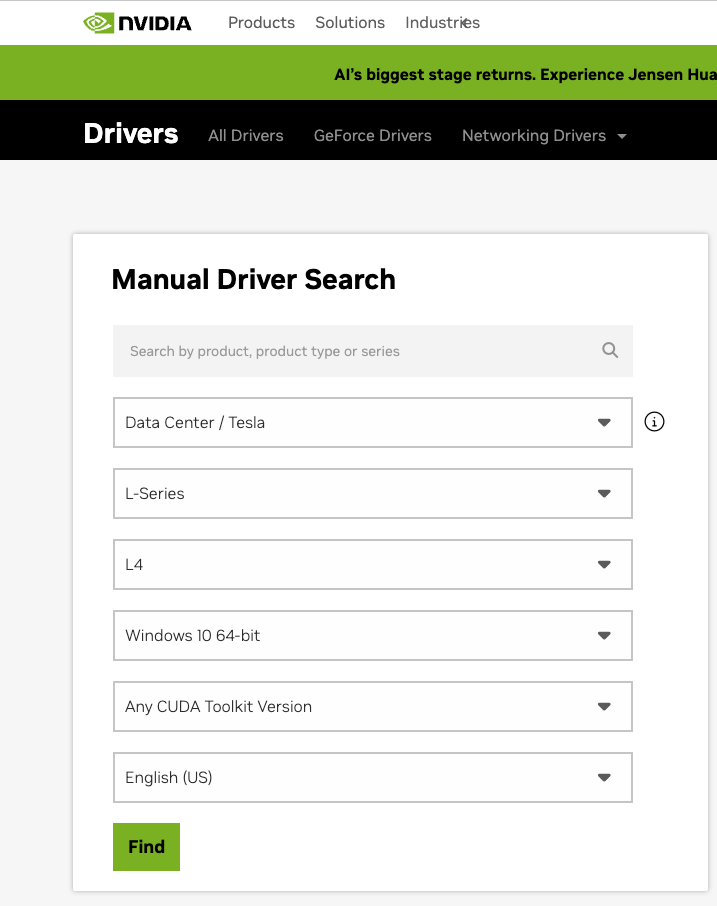
5. **(Optional)**: Install your applications and finish image customization.
    
    
    6. Once you have configured the image as desired, launch the Sysprep Helper tool.  
          
        \- Select Accept all prompts during Sysprep  
        \- change power option from quiet to shutdown  
        \- Click on "**Test Sysprep"** to start the process  
          
        After the sysprep process finished successfully the vm will be powered of automatically.
        
        [![image.png](https://docs.difr.com/uploads/images/gallery/2025-12/scaled-1680-/gUiimage.png)](https://docs.difr.com/uploads/images/gallery/2025-12/gUiimage.png)
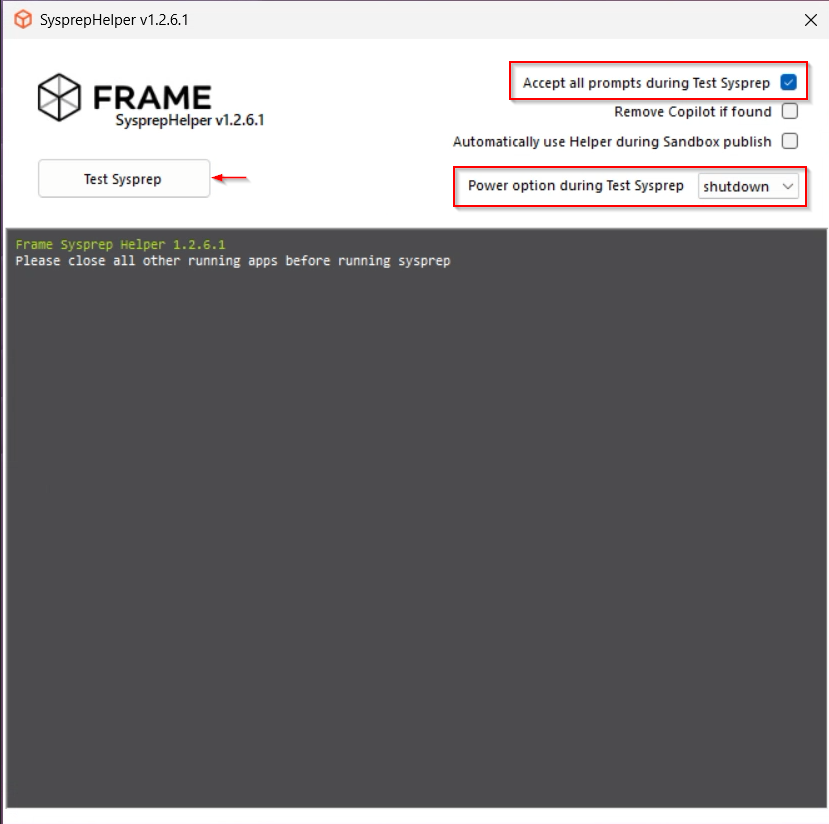
6. If the VM does not shutdown, then there was a problem with sysprep. Review the sysprep logs in `%WINDIR%\System32\Sysprep\Panther` to determine the source of the error.
    
    <figure style="max-width: 700px;">![Windows - Sysprep Log Path](https://docs.difr.com/uploads/images/gallery/2025-10/sysprep-logs.png)
    
    <figcaption>  
    </figcaption></figure>
7. When sysprep is successful, the VM will automatically power off. Verify that the VM has stopped in AWS Console.

## Tag the IBM Cloud Machine Image

1. Create an image from your IBM Cloud instance.
2. Once the image is created, navigate to the list of images in the IBM Cloud console. Click on the image you created in the previous step and assign a tag with the Key name `framerole` and value `masterimage` to the image.

Voilà! You have successfully created a template image to be registered in Frame for use to create your Frame workloads. You may prepare additional template images (e.g., different Windows OS versions, template images with different sets of applications) by simply repeating the procedure with a new image.

## Registration

Now it's time to register your template image in Frame. See how to do this in our [Cloud Accounts &gt; Template Images](https://docs.difr.com/link/45#bkmrk-add-a-template-image) guide.

# BYO Images on Nutanix AHV

This document will provide you with instructions on how to prepare and register your own Windows OS template image in AHV for use with Frame. Before moving forward with the preparation procedure, please ensure you have read through the general requirements on the [BYO image](https://docs.difr.com/link/69#bkmrk-page-title) and considerations on the [Windows BYO image](https://docs.difr.com/link/71#bkmrk-page-title) pages. We will outline additional details specific to Nutanix AHV below.

You must create and register at least one template or "gold" image when registering your AHV cluster to have an AHV Cloud Account in Frame. This template image will be used to create the Frame Sandbox and Utility Server(s) (optional) when you create a Frame account.

Additional template images can be created and [registered](https://docs.difr.com/link/45#bkmrk-add-a-template-image) after the AHV Cloud Account is created.

## Considerations

When preparing to create a Windows 10 or Windows 11 OS image, you must consider the following:

- Do not install **Nutanix Guest Tools** in your template image. **Nutanix Guest Tools** can cause communication issues between the workload instances and the Frame control plane.
- If your image already has **Nutanix Guest Tools** installed, you must install **VirtIO** drivers before uninstalling Nutanix Guest Tools. If you attempt to remove Nutanix Guest Tools without first installing VirtIO drivers, your virtual machine will not boot.
- Use **SATA** as the interface for CD-ROM and SCSI for disk drives when creating a VM in Prism Central or Prism Element. Do not use IDE as the interface for CD-ROM or disk drives. This is mandatory for BYO Windows 11 with vTPM images.
- Do not use volume groups disks.
- Set your template image timezone to **UTC**. When users start a Frame session, the workload VM will be set, by default, to the correct timezone based on the user's browser locale.
- When setting up the template image, it can be useful to have the Windows Firewall disabled. Firewall can be customized and re-enabled later in the Sandbox for a Frame account. To do so, run the following command in Powershell.
    
    ```
    Set-NetFirewallProfile -Profile Domain, Public, Private -Enabled False
    ```
    
    If you do not wish to disable Windows Firewall but still want to enable RDP, run the following command in PowerShell.
    
    ```
    Enable-NetFirewallRule -DisplayGroup "Remote Desktop"
    ```
- Enable Microsoft RDP in your template image before installing the Frame Guest Agent to access the template image VM. Verify you can access your template image using RDP with your local Windows administrator user. Ensure RDP is allowed in the Windows Firewall for your template image.

## Preparation

1. First, starting with a Windows 10, Windows 11, Windows Server 2019, or Windows Server 2022 image, create a VM in the AHV cluster you are going to use for Frame. When configuring your image, you must use a Windows OS user account with local Windows administrator privileges. If you are bringing a Windows 11 image with vTPM, review and complete the required tasks following the [Windows 11 with vTPM section](https://docs.difr.com/link/77#bkmrk-windows-11-vtpm-supp) of this guide, before continuing with Step 2.
2. Use RDP to connect into your VM. Follow the [Installation](https://docs.difr.com/link/73#bkmrk-installation) and [Usage](https://docs.difr.com/link/73#bkmrk-usage) instructions to download the Frame Agent Setup Tool (FAST) and install the Frame Agent, drivers, and tools in your template image VM.
3. Once FAST has successfully installed the Frame Agent, drivers, and tools, reboot the VM to complete the installation of the Frame Agent. Use RDP to connect back into your VM.

For additional installation scenarios (e.g., proxy server configuration, command line arguments, review our [Frame Agent Setup Tool](https://docs.difr.com/link/73#bkmrk-page-title) documentation.

4. **(Optional)**: If a proxy server is required for all outbound traffic to the Internet from your private network, you will need to configure Frame Guest Agent to use your proxy server. Refer to our [FGA Proxy Helper Tool](https://docs.difr.com/link/73#bkmrk-fga-proxy-helper-too) documentation page for further details.
5. **(Optional)**: If you plan to use NVIDIA GPU-based instance types on your AHV cluster, you can either install the appropriate NVIDIA GPU drivers in your template image VM (if all of your Frame accounts will use the NVIDIA GPU) or install the NVIDIA GPU drivers in the Frame account Sandbox (if not all Frame accounts will use the NVIDIA GPU). Refer to the requirements in our [BYO AHV Infrastructure](https://docs.difr.com/link/49#bkmrk-page-title) guide.
6. **(Optional)**: Install your applications and finish image customization.
    
    
    6. Once you have configured the image as desired, launch the Sysprep Helper tool.  
          
        \- Select Accept all prompts during Sysprep  
        \- change power option from quiet to shutdown  
        \- Click on "**Test Sysprep"** to start the process  
          
        After the sysprep process finished successfully the vm will be powered of automatically.

<figure id="bkmrk-">[![image.png](https://docs.difr.com/uploads/images/gallery/2025-12/scaled-1680-/bVFimage.png)](https://docs.difr.com/uploads/images/gallery/2025-12/bVFimage.png)

<figcaption>  
</figcaption></figure>8. If the VM does not shutdown, then there was a problem with sysprep. Review the sysprep logs in to determine the source of the error.

<figure id="bkmrk-windows---sysprep-lo">![Windows - Sysprep Log Path](https://docs.difr.com/uploads/images/gallery/2025-10/sysprep-logs.png)

<figcaption>Windows - Sysprep Log Path</figcaption></figure>10. When sysprep is successful, the VM will automatically power off. Verify that the VM has stopped in Prism.

### Tag VM

11. Navigate to the list of VMs in Prism. Click on the VM you created in the previous step, open the "More" drop-down menu, and select "Manage Categories".
12. Put the VM in the `<strong>FrameRole</strong>` category with the value `<strong>MasterTemplate</strong>`
13. Add the category `<strong>FrameGuestAgentKind</strong>` with the value `<strong>fga</strong>`

<p class="callout warning"> Ensure the **MasterTemplate** VM does not get deleted. Otherwise, you will not be able to create Frame accounts using that template image.</p>

Voilà! You have successfully created a template image to be registered in Frame for use to create your Frame workloads. You may prepare additional template images (e.g., different Windows OS versions, template images with different sets of applications) by simply repeating the procedure with a new image.

## Registration

Now it's time to register your template image in Frame. See how to do this in our [Cloud Accounts &gt; Template Images](https://docs.difr.com/link/45#bkmrk-add-a-template-image) guide.

## Windows 11 vTPM Support

For customers who wish to use Windows 11 with Virtual Trusted Platform Module (vTPM), you must first create and enable your template image VM with Secure Boot and vTPM, following the instructions in Nutanix documentation [(AOS 6.6)](https://portal.nutanix.com/page/documents/details?targetId=Nutanix-Security-Guide-v6_6:mul-vtpm-considerations-ahv-r.html) and summarized below.

### Requirements

- Prism Central version pc.2022.9 or above
- AHV version 20220304.242 or above
- AOS version 6.5.1 or above
- VM must use UEFI firmware
- Secure Boot-enabled VM required with minimum Nutanix VirtIO package version of 1.2.1 or higher (for Windows 11 with vTPM)

### Limitations

- You must create a new VM configured for SATA CD-ROMs and disks to use Secure Boot. VMs that use IDE disks or legacy BIOS cannot be converted to use Secure Boot.
- vTPM-enabled VMs cannot be used in a Frame account configured for Disaster Recovery Backup as production domain snapshots are not supported as of AOS version 6.6.

### References

- [Nutanix vTPM Support](https://portal.nutanix.com/page/documents/details?targetId=Nutanix-Security-Guide-v6_6:mul-vtpm-considerations-ahv-r.html)
- [Nutanix UEFI Support for VM](https://portal.nutanix.com/page/documents/details?targetId=AHV-Admin-Guide:vm-vm-uefi-support-c.html)
- [Understanding UEFI, Secure Boot, and TPM in the Virtualized Environment](https://portal.nutanix.com/page/documents/kbs/details?targetId=kA07V000000H3K9SAK)
- [Windows 11 and AHV](https://portal.nutanix.com/page/documents/solutions/details?targetId=TN-2164-Windows-11-on-AHV:TN-2164-Windows-11-on-AHV)

### Procedure

The following instructions are for the scenario where you are installing Windows 11 from a Microsoft Windows 11 ISO and Nutanix VirtIO drivers from a Nutanix ISO:

1. Log in to Prism Element or Prism Central and create a new VM, enabling UEFI and Secure Boot.
2. Connect to any CVM via CLI and run in aCLI:
3. Configuration can be verified by running in aCLI:
    
    You would expect to see an aCLI response like:
    
    <figure>![aCLI - vm.get Response](https://docs.difr.com/uploads/images/gallery/2025-10/byo-image-ahv-vtpm-get-response.png)
    
    </figure>
4. Go back to Prism Element or Prism Central and create and attach two CD-ROM (SATA) drives for the Windows 11 and VirtIO ISOs.
5. Finally, create a sufficiently-sized boot disk that has enough capacity to house the Windows 11 OS plus an additional ~20 GB of free space (45-80GB in total). Disk capacity can be increased later when a Frame account is created using this template image.
6. Power on the VM and run the Windows installer to install Windows 11 on the VM.
7. Return to [Preparation](#preparation) to install the Frame Agent and prepare the VM to be used in Frame.

# Identity and Access Management

Roles, RBAC, Dizzion C3, Basic IdP, General SAML2 Integration, Duo, Google Workspace, Microsoft EntraID, ADFS, Okta

# Available Roles

<h2>Role Permissions</h2>

<table class="table table-bordered">
  <thead>
    <tr>
      <th>Hierarchy</th>
      <th>Role</th>
      <th>Permissions</th>
    </tr>
  </thead>
  <tbody>
    <tr>
      <td>Customer</td>
      <td>Customer Administrator</td>
      <td>Highest level of access. Customer administrators are able to create and manage multiple organizations and accounts. Customer administrators can also modify permissions for any of the user roles listed below.</td>
    </tr>
    <tr>
      <td>Customer</td>
      <td>Customer Analytics</td>
      <td>Customer Analytics users can only access the Analytics graphs at the customer level.</td>
    </tr>
    <tr>
      <td>Customer</td>
      <td>Customer Auditor</td>
      <td>Customer Auditor users have read only access to functionality at the customer, organizations, and account levels.</td>
    </tr>
    <tr>
      <td>Customer</td>
      <td>Customer Security Administrator</td>
      <td>Customer Security Administrator users can only access Audit Trail and Users functions at the customer level to manage all auth providers (Basic (username/password), Google, SAML2, API, SAT), configures SAML2 providers, manage SAML2 permissions, and manages users (if Frame IdP is enabled) for all organizations and accounts.</td>
    </tr>
    <tr>
      <td>Customer</td>
      <td>Customer Support</td>
      <td>Customer Support users can only access the Summary, Analytics, Audit Trail, and Status pages for Accounts under the customer level to review activity and research user sessions. They can reboot, terminate VMs, and close sessions. They can detach personal drives and enterprise profile disks (if the disks do not detach after session closing) and backup, restore, and delete personal drive and profile disk volumes.</td>
    </tr>
    <tr>
      <td>Customer</td>
      <td>Limited Customer Administrator</td>
      <td>Limited Customer administrators possess the same permissions as Customer administrators for managing organizations and accounts. However, they do not have the ability to create organizations or accounts, manage users, or start sessions.</td>
    </tr>
    <tr>
      <td>Organization</td>
      <td>Organization Administrator</td>
      <td>Organization administrators can manage any organizations assigned to them by the Customer or Limited Customer administrator and those organizations' accounts. Organization administrators can only be created by Customer or Limited Customer administrators.</td>
    </tr>
    <tr>
      <td>Organization</td>
      <td>Limited Organization Administrator</td>
      <td>Limited Organization administrators can manage organizations assigned to them by Customer or Organization administrators and those organizations' accounts. However, they do not have the ability to create accounts, manage users, or start sessions.</td>
    </tr>
    <tr>
      <td>Organization</td>
      <td>Organization Analytics</td>
      <td>Organization Analytics users can only access the Analytics graphs at the specified organization level.</td>
    </tr>
    <tr>
      <td>Organization</td>
      <td>Organization Auditor</td>
      <td>Organization Auditor users have read only access to the organization and accounts under the organization.</td>
    </tr>
    <tr>
      <td>Organization</td>
      <td>Organization Security Administrator</td>
      <td>Organization Security Administrator users can only access Audit Trail and Users functions at the specified organization level to manage all auth providers (Basic (username/password), Google, SAML2, API, SAT), configures SAML2 providers, manage SAML2 permissions, and add users (if Frame IdP is enabled) for all accounts under the specified organization.</td>
    </tr>
    <tr>
      <td>Organization</td>
      <td>Organization Support</td>
      <td>Organization Support users can only access the Summary, Analytics, Audit Trail, and Status pages for Accounts under the specified organization level to review activity and research user sessions. They can reboot, terminate VMs, and close sessions. They can detach personal drives and enterprise profile disks (if the disks do not detach after session closing) and backup, restore, and delete personal drive and profile disk volumes.</td>
    </tr>
    <tr>
      <td>Account</td>
      <td>Account Administrator</td>
      <td>Account administrators can access and manage any accounts assigned to them by the Organization, Limited Organization, Customer, or Limited Customer administrators.</td>
    </tr>
    <tr>
      <td>Account</td>
      <td>Limited Account Administrator</td>
      <td>Limited Account administrators possess the same permissions as Account administrators for managing accounts. However, they do not have the ability to manage users or start sessions.</td>
    </tr>
    <tr>
      <td>Account</td>
      <td>Account Analytics</td>
      <td>Account Analytics users can only access the Analytics page in the account Dashboard.</td>
    </tr>
    <tr>
      <td>Account</td>
      <td>Account Auditor</td>
      <td>Account Auditor users have read only access to the account Dashboard.</td>
    </tr>
    <tr>
      <td>Account</td>
      <td>Account Security Administrator</td>
      <td>Account Security Administrator users can only access the Users and Audit Trail pages in the account Dashboard to manage all auth providers (Basic (username/password), Google, SAML2, API, SAT), configures SAML2 providers, manage SAML2 permissions, and manage users (if Frame IdP is enabled) for the specified account. They are also able to access Audit Trail and Session Trail for the specified account.</td>
    </tr>
    <tr>
      <td>Account</td>
      <td>Account Support</td>
      <td>Account Support users can only access, at the Account level, the Summary, Analytics, Audit Trail, and Status pages to review activity and research user sessions. They can reboot, terminate VMs, shadow sessions, and close sessions. They can detach personal drives and enterprise profile disks (if the disks do not detach after session closing) and backup, restore, and delete personal drive and profile disk volumes.</td>
    </tr>
    <tr>
      <td>Account</td>
      <td>Sandbox Administrator</td>
      <td>Sandbox Administrator can only access the Sandbox page in the account Dashboard to manage the Sandbox (e.g., schedule a publish, power on/off VM, install and update applications, update the OS, backup Sandbox, restore from backup, change instance type, and clone to another Sandbox, if authorized).</td>
    </tr>
    <tr>
      <td>Account</td>
      <td>Utility Server Administrator</td>
      <td>Utility Server Administrator can only access the Utility Server page in the account Dashboard to add, manage, and terminate utility servers.</td>
    </tr>
    <tr>
      <td>Account</td>
      <td>Launchpad Administrator</td>
      <td>This account-level role can only add, delete, and change Launchpad definitions.</td>
    </tr>
    <tr>
      <td>End User</td>
      <td>Launchpad User</td>
      <td>End users or "Launchpad users" can only access Launchpads that are configured by the administrators. A Launchpad user can access multiple Launchpads from multiple accounts if configured this way by administrators.</td>
    </tr>
    <tr>
      <td>API</td>
      <td>API - Generate Anonymous Customer Token</td>
      <td>Authorizes the API requestor to obtain Secure Anonymous Tokens from Frame Admin API for starting Frame sessions in all Frame accounts under the specified Customer entity.</td>
    </tr>
    <tr>
      <td>API</td>
      <td>API - Generate Anonymous Organization Token</td>
      <td>Authorizes the API requestor to obtain Secure Anonymous Tokens from Frame Admin API for starting Frame sessions in all Frame accounts under the specified Organization entity.</td>
    </tr>
    <tr>
      <td>API</td>
      <td>API - Generate Anonymous Account Token</td>
      <td>Authorizes the API requestor to obtain Secure Anonymous Tokens from Frame Admin API for starting Frame sessions in the specified Frame account.</td>
    </tr>
  </tbody>
</table>

# Identity Provider Integrations

This section outlines the user authentication options for Frame customers. The following documentation will discuss how to choose the right authentication option and reviews the benefits, applicability, and requirements for each option.

The term “authentication” refers to how the system verifies the identity of a user. By requiring that only known users are allowed to use the system, a Frame customer can ensure that their applications and infrastructure are only used by the appropriate people and that the individual identities of those users are associated with their usage of the system.

<p class="callout info"> If you are attempting to set up an Identity Provider (IdP) integration, you must first navigate to the Customer entity level and unlock the Enforce settings slider.  
  
</p>

<figure id="bkmrk-">![Enforce Settings](https://docs.difr.com/uploads/images/gallery/2025-10/enforce-2025.png)

</figure>

# Authentication

A service that the Frame system can trust to verify the identity of a user is called an “Identity Provider” or IdP. This is a technical term that is commonly used in authentication standards and tools, so we will also use this term in this solution guide.

Broadly, integrating Frame with an Identity Provider means telling Frame which Identity Provider to trust to authenticate users and telling the Identity Provider how to respond to Frame.

## Authentication by tier

Auth integration options can be configured at any level within the Frame platform. While most use cases will likely only need authentication at the Customer level, there are scenarios where utilizing custom authentication at different tiers could be beneficial. We will outline some of these scenarios below, starting with the default Customer-level tier.

### Customer

Any integrations configured at this level will be used by all users/admins accessing the Platform. This is the default and most common configuration for the Frame platform.

### Organization

By setting up authentication at the organizational level, a Customer admin can configure unique integrations for different organizations.

For example, a company with multiple subsidiaries may want to allow those subsidiaries to bring their own authentication. In this case, the company (Customer tier) would allow each subsidiary (Organizational tier) to set up their own authentication.

### Account

Account level authentication can be configured by a Customer or Organization admin. While this isn't very common, there are some use cases that would benefit from this arrangement. For instance, a Managed Service Provider (MSP) would benefit from letting each of their customers (divided by Accounts) integrate with their own authentication provider.

## Choosing the Right Authentication Option

Choosing the right authentication option depends on the particular use case an organization would like to make of the Frame platform and what authentication options that organization already has in place. This can be determined by answering the following questions:

### Do you need to know who the users are?

It's not always necessary to know who is using the applications on Frame. An example might be a software vendor who wants to use Frame to provide a 15 minute demo of their product. Individual users will be arriving from a link in an email or promotional page and the goal may be to have them fill out a feedback form at the end of the demo so that a sales representative can contact them. In this case, the application doesn't need to know who the user is, even though the feedback form may ask for contact information. Anonymous Users would be a good option in this case.

On the other hand, an enterprise who needs to track individual user licensing for software tools used throughout the day by employees would want to each user to be authenticated. Likewise, if it's necessary to remember individual preferences and settings for each user, it's first necessary to know who the user is. Of course, if these users need to gain access to sensitive and confidential information, it's required to know who the user is. In these cases, user authentication would be necessary, but we need to ask another question before we know which one.

### Do you already keep track of all of these users somewhere?

Many organizations already have an Identity Provider in place. Therefore, it makes sense to extend that Identity Provider to work with Frame as well. This is often called a Single Sign-On (SSO) solution. SSO is another way to talk about authentication, and an SSO provider and an Identity Provider are different ways of talking about the same thing.

On the other hand, if an organization does not have an existing Identity Provider (SSO solution) in place, Frame has a built-in Identity Provider that the organization can use. This built-in Identity Provider would only be used to authenticate users to the Frame platform and cannot be used to provide an SSO solution across all platforms for an organization. The Frame Identity Provider only provides authentication using a username and password. It does not support 2-factor authentication, or user groups. Account administrators manage users and other account administrators in the Basic Authentication through the Frame Launchpad web application.

If the organization needs an SSO solution for all of its platforms, then a SAML2 Identity Provider is appropriate.

### Are you using a SAML2 identity provider already?

An organization with an existing Identity Provider may already be using a SAML2 Identity Provider. In that case, it makes sense to integrate (federate) that same provider with Frame rather than adopting a new IdP for only a single integration (to Frame).

An organization may, however, have an Identity Provider that is not SAML2-based and which is only visible within that organization's corporate network. An example might be an organization using Active Directory to manage users and provide SSO. Rather than exposing the Active Directory server to the public Internet using the Active Directory Federation Service (ADFS) and incur the cost and upkeep of managing and protecting that service from threats and downtime, it can make sense to connect the internal IdP to a SAML2 IdP using the plugins provided by all SAML2 providers. Then, the SAML2 IdP takes on the responsibilities for managing a service exposed on the public Internet. For our example, that Active Directory instance might be connected to Microsoft's Azure Active Directory (Azure AD) using Azure AD Connect. Then Azure AD becomes the SAML2 Identity Provider. Frame can integrate with Azure AD, and the organization can continue to manage all users, right in the same Active Directory that it already has in place.

After selecting a particular authentication option, the details of the next steps will differ, but each option is designed to provider a quick and easy setup for the most common cases. Special cases may require some help from a Frame Solution Architect.

## Authentication Option Quick Reference

<table id="bkmrk-%C2%A0-frame-idp-saml2-id"><thead><tr><th> </th><th>Frame IdP</th><th>SAML2 IdP</th></tr></thead><tbody><tr><td>Requires SSO Configuration</td><td>No</td><td>Yes</td></tr><tr><td>Granular control of Authentication Security</td><td>Yes</td><td>Yes</td></tr><tr><td>User Attribution</td><td>Yes</td><td>Yes</td></tr><tr><td>Custom Password Policies</td><td>No</td><td>Yes</td></tr><tr><td>2-Factor Authentication</td><td>No</td><td>Yes</td></tr><tr><td>Requires Launchpad</td><td>Yes</td><td>No</td></tr><tr><td>Works With Launchpad</td><td>Yes</td><td>Yes</td></tr><tr><td>Works with Frame Application API</td><td>No</td><td>Yes</td></tr></tbody></table>

## Frame Basic Authentication

By default, Frame provides an Identity Provider for authenticating Frame users. Users are listed in User Settings as part of Frame Dashboard, and can be invited, promoted to admins themselves or retired. Using this option, user names must be unique email addresses. Users are able to set and reset their own passwords.

<p class="callout info"> Basic Authentication should be used for proof of concept, development, and testing purposes \*\*only\*\*. Basic Authentication does not provide user/password management capabilities (password expiration, password complexity policies, or multi-factor authentication). Frame strongly recommends customers use a third-party SAML2 identity provider for user authentication.</p>

### Benefits

Frame's Basic Authentication is an easy way to manage users and it requires no special setup, integration or configuration. Users will be authenticated to Frame which provides the unique user identities required for optional features like persistent user profiles and end-user billing.

### Applicability

Basic Authentication can be a convenient authentication solution for a single classroom, small business or a single workgroup under 100 members. It can become cumbersome with more users or if there is a frequent need to add and remove users.

### Requirements

There are no special requirement for this option. All authentication options except Anonymous Users require that user identities (email addresses) be unique across all Frame accounts. This option requires the administrator to use the Frame Dashboard to manage the users.

### Limitations

The Frame Basic Authentication option can only provide a simple, username and password based, authentication. This option does not support 2-factor authentication, user groups, custom password strength policies or password expiration policies. For these reasons, Basic Authentication should be used for proof of concept, development, and testing purposes **only**.

## SAML2 Identity Provider

SAML2 Identity Providers assume the responsibility of maintaining and protecting a publicly visible web service while providing convenient ways to connect that service to on-premises directories and identity providers like Active Directory, Shibboleth, or LDAP servers.

### Benefits

SAML2 Identity Providers assume the responsibility of maintaining and protecting a publicly visible web service while providing convenient ways to connect that service to on-premises directories and identity providers like Active Directory, Shibboleth, or LDAP servers.

### Applicability

If your organization already manages users in a central place, then a SAML2 Identity Provider can be a convenient way to extend that control to external services like Frame.

### Requirements

SAML2 providers typically require access to your user information through a plug-in or adapter installed in your directory server. These are provided by SAML2 providers themselves. For instance, Microsoft provides Azure AD Connect which provides an easy way to setup Azure AD as a SAML2 Identity Provider using your existing Active Directory server as the single source or truth for all user authentication. Identity providers charge for their service, but many include a free tier which may be appropriate for many Frame integrations.

### Limitations

Using a SAML2 Identity Provider is the most flexible option for authentication. The only limitations are those shared with the other options described in this Solution Guide. Frame does not support fine-grained permissions, for instance allowing some authenticated users to launch an application while others cannot, based solely on groups or information in the user profile.

## Entity Endpoint URLs

When each Frame entity is being created, they're given a URL slug. Using these slugs, you can construct landing pages for your users for them to sign into Frame and get straight to their resources.

![url_hierarchy.png](https://docs.difr.com/uploads/images/gallery/2025-10/scaled-1680-/url-hierarchy.png)

Important: If you want to direct your users to your specific identity provider (and bypass the default login page), add this query string to your Frame URLs:

```
?idp=your-IdP-integration-name to your URL.
```

##### <span style="background-color: rgb(45, 194, 107);">IMPORTANT</span>

With the new iam integration (if your SAML2) integration has difr icon in front of the SAML2:

[![Screenshot 2026-05-12 at 13.14.16.png](https://docs.difr.com/uploads/images/gallery/2026-05/scaled-1680-/screenshot-2026-05-12-at-13-14-16.png)](https://docs.difr.com/uploads/images/gallery/2026-05/screenshot-2026-05-12-at-13-14-16.png)
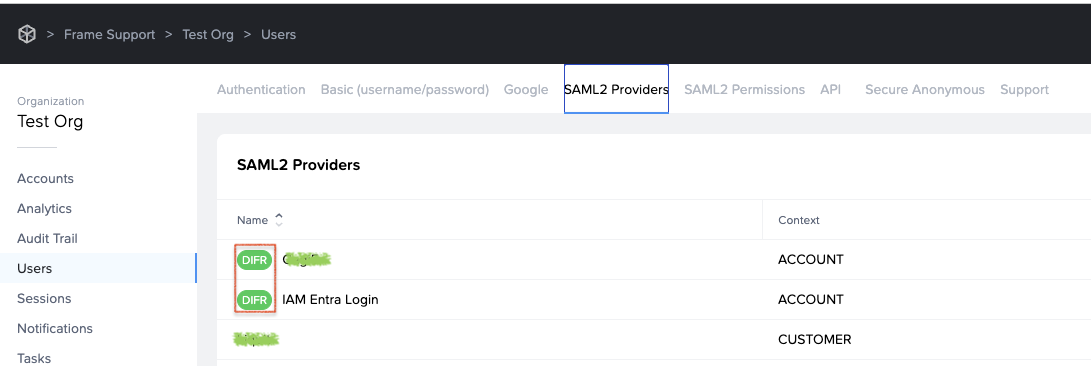
the **?idp** part is different. You don't use the SAML2 name, but the SAML2 ID:

[![Screenshot 2026-05-12 at 13.25.30.png](https://docs.difr.com/uploads/images/gallery/2026-05/scaled-1680-/8O5screenshot-2026-05-12-at-13-25-30.png)](https://docs.difr.com/uploads/images/gallery/2026-05/8O5screenshot-2026-05-12-at-13-25-30.png)
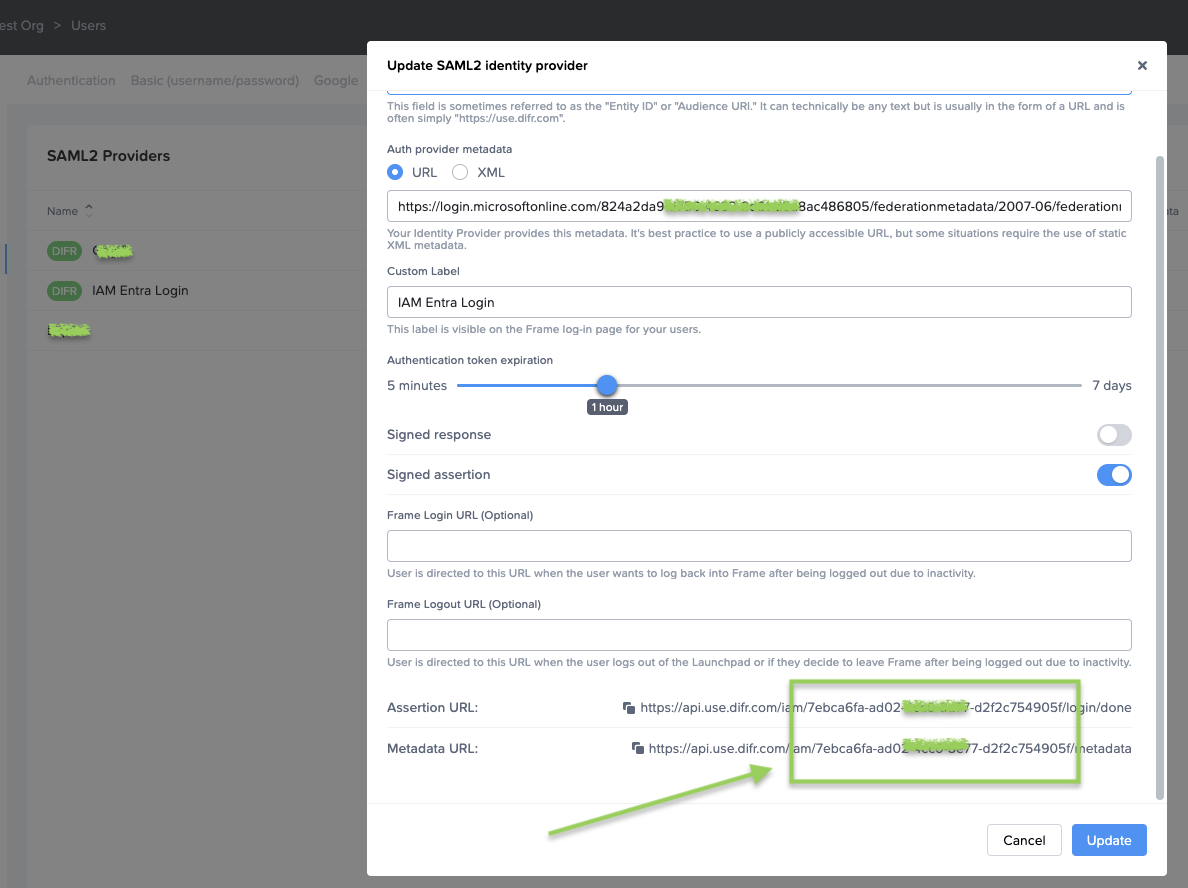
So the URL looks like this:

```
?idp=your-IdP-ID to your URL.
```

An example:

<table border="1" id="bkmrk-https%3A%2F%2Fuse.difr.com" style="border-collapse: collapse; width: 100%;"><colgroup><col style="width: 99.881%;"></col></colgroup><tbody><tr><td>https://use.difr.com/frame-support/testorg/test-2022-aws/launchpad/test-desktop-1/**?idp=7ebca6fa-ad02XXXXX77-d2f2c754905f**</td></tr></tbody></table>

### Endpoint-specific URLs

#### Launchpad

Launchpad URLs are usually provided to end-users, allowing them to access sessions. You can copy this URL when you navigate to your desired Launchpad.

```
----USE Backend----
https://use.difr.com/customer-slug/organization-slug/account-slug/launchpad/launchpad-slug

----DEU Backend----
https://deu.difr.com/customer-slug/organization-slug/account-slug/launchpad/launchpad-slug
```

#### Account Admin

Useful if you need to provide direct links to an account's Dashboard. Users that do not have Account Admin access will simply be redirected to a Launchpad they've acccess to. You can copy this URL when you navigate to an account's Dashboard.

```
----USE Backend----
https://use.difr.com/frame/customer-slug/organization-slug/account-slug/

----DEU Backend----
https://deu.difr.com/frame/customer-slug/organization-slug/account-slug/
```

#### Admin URL's

These URLs are perfect for your Admins. You can simply navigate to your customer or organization and copy the URL.

Customer Admin URL

```
----USE Backend----
https://use.difr.com/frame/customer-slug/

```

Org Admin URL

```
----USE Backend----
https://use.difr.com/customer-slug/organization-slug/

----DEU Backend----
https://deu.difr.com/customer-slug/organization-slug/

```

# Basic Authentication

Basic Authentication is a manual approach for providing access; admins need to manually invite users **via email**, and have them **set their own** passwords. You manually reset their passwords, manually delete the users, and give users various roles/permissions for Frame Accounts, Organizations, or Customers. If you are planning on using Frame's Basic Authentication for your user management, continue reading to learn how to manage your users. If you are planning on using a third-party provider, we recommend reading through the information in the [Identity Provider Integrations](https://docs.difr.com/books/platform-administrators-guide/page/identity-provider-integrations) section.

<p class="callout info"> Basic Authentication should be used for proof of concept, development, and testing purposes \*\*only\*\*. Basic Authentication does not provide user/password management capabilities (password expiration, password complexity policies, or multi-factor authentication). Frame strongly recommends customers use a third-party SAML2 identity provider for user authentication.</p>

## Invite Users

Once you have onboarded your apps, published your changes, and set up your Launchpad – you are ready to invite users. You can use the Frame Basic IdP by following the instructions below.

1. From the Dashboard, click on the **Users** page listed on the left. From there, go to the **Basic (username/password)** tab.

<figure id="bkmrk-">![Basic Authentication Users](https://docs.difr.com/uploads/images/gallery/2025-10/inviteusers1.png)

</figure>2. Click the **Invite User** button in the upper right corner of the screen. A new window will appear prompting you to enter the email address of the user you would like to invite.

<div class="callout callout-info" id="bkmrk-the-system-will-auto">The system will automatically check to see if the email address is already associated with the account.</div>![Invite Users Panel](https://docs.difr.com/uploads/images/gallery/2025-10/inviteusers2.png)

3. Once the email address has been entered, the **Roles** section will appear within the window. Select the role you would like to assign to your user. You can assign different roles for different accounts for this user by clicking the **Add** button. If you would like to learn more about user roles, check out our [documentation](https://docs.difr.com/books/platform-administrators-guide/page/available-roles).

![User Email Example](https://docs.difr.com/uploads/images/gallery/2025-10/inviteusers3.png)

4. Click **Invite** when ready. The window will close and your user's information will automatically populate under the **Users** list. An invite will be sent to your user where they will fill out their name and set their password.

## Reset a Deactivated User Account

Inevitably, some of your users will forget their passwords. User can reset their own password, as described in our [end user documentation](https://docs.difr.com/books/desktop-users-guide/page/introduction#password-management-1). However, if they fail to login successfully in 3 consecutive login attempts, Frame Basic IdP will deactivate their user account. Reactivating a Frame Basic IdP user account is simple and can be done with just a few clicks.

1. Depending on your assigned administrator role, go to the **Users** left-hand menu on the Customer or Organization Dashboard in your [Admin Console](https://docs.difr.com/link/93#bkmrk-page-title) or on the Account [Dashboard](https://docs.difr.com/link/93#bkmrk-navigating-your-fram).
2. Click on the **Basic (username/password)** tab.
    
    <figure>[![image.png](https://docs.difr.com/uploads/images/gallery/2025-12/scaled-1680-/Rzcimage.png)](https://docs.difr.com/uploads/images/gallery/2025-12/Rzcimage.png)
    
    </figure>
3. Locate your deactivated user from the Users list. You should see that their status has changed to "B" for **Blocked**.

<figure id="bkmrk--3">![Dashboard > Users (Blocked User)](https://docs.difr.com/uploads/images/gallery/2025-10/deactivated-blocked2.png)

</figure>4. Find and click on the ellipsis listed next to their name on the far right side of the screen. Select **Reset Password** as shown below:

<figure id="bkmrk--4">![Reset Password](https://docs.difr.com/uploads/images/gallery/2025-10/deactivated-2.png)

</figure>5. Your user will be sent an email with a link to reset their Frame Basic IdP user password.

Voilà! You have successfully reactivated your user's Frame account.

## Removing Users

Removing users from your account can be done with just a few clicks.

1. Depending on your assigned administrator role, go to the **Users** left-hand menu on the Customer or Organization page in your [Admin Console](https://docs.difr.com/link/93#bkmrk-page-title) or on the Account [Dashboard](https://docs.difr.com/link/93#bkmrk-navigating-your-fram).
2. Click on the **Basic (username/password)** tab.
3. Click on the ellipsis next to the user you wish to remove from the account and select **Revoke Invitation**.

<figure id="bkmrk--5">![Basic Authentication Tab - Revoke an invitation](https://docs.difr.com/uploads/images/gallery/2025-10/removeusers3.png)

</figure>4. A confirmation prompt will appear. Click **Revoke** in the bottom right corner of the dialog box.

<figure id="bkmrk--6">![Basic Authentication Tab - Revoke confirmation](https://docs.difr.com/uploads/images/gallery/2025-10/removeconfirm.png)

</figure>## Logging in

Once users have accepted their Basic Authentication invitation, they can sign in using email address and password on our Frame Basic IdP Login page as pictured below. Most Frame Basic IdP users can login at ; however, you can direct your users to go to a [specific Launchpad or Account Dashboard URL](https://docs.difr.com/books/platform-administrators-guide/page/authentication#entity-endpoint-urls).

<figure id="bkmrk--7">![Frame Basic IdP Login Page](https://docs.difr.com/uploads/images/gallery/2025-10/frame-basic-auth-login.png)

</figure>### Require Frame Basic IdP

If you require users to always authenticate using Frame Basic IdP (especially if you have more than one IdP configured for your Customer, Organization, and/or Account(s)), direct your users to a [specific Launchpad or Account Dashboard URL](https://docs.difr.com/books/platform-administrators-guide/page/authentication#entity-endpoint-urls) appended to the URL.

# Authorization

The Frame Platform provides administrators with a role-based access control (RBAC) capability to manage user and administrative access to their accounts. Through the Frame Admin user interface, administrators are able to assign roles which grant varying levels of access to their users. These same granular controls are available for all authentication types.

<p class="callout info"><span style="color: rgb(0, 0, 0);">  Customer and Organization administrators can manage users from the Admin page by clicking on the ellipsis next to the desired entity, selecting “Edit,” and clicking on the “Security” tab. Account administrators manage their users from the “Users” section of their Dashboard.</span></p>

## Roles

Roles allow administrators to easily manage the permissions and access levels of their users. Regardless of the authentication type, administrators must specify the role they wish to grant to their users before those users can be authorized to access Frame resources.

## Role Permissions

<table class="table table-bordered" id="bkmrk-hierarchy-role-permi"><thead><tr><th>Hierarchy</th><th>Role</th><th>Permissions</th></tr></thead><tbody><tr><td>Customer</td><td>Customer Administrator</td><td>Highest level of access. Customer administrators are able to create and manage multiple organizations and accounts. Customer administrators can also modify permissions for any of the user roles listed below.</td></tr><tr><td>Customer</td><td>Customer Analytics</td><td>Customer Analytics users can only access the Analytics graphs at the customer level.</td></tr><tr><td>Customer</td><td>Customer Auditor</td><td>Customer Auditor users have read only access to functionality at the customer, organizations, and account levels.</td></tr><tr><td>Customer</td><td>Customer Security Administrator</td><td>Customer Security Administrator users can only access Audit Trail and Users functions at the customer level to manage all auth providers (Basic (username/password), Google, SAML2, API, SAT), configures SAML2 providers, manage SAML2 permissions, and manages users (if Frame IdP is enabled) for all organizations and accounts.</td></tr><tr><td>Customer</td><td>Customer Support</td><td>Customer Support users can only access the Summary, Analytics, Audit Trail, and Status pages for Accounts under the customer level to review activity and research user sessions. They can reboot, terminate VMs, and close sessions. They can detach personal drives and enterprise profile disks (if the disks do not detach after session closing) and backup, restore, and delete personal drive and profile disk volumes.</td></tr><tr><td>Customer</td><td>Limited Customer Administrator</td><td>Limited Customer administrators possess the same permissions as Customer administrators for managing organizations and accounts. However, they do not have the ability to create organizations or accounts, manage users, or start sessions.</td></tr><tr><td>Organization</td><td>Organization Administrator</td><td>Organization administrators can manage any organizations assigned to them by the Customer or Limited Customer administrator and those organizations' accounts. Organization administrators can only be created by Customer or Limited Customer administrators.</td></tr><tr><td>Organization</td><td>Limited Organization Administrator</td><td>Limited Organization administrators can manage organizations assigned to them by Customer or Organization administrators and those organizations' accounts. However, they do not have the ability to create accounts, manage users, or start sessions.</td></tr><tr><td>Organization</td><td>Organization Analytics</td><td>Organization Analytics users can only access the Analytics graphs at the specified organization level.</td></tr><tr><td>Organization</td><td>Organization Auditor</td><td>Organization Auditor users have read only access to the organization and accounts under the organization.</td></tr><tr><td>Organization</td><td>Organization Security Administrator</td><td>Organization Security Administrator users can only access Audit Trail and Users functions at the specified organization level to manage all auth providers (Basic (username/password), Google, SAML2, API, SAT), configures SAML2 providers, manage SAML2 permissions, and add users (if Frame IdP is enabled) for all accounts under the specified organization.</td></tr><tr><td>Organization</td><td>Organization Support</td><td>Organization Support users can only access the Summary, Analytics, Audit Trail, and Status pages for Accounts under the specified organization level to review activity and research user sessions. They can reboot, terminate VMs, and close sessions. They can detach personal drives and enterprise profile disks (if the disks do not detach after session closing) and backup, restore, and delete personal drive and profile disk volumes.</td></tr><tr><td>Account</td><td>Account Administrator</td><td>Account administrators can access and manage any accounts assigned to them by the Organization, Limited Organization, Customer, or Limited Customer administrators.</td></tr><tr><td>Account</td><td>Limited Account Administrator</td><td>Limited Account administrators possess the same permissions as Account administrators for managing accounts. However, they do not have the ability to manage users or start sessions.</td></tr><tr><td>Account</td><td>Account Analytics</td><td>Account Analytics users can only access the Analytics page in the account Dashboard.</td></tr><tr><td>Account</td><td>Account Auditor</td><td>Account Auditor users have read only access to the account Dashboard.</td></tr><tr><td>Account</td><td>Account Security Administrator</td><td>Account Security Administrator users can only access the Users and Audit Trail pages in the account Dashboard to manage all auth providers (Basic (username/password), Google, SAML2, API, SAT), configures SAML2 providers, manage SAML2 permissions, and manage users (if Frame IdP is enabled) for the specified account. They are also able to access Audit Trail and Session Trail for the specified account.</td></tr><tr><td>Account</td><td>Account Support</td><td>Account Support users can only access, at the Account level, the Summary, Analytics, Audit Trail, and Status pages to review activity and research user sessions. They can reboot, terminate VMs, shadow sessions, and close sessions. They can detach personal drives and enterprise profile disks (if the disks do not detach after session closing) and backup, restore, and delete personal drive and profile disk volumes.</td></tr><tr><td>Account</td><td>Sandbox Administrator</td><td>Sandbox Administrator can only access the Sandbox page in the account Dashboard to manage the Sandbox (e.g., schedule a publish, power on/off VM, install and update applications, update the OS, backup Sandbox, restore from backup, change instance type, and clone to another Sandbox, if authorized).</td></tr><tr><td>Account</td><td>Utility Server Administrator</td><td>Utility Server Administrator can only access the Utility Server page in the account Dashboard to add, manage, and terminate utility servers.</td></tr><tr><td>Account</td><td>Launchpad Administrator</td><td>This account-level role can only add, delete, and change Launchpad definitions.</td></tr><tr><td>End User</td><td>Launchpad User</td><td>End users or "Launchpad users" can only access Launchpads that are configured by the administrators. A Launchpad user can access multiple Launchpads from multiple accounts if configured this way by administrators.</td></tr><tr><td>API</td><td>API - Generate Anonymous Customer Token</td><td>Authorizes the API requestor to obtain Secure Anonymous Tokens from Frame Admin API for starting Frame sessions in all Frame accounts under the specified Customer entity.</td></tr><tr><td>API</td><td>API - Generate Anonymous Organization Token</td><td>Authorizes the API requestor to obtain Secure Anonymous Tokens from Frame Admin API for starting Frame sessions in all Frame accounts under the specified Organization entity.</td></tr><tr><td>API</td><td>API - Generate Anonymous Account Token</td><td>Authorizes the API requestor to obtain Secure Anonymous Tokens from Frame Admin API for starting Frame sessions in the specified Frame account.</td></tr></tbody></table>

Administrators are able to grant permissions based on their own level of access. For instance, while a Customer admin can assign any role to any user, an Organization admin can only grant the Organization Admin role or below to another user.

You can read more about Frame account hierarchy in the [Platform Hierarchy](https://docs.difr.com/link/34#bkmrk-page-title) section. Administrators must assign roles when inviting users. They may also modify roles for existing users at any time. If you have not yet invited any users, please refer to the [Basic Authentication](https://docs.difr.com/link/82#bkmrk-page-title) or third-party [Identity Provider Integrations](https://docs.difr.com/link/84#bkmrk-page-title) sections of our documentation, depending on which platform you wish to use to add your users.

## User Permissions

### Google (OAuth2) IdP

If you have decided to use the [Google OAuth](https://docs.difr.com/link/88#bkmrk-configuring-google-w) integration through Frame, it's easy to manage users by domain/email.

From the Frame Console, navigate to your desired entity where you wish to set up your permissions integration (Customer/Organization/Account), and select **Users**.

<figure id="bkmrk-">[![image.png](https://docs.difr.com/uploads/images/gallery/2025-10/scaled-1680-/Dyfimage.png)](https://docs.difr.com/uploads/images/gallery/2025-10/Dyfimage.png)

</figure>Enable the **Google** toggle from the Authentication tab and then click **Save** in the upper right corner of the console.

<figure id="bkmrk--1">[![image.png](https://docs.difr.com/uploads/images/gallery/2025-10/scaled-1680-/5Utimage.png)](https://docs.difr.com/uploads/images/gallery/2025-10/5Utimage.png)

</figure>Click the new *Google* tab. Click **Add** at the top-right.

<figure id="bkmrk--2">[![image.png](https://docs.difr.com/uploads/images/gallery/2025-10/scaled-1680-/d1Fimage.png)](https://docs.difr.com/uploads/images/gallery/2025-10/d1Fimage.png)

</figure>A new window will appear prompting you to enter either an email address or a domain. For this example, we will add a domain and give anyone associated with that domain an *Account Administrator* role on the “Doc-Acct” Account.

<figure id="bkmrk--3">![](https://docs.difr.com/uploads/images/gallery/2025-10/google-oauth-example-1.png)

</figure>When specifying a Google Workspace domain, you must prefix the domain with the symbol, as shown above.

Admins can also add multiple domains and email addresses under the same role set. For example, using the **Add** button, we have added a single email address along with our domain. The user associated with that email address will be given the same role on the “Doc-Acct” Account.

<figure id="bkmrk--4">[![image.png](https://docs.difr.com/uploads/images/gallery/2025-10/scaled-1680-/G0kimage.png)](https://docs.difr.com/uploads/images/gallery/2025-10/G0kimage.png)

</figure>To add another level of granularity, our domain and single email address can be given additional roles by clicking **Add** below the *Roles* section.

<figure id="bkmrk--5">[![image.png](https://docs.difr.com/uploads/images/gallery/2025-10/scaled-1680-/1fVimage.png)](https://docs.difr.com/uploads/images/gallery/2025-10/1fVimage.png)

</figure>Now, once we click **Add** at the bottom of the window, the domain and single email address will be given *Launchpad User* access on the "Applications 2” Launchpad, and *Account Administrator* access on the “Persistent Desktops” account. Administrators can add many Google authorization role sets for multiple domains/email addresses.

### User Permissions with a SAML2 IdP

Once you have set up your [SAML2 provider integration](https://docs.difr.com/link/85#bkmrk-page-title) with Frame, you will need to designate permissions for your users. Navigate to the **SAML2 Permissions** tab to the right of the **SAML2 Providers** tab from the **Users** page of the desired entity. Click **Add Permission**.

<figure id="bkmrk--6">[![image.png](https://docs.difr.com/uploads/images/gallery/2025-10/scaled-1680-/tjZimage.png)](https://docs.difr.com/uploads/images/gallery/2025-10/tjZimage.png)

</figure>- **For provider**: Select the SAML2 Provider you are designating permissions for.
- Allow access:
- **Always**: Once the user is authenticated, they have access to the role you specify below – no conditions required.
- **When all conditions are satisfied**: The user must meet all conditions specified by the Admin to be granted access to the role specified.
- **When any condition is satisfied**: The user can meet any conditions specified by the Admin to be granted access to the role specified.
- **Conditions**: Specify your assertion claims and their values which will correspond with the roles you wish to grant. Reference the table below for our accepted assertion claims.
- **Grant roles**: Select the desired roles you wish to grant to your users. You can add multiple role sets by using the **Add** button. Reference the roles section above for more information.

<div display:="" id="bkmrk-assertion-claim-clai" justifycontent:=""><table><thead><tr><th>Assertion Claim</th><th>Claim Value</th><th>Example</th></tr></thead><tbody><tr><td>em</td><td>Email</td><td>johnsmith@mycompany.com</td></tr><tr><td>givenName</td><td>First Name</td><td>John</td></tr><tr><td>sn</td><td>Surname</td><td>Smith</td></tr></tbody></table>

</div>When qualifying users by domain, it is best practice to use “em ends with @yourcompany.com.”

During the IdP setup, you may have used to define the email attribute. While this is fine for the IdP, you must use to reference the email attribute when configuring SAML2 permissions on Frame.

Click **Save** when you are done. Administrators can add multiple permission sets under the *SAML2 Permissions* section.

### SAML2 Attributes

When creating SAML2 permissions on Frame, admins may use custom attributes from their IdP by setting specific permissions settings. For this example, we will use a very common custom attribute – “groups.” Most IdPs provide ways to “group” users and these groups can be passed to Frame via custom attribute mappings. Using additional attribute maps, you can build conditions for varying roles and access privileges. When creating any rules for SAML2 claims/attributes, use “contains” in the comparison operator field as shown below.

Here is an example of where you would set group statements in Okta:

<figure id="bkmrk--7">![](https://docs.difr.com/uploads/images/gallery/2025-10/user-permissions-okta-1.png)

</figure>Here is an example of a list of groups in Okta:

<figure id="bkmrk--8">![](https://docs.difr.com/uploads/images/gallery/2025-10/user-permissions-okta-2.png)

</figure>This is how we would pass one of the groups (“Okta-Contractors”) over to Frame, allowing administrators to create rules and roles to meet their needs.

<figure id="bkmrk--9">![](https://docs.difr.com/uploads/images/gallery/2025-10/user-permissions-okta-3.png)

</figure>With the configuration above, any users from the “Okta-Contractors” group signing into Frame will be given Account Administrator access to the “Contractor Account.”

All identity providers use different methods to manage user groups, please consult your IdP's documentation for more information about groups and group management.

## Troubleshooting

If users see the following Unauthorized page after successfully authenticating to their SAML2 identity provider, then there were no SAML2 Permission rules that were satisfied by the SAML2 attribute names and corresponding values provided by the identity provider.

<figure id="bkmrk--10">![](https://docs.difr.com/uploads/images/gallery/2025-10/saml2-unauthorized.png)

</figure>To address this issue, the Frame Administrator must:

1. Confirm the correct SAML2 attribute names and values are being provided in the SAML2 Authentication Response message after the user has successfully authenticated to the SAML2 identity provider.
2. Review the list of SAML2 attribute names (under the Field column) and corresponding SAML2 attribute values (under the Value column) on the Unauthorized page and determine which SAML2 attribute name and corresponding SAML2 attribute value should be used to define a SAML2 Permission authorization rule.

Authorization rules are defined in the SAML2 Permissions tab on the appropriate Frame Customer, Organization, or Account. Once the Frame Administrator confirms the right SAML2 attributes and values are listed on the Unauthorized page, they can then create a SAML2 Permission rule for the user (or group of users).

As an example, based on the information provided in Unauthorized page image, the Frame Administrator could replace with and with in the SAML2 Permission page below to create a SAML2 Permission rule specific to one individual's email address.

<figure id="bkmrk--11">![](https://docs.difr.com/uploads/images/gallery/2025-10/saml2-unauthorized-permission.png)

</figure>tip for group assertions

In general, use the operator as SAML2 identity providers typically provide SAML2 attribute values as a list/array of values.

# Dizzion C3

Dizzion Frame now supports Dizzion C3 as an authentication provider, allowing administrators to use the same credentials they already use for support.dizzion.com and c3.dizzion.com to access Frame. By enabling Dizzion C3 authentication, users can seamlessly log in without managing multiple credentials, improving security and streamlining access. This guide will walk you through the steps to enable Dizzion C3 as an authentication provider.

#### Prerequisites

Before enabling Dizzion C3 authentication for Frame, ensure the following:

- You have the **Frame Customer Admin role in Dizzion C3** (contact your [Dizzion Customer Success Manager](mailto:csm@dizzion.com) if needed)
- You have administrator access to the Frame Admin Console to configure authentication settings.
- Your Frame organization/account is set up and active.\\n- Users have valid **Dizzion C3 credentials** to authenticate.\\n\\n

<p class="callout info"> By default, any user with the **Frame Customer Admin role** assigned within Dizzion C3 will automatically be assigned the **Customer Administrator role** within Frame.</p>

#### Configuration

1. Log in to Frame and navigate to **Users &gt; Authentication** from either the Organization or Account level of the Frame Console. (More details around authentication based on tenant hierarchy can be found [here](https://docs.difr.com/books/platform-administrators-guide/page/authentication#authentication-by-tier).
2. Enable **Dizzon C3** on this page (under the **Authentication** tab). Click **Save** in the upper right corner of the page.

<figure id="bkmrk-">![Enable Dizzion C3](https://docs.difr.com/uploads/images/gallery/2025-10/enable-c3.png)</figure>3\. Once enabled, **Dizzion C3** will appear as a sign-in option on the Frame login page.

<figure id="bkmrk--1">![Log in with C3](https://docs.difr.com/uploads/images/gallery/2025-10/signin-c3.png)</figure>4\. Users can now simply click on the **Sign in with Dizzion C3** to be redirected to the Dizzion C3 authentication portal. If authentication is successful, you will be redirected back to Frame with access granted.

<figure id="bkmrk-users-with-the-appro">![C3 Authentication Portal](https://docs.difr.com/uploads/images/gallery/2025-10/c3-page.png)<figcaption>Users with the appropriate role can now log in using their Dizzion C3 credentials.</figcaption>  
</figure>#### Accessing Frame from the Dizzion C3 Portal

Administrators with the **Frame Customer Admin role** can also log in to Frame directly from the Dizzion C3 portal by following the steps below:

1. Navigate to the [Dizzion C3 Portal](https://c3.dizzion.com).
2. 2. Enter your email address and click **Next**.
3. 3. Enter your password and click **Sign In**.

<figure id="bkmrk--2">![C3 Password](https://docs.difr.com/uploads/images/gallery/2025-10/c3-pwd.png)</figure>4\. Click on "Click here to launch Frame" to be redirected.

<figure id="bkmrk--3">![Launch Frame](https://docs.difr.com/uploads/images/gallery/2025-10/c3-launch-frame.png)</figure>5\. A new browser tab will open, and you will be automatically redirected to Frame.

#### Additional Resources

Enabling this feature allows user access to be managed through Dizzion's C3 Platform. If you wish to modify user access to the platform, you must do so via C3. More detailed information around C3 user management can be found in our [C3 Administration documentation.](https://docs.difr.com/books/c3-control-center/page/getting-started)

# General SAML2 Integration

The administrative workflow for setting up a SAML2 identity provider (IdP) consists of the following steps:

1. Enable SAML2 Providers at the desired entity level (Customer, Organization, or Account).
2. Create a SAML2 identity provider in Frame.
3. Enter the necessary configuration information for your new SAML2 identity provider in Frame.
4. Enter the configuration information in your actual SAML2 identity provider.
5. Verify that both sides of the IdP integration are properly configured by attempting to login using your identity provider.
6. Add SAML2 Permissions (authorization rules) at the Customer, Organization, or Account entity level to authorize users to specific roles.

Depending on the specific SAML2 identity provider, you may need to perform Step 4 before Step 3.

Frame supports both IdP-initiated and SP-initiated authentication workflows. In general, most customers implement SP-initiated authentication workflows by directing users to a Frame URL and letting Frame redirect the user to the SAML2 identity provider.

## Getting started

<p class="callout info"> Before a SAML2 identity provider can be added, the administrator must enable SAML2 Providers at a given level by navigating to the Admin Console. From there, navigate to the **Customer** or **Organization** page (depending on where you wish to add the IdP). Select **Users** from the left-hand menu.</p>

Unless there is a specific reason to do otherwise, adding the SAML2 Provider at the Customer or Organization level is best practice.

2. Enable the **SAML2** toggle under the Authentication tab and click **Save**.
    
    [![image.png](https://docs.difr.com/uploads/images/gallery/2025-10/scaled-1680-/h0timage.png)](https://docs.difr.com/uploads/images/gallery/2025-10/h0timage.png)
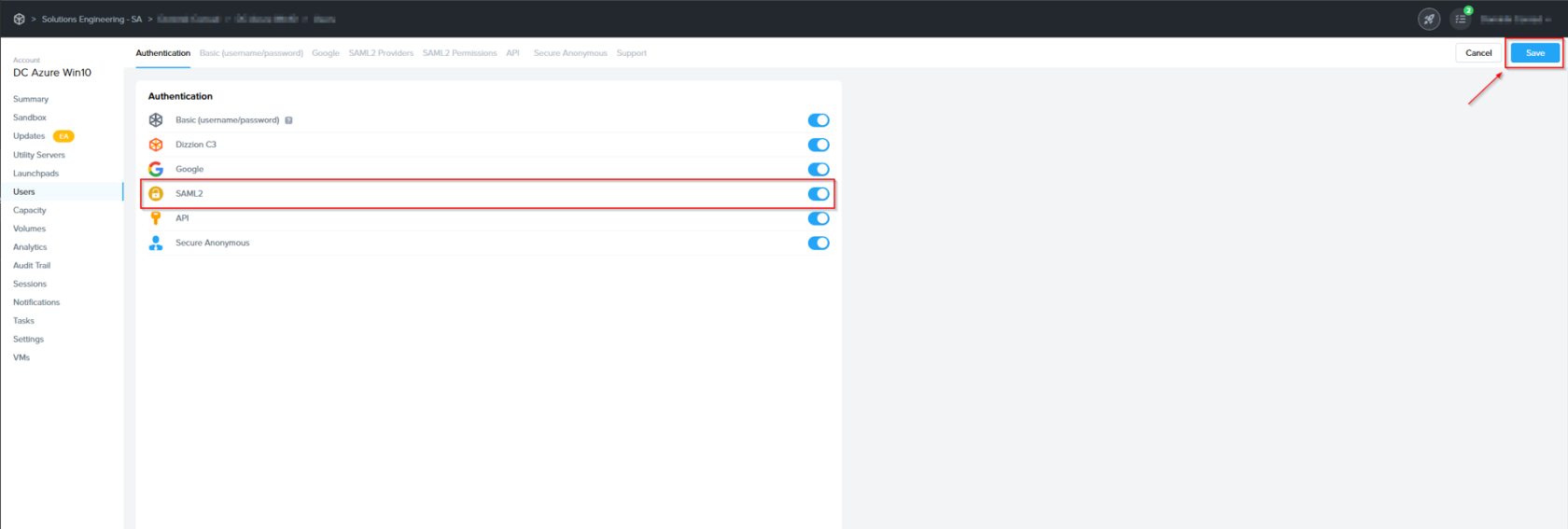
3. You'll see a new "SAML2 Providers" tab appear; click it and you'll see a **Add SAML2 provider** button.
    
    [![image.png](https://docs.difr.com/uploads/images/gallery/2025-10/scaled-1680-/qSTimage.png)](https://docs.difr.com/uploads/images/gallery/2025-10/qSTimage.png)
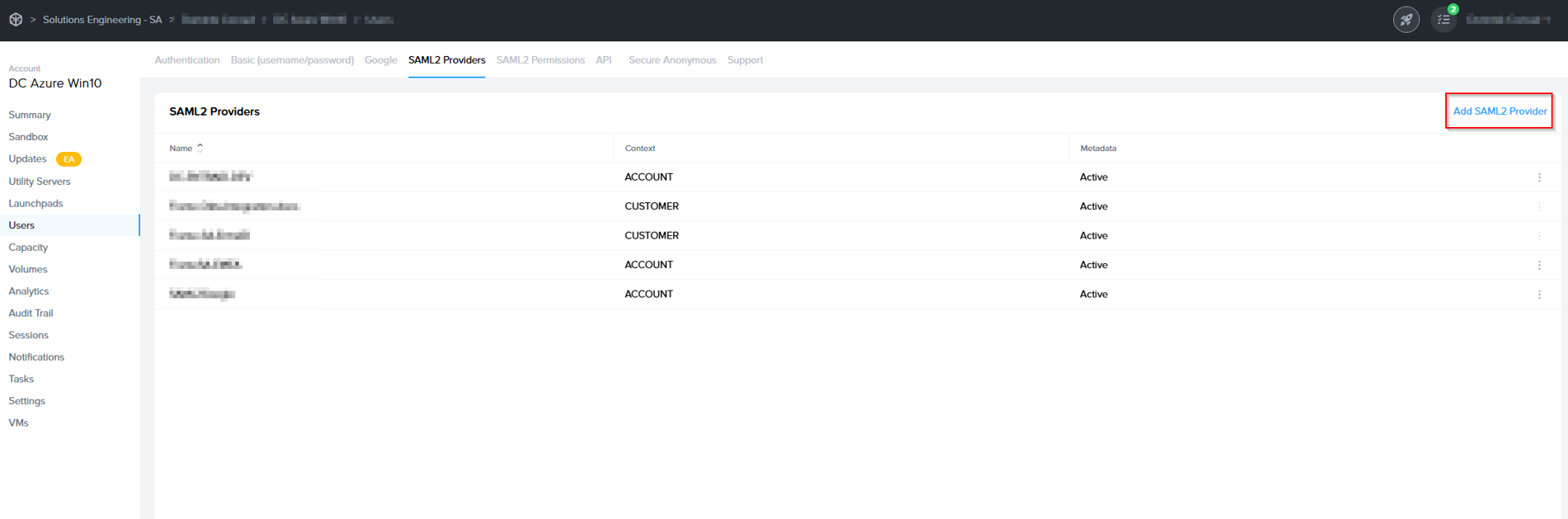
## Creating a SAML2 Provider

1. In the SAML2 Providers tab, click **Add SAML2 Provider** at the top right. A dialog to add a SAML2 provider will appear.
    
    [![image.png](https://docs.difr.com/uploads/images/gallery/2025-10/scaled-1680-/nePimage.png)](https://docs.difr.com/uploads/images/gallery/2025-10/nePimage.png)
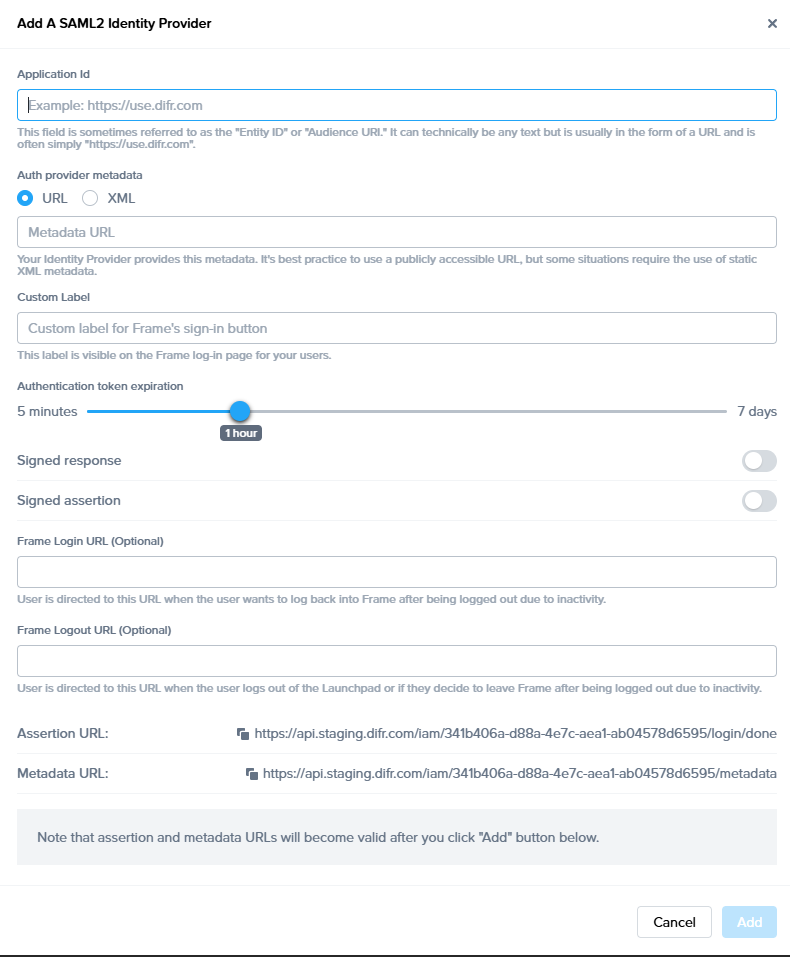
    
    
    - **Application Id**: This field is sometimes referred to as Service Provider (SP) "Entity ID" or "Audience URI". It can technically be any text but is usually in the form of a URL and is often simply [https://use.difr.com](https://use.difr.com). For successful authentication, it is important that value entered in this field matches at least one of the values within "Audience Restriction" list that is part of the SAML2 assertion created by Identity Provider (IdP).
    - **Auth provider metadata**: Check the "URL" option and paste the Identity Provider metadata URL from your SAML2 IdP. The metadata URL must be publicly accessible to Frame Platform on the Internet.
    - **Custom Label**: When specified, this value will be used in the login page as `Sign in with <Custom Label>`.
    - **Authentication token** expiration: Set the desired expiration time for the authentication token. This can range from 5 minutes to 7 days. If the user is inactive for the configured amount of time, Nutanix Console will logout the user from Nutanix Console. If the user is active within the console (e.g., clicks on hyperlinks, moves the mouse/cursor, scrolls, or presses keys), the token will be renewed just before the user token expires. If the user is in a Frame session, the token is automatically renewed so the user is not disconnected while in session.
    - **Signed response**: Disable or enable based on your SAML2 identity provider.
    - **Signed assertion**: Disable or enable based on your SAML2 identity provider.  
          
          
        **<span class="TextRun SCXW207479778 BCX0" data-contrast="none" lang="EN-US" xml:lang="EN-US"><span class="NormalTextRun SCXW207479778 BCX0">Service Provider URLs</span></span><span class="EOP SCXW207479778 BCX0" data-ccp-props="{"134233117":false,"134233118":false,"335551550":0,"335551620":0,"335557856":16777215,"335559685":1440,"335559738":0,"335559739":0}"> </span>**
        
        <span class="TextRun SCXW207479778 BCX0" data-contrast="auto" lang="EN-US" xml:lang="EN-US"><span class="NormalTextRun SCXW207479778 BCX0">Upon creating a new Integration, your Service Provider is assigned two important URLs:</span></span><span class="EOP SCXW207479778 BCX0" data-ccp-props="{"134233117":false,"134233118":false,"335559738":240,"335559739":240}"> </span>
    - **<span class="TextRun SCXW207479778 BCX0" data-contrast="auto" lang="EN-US" xml:lang="EN-US"><span class="NormalTextRun SCXW207479778 BCX0">Assertion Consumer Service (ACS) URL</span><span class="NormalTextRun ContextualSpellingAndGrammarErrorV2Themed SCXW207479778 BCX0">:</span></span>**<span class="TextRun SCXW207479778 BCX0" data-contrast="auto" lang="EN-US" xml:lang="EN-US"><span class="NormalTextRun ContextualSpellingAndGrammarErrorV2Themed SCXW207479778 BCX0">  The</span><span class="NormalTextRun SCXW207479778 BCX0"> endpoint where the Identity Provider (IdP) delivers SAML authentication responses after a successful login.</span></span><span class="EOP SCXW207479778 BCX0" data-ccp-props="{"134233117":false,"134233118":false,"335559738":240,"335559739":240}"> </span>
    - **<span class="TextRun SCXW207479778 BCX0" data-contrast="auto" lang="EN-US" xml:lang="EN-US"><span class="NormalTextRun SCXW207479778 BCX0">Metadata URL</span><span class="NormalTextRun ContextualSpellingAndGrammarErrorV2Themed SCXW207479778 BCX0">:</span></span>**<span class="TextRun SCXW207479778 BCX0" data-contrast="auto" lang="EN-US" xml:lang="EN-US"><span class="NormalTextRun ContextualSpellingAndGrammarErrorV2Themed SCXW207479778 BCX0">  A</span><span class="NormalTextRun SCXW207479778 BCX0"> publicly accessible URL providing your Service Provider's SAML metadata, used by Identity Providers to configure and </span><span class="NormalTextRun SCXW207479778 BCX0">establish</span><span class="NormalTextRun SCXW207479778 BCX0"> trust.  
          
        </span></span>**<span class="EOP SCXW207479778 BCX0" data-ccp-props="{"134233117":false,"134233118":false,"335559738":240,"335559739":240}">Optional</span>**
    - <span class="NormalTextRun SCXW15592334 BCX0">Frame Login URL</span><span class="NormalTextRun SCXW15592334 BCX0">: </span><span class="NormalTextRun ContextualSpellingAndGrammarErrorV2Themed SCXW15592334 BCX0">user</span><span class="NormalTextRun SCXW15592334 BCX0"> is directed to this URL when the user wants to log back into Frame after being logged out due to inactivity.  
          
        </span>
    - <span class="NormalTextRun SCXW15592334 BCX0"><span class="TextRun SCXW99947813 BCX0" data-contrast="none" lang="EN-US" xml:lang="EN-US"><span class="NormalTextRun SCXW99947813 BCX0">Frame Logout URL</span><span class="NormalTextRun SCXW99947813 BCX0">: </span><span class="NormalTextRun ContextualSpellingAndGrammarErrorV2Themed SCXW99947813 BCX0">user</span><span class="NormalTextRun SCXW99947813 BCX0"> is directed to this URL when the user logs out of the Launchpad or if they decide to leave Frame after being logged out due to inactivity.</span></span><span class="EOP SCXW99947813 BCX0" data-ccp-props="{"134233117":false,"134233118":false,"335551550":0,"335551620":0,"335557856":16777215,"335559738":0,"335559739":0}"> </span></span>

<p class="callout info"><span class="TextRun SCXW229806544 BCX0" data-contrast="none" lang="EN-US" xml:lang="EN-US"><span class="NormalTextRun SCXW229806544 BCX0"> The SAML2 identity provider is typically configured to sign the SAML2 Authentication Response </span><span class="NormalTextRun ContextualSpellingAndGrammarErrorV2Themed SCXW229806544 BCX0">message</span><span class="NormalTextRun SCXW229806544 BCX0"> or the SAML2 Assertion embedded within the Authentication Response message (and not both). The choice of what is signed by the SAML2 IdP must be the same choice in the Frame SAML2 IdP configuration. Otherwise, Frame will return </span><span class="NormalTextRun ContextualSpellingAndGrammarErrorV2Themed SCXW229806544 BCX0">a</span><span class="NormalTextRun SCXW229806544 BCX0"> identity </span><span class="NormalTextRun ContextualSpellingAndGrammarErrorV2Themed SCXW229806544 BCX0">provider</span><span class="NormalTextRun SCXW229806544 BCX0"> misconfiguration error when Frame processes the SAML2 Authentication Response from the SAML2 IdP.</span></span><span class="EOP SCXW229806544 BCX0" data-ccp-props="{"134233117":false,"134233118":false,"335551550":0,"335551620":0,"335557856":16711165,"335559738":0,"335559739":0}"> </span></p>

Click Add when ready to create the SAML2 Provider definition.

## Configure your SAML2 IdP

3. Each SAML2-compliant identity provider will have its own configuration requirements. However, there are some common configuration parameters used by SAML2 identity providers:
    
    
    - **Frame Metadata URL**: This URL is in the form:   
        [<span class="TextRun Underlined SCXW162496362 BCX0" data-contrast="none" lang="EN-US" xml:lang="EN-US"><span class="NormalTextRun SCXW162496362 BCX0" data-ccp-charstyle="Hyperlink">https://</span><span class="NormalTextRun SCXW162496362 BCX0" data-ccp-charstyle="Hyperlink">api.use.difr.com/iam/&lt;ID&gt;/metadata</span></span>](https://api.use.difr.com/iam/%3CID%3E/metadata).
    - **Single Sign-on URL** or **Assertion Consumer Service (ACS) URL:** This URL is in the form: [<span class="TextRun Underlined SCXW33980600 BCX0" data-contrast="none" lang="EN-US" xml:lang="EN-US"><span class="NormalTextRun SCXW33980600 BCX0" data-ccp-charstyle="Hyperlink">https://api.use.difr.com/iam/&lt;ID&gt;/login/done</span><span class="NormalTextRun SCXW33980600 BCX0" data-ccp-charstyle="Hyperlink">.</span></span>](https://api.use.difr.com/iam/%3CID%3E/login/done)  
         The SAML2 IdP will send the SAML2 Authentication Response to this URL.
    
    #### **Caution**
    
    <p class="callout warning"> Administrators choosing to cache or store the Frame public key certificates in their SAML2 IdP will need to update those public key certificates when Dizzion renews them.</p>
    
    **Note**
    
    <p class="callout info"> Frame does not support the SAML2 Single Logout Request.</p>

### Mandatory SAML2 Attributes

1. In order for Frame to display properly the user's first name, last name, and email address in the Dashboard and Launchpad, your SAML2 identity provider configuration must provide these four mandatory user attributes/values using the specified SAML2 attribute names, as described in the following table:
    
    <table><thead><tr><th>**User attribute**</th><th>**SAML2 attribute name**</th></tr></thead><tbody><tr><td>**First name**</td><td>**Use** `givenName`, `/urn:mace:dir:attribute-def:givenName/`, **or** `http://schemas.xmlsoap.org/ws/2005/05/identity/claims/givenname`   
      
    **SAML2 nameFormat:**  
    `urn:oasis:names:tc:SAML:2.0:attrname-format:basic`</td></tr><tr><td><span style="color: rgb(0, 0, 0);">**Last name**</span></td><td><span style="color: rgb(0, 0, 0);">**Use** </span>`sn`, `/urn:mace:dir:attribute-def:sn/`, **or** `http://schemas.xmlsoap.org/ws/2005/05/identity/claims/surname `   
      
    <span style="color: rgb(0, 0, 0);">**SAML2 nameFormat:**</span>  
    `urn:oasis:names:tc:SAML:2.0:attrname-format:basic`</td></tr><tr><td>**Email address**</td><td>**Use** `mail`, `/urn:mace:dir:attribute-def:mail/`, `http://schemas.xmlsoap.org/ws/2005/05/identity/claims/emailaddress`, **or** `http://schemas.xmlsoap.org/ws/2005/05/identity/claims/name`   
      
    **SAML2 nameFormat:**  
    `urn:oasis:names:tc:SAML:2.0:attrname-format:basic`</td></tr><tr><td><span style="color: rgb(0, 0, 0);">**Name ID**</span></td><td>`NameID`   
      
    <span style="color: rgb(0, 0, 0);">**SAML2 nameFormat:**</span>  
    `urn:oasis:names:tc:SAML:2.0:nameid-format:persistent`</td></tr></tbody></table>

### Optional SAML2 Attributes

Customers can configure their SAML2 IdP to include additional SAML2 attributes in the SAML2 Authentication Response messages to Frame Console. These SAML2 attributes and their user-specific values can then be referenced when configuring Frame SAML2 Permissions to enforce role-based access control (RBAC).

The most common SAML2 attribute included by administrators in SAML2 Authentication Response messages would be a SAML2 attribute that is associated with a list of groups, such as a list of Active Directory groups, that the user is a member of. This allows the administrator to the SAML2 Permissions based on groups (and not individual user email addresses) and then associate the users to those groups in their IdP (or Active Directory, if their SAML2 IdP is connected to their Active Directory).

Frame also supports two Frame-specific SAML2 attributes to customize the logout/login workflow:

- **frame\_logout\_url**: user is directed to this URL when the user logs out of the Launchpad or if they decide to leave Frame after being logged out due to inactivity.
- **frame\_login\_url**: user is directed to this URL when the user wants to log back into Frame after being logged out due to inactivity.

When adding additional SAML2 attributes, make sure to record the optional attribute name(s) to be used (and possible values). For example:

- `groups`
- `Department`
- `http://schemas.xmlsoap.org/claims/Group`
- `http://schemas.microsoft.com/ws/2008/06/identity/claims/groups`

as the exact attribute name must be referenced in the condition section with the appropriate values of a SAML2 Permissions authorization rule.

### Configuring SAML2 Permissions

Once the SAML2 Provider is successfully configured in the Nutanix Console, administrators will need to add authorization rules from the SAML2 Permissions tab listed to the right of the SAML2 Provider tab.  
  
Add roles/permissions for your users by following our [Roles](https://docs.difr.com/books/platform-administrators-guide/page/authorization) and [User Permissions with a SAML2 IdP](https://docs.difr.com/books/platform-administrators-guide/page/authorization) guides.

[![image.png](https://docs.difr.com/uploads/images/gallery/2025-10/scaled-1680-/33Mimage.png)](https://docs.difr.com/uploads/images/gallery/2025-10/33Mimage.png)

The Group claim, created in the prior section, must be referenced as `http://schemas.xmlsoap.org/claims/Group` when creating the SAML2 Permission authorization rule.

SAML2 Configuration Lock

Customer Administrators have the option to lock SAML2 IdP configurations at the Customer level of the Frame tenant. When the toggle pictured below is enabled, SAML2 IdP integrations cannot be added from the Organization or Account levels of the Frame tenant.

![Configuration Lock](https://docs.difr.com/uploads/images/gallery/2025-10/saml-lock.png)

## Signing into Frame with your SAML integration

Your SAML integration will now appear to your users as a sign in button on your specific [Frame Sign in Page](https://docs.difr.com/books/platform-administrators-guide/page/authentication#entity-endpoint-urlsentity-endpoint-urls).

# Duo

Integrating Duo Single Single-On (SSO) is a quick and easy process. Continue reading to learn how to configure your Duo Single Sign-On users with Frame.

## Prerequisites

- Administrator access to a Duo Account
- Duo Single Sign-On must be enabled in the Duo Admin Panel
- A configured authentication source such as Active Directory or a SAML IdP (Okta, OneLogin, Google, etc.)

## Getting started

Use the URL-friendly SAML2 **Integration Name** that you created in the previous section.


1. First, we will add a new Application in the Duo Admin Panel. Click Applications on the sidebar, then click Protect an Application.

   <figure>

   ![Protect an Application](https://docs.difr.com/uploads/images/gallery/2025-10/duo-add-app.png)

   </figure>

2. Next, type generic in the search field to filter applications. Look for “Generic Service Provider for Single Sign-On (hosted by Duo),” and click Protect.

   <figure>

   ![Generic Service Provider](https://docs.difr.com/uploads/images/gallery/2025-10/duo-generic-sp.png)

   </figure>

3. You should see the new Application page. You may see a dialog box requesting you activate Duo's Universal Prompt. This is optional but we recommend it for a better user experience.

   <figure>

   ![Activate Universal Prompt](https://docs.difr.com/uploads/images/gallery/2025-10/duo-activate-universal-prompt.png)

   </figure>

When the dialog disappears, you will be taken to your Application's settings page.

4.  Scroll down on the Application Page until you see the **Entity ID** form field under **Service Provider**.

5.  Now it's time to come up with an **Entity ID** and a URL-friendly **Integration Name** that we will use in the configuration forms between Duo's Application page and Nutanix Console.

    - **Entity ID**: This is typically a URL for the Service Provider, e.g. `https://console.nutanix.com/`. This value will need to match in both Duo and Nutanix Console.

    <figure>

    ![The Entity ID](https://docs.difr.com/uploads/images/gallery/2025-10/duo-sp-entity-id.png)

    </figure>

6.  In the Assertion Consumer Service (ACS) URL field, enter the ACS URL as defined in the [Getting Started](#getting-started) section of this page.

   
The forward slash at the end of the URL is required for the integration to work correctly.

    <figure>

    ![Assetion Consumer Service (ACS) URL](https://docs.difr.com/uploads/images/gallery/2025-10/duo-sp-acs-url.png)

    </figure>

7.  Leave the **Single Logout URL** and **Service Provider Login URL** blank.

8.  Enter `https://console.nutanix.com` in the **Default Relay State** field.

    <figure>

    ![Mapping SAML attributes](https://docs.difr.com/uploads/images/gallery/2025-10/duo-saml-relay-state.png)

    </figure>

9.  Under the **SAML Response** section, change the following:

    <figure>

    ![SAML Response Settings](https://docs.difr.com/uploads/images/gallery/2025-10/duo-saml-response-section.png)

    </figure>

    - **NameID format** to `urn:oasis:names:tc:SAML:2.0:nameid-format:persistent`.
    - **NameID attribute** you can skip, its default value is exactly what we're looking for (`<Email Address>`).
    - **Signature Algorithm** should be **SHA256**.
    - **Signing Options**, both checked.

10. Under the **Map attributes** subsection of **SAML Response**, we need to specify three custom attributes as follows:

    <figure>

    ![Default Relay State](https://docs.difr.com/uploads/images/gallery/2025-10/duo-saml-attribute-mapping.png)

    </figure>

    - IdP Attribute `<Email Address>` - SAML Response Attribute: `mail`.
    - IdP Attribute `<First Name>` - SAML Response Attribute: `givenName`.
    - IdP Attribute `<Last Name>` - SAML Response Attribute: `sn`.

11. Scroll down to the **Settings section**, enter `Nutanix Frame` in the **Name field**.

12. Feel free to customize the remaining settings as desired. When you're done, click **Save** at the bottom.

## Configure Duo in Frame Admin Console

Open a new browser tab and navigate to [https://console.nutanix.com](https://console.nutanix.com) to log in. We will be switching back to this Duo tab to grab a few values shortly.

10. Before a SAML2 identity provider can be added, the administrator must enable SAML2 Providers at a given level by opening a new tab and navigating to the Admin Console. From there, navigate to the **Customer** or **Organization** page (depending on where you wish to add the IdP). Select **Users** from the left-hand menu.

11. Under **Authentication**, enable the **SAML2** toggle and click **Save** in the upper right corner.

   <figure>

    ![Customers Example for Configuring User Access](https://docs.difr.com/uploads/images/gallery/2025-10/ohfadd-saml2-2025.png)

    </figure>

More options will appear next to the Authentication tab, click on the **SAML2 Providers** tab.

12. Click **Add SAML2 Provider**.

    <figure>

    ![Add a SAML2 Provider](https://docs.difr.com/uploads/images/gallery/2025-10/9Jtadd-saml2-provider2.png)

    </figure>

13. A new dialog box will appear. Enter the following values as shown below:

    <figure>

    ![SAML Provider settings](https://docs.difr.com/uploads/images/gallery/2025-10/duo-frame-provider.png)

    </figure>

    - **Application ID**: Paste the **Entity ID** value from Step 5 of the Duo section.
    - **Auth provider metadata**: paste in the metadata URL from our Duo Application page. Navigate to Duo in another tab and copy the metadata URL and paste it into here. This should look something like this: `https://sso-2e394ff8.sso.duosecurity.com/saml2/sp/EEFCL3C8EXAMPLEKA7DW/metadata`.
    - **Integration Name**: Enter the SAML2 Integration name defined in the [Getting Started](#getting-started) section of this page.
    - Custom Label: Set the label to "Duo" or your company name.
    - **Authentication Token Expiration**: Set the token expiration slider to a duration that makes sense for your users.
    - **Signed Response**: enabled.
    - **Signed assertion**: enabled.

When you're finished, click **Add**.

That's it! You have successfully created your Duo integration with Frame! Move on to the next section to learn more about configuring permissions.

note SAML2 Configuration Lock

Customer Administrators have the option to lock SAML2 IdP configurations at the Customer level of the Frame tenant. When the toggle pictured below is enabled, SAML2 IdP integrations cannot be added from the Organization or Account levels of the Frame tenant.

![Configuration Lock](https://docs.difr.com/uploads/images/gallery/2025-10/saml-lock.png)


## Accessing Frame with Duo

Your Duo integration will now appear to your users as a sign in button on your specific [Frame Sign in Page](/books/platform-administrators-guide/page/authentication#entity-endpoint-urlsentity-endpoint-urls).

# Google Workspace

Frame supports Single Sign-On (SSO) with Google authentication through both OAuth2 and SAML2 integration options. The OAuth2 option is the easiest to setup and can be done in under a minute. The SAML2 option is also relatively quick and easy, but does require a few more steps.

## Google Workspace OAuth2 SSO Integration

<p class="callout info"> Google Workspace OAuth2 SSO integration is supported only when users access Frame via a supported web browser. Google Workspace OAuth2 is not supported by Frame App (due to Google Sign-In not supporting Chromium Embedded Framework).</p>

### Configuring Google Workspace OAuth2

1. If you would like to enable Google Workspace OAuth2 integration with Frame, you will first need to following the procedure outlined in Google's guide to [Control which third-party &amp; internal apps access Google Workspace data](https://support.google.com/a/answer/7281227?hl=en#zippy=%2Cmanage-access-to-apps-trusted-limited-or-blocked).
2. On the Google Admin Console home page, go to **Security &gt; API controls**.
3. Under App access control, click on MANAGE THIRD-PARTY APP ACCESS.
4. Click on “Configure new app” drop down menu and select **OAuth App Name Or Client ID**.
5. Search for the Client ID `884836301137-76l5epasioe5sb3qvsp31obn45qk6t5i.apps.googleusercontent.com`.
6. Once you locate the Frame app in the search results, click **Select**.
7. Check the checkbox for the Frame app with the Client ID `884836301137-76l5epasioe5sb3qvsp31obn45qk6t5i.apps.googleusercontent.com` and then click **SELECT**.
8. For App access, specify that this Frame app is to be *TRUSTED* and click **CONFIGURE**.

### Configuring Google OAuth2 in Frame

1. Before Google OAuth2 can be added, the administrator must enable the Google toggle at a given level by navigating to the Admin Console. From there, navigate to the **Customer** or **Organization** page (depending on where you wish to add Google).
2. Select **Users** from the left-hand menu.
3. From there, navigate to the **Authentication** tab and enable the **OAuth2** toggle. Click **Save**.

<figure id="bkmrk-">![Enable Users Setting](https://docs.difr.com/uploads/images/gallery/2025-10/enable-oauth2-2025.png)

</figure>4. Click on the newly created **Google** tab. From there, click **Add**.

<figure id="bkmrk--1">![Google Tab](https://docs.difr.com/uploads/images/gallery/2025-10/add-oauth2.png)

</figure>5. The *Add Google authorization* dialog window will appear:

<figure id="bkmrk--2">![Add Google authorization](https://docs.difr.com/uploads/images/gallery/2025-10/google-oauth2-3.png)

</figure>6. From this window, you can specify individual email addresses or entire domains you wish to grant access to and their corresponding roles. For this example, we will give access to the domain mycompany.com. All users tied to this domain will be given “Launchpad User” access on the “Applications 2” Launchpad. Read more about permissions in the [Manage User Permissions](https://docs.difr.com/link/81#bkmrk-user-permissions-wit) section of Frame documentation.

<figure id="bkmrk--3">![Example role settings using a domain](https://docs.difr.com/uploads/images/gallery/2025-10/google-oauth2-4.png)

</figure><div class="callout callout-info" id="bkmrk-when-specifying-a-go">When specifying a Google Workspace domain, you must prefix the domain with the @ symbol, as shown above.</div>7. Click **Add** when you have finished specifying your emails/domains and roles.

### Signing in with Google Workspace via OAuth2

You can now instruct your users to select the *Sign in with Google* option when accessing their [Frame login page](https://docs.difr.com/books/platform-administrators-guide/page/authentication#bkmrk-entity-endpoint-urls) and enter their Google credentials.

<figure id="bkmrk--4">![Sign in with Google](https://docs.difr.com/uploads/images/gallery/2025-10/scaled-1680-/google-oauth2-5.png)

</figure>They will be prompted to allow Frame access to their Google Drive the first time they sign in.

<figure id="bkmrk--5">![Frame access prompt](https://docs.difr.com/uploads/images/gallery/2025-10/google-oauth2-access-2025.png)

</figure>That's it! Your users can now use Sign in with Google on your account via our OAuth2 integration option. If you prefer to set up your integration using SAML2, continue reading.

## Google Workspace SAML2 Integration

<p class="callout info"> Google Workspace SAML2 integration can only be set up by someone with a Super Admin role on a Google Workspace account. During this configuration process we will transition from the Google Workspace Admin console to the Frame console.</p>

### Getting Started

To begin, let's create a URL-friendly SAML2 Application ID (also referred to as Entity ID) that we'll use in a few places throughout our setup, as well as a Custom Label which will be displayed on the login page for users, for example.

Application ID: Frame  
Custom Label: Frame-Google\_SAML  
  
Also copy the Assertion URL  
  
Click add to save the changes for later

  
Follow the steps to create a SAML 2 Provider explained in the [General SAML2 Integration](https://docs.difr.com/link/85#bkmrk-page-title) section, until you see until you see the template with the missing configuration info, and copy the Assertion URL which will be needed later in the setup. From here leave the tab open, and continue with the configuration in the Google Admin console.

[![image.png](https://docs.difr.com/uploads/images/gallery/2025-11/scaled-1680-/07yimage.png)](https://docs.difr.com/uploads/images/gallery/2025-11/07yimage.png)
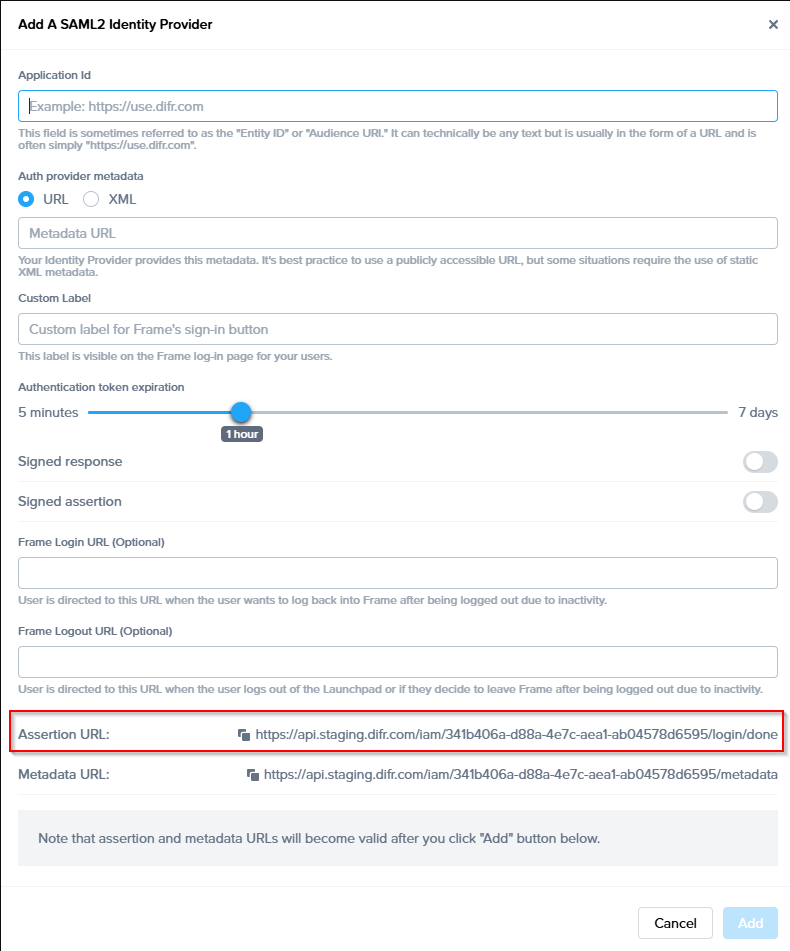
### Google Admin Console

1. Navigate and log in to to your [Google Admin Console](https://admin.google.com/). Click on **Apps** and then **Web and mobile apps**.
    
    <figure>![Web and mobile apps](https://docs.difr.com/uploads/images/gallery/2025-10/google-saml2-admin-1.png)
    
    </figure>
2. From the *Apps Settings* page, click **Add App** then **Add custom SAML app** from the drop-down.
    
    <figure>![Add custom SAML app](https://docs.difr.com/uploads/images/gallery/2025-10/google-saml2-admin-2.png)
    
    </figure>
3. Enter "Frame” for the App name and upload our logo icon below (right-click, save).
    
    <figure>[![image.png](https://docs.difr.com/uploads/images/gallery/2025-11/scaled-1680-/M1Qimage.png)](https://docs.difr.com/uploads/images/gallery/2025-11/M1Qimage.png)
    
    </figure> ***Frame Logo (right-click, save)*** ![Frame App Logo](https://docs.difr.com/uploads/images/gallery/2025-10/dizzion-logo-small.png)
4. Click **Continue** when ready.
5. Click the **Download Metadata** button. Save this somewhere accessible for a later step in the Frame Console; this metadata tells Frame how to communicate with Google on Frame's behalf.
    
    <figure>![Download metadata from Google](https://docs.difr.com/uploads/images/gallery/2025-10/google-saml2-admin-4.png)
    
    </figure>Click **Continue** when ready.
6. Next, we'll carefully enter values for **ACS URL** and **Entity ID** fields.
    
    
    - **ACS (Assertion Consumer Service) URL**: This is where Google will send assertions info (first name, last name, and email address) for authenticated users to Frame. Here, we'll enter the Frame ACS URL copied in the [Getting Started](https://docs.difr.com/link/88#bkmrk-getting-started) section.
    - **Entity ID**: This field is also arbitrary and must be a URI, URN, or URL; this value is **case-sensitive**. Entity IDs are attached to event logs for Admin purposes and are **required to match** in both Google and Frame Console's settings to verify and identify each other via SAML2.   
          
        Enter the Name that have been decided on in the [Getting started](https://docs.difr.com/link/88#bkmrk-getting-started) section. Copy the value you decide upon for use in later steps; Frame refers to the Entity ID in its SAML settings as “Application ID.”
7. Next, we have the **Start URL**.
    
    The Start URL allows users to authenticate and navigate directly to Frame from Google's Workspace portal. This is often referred to as a “Identity Provider initiated login”. For most cases, the value for Start URL is simply a [Launchpad or Account Dashboard URL](https://docs.difr.com/platform/identity-and-access/authentication#entity-endpoint-urlsentity-endpoint-urls) to the account the user will have access to. If this field is left blank, your users can still log in to Frame with this Google App from the Frame Console's sign in page(s).
    
    <p class="callout info"> Leaving this blank may be desired if you have many Frame Accounts for your users to access or "land on".</p>
8. Next, Ensure that the *Name ID format* field is set to **PERSISTENT** and the *Name ID field* is set to **Basic Information &gt; Primary email**. Click **Continue** when ready.
    
    <figure>[![image.png](https://docs.difr.com/uploads/images/gallery/2025-11/scaled-1680-/1xPimage.png)](https://docs.difr.com/uploads/images/gallery/2025-11/1xPimage.png)
    
    </figure>
9. Here, we need to configure mappings between user fields from Google to recognizable terms that Frame is expecting to receive when users sign in. Fill it out exactly as pictured below:
    
    <figure>![SAML Attribute mappings](https://docs.difr.com/uploads/images/gallery/2025-10/google-saml2-admin-6.png)
    
    </figure>Optional: Group Membership information can be set before finishing the setup, those can also be done afterwards at any time.
    
    [![image.png](https://docs.difr.com/uploads/images/gallery/2025-11/scaled-1680-/z6eimage.png)](https://docs.difr.com/uploads/images/gallery/2025-11/z6eimage.png)
    
    Click **Finish** when complete
10. You'll now be brought to the main page of your new Custom App. The last thing we need to do is **enable user access**, as the default setting for new Custom Apps is *OFF for everyone*. To enable access, click on your SAML App, and select User access, from there make sure that enable for everyone is selected.  
      
    [![image.png](https://docs.difr.com/uploads/images/gallery/2025-11/scaled-1680-/UKbimage.png)](https://docs.difr.com/uploads/images/gallery/2025-11/UKbimage.png)

Then, configure your user/group access and click **SAVE**. In our use-case, we wanted the service to be ON for everyone:

<figure id="bkmrk--7">[![image.png](https://docs.difr.com/uploads/images/gallery/2025-11/scaled-1680-/iJpimage.png)](https://docs.difr.com/uploads/images/gallery/2025-11/iJpimage.png)

</figure>That's it for the Google Admin portion of the setup – we're half way there! By this point you should have the following items needed to setup Frame Console as the SAML2 Service Provider:

- - [x] **Downloaded Metadata XML file**
    - [x] **SAML2 Integration Name**
    - [x] **Entity ID** (later referenced as Application ID)

### Configure SAML2 in Frame

11\. Navigate back to the Frame console which from the [Getting started section](https://docs.difr.com/link/88#bkmrk-getting-started) and continue with the SAML2 provider configuration by clicking on the menu and select Update.

[![image.png](https://docs.difr.com/uploads/images/gallery/2025-11/scaled-1680-/nVpimage.png)](https://docs.difr.com/uploads/images/gallery/2025-11/nVpimage.png)

12\. Enter the missing Information which has been collected during the steps above.

<figure id="bkmrk-under-authentication"><figure></figure>[![image.png](https://docs.difr.com/uploads/images/gallery/2025-11/scaled-1680-/469image.png)](https://docs.difr.com/uploads/images/gallery/2025-11/469image.png)

  
- **Application ID**: The value here **needs to match** the value set as the "Entity ID" from Step 5.
- **Auth provider metadata**: Click the “XML” option and paste the contents of the Metadata XML file from Step 4.
- **Custom Label**:. Allows Admins to customize Frame's Sign in page chiclets/buttons associated with this SAML2 integration.
- **Authentication token expiration**: Choose a token expiration duration that supports your end-user workflows and complies with your security policies.
- **Enable “Signed assertion”**
- **<span class="TextRun SCXW207479778 BCX0" data-contrast="auto" lang="EN-US" xml:lang="EN-US"><span class="NormalTextRun SCXW207479778 BCX0">Assertion Consumer Service (ACS) URL</span><span class="NormalTextRun ContextualSpellingAndGrammarErrorV2Themed SCXW207479778 BCX0">:</span></span>**<span class="TextRun SCXW207479778 BCX0" data-contrast="auto" lang="EN-US" xml:lang="EN-US"><span class="NormalTextRun ContextualSpellingAndGrammarErrorV2Themed SCXW207479778 BCX0">  The</span><span class="NormalTextRun SCXW207479778 BCX0"> endpoint where the Identity Provider (IdP) delivers SAML authentication responses after a successful login.</span></span><span class="EOP SCXW207479778 BCX0" data-ccp-props="{"134233117":false,"134233118":false,"335559738":240,"335559739":240}"> </span>
- **<span class="TextRun SCXW207479778 BCX0" data-contrast="auto" lang="EN-US" xml:lang="EN-US"><span class="NormalTextRun SCXW207479778 BCX0">Metadata URL</span><span class="NormalTextRun ContextualSpellingAndGrammarErrorV2Themed SCXW207479778 BCX0">:</span></span>**<span class="TextRun SCXW207479778 BCX0" data-contrast="auto" lang="EN-US" xml:lang="EN-US"><span class="NormalTextRun ContextualSpellingAndGrammarErrorV2Themed SCXW207479778 BCX0">  A</span><span class="NormalTextRun SCXW207479778 BCX0"> publicly accessible URL providing your Service Provider's SAML metadata, used by Identity Providers to configure and </span><span class="NormalTextRun SCXW207479778 BCX0">establish</span><span class="NormalTextRun SCXW207479778 BCX0"> trust.  
      
    </span></span>**<span class="EOP SCXW207479778 BCX0" data-ccp-props="{"134233117":false,"134233118":false,"335559738":240,"335559739":240}">Optional</span>**
- <span class="NormalTextRun SCXW15592334 BCX0">Frame Login URL</span><span class="NormalTextRun SCXW15592334 BCX0">: </span><span class="NormalTextRun ContextualSpellingAndGrammarErrorV2Themed SCXW15592334 BCX0">user</span><span class="NormalTextRun SCXW15592334 BCX0"> is directed to this URL when the user wants to log back into Frame after being logged out due to inactivity.  
    </span>
- <span class="NormalTextRun SCXW15592334 BCX0"><span class="TextRun SCXW99947813 BCX0" data-contrast="none" lang="EN-US" xml:lang="EN-US"><span class="NormalTextRun SCXW99947813 BCX0">Frame Logout URL</span><span class="NormalTextRun SCXW99947813 BCX0">: </span><span class="NormalTextRun ContextualSpellingAndGrammarErrorV2Themed SCXW99947813 BCX0">user</span><span class="NormalTextRun SCXW99947813 BCX0"> is directed to this URL when the user logs out of the Launchpad or if they decide to leave Frame after being logged out due to inactivity.</span></span><span class="EOP SCXW99947813 BCX0" data-ccp-props="{"134233117":false,"134233118":false,"335551550":0,"335551620":0,"335557856":16777215,"335559738":0,"335559739":0}"> </span></span>

Lastly, confirm that everything is entered correctly and click **Add**.

### Configuring SAML2 Permissions

### Accessing Frame with Google Workspace

Your SAML integration will now appear to your users as a sign in button on your specific Frame Sign in Page.

![Sign in with Google Workspace](https://docs.difr.com/uploads/images/gallery/2025-10/google-saml2-sign-in.png)

</figure>

# Microsoft Entra ID

<span class="TextRun SCXW95714165 BCX0" data-contrast="none" lang="EN-US" xml:lang="EN-US"><span class="NormalTextRun SCXW95714165 BCX0">Integrating Microsoft Entra ID Single Sign On (formerly </span></span>**[<span class="TextRun SCXW95714165 BCX0" data-contrast="none" lang="EN-US" xml:lang="EN-US"><span class="NormalTextRun SCXW95714165 BCX0" data-ccp-charstyle="Hyperlink">Azure </span><span class="NormalTextRun SCXW95714165 BCX0" data-ccp-charstyle="Hyperlink">AD SSO</span></span>](https://techcommunity.microsoft.com/t5/microsoft-entra-azure-ad-blog/azure-ad-is-becoming-microsoft-entra-id/ba-p/2520436)**<span class="TextRun SCXW95714165 BCX0" data-contrast="none" lang="EN-US" xml:lang="EN-US"><span class="NormalTextRun SCXW95714165 BCX0">) is a quic</span><span class="NormalTextRun SpellingErrorV2Themed SCXW95714165 BCX0">k a</span><span class="NormalTextRun SCXW95714165 BCX0">nd </span><span class="NormalTextRun SCXW95714165 BCX0">easy process</span><span class="NormalTextRun SCXW95714165 BCX0">. Before we get started, take note of five pieces of dat</span><span class="NormalTextRun ContextualSpellingAndGrammarErrorV2Themed SCXW95714165 BCX0">a that</span> <span class="NormalTextRun SCXW95714165 BCX0">you'll</span><span class="NormalTextRun SCXW95714165 BCX0"> be u</span><span class="NormalTextRun SCXW95714165 BCX0">sing t</span><span class="NormalTextRun SCXW95714165 BCX0">o </span><span class="NormalTextRun SCXW95714165 BCX0">set up</span><span class="NormalTextRun SCXW95714165 BCX0"> a proper SAML2 integration.</span></span><span class="EOP SCXW95714165 BCX0" data-ccp-props="{"134233117":false,"134233118":false,"335557856":16777215,"335559738":0,"335559739":300}"> </span>

<div class="SCXW95714165 BCX0" id="bkmrk-the-frame-saml2-inte"><div class="OutlineElement Ltr SCXW95714165 BCX0">  
</div><div class="ListContainerWrapper SCXW95714165 BCX0">- <span class="TextRun SCXW95714165 BCX0" data-contrast="none" lang="EN-US" xml:lang="EN-US"><span class="NormalTextRun SCXW95714165 BCX0">The Frame </span></span>**<span class="TextRun SCXW95714165 BCX0" data-contrast="none" lang="EN-US" xml:lang="EN-US"><span class="NormalTextRun SCXW95714165 BCX0">SAML2 Integration Name</span></span>**<span class="TextRun SCXW95714165 BCX0" data-contrast="none" lang="EN-US" xml:lang="EN-US"><span class="NormalTextRun SCXW95714165 BCX0">. This is an arbitrary name val</span><span class="NormalTextRun ContextualSpellingAndGrammarErrorV2Themed SCXW95714165 BCX0">ue </span><span class="NormalTextRun SCXW95714165 BCX0">t</span><span class="NormalTextRun ContextualSpellingAndGrammarErrorV2Themed SCXW95714165 BCX0">hat </span><span class="NormalTextRun ContextualSpellingAndGrammarErrorV2Themed SCXW95714165 BCX0">you'</span><span class="NormalTextRun SCXW95714165 BCX0">ll</span><span class="NormalTextRun SCXW95714165 BCX0"> need to </span><span class="NormalTextRun SCXW95714165 BCX0">come up with</span><span class="NormalTextRun SCXW95714165 BCX0">. This value is used to uniquely </span><span class="NormalTextRun SCXW95714165 BCX0">identify</span><span class="NormalTextRun SCXW95714165 BCX0"> your integration with Frame and used to craft the SAML2 URIs, as well as used as a search vector for </span><span class="NormalTextRun ContextualSpellingAndGrammarErrorV2Themed SCXW95714165 BCX0">troublesh</span><span class="NormalTextRun SCXW95714165 BCX0">ooting and logs.</span></span><span class="EOP SCXW95714165 BCX0" data-ccp-props="{"134233117":false,"134233118":false,"335557856":16777215,"335559738":0,"335559739":0}"> </span>

</div><div class="ListContainerWrapper SCXW95714165 BCX0">- <span class="TextRun SCXW95714165 BCX0" data-contrast="none" lang="EN-US" xml:lang="EN-US"><span class="NormalTextRun SCXW95714165 BCX0">The </span></span>**<span class="TextRun SCXW95714165 BCX0" data-contrast="none" lang="EN-US" xml:lang="EN-US"><span class="NormalTextRun SCXW95714165 BCX0">Entra ID Federation Metadata Document URL</span></span>**<span class="TextRun SCXW95714165 BCX0" data-contrast="none" lang="EN-US" xml:lang="EN-US"><span class="NormalTextRun SCXW95714165 BCX0">. This is the Entra ID-provided URL where Entra I</span><span class="NormalTextRun SCXW95714165 BCX0">D kee</span><span class="NormalTextRun SCXW95714165 BCX0">ps the SAML metadata for your Microsoft Entra ID application. </span><span class="NormalTextRun CommentStart SCXW95714165 BCX0">The metadata URL must be publicly accessible to </span><span class="NormalTextRun SCXW95714165 BCX0">the Frame</span><span class="NormalTextRun SCXW95714165 BCX0"> Platform on the Internet.</span></span><span class="EOP SCXW95714165 BCX0" data-ccp-props="{"134233117":false,"134233118":false,"335557856":16777215,"335559738":0,"335559739":0}"> </span>

</div><div class="ListContainerWrapper SCXW95714165 BCX0">- <span class="TextRun SCXW95714165 BCX0" data-contrast="none" lang="EN-US" xml:lang="EN-US"><span class="NormalTextRun CommentStart SCXW95714165 BCX0">The </span></span>**<span class="TextRun SCXW95714165 BCX0" data-contrast="none" lang="EN-US" xml:lang="EN-US"><span class="NormalTextRun SCXW95714165 BCX0">Entity</span><span class="NormalTextRun SCXW95714165 BCX0"> ID</span></span>**<span class="TextRun SCXW95714165 BCX0" data-contrast="none" lang="EN-US" xml:lang="EN-US"><span class="NormalTextRun SCXW95714165 BCX0"> from your Microsoft Entra ID application.</span></span><span class="EOP SCXW95714165 BCX0" data-ccp-props="{"134233117":false,"134233118":false,"335557856":16777215,"335559738":0,"335559739":0}"> </span>

</div><div class="ListContainerWrapper SCXW95714165 BCX0">- <span class="TextRun SCXW95714165 BCX0" data-contrast="none" lang="EN-US" xml:lang="EN-US"><span class="NormalTextRun SCXW95714165 BCX0">The </span></span>**<span class="TextRun SCXW95714165 BCX0" data-contrast="none" lang="EN-US" xml:lang="EN-US"><span class="NormalTextRun SCXW95714165 BCX0">Redirect URL</span></span>**<span class="TextRun SCXW95714165 BCX0" data-contrast="none" lang="EN-US" xml:lang="EN-US"><span class="NormalTextRun SCXW95714165 BCX0">. This is the Frame destination URL that will process the Entra ID-generated assertions/claims after users authenticate through Entra ID.</span></span><span class="EOP SCXW95714165 BCX0" data-ccp-props="{"134233117":false,"134233118":false,"335557856":16777215,"335559738":0,"335559739":0}"> </span>

</div><div class="ListContainerWrapper SCXW95714165 BCX0">- <span class="TextRun SCXW95714165 BCX0" data-contrast="none" lang="EN-US" xml:lang="EN-US"><span class="NormalTextRun SCXW95714165 BCX0">The </span></span>**<span class="TextRun SCXW95714165 BCX0" data-contrast="none" lang="EN-US" xml:lang="EN-US"><span class="NormalTextRun SCXW95714165 BCX0">Entity URL</span></span>**<span class="TextRun SCXW95714165 BCX0" data-contrast="none" lang="EN-US" xml:lang="EN-US"><span class="NormalTextRun SCXW95714165 BCX0"> that you will use as your landing page. Please see the </span></span>[<span class="TextRun Underlined SCXW95714165 BCX0" data-contrast="none" lang="EN-US" xml:lang="EN-US"><span class="NormalTextRun SCXW95714165 BCX0" data-ccp-charstyle="Hyperlink">Entit</span><span class="NormalTextRun SCXW95714165 BCX0" data-ccp-charstyle="Hyperlink">ie</span><span class="NormalTextRun SCXW95714165 BCX0" data-ccp-charstyle="Hyperlink">s and URLs</span></span>](https://docs.difr.com/books/platform-administrators-guide/page/authentication#bkmrk-entity-endpoint-urls)<span class="TextRun SCXW95714165 BCX0" data-contrast="none" lang="EN-US" xml:lang="EN-US"><span class="NormalTextRun SCXW95714165 BCX0"> section to help you decide/find the right URL.</span></span><span class="EOP SCXW95714165 BCX0" data-ccp-props="{"134233117":false,"134233118":false,"335557856":16777215,"335559738":0,"335559739":0}"> </span>

</div></div>### <span class="TextRun SCXW95714165 BCX0" data-contrast="none" lang="EN-US" xml:lang="EN-US"><span class="NormalTextRun SCXW95714165 BCX0" data-ccp-parastyle="heading 2">Getting Started</span></span>[<span class="TextRun SCXW95714165 BCX0" data-contrast="none" lang="EN-US" xml:lang="EN-US"><span class="NormalTextRun SCXW95714165 BCX0" data-ccp-charstyle="Hyperlink"> </span></span>](https://docs.dizzion.com/platform/identity-and-access/idp-integrations/entra-id#getting-started)<span class="EOP SCXW95714165 BCX0" data-ccp-props="{"134233117":false,"134233118":false,"134245418":true,"134245529":true,"335557856":16777215,"335559738":600,"335559739":300}"> </span>

To begin, let's create a URL-friendly SAML2 Application ID (also referred to as Entity ID) that we'll use in a few places throughout our setup, as well as a Custom Label which will be displayed on the login page for users, for example.

Application ID: Name of your EntraID Application  
**Example: DC-ENTRAID-DEV**  
  
Custom Label: Description which will be displayed for SAML IDP on login  
**Frame-Azure-EntraID**

Also copy the Assertion URL  
**Example: https://api.deu.difr.com/iam/fb999999-aaa9-999d-ad5f-999f0301a4b9/login/done**

Click "add" to save the changes for later

  
Follow the steps to create a SAML 2 Provider explained in the [General SAML2 Integration](https://docs.difr.com/books/platform-administrators-guide/page/general-saml2-integration) section, until you see until you see the template with the missing configuration info, and copy the Metadata URL which will be needed later in the setup. From here leave the tab open, and continue with the configuration in the Azure console.

[![image.png](https://docs.difr.com/uploads/images/gallery/2026-02/scaled-1680-/NDIimage.png)](https://docs.difr.com/uploads/images/gallery/2026-02/NDIimage.png)
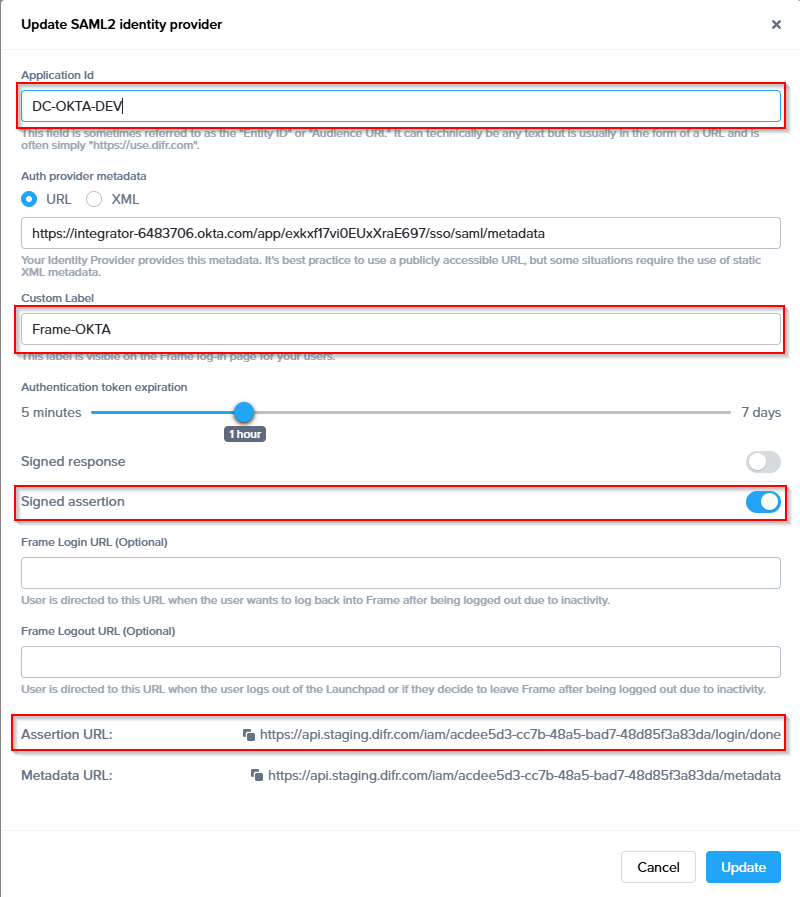
### <span class="TextRun SCXW95714165 BCX0" data-contrast="none" lang="EN-US" xml:lang="EN-US"><span class="NormalTextRun SCXW95714165 BCX0" data-ccp-parastyle="heading 2">Configure Entra ID</span></span>[<span class="TextRun SCXW95714165 BCX0" data-contrast="none" lang="EN-US" xml:lang="EN-US"><span class="NormalTextRun SCXW95714165 BCX0" data-ccp-charstyle="Hyperlink"> </span></span>](https://docs.dizzion.com/platform/identity-and-access/idp-integrations/entra-id#configure-entra-id)<span class="EOP SCXW95714165 BCX0" data-ccp-props="{"134233117":false,"134233118":false,"134245418":true,"134245529":true,"335557856":16777215,"335559738":600,"335559739":300}"> </span>

<span class="TextRun SCXW95714165 BCX0" data-contrast="none" lang="EN-US" xml:lang="EN-US"><span class="NormalTextRun SCXW95714165 BCX0">Frame supports the ability for Entra administrators to use Entra ID </span></span>**[<span class="TextRun SCXW95714165 BCX0" data-contrast="none" lang="EN-US" xml:lang="EN-US"><span class="NormalTextRun SCXW95714165 BCX0" data-ccp-charstyle="Hyperlink">Enterprise Applications</span></span>](https://learn.microsoft.com/en-us/azure/active-directory/manage-apps/add-application-portal)<span class="TextRun SCXW95714165 BCX0" data-contrast="none" lang="EN-US" xml:lang="EN-US"><span class="NormalTextRun SCXW95714165 BCX0"> </span></span><span class="EOP SCXW95714165 BCX0" data-ccp-props="{"134233117":false,"134233118":false,"335557856":16777215,"335559738":0,"335559739":300}"> </span>**

<span class="TextRun SCXW95714165 BCX0" data-contrast="none" lang="EN-US" xml:lang="EN-US"><span class="NormalTextRun SCXW95714165 BCX0">With an Enterprise Application, you </span><span class="NormalTextRun SCXW95714165 BCX0">benefit</span><span class="NormalTextRun SCXW95714165 BCX0"> from be</span><span class="NormalTextRun SCXW95714165 BCX0">ing ab</span><span class="NormalTextRun SCXW95714165 BCX0">le to:</span></span><span class="EOP SCXW95714165 BCX0" data-ccp-props="{"134233117":false,"134233118":false,"335557856":16777215,"335559738":0,"335559739":300}"> </span>

<span class="TextRun SCXW95714165 BCX0" data-contrast="none" lang="EN-US" xml:lang="EN-US"><span class="NormalTextRun SCXW95714165 BCX0">1. Have Frame automatically </span><span class="NormalTextRun ContextualSpellingAndGrammarErrorV2Themed SCXW95714165 BCX0">logout</span><span class="NormalTextRun SCXW95714165 BCX0"> your users from Entra ID when they log out of Frame.</span></span><span class="EOP SCXW95714165 BCX0" data-ccp-props="{"134233117":false,"134233118":false,"335557856":16777215,"335559738":0,"335559739":0}">   
</span><span class="TextRun SCXW95714165 BCX0" data-contrast="none" lang="EN-US" xml:lang="EN-US"><span class="NormalTextRun SCXW95714165 BCX0">2. Enable Entra ID to redirect your users to a specific URL after the users are logged out of Frame and Entra ID.</span></span><span class="EOP SCXW95714165 BCX0" data-ccp-props="{"134233117":false,"134233118":false,"335557856":16777215,"335559738":0,"335559739":0}">   
</span><span class="TextRun SCXW95714165 BCX0" data-contrast="none" lang="EN-US" xml:lang="EN-US"><span class="NormalTextRun SCXW95714165 BCX0">3. Explicitly specify the users and groups who can access Frame.</span></span><span class="EOP SCXW95714165 BCX0" data-ccp-props="{"134233117":false,"134233118":false,"335557856":16777215,"335559738":0,"335559739":0}"> </span>

<span class="TextRun SCXW95714165 BCX0" data-contrast="none" lang="EN-US" xml:lang="EN-US"><span class="NormalTextRun SCXW95714165 BCX0">To create an Enterprise Application, you will need to have at least one of the following Entra ID permissions:</span></span><span class="EOP SCXW95714165 BCX0" data-ccp-props="{"134233117":false,"134233118":false,"335557856":16777215,"335559738":0,"335559739":300}"> </span>

<div class="SCXW95714165 BCX0" id="bkmrk-global-administrator"><div class="OutlineElement Ltr SCXW95714165 BCX0">  
</div><div class="ListContainerWrapper SCXW95714165 BCX0">1. **<span class="TextRun SCXW95714165 BCX0" data-contrast="none" lang="EN-US" xml:lang="EN-US"><span class="NormalTextRun SCXW95714165 BCX0">Global Administrator</span></span>**<span class="TextRun SCXW95714165 BCX0" data-contrast="none" lang="EN-US" xml:lang="EN-US"><span class="NormalTextRun SCXW95714165 BCX0">**:** This role has the highest level of access to an Entra ID tenant and can perform any action in Entra ID tenant and can perform any action in Entra ID, including creating enterprise applications.</span></span>
2. **<span class="TextRun SCXW95714165 BCX0" data-contrast="none" lang="EN-US" xml:lang="EN-US"><span class="NormalTextRun SCXW95714165 BCX0">Cloud Application Administrator</span></span>**<span class="TextRun SCXW95714165 BCX0" data-contrast="none" lang="EN-US" xml:lang="EN-US"><span class="NormalTextRun SCXW95714165 BCX0">**:** This role can create and manage enterprise applications in Entra ID but cannot manage the Entra ID tenant itself.</span></span>
3. **<span class="TextRun SCXW95714165 BCX0" data-contrast="none" lang="EN-US" xml:lang="EN-US"><span class="NormalTextRun SCXW95714165 BCX0">Application Administrator</span></span>**<span class="TextRun SCXW95714165 BCX0" data-contrast="none" lang="EN-US" xml:lang="EN-US"><span class="NormalTextRun SCXW95714165 BCX0">**:** This role can create and manage enterprise applications in Entra ID but only for a specific set of applications assigned to them by a Global Administrator or Cloud Application Administrator.</span></span><span class="EOP SCXW95714165 BCX0" data-ccp-props="{"134233117":false,"134233118":false,"335557856":16777215,"335559738":0,"335559739":0}"> </span>

</div><div class="OutlineElement Ltr SCXW95714165 BCX0">  
</div></div><span class="TextRun SCXW95714165 BCX0" data-contrast="none" lang="EN-US" xml:lang="EN-US"><span class="NormalTextRun SCXW95714165 BCX0">In case you do not have any of </span><span class="NormalTextRun ContextualSpellingAndGrammarErrorV2Themed SCXW95714165 BCX0">above</span><span class="NormalTextRun SCXW95714165 BCX0"> Entra ID Roles, you can </span></span>**[<span class="TextRun SCXW95714165 BCX0" data-contrast="none" lang="EN-US" xml:lang="EN-US"><span class="NormalTextRun SCXW95714165 BCX0" data-ccp-charstyle="Hyperlink">create an Entra ID App Registration</span></span>](https://docs.difr.com/books/platform-administrators-guide/page/microsoft-entra-id)**<span class="TextRun SCXW95714165 BCX0" data-contrast="none" lang="EN-US" xml:lang="EN-US"><span class="NormalTextRun SCXW95714165 BCX0">however, you will not have the Enterprise Application benefits described above.</span></span><span class="EOP SCXW95714165 BCX0" data-ccp-props="{"134233117":false,"134233118":false,"335557856":16777215,"335559738":0,"335559739":300}"> </span>

<span class="TextRun SCXW95714165 BCX0" data-contrast="none" lang="EN-US" xml:lang="EN-US"><span class="NormalTextRun SCXW95714165 BCX0">Considerations</span></span><span class="EOP SCXW95714165 BCX0" data-ccp-props="{"134233117":false,"134233118":false,"335559738":0,"335559739":72}"> </span>

<div class="SCXW95714165 BCX0" id="bkmrk-if-you-are-registeri"><div class="OutlineElement Ltr SCXW95714165 BCX0">  
</div><div class="ListContainerWrapper SCXW95714165 BCX0">- <span class="TextRun SCXW95714165 BCX0" data-contrast="none" lang="EN-US" xml:lang="EN-US"><span class="NormalTextRun SCXW95714165 BCX0">If you are registering your own Azure subscriptions, you might have already created </span><span class="NormalTextRun ContextualSpellingAndGrammarErrorV2Themed SCXW95714165 BCX0">app</span><span class="NormalTextRun SCXW95714165 BCX0"> registration by following our </span></span>**[<span class="TextRun Underlined SCXW95714165 BCX0" data-contrast="none" lang="EN-US" xml:lang="EN-US"><span class="NormalTextRun SCXW95714165 BCX0" data-ccp-charstyle="Hyperlink">BYO Azure Subscription</span></span>](https://docs.difr.com/books/platform-administrators-guide/page/microsoft-azure)**<span class="TextRun SCXW95714165 BCX0" data-contrast="none" lang="EN-US" xml:lang="EN-US"><span class="NormalTextRun SCXW95714165 BCX0"> process. For integrating Entra ID to Frame as a SAML2 identity provider, please create a new Enterprise Application for user authentication purposes.</span></span><span class="EOP SCXW95714165 BCX0" data-ccp-props="{"134233117":false,"134233118":false,"335559738":240,"335559739":240}"> </span>

</div><div class="ListContainerWrapper SCXW95714165 BCX0">- <span class="TextRun SCXW95714165 BCX0" data-contrast="none" lang="EN-US" xml:lang="EN-US"><span class="NormalTextRun CommentStart CommentHighlightPipeRest CommentHighlightRest SCXW95714165 BCX0">If you want Frame to redirect your users to log out of Entra ID and be redirected to a specific web page after they log out of Frame, please </span></span>**[<span class="TextRun Underlined SCXW95714165 BCX0" data-contrast="none" lang="EN-US" xml:lang="EN-US"><span class="NormalTextRun CommentHighlightRest SCXW95714165 BCX0" data-ccp-charstyle="Hyperlink">submit a support case</span></span>](https://docs.difr.com/books/dizzion-support/page/official-dizzion-support-guide)**<span class="TextRun SCXW95714165 BCX0" data-contrast="none" lang="EN-US" xml:lang="EN-US"><span class="NormalTextRun CommentHighlightRest SCXW95714165 BCX0"> describing where your SAML2 IdP Provider is registered (e.g., the Frame Customer or Organization entity), the </span></span>**<span class="TextRun SCXW95714165 BCX0" data-contrast="none" lang="EN-US" xml:lang="EN-US"><span class="NormalTextRun CommentHighlightRest SCXW95714165 BCX0">SAML2 Integration Name</span></span>**<span class="TextRun SCXW95714165 BCX0" data-contrast="none" lang="EN-US" xml:lang="EN-US"><span class="NormalTextRun CommentHighlightRest SCXW95714165 BCX0">, and the URL you wish Entra ID to redirect the users to after they are logged out of Entra ID.</span></span><span class="EOP CommentHighlightPipeRest SCXW95714165 BCX0" data-ccp-props="{"134233117":false,"134233118":false,"335559738":240,"335559739":240}"> </span>

</div><div class="OutlineElement Ltr SCXW95714165 BCX0">  
</div></div>### <span class="TextRun SCXW95714165 BCX0" data-contrast="none" lang="EN-US" xml:lang="EN-US"><span class="NormalTextRun SCXW95714165 BCX0" data-ccp-parastyle="heading 3">Configure Enterprise Application</span></span>[<span class="TextRun SCXW95714165 BCX0" data-contrast="none" lang="EN-US" xml:lang="EN-US"><span class="NormalTextRun SCXW95714165 BCX0" data-ccp-charstyle="Hyperlink"> </span></span>](https://docs.dizzion.com/platform/identity-and-access/idp-integrations/entra-id#configure-enterprise-application)<span class="EOP SCXW95714165 BCX0" data-ccp-props="{"134233117":false,"134233118":false,"134245418":true,"134245529":true,"335557856":16777215,"335559738":450,"335559739":300}"> </span>

<span class="TextRun SCXW95714165 BCX0" data-contrast="none" lang="EN-US" xml:lang="EN-US"><span class="NormalTextRun SCXW95714165 BCX0">To configure a Microsoft Entra ID Enterprise Application:</span></span><span class="EOP SCXW95714165 BCX0" data-ccp-props="{"134233117":false,"134233118":false,"335557856":16777215,"335559738":0,"335559739":300}"> </span>

<div class="SCXW95714165 BCX0" id="bkmrk-first%2C-go-to-your-az"><div class="ListContainerWrapper SCXW95714165 BCX0">1. <span class="TextRun SCXW95714165 BCX0" data-contrast="none" lang="EN-US" xml:lang="EN-US"><span class="NormalTextRun SCXW95714165 BCX0">First, go to </span><span class="NormalTextRun SCXW95714165 BCX0">your</span> </span>**[<span class="TextRun SCXW95714165 BCX0" data-contrast="none" lang="EN-US" xml:lang="EN-US"><span class="NormalTextRun SCXW95714165 BCX0" data-ccp-charstyle="Hyperlink">Azure portal</span></span>](https://portal.azure.com/)**<span class="TextRun SCXW95714165 BCX0" data-contrast="none" lang="EN-US" xml:lang="EN-US"><span class="NormalTextRun SCXW95714165 BCX0">**.** Search for "Enterprise Registrations" in the top search bar. Click </span><span class="NormalTextRun SCXW95714165 BCX0">on it</span><span class="NormalTextRun SCXW95714165 BCX0">,</span><span class="NormalTextRun SCXW95714165 BCX0"> in</span><span class="NormalTextRun SCXW95714165 BCX0"> the results list. You can also open </span></span>**<span class="TextRun SCXW95714165 BCX0" data-contrast="none" lang="EN-US" xml:lang="EN-US"><span class="NormalTextRun SCXW95714165 BCX0">Microsoft Entra ID</span></span>**<span class="TextRun SCXW95714165 BCX0" data-contrast="none" lang="EN-US" xml:lang="EN-US"><span class="NormalTextRun SCXW95714165 BCX0">, click</span><span class="NormalTextRun SCXW95714165 BCX0"> on </span></span>**<span class="TextRun SCXW95714165 BCX0" data-contrast="none" lang="EN-US" xml:lang="EN-US"><span class="NormalTextRun SCXW95714165 BCX0">+A</span><span class="NormalTextRun SCXW95714165 BCX0">dd</span></span>**<span class="TextRun SCXW95714165 BCX0" data-contrast="none" lang="EN-US" xml:lang="EN-US"><span class="NormalTextRun SCXW95714165 BCX0">, and select </span></span>**<span class="TextRun SCXW95714165 BCX0" data-contrast="none" lang="EN-US" xml:lang="EN-US"><span class="NormalTextRun SCXW95714165 BCX0">Enterprise Applications</span></span>**<span class="TextRun SCXW95714165 BCX0" data-contrast="none" lang="EN-US" xml:lang="EN-US"><span class="NormalTextRun SCXW95714165 BCX0">.</span></span><span class="EOP SCXW95714165 BCX0" data-ccp-props="{"134233117":false,"134233118":false,"335557856":16777215,"335559738":240,"335559739":240}"> </span>

</div><div class="OutlineElement Ltr SCXW95714165 BCX0">[![d31b8137-aa85-4ca9-946d-2da80ddf09cb.png](https://docs.difr.com/uploads/images/gallery/2025-10/scaled-1680-/d31b8137-aa85-4ca9-946d-2da80ddf09cb.png)](https://docs.difr.com/uploads/images/gallery/2025-10/d31b8137-aa85-4ca9-946d-2da80ddf09cb.png)</div></div><span class="EOP SCXW95714165 BCX0" data-ccp-props="{}"> </span>

<div class="SCXW95714165 BCX0" id="bkmrk-click-on-create-your"><div class="OutlineElement Ltr SCXW95714165 BCX0">  
</div><div class="ListContainerWrapper SCXW95714165 BCX0">2. <span class="TextRun SCXW95714165 BCX0" data-contrast="none" lang="EN-US" xml:lang="EN-US"><span class="NormalTextRun SCXW95714165 BCX0">Click on </span></span>**<span class="TextRun SCXW95714165 BCX0" data-contrast="none" lang="EN-US" xml:lang="EN-US"><span class="NormalTextRun SCXW95714165 BCX0">Create your own application</span></span>**<span class="TextRun SCXW95714165 BCX0" data-contrast="none" lang="EN-US" xml:lang="EN-US"><span class="NormalTextRun SCXW95714165 BCX0">**,** enter the name of your app (e.g., "</span><span class="NormalTextRun SpellingErrorV2Themed SCXW95714165 BCX0">Dizzion</span><span class="NormalTextRun SCXW95714165 BCX0"> Frame", for our demo we have chosen "</span><span class="NormalTextRun SCXW95714165 BCX0">DC-ENTRAID-DEV</span><span class="NormalTextRun SCXW95714165 BCX0">), select the option “Integrate any other application you don't find in the gallery (</span><span class="NormalTextRun SCXW95714165 BCX0">Non-gallery</span><span class="NormalTextRun SCXW95714165 BCX0">)” and click on </span></span>**<span class="TextRun SCXW95714165 BCX0" data-contrast="none" lang="EN-US" xml:lang="EN-US"><span class="NormalTextRun SCXW95714165 BCX0">Create</span></span>**<span class="TextRun SCXW95714165 BCX0" data-contrast="none" lang="EN-US" xml:lang="EN-US"><span class="NormalTextRun SCXW95714165 BCX0">.</span></span><span class="LineBreakBlob BlobObject DragDrop SCXW95714165 BCX0"><span class="SCXW95714165 BCX0">   
      
    </span> **We recommend to use the Application name also as Entity ID later on**  
    </span><span class="LineBreakBlob BlobObject DragDrop SCXW95714165 BCX0"><span class="SCXW95714165 BCX0"> </span>  
    </span><span class="EOP SCXW95714165 BCX0" data-ccp-props="{"134233117":false,"134233118":false,"335551550":1,"335551620":1,"335557856":16777215,"335559738":240,"335559739":300}"> [![f26d0407-a8c6-4662-974d-20064bd1396f.png](https://docs.difr.com/uploads/images/gallery/2025-10/scaled-1680-/f26d0407-a8c6-4662-974d-20064bd1396f.png)](https://docs.difr.com/uploads/images/gallery/2025-10/f26d0407-a8c6-4662-974d-20064bd1396f.png)</span>

</div></div><div class="SCXW95714165 BCX0" id="bkmrk-once-the-new-applica"><div class="ListContainerWrapper SCXW95714165 BCX0">3. <span class="TextRun SCXW95714165 BCX0" data-contrast="none" lang="EN-US" xml:lang="EN-US"><span class="NormalTextRun SCXW95714165 BCX0">Once the new application has been created, open the Properties configuration page.</span></span><span class="EOP SCXW95714165 BCX0" data-ccp-props="{"134233117":false,"134233118":false,"335551550":1,"335551620":1,"335557856":16777215,"335559738":240,"335559739":300}"> </span>

</div></div><span class="TextRun SCXW95714165 BCX0" data-contrast="none" lang="EN-US" xml:lang="EN-US"><span class="NormalTextRun SCXW95714165 BCX0">a. If you only want specific users or groups to be able to authenticate to this application, make sure that the </span></span><span class="TextRun SCXW95714165 BCX0" data-contrast="none" lang="EN-US" xml:lang="EN-US">**<span class="NormalTextRun SCXW95714165 BCX0">Assignment </span><span class="NormalTextRun SCXW95714165 BCX0">required</span>**<span class="NormalTextRun SCXW95714165 BCX0">?</span></span><span class="TextRun SCXW95714165 BCX0" data-contrast="none" lang="EN-US" xml:lang="EN-US"><span class="NormalTextRun SCXW95714165 BCX0"> slider is set to </span></span>**<span class="TextRun SCXW95714165 BCX0" data-contrast="none" lang="EN-US" xml:lang="EN-US"><span class="NormalTextRun SCXW95714165 BCX0">Yes</span></span>**<span class="TextRun SCXW95714165 BCX0" data-contrast="none" lang="EN-US" xml:lang="EN-US"><span class="NormalTextRun SCXW95714165 BCX0">. Click on </span></span>**<span class="TextRun SCXW95714165 BCX0" data-contrast="none" lang="EN-US" xml:lang="EN-US"><span class="NormalTextRun SCXW95714165 BCX0">Save</span></span>**<span class="TextRun SCXW95714165 BCX0" data-contrast="none" lang="EN-US" xml:lang="EN-US"><span class="NormalTextRun SCXW95714165 BCX0">. Then go to Users and groups, click </span></span>**<span class="TextRun SCXW95714165 BCX0" data-contrast="none" lang="EN-US" xml:lang="EN-US"><span class="NormalTextRun SCXW95714165 BCX0">Add user/group</span></span>**<span class="TextRun SCXW95714165 BCX0" data-contrast="none" lang="EN-US" xml:lang="EN-US"><span class="NormalTextRun SCXW95714165 BCX0"> and select desired users/groups who will be able to access Frame.</span></span><span class="EOP SCXW95714165 BCX0" data-ccp-props="{"134233117":false,"134233118":false,"335551550":1,"335551620":1,"335557856":16777215,"335559685":720,"335559738":240,"335559739":300}"> </span>

<span class="LineBreakBlob BlobObject DragDrop SCXW95714165 BCX0"><span class="SCXW95714165 BCX0"> [![0e17fdb3-0ab9-4468-b45d-b99d98142018.png](https://docs.difr.com/uploads/images/gallery/2025-10/scaled-1680-/0e17fdb3-0ab9-4468-b45d-b99d98142018.png)](https://docs.difr.com/uploads/images/gallery/2025-10/0e17fdb3-0ab9-4468-b45d-b99d98142018.png)</span>  
</span><span class="EOP SCXW95714165 BCX0" data-ccp-props="{"134233117":false,"134233118":false,"335551550":1,"335551620":1,"335557856":16777215,"335559685":720,"335559738":240,"335559739":300}"> </span>

<span class="TextRun SCXW95714165 BCX0" data-contrast="none" lang="EN-US" xml:lang="EN-US"><span class="NormalTextRun SCXW95714165 BCX0">b.</span><span class="NormalTextRun SCXW95714165 BCX0"> C</span><span class="NormalTextRun SCXW95714165 BCX0">lick</span><span class="NormalTextRun SCXW95714165 BCX0"> on “**application registration**" to set the **homepage URL**</span><span class="NormalTextRun SCXW95714165 BCX0"> and click save</span></span><span class="LineBreakBlob BlobObject DragDrop SCXW95714165 BCX0"><span class="SCXW95714165 BCX0">   
**Homepage URL:** When users navigate to Frame from their Azure Portal, this URL is where the users will initially land. This URL could point to a Launchpad but if you have admins using this same app registration, you may want to direct all users to the Customer or Organization URL and let Frame redirect the user based on their SAML2 Permissions</span>  
</span><span class="TextRun SCXW95714165 BCX0" data-contrast="none" lang="EN-US" xml:lang="EN-US"><span class="NormalTextRun SCXW95714165 BCX0">(optional upload a logo </span><span class="NormalTextRun SpellingErrorV2Themed SCXW95714165 BCX0">png</span><span class="NormalTextRun SCXW95714165 BCX0"> )</span></span><span class="EOP SCXW95714165 BCX0" data-ccp-props="{"134233117":false,"134233118":false,"335559738":240,"335559739":240}"> </span>

<span class="LineBreakBlob BlobObject DragDrop SCXW95714165 BCX0"><span class="SCXW95714165 BCX0"> [![7c15dcdb-c7b0-4671-840a-9e8fa6a4d5b6.png](https://docs.difr.com/uploads/images/gallery/2025-10/scaled-1680-/7c15dcdb-c7b0-4671-840a-9e8fa6a4d5b6.png)](https://docs.difr.com/uploads/images/gallery/2025-10/7c15dcdb-c7b0-4671-840a-9e8fa6a4d5b6.png)</span>  
</span><span class="EOP SCXW95714165 BCX0" data-ccp-props="{"134233117":false,"134233118":false,"335559738":240,"335559739":240}"> </span><span class="LineBreakBlob BlobObject DragDrop SCXW95714165 BCX0"><span class="SCXW95714165 BCX0"> </span>  
</span><span class="TextRun SCXW95714165 BCX0" data-contrast="none" lang="EN-US" xml:lang="EN-US"><span class="NormalTextRun SCXW95714165 BCX0">c. If you want anyone from your **Entra ID** tenant to be able to authenticate to this application, make sure that the </span></span><span class="TextRun SCXW95714165 BCX0" data-contrast="none" lang="EN-US" xml:lang="EN-US"><span class="NormalTextRun SCXW95714165 BCX0">Assignment </span><span class="NormalTextRun ContextualSpellingAndGrammarErrorV2Themed SCXW95714165 BCX0">required</span><span class="NormalTextRun SCXW95714165 BCX0">?</span></span><span class="TextRun SCXW95714165 BCX0" data-contrast="none" lang="EN-US" xml:lang="EN-US"><span class="NormalTextRun SCXW95714165 BCX0"> slider is set to </span></span><span class="TextRun SCXW95714165 BCX0" data-contrast="none" lang="EN-US" xml:lang="EN-US"><span class="NormalTextRun SCXW95714165 BCX0">No</span></span><span class="TextRun SCXW95714165 BCX0" data-contrast="none" lang="EN-US" xml:lang="EN-US"><span class="NormalTextRun SCXW95714165 BCX0">. Click on </span></span><span class="TextRun SCXW95714165 BCX0" data-contrast="none" lang="EN-US" xml:lang="EN-US"><span class="NormalTextRun SCXW95714165 BCX0">Save</span></span><span class="TextRun SCXW95714165 BCX0" data-contrast="none" lang="EN-US" xml:lang="EN-US"><span class="NormalTextRun SCXW95714165 BCX0">.</span></span><span class="EOP SCXW95714165 BCX0" data-ccp-props="{}"> </span>

<span class="EOP SCXW95714165 BCX0" data-ccp-props="{}"> </span>

<div class="SCXW95714165 BCX0" id="bkmrk-switch-to-single-sig"><div class="OutlineElement Ltr SCXW95714165 BCX0">  
</div><div class="ListContainerWrapper SCXW95714165 BCX0">4. <span class="TextRun SCXW95714165 BCX0" data-contrast="none" lang="EN-US" xml:lang="EN-US"><span class="NormalTextRun SCXW95714165 BCX0">Switch to </span><span class="NormalTextRun SCXW95714165 BCX0">**Single sign-on** and select </span>**<span class="NormalTextRun SCXW95714165 BCX0">SAML</span>** <span class="NormalTextRun SCXW95714165 BCX0">as config </span><span class="NormalTextRun SCXW95714165 BCX0">option</span></span><span class="EOP SCXW95714165 BCX0" data-ccp-props="{}"> </span>

</div><div class="OutlineElement Ltr SCXW95714165 BCX0">[![1c3e2a43-7ec4-4533-9181-3786f701bb52.png](https://docs.difr.com/uploads/images/gallery/2025-10/scaled-1680-/1c3e2a43-7ec4-4533-9181-3786f701bb52.png)](https://docs.difr.com/uploads/images/gallery/2025-10/1c3e2a43-7ec4-4533-9181-3786f701bb52.png)</div></div><span class="EOP SCXW95714165 BCX0" data-ccp-props="{"335559685":720}"> </span>

<span class="EOP SCXW95714165 BCX0" data-ccp-props="{"335559685":720}"> </span>

<div class="SCXW95714165 BCX0" id="bkmrk-for-basic-saml-confi"><div class="OutlineElement Ltr SCXW95714165 BCX0">  
</div><div class="ListContainerWrapper SCXW95714165 BCX0">5. <span class="TextRun SCXW95714165 BCX0" data-contrast="auto" lang="EN-US" xml:lang="EN-US"><span class="NormalTextRun CommentStart SCXW95714165 BCX0">For **Basic SAML** configuration, click edit and set the identifier (Entity ID) and the </span>**<span class="NormalTextRun ContextualSpellingAndGrammarErrorV2Themed SCXW95714165 BCX0">reply</span><span class="NormalTextRun SCXW95714165 BCX0"> URL</span>**<span class="NormalTextRun SCXW95714165 BCX0">**,** For the **Entity ID** use the Integration Name that has been set for the **Enterprise Application**</span></span>**<span class="EOP SCXW95714165 BCX0" data-ccp-props="{}"> </span>**

</div></div>[![Screenshot 2026-04-23 at 13.29.04.png](https://docs.difr.com/uploads/images/gallery/2026-05/scaled-1680-/screenshot-2026-04-23-at-13-29-04.png)](https://docs.difr.com/uploads/images/gallery/2026-05/screenshot-2026-04-23-at-13-29-04.png)

<span class="EOP SCXW95714165 BCX0" data-ccp-props="{}"> </span>

<div class="SCXW95714165 BCX0" id="bkmrk-move-to-attribute-%26-"><div class="ListContainerWrapper SCXW95714165 BCX0">6. <span class="TextRun SCXW95714165 BCX0" data-contrast="auto" lang="EN-US" xml:lang="EN-US"><span class="NormalTextRun SCXW95714165 BCX0">Move to **Attribute &amp; Claims**, go to </span><span class="NormalTextRun SCXW95714165 BCX0">edit</span><span class="NormalTextRun SCXW95714165 BCX0"> and create a new group claim</span></span><span class="LineBreakBlob BlobObject DragDrop SCXW95714165 BCX0"><span class="SCXW95714165 BCX0"> </span>  
    </span><span class="LineBreakBlob BlobObject DragDrop SCXW95714165 BCX0"><span class="SCXW95714165 BCX0"> </span>  
    </span><span class="EOP SCXW95714165 BCX0" data-ccp-props="{}"> [![d51fbea1-6f25-4065-914d-b62fc25c7942.png](https://docs.difr.com/uploads/images/gallery/2025-10/scaled-1680-/d51fbea1-6f25-4065-914d-b62fc25c7942.png)](https://docs.difr.com/uploads/images/gallery/2025-10/d51fbea1-6f25-4065-914d-b62fc25c7942.png)</span>

</div><div class="OutlineElement Ltr SCXW95714165 BCX0">  
</div></div><span class="TextRun SCXW95714165 BCX0" data-contrast="auto" lang="EN-US" xml:lang="EN-US"><span class="NormalTextRun CommentStart SCXW95714165 BCX0">Select **security group** and save.</span></span><span class="LineBreakBlob BlobObject DragDrop SCXW95714165 BCX0"><span class="SCXW95714165 BCX0"> </span>  
</span><span class="TextRun SCXW95714165 BCX0" data-contrast="auto" lang="EN-US" xml:lang="EN-US"><span class="NormalTextRun SCXW95714165 BCX0">Optional if users are </span><span class="NormalTextRun ContextualSpellingAndGrammarErrorV2Themed SCXW95714165 BCX0">member</span><span class="NormalTextRun SCXW95714165 BCX0"> of more </span><span class="NormalTextRun ContextualSpellingAndGrammarErrorV2Themed SCXW95714165 BCX0">then</span><span class="NormalTextRun SCXW95714165 BCX0"> **150 groups** you can filter for specific groups which will then be sent in the group claims.</span></span><span class="EOP SCXW95714165 BCX0" data-ccp-props="{}"> </span>

<span class="EOP SCXW95714165 BCX0" data-ccp-props="{}"> </span>

> <span class="TextRun SCXW95714165 BCX0" data-contrast="none" lang="EN-US" xml:lang="EN-US"><span class="NormalTextRun SCXW95714165 BCX0">**NOTE:**  
> If a user is a member of Group B, and Group B is a member of Group A, then the group claims for the user will </span><span class="NormalTextRun SCXW95714165 BCX0">contain</span><span class="NormalTextRun SCXW95714165 BCX0"> both Group A and Group B. When an organization's users have large numbers of group memberships, the number of groups listed in the token can grow the token size. Entra ID limits the number of groups that it will include in a token up to a maximum of 150 for SAML assertions and 200 for a JWT. If a user has more than 150 groups, the groups are omitted in the SAML assertion. A link to the Microsoft Graph endpoint to obtain group information is included instead. Further details are at Microsoft's </span></span>**[<span class="TextRun Underlined SCXW95714165 BCX0" data-contrast="none" lang="EN-US" xml:lang="EN-US"><span class="NormalTextRun SCXW95714165 BCX0" data-ccp-charstyle="Hyperlink">Entra ID documentation</span></span>](https://learn.microsoft.com/en-us/azure/active-directory/hybrid/how-to-connect-fed-group-claims)<span class="TextRun SCXW95714165 BCX0" data-contrast="none" lang="EN-US" xml:lang="EN-US"><span class="NormalTextRun SCXW95714165 BCX0">.</span></span><span class="EOP SCXW95714165 BCX0" data-ccp-props="{"134233117":false,"134233118":false,"335559738":0,"335559739":0}"> </span>**

<span class="EOP SCXW95714165 BCX0" data-ccp-props="{}"> </span>

<span class="TextRun SCXW95714165 BCX0" data-contrast="auto" lang="EN-US" xml:lang="EN-US"><span class="NormalTextRun SCXW95714165 BCX0">**Recommendation**: Create a unique group for all users which should have access to Frame via **ENTRA ID** and set the filter </span><span class="NormalTextRun SCXW95714165 BCX0">within </span><span class="NormalTextRun SCXW95714165 BCX0">the group claim to point at this group </span><span class="NormalTextRun SCXW95714165 BCX0">to</span><span class="NormalTextRun SCXW95714165 BCX0"> prevent any issues with group membership values.</span></span><span class="EOP SCXW95714165 BCX0" data-ccp-props="{}"> </span>

<span class="EOP SCXW95714165 BCX0" data-ccp-props="{}"> [![2025-10-15 15_59_08-Friends - Discord.png](https://docs.difr.com/uploads/images/gallery/2025-10/scaled-1680-/2025-10-15-15-59-08-friends-discord.png)](https://docs.difr.com/uploads/images/gallery/2025-10/2025-10-15-15-59-08-friends-discord.png)</span>

<span class="EOP SCXW95714165 BCX0" data-ccp-props="{}"> </span>

<div class="SCXW95714165 BCX0" id="bkmrk-go-back-to-the-singl"><div class="OutlineElement Ltr SCXW95714165 BCX0">  
</div><div class="ListContainerWrapper SCXW95714165 BCX0">7. <span class="TextRun SCXW95714165 BCX0" data-contrast="auto" lang="EN-US" xml:lang="EN-US"><span class="NormalTextRun SCXW95714165 BCX0">Go back to the **Single sig**</span><span class="NormalTextRun ContextualSpellingAndGrammarErrorV2Themed SCXW95714165 BCX0">**n-on** o</span><span class="NormalTextRun SCXW95714165 BCX0">verview and copy the **Entity ID** and the metadata </span><span class="NormalTextRun SCXW95714165 BCX0">URL</span></span><span class="EOP SCXW95714165 BCX0" data-ccp-props="{}"> </span>

</div><div class="OutlineElement Ltr SCXW95714165 BCX0">[![85c9b62b-274d-460e-9adf-7e4a3055fe1d.png](https://docs.difr.com/uploads/images/gallery/2025-10/scaled-1680-/85c9b62b-274d-460e-9adf-7e4a3055fe1d.png)](https://docs.difr.com/uploads/images/gallery/2025-10/85c9b62b-274d-460e-9adf-7e4a3055fe1d.png)</div></div><span class="EOP SCXW95714165 BCX0" data-ccp-props="{}"> </span>

<span class="EOP SCXW95714165 BCX0" data-ccp-props="{}"> </span>

### <span class="TextRun SCXW95714165 BCX0" data-contrast="none" lang="EN-US" xml:lang="EN-US"><span class="NormalTextRun SCXW95714165 BCX0" data-ccp-parastyle="heading 2">Configure the SAML2 Authentication Integration Provider in Frame</span></span>[<span class="TextRun SCXW95714165 BCX0" data-contrast="none" lang="EN-US" xml:lang="EN-US"><span class="NormalTextRun SCXW95714165 BCX0" data-ccp-charstyle="Hyperlink"> </span></span>](https://docs.dizzion.com/platform/identity-and-access/idp-integrations/entra-id#create-the-saml2-authentication-integration-provider-in-frame)<span class="EOP SCXW95714165 BCX0" data-ccp-props="{"134233117":false,"134233118":false,"134245418":true,"134245529":true,"335559738":600,"335559739":300}"> </span>

<div class="SCXW95714165 BCX0" id="bkmrk-open-up-a-new-tab-an"><div class="OutlineElement Ltr SCXW95714165 BCX0">  
</div><div class="ListContainerWrapper SCXW95714165 BCX0">1. Navigate back to the Frame console which from the [Getting started section](https://docs.difr.com/link/88#bkmrk-getting-started) and continue with the SAML2 provider configuration by clicking on the menu and select update

</div></div><span class="LineBreakBlob BlobObject DragDrop SCXW95714165 BCX0"><span class="SCXW95714165 BCX0"> </span></span>

[![image.png](https://docs.difr.com/uploads/images/gallery/2025-11/scaled-1680-/lAaimage.png)](https://docs.difr.com/uploads/images/gallery/2025-11/lAaimage.png)

<span class="LineBreakBlob BlobObject DragDrop SCXW95714165 BCX0">  
</span><span class="EOP SCXW95714165 BCX0" data-ccp-props="{}"> </span>

[![image.png](https://docs.difr.com/uploads/images/gallery/2025-11/scaled-1680-/Rrdimage.png)](https://docs.difr.com/uploads/images/gallery/2025-11/Rrdimage.png)

<div class="SCXW95714165 BCX0" id="bkmrk-application-id%3A-the-"><div class="ListContainerWrapper SCXW95714165 BCX0">- **Application ID**: The value here **needs to match** the value set as the "Entity ID" from Step 5.
- **Auth provider metadata**: Click the “XML” option and paste the contents of the Metadata XML file from Step 4.
- **Custom Label**:. Allows Admins to customize Frame's Sign in page chiclets/buttons associated with this SAML2 integration.
- **Authentication token expiration**: Choose a token expiration duration that supports your end-user workflows and complies with your security policies.
- **Enable “Signed assertion”**
- **<span class="TextRun SCXW207479778 BCX0" data-contrast="auto" lang="EN-US" xml:lang="EN-US"><span class="NormalTextRun SCXW207479778 BCX0">Assertion Consumer Service (ACS) URL</span><span class="NormalTextRun ContextualSpellingAndGrammarErrorV2Themed SCXW207479778 BCX0">:</span></span>**<span class="TextRun SCXW207479778 BCX0" data-contrast="auto" lang="EN-US" xml:lang="EN-US"><span class="NormalTextRun ContextualSpellingAndGrammarErrorV2Themed SCXW207479778 BCX0">  The</span><span class="NormalTextRun SCXW207479778 BCX0"> endpoint where the Identity Provider (IdP) delivers SAML authentication responses after a successful login.</span></span><span class="EOP SCXW207479778 BCX0" data-ccp-props="{"134233117":false,"134233118":false,"335559738":240,"335559739":240}"> </span>
- **<span class="TextRun SCXW207479778 BCX0" data-contrast="auto" lang="EN-US" xml:lang="EN-US"><span class="NormalTextRun SCXW207479778 BCX0">Metadata URL</span><span class="NormalTextRun ContextualSpellingAndGrammarErrorV2Themed SCXW207479778 BCX0">:</span></span>**<span class="TextRun SCXW207479778 BCX0" data-contrast="auto" lang="EN-US" xml:lang="EN-US"><span class="NormalTextRun ContextualSpellingAndGrammarErrorV2Themed SCXW207479778 BCX0">  A</span><span class="NormalTextRun SCXW207479778 BCX0"> publicly accessible URL providing your Service Provider's SAML metadata, used by Identity Providers to configure and </span><span class="NormalTextRun SCXW207479778 BCX0">establish</span><span class="NormalTextRun SCXW207479778 BCX0"> trust.  
      
    </span></span>**<span class="EOP SCXW207479778 BCX0" data-ccp-props="{"134233117":false,"134233118":false,"335559738":240,"335559739":240}">Optional</span>**
- <span class="NormalTextRun SCXW15592334 BCX0">Frame Login URL</span><span class="NormalTextRun SCXW15592334 BCX0">: </span><span class="NormalTextRun ContextualSpellingAndGrammarErrorV2Themed SCXW15592334 BCX0">user</span><span class="NormalTextRun SCXW15592334 BCX0"> is directed to this URL when the user wants to log back into Frame after being logged out due to inactivity.  
    </span>
- <span class="NormalTextRun SCXW15592334 BCX0"><span class="TextRun SCXW99947813 BCX0" data-contrast="none" lang="EN-US" xml:lang="EN-US"><span class="NormalTextRun SCXW99947813 BCX0">Frame Logout URL</span><span class="NormalTextRun SCXW99947813 BCX0">: </span><span class="NormalTextRun ContextualSpellingAndGrammarErrorV2Themed SCXW99947813 BCX0">user</span><span class="NormalTextRun SCXW99947813 BCX0"> is directed to this URL when the user logs out of the Launchpad or if they decide to leave Frame after being logged out due to inactivity.</span></span><span class="EOP SCXW99947813 BCX0" data-ccp-props="{"134233117":false,"134233118":false,"335551550":0,"335551620":0,"335557856":16777215,"335559738":0,"335559739":0}"> </span></span>

</div></div>Lastly, confirm that everything is entered correctly and click **Add**.

<span class="TextRun SCXW95714165 BCX0" data-contrast="none" lang="EN-US" xml:lang="EN-US"><span class="NormalTextRun SCXW95714165 BCX0">After filling out the required fields, click </span></span><span class="TextRun SCXW95714165 BCX0" data-contrast="none" lang="EN-US" xml:lang="EN-US"><span class="NormalTextRun SCXW95714165 BCX0">Add</span></span><span class="TextRun SCXW95714165 BCX0" data-contrast="none" lang="EN-US" xml:lang="EN-US"><span class="NormalTextRun SCXW95714165 BCX0">. Next, </span><span class="NormalTextRun SCXW95714165 BCX0">it's</span><span class="NormalTextRun SCXW95714165 BCX0"> time to set up **permissions** for our users based on their email address or passed group claims if you configured groups in your **Entra ID App Registration.**</span></span><span class="EOP SCXW95714165 BCX0" data-ccp-props="{"134233117":false,"134233118":false,"335551550":1,"335551620":1,"335557856":16777215,"335559738":240,"335559739":300}"> </span>

<span class="EOP SCXW95714165 BCX0" data-ccp-props="{"134233117":false,"134233118":false,"335551550":1,"335551620":1,"335557856":16777215,"335559738":240,"335559739":300}"> </span>

### <span class="TextRun SCXW95714165 BCX0" data-contrast="none" lang="EN-US" xml:lang="EN-US"><span class="NormalTextRun SCXW95714165 BCX0" data-ccp-parastyle="heading 3">Configuring SAML2 Permissions</span></span>[<span class="TextRun SCXW95714165 BCX0" data-contrast="none" lang="EN-US" xml:lang="EN-US"><span class="NormalTextRun SCXW95714165 BCX0" data-ccp-charstyle="Hyperlink"> </span></span>](https://docs.dizzion.com/platform/identity-and-access/idp-integrations/entra-id#configuring-saml2-permissions)<span class="EOP SCXW95714165 BCX0" data-ccp-props="{"134233117":false,"134233118":false,"134245418":true,"134245529":true,"335551550":1,"335551620":1,"335557856":16777215,"335559738":450,"335559739":300}"> </span>

<span class="TextRun SCXW95714165 BCX0" data-contrast="none" lang="EN-US" xml:lang="EN-US"><span class="NormalTextRun SCXW95714165 BCX0">Once the **SAML2 Provider** is successfully configured in the Frame Console, administrators will need to add **authorization** rules from the </span></span>**<span class="TextRun SCXW95714165 BCX0" data-contrast="none" lang="EN-US" xml:lang="EN-US"><span class="NormalTextRun SCXW95714165 BCX0">SAML2 Permissions</span></span>**<span class="TextRun SCXW95714165 BCX0" data-contrast="none" lang="EN-US" xml:lang="EN-US"><span class="NormalTextRun SCXW95714165 BCX0"> tab listed to the right of the </span></span><span class="TextRun SCXW95714165 BCX0" data-contrast="none" lang="EN-US" xml:lang="EN-US"><span class="NormalTextRun SCXW95714165 BCX0">SAML2 Provider</span></span><span class="TextRun SCXW95714165 BCX0" data-contrast="none" lang="EN-US" xml:lang="EN-US"><span class="NormalTextRun SCXW95714165 BCX0"> tab.</span></span><span class="EOP SCXW95714165 BCX0" data-ccp-props="{"134233117":false,"134233118":false,"335551550":1,"335551620":1,"335557856":16777215,"335559738":0,"335559739":300}"> </span>

<span class="LineBreakBlob BlobObject DragDrop SCXW95714165 BCX0"><span class="SCXW95714165 BCX0"> [![780a1a58-2386-40fb-aa7b-9514c753b084.png](https://docs.difr.com/uploads/images/gallery/2025-10/scaled-1680-/780a1a58-2386-40fb-aa7b-9514c753b084.png)](https://docs.difr.com/uploads/images/gallery/2025-10/780a1a58-2386-40fb-aa7b-9514c753b084.png)</span>  
</span><span class="TextRun SCXW95714165 BCX0" data-contrast="none" lang="EN-US" xml:lang="EN-US"><span class="NormalTextRun SCXW95714165 BCX0">Add **roles/permissions** for your users by following our </span></span>**[<span class="TextRun SCXW95714165 BCX0" data-contrast="none" lang="EN-US" xml:lang="EN-US"><span class="NormalTextRun SCXW95714165 BCX0" data-ccp-charstyle="Hyperlink">Roles</span></span>](https://docs.difr.com/link/81#bkmrk-user-permissions-wit)**<span class="TextRun SCXW95714165 BCX0" data-contrast="none" lang="EN-US" xml:lang="EN-US"><span class="NormalTextRun SCXW95714165 BCX0"> and </span></span>**[<span class="TextRun SCXW95714165 BCX0" data-contrast="none" lang="EN-US" xml:lang="EN-US"><span class="NormalTextRun SCXW95714165 BCX0" data-ccp-charstyle="Hyperlink">User Permissions with a SAML2 IdP</span></span>](https://docs.difr.com/link/81#bkmrk-user-permissions-wit)**<span class="TextRun SCXW95714165 BCX0" data-contrast="none" lang="EN-US" xml:lang="EN-US"><span class="NormalTextRun SCXW95714165 BCX0"> guides.</span></span><span class="EOP SCXW95714165 BCX0" data-ccp-props="{"134233117":false,"134233118":false,"335551550":1,"335551620":1,"335557856":16777215,"335559738":0,"335559739":300}"> </span>

<span class="TextRun SCXW95714165 BCX0" data-contrast="none" lang="EN-US" xml:lang="EN-US"><span class="NormalTextRun SCXW95714165 BCX0">Once </span><span class="NormalTextRun SCXW95714165 BCX0">you've</span><span class="NormalTextRun SCXW95714165 BCX0"> configured permissions for your users, </span><span class="NormalTextRun SCXW95714165 BCX0">that's</span><span class="NormalTextRun SCXW95714165 BCX0"> it! </span><span class="NormalTextRun SCXW95714165 BCX0">You're</span><span class="NormalTextRun SCXW95714165 BCX0"> ready to test signing into Frame at your </span></span>**[<span class="TextRun SCXW95714165 BCX0" data-contrast="none" lang="EN-US" xml:lang="EN-US"><span class="NormalTextRun SCXW95714165 BCX0" data-ccp-charstyle="Hyperlink">Entity URLs</span></span>](https://docs.difr.com/books/platform-administrators-guide/page/authentication#bkmrk-entity-endpoint-urls)**<span class="TextRun SCXW95714165 BCX0" data-contrast="none" lang="EN-US" xml:lang="EN-US"><span class="NormalTextRun SCXW95714165 BCX0"> (Launchpad, Account Dashboard, </span><span class="NormalTextRun ContextualSpellingAndGrammarErrorV2Themed SCXW95714165 BCX0">etc.)!</span></span><span class="EOP SCXW95714165 BCX0" data-ccp-props="{"134233117":false,"134233118":false,"335551550":1,"335551620":1,"335557856":16777215,"335559738":0,"335559739":300}"> </span>

### <span class="TextRun SCXW95714165 BCX0" data-contrast="none" lang="EN-US" xml:lang="EN-US"><span class="NormalTextRun SCXW95714165 BCX0" data-ccp-parastyle="heading 3">Configuring SAML2 Group Permissions</span></span>[<span class="TextRun SCXW95714165 BCX0" data-contrast="none" lang="EN-US" xml:lang="EN-US"><span class="NormalTextRun SCXW95714165 BCX0" data-ccp-charstyle="Hyperlink"> </span></span>](https://docs.dizzion.com/platform/identity-and-access/idp-integrations/entra-id#configuring-saml2-group-permissions)<span class="EOP SCXW95714165 BCX0" data-ccp-props="{"134233117":false,"134233118":false,"134245418":true,"134245529":true,"335551550":1,"335551620":1,"335557856":16777215,"335559738":450,"335559739":300}"> </span>

<div class="SCXW95714165 BCX0" id="bkmrk-next%2C-get-the-object"><div class="OutlineElement Ltr SCXW95714165 BCX0">  
</div><div class="ListContainerWrapper SCXW95714165 BCX0">1. <span class="TextRun SCXW95714165 BCX0" data-contrast="none" lang="EN-US" xml:lang="EN-US"><span class="NormalTextRun SCXW95714165 BCX0">Next, get the </span></span>**<span class="TextRun SCXW95714165 BCX0" data-contrast="none" lang="EN-US" xml:lang="EN-US"><span class="NormalTextRun SCXW95714165 BCX0">Object ID</span></span>**<span class="TextRun SCXW95714165 BCX0" data-contrast="none" lang="EN-US" xml:lang="EN-US"><span class="NormalTextRun SCXW95714165 BCX0"> of the group or groups you would like to use for assigning user permissions. You can obtain this from the Groups console in **Azure Active Directory**. Find the group you would like to use, click on it, and copy the **Object ID** as shown below:</span></span><span class="EOP SCXW95714165 BCX0" data-ccp-props="{"134233117":false,"134233118":false,"335551550":1,"335551620":1,"335557856":16777215,"335559738":240,"335559739":240}"> </span>

</div><div class="OutlineElement Ltr SCXW95714165 BCX0">  
</div></div><span class="EOP SCXW95714165 BCX0" data-ccp-props="{"134233117":false,"134233118":false,"335551550":1,"335551620":1,"335557856":16777215,"335559738":240,"335559739":300}"> [![3aa9d9c4-2a47-486e-9659-eab55edd7d27.png](https://docs.difr.com/uploads/images/gallery/2025-10/scaled-1680-/3aa9d9c4-2a47-486e-9659-eab55edd7d27.png)](https://docs.difr.com/uploads/images/gallery/2025-10/3aa9d9c4-2a47-486e-9659-eab55edd7d27.png)</span>

<div class="SCXW95714165 BCX0" id="bkmrk-from-here%2C-navigate-"><div class="OutlineElement Ltr SCXW95714165 BCX0">  
</div><div class="ListContainerWrapper SCXW95714165 BCX0">2. <span class="TextRun SCXW95714165 BCX0" data-contrast="none" lang="EN-US" xml:lang="EN-US"><span class="NormalTextRun SCXW95714165 BCX0">From here, navigate to the Users &gt; **SAML2 Permissions** section of your Frame Console, either through the account Dashboard or by clicking on the ellipsis next to the entity </span><span class="NormalTextRun SCXW95714165 BCX0">you're</span><span class="NormalTextRun SCXW95714165 BCX0"> configuring and selecting “**Users**.” Click </span></span><span class="TextRun SCXW95714165 BCX0" data-contrast="none" lang="EN-US" xml:lang="EN-US"><span class="NormalTextRun SCXW95714165 BCX0">Add Permission</span></span><span class="TextRun SCXW95714165 BCX0" data-contrast="none" lang="EN-US" xml:lang="EN-US"><span class="NormalTextRun SCXW95714165 BCX0"> at the </span><span class="NormalTextRun ContextualSpellingAndGrammarErrorV2Themed SCXW95714165 BCX0">top-right</span><span class="NormalTextRun SCXW95714165 BCX0">.</span></span><span class="LineBreakBlob BlobObject DragDrop SCXW95714165 BCX0"><span class="SCXW95714165 BCX0"> </span>  
    </span><span class="LineBreakBlob BlobObject DragDrop SCXW95714165 BCX0"><span class="SCXW95714165 BCX0"> </span></span><span class="EOP SCXW95714165 BCX0" data-ccp-props="{"134233117":false,"134233118":false,"335551550":1,"335551620":1,"335557856":16777215,"335559738":240,"335559739":300}"> </span>

</div><div class="ListContainerWrapper SCXW95714165 BCX0">3. <span class="TextRun SCXW95714165 BCX0" data-contrast="none" lang="EN-US" xml:lang="EN-US"><span class="NormalTextRun SCXW95714165 BCX0">Select your **Entra ID** integration from the drop-down menu under </span></span><span class="TextRun SCXW95714165 BCX0" data-contrast="none" lang="EN-US" xml:lang="EN-US"><span class="NormalTextRun ContextualSpellingAndGrammarErrorV2Themed SCXW95714165 BCX0">For</span> <span class="NormalTextRun ContextualSpellingAndGrammarErrorV2Themed SCXW95714165 BCX0">provider</span></span><span class="TextRun SCXW95714165 BCX0" data-contrast="none" lang="EN-US" xml:lang="EN-US"><span class="NormalTextRun SCXW95714165 BCX0">. Next, choose how </span><span class="NormalTextRun SCXW95714165 BCX0">you'd</span><span class="NormalTextRun SCXW95714165 BCX0"> like to allow access under the </span></span><span class="TextRun SCXW95714165 BCX0" data-contrast="none" lang="EN-US" xml:lang="EN-US"><span class="NormalTextRun SCXW95714165 BCX0">Allow access</span></span><span class="TextRun SCXW95714165 BCX0" data-contrast="none" lang="EN-US" xml:lang="EN-US"><span class="NormalTextRun SCXW95714165 BCX0"> section. If </span><span class="NormalTextRun SCXW95714165 BCX0">you're</span><span class="NormalTextRun SCXW95714165 BCX0"> doing some simple testing, “**Always**” is great. For more granular controls, you can apply roles when **ALL** or **ANY** conditions are matched. For simplicity, we </span><span class="NormalTextRun ContextualSpellingAndGrammarErrorV2Themed SCXW95714165 BCX0">chose</span><span class="NormalTextRun SCXW95714165 BCX0"> Click </span></span><span class="TextRun SCXW95714165 BCX0" data-contrast="none" lang="EN-US" xml:lang="EN-US"><span class="NormalTextRun SCXW95714165 BCX0">When any condition is satisfied</span></span><span class="TextRun SCXW95714165 BCX0" data-contrast="none" lang="EN-US" xml:lang="EN-US"><span class="NormalTextRun SCXW95714165 BCX0">. Under the </span></span><span class="TextRun SCXW95714165 BCX0" data-contrast="none" lang="EN-US" xml:lang="EN-US"><span class="NormalTextRun SCXW95714165 BCX0">Conditions</span></span><span class="TextRun SCXW95714165 BCX0" data-contrast="none" lang="EN-US" xml:lang="EN-US"><span class="NormalTextRun SCXW95714165 BCX0"> section, enter the URL to Microsoft's claims translation schema as the attribute type:</span></span><span class="LineBreakBlob BlobObject DragDrop SCXW95714165 BCX0"><span class="SCXW95714165 BCX0"> </span>  
    </span><span class="EOP SCXW95714165 BCX0" data-ccp-props="{"134233117":false,"134233118":false,"335551550":1,"335551620":1,"335557856":16777215,"335559738":240,"335559739":300}">   
    [![1bb84366-2480-4012-bd3f-309c15961829.png](https://docs.difr.com/uploads/images/gallery/2025-10/scaled-1680-/1bb84366-2480-4012-bd3f-309c15961829.png)](https://docs.difr.com/uploads/images/gallery/2025-10/1bb84366-2480-4012-bd3f-309c15961829.png)  
    </span>

</div></div><p class="callout info">**<span class="TextRun SCXW95714165 BCX0" data-contrast="auto" lang="EN-US" xml:lang="EN-US"><span class="NormalTextRun SCXW95714165 BCX0"> http://schemas.microsoft.com/ws/2008/06/identity/claims/groups</span></span><span class="EOP SCXW95714165 BCX0" data-ccp-props="{"134233117":false,"134233118":false,"335551550":1,"335551620":1,"335557856":16777215,"335559685":720,"335559738":240,"335559739":300}"> </span>**</p>

<span class="EOP SCXW95714165 BCX0" data-ccp-props="{"134233117":false,"134233118":false,"335551550":1,"335551620":1,"335557856":16777215,"335559685":720,"335559738":240,"335559739":300}"> </span>

<div class="SCXW95714165 BCX0" id="bkmrk-grant-whichever-role"><div class="OutlineElement Ltr SCXW95714165 BCX0">  
</div><div class="ListContainerWrapper SCXW95714165 BCX0">4. <span class="TextRun SCXW95714165 BCX0" data-contrast="none" lang="EN-US" xml:lang="EN-US"><span class="NormalTextRun SCXW95714165 BCX0">Grant</span><span class="NormalTextRun ContextualSpellingAndGrammarErrorV2Themed SCXW95714165 BCX0"> whichev</span><span class="NormalTextRun SCXW95714165 BCX0">er role you would like the specified group to have. For us, we assigned a simple role of L</span><span class="NormalTextRun SpellingErrorV2Themed SCXW95714165 BCX0">aun</span><span class="NormalTextRun SCXW95714165 BCX0">chpad User for on</span><span class="NormalTextRun SCXW95714165 BCX0">e of </span><span class="NormalTextRun ContextualSpellingAndGrammarErrorV2Themed SCXW95714165 BCX0">our</span> <span class="NormalTextRun ContextualSpellingAndGrammarErrorV2Themed SCXW95714165 BCX0">acco</span><span class="NormalTextRun SCXW95714165 BCX0">unts</span><span class="NormalTextRun SCXW95714165 BCX0"> Launchpads. Click “**Save**” once </span><span class="NormalTextRun SCXW95714165 BCX0">you've</span><span class="NormalTextRun SCXW95714165 BCX0"> completed all the fields as described above. The next time someone tries to sign into Frame Console, </span><span class="NormalTextRun SCXW95714165 BCX0">they'll</span><span class="NormalTextRun SCXW95714165 BCX0"> be assigned permissions as configured here if </span><span class="NormalTextRun SCXW95714165 BCX0">there's</span><span class="NormalTextRun SCXW95714165 BCX0"> a match.</span></span><span class="EOP SCXW95714165 BCX0" data-ccp-props="{"134233117":false,"134233118":false,"335551550":1,"335551620":1,"335557856":16777215,"335559738":240,"335559739":300}"> </span>

</div></div>### <span class="TextRun SCXW95714165 BCX0" data-contrast="none" lang="EN-US" xml:lang="EN-US"><span class="NormalTextRun SCXW95714165 BCX0" data-ccp-parastyle="heading 2">Test SAML2 login </span></span><span class="EOP SCXW95714165 BCX0" data-ccp-props="{"134233117":false,"134233118":false,"134245418":true,"134245529":true,"201341983":0,"335551550":1,"335551620":1,"335559685":0,"335559737":0,"335559738":600,"335559739":300,"335559740":279}"> </span>

<div class="SCXW95714165 BCX0" id="bkmrk-go-back-to-azure-con"><div class="OutlineElement Ltr SCXW95714165 BCX0">  
</div><div class="ListContainerWrapper SCXW95714165 BCX0">1. <span class="TextRun SCXW95714165 BCX0" data-contrast="auto" lang="EN-US" xml:lang="EN-US"><span class="NormalTextRun SCXW95714165 BCX0">Go back to **Azure** console Navigate to your **Enterprise Application** and select **Single sign-on**</span></span>**<span class="EOP SCXW95714165 BCX0" data-ccp-props="{}"> </span>**

</div><div class="ListContainerWrapper SCXW95714165 BCX0">2. <span class="TextRun SCXW95714165 BCX0" data-contrast="auto" lang="EN-US" xml:lang="EN-US"><span class="NormalTextRun SCXW95714165 BCX0">At the bottom of the </span><span class="NormalTextRun SCXW95714165 BCX0">page there</span><span class="NormalTextRun SCXW95714165 BCX0"> is </span><span class="NormalTextRun SCXW95714165 BCX0">an</span> <span class="NormalTextRun SCXW95714165 BCX0">option</span><span class="NormalTextRun SCXW95714165 BCX0"> to **test s**</span>**<span class="NormalTextRun ContextualSpellingAndGrammarErrorV2Themed SCXW95714165 BCX0">in</span><span class="NormalTextRun SCXW95714165 BCX0">gle sign-on </span>**</span><span class="EOP SCXW95714165 BCX0" data-ccp-props="{}">   
      
      
    [![b22e125e-55ed-40c6-93cd-d77296c93e63.png](https://docs.difr.com/uploads/images/gallery/2025-10/scaled-1680-/b22e125e-55ed-40c6-93cd-d77296c93e63.png)](https://docs.difr.com/uploads/images/gallery/2025-10/b22e125e-55ed-40c6-93cd-d77296c93e63.png)  
    </span>

</div><div class="OutlineElement Ltr SCXW95714165 BCX0">  
</div></div><span class="EOP SCXW95714165 BCX0" data-ccp-props="{"335559685":720}"> </span>

<div class="SCXW95714165 BCX0" id="bkmrk-on-the-left-hand-sid"><div class="OutlineElement Ltr SCXW95714165 BCX0">  
</div><div class="ListContainerWrapper SCXW95714165 BCX0">3. <span class="TextRun SCXW95714165 BCX0" data-contrast="auto" lang="EN-US" xml:lang="EN-US"><span class="NormalTextRun SCXW95714165 BCX0">On the </span><span class="NormalTextRun SCXW95714165 BCX0">left-hand</span><span class="NormalTextRun SCXW95714165 BCX0"> side click on **Test sign** </span><span class="NormalTextRun SCXW95714165 BCX0">**in,** a n</span><span class="NormalTextRun SCXW95714165 BCX0">ew browser window will pop up with the Microsoft login prompt, enter </span><span class="NormalTextRun SCXW95714165 BCX0">the user and password </span></span><span class="LineBreakBlob BlobObject DragDrop SCXW95714165 BCX0"><span class="SCXW95714165 BCX0"> </span>  
    </span><span class="LineBreakBlob BlobObject DragDrop SCXW95714165 BCX0"><span class="SCXW95714165 BCX0"> </span>  
    </span><span class="EOP SCXW95714165 BCX0" data-ccp-props="{"134233117":false,"134233118":false,"335551550":1,"335551620":1,"335557856":16777215,"335559738":240,"335559739":300}"> [![e4bdcf08-876a-47d2-b1d4-cb58094f5adf.png](https://docs.difr.com/uploads/images/gallery/2025-10/scaled-1680-/e4bdcf08-876a-47d2-b1d4-cb58094f5adf.png)](https://docs.difr.com/uploads/images/gallery/2025-10/e4bdcf08-876a-47d2-b1d4-cb58094f5adf.png)</span>

</div></div><span class="EOP SCXW95714165 BCX0" data-ccp-props="{"134233117":false,"134233118":false,"335551550":1,"335551620":1,"335557856":16777215,"335559685":720,"335559738":240,"335559739":300}"> </span>

<div class="SCXW95714165 BCX0" id="bkmrk-you-will-then-be-log"><div class="OutlineElement Ltr SCXW95714165 BCX0">  
</div><div class="ListContainerWrapper SCXW95714165 BCX0">4. <span class="TextRun SCXW95714165 BCX0" data-contrast="auto" lang="EN-US" xml:lang="EN-US"><span class="NormalTextRun SCXW95714165 BCX0">You will then be logged </span><span class="NormalTextRun SCXW95714165 BCX0">into</span><span class="NormalTextRun SCXW95714165 BCX0"> your Frame environment according to the **perm**</span>**<span class="NormalTextRun SpellingErrorV2Themed SCXW95714165 BCX0">issions</span>**<span class="NormalTextRun SCXW95714165 BCX0"> that have been set.</span></span><span class="EOP SCXW95714165 BCX0" data-ccp-props="{"134233117":false,"134233118":false,"335551550":1,"335551620":1,"335557856":16777215,"335559738":240,"335559739":300}">   
      
    [![35512857-6ed7-49f9-8602-797ed59ab73a.png](https://docs.difr.com/uploads/images/gallery/2025-10/scaled-1680-/35512857-6ed7-49f9-8602-797ed59ab73a.png)](https://docs.difr.com/uploads/images/gallery/2025-10/35512857-6ed7-49f9-8602-797ed59ab73a.png)  
      
    </span>
    
    ## Accessing Frame with Entra ID
    
    Your **Entra ID** integration will now appear to your users as a sign in button on the Frame **[Entity URL](https://docs.difr.com/books/platform-administrators-guide/page/authentication#bkmrk-entity-endpoint-urls)'s** sign in page. Reference the above Frame **Entity URLs** section to provide the right URLs to your users.
    
    If the **SAML2 Provider** was configured for a Customer, Organization, or Account entity URLs, you should now see a new sign in button when viewing the entity's URL as shown below:
    
    <span class="EOP SCXW95714165 BCX0" data-ccp-props="{"134233117":false,"134233118":false,"335551550":1,"335551620":1,"335557856":16777215,"335559738":240,"335559739":300}">  
    </span>
    
    [![image.png](https://docs.difr.com/uploads/images/gallery/2025-10/scaled-1680-/vfWimage.png)](https://docs.difr.com/uploads/images/gallery/2025-10/vfWimage.png)
    
    <span class="EOP SCXW95714165 BCX0" data-ccp-props="{"134233117":false,"134233118":false,"335551550":1,"335551620":1,"335557856":16777215,"335559738":240,"335559739":300}">  
    </span>

</div></div>

# ADFS

Integrating Microsoft Active Directory Federation Services (ADFS) is straightforward. We start by creating an SAML2 Provider from within Frame. Using information from those steps, we to continue our SAML2 integration from within ADFS. We also cover passing and parsing of other claims/assertions for groups and how you can use that information to dynamically allocate Frame resources to your users.

## Getting Started

Use the URL-friendly SAML2 Integration Name that you created in the previous section. We'll create and gather these details to configure proper communication between ADFS and Frame.

1. Before a SAML2 identity provider can be added, the administrator must enable SAML2 Providers at a given level by navigating to the Admin Console. From there, navigate to the **Customer** or **Organization** page (depending on where you wish to add the IdP). Select **Users** from the left-hand menu.
2. From there, navigate to the **Authentication** tab and enable the **SAML2** toggle. Click **Save**.
    
    <figure>![Customers Example for Configuring User Access](https://docs.difr.com/uploads/images/gallery/2025-10/ohfadd-saml2-2025.png)
    
    </figure>More options will appear next to the Authentication tab, click on the **SAML2 Providers** tab.
3. Click **Add SAML2 Provider**.
    
    <figure>![Add a SAML2 Provider](https://docs.difr.com/uploads/images/gallery/2025-10/gwuadd-saml2-provider2.png)
    
    </figure>
4. The **Add a SAML2 identity provider** dialog will appear. Enter the information as described below:
    
    
    - **Application ID**: The Application ID identifies a partner across federation interactions and can be set to any DNS-compliant string such as urn:companyframe:adfs.
    - **Auth provider metadata**: Typically, all Microsoft ADFS metadata URLs will be in the following format:
        
        `https://[your-ADFS-domain]/FederationMetadata/2007-06/FederationMetadata.xml`

[![Screenshot 2026-05-07 at 13.54.07.png](https://docs.difr.com/uploads/images/gallery/2026-05/scaled-1680-/screenshot-2026-05-07-at-13-54-07.png)](https://docs.difr.com/uploads/images/gallery/2026-05/screenshot-2026-05-07-at-13-54-07.png)

If you would like to verify your metadata URL, navigate back to the ADFS management console and open the “Service” folder. Click “Endpoints.” On the “Endpoints” page, scroll down to the “Metadata” section. Find the URL with the “Federation Metadata” type listed next to it. The ADFS metadata URL must be publicly accessible to Frame Platform on the Internet.

```
- **Integration Name**: Enter your unique SAML Integration name here. The name is unique across Frame Platform and should have only letters, numbers, and the dash symbol; no spaces or punctuation are allowed. It is also case-sensitive and will be embedded in URLs. We'll use the SAML integration name docs-auth-adfs for the rest of the instructions. Please do not use this name for your own integration.
- **Custom Label**: When specified, this value will be used in the login page as `Sign in with <Custom Label>`.
- **Authentication token expiration**: Set the desired expiration time for the authentication token. This can range from 5 minutes to 7 days.
- **Signed response**: Leave this toggle disabled. If you wish to use Signed SAML2 Responses, please contact Frame Support or your Account Manager for further instructions.
- **Signed assertion**: Enable this toggle.

After filling out each field carefully, click **Add**.

```

## Configuring ADFS

### Add Relying Party and Trusts to ADFS

Next you must perform some setup tasks in your Microsoft ADFS environment to integrate with your new Custom Authentication setup on Frame. You will need to ensure that your ADFS infrastructure is using a valid SSL certificate that can be verified.

1\. First, navigate to your AD FS Management Console. We will start by adding a new Relying Party Trust.

<figure id="bkmrk--1">![Adding a Relying Party Trust](https://docs.difr.com/uploads/images/gallery/2025-10/adfs-navigate-add-trust.png)

</figure>2\. Let's walk through the “Add Relying Party Trust Wizard.” On the “Welcome” screen, select “Claims aware”, then click “Start.”

<figure id="bkmrk--2">![Add Relying Party Trust Wizard](https://docs.difr.com/uploads/images/gallery/2025-10/adfs-add-trust-1.png)

</figure>3\. Select “Import data about the relying party published online or on a local network.” Enter the SAML2 Integration Name from the Getting Started section at the beginning of this page.

For example:

<figure id="bkmrk--3">[![adfs-add-trust-2.png](https://docs.difr.com/uploads/images/gallery/2026-05/scaled-1680-/adfs-add-trust-2.png)](https://docs.difr.com/uploads/images/gallery/2026-05/adfs-add-trust-2.png)

</figure><details id="bkmrk-note-if-adfs-has-no-"><summary>Note</summary>

If ADFS has no access to the Internet or the specific ADFS deployment does not support TLS 1.2, ADFS will not be able to directly use the Frame metadata URL for its configuration. In this case, you will need to download the XML file from the Frame metadata URL and manually upload the metadata XML file when creating the relying party in ADFS

</details><details id="bkmrk-caution-administrato"><summary>CAUTION</summary>

Administrators choosing to cache or store the Frame public key certificates in their SAML2 IdP will need to update those public key certificates when Dizzion renews them.

</details>4\. Ensure there are no errors, and then click “Next.”

5\. Enter a display name on the next screen and click “Next.”

<figure id="bkmrk--6">![Add Relying Party Trust Wizard](https://docs.difr.com/uploads/images/gallery/2025-10/adfs-add-trust-3.png)

</figure>6\. Now choose which Access Control Policy is appropriate for your organization. For example, to ensure that Frame works for all users in your organization, regardless of their location on your network or the Internet, you should choose “Permit everyone.” Click “Next.”

<details id="bkmrk-note-frame-recommend"><summary>Note</summary>

Frame recommends starting with “Permit Everyone” and testing authentication with your new SAML2 authentication integration. If your configuration works successfully, you can move on to a more restrictive Access Control Policy.

</details><figure id="bkmrk--9">![Add Relying Party Trust Wizard](https://docs.difr.com/uploads/images/gallery/2025-10/adfs-add-trust-4.png)

</figure>7\. Now review the details in the various tabs of the summary portion of the wizard titled “Ready to Add Trust”. Click “Next”, when ready to finalize your Relying Party Trust configuration.

<figure id="bkmrk--10">[![adfs-add-trust-5.png](https://docs.difr.com/uploads/images/gallery/2026-05/scaled-1680-/NEeadfs-add-trust-5.png)](https://docs.difr.com/uploads/images/gallery/2026-05/NEeadfs-add-trust-5.png)

</figure>8\. The “Finish” screen should confirm that you have added the Relying Party Trust successfully. Leave the checkbox checked for “Configure claims issuance policy for this application,” so that we can easily proceed to the next steps.

### Edit Claim Issuance Policy

9\. The Edit Claims window will appear. If you don't see it, it may be hidden behind other windows on your screen. Click “Add Rule…” toward the bottom of the window.

<figure id="bkmrk--11">![Edit Claim Issuance Policy](https://docs.difr.com/uploads/images/gallery/2025-10/adfs-claim-issuance-policy.png)

</figure>10\. On the “Choose Rule Type” screen, select “Send LDAP Attributes as Claims,” then click “Next.”

<figure id="bkmrk--12">![Adding a Relying Party Trust](https://docs.difr.com/uploads/images/gallery/2025-10/adfs-transform-claim-1.png)

</figure>11\. Name your “Claim rule name” and then select “Active Directory” from the drop-down menu listed under “Attribute Store.” Add three LDAP attributes to outgoing claim types as shown below. Click “Finish” once completed.

<figure id="bkmrk--13">![Adding a Relying Party Trust](https://docs.difr.com/uploads/images/gallery/2025-10/adfs-transform-claim-2.png)

</figure><div display:="" id="bkmrk-ldap-attribute-outgo" justifycontent:=""><table><thead><tr><th>LDAP Attribute</th><th>Outgoing Claim Type</th></tr></thead><tbody><tr><td>User-Principal-Name</td><td>mail</td></tr><tr><td>Surname</td><td>sn</td></tr><tr><td>Given-Name</td><td>givenName</td></tr></tbody></table>

</div>12\. You'll see your new Rule added to the Issuance Transform Rules screen. We're going to add one more Rule, so click **Add Rule** again.

<figure id="bkmrk--14">![Adding a Relying Party Trust](https://docs.difr.com/uploads/images/gallery/2025-10/adfs-transform-claim-3.png)

</figure>Select Transform an Incoming Claim for this Claim rule template.

<figure id="bkmrk--15">![Adding a Relying Party Trust](https://docs.difr.com/uploads/images/gallery/2025-10/adfs-transform-claim-4.png)

</figure>On the Configure Claim Rule screen, enter a Claim rule name and enter the following info.

<div display:="" id="bkmrk-name-value-incoming-" justifycontent:=""><table><thead><tr><th>Name</th><th>Value</th></tr></thead><tbody><tr><td>Incoming claim type</td><td>mail</td></tr><tr><td>Outgoing claim type</td><td>Name ID</td></tr><tr><td>Outgoing name ID format</td><td>Persistent Identifier</td></tr></tbody></table>

</div><figure id="bkmrk--16">![Adding a Relying Party Trust](https://docs.difr.com/uploads/images/gallery/2025-10/adfs-transform-claim-5.png)

</figure>Select Pass through all claim values, then click **Finish**.

You'll see both of your Rules listed. Optionally, you can choose to send group membership as part of the claim. To do this, continue to the next step, otherwise, click OK to complete your ADFS configuration and continue to the Configure Authorization Rules section.

<figure id="bkmrk--17">![Adding a Relying Party Trust](https://docs.difr.com/uploads/images/gallery/2025-10/adfs-transform-claim-6.png)

</figure>To send group membership as a claim, click Add Rule again and continue reading.

### Configure Group Claims

13\. Select Send Group Membership as a Claim for this Claim rule template

<figure id="bkmrk--18">![Adding a Relying Party Trust](https://docs.difr.com/uploads/images/gallery/2025-10/adfs-transform-claim-7.png)

</figure>On the *Configure Claim Rule* screen, enter a Claim rule name and enter the following info.

<div display:="" id="bkmrk-name-value-user%27s-gr" justifycontent:=""><table><thead><tr><th>Name</th><th>Value</th></tr></thead><tbody><tr><td>User's group</td><td>Browse to and select the desired Active Directory group</td></tr><tr><td>Outgoing claim type</td><td>Group</td></tr><tr><td>Outgoing claim value</td><td>Value of your choice to send when a user is a member of the selected group</td></tr></tbody></table>

</div><figure id="bkmrk--19">![Adding a Relying Party Trust](https://docs.difr.com/uploads/images/gallery/2025-10/adfs-transform-claim-7.png)

</figure><figure id="bkmrk--20">![Adding a Relying Party Trust](https://docs.difr.com/uploads/images/gallery/2025-10/adfs-transform-claim-8.png)

</figure>Click Finish when done.

<details id="bkmrk-note-saml2-configura"><summary>Note</summary>

**SAML2 Configuration Lock**

Customer Administrators have the option to lock SAML2 IdP configurations at the Customer level of the Frame tenant. When the toggle pictured below is enabled, SAML2 IdP integrations cannot be added from the Organization or Account levels of the Frame tenant.

</details>![Configuration Lock](https://docs.difr.com/uploads/images/gallery/2025-10/saml-lock.png)

### Configuring SAML2 Permissions

The Group claim, created in the prior section, must be referenced as `http://schemas.xmlsoap.org/claims/Group` when creating the SAML2 Permission authorization rule.

## Accessing Frame with ADFS

Your ADFS integration will now appear to your users as a sign in button on your specific [Frame Sign in Page](https://docs.difr.com/books/platform-administrators-guide/page/authentication#entity-endpoint-urlsentity-endpoint-urls).

## Troubleshooting

<details id="bkmrk-i-need-to-update-the"><summary>**I need to update the Frame public key certificates for ADFS. What do I do?** </summary>

If you are running into issues with your ADFS SAML2 integration and need to update the Frame public key certificates, please reference [ this knowledge base article](https://support.dizzion.com/hc/en-us/articles/23915708725261-How-to-refresh-Frame-certificates-metadata-in-Microsoft-ADFS) for further information (requires login). Microsoft also outlines these details in their [official documentation](https://learn.microsoft.com/en-us/archive/msdn-technet-forums/79fda425-afd4-4ec6-ad10-a73c06503b8e).

</details>

# Okta

Okta provides a flexible yet simple Identity Provider solution that integrates easily with the Frame platform. Following the steps below, you simply need to locate, copy, and paste certain values between platforms. This process should take less than fifteen minutes. Refer to Okta documentation for additional information on how to configure Okta.

<p class="callout warning"> **Attention**  Please be aware that while Okta does have a pre-built Frame app, this app does not yet support group attributes. In order to use group attributes, you must configure the application manually as described below.</p>

## Getting Started

To begin, let's create a URL-friendly SAML2 Application ID (also referred to as Entity ID) that we'll use in a few places throughout our setup, as well as a Custom Label which will be displayed on the login page for users, for example.

Application ID: DC-OKTA-DEV  
Custom Label: Frame-OKTA

Also copy the Assertion URL

Click "add" to save the changes for later

  
Follow the steps to create a SAML 2 Provider explained in the [General SAML2 Integration](https://docs.difr.com/books/platform-administrators-guide/page/general-saml2-integration) section, until you see until you see the template with the missing configuration info, and copy the Metadata URL which will be needed later in the setup. From here leave the tab open, and continue with the configuration in the Azure console.

[![image.png](https://docs.difr.com/uploads/images/gallery/2025-11/scaled-1680-/Z8nimage.png)](https://docs.difr.com/uploads/images/gallery/2025-11/Z8nimage.png)

1. In a *separate/new tab*, log in to your Okta account as an Admin and open the Dashboard. Select **SSO Apps**.[![image.png](https://docs.difr.com/uploads/images/gallery/2025-11/scaled-1680-/2w8image.png)](https://docs.difr.com/uploads/images/gallery/2025-11/2w8image.png)
2. Click **Create App Integration** in the top-left corner of the page.[![image.png](https://docs.difr.com/uploads/images/gallery/2025-11/scaled-1680-/ALdimage.png)](https://docs.difr.com/uploads/images/gallery/2025-11/ALdimage.png)
3. 2. Select **SAML 2.0** and click **Next**.![Select SAML 2.0](https://docs.difr.com/uploads/images/gallery/2025-10/okta-saml2.png)
4. Provide an app **name** and **icon**. We've provided a Frame icon below for convenience:![Frame App Logo](https://docs.difr.com/uploads/images/gallery/2025-10/dizzion-logo-small.png)[![image.png](https://docs.difr.com/uploads/images/gallery/2025-11/scaled-1680-/M7Zimage.png)](https://docs.difr.com/uploads/images/gallery/2025-11/M7Zimage.png)

5. From there, you will be taken to the **SAML Settings** page.[![image.png](https://docs.difr.com/uploads/images/gallery/2025-11/scaled-1680-/ID4image.png)](https://docs.difr.com/uploads/images/gallery/2025-11/ID4image.png)
6. Next, it's time to paste our **AsserationURL** from the [Getting Started](https://docs.difr.com/link/86#bkmrk-getting-started) section of this page.
7. Next, we'll enter the following information:**Audience URI**: A DNS-compliant string. For this example, we will use `DC-OKTA-DEV`. This customer-defined string will be entered on the Frame side as our **Application ID** later on. You must use a unique Audience URI for your own IdP integration.
8. **Default RelayState**: This field can be left blank for SP-initiated SSO scenario. For IdP-initated SSO scenarios, you will need to specify the URL your IdP will redirect the user to once the user has authenticated to Okta. The value can be a [custom entity endpoint URL](https://docs.difr.com/books/platform-administrators-guide/page/authentication#entity-endpoint-urls) or a Launch Link URL.
9. Configure how Okta will specify the Subject for the SAML2 assertion.  
      
    ![SAML Settings - Name ID format, Application username](https://docs.difr.com/uploads/images/gallery/2025-10/okta-saml2-3b.png)**Name ID format**: Use value of **EmailAddress Application username**: Use value of **Email**
10. Select **Show Advanced Settings** in the bottom right corner and the Okta fields shown in the following screen will be visible.![SAML Advanced Settings](https://docs.difr.com/uploads/images/gallery/2025-10/okta-saml2-4.png)Update the following fields:  
    **Response**: Use value of **Unsigned Assertion Signature**: Use value of **Signed Other Requestable SSO URLs**: If you plan to use the Frame Login Page, add a second **Single sign-on URL** with the FQDN **api.difr.com.com** with an index of `1`. For example, [`https://img.frame.nutanix.com/saml2/done/docs-frame-okta/`](https://api.staging.difr.com/iam/5cdbd7c7-5acd-4152-9b11-d1e4cfe3ea53/login/done) for the above example.
11. **Add three Attribute Statements**. They must be exactly as shown here, including capitalization. Additionally, you can add “Group Attribute Statements” if you wish. We go into detail for passing group attributes/claims in later steps.  
      
    ![SAML2 Attribute Mappings](https://docs.difr.com/uploads/images/gallery/2025-10/okta-saml2-5.png)
12. Click **Next** and fill out the feedback page as desired.  
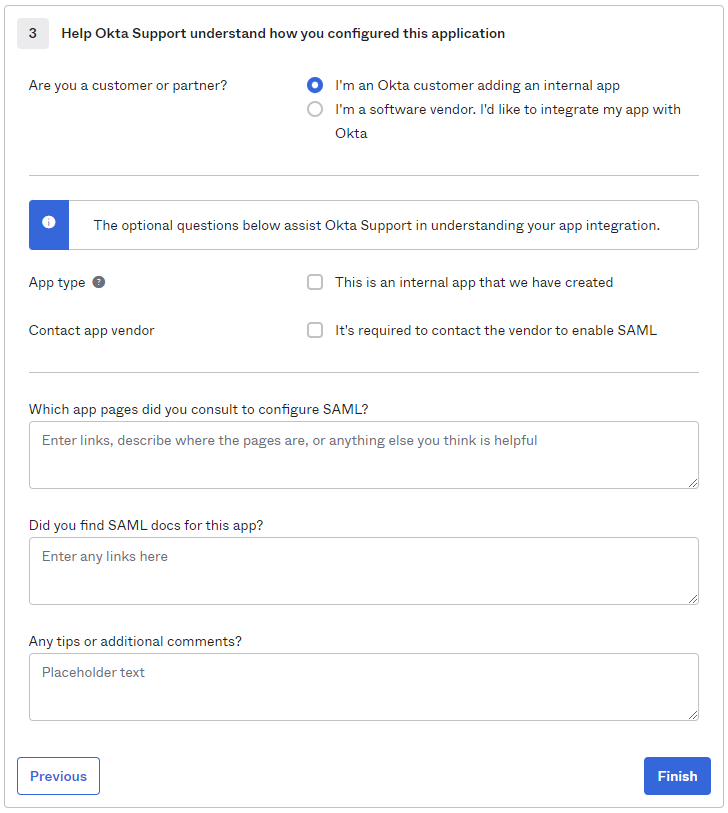
      
    ![Okta Feedback](https://docs.difr.com/uploads/images/gallery/2025-10/okta-saml2-6.png)
13. Click **Finish**.
14. You will automatically be taken to the **Sign On** page/tab where we'll obtain the final piece of information. Scroll down to the bottom box under the *Sign On Methods* section and right-click on the blue **Identity Provider metadata** link. Copy the link URL and save it somewhere to reference in later steps.  
      
    [![image.png](https://docs.difr.com/uploads/images/gallery/2025-11/scaled-1680-/IOOimage.png)](https://docs.difr.com/uploads/images/gallery/2025-11/IOOimage.png)
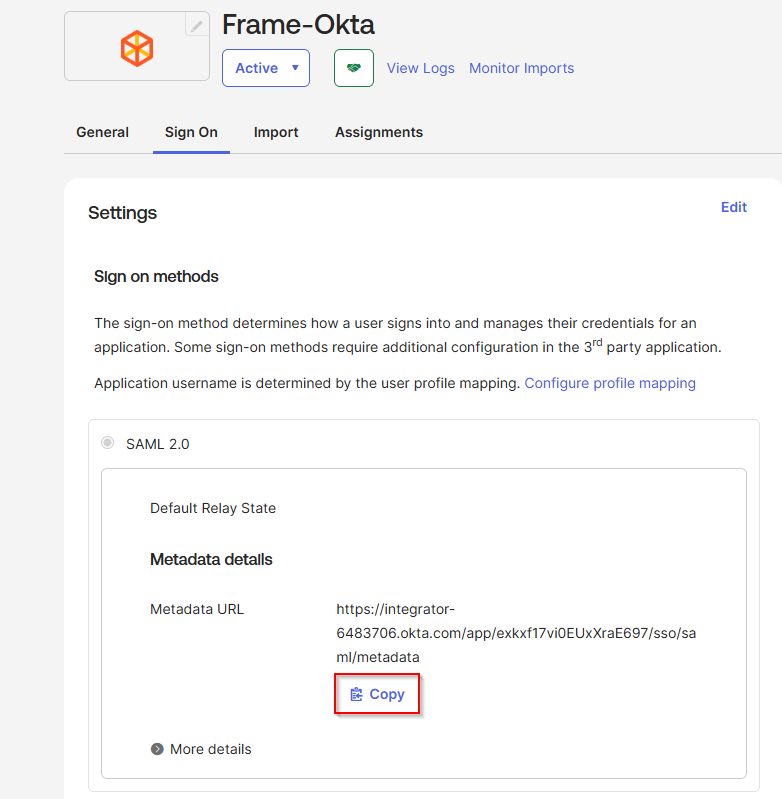
15. The Okta side of the setup is now complete. Next, we'll configure the Frame side of the integration using the the values we've copied from these steps in the Okta Dashboard.
16. Final Steps

### <span class="TextRun SCXW95714165 BCX0" data-contrast="none" lang="EN-US" xml:lang="EN-US"><span class="NormalTextRun SCXW95714165 BCX0" data-ccp-parastyle="heading 2">Configure the SAML2 Authentication Integration Provider in Frame</span></span>[<span class="TextRun SCXW95714165 BCX0" data-contrast="none" lang="EN-US" xml:lang="EN-US"><span class="NormalTextRun SCXW95714165 BCX0" data-ccp-charstyle="Hyperlink"> </span></span>](https://docs.dizzion.com/platform/identity-and-access/idp-integrations/entra-id#create-the-saml2-authentication-integration-provider-in-frame)<span class="EOP SCXW95714165 BCX0" data-ccp-props="{"134233117":false,"134233118":false,"134245418":true,"134245529":true,"335559738":600,"335559739":300}"> </span>

<div class="SCXW95714165 BCX0" id="bkmrk-open-up-a-new-tab-an"></div>1. Navigate back to your Frame tab and enter the following data into our **Add a SAML2 Identity Provider** form:
    
    <figure>[![image.png](https://docs.difr.com/uploads/images/gallery/2025-11/scaled-1680-/V7Mimage.png)](https://docs.difr.com/uploads/images/gallery/2025-11/V7Mimage.png)
    
    </figure>
    - **Application ID**: The value here **needs to match** the value set as the "Entity ID" from Step 5.
    - **Auth provider metadata**: Click the “XML” option and paste the contents of the Metadata XML file from Step 4.
    - **Custom Label**:. Allows Admins to customize Frame's Sign in page chiclets/buttons associated with this SAML2 integration.
    - **Authentication token expiration**: Choose a token expiration duration that supports your end-user workflows and complies with your security policies.
    - **Enable “Signed assertion”**
    - **<span class="TextRun SCXW207479778 BCX0" data-contrast="auto" lang="EN-US" xml:lang="EN-US"><span class="NormalTextRun SCXW207479778 BCX0">Assertion Consumer Service (ACS) URL</span><span class="NormalTextRun ContextualSpellingAndGrammarErrorV2Themed SCXW207479778 BCX0">:</span></span>**<span class="TextRun SCXW207479778 BCX0" data-contrast="auto" lang="EN-US" xml:lang="EN-US"><span class="NormalTextRun ContextualSpellingAndGrammarErrorV2Themed SCXW207479778 BCX0">  The</span><span class="NormalTextRun SCXW207479778 BCX0"> endpoint where the Identity Provider (IdP) delivers SAML authentication responses after a successful login.</span></span><span class="EOP SCXW207479778 BCX0" data-ccp-props="{"134233117":false,"134233118":false,"335559738":240,"335559739":240}"> </span>
    - **<span class="TextRun SCXW207479778 BCX0" data-contrast="auto" lang="EN-US" xml:lang="EN-US"><span class="NormalTextRun SCXW207479778 BCX0">Metadata URL</span><span class="NormalTextRun ContextualSpellingAndGrammarErrorV2Themed SCXW207479778 BCX0">:</span></span>**<span class="TextRun SCXW207479778 BCX0" data-contrast="auto" lang="EN-US" xml:lang="EN-US"><span class="NormalTextRun ContextualSpellingAndGrammarErrorV2Themed SCXW207479778 BCX0">  A</span><span class="NormalTextRun SCXW207479778 BCX0"> publicly accessible URL providing your Service Provider's SAML metadata, used by Identity Providers to configure and </span><span class="NormalTextRun SCXW207479778 BCX0">establish</span><span class="NormalTextRun SCXW207479778 BCX0"> trust.  
          
        </span></span>**<span class="EOP SCXW207479778 BCX0" data-ccp-props="{"134233117":false,"134233118":false,"335559738":240,"335559739":240}">Optional</span>**
    - <span class="NormalTextRun SCXW15592334 BCX0">Frame Login URL</span><span class="NormalTextRun SCXW15592334 BCX0">: </span><span class="NormalTextRun ContextualSpellingAndGrammarErrorV2Themed SCXW15592334 BCX0">user</span><span class="NormalTextRun SCXW15592334 BCX0"> is directed to this URL when the user wants to log back into Frame after being logged out due to inactivity.  
        </span>
    - <span class="NormalTextRun SCXW15592334 BCX0"><span class="TextRun SCXW99947813 BCX0" data-contrast="none" lang="EN-US" xml:lang="EN-US"><span class="NormalTextRun SCXW99947813 BCX0">Frame Logout URL</span><span class="NormalTextRun SCXW99947813 BCX0">: </span><span class="NormalTextRun ContextualSpellingAndGrammarErrorV2Themed SCXW99947813 BCX0">user</span><span class="NormalTextRun SCXW99947813 BCX0"> is directed to this URL when the user logs out of the Launchpad or if they decide to leave Frame after being logged out due to inactivity.</span></span><span class="EOP SCXW99947813 BCX0" data-ccp-props="{"134233117":false,"134233118":false,"335551550":0,"335551620":0,"335557856":16777215,"335559738":0,"335559739":0}">   
        </span></span>
    
    Click **Add**.
    
    You have successfully created your Okta integration with the Frame platform! Move on to the next section for configuring roles and permissions for your users, as well as information for passing Group attributes to Frame.

### <span class="TextRun SCXW95714165 BCX0" data-contrast="none" lang="EN-US" xml:lang="EN-US"><span class="NormalTextRun SCXW95714165 BCX0" data-ccp-parastyle="heading 3">Configuring SAML2 Permissions</span></span>[<span class="TextRun SCXW95714165 BCX0" data-contrast="none" lang="EN-US" xml:lang="EN-US"><span class="NormalTextRun SCXW95714165 BCX0" data-ccp-charstyle="Hyperlink"> </span></span>](https://docs.dizzion.com/platform/identity-and-access/idp-integrations/entra-id#configuring-saml2-permissions)<span class="EOP SCXW95714165 BCX0" data-ccp-props="{"134233117":false,"134233118":false,"134245418":true,"134245529":true,"335551550":1,"335551620":1,"335557856":16777215,"335559738":450,"335559739":300}"> </span>

1. Once the IdP is successfully configured on Frame, administrators will need to configure the authorization rules for the account from the **SAML2 Permissions** tab listed to the right of the **SAML2 Provider** tab, as discussed in our [Roles](https://docs.difr.com/link/81#bkmrk-roles) and [User Permissions with a SAML2 IdP](https://docs.difr.com/link/85#bkmrk-configuring-saml2-pe) sections.
2. Passing Group Attributes
3. You can authorize any groups of users you want to allow to use the Frame platform based on the user-group assignments you have configured in Okta. We recommend following the guidance of Okta's support team provided [in this link](https://support.okta.com/help/s/question/0D50Z00008G7UrC/can-you-pass-group-membership-as-part-of-the-saml-assertion-to-the-sp-) regarding group attribute statements with custom SAML applications.
4. Groups attribute and the associated set of Okta groups to insert in the SAML2 Response can be defined in Okta. In this example, enter `groups` for the group name attribute and define the group name inclusion filter.  
      
    ![Group Attribute Statements](https://docs.difr.com/uploads/images/gallery/2025-10/okta-group1.png)
5. Here's an example of a list of groups in Okta:  
      
    [![image.png](https://docs.difr.com/uploads/images/gallery/2025-11/scaled-1680-/Lq7image.png)](https://docs.difr.com/uploads/images/gallery/2025-11/Lq7image.png)
6. Assuming that one of the Okta groups that is passed to Frame is **Okta-Contractors**, the Frame administrator would specify a SAML2 permission where any user's SAML2 response contains a value of `Okta-contractors` in the `groups` SAML2 attribute will be granted Account Administrator role on Frame account Contractor Account.  
      
    ![Groups in Okta](https://docs.difr.com/uploads/images/gallery/2025-10/okta-group3.png)
7. Signing into Frame with Okta
8. Your new SAML2 auth integration will appear as button on your Frame login page. The URL for navigating to your Frame login page will vary depending on which level the SAML2 integration was configured. See our section about [Entities and URLs](https://docs.difr.com/books/platform-administrators-guide/page/authentication#entity-endpoint-urlsentity-endpoint-urls) to help pick the right one for you and your end-users and/or staff.
9. When landing on a URL configured for your Okta SAML2 Integration, your end-users should see an option like this:  
      
    [![image.png](https://docs.difr.com/uploads/images/gallery/2025-11/scaled-1680-/FoFimage.png)](https://docs.difr.com/uploads/images/gallery/2025-11/FoFimage.png)

# Secure Anonymous Tokens

Mass User Creation, Secure Anonymous Tokens (SAT)

# Mass User Creation

There are options available for administrators who wish to create many users without email invitation or activation. Mass user creation can be used to deliver training and certification tests to end users who are “guest users” (not employees, but clients or anonymous users). Mass user creation is a less complicated, built-in solution for letting users access Frame environments. This solution does not rely on any existing identity provider integration. If you wish to integrate Frame with your SAML2 authentication, please refer to our [Identity Provider Integrations](https://docs.difr.com/link/84#bkmrk-page-title) documentation.

<p class="callout info"> Be aware that the token duration timer starts \*\*as soon as the URLs are generated\*\*. We recommend generating these URLs right before you plan on providing them to your users so they can utilize the entire token duration.</p>

## Mass User Creation Setup

Once you have created a Secure Anonymous Token Provider and set the desired token duration, roles, and scopes, simply click on the ellipsis listed next to your Anonymous Access Provider and click **Playground**.

<figure id="bkmrk-">![](https://docs.difr.com/uploads/images/gallery/2025-10/mass-users1.png)

</figure>In the Playground Panel that pops up, specify the number of tokens you will need, enable the **Embed token in a URL** toggle, and then click **Generate Anonymous Tokens** as shown below:

<figure id="bkmrk--1">![](https://docs.difr.com/uploads/images/gallery/2025-10/mass-users2.png)

</figure>All tokens and their pre-constructed URLs will be copied to your clipboard. When you paste, each URL and Token will each be on their own line, like this:

```bash
https://use.difr.com/#token=eyJhbGciOiJFUzI1NiIsInR5cCI6IkpXVCJ9.eyJhcCI6InNlY3VyZS1hbm9uLTA5NDcxNjZlLTBmYzktNDQyNS1hZWNmLTkzNjhmNTRkZTg3ZiIsImFwaSI6IjA5NDcxNjZlLTBmYzktNDQyNS1hZWNmLTkzNjhmNTRkZTg3ZiIsImF1ZCI6InVzZS5kaWZyLmNvbSIsImVtIjoiMDFLQ0tZRkdQQ0ZWWVk5UlBRSjJDQVhKV0hAYW5vbnltb3VzLmxvY2FsIiwiZXhwIjoxNzY1OTAxMzU4LCJmbiI6IkFub255bW91cyIsImlzcyI6ImJhY2tlbmQta2RzLnB1YiIsImp0aSI6ImI5MGJlMjY1LTRiMzctNDQ2MC05NmI1LWE0NzhjYzFiOTg4MCIsImxuIjoiVXNlciIsIm5iZiI6MTc2NTkwMTA1OCwic3ViIjoiMzg1OTc5NzMtZWEzNS00OTJhLTg3MTAtMGQ3OGE2NjEzOTE4IiwidXNpIjoiMGZhYjNkNzQtNTk1Ni00ZWE0LWFlMzktNGQwZmYxMTc2YmFhIn0.scCsPRQiwCPqWavJcXV66k--naMCfd2c-ZR82bq9fsovgGtuJnqRpfh-q2DmSggHNcrqWl8tuGoj8X-yALiEHQ
https://use.difr.com/#token=eyJhbGciOiJFUzI1NiIsInR5cCI6IkpXVCJ9.eyJhcCI6InNlY3VyZS1hbm9uLTA5NDcxNjZlLTBmYzktNDQyNS1hZWNmLTkzNjhmNTRkZTg3ZiIsImFwaSI6IjA5NDcxNjZlLTBmYzktNDQyNS1hZWNmLTkzNjhmNTRkZTg3ZiIsImF1ZCI6InVzZS5kaWZyLmNvbSIsImVtIjoiMDFLQ0tZRlI4VEFXOFRLUTAwVk5HSk5DR0FAYW5vbnltb3VzLmxvY2FsIiwiZXhwIjoxNzY1OTAxMzY2LCJmbiI6IkFub255bW91cyIsImlzcyI6ImJhY2tlbmQta2RzLnB1YiIsImp0aSI6ImNlZmFkYzU0LTljNjAtNDc4YS04OTRlLTIxYmEyOGU2YTBmZCIsImxuIjoiVXNlciIsIm5iZiI6MTc2NTkwMTA2Niwic3ViIjoiMDBiNDY2MDAtZTI2NC00ZmI0LTg2YWUtMDY3MWNkMTE2NjA2IiwidXNpIjoiNmJhOWU3OTUtOTExZi00ODRhLTliYWItYzgwOWZlMTVjMzZmIn0.vpgDUQcU0xeVbFlz_BwEkju8C7zsBfwUGsVgsEyD94WB8WeW701N8Oco8dizpVPVtViKrklXUyKjHaK5r1NLtA
# ...more URLs & tokens.

```

That's it! You can now distribute these URLs to your end users to give them access to your Frame environment.

# Secure Anonymous Tokens

Secure Anonymous Tokens (SATs) can be used to allow users to authenticate to Frame and in establishing Frame sessions using [Frame Session API](https://docs.difr.com/link/176#bkmrk-page-title) without prompting users for another set of credentials. These tokens, generated by a secure API call, enable admins to provide their users with access to Frame resources on-demand. Additionally, the SATs can be customized with additional parameters, including data that can be made available in the remote VM. There are many use cases where this type of authentication could be useful, such as software trials, demos, or kiosk experiences.

## Overview

Using the SAT API, a web server can request a token on-demand (when a page or endpoint is requested, for example) and provide it to the Frame Session API for custom-tailored sessions, or pass the token to one of our [Launchpad, Launch, or PWA links](https://docs.difr.com/link/148#bkmrk-page-title) to instantly log your users in.

```mermaid
sequenceDiagram
    participant User as User/Browser
    participant Server as Web Server<br/>example.com
    User-)Server: Request page
    Server-)Frame: Frame Admin API Request to Secure Anonymous Token Provider
    Note right of Server: API requests made<br/> securely from your <br/>custom SAT API integration
    Frame-)Server: Response with SAT as a JWT
    Server-)User: Web page loaded along with Frame JWT
    User-)Frame: Request Session
    rect rgba(0,100,0,0.5)
    loop Authenticated Session
        Frame-)User: Frame Session
    end
    end

```

## Getting Started

### Requirements

- Frame administrator access (Customer, Organization, or Account level).
- [Frame Admin API access](https://docs.difr.com/link/171#bkmrk-page-title) enabled at Customer, Organization, or Account level.
- [Secure Anonymous Token provider](https://docs.difr.com/link/91#bkmrk-page-title) with an assigned Launchpad User role.
- Customer-specific location (e.g., web server, thin client) to host the custom Secure Anonymous Token API integration requesting SATs from the SAT provider.

1. If Secure Anonymous Tokens are used with a [Named User Subscription](https://docs.difr.com/link/178#bkmrk-page-title), then the SAT generation request must include a unique user identifier in order for Frame Platform to count the number of named users in a monthly billing cycle.
2. If Secure Anonymous Tokens will not contain a unique user identifier, then the customer must purchase [Per VM Subscription](https://docs.difr.com/link/178#bkmrk-page-title).
3. Customers using Secure Anonymous Tokens and purchasing Microsoft RDS SAL licenses must comply with the reporting requirements if those RDS SALs are purchased via Frame.
4. Secure Anonymous Tokens *should not be used in combination with* [Personal Drives](https://docs.difr.com/link/119#bkmrk-page-title) and/or [Profiles](https://docs.difr.com/link/123#bkmrk-page-title).

### REST API Credentials

The Secure Anonymous Token API is invoked over REST endpoints to retrieve tokens. This requires an API integration with the proper roles/permissions.

### Creating a new API integration

To get started, be sure to login as an administrator to gain access to API settings.

1. There are two ways to create a new API integration:
    
    a. From the Dashboard of the desired Frame account, navigate to the **Users** page.
    
    b. If you start from the Frame Admin console, you can navigate to either the **Customer** or **Organization** page and select **Users** from the left-hand menu.
2. Enable the “API” toggle and **Save**.
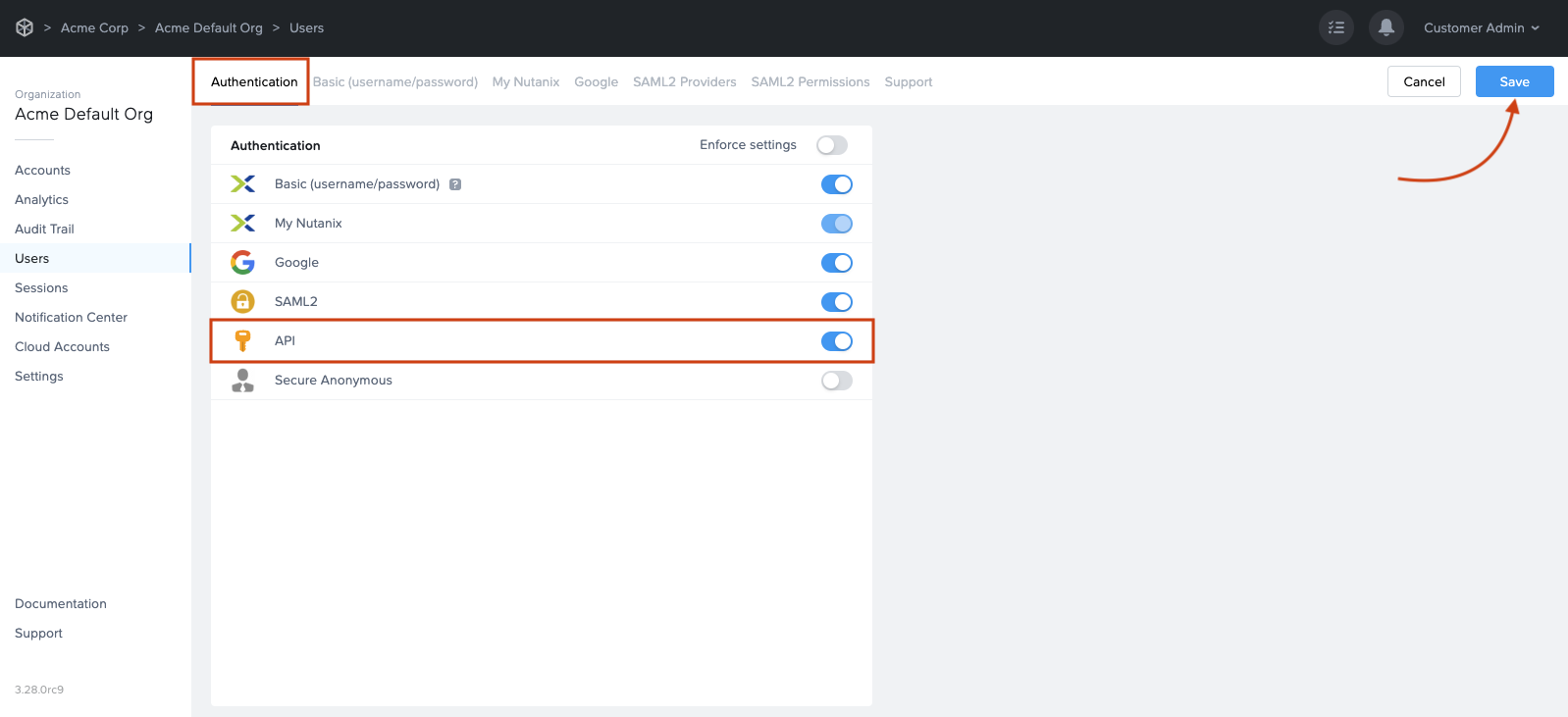
![](https://docs.difr.com/uploads/images/gallery/2025-10/add-api-00.png)

1. A new **API** tab will appear. Click on the **API** tab and then click the **Add API** link.

![](https://docs.difr.com/uploads/images/gallery/2025-10/add-api-1.png)

4. Give this new API integration a name; for this example, we'll use “API to create anonymous tokens”. Then, select a role and scope based on your scenario below.
    
    For account-level integrations, choose the `API - Generate Anonymous Account Token` role, along with the account you're configuring access for.
    
    For organization or customer level integrations, you'll need to specify the` API - Generate Anonymous Organization Token` and `API - Generate Anonymous Customer Token`, respectively.
    
    ![](https://docs.difr.com/uploads/images/gallery/2025-10/add-api-2.png)
5. Click **Add**. The new API will show up in the API list. Click the options menu for the new API and select **Manage Credentials**.

![](https://docs.difr.com/uploads/images/gallery/2025-10/add-api-3.png)

6. You'll be prompted to create a new API key – start by giving it a name, then click the **PLUS ("+")** button on the right.

![](https://docs.difr.com/uploads/images/gallery/2025-10/add-api-4.png)

7. You'll now see your Client ID and Client Secret. Copy these values to somewhere safe, as you won't be able to see the secret again after leaving this screen.
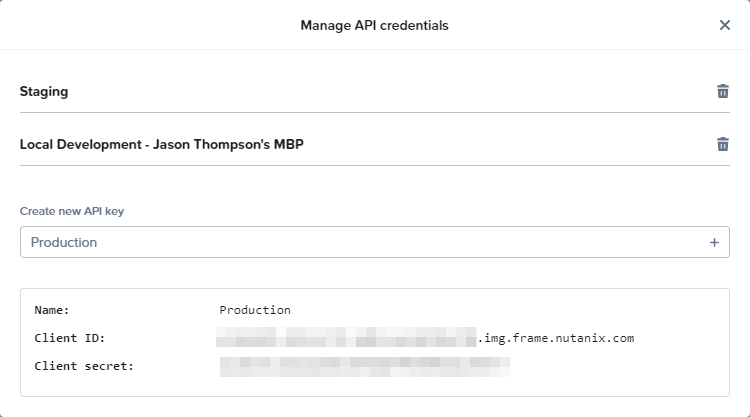
![](https://docs.difr.com/uploads/images/gallery/2025-10/add-api-5.png)

8. That's it! Now you're ready to add a SAT Provider in the next section.

### Creating a Secure Anonymous Token Provider

1. There are two ways to create a Secure Anonymous Token Provider:

a. From the Dashboard of the desired Frame account, navigate to the **Users** page where you will land on the **Authentication** tab.

b. If you start from the Frame Admin console, you can navigate to either the **Customer** or **Organization** page and select **Users** from the left-hand menu.

2. Enable the Secure Anonymous option under Authentication and save; a new **Secure Anonymous** tab will show up.
![](https://docs.difr.com/uploads/images/gallery/2025-10/secure-anon-setup-1.png)

3. Click the Secure Anonymous tab, then click the **Add Provider** button to the top right.

![](https://docs.difr.com/uploads/images/gallery/2025-10/secure-anon-setup-2.png)

4. You'll be prompted to describe and configure your new Secure Anonymous provider. You can specify the following:

<table id="bkmrk-property-name-descri"><thead><tr><th>Property Name</th><th>Description</th></tr></thead><tbody><tr><td>Description</td><td>A short description of what you plan to use the Anonymous Token provider for (e.g., public trials)</td></tr><tr><td>Token Duration</td><td>How long until the token expires and is no longer valid.</td></tr><tr><td>Roles and Scope</td><td>The role will typically be a Launchpad user, and the scope is which account/Launchpad</td></tr></tbody></table>

5. Give it a description that makes sense for your use case, e.g. “Token provider for product trials”. Then, set the token duration you'd like. Finally, select a Role and scope – we recommend only configuring the role for Launchpad Users for security reasons.

![](https://docs.difr.com/uploads/images/gallery/2025-10/secure-anon-setup-3.png)

6. Your new Anonymous Access Provider will appear. Click the ellipsis next to the provider and select "Playground." Test generating tokens using the new provider, as well as code examples, in various languages, demonstrating how to make a request for tokens.

![](https://docs.difr.com/uploads/images/gallery/2025-10/secure-anon-setup-4.png)

## Generating Secure Anonymous Tokens

Now that we have an API Client ID and Client Secret from the API setup steps above, we can use the dynamic code snippet examples provided in the Secure Anonymous Playground. Making a token request is pretty simple. It requires API credentials, making a HMAC signature based on those credentials, and then a HTTP POST to your SAT Provider's endpoint.

### Security Considerations

Requests for SATs should be executed from a secure backend environment. Requests like these should not be made from client-side JavaScript, for example, as the API credentials can be exposed to the public.

It is your responsibility to secure any self-hosted endpoints that process SAT requests. To clarify, there should not be a public URL on the web that prints out free tokens to any visitor – avoiding this and using best-practices will help prevent unauthorized access, abuse of resources, legal issues, or worse.

### Code examples

In the Secure Anonymous Playground, we have a examples for requesting tokens written in **Python 3**, **Node.js**, **curl**, **Powershell**, and **PHP**. To try these for yourself, copy an example in your preferred language, then paste in your Client ID and Client Secret, then execute the code. Executing the examples should return a token if everything is configured properly.

Here's an example that prints the output of a SAT request in Python 3:

```python
#!/bin/env python

import hashlib
import hmac
import time
import requests
import base64

# Client credentials
client_id = "<Your API Client ID goes here>"
client_secret = b"<Your API Client Secret goes here>"

# Create signature
timestamp = int(time.time())
to_sign = "%s%s" % (timestamp, client_id)
signature = hmac.new(client_secret, to_sign.encode('utf-8'), hashlib.sha256).hexdigest()

# Prepare http request headers
headers = { "X-Frame-ClientId": client_id, "X-Frame-Timestamp": str(timestamp), "X-Frame-Signature": signature }

# Include optional params such as first_name, last_name, email_domain, email or metadata.
body = {
  "first_name": "John",
  "last_name": "Appleseed",
  "email": "john@example.com",
  "metadata": {
     "data":"favorite food: apples"
  }
}

# Make request
r = requests.post("https://api.console.nutanix.com/v1/<Entity type here (customer, organization, or account)>/<Entity ID goes here>/secure-anonymous/<Secure anonymous provider ID goes here>/tokens", headers=headers, json=body)

# Print the response (a JWT)
print(r.json())

```

### Anonymous Token Parameters

You can provide a few **optional** parameters when generating anonymous tokens. These parameters let you customize the information provided in the JWT, allowing you to set properties such as:

**Optional Anonymous Token Parameters**

<table id="bkmrk-name-type-descriptio"><thead><tr><th>Name</th><th>Type</th><th>Description</th><th>Required</th></tr></thead><tbody><tr><td>first\_name</td><td>string</td><td>“John” for example.</td><td>false</td></tr><tr><td>last\_name</td><td>string</td><td>“Smith” for example.</td><td>false</td></tr><tr><td>email</td><td>string</td><td>Example: john.smith@acme.com</td><td>false</td></tr><tr><td>email\_domain</td><td>string</td><td>Example: acme.com. This will return xxxxxxx@acme.com.</td><td>false</td></tr><tr><td>metadata</td><td>object</td><td>An object containing any additional information you'd like to supply for your users/token.</td><td>false</td></tr></tbody></table>

If provided, Frame will use the above information for User Activity, Session Trail, and Audit Trail reports.

For customers who wish to use SATs in virtual computer labs, retail point of sale, and other thin client use cases, the best practice is to set the values for the `first_name`, `last_name`, and `email` parameters in the SAT generation request to values that would allow administrators to distinguish and report on Frame usage across the physical devices.

For example, for retail point of sale, you might set `first_name` to the store ID, `last_name` to the point of sale location in the store, and `email` to `<store_id>.<location_id>@<domain>`.

If the SAT generation requests do not follow this best practice, then administrators will not be able to determine which sessions correspond to which physical devices, as all sessions will be associated with "Anonymous User". This will make it more difficult to troubleshoot performance issues if the endpoint is not easily identifiable.

## Using SATs with Launchpad or Launch links

Admins can redirect users to Frame URLs with a **token as a query parameter**. For an example, let's assume we have following Launchpad URL:

```
---USE Backend----
https://use.difr.com/acme/projects/demos/launchpad/demo-apps

----DEU Backend----
https://deu.difr.com/acme/projects/demos/launchpad/demo-apps
```

With that URL in mind, let's assume we've received a token from the SAT API. We'd include the token as a URL search query param:

```
?token=YOUR_GENERATED_TOKEN_HERE
```

Result:

---

```
----USE Backend----
https://use.difr.com/acme/projects/demos/launchpad/demo-apps?token=YOUR_GENERATED_TOKEN_HERE

----DEU Backend----
https://deu.difr.com/acme/projects/demos/launchpad/demo-apps?token=YOUR_GENERATED_TOKEN_HERE
```

And, In the case of a Launch link URL like:

```
----USE Backend---
https://use.difr.com/launch?terminalConfigId=XXXXXXXX-XXXX-XXXX-XXXX-XXXXXXXXXXXX.XXXXXXXX-XXXX-XXXX-XXXX-XXXXXXXXXXXX&appId=desktop

----DEU Backend----
https://deu.difr.com/launch?terminalConfigId=XXXXXXXX-XXXX-XXXX-XXXX-XXXXXXXXXXXX.XXXXXXXX-XXXX-XXXX-XXXX-XXXXXXXXXXXX&appId=desktop
```

Appending `?token=GENERATED_TOKEN_HERE` results in:

```
----USE Backend----
https://use.difr.com/launch?terminalConfigId=XXXXXXXX-XXXX-XXXX-XXXX-XXXXXXXXXXXX.XXXXXXXX-XXXX-XXXX-XXXX-XXXXXXXXXXXX&appId=desktop&token=GENERATED_TOKEN_HERE

----DEU Backend----
https://deu.difr.com/launch?terminalConfigId=XXXXXXXX-XXXX-XXXX-XXXX-XXXXXXXXXXXX.XXXXXXXX-XXXX-XXXX-XXXX-XXXXXXXXXXXX&appId=desktop&token=GENERATED_TOKEN_HERE
```

With URLs are appended with a token, when a user goes to the URL, Frame will consume the token from the URL and automatically log the user in. URLs like this can be delivered to users in a number of different ways:

- A link on your website (perhaps open the link in a new tab).
- Redirect to these URLs as part of your user workflow (e.g. example.com/sign-in -\\&gt; generate token from api -\\&gt; redirect user to Frame URL)
- Send a link as an email -- be sure the token's expiration duration makes sense for security, tokens begin expiring the moment they're generated.

To ensure great user experience, ensure that the generated tokens have the proper roles/permissions to access the Launchpad or resources you're pointing your users to.

### Customize auth flow

When using SATs with Launchpad or Launch links, specific metadata **should be specified** to point to customer-built and customer-hosted URLs that control what happens when a user logs out or in from Frame's UIs.

```json
{
  first_name: "Jason",
  last_name: "Thompson",
  email: "jason.123456@acme.com",
  metadata: {
    exampleId: 123456,
    language: "EN",
    timezone: "PT",
    favoriteFood: "tacos",
    frame_login_url: "https://example.com/log-back-into-frame",
    frame_logout_url: "https://example.com/log-out-and-thank-you"
  }
}

```

In the example above, we specified `frame_login_url` and `frame_logout_url`. When these are present, we'll honor the values supplied when users are using our UI.

These URLs are used when Launchpad and Launch link users are inactive (no keyboard or mouse activity) for 15 minutes. When this happens, we log the user out and prompt the user with options to **Leave** or **Log back in**, like so:

![](https://docs.difr.com/uploads/images/gallery/2025-10/secure-anon-launchpad-logout-inactivity.png)

Additionally, when using the Launchpad, the logout URL is tied to the Logout button from the Profile menu at the top-right of the Launchpad. When a user clicks this, Frame invalidates the user's token and redirects the user's browser to the URL specified in the SAT's metadata

[![image.png](https://docs.difr.com/uploads/images/gallery/2025-12/scaled-1680-/i1Eimage.png)](https://docs.difr.com/uploads/images/gallery/2025-12/i1Eimage.png)

To ensure a great experience, the URL supplied for `frame_login_url` should be used to route a user to your website to generate a new token, then redirect the user **back to their original location** with that token. This ensures compatibility between Launchpad, Launch Links, and PWAs while using Secure Anonymous Tokens.

SAML2 Users can also take advantage of these custom auth URLs if they specify these parameters in their identity provider's assertion/claims. The process to do this varies for each identity provider; please refer to your identity provider's documentation about adding custom assertions/claims.

## Metadata

You can provide custom information for a user when generating Secure Anonymous Tokens – this type of metadata is often called assertions. A simple Node.js example is available on [Github](https://github.com/saucesome/frame-node-metadata-example) that demonstrates how to populate metadata and query it after a token's been generated. We'll use code snippets from this repository in examples below.

### Populating metadata

When requesting a token, you can supply a metadata object to the body of the request.

```javascript
{
  first_name: "Jason",
  last_name: "Thompson",
  email: "jason.123456@acme.com",
  metadata: {
    should_accept_tos: false,
    frame_login_url: "https://example.com/login_url",
    frame_logout_url: "https://example.com/logout_url",
    exampleId: 123456,
    language: "EN",
    timezone: "PT",
    favoriteFood: "tacos"
  }
}

```

**Optional Metadata Parameters**

When populating the metadata request body, you can specify a few different options (As shown in the JSON request example above).

<table id="bkmrk-name-type-descriptio-1"><thead><tr><th>Name</th><th>Type</th><th>Description</th><th>Required</th></tr></thead><tbody><tr><td>should\_accept\_tos</td><td>string</td><td>When set to `true`, you are accepting the Terms of Service automatically. There will be no UI prompt for accepting the ToS if set to `true`. This default value is set to `false`</td><td>false</td></tr><tr><td>frame\_login\_url</td><td>string</td><td>URL used when a user attempts to log back in from a closed session. See more here: [Customize Auth Flow](#customize-auth-flow)</td><td>false</td></tr><tr><td>frame\_logout\_url</td><td>string</td><td>URL used when a user logs out of the Frame UI. See more here: [Customize Auth Flow](#customize-auth-flow)</td><td>false</td></tr></tbody></table>

### Querying metadata

Querying metadata is a simple GET request along with an Authorization header specifying the token. The token must be specified in the “Bearer” format, and the API endpoint is `https://cpanel-backend-prod.frame.nutanix.com/api/rest/v1/me/assertions`.

```javascript
async function getUserAssertions(token) {
  const result = await axios({
    url:
      "https://cpanel-backend-prod.frame.nutanix.com/api/rest/v1/me/assertions",
    headers: { Authorization: `Bearer ${token}` },
  });
  return result.data;
}

```

### Retrieving Metadata from within Windows

This metadata can also be retrieved from within the remote OS environment during a running session. This is made easy through the use of a **session token** that's made available as an **environment variable** labeled as `FRAME_SESSION_TOKEN`. This Session Token is different than the token used to start the session (and can't be used for starting sessions), but it relates to the same user. This token also requires a different endpoint for querying the assertions. Here's an example of how to do this in Powershell (5.x):

```powershell
# Set TLS compatibility for Powershell 5.x
[Net.ServicePointManager]::SecurityProtocol = [Net.SecurityProtocolType]::Tls -bor [Net.SecurityProtocolType]::Tls11 -bor [Net.SecurityProtocolType]::Tls12

$sessionToken = "$env:FRAME_SESSION_TOKEN"
$uri = 'https://messaging.frame.nutanix.com/api/rest/v1/me/assertions'
$headers = @{'Authorization' = "Bearer $sessionToken"}

$response = Invoke-RestMethod -Uri $uri -Headers $headers -ContentType "application/json" -Method Get

Write-Host $response

```

You can query metadata like this in a "pre-session" script and use the supplied information to customize your applications/environment, mount network drives, etc. Refer to the [Scripting documentation](https://docs.difr.com/platform/session/scripting/) for further details.

### Viewing Metadata from Launchpad

Anyone can view their metadata from Launchpad from the account profile page. To view the supplied metadata or “assertions,” a user can click on their name at the top-right of the Launchpad to open their User menu. From there, click **Profile** This will take you to the user's profile page – from there, click **Advanced** on the left-hand side. This page shows a table of assertions for the current user, like so:

![](https://docs.difr.com/uploads/images/gallery/2025-10/secure-anon-launchpad-view-assertions.png)

# Account Administration

Account Creation, Settings, Organizations, Support Authorization, Administration, LaunchPads, Bring Your Own Workloads (Remote PC)

# Account Creation

Frame Customer and Organization Administrators can create and manage multiple accounts from their Admin console. Each account is created:

- With an AHV, AWS, Azure, GCP or IBM (Infrastructure as a Service, IaaS) cloud account,
- In an on-premises datacenter (if created with an AHV Cloud Account) or a public cloud region (if created with an IaaS Cloud Account),
- In a virtual network (VLAN, VPC, or VNET),
- Non-persistent or persistent, and
- Having its own base image, unique set of applications, URLs, application and/or desktop Launchpads, and properties.

<details id="bkmrk-attention-before-cre"><summary>Attention</summary>

**<span style="color: rgb(200, 111, 32);">Before creating a Frame account, be sure to review and understand the network configuration requirements discussed in further detail in [Network Configuration](https://docs.difr.com/link/51#bkmrk-page-title) Requirements.</span>**

</details>## Infrastructure

### Public Cloud

When creating a Frame account in public cloud (AWS, Azure, GCP, or IBM), the Customer or Organization Administrator may choose from one of four different network deployments. Account creation instructions for each network deployment model are provided in the [next section](#create-a-new-frame-account-entity).

- **Frame-Managed Networking (Public network)**: all workload VMs have public IP addresses. Frame Platform creates the VNET or VPC.
- **Frame-Managed Networking (Private network)**: all workload VMs have private IP addresses. Frame Platform creates the VNET or VPC.
- **Frame-Managed Networking (Private network with Streaming Gateway Appliance (SGA))**: all workload VMs have private IP addresses with one public IP address. Frame Platform creates the two VNETs or VPCs (one for the workload VMs and the second for up to 4 SGA VMs).
- **Customer-Managed Networking**: all workload VMs have private IP addresses. The customer is solely responsible for configuring and managing the network containing the Frame account workload VMs, routing between end users and the workload VMs, and creation of the SGA (if required).

<p class="callout info"> Administrators creating new accounts with Frame base images may find that account creation takes longer when a new base image is available since the updated image needs to be applied.</p>

### AHV Infrastructure

When creating a Frame account on AHV infrastructure, the Customer or Organization Administrator creates the Frame account in an existing VLAN in the registered AHV Cloud Account. If the customer requires the SGA to support users accessing the workload VMs from the Internet without a VPN, they will deploy the SGA VM(s) independently in a DMZ LAN.

- [Customer-Managed Networking (Private network)](https://docs.difr.com/books/platform-administrators-guide/page/requirements): all workload VMs have private IP addresses. The customer is solely responsible for configuring and managing the network containing the Frame account workload VMs and routing between end users and the workload VMs.
- [Customer-Managed Networking (Private network with Streaming Gateway Appliance (SGA)](https://docs.difr.com/books/platform-administrators-guide/page/private-networking-with-sga-ahv): all workload VMs have private IP addresses. The customer is solely responsible for configuring and managing the networks containing the Frame account workload VMs and SGA VM(s) and routing between end users and the SGA VM(s) and between the SGA VM(s) and the workload VMs.

## Create a New Frame Account Entity

1. Administrators with the appropriate role can create new accounts by selecting **Accounts** in the left-hand menu from the Customer or Organization Dashboard in their [Admin Console](https://docs.difr.com/books/platform-administrators-guide/page/administration).
2. Click the **Create Account** link located on the upper right portion of the screen. The first set of parameters to specify will determine the infrastructure, location, and networking option for the Frame account.

**Use the tabs below to find instructions for each network deployment configuration:**

#### **Public Networking**

Customers who wish to rapidly create a Frame account on the public cloud infrastructure for users accessing the virtualized applications/desktops from the Internet can choose this option. This procedure will provision a Frame account with the network requirements and architecture as defined in [Public Cloud (Default) Network Requirements](https://docs.difr.com/books/platform-administrators-guide/page/public-networking-public-cloud). All workload VMs will have public IP addresses.

<figure class="admin-ui" id="bkmrk-">[![image.png](https://docs.difr.com/uploads/images/gallery/2025-12/scaled-1680-/Ga5image.png)](https://docs.difr.com/uploads/images/gallery/2025-12/Ga5image.png)

  
</figure><div id="bkmrk-field%2Fbutton-descrip"><table class="wrap-table" style="width: 100%; height: 749.844px;"><thead><tr style="height: 42.2812px;"><th style="width: 50.0596%; height: 42.2812px;">Field/Button</th><th style="overflow: hidden; width: 50.0596%; height: 42.2812px;">Description</th></tr></thead><tbody><tr style="height: 72.8438px;"><td style="width: 50.0596%; height: 72.8438px;">Organization</td><td style="width: 50.0596%; height: 72.8438px;">If account created at the customer level, this field is visible. Select or search for the top-level organization the account will reside under.</td></tr><tr style="height: 72.8438px;"><td style="width: 50.0596%; height: 72.8438px;">Account Name</td><td style="width: 50.0596%; height: 72.8438px;">Frame automatically generates an account name for you, but you can edit this field if desired. The account name will be displayed in the account Dashboard and Launchpad.</td></tr><tr><td style="width: 50.0596%;">Account URL</td><td style="width: 50.0596%;">This editable field designates the unique identifier for the account, when referencing the account in a URL. The format for the string referenced above would appear as:  
  
**USE**  
[https://use.difr.com/frame/customer/org/test-acct-123](https://use.difr.com/)  
  
  
**DEU**  
[https://deu.difr.com/frame/customer/org/test-acct-123](https://deu.difr.com/)  
  
</td></tr><tr style="height: 55.5625px;"><td style="width: 50.0596%; height: 55.5625px;">Cloud Provider</td><td style="width: 50.0596%; height: 55.5625px;">Select the desired cloud or IaaS (Infrastructure-as-a-Service) provider for your account.</td></tr><tr><td style="width: 50.0596%;">Workload Engine</td><td style="width: 50.0596%;">**EC2** - virtual machines which are billed by AWS per pricing for EC2 instances

**WSC bundle -** only used for CloudPC setups

**WSC** m**anaged instances** -*only windows 11 BYO License is supported*   
managed workspaces (not EC2 instances) of a new generation, which are billed by AWS per pricing sheet for Managed Workspaces.  
[https://aws.amazon.com/about-aws/whats-new/2025/06/amazon-workspaces-core-managed-instances-vdi-migrations/](https://aws.amazon.com/about-aws/whats-new/2025/06/amazon-workspaces-core-managed-instances-vdi-migrations/)

</td></tr><tr style="height: 55.5625px;"><td style="width: 50.0596%; height: 55.5625px;">Cloud Account</td><td style="width: 50.0596%; height: 55.5625px;">Select the desired cloud account to use, if there is more than one cloud account for that cloud provider.</td></tr><tr style="height: 55.5625px;"><td style="width: 50.0596%; height: 55.5625px;">Region</td><td style="width: 50.0596%; height: 55.5625px;">Specify the desired datacenter you would like the account to be created in.</td></tr><tr style="height: 38.2812px;"><td style="width: 50.0596%; height: 38.2812px;">Networking</td><td style="width: 50.0596%; height: 38.2812px;">Select **Frame-Managed Networking**</td></tr><tr style="height: 38.2812px;"><td style="width: 50.0596%; height: 38.2812px;">Network Type</td><td style="width: 50.0596%; height: 38.2812px;">Select **Public Network**.</td></tr><tr style="height: 141.969px;"><td style="width: 50.0596%; height: 141.969px;">Customize VPC   
Settings</td><td style="width: 50.0596%; height: 141.969px;"><div>Select to specify a VPC/VNET CIDR. If left unchecked, a randomized CIDR (e.g., <samp>10.{0-255}.0.0/18</samp>) will be used. To connect this VPC/VNET to another network (peer, VPN, etc.), use a non-overlapping CIDR (e.g., <samp>10.0.0.0/20</samp>, <samp>192.168.0.0/24</samp>). You can change the CIDR later in Dashboard &gt; Settings &gt; Networking, provided no network resources are attached.  
  
</div>[![image.png](https://docs.difr.com/uploads/images/gallery/2025-12/scaled-1680-/j6Jimage.png)](https://docs.difr.com/uploads/images/gallery/2025-12/j6Jimage.png)

</td></tr></tbody></table>

</div>#### Private Networking

  
Customers who wish to create a Frame account on the public cloud infrastructure for users accessing the virtualized applications/desktops through a private network can choose this option. This procedure will provision a Frame account with the network requirements and architecture as defined in [Public Cloud with Private Networking](https://docs.difr.com/link/55#bkmrk-page-title). All workload VMs will only have private IP addresses.

<p class="callout info"> Networking and routing must be configured to reach the workload VMs, otherwise the customer will not be able to access the Sandbox, Utility Servers, or production VMs.</p>

<figure class="admin-ui" id="bkmrk--2">[![image.png](https://docs.difr.com/uploads/images/gallery/2025-12/scaled-1680-/i2qimage.png)](https://docs.difr.com/uploads/images/gallery/2025-12/i2qimage.png)

</figure><table class="wrap-table" id="bkmrk-field%2Fbutton-descrip-1"><thead><tr><th class="align-center">Field/Button</th><th>Description</th></tr></thead><tbody><tr><td>Organization</td><td>If account created at the customer level, this field is visible. Select or search for the top-level organization the account will reside under.</td></tr><tr><td>Account Name</td><td>Frame automatically generates an account name for you, but you can edit this field if desired. The account name will be displayed in the account Dashboard and Launchpad.</td></tr><tr><td>Account URL</td><td>This editable field designates the unique identifier for the account, when referencing the account in a URL. The format for the string referenced above would appear as:  
  
**USE**  
[https://use.difr.com/frame/customer/org/](https://use.difr.com/)[test-acct-private](https://console.nutanix.com/frame/customer/org/test-acct-private)  
  
  
**DEU**  
[https://deu.difr.com/frame/customer/org/t](https://deu.difr.com/)[test-acct-private](https://console.nutanix.com/frame/customer/org/test-acct-private)</td></tr><tr><td>Cloud Provider</td><td>Select the desired cloud or IaaS (Infrastructure-as-a-Service) provider for your account.</td></tr><tr><td>Workload Engine</td><td>**EC2** - virtual machines which are billed by AWS per pricing for EC2 instances

**WSC bundle -** only used for CloudPC setups

**WSC** m**anaged instances** -*only windows 11 BYO License is supported*   
managed workspaces (not EC2 instances) of a new generation, which are billed by AWS per pricing sheet for Managed Workspaces.  
[https://aws.amazon.com/about-aws/whats-new/2025/06/amazon-workspaces-core-managed-instances-vdi-migrations/](https://aws.amazon.com/about-aws/whats-new/2025/06/amazon-workspaces-core-managed-instances-vdi-migrations/)

</td></tr><tr><td>Cloud Account</td><td>Select the desired cloud account to use, if there is more than one cloud account for that cloud provider.</td></tr><tr><td>Region</td><td>Specify the desired datacenter you would like the account to be created in.</td></tr><tr><td>Networking</td><td>Select **Frame-Managed Networking**</td></tr><tr><td>Network Type</td><td>Select **Private Network**.</td></tr><tr><td>Customize VPC Settings</td><td>Select this checkbox to specify a specific VPC/VNET CIDR. If you plan to connect this VPC/VNET to another network through a peer, VPN, or other private connection, you need to specify a non-overlapping CIDR (e.g., `10.0.0.0/20`, `192.168.0.0/24`).  
  
The VPC/VNET CIDR can be changed after the Frame account is created under Dashboard, Settings, Networking, as long as there are no customer-provisioned network resources (e.g., peers, VPNs, gateways, etc.) attached to the Frame-provisioned VPC/VNET.  
  
Note: If left unchecked, a randomized <samp>/16</samp> CIDR from the <samp>10.0.0.0/8</samp> range will be used.

[![image.png](https://docs.difr.com/uploads/images/gallery/2025-12/scaled-1680-/jh2image.png)](https://docs.difr.com/uploads/images/gallery/2025-12/jh2image.png)

</td></tr></tbody></table>

#### Private Networking with SGA

Customers who wish to create a Frame account on the public cloud infrastructure for users accessing the virtualized applications/desktops through a single public IP address can choose this option. This procedure will provision a Frame account with the network requirements and architecture as defined in [Public Cloud with Private Networking and SGA](https://docs.difr.com/link/56#bkmrk-page-title). All workload VMs will only have private IP addresses.

<figure class="admin-ui" id="bkmrk--3">[![image.png](https://docs.difr.com/uploads/images/gallery/2025-12/scaled-1680-/Ibgimage.png)](https://docs.difr.com/uploads/images/gallery/2025-12/Ibgimage.png)

</figure><table class="wrap-table" id="bkmrk-field%2Fbutton-descrip-2" style="width: 100%; height: 1172.91px;"><thead><tr style="height: 42.2812px;"><th style="width: 49.9405%; height: 42.2812px;">Field/Button</th><th style="width: 49.9405%; height: 42.2812px;">Description</th></tr></thead><tbody><tr style="height: 72.8438px;"><td style="width: 49.9405%; height: 72.8438px;">Organization</td><td style="width: 49.9405%; height: 72.8438px;">If account created at the customer level, this field is visible. Select or search for the the top-level organization the account will reside under.</td></tr><tr style="height: 72.8438px;"><td style="width: 49.9405%; height: 72.8438px;">Account Name</td><td style="width: 49.9405%; height: 72.8438px;">Frame automatically generates an account name for you, but you can edit this field if desired. The account name will be displayed in the account Dashboard and Launchpad.</td></tr><tr style="height: 182.312px;"><td style="width: 49.9405%; height: 182.312px;">Account URL</td><td style="width: 49.9405%; height: 182.312px;">This editable field designates the unique identifier for the account, when referencing the account in a URL. The format for the string referenced above would appear as:  
  
**USE**  
[https://use.difr.com/frame/customer/org/](https://use.difr.com/)[test-acct-private-SGA](https://console.nutanix.com/frame/customer/org/test-acct-private)  
  
  
**DEU**  
[https://deu.difr.com/frame/customer/org/t](https://deu.difr.com/)[test-acct-private-SGA](https://console.nutanix.com/frame/customer/org/test-acct-private)</td></tr><tr style="height: 55.5625px;"><td style="width: 49.9405%; height: 55.5625px;">Cloud Provider</td><td style="width: 49.9405%; height: 55.5625px;">Select the desired cloud or IaaS (Infrastructure-as-a-Service) provider for your account.</td></tr><tr><td style="width: 49.9405%;">Workload Engine</td><td style="width: 49.9405%;">**EC2** - virtual machines which are billed by AWS per pricing for EC2 instances

**WSC bundle -** only used for CloudPC setups

**WSC** m**anaged instances** -*only windows 11 BYO License is supported*   
managed workspaces (not EC2 instances) of a new generation, which are billed by AWS per pricing sheet for Managed Workspaces.  
[https://aws.amazon.com/about-aws/whats-new/2025/06/amazon-workspaces-core-managed-instances-vdi-migrations/](https://aws.amazon.com/about-aws/whats-new/2025/06/amazon-workspaces-core-managed-instances-vdi-migrations/)

</td></tr><tr style="height: 55.5625px;"><td style="width: 49.9405%; height: 55.5625px;">Cloud Account</td><td style="width: 49.9405%; height: 55.5625px;">Select the desired cloud account to use, if there is more than one cloud account for that cloud provider.</td></tr><tr style="height: 55.5625px;"><td style="width: 49.9405%; height: 55.5625px;">Region</td><td style="width: 49.9405%; height: 55.5625px;">Specify the desired datacenter you would like the account to be created in.</td></tr><tr style="height: 38.2812px;"><td style="width: 49.9405%; height: 38.2812px;">Networking</td><td style="width: 49.9405%; height: 38.2812px;">Select **Frame-Managed Networking**</td></tr><tr style="height: 38.2812px;"><td style="width: 49.9405%; height: 38.2812px;">Network type</td><td style="width: 49.9405%; height: 38.2812px;">Select **Private Network with SGA**</td></tr><tr style="height: 72.8438px;"><td style="width: 49.9405%; height: 72.8438px;">SGA </td><td style="width: 49.9405%; height: 72.8438px;">Select your Streaming Gateway Cluster</td></tr><tr style="height: 300.031px;"><td style="width: 49.9405%; height: 300.031px;">Customize VPC Settings</td><td style="width: 49.9405%; height: 300.031px;">Select this checkbox to specify specific CIDRs for the workload VPC If you do not enable this feature and specify a CIDR, Frame will set the workload CIDR to a randomized IP address range of <samp>10.{0-255}.0.0/18</samp>   
  
If you plan to connect the workload VPC/VNET to another network through a peer, VPN, or other private connection, you need to specify a non-overlapping CIDR (e.g., `10.0.0.0/20`, `192.168.0.0/24`).  
  
The VPC/VNET CIDR can be changed after the Frame account is created under Dashboard, Settings, Networking, as long as there are no customer-provisioned network resources (e.g., peers, VPNs, gateways, etc.) attached to the Frame-provisioned VPC/VNET.</td></tr><tr style="height: 56.8281px;"><td style="width: 49.9405%; height: 56.8281px;">VPC CIDR</td><td style="width: 49.9405%; height: 56.8281px;">Specify the workload VPC/VNET CIDR in CIDR notation. CIDR must be a minimum of `/24`.</td></tr></tbody></table>

<details id="bkmrk-sga-instance-types-f"><summary>SGA Instance Types</summary>

**<span style="color: rgb(200, 111, 32);">Frame Platform will provision SGA VM(s) on the following instance/machine types. These VMs will run 24x7 since users need to be able to access the workload VMs at any time.</span>**

- **<span style="color: rgb(200, 111, 32);">AWS: c5.xlarge</span>**
- **<span style="color: rgb(200, 111, 32);">Azure: D4 v3</span>**
- **<span style="color: rgb(200, 111, 32);">GCP: e2-standard-2 (SGA 3), e2-standard-4 (SGA 4)</span>**
- **<span style="color: rgb(200, 111, 32);">IBM: cx3d-4x10 (SGA 4 only)</span>**

</details>#### Customer Managed Network

Customers who wish to create a Frame account on the public cloud infrastructure in an existing network (VPC or VNET) can choose this option. The existing VPC or VNET must comply with the network requirements and architecture as defined in [Public Cloud with Private Networking](https://docs.difr.com/link/55#bkmrk-page-title). By default, all workload VMs will only have private IP addresses.

<p class="callout info"> Until the customer configures networking, security groups, and routing to reach these workload VMs, the customer will not be able to access the Sandbox, Utility Servers, or production VMs.</p>

<figure class="admin-ui" id="bkmrk--4">[![image.png](https://docs.difr.com/uploads/images/gallery/2025-12/scaled-1680-/eTdimage.png)](https://docs.difr.com/uploads/images/gallery/2025-12/eTdimage.png)

</figure><table class="wrap-table" id="bkmrk-field%2Fbutton-descrip-3"><thead><tr><th>Field/Button</th><th>Description</th></tr></thead><tbody><tr><td>Organization</td><td>If account created at the customer level, this field is visible. Select or search for the top-level organization the account will reside under.</td></tr><tr><td>Account Name</td><td>Frame automatically generates an account name for you, but you can edit this field if desired. The account name will be displayed in the account Dashboard and Launchpad.</td></tr><tr><td>Account URL</td><td>This editable field designates the unique identifier for the account, when referencing the account in a URL. The format for the string referenced above would appear as:  
  
**USE**  
[https://use.difr.com/frame/customer/org/](https://use.difr.com/)[test-acct-customer-network](https://console.nutanix.com/frame/customer/org/test-acct-private)  
  
  
**DEU**  
[https://deu.difr.com/frame/customer/org/t](https://deu.difr.com/)[test-acct-customer-network](https://console.nutanix.com/frame/customer/org/test-acct-private)</td></tr><tr><td>Cloud Provider</td><td>Select the desired cloud or IaaS (Infrastructure-as-a-Service) provider for your account.</td></tr><tr><td>Workload Engine</td><td>**EC2** - virtual machines which are billed by AWS per pricing for EC2 instances

**WSC bundle -** only used for CloudPC setups

**WSC** m**anaged instances** -*only windows 11 BYO License is supported*   
managed workspaces (not EC2 instances) of a new generation, which are billed by AWS per pricing sheet for Managed Workspaces.  
[https://aws.amazon.com/about-aws/whats-new/2025/06/amazon-workspaces-core-managed-instances-vdi-migrations/](https://aws.amazon.com/about-aws/whats-new/2025/06/amazon-workspaces-core-managed-instances-vdi-migrations/)

</td></tr><tr><td>Cloud Account</td><td>Select the desired cloud account to use, if there is more than one cloud account for that cloud provider.</td></tr><tr><td>Region</td><td>Specify the desired datacenter you would like the account to be created in.</td></tr><tr><td>Networking</td><td>Select **Customer-Managed Networking**.</td></tr><tr><td>Virtual Private Network (VPC)</td><td>Specify the desired VPC/VNET from the list of the existing VPCs/VNETs in the specified region for the registered public cloud account.</td></tr><tr><td>Workload Subnet</td><td>Pick the subnet(s) from the list of subnets in the specified VPC or VNET.</td></tr><tr><td>Security groups (AWS only)</td><td>Pick the security group(s) from the list of security groups for the specified AWS VPC.</td></tr><tr><td>Assign public IP addresses to created machines</td><td>If you select this option, all newly-provisioned machines in the VNET/VPC will have public IP addresses, in addition to private IP addresses.</td></tr><tr><td>Use Streaming Gateway</td><td>Select this option and specify the existing SGA 4 cluster that will be attached to this Frame account.</td></tr></tbody></table>

<details id="bkmrk-azure-infrastructure"><summary>Azure Infrastructure</summary>

While an Azure security group is not required in the above Frame account creation workflow, an Azure security group must be provisioned on the VNET/subnet before Frame account creation. Specific inbound/outbound rules will be dependent on how the Frame traffic is routed, as defined in [Public Cloud with Private Networking](https://docs.difr.com/link/55#bkmrk-page-title).

</details>#### Nutanix AHV

Customers who wish to create a Frame account on the AHV infrastructure must choose this option. The AHV cluster and VLAN configuration comply with the network requirements and architecture as defined in [Frame on AHV](https://docs.difr.com/books/platform-administrators-guide/page/private-networking-ahv). All workload VMs will only have private IP addresses.

<figure class="admin-ui" id="bkmrk--5">[![image.png](https://docs.difr.com/uploads/images/gallery/2025-12/scaled-1680-/TGRimage.png)](https://docs.difr.com/uploads/images/gallery/2025-12/TGRimage.png)

</figure><table class="wrap-table" id="bkmrk-field%2Fbutton-descrip-4"><thead><tr><th>Field/Button</th><th>Description</th></tr></thead><tbody><tr><td>Organization</td><td>If account created at the customer level, this field is visible. Select or search for the top-level organization the account will reside under.</td></tr><tr><td>Account Name</td><td>Frame automatically generates an account name for you, but you can edit this field if desired. The account name will be displayed in the account Dashboard and Launchpad.</td></tr><tr><td>Account URL</td><td>This editable field designates the unique identifier for the account, when referencing the account in a URL. The format for the string referenced above would appear as:  
  
**USE**  
[https://use.difr.com/frame/customer/org/](https://use.difr.com/)[test-acct-ahv](https://console.nutanix.com/frame/customer/org/test-acct-private)  
  
  
**DEU**  
[https://deu.difr.com/frame/customer/org/t](https://deu.difr.com/)[test-acct-ahv](https://console.nutanix.com/frame/customer/org/test-acct-private)</td></tr><tr><td>Cloud Provider</td><td>Select the desired AHV-based Nutanix Cloud Provider for your account.</td></tr><tr><td>Cloud Account</td><td>Select the desired cloud account to use, if there is more than one cloud account for that cloud provider.</td></tr><tr><td>Region</td><td>Specify the desired datacenter or cluster you would like the account to be created in.</td></tr><tr><td>Virtual Network</td><td>Specify the desired VLAN from the list of the existing VLANs in the registered AHV Cloud Account. With Frame accounts on AHV, the CIDR block is defined in Prism Central/Prism Element and not within Frame.</td></tr></tbody></table>

3. After selecting the **Next** button, you will be asked to specify the Frame account configuration.

<figure class="admin-ui" id="bkmrk--6">[![image.png](https://docs.difr.com/uploads/images/gallery/2025-12/scaled-1680-/6BGimage.png)](https://docs.difr.com/uploads/images/gallery/2025-12/6BGimage.png)

</figure><table class="wrap-table" id="bkmrk-field%2Fbutton-descrip-5"><thead><tr><th>Field/Button</th><th>Description</th></tr></thead><tbody><tr><td>Frame/BYO base image</td><td>If you have already configured your organization or customer entity with a [BYO base image](https://docs.difr.com/link/69#bkmrk-page-title), you can select the “Bring your own base image” radio button and use your custom base image here. Otherwise, select **Use Frame base image** (public cloud only).</td></tr><tr><td>Base image family</td><td>Select the base server type/version for the account. The options for image family vary depending on the cloud provider. </td></tr><tr><td>Instance type</td><td>Select the system type of the Sandbox upon account creation. The system type can be modified at a later time from the Dashboard of the account.</td></tr><tr><td>Add Resource Tags</td><td>This toggle will enable you to specify one or more resource tags that will be added to cloud provider resources provisioned by Frame (public cloud only).</td></tr><tr><td>Cloud VM Prefix</td><td>If desired, specify the prefix that will be prepended to the name of each virtual machine provisioned by Frame.</td></tr><tr><td>Disk size</td><td>Use the slider or the editable field next to it to specify the initial Sandbox disk capacity upon account creation. We recommend you start with the smallest disk size since you can always increase the Sandbox disk size in the Dashboard.</td></tr><tr><td>Initial capacity</td><td>Use the slider to specify the number of workload VMs you would like provisioned upon account creation. You can adjust [capacity settings](https://docs.difr.com/link/114#bkmrk-page-title) any time after account creation.</td></tr><tr><td>Provision Production Instances</td><td>Enable this toggle if you wish to provision production instances using the base image immediately at Frame Account creation.</td></tr><tr><td>Persistent Desktop</td><td>This toggle will enable “[Persistent Desktops](https://docs.difr.com/books/platform-administrators-guide/page/persistent-desktops-administration)” for your account. If you wish to deliver non-persistent desktops or individual applications to your users, do not select the Persistent Desktop option.</td></tr><tr><td>Scheduled Account Termination</td><td>Select this option if you wish to have Frame terminate the Frame account on a specific date and time.</td></tr></tbody></table>

<sup>**\*** The AWS infrastructure must either be customer-managed (BYO) or Dizzion-provided (Complete customers only). Legacy Frame customers using Frame IaaS are not eligible.  
  
</sup>

4. Review the configuration you have specified in the first two steps of the account creation wizard and click **Create** in the bottom right corner of the window. Once the operation is complete, the new account will populate in the accounts list.

<figure class="admin-ui" id="bkmrk--7">[![image.png](https://docs.difr.com/uploads/images/gallery/2025-12/scaled-1680-/ZXbimage.png)](https://docs.difr.com/uploads/images/gallery/2025-12/ZXbimage.png)

</figure>## Troubleshooting

<details id="bkmrk-%22my-sandbox-is-takin"><summary>**"My Sandbox is taking a long time to provision on my new account..."**</summary>

<div>- The typical time required to create a new instance (for the Sandbox on a new account) is 10-15 minutes for public cloud. This time is necessary as the Sandbox image is being created from the Frame-provided base image. After creation, updates are applied incrementally and there may be a reboot required for an update – this can extend the provisioning time for the Sandbox to over 15 minutes.
- In some cases, if there is a problem with provisioning the first Sandbox, the system may go into a recovery process that will terminate the original instance and start over with a new Sandbox which could result in a provisioning time closer to 30 minutes.
- If the above process takes between 30 minutes to an hour, there could be a problem with a lack of capacity in your AHV cluster or service limits with your IaaS cloud subscription. For example, provisioning can't proceed when a virtual machine limit is reached with the request by Frame Platform for a new instance. In this case, you should check your IaaS service/quota limits.

</div></details><details id="bkmrk-%22my-sandbox-failed-t"><summary>**"My Sandbox failed to provision during account creation..."**</summary>

- When publishing to provision instances with storage volumes (especially GPU-backed instances), there is a possibility that the instance and/or storage limit can be reached in the given region (e.g. the default limits for GPU instances on new IaaS accounts are typically very low per region).
- If instance storage limits in a given region are hit, provisioning of the Sandbox for the new account will fail.
- If the Sandbox VM cannot be provisioned during the Account creation process due to lack of availability of that instance type, the administrator will be prompted to **retry creating the Sandbox** or **change the instance type**.

</details><details id="bkmrk-%22my-account-creation"><summary>**"My account creation failed..."**</summary>

- For each account, a new VPC/VNET is required when creating an account using Frame networking. IaaS providers limit the number of VPCs or VNETs that can be created.
- If an issue is encountered when creating VPCs or VNETs due to the limit being hit, the account creation will fail.

</details><details id="bkmrk-%22i-can%27t-access-my-s"><summary>**"I can't access my Sandbox after account creation..."**</summary>

If a Frame account using Frame Networking (Private Networking) or Customer-Managed Networking is created, the Sandbox may not be created successfully or accessible from the Internet. The Administrator must verify that the network configuration requirements are satisfied.

</details><details id="bkmrk-%22how-do-i-request-a-"><summary>**"How do I request a capacity limit increase from my IaaS provider?"**</summary>

In general, when provisioning accounts, the IaaS cloud account must have sufficient capacity/limits to support the instance, storage, VPC/VNET and networking demands. If limits are reached, the owner of the IaaS account must request limit increases by submitting a support ticket with their IaaS provider.

</details><details id="bkmrk-%22i-need-help%2C-how-do"><summary>**"I need help, how do I contact support?"**</summary>

If you need additional help, contact our Frame support team using the [guide](https://docs.difr.com/books/dizzion-support) on our support page.

</details>

# Settings

Administrators can manage a wide range of settings from an entity Dashboard's settings page. The configurable settings for this page depends on which entity level it is being accessed from (Customer, Organization, or Account level.) varies.

<figure id="bkmrk-">![Dashboard - Settings](https://docs.difr.com/uploads/images/gallery/2025-10/account-settings.png)

</figure><table id="bkmrk-tab-description-basi"><thead><tr><th>Tab</th><th>Description</th></tr></thead><tbody><tr><td>[Basic Info](#basic-info)</td><td>Allows administrators to update the Frame Account Name, URL name, description, and notes on the Frame account.</td></tr><tr><td>[General](#general)</td><td>Provides administrators with the ability to enable Quick Publish and/or Test Publish, generate Session Reports, set the machine name prefix for non-domain-joined workload VMs, and enable custom terminal and login banners.</td></tr><tr><td>[Session](https://docs.difr.com/books/platform-administrators-guide/page/session-settings)</td><td>Defines the behavior of a Frame session, including the features available to the users, time limits, keyboard mappings and profiles, and Advanced Terminal and Server Arguments.</td></tr><tr><td>[Networking](#networking)</td><td>Allows administrators to view and update the Frame account's networking settings.</td></tr><tr><td>[Availability Zones](https://docs.difr.com/books/platform-administrators-guide/page/enterprise-profiles#enable-enterprise-profiles)</td><td>Enable AWS and GCP Availability Zones for Enterprise Profiles and Personal Drives.</td></tr><tr><td>[Profiles](https://docs.difr.com/books/platform-administrators-guide/page/enterprise-profiles)</td><td>Enable and manage Enterprise Profile volume settings.</td></tr><tr><td>[Personal Drives](https://docs.difr.com/books/platform-administrators-guide/page/personal-drives)</td><td>Enable and manage Personal Drive settings.</td></tr><tr><td>[Domain Settings](https://docs.difr.com/books/platform-administrators-guide/page/domain)</td><td>Defines the parameters for joining your test/production workload VMs to your Windows domain, if required for your use case(s).</td></tr><tr><td>[Deployment Group](https://docs.difr.com/books/platform-administrators-guide/page/deployment-groups)</td><td>Determines when a Frame Account's workload VMs will receive the latest version of the Frame Guest Agent (FGA), Frame Server, and any associated drivers or components.</td></tr><tr><td>Shutdown Timeout</td><td>Determines the interval of time (in minutes) that Frame checks to see if a VM is in a state where it can be powered off (no session). By default Frame checks every 60 minutes.</td></tr><tr><td>Scheduled Termination</td><td>Enable or disable the scheduled termination of a Frame account.</td></tr><tr><td>Terminate</td><td>Terminate a Frame account.</td></tr></tbody></table>

## Basic Info

The **Basic Info** tab allows administrators to update the Account Name, Account URL, and other information associated with your Frame Account. These values were specified during the creation of the account.

1. From the Frame Account Dashboard, go to Settings page. Click on the **Basic Info** tab if you are on a different Settings tab.

<figure id="bkmrk--1">[![image.png](https://docs.difr.com/uploads/images/gallery/2025-12/scaled-1680-/xU6image.png)](https://docs.difr.com/uploads/images/gallery/2025-12/xU6image.png)

</figure><table id="bkmrk-field-description-na"><thead><tr><th>Field</th><th>Description</th></tr></thead><tbody><tr><td>Name</td><td>This editable field specifies the account name which will be displayed in the account Dashboard and Launchpad.</td></tr><tr><td>URL name</td><td>This editable field designates the unique identifier of the URL for users to access the login page. **Note**: This value is used as part of the URL for users to access the login page or Launchpad. If you change this value, you will need to make sure to communicate this change to your users and update references to the Account URL in any websites or documentation.</td></tr><tr><td>Description</td><td>This editable field allows you to describe the Frame Account. It is currently only displayed in the Frame Console for administrators.</td></tr><tr><td>Website</td><td>This editable field is only visible in the Frame Console to administrators. The field is not used by Frame.</td></tr><tr><td>Notes</td><td>This editable field is only visible in the Frame Console to administrators. The field is not used by Frame.</td></tr></tbody></table>

## General

The **General** tab allows administrators to enable/disable general settings on the account.

1. From the Frame Account Dashboard, go to Settings page. Click on the **General** tab if you are on a different Settings tab.

<figure id="bkmrk--2">[![image.png](https://docs.difr.com/uploads/images/gallery/2025-12/scaled-1680-/EA5image.png)](https://docs.difr.com/uploads/images/gallery/2025-12/EA5image.png)

</figure><table id="bkmrk-field-description-en"><thead><tr><th>Field</th><th>Description</th></tr></thead><tbody><tr><td>Enable Quick Publish</td><td>Refer to [Quick Publish](https://docs.difr.com/link/101#bkmrk-quick-publish) documentation for further details.</td></tr><tr><td>Session Report Generation</td><td>Refer to [Session Reports](https://docs.difr.com/link/135#bkmrk-session-reports) documentation for additional details.</td></tr><tr><td>Promote user to local admin</td><td>If disabled, the Frame session will use the local Windows user `FrameUser` who does not have local Windows administrator access. If enabled, the Frame session will use the local Windows user `Frame` who is in the local Windows Administrators group.</td></tr><tr><td>Machine Name Prefix</td><td>Frame will provision VMs with the specified Machine Name Prefix value to create a unique machine name for each workload VM.</td></tr><tr><td>Enable Test Publish</td><td>Refer to [Test Publish](https://docs.difr.com/link/101#bkmrk-test-publish) documentation for further details.</td></tr><tr><td>Enable Custom Terminal Banner</td><td>Refer to [Custom Terminal Banner](https://docs.difr.com/link/154#bkmrk-custom-terminal-bann) documentation.</td></tr><tr><td>Enable Custom Login Banner</td><td>Refer to [Custom Login Banner](https://docs.difr.com/link/154#bkmrk-custom-login-banner) documentation.</td></tr></tbody></table>

## Networking

The **Networking** tab allows administrators to review the networking configuration for the Frame Account.

1. From the Frame Account Dashboard, go to Settings page. Click on the **Networking** tab if you are on a different Settings tab.

<figure id="bkmrk--3">[![image.png](https://docs.difr.com/uploads/images/gallery/2025-12/scaled-1680-/VT1image.png)](https://docs.difr.com/uploads/images/gallery/2025-12/VT1image.png)

</figure><table id="bkmrk-field-description-ne"><thead><tr><th>Field</th><th>Description</th></tr></thead><tbody><tr><td>Networking</td><td>This field specifies whether the Frame account was created using Frame-managed versus Customer-managed networking.</td></tr><tr><td>Network type</td><td>For accounts created using Frame-managed networking, this field specifies whether the workload VMs are on a public network, private network, or a private network with one or more Streaming Gateway Appliances.</td></tr><tr><td>Customize VPC Settings</td><td>This field shows the VPC/VNET CIDR value for accounts created using Frame-managed networking with a specified VPC/VNET CIDR.</td></tr></tbody></table>

Details on the networking deployment models are discussed in the [Networking Requirements](https://docs.difr.com/link/51#bkmrk-page-title) documentation.

<p class="callout info"> Administrators should not modify any of these Networking settings unless they have consulted a Frame Solutions Architect and validated the change in a test network and Frame account.</p>

## Shutdown Timeout 

The **Shutdown Timeout** feature is accessible from any account Dashboard.

<figure id="bkmrk--4">![Shutdown Timeout](https://docs.difr.com/uploads/images/gallery/2025-10/shutdown-timeout.png)

</figure>The Frame platform automatically checks for VMs that are in an unutilized state (no active or disconnected session) to power off every 60 minutes, by default. The **Shutdown Timeout** feature allows the administrator to adjust the length of that interval (in minutes) as needed to accomodate for infrastructure costs or user experience. This setting can be adjusted to a minimum of 5 minutes and a maximum of 30 days (43,200 minutes).

<p class="callout warning"><span style="color: rgb(200, 111, 32);">Administrators leveraging public cloud infrastructure should exercise caution when adjusting this value as:  
</span><span style="color: rgb(200, 111, 32);"> **-Increasing** the Shutdown Timeout value causes the VMs to remain powered on for longer increments, which increases total infrastructure usage and cost.  
</span><span style="color: rgb(200, 111, 32);"> **- Decreasing** the Shutdown Timeout value can substantially reduce infrastructure usage by turning off VMs sooner when not in use, but it may adversely affect the user experience. This is particularly true for Persistent Desktop scenarios, where users might frequently encounter delays as they wait for VMs to power up between sessions.</span></p>

# Organizations

Customer administrators have permissions to add, edit, and deactivate organization entities in the Frame console. This guide outlines how administrators can add, configure, and delete organization entities.

## Create an Organization Entity

1. From the Frame [Admin Console](https://docs.difr.com/books/platform-administrators-guide/page/google-cloud-platform#admin-console), select **Organizations** in the left-hand menu from the Customer page. Click **Create Organization** in the upper right hand corner of the page.
2. A new window will appear. Add the name for the organization in the **Name** field of the window. The URL name will automatically generate but can be modified as desired. Click **Create** after adding the Organization entity name.

<figure id="bkmrk-" style="max-width: 600px;">[![image.png](https://docs.difr.com/uploads/images/gallery/2025-12/scaled-1680-/K6aimage.png)](https://docs.difr.com/uploads/images/gallery/2025-12/K6aimage.png)

</figure>3. Your newly created organization entity will appear in the **Organizations** list.

<figure id="bkmrk--1">[![image.png](https://docs.difr.com/uploads/images/gallery/2025-12/scaled-1680-/4ZFimage.png)](https://docs.difr.com/uploads/images/gallery/2025-12/4ZFimage.png)

</figure>## Update your Organization

Administrators can easily make configuration updates to their Organization entity from the Frame console. Simply navigate to the desired Organization from the Customer Dashboard view, click the Organization you wish to modify, and then navigate down to the **Settings** page to make your changes. Be sure to click **Save** in the upper right corner of the page.

<p class="callout info"> Configurations applied to the organization entity will affect the entirety of the organization and any accounts listed underneath it (where applicable).</p>

### Basic Info

After clicking **Update**, you will be taken to the **Basic Info** tab of the Organization entity's update page. You can edit any of the fields listed below:

<figure id="bkmrk--2" style="max-width: 550px;">![Organization Basic Info](https://docs.difr.com/uploads/images/gallery/2025-10/basicinfo1.png)

</figure>- **Name**: Edit the name of your organization in this field.
- **URL name**: This specifies the slug of the URL unique to your organization. For example, specifying “documentation” would look like this: `https://use.difr.com/[customer_URL]/documentation/[account_URL]`
- **Description**: Add a description about the organization.
- **Website**: Place the web address for your organization here (for example, `https://www.google.com`).
- **Notes**: Add any relevant notes about your organization to this section.

### Settings

Under the **Settings** tab, administrators can enable custom terminal and login banners. Check out our guide on [Banners and Classification Labeling](https://docs.difr.com/link/154#bkmrk-page-title) to see if this feature would be appropriate for your use case.

<figure id="bkmrk--3" style="max-width: 600px;">![Organization Settings](https://docs.difr.com/uploads/images/gallery/2025-10/org-settings.png)

</figure>If you would like to enable custom Terminal or Login banners for **all accounts listed under your organization entity**, you can do so here. Click **Save** to apply your settings.

### Terminate

Administrators can navigate to the **Terminate** tab of the Organization Update page if they wish to terminate their organization entity. Before **any** entity can be terminated, certain criteria must be met. Please see our [Terminate an Entity](https://docs.difr.com/link/142#bkmrk-page-title) guide for more details.

# Support Authorization

By default, Frame support administrators are granted full access to all organizations and accounts for troubleshooting purposes. Customer Administrators or Limited Customer Administrators may opt out of default support for their account at any time by adjusting their support options.

## Modifying Support Authorization

If you wish to modify support authorization options, navigate to the desired entity where you wish to apply this change (Customer or Organization) and click on the **Users** from the left-hand menu from either the Customer or Organization Dashboard within the [Admin Console](https://docs.difr.com/books/platform-administrators-guide/page/administration).

Navigate to the **Support** tab. Under **Support Options**, you can specify how much control you would like to grant Frame support engineers.

- **Full access to all organizations and accounts**: grants Frame support engineers the same level of access as a Customer Administrator.
- **Full access without ability to start sessions and manage users**: Frame support engineers may not start sessions to your workload VMs.
- **No access**: Frame support engineers have no access to your Customer, Organization(s), and Accounts.

Click **Save** in the upper right corner to apply your changes.

<p class="callout info"> Only Frame support engineers will be able to access your account with support access enabled. If you would like to authorize other Frame personnel, you can add them in the \[Authorized Frame Personnel\](#authorized-nutanix-personnel) section.</p>

## Authorized Frame Personnel

Administrators may grant access to a single Frame admin or other Frame personnel on a temporary basis by adding them as **Authorized Frame Personnel**. Under the **Support Options section**, click **Add Personnel** and enter the email address of the Frame employee you would like to invite. Click **Save** in the upper right corner of the screen when you are done.

<figure id="bkmrk-">![Authorized Frame personnel](https://docs.difr.com/uploads/images/gallery/2025-10/adminaccess-3.png)

</figure>To **revoke access**, simply click the trashcan symbol listed to the right of the Frame staff member you would like to remove from the Authorized Frame Personnel list. Click **Save** to apply your changes.

# Administration

## Navigating Frame Admin Console

### Customer Administrator

Customer administrators have the highest level of access in the Frame tenant (learn more about our Frame tenant hierarchy [here](https://docs.difr.com/books/platform-administrators-guide/page/hierarchy)). Customer admins will see the **Customer Dashboard** of the Frame Admin Console upon login, where they are able to administer and configure settings that pertain to *all organizations and accounts under the Customer entity*. As an example, configuring a [third party IdP](https://docs.difr.com/books/platform-administrators-guide/page/authentication) such as Okta at this level would mean that all end users under all Organizations and Accounts in the Frame tenant would be able to authenticate with Okta, if desired.

Additionally, Customer admins can see analytics, audit trail, and session data across the *entirety of the Frame tenant*. For example, if there are five organizations listed under a single Customer entity, clicking on **Sessions** in the left-hand menu would allow the admin to see *all sessions for all five Organizations and their Accounts at once*. To put it simply, all resources configured and data accessed at this level will apply to all Organizations and Accounts under the Frame tenant.

![Frame Admin Console](https://docs.difr.com/uploads/images/gallery/2025-10/customer-page-accts-list.png)

Customer administrators can configure tenant-level settings from this page. By clicking on the **Organizations Dashboard**, Customer admins can access and administer associated Organization entities. Read on to learn about how Customer and Organization admins can manage organizations below.

### Organization Administrator

Organization administrators have the second-highest level of access in the Frame tenant (learn more about our Frame tenant hierarchy [here](https://docs.difr.com/books/platform-administrators-guide/page/hierarchy)). Customer admins will see their **Organization Dashboard** upon login, where they are able to administer and configure settings that pertain to *all accounts under that Organization*. All resources configured and data accessed at this level will apply to all Accounts listed under the Organization entity.

![Organization Dashboard of Frame Admin Console](https://docs.difr.com/uploads/images/gallery/2025-10/org-page-accts-list.png)

<p class="callout info"> **Tipp -** Wondering Where you Are, Check your browser tab to see which Frame entity you're accessing. This information is available to admins even while accessing their account Sandbox!</p>

![Entity in Tab](https://docs.difr.com/uploads/images/gallery/2025-10/entity-tab.png):

## Navigating your Frame Account Dashboard

### Account Administrator

The Account administrator has access to any accounts assigned to them by the Customer or Organization admin. If you are an Account administrator, you will find yourself on the **[Dashboard Summary page](https://docs.difr.com/link/93#bkmrk-navigating-frame-adm)** of the **Frame Account Dashboard** upon login. Account administrators manage many important aspects of the end user experience, including but not limited to Launchpad and Sandbox configuration, Capacity and Session Settings, and more.

[![image.png](https://docs.difr.com/uploads/images/gallery/2025-12/scaled-1680-/ORzimage.png)](https://docs.difr.com/uploads/images/gallery/2025-12/ORzimage.png)
### Summary Page

The Account Dashboard Summary page shows you many details about your account at a glance. Under **Account Details** pane, Frame Console lists:

- **Status**: **Active** denotes this Frame account is available for use.
- **Name**: Name of the Frame account.
- **Organization**: Name of the organization that the account belongs to.
- **Cloud Provider**: Infrastructure provider (AHV, AWS, Azure, or GCP)
- **Cloud Account**: Name of the cloud account where the Frame account workload VMs are present.
- **Region**: Public cloud region or AHV Cloud Account name.
- **Vendor ID**: ID associated with this Frame account.

Under the **Account Details** kebab menu, Frame admins can enable / disable [Maintenance Mode](https://docs.difr.com/link/141#bkmrk-page-title).

The **Status** pane lists each of the pools (as defined in [Capacity](https://docs.difr.com/link/114#bkmrk-page-title)) created in this Frame account and for each pool, the maximum number of production instances, number of powered on production instances, and number of production instances currently in use.

## Active Sessions

The Active Sessions page lists the user sessions currently in progress.
![Active Sessions](https://docs.difr.com/uploads/images/gallery/2025-10/active-sessions.png)

- **Session ID**: Unique identifier for the session. Important to provide when discussing a user session issue with Frame Support.
- **User**: First name and last name of the user, as provided by a [third-party identity provider integration](https://docs.difr.com/books/platform-administrators-guide/page/authentication) or [Basic Authentication](https://docs.difr.com/books/platform-administrators-guide/page/basic-authentication).
- **Instance Type**: Name of the instance type for this workload VM. Instance type names are specific to the underlying infrastructure. In the case of AHV, the instance type name will be the name you defined under the [Cloud Account](https://docs.difr.com/books/platform-administrators-guide/page/cloud-accounts#add-an-instance-type-ahv-only) for AHV. This name corresponds to the name of the pool in Capacity.
- **Bandwidth**: Average bandwidth consumed in the session since session start. Hover over the bandwidth value to see the min, average, and max bandwidth consumed since session start.
- **Frame Rate**: Average frame rate in the session since session start. Hover over the frame rate value to see the min, average, and max frame rate since session start.
- **Latency**: Average latency measured in the session since session start. Hover over the latency value to see the min, average, and max latency since session start.
- **Start Time**: Number of seconds, minutes, or hours since the user started their session.

<p class="callout info"> Administrators can see additional details about the user including location data by hovering over the user name tied to the active session.</p>

![User Details](https://docs.difr.com/uploads/images/gallery/2025-10/user-details.png)

The administrator can select the kebab menu to the right of each active session for additional actions:

[![image.png](https://docs.difr.com/uploads/images/gallery/2025-12/scaled-1680-/n6simage.png)](https://docs.difr.com/uploads/images/gallery/2025-12/n6simage.png)
- **Analytics: S**how detailed information about Network and Streaming, System Health, Login Performance and Application Performance for each session
- **Log**: Provides a list of log entries when the session started, disconnected, and resumed. Active sessions will not have a log entry for when the session ended.
- **Timeline**: Displays a timeline of the session.
- **Close Session**: Administrator can close the active session. The end user will see a message stating that the administrator closed their session.
- **Session Shadow:** The [Session Shadowing](https://docs.difr.com/link/137#bkmrk-page-title) feature allow admins to connect to a user session to observe the user's primary display and control the mouse and keyboard, as necessary.

# Launchpads

The Launchpad is the end user-facing part of the Frame platform interface where users launch and manipulate applications. The Frame platform allows you to have multiple Launchpads that can be customized for different use cases and workflows. Launchpads are attached to Accounts and, at their core, they are a representation of the applications that are available for streaming.

An example of a simple application Launchpad:
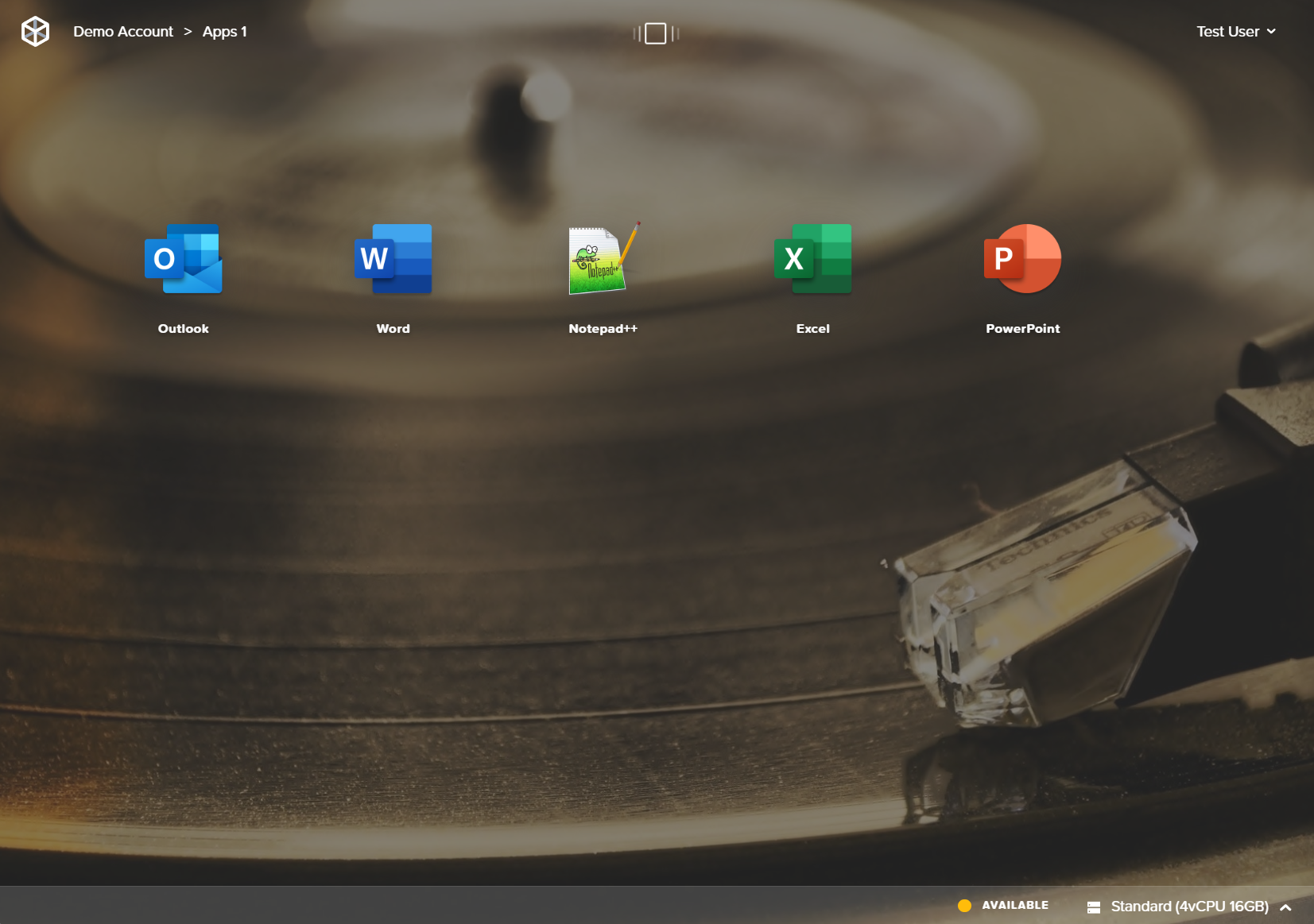
![Example Launchpad](https://docs.difr.com/uploads/images/gallery/2025-10/application-launchpad.png)

Clicking on the Rocket icon in the bottom left corner of the page will show users all Launchpads they have access to (including titles and thumbnails).

[![image.png](https://docs.difr.com/uploads/images/gallery/2025-12/scaled-1680-/JmBimage.png)](https://docs.difr.com/uploads/images/gallery/2025-12/JmBimage.png)
[![image.png](https://docs.difr.com/uploads/images/gallery/2025-12/scaled-1680-/hcLimage.png)](https://docs.difr.com/uploads/images/gallery/2025-12/hcLimage.png)
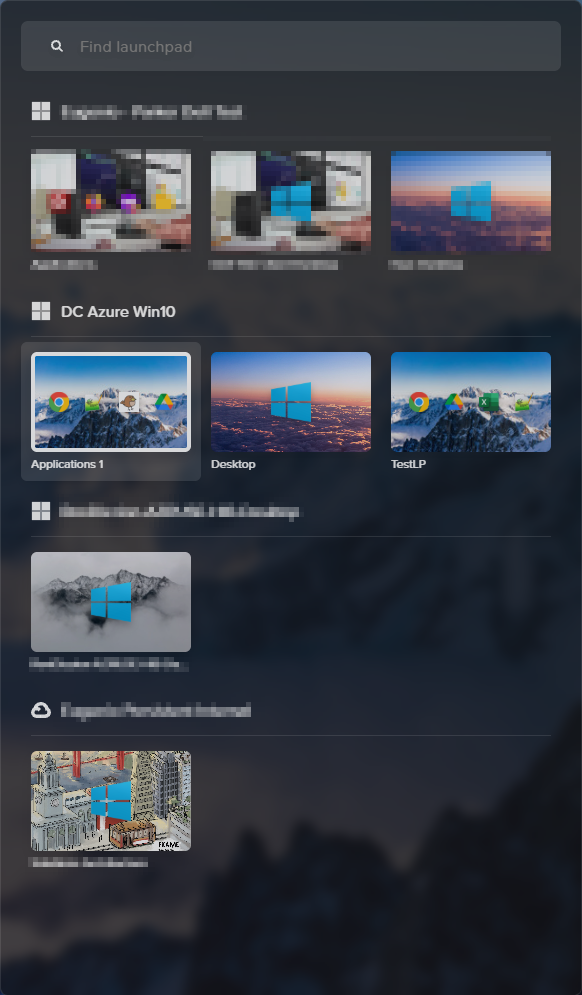
From this interface, the end user can easily access any or all of the Launchpads they have access to. This provides an efficient entryway into any of their applications and desktops. The rest of this guide will focus on creation and administration of these Launchpads.

## Application vs. Desktop Launchpads

End users may use two distinct types of Launchpads. Application Launchpads are designed to serve multiple application sets to end users, while Desktop Launchpads provide a single icon that takes the user to a limited Desktop environment. Desktop environments give users access to applications within the session instead of the Launchpad interface.

## Add a Launchpad

Administrators can create and configure Launchpads by navigating to the **Launchpads** page of their **Account Dashboard**. Start by clicking **Add a Launchpad** in the middle of the page.
![Add a Launchpad](https://docs.difr.com/uploads/images/gallery/2025-10/add-launchpad.png)

Application Launchpad is not available with [Persistent Desktop Frame accounts](https://docs.difr.com/link/35#bkmrk-page-title). If you wish to deliver individual applications to your users, create a non-persistent Frame account.

Whether you would like to deliver Applications or a Desktop interface to your users, select the desired Launchpad type and enter a name and URL slug into the corresponding fields. For this example, we'll select the Application Launchpad type.
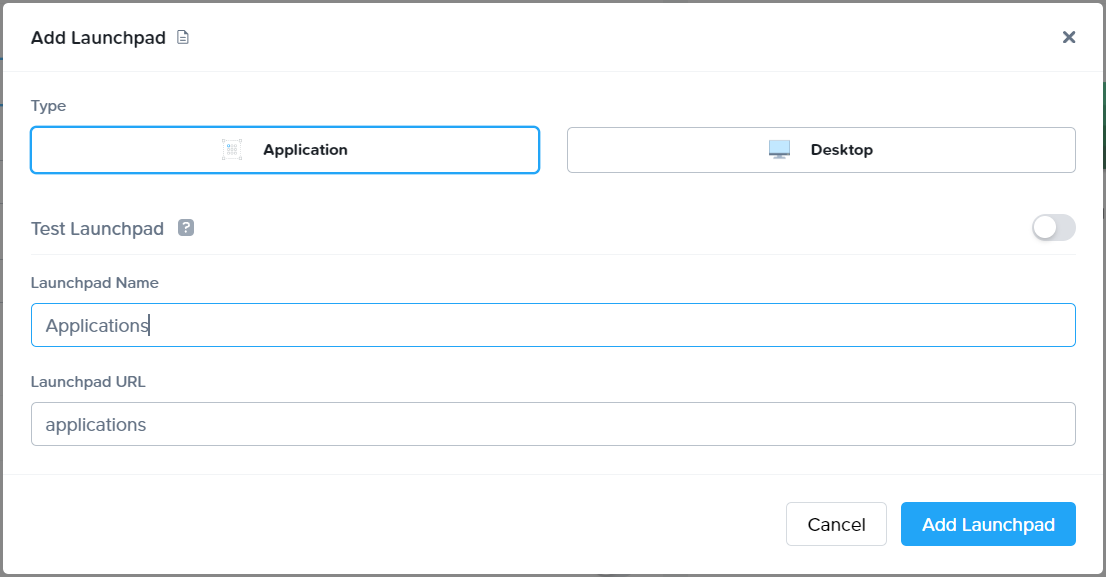
![Add App Launchpad](https://docs.difr.com/uploads/images/gallery/2025-10/create-app-launchpad.png)

Click **Add Launchpad** once all details have been entered. Your Dashboard interface will now display your new Launchpad:

[![image.png](https://docs.difr.com/uploads/images/gallery/2025-12/scaled-1680-/EM4image.png)](https://docs.difr.com/uploads/images/gallery/2025-12/EM4image.png)
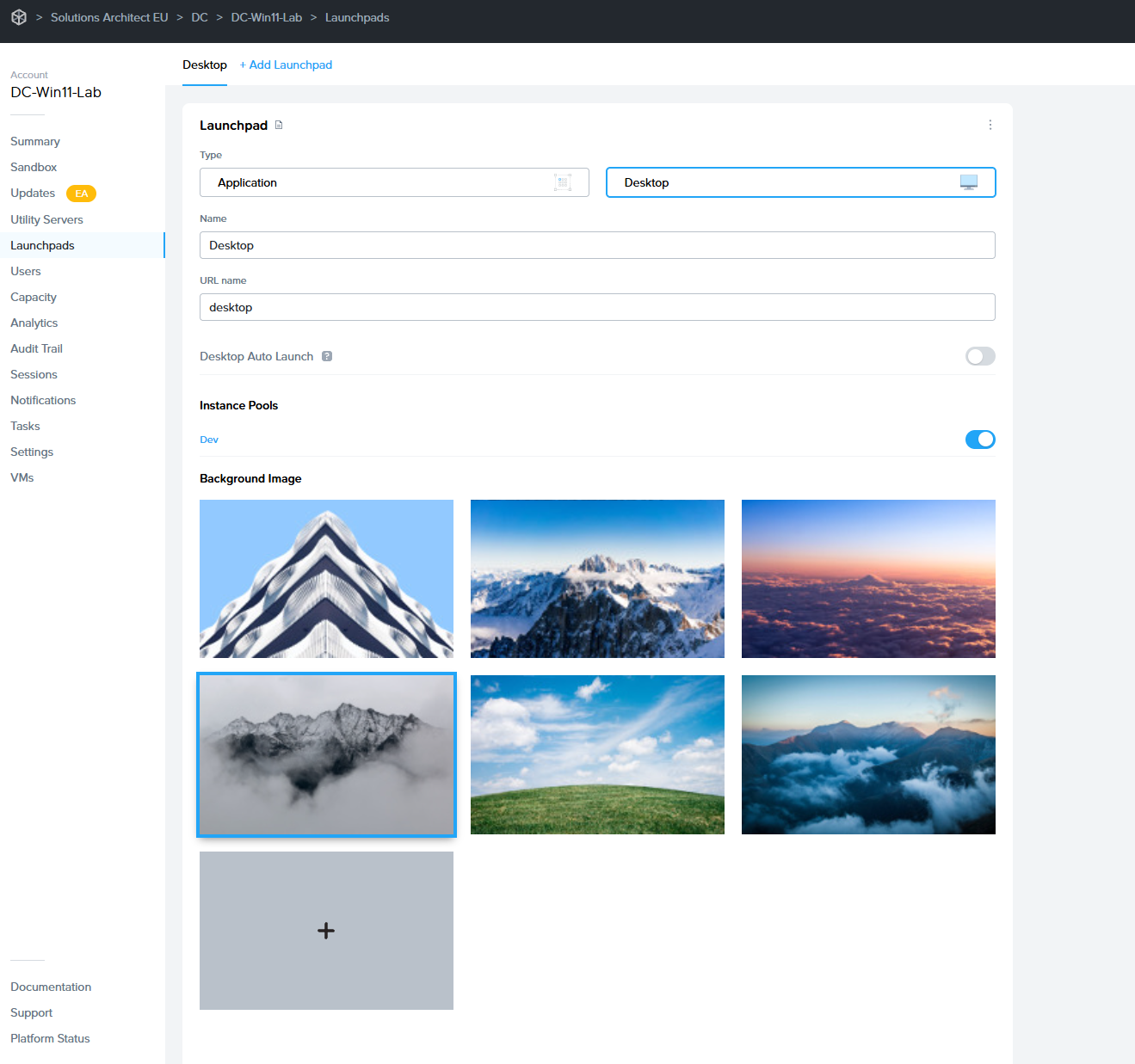
## Configure a Launchpad

In the **Launchpad panel**, admins can modify the name, URL name, and instance types they would like accessible to their end users. Admins can also switch between Application and Desktop Launchpad types and select their launchpad background image.

Click on the kebab menu in the upper right corner of this section to delete the Launchpad or modify session settings specific to this Launchpad. Read more about session settings by clicking here or navigating to the [Session Settings](https://docs.difr.com/link/144#bkmrk-page-title) section of Frame Platform documentation.

### Application Launchpad

Administrators can use the **Layout** section to choose which applications are visible to the end user when accessing their Application Launchpad. Click **Manage Applications** to toggle which applications you wish to display in the layout area.
![App Layout](https://docs.difr.com/uploads/images/gallery/2025-10/launchpad-layout1.png)

Admins can group app icons together into folders and/or change the order as desired. Click **Save** once you've made the desired changes.
![App Folders](https://docs.difr.com/uploads/images/gallery/2025-10/app-folders.png)

Here is an example of an Application Launchpad:

![Example Launchpad](https://docs.difr.com/uploads/images/gallery/2025-10/application-launchpad.png)

#### Application Auto Launch

For administrators who want to send users directly into their app session, skipping the Launchpad completely, enable the Application Auto Launch slider. This feature is applicable only for Launchpads with a single application.

### Application Launchpad 2.0

Administrators delivering Frame sessions via [Application Launchpad](#application-vs-desktop-launchpads) can now provide an enhanced experience to end users with **App Mode 2.0**. App Mode 2.0 allows end users to access their onboarded applications from the Frame start menu within the session.

[![image.png](https://docs.difr.com/uploads/images/gallery/2025-12/scaled-1680-/m69image.png)](https://docs.difr.com/uploads/images/gallery/2025-12/m69image.png)
![App Mode 2.0 Toggle](https://docs.difr.com/uploads/images/gallery/2025-10/appmode2-toggle.png)

Administrators can hide the Windows Task Bar with App Mode 2.0. Refer to [Autohide the Windows Task Bar in App Mode 2.0](https://docs.difr.com/books/platform-administrators-guide/page/scripting#autohide-the-windows-task-bar-in-app-mode-20) to understand how to use FGA Scripting to set the appropriate registry key to autohide the Windows Task Bar.

### Desktop Launchpad

Desktop Launchpad settings are identical to Application Launchpad settings, however, there is no "Applications" section. Desktop Launchpads only consist of one Desktop icon, so there is no layout configuration necessary.
![Desktop Launchpad](https://docs.difr.com/uploads/images/gallery/2025-10/desktop-launchpad.png)

Here is an example of a Desktop Launchpad:
![Desktop Launchpad Example](https://docs.difr.com/uploads/images/gallery/2025-10/desktop-example.png)

#### Desktop Auto Launch

For administrators who want to send users directly into their desktop session, skipping the Launchpad completely, enable the Desktop Auto Launch slider.

### Launchpad Appearance

Administrators can add their own custom Launchpad background images by simply clicking the gray plus symbol listed under **Background image** on the Launchpad page of their Dashboard. A file browser will launch, select the image you would like to use for your Launchpad background.
![Launchpad Background](https://docs.difr.com/uploads/images/gallery/2025-10/launchpad-bg.png)

NOTE: Your custom background image cannot exceed 3 MB in size.

## Test Launchpads

Test Launchpads are Launchpads tied to Test Pools, which are created with the Test Publish feature. This part of the guide details how to create Test Launchpads.

Before you create a Test Launchpad, you must have already done the following:

- Enabled the [Test Publish](https://docs.difr.com/link/101#bkmrk-test-publish) Feature in the Settings page of the Dashboard.
- [Added at least one Test Pool](https://docs.difr.com/books/platform-administrators-guide/page/capacity#add-test-pool) in [Capacity](https://docs.difr.com/link/114#bkmrk-page-title).
- Configured at least a max capacity of 1 for at least one Test Pool.
- Performed a [Test Publish](https://docs.difr.com/link/101#bkmrk-test-publish).

To create a Test Launchpad, go to Dashboard &gt; Launchpad. Add a new Launchpad and enable the **Test Launchpad** toggle. You need to specify if this Test Launchpad will be an Application or Desktop Launchpad before clicking **Add Launchpad**.
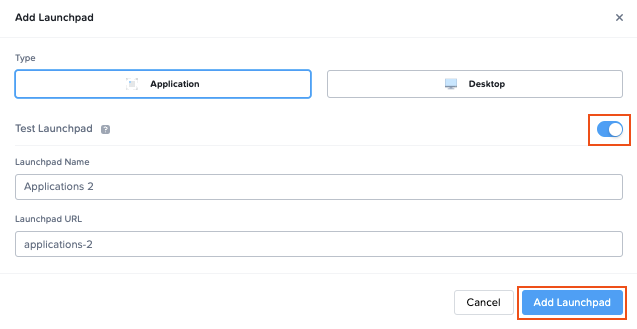
![Enable Test Launchpad](https://docs.difr.com/uploads/images/gallery/2025-10/test-launchpad1.png)

# Bring-Your-Own Workloads (Early Access)

## Overview

<span style="font-size: 12.0pt; line-height: 115%; mso-fareast-font-family: 'Times New Roman'; mso-fareast-theme-font: minor-fareast; mso-bidi-font-family: 'Times New Roman'; mso-bidi-theme-font: minor-bidi; color: windowtext;">The **Bring Your Own Workload feature** enables customers to bring their own Windows desktops, workstations, servers, or virtual machines - whether physical, virtual, or cloud-hosted - and integrate them seamlessly into the Dizzion platform for secure, remote access.</span>

<span style="font-size: 12.0pt; line-height: 115%; mso-fareast-font-family: Aptos; mso-fareast-theme-font: minor-latin; mso-bidi-font-family: 'Times New Roman'; mso-bidi-theme-font: minor-bidi; color: windowtext;">This functionality Remote PC provides a simple way to add and register workloads that reside outside Dizzion-managed infrastructure, enabling access through the same Dizzion interface and delivering a consistent user experience powered by the Frame Remoting Protocol (FRP) and secured by the Streaming Gateway Appliance (SGA).</span>

<span style="font-size: 12.0pt; line-height: 115%; mso-fareast-font-family: Aptos; mso-fareast-theme-font: minor-latin; mso-bidi-font-family: 'Times New Roman'; mso-bidi-theme-font: minor-bidi; color: windowtext;">By creating this type of account and registering your devices (VMs, desktops, or servers), you gain the ability for end users to securely connect to these devices directly through a browser, leveraging WebRTC-based streaming powered by the Frame Remoting Protocol (FRP). This enables consistent, low-latency experience without requiring a VPN or native client installation.</span>

<span style="font-size: 12.0pt; line-height: 115%; mso-fareast-font-family: Aptos; mso-fareast-theme-font: minor-latin; mso-bidi-font-family: 'Times New Roman'; mso-bidi-theme-font: minor-bidi; color: windowtext;">This Remote PC feature is applicable for:</span>

- <span style="font-size: 12.0pt; mso-fareast-font-family: Aptos; mso-fareast-theme-font: minor-latin; mso-bidi-font-family: 'Times New Roman'; mso-bidi-theme-font: minor-bidi; color: windowtext;">Windows PCs, Desktops, Workstations, Laptops.</span>
- <span style="font-size: 12.0pt; font-family: Symbol; mso-fareast-font-family: Symbol; mso-bidi-font-family: Symbol; color: windowtext;"><span style="mso-list: Ignore;"><span style="font: 7.0pt 'Times New Roman';"> </span></span></span><span style="font-size: 12.0pt; mso-fareast-font-family: Aptos; mso-fareast-theme-font: minor-latin; mso-bidi-font-family: 'Times New Roman'; mso-bidi-theme-font: minor-bidi; color: windowtext;">Racked servers and workstations in on-premises datacenters and co-locations.</span>
- <span style="font-size: 12.0pt; font-family: Symbol; mso-fareast-font-family: Symbol; mso-bidi-font-family: Symbol; color: windowtext;"><span style="mso-list: Ignore;"><span style="font: 7.0pt 'Times New Roman';"> </span></span></span><span style="font-size: 12.0pt; mso-fareast-font-family: Aptos; mso-fareast-theme-font: minor-latin; mso-bidi-font-family: 'Times New Roman'; mso-bidi-theme-font: minor-bidi; color: windowtext;">Cloud VMs hosted by non-Dizzion-supported infrastructure providers such as Microsoft Hyper-V, Microsoft Azure Stack Local, VMware/Broadcom vSphere, Citrix XenServer, Redhat Virtualization (RHV), Oracle KVM, Proxmox VE, Alibaba Cloud, Oracle Cloud Infrastructure (OCI) and others.</span>
- <span style="font-size: 12.0pt; mso-fareast-font-family: Aptos; mso-fareast-theme-font: minor-latin; mso-bidi-font-family: 'Times New Roman'; mso-bidi-theme-font: minor-bidi; color: windowtext;">Cloud VMs hosted by Dizzion-supported providers (AWS, Azure, GCP, IBM, Nutanix AHV) where customers prefer not to import the cloud account.</span>

<span style="font-size: 12.0pt; line-height: 115%; mso-fareast-font-family: Aptos; mso-fareast-theme-font: minor-latin; mso-bidi-font-family: 'Times New Roman'; mso-bidi-theme-font: minor-bidi; color: windowtext;">The process eliminates the need for traditional cloud setup steps (such as provider, region, or VPC/VNET selection) and allows registration using a single registration code and URL.</span>

# Prerequisites

<span style="font-family: 'Aptos Display',sans-serif; mso-ascii-theme-font: major-latin; mso-hansi-theme-font: major-latin;">Before registering your workloads make sure the following requirements are met:</span>

- <span style="font-family: 'Aptos Display',sans-serif; mso-ascii-theme-font: major-latin; mso-hansi-theme-font: major-latin;">This feature currently only works for Windows operating systems</span>
- <span style="font-family: 'Aptos Display',sans-serif; mso-ascii-theme-font: major-latin; mso-hansi-theme-font: major-latin;">Workloads must have outbound network connectivity on TCP port 443 (HTTPS) to access the registration URL, which is provided in the setup instructions below.</span>
- <span style="font-family: 'Aptos Display',sans-serif; mso-ascii-theme-font: major-latin; mso-hansi-theme-font: major-latin;">All networking requirements must be met as described in the reference documentation </span>[<span style="font-family: 'Aptos Display',sans-serif; mso-ascii-theme-font: major-latin; mso-hansi-theme-font: major-latin;">here</span>](https://docs.dizzion.com/platform/networking/requirements)<span style="font-family: 'Aptos Display',sans-serif; mso-ascii-theme-font: major-latin; mso-hansi-theme-font: major-latin;">.</span>
- <span style="font-family: 'Aptos Display',sans-serif; mso-ascii-theme-font: major-latin; mso-hansi-theme-font: major-latin;">For manual installation, you need administrative privileges on the workload VMs to install the Frame Guest Agent. For unattended installation, make sure the Frame Agent Setup Tool (FAST) is downloaded and set up for automated installation. </span>
- <span style="font-family: 'Aptos Display',sans-serif; mso-ascii-theme-font: major-latin; mso-hansi-theme-font: major-latin;">A Persistent Desktop account needs to be set as explained bellow</span>

# Workflow

## Step 1 – Create new Persistent Account from Console – New Account Type

<span style="font-family: Symbol; mso-fareast-font-family: Symbol; mso-bidi-font-family: Symbol;"><span style="mso-list: Ignore;">·<span style="font: 7.0pt 'Times New Roman';"> </span></span></span><span style="font-family: 'Aptos Display',sans-serif; mso-ascii-theme-font: major-latin; mso-hansi-theme-font: major-latin;">In the Create Account wizard, open the Account Type dropdown menu and select ‘Bring Your Own Workload’.<span style="mso-no-proof: yes;">![A screenshot of a computer
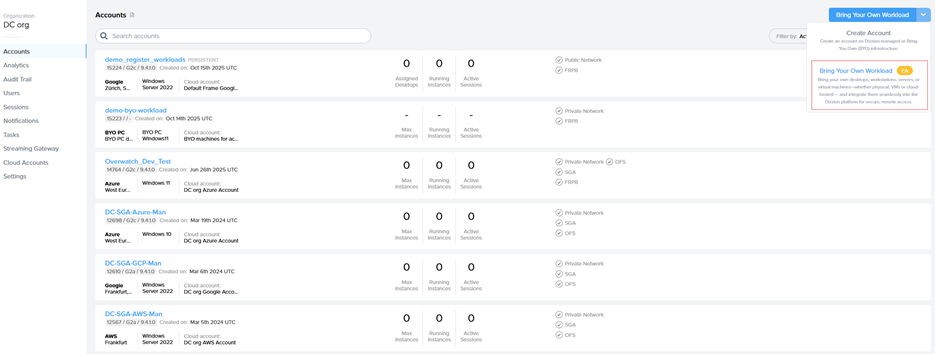
AI-generated content may be incorrect.](https://docs.difr.com/uploads/images/gallery/2025-10/embedded-image-ewkdtlug.png)</span></span>

<span style="font-family: Symbol; mso-fareast-font-family: Symbol; mso-bidi-font-family: Symbol;"><span style="mso-list: Ignore;">·<span style="font: 7.0pt 'Times New Roman';"> </span></span></span><span style="font-family: 'Aptos Display',sans-serif; mso-ascii-theme-font: major-latin; mso-hansi-theme-font: major-latin;">Enter an Account Name and URL and click Create<span style="mso-no-proof: yes;">![A screenshot of a computer
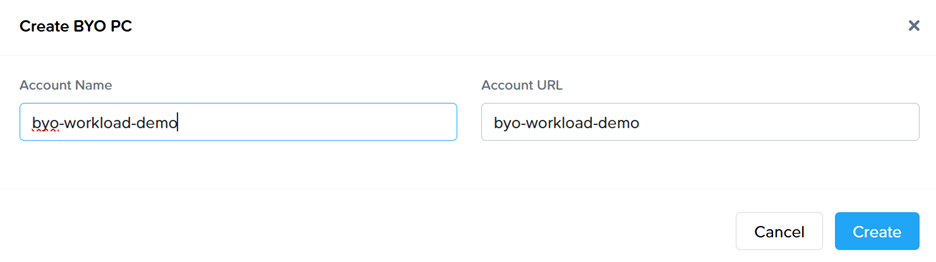
AI-generated content may be incorrect.](https://docs.difr.com/uploads/images/gallery/2025-10/embedded-image-xrttuuy0.png)</span></span>

## Step 2 – Register Workloads

<span style="font-family: Symbol; mso-fareast-font-family: Symbol; mso-bidi-font-family: Symbol;"><span style="mso-list: Ignore;">·<span style="font: 7.0pt 'Times New Roman';"> </span></span></span><span style="font-family: 'Aptos Display',sans-serif; mso-ascii-theme-font: major-latin; mso-hansi-theme-font: major-latin;">Go to the VMs page and select the “Register Workloads.”</span>

<span style="font-family: 'Aptos Display',sans-serif; mso-ascii-theme-font: major-latin; mso-hansi-theme-font: major-latin; mso-no-proof: yes;">![A white screen with a white background

AI-generated content may be incorrect.](https://docs.difr.com/uploads/images/gallery/2025-10/embedded-image-qjxcvr7r.png)</span>

<span style="font-family: Symbol; mso-fareast-font-family: Symbol; mso-bidi-font-family: Symbol;"><span style="mso-list: Ignore;">·<span style="font: 7.0pt 'Times New Roman';"> </span></span></span><span style="font-family: 'Aptos Display',sans-serif; mso-ascii-theme-font: major-latin; mso-hansi-theme-font: major-latin;">Specify the number of workloads you want to import into a persistent desktop pool.</span>

<span style="font-family: 'Aptos Display',sans-serif; mso-ascii-theme-font: major-latin; mso-hansi-theme-font: major-latin; mso-no-proof: yes;">![A white rectangular object with a black line

AI-generated content may be incorrect.](https://docs.difr.com/uploads/images/gallery/2025-10/embedded-image-hduipapt.png)</span>

<span style="font-family: 'Aptos Display',sans-serif; mso-ascii-theme-font: major-latin; mso-hansi-theme-font: major-latin;"> </span>

<span style="font-family: Symbol; mso-fareast-font-family: Symbol; mso-bidi-font-family: Symbol;"><span style="mso-list: Ignore;">·<span style="font: 7.0pt 'Times New Roman';"> </span></span></span><span style="font-family: 'Aptos Display',sans-serif; mso-ascii-theme-font: major-latin; mso-hansi-theme-font: major-latin;">A registration code with an expiration time, along with the backplane URL will be displayed. Copt the Code and URL so it can be used later.</span>

<span style="font-family: 'Aptos Display',sans-serif; mso-ascii-theme-font: major-latin; mso-hansi-theme-font: major-latin; mso-no-proof: yes;">![A screenshot of a computer

AI-generated content may be incorrect.](https://docs.difr.com/uploads/images/gallery/2025-10/embedded-image-6hyea5vc.png)</span>

<span style="font-family: Symbol; mso-fareast-font-family: Symbol; mso-bidi-font-family: Symbol;"><span style="mso-list: Ignore;">·<span style="font: 7.0pt 'Times New Roman';"> </span></span></span><span style="font-family: 'Aptos Display',sans-serif; mso-ascii-theme-font: major-latin; mso-hansi-theme-font: major-latin;">New objects appear on the VMs page, serving as placeholders until the actual machines register. If the registration code expires, refresh the page to generate a new one.<span style="mso-no-proof: yes;">![A screenshot of a computer
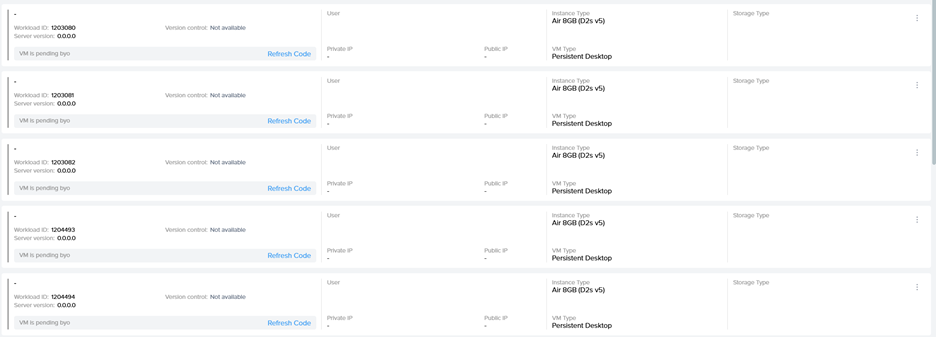
AI-generated content may be incorrect.](https://docs.difr.com/uploads/images/gallery/2025-10/embedded-image-riqjalsa.png)</span></span>

## Step 3 - Install Frame Guest Agent on Workloads

<span class="Heading3Char"><span style="font-size: 14.0pt; line-height: 115%; font-family: 'Aptos Display',sans-serif; mso-ascii-theme-font: major-latin; mso-hansi-theme-font: major-latin;">Manual installation</span></span>

<span style="font-family: 'Aptos Display',sans-serif; mso-ascii-theme-font: major-latin; mso-hansi-theme-font: major-latin;">On each workload VM, log in physically or connect remotely using VNC, Microsoft RDP, Citrix HDX, Omnissa (VMware) Blast, or another preferred protocol. Download the installer, the Frame Agent Setup Tool (FAST): </span>[<span style="font-family: 'Aptos Display',sans-serif; mso-ascii-theme-font: major-latin; mso-hansi-theme-font: major-latin;">http://downloads.difr.com/prod/frame-components/FrameAgentSetupTool.exe</span>](http://downloads.difr.com/prod/frame-components/FrameAgentSetupTool.exe)<span style="font-family: 'Aptos Display',sans-serif; mso-ascii-theme-font: major-latin; mso-hansi-theme-font: major-latin;"> </span>

#### <span style="font-family: 'Aptos Display',sans-serif; mso-ascii-theme-font: major-latin; mso-hansi-theme-font: major-latin; font-style: normal;">Registration via command prompt:</span>

<span style="font-family: 'Aptos Display',sans-serif; mso-ascii-theme-font: major-latin; mso-hansi-theme-font: major-latin;">frameagentsetuptool.exe install frameimage registrationcode=&lt;code&gt; registrationurl=&lt;url&gt;</span>

<span style="font-family: 'Aptos Display',sans-serif; mso-ascii-theme-font: major-latin; mso-hansi-theme-font: major-latin;">Replace &lt;code&gt; and &lt;url&gt; with the values generated in Step 2 of the Workflow.</span>

### Registration via UI:

<span style="mso-no-proof: yes;">![A screenshot of a computer

AI-generated content may be incorrect.](https://docs.difr.com/uploads/images/gallery/2025-10/embedded-image-iwuf7wai.png)</span>

<span style="font-family: 'Aptos Display',sans-serif; mso-ascii-theme-font: major-latin; mso-hansi-theme-font: major-latin;">Use &lt;code&gt; and &lt;url&gt; with the values generated in Step 2 of the Workflow.</span><span style="font-family: 'Aptos Display',sans-serif; mso-ascii-theme-font: major-latin; mso-hansi-theme-font: major-latin;"> </span>

### <span style="font-family: 'Aptos Display',sans-serif; mso-ascii-theme-font: major-latin; mso-hansi-theme-font: major-latin;">Unattended installation</span>

<span style="font-family: 'Aptos Display',sans-serif; mso-ascii-theme-font: major-latin; mso-hansi-theme-font: major-latin;">For customers who prefer unattended installations of FAST, this can be deployed automatically using standard management tools.</span>

#### <span style="font-family: 'Aptos Display',sans-serif; mso-ascii-theme-font: major-latin; mso-hansi-theme-font: major-latin; font-style: normal;">Recommended Methods</span>

- <span style="font-family: 'Aptos Display',sans-serif; mso-ascii-theme-font: major-latin; mso-hansi-theme-font: major-latin;">PowerShell Script: Run locally or remotely or distribute via GPO.</span>
- <span style="font-family: 'Aptos Display',sans-serif; mso-ascii-theme-font: major-latin; mso-hansi-theme-font: major-latin;">Intune / Endpoint Manager: Package FAST as a Win32 app and assign to devices.</span>
- <span style="font-family: 'Aptos Display',sans-serif; mso-ascii-theme-font: major-latin; mso-hansi-theme-font: major-latin;">Cloud Startup Scripts: Add the command to Azure Custom Script, AWS User Data, or GCP startup metadata for automatic registration at boot.</span>
- <span style="font-family: 'Aptos Display',sans-serif; mso-ascii-theme-font: major-latin; mso-hansi-theme-font: major-latin;">Use any third-party deployment tool of your choice.</span>

## Step 4 - Automatic Registration

<span style="font-family: 'Aptos Display',sans-serif; mso-ascii-theme-font: major-latin; mso-fareast-font-family: 'Aptos Display'; mso-hansi-theme-font: major-latin; mso-bidi-font-family: 'Aptos Display';">After running the command, the Frame Guest Agent automatically registers the workload. Each workload then appears in the Persistent Desktop Production Pool as an unassigned persistent desktop. This normally will take some minutes.</span>

## Step 5 – Create Launchpad

<span style="font-family: 'Aptos Display',sans-serif; mso-ascii-theme-font: major-latin; mso-hansi-theme-font: major-latin;">Set up a desktop </span>[<span style="font-family: 'Aptos Display',sans-serif; mso-ascii-theme-font: major-latin; mso-hansi-theme-font: major-latin;">Launchpad</span>](https://docs.dizzion.com/platform/admin/launchpads#desktop-launchpad)<span style="font-family: 'Aptos Display',sans-serif; mso-ascii-theme-font: major-latin; mso-hansi-theme-font: major-latin;"> for end users to access these VMs and </span>[<span style="font-family: 'Aptos Display',sans-serif; mso-ascii-theme-font: major-latin; mso-hansi-theme-font: major-latin;">configure e.g. SAML2 permissions</span>](https://docs.dizzion.com/platform/identity-and-access/authorization#user-permissions-with-a-saml2-idp)<span style="font-family: 'Aptos Display',sans-serif; mso-ascii-theme-font: major-latin; mso-hansi-theme-font: major-latin;">.</span>

# Notes:

<span style="font-family: 'Aptos Display',sans-serif; mso-ascii-theme-font: major-latin; mso-hansi-theme-font: major-latin;">Since the workloads are added to Frame without an associated Cloud Account, the Dizzion DaaS and Cloud PC orchestration capabilities available in standard persistent desktop accounts, such as provisioning, scaling, and image management, are not supported.</span>

<span style="font-family: 'Aptos Display',sans-serif; mso-ascii-theme-font: major-latin; mso-hansi-theme-font: major-latin;">The primary purpose of this account type is to provide secure and remote access to existing devices by leveraging the Streaming Gateway Appliance (SGA) and Frame Remoting Protocol (FRP) for high performance, browser based access to Windows Desktops.</span>

<span style="font-family: 'Aptos Display',sans-serif; mso-ascii-theme-font: major-latin; mso-hansi-theme-font: major-latin;">There are several limitations to consider:</span>

- <span style="font-family: 'Aptos Display',sans-serif; mso-ascii-theme-font: major-latin; mso-hansi-theme-font: major-latin;">No Sandbox support: Sandbox creation and related operations are not available.</span>
- <span style="font-family: 'Aptos Display',sans-serif; mso-ascii-theme-font: major-latin; mso-hansi-theme-font: major-latin;">Limited management actions: Computers can only be rebooted (soft reboot through the Frame Guest Agent) or terminated (removed from the Frame console without actions on the device itself).</span>
- <span style="font-family: 'Aptos Display',sans-serif; mso-ascii-theme-font: major-latin; mso-hansi-theme-font: major-latin;">Persistent desktop operations such as backup, restore, resize, and similar actions are not supported.</span>
- <span style="font-family: 'Aptos Display',sans-serif; mso-ascii-theme-font: major-latin; mso-hansi-theme-font: major-latin;">Manual assignment required: Imported desktops are not automatically assigned to users.</span>
- <span style="font-family: 'Aptos Display',sans-serif; mso-ascii-theme-font: major-latin; mso-hansi-theme-font: major-latin;">Enterprise Profiles, Personal Drives, and Domain Joined settings are not available.</span>

# Sandbox

Sandbox, Install and onboard Apps, Pubishing, Updates

# Sandbox

Each Frame Account has a Sandbox - a virtual machine provisioned specifically to allow you to manage the operating system and applications for the Frame account. The Sandbox image acts as a template for the rest of your workload VMs. For non-persistent Frame accounts, any changes made to the Sandbox image (e.g., updating Windows OS or Linux OS, installing or updating applications) will be served to your users as soon as you [Publish](https://docs.difr.com/link/101#bkmrk-page-title).

**GRAPHIC GOES HERE**

For persistent desktop Frame accounts, any changes made to the Sandbox image (e.g., updating Windows OS or Linux OS, installing or updating applications) will be made available to new users after you [Publish](https://docs.difr.com/link/101#bkmrk-page-title) and the new users are assigned to their persistent desktop. Already assigned persistent desktops will not receive those Sandbox changes. Refer to [Persistent Desktop Lifecycle](https://docs.difr.com/books/platform-administrators-guide/page/google-cloud-platform#persistent-desktop-lifecycle) for more details.

### Access your Sandbox

The Sandbox is accessed from the Frame Dashboard menu (`Dashboard > Sandbox`). From this page you can power it on, start the Sandbox session, and make desired changes to your operating system and applications.

[![image.png](https://docs.difr.com/uploads/images/gallery/2025-12/scaled-1680-/6Jnimage.png)](https://docs.difr.com/uploads/images/gallery/2025-12/6Jnimage.png)
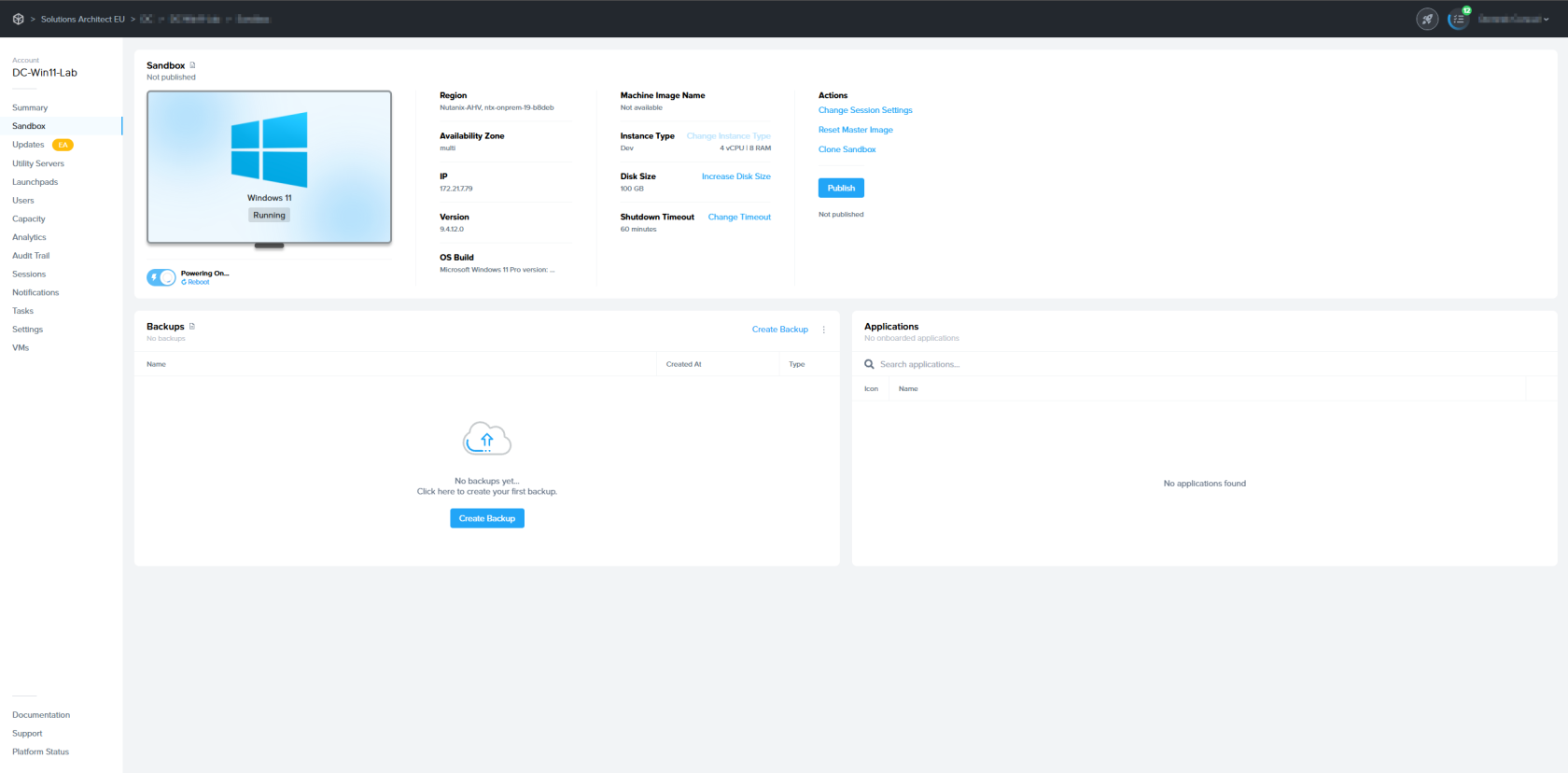
Once the Sandbox is powered on, you can start a session by clicking on the **Start Session** option. If the Sandbox is currently being used by an admin, the system will first prompt you to confirm that you wish to close the existing session.

[![image.png](https://docs.difr.com/uploads/images/gallery/2025-12/scaled-1680-/dHeimage.png)](https://docs.difr.com/uploads/images/gallery/2025-12/dHeimage.png)
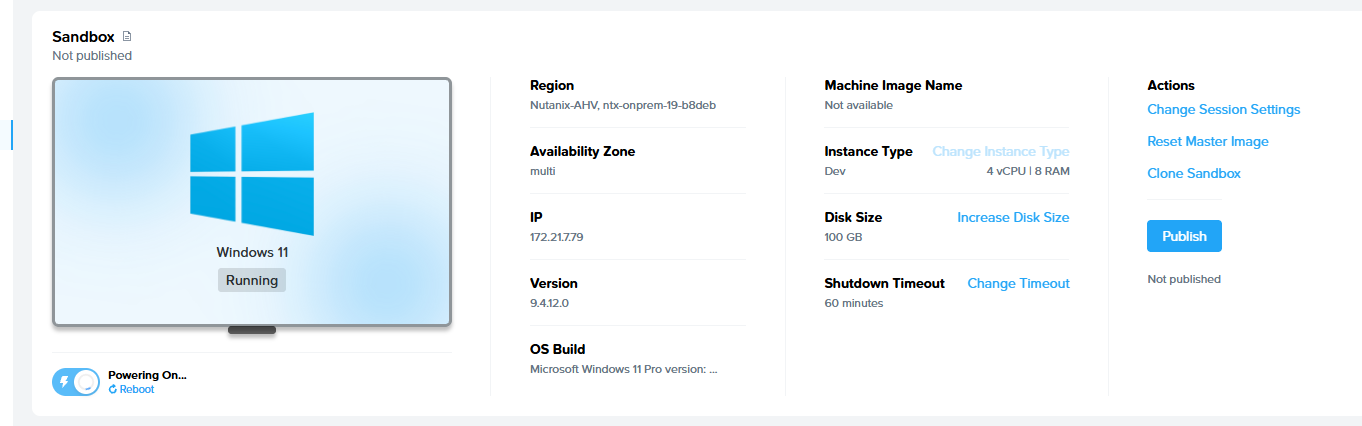
### Installing and Publishing

With your Sandbox in place, you can install apps and customize your experience. Then, once it's all configured, it's time to deploy or **Publish** the Sandbox as a disk image to your instances.

## Sandbox Options

### Power Off or Reboot

When the Sandbox is powered on, the admin can power off or reboot the Sandbox by clicking the power slider or select the reboot option

[![image.png](https://docs.difr.com/uploads/images/gallery/2025-12/scaled-1680-/oxIimage.png)](https://docs.difr.com/uploads/images/gallery/2025-12/oxIimage.png)
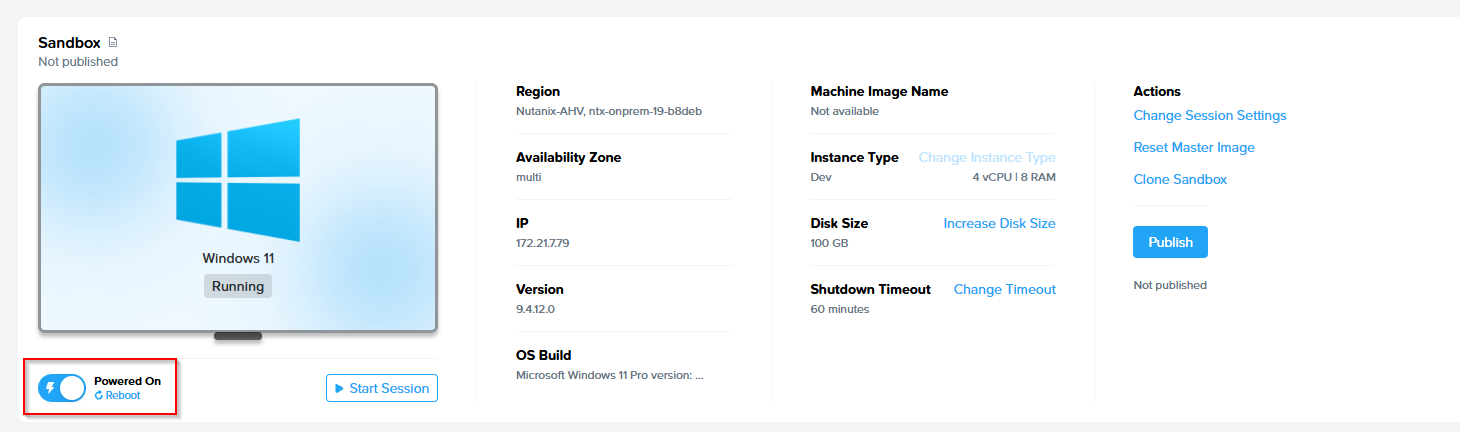
If an administrator chooses to reboot the Sandbox while another admin is accessing it, the system will prompt the admin to choose whether to **reboot** or **force reboot** the Sandbox. Choosing reboot will ensure the Sandbox is rebooted once the active Sandbox session is closed. The force reboot option will immediately close the active session and reboot the Sandbox.
![Sandbox - Reboot Options](https://docs.difr.com/uploads/images/gallery/2025-10/sandbox-reboot-options.png)

### Change Instance Type

The Sandbox instance type is defined by the administrator during account creation, however, this can be changed (provided the Sandbox VM is powered off) at any time. Changing the Sandbox instance type can be helpful if you wish to:

- Test your applications and configuration on Sandbox VMs with a different instance type
- Install or update applications that require a specific instance type. For example, an admin may wish to install a CAD application that requires a GPU. It can be helpful to switch to a GPU-based instance type and then back to a CPU-only instance type for installation/update tasks that don't require a GPU.

For public cloud infrastructure, changing the instance type requires the new VM to power on after the existing Sandbox disk is attached to the new VM and the old VM is terminated.

Click **Change Instance Type**. A dialog will appear prompting you to select a new instance type for your Sandbox.
![Sandbox - Change Instance Type](https://docs.difr.com/uploads/images/gallery/2025-10/sandbox-change-instance-type-1.png)

### Increase Disk Size

If your users need a larger C:\\ drive, you can increase the size of the Sandbox disk in increments of 1 GB. If you are using Azure, you will only be allowed to increase the disk size in discrete disk sizes.
![Sandbox - Increase Disk Size](https://docs.difr.com/uploads/images/gallery/2025-10/sandbox-increase-disk-size.png)

Increasing the size of the disk should be used with caution as this operation is irreversible.

### Sandbox Session Settings

Frame admins can change the behavior of the session by overriding the default account-level session settings. To override the account settings, simply disable the **Use account settings** slider. You will then be allowed to edit the settings.

[![image.png](https://docs.difr.com/uploads/images/gallery/2025-12/scaled-1680-/SR5image.png)](https://docs.difr.com/uploads/images/gallery/2025-12/SR5image.png)
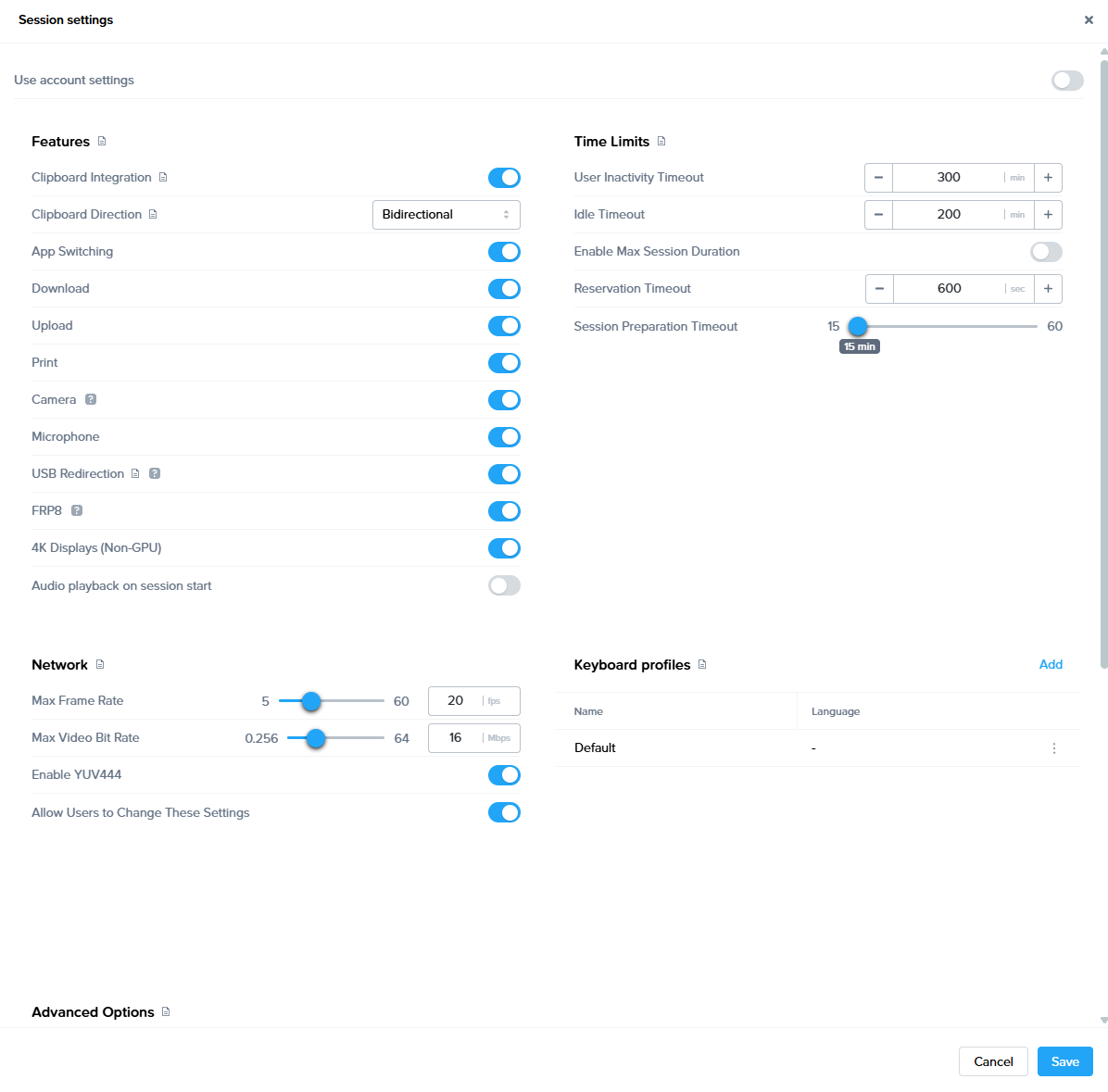
This is particularly important when Frame admins need ample time to install/configure applications, update their operating system/applications, or to test specific features. We recommend increasing the Sandbox Time Limits for this work to prevent your Sandbox session from ending prematurely.

As a best practice, specific timeout settings to consider increasing are:

- User Inactivity Timeout
- Idle Timeout

You may also want to review and enable features that allow you to do your work more efficiently, whether or not your users are allowed to use the same features in their Frame sessions:

- Clipboard Integration
- Download, Upload, and Print
- USB Redirection

Refer to [Session Settings](https://docs.difr.com/link/144#bkmrk-page-title) for details of each session setting parameter.

### Cloning

The Sandbox disk image can be cloned (copied) to other Frame accounts, provided the source and destination Frame accounts share the same cloud account (public or AHV).

Refer to [Cloning](https://docs.difr.com/link/117#bkmrk-page-title) for details on how to clone a Sandbox (or a Sandbox backup) to one or more destination Sandboxes.

### Backup and Restore

There are 3 different ways to perform a backup of your Sandbox image:

1. Publish: when you start a publish, your Sandbox disk will automatically be backed up.
2. Manual backup: you can manually backup your Sandbox disk at any time.
3. Automated backup: you can schedule a task to backup your Sandbox with a daily or hourly periodicity.

Refer to [Backups](https://docs.difr.com/link/129#bkmrk-page-title) for additional information on these three backup approaches and how to restore the Sandbox disk from a backup.

### Reset Master Image

If you have used your own image ([BYO Image](https://docs.difr.com/link/69#bkmrk-page-title)) to create your Frame account, you will have the option to reset your Sandbox image back to a template image of your choice, as specified in your Cloud Account, under the Template Images tab. Reset Master Image will terminate your existing Sandbox VM and provision a new Sandbox VM with a same instance type using a copy of the default template image.

If you are using Application Launchpads, you must ensure that the onboarded applications are in the new Sandbox VM and/or manually remove the onboarded application entries from the Sandbox page to match what is in the Sandbox before publishing the Sandbox.
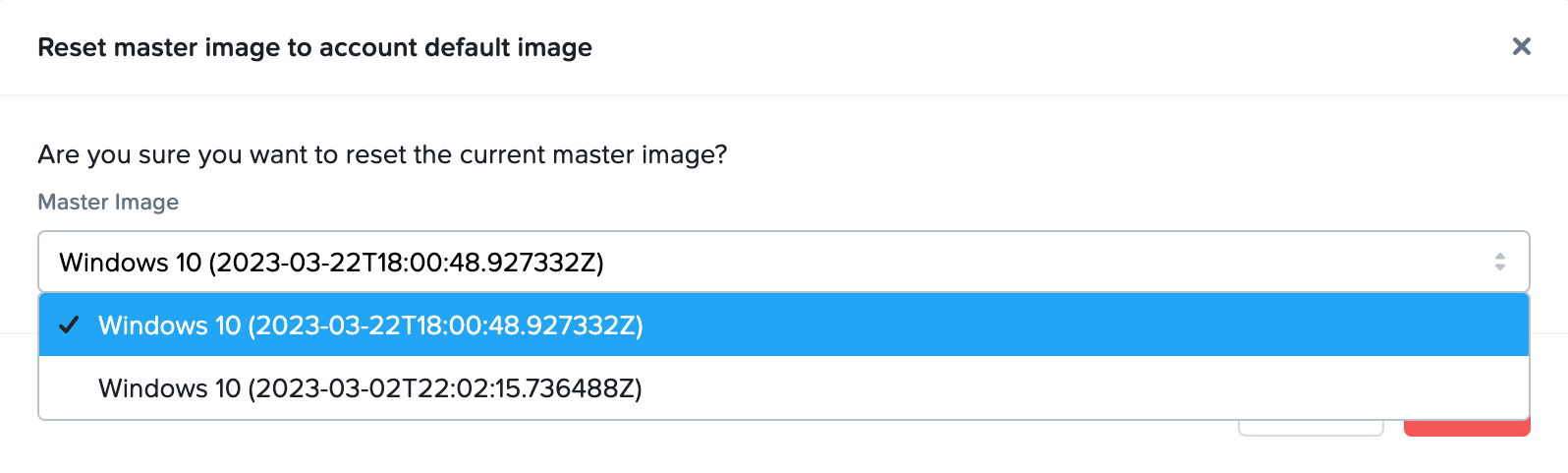
![Sandbox - Reset Master Image](https://docs.difr.com/uploads/images/gallery/2025-10/sandbox-reset-master-image-1.png)

Once you have selected the template image that will be used, click **Reset** to proceed with the replacement of your Sandbox image.
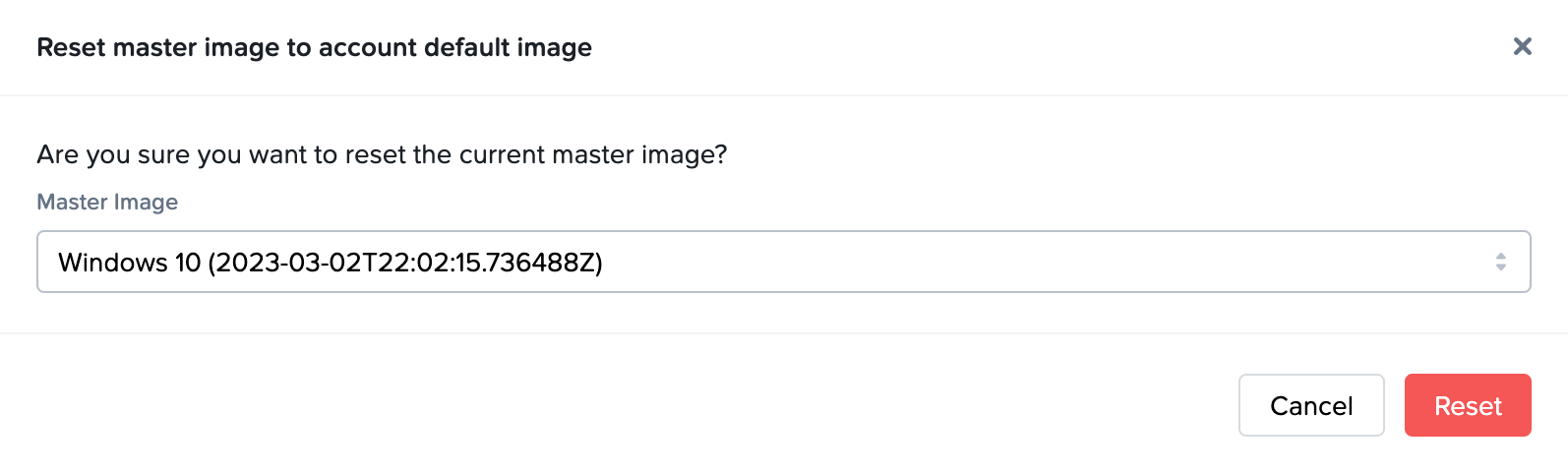
![Sandbox - Reset Master Image Confirmation](https://docs.difr.com/uploads/images/gallery/2025-10/sandbox-reset-master-image-2.png)

## Updates

The **Updates** page of your Account Dashboard will display any needed OS or Frame-related updates for your Sandbox. More details can be found in the [Updates section](https://docs.difr.com/books/platform-administrators-guide/page/updates) of our documentation.

## Local Group Policies

In order for users to be able to use Frame, administrators must ensure that the following Windows Local Group Policy requirements are met.

<table id="bkmrk-policy-location-requ"><thead><tr><th>Policy</th><th>Location</th><th>Required Value</th><th>Explanation</th></tr></thead><tbody><tr><td>[Interactive logon: Don't display last signed-in](https://learn.microsoft.com/en-us/windows/security/threat-protection/security-policy-settings/interactive-logon-do-not-display-last-user-name)</td><td>Computer Configuration\\Windows Settings\\Security Settings\\Local Policies\\Security Options</td><td>Enabled</td><td>Auto-login is required for the Frame session to be able to start.</td></tr><tr><td>[Interactive logon: Message title for users attempting to log on](https://learn.microsoft.com/en-us/windows/security/threat-protection/security-policy-settings/interactive-logon-message-title-for-users-attempting-to-log-on)</td><td>Computer Configuration\\Windows Settings\\Security Settings\\Local Policies\\Security Options</td><td>Not defined</td><td>Frame session will not start if the title is defined.</td></tr><tr><td>[Interactive logon: Message text for users attempting to log on](https://learn.microsoft.com/en-us/windows/security/threat-protection/security-policy-settings/interactive-logon-message-text-for-users-attempting-to-log-on)</td><td>Computer Configuration\\Windows Settings\\Security Settings\\Local Policies\\Security Options</td><td>Not defined</td><td>Frame session will not start if the message is defined.</td></tr><tr><td>[Password protect the screen saver](https://learn.microsoft.com/en-us/troubleshoot/windows-client/group-policy/disable-screen-saver-passwords)</td><td><div>User Configuration\Administrative Templates\Control Panel\Personalization</div></td><td>Disable</td><td>Frame session will not start or resume if the screen saver requires a password.</td></tr></tbody></table>

## Frame-specific Local Windows Users

Frame adds two local Windows users to each Windows workload VM:

- `Frame` - a local Windows user that is included in the local Administrators group.
- `FrameUser` - a local Windows user used in non-domain-joined workload VMs when the [Enterprise Profiles](https://docs.difr.com/books/platform-administrators-guide/page/enterprise-profiles) feature is enabled. This local Windows user does not have local Windows administrative privileges.

<p class="callout warning"> Do not:Remove the `Frame` user from the local Windows Administrators group.  
  
- Modify the `Frame` user permissions in `Computer Configuration\\Preferences\\Control Panel Settings\\Local Users and Groups`.  
- Change the `Frame` user password.Remove the `FrameUser` user (if the Enterprise Profile feature is to be used in a non- domain-joined pool of workload VMs).  
- Change the `FrameUser` user password (if the Enterprise Profile feature is to be used in a non-domain-joined pool of workload VMs).  
- Modify the local user password policy or implement a stronger password policy.</p>

Otherwise, you will not be able to access the workload VMs using Frame Remoting Protocol.

Changing these passwords on a workload VM can cause the Frame session to fail to start. If a password management solution such as Microsoft Local Administrator Password Solution (LAPS) is used, the two Frame-specific users must be excluded.

## Frame-specific Local Linux User

Frame adds one local Linux users to each Linux workload VM:

- `frame` - a local Linux user.

The same warnings from the local Windows user `Frame` listed above apply for the local Linux user `frame`.

## Local Frame User Password Policy

The `Frame` (Linux and Windows) and `FrameUser` (Windows only) password is rotated automatically by Frame for each Frame session. These passwords have the following characteristics:

- Randomly generated
- 25 characters long
- Contains 4 uppercase characters
- Contains 4 lowercase characters
- Contains 4 numeric digits
- Contains 8 special characters (`!`, `@`, `#`, `$`, `%`, `^`, `&`, `*`, `(`, `)`, `,`, `.`, `?`, `:`, `{`, `}`, `|`, `<`, `>`, `_`)

# Install and Onboard Apps

In general, if you are planning to only deliver virtual desktops to your users, then onboarding applications is not required – simply install your desired applications to the Sandbox.

If you wish to make individual applications available to your users via an Application Launchpad, you will need to install and onboard each application. Onboarding an application for your users registers the application with the Frame control plane and prepares it to be shared as an individual application without the desktop being visible.

Once you have installed or updated your applications for either Desktop or Application Launchpad, you must [publish](https://docs.difr.com/link/101#bkmrk-page-title) your Sandbox to make the applications available to your users.

This guide will show Frame administrators the basics of installing, onboarding (if required), and deleting applications for their users.

<details id="bkmrk-aws-specific-best-pr"><summary>AWS-specific best practice</summary>

When an Amazon Elastic Block Storage (EBS) volume is created for each AWS Elastic Cloud 2 (EC2) instance provisioned during the publishing process, Amazon does not copy all of the Simple Storage Service (S3) blocks of the underlying EBS snapshot into the EC2 instance's EBS volume. This allows the EBS volume to be used immediately. Any S3 blocks that are subsequently needed are then loaded into the EBS volume on-demand ("lazy loading"). This AWS-specific behavior can result in slower than expected application and file loading until the relevant S3 blocks are loaded into the EBS volume.

For customers providing virtual desktops using AWS infrastructure, Frame recommends administrators install and onboard applications in the Sandbox. The first time the EC2 instance is provisioned and powered on, Frame will start up all onboarded applications to force the applications' S3 blocks to be loaded into the EBS volume, in order to speed up application start up time.

</details>## Install and Onboard Applications

As a best practice, Frame recommends manually backing up your Sandbox before installing your applications. This backup allows you to quickly revert to a base OS image in the case of catastrophic image corruption. With [Bring Your Own (BYO) image](https://docs.difr.com/books/platform-administrators-guide/page/bring-your-own), you can reset the Sandbox image to a previously registered template image using the [Reset master image](https://docs.difr.com/books/platform-administrators-guide/page/sandbox#bkmrk-reset-master-image) feature.

<p class="callout info"> The onboarding process only applies to executables (.exe files), scripts which launch executables, and shortcuts that point to executable files.</p>

1. Go to the **Sandbox** page of your account's *Dashboard*. Click **Power On** to boot your Sandbox if needed . When the Sandbox is available, click **Start Session**.
    
    [![image.png](https://docs.difr.com/uploads/images/gallery/2025-12/scaled-1680-/0t3image.png)](https://docs.difr.com/uploads/images/gallery/2025-12/0t3image.png)
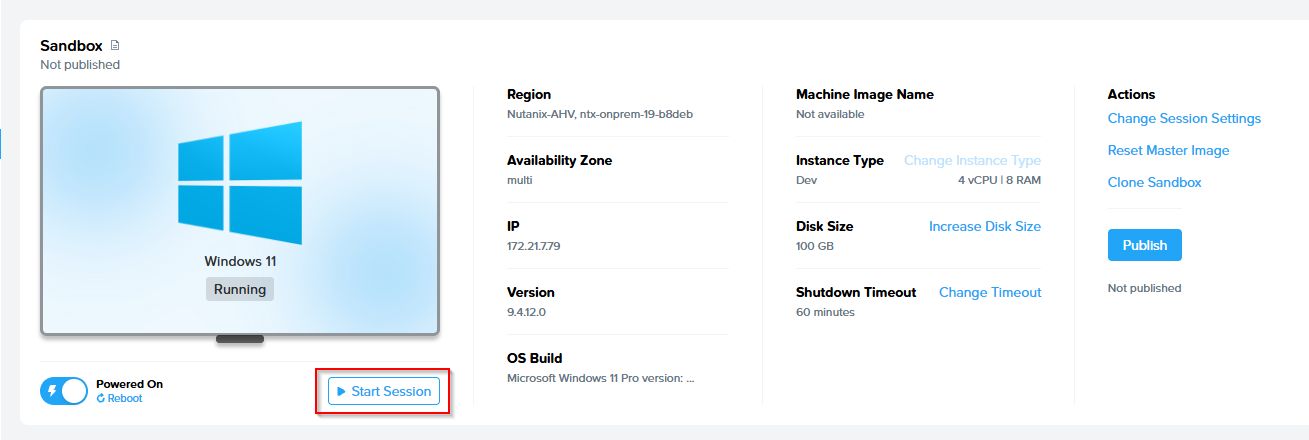
2. If your installer is available online, you can download it directly using the browser in your Sandbox (Chrome) – this will be the fastest method for large installers. If your installer is not available online, and you have it on your local machine, you can upload it to your Frame session from your local machine. Additionally, you can opt to connect your cloud storage account to your Frame account, which would enable you to see the files in a virtual drive in your Sandbox. You can connect your cloud storage accounts from the admin menu in the upper right corner (to the right of the Sandbox image) or from within your Sandbox session by clicking on the icons at the bottom right corner of your desktop session.
3. If you downloaded your installer using the browser in the Sandbox, simply launch the setup file from the "Downloads" folder. If you used a cloud storage account, navigate to "Computer" and open the appropriate drive (e.g., X: drive for Box). If you uploaded your installer from your local machine, you can access it by going into the "Uploads" folder.

<p class="callout danger"> **Caution**  
 Copy your setup file(s) from the original drive to the C: drive, and then run the installation of your app as you would on a PC from the local **C: drive**.  
</p>

<details id="bkmrk-tip-looking-to-autom"><summary>Tip</summary>

Looking to automate app onboarding?

If you're interested in scripting and automating app onboarding, see [Onboard applications via CLI](https://docs.difr.com/link/176#bkmrk-session-api-referenc).

</details>4. If you are planning to deliver your applications in an Application Launchpad, accept the Frame prompts to onboard your application. Frame automatically imports the application's icon during the onboarding process. Otherwise, you can click **Cancel**.
    
    ![Sandbox Panel](https://docs.difr.com/uploads/images/gallery/2025-10/onboard-app-prompt.png)

<p class="callout info"> To manually onboard an application, simply right-click on the application in the program menu or directly on the application's .exe file in its install folder (e.g. in the "Program Files (x86)" or "Program Files" folder) and select "Onboard to Frame."</p>

5. Test your application from within the Sandbox to make sure everything is functioning as expected (for instance, if you need to enter a license code/load a license file, do so now). If you onboarded the application, you can disconnect from your Sandbox session by selecting **Disconnect** from the gear menu. You will see your newly onboarded application as an application icon in your Dashboard next to your other onboarded apps. Set custom application properties by hovering over your icon and selecting the gear icon.
    
    ![Sandbox Panel](https://docs.difr.com/uploads/images/gallery/2025-10/onboarded-app-options.png)

## Delete Onboarded Applications

If you wish to remove a particular application from your users' Launchpad, you can do so easily from the account Dashboard by following the steps below:

1. Navigate to the Dashboard. On the *Sandbox* page of the *Dashboard*, look for the **Applications** section near your Sandbox. Hover over the application you would like to get rid of – you should see a gear icon and trash can icon, like this:
    
    ![Sandbox Panel](https://docs.difr.com/uploads/images/gallery/2025-10/onboarded-app-options-delete.png)
2. Click on the trash symbol to schedule the deletion of the application on the next publish. This means that your users will still see the application in their Application Launchpad until the next time you publish.

## Uninstall an Application

If your application has been installed on the Sandbox and you want to ensure that your users are no longer able to access the application (especially if they are using a Desktop Launchpad), you must uninstall the application from your Sandbox.

1. To uninstall applications, launch your Sandbox, click on the Windows Start button and select "Installed apps"
    
    [![image.png](https://docs.difr.com/uploads/images/gallery/2025-12/scaled-1680-/OX2image.png)](https://docs.difr.com/uploads/images/gallery/2025-12/OX2image.png)
2. A new window will pop up, from there you can see a list of all installed Applications, and can select which one should be removed.
    
    [![image.png](https://docs.difr.com/uploads/images/gallery/2025-12/scaled-1680-/w9Jimage.png)](https://docs.difr.com/uploads/images/gallery/2025-12/w9Jimage.png)
    
    Publish your Sandbox to ensure the application binaries are no longer in the production VMs.

<p class="callout warning"> If your users are using an Application Launchpad and you did not delete the onboarded application in the Sandbox page before publishing, your users will see an error when they try to access the application from their Application Launchpad.</p>

# Publishing

Once you have installed one or more applications, tested them in the Sandbox, set up a [Desktop Launchpad](https://docs.difr.com/books/platform-administrators-guide/page/launchpads#desktop-launchpad) or [Application Launchpad](https://docs.difr.com/books/platform-administrators-guide/page/launchpads#application-launchpad), and [defined your production capacity](https://docs.difr.com/books/platform-administrators-guide/page/capacity), you're ready to publish. There are three types of publishing:

- **Publish**: A standard publish will always create the **max** number of instances specified in the account's Capacity settings for each configured Instance Pool before the existing instances are terminated.
- **Quick Publish**: Quick publish allows administrators to specify how many production instances (less than or equal to Default Capacity **max**) are created on publish and powered on for each Instance Pool before any existing instances are terminated. Frame will then continue to create the remaining new VMs for each Instance Pool up to the Max Instances setting. This results in a quicker publish; however, it can result in a temporary reduction in the number of instances for each Instance Pool.
- **Test Publish**: This feature allows you to test Launchpad functionality and Sandbox changes in your Frame account before committing your changes to your production environment.

<p class="callout info"> **Publishing requires capacity**  
 Before publishing, you will need to set your [production capacity](https://docs.difr.com/books/platform-administrators-guide/page/capacity). Setting your production capacity specifies the amount of VMs you would like to publish your Sandbox image to. If you are not familiar with this, you can read more about system capacity and elastic instance management in our documentation [here](https://docs.difr.com/books/platform-administrators-guide/page/capacity).If there are no instance types with a max set to at least 1, **publishing will be disabled**.</p>

## Fundamentals

A **Publish** pushes any changes and configurations made to the Sandbox image to the production (or test) instances and, in turn, to the end users accessing your Frame-managed workload VMs.

[![image.png](https://docs.difr.com/uploads/images/gallery/2025-10/scaled-1680-/Xv0image.png)](https://docs.difr.com/uploads/images/gallery/2025-10/Xv0image.png)

### Initiating a Publish

Once your Sandbox is configured as desired and you're ready to publish, follow the steps below:

1. Navigate to the **Sandbox** page of your account Dashboard and ensure your Sandbox is powered on.
2. Click **Publish** in the top right corner of the Sandbox panel. A confirmation dialog will appear.
    
    <figure>![Are you sure you want to continue?](https://docs.difr.com/uploads/images/gallery/2025-10/publish-dialog.png)
    
    </figure>
3. Click **Publish** to confirm. The Sandbox panel will update and show a status of `PUBLISHING`. Progress updates about the publish are displayed at the bottom of the Sandbox card.
    
    <figure>![Sandbox in PUBLISHING status](https://docs.difr.com/uploads/images/gallery/2025-10/publishing-2025.png)
    
    </figure>
4. The status will return to `STOPPED` once the publish is complete. You can also see the status of your publish by clicking on your tasks (next to the bell icon in the upper right corner of your console) or by navigating to the Notification Center page accessible from the sidebar of the Dashbaord.

That's it! Now that the publish is complete, all *production instances* have been updated with the latest image from the Sandbox.

### Cancelling a Publish

**Cancel Publish** gives administrators the ability to cancel or abort an ongoing Publish or Test Publish task.

With this feature, administrators can cancel a Publish that has been accidentally initiated or a publish that is consuming more time than usual.

<p class="callout info"> You may cancel a publish up \*\*until the time Frame Platform begins creating production or test instances\*\* (depending on whether you invoked a Publish, Quick Publish, or a Test Publish, respectively).</p>

#### From Sandbox

To cancel an ongoing Publish from the Sandbox, once your Sandbox is in the Publishing state, go to the Sandbox page and under the kebab menu, the **Cancel Publish** option can be selected:

<figure id="bkmrk--1">![Dashboard > Sandbox - Cancel Publish](https://docs.difr.com/uploads/images/gallery/2025-10/cancel-publish2025.png)

</figure>#### From Notification Center

To cancel an ongoing Publish or Test Publish from Notification Center, once your Sandbox is in the Publishing state, follow the steps:

1. Navigate to the Notification Center page of your account Dashboard.
2. On the Task tag, click on the ellipsis listed next to the Publishing Sandbox to Production task and choose **Cancel**.
    
    <figure>![Dashboard > Notification Center > Cancel](https://docs.difr.com/uploads/images/gallery/2025-10/cancel-publish2.png)
    
    </figure>
3. Choose “Yes” on the next screen.
    
    <figure>![Confirm Cancel Publish Request](https://docs.difr.com/uploads/images/gallery/2025-10/cancel-publish3.png)
    
    </figure>
4. A notification will appear on the upper right-hand side stating the task was canceled.
    
    <figure>![Dashboard > Notification Center > Cancellation Confirmed](https://docs.difr.com/uploads/images/gallery/2025-10/cancel-publish4.png)
    
    </figure>

#### Troubleshooting

If the publishing Sandbox to production task status is not updating, reload or refresh the page in your browser for the current status.

## Advanced Publishing

In general, we strongly recommended that customers publish during off-peak hours whenever possible.

### Publish

By default, running a regular Publish will create new VMs based on the Max Instances specified within [Capacity](https://docs.difr.com/books/platform-administrators-guide/page/capacity) for each configured Instance Pool. Once all new VMs are created, existing VMs will be terminated and new user sessions will start utilizing the new VMs. For public cloud Accounts, newly created VMs are powered on and ready for use immediately after creation. For AHV Accounts, newly created VMs remain powered off and unavailable for hosting sessions until existing VMs are completely terminated.

### Quick Publish

When Quick Publish is enabled (default for AHV Accounts), Frame will create new VMs within each Instance Pool up to the specified amount (10, by default) **before any existing instances are terminated**. Once the specified amount of new VMs are created for a given Instance Pool, they will be powered on and immediately made available for new sessions and Quick Publish will be considered complete. Once the Quick Publish process is complete, all other existing VMs will then be terminated and will no longer be available for hosting user sessions. Frame will then continue to create the remaining new VMs for each Instance Pool up to the Max Instances setting.

Because Quick Publish temporarily reduces the effective max instance capacity, **it is generally not recommended for public cloud Accounts**.

For AHV Accounts, enabling Quick Publish is generally recommended as it eliminates downtime during a publish by making a smaller pool of new VMs immediately available for user sessions while the larger pool of new VMs are created and powered on. It is recommended that Quick Publish is configured to equal the maximum expected number of new user sessions per hour during off-peak hours of your largest Instance Pool (if this number is not known, start with a value equal to 10% of your Max Instances setting). Customers should ensure that their AHV Cluster is properly sized to support the additional number of powered-on VMs created during the Quick Publish process.

<p class="callout info"> **Reminder   
 By default, all AHV-based accounts use the quick publish function**. The default number of production instances created on publish is 10. If you wish to override this number, follow the instructions below.</p>

1. From your account Dashboard, navigate to the **Settings** page. Under the *General* tab, **enable quick publish** as shown below.
    
    <figure>[![image.png](https://docs.difr.com/uploads/images/gallery/2025-10/scaled-1680-/MWZimage.png)](https://docs.difr.com/uploads/images/gallery/2025-10/MWZimage.png)
    
    </figure>
2. Once enabled, you have the option to set the number of production instances you would like to be created on each publish. Smaller batches are faster, we recommend 5-10.
    
    [![image.png](https://docs.difr.com/uploads/images/gallery/2025-10/scaled-1680-/xR3image.png)](https://docs.difr.com/uploads/images/gallery/2025-10/xR3image.png)

Click the **Save button** in the upper right corner of your Dashboard to apply your changes.

<figure id="bkmrk--2"></figure><p class="callout info"> If the min value in your capacity settings is set to less than the quick publish value specified, the quick value publish settings are ignored and a regular publish is performed.</p>

That's it! You have successfully enabled quick publish for your Frame account. Any publish operations initiated from this point forward will be Quick Publishes.

### Test Publish

**Test Publishing** gives administrators the ability to test their updated Sandbox image in a “Test Instance Pool” which is **separate from their production instances**. This gives administrators the option to alter the instances in an isolated environment, completely identical to production, without concern of interrupting access to the normal production instances. Test publishes can easily be rolled back via the restoration of a backup, or promoted to the active published configuration, depending on the results.

[![image.png](https://docs.difr.com/uploads/images/gallery/2025-10/scaled-1680-/ISZimage.png)](https://docs.difr.com/uploads/images/gallery/2025-10/ISZimage.png)

Before a test publish, you will need to set your [test capacity](https://docs.difr.com/books/platform-administrators-guide/page/capacity#add-test-pool). Setting your test capacity specifies the amount of VMs you would like to publish your Sandbox image to. If you are not familiar with this, you can read more about system capacity and elastic instance management in our documentation [here](https://docs.difr.com/books/platform-administrators-guide/page/capacity#add-test-pool).  
  
  
1\. In your Frame Account Dashboard under the **Settings** tab, **Enable Test Publish**. Click the **Save** button to apply the change.

[![image.png](https://docs.difr.com/uploads/images/gallery/2025-10/scaled-1680-/wYWimage.png)](https://docs.difr.com/uploads/images/gallery/2025-10/wYWimage.png)
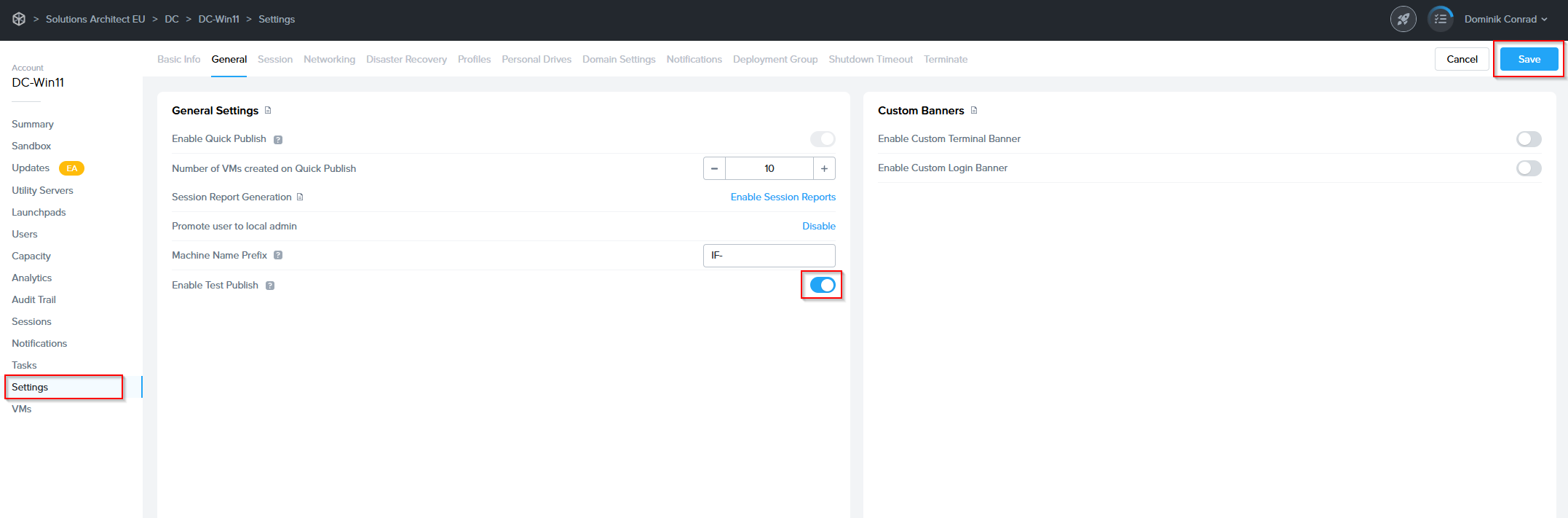
2\. A prompt will appear, notifying you that the Test Publishing feature **cannot be disabled once enabled** on an account.   
 Click **Confirm**

<p class="callout warning"> **Warning**  This change cannot be undone once enabled for your account.  
</p>

[![image.png](https://docs.difr.com/uploads/images/gallery/2025-10/scaled-1680-/Ff5image.png)](https://docs.difr.com/uploads/images/gallery/2025-10/Ff5image.png)

3\. Next, verify you have at least one Test Pool under [Capacity](https://docs.difr.com/link/114#bkmrk-add-test-pool-1).

4\. When you wish to perform a test publish, navigate to the **Sandbox** page of the Dashboard and click the **Publish** button in the   
 Sandbox panel.

<p class="callout warning">**Caution**  
 Frame strongly recommends creating a backup of your Sandbox before Test Publishing. In the event you wish to discard all changes to the test environment and return to the original Sandbox configuration, you will be able to restore your backup.</p>

[![image.png](https://docs.difr.com/uploads/images/gallery/2025-10/scaled-1680-/92Aimage.png)](https://docs.difr.com/uploads/images/gallery/2025-10/92Aimage.png)

5\. The Publish dialog will appear, providing a dropdown menu to select your desired publish option. Select **Test Publish** and then   
 click the **Test Publish button** to initiate provision of the test publish instances.

[![image.png](https://docs.difr.com/uploads/images/gallery/2025-10/scaled-1680-/VBjimage.png)](https://docs.difr.com/uploads/images/gallery/2025-10/VBjimage.png)

Lastly, you will want to create some Test Launchpads for your Test Instances. This will allow admins to test sessions and determine whether to promote the test publish to production users or not.

Once the test publish is complete, you will want to **test the changes from a Test Launchpad**. Do that now by navigating to a test Launchpad and launching a session. Manually verify the changes while in the session.

- **If everything is ok**, it's time to **promote** our test publish! Move on to the next step.
- **If there are any issues**, go back to your Sandbox and make necessary changes and initiate another Test Publish for further testing.

6\. Next, we'll **promote** our Test Publish. To begin, click the **Publish button** in the top right corner of the Sandbox panel once again.   
 This time, our confirmation dialog will provide a **Promote** option. Select and click the **Promote button**.  
  
[![image.png](https://docs.difr.com/uploads/images/gallery/2025-10/scaled-1680-/GDRimage.png)](https://docs.difr.com/uploads/images/gallery/2025-10/GDRimage.png)  
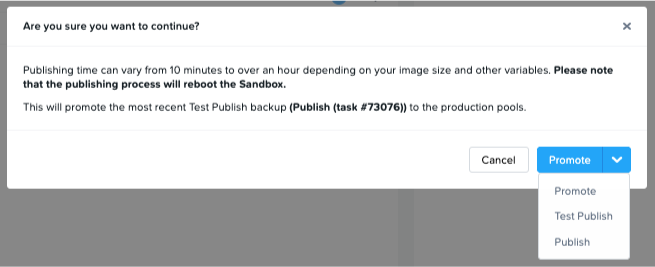
Once the promoted Publish is complete, your users should be able to access production instances with all of your changes applied.

<p class="callout info">  **Note**  
 Promotion of a Test Publish does not create a new Sandbox backup.</p>

# Updates

The **Updates** page listed in the **Account Dashboard** is designed to keep administrators informed about available updates for their virtual machines (VMs), as well as to configure this feature. This section ensures that your VMs remain up to date with the latest operating system updates, enhancing **security, performance, and functionality**.

Displayed only at the **Account level**, this page provides update details specific to the VMs tied to that account.

[![](https://docs.difr.com/uploads/images/gallery/2025-10/scaled-1680-/image-1760698172386.png)](https://docs.difr.com/uploads/images/gallery/2025-10/image-1760698172386.png)
**Navigation:** `Account Dashboard > Updates`

---

## VM Types

The VM types and their updates displayed on the **Updates** page depend on the account environment.

### Non-persistent Accounts

When updates are available, the following VM types will be shown:

- Sandbox VMs
- Utility Servers
- VMs in test and production pools

### Persistent Accounts

In persistent desktop account environments, the following VM types will be shown when updates are available:

- Sandbox VMs
- Utility Servers
- Workload VMs

---

## Managed Updates

Administrators can manage updates directly from the list and follow the provided instructions for installation. It is recommended to **schedule updates during maintenance windows** to minimize impact on users and operations.

For more comprehensive information on managing OS updates, refer to our blog: [Dizzion Managed OS Updates &amp; Windows Patching](https://www.dizzion.com/post/dizzion-managed-os-updates-windows-patching)

---

# Managed Updates – Guide for Non-persistent Accounts

<p class="callout info"> **IMPORTANT NOTE:**   
 Enabling the Managed Updates feature for non-persistent Dizzion DaaS accounts requires creating additional VM(s), so please be aware of this before enabling the feature.</p>

### Step 1

Go to the **Updates (EA)** page and click **Enable Managed Updates**.

[![](https://docs.difr.com/uploads/images/gallery/2025-10/scaled-1680-/image-1760698200551.png)](https://docs.difr.com/uploads/images/gallery/2025-10/image-1760698200551.png)
<p class="callout info"> **Note:**   
 Managed Updates are per-account settings.</p>

### Step 2

Ensure all requirements are set in the **Updates (EA)** page:

[![](https://docs.difr.com/uploads/images/gallery/2025-10/scaled-1680-/image-1760698252780.png)](https://docs.difr.com/uploads/images/gallery/2025-10/image-1760698252780.png)
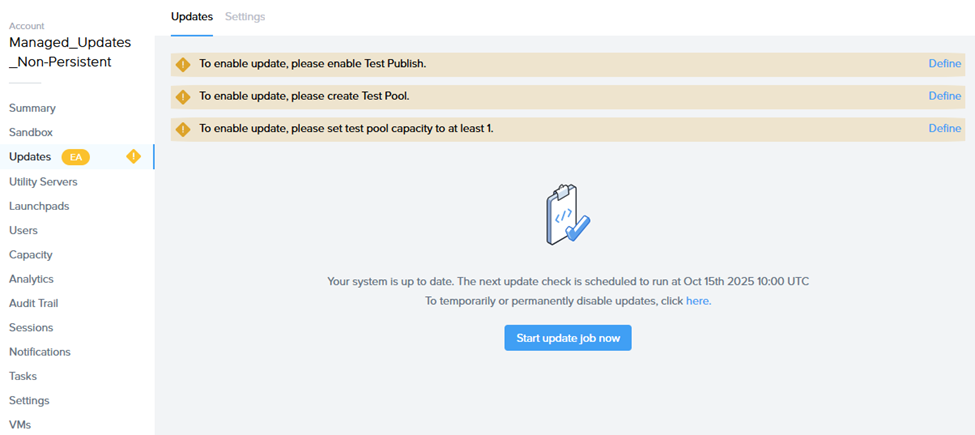
- Enable **Test Publish**.
- Create a **Test Pool**.
- Set the Test Pool’s capacity to at least **1**.

### Step 3

Configure **Update Settings**:

### Schedule maintenance time

As this feature covers only Windows Updates released on Microsoft Patch Tuesday, please make sure to set the correct time and date when the update tasks will execute.

<p class="callout info"> **IMPORTANT:**   
 While update tasks are running, no actions can be performed on the Sandbox (publishing, power on, start session, etc.).</p>

### User Acceptance Window

**Logic:** Once updates are installed, Frame automatically publishes those changes to the **Test Pool** (hence the requirement for Test Publish and Test Pool setup). This provides administrators with a **buffer of up to 3 weeks** to log in to a VM from the Test Pool, verify functionality, and either:

- **a)** Accept the test manually in the **Updates** page, or
- **b)** Wait for the **User Acceptance Window** to expire — after which Frame automatically publishes the changes to Production Pool(s).

<p class="callout info"> **Note:**   
 Define this process internally.</p>

### Emails for VM Update

Notifications – set the email address to receive update process notifications.

[![](https://docs.difr.com/uploads/images/gallery/2025-10/scaled-1680-/image-1760698757345.png)](https://docs.difr.com/uploads/images/gallery/2025-10/image-1760698757345.png)
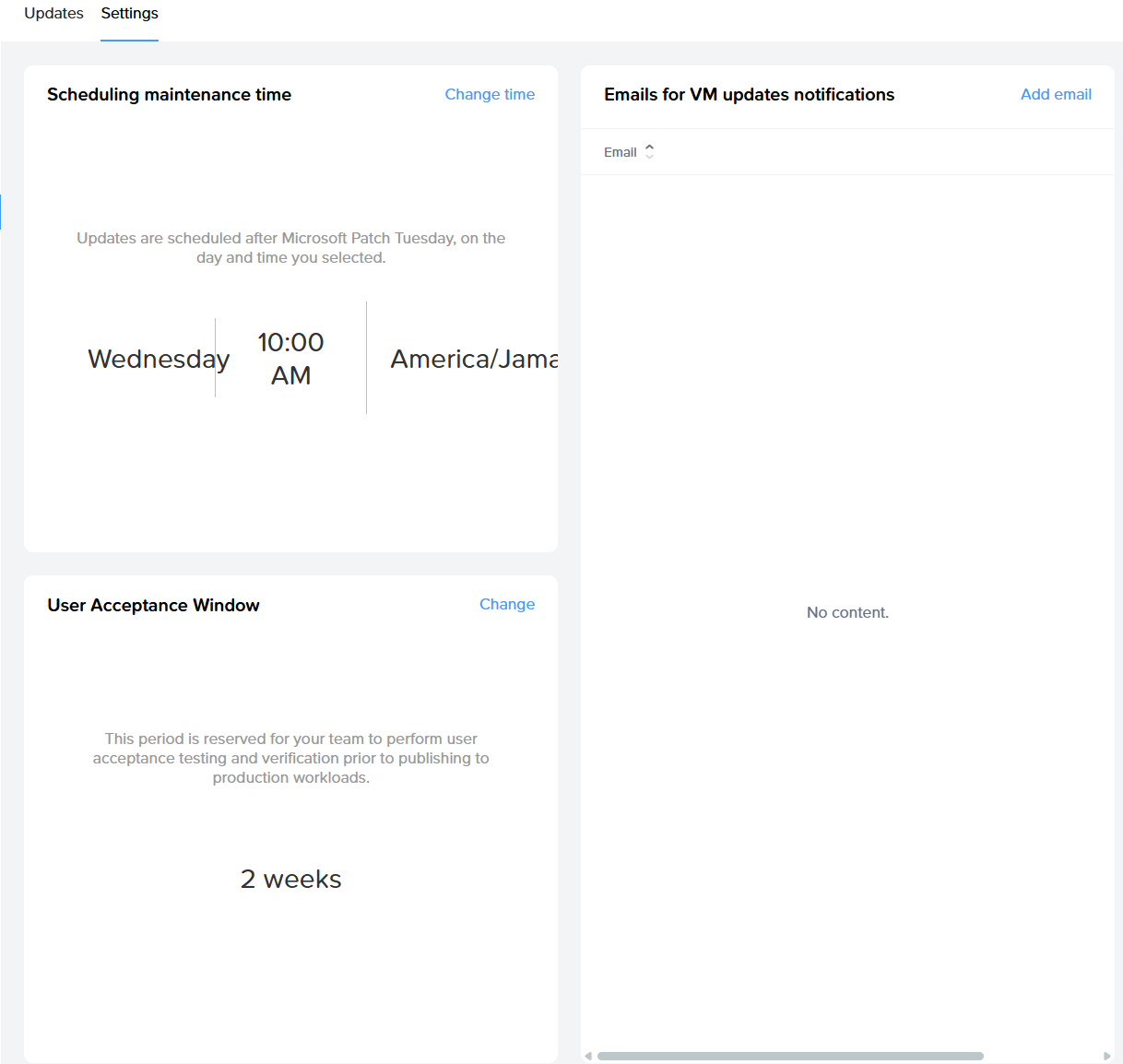
### Task List During Maintenance Window

When the maintenance window starts, the system triggers the **Managed Updates – Phase 1 task**, which includes:

- Backup Sandbox
- Power on Sandbox
- Identify available Windows updates and update internal records
- Execute updates on Sandbox
- Roll back if updates fail
- Run test publish
- Notify admin

Progress can be tracked in the task progress list.

After completion, you should accept the changes. **Task #2** will begin after the User Acceptance Window expires.

**Managed Updates Phase 2 Tasks:**

- Run Production Publish
- Execute Windows Updates on Utility Servers (same process as Sandbox, without publish)

---

# Managed Updates – Guide for Persistent Accounts

### Step 1

Go to the **Updates (EA)** page and click **Enable Managed Updates**.

[![image.png](https://docs.difr.com/uploads/images/gallery/2025-10/scaled-1680-/d3Timage.png)](https://docs.difr.com/uploads/images/gallery/2025-10/d3Timage.png)
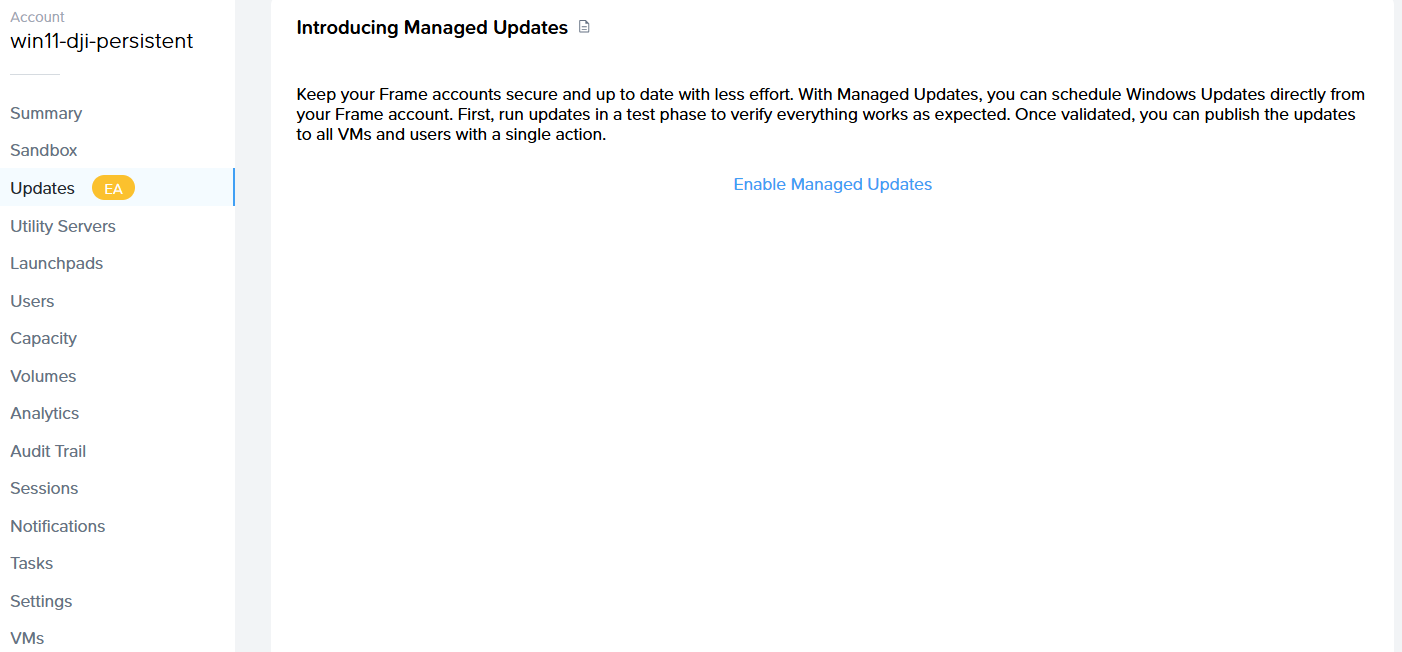
<p class="callout info"> **Note:**   
 Managed Updates are per-account settings.</p>

### Step 2

Configure **Update Settings**:

- ### Schedule maintenance time
- As this feature covers only Windows Updates released on Microsoft Patch Tuesday, please set the correct time and date for task execution.

<p class="callout info"> **IMPORTANT:**   
 While update tasks are running, no actions can be performed on the Sandbox (publishing, power on, start session, etc.).</p>

### User Acceptance VMs &amp; Window

- **User Acceptance VMs** – select which VMs will be part of User Acceptance. After the initial Sandbox update and publish, these VMs automatically receive the updates for validation.
- **User Acceptance Window Logic:** Once updates are installed and published to the selected User Acceptance VMs, administrators have **up to 3 weeks** to log in, verify stability, and then either:
    
    
    - **a)** Accept the test in the **Updates** page, or
    - **b)** Wait for the User Acceptance Window to expire — after which Frame automatically publishes changes to all Production VMs.

### Emails for VM Update

Notifications – set the email address to receive notifications about the update process.

[![](https://docs.difr.com/uploads/images/gallery/2025-10/scaled-1680-/image-1760698697337.png)](https://docs.difr.com/uploads/images/gallery/2025-10/image-1760698697337.png)
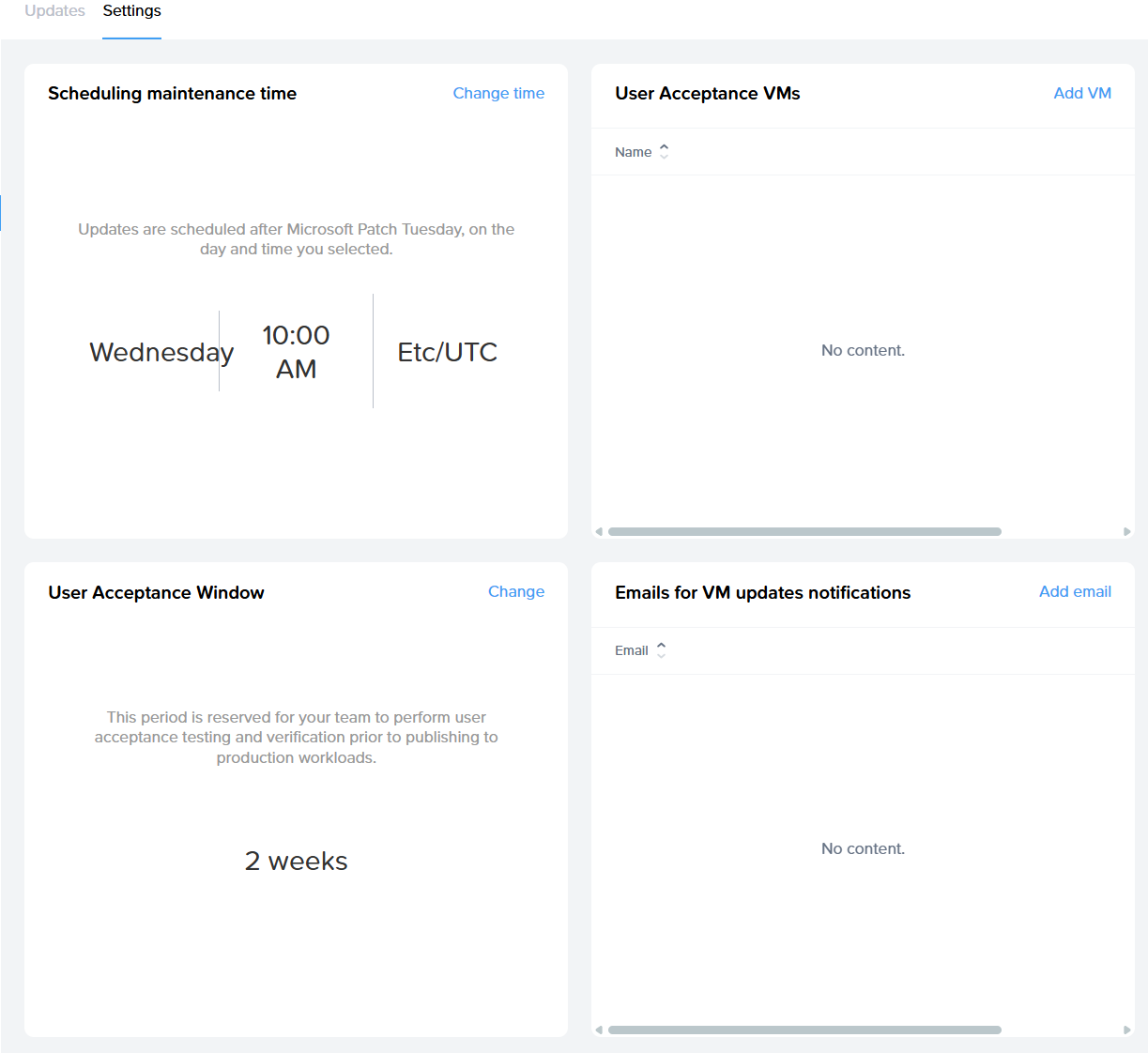
### Task List During Maintenance Window

When the maintenance window starts, the system triggers the **Managed Updates – Phase 1 task**, which includes:

- Backup Sandbox
- Power on Sandbox
- Identify available Windows updates and update internal records
- Execute updates on Sandbox
- Roll back if updates fail
- Execute updates on User Acceptance VMs
- Notify admin

Progress can be monitored in the task progress list.

After completion, the customer should accept the changes. **Task #2** will then start.

**Managed Updates - Phase 2 tasks:**

- Run Production Publish
- Execute Windows Updates on Utility Servers (same process as Sandbox, without publish)
- Execute Windows Updates on remaining VMs not included in the User Acceptance list

# Domain Integration

Domain Controller prep, AWS IAM Permissions, Azure DNS Configuration, Domain Join Setup, Frame SSO, Stale AD Objects CleanUp, Linux with Windows AD LDAP

# Domain

Many enterprises and organizations rely on Microsoft Active Directory (AD) for provisioning user accounts, applying security policies to operating systems, and enabling access to applications. In classic on-premises environments, Windows operating systems are “joined to the (AD) domain” in order to enable these functions. Frame allows administrators to join their workload VMs to their Active Directory domain. This allows their users to log in to a Windows machine using their own AD credentials. Since the Windows operating system is joined to the customer's domain, the user can use Windows applications that rely on AD for access, authentication and authorization, such as SAP apps. If the IT managers joins the Sandbox to the domain, they can use their existing app packages, app tools, and deployment processes to install, run, and manage their organization's applications on Frame.

Microsoft also supports the ability for customers to register their devices with [Microsoft Entra](https://learn.microsoft.com/en-us/entra/identity/devices/concept-directory-join), formerly known as Azure Active Directory. With Microsoft Entra joined devices, the devices do not use an on-premises or "classic" Active Directory (AD) environment. Instead, they are joined to the company's Microsoft Entra ID tenant. This option is primarily designed for Windows 10 and Windows 11 devices.

Lastly, Microsoft provides customers with the ability to join their devices to Microsoft Entra and have their devices joined to a classic AD environment. This is known as a [Microsoft Entra hybrid](https://learn.microsoft.com/en-us/entra/identity/devices/concept-hybrid-join) joined device environment. Frame currently does not support Microsoft Entra hybrid joined devices.

# Domain Joined Instances

Frame supports classic AD joined devices with the *Classic* option of the *Domain Join Instances (DJI)* feature. Use of the *Domain Join* feature requires the use of your own public cloud account or AHV cluster ("Bring Your Own (BYO) Infrastructure"). Before configuring your AD Domain for use with Frame, you will need to set up your BYO infrastructure as described in the [BYO Infrastructure](https://docs.difr.com/platform/infrastructure/byo) section of our documentation.

To learn more about the prerequisites and how to prepare, configure, and manage your Frame Account for *Classic Domain Join Instances*, begin with the [Domain Preparation guide](https://docs.difr.com/books/platform-administrators-guide/page/domain-controller-prep).

# Entra Joined Devices 

Frame supports Microsoft Entra joined devices with the *Entra ID* option of the *Domain Join Instances (DJI)* feature.

To learn more about the prerequisites and how to prepare, configure, and manage your Frame Account for *Entra Joined Devices*, review the [Entra Joined Devices guide](https://docs.difr.com/books/platform-administrators-guide/page/entra-id-joined-devices).

# Domain Controller Prep

The Frame platform supports the ability for your workload VMs to join your on-premises or cloud-based Microsoft Active Directory (AD) environment.

## Requirements

- Frame Account with **Windows 10**, **Windows 11**, **Windows Server 2019**, or **Windows Server 2022-based image**.
- The Domain Join feature requires customers use **Windows Server 2008 R2** and **[Domain Functional Level](https://docs.microsoft.com/en-us/windows-server/identity/ad-ds/active-directory-functional-levels)** 2008 R2 or higher.
- The Frame account workloads must reside in a VPC/VNET/VLAN with a non-overlapping CIDR with the rest of your network, including where your Windows domain controllers reside. Frame supports subnet masks between `/16` and `/24`.
- The workload VMs to be joined to the domain must be able to reach the domain controller(s).
- Customers using AWS infrastructure must update their AWS IAM role before enabling DJI (as described in the guide listed below).
- Customers using Azure infrastructure must configure their Azure DNS before enabling DJI (as described in the guide listed below).

## Considerations

Please consider the following before continuing with this Domain Controller Preparation guide and setup process:

- The Frame user created by Frame must be a local Windows administrator. Any GPO settings that take effect on workload instances must not remove this user from the “Local administrators” group.
- Autologin must be allowed for a local Frame user session to initiate successfully. Any GPO settings that disable this function will prevent domain joined instances from working properly.
- Interactive Logon message must be disabled in GPO settings for successful initiation of a Frame session.
- The domain join feature does not join the Sandbox or any utility servers to the domain. Frame strongly advises that administrators do not manually join the Sandbox or the utility server to the domain unless there is a specific requirement for an application to function. If either of these two VM types must be joined to the domain, the Frame administrator should enable RDP and create another local Windows admin user in that server. Before the server is joined to the domain, the administrator should verify that they can reach the server using RDP.
- Do not modify the Frame user local admin account password. Modifying the password will cause autologon to fail. For password security options like LAPS, there is a need to exclude the local Frame user.
- Static DNS IPs are not supported and should not be entered in the Sandbox or workload VMs.
- Restricting remote RPC connections to the Windows Security Account Manager (SAM) on a domain controller to Administrators only may introduce issues with renaming computer objects in Active Directory. Delegated rights to the service account will be ignored if this policy is configured
- The local Frame user password is stored in LSA (Local Security Authority) portion of the machine registry that is accessible only to SYSTEM account processes. Some of these secrets are credentials that must persist after reboot and they are stored in encrypted form on the hard disk drive. Credentials stored as LSA secrets might include: 
    - Local Frame user password
    - Service account name and password for web proxy

## Supported Deployment Models and Systems

To use the Domain Join feature, the workload VMs must have network access to your domain controllers. There are a few architectural models to use for connecting your Frame workloads to your AD domain controllers:

1. If your workloads are in one of the supported public cloud infrastructures, your domain controllers (DCs) can be located in the public cloud or on-premises.
    
    
    - If the DCs are on-premises, then an always-on connection from the workload VMs in the public cloud to your on-premises DCs is required. This can be accomplished through a site-to-site VPN, direct connection, or SD-WAN connection. You must bring your own AWS, Azure, or GCP cloud account to establish these types of private network connections since these network connections are setup within the public cloud provider's console. A software client VPN on the workload VMs that require users to authenticate to your on-premises firewall will not satisfy the networking requirements for domain-joined instances.
    - If the DCs are in the public cloud, then you can configure a route from your workload VMs to your DCs. This is typically done with a peering connection between the VPC/VNET containing your workload VMs and the VPC/VNET containing your Domain Controllers.
2. If your workloads are on Nutanix AHV in your on-premises network, then make sure that the workload VMs can route from the workload VLAN to your domain controllers.

In the above architectural models, you will need to configure your networking and firewall rules to enable all ports and protocols corresponding to Active Directory traffic. Such a list can be found online in [Microsoft documentation](https://support.microsoft.com/en-us/help/179442/how-to-configure-a-firewall-for-domains-and-trusts). Please read through this guide thoroughly before beginning the process of connecting your AD environment with your Frame workloads.

<p class="callout info"> When Frame workload VMs are provisioned, the VMs rely on the DHCP service within your network to obtain their IP addresses and DNS server IP address(es). For customer-managed networking, make sure that you have configured your DHCP service to return the IP addresses of your DNS servers. Otherwise, if no DNS server IP address is provided to the newly provisioned VMs, the VMs may not be able to resolve your domain controller or the Frame Platform FQDNs.</p>

## Requirements

- Organizational Unit (OU) should not have spaces in it (e.g., `FrameAzure1`, not `Frame Azure 1`).
- Service account must own the OU using “Delegate control."
- Service Account must be in UPN format (e.g., `frameserviceaccount@mycompany.com`)

## Best Practices

- Customers are responsible for tracking their service account password expiration date and updating the new password in the Domain Settings for the Frame account before the password expires. If the service account password expires, the Frame account publish will fail since the workload VMs will be unable to join to the domain. Alternatively, customers can configure their service account password to not expire.
- During installation and initial configuration, inheritance should be blocked on the Frame OUs. When making policy changes, Nutanix recommends customers create a Development/Staging account to test your policies (in a separate OU) before implementing the policies in the OU for the Production Frame accounts.
- As a best practice, Frame **does not recommend** restricting remote RPC connections to the Windows Security Account Manager (SAM) on a domain controller to Administrators only. Doing so may introduce issues with renaming computer objects in Active Directory. Delegated rights to the service account will be ignored if this policy is configured.

## Domain Controller Preparation Procedure

1. Log into your domain controller and open up “Active Directory Users and Computers."
2. Navigate to the “Computers" Organizational Unit (OU), right-click and select “Create a New OU". We recommend that you give this OU a unique name that will help you identify the Frame account that it is tied to. In this example, we have named the OU `Frame-DJI-Test`.

<figure id="bkmrk-">![New OU](https://docs.difr.com/uploads/images/gallery/2025-10/dcprep1.png)

</figure>3. In our example, we created a new OU for Frame. Inside of that OU, we created another sub OU with the account name we will be using. This is **strongly recommended** to prevent confusion for situations where multiple Frame accounts are joined to the same domain.

<figure id="bkmrk--1">![Sub OU](https://docs.difr.com/uploads/images/gallery/2025-10/dcprep2.png)

</figure>### Create Service Account

4. Next, we will create a service account to manage the necessary Frame resources. To start this process, we will need to add a new user. It is recommended you create this user where your organization keeps other service accounts. In our example, we will add them directly into the “Users" OU by right-clicking “Users". Select “New" and click “User."

<figure id="bkmrk--2">![New User](https://docs.difr.com/uploads/images/gallery/2025-10/dcprep3.png)

</figure>5. Add the necessary information to help you identify what this service account will be used for. Click "Next."

<figure id="bkmrk--3">![New Object - User](https://docs.difr.com/uploads/images/gallery/2025-10/dcprep4.png)

</figure>6. Set the desired password for the service account. If your organization allows it, it is recommended to set your service account password to "never expire." Make sure to uncheck "User must change password at next logon" and click "Next" and then "Finish."

<figure id="bkmrk--4">![Set Password](https://docs.difr.com/uploads/images/gallery/2025-10/dcprep5.png)

</figure>:::info Service Account Password Requirements

The service account password must contain 16 characters, with at least one character out of each category:

- Uppercase characters A-Z (Latin alphabet)
- Lowercase characters a-z (Latin alphabet)
- Digits 0-9
- Special characters (!, #, %, etc.)

Characters allowed:

- A – Z
- a - z
- 0 – 9
- `@ # % ^ & \ - _ ! + = [ ] { } | : ‘ , . ? / ` ~ ( ) ; < >`

Characters NOT allowed:

- blank space
- `\` backslash
- `$` symbol
- `"` (double quotes)
- Unicode characters

:::

<p class="callout warning"> If the service account password expires, the account will not function until the password is updated. The updated password will then need to be set in the Frame Dashboard as well. If an admin attempts to publish from their Frame account with expired domain join credentials, the publish will fail.</p>

7. Right-click on the newly-created OU and select “Delegate Control…" to open the Delegation of Control Wizard.

<figure id="bkmrk--5">![Delegate Control](https://docs.difr.com/uploads/images/gallery/2025-10/dcprep6.png)

</figure>8. Select your Frame service account.

<figure id="bkmrk--6">![Service Account](https://docs.difr.com/uploads/images/gallery/2025-10/dcprep7.png)

</figure>9. On the "Tasks to Delegate" page, select “Create a custom task to delegate" and click “Next."

<figure id="bkmrk--7">![Custom Task](https://docs.difr.com/uploads/images/gallery/2025-10/dcprep8.png)

</figure>10. On the “Active Directory Object Type” page, select “Only the following objects in this folder” and check “Computer objects.” Then, check “Create selected objects in this folder” and “Delete selected objects in this folder” as shown below.

<figure id="bkmrk--8">![Object Type](https://docs.difr.com/uploads/images/gallery/2025-10/dcprep9.png)

</figure><p class="callout info"> The "Delete selected objects in this folder" checkbox \*\*must be checked\*\* in order for Frame to be able to \[automatically clean up stale computer objects\](ad-cleanup.md) from your domain.</p>

11. On the “Permissions” page of the wizard, with the “General” toggle checked, select both “Change password” and “Reset password.” Complete the wizard by clicking “Next” and then “Finish.”

<figure id="bkmrk--9">![Permissions](https://docs.difr.com/uploads/images/gallery/2025-10/dcprep10.png)

</figure>In some circumstances, you may wish to create separate Frame Service accounts for each OU for greater security, scalability, or convenience. This is also supported. To do so, create a Frame service account for each OU and delegate the same permissions as above.

<p class="callout info"> We recommend setting Loopback Processing Mode on the Frame OU to 'Replace' to help ensure unnecessary and potentially conflicting GPOs (applied to users) are not applied inadvertently. Since your organization may have specific security lockdowns and GPOs, you will need to work with our Support or Solutions Architect teams to ensure that these GPOs do no cause adverse effects to the Frame environment.</p>

### Obtain OU Details

Now we will obtain the necessary OU information needed to integrate with Frame. You will be entering this information into your Dashboard in later steps.

12. In your “Active Directory Users and Computers” console, make sure that “Advanced Features” is checked as shown below. This will enable us to easily retrieve the needed information.

<figure id="bkmrk--10">![Advanced Features](https://docs.difr.com/uploads/images/gallery/2025-10/dcprep11.png)

</figure>13. Next, right-click on the OU and select “Properties.”

<figure id="bkmrk--11">![Properties](https://docs.difr.com/uploads/images/gallery/2025-10/dcprep12.png)

</figure>14. Under the “Attribute Editor” tab, double-click “distinguishedName.”

<figure id="bkmrk--12">![Attribute Editor](https://docs.difr.com/uploads/images/gallery/2025-10/dcprep13.png)

</figure>15. Copy this attribute's value to your clipboard and have it ready, as we will need it in order to add your Frame account to your domain in the next guide.

<figure id="bkmrk--13">![Attribute Editor](https://docs.difr.com/uploads/images/gallery/2025-10/dcprep14.png)

</figure><p class="callout info"> **Note**  
 Additional Networking, Firewall, and Routing ConsiderationsAs mentioned at the start of this guide, you will need to ensure that all applicable Active Directory ports and protocols are open along this new network path. More information can be found in Microsoft's [official documentation](https://learn.microsoft.com/en-US/troubleshoot/windows-server/identity/config-firewall-for-ad-domains-and-trusts).</p>

# AWS IAM Permissions

AWS-based Frame accounts will need to prepare their AWS account by adjusting the permissions as listed below before setting up Domain Joined Instances. This process takes about 5 minutes.

1. First, login to the AWS Console for the account you will be using to Domain Join with Frame. From the AWS Console, click on “IAM.”

<figure id="bkmrk-">![IAM](https://docs.difr.com/uploads/images/gallery/2025-10/awsdjiprep1.png)

</figure>2. From the IAM page, click “Roles.”

<figure id="bkmrk--1">![Roles](https://docs.difr.com/uploads/images/gallery/2025-10/awsdjiprep2.png)

</figure>3. Search for the role “FrameGatewayWorkload” and and click on the link when it populates.

<figure id="bkmrk--2">![Role](https://docs.difr.com/uploads/images/gallery/2025-10/awsdjiprep3.png)

</figure>4. From the Roles page, navigate to the “Permissions” tab and click on the arrow next to the “FrameGatewayWorkloadPolicy” policy.

<figure id="bkmrk--3">![Permissions](https://docs.difr.com/uploads/images/gallery/2025-10/awsdjiprep4.png)

</figure>5. Click “Edit policy.”

<figure id="bkmrk--4">![Edit Policy](https://docs.difr.com/uploads/images/gallery/2025-10/awsdjiprep5.png)

</figure>6. Next, under the “Visual editor” tab, expand the “EC2” section by clicking on the arrow listed next to it.

<figure id="bkmrk--5">![EC2](https://docs.difr.com/uploads/images/gallery/2025-10/awsdjiprep6.png)

</figure>7. Click on the “Actions” section to expand it. Search for “DescribeDhcpOptions” in the filter search. Ensure the box is checked.

<figure id="bkmrk--6">![Actions](https://docs.difr.com/uploads/images/gallery/2025-10/awsdjiprep7.png)

</figure>8. In the same filter search field, search for “AssociateDhcpOptions.” Ensure the associated box is checked.

<figure id="bkmrk--7">![DHCP Options](https://docs.difr.com/uploads/images/gallery/2025-10/awsdjiprep8.png)

</figure>9. At the bottom of the “Edit FrameGatewayPolicy” page, click “Review policy.”

<figure id="bkmrk--8">![Review Policy](https://docs.difr.com/uploads/images/gallery/2025-10/awsdjiprep9.png)

</figure>10. Click “Save changes” at the bottom right corner of the review policy page.

<figure id="bkmrk--9">![Save Changes](https://docs.difr.com/uploads/images/gallery/2025-10/awsdjiprep10.png)

</figure>You have completed the steps necessary to prep your AWS account for Domain Join. You are now ready to set up Domain Joined Instances for your Frame account.

# Azure DNS Configuration

By default, Azure defines its own default DNS settings for each VNet. Using the Frame Domain Join feature requires additional configuration for Azure-based cloud accounts. Using the default Azure DNS settings will result in communication problems between your Frame instances and domain controller. We will outline how to properly configure your Azure DNS settings to communicate with the Frame platform.

## Requirements

- Administrative access to your Azure Portal
- A Frame account configured with [BYO Azure Infrastructure](https://docs.difr.com/link/75#bkmrk-page-title)
- An established Frame account configured on your BYO Azure

## Configuration

1. First, log in to your [Azure Portal](https://portal.azure.com/) and select the "Virtual networks" option from the menu on the left.

<figure id="bkmrk-">![Azure Portal](https://docs.difr.com/uploads/images/gallery/2025-10/azure-dns1.png)

</figure>2. Select the virtual network you will be configuring the DNS for.

<figure id="bkmrk--1">![Virtual Network](https://docs.difr.com/uploads/images/gallery/2025-10/azure-dns2.png)

</figure>3. In the next menu that appears, select "DNS servers" listed under "Settings."

<figure id="bkmrk--2">![DNS Servers](https://docs.difr.com/uploads/images/gallery/2025-10/azure-dns3.png)

</figure>4. Two options will appear, select "Custom."
5. Under the "Custom" option, the first IP should be the IP of the DNS server that this VNet will be using. In some cases, this may be your domain controller. If you have a secondary DNS, enter it under the first IP.

<figure id="bkmrk--3">![DNS Servers](https://docs.difr.com/uploads/images/gallery/2025-10/azure-dns4.png)

</figure><p class="callout info"> As noted at the top of the Azure console, virtual machines within this virtual network must be restarted to utilize updated DNS server settings.</p>

6. Click the "Save" icon at the top of the page once you have configured the settings in step 5.

<figure id="bkmrk--4">![DNS Servers](https://docs.difr.com/uploads/images/gallery/2025-10/azure-dns5.png)

</figure>Your instances should now be able to communicate properly inside of your VNet.

# Domain Join Setup

Before moving on to the Domain Join setup phase, please ensure you have:

- reviewed and met the requirements outlined on the Domain Join landing page
- completed the steps in the Domain Controller Preparation guide
- adjusted the appropriate AWS account permissions using the AWS IAM Permissions guide (if applicable)
- configured your DNS settings on Azure (if applicable)

<p class="callout info"> You can join your Sandbox or Utility server to your domain by logging into either machine and following the \[standard process\](https://learn.microsoft.com/en-us/windows-server/identity/ad-fs/deployment/join-a-computer-to-a-domain) of joining a Windows machine to a domain. If you domain-join your Sandbox and/or Utility servers, we recommend you configure these servers for RDP and add a local Windows administrator user. This allows you to access the Sandbox and/or Utility servers in the event you are unable to login to the servers using your domain user credentials (e.g., loss of domain trust).</p>

## Validate Connections

Firstly, we will start by verifying that our Frame account Sandbox can communicate with the domain controller (DC). Log in to the Sandbox of the Frame account you would like to join to the domain. We will use the Frame AD Helper to validate the domain configuration parameter values you will specify in the Domain Settings page.

### Frame AD Helper

Frame AD Helper is a standalone tool built for testing network configuration, name resolution (DNS), and directory credentials/permissions. Frame AD Helper can assist in ensuring that all prerequisites for DJI are met successfully. It is part of the Frame Agent installation and located in the Frame Tools directory `C:\\ProgramData\\Nutanix\\Frame\\Tools\\` as `FrameADHelper.exe`.

<details id="bkmrk-network-connectivity"><summary>**Network Connectivity Test**</summary>

<span style="color: rgb(0, 0, 0);">The Network Connectivity test verifies that DNS and AD services are reachable. Tests will automatically fail if network connectivity has not been established between the Frame account's VPC and AD/DNS resources. This test performs the following actions:</span>

- <span style="color: rgb(0, 0, 0);">DNS Service Test</span>
- <span style="color: rgb(0, 0, 0);">AD Service Test</span>
- <span style="color: rgb(0, 0, 0);">Custom Ports Test (Optional) - verify that specific ports are reachable. To invoke the Custom Ports Test, place the `customports.txt` file in `C:\\ProgramData\\Nutanix\\Frame\\Tools\\` and modify the file prior to launching Frame AD Helper (v1.1 or newer). The file must contain a separate line for each port tested, in the following format</span>: `Port Number`, `"Port Description"`.

<figure>![AD Helper Network ](https://docs.difr.com/uploads/images/gallery/2025-10/adhelp-nc-ports.png)

</figure>You will see in the output that these additional ports are now being tested:

<figure class="admin-ui">![AD Helper Network ](https://docs.difr.com/uploads/images/gallery/2025-10/adhelp-nc.png)

</figure></details><details id="bkmrk-name-resolution-%28dns"><summary>**Name Resolution (DNS) Test**</summary>

<span style="color: rgb(0, 0, 0);">The Name Resolution test confirms that the Active Directory Domain Name can be resolved using the DNS server of your choice. This test performs the following actions:</span>

- <span style="color: rgb(0, 0, 0);">Resolves a record for the Domain Name</span>
- <span style="color: rgb(0, 0, 0);">Resolves SRV record for the Domain Name</span>

<figure class="admin-ui">![Name Resolution](https://docs.difr.com/uploads/images/gallery/2025-10/adhelp-dns.png)

</figure></details><details id="bkmrk-directory-configurat"><summary>**Directory Configuration Test**</summary>

<span style="color: rgb(0, 0, 0);">The Directory Configuration test verifies that the Active Directory service account and permissions are configured properly for DJI. This test performs the following actions:</span>

- <span style="color: rgb(0, 0, 0);">Connects to Active Directory using the provided credentials</span>
- <span style="color: rgb(0, 0, 0);">Creates a test computer object (GUID-Frame)</span>
- <span style="color: rgb(0, 0, 0);">Deletes the test computer object</span>

<figure class="admin-ui">![Directory Configuration](https://docs.difr.com/uploads/images/gallery/2025-10/adhelp-dc.png)

</figure></details>Once you have completed all of the tests above, you can begin configuring your domain with Frame.

## Configure your Domain in Frame Console

1. Click on Settings in the Dashboard and then the "Domain Settings" tab. Click on the "Enable Domain Settings" toggle to enable. You will need to populate the configuration parameters as described below.
    
    <figure>![Domain Settings](https://docs.difr.com/uploads/images/gallery/2025-10/djsetup3ch.png)
    
    </figure>
    - **Domain Name (FQDN):** Domain Name (FQDN), such as `azuredji.local`. This field is mandatory. For Frame Guest Agent 2.X (Server 9.X), if **Domain Controller FQDN (or IP)** field is empty, the domain name (FQDN) value will be used in conjunction with your DNS and Active Directory (AD) Sites and Services to determine the domain controller(s) to use. If the **Domain Controller FQDN (or IP)** field has 1 or more FQDNs or IP addresses, then Frame Guest Agent 2.X will attempt to join the test and production pool VMs to one of the specified domain controllers.
    - **Domain Controller FQDN (or IP) (Frame Guest Agent 2.X only):** If you are using AD Sites and Services, you can leave this field blank. If you wish to use specific domain controllers, enter those domain controllers, comma separated, either as: 
        - Domain Controller FDQN `supportdc.azuredji.local`
        - Domain Controller IP address `10.0.0.5`
        - Domain name `nutanix.local` (in situations where multiple Domain Controllers are used).
    - **Service Account Name (UPN):** This is the service account we created in the Domain Controller Preparation guide. This must be in UPN format – `frameservice@azuredji.local`. Do not use the down-level logon name format `DOMAIN\\UserName`.
    - **Service Account Password:** The password for the service account mentioned above.
    - **Reenter Service Account Password:** Re-type the password from above.
    - **Target OU Distinguished Name:** This is the distinguished name of the OU which we copied during the Domain Controller preparation – `OU=Azure-DJI-Test,OU=Frame,DC=azuredji,DC=local`
    - **Machine Name Prefix:** Specify (up to 6 characters) a string that will be prepended to the machine name generated by Frame for the domain-joined VMs.
    - **Remove AD computer objects for terminated test/production instances:** If enabled, AD computer objects will be deleted in your domain when test/production instances are terminated. For additional details, review the page on [Stale AD Object Cleanup](https://docs.difr.com/books/platform-administrators-guide/page/stale-ad-object-cleanup).
    - **Frame SSO:** Refer to the [Frame SSO documentation](https://docs.difr.com/books/platform-administrators-guide/page/frame-single-sign-on) for details.
    - **Promote domain user to local admin (Persistent Desktop Frame accounts only):** If enabled, the persistent desktop user will be added to the local Windows Administrators group of their assigned persistent desktop VM. This allows the user to install applications or adjust Windows settings. This configuration setting will only be visible after the persistent desktop Frame account has been joined to a Windows domain.
    
    <p class="callout info"> The domain-joined workload VMs must be able to reach at least 1 DNS server that can resolve public FQDNs (either provided by DHCP or the domain controller). Otherwise, the workload VMs will not be able to register themselves with the Frame control plane.</p>
2. Once you have correctly entered all of the required information, click "Save" in the upper right corner of the page. A notification will appear displaying the pending request to enable Domain Join.
3. The pending request notification will disappear once the process is complete and your Domain Join tab will now display the option to change the service account password.
4. Lastly, go back to your "Systems" page and publish your Sandbox. Once the publish is complete, you will be able to access your Domain Joined instances.
    
    <p class="callout info"> To ensure your production instances are joined to your domain correctly, it is recommended to adjust your first publish to a max of 1 (under your [capacity settings](https://docs.difr.com/books/platform-administrators-guide/page/capacity)) and verify changes before publishing to a larger pool.</p>

## Troubleshooting

Frame recommends using the [Frame AD Helper tool](https://docs.difr.com/link/104#bkmrk-frame-ad-helper) as described above for scenarios where troubleshooting is required.

# Frame Single Sign-On

## Introduction

Frame Single Sign-On (SSO) allows users to access a domain-joined VM without requiring users to enter their domain user credentials every time they enter into a Frame session. This patented feature (US Patent #11,483,305) provides a more streamlined end-user experience in terms of Windows domain user authentication.

The first time a user starts a session to a domain-joined workload VM, Frame Terminal (running within the user’s browser or Frame App) prompts the user to enter their Active Directory domain user credentials. Frame Terminal encrypts the user credentials using a user-specific public key certificate generated by Frame Platform. The encrypted domain user credentials are stored locally within the user’s browser or Frame App cache, linked to the user’s identity within Frame (as provided by the identity provider) and specific Frame Account, and sent to the workload VM via Datagram Transport Layer Security (DTLS).

## Requirements

- A Frame account configured under Settings &gt; Domain Settings so that test and production workload VMs are joined to Active Directory.
- The Sandbox has been published at least once with at least one domain-joined test/production workload VM for users.
- Frame Guest Agent 1.9.4.0 and higher
- Frame Server 8.6.8.0 and higher
- Frame Remoting Protocol 8

## Limitations

- If a user wishes to log in using a different domain user account to workloads in the same Frame account, they must clear their encrypted user credentials from the browser cache or completely clear the Frame App cache.
- Frame SSO is dependent on the cache file persisting across device power cycles. Currently, Frame SSO will not work with thin clients that do not have a persistent store to save the user’s encrypted domain user credentials.

## Enable Frame SSO

<span style="white-space: pre-wrap;">You enable Frame SSO, as an Admin, by going to </span>**Settings &gt; Domain Settings**<span style="white-space: pre-wrap;"> in the Frame Account Dashboard and toggling on Frame SSO.</span>

[![image.png](https://docs.difr.com/uploads/images/gallery/2025-12/scaled-1680-/eeyimage.png)](https://docs.difr.com/uploads/images/gallery/2025-12/eeyimage.png)

## Disable Frame SSO

To disable Frame SSO, turn off the Frame SSO feature in Domain Settings. Users will be required to authenticate to the Windows domain each time they start a Frame session, regardless of whether they used the Frame SSO feature in the past.

<p class="callout info"><span style="white-space: pre-wrap;"> Disabling Frame SSO does not clear the users' encrypted domain user credentials in their browser or Frame App cache.</span>  
<span style="white-space: pre-wrap;"> Users will need to individually clear their browser/Frame App cache (see below). </span></p>

## User Experience

This section discusses what your users will experience when Frame SSO is enabled on a domain-joined Frame account.

### First login

When Frame SSO is enabled and the user's browser (or Frame App) does not have the user's encrypted domain credentials in its cache, the user will be asked to enter their domain credentials.

[![image.png](https://docs.difr.com/uploads/images/gallery/2025-10/scaled-1680-/E63image.png)](https://docs.difr.com/uploads/images/gallery/2025-10/E63image.png)
<p class="callout info"><span style="white-space: pre-wrap;"> The user must specify their username as UPN: username@domain.com or domain\\username</span></p>

### Subsequent logins

Once the user's domain credentials are encrypted and stored in their browser or Frame App cache on the device, the user will see the following screen in subsequent logins when they start their sessions.

[![image.png](https://docs.difr.com/uploads/images/gallery/2025-10/scaled-1680-/uhzimage.png)](https://docs.difr.com/uploads/images/gallery/2025-10/uhzimage.png)
## Encrypted User Credential Storage

Once a user successfully logs into a domain-joined Frame session, the encrypted domain user credentials are saved in the browser or Frame App cache. If more than one domain user is using the browser, there will be more than one encrypted domain user credential record.

### Clearing User Credentials

#### Web browser

To clear the encrypted domain user credentials, the browser user must perform one of two operations:

1. <span style="white-space: pre-wrap;">The user can go to </span>**Clear Browsing Data**<span style="white-space: pre-wrap;"> in their Chrome browser and only clear </span>**Cookies and Other Site Data**.
2. <span style="white-space: pre-wrap;">Alternatively, the user can go to the </span>**Developer Console**<span style="white-space: pre-wrap;"> and follow the path below to delete the user credential entry:</span>  
    `<span class="editor-theme-code">dev.console > Application > Storage > IndexedDB > frame-player-user-preferences > keyvaluepairs > [user creds entry]</span>`

![image.png](https://docs.difr.com/uploads/images/gallery/2025-10/scaled-1680-/Eqbimage.png)#### Frame App

<span style="white-space: pre-wrap;">For Frame App, users must delete the cache folder by clearing the </span>**User Cache**<span style="white-space: pre-wrap;"> in Preferences.</span>

## Troubleshooting

### Errors

#### Incorrect Username or Password

If the user attempts to register a username or password that cannot be validated by their domain controller, Frame Terminal will display:

[![image.png](https://docs.difr.com/uploads/images/gallery/2025-10/scaled-1680-/svVimage.png)](https://docs.difr.com/uploads/images/gallery/2025-10/svVimage.png)
The user will need to ensure they are entering the correct domain credentials.

#### Maximum number of login attempts exceeded

If the user exceeds the maximum number of login attempts as defined by their administrator's domain policies, then Frame Terminal will return an error.

[![image.png](https://docs.difr.com/uploads/images/gallery/2025-10/scaled-1680-/lrWimage.png)](https://docs.difr.com/uploads/images/gallery/2025-10/lrWimage.png)
The user should revalidate their domain user credentials outside of Frame and may need to contact their Windows administrator to reset their domain password.

# Stale AD Object Cleanup

When workload VMs in a DJI Frame account are created (due to a publish or an increase in the max capacity of a test or production pool), the test or production workload VMs are added to the specified Windows Active Directory as computer objects. Each time there is a publish (for non-persistent DJI Frame accounts) or if the max capacity of a test or production pool is reduced, workload VMs are terminated. However, the corresponding AD computer objects are not automatically removed from the Windows domain. Administrators have the following options to clean up stale computer objects in their Active Directory environment.

## Manual

Domain administrators can periodically run the following PowerShell scripts to identify and remove stale computer objects in their domain, where stale computer objects are defined as computer objects that have not been logged in for a defined period of time. These scripts must be run with a Windows domain user with the proper Windows domain privileges to query the domain controller for the first PowerShell script and to delete computer objects from the domain for the second PowerShell script.

If the script detects any computers belonging to the Windows domain OU specified in `$OU` that have not logged into the domain for "x" days as defined by the variable `$DaysInactive`, the computer object will be listed.

```powershell
#Set OU and inactive days interval to match your organization requirements
$DaysInactive = 60
$OU = "OU=FRAME-AWS-QA-TEST-2,OU=VDI,OU=Computers,OU=Frame,DC=frame,DC=demo"

#Search for inactive computer objects and show results in a powershell table
$Time = (Get-Date).Adddays(-($DaysInactive))
Get-ADComputer -Filter {LastLogonTimeStamp -lt $time} -Properties LastLogonDate -SearchBase $OU | Ft Name,DistinguishedName,LastLogonDate -AutoSize

```

To find the computers belonging to the Windows domain OU specified in `$OU` that have not logged into the domain for "x" days as defined by the variable `$DaysInactive` and remove them from the Windows domain, the Windows administrator can execute (or setup a scheduled task to execute):

```powershell
#Set OU and inactive days interval to match your organization requirements
$DaysInactive = 60
$OU = "OU=FRAME-AWS-QA-TEST-2,OU=VDI,OU=Computers,OU=Frame,DC=frame,DC=demo"

#Search for inactive computer objects and delete them (confirmation needed)
$Time = (Get-Date).Adddays(-($DaysInactive))
Get-ADComputer -Filter {LastLogonTimeStamp -lt $time} -Properties LastLogonDate -SearchBase $OU | Remove-ADComputer -confirm:$false

```

## Automatic

Frame provides a feature for automatically deleting the Active Directory (AD) computer object associated with a **terminated** Frame instance. When the feature is enabled, AD computer objects will be marked for deletion when an instance is terminated because of:

1. A [Publish](https://docs.difr.com/link/101#bkmrk-page-title),
2. the reduction of the [Max Default Capacity](https://docs.difr.com/link/114#bkmrk-page-title) of an instance pool, or
3. the termination of a domain-joined persistent desktop or non-persistent VM under [Status](https://docs.difr.com/link/113#bkmrk-page-title) or via Frame Admin API.

Every 30 minutes, Frame Platform will determine the list of terminated Frame instances whose AD computer objects have not yet been deleted. Frame will then transmit the AD computer object list to one or more powered-on, domain-joined instances are in **Running** status (not in use by a user). The available instances will then contact the Windows domain controller to delete the AD computer objects. If domain-joined instances are not available to handle these requests, then Frame Platform will wait 30 minutes to try again.

Since customer administrators must manually configure Sandbox and Utility Servers to be joined to a Windows domain (if desired), customer administrators are responsible for removing these AD computer objects themselves.

### Prerequisites

- This automatic AD object cleanup feature applies only to non-persistent, domain-joined Frame accounts.
- The workload VMs must be running **Frame Server 8.7 or greater** for this AD computer object deletion feature.
- The service account specified within Account Dashboard &gt; Settings &gt; Domain Settings must have permissions to delete computer objects within the specified domain as mentioned in **step 10** of the [Domain Controller Prep document](https://docs.difr.com/link/103#bkmrk-page-title).

<p class="callout info"> **Known Limitation**  
 This feature requires **at least one AD domain-joined instance** to be powered on and not in a Frame session within the Account in order to execute the computer object deletion. As a result, this feature is not triggered during the Account Termination process, in scenarios where the Max Instances setting is set to 0 across all available Instance Pools, or when all domain-joined instances are being used by users.</p>

### Enable/Disable Automatic Removal of AD Computer Objects

This feature is automatically enabled for all new domain-joined accounts created after May 4, 2023.

If you wish to enable this feature on an older account or disable it, simply navigate to the **Account Dashboard** where the domain is configured. From there, navigate to **Settings &gt; Domain Settings** and enable/disable the toggle, as shown below:

<figure id="bkmrk--1">[![image.png](https://docs.difr.com/uploads/images/gallery/2025-12/scaled-1680-/oYCimage.png)](https://docs.difr.com/uploads/images/gallery/2025-12/oYCimage.png)

</figure>

# Linux with Windows AD LDAP

Customers wishing to deliver Frame-managed Linux desktops to users can use this guide to configure their Linux desktops to authenticate using Windows Active Directory (AD) LDAP.

## Prerequisites

1. Active Directory Setup.
2. Frame Account settings as specified below.

### AD Domain Controller Setup

Before Linux VMs can be configured to use Windows AD LDAP, the Windows AD domain controller must be configured as described in the [Domain Controller Prep](https://docs.difr.com/link/103#bkmrk-page-title) guide.

### Frame Account Settings

During the creation of the Frame account, you must use Frame-provided images for accounts hosted on public cloud infrastructure or on AHV, installed the [Frame Workload Installer (Linux)](https://files.difr.com/) version 2.0.3 or greater in your BYO Ubuntu Server 20.04 template image.

<figure id="bkmrk-account-creation---u">![Account Creation - Use Frame Base Image](https://docs.difr.com/uploads/images/gallery/2025-10/frame-ldap1.png)

<figcaption>Account Creation - Use Frame Base Image</figcaption></figure>The [Domain](https://docs.difr.com/link/102#bkmrk-page-title) settings within the Frame Account Settings for an Ubuntu Frame account are identical to the settings for a Windows Frame account with two notable exceptions:

1. The Domain settings field **Service Account Name (UPN)** needs to be entered with capital letters (e.g., `frame.service@DOMAIN.NAME.COM`).
2. The username for logging in to the domain-joined production instances needs to be in the following format: `username@domain.com`. **Do not use** just `username` or `domain.com\username`.

<figure id="bkmrk-account-settings---d">![Account Settings - Domain](https://docs.difr.com/uploads/images/gallery/2025-10/frame-ldap2a.png)

<figcaption>Account Settings - Domain</figcaption></figure>Once you have updated your Domain settings, reboot your Sandbox VM.

## Pre-publish Verification

Before publishing your Sandbox, power on the Sandbox VM and access the Sandbox. Open a Linux terminal and execute the following commands:

```bash
realm discover <domainname>
dig <domainname>
ping <domainname>

```

<figure id="bkmrk-sandbox---pre-publis">![Sandbox - Pre-publish](https://docs.difr.com/uploads/images/gallery/2025-10/frame-ldap3.png)

<figcaption>Sandbox - Pre-publish</figcaption></figure>If the commands return the expected results, then proceed with publishing the Frame account Sandbox.

## Post-publish Verification

Once you have published the Sandbox, you can launch a production VM. You should see the following login screen:

<figure id="bkmrk-ubuntu-login-page">![Ubuntu Login Page](https://docs.difr.com/uploads/images/gallery/2025-10/scaled-1680-/frame-ldap4.png)

<figcaption>Ubuntu Login Page</figcaption></figure>Enter a user's credentials in UPN format (`firstname.lastname@domain` and then the user's password).

Once Windows AD has authenticated your user credentials via LDAP, you will see your home directory:

<figure id="bkmrk-%21%5Bhome-directory%5D%28ht">[![image.png](https://docs.difr.com/uploads/images/gallery/2026-01/scaled-1680-/qRyimage.png)](https://docs.difr.com/uploads/images/gallery/2026-01/qRyimage.png)

  
<figcaption>Home Directory</figcaption></figure>Additionally, by opening terminal in your Ubuntu desktop, you can type the `realm list` command to check the domain settings:

<figure id="bkmrk-ubuntu-login-page-1">![Ubuntu Login Page](https://docs.difr.com/uploads/images/gallery/2025-10/frame-ldap6.png)

<figcaption>Ubuntu Login Page</figcaption></figure>

# Entra ID Integration

Entra ID with Azure, Nutanix AHV, Entra ID Joined Devices

# Nutanix AHV

Frame supports Entra joined devices on AHV for Windows 10/11 operating systems in persistent desktop Frame Accounts.

## Prerequisites

- Bring Your Own (BYO) Azure subscription
- Entra ID Tenant
- New or existing Windows 10/11 persistent desktop Frame Account

## Setup

1. Navigate to the persistent desktop Frame Account **Dashboard** within your AHV cluster in *Frame Console*.
2. Go to the **Settings** page, click on **Domain Settings** and select **Entra ID**. Then, click the **Save** button.
    
    ![Dashboard - Settings - Domain](https://docs.difr.com/uploads/images/gallery/2025-10/azure-entra-new.png)

<p class="callout info"> The Entra joined device feature requires users to login with their Entra ID user account.</p>

3. Navigate to the **Sandbox** page, and *Publish* the *Sandbox*.
    
    ![Dashboard - Sandbox - Publishing](https://docs.difr.com/uploads/images/gallery/2025-10/ahv-entra-4.jpg)

<p class="callout info"> Only test and production pool VMs will be Entra device joined. *Sandbox* and *Utility server(s)* will not be Entra device joined. If you wish to join your *Utility server(s)* to your Entra ID tenant, they must be joined manually.</p>

<p class="callout warning"> **Do not** join the *Sandbox* to Entra ID as this action can lead to sysprep failures during the publish process.</p>

4. After a successful publish, navigate to the **Status** page to check the status of your VMs. You will notice that Entra joined devices have a [prefix](https://docs.difr.com/platform/admin/domain/entra#windows-hostname-prefix) in their hostnames.
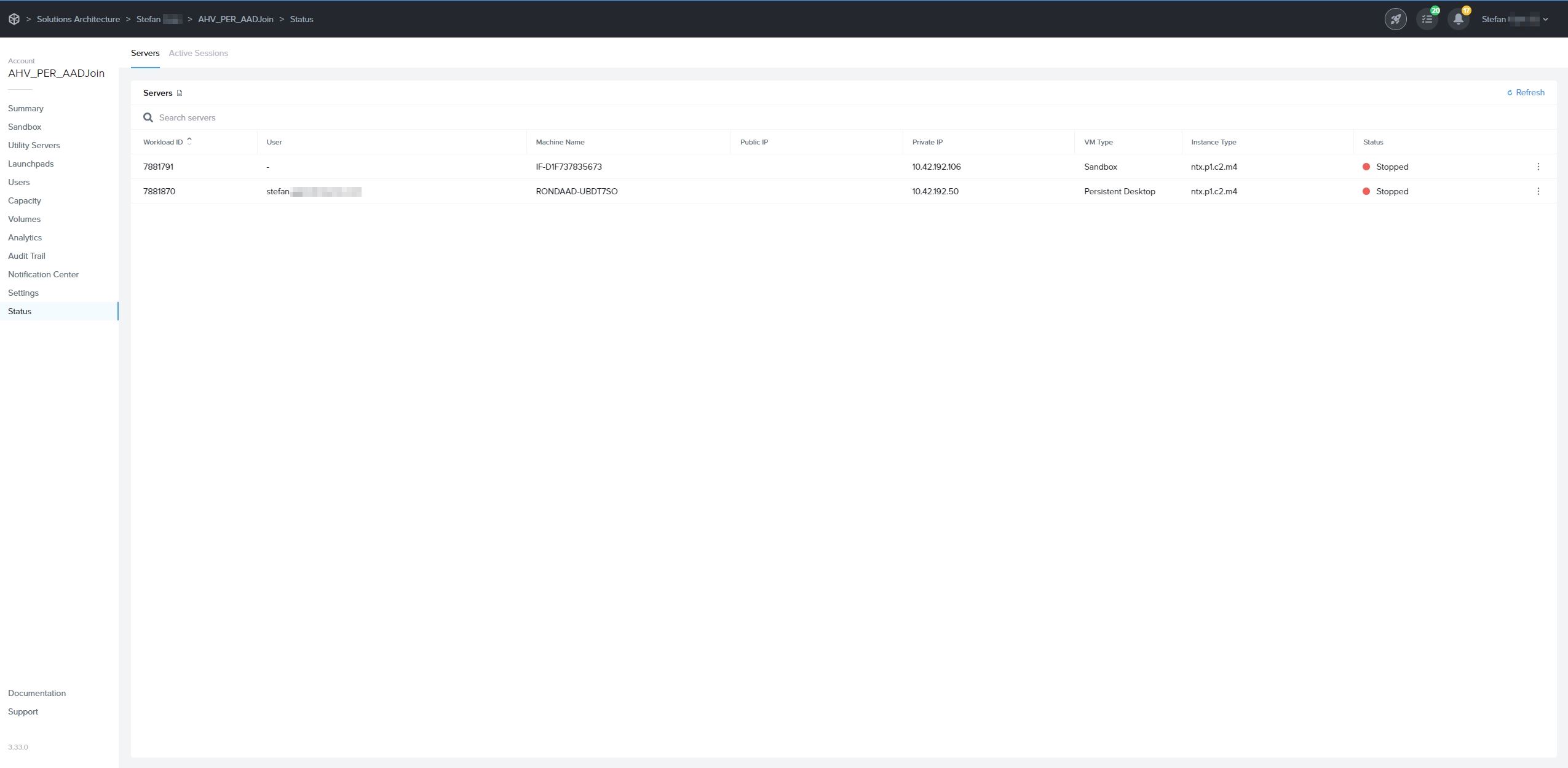
    
    ![Dashboard - Status](https://docs.difr.com/uploads/images/gallery/2025-10/ahv-entra-5.jpg)
5. When end users log into their assigned VM, they will be asked to enter their Entra ID credentials as shown below:
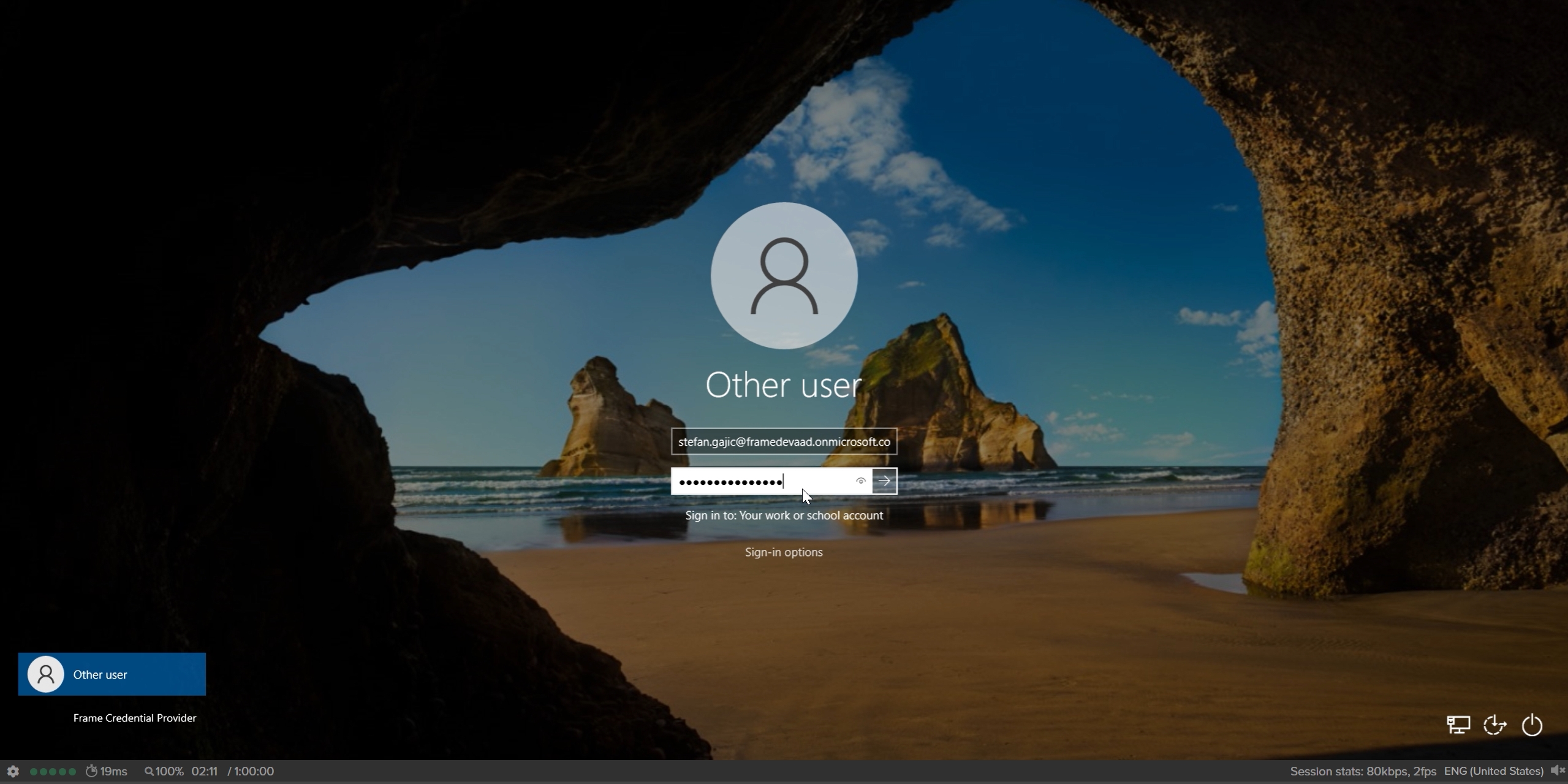
    
    ![Windows Login](https://docs.difr.com/uploads/images/gallery/2025-10/entra-login.jpg)

## Windows Hostname Prefix

The Windows hostnames for Entra joined devices on AHV will be generated once the VMs are provisioned, by concatenating a prefix of 4 characters, a string "AAD-", and a 7 alphanumeric string, following the procedure described in [Microsoft's official documentation](https://learn.microsoft.com/en-us/windows-hardware/customize/desktop/unattend/microsoft-windows-shell-setup-computername).

The prefix will be the first 4 characters of the filename of the master image used to create the Frame Account *Sandbox*.

## Windows 10/11 OOBE

The first time a user accesses their Entra joined persistent desktop on AHV, the user will go through the Microsoft Windows Out of the Box Experience (OOBE). The experience will depend on whether the persistent desktop is Windows 10 or 11 Enterprise Edition or Professional Edition.

<p class="callout info"> If you have a use case where you need to reassign an Entra joined persistent desktop to another user, confirm that your Entra ID policies will grant the new user local Windows administrator privileges (if this is required).</p>

### Enterprise Edition

1. Upon accessing their persistent desktop for the first time, the user will be prompted to choose a region.
    
    ![Windows Login](https://docs.difr.com/uploads/images/gallery/2025-10/entra-ent-oobe-1.jpg)
2. Next, select a keyboard layout.
    
    ![Windows Login](https://docs.difr.com/uploads/images/gallery/2025-10/entra-ent-oobe-2.jpg)
3. Optionally add a second keyboard layout.
    
    ![Windows Login](https://docs.difr.com/uploads/images/gallery/2025-10/entra-ent-oobe-3.jpg)
4. Review and accept the OS license agreement. By accepting the agreement, the user agrees to comply with its terms.
    
    ![Windows Login](https://docs.difr.com/uploads/images/gallery/2025-10/entra-ent-oobe-4.jpg)
5. Next, the user will need to set up their user account by entering their Entra ID username.
    
    ![Windows Login](https://docs.difr.com/uploads/images/gallery/2025-10/entra-ent-oobe-5.jpg)
6. On the next page, they'll be prompted to enter their Entra ID password.
    
    ![Windows Login](https://docs.difr.com/uploads/images/gallery/2025-10/entra-ent-oobe-6.jpg)
7. Choose their privacy settings.
    
    ![Windows Login](https://docs.difr.com/uploads/images/gallery/2025-10/entra-ent-oobe-7.jpg)
8. Once OOBE process is completed, the user will be logged into their Entra joined virtual machine.

### Professional Edition

1. Upon accessing their persistent desktop for the first time, the user will be prompted to choose a region.
    
    ![Windows Login](https://docs.difr.com/uploads/images/gallery/2025-10/entra-pro-oobe-1.jpg)
2. Next, select a keyboard layout.
    
    ![Windows Login](https://docs.difr.com/uploads/images/gallery/2025-10/entra-pro-oobe-2.jpg)
3. Optionally add a second keyboard layout.
    
    ![Windows Login](https://docs.difr.com/uploads/images/gallery/2025-10/entra-pro-oobe-3.jpg)
4. Review and accept the OS license agreement. By accepting the agreement, the user agrees to comply with its terms.
    
    ![Windows Login](https://docs.difr.com/uploads/images/gallery/2025-10/entra-pro-oobe-4.jpg)
5. Set up their user account by selecting "Set up for Work or School".
    
    ![Windows Login](https://docs.difr.com/uploads/images/gallery/2025-10/entra-pro-oobe-5.jpg)
6. Next, the user will need to set up their user account by entering their Entra ID username.
    
    ![Windows Login](https://docs.difr.com/uploads/images/gallery/2025-10/entra-pro-oobe-6.jpg)
7. On the next page, they'll be prompted to enter their Entra ID password.
    
    ![Windows Login](https://docs.difr.com/uploads/images/gallery/2025-10/entra-pro-oobe-7.jpg)
8. Lastly, the user will be asked to select their desired privacy settings.
    
    ![Windows Login](https://docs.difr.com/uploads/images/gallery/2025-10/entra-pro-oobe-8.jpg)
9. After saving their privacy settings, the user may be logged out of their Frame session. If this happens, they simply need to start a new session.
    
    ![Windows Login](https://docs.difr.com/uploads/images/gallery/2025-10/entra-pro-oobe-9.jpg)
10. Once the OOBE process is complete, the user will be logged into their Entra joined virtual machine.

# Azure

<p id="bkmrk-frame-supports-entra">Frame supports Entra joined devices<span style="
  display:inline-block;
  padding:2px 8px;
  margin-left:6px;
  border-radius:999px;
  font-size:12px;
  font-weight:600;
  line-height:1.4;
  color:#7a4b00;
  background:#fff3cd;
  border:1px solid #ffe69c;
">
  Early Access
</span> on Azure for both Windows 10/11 and Windows Server 2019/2022 operating systems in non-persistent and persistent desktop Frame Accounts.</p>
<h2 id="bkmrk-prerequisites">Prerequisites</h2>
<ul id="bkmrk-bring-your-own-%28byo%29">
<li>Bring Your Own (BYO) Azure subscription</li>
<li>Entra ID Tenant</li>
<li>New or existing Windows 10/11 or Windows Server 2019/2022 non-persistent or persistent desktop Frame Account</li>
</ul>
<h2 id="bkmrk-setup">Setup</h2>
<ol id="bkmrk-navigate-to-the-non-">
<li>
<p>Navigate to the non-persistent or persistent desktop Frame Account <strong>Dashboard</strong> within your AHV cluster in <em>Frame Console</em>.</p>
</li>
<li>
<p>On the <strong>Summary</strong> page, you can locate the <em>Vendor ID</em> of your Frame Account. That number will be part of the Azure Resource Group (RG) name that is visible in the Azure Portal.</p>
<figure>
<p><img src="https://docs.difr.com/uploads/images/gallery/2025-10/azure-entra-1.jpg" alt="Summary Page"></p>
</figure>
</li>
<li>
<p>Next, navigate to your Azure Portal. Locate that resource group, go to Access Control (IAM), and grant access by assigning the Azure “Virtual Machine Administrator Login” or “Virtual Machine User Login” role to the user(s) or group of users for whom you want to provide administrator or user access to VMs. Details are further explained in <a href="https://learn.microsoft.com/en-us/azure/active-directory/devices/howto-vm-sign-in-azure-ad-windows#azure-ad-portal">official Microsoft documentation</a>. You can also choose to set up role-based access control (RBAC) at the Azure subscription level so all the permissions are inherited down to RGs. Then, when new Frame Accounts are created, you will not need to manually assign the role to the newly created resource group.<br><br></p>
<figure>
<p><img src="https://docs.difr.com/uploads/images/gallery/2025-10/azure-entra-2.jpg" alt="Azure Portal - Resource Groups - Access Control (IAM)"></p>
</figure>
<p class="callout info"><br>&nbsp; The Azure "Virtual Machine Administrator Login" role refers to the login credentials and privileges granted to an&nbsp; &nbsp; &nbsp; individual who has administrative control and authority over virtual machines, allowing them to manage and&nbsp; &nbsp; &nbsp; &nbsp; &nbsp; &nbsp; configure various aspects of virtual machine environments.The Azure "Virtual Machine User Login" role pertains&nbsp; &nbsp; &nbsp; to the login credentials and permissions given to a user who can access and utilize virtual machines within a&nbsp; &nbsp; &nbsp; &nbsp; &nbsp; &nbsp; virtualized environment, typically with limited administrative capabilities, focusing more on regular usage and&nbsp; &nbsp; &nbsp; &nbsp; &nbsp; application-specific tasks within the virtual machine.<br><br></p>
<p><br></p>
</li>
<li>
<p>In the <em>Frame Console</em>, navigate to the <strong>Settings</strong> page, click on <strong>Domain Settings</strong> and select <strong>Entra ID</strong>. Then, click the <strong>Save</strong> button.</p>
<figure>
<p><img src="https://docs.difr.com/uploads/images/gallery/2025-10/azure-entra-new.png" alt="Dashboard - Settings - Domain"></p>
</figure>
<p><br></p>
<p class="callout info">&nbsp; The Entra joined device feature requires users to login with their Entra ID user account.&nbsp;<br></p>
</li>
<li>
<p>Next, navigate to the <strong>Sandbox</strong> page, and <em>Publish</em> the <em>Sandbox</em>.</p>
<figure>
<p><img src="https://docs.difr.com/uploads/images/gallery/2025-10/azure-entra-3.png" alt="Dashboard - Sandbox - Publish"></p>
</figure>
<p><br></p>
<p class="callout info">&nbsp; Only test and production pool VMs will be Entra device joined. <em>Sandbox</em> and <em>Utility server(s)</em> will not be Entra&nbsp; &nbsp; &nbsp; &nbsp; &nbsp; &nbsp; device joined. If you wish to join your <em>Utility server(s)</em> to your Entra ID tenant, they must be joined manually.</p>
<p class="callout warning"><strong>&nbsp; Do not</strong> join the <em>Sandbox</em> to Entra ID as this action can lead to sysprep failures during the publish process.<br></p>
</li>
<li>
<p>After a successful publish, navigate to the <strong>Status</strong> page to check the status of your VMs. You will notice that Entra joined devices have a <a href="https://docs.difr.com/link/111#bkmrk-windows-hostname-pre">prefix</a> in their hostnames.</p>
<figure>
<p><img src="https://docs.difr.com/uploads/images/gallery/2025-10/azure-entra-4.jpg" alt="Dashboard - Status"></p>
</figure>
</li>
<li>
<p>You can also login into Azure Portal and search for these Entra joined devices.</p>
<figure>
<p><img src="https://docs.difr.com/uploads/images/gallery/2025-10/azure-entra-5.jpg" alt="Azure Portal - Devices"></p>
</figure>
</li>
<li>
<p>When end users log into their assigned VM, they will be asked to enter their Entra ID credentials as shown below:</p>
<figure>
<p><img src="https://docs.difr.com/uploads/images/gallery/2025-10/entra-login.jpg" alt="Windows Login"></p>
</figure>
</li>
</ol>
<h2 id="bkmrk-windows-hostname-pre">Windows Hostname Prefix</h2>
<p id="bkmrk-the-windows-hostname">The Windows hostnames for Entra joined devices on Azure will be generated once the VMs are provisioned, by concatenating the prefix <code>WINAAD-</code> with an 8 alphanumeric string, following the procedure described in <a href="https://learn.microsoft.com/en-us/windows-hardware/customize/desktop/unattend/microsoft-windows-shell-setup-computername">Microsoft documentation</a>.</p>
<p id="bkmrk-the-prefix-will-be-t">The prefix will be the first 4 characters of the filename of the master image used to create the Frame Account <em>Sandbox</em>.</p>

# Entra ID Joined Devices

[Microsoft Entra ID-joined devices](https://learn.microsoft.com/en-us/entra/identity/devices/concept-directory-join) are devices that have been joined directly to Microsoft Entra ID (formerly known as Azure Active Directory) without the need for an on-premises Active Directory (AD) environment. This option is primarily designed for Windows 10 and Windows 11 devices.

With Entra joined devices, users can sign in to their virtual machines using their Entra ID credentials, providing a seamless and consistent authentication experience across devices and cloud-based resources. It eliminates the dependency on on-premises AD infrastructure for authentication.

It is important to note that Entra joined devices are not a replacement for traditional domain-joined devices in all scenarios. Organizations with complex on-premises Windows infrastructure, specific group policy requirements, or the need for on-premises resource access may still prefer using Active Directory domain-joined devices. Frame does support the [Microsoft Entra hybrid joined device model](https://learn.microsoft.com/en-us/entra/identity/devices/concept-hybrid-join) combining both Entra joined devices and on-premises Active Directory domain-joined devices. Refer to our [official solution guide](https://docs.difr.com/books/platform-administrators-guide/page/azure) for further details.

Customers choose to use Entra joined devices for several reasons:

- Simplified device management: Entra joined devices can be managed centrally through Entra ID, allowing for streamlined device management and configuration without the need for on-premises infrastructure.
- Cloud-centric approach: Organizations that rely heavily on cloud services and want to leverage Entra ID's capabilities can benefit from Entra joined devices. It aligns well with a cloud-first strategy and enables tighter integration with Azure services.
- Enhanced security and access controls: Entra ID provides advanced security features, such as conditional access policies and multi-factor authentication, which can be applied to Entra joined devices. This helps enforce strong security measures for accessing corporate resources.
- Seamless access to cloud resources: Entra joined devices enable users to seamlessly access cloud-based applications and services integrated with Entra ID, such as Microsoft 365 and other SaaS applications, using their Entra ID credentials.

## Supported Infrastructures and Operating Systems

Frame supports Entra joined devices <span style="
  display:inline-block;
  padding:2px 8px;
  margin-left:6px;
  border-radius:999px;
  font-size:12px;
  font-weight:600;
  line-height:1.4;
  color:#7a4b00;
  background:#fff3cd;
  border:1px solid #ffe69c;
">
  Early Access
</span> for infrastructure configurations listed in the table below:

<table id="bkmrk-infrastructure-os-op"><thead><tr><th>Infrastructure</th><th>OS Options</th><th>Account Type</th><th>Additional Details</th></tr></thead><tbody><tr><td>Azure</td><td>Windows 10 or 11, Windows Server 2019 or 2022</td><td>Non-persistent and persistent</td><td>A native Azure Virtual Machine Extension is automatically installed and used to join the Azure VMs to Entra ID during the publishing process.</td></tr><tr><td>AHV, AWS, GCP, IBM</td><td>Windows 10 or 11</td><td>Persistent</td><td>End users must go through the Microsoft Windows Out of Box Experience (OOBE) procedure to join their assigned persistent desktop to Entra ID.</td></tr></tbody></table>

## Prerequisites

Before you begin, ensure you have the following:

- **Entra ID Tenant**:
    
    
    - A dedicated instance of Entra ID representing your organization's identity and access management in Azure.
    - For AHV users, set the option under `Entra ID > Devices > Device settings > Users may join devices to Entra ID` to either `All Users` or specific user groups allowed to join VMs to Entra ID.
- **Operating Systems**:
    
    
    - Windows 10 and Windows 11: Professional, Enterprise, and Education editions only. (Home Edition does not support Entra joined devices.)
    - Windows Server 2019 and 2022: For Azure only.
- **Internet Connectivity**:
    
    
    - Devices intended to join Entra ID must have internet connectivity to communicate with Entra ID and complete the join process.
- **Access to Frame**:
    
    
    - Access to your Frame Customer, Organization, or Account entity as a Customer, Organization, or Account Administrator role.
- **Frame Account**:
    
    
    - A Frame account created using your BYO Cloud Account (with required role) or on your AHV cluster.

## Setup

The setup and configuration of Entra joined devices will differ, depending on the infrastructure. Select the appropriate infrastructure for further details.

## Frame SSO Support

The Frame SSO feature can be be used for Entra joined devices, in addition to classic domain-joined instances. Refer to the [Frame SSO documentation](https://docs.difr.com/books/platform-administrators-guide/page/frame-single-sign-on) for details on how to enable and use Frame SSO.

## Intune Mobile Device Management

Microsoft allows customers to manage their end-users' devices, including workload VMs, using the [Microsoft Intune Mobile Device Management](https://learn.microsoft.com/en-us/mem/intune/fundamentals/what-is-intune) service. Since Microsoft recommends Intune be enabled only for persistent machines, Frame support for Intune is allowed only for Azure persistent desktop Frame Accounts.

<p class="callout info"> AHV customers using persistent desktop Frame Accounts can still set up Intune in Microsoft Azure to manage end users' workload VMs.</p>

## Windows Hello for Business (WH4B)

Windows Hello for Business (WH4B) is a secure Windows 10/11 authentication method that enables users to sign in to their corporate devices and applications using biometrics or PIN, eliminating the need for passwords. It enhances security and simplifies the login experience for users. By default, many customers with Entra ID Premium Subscription will have WH4B enabled by default.

In order to set up PIN (as an example of one WH4B sign in option), please note that you need to enable User Account Control (UAC), which is disabled by default on Frame workload VMs. To enable UAC, login to your `Sandbox` and in prior to publishing, execute the PowerShell command as a Windows administrator:

```powershell
Set-ItemProperty -Path "HKLM:\SOFTWARE\Microsoft\Windows\CurrentVersion\policies\system" -Name "EnableLUA" -Value 1 -Type DWORD

```

If all prerequisites for using WH4B are satisfied (e.g., using Gen2 instance types with vTPM chip), your end-users will be able to set up a PIN for access to their Frame desktop. As a best practice, WH4B should only be set up with persistent desktop Frame Accounts.

# Virtual Machines

VMs Dashboard, Capacity, Availability Zones, Persistent Desktops Administration, Cloning, Utility Servers, Register Workload

# VMs

The last page listed on the left side of your Account Dashboard is the **VMs** page.

<p class="callout info"> The VMs page is available on Account-level Dashboards only.</p>

## Non-persistent Accounts

The VMs page displays a list of all VMs associated with your Frame account. Server information is listed by workload ID, server name, public IP, private IP, VM type, instance type, and server status. The example below shows the Vms page for a **non-persistent** Frame account.

![VMs Page - Non-persistent](https://docs.difr.com/uploads/images/gallery/2025-10/vms-1.png)

#### VMs Page

- **Workload ID**: Unique identifier for the workload VM. This ID value can be used to search for the corresponding VM in your infrastructure portal.
- **Machine Name**: Name of the machine, as reported by Windows or Linux. The &lt;img src={require('./images/dji\_icon.png').default} alt="locally available" style="display: inline"/&gt; icon means that the machine is domain-joined. Hovering over the machine name will display the type of Windows Active Directory domain join (Classic or AD).
- **Public IP**: Public IP address or the FQDN of the workload VM. In the case of an FQDN, it will resolve to a private IP address if the Frame account was created with private networking.
- **Private IP**: Private IP address of the workload VM.
- **VM Type**: Specifies the type of workload - Sandbox, Utility Server, Persistent Desktop, Production, Test, or Shadow.
- **Instance Type**: Name of the instance type for this workload VM. Instance type names are specific to the underlying infrastructure. In the case of AHV, the instance type name will be the name you defined under the [Cloud Account](https://docs.difr.com/books/platform-administrators-guide/page/cloud-accounts#add-an-instance-type-ahv-only) for AHV.
- **Status**: Current status of the workload VM 
    - **Almost ready**: VM is currently undergoing maintenance or in the process of powering on.
    - **In session**: The VM is currently being used by a user.
    - **Rebooting**: VM is rebooting.
    - **Running**: VM is powered on and available.
    - **Starting**: VM is powering on.
    - **Stopped**: VM is powered off.
    - **Stopping**: VM is being powered off.

<p class="callout info"> For Persistent Desktop Frame accounts, the VMs page will also include a \*\*User\*\* column showing the user email address assigned to the persistent desktop.</p>

![VMs Page - Persistent Desktops](https://docs.difr.com/uploads/images/gallery/2025-10/vms-pd.png)

If you want to see the latest status, refresh the page at any time by clicking the "Refresh" button in the upper right corner of the page.

For each VM type and the workload VM status (Running, Stopped, In session, etc.), administrators can perform actions on the workload VM by clicking on the kebab menu.

<figure id="bkmrk-actions-for-a-runnin" style="max-width: 300px;">![Actions for a Running VM](https://docs.difr.com/uploads/images/gallery/2025-10/status-kebab.png)

<figcaption>Actions for a Running VM</figcaption></figure>#### Non-persistent Frame Accounts

<table id="bkmrk-vm-status%28es%29-action"><thead><tr><th>VM Status(es)</th><th>Action</th><th>Description</th></tr></thead><tbody><tr><td>Almost ready, In session, Rebooting, Running, Starting</td><td>Reboot</td><td>Reboot the virtual machine. **Reboot** reboots the VM when the session ends. **Force Reboot** ends the session and reboots the VM immediately.</td></tr><tr><td>Almost ready, In session, Rebooting, Running, Starting</td><td>Stop</td><td>Power off the virtual machine.</td></tr><tr><td>Stopped, Stopping</td><td>Start</td><td>Power on the virtual machine.</td></tr></tbody></table>

In addition to the above VM actions, the following actions are available in non-persistent Frame accounts, regardless of the VM status:

<table id="bkmrk-vm-status%28es%29-action-1"><thead><tr><th>VM Status(es)</th><th>Action</th><th>Description</th></tr></thead><tbody><tr><td>All</td><td>Installed Software</td><td>List the software (name, publisher, and version) installed on the persistent virtual machine (e.g., Sandbox, Utility Server).</td></tr><tr><td>All</td><td>Enable RDP Debug</td><td>Refer to [RDP Debug Mode](https://docs.difr.com/books/platform-administrators-guide/page/rdp-debug-mode) documentation.</td></tr><tr><td>All</td><td>Terminate</td><td>Terminate the virtual machine. VM will be re-provisioned using the last published Sandbox image. If the VM is the Sandbox, then the VM will be re-provisioned using the most recent backup or if there is no backup, the master image the Sandbox was created from.</td></tr></tbody></table>

#### Persistent Desktop Frame Accounts

<table id="bkmrk-vm-status%28es%29-action-2"><thead><tr><th>VM Status(es)</th><th>Action</th><th>Description</th></tr></thead><tbody><tr><td>Almost ready, In session, Running, Starting, Stopped, Stopping</td><td>Change instance type</td><td>Switch the persistent desktop VM to use a different instance type. Available to all VM Types except Shadow.</td></tr><tr><td>Almost ready, In session, Running, Starting</td><td>Reboot</td><td>Reboot the virtual machine. **Reboot** reboots the VM when the session ends. **Force Reboot** ends the session and reboots the VM immediately.</td></tr><tr><td>Almost ready, In session, Running, Starting</td><td>Stop</td><td>Power off the virtual machine.</td></tr><tr><td>Running, Stopped</td><td>Reassign</td><td>Reassign the currently assigned persistent desktop to another user who does not have an assigned persistent desktop. Refer to [Reassign Persistent Desktops](https://docs.difr.com/books/platform-administrators-guide/page/persistent-desktops-administration#bkmrk-reassign-persistent-).</td></tr><tr><td>Running</td><td>Assign</td><td>Assign the unassigned persistent desktop to a user who does not have an assigned persistent desktop.</td></tr><tr><td>Stopped</td><td>Unassign</td><td>Refer to [Unassign Persistent Desktops](https://docs.difr.com/books/platform-administrators-guide/page/persistent-desktops-administration#bkmrk-unassign-persistent-).</td></tr><tr><td>Stopped, Stopping</td><td>Start</td><td>Power on the virtual machine.</td></tr></tbody></table>

In addition to the above VM actions, the following actions are available in persistent Frame accounts, regardless of the VM status:

<table id="bkmrk-vm-status%28es%29-action-3"><thead><tr><th>VM Status(es)</th><th>Action</th><th>Description</th></tr></thead><tbody><tr><td>All</td><td>Installed Software</td><td>List the software (name, publisher, and version) installed on the persistent virtual machine (e.g., Sandbox, Utility Server, and persistent desktop). Available to all VM types except Shadow.</td></tr><tr><td>All</td><td>Enable RDP Debug</td><td>Refer to [RDP Debug Mode](https://docs.difr.com/books/platform-administrators-guide/page/rdp-debug-mode) documentation.</td></tr><tr><td>All</td><td>Terminate</td><td>Terminate the virtual machine. VM will **not** be re-provisioned. If the VM is the Sandbox, then the VM will be re-provisioned using the most recent backup or if there is no backup, the master image the Sandbox was created from. Refer to [Terminate a Persistent Desktop](https://docs.difr.com/books/platform-administrators-guide/page/persistent-desktops-administration#bkmrk-terminate-a-persiste).</td></tr></tbody></table>

# Capacity

Before you can deliver your applications and desktops to your users, you first have to set up one or more pools of production instances – this defines the “capacity” of your account. Each production pool corresponds to a specific instance type (e.g., # of vCPUs/core, memory, and GPU). You can set up your production pool capacity to power on/off dynamically based on user demand. Elastic Instance Management or “elasticity” is a rule-engine in the Frame platform that allows an administrator to configure immediate access to instances by defining how many instances should be powered on at specific times. Admins can schedule capacity for each pool by clicking “Capacity” listed on the left side of the Dashboard and clicking on the tab for the pool.

<p class="callout info"> You can define one or more production pools with the same instance type.</p>

Additionally, you can set up and manage one or more pools of test instances so that you can publish image changes to a smaller group of users before publishing the image changes to your users accessing the production instances.

## Default Capacity

Three key parameters define the default capacity of each pool:

- **Minimum number of instances (Min)**: The minimum number of instances powered on at a given time that can be accessed by users immediately.
- **Buffer instances (Buffer)**: Additional powered-on instances that are ready for a user within seconds. Set this to a number of users you expect will connect within a 2-minute window of time (the time it takes to boot an instance).
- **Max number of instances (Max)**: The desired number of instances (concurrent users) to be provisioned for the pool. The administrator should determine this number based on peak session concurrency since this is a hard limit.

<figure id="bkmrk-dashboard---capacity">![Dashboard - Capacity](https://docs.difr.com/uploads/images/gallery/2025-10/capacity-1.png)

<figcaption>Dashboard - Capacity</figcaption></figure>As an example, let's say that you have an “Air 8GB” pool with a minimum of 5, a buffer of 3, and a max of 20 under “Default capacity.” The system will work as follows:

- With no user load, 5 Air 8GB instances will be running ready to accept a connection (the minimum).
- Once three users connect, there will only be two powered on instances left from the original set of “minimum” instances. Since the buffer is set to 3, the system will automatically power on an additional instance, so that there are at least 3 “buffer” instances – three in use and three ready for new users.
- Each time a new user connects to consume one of the buffer instances, another instance will automatically be turned on to replenish the buffer.
- As more users connect, more instances will get provisioned – but the system will always attempt to maintain a buffer of 3 instances to ensure that new users get connected as quickly as possible to a session.
- The platform will continue to scale up until it reaches the maximum value, which is 20 in this case. The 21st user (and all subsequent users) will get an “out-of-capacity” message when attempting to connect.
- As users disconnect and instances become free, the system will also power down instances automatically. Note that instances will remain on in full one-hour increments and automatically turn off if not in use, based on your capacity settings.
- Eventually, as user demand decreases back to zero, the powered on instance count will go back down to the minimum of 5.

You can have a minimum of 0 and a buffer of 0 to ensure that instances are powered on only when a user requests an application or desktop. In this case, users will have to wait a few minutes (typically 2-3 minutes) for the instance to become available after the users request their apps or desktops. They'll be notified that an instance is powering on.

It is best to set the min and buffer to 0 and the max to 1 when publishing for the first time since you are still testing everything out.

<p class="callout info"> Important Note that min and buffer instances incur hourly usage whether users are connected or not. You can set both to 0, so instances will only boot on-demand. This conserves usage, but users must wait approximately 2 minutes to start a Frame session.</p>

## Active Capacity

The Frame platform allows admins to define “active capacity” for certain times of day for certain days of the week. For example, you may want your minimum and buffer increased during specific hours on specific days when you expect an increase in usage. To schedule active capacity, simply click anywhere on the *Active Capacity* scheduling table to create a start time and then drag to the end time. This can be adjusted at any time by clicking from the desired start/end edge and dragging.

With Active Capacity, you can define the following parameters for each time window:

- **Minimum number of instances (Min)**: The minimum number of instances powered on at a given time that can be accessed by users immediately.
- **Buffer instances (Buffer)**: Additional powered-on instances that are ready for a user within seconds. Set this to a number of users you expect will connect within a 2-minute window of time (the time it takes to boot an instance).

<figure id="bkmrk-dashboard---active-c">![Dashboard - Active Capacity](https://docs.difr.com/uploads/images/gallery/2025-10/capacity-2.png)

<figcaption>Dashboard - Active Capacity</figcaption></figure>You can click and drag the scheduled entry and move it anywhere on the calendar to change the time. Click on the entry itself to make adjustments to the min/buffer settings or manually edit the time schedule.

<figure id="bkmrk-dashboard---active-c-1">![Dashboard - Active Capacity](https://docs.difr.com/uploads/images/gallery/2025-10/capacity-3.png)

<figcaption>Dashboard - Active Capacity</figcaption></figure>The example above shows our active capacity schedule: Monday through Friday between 7 AM and 5 PM, the minimum will be set to 5 with a buffer of 15. If the fields under Active Capacity are left blank, the system will use the Default Capacity specified on the left side of the page.

<p class="callout info"> Be sure to save your changes by clicking the blue \*\*Save\*\* button in the upper right corner of the window.</p>

## Capacity per Pool

Admins can define pool capacity depending on the instance type being used. For example, you may have a team of power users requiring an instance type with more RAM or vCPUs. You can then set active capacity for that instance type by clicking on the corresponding instance type tab and defining those values.

<figure id="bkmrk-dashboard---addition" style="max-width: 600px;">![Dashboard - Additional Pool](https://docs.difr.com/uploads/images/gallery/2025-10/capacity-4.png)

<figcaption>Dashboard - Additional Pool</figcaption></figure>In the example below, we have enabled a minimum of two Air 16GB instances to be running and available between the hours of 9 AM and 3 PM UTC every Thursday and Friday of the week. The active capacity has only been set for the Air 16GB instance type. Administrators may specify default and active capacity settings for any of their instance types by clicking on the corresponding tab, adjusting settings, and clicking **Save**.

<figure id="bkmrk-add-test-pool">![Dashboard - Active Capacity for Air 16GB Pool](https://docs.difr.com/uploads/images/gallery/2025-10/capacity-5.png)

#### Add Test Pool

<figcaption>  
</figcaption></figure>Admins can add test pools for a given cloud infrastructure, once they have enabled [Test Publish](https://docs.difr.com/link/101#bkmrk-test-publish).

To add a new test pool, go to Capacity from the Dashboard and click on the **+ Add Instance Pool** option to the right of the existing pools.

<figure id="bkmrk-" style="max-width: 650px;">![Configuring Test Publishing capacity](https://docs.difr.com/uploads/images/gallery/2025-10/test-publish-add-capacity.png)

</figure>At the prompt, create a Test Instance pool by selecting the desired Instance Type, providing a name, and enabling **Test Instance Pool**. Click the **Add** button to confirm your choices and create the test pool.

<figure id="bkmrk--1">![Add Test Instance Pool](https://docs.difr.com/uploads/images/gallery/2025-10/test-publish-add-instance-pool.png)

</figure>You will see a **T icon** in the newly-created tab, along with the word **Test** to the right of the Capacity and instance pool name, denoting that this instance pool is a test pool. Configure the capacity of the new Test Pool by specifying *Minimum*, *Maximum*, and *Buffer* values.

<figure id="bkmrk--2" style="max-width: 650px;">![Set Test Instance capacity values](https://docs.difr.com/uploads/images/gallery/2025-10/test-publish-set-capacity.png)

</figure><p class="callout info"> Any test instances provisioned count towards the maximum number of workload VMs provisioned for your Frame Customer entity and in determining \[Per VM\](/subscription#per-vm-subscription) subscription overage.</p>

## Add Production Pool

Admins can add additional production pools for a given cloud infrastructure. To add a new production pool, go to *Capacity* from the Dashboard and click on the **+ Add Instance Pool** option to the right of the existing production pools. A new window will appear, select your new instance type from the drop-down menu and click **Add**.

<figure id="bkmrk--3">![Dashboard - Add Instance Type](https://docs.difr.com/uploads/images/gallery/2025-10/capacity-7.png)

<figcaption>  
</figcaption></figure>The selected instance type will now be added to your set of production pools. You can check your Tasks widget for the status of your pool creation request.

<figure id="bkmrk--4" style="max-width: 500px;">![Dashboard - Create Production Pool](https://docs.difr.com/uploads/images/gallery/2025-10/capacity-8.png)

<figcaption>  
</figcaption></figure><figure id="bkmrk--5">![Dashboard - Capacity](https://docs.difr.com/uploads/images/gallery/2025-10/capacity-6.png)

<figcaption>  
</figcaption></figure>Once the production pool for your new instance type has been created, it will appear as a selectable tab at the top of the **Capacity** page where you can modify capacity settings.

## Modify/Delete Pools

A pool with a Default Capacity max of 0 can be deleted from the pool list. To delete a pool, go to Capacity from the Dashboard and select on the pool you wish to delete. Click on kebab icon and select the **Delete** option. From the same menu, you may also **Rename** your pool.

<figure id="bkmrk--6" style="max-width: 500px;">![Dashboard - Delete Production Pool](https://docs.difr.com/uploads/images/gallery/2025-10/capacity-9.png)

<figcaption>  
</figcaption></figure>Frame will request that you confirm the deletion of the instance type pool - **Delete** to delete the pool and **Cancel** to cancel the pool deletion request.

<figure id="bkmrk--7" style="max-width: 650px;">![Dashboard - Confirm Production Pool Deletion](https://docs.difr.com/uploads/images/gallery/2025-10/capacity-10.png)

<figcaption>  
</figcaption></figure><p class="callout info"> A pool must have the Default Capacity max value be 0 before the pool can be deleted.</p>

# Availability Zones

Availability Zones (AZs) are isolated locations within data center regions provided by various IaaS providers. They offer high availability, fault tolerance, and redundancy by allowing resources to be distributed across multiple zones. Proper use of Availability Zones can significantly enhance the resilience of your infrastructure and services. In the context of Frame platform, single AZs must be used for customers wishing to enable Personal Drives or Enteprise Profiles for their account, depending on infrastructure provider.

However, it's crucial to understand the implications of moving resources between Availability Zones. Changes to AZs can have significant impacts which we will discuss in more detail below.

<p class="callout warning"> Persistent Desktops:
  Customers using Persistent Desktop accounts can change their Availability Zones once their account is created, but their Persistent Desktops will have to be recreated.</p>

## Supported Infrastructure Providers

Frame supports the use of AZs for the following IaaS providers:

- Amazon Web Services (AWS)
- Google Cloud Platform (GCP)
- IBM Cloud VPC <span style="
  display:inline-block;
  padding:2px 8px;
  margin-left:6px;
  border-radius:999px;
  font-size:12px;
  font-weight:600;
  line-height:1.4;
  color:#7a4b00;
  background:#fff3cd;
  border:1px solid #ffe69c;
">
  Early Access
</span> (Known as "Multizone Regions" or MZRs)

<p class="callout info"> Frame does not currently support the ability to select a single AZ for Azure-based accounts.</p>

## Configuring Availability Zones in Frame Console

In the Frame console, you can manage Availability Zones by navigating to the **Availability Zones** section under the **Settings** tab of your Account's Dashboard. Here, you can toggle the use of a single Availability Zone. Please note that Enterprise Profiles and Personal Drives require setting a single Availability Zone before being enabled for an account.
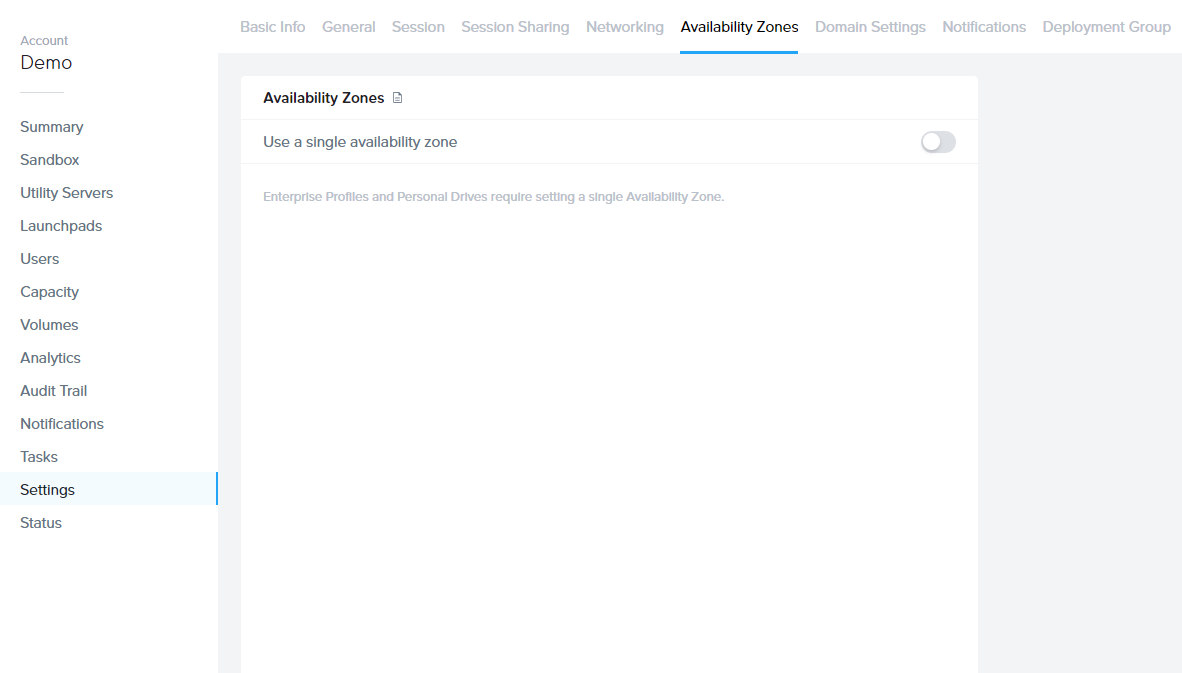

<figure style="
  margin:24px 0;
  padding:12px;
  border:1px solid #e5e7eb;
  border-radius:8px;
  background:#fafafa;
  text-align:center;
">
  <img 
    src="https://docs.difr.com/uploads/images/gallery/2025-10/az-1.png"
    alt="Availability Zones"
    style="max-width:100%;"
  />
  <figcaption style="
    margin-top:8px;
    font-size:13px;
    color:#6b7280;
  ">
    Availability Zones
  </figcaption>
</figure>

<h2>Key Considerations</h2>

### Moving Availability Zones

When considering moving resources between Availability Zones, keep the following points in mind:

1. Manual backups are not necessary before moving AZs as this action is already performed as part of the process.
2. Switching to a single AZ in Console will move all volumes to the specified AZ except for the Sandbox VM.
3. Once created, disks reside in one AZ until they are deleted, and VMs in the pool can be scattered across multiple zones. With the “use single zone” option, all VMs are provisioned in one AZ, necessitating the recreation of VMs in the selected zone. Volumes are created in the same zone, recorded as the designated zone for that account.
4. If needed, customers can change from one single AZ to another. This process involves recreating all the volumes in the newly selected zone. However, this change is rarely necessary.

## Procedure

Moving your Frame resources to a single AZ is simple and can be done with only a few clicks. Follow the steps below if you plan on enabling Enterprise Profiles or Personal Drives for your account.

1. From the Dashboard of your account, click on the **Settings** link on the left-hand side.
2. Click the **Availability Zones** tab.
3. Under **Availability Zones**, enable the "Use a single availability zone" toggle and select your desired AZ (availability zone).

## Resources

More details around availability zones for your preferred IaaS provider can be found below:

- [Amazon Web Services (AWS)](https://docs.aws.amazon.com/AWSEC2/latest/UserGuide/using-regions-availability-zones.html#concepts-availability-zones)
- [Google Cloud Platform (GCP)](https://cloud.google.com/compute/docs/regions-zones)
- [IBM Cloud VPC <span style="
  display:inline-block;
  padding:2px 8px;
  margin-left:6px;
  border-radius:999px;
  font-size:12px;
  font-weight:600;
  line-height:1.4;
  color:#7a4b00;
  background:#fff3cd;
  border:1px solid #ffe69c;
">
  Early Access
</span>](https://cloud.ibm.com/docs/overview?topic=overview-locations)

# Persistent Desktops Administration

<p id="bkmrk-with-a-default-frame">By default, Frame accounts are "stateless." This means that all changes made to an instance are lost after the session closes. The instance is then returned to a pool where it waits to be served to the next user. The Frame platform also offers an alternative option called "Persistent Desktops."</p>
<p id="bkmrk-persistent-desktops-">Persistent Desktops are stateful, desktop-only instances that are individually assigned to users. Users are given administrative control over their own desktop – they can install and manage their own unique application sets and settings in their own persistent environment. Account administrators can still monitor usage and basic session activity through the account Dashboard.</p>
<p id="bkmrk-persistent-desktop-a">Persistent Desktop accounts can be created and configured:</p>
<ul id="bkmrk-on-one-of-the-suppor">
<li>On one of the supported infrastructures</li>
<li>For Windows domain-joined instances, if required</li>
</ul>
<h3 id="bkmrk-applicability">Applicability</h3>
<p id="bkmrk-persistent-desktops--1">Persistent Desktops were designed for organizations that prefer to give their users more control over their own environments. Frame Account administrators still configure the Sandbox image to serve as the base for all instances in the pool, but end users manage their own instances once assigned. If required, Persistent Desktops can be domain-joined so enterprises can manage them through a Windows domain.</p>
<h3 id="bkmrk-requirements">Requirements</h3>
<ul id="bkmrk-users-must-be-able-t">
<li>
<p>Users must be able to authenticate to the platform using either:</p>
<ul>
<li>an <a href="https://docs.difr.com/books/platform-administrators-guide/page/authentication">identity provider integration</a></li>
<li><a href="https://docs.difr.com/books/platform-administrators-guide/page/basic-authentication">Frame Basic Authentication</a></li>
</ul>
</li>
<li>
<p>If the persistent desktop Frame account is configured to join the persistent desktop VMs to a Windows domain, users may be required to authenticate to the Windows domain before accessing their assigned Windows desktop.</p>
</li>
</ul>
<h3 id="bkmrk-setup">Setup</h3>
<p id="bkmrk-the-persistent-deskt">The Persistent Desktops feature is enabled upon account creation. It cannot be enabled on accounts that have already been created, since provisioning and infrastructure management of a Persistent Desktop account is handled differently than on a non-persistent Frame account.</p>
<h3 id="bkmrk-persistent-desktop-l">Persistent Desktop Lifecycle</h3>
<p id="bkmrk-the-state-of-a-persi">The state of a persistent desktop instance can be defined in the following ways:</p>
<ol id="bkmrk-currently-assigned-t">
<li>Currently assigned to a user ("<strong>Assigned Persistent Desktop</strong>")</li>
<li>Currently unassigned, but was previously assigned to a user ("<strong>Unassigned Persistent Desktop</strong>")</li>
<li>Waiting to be assigned to a new user ("<strong>Shadow Persistent Desktop</strong>")</li>
</ol>
<p id="bkmrk-when-a-user-starts-a">When a user starts a Frame session and has not been assigned a persistent desktop, Frame associates the user's identity (as defined by the combination of identity provider they used to authenticate to Frame and their email address) to a <strong>Shadow Persistent Desktop</strong>. This persistent desktop is now the user's <strong>Assigned Persistent Desktop</strong>. If there are no <strong>Shadow Persistent Desktops</strong> available, the user will receive an error. Once a <strong>Shadow Persistent Desktop</strong> has been assigned, then Frame will provision another <strong>Shadow Persistent Desktop</strong> using the last published Sandbox, provided that the sum total of <strong>Assigned</strong>, <strong>Unassigned</strong>, and <strong>Shadow Persistent Desktops</strong> is less than or equal to the <strong>Max possible number of users</strong> set in <a href="https://docs.difr.com/link/114#bkmrk-page-title">Capacity</a>.</p>
<p id="bkmrk-each-time-the-user-a">Each time the user authenticates to their identity provider and the identity provider passes to Frame the user's email address, Frame will broker the user into their <strong>Assigned Persistent Desktop</strong> instance.</p>
<p id="bkmrk-administrators-can-a">Administrators can also <a href="https://docs.difr.com/link/81#bkmrk-page-title">unassign a user</a> from their <strong>Assigned Persistent Desktops</strong> as well as <a href="https://docs.difr.com/link/81#bkmrk-page-title">reassign a previously logged in user</a> to the <strong>Assigned Persistent Desktop</strong>.</p>
<p id="bkmrk-finally%2C-if-the-admi">Finally, if the administrator can <a href="https://docs.difr.com/books/platform-administrators-guide/page/persistent-desktops-administration#bkmrk-terminate-a-persiste">terminate a persistent desktop</a> whether the desktop is <strong>Assigned</strong> or <strong>Unassigned</strong>.</p>
<h3 id="bkmrk-capacity-administrat">Capacity Administration</h3>
<p id="bkmrk-account-capacity-set">Account capacity settings work a little differently than a non-persistent Frame account as there is only one pool of persistent desktops.</p>
<figure id="bkmrk-" class="admin-ui">
<p><img src="https://docs.difr.com/uploads/images/gallery/2025-10/pd-capacity.png" alt="Persistent Desktop Capacity"></p>
</figure>
<ul id="bkmrk-max-possible-number-">
<li>
<p><strong>Max possible number of users:</strong> Enter the max number of expected users (instances) for the account in this field. This value governs the sum total number of <strong>Assigned</strong>, <strong>Unassigned</strong>, and <strong>Shadow Persistent Desktops</strong> that can exist at anytime in the Frame account. Frame will terminate shadow persistent desktops if this value is reduced below the sum of the number of assigned, unassigned, and shadow persistent desktops.</p>
</li>
<li>
<p><strong>Shadow Pool Count</strong>: Frame will provision the specified number of shadow persistent desktop VMs at publish.</p>
</li>
<li>
<p><strong>Minimum Unassigned VMs</strong>: Frame will attempt to maintain the specified number of minimum unsigned VMs as unassigned VMs are assigned to new users.</p>
</li>
<li>
<p><strong>Keep running instances for new users:</strong> Enabling this toggle keeps a <strong>Shadow Persistent Desktop</strong> instance running at all times, so it is immediately available to new users (assuming&nbsp;the total number of <strong>Assigned</strong>, <strong>Unassigned</strong>, and <strong>Shadow Persistent Desktops</strong> is less than the specified <strong>Max possible number of users</strong>).</p>
</li>
</ul>
<p id="bkmrk-once-a-shadow-persis">Once a <strong>Shadow Persistent Desktop</strong> instance is assigned to a user, Frame will provision a new <strong>Shadow Persistent Desktop</strong> subject to the <strong>Max possible number of users</strong> value. By default, the number of <strong>Shadow Persistent Desktop</strong> is set to <strong>1</strong>. This value can be increased on request by contacting Support.</p>
<p id="bkmrk-when-using-aws%2C-gcp%2C">When using AWS, GCP, or Azure, enabling this toggle will result in infrastructure costs for the time that the <strong>Shadow Persistent Desktops</strong> are running, even though it is not being actively used. Keeping this toggle off eliminates those infrastructure costs, but a new user will need to wait for the instance to power on before the instance can be assigned to them for their first Frame session. This can take upwards of 10-15 minutes, depending on the infrastructure.</p>
<ul id="bkmrk-keep-instances-runni">
<li><strong>Keep instances running:</strong> Specifies when and for how long the persistent desktop VMs will stay powered on.
<ul>
<li><strong>Basic:</strong> The persistent desktop is powered on when the user requests access to their persistent desktop. The persistent desktop will remain on&nbsp;for the next full hour increment, measured from when the instance was first powered on, even if the user closes their session. For example, if the persistent desktop was powered on at 9:05 AM and the user used their persistent desktop until 12:30 PM, then the active, but not used persistent desktop would be powered off at 1:05 PM. The time period can be lowered to 15 minutes by contacting Support.</li>
<li><strong>Always:</strong> The persistent desktop powers on and will remain powered on unless the persistent desktops are rebooted or powered off by the end user or administrator.</li>
<li><strong>Wake up instances:</strong> Instances can be powered on at a specific time of the day. Those persistent desktop VMs that are not in use will remain powered on for the next full hour increment, as measured from when the instance was first powered on, and then powered off. The time period can be lowered to 15 minutes by contacting Support.</li>
</ul>
</li>
</ul>
<figure id="bkmrk--1" class="admin-ui">
<p><img class="align-center" src="https://docs.difr.com/uploads/images/gallery/2025-10/pd-wakeup.png" alt="Persistent Desktop Wake Up Instances"></p>
</figure>
<h3 id="bkmrk-sandbox-image-manage">Sandbox Image Management</h3>
<p id="bkmrk-managing-your-sandbo">Managing your Sandbox image on a Persistent Desktop account is the same as a non-persistent, regular Frame account. The difference lies in how your changes are propagated to the workload instances. Since an instance is assigned to each user when they log in for the first time, any Sandbox updates published after the assignment will apply only to the <strong>Shadow Persistent Desktop</strong>. <strong>Assigned</strong> and <strong>Unassigned Persistent Desktops</strong> will not be affected by the publish of the Sandbox.</p>
<p id="bkmrk-in-the-event-that-th">If the same changes to the Sandbox must be applied to <strong>Assigned</strong> or <strong>Unassigned Persistent Desktop</strong> instances, an account administrator must use them to those instances or terminate the <strong>Assigned</strong> or <strong>Unassigned Persistent Desktop</strong>, as discussed in <a href="https://docs.difr.com/books/platform-administrators-guide/page/persistent-desktops-administration#bkmrk-terminate-a-persiste">Terminate a Persistent Desktop</a>.</p>
<p id="bkmrk-terminating-an-insta" class="callout warning">&nbsp; Terminating an instance will permanently delete all data on that instance. Any data a user needs from their instance, such as&nbsp; &nbsp; work files or software licenses, should be retrieved from their persistent desktop before the account administrator&nbsp; &nbsp; &nbsp; &nbsp; &nbsp; &nbsp; &nbsp; &nbsp; &nbsp; terminates their instance.</p>
<h3 id="bkmrk-updates">Updates</h3>
<p id="bkmrk-the-updates-page-of-">The <strong>Updates</strong> page of your Account Dashboard displays any required OS or Frame updates for your VMs. More details can be found in the <a href="https://docs.difr.com/books/platform-administrators-guide/page/persistent-desktops-administration#bkmrk-updates">Updates section</a> of our documentation.</p>
<h3 id="bkmrk-persistent-desktop-v">Persistent Desktop Volumes</h3>
<p id="bkmrk-administrators-can-m">Administrators can manage the persistent desktop backups for individual users by navigating to the <strong>Volumes</strong> page in the account Dashboard. The first tab is the <strong>Volumes tab</strong> which provides a list of named user volumes, the volume size and status, and the available free space for each volume. There are also additional operations, described below, accessible under the kebab menu in the upper right corner of the page.</p>
<figure id="bkmrk--2" class="admin-ui">
<p><img src="https://docs.difr.com/uploads/images/gallery/2025-10/pd-volumes1.png" alt="Persistent Desktop Volumes"></p>
</figure>
<p id="bkmrk-if-you-are-looking-f">If you are looking for a specific volume, you can use the search bar at the top of the page to search by volume name.</p>
<h3 id="bkmrk-autogrow-settings">Autogrow Settings</h3>
<p id="bkmrk-if-you-anticipate-th">If you anticipate that your users will need to increase their Persistent Desktop disk size regularly, you can set Frame parameters to scale up as needed automatically. To do this, navigate to the&nbsp;<strong>Volumes</strong> page, click on the kebab menu and select <strong>Autogrow settings</strong>. A new dialog box will appear:</p>
<figure id="bkmrk--3" class="admin-ui">
<p><img src="https://docs.difr.com/uploads/images/gallery/2025-10/pd-autogrow.png" alt="Persistent Desktop Autogrow Settings"></p>
</figure>
<p id="bkmrk-here%2C-you-can-specif">Here, you can specify the threshold at which the disk size will automatically increase for established users. By default, the disk volume will automatically be increased by 10 GB when there is less than 5 GB of free space remaining. You can adjust these values as you see fit for your users.</p>
<p id="bkmrk-you-can-enforce-a-ma">You can enforce a maximum disk volume size by enabling the <strong>Limit maximum volume size</strong> slider and setting the <strong>Maximum volume size</strong>. <strong>Enable autogrow settings</strong> must be enabled first. If you do not enable <strong>Limit maximum volume size</strong>, there is no limitation on how large the individual user's persistent desktop volume can autogrow.</p>
<p id="bkmrk-be-sure-to-click-con">Be sure to click <strong>Confirm</strong> once you have adjusted the settings as desired.</p>
<h3 id="bkmrk-backup-all-volumes">Backup All Volumes</h3>
<p id="bkmrk-you-can-backup-all-p">You can backup all persistent desktop volumes (versus individual persistent desktop volumes) by clicking on the kebab menu and select <strong>Backup all persistent desktop volumes</strong>. You will be asked to confirm that you wish to proceed.</p>
<h3 id="bkmrk-clone">Clone</h3>
<p id="bkmrk-you-can-clone-the-pe">You can clone the persistent desktops from one Frame account to another Frame account using the <strong>Clone persistent volumes</strong> feature. This feature is only for persistent desktop Frame accounts on <strong>Nutanix AHV clusters</strong>.</p>
<ol id="bkmrk-before-you-initiate-">
<li>
<p>Before you initiate the clone operation, you can specify whether the clone operation will replace persistent desktops in the destination Frame account if the same owners have assigned persistent desktop in the source Frame Account:</p>
<ul>
<li>Disable <strong>Replace Assigned Volumes</strong> (default) will direct the clone operation to skip the cloning of any persistent desktops from the source Frame account whose owners have assigned persistent desktops in the destination Frame account.</li>
<li>Enable <strong>Replace Assigned Volumes</strong> to copy all persistent desktop volumes from the source to destination Frame account. If there are owners with assigned persistent desktops in both the source and destination Frame accounts, the owners' assigned persistent desktop volume from the source Frame account will replace the persistent desktop volume in the destination Frame account.</li>
</ul>
</li>
<li>
<p>Then click on <strong>Clone</strong> button to proceed or <strong>Cancel</strong> button to cancel the clone operation request.</p>
</li>
</ol>
<p id="bkmrk-the-clone-operation-" class="callout info">&nbsp; The clone operation **will not** delete the persistent desktop volumes in the source Frame account.</p>
<h3 id="bkmrk-prerequisites">Prerequisites</h3>
<ol id="bkmrk-nutanix-remote-site-">
<li><a href="https://docs.difr.com/books/platform-administrators-guide/page/disaster-recovery">Nutanix Remote Site</a> must be configured between the two AHV Clusters.</li>
<li>The destination Frame account must exist in Frame Console.</li>
</ol>
<h3 id="bkmrk-process">Process</h3>
<p id="bkmrk-the-persistent-deskt-1">The persistent desktop VMs in the source Frame account will be powered off before the clone operation commences. If there are any users in session, the clone operation will block until all users have finished their sessions and Frame can power off their persistent desktop VMs.</p>
<p id="bkmrk-once-the-clone-opera">Once the clone operation completes, Frame Platform will power on the persistent desktop VMs based on <a href="https://docs.difr.com/link/114#bkmrk-page-title">Capacity Administration</a> <strong>Keep instances running</strong> setting.</p>
<h3 id="bkmrk-backups">Backups</h3>
<p id="bkmrk-the-backups-tab-prov">The <strong>Backups</strong> tab provides the account administrator with a detailed view of available backups for the volume specified under the <strong>Volume</strong> drop-down menu at the top of the window. Details include the name, time/date of creation, type of backup, and the number of backups for the volume (shown in the lower right corner of the window).</p>
<figure id="bkmrk--4" class="admin-ui">
<p><img src="https://docs.difr.com/uploads/images/gallery/2025-10/pd-backups1.png" alt="Persistent Desktop Backups"></p>
</figure>
<h3 id="bkmrk-manual-backup-and-re">Manual Backup and Restore</h3>
<p id="bkmrk-to-create-a-backup%2C-">To <strong>create a backup</strong>, simply click the blue <strong>Create backup</strong> link in the upper right corner of the window. A new window will appear prompting you to select the volume you wish to backup from the drop-down menu. Be sure to provide a name for this backup as well. From there, click <strong>Create</strong> in the bottom right corner of the window.</p>
<figure id="bkmrk--5">
<p><img src="https://docs.difr.com/uploads/images/gallery/2025-10/pd-backups2.png" alt="Persistent Desktop Backups"></p>
</figure>
<p id="bkmrk-in-order-to-create-a" class="callout info">&nbsp; In order to create a persistent desktop volume backup, you must ensure the instance is in a **stopped** state.</p>
<p id="bkmrk-the-status-of-your-b">The status of your backup will appear in your Notification Center:</p>
<figure id="bkmrk--6" class="admin-ui">
<p><img class="align-center" src="https://docs.difr.com/uploads/images/gallery/2025-10/pd-backups3.png" alt="Backup Status Notification Center"></p>
</figure>
<p id="bkmrk-once-completed%2C-the-">Once completed, the new backup will appear in your list. You can restore a backup at any time by clicking on the kebab menu to the right of the desired backup and clicking <strong>Restore</strong>.</p>
<p id="bkmrk-1.-restoring-from-a-" class="callout info">&nbsp; Restoring from a previous backup will replace the volume with the backup image you select. Any changes made since the&nbsp; &nbsp; &nbsp; &nbsp;selected backup was created will be erased. 2. You can set the number of manual backups that are retained under&nbsp; &nbsp; &nbsp; &nbsp; &nbsp; &nbsp; &nbsp; &nbsp; &nbsp; &nbsp;Settings, Number of Manual Backups Retained.</p>
<h3 id="bkmrk-schedule-backups">Schedule Backups</h3>
<p id="bkmrk-to-schedule-automate">To <strong>schedule automated backups</strong> of all persistent desktops, simply click the kebab menu in the upper right corner of the backups section and click on <strong>Settings</strong>. A new window will appear with a toggle to enable <strong>Scheduled Backups</strong>.</p>
<figure id="bkmrk--7" class="admin-ui">
<p><img src="https://docs.difr.com/uploads/images/gallery/2025-10/pd-automatic.png" alt="Schedule Persistent Desktop Backups"></p>
</figure>
<p id="bkmrk-enable-the-toggle-an">Enable the toggle and specify your scheduled backup settings.</p>
<ul id="bkmrk-first-backup-time%3A-t">
<li><strong>First Backup Time</strong>: The time when Frame will start the backup of the persistent desktops.</li>
<li><strong>Time Zone</strong>: Time zone associated with the time to start the backup of the persistent desktops.</li>
<li><strong>Scheduled Backup Interval</strong>: Periodicity for when the backups are taken (e.g., value of means backup daily).</li>
<li><strong>Number of Scheduled Backups Retained</strong>: Frame will retain up to the specified number of scheduled backups.</li>
</ul>
<p id="bkmrk-click-confirm-to-pro">Click <strong>Confirm</strong> to proceed.</p>
<p id="bkmrk-%C2%A0-in-order-for-a-per" class="callout warning">&nbsp; In order for a persistent desktop to be included in the next scheduled backup event, the persistent desktop must:<br>&nbsp; 1. Be in or status. If the persistent desktop is , Frame will power off the persistent desktop before the disk is backed up. <br>&nbsp; &nbsp; &nbsp; If a user is , the persistent desktop will not be included in the scheduled backup event. <br>&nbsp; 2. Have been powered on for the disk to have changed since the last scheduled backup event.</p>
<p id="bkmrk-if-you-change-the-ba">If you change the backup schedule, the revised backup schedule takes effect on the next day.</p>
<h3 id="bkmrk-delete-a-backup">Delete a Backup</h3>
<p id="bkmrk-you-can-delete-a-bac">You can <strong>delete a backup</strong> by clicking on the kebab menu mentioned above and selecting <strong>Delete</strong>.</p>
<p id="bkmrk-%3A%3A%3Ainfo-user-managed">info User-managed Backups</p>
<p id="bkmrk-administrators-can-d">Administrators can decide whether or not they would like their users to manage their own system backups. User-managed backups can be enabled by navigating to the <strong>Settings</strong> page in the Dashboard and enabling the <strong>Are persistent desktops backups allowed</strong> toggle listed under <strong>General settings</strong>.</p>
<figure id="bkmrk--8" class="admin-ui">
<p><img class="align-center" src="https://docs.difr.com/uploads/images/gallery/2025-10/pdbackups.png" alt="User-managed Backups"></p>
</figure>
<p id="bkmrk-once-enabled%2C-end-us">Once enabled, end users can manage their backups from their profile page. More information about this feature can be found in the <a href="https://docs.difr.com/books/desktop-users-guide/page/navigating-frame">Navigating your Frame Account Guide</a>.</p>
<h3 id="bkmrk-change-instance-type">Change Instance Type</h3>
<p id="bkmrk-some-administrators-">Some administrators may wish to change their Persistent Desktop user's instance type to accommodate the user's needs. For instance, the end user may need a higher-performing instance type after taking on a project which requires video editing and graphic design. Since Persistent Desktop accounts are structured differently than a standard Frame account, this process is also slightly different (but still simple!).</p>
<ol id="bkmrk-start-by-navigating-">
<li>Start by navigating to the <strong>Status</strong> page within the desired <strong>Account Dashboard</strong>. Under the <strong>Servers</strong> tab, find the Persistent Desktop you wish to change. You can hover over the machine name on this list to see more details (including the user name assigned to the Persistent Desktop VM).</li>
</ol>
<figure id="bkmrk--9" class="admin-ui">
<p><img src="https://docs.difr.com/uploads/images/gallery/2025-10/pd-instance1.png" alt="Status &gt; Servers"></p>
</figure>
<ol id="bkmrk-next%2C-click-the-keba" start="2">
<li>Next, click the kebab menu to the right of the Persistent Desktop and select <strong>Change instance type</strong>.</li>
</ol>
<figure id="bkmrk--10" class="admin-ui">
<p><img class="align-center" src="https://docs.difr.com/uploads/images/gallery/2025-10/pd-instance2.png" alt="Change Instance Type"></p>
</figure>
<ol id="bkmrk-select-the-desired-i" start="3">
<li>Select the desired instance from the drop-down menu. Click <strong>Save</strong>.</li>
</ol>
<figure id="bkmrk--11" class="admin-ui">
<p><img src="https://docs.difr.com/uploads/images/gallery/2025-10/pd-instance3.png" alt="Save Instance Type"></p>
</figure>
<ol id="bkmrk-you-will-receive-sta" start="4">
<li>You will receive status updates for the operation through the Notification Center.</li>
</ol>
<figure id="bkmrk--12" class="admin-ui">
<p><img src="https://docs.difr.com/uploads/images/gallery/2025-10/pd-instance4.png" alt="Save Instance Type"></p>
</figure>
<p id="bkmrk-the-instance-type-up">The instance type update will be reflected in the listed details under the <strong>Servers</strong> tab.</p>
<p id="bkmrk-for-public-cloud-inf" class="callout info">&nbsp; For public cloud infrastructure, changing the instance type requires the new VM to power on after the existing persistent&nbsp; &nbsp; &nbsp; &nbsp; desktop disk is attached to the new VM and the old VM is terminated.</p>
<h3 id="bkmrk-reassign-persistent-">Reassign Persistent Desktops</h3>
<p id="bkmrk-administrators-can-r">Administrators can reassign an <strong>Assigned Persistent Desktop</strong> to a different user (or let an existing user be reassigned to their Persistent Desktop via a different Identity Provider) by going to the <strong>Status</strong> page within the Account Dashboard. <strong>Before proceeding to the instructions, please carefully read the considerations below:</strong></p>
<h3 id="bkmrk-considerations">Considerations</h3>
<ul id="bkmrk-the-desired-user-mus">
<li>
<p>The desired user must have already logged in to the Frame Account using the identity provider and email address specified by the administrator. If the user is not visible in the drop-down menu, then they <strong>have not logged in to Frame using that specific Identity Provider</strong>. Ensure the user first logs in to the Frame Account <strong>before</strong> reassigning the <strong>Assigned Persistent Desktop</strong> to the user.</p>
</li>
<li>
<p>Any existing applications, configurations, files, application data, local user profiles, etc. will still remain on the VM when you reassign a Persistent Desktop. If desired, administrators can reassign the VM to themselves first if they need to perform any maintenance before reassigning to a new user.</p>
</li>
<li>
<p>The VM cannot be in use by a Persistent Desktop user.</p>
</li>
<li>
<p>If a user already has a Persistent Desktop assigned to them within the same Frame account, they cannot be assigned to another Persistent Desktop. Administrators attempting to do so will see an error message that reads “Bad Request: Invalid request. Selected user already has assigned instance with same account.”</p>
</li>
</ul>
<h3 id="bkmrk-procedure">Procedure</h3>
<ol id="bkmrk-navigate-to-the-stat">
<li>
<p>Navigate to the <strong>Status</strong> page on the <strong>Account Dashboard</strong> and select the <strong>Servers</strong> tab. You can hover over the machine name on this list to see more details (including the user name assigned to the Persistent Desktop VM).</p>
<figure class="admin-ui">
<p><img src="https://docs.difr.com/uploads/images/gallery/2025-10/pd-reassign1.png" alt="Servers Tab"></p>
</figure>
</li>
<li>
<p>Click on the kebab menu to the right of the Persistent Desktop to be reassigned and click <strong>Reassign</strong>.</p>
<figure class="admin-ui">
<p><img src="https://docs.difr.com/uploads/images/gallery/2025-10/pd-reassign2.png" alt="Reassign Persistent Desktop"></p>
</figure>
</li>
<li>
<p>When you select <strong>Reassign</strong>, the following window will appear:</p>
<figure class="admin-ui">
<p><img class="align-center" src="https://docs.difr.com/uploads/images/gallery/2025-10/pd-reassign4.png" alt="Reassign Dialog"></p>
</figure>
</li>
<li>
<p>Use the drop-down menus to select the Identity Provider the user will be accessing the platform with and the new user's email address.</p>
</li>
<li>
<p>Click <strong>Save</strong> when you're ready. Once the desktop has been reassigned, you can hover over the machine name of the Persistent Desktop VM to verify the change has been made.</p>
</li>
</ol>
<h3 id="bkmrk-unassign-persistent-">Unassign Persistent Desktops</h3>
<p id="bkmrk-administrators-can-u">Administrators can unassign a user from their <strong>Assigned Persistent Desktop</strong> at anytime. Once the user is unassigned from their persistent desktop, the persistent desktop is an <strong>Unassigned Persistent Desktop</strong>.</p>
<h3 id="bkmrk-considerations-1">Considerations</h3>
<ul id="bkmrk-the-administrator-ca">
<li>
<p>The administrator cannot unassign an <strong>Assigned Persistent Desktop</strong> if the persistent desktop in use by a Persistent Desktop user.</p>
</li>
<li>
<p>If the user starts a session after they were unassigned from their <strong>Assigned Persistent Desktop</strong>, Frame will:</p>
<ol>
<li>Assign the user a <strong>Shadow Persistent Desktop</strong>, if one exists, and this persistent desktop will now be an <strong>Assigned Persistent Desktop</strong>.</li>
<li>Broker the user to an existing persistent desktop that the administrator assigned to the user using the <a href="https://docs.difr.com/books/platform-administrators-guide/page/persistent-desktops-administration#bkmrk-reassign-persistent-">Reassign Persistent Desktops</a> feature (prior to the user starting a session in Frame Console).</li>
</ol>
</li>
</ul>
<p id="bkmrk-if-the-administrator">If the administrator does not want the user to get a new persistent desktop, then they must remove the user's authorization to access the Frame persistent desktop account.</p>
<h3 id="bkmrk-procedure-1">Procedure</h3>
<ol id="bkmrk-navigate-to-the-stat-1">
<li>Navigate to the <strong>Status</strong> page on the <strong>Account Dashboard</strong> and select the <strong>Servers</strong> tab. You can hover over the machine name on this list to see more details (including the user name assigned to the Persistent Desktop VM).</li>
<li>Click on the kebab menu to the right of the Persistent Desktop to be reassigned and click <strong>Unassign</strong>.</li>
<li>Click on <strong>Unassign</strong> to confirm that the user will no longer be assigned with the persistent desktop or <strong>Cancel</strong> if you do not want to unassign the user from their <strong>Assigned Persistent Desktop</strong>. Once the desktop has been unassigned, you can hover over the machine name of the Persistent Desktop VM to verify the user is no longer assigned to the Persistent Desktop VM.</li>
</ol>
<h3 id="bkmrk-terminate-a-persiste">Terminate a Persistent Desktop</h3>
<p id="bkmrk-if-an-assigned-persi">If an assigned persistent desktop is no longer needed, you can terminate the persistent desktop with the following procedure:</p>
<ol id="bkmrk-start-by-navigating--1">
<li>
<p>Start by navigating to the <strong>Status</strong> page within the desired <strong>Account Dashboard</strong>. Under the <strong>Servers</strong> tab, find the Persistent Desktop you wish to terminate.</p>
</li>
<li>
<p>Click on the kebab menu to the right of the Persistent Desktop to be terminated and click <strong>Terminate</strong>.</p>
</li>
<li>
<p>Select the checkbox to <strong>Delete all backups associated with the selected Volume</strong> if you wish to delete all of the backups associated with this persistent desktop.</p>
</li>
<li>
<p>Select:</p>
<ul>
<li><strong>Terminate</strong>: If you wish to wait for the Frame session to close before terminating the persistent desktop VM, disk volume, and backups (if requested).</li>
<li><strong>Force Terminate</strong>: Terminate the persistent desktop VM, disk volume, and backups (if requested) immediately without waiting for the Frame session to close.</li>
</ul>
</li>
</ol>
<p id="bkmrk-frame-will-not-creat">Frame will not create a new instance to replace the terminated Persistent Desktop. The next time the user logs into Frame and requests a desktop, Frame will:</p>
<ol id="bkmrk-assign-the-user-a-sh">
<li>Assign the user a <strong>Shadow Persistent Desktop</strong>, if one exists, and this persistent desktop will now be an <strong>Assigned Persistent Desktop</strong>.</li>
<li>Broker the user to an existing persistent desktop that the administrator assigned to the user using the <a href="https://docs.difr.com/books/platform-administrators-guide/page/persistent-desktops-administration#bkmrk-reassign-persistent-">Reassign Persistent Desktops</a> feature (prior to the user starting a session in Frame Console).</li>
</ol>
<p id="bkmrk-if-the-administrator-1">If the administrator does not want the user to get a new persistent desktop, then they must remove the user's authorization to access the Frame persistent desktop account.</p>
<h3 id="bkmrk-cloning-persistent-d">Cloning Persistent Desktop Workload VMs Across Frame Accounts</h3>
<p id="bkmrk-frame-supports-cloni">Frame supports cloning <strong>Persistent Desktop (PD) workload VMs</strong> from one Frame account to another using the <strong>Clone</strong> feature. This functionality is available across all supported cloud providers, including Nutanix AHV, provided that both the source and destination accounts are deployed on the same Cloud Account.</p>
<h3 id="bkmrk-cloning-scenarios">Cloning Scenarios</h3>
<p id="bkmrk-the-table-below-summ">The table below summarizes which cloning scenarios are supported:</p>
<table id="bkmrk-cloning-scenario-sup" style="width: 100%;">
<thead>
<tr>
<th style="width: 45.0368%;"><span style="color: rgb(255, 255, 255);">Cloning Scenario</span></th>
<th style="width: 12.9855%;"><span style="color: rgb(255, 255, 255);">Supported?</span></th>
<th style="width: 42.0572%;"><span style="color: rgb(255, 255, 255);">Additional Notes</span></th>
</tr>
</thead>
<tbody>
<tr>
<td style="width: 45.0368%;"><strong>Non-Domain Joined Instance (Non-DJI) → Non-DJI</strong></td>
<td class="align-left" style="width: 12.9855%;">✅</td>
<td style="width: 42.0572%;">No restrictions.</td>
</tr>
<tr>
<td style="width: 45.0368%;"><strong>Non-DJI → Domain-Joined Instance (DJI)</strong></td>
<td class="align-left" style="width: 12.9855%;">✅</td>
<td style="width: 42.0572%;">Admins must configure the domain post-cloning.</td>
</tr>
<tr>
<td style="width: 45.0368%;"><strong>DJI (Same Domain) → DJI (Same Domain)</strong></td>
<td class="align-left" style="width: 12.9855%;">✅ (with additional steps)</td>
<td style="width: 42.0572%;">Source VM is backed up before cloning. The original VM is deleted from the source account after cloning to maintain domain integrity.</td>
</tr>
<tr>
<td style="width: 45.0368%;"><strong>DJI (Different Domains) → DJI (Different Domains)</strong></td>
<td class="align-left" style="width: 12.9855%;">❌</td>
<td style="width: 42.0572%;">Domain trust/security constraints prevent this operation.</td>
</tr>
<tr>
<td style="width: 45.0368%;"><strong>Other cloning scenarios</strong></td>
<td class="align-left" style="width: 12.9855%;">❌</td>
<td style="width: 42.0572%;">Not allowed.</td>
</tr>
</tbody>
</table>
<p id="bkmrk-cloning-a-%2A%2Apersiste" class="callout info">&nbsp; Cloning a **persistent desktop to a different account has certain limitations if the source account is domain-joined**. Users&nbsp; &nbsp; will see a **warning message** in the UI before proceeding. The clone operation does not delete Persistent Desktop&nbsp; &nbsp; &nbsp; &nbsp; &nbsp; &nbsp; &nbsp; &nbsp; volumes in the source Frame account unless explicitly required by domain management policies.</p>
<h3 id="bkmrk-prerequisites-1">Prerequisites</h3>
<p id="bkmrk-before-initiating-a-">Before initiating a clone, ensure the following requirements are met:</p>
<ul id="bkmrk-both-source-and-dest">
<li><strong>Both source and destination accounts must be deployed on the same Cloud Account.</strong></li>
<li><strong>Both accounts must use the same Cloud Service and Image Family.</strong></li>
<li>The <strong>destination Frame account must be fully deployed</strong> before cloning.</li>
<li>If <strong>cloning between domain-joined accounts</strong>, verify that <strong>domain configurations align</strong> to prevent conflicts.</li>
<li>Cloning across <strong>different domains</strong> is <strong>not supported</strong>.</li>
</ul>
<h3 id="bkmrk-cloning-process">Cloning Process</h3>
<ol id="bkmrk-navigate-to-the-vms-">
<li>
<p>Navigate to the <strong>VMs</strong> page in the Frame Console.</p>
</li>
<li>
<p>Locate the <strong>Persistent Desktop workload VM</strong> you want to clone.</p>
</li>
<li>
<p>Click on the <strong>"..."</strong> menu next to the VM and select <strong>Clone</strong>.</p>
</li>
<li>
<p>A <strong>Clone VM window</strong> will appear, allowing you to select the <strong>target Frame account</strong>.</p>
<ul>
<li>If the source account is <strong>domain-joined</strong>, a warning message will be displayed.</li>
</ul>
</li>
<li>
<p>Accept the agreement and click <strong>Clone</strong> to begin the process.</p>
</li>
<li>
<p>The system will initiate the cloning process:</p>
<ul>
<li>The <strong>Persistent Desktop VM in the source account will be powered off</strong> before cloning begins.</li>
<li>If any users are in session, the operation will be blocked until all sessions are closed and the VM is powered down.</li>
<li>If the source VM is <strong>domain-joined in the same domain</strong>, the system will <strong>create a backup before cloning</strong> and <strong>delete the original VM</strong> after cloning to maintain domain integrity.</li>
</ul>
</li>
<li>
<p>Once the clone operation is complete:</p>
<ul>
<li>The new <strong>Persistent Desktop VM will be available in the destination Frame account</strong>.</li>
<li>The <strong>VM will be powered on</strong>, following the <strong>Capacity Administration Keep instances running</strong> setting.</li>
<li>Administrators must <strong>manually assign cloned machines</strong> or configure <strong>automated assignment rules</strong> for users.</li>
</ul>
</li>
</ol>

# Cloning

Organizational and Customer administrators are granted the ability to clone from current and backup Sandbox/Utility Server images to other accounts. This feature is ideal for scenarios where administrators have configured an image to their liking and would like to re-use it in other accounts.

There are two options when cloning a Sandbox or Utility Server:

1. [Clone a Sandbox or Utility Server](https://docs.difr.com/link/117#bkmrk-clone-a-sandbox-or-u-1) - this operation triggers the backup of the source disk before copying the backup to the destination Frame account and restoring the backup as the destination Sandbox or Utility Server disk. Each clone operation generates another new backup.
2. [Clone from a Backup](https://docs.difr.com/link/117#bkmrk-clone-from-a-backup) - this operation copies the specified source disk backup to the destination Frame account and restores the backup as the destination Sandbox or Utility Server disk. This clone operation does not generate a new backup.

## Considerations

- Only Organization and Customer-level administrators can initiate a clone.
- Cloning works only in account entities that have been created within the same public cloud account or if the source/destination AHV clusters have been configured bidirectionally with a [Remote Site](https://docs.difr.com/books/platform-administrators-guide/page/disaster-recovery)).
- Cloning from an existing Sandbox or Utility Server backup is faster than cloning from a Sandbox or Utility Server because the Frame control plane does not have to take a backup of the Sandbox or Utility Server virtual machine disk. Furthermore, if you need to clone the Sandbox from one source Frame account to more than one destination Frame account, cloning from an existing Sandbox backup is highly recommended.

## Clone a Sandbox or Utility Server

The Sandbox/Utility server cloning operation will copy the Sandbox/Utility server image in one account to a Sandbox/Utility server in a different account.

<p class="callout info"> You must initiate the Sandbox/Utility Server cloning operation in the account you wish to copy the image from.</p>

Follow the steps listed below to clone an image from one Sandbox/Utility server to another Sandbox/Utility server.

1. Navigate to the Dashboard of the account you would like to clone the Sandbox or Utility server from.
2. From the **Sandbox** or **Utility Servers** page of your Dashboard, navigate to the desired Sandbox or Utility server you wish to clone from. Click on the ellipsis next to the desired system and select **Clone to Another Account**.
    
    <figure>![Clone to Another Account](https://docs.difr.com/uploads/images/gallery/2025-10/clone-sandbox1.png)
    
    </figure>
3. In the following dialog, select the account(s) you would like to clone the current Sandbox/Utility server image ***to***. A check box will appear next to each account you select. You can click the account again to de-select the account.
    
    <figure style="max-width: 550px;">![Accept](https://docs.difr.com/uploads/images/gallery/2025-10/clone-sandbox-select.png)
    
    </figure>If you are cloning a Sandbox, you are required to select the first checkbox before you can initiate Sandbox cloning:
    
    
    - **I agree to have Sandbox on `selected Account Name(s)` deleted and replaced with a copy of the Sandbox from the current account**: Confirm you want the current Sandbox image to replace the Sandbox image of each of the specified Frame account(s).
    
    If you are cloning a Utility server, you are required to select the checkbox before you can initiate Utility server cloning:
    
    
    - **I agree to have this Utility server cloned to `selected Account Name(s)`**: Confirm you want the current Utility server image to be used to create a Utility server in the specified Frame account(s).
    
    The second and third checkboxes will only be shown when cloning Sandboxes:
    
    
    - **Publish after the clone has successfully finished**: If selected, the Sandbox for each destination Frame account will be published once the current Sandbox image has been cloned.
    - **Join the cloned Sandbox to `selected Account Name(s)` Account Domain**: This option is only visible if the destination Frame account(s) are [configured to use a Windows domain](https://docs.difr.com/books/platform-administrators-guide/page/domain). Select this checkbox if you want the cloned Sandbox to be joined to the Windows domain, as configured in the destination Frame account.
4. Click **Clone** to confirm cloning. The action will start. The status information will be updated when the Sandbox clone operation has successfully completed.
5. The account Sandbox/Utility Server you are cloning the image ***to*** will be temporarily unavailable. The operation status will be displayed in the “Pending requests” list above the system.

## Clone from a Backup

If you would like to clone a Sandbox or Utility server backup image to another account's Sandbox or Utility server, you can do so by navigating to the **Backups** table listed under the Sandbox/Utility server of the account you will be cloning **from**.

1. Click the ellipsis listed next to the backup you wish to clone **from** and select **Clone**.
    
    <figure>![Clone from Backup](https://docs.difr.com/uploads/images/gallery/2025-10/clone-backup1.png)
    
    </figure>
2. In the following dialog, select the account(s) you would like to clone the current Sandbox/Utility server backup ***to***. A check box will appear next to each account you select. You can click the account again to de-select the account.
    
    <figure style="max-width: 550px;">![Accept](https://docs.difr.com/uploads/images/gallery/2025-10/clone-sandbox-select.png)
    
    </figure>If you are cloning from a Sandbox backup, you are required to select the first checkbox before you can initiate Sandbox cloning:
    
    
    - **I agree to have Sandbox on `selected Account Name(s)` deleted and replaced with a copy of the Sandbox from the current account**: Confirm you want the current Sandbox image to replace the Sandbox image of each of the specified Frame account(s).
    
    If you are cloning a Utility server backup, you are required to select the checkbox before you can initiate Utility server cloning:
    
    
    - **I agree to have this Utility server cloned to `selected Account Name(s)`**: Confirm you want the current Utility server image to be used to create a Utility server in the specified Frame account(s).
    
    The second and third checkboxes will only be shown when cloning Sandbox backups:
    
    
    - **Publish after the clone has successfully finished**: If selected, the Sandbox for each destination Frame account will be published once the Sandbox backup has been cloned.
    - **Join the cloned Sandbox to `selected Account Name(s)` Account Domain**: This option is only visible if the destination Frame account(s) are [configured to use a Windows domain](https://docs.difr.com/platform/admin/domain). Select this checkbox if you want the cloned Sandbox to be joined to the Windows domain, as configured in the destination Frame account.
3. Click **Clone** to confirm cloning. The action will start. The status information will be updated when the Sandbox clone operation has successfully completed.
4. The account Sandbox/Utility Server you are cloning the image ***to*** will be temporarily unavailable. The operation status will be displayed in the **Summary** page of your Dashboard.

# Utility Servers

A Utility Server is a stand-alone, general purpose Windows server that can be helpful for a variety of use cases, including:

- **License server**: Install a network licensing manager for your software on a Frame Utility server. Your production instances can then connect to this server to get the licenses.
- **Backend for a client-server application**: Host a database or other backend function in the Utility server directly on your Frame account. Essentially, your entire system can be hosted in the cloud.
- **Shared file server**: Store files that can be accessed by all of your users.

<figure id="bkmrk-" style="max-width: 600px;">![Utility Server Panel in the Dashboard](https://docs.difr.com/uploads/images/gallery/2025-10/utility-server-panel.png)

</figure>Similar to your Sandbox, the Utility server is accessed from the Frame Dashboard, where you can power it on and connect to install applications. Unlike the Sandbox, however, the Utility server will **NOT** power off automatically. It was designed for use cases where you need the server to run 24x7.

By default, the Utility server is configured as a relatively low-powered machine (ideal for being a license server). If you wish to use this for a database or another more demanding back-end function, you can adjust the system type from your Dashboard (we will discuss this in more detail below).

The Utility server will be available to the rest of your instances within the VPC/VNet. After setting up your Utility server, you'll need to open any necessary ports in your Utility server's Windows Firewall.

<p class="callout info">Connecting to an On-Premises server  
 Though we typically recommend using the Utility server for client-server applications, we understand that connections to on- premises servers might be needed. Getting your application working with an established server from your own network will require one of two scenarios:  
 - Configure your network to allow outside connections to the server. At that point, you'd configure the application to connect to whatever domain or IP address information you want to use for establishing the connection, and it should work without issue. By default, Frame doesn't restrict outbound connections from our sessions, only inbound ones.  
  
 - Configure a VPN tunnel from the instances to your network. This requires the use of a VPN client that allows you to configure the traffic routing rules.</p>

## Create a new Utility Server

Creating a new Utility server is relatively simple. From your Dashboard navigate to the “Utility Servers” tab.

Click the **Add Utility Server** button in the center of the page. A dialog will appear giving you a number of options to configure your Utility server:

<figure id="bkmrk--2" style="max-width: 600px;">![Add utility server dialog](https://docs.difr.com/uploads/images/gallery/2025-10/utility-server-add.png)

</figure>- **Server name**: Set the desired name for your Utility server.
- **Image family**: Select the image family you wish to use for your Utility server.
- **VM size**: Select the desired VM size based on your use case. License servers typically do fine with an Air 4GB.
- **Disk size**: Use the slider or the editable field next to it to select the desired disk size based on your use case. Please note that Windows will typically consume about 25 GB of storage space on its own.

Once you have configured the Utility server as desired, click **Add Server** to start the provisioning process.

## Configuration

You can make multiple adjustments to your Utility server by clicking on the kebab menu in the upper right corner.

<figure id="bkmrk--3" style="max-width: 600px;">![Utility Server options](https://docs.difr.com/uploads/images/gallery/2025-10/utility-server-options.png)

</figure>- **Power Off**: You can power off your Utility server from the Dashboard without having to be in a Utility server session.
- **Reboot**: You can reboot the Utility server from the Dashboard without having to be in a Utility server session.
- **Rename**: A dialog will appear prompting you to enter a new name for the Utility server.
- **Delete**: Deleting the Utility server will also delete any data associated with the Utility server, including backups. This action cannot be reversed and the data cannot be recovered.
- **Change Instance Type**: Switch between low-powered and high-powered instance types as necessary. Note that for public cloud infrastructure, changing the instance type requires the new VM to power on after the existing Utility server disk is attached to the new VM and the old VM is terminated.
- **Increase Disk Size**: You can increase the disk size as needed for your Utility server. Note that you cannot decrease the disk capacity once a disk increase has been implemented.
- **Session Settings**: Admins have the ability to configure a separate set of session settings for their Utility servers. More information about session settings is available under the [Session Settings](https://docs.difr.com/link/144#bkmrk-page-title) documentation page.
- **Clone to Another Account**: The Utility server cloning operation will clone (copy) the Utility server image from the Frame account you are on to one or more destination Frame accounts.

## Backups

Utility server backups can be performed manually on demand. To learn more about Backups, visit [Backups](https://docs.difr.com/link/129#bkmrk-page-title).

## Updates

The **Updates** page of your Account Dashboard will display any needed OS or Frame-related updates for your Utility server. More details can be found in the [Updates section](https://docs.difr.com/books/platform-administrators-guide/page/updates) of our documentation.

# Register Workloads (Early Access)

# Overview

<span style="font-family: 'Aptos Display',sans-serif; mso-ascii-theme-font: major-latin; mso-hansi-theme-font: major-latin;">The **Register Workloads feature** lets customers bring existing virtual machines or workloads into the Dizzion Frame platform as persistent desktops without recreating or migrating resources. It supports all Dizzion-approved infrastructures including AWS, Azure, Google Cloud, IBM Cloud, and Nutanix AHV. This feature is ideal for migration scenarios from e.g. Citrix, Microsoft, or Omnissa, enabling smooth A/B and acceptance testing alongside existing environments.</span>

## Prerequisites

<span style="font-family: 'Aptos Display',sans-serif; mso-ascii-theme-font: major-latin; mso-hansi-theme-font: major-latin;">Before registering workloads, ensure the following:</span>

1. <span style="font-family: 'Aptos Display',sans-serif; mso-ascii-theme-font: major-latin; mso-hansi-theme-font: major-latin;">The cloud account containing the workloads has been imported into Frame using the standard cloud account creation procedure. See: </span>[<span style="font-family: 'Aptos Display',sans-serif; mso-ascii-theme-font: major-latin; mso-hansi-theme-font: major-latin;">Add Cloud Account</span>](https://docs.difr.com/books/platform-administrators-guide/page/bring-your-own)<span style="font-family: 'Aptos Display',sans-serif; mso-ascii-theme-font: major-latin; mso-hansi-theme-font: major-latin;"> for more information.</span>
2. <span style="font-family: 'Aptos Display',sans-serif; mso-ascii-theme-font: major-latin; mso-hansi-theme-font: major-latin;">This feature only works for Windows Operating Systems </span>
3. <span style="font-family: 'Aptos Display',sans-serif; mso-ascii-theme-font: major-latin; mso-hansi-theme-font: major-latin;">The workloads are accessible over the network and can be reached using VNC, Microsoft RDP, Citrix HDX, Omnissa (VMware) Blast, or any other supported connection protocol.</span>
4. <span style="font-family: 'Aptos Display',sans-serif; mso-ascii-theme-font: major-latin; mso-hansi-theme-font: major-latin;">For manual installation, you need administrative privileges on the workload VMs to install the Frame Guest Agent. For unattended installation, make sure the Frame Agent Setup Tool (FAST) is downloaded and setup for automated installation. </span><span style="mso-comment-continuation: 4;"><span style="mso-comment-continuation: 3;"><span style="mso-comment-continuation: 2;"><span class="MsoCommentReference"><span style="font-size: 8.0pt; line-height: 115%; font-family: 'Aptos Display',sans-serif; mso-ascii-theme-font: major-latin; mso-hansi-theme-font: major-latin;"></span></span></span></span></span>
5. <span style="font-family: 'Aptos Display',sans-serif; mso-ascii-theme-font: major-latin; mso-hansi-theme-font: major-latin;">Workloads must have outbound network connectivity on TCP port 443 (HTTPS) to access the registration URL, which is provided in the setup instructions below.</span>
6. <span style="font-family: 'Aptos Display',sans-serif; mso-ascii-theme-font: major-latin; mso-hansi-theme-font: major-latin;">All networking requirements must be met as described in the reference documentation </span>[<span style="font-family: 'Aptos Display',sans-serif; mso-ascii-theme-font: major-latin; mso-hansi-theme-font: major-latin;">here</span>](https://docs.difr.com/books/platform-administrators-guide/page/requirements)<span style="font-family: 'Aptos Display',sans-serif; mso-ascii-theme-font: major-latin; mso-hansi-theme-font: major-latin;"> .</span>

## Workflow:

## Step 1. – Create a Persistent Desktop Account

<span style="font-family: Symbol; mso-fareast-font-family: Symbol; mso-bidi-font-family: Symbol;"><span style="mso-list: Ignore;">·<span style="font: 7.0pt 'Times New Roman';"> </span></span></span><span style="font-family: 'Aptos Display',sans-serif; mso-ascii-theme-font: major-latin; mso-hansi-theme-font: major-latin;">Here are more details about </span>[<span style="font-family: 'Aptos Display',sans-serif; mso-ascii-theme-font: major-latin; mso-hansi-theme-font: major-latin;">Persistent Desktops</span>](https://docs.difr.com/books/platform-administrators-guide/page/persistent-desktops-administration)<span style="font-family: 'Aptos Display',sans-serif; mso-ascii-theme-font: major-latin; mso-hansi-theme-font: major-latin;"> </span>

## <span class="Heading2Char"><span style="font-size: 16.0pt; line-height: 115%;">Step 2 - Register Workloads from console by:</span></span>

<span style="font-family: Symbol; mso-fareast-font-family: Symbol; mso-bidi-font-family: Symbol;"><span style="mso-list: Ignore;">·<span style="font: 7.0pt 'Times New Roman';"> </span></span></span><span style="font-family: 'Aptos Display',sans-serif; mso-ascii-theme-font: major-latin; mso-hansi-theme-font: major-latin;">Go to the VMs page and select the “Register Workloads.”</span>

<span style="font-family: 'Aptos Display',sans-serif; mso-ascii-theme-font: major-latin; mso-hansi-theme-font: major-latin; mso-no-proof: yes;">![A screenshot of a computer

AI-generated content may be incorrect.](https://docs.difr.com/uploads/images/gallery/2025-10/embedded-image-twbq0fe5.png)</span>

<span style="font-family: Symbol; mso-fareast-font-family: Symbol; mso-bidi-font-family: Symbol;"><span style="mso-list: Ignore;">·<span style="font: 7.0pt 'Times New Roman';"> </span></span></span><span style="font-family: 'Aptos Display',sans-serif; mso-ascii-theme-font: major-latin; mso-hansi-theme-font: major-latin;">Specify the number of workloads you want to import into a persistent desktop pool.</span>

<span style="font-family: 'Aptos Display',sans-serif; mso-ascii-theme-font: major-latin; mso-hansi-theme-font: major-latin; mso-no-proof: yes;">![A white rectangular object with a black line

AI-generated content may be incorrect.](https://docs.difr.com/uploads/images/gallery/2025-10/embedded-image-m3pzxk3p.png)</span><span style="font-family: 'Aptos Display',sans-serif; mso-ascii-theme-font: major-latin; mso-hansi-theme-font: major-latin;">a registration code with an expiration time, along with the backplane URL will be displayed.</span>

<span style="font-family: 'Aptos Display',sans-serif; mso-ascii-theme-font: major-latin; mso-hansi-theme-font: major-latin; mso-no-proof: yes;">![A screenshot of a computer

AI-generated content may be incorrect.](https://docs.difr.com/uploads/images/gallery/2025-10/embedded-image-vq64imdd.png)</span>

<span style="font-family: Symbol; mso-fareast-font-family: Symbol; mso-bidi-font-family: Symbol;"><span style="mso-list: Ignore;">·<span style="font: 7.0pt 'Times New Roman';"> </span></span></span><span style="font-family: 'Aptos Display',sans-serif; mso-ascii-theme-font: major-latin; mso-hansi-theme-font: major-latin;">New objects appear on the VMs page, serving as placeholders until the actual virtual machines register. If the registration code expires, refresh the page to generate a new one.<span style="mso-no-proof: yes;">![A screenshot of a computer

AI-generated content may be incorrect.](https://docs.difr.com/uploads/images/gallery/2025-10/embedded-image-hbjnedvs.png)</span></span>

## Step 3 - Install Frame Guest Agent on Workloads

#### <span style="font-family: 'Aptos Display',sans-serif; mso-ascii-theme-font: major-latin; mso-hansi-theme-font: major-latin;">Manual installation</span>

<span style="font-family: 'Aptos Display',sans-serif; mso-ascii-theme-font: major-latin; mso-hansi-theme-font: major-latin;">On each workload VM, connect using VNC, Microsoft RDP, Citrix HDX, Omnissa (VMware) Blast, or another preferred protocol, then run the Frame Agent Setup Tool (FAST) with the registration parameters. </span>

#### <span style="font-family: 'Aptos Display',sans-serif; mso-ascii-theme-font: major-latin; mso-hansi-theme-font: major-latin;">Download the installer, the Frame Agent Setup Tool (FAST)</span>

[https://files.difr.com/](https://files.difr.com/)<span style="font-family: 'Aptos Display',sans-serif; mso-ascii-theme-font: major-latin; mso-hansi-theme-font: major-latin;"> </span>

#### <span style="font-family: 'Aptos Display',sans-serif; mso-ascii-theme-font: major-latin; mso-hansi-theme-font: major-latin;">Run the registration command</span>

```
frameagentsetuptool.exe install frameimage registrationcode= registrationurl=<url>
```

<span style="font-family: 'Aptos Display',sans-serif; mso-ascii-theme-font: major-latin; mso-hansi-theme-font: major-latin;">Replace &lt;code&gt; and &lt;url&gt; with the values generated in Step 2 of the Workflow.</span>

### Registration via UI:

<span style="mso-no-proof: yes;">![A screenshot of a computer

AI-generated content may be incorrect.](https://docs.difr.com/uploads/images/gallery/2025-10/embedded-image-lv7xgwe0.png)</span>

<span style="font-family: 'Aptos Display',sans-serif; mso-ascii-theme-font: major-latin; mso-hansi-theme-font: major-latin;">Use &lt;code&gt; and &lt;url&gt; with the values generated in Step 2 of the Workflow.</span>

### <span style="color: rgb(241, 196, 15);"><span style="font-family: 'Aptos Display',sans-serif; mso-ascii-theme-font: major-latin; mso-hansi-theme-font: major-latin;"> </span></span><span style="font-family: 'Aptos Display',sans-serif; mso-ascii-theme-font: major-latin; mso-hansi-theme-font: major-latin;">Unattended Installation</span>

<span style="font-family: 'Aptos Display',sans-serif; mso-ascii-theme-font: major-latin; mso-hansi-theme-font: major-latin;">For larger environments, the Frame Agent Setup Tool (FAST) can be deployed automatically using standard management tools.</span>

#### Recommended Methods

- <span style="font-family: 'Aptos Display',sans-serif; mso-ascii-theme-font: major-latin; mso-hansi-theme-font: major-latin;">PowerShell Script: Run locally or remotely or distribute via GPO.</span>
- <span style="font-family: 'Aptos Display',sans-serif; mso-ascii-theme-font: major-latin; mso-hansi-theme-font: major-latin;">Intune / Endpoint Manager: Package FAST as a Win32 app and assign to devices.</span>
- <span style="font-family: 'Aptos Display',sans-serif; mso-ascii-theme-font: major-latin; mso-hansi-theme-font: major-latin;">Cloud Startup Scripts: Add the command to Azure Custom Script, AWS User Data, or GCP startup metadata for automatic registration at boot.</span>
- <span style="font-family: 'Aptos Display',sans-serif; mso-ascii-theme-font: major-latin; mso-hansi-theme-font: major-latin;">Use any third-party deployment tool of your choice.</span>

#### Tips

- <span style="font-family: 'Aptos Display',sans-serif; mso-ascii-theme-font: major-latin; mso-hansi-theme-font: major-latin;">Always use the latest installer.</span>
- <span style="font-family: 'Aptos Display',sans-serif; mso-ascii-theme-font: major-latin; mso-hansi-theme-font: major-latin;">Test with one VM before broad rollout.</span>
- <span style="font-family: 'Aptos Display',sans-serif; mso-ascii-theme-font: major-latin; mso-hansi-theme-font: major-latin;">Ensure outbound connectivity to the registration URL.</span>

<span style="font-family: 'Aptos Display',sans-serif; mso-ascii-theme-font: major-latin; mso-hansi-theme-font: major-latin;"> </span>

## Step 4 - Automatic Registration

<span style="font-family: 'Aptos Display',sans-serif; mso-ascii-theme-font: major-latin; mso-fareast-font-family: 'Aptos Display'; mso-hansi-theme-font: major-latin; mso-bidi-font-family: 'Aptos Display';">After running the command, the Frame Guest Agent automatically registers the workload. Each workload then appears in the Persistent Desktop Production Pool as an unassigned persistent desktop.</span>

## Step 5 - Manual Assignment

<span style="font-family: 'Aptos Display',sans-serif; mso-ascii-theme-font: major-latin; mso-hansi-theme-font: major-latin;">Once the workloads are visible on the VMs page, manually assign each imported persistent desktop to the corresponding user through the Frame Console.</span>

## <span class="Heading2Char"><span style="font-size: 16.0pt;">Step 6 – Create a Launchpad</span></span>

<span style="font-family: 'Aptos Display',sans-serif; mso-ascii-theme-font: major-latin; mso-hansi-theme-font: major-latin;">Set up a desktop </span>[<span style="font-family: 'Aptos Display',sans-serif; mso-ascii-theme-font: major-latin; mso-hansi-theme-font: major-latin;">Launchpad</span>](https://docs.dizzion.com/platform/admin/launchpads#desktop-launchpad)<span style="font-family: 'Aptos Display',sans-serif; mso-ascii-theme-font: major-latin; mso-hansi-theme-font: major-latin;"> for end users to access these VMs, if it doesn’t already exist and </span>[<span style="font-family: 'Aptos Display',sans-serif; mso-ascii-theme-font: major-latin; mso-hansi-theme-font: major-latin;">configure SAML2 permissions</span>](https://docs.dizzion.com/platform/identity-and-access/authorization#user-permissions-with-a-saml2-idp)<span style="font-family: 'Aptos Display',sans-serif; mso-ascii-theme-font: major-latin; mso-hansi-theme-font: major-latin;">.</span>

<span style="font-family: 'Aptos Display',sans-serif; mso-ascii-theme-font: major-latin; mso-hansi-theme-font: major-latin;"> </span><span style="font-family: 'Aptos Display',sans-serif; mso-ascii-theme-font: major-latin; mso-hansi-theme-font: major-latin;"> </span>

<span style="color: rgb(0, 0, 0);"><a style="color: rgb(0, 0, 0);"><span style="mso-comment-continuation: 6;"><span style="font-family: 'Aptos Display',sans-serif; mso-ascii-theme-font: major-latin; mso-hansi-theme-font: major-latin;">That’s it. Workloads created outside of Frame are now part of the persistent desktop pool, with no functional limitations after registration as all standard operations are supported.</span></span></a></span><span style="mso-comment-continuation: 6;"><span class="MsoCommentReference"><span style="font-size: 8.0pt; font-family: 'Aptos Display',sans-serif; mso-ascii-theme-font: major-latin; mso-hansi-theme-font: major-latin;"></span></span></span>

<div id="bkmrk--3" style="mso-element: comment-list;">  
<span style="mso-comment-author: 'Ruben Spruijt'; mso-comment-providerid: AD; mso-comment-userid: 'S::ruben\.spruijt\@dizzion\.com::70c3bf10-b1b2-4b9a-8266-d593d6bc6b6c';"></span></div><div id="bkmrk--4" style="mso-element: comment-list;"><div style="mso-element: comment;"><div class="msocomtxt" id="bkmrk--5" language="JavaScript" onmouseout="msoCommentHide('_com_6')" onmouseover="msoCommentShow('_anchor_6','_com_6')"></div></div></div>

# Storage

Storage, Expand Drive Size, Personal Drives, User Profiles, Default User Profile, Enterprise Profiles, Cloud Integration, DropBox, Google Drive, OneDrive, Box

# Default User Profiles (Windows)

Frame administrators may need to customize their users' Windows application and/or desktop experience by configuring the Windows default user profile. Updating the default user profile allows administrators to:

- customize the Windows Start menu and task bar
- set registry key values
- configure "run once" PowerShell scripts
- and/or pre-configure application settings and then provided them to each user when each user logs into their Frame session. If the user is accessing persistent desktop VMs or non-persistent VMs with enterprise profiles enabled, then the default user profile is copied by Windows to the user's profile on the first Frame session.

With Frame, the location of the default Windows user profile for your users will depend on how the Frame account was created and configured. This page discusses how to configure a Windows default user profile based on one of the following Frame account configurations:

- [Non-persistent, non-domain-joined Frame Account](https://docs.difr.com/link/122#bkmrk-non-persistent%2C-non--1)
    - [Enterprise Profiles Disabled (default)](https://docs.difr.com/link/122#bkmrk-enterprise-profiles-)
    - [Enterprise Profiles Enabled](https://docs.difr.com/link/122#bkmrk-enterprise-profiles--1)
- [Non-persistent, domain-joined Frame Account](https://docs.difr.com/link/122#bkmrk-non-persistent%2C-doma)
- [Persistent, non-domain-joined Frame Account](https://docs.difr.com/link/122#bkmrk-persistent%2C-non-doma)
- [Persistent, domain-joined Frame Account](https://docs.difr.com/link/122#bkmrk-persistent%2C-non-doma)
- [Profile Customization](https://docs.difr.com/link/122#bkmrk-profile-customizatio)
    - [Start Menu](https://docs.difr.com/link/122#bkmrk-start-menu)
    - [Task Bar](https://docs.difr.com/link/122#bkmrk-task-bar)
    - [Fonts](https://docs.difr.com/link/122#bkmrk-fonts)
    - [Background Wallpaper](https://docs.difr.com/link/122#bkmrk-background-wallpaper)

## Non-persistent, non-domain-joined Frame Account

With a non-persistent, non-domain-joined Frame account, the Frame administrator is automatically logged into the Sandbox as the local Windows user `Frame` (a member of the local Windows Administrators group) to manage the image. When the Sandbox is published, the production VMs will be clones of the Sandbox. Since the production VMs are non-persistent, anything users do to their workload VMs during the session will be lost once their session is closed.

### Enterprise Profiles Disabled (default)

<figure id="bkmrk-">![Default Profiles configuration (no Enterprise Profiles)](https://docs.difr.com/uploads/images/gallery/2025-10/windows-profiles-default-diagram.png)

</figure>With enterprise profiles disabled (default), users connecting to the production VMs using Frame Remoting Protocol will be automatically logged into the production VMs as the local Windows user `Frame`. As a result, if the Windows user profile must be customized, Frame administrators must customize the user profile located in the Sandbox under `C:\Users\Frame`.

### Enterprise Profiles Enabled

<figure id="bkmrk--1">![Enterprise Profiles](https://docs.difr.com/uploads/images/gallery/2025-10/enterprise-profiles-diagram.png)

</figure>When enterprise profiles are enabled, users connecting to the production VMs using Frame Remoting Protocol will be automatically logged into the production VMs as the local Windows user `FrameUser`. **By default, `FrameUser` is not a member of the local Windows Administrators group**. Frame administrators can choose to add this Windows user to the local Windows Administrators group, if desired. If the Windows user profile must be customized, Frame administrators must customize the Windows default user profile in the Sandbox under `C:\Users\Default`.

When a user connects into a production VM for that Frame account for the first time, Frame will create a profile disk for the user and mount that disk on the assigned production VM. Windows will then copy the default profile in `C:\Users\Default` to the user's profile disk before the user is automatically logged into production VM. Once the user has a profile disk, changes within the user profile (e.g., registry settings, credential manager entries, application settings, etc.) under `%USERPROFILE%` will persist between sessions.

<p class="callout info"> The local Windows user `Frame` must still be a member of the local Windows Administrators group in the production VMs for running the Frame services.</p>

## Non-persistent, domain-joined Frame Account

With a non-persistent, domain-joined Frame account, the Frame administrator is automatically logged into the Sandbox as the local Windows user `Frame` (a member of the local Windows Administrators group) to manage the image. When the Sandbox is published, the copy of the Sandbox is created and sysprep is executed using the Unattend.xml located in `C:\ProgramData\Nutanix\Frame\Sysprep\Unattend.xml` for FGA 8.X. The generalized Sandbox image is then used to create the production VMs.

<p class="callout info"> Customers are allowed to join their Sandbox to their domain. In that case, Frame administrators will login to the domain- joined Sandbox as a domain administrator and not the local Windows user `Frame`. Frame Administrators must remember that Frame will run sysprep to generalize a copy of the Sandbox image, as described previously, during the publish process.</p>

<figure id="bkmrk--2">![Non-persistent, domain-joined Frame Account diagram](https://docs.difr.com/uploads/images/gallery/2025-10/windows-profiles-non-persistent-dji-diagram.png)

</figure>With domain-joined production VMs where users are required to authenticate to a Windows domain, users will be logged into the production VMs as a domain user after authenticating to their Windows domain. If the default Windows user profile needs to be customized, Frame administrators can customize the default user profile in the Sandbox under `C:\Users\Default`. Alternatively, Frame Administrators can deploy customizations using local or domain policy objects (GPOs).

<p class="callout info"> If the user does not login to the domain-joined VM, then the user will be auto-logged as local Windows user Frame in the Windows Administrators group, regardless of whether enterprise profiles are enabled or not.</p>

When a user connects into a production VM for that Frame account for the first time, Frame will create a profile disk for the user and mount that disk on the assigned production VM. After the user is presented with the Windows login screen and authenticates to their Windows domain, Windows will then copy the default profile in `C:\Users\Default` to the user's profile disk. Once the user has a profile disk, changes within the user profile (e.g., registry settings, credential manager entries, application settings, etc.) under `%APPDATA%` will persist between sessions.

With domain-joined Frame accounts, the user always runs in the domain user context, regardless of whether enterprise profiles are disabled or enabled.

## Persistent, non-domain-joined Frame Account

<figure id="bkmrk--3">![Persistent, non-domain-joined Frame Account diagram](https://docs.difr.com/uploads/images/gallery/2025-10/windows-profiles-persistent-non-dji-diagram.png)

</figure>With a persistent, non-domain-joined Frame account, the Frame administrator is automatically logged into the Sandbox as the local Windows user `Frame` (a member of the local Windows Administrators group) to manage the image. When the Sandbox is published, the production VMs will be clones of the Sandbox. The user will also be auto-logged into their assigned persistent desktop as the local Windows user `Frame`. This user must be a member of the local Windows Administrators group in order for Frame server updates to be successfully executed, to extend the disk size, and other maintenance tasks the Frame Guest Agent performs. Every server customization script is run in Frame user context and some of the task may fail to execute because they requires administrative permissions. If the Windows user profile must be customized, Frame administrators must customize the user profile located in the Sandbox under `C:\Users\Frame`.

## Persistent, domain-joined Frame Account

<figure id="bkmrk--4">![Persistent, domain-joined Frame Account diagram](https://docs.difr.com/uploads/images/gallery/2025-10/windows-profiles-persistent-dji-diagram.png)

</figure>With a persistent, domain-joined Frame account, the Frame administrator is automatically logged into the Sandbox as the local Windows user `Frame` (a member of the local Windows Administrators group) to manage the image. When the Sandbox is published, the production VMs will be clones of the Sandbox.

Users will be logged into their domain-joined production VMs as a domain user after authenticating to their Windows domain. If the default Windows user profile needs to be customized, Frame administrators can customize the default user profile in the Sandbox under `C:\Users\Default`. Alternatively, Frame Administrators can deploy customizations using local or domain policy objects (GPOs).

<p class="callout info"> If the user does not login to the domain-joined VM, then the user will be auto-logged as local Windows user `Frame` in the Windows Administrators group. Frame administrators must configure the user profile in the Sandbox under "C:\\Users\\Frame"</p>

## Profile Customization

Windows administrators may wish to customize different elements of the Windows user profile. The following subsections highlight the common areas of Windows that administrators often customize.

### Start Menu

Administrators may want to change the Windows Start menu layout for their users, following Microsoft's document on [customizing the Start layout](https://docs.microsoft.com/en-us/windows/configuration/customize-and-export-start-layout). In order to make these changes, the Windows administrator needs to add a `LayoutModification.xml` file to the Sandbox in the appropriate default user profile (e.g., `C:\Users\Default\AppData\Microsoft\Windows\Shell` subdirectory). The XML file can be generated by exporting the existing Start Menu layout and then modified per Microsoft guidelines:

```powershell
Export-StartLayout –path $yourPath exampleFile.xml

```

### Task Bar

In order to modify the Windows Task Bar for all users, follow the [Configure Windows 10 taskbar](https://docs.microsoft.com/en-us/windows/configuration/configure-windows-10-taskbar) instructions.

### Fonts

Adding fonts is straight-forward. Install fonts as usual but make sure to install the fonts *for all users*.

### Background Wallpaper

For **non-domain-joined production instances**, Frame Administrators can change the background wallpaper by simply changing it in the sandbox and publishing.

Alternatively, admins can place their wallpaper files in a custom location on the Sandbox and update the wallpaper location by using `gpedit.msc` in the Sandbox to set a local group policy under *User Configuration &gt; Administrative Templates &gt; Desktop &gt; Desktop &gt; Desktop Wallpaper*.

For **domain-joined instances**, Frame Administrators can set the wallpaper through a GPO.

<p class="callout info"> Depending on how the workload VMs are configured to show the custom wallpaper, changes to the wallpaper may or may not apply to users with existing enterprise profiles. Administrators may need to delete the existing enterprise profile disks and have the users start new Frame sessions. When a user starts a Frame session, Frame will provision a new enterprise profile disk and Windows will initialize the user's profile using the Windows default user profile, as defined in the Sandbox.</p>

# Enterprise Profiles

The Enterprise Profiles feature collects user profile data on session end and saves it to a secure disk associated with a specific Frame user (based on identity provider (IdP) address) and Frame Account. When that user logs in to a Frame session, their secure profile disk is automatically attached to the virtual machine and made available to their session. This feature allows Frame to provide seamless per-user customization without losing the management benefits of stateless instances. Furthermore, Frame Enterprise Profiles uniquely support both domain joined and non-domain joined instances using Dizzion’s patented technology (US Patent #11,861,388).

If your organization's use-case requires the same user's profile be accessible across multiple Frame accounts, third-party profile solutions such as FSLogix, Liquidware ProfileUnity, or Windows roaming profiles can be used. Organizations wishing to leverage one of these third party solutions will also need to configure [Domain Joined Instances](https://docs.difr.com/link/102#bkmrk-domain-joined-instan) and ensure that the *Enterprise Profiles* button in the associated accounts' Dashboards (*Dashboard&gt; Settings&gt; Profiles*) is set to **None**.

<p class="callout info"><span style="color: rgb(236, 240, 241);"> <span style="color: rgb(0, 0, 0);"> 1. An Enterprise Profile cannot be shared across multiple Frame Accounts.</span></span><span style="color: rgb(0, 0, 0);">  
 2. Secure Anonymous Tokens may not be used in combination with Personal Drives and/or Enterprise Profiles.  
 3. If you plan to use Liquidware ProfileUnity and FlexApp, in addition to Enterprise Profiles, review the Liquidware KB article before enabling Enterprise Profiles.</span></p>

## Requirements

- Enterprise Profiles can be used in both Windows Domain Joined and non-Domain joined accounts. If an account is joined to a domain, users must log in to the Frame instance using their Active Directory credentials.

With Domain-joined Frame accounts, a **single Frame user cannot log in to a Frame instance as more than one Active Directory users**. Attempting to do so could result in corruption of the user profile stored in the Profile Disk. Each Frame end user is uniquely identified by the platform (a combination of the identity provider and email address). **Frame end users must access their sessions using only one Active Directory user account.**

- The drive letters `U:` and `B:` cannot be in use, as these drive letters are required for the backend implementation of Enterprise Profiles.
- Administrators must set capacity and successfully complete a publish before enabling Enterprise Profiles, regardless of whether the Frame account is configured to be domain-joined or not domain-joined.

<p class="callout info"> Enabling Enterprise Profiles will increase the time required to establish a Frame session. When a user starts their first Frame session after Enterprise Profiles have been enabled, the time to get to that session may be increased by up to a minute; this is because their Enterprise Profile volume must be created, encrypted, and formatted on that session start. Subsequent sessions will be much faster, but still may be upwards of 10 seconds slower than sessions without Enterprise Profiles, due to timing constraints from the Cloud Provider for attaching volumes to virtual machines. This behavior is normal and expected.</p>

## Enable Enterprise Profiles

1. First, start by [enabling a single Availability Zone](https://docs.difr.com/books/platform-administrators-guide/page/availability-zones) for the associated Frame account.

Enterprise Profile's backend implementation through Frame varies depending on the cloud service provider. The implementation used for AWS requires administrators to specify an AZ because the Elastic Block Storage (EBS) resources must be accessible from the same availability zone as the VM pool.

<p class="callout info"> You may change the Availability Zone (AZ) by selecting a different AZ and clicking on the Save button. However, this operation should be performed during a scheduled maintenance period as Frame Platform will need to terminate the EC2 instances and recreate them in a new AZ. Additionally, all enterprise profile volumes will need to be backed up and restored in the new AZ. This will take some time depending on the number of enterprise profile volumes and users whose enterprise profile volume has not been moved to the new AZ will not be able to start a session.</p>

2. Now select the *Profiles* tab from the Settings page. Click on the **Enterprise Profiles** radio button. Set the desired *Initial profile size* for your users and click **Save** in the upper right corner.

<figure id="bkmrk-">![](https://docs.difr.com/uploads/images/gallery/2025-10/ep-enable-and-initial-size.png)

</figure>3. You have successfully enabled Enterprise Profiles for your Frame account. To view and manage your Enterprise Profiles in your Frame Account, go to the Volumes page on your Frame Account Dashboard.

## Disable Enterprise Profiles

1. You can stop using Enterprise Profiles at any time by going to Settings &gt; Profiles and disabling the **Enable Enterprise Profiles** toggle.

<figure id="bkmrk--1">![Disable Enterprise Profiles](https://docs.difr.com/uploads/images/gallery/2025-10/ep-disable.png)

</figure>2. When you click **Save**, you will be asked whether you want to: (a) keep the existing profile backups or delete them and (b) create or do not create new backups of existing profiles.

<figure id="bkmrk--2">![Disable Enterprise Profiles - Backups](https://docs.difr.com/uploads/images/gallery/2025-10/ep-disable-1.png)

</figure>3. Once you click **Confirm**, you will be asked to verify that you wish to disable the Enterprise Profiles feature.

<figure id="bkmrk--3">![Disable Enterprise Profiles - Confirm](https://docs.difr.com/uploads/images/gallery/2025-10/ep-disable-2.png)

</figure>4. When you click on **Confirm**, Frame will keep or delete the existing profile backups, optionally make new backups for the existing profiles, and delete the existing enterprise profiles. If you select **Cancel**, then the Enterprise Profiles feature will remain enabled.

If you are sure that you will not use Enterprise Profiles in the future, be sure to delete all of the volume backups and do not create new profile volume backups before disabling the Enterprise Profile feature. This will prevent you from retaining any profile volume backups and incurring unnecessary storage costs.

If you wish to re-enable Enterprise Profiles and have retained the profile backups, you can selectively restore the profile backups for specific users from Volumes &gt; Backup.

## Profile Disk Location

Enterprise Profiles will persist any items that are saved in the `%USERPROFILE%` location. Depending on how a Frame account is configured, the **user name** in the path could be one of the following:

- Domain-joined instances with Windows user login: Domain User (e.g. `jsmith`)
- Domain-joined instances with Windows user login disabled: `FrameUser`, a local Windows user
- Non-domain-joined instances: `FrameUser`, a local Windows user

## Adjust Storage Capacity

Administrators can make changes to the storage capacity settings, adjust their Enterprise Profiles Autogrow Settings to increase Enterprise Profile volume sizes automatically based on usage, and manually increase the volume size of specific Enterprise Profile volumes.

### Initial Disk Size

The initial Enterprise Profile disk can be defined at any time by navigating to the **Settings** page in your Dashboard and clicking on the **Profiles** tab.

Simply modify the value for **Initial Profile size** and click **Save**. When a user starts a session in this Frame account and does not have an existing Enterprise Profile disk, Frame will create an Enterprise Profile disk with the disk size specified by the updated Initial Profile size value. The setting will not be applied to any users who have an existing Enterprise Profile.

### Autogrow Settings

If you anticipate that your users will need to regularly increase their Enterprise Profile disk storage capacity, you can set parameters for Frame to automatically scale up as needed. To do this, navigate to the **Volumes** page (which will appear in your Dashboard menu once you have enabled Enterprise Profiles or Personal Drives). Under the **Volumes** page, click on the kebab menu and select **Autogrow settings**. A new dialog box will appear:

<figure id="bkmrk--4">![Autogrow Settings](https://docs.difr.com/uploads/images/gallery/2025-10/ep-enable-autogrow-settings.png)

</figure>Here, you can specify the threshold at which the disk size will automatically increase for established users. By default, the disk volume will automatically be increased by 1 GB when there is less than 0.25 GB of free space remaining. You can adjust these values as you see fit for your users.

You can enforce a maximum disk volume size by enabling the **Limit maximum volume size** slider and setting the **Maximum volume size**.

Be sure to click **Confirm** once you have adjusted the settings as desired.

You cannot shrink the size of a user's enterprise profile disk. You must delete the disk and recreate the disk again. All data on that deleted profile disk is lost unless the profile disk contents were copied to another persistent disk before the profile disk was deleted and copied back after the new profile disk was created.

### Increase Disk Size

Administrators can manually increase Enterprise Profile volume sizes in two ways:

1. To increase one or more volumes, select the checkbox(es) next to the volume(s) for which you would like to increase the disk size. Click on the checkbox for for all volumes, if desired. Click the **Increase disk size** button in the upper right corner of the page. A dialog window will appear prompting you to specify the new disk size. Click the **Save** button to increase the size of the disks or **Close** to cancel the request.
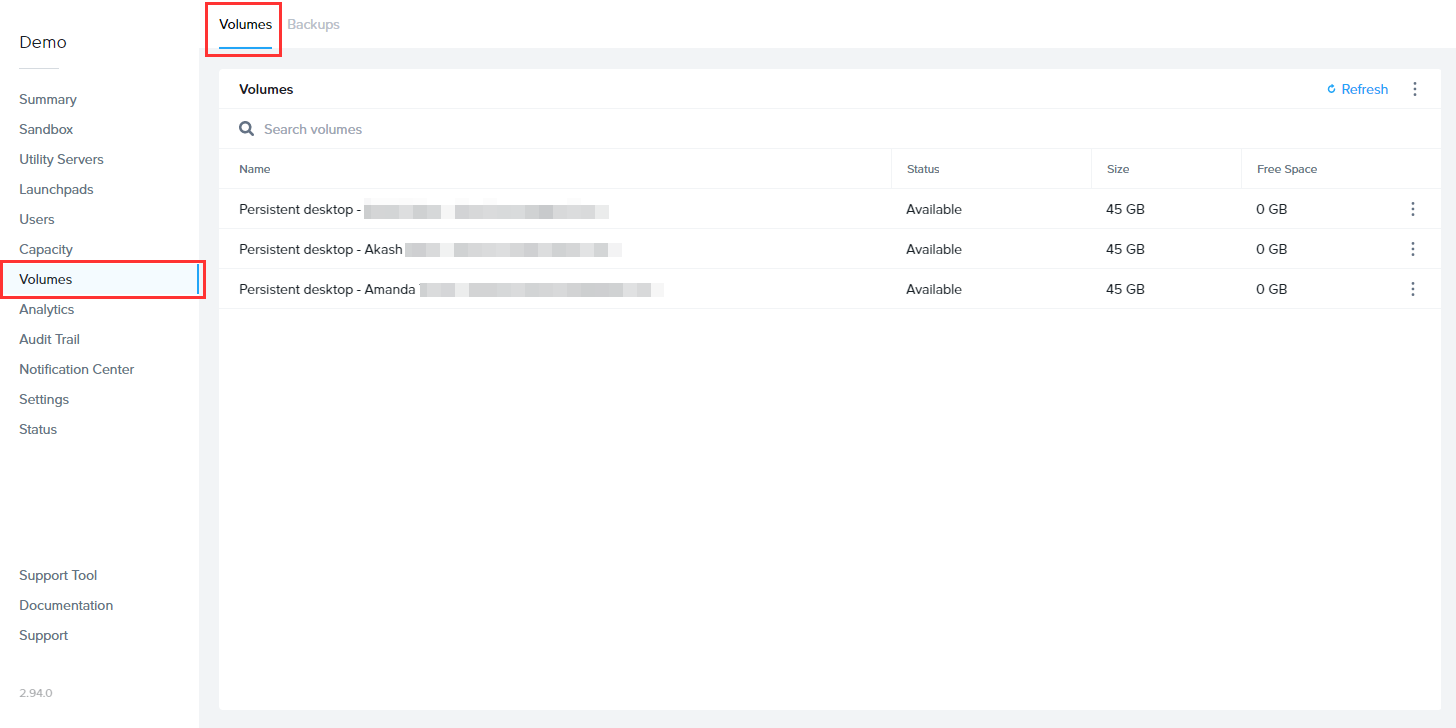
2. Click on the kebab menu associated with a specific Enterprise Profile volume and then **Increase disk size** to increase the disk size for a specific Enterprise Profile volume.

## Delete Volumes

Administrators can delete volumes at any time. Simply navigate to the **Volumes** page of your Frame Account Dashboard to manage your volumes. When an administrator deletes a volume for a user, a new volume will be provisioned for that user upon the next session start. The new volume configuration will depend on the initial disk size setting at the time the session was launched. For example, if you update your “Initial Drive Size” setting to 7 GB and then delete a profile disk for a user, the user will be provisioned a new profile disk with a max storage capacity of 7 GB when they start a new session.

Please ensure that the volume status is **Detached** before you attempt to delete it.

### Delete a Single Volume

To delete a single volume, you can search for the volume by entering a search string in the Search volumes field. From there, click the ellipsis next to the volume you would like to delete. Click on the checkbox to delete all backups associated with the selected volume, if desired. Select **Delete** and confirm. You will be asked if you would like to delete all backups associated with the volume as well.

<figure id="bkmrk--5">![Delete Volume via Kebab Menu](https://docs.difr.com/uploads/images/gallery/2025-10/ep-delete-one-profile-1.png)

</figure>Alternatively, you can select the checkbox next to the volume you would like to delete. Click on the checkbox to delete all backups associated with the selected volume, if desired. Click on the **Delete** button in the upper right corner of the page and confirm.

<figure id="bkmrk--6">![Delete Volume via Volume Selector](https://docs.difr.com/uploads/images/gallery/2025-10/ep-delete-one-profile-2.png)

</figure>### Delete Multiple Volumes

To delete one or more volumes, you can search for the volumes by entering a search string in the Search volumes field or sort the list of volumes by Last Used date/time. Then, select the checkbox(es) next to the volume(s) you would like to delete. Click on the checkbox to delete all backups associated with the selected volumes, if desired. Click the **Delete** button in the upper right corner of the page and confirm. You will be asked if you wish to delete all backups associated with this volume as well.

<figure id="bkmrk--7">![Delete Two Volume via Volume Selector](https://docs.difr.com/uploads/images/gallery/2025-10/ep-delete-two-profiles.png)

</figure>If you want to delete all of the volumes listed on your Volumes web page, click on the checkbox next to the Name field to select all of the volumes listed.

## Profile Disk Exclusions/Inclusions

You may need to specify inclusions or exclusions for various paths in your environment.

### Profile Disk Exclusions

Frame account administrators can exclude folders from the user's enterprise profile disk. To implement exclusion rules, Frame administrators will need to implement the rules in the form of a PowerShell script using the `Add-ProfileDiskExclusion` cmdlet. This capability is supported in Frame Guest Agent 8.0 or greater.

```powershell
Add-ProfileDiskExclusion -SourcePath $path_to_folder_to_exclude -TargetPath $path_to_temp_folder

```

- `$path_to_folder_to_exclude` would be a folder which is in `%USERPROFILE%`. If you have multiple folders to exclude, you can invoke the cmdlet for each of the folders.
- `$path_to_temp_folder` would be a path to an existing temporary folder.

### Profile Disk Inclusions

Frame account administrators can include folders in the user's enterprise profile disk. To implement inclusion rules, Frame administrators will need to implement the rules in the form of a PowerShell script using the `Add-ProfileDiskInclusion` cmdlet. This capability is supported in Frame Guest Agent 8.0 or greater.

```powershell
Add-ProfileDiskInclusion -SourcePath $path_to_folder_to_include

```

- `$path_to_folder_to_include` would be a folder that is not normally in `%USERPROFILE%`. If you have multiple folders to include, you can invoke the cmdlet for each of the folders

Refer to [Exclusion/Inclusion Rules for Enterprise Profiles](https://docs.difr.com/books/platform-administrators-guide/page/scripting#exclusioninclusion-rules-for-enterprise-profiles) to read more about how a custom pre-session script can be implemented using the cmdlets.

## Manage Backups

If you would like to implement backups for your volumes, check out the [Backups section](https://docs.difr.com/link/129#bkmrk-page-title) of our documentation.

## Troubleshooting

#### We can't sign into your account error

If a user sees this Windows message after logging into their domain and the Frame account is enabled with enterprise profiles, verify the user has not logged into their Frame sessions with more than one Windows domain user account.

<figure id="bkmrk--8">![Error when signing in](https://docs.difr.com/uploads/images/gallery/2025-10/ep-troubleshooting-signin-error.png)

<details><summary>Troubleshooting FSLogix with Windows 11</summary>

For customers using FSLogix instead of Enterprise profiles, you may need to adjust certain registry settings in order to get some GPO's to apply extensions at login:

```
HKLM:\SOFTWARE\FSLogix\Profiles
GroupPolicyState 0
```

You may also need to add this regsitry setting to force a refresh of user policies.

```
HKLM:\Software\Policies\FSLogix\ODFC
RefreshUserPolicy 1
```

Before applying these, please check with Frame support if you have any questions.

</details></figure>

# Personal Drives

Frame has built and integrated a variety of storage options into our platform to fit a multitude of unique use cases. This article covers the Personal Drive feature which provides persistent storage on a per-user basis. This storage space can be used as a cache to store frequently used files that will persist between a user's sessions.

## Overview

Frame's Personal Drive is a storage solution that provides each authenticated user with individually allocated storage space. The capacity of this storage space is specified by the administrator of the account and can be scaled as needed. The drive is accessible from “My Computer” within the session and appears as the “P” drive letter. Drives are automatically provisioned as new users are added to the account. When users return to their accounts and launch sessions, their stateless instances mount their unique drive. When a user's session ends, the Personal Drive is disconnected from the stateless instance. The Personal Drive is only available to the authenticated user and is not shared with any other user.

<p class="callout info"> Secure Anonymous Tokens (platform/identity-and-access/secure-anonymous-tokens) may not be used in combination with Personal Drives and/or Enterprise Profiles.</p>

## Enable Personal Drives

Setting up Personal Drives for your users is simple and can be done with only a few clicks.

1. First, start by [enabling a single Availability Zone](https://docs.difr.com/link/115#bkmrk-page-title) for the associated Frame account.

<p class="callout info"> Personal Drive's backend implementation through Frame varies depending on the cloud service provider. The implementation used for AWS requires administrators to specify an AZ because the Elastic Block Storage (EBS) resources must be accessible from the same availability zone as the VM pool.</p>

2. Now select the “Personal Drives” tab from the Settings page. Click on the toggle to “Enable personal drives for all users.” Set the desired drive size for your users next to “Initial personal drive size” and click “Save” in the upper right corner.

<figure id="bkmrk-enable-personal-driv-1">![Enable Personal Drives](https://docs.difr.com/uploads/images/gallery/2025-10/personal-drive-enable.png)

<figcaption>Enable Personal Drives</figcaption></figure>That's it! Your users will now be able to see an additional drive labeled “PersonalDisk (P:)” from their file explorer. This drive can be used and accessed just like any other drive.

<figure id="bkmrk-personal-drive-p%3A-in">![Personal Drive P: in Windows Explorer](https://docs.difr.com/uploads/images/gallery/2025-10/explorer-personal-drive.png)

<figcaption>Personal Drive P: in Windows Explorer</figcaption></figure>## Disable Personal Drives

1. You can stop using Personal Drives at any time by going to Settings &gt; Personal Drives and disabling the **Enable Personal Drives for all users** toggle.

<figure id="bkmrk-">![Disable Personal Drives](https://docs.difr.com/uploads/images/gallery/2025-10/personal-drive-disable.png)

</figure>2. When you click **Save**, you will be asked whether you want to: (a) keep the existing personal drive backups or delete them and (b) create or do not create new backups of existing personal drives.

<figure id="bkmrk--1">![Disable Personal Drives - Backups](https://docs.difr.com/uploads/images/gallery/2025-10/personal-drive-disable-1.png)

</figure>3. Once you click **Confirm**, you will be asked to verify that you wish to disable the Personal Drives feature.

<figure id="bkmrk--2">![Disable Personal Drives - Confirm](https://docs.difr.com/uploads/images/gallery/2025-10/personal-drive-disable-2.png)

</figure>4. When you click on **Confirm**, Frame will keep or delete the existing personal drive backups, optionally make new backups for the existing personal drives, and delete the existing personal drives. If you select **Cancel**, then the Personal Drives feature will remain enabled.

<p class="callout info"> If you are sure that you will not use Personal Drives in the future, be sure to delete all of the volume backups and do not create new volume backups before disabling the Personal Drives feature. This will prevent you from retaining any volume backups and incurring unnecessary storage costs.</p>

If you wish to re-enable Personal Drives and have retained the profile backups, you can selectively restore the volume backups for specific users from Volumes &gt; Backup.

## Delete Personal Drives

Administrators can delete volumes at any time. Simply navigate to the “Volumes” tab on the “Settings” page of your Dashboard and click the ellipsis next to the volume you would like to delete. Click on the checkbox to delete all backups associated with the selected volumes, if desired. Select “Delete.”

Please ensure that the volume status is “Detached” before you attempt to delete it.

<figure id="bkmrk-delete-personal-driv-1">![Delete Personal Drive](https://docs.difr.com/uploads/images/gallery/2025-10/personal-drive-deletion.png)

<figcaption>Delete Personal Drive P: in Windows Explorer</figcaption></figure>When you delete a volume for a user, a new volume will be provisioned for that user upon the next session start. The new volume configuration will depend on the initial disk size setting at the time the session was launched. For example, if you update your “Initial Drive Size” setting to 7 GB and then delete a Personal Drive for a user, the user will be provisioned a new Personal Drive with a max storage capacity of 7 GB when they start a new session.

## Adjust Storage Capacity

Administrators can make changes to the storage capacity settings, adjust their Personal Drives Autogrow Settings to increase Personal Drive sizes automatically based on usage, and manually increase the volume size of specific Personal Drives.

### Initial Disk Size

The initial Personal Drive can be defined at any time by navigating to the “Settings” page in your Dashboard and clicking on the **Personal Drives** tab.

Simply modify the value for **Initial Personal Drive Size** and click **Save**. When a user starts a session in this Frame account and does not have an existing Personal Drive, Frame will create a Personal Drive with the disk size specified by the updated Initial Personal Drive Size value. The setting will not be applied to any users who have an existing Personal Drive.

<figure id="bkmrk-enable-personal-driv-2">![Enable Personal Drives](https://docs.difr.com/uploads/images/gallery/2025-10/personal-drive-enable.png)

<figcaption>Enable Personal Drives</figcaption></figure>### Autogrow Settings

If you anticipate that your users will need to regularly increase their Personal Drive storage capacity, you can set parameters for Frame to automatically scale up as needed. To do this, navigate to the **Volumes** page (which will appear in your Dashboard menu once you have enabled Enterprise Profiles or Personal Drives). Under the **Volumes** page, click on the kebab menu and select **Autogrow settings**. A new dialog box will appear:

<figure id="bkmrk-enable-autogrow-sett">![Enable Autogrow Settings](https://docs.difr.com/uploads/images/gallery/2025-10/enable-autogrow-settings.png)

<figcaption>Enable Autogrow Settings</figcaption></figure>Here, you can specify the threshold at which the disk size will automatically increase for established users. By default, the disk volume will automatically be increased by 1 GB when there is less than 0.25 GB of free space remaining. You can adjust these values as you see fit for your users. The autogrow disk size value can be configured in increments of **0.25 GB**.

You can enforce a maximum disk volume size by enabling the **Limit maximum volume size** slider and setting the **Maximum volume size**.

Be sure to click **Confirm** once you have adjusted the settings as desired.

<p class="callout info"> You cannot shrink the size of a user's Personal Drive. You must delete the disk and recreate the disk again. All data on that deleted Personal Drive is lost unless the Personal Drive contents were copied to another persistent disk before the Personal Drive was deleted and copied back after the new Personal Drive was created.</p>

### Increase Disk Size

Administrators can manually increase Personal Drive volume sizes in two ways:

1. To increase one or more volumes, select the checkbox(es) next to the volume(s) for which you would like to increase the disk size. Click on the checkbox for for all volumes, if desired. Click the **Increase disk size** button in the upper right corner of the page. A dialog window will appear prompting you to specify the new disk size. Click the **Save** button to increase the size of the disks or **Close** to cancel the request.
2. Click on the kebab menu associated with a specific Personal Drive volume and then **Increase disk size** to increase the disk size for a specific Personal Drive volume.

## Manage Backups

If you would like to implement backups for your volumes, check out the [Backups section](https://docs.difr.com/link/129#bkmrk-page-title) of our documentation.

# Expand Drive Size

The Frame platform gives admins the ability to expand the drive size of their Sandbox or Utility server as necessary from the Dashboard console.

<p class="callout info"> - Once you start the drive size increase process, you cannot roll back to a smaller volume size.  
 - Customers using Azure infrastructure must adhere to their standardized disk sizes, as discussed in their official documentation.</p>

1. First, navigate to the Dashboard of your account. You will land on the **Systems** page where your Sandbox and Utility Server can be managed.
2. Click on the ellipsis icon next to your Sandbox or Utility server and select **Increase disk size** from the drop down menu.

<figure id="bkmrk-">[![image.png](https://docs.difr.com/uploads/images/gallery/2025-12/scaled-1680-/jIqimage.png)](https://docs.difr.com/uploads/images/gallery/2025-12/jIqimage.png)

</figure>3. A dialog box will appear giving you a few options. Select the drive size increase you wish to implement.

<figure id="bkmrk--1">[![image.png](https://docs.difr.com/uploads/images/gallery/2025-12/scaled-1680-/KuLimage.png)](https://docs.difr.com/uploads/images/gallery/2025-12/KuLimage.png)

</figure>4. Click **Save** to start the drive size increase.

# Dropbox

[Dropbox](https://dropbox.com) is a well-known file hosting service which offers cloud storage, personal cloud, and file synchronization services. Integrating Frame accounts with Dropbox is simple and can be done in a matter of minutes. This guide provides detailed instructions for installing, configuring, and using Dropbox with your Frame account.

## Requirements

- A Frame account
- Enterprise Profiles, Persistent Desktops, or another 3rd party method for user profile persistence must be utilized in order for the end user's Dropbox credentials to persist between sessions.

<p class="callout info"> **Dropbox Authentication**  
 By default, this configuration will require users to log on to Dropbox each time they start a Frame session. Enterprise Profiles can be configured to avoid this issue. Once Enterprise Profiles has been enabled for the account, the end user needs only to log in to Dropbox once within the session. From that point forward, Dropbox will automatically stay logged in using the credentials stored on the user's profile disk.</p>

## Setup

1. Start by navigating to the account Sandbox you would like to configure with Dropbox.
2. Start a Sandbox session.
3. Go to the Dropbox download site from within the Sandbox and download Dropbox Desktop App.
4. Run the Dropbox installer `DropboxInstaller.exe` within the Sandbox session and continue setup.

<p class="callout info"> During installation, Frame will automatically detect the installation of a new application and prompt you to “Onboard to Frame”. If you plan to deliver only virtual desktops, or would prefer this app not appear as an icon on your users' application Launchpad, skip the onboarding workflow by clicking the **Cancel** button. You can always onboard the Dropbox at a later time.</p>

5. Once the installation is complete, the Dropbox login window will appear, simply close the window. **Do not log in**.
6. Next, right-click on the Dropbox icon in your system tray, click the gear icon, and select **Quit** to completely close Dropbox.

<figure id="bkmrk-">![Fully quit Dropbox](https://docs.difr.com/uploads/images/gallery/2025-10/dropbox-quit.png)

</figure>7. Next, navigate to `%LOCALAPPDATA%` in File Explorer and delete the Dropbox folder.

<figure id="bkmrk--1">![Dropbox folder in Local AppData](https://docs.difr.com/uploads/images/gallery/2025-10/dropbox-appdata-folder.png)

</figure>Starting Dropbox again will recreate the `%LOCALAPPDATA%\Dropbox` folder in the Frame user context. This ensures Dropbox will recognize that it has not been run in the end user's context and will create the first run version of `%LOCALAPPDATA%\Dropbox` for the end user.

8. Then empty your Recycle Bin and close your Sandbox session.
9. Lastly, power down the Sandbox and publish your changes.

That's it! After your publish is complete, your users will now have Dropbox accessible to them to login during their next session. If you've setup persistence for their credentials, they'll automatically login to Dropbox for their subsequent sessions.

# Google Drive

The Google Drive for Desktop (GDFD) service, formerly known as “Google File Stream”, is a desktop solution created by Google which allows users to quickly access all of their files from their Google Drive account. Google Drive files are directly accessible from Google's servers from the user's Frame session.

## Requirements

- A Frame account
- Enterprise Profiles, Persistent Desktops, or another 3rd party method for user profile persistence must be utilized in order for the end user's GDFD credentials to persist between sessions.

<p class="callout info"> **GDFD Authentication**  
 By default, this configuration will require users to log on to GDFD each time they start a Frame session. Enterprise Profiles can be configured to avoid this issue. Once Enterprise Profiles has been enabled for the account, the end user needs only to log in to GDFD once within the session. From that point forward, GDFD will automatically stay logged in using the credentials stored on the user's profile disk.</p>

## Setup

1. Start by navigating to the account Sandbox you would like to configure with Google Drive for Desktop.
2. Start a Sandbox session.
3. Go to the following URL from the browser in your Sandbox session: `<a href="https://dl.google.com/drive-file-stream/GoogleDriveSetup.exe">https://dl.google.com/drive-file-stream/GoogleDriveSetup.exe</a>`
    
    **Caution:** The installer URL above works only for Windows operating systems. Google does not provide a Linux Google Drive for Desktop integration.
4. The GDFD installer download should start automatically. When prompted, run the installer. Depending on your Windows OS configuration, you may see a security warning.

<figure id="bkmrk-">![Open File security warning, click run](https://docs.difr.com/uploads/images/gallery/2025-10/google-drive-security-warning.png)

</figure>5. A new prompt will appear asking you if you would like to install Google for Desktop. Uncheck both boxes pertaining to shortcuts and click **Install**.

<figure id="bkmrk--1">![Uncheck these two boxes during installation](https://docs.difr.com/uploads/images/gallery/2025-10/google-drive-install-options.png)

</figure>6. When prompted to log in to your Google Drive account, simply close the window. **Do not log in**.

<p class="callout info"> During installation, Frame will automatically detect the installation of a new application and prompt you to “Onboard to Frame”. If you plan to deliver only virtual desktops, or would prefer this app not appear as an icon on your users' application Launchpad, skip the onboarding workflow by clicking the Cancel button. You can always onboard Google Drive's icon at a later time.</p>

7. Lastly, you'll be informed that that Google Drive for Desktop has successfully been installed. Click **Close**.

<figure id="bkmrk--2">![Successful installation](https://docs.difr.com/uploads/images/gallery/2025-10/google-drive-install-success.png)

</figure>8. Navigate to the Drive for Desktop icon in the system tray, click on the gear icon, and select **Quit** from the gear icon menu.

<figure id="bkmrk--3">![Fully quit Google Drive](https://docs.difr.com/uploads/images/gallery/2025-10/google-drive-quit.png)

</figure>9. Navigate to and delete following folder in your Sandbox session:

`C:\Users\Frame\AppData\Local\Google\DriveFS`

10. Then empty your Recycle Bin, close your Sandbox session, and shut down your Sandbox from your Dashboard.
11. Navigate back to your Sandbox and start your Sandbox session. Confirm that Google Drive for Desktop has not started automatically and if it has started, great! We're on the right track and now it's time to configure Google Drive.

### Customizing Google Drive for Desktop

Google Drive for Desktop can be customized through registry configuration in the Sandbox registry or through GPOs, as described in [https://support.google.com/a/answer/7644837?hl=en](https://support.google.com/a/answer/7644837?hl=en).

1. For an optimal user experience, the default browser should be configured. This will be used the first time the user signs in to Google Drive. To do so, create the following registry key: `HKEY_LOCAL_MACHINE\Software\Google\DriveFS\`
2. Create a String named: `DefaultWebBrowser`
3. Set the String Value to the path of your desired browser. For instance: `C:\Program Files\Google\Chrome\Application\chrome.exe`

### Disable Automatic Updates

You may need to disable the auto update feature for Google Drive for Desktop, so you can control when Google for Desktop is updated in the Sandbox and then published to your users. Disabling auto updates is simple. Follow the steps as they are described below:

1. If you have not already done so, start and launch your Sandbox session. Navigate to `http://dl.google.com/update2/enterprise/googleupdateadmx.zip` in your web browser.
2. Open the **GoogleUpdateAdmx** folder.
3. Copy `google.admx` and `GoogleUpdate.admx` and put them in your Policy Definitions folder. (Example: `C:\Windows\PolicyDefinitions`)
4. In the **GoogleUpdateAdmx/en-US** folder, copy the **google.adml** and **GoogleUpdate.adml** files and put them in the **en-US** folder in Policy Definitions. (Example: `C:\Windows\PolicyDefinitions\en-US`).
5. Navigate to “Edit group policy” and go to **Computer Configuration &gt; Policies &gt; Administrative Template &gt; Google &gt; Google Update** to verify that the template loaded correctly.

<figure id="bkmrk-group-policy-editor">![Group Policy Editor](https://docs.difr.com/uploads/images/gallery/2025-10/google-drive-local-policies.png)

<figcaption>Group Policy Editor</figcaption></figure>6. Next, go to **Google &gt; Google Update &gt; Applications**
7. Enable the "Update policy override default policy.”
8. Under “Options,” select **Updates disabled** from the drop-down menu.

That's it! Once you've finished installing and configuring Google Drive for Desktop, it's now time to publish! After a publish completes, your users will now have Google Drive for Desktop accessible to log in. During installation, Frame will automatically detect the installation of a new application and prompt you to “Onboard to Frame”. If you plan to deliver only virtual desktops, or would prefer this app not appear as an icon on your users' application Launchpad, skip the onboarding workflow by clicking the Cancel button. You can always onboard Google Drive's icon at a later time.

# Microsoft OneDrive

The official Microsoft OneDrive storage solution allows users to quickly access all of their files from their [OneDrive account](https://www.microsoft.com/en-us/microsoft-365/onedrive/). Integrating Frame accounts with OneDrive is simple and can be done in a matter of minutes. This guide provides detailed instructions for installing, configuring, and using OneDrive with your Frame account.

## Requirements

- A Frame account
- Enterprise Profiles, Persistent Desktops, or another 3rd party method for user profile persistence must be utilized in order for the end user's OneDrive credentials to persist between sessions.

<p class="callout info"> **One Drive Authentication**  
 By default, this configuration will require users to log on to OneDrive each time they start a Frame session. Enterprise Profiles can be configured to avoid this issue. Once Enterprise Profiles has been enabled for the account, the end user needs only to log in to OneDrive once within the session. From that point forward, OneDrive will automatically stay logged in using the credentials stored on the user's profile disk.</p>

## Setup

In general, you would install OneDrive in your Frame account Sandbox and then publish your changes once configured.

For Windows 10, OneDrive installer is bundled with Windows 10 and is located at `%WINDIR%\syswow64\onedrivesetup.exe`. By default, upon each Windows user's first login, the installer for OneDrive will execute for that user, installing OneDrive in a per-user context. Therefore, identify which type of OneDrive is currently installed on your system. If OneDrive was installed as a per-user application, then uninstall OneDrive and re-install OneDrive as a per-machine application.

For Windows Server 2016/2019/2022, you may need to download OneDrive [installer from Microsoft](https://www.microsoft.com/en-us/microsoft-365/onedrive/download) and install OneDrive as a per-machine application.

### Identifying the OneDrive Install Type

The list of applications installed in an OS can be viewed through the Programs and Features applet (appwiz.cpl), but this doesn't always tell you whether or not an application is installed per-user or per-machine. Luckily there are registry locations that help you to determine more information about the application installs. There are multiple locations in the registry that help you identify not only ALL the installed applications (even those not shown in Programs and Features), but also help you identify machine vs. user installations as well as 32-bit vs 64-bit installations. These registry locations are:

<table id="bkmrk-registry-path-discer"><thead><tr><th>Registry Path</th><th>Discernable OneDrive version</th></tr></thead><tbody><tr><td>`HKLM:\SOFTWARE\Microsoft\Windows\CurrentVersion\Uninstall`</td><td>64-bit per-machine installation</td></tr><tr><td>`HKLM:\SOFTWARE\WOW6432Node\Windows\CurrentVersion\Uninstall`</td><td>32-bit per-machine installation</td></tr><tr><td>`HKCU:\SOFTWARE\Microsoft\Windows\CurrentVersion\Uninstall`</td><td>64-bit &amp; 32-bit per-user installation</td></tr></tbody></table>

Using the above information, if you look at `HKCU:\SOFTWARE\Microsoft\Windows\CurrentVersion\Uninstall` and see a subkey called `OneDriveSetup.exe`, then your OneDrive installation is **per-user**.

<figure id="bkmrk-">![OneDrive per-user](https://docs.difr.com/uploads/images/gallery/2025-10/onedrive-installtype-per-user.png)

</figure>If you look at `HKLM:\SOFTWARE\WOW6432Node\Microsoft\Windows\CurrentVersion\Uninstall` and see a subkey called `OneDriveSetup.exe`, then your OneDrive installation is **per-machine**.

<figure id="bkmrk--1">![OneDrive per-machine](https://docs.difr.com/uploads/images/gallery/2025-10/onedrive-installtype-per-machine.png)

</figure>### Remove per-user in favor of per-machine:

1. Open an **elevated** PowerShell.
2. Go to `C:\Windows\SysWOW64` (`cd $env:windir\syswow64`).
3. Run `.\onedrivesetup.exe /uninstall`. This command will have no output. Verify uninstallation is complete via the Programs and Features applet (`appwiz.cpl`).
4. Run `.\onedrivesetup.exe /allusers`. This command will also have no output in PowerShell, but the OneDrive installer window will be visible during the installation.

<figure id="bkmrk--2">![Using PowerShell to replace per-user installation with per-machine](https://docs.difr.com/uploads/images/gallery/2025-10/onedrive-powershell-per-machine.png) ![Installation Progress during install](https://docs.difr.com/uploads/images/gallery/2025-10/onedrive-install.png)

</figure>5. Open **regedit**.
6. Browse to `HKLM:\Software\Microsoft\OneDrive`. If the OneDrive key doesn't exist, you will need to create a `DWORD` registry value called `AllUsersInstall` with a value of `1`.

## Customizing OneDrive

Microsoft OneDrive can be customized for a specific end user experience. In scenarios where group policies aren't available, the customizations described below can be implemented in the Sandbox.

- If you want the OneDrive application to start for all users, after the user has logged in, execute in the Sandbox:
    
    ```powershell
    Set-ItemProperty -Path "HKLM:\SOFTWARE\Microsoft\Windows\CurrentVersion\Run" -Name "OneDrive" -Value '"C:\Program Files (x86)\Microsoft OneDrive\OneDrive.exe /background"'
    
    ```
- For non-persistent Frame accounts, best practice is to configure OneDrive for **[Files On-Demand](https://docs.microsoft.com/en-us/onedrive/use-group-policy#use-onedrive-files-on-demand)**:
    
    ```powershell
    Set-ItemProperty -Path "HKLM:\Software\Policies\Microsoft\OneDrive" -Name "FilesOnDemandEnabled" -Type DWord -Value 1
    
    ```
- To redirect “Windows Known Folders” to OneDrive using the **[Known Folders Move](https://docs.microsoft.com/en-us/onedrive/use-group-policy#silently-move-windows-known-folders-to-onedrive)** capability. This command supersedes the specific folders denoted further below:
    
    ```powershell
    Set-ItemProperty -Path "HKLM:\Software\Policies\Microsoft\OneDrive" -Name "KFMSilentOptIn" -Type String -Value "<your-AzureAdTenantID>"
    
    ```
- If you want to redirect only the user’s Desktop folder to OneDrive:
    
    ```powershell
    Set-ItemProperty -Path "HKLM:\Software\Policies\Microsoft\OneDrive" -Name "KFMSilentOptInDesktop" -Type DWord -Value 1
    
    ```
- If you want to redirect only the user’s Documents folder to OneDrive:
    
    ```powershell
    Set-ItemProperty -Path "HKLM:\Software\Policies\Microsoft\OneDrive" -Name "KFMSilentOptInDocuments" -Type DWord -Value 1
    
    ```
- If you want to redirect only the user’s Pictures folder to OneDrive:
    
    ```powershell
    Set-ItemProperty -Path "HKLM:\Software\Policies\Microsoft\OneDrive" -Name "KFMSilentOptInPictures" -Type DWord -Value 1
    
    ```
- To Disable the Tutorial that appears at the end of the OneDrive setup process:
    
    ```powershell
    Set-ItemProperty -Path  "HKLM:\Software\Policies\Microsoft\OneDrive" -Name “DisableTutorial” -Type DWORD -Value “1”
    
    ```

<p class="callout info"> For further information regarding Microsoft OneDrive in a VDI context, refer to Install Office on a master VHD image.  
 Looking for more? Read our comprehensive Microsoft OneDrive solutions guide. </p>

# Box Drive

[Box](https://box.com) is a popular cloud storage platform with a variety of features such as content management, collaboration, and file sharing tools. Integrating Frame accounts with Box Cloud Storage is simple and can be done in a matter of minutes. This guide provides detailed instructions for installing, configuring, and using Box Cloud Storage with your Frame account.

## Requirements

- A Frame account
- Enterprise Profiles, Persistent Desktops, or another 3rd party method for user profile persistence must be utilized in order for the end user's Box credentials to persist between sessions.

<p class="callout info"> **Box Authentication**  
 By default, this configuration will require users to log on to Box each time they start a Frame session. Enterprise Profiles can be configured to avoid this issue. Once Enterprise Profiles has been enabled for the account, the end user needs only to log in to Box once within the session. From that point forward, Box will automatically stay logged in using the credentials stored on the user's profile disk.</p>

## Setup

1. Start by navigating to the account Sandbox you would like to configure with Box Drive.
2. Start a Sandbox session.
3. Go to the following URL from the browser in your Sandbox session: `https://www.box.com/resources/downloads`
4. Click **Download Box Drive for Windows**.

<figure id="bkmrk-">![Download Box Drive for Windows](https://docs.difr.com/uploads/images/gallery/2025-10/box-download.png)

</figure>5. Run the Box Drive installer within the Sandbox session.

<p class="callout info"> During installation, Frame will automatically detect the installation of a new application and prompt you to “Onboard to Frame”. If you plan to deliver only virtual desktops, or would prefer this app not appear as an icon on your users' application Launchpad, skip the onboarding workflow by clicking the **Cancel** button. You can always onboard the Box executable at a later time.</p>

6. The Box Drive login window will appear, simply close the window. **Do not log in**.

<figure id="bkmrk--1">![Close this Login window for Box! We don't want to log in here](https://docs.difr.com/uploads/images/gallery/2025-10/box-login-dialog.png)

</figure>7. Next, navigate to Computer `Computer\HKEY_LOCAL_MACHINE\SOFTWARE\Box\Box` in your desired registry editor.
8. Find the value called `UseProtectiveFSFilter` and set the value to `0`. If you cannot find this value, you can create a `REG_DWORD` value with the aforementioned name and set the value to `0`.

<figure id="bkmrk--2">![Registry path to disable UseProtectiveFSFilter](https://docs.difr.com/uploads/images/gallery/2025-10/box-regedit.png)

</figure>9. Lastly, power down the Sandbox and publish your changes.

That's it! After your publish is complete, your users will now have Box Drive accessible to them during their next session. If you've set up persistence for their credentials, they'll automatically log in to Box for their subsequent sessions.

During installation, Frame will automatically detect the installation of a new application and prompt you to “Onboard to Frame”. If you plan to deliver only virtual desktops, or would prefer this app not appear as an icon on your users' application Launchpad, skip the onboarding workflow by clicking the **Cancel** button. You can always onboard the Box executable at a later time.

# Disaster Recovery

Backups, Disaster Recovery, Data Availability

# Backups

Frame backup and recovery allows you to save the current state of your persistent resources (Sandbox, Utility Server, Persistent Desktop, User Volume). Backups can be scheduled or performed manually on demand. Once a resource is backed up, the Frame administrator can restore a backup for a specific resource.

When the Frame **Disaster Recovery** (DR) feature is enabled and configured, backups are replicated to a secondary AHV Cluster or cloud region.

## Sandbox and Utility Servers

Backups for Sandboxes and Utility Servers is largely similar. Continue reading to learn how Sandbox backups are tied to publishes, and how Utility Servers backups can be managed just as easily as the Sandbox.

### Publishing

When a Sandbox is published, Frame will automatically backup the Sandbox image. For domain-joined Frame accounts, the backup will be done after Frame has cloned the Sandbox disk image and generalized the image using sysprep. For non-domain-joined Frame accounts, publishing will trigger the backup immediately after Frame has cloned the Sandbox since the non-domain-joined Frame account Sandbox is not generalized.

Backups due to publishing will be listed as "P" under the Type column.

<figure id="bkmrk-" style="max-width: 600px;">![Backups from Publishes](https://docs.difr.com/uploads/images/gallery/2025-10/backups-publish-type.png)

</figure><p class="callout info"> By default, Frame will retain a maximum of two Publish backups for a Frame account. If you want to change the maximum number of Publish backups to be retained, you can open a support case to increase/decrease this value.</p>

### Manual Backups

1. From an Account Dashboard, go to the **Sandbox** or **Utility Servers** page and navigate to the **Backups** panel listed under the desired system.
    
    <figure style="max-width: 600px;">![Backups Panel](https://docs.difr.com/uploads/images/gallery/2025-10/backups-panel.png)
    
    </figure>
2. Click **Create backup** and assign it a name and Optional add a Description. Click **Create** and accept the prompt to power off your Sandbox when you're ready.
    
    <figure style="max-width: 650px;">[![image.png](https://docs.difr.com/uploads/images/gallery/2025-12/scaled-1680-/d11image.png)](https://docs.difr.com/uploads/images/gallery/2025-12/d11image.png)
    
    </figure>
3. Once the backup has started, the instance will go into maintenance mode and you will not be able to access it until the task is complete.
    
    <figure>[![image.png](https://docs.difr.com/uploads/images/gallery/2025-12/scaled-1680-/akximage.png)](https://docs.difr.com/uploads/images/gallery/2025-12/akximage.png)
    
    </figure>

The time to create a backup varies based on image size and operating state. Backing up a standard 45 GB image in a powered off state typically takes 5-10 minutes. If the instance is running or if the underlying cloud services are under heavy load, you will likely see longer wait times.

4. Once your backup is completed, it will appear in the **Backups** list. At a glance, you can see the name of the backup, when it was created, and the type of backup (manual, scheduled, or publish).

If you would like to adjust the number of retained manual backups for your system, please continue to the "Scheduled Backups” section below.

### Scheduled Backups

Administrators can enable scheduled backups for a *Sandbox* or *Utility Server* from the same area of *Dashboard*.

1. Navigate to the desired system page and find the “Backups” panel. Click on the kebab menu icon in the upper right corner of the panel and select **Settings**.
2. A new window will appear. Enable the “Schedule daily backups” toggle to reveal two new fields. Click “Confirm” in the bottom right corner of the window once you have specified your desired settings.
    
    <figure style="max-width: 600px;">[![image.png](https://docs.difr.com/uploads/images/gallery/2025-12/scaled-1680-/Bctimage.png)](https://docs.difr.com/uploads/images/gallery/2025-12/Bctimage.png)
    
    </figure>
    - **Backup time**: Select the desired time of day you would like your automatic backup to be performed and which time zone this applies to. Backups will occur daily (including weekends) at the designated time.
        
        **Caution**
        
        We do not advise scheduling backups during operational hours for Utility Servers since they will be made briefly unavailable during the backup process. Scheduling backups for Sandbox instances does not affect production users and therefore can be scheduled at any time.
    - **Number of scheduled backups retained**: This value specifies the number of scheduled backups you would like to store.
    - **Number of manual backups retained**: This value specifies the maximum number of manual backups you can create. If the number of manual backups exceeds this value, the administrator must delete their manual backups until the number of manual backups remaining is less than this value before a new manual backup can be performed.
        
        Please note that the maximum number of retained manual or scheduled backups is 100. Backups are stored as a standard machine image and will incur storage costs from your cloud provider.

### Replicate Backups

When Frame DR is enabled, there is a new option to Replicate manually a backup to your secondary location. This option is associated with each backup and is beneficial in cases where replication failed or the Frame Administrator knows that the backup replica is corrupted.

<figure id="bkmrk--1" style="max-width: 600px;">![Replicate Option](https://docs.difr.com/uploads/images/gallery/2025-10/backups-options-replicate.png)

</figure>You will be asked to confirm if you wish to make a replica of the backup in the primary location and send it to your secondary location.

<figure id="bkmrk--2" style="max-width: 600px;">![Confirm to Replicate](https://docs.difr.com/uploads/images/gallery/2025-10/backups-replicate-confirmation.png)

</figure>### Restore from a Backup

Restoring an image from a previous backup is simple. Restoring from a previous backup will replace your current Sandbox or Utility Server image with the backup image you select. Any changes made since the selected backup was created will be erased.

1. Click on the kebab menu located to the right of the backup you wish to restore and choose “Restore.”
    
    <figure style="max-width: 550px;">![Restore option for Backups](https://docs.difr.com/uploads/images/gallery/2025-10/backups-options-restore.png)
    
    </figure>
2. A prompt will appear to confirm before the process starts. Click “Restore” to continue. If Frame DR is enabled, the Frame administrator will have the option to “Force restore from replica”. When this is selected, Frame will ignore the local snapshots for this VM and use the backup copy which had been replicated to the remote site.
    
    <figure style="max-width: 600px;">![Confirm a restoration](https://docs.difr.com/uploads/images/gallery/2025-10/backups-restore-confirmation.png)
    
    </figure>After the backup has been restored, the instance will be returned to its previous operational state.

<p class="callout info"> In scenarios where a Frame-created VM backup is used as a BYO *Master Image* in AHV environments, Frame will automatically create an additional backup of the VM so that the *Master Image* VM is preserved in the event the backup needs to be deleted (either manually or automatically by Frame).</p>

### Delete a Backup

To delete a backup, simply click on the kebab menu to the right of the backup you wish you delete and select **Delete**. Click **Delete** again when the dialog appears to confirm your choice.

<figure id="bkmrk--3" style="max-width: 600px;">![Delete option for Backups](https://docs.difr.com/uploads/images/gallery/2025-10/backups-options-delete.png)

</figure><p class="callout info"> When Frame DR is enabled and the Frame Administrator deletes a Sandbox/Utility Server backup for a Frame account, the replica is deleted in the remote site. In the case of AHV, the entire protection domain corresponding to that backup (VM clone) and the replica VM clone are deleted as well. For Azure, the backup VM is also deleted in the backup region.</p>

## Volumes

*Persistent Desktops*, *Personal Drives*, and *Enterprise Profiles* can be managed under the **Volumes** section of an Account's Dashboard.

### Manual Backups

Administrators can create a backup of *Persistent Desktops*, *Personal Drives*, and *Enterprise Profile* volumes by navigating to the **Volumes** page from their Dashboard and clicking on the **Backups** tab. From there, click **Create Backup**.

<p class="callout info"> Multiple User Volumes and Persistent Desktop backups can be initiated simultaneously by administrators with appropriate permissions.</p>

<figure id="bkmrk--4">[![image.png](https://docs.difr.com/uploads/images/gallery/2025-12/scaled-1680-/bQvimage.png)](https://docs.difr.com/uploads/images/gallery/2025-12/bQvimage.png)

</figure>A new menu will appear prompting you to select the volume and designate a name for your backup.

<figure id="bkmrk--5">[![image.png](https://docs.difr.com/uploads/images/gallery/2025-12/scaled-1680-/JqNimage.png)](https://docs.difr.com/uploads/images/gallery/2025-12/JqNimage.png)

</figure>Click “Create” when you're ready. A progress indicator will appear above the **Backups** section.

<figure id="bkmrk--6">[![image.png](https://docs.difr.com/uploads/images/gallery/2025-12/scaled-1680-/mj1OX2image.png)](https://docs.difr.com/uploads/images/gallery/2025-12/mj1OX2image.png)

</figure>Alternatively, administrators can create a backup of a volume by navigating back to the **Volumes** tab, clicking on the kebab menu next to the desired volume, and selecting **Backup**. In the case of Persistent Desktops, administrators can go to the kebab menu in the upper-right corner and select **Backup all persistent user volumes**.

For Personal Drive and Enterprise Profile volumes, administrators can specify the number of retained manual backups by clicking on the kebab menu in the upper corner of the **Backups** section and selecting **Settings**. Click **Confirm** once the desired settings have been updated.

<p class="callout info"> Please note that the maximum number of retained manual or scheduled backups is 100. Backups are stored as standard machine images and will incur storage costs from your cloud provider.</p>

### Scheduled Backups

To set up scheduled backups, navigate to the **Volumes** page from the Dashboard of your account and click on the **Backups** tab. Click on the kebab menu listed under the Backups section and select **Settings**. A new window will appear, enable the **Schedule daily backups** toggle.

<figure id="bkmrk--7" style="max-width: 600px;">[![image.png](https://docs.difr.com/uploads/images/gallery/2025-12/scaled-1680-/MNVimage.png)](https://docs.difr.com/uploads/images/gallery/2025-12/MNVimage.png)

</figure>Specify the time of day you would like your backups to occur. Note that **daily backups occur every day of the week, including weekends**. You can also adjust how many automatic backups you would like Frame to store at a time by adjusting *Number of scheduled backups retained.* Click **Confirm** when you're done.

<p class="callout info"> If you change the backup schedule (e.g., change of start time, change of the time between backups), the revised backup schedule takes effect on the first applicable time for the backup. For example, if the start time is changed for a daily backup, the new start time will be applied on the following day.</p>

### Restore from a Backup

To restore from a backup, simply click on the kebab menu next to the desired backup and select **Restore**.

<p class="callout info"> Restoring from a previous backup will flash the volume with the backup image you select. Any changes made since the selected backup was created will be erased.</p>

If Frame DR is enabled, the Frame administrator will have the option to *Force restore from replica*. When this is selected, Frame will ignore the local snapshots for this volume and use the backup copy which had been replicated to the remote site.

### Delete a Backup

To delete a backup from the **Backups** tab on the *Settings* page of your Dashboard, simply click on the kebab menu to the right of the backup you wish you delete and select **Delete**.

If Frame DR is enabled, when a persistent desktop VM backup for a Frame account on AHV is deleted, the replica VM clone on the secondary AHV cluster is deleted. The protection domain is not deleted, even if all the backups are deleted as the VMs are still protected within the protection domain. For Azure, when a persistent desktop VM backup is deleted, the backup VM is deleted in the secondary cloud region.

### Monitoring

Within the Volumes tab, the Frame Administrator can check if the most recent backup for user volume/persistent desktop succeeded or failed (with a detailed error message, if backup failed). Most recent backups for some users might have failed, for example in the last scheduled bulk backup of persistent desktops or user volumes. In that case, backup can be initiated manually for those users.

In the below example, two of the three user volumes had not yet been backed up.

<figure id="bkmrk--8">![Two of the three user volumes had not yet been backed up](https://docs.difr.com/uploads/images/gallery/2025-10/monitoring-example-1.png)

</figure>A few minutes later, all three user volumes had been backed up.

![A few minutes later, all three user volumes had been backed up](https://docs.difr.com/uploads/images/gallery/2025-10/monitoring-example-2.png)

For each persistent desktop and user volume backup, if Frame DR is enabled, replication status is displayed which shows if the backup was replicated successfully or not. For backups where replication failed, replication can be initiated from the context menu, the same as for *Sandbox* and *Utility Server* backups.

<figure id="bkmrk--10">![Replication status is done](https://docs.difr.com/uploads/images/gallery/2025-10/monitoring-example-1.png)

</figure>Possible values for the Replication Status column are:

- **In-progress**
- **Done**
- **Failed**

#### Volume Details

<figure id="bkmrk--11" style="max-width: 250 px;">![Volume Details](https://docs.difr.com/uploads/images/gallery/2025-10/hover-details.png)

</figure>Administrators can view details for a given volume by hovering over the volume name in blue text. The details shown include the Volume **name**, **type**, and **ID**.

# Disaster Recovery

The Frame Disaster Recovery (DR) feature provides Frame administrators with the ability to backup a Frame account on an AHV cluster or Azure public cloud region to a separate AHV cluster or Azure public cloud region, respectively.

<table id="bkmrk-primary-infrastructu"><thead><tr><th>Primary Infrastructure</th><th>Secondary Infrastructure</th></tr></thead><tbody><tr><td>Nutanix AHV cluster 1</td><td>Nutanix AHV cluster 2</td></tr><tr><td>Microsoft Azure region A</td><td>Microsoft Azure region B</td></tr></tbody></table>

<p class="callout info"> Currently, the Frame Disaster Recovery feature set consists of backup, replication, and restore functionality for AHV and Azure only. Support for AWS and GCP infrastructure and Failover to a secondary Frame account is in development.</p>

<figure id="bkmrk-">![](https://docs.difr.com/uploads/images/gallery/2025-10/disaster-recovery-1.png)

</figure>All persistent resources of the primary Frame account are backed up in the primary location and replicated to the secondary location. Frame administrators can then either use the backups in the primary location or the replicas in the secondary location to recover the Frame account in the event of a disaster.

<figure id="bkmrk--1">![](https://docs.difr.com/uploads/images/gallery/2025-10/disaster-recovery-2.png)

</figure>This document discusses how to configure AHV and Azure infrastructure with Frame to back up and recover a Frame account's persistent resources.

## Prerequisites

When enabled, the DR backup and replication feature is triggered when any persistent resource is backed up. Frame administrators can manually trigger a backup, schedule backups on a regular interval, and have Frame back up the resource after a user has closed their session.

### Considerations

Customers will need to consider several factors when deciding how often to perform these back ups:

- Desired Recovery Point Objective (RPO)
- Amount of backup data that must be replicated to the secondary location
- Network bandwidth allowed between primary and secondary locations
- Delay for end users waiting for their user volumes (Persistent Desktops, Enterprise Profile disks, Personal drives) to be backed up (if the “Enable post-session backup” and optionally “Stop server before post-session backup” are enabled).
- Cost of data egress from the primary region to a different region (for public cloud infrastructure)

Return to Operation (RTO) will then depend on:

- Amount of backup data that must be restored from either the primary or secondary location
- Network bandwidth allowed between primary and secondary locations, if restoration is from replicas from the secondary location

### Requirements

- The Backup and Recovery feature is only supported on Bring Your Own (BYO) infrastructure. This feature set is not available with Dizzion IaaS.
- For Frame accounts on AHV infrastructure, the backups must be on a second AHV cluster. The second AHV cluster must be registered on the customer's Frame Customer or Organization entity as a second AHV Cloud Account.
- For Frame accounts on public cloud infrastructure, the backups must be in the same public cloud account, registered on the customer's Frame Customer or Organization entity, and in a region different from the primary Frame account.
- The instance types that are used in the Primary AHV Cloud account must be configured with the same vCPU/Core and RAM values in the second AHV cluster for the Backup and Recovery feature. This prerequisite will be eliminated when the Failover feature is released with a user interface to map instance types from primary to secondary Frame accounts.
- For Frame accounts on AHV infrastructure, a user with Prism Element administrator privileges to both AHV clusters to setup protection domains is required.
- For Frame accounts on Azure, the Azure instance type must be supported in both the region of the Frame account and the region of the backups.
- To configure the Backup and Recovery feature for a Frame account, the Frame administrator must have the role of Customer Administrator or Organization Administrator, depending on where the Cloud Account is registered in the Frame Platform Hierarchy and the relative location of the Frame Account within the hierarchy. Account Administrators do not have permission to view the list of Cloud Accounts when setting up the Frame account's DR configuration. <div class="p-ia4_client_container"><div class="p-ia4_client p-ia4_client--with-split-view-feature"><div aria-label="Dizzion-Frame" class="p-client_workspace_wrapper" role="tabpanel"><div class="p-client_workspace"><div class="p-client_workspace__layout"><div aria-label="Search" class="p-client_workspace__tabpanel" role="tabpanel"><div class="enabled-managed-focus-container" role="none"><div aria-label="Conversation with Aleksandar Dimitrijevic - Aki" class="p-view_contents p-view_contents--primary" role="dialog" tabindex="-1"><div class="tabbed_channel__Abx5r"><div class="tabbed_channel__Abx5r"><div class="channel_tab_panel__zJ5Bt c-tabs__tab_panel c-tabs__tab_panel--active c-tabs__tab_panel--full_height" data-qa="tabs_content_container" role="none"><div class="p-file_drag_drop__container"><div class="p-workspace__primary_view_body"><div class="p-message_pane p-message_pane--classic-nav p-message_pane--scrollbar-float-adjustment p-message_pane--with-bookmarks-bar" data-qa="message_pane"><div id="bkmrk-disaster-recovery-on" role="presentation"><div class="c-virtual_list c-virtual_list--scrollbar c-message_list c-scrollbar c-scrollbar--hidden c-scrollbar--fade" id="bkmrk-disaster-recovery-on-1" role="presentation"><div class="c-scrollbar__hider" data-qa="slack_kit_scrollbar" role="presentation"><div class="c-scrollbar__child" role="presentation"><div class="c-virtual_list__scroll_container" data-qa="slack_kit_list" role="presentation"><div aria-setsize="-1" class="c-virtual_list__item" data-item-key="1756990266.745449" data-qa="virtual-list-item" id="bkmrk-disaster-recovery-on-2" role="listitem" tabindex="0"><div class="c-message_kit__background c-message_kit__background--hovered p-message_pane_message__message c-message_kit__message" data-qa="message_container" data-qa-placeholder="false" data-qa-unprocessed="false" role="presentation"><div aria-roledescription="message" class="c-message_kit__hover c-message_kit__hover--hovered" data-qa-hover="true" role="document"><div class="c-message_kit__actions c-message_kit__actions--above"><div class="c-message_kit__gutter"><div class="c-message_kit__gutter__right" data-qa="message_content" role="presentation"><div class="c-message_kit__blocks c-message_kit__blocks--rich_text"><div class="c-message__message_blocks c-message__message_blocks--rich_text" data-qa="message-text"><div class="p-block_kit_renderer" data-qa="block-kit-renderer"><div class="p-block_kit_renderer__block_wrapper p-block_kit_renderer__block_wrapper--first"><div class="p-rich_text_block" dir="auto">  
    </div></div></div></div></div></div></div><div class="c-message_actions__container c-message__actions" role="group"><div aria-label="Message actions" class="c-message_actions__group" data-qa="message-actions" role="group"><button aria-keyshortcuts="r" aria-label="Add reaction…" class="c-button-unstyled c-icon_button c-icon_button--size_small c-message_actions__button c-icon_button--default" data-focus-key="message_actions" data-focus-metadata="{"id":"D090HTJ9K2L","params":{"messageContainerType":"Channel"},"uiState":{"ts":"1756990266.745449","button":"reaction"}}" data-qa="add_reaction" data-sk="tooltip_parent" type="button"><svg aria-hidden="true" class="" data-no9="true" data-qa="add-reaction" viewbox="0 0 20 20"><path clip-rule="evenodd" d="M15.5 1a.75.75 0 0 1 .75.75v2h2a.75.75 0 0 1 0 1.5h-2v2a.75.75 0 0 1-1.5 0v-2h-2a.75.75 0 0 1 0-1.5h2v-2A.75.75 0 0 1 15.5 1m-13 10a6.5 6.5 0 0 1 7.166-6.466.75.75 0 0 0 .152-1.493 8 8 0 1 0 7.14 7.139.75.75 0 0 0-1.492.152A7 7 0 0 1 15.5 11a6.5 6.5 0 1 1-13 0m4.25-.5a1.25 1.25 0 1 0 0-2.5 1.25 1.25 0 0 0 0 2.5m4.5 0a1.25 1.25 0 1 0 0-2.5 1.25 1.25 0 0 0 0 2.5M9 15c1.277 0 2.553-.724 3.06-2.173.148-.426-.209-.827-.66-.827H6.6c-.452 0-.808.4-.66.827C6.448 14.276 7.724 15 9 15" fill="currentColor" fill-rule="evenodd"></path></svg></button><button aria-keyshortcuts="t" aria-label="Reply in thread" class="c-button-unstyled c-icon_button c-icon_button--size_small c-message_actions__button c-icon_button--default" data-focus-key="message_actions" data-focus-metadata="{"id":"D090HTJ9K2L","params":{"messageContainerType":"Channel"},"uiState":{"ts":"1756990266.745449","button":"comment"}}" data-qa="start_thread" data-sk="tooltip_parent" type="button"><svg aria-hidden="true" class="" data-no9="true" data-qa="threads" viewbox="0 0 20 20"><path clip-rule="evenodd" d="M10 3a7 7 0 1 0 3.394 13.124.75.75 0 0 1 .542-.074l2.794.68-.68-2.794a.75.75 0 0 1 .073-.542A7 7 0 0 0 10 3m-8.5 7a8.5 8.5 0 1 1 16.075 3.859l.904 3.714a.75.75 0 0 1-.906.906l-3.714-.904A8.5 8.5 0 0 1 1.5 10M6 8.25a.75.75 0 0 1 .75-.75h6.5a.75.75 0 0 1 0 1.5h-6.5A.75.75 0 0 1 6 8.25M6.75 11a.75.75 0 0 0 0 1.5h4.5a.75.75 0 0 0 0-1.5z" fill="currentColor" fill-rule="evenodd"></path></svg></button><button aria-keyshortcuts="s" aria-label="Forward message…" class="c-button-unstyled c-icon_button c-icon_button--size_small c-message_actions__button c-icon_button--default" data-focus-key="message_actions" data-focus-metadata="{"id":"D090HTJ9K2L","params":{"messageContainerType":"Channel"},"uiState":{"ts":"1756990266.745449","button":"share"}}" data-qa="share_message" data-sk="tooltip_parent" type="button"><svg aria-hidden="true" class="" data-no9="true" data-qa="share-message" viewbox="0 0 20 20"><path clip-rule="evenodd" d="M10.457 2.56a.75.75 0 0 1 .814.15l7 6.75a.75.75 0 0 1 0 1.08l-7 6.75A.75.75 0 0 1 10 16.75V13.5H6c-1.352 0-2.05.389-2.43.832-.4.465-.57 1.133-.57 1.918a.75.75 0 0 1-1.5 0V14c0-2.594.582-4.54 2-5.809C4.898 6.941 6.944 6.5 9.5 6.5h.5V3.25c0-.3.18-.573.457-.69M3.052 12.79C3.777 12.278 4.753 12 6 12h4.75a.75.75 0 0 1 .75.75v2.235L16.67 10 11.5 5.015V7.25a.75.75 0 0 1-.75.75H9.5c-2.444 0-4.023.434-5 1.309-.784.702-1.29 1.788-1.448 3.481" fill="currentColor" fill-rule="evenodd"></path></svg></button><button aria-keyshortcuts="a" aria-label="Save for later" aria-pressed="false" class="c-button-unstyled c-icon_button c-icon_button--size_small c-message_actions__button c-icon_button--default" data-focus-key="message_actions" data-focus-metadata="{"id":"D090HTJ9K2L","params":{"messageContainerType":"Channel"},"uiState":{"ts":"1756990266.745449","button":"later"}}" data-qa="later" data-sk="tooltip_parent" type="button"><svg aria-hidden="true" class="" data-no9="true" data-qa="bookmark" viewbox="0 0 20 20"><path clip-rule="evenodd" d="M4.25 4.25A2.75 2.75 0 0 1 7 1.5h6a2.75 2.75 0 0 1 2.75 2.75v12.793c0 1.114-1.346 1.671-2.134.884L10 14.31l-3.616 3.616c-.788.787-2.134.23-2.134-.884zM7 3c-.69 0-1.25.56-1.25 1.25v12.19l3.649-3.65a.85.85 0 0 1 1.202 0l3.649 3.65V4.25C14.25 3.56 13.69 3 13 3z" fill="currentColor" fill-rule="evenodd"></path></svg></button><button aria-haspopup="menu" aria-label="More actions" class="c-button-unstyled c-icon_button c-icon_button--size_small c-message_actions__button c-icon_button--default" data-focus-key="message_actions" data-focus-metadata="{"id":"D090HTJ9K2L","params":{"messageContainerType":"Channel"},"uiState":{"ts":"1756990266.745449","button":"more_actions"}}" data-qa="more_message_actions" data-sk="tooltip_parent" type="button"><svg aria-hidden="true" class="" data-no9="true" data-qa="ellipsis-vertical-filled" viewbox="0 0 20 20"><path clip-rule="evenodd" d="M10 5.5A1.75 1.75 0 1 1 10 2a1.75 1.75 0 0 1 0 3.5m0 6.25a1.75 1.75 0 1 1 0-3.5 1.75 1.75 0 0 1 0 3.5m-1.75 4.5a1.75 1.75 0 1 0 3.5 0 1.75 1.75 0 0 0-3.5 0" fill="currentColor" fill-rule="evenodd"></path></svg></button></div></div></div></div></div></div><div aria-setsize="-1" class="c-virtual_list__item" data-item-key="1756990493.583059" data-qa="virtual-list-item" id="bkmrk--2" role="listitem" tabindex="-1"><div class="c-message_kit__background p-message_pane_message__message c-message_kit__message" data-qa="message_container" data-qa-placeholder="false" data-qa-unprocessed="false" role="presentation"><div aria-roledescription="message" class="c-message_kit__hover" data-qa-hover="true" role="document"><div class="c-message_kit__actions c-message_kit__actions--default"><div class="c-message_kit__gutter"><div class="c-message_kit__gutter__left" data-stringify-ignore="true" role="presentation">  
    </div></div></div></div></div></div></div></div></div></div></div></div></div></div></div></div></div></div></div></div></div></div></div></div></div>

## Persistent Resources

The following Frame account resources are considered “persistent” for the purposes of backup, replication, and recovery for the Frame Backup and Recovery feature. These persistent resources are backed up and replicated to the backup AHV Cloud Account or public cloud region.

<table id="bkmrk-resource-description"><thead><tr><th>Resource</th><th>Description</th></tr></thead><tbody><tr><td>Sandbox</td><td>One disk per Sandbox (gold image, associated with the account)</td></tr><tr><td>Utility Server</td><td>One disk per Utility Server</td></tr><tr><td>Persistent Desktop</td><td>One disk per persistent workload VM that has been assigned to a user</td></tr><tr><td>Enterprise Profile</td><td>One profile disk per user</td></tr><tr><td>Personal Drive</td><td>One personal drive per user</td></tr></tbody></table>

<p class="callout info"> Template images are not backed up as they are not part of a Frame account. Customers are responsible for backing up template images separately.</p>

<p class="callout info"> The customer is responsible for backup and recovery of any data not explicitly defined in the table above. For example, the customer must have a backup and disaster recovery plan for data stored in third-party profile solutions, external file servers, and database servers.</p>

## Infrastructure

Select an supported infrastructure below for instructions on how to prepare your underlying infrastructure *before* configuring a Frame account for use with the Frame DR feature.

To use the Backup and Recovery feature, the AHV cluster hosting the Primary Frame Account must be configured with a Remote Site. This enables the primary AHV cluster to replicate to and recover from the secondary AHV cluster. Both the primary and secondary AHV Clusters must be added as AHV Cloud Accounts.

Refer to the [Nutanix AHV Remote Site documentation](https://portal.nutanix.com/page/documents/details?targetId=Prism-Element-Data-Protection-Guide-v6_1:wc-remote-site-any-configuration-c.html) for further details on the AHV Remote Site feature.

The following step-by-step procedure must be completed before the Frame account can be enabled for Frame DR.

1. Login to Prism Element on your Primary AHV Cluster and go to Data Protection.

<figure id="bkmrk--3">![](https://docs.difr.com/uploads/images/gallery/2025-10/dr-ahv-config-1.png)

</figure>2. Switch to table view. In the upper right corner, click + Remote Site and select Physical Cluster.

<figure id="bkmrk--4">![](https://docs.difr.com/uploads/images/gallery/2025-10/dr-ahv-config-2.png)

</figure>3. Complete the form for the new Remote Site.

<figure id="bkmrk--5">![](https://docs.difr.com/uploads/images/gallery/2025-10/dr-ahv-config-3.png)

</figure>- **Remote Site Name**: Select a Name for the Secondary Site (Remote Site)
- **Enable Proxy**: Enable if a proxy server is required to communicate with the secondary site.
- **Capabilities**: Select Disaster Recovery
- **Cluster Virtual IP**: Enter the virtual IP of your Remote Site Cluster (can be found in Prism Element/Cluster details of your secondary cluster.

<p class="callout info"> By default, tcp/2009 and tcp/2020 are used for AHV cluster to AHV cluster communication.</p>

4. After the above information has been added, click on **Add Site**.
5. Next, under the Settings, configure the parameters for how the persistent data will be replicated.

<figure id="bkmrk--6">![](https://docs.difr.com/uploads/images/gallery/2025-10/dr-ahv-config-4.png)

</figure>- **Bandwidth Throttling**: The bandwidth throttling policy provides you with an option to set the maximum limit of the network bandwidth. You can specify the policy depending on the usage of your network. For example, you can define a policy that a Nutanix cluster should replicate data from site A to site B at less than 10 MBps between 9 a.m. to 5 p.m. on weekdays because there might be other critical traffic between the two sites then
- **Compression**: Enable this option to compress the replicated data on wire (network compression).

6. Then, map the storage containers. Typically, there would be two storage containers:

- Storage container #1 holds the template image(s) and the workload VMs created for the Frame accounts. This storage container is the same storage container where the original template image was stored when the primary AHV cluster was added to Frame.
- Storage container #2 stores the Volume Groups containing profile disks and personal drives. During the initial Frame setup of the primary AHV cluster, this storage container gets selected in the CCA Wizard.

If the customer has multiple primary AHV cluster storage containers that have Frame template images and workload VMs, each storage container would need to be mapped.

<figure id="bkmrk--7">![](https://docs.difr.com/uploads/images/gallery/2025-10/dr-ahv-config-5.png)

</figure>Under vStore Name Mapping:

\- Source vStore: the storage container where your Frame resources are located on the Primary AHV cluster.  
\- Destination vStore: the storage container where the replicates/backups will be stored on the remote (Secondary) AHV cluster.

<p class="callout info"> It is possible to have both primary containers mapped to only one container on the Remote Site.</p>

In the above figure, the first row defines the mapping of the Primary Site SelfServiceContainer to the Remote Site SelfServiceContainer. The SelfServiceContainer was specified to hold the Volume Groups of the Enterprise Profile and Personal Drive volumes. The second row defines the mapping of the Primary Site storage container default-container-77107 (containing the persistent Frame resources for all Frame Accounts on the AHV cluster) to the Remote Site storage-container-112133 (storing all the backup replicas).

<p class="callout info"> When the Failover feature is added and the Frame Administrator configures Frame to do so, the Remote Site storage container will also store the persistent workload VMs provisioned from the replicas, at the point the replicas are copied to the secondary site. This will reduce the Return to Operation time as the VMs will not have to be provisioned the moment the Failover is enabled.</p>

7. Click on Save to finish the setup. You can now see your new Remote Site within the Data Protection section in Prism.

<figure id="bkmrk--8">![](https://docs.difr.com/uploads/images/gallery/2025-10/dr-ahv-config-6.png)

</figure>8. To confirm that both clusters can communicate with each other, click on the “Test Connection” option to verify the settings and network response.

<figure id="bkmrk--9">![](https://docs.difr.com/uploads/images/gallery/2025-10/dr-ahv-config-7.png)

</figure>9. To complete the preparation of the two AHV clusters, the AHV administrator must add the Primary Site as a Remote Site on your secondary AHV cluster. You do this by logging in to Prism Element on your second AHV Cluster and performing the same steps as described previously with the Primary Site as the Remote Site for your secondary AHV Cluster.

For Frame accounts on Azure infrastructure, no infrastructure configuration work is required. Frame administrators must use the same Azure Cloud Account when specifying the cloud account where the persistent resources of the Frame account are to be stored. Persistent resource backups must be stored in a different datacenter (region).

Monitor your Azure resource usage to ensure you do not exceed your Azure resource limits in your secondary region.

## Configuration

Once the infrastructure is prepared, follow the step-by-step guide below to enable Frame DR on your Frame account.

1. Login to your Frame Account as a Customer or Organization Administrator
2. Navigate to the Account Settings tab, and select the *Disaster recovery* tab. Enable the **Enable Frame DR** option.

<figure id="bkmrk--10">![](https://docs.difr.com/uploads/images/gallery/2025-10/dr-config-1.png)

</figure>3. The following configuration information needs to be provided.

<figure id="bkmrk--11">![](https://docs.difr.com/uploads/images/gallery/2025-10/dr-config-2.png)

</figure>- **Backup cloud account**: Select the cloud account that has been setup during the Remote Site configuration
- **Backup data center**: Select the region for the Cloud Account (only for public cloud infrastructure)
- **Enable post-session backup**: After a user session is closed, the resource is backed up. For Sandbox/utility/persistent desktop, Frame will create a backup of the respective server. The VM will stay powered on during the backup which will allow users to start new sessions faster, but also add a risk of inconsistency of the backup depending on the workload. If user volumes (enterprise profile disk, personal drive) are used, when the session closes, the user volume is detached and Frame will create a user volume backup.
- **Stop server before post-session backup**: If enabled, after a Frame session closes, the VM will be stopped before the backup task is executed to ensure the backup is in a consistent state. Enabling this option will increase the time for the VM to be available for the next session, since the VM must be powered on.

<p class="callout info"> There is no option currently to set the post-session backup policy specifically for Sandbox or Utility Server(s).</p>

4. After all configuration parameter values are set, click Save to save the settings to complete the setup. You can go to the account Notification Center to confirm that Frame has completed the DR configuration for your account.

<figure id="bkmrk--12">![](https://docs.difr.com/uploads/images/gallery/2025-10/dr-config-3.png)

</figure>## Backup and Restore

When the Frame DR is enabled, backups are replicated to the secondary AHV cluster or secondary cloud region. Refer to [Backups](https://docs.difr.com/books/platform-administrators-guide/page/backups) for details on the different ways Frame administrators can backup the persistent resources and restore from backups on the primary site or from replicas on the secondary site.

# Data Availability

Frame Account data in terms of analytics, logs, reports, and notifications is available in Frame Dashboard for a set period of time based on the table below. If customers need to preserve any data beyond the availability periods noted below, certain data can be saved by downloading and saving via the **Download CSV** or\*\* Download Report\*\* buttons in Dashboard or via our Admin API.

Customers wishing to leverage Frame Admin API to export their data can learn more by reading our [official blog article](https://www.dizzion.com/blog/2021/09/14/integrating-frame-splunk).

<table id="bkmrk-account-data-availab"><thead><tr><th>Account Data</th><th>Availability</th><th>Downloadable CSV/Report</th><th>Admin API</th></tr></thead><tbody><tr><td>Session Reports</td><td>No Limit \*</td><td>✓</td><td>✓</td></tr><tr><td>Audit Trail</td><td>24 Months</td><td>✓</td><td>✓</td></tr><tr><td>Sessions</td><td>12 Months \*</td><td>✓</td><td>✓</td></tr><tr><td>Tasks</td><td>12 Months</td><td> </td><td> </td></tr><tr><td>Usage</td><td>12 Months \*</td><td>✓</td><td>✓</td></tr><tr><td>User Activity</td><td>12 Months</td><td>✓</td><td>✓</td></tr><tr><td>Disk Usage</td><td>6 Months \*</td><td>✓</td><td>✓</td></tr><tr><td>Elasticity</td><td>3 Months</td><td>✓</td><td>✓</td></tr><tr><td>Notifications</td><td>3 Months</td><td> </td><td> </td></tr><tr><td>Session Trail</td><td>2 Months</td><td>✓</td><td>✓</td></tr><tr><td>Session Logs</td><td>1 Month</td><td> </td><td> </td></tr></tbody></table>

\* Data will remain available until Frame Account is terminated.

<p class="callout info"> The availability periods above are subject to change. Any data that needs to be preserved should be downloaded on a regular basis.</p>

# Monitoring and Analytics

Tasks and Notifications, Analytics, Audit Trail, Session Shadowing, Overwatch observability and Analytics

# Tasks and Notifications

In this document, we'll review how to access and interpret tasks and notifications for your Frame tenant. With real-time updates on tasks displayed prominently in a dedicated widget, and a structured notification system tailored to your administrative level, you'll find overseeing your Frame entity to be very efficient.

We'll discuss the differences between tasks and notifications in more detail below.

## Tasks

Tasks are presented in both the widget and the entity Dashboard page views, each differentiated by distinctive color-coded states. For a convenient overview of these variations, refer to the table below, which serves as a handy guide for both views.

<table id="bkmrk-status-icon-color-de"><thead><tr><th>Status Icon Color</th><th>Details</th></tr></thead><tbody><tr><td style="color: #36d068;">Green</td><td>Successful, Succeeding, and Done task states will appear with a green icon.</td></tr><tr><td style="color: #f55656;">Red</td><td>Failed and Failing task states will appear with a red icon.</td></tr><tr><td style="color: #657385;">Gray</td><td>Canceled and Canceling task states will appear with a gray icon.</td></tr><tr><td style="color: #239eec;">Cycling Blue</td><td>In progress tasks will display with a cycling blue icon until the task is complete, canceled, or has failed.</td></tr></tbody></table>

### Tasks Widget

The Tasks Widget, conveniently located in the upper corner of your Frame Console and Dashboard views, offers a clear view of the tasks that you have personally initiated. We will first delve into the details of the Tasks Widget, followed by an exploration of the Tasks page, which can be accessed from your entity Dashboard.

Clicking on the widget's menu icon will display your personal list of tasks tied to any of the entities you have access to that you have initiated.

<figure id="bkmrk-">![Task Widget](https://docs.difr.com/uploads/images/gallery/2025-10/console-widget.png)

</figure>Every task is detailed in the widget, encompassing the task's title, its current status, the associated entity, and the time elapsed since the initiation of the task.

<figure id="bkmrk--1">![Task Details - Widget](https://docs.difr.com/uploads/images/gallery/2025-10/task-entity.png)

</figure>You can acknowledge a task simply by clicking the check icon that appears when hovering over a task in the widget, as shown below.

<figure id="bkmrk--2">![Acknowledge a Task](https://docs.difr.com/uploads/images/gallery/2025-10/task-ack.png)

</figure>Acknowledging the task will remove it from your widget. If you need to reference it later, you can do so by going to the **Tasks** page in the entity Dashboard which we will discuss later in more detail.

You may also click the **Clear all completed** text in the upper right corner of the tasks widget if you would like to empty your task list.

<p class="callout info"> Tasks cleared from the widget will still be accessible from the entity Dashboard.</p>

### Tasks Page

The "Tasks" page in the admin interface offers administrators a comprehensive and streamlined view of operational tasks within the system. From this interface, administrators can effortlessly track the progress and status of various tasks, such as powering on or off, and account creation. Administrators can search through their tasks using the search bar as well as fine-tune the display of tasks by employing the filtering options provided at the top of the page.

<figure id="bkmrk-%C2%A0">[![image.png](https://docs.difr.com/uploads/images/gallery/2026-01/scaled-1680-/image.png)](https://docs.difr.com/uploads/images/gallery/2026-01/image.png)

</figure><p class="callout info"> Clicking \*\*Restore defaults\*\* at the top of the page will reset all task filters to default.</p>

Each task entry provides vital details at a glance, including the task title, the task status denoted by a color-coded icon, the initiator of the task with an initiation timestamp, who the task was acknowledged by, the associated entity, and the total duration of the task. Hovering over the **Entity Info** will provide additional details about the entity.

<figure id="bkmrk--3">![Tasks Page - Single Task](https://docs.difr.com/uploads/images/gallery/2025-10/task-closeup.png)

</figure>Clicking on the kebab menu to the right of the task provides administrators with the option to cancel an in-progress task or view the task's **Task Info** page.

<figure id="bkmrk--4" style="max-width: 400px;">![Tasks Page - Task Kebab](https://docs.difr.com/uploads/images/gallery/2025-10/task-kebab.png)

</figure>The **Task Info** page provides an in-depth look at the specific details of individual tasks within the admin interface. This detailed view is organized into two main sections: **Task Info** and **Task Progress.**

#### Task Info

<figure id="bkmrk--5" style="max-width: 550px;">[![image.png](https://docs.difr.com/uploads/images/gallery/2026-01/scaled-1680-/S2simage.png)](https://docs.difr.com/uploads/images/gallery/2026-01/S2simage.png)

</figure><table id="bkmrk-info-additional-deta"><thead><tr><th>Info</th><th>Additional Details</th></tr></thead><tbody><tr><td>Task ID</td><td>Unique identifier for the task within the platform. Can be used for troubleshooting</td></tr><tr><td>Display Name</td><td>Descriptive title of the task, e.g., "Creating account Demo"</td></tr><tr><td>Kind</td><td>Type of task being performed and how it is identified by Frame platform</td></tr><tr><td>User ID</td><td>Unique identifier of the user who initiated the task</td></tr><tr><td>User Email</td><td>Email address of the user associated with the task</td></tr><tr><td>User Name</td><td>Name of the user who initiated the task</td></tr><tr><td>User Identity Provider</td><td>Identity provider associated with the user initiating the task</td></tr><tr><td>Account</td><td>Account entity where the task occurred</td></tr><tr><td>Organization</td><td>Organization entity where the task occurred</td></tr><tr><td>Customer</td><td>Customer entity where the task occurred</td></tr><tr><td>Inserted at</td><td>Timestamp of when the task was initially logged in the system</td></tr><tr><td>Updated at</td><td>Timestamp of the last update made to the task</td></tr><tr><td>Args</td><td>Additional arguments associated with the task which can be provided to Dizzion support for troubleshooting. Click the arrow to expand for more information.</td></tr></tbody></table>

#### Task Progress

<figure id="bkmrk--6" style="max-width: 600px;">![Tasks Info - Column 2](https://docs.difr.com/uploads/images/gallery/2025-10/task-info3.png)

</figure><div id="bkmrk-info-additional-deta-1" style="text-align: center;"><table><thead><tr><th>Info</th><th>Additional Details</th></tr></thead><tbody><tr><td>Start Time</td><td>Timestamp of when the task was initiated</td></tr><tr><td>End Time</td><td>Timestamp of when the task ended</td></tr><tr><td>Duration</td><td>The total duration of time required to complete the task</td></tr></tbody></table>

</div>## Notifications

Notifications serve as a crucial conduit of information for administrators, offering insights into a broad spectrum of operational aspects including platform management, billing details, cloud account statuses, networking updates, and many other pivotal areas. These alerts are exclusively available on the **Notifications page** within the entity Dashboard. We categorize notifications into three distinct severity levels, each of which are detailed in the table below:

<table id="bkmrk-status-details-info-"><thead><tr><th>Status</th><th>Details</th></tr></thead><tbody><tr><td style="color: #22a5f7;">Info</td><td>"Info" notifications are informational and typically refer to events that have little to no impact on your users.</td></tr><tr><td style="color: #ffbc0b;">Warning</td><td>"Warning" notifications are intended to inform the administrator of events that could potentially impact the functionality of their accounts and user experience.</td></tr><tr><td style="color: #f55656;">Critical</td><td>"Critical" notifications are of the highest severity and describe events that have a direct impact on platform functionality and/or user experience.</td></tr></tbody></table>

### Notification Page

Notifications are displayed on the entity Dashboard page and are organized according to the hierarchical structure of their Frame tenant. For instance, when administrators access the Notifications page at the Customer entity level — the topmost layer of a Frame tenant — they gain visibility into notifications pertaining to all subordinate Organizations and Accounts. Similarly, notifications for every Account nested within a particular Organization will be visible on the Organization Dashboard. Conversely, visiting the Notifications page on an Account Dashboard will exclusively show notifications relevant to that specific account. Administrators can search through their notifications using the search bar as well as fine-tune the display of notifications by employing the filtering options provided at the top of the page.

<figure id="bkmrk-%C2%A0-1">[![image.png](https://docs.difr.com/uploads/images/gallery/2026-01/scaled-1680-/wZPimage.png)](https://docs.difr.com/uploads/images/gallery/2026-01/wZPimage.png)

</figure><p class="callout info"> Clicking \*\*Restore defaults\*\* at the top of the page will reset all task filters to default.</p>

Each notifcation entry provides important details at a glance, including the notification kind, a summary of the event, the severity of the event, the associated entity, and a timestamp of the when the notification was created.

<figure id="bkmrk--7">[![image.png](https://docs.difr.com/uploads/images/gallery/2026-01/scaled-1680-/X37image.png)](https://docs.difr.com/uploads/images/gallery/2026-01/X37image.png)

</figure>Lastly, administrators can clear the notification entries from the page by clicking the checkbox next to the notification and selecting **Mark as Acknowledged.**

# Analytics

Frame provides a variety of reports to see exact usage and analytics about your tenant. Navigate to the “Analytics” panel in your Dashboard to see detailed information about your users' sessions, usage, disk usage, and elasticity at the account level. Each of these reports can be downloaded using the **Download CSV** button in the upper right corner of the panel.

<p class="callout info"> Customer Administrators can see the analytics data for all organizations and accounts associated with the tenant by navigating to the Customer or Organization Dashboard from the initial Admin Console view and clicking Analytics.</p>

## Sessions

The “Sessions” tab is the first page displayed on the Analytics page of your Dashboard. This page shows a plot of the number of sessions per hour, day, or month during a given time interval. Use the drop down menus on this tab to display the information by frequency, system, and time period. This example shows the number of production sessions launched within a month.

<figure id="bkmrk-analytics---sessions">[![image.png](https://docs.difr.com/uploads/images/gallery/2026-01/scaled-1680-/AaCimage.png)](https://docs.difr.com/uploads/images/gallery/2026-01/AaCimage.png)

<figcaption style="padding-left: 360px;">*Analytics - Sessions*</figcaption></figure>You can also see the total sessions, average session time, and average distance from the datacenter displayed below the graph.

More detailed information is displayed when hovering over a bar on the graph.

<figure id="bkmrk-analytics---sessions-1">[![image.png](https://docs.difr.com/uploads/images/gallery/2026-01/scaled-1680-/BYsimage.png)](https://docs.difr.com/uploads/images/gallery/2026-01/BYsimage.png)

<figcaption></figcaption></figure>In this example, we can see there were 3,539 total production instances on February 10th, 2022.

## Usage

The “Usage” tab is the next tab over on the Analytics page. “Usage” provides detailed information about the hourly usage consumed per specified frequency, system, pool, and time interval.

<figure id="bkmrk-analytics---usage">[![image.png](https://docs.difr.com/uploads/images/gallery/2026-01/scaled-1680-/Ombimage.png)](https://docs.difr.com/uploads/images/gallery/2026-01/Ombimage.png)

<figcaption></figcaption></figure>The hourly usage is broken up by system type, with a key for each system type displayed below. Toggle which system types are displayed on the graph by clicking on them or changing the “Pool” from the drop down menu. In the example below, we have disabled the production Air 16GB system type.

<figure id="bkmrk-analytics---usage---">[![image.png](https://docs.difr.com/uploads/images/gallery/2026-01/scaled-1680-/nymimage.png)](https://docs.difr.com/uploads/images/gallery/2026-01/nymimage.png)

<figcaption style="padding-left: 40px;">*Analytics - Usage - Mouseover*</figcaption></figure>The total hours used will always be displayed on the bottom left side of the graph on this page.

## Disk Usage

The “Disk Usage” tab displays the amount of disk volume usage (in GB) within a specific period of time. You can adjust the frequency (hourly, daily, or monthly) using the drop down menu above the graph.

<figure id="bkmrk-analytics---disk-usa">[![image.png](https://docs.difr.com/uploads/images/gallery/2026-01/scaled-1680-/bjximage.png)](https://docs.difr.com/uploads/images/gallery/2026-01/bjximage.png)

<figcaption></figcaption></figure>More detailed information is displayed when hovering over a bar on the graph.

<figure id="bkmrk-analytics---disk-usa-1">[![image.png](https://docs.difr.com/uploads/images/gallery/2026-01/scaled-1680-/cC4image.png)](https://docs.difr.com/uploads/images/gallery/2026-01/cC4image.png)

<figcaption></figcaption></figure>The total disk volume usage (in GB hours) will always be displayed in the bottom left corner below the graph.

## User Activity

The "User Activity" tab lists the users who have logged into Frame Console by their first and last name, identity provider, identity provider-provided email address, and the date/time the user was successfully logged into Frame. Use the dropdown menus on this tab to specify the date range of the User Activity report. The User Activity report also summarizes the total number of successful user logins and unique users (identity provider and email address) within the specified date range.

## Elasticity

The Elasticity tab provides additional detail for evaluating the performance of your capacity settings (min, max, and buffer). The most important part of this chart lets you compare the active sessions (represents users that are connecting) to active instances (the number of systems that are powered on and are consuming usage hours). For example, if you find that your active instances are always much higher than your active sessions, then you should consider lowering your “min” and “buffer” settings. Additionally, you can use this graph to ensure your Default Capacity max is not too high relative to the peak active sessions.

<figure id="bkmrk-analytics---elastici">![Analytics - Elasticity](https://docs.difr.com/uploads/images/gallery/2025-10/analytics-elasticity.png)

<figcaption style="padding-left: 360px;">*Analytics - Elasticity*</figcaption></figure>More detailed information is displayed when hovering over a point on the graph.

<figure id="bkmrk-analytics---elastici-1">![Analytics - Elasticity - Mouseover](https://docs.difr.com/uploads/images/gallery/2025-10/analytics-elasticity-pop.png)

<figcaption></figcaption></figure><p class="callout info"> Individual measures can be enabled and disabled by clicking the text descriptor for the measures.</p>

<figure id="bkmrk-analytics---elastici-2">![Analytics - Elasticity - Show/Hide Measures](https://docs.difr.com/uploads/images/gallery/2025-10/analytics-elasticity-2.png)

<figcaption style="padding-left: 240px;"></figcaption></figure>The measures are defined as:

- **Active Instances**: Active Instances are instances which are powered on.
- **Active Sessions**: An Active Session is an active instance with a connected user.
- **Min setting**: The minimum number of instances powered on at a given time that can be accessed by users immediately.
- **Buffer setting**: Additional powered-on instances that are ready for a user within seconds. Set this to a number of users you expect will connect within a 2-minute window of time (the time it takes to boot an instance).
- **Actual capacity**: The total number of instances, active or otherwise, that could be provisioned.
- **Max setting**: The desired number of instances (concurrent users) to be provisioned for the pool. The administrator should determine this number based on peak session concurrency since this is a hard limit.

### CSV Download

When downloading the Elasticity report values as a CSV file, Frame Console adds two additional variables to the CSV file:

- **Pool Kind**: `production` to indicate that the values are for a production pool and a blank value to indicate that the values are for a test pool.
- **Time**: Specifies the date/time (in UTC) for the change in value for one or more measures.

## Session Reports

The session reports feature allows administrators to download and view session activity logs as .CSV files for more detailed user tracking and session troubleshooting. This section outlines how to enable and interpret session reports.

### Enable Session Reports

To enable session reports, navigate to the Settings tab of the Nutanix Console and click the “session reports generation” option.

<p class="callout info"> Once enabled, session report generation cannot be disabled.</p>

<figure id="bkmrk-settings---enable-se">[![image.png](https://docs.difr.com/uploads/images/gallery/2026-01/scaled-1680-/QDUimage.png)](https://docs.difr.com/uploads/images/gallery/2026-01/QDUimage.png)

<figcaption></figcaption></figure>A prompt will open formally notifying you that these changes cannot be reversed. Click Accept.

<figure id="bkmrk-confirm-session-repo">[![image.png](https://docs.difr.com/uploads/images/gallery/2026-01/scaled-1680-/umVimage.png)](https://docs.difr.com/uploads/images/gallery/2026-01/umVimage.png)

<figcaption style="padding-left: 320px;"></figcaption></figure>Navigate to the Analytics tab of the Nutanix Console and select the session reports tab.

<figure id="bkmrk-analytics---download">![Analytics - Download Session Reports](https://docs.difr.com/uploads/images/gallery/2025-10/session-reports3.png)

<figcaption style="padding-left: 320px;"></figcaption></figure>In order to download a specific report, simply click the corresponding “Download report” link and save the file to your local computer.

<p class="callout info"> Once enabled, session reports take approximately 24 hours to be made available for download from the Frame Dashboard.</p>

## Session Report Definition

The session report consist of a .CSV file which can be imported into the application of your choice for compiling into an itemized list with log activity of all sessions from the reports date range. This information consists of:

<table id="bkmrk-name-description-use"><thead><tr><th>Name</th><th>Description</th></tr></thead><tbody><tr><td>Username</td><td>The user ID associated with the session.</td></tr><tr><td>Name</td><td>The user's name on record.</td></tr><tr><td>Email</td><td>The email address associated with the user of the session.</td></tr><tr><td>Geo\_Distance</td><td>An estimate of the geographic distance between the user's location and the datacenter accessed, measured in miles.</td></tr><tr><td>City</td><td>The name of the city the user accessed their session from, as indicated by IP address.</td></tr><tr><td>Started\_At</td><td>UTC Time and date the session was started.</td></tr><tr><td>Time\_To\_Start</td><td>Elapsed time from an instance being requested to the session beginning, measured in seconds.</td></tr><tr><td>Session\_Duration</td><td>Duration of the session, measured in seconds.</td></tr><tr><td>State</td><td>Whether the session is open or closed, at time of report generation.</td></tr><tr><td>Remote\_IP</td><td>The IP address utilized by the session user.</td></tr><tr><td>System\_Type</td><td>The type of instance utilized for the session.</td></tr><tr><td>Session\_Type</td><td>The type of instance used during the session. IE: Sandbox, Utility Server, Production Instance, Persistent Desktop.</td></tr><tr><td>User\_Data</td><td>Lists any custom data passed to the user's session via a userData object property.</td></tr><tr><td>Account\_ID</td><td>The Frame Vendor ID.</td></tr><tr><td>Account\_Name</td><td>Name of the Frame account accessed.</td></tr><tr><td>API\_Account\_ID</td><td>Not user serviceable at this time.</td></tr><tr><td>Region</td><td>The region of the cloud account.</td></tr><tr><td>Country</td><td>The country of the cloud account.</td></tr><tr><td>Session\_ID</td><td>The session ID.</td></tr><tr><td>Storage\_Used</td><td>Lists any attached personal cloud storage such as Google Drive or Dropbox.</td></tr></tbody></table>

# Audit Trail and Sessions

The **Audit Trail** and **Sessions** pages are integral components of your entity Dashboard, designed for comprehensive monitoring of user actions and session dynamics. The Audit Trail feature offers a meticulously maintained log that enables administrators to trace and sift through the activities of administrators of all access levels, ensuring transparency and accountability across all tiers of the Frame platform's hierarchy.

Simultaneously, the Sessions page which features Frame's **Sessions**, accessible from the same Dashboard, delivers granular insights into the live session activities pertinent to the specific Organization or Account in focus. This documentation will navigate you through the processes of accessing and utilizing both the Audit Trail and Sessions pages to their full potential.

## Audit Trail

The Audit Trail page is designed to provide relevant information at each hierarchical layer of the Frame Tenant. When accessed from an Account Dashboard, it will present access reports exclusively for that Account. Conversely, if you access it through an Organization entity, it will encompass audit logs for all associated subordinate accounts.

In the example below, we are accessing the Audit Trail page of an Organization, which is why we're able to view administrator activity across multiple accounts under that Organizational entity.

<figure id="bkmrk-audit-trail-1">[![image.png](https://docs.difr.com/uploads/images/gallery/2026-01/scaled-1680-/xosimage.png)](https://docs.difr.com/uploads/images/gallery/2026-01/xosimage.png)

<figcaption></figcaption></figure>Administrators can search audit logs by first name, last name, and email address. Click the column titles to adjust the display order as desired.

<figure id="bkmrk-audit-trail---sort-b" style="max-width: 300px;">![Audit Trail - Search and Sort by Date/Time](https://docs.difr.com/uploads/images/gallery/2025-10/audittrail2.png)

<figcaption>*Audit Trail - Sort by Date/Time*</figcaption></figure>If you would like to search for audit events within a certain time frame, click on the date range in the upper right corner of the section. Set your desired time frame by clicking on the starting and ending dates in the calendar view.

<figure id="bkmrk-audit-trail---calend">![Audit Trail - Calendar Start and End Dates](https://docs.difr.com/uploads/images/gallery/2025-10/audittrail3.png)

<figcaption></figcaption></figure>Using the filter icon in the top right corner, you can filter your results by specific account action.

<figure id="bkmrk-audit-trail---filter">![Audit Trail - Filter](https://docs.difr.com/uploads/images/gallery/2025-10/audittrail-filter1.png)

<figcaption></figcaption></figure>Lastly, you can download the details of your Audit Trail in CSV format by clicking the blue **Download CSV** link in the upper right corner. The CSV will provide all Audit Trail details for the time frame specified to the left of the download link.

<figure id="bkmrk-account-audit-trail-" style="max-width: 400px;">![Audit Trail - Download CSV](https://docs.difr.com/uploads/images/gallery/2025-10/audittrail-csv.png)

<figcaption></figcaption></figure>## Sessions

The **Sessions** page provides a comprehensive overview of user sessions in a card-style format. Each session card includes a unique Session ID, the specific Account and user involved, and the instance type used during the session. Detailed metrics such as bandwidth usage, frame rate, and latency offer insights into the performance and quality of each session.

Accessible from the Customer, Organization, and Account-level Dashboards, the **Sessions** page also features search functionality to quickly locate specific sessions. Additionally, you can download session data as a CSV file for further analysis. This page is a pivotal resource for administrators to monitor and evaluate user engagement and system performance on the Frame platform.

<figure id="bkmrk-dashboard-%3E-sessions">[![image.png](https://docs.difr.com/uploads/images/gallery/2026-01/scaled-1680-/08pimage.png)](https://docs.difr.com/uploads/images/gallery/2026-01/08pimage.png)

<figcaption></figcaption></figure>### Session Card Information

Each card provides comprehensive information about the session. As you can see below, the card is split up into 4 different sections. Just like the Audit Trail page, you can also narrow your Session page information down by selecting a date range in the upper right corner.

<figure id="bkmrk-dashboard-%3E-sessions-1">[![image.png](https://docs.difr.com/uploads/images/gallery/2026-01/scaled-1680-/6N1image.png)](https://docs.difr.com/uploads/images/gallery/2026-01/6N1image.png)

<figcaption></figcaption></figure>![](https://docs.difr.com/%7BSection1%7D)

<table id="bkmrk-info-description-sta"><thead><tr><th>**Info**</th><th>**Description**</th></tr></thead><tbody><tr><td>**Status Indicator**</td><td>The color of the bar shown in the far left side of the card indicates the session status. More details about session status can be found below.</td></tr><tr><td>**Session ID**</td><td>This unique identifier for the session is important when discussing a user session issue with Frame Support.</td></tr><tr><td>**Account Details**</td><td>Indicates if the session is Persistent, the name of the account, and the name of the Launchpad the session is tied to.</td></tr><tr><td>**User**</td><td>First name and last name of the user in session, as provided by a [third-party identity provider integration](https://docs.difr.com/books/platform-administrators-guide/page/identity-and-access) or [Basic Authentication](https://docs.difr.com/books/platform-administrators-guide/page/basic-authentication).</td></tr><tr><td>**Email**</td><td>Email address of the user accessing the session.</td></tr><tr><td>**Status Description**</td><td>The gray box at the bottom of the card describes specifics about the status of the session. In this example, this closed session was "closed by user."</td></tr></tbody></table>

![](https://docs.difr.com/%7BSection2%7D)

<table id="bkmrk-info-description-ins"><thead><tr><th>**Info**</th><th>**Description**</th></tr></thead><tbody><tr><td>**Instance Type**</td><td>Name of the instance type for this workload VM. Instance type names are specific to the underlying infrastructure. In the case of AHV, the instance type name will be the name you defined under the [AHV Cloud Account](https://docs.difr.com/books/platform-administrators-guide/page/cloud-accounts).</td></tr><tr><td>**VM Name**</td><td>Name of the workload VM.</td></tr><tr><td>**Browser**</td><td>The browser and browser version number being used to access the session.</td></tr><tr><td>**OS**</td><td>The type of operating system on the endpoint device being used to access the session.</td></tr></tbody></table>

![](https://docs.difr.com/%7BSection3%7D)

<table id="bkmrk-info-description-sta-1"><thead><tr><th>**Info**</th><th>**Description**</th></tr></thead><tbody><tr><td>**Start Time**</td><td>The time (UTC or local time of the administrator's endpoint) when the user connected to a virtual machine using Frame Remoting Protocol.</td></tr><tr><td>**Session Duration**</td><td>The time span from the session's start (when the user connected to a virtual machine) to its end (when the user logged out of the operating system).</td></tr><tr><td>**IP Address**</td><td>The IP address from which the session was accessed.</td></tr></tbody></table>

![](https://docs.difr.com/%7BSection4%7D)

<table id="bkmrk-info-description-ban"><thead><tr><th>**Info**</th><th>**Description**</th></tr></thead><tbody><tr><td>**Bandwidth**</td><td>Average bandwidth consumed during the session. Min, average, and max values can be viewed by hovering over the bandwidth value. **For sessions with multiple displays, bandwidth metrics are cumulative across displays.**</td></tr><tr><td>**Latency**</td><td>Average latency measured during the session. Min, average, and max values are displayed upon hovering over the latency value.</td></tr><tr><td>**Frame Rate**</td><td>Average frame rate during the session. Min, average, and max values can be revealed by hovering over the frame rate value.</td></tr></tbody></table>

<p class="callout info"> Hovering over the values within each card will display additional information.</p>

Additionally, you can identify the status of the session at a glance by the color of the bar on the far left side of each card.

<figure class="session-color" id="bkmrk-color-and-status-des"><table><thead><tr><th>Color and Status</th><th>Description</th></tr></thead><tbody><tr><td><div style="display: flex, align-items: center, justify-content: left;"><svg height="50" width="10"> <rect fill="#4da5f0" height="50" rx="5" ry="5" width="4" x="3" y="0"></rect> </svg> <span style="margin-left: 8px;">Active</span></div></td><td>The session is currently in use. The status description will likely show "Active Session."</td></tr><tr><td><div style="display: flex, align-items: center, justify-content: left;"><svg height="50" width="10"> <rect fill="#28ac35" height="50" rx="5" ry="5" width="4" x="3" y="0"></rect> </svg> <span style="margin-left: 8px;">Closed</span></div></td><td>Indicates a closed session. Admins may see "Closed by user" or "Idle timeout has expired" in the status description box.</td></tr><tr><td><div style="display: flex, align-items: center, justify-content: left;"><svg height="50" width="10"> <rect fill="#ee270c" height="50" rx="5" ry="5" width="4" x="3" y="0"></rect> </svg> <span style="margin-left: 8px;">Failed</span></div></td><td>This status indicates a failed session. The gray status description box will show the word "FAILED" in red along with a failed reason, if available.</td></tr><tr><td><div style="display: flex, align-items: center, justify-content: left;"><svg height="50" width="10"> <rect fill="#4da5f0" height="50" rx="5" ry="5" width="4" x="3" y="0"></rect> </svg> <span style="margin-left: 8px;">Suspended</span></div></td><td>Suspended sessions will still be shown as active, however, they are in a suspended state. You can see suspended sessions by clicking the "Suspended" option from the session status dropdown menu at the top of the page.</td></tr></tbody></table>

</figure>You can use the search bar under the section header by entering details such as a user's email, name, or Session ID. Select the first dropdown menu on the right side of the page to adjust the date range.

<figure class="admin-ui" id="bkmrk-sessions---calendar-">![Sessions - Calendar Start and End Dates](https://docs.difr.com/uploads/images/gallery/2025-10/sessions-calendar.png)

<figcaption></figcaption></figure>### Session TimeLine

<figure class="admin-ui" id="bkmrk-sessions---timeline">Click on the kebab menu listed next to any session and select **Timeline** to display a timeline view of session events.

[![image.png](https://docs.difr.com/uploads/images/gallery/2025-10/scaled-1680-/Ubeimage.png)](https://docs.difr.com/uploads/images/gallery/2025-10/Ubeimage.png)

[![image.png](https://docs.difr.com/uploads/images/gallery/2026-01/scaled-1680-/Jhaimage.png)](https://docs.difr.com/uploads/images/gallery/2026-01/Jhaimage.png)

<figcaption></figcaption></figure>### Session Log

Additionally, you can access the Logs for a session directly from the interface by selecting **Log** from the kebab menu of the desired session.

<figure class="admin-ui" id="bkmrk-sessions---log">[![image.png](https://docs.difr.com/uploads/images/gallery/2026-01/scaled-1680-/Z3Limage.png)](https://docs.difr.com/uploads/images/gallery/2026-01/Z3Limage.png)

<figcaption>  
</figcaption></figure><figure class="admin-ui" id="bkmrk-session-analytics-di">## Session Analytics

Dizzion Overwatch is the built-in, always-on **observability** and **analytics** layer for Dizzion DaaS and Cloud PC. Overwatch gives IT admins a digital compass and real-time map, enabling deeper visibility, faster diagnostics, more intelligent planning, and more confident decisions to continue delivering the best user experience. Value of Dizzion Overwatch:

- Troubleshoot faster: Quickly isolate login, application, or performance issues.
- Prevent incidents: Use trends and thresholds to detect and mitigate degradation before users are impacted.
- Enhance user experience: shorter logins, smoother sessions, and more responsive apps.
- Right-size infrastructure: Optimize VM sizing, pool types, and deployment strategies based on real-world usage.
- Enable more innovative planning: Align resource allocation and policy enforcement with actual telemetry and usage insights.

**Dizzion Overwatch does provide insights in**

- Network and Streaming
- System Health
- Login Performance Timeline
- Application Performance

How to use and solution details can be found in [this page](https://docs.difr.com/books/platform-administrators-guide/page/dizzion-overwatch-session-analytics-overview).

[![image.png](https://docs.difr.com/uploads/images/gallery/2025-10/scaled-1680-/NToimage.png)](https://docs.difr.com/uploads/images/gallery/2025-10/NToimage.png)

</figure>### Close session

<figure class="admin-ui" id="bkmrk-administrators-can-c">Administrators can close active sessions from this page as well by selecting the option within the kebab menu.</figure><figure class="admin-ui" id="bkmrk-sessions---close-ses">![Sessions - Close Session](https://docs.difr.com/uploads/images/gallery/2025-10/close-session.png)

<figcaption style="padding-left: 40px;">*Sessions - Close Session*</figcaption></figure>### Download Session Data

Lastly, you can download the session data in CSV format by clicking the download icon at the top of the page. The CSV will provide all session details for the time frame specified to the left of the download link.

<figure id="bkmrk-sessions---download-" style="max-width: 250px;">![Sessions - CSV](https://docs.difr.com/uploads/images/gallery/2025-10/download-csv.png)

<figcaption style="padding-left: 40px;">*Sessions - Download CSV*</figcaption></figure><table id="bkmrk-column-details-sessi"><thead><tr><th>Column</th><th>Details</th></tr></thead><tbody><tr><td>**Session ID**</td><td>Unique identifier for the session. Important to provide when discussing a user session issue with Frame Support.</td></tr><tr><td>**Workload ID**</td><td>Unique identifier for the server used by the session. Important to provide when discussing a session or server issues with Frame Support.</td></tr><tr><td>**First Name**</td><td>First name of the session's user, as provided by a [third-party identity provider integration](https://docs.difr.com/books/platform-administrators-guide/page/identity-and-access), [Basic Authentication](https://docs.difr.com/books/platform-administrators-guide/page/basic-authentication), or if specified in a [Secure Anonymous Token (SAT)](https://docs.difr.com/books/platform-administrators-guide/page/secure-anonymous-tokens) request.</td></tr><tr><td>**Last Name**</td><td>Last name of the session's user, as provided by a [third-party identity provider integration](https://docs.difr.com/books/platform-administrators-guide/page/identity-and-access), [Basic Authentication](https://docs.difr.com/books/platform-administrators-guide/page/basic-authentication), or if specified in a [Secure Anonymous Token (SAT)](https://docs.difr.com/books/platform-administrators-guide/page/secure-anonymous-tokens) request.</td></tr><tr><td>**Identity Provider**</td><td>Name of the Identity Provider(IdP) used by Frame.</td></tr><tr><td>**Email**</td><td>The email address of the session's user, as provided by a [third-party identity provider integration](https://docs.difr.com/books/platform-administrators-guide/page/identity-and-access) or [Basic Authentication](https://docs.difr.com/books/platform-administrators-guide/page/basic-authentication).</td></tr><tr><td>**IP Address**</td><td>IP address from where the session start request originated (Usually the IP address of the system where the browser started the session).</td></tr><tr><td>**City**</td><td>Geolocated city from where the session start request originated, derived from the user's IP address.</td></tr><tr><td>**Distance**</td><td>Distance in miles from the originating request's geolocation to the workload VM's geolocation.</td></tr><tr><td>**System**</td><td>The pool type used for the session (e.g., Production, Sandbox, Utility).</td></tr><tr><td>**Instance Type**</td><td>Name of the instance type for this workload VM. Instance type names are specific to the underlying infrastructure. In the case of AHV, the instance type name will be the name you defined under the [AHV Cloud Account](https://docs.difr.com/books/platform-administrators-guide/page/cloud-accounts). This name corresponds to the name of the pool in Capacity.</td></tr><tr><td>**Ram Memory**</td><td>Amount of RAM allocated to the instance type.</td></tr><tr><td>**vCPU**</td><td>Number of virtual CPUs available to the instance type.</td></tr><tr><td>**GPU**</td><td>GPU identifier for the instance type/infrastructure.</td></tr><tr><td>**State**</td><td>Current state of the session (e.g., 'closed').</td></tr><tr><td>**Start**</td><td>Time when the user was connected to a virtual machine using Frame Remoting Protocol (UTC or local time of administrator's endpoint).</td></tr><tr><td>**End**</td><td>Time when the user's session finished, after post-session processes (UTC or local time of administrator's endpoint).</td></tr><tr><td>**Duration**</td><td>Elapsed time in seconds from the start to the close of the session.</td></tr><tr><td>**Bandwidth Fields (Multiple)**</td><td>Min, average, and max bandwidth values consumed during the session.</td></tr><tr><td>**Frame Rate Fields (Multiple)**</td><td>Min, average, and max frame rate values during the session.</td></tr><tr><td>**Latency Fields (Multiple)**</td><td>Min, average, and max latency values measured during the session.</td></tr><tr><td>**Metadata**</td><td>Metadata passed into a session from the User's token (SAT or from IdP), set when the token is generated.</td></tr><tr><td>**Launchpad ID**</td><td>The Launchpad ID utilized when initiating the session.</td></tr></tbody></table>

# Session Shadowing

The Session Shadowing feature allow admins to connect to a user session to observe the user's primary display and control the mouse and keyboard, as necessary.

## Prerequisites

- Frame Remoting Protocol 8
- Frame Server 9.0.4.0 or greater
- For Tech Preview, Dizzion Support must enable the feature at the Customer entity level.

## Limitations

- Only users with the Customer, Organization, or Account Administrator role can initiate a session shadow.
- Users are notified when an admin begins shadowing their sessions. However, there is no option for users to accept or reject the administrator from shadowing their session.
- Admins will have the ability to control the keyboard and mouse of the session.
- Windows OS VMs only.

## Administrator Experience

1. To Shadow an active end-user session, go to the Frame Account Dashboard and navigate to **Status** &gt; **Active Sessions** tab.
2. Locate the active session you wish to shadow and click on the kebab menu.

<figure id="bkmrk-">![Active Sessions](https://docs.difr.com/uploads/images/gallery/2025-10/session-shadow-1.png)

</figure>3. Click on Session Shadow.

<figure id="bkmrk--1">![Request Session Shadow](https://docs.difr.com/uploads/images/gallery/2025-10/session-shadow-2.png)

</figure>4. A prompt will appear requesting you confirm that you wish to **Launch Session Shadow**.

<figure id="bkmrk--2">![Confirm Launch Session Shadow](https://docs.difr.com/uploads/images/gallery/2025-10/session-shadow-3.png)

</figure>5. You should now be connected to the primary display of the user's session. You may see gray bars in your Frame Terminal if your display resolution differs from the user's display resolution. The user's display resolution sets the session display resolution for both the user and the administrator. Frame Terminal will display a message explaining the reason for the gray bars.

<figure id="bkmrk--3">![Disconnect Session Shadow](https://docs.difr.com/uploads/images/gallery/2025-10/session-shadow-4.png)

</figure>6. To close the Session Shadow, go to the Frame Gear menu and click on **Disconnect**.

<figure id="bkmrk--4">![Disconnect Session Shadow](https://docs.difr.com/uploads/images/gallery/2025-10/session-shadow-5.png)

</figure>## User Experience

When the administrator has established a session into the user's session, the user will see a banner at the top of their display, notifying the user that an administrator is now viewing their session.

<figure id="bkmrk--5">![Administrator Joined User Session](https://docs.difr.com/uploads/images/gallery/2025-10/session-shadow-6.png)

</figure>When the administrator disconnects from the user's session, the user will see a banner at the top of their display, notifying the user that the administrator has left their session.

<figure id="bkmrk--6">![Administrator Left User Session](https://docs.difr.com/uploads/images/gallery/2025-10/session-shadow-7.png)

</figure>

# Dizzion Overwatch - Session Analytics - Overview

Dizzion Overwatch is the built-in, always-on observability and analytics layer for Dizzion DaaS and Cloud PC. Overwatch gives IT admins a digital compass and real-time map, enabling deeper visibility, faster diagnostics, more intelligent planning, and more confident decisions to continue delivering the best user experience.

### How is Dizzion Overwatch different from other DEX solutions

<div id="bkmrk-digital-employee-exp">Digital Employee Experience (DEX) tools deliver observability and analytics, but they come with trade-offs: third-party licensing, integration complexity, additional backend infrastructure, and costs that grow as your user base scales. Dizzion Overwatch, a solution in the DEX ecosystem, takes a fundamentally different approach. It is built into the platform itself as a native service. That means no extra infrastructure costs, firewall changes, or additional agents or installations. It meets compliance requirements, is simple to use, and delivers the observability and analytics needed for DaaS and Cloud PC without the overhead or additional costs.</div><div id="bkmrk-">  
</div><div id="bkmrk-so%2C-with-overwatch%2C-">So, with Overwatch, there are no third-party DEX tools required (like AWS and ControlUp), no extra paid add-on services (like Microsoft with AVD &amp; Cloud PC), and no external data platforms or databases to license, deploy, or manage (like Citrix or Omnissa). With Overwatch, observability and analytics are built in — native, cost-efficient, and ready to use.</div><div id="bkmrk--1"></div>### What makes overwatch different from other DEX solutions?

<div id="bkmrk-modern-design-and-no"><div>**Modern design and no additional costs**</div><div>The Overwatch agent is embedded directly into every DaaS and Cloud PC Windows Workload VM, persistent and non-persistent applications, and desktops. As part of the Dizzion backplane it automatically capturing a wealth of telemetry each second without needing additional agent installation or configuration.</div><div>  
</div><div>**No infrastructure required**</div><div>Forget Splunk, databases, homegrown dashboards, or juggling load balancers, firewalls, and connectors. Overwatch is powered by Dizzion’s multi-region, multi-zone backplane and streams directly into a fully managed data lake. Our architecture is designed for scale, resilience, and compliance from day one. Instead of deploying infrastructure, maintaining stacks, or worrying about version drift across agents and connectors, Overwatch delivers observability as a native service. </div><div>  
</div><div>**Analytics built into a single admin dashboard**</div><div>The analytics layer provides real-time insights and actionable intelligence without operational overhead. What you get is a single, always-on observability layer, at this moment optimized for DaaS and Cloud PC. This layer scales with your environment and provides confidence that you’re seeing exactly what’s happening across your DaaS and Cloud PC workloads and users, wherever they are, all within the modern and fresh admin dashboard. </div><div>  
</div><div>**Deep insights, powerful analytics**</div><div>Telemetry data is captured every second, transmitted, and stored for multiple months into Dizzion’s cloud-native backplane, which resides in the US or EU per customer choice. It is governed by controls and audit logs, including customers' ability to opt out of using Dizzion Overwatch. Telemetry includes workload VM system health, Frame Remoting Protocol (FRP) streaming performance, Windows login experience, application performance, and user experience score.</div><div>  
</div></div>[![image.png](https://docs.difr.com/uploads/images/gallery/2025-10/scaled-1680-/PAPimage.png)](https://docs.difr.com/uploads/images/gallery/2025-10/PAPimage.png)

<div id="bkmrk-workload-vm-system-h"><div>  
</div><div>  
</div><div>**Workload VM System Health**</div><div>‍Overwatch captures workload VM core system metrics such as CPU usage, memory consumption, disk I/O, and inbound/outbound network throughput. These provide immediate visibility into bottlenecks such as resource exhaustion, runaway processes, or under-allocated VMs, allowing IT teams to act before users feel the impact.</div><div>  
</div><div>**Frame Remoting Protocol (FRP) streaming performance**</div><div>Overwatch uses FRP telemetry data and measures framerate (FPS), average and maximum compression, quantization levels (QP), estimated available and used bandwidth, network latency, packet loss, and more. This telemetry is essential for diagnosing and analyzing streaming quality in LAN and network-constrained environments, troubleshooting user experience issues, and ensuring performance matches user expectations.</div><div>  
</div></div>[![image.png](https://docs.difr.com/uploads/images/gallery/2025-10/scaled-1680-/bi5image.png)](https://docs.difr.com/uploads/images/gallery/2025-10/bi5image.png)

<div id="bkmrk-user-login-performan"><div>  
</div><div>  
</div><div>**User Login Performance**</div><div>Few things frustrate users more than long login times. Overwatch breaks down each login phase — from GPO execution and Windows user profile load to shell initialization and events. It gives IT teams the information they need to analyze and optimize Windows login flows.</div><div>  
</div></div>[![image.png](https://docs.difr.com/uploads/images/gallery/2025-10/scaled-1680-/Wxnimage.png)](https://docs.difr.com/uploads/images/gallery/2025-10/Wxnimage.png)

<div id="bkmrk-application-performa"><div>  
</div><div>  
</div><div>**Application Performance**</div><div>By monitoring per-process CPU and memory usage, disk reads/writes, and network consumption, Dizzion Overwatch reveals how applications behave in real-world use. This helps with right-sizing environments, detecting misbehaving apps, and understanding application behavior.</div><div>  
</div></div>[![image.png](https://docs.difr.com/uploads/images/gallery/2025-10/scaled-1680-/GBDimage.png)](https://docs.difr.com/uploads/images/gallery/2025-10/GBDimage.png)

<div id="bkmrk-user-experience-scor"><div></div></div>

# Dizzion Overwatch - Session Analytics - Telemetry

## <span lang="en-NL">Network and Streaming</span>

*<span lang="en-NL">Network and Streaming telemetry data is captured by default **every second**</span>*

#### <span lang="en-NL">Average QP</span>

<span lang="en-NL">QP (Quantization Parameter) is a measure of the amount of compression applied when H.264 encodes a frame. Low QP = less compression → higher image quality → more bandwidth used. High QP = more compression → lower image quality → less bandwidth used. </span><span lang="en-NL">Average QP shows the overall balance between quality and bandwidth. A lower Average QP means the session looks sharper and cleaner, while a higher QP means the system saves bandwidth by compressing more aggressively.</span>

#### <span lang="en-NL">Estimated Bandwidth</span>

<span lang="en-NL">Estimated Bandwidth in FRP/WebRTC shows how much network capacity the connection currently has to send audio and video. WebRTC continuously measures the network and adjusts quality on the fly. If bandwidth drops, it lowers resolution or increases compression to smooth the session. If bandwidth increases, quality automatically improves.</span>

#### <span lang="en-NL">Framerate</span>

<span lang="en-NL">Framerate (frames per second, or FPS) shows how many images are sent per second in a video stream.</span>

#### <span lang="en-NL">Max Video Quantization </span>

<span lang="en-NL">Max Video Quantization shows the maximum compression applied to any frame during the session.</span>

#### <span lang="en-NL">Network Latency</span>

<span lang="en-NL">Network Latency measures the time it takes for data to travel between your device (using a browser or Frame App) and the Workload VM remote system — usually shown in milliseconds (ms).</span>

#### <span lang="en-NL">Jitter</span>

<span lang="en-NL">Jitter measures the consistency of the network connection — specifically, how much the delay (latency) varies between packets. Even if average latency is low, high jitter means packets arrive at uneven intervals, which can cause stutters, lag spikes, or audio dropouts in a WebRTC session. Jitter = how “steady” your network connection is. Lower jitter = smoother, more stable experience.</span>

#### <span lang="en-NL">Packet loss</span>

<span lang="en-NL">Packet Loss shows the percentage of data packets that never reach their destination during transmission.</span>

## <span lang="en-NL" style="font-family: 'Arial',sans-serif; mso-fareast-font-family: Arial;"><span style="mso-list: Ignore;"><span style="font-style: normal; font-variant: normal; font-size-adjust: none; font-kerning: auto; font-optical-sizing: auto; font-feature-settings: normal; font-variation-settings: normal; font-stretch: normal; font-size: 7pt; line-height: normal; font-family: 'Times New Roman';"> </span></span></span><span lang="EN-US" style="mso-ansi-language: EN-US;">System Health</span>

*<span lang="EN-US" style="mso-ansi-language: EN-US;">Default Captured: **every 15 seconds**</span>*

- <span lang="EN-US" style="mso-ansi-language: EN-US;">CPU (%)</span>
- <span lang="EN-US" style="mso-ansi-language: EN-US;">Disk Free Space (%)</span>
- <span lang="EN-US" style="mso-ansi-language: EN-US;">Disk Read (%)</span>
- <span lang="EN-US" style="mso-ansi-language: EN-US;">Disk Write (%)</span>
- <span lang="EN-US" style="mso-ansi-language: EN-US;">Memory (%)</span>
- <span lang="EN-US" style="mso-ansi-language: EN-US;">Network Receive (bps)</span>
- <span lang="EN-US" style="mso-ansi-language: EN-US;">Network Sent (bps)</span>

<span lang="en-NL"> </span>

## <span lang="en-NL">Windows User Login Performance Timeline</span>

*<span lang="en-NL">Captured: once **at user login**</span>*

[![image.png](https://docs.difr.com/uploads/images/gallery/2025-10/scaled-1680-/J4vimage.png)](https://docs.difr.com/uploads/images/gallery/2025-10/J4vimage.png)

#### <span lang="en-NL">Profiles </span>

<span lang="en-NL">User Profile Service – loads user profile (Local/Roaming/FSlogix/Frame Enterprise Profiles)</span>

#### <span lang="en-NL">GP Client</span>

<span lang="en-NL">Applies machine and user Group Policies via gpsvc</span>

*<span lang="en-NL">Note: Many GPOs (especially with scripts or WMI filters) slow logon. Each policy extension adds serial time.</span>*

#### <span lang="en-NL">Session Env</span>

<span lang="en-NL">Prepares the user’s environment — registry, variables, language packs, fonts, etc</span>

*<span lang="en-NL">Note: Slow scripts or drive mappings delay this phase. Misconfigured printers or unavailable servers can hang logon.</span>*

#### <span lang="en-NL">Terminal Service</span>

<span lang="en-NL">Establishes the session layer for RDP or remoting protocols. (N/A for FRP)</span>

#### <span lang="en-NL">Explorer Start</span>

<span lang="en-NL">Launches the user shell (explorer.exe).</span>

*<span lang="en-NL">Note: Startup apps, shell extensions, and context menu handlers delay desktop readiness. Third-party agents (AV, monitoring, OneDrive, Teams AutoStart) often extend this phase.</span>*

#### <span lang="en-NL">SENS (System Event Notification Service)</span>

<span lang="en-NL">Signals system and application services that the user has logged in</span>

*<span lang="en-NL">Note: Notifies dependent services (e.g., Task Scheduler, Network Location Awareness, etc.).Used by apps that auto-launch “on logon” events.</span>*

#### <span lang="en-NL">Shell Tasks</span>

<span lang="en-NL">Executes post-logon initialization tasks inside the shell.</span>

*<span lang="en-NL">Note: Runs background tasks from Run, Startup, and RunOnce registry keys. Starts tray icons, syncs clients, antivirus UI, updates agents, etc.</span>*

#### <span lang="en-NL">Other</span>

<span lang="en-NL">Everything else not classified above.</span>

*<span lang="en-NL">Note: Security audits, custom scripts or third-party logon agents. Delayed background processes</span>*

## <span lang="en-NL">Application Performance</span>

*<span lang="en-NL">Default Captured: **every 17 seconds**</span>*

- <span lang="en-NL">CPU (%)</span>
- Disk (Disk Read and Disk Write) (ops)
- Memory (mbps)
- Network (TCP recv and TCP sent) (bps)

# Billing and Management

Billing, Frame Guest Agent, Deployment Groups, Maintenance Mode, Terminate an Entity

# Billing

## Overview

The Billing page in the Frame Admin Console provides Customer Administrators with a detailed view of their subscription and entitlement information. This feature improves transparency and allows you to self-serve your billing inquiries without needing to contact support.

![Billing Page](https://docs.difr.com/uploads/images/gallery/2025-10/billing-portal.png)

To access your billing details, simply log in to the Frame Admin Console and select **Billing** from left-hand menu, under your Customer entity.

<p class="callout info"> Only users with Customer Administrator privileges will be able to view this section.</p>

## Subscription Details

Each subscription row includes the following fields:

- **Subscription ID:** Unique identifier for the subscription (e.g., CN100130-1)
- **Billing Model:** Indicates whether the subscription is Pre-Paid or Pay-Go
- **Sales Channel:** Displays the sales channel, if applicable (e.g., CDW)
- **Term (Months):** Total length of the subscription agreement
- **Renewal Date:** The date the subscription will automatically renew
- **Status:** Current status of the subscription (e.g., Active, In Progress, Inactive)

Clicking on a subscription expands the row to display the associated entitlements.

## Entitlement Details

Each entitlement includes:

- **Line Number:** Numbered identifier for each product line
- **Product Name:** The name or SKU of the subscribed product
- **Quantity:** The number of units purchased
- **Service Type:** Category of service
- **Consumption Model:** Billing unit type (e.g., Per User, Per VM)
- **Start Date:** When entitlement usage begins
- **End Date:** When entitlement usage ends

## Troubleshooting

If you have any questions about your billing details, contact our billing team at billing@dizzion.com.

For technical support accessing the Billing page or navigating the Frame Admin Console, please [submit a support ticket](https://docs.difr.com/books/dizzion-support), and our team will be happy to assist you.

# Frame Guest Agent (FGA)

## Overview

Frame Guest Agent (FGA) is a collection of Frame-specific services that manage VM configuration and functionality. FGA provides the following services:

- Communication between the VM and Frame backplane.
- VM configuration, orchestration, and session management.
- Session customization and scripting (stateful/stateless sessions, scripting, etc.)
- Verification, migration, and upgrade orchestration.
- Collection of server diagnostics and a variety of logs.
- [Frame Remoting Protocol (FRP)](https://docs.difr.com/books/platform-administrators-guide/page/frame-remoting-protocol) which is responsible for the capture, encoding, and streaming of virtual applications/desktops to end user devices.

### Network

The required ports/protocols for Frame Guest Agent 8 (using FRP7 or FRP8) are documented in the [Networking Requirements](https://docs.difr.com/books/platform-administrators-guide/page/networking#bkmrk-requirements) based on your Frame account's deployment model.

### OS Firewall

If your configuration relies on an OS-level firewall (e.g., Windows Firewall with Advanced Security or a third-party firewall) on a Sandbox, Utility Server, and/or persistent desktops, you will need to update firewall configurations on those workload VMs. For non-persistent Frame accounts, update the Windows Firewall on the Sandbox VM and publish, or use a GPO.

For example, using Windows Firewall with Advanced Security, Frame administrators would enable an inbound rule `UDP ports 4503-4509` (either via GPO or directly within the workload VMs) for FRP8.

1. Go to Windows Firewall with Advanced Security
2. Select “Inbound Rules”
3. Right click &gt; “New Rule…”
4. Port &gt; UDP &gt; Specific local ports: `4503-4509` &gt; Allow the connection &gt; Check all, Domain, Private, Public &gt; Enter a name &gt; Finish

<p class="callout info"> Refer to the \[Networking Requirements\](/platform/networking/requirements) for the complete list of inbound and outbound protocols/ports your OS firewall must allow for your workload VMs, specific to your deployment model, to work with your end users and Frame Platform using FRP7 and/or FRP8.</p>

## Windows Updates

For non-persistent Frame accounts, Frame requires Windows updates to be applied in the Sandbox. Frame admins can then publish those updates to their test or production pools. During the provisioning of test or production workload VMs (triggered by a publish or the increase in the max Default Capacity), the Frame Guest Agent will disable Windows Update Services in the newly-provisioned non-persistent workload VMs.

Frame does not disable Windows Update Services in Sandbox, Utility server, or persistent desktop VMs.

## Windows OS Performance Counters

Frame administrators can monitor the behavior of Frame Agent in Windows OS workload VMs through a set of performance counters, as described in the following table. Admins can use Windows Reliability and Performance Monitor (perfmon) or third-party monitoring tools to capture and report on these counters.

<table id="bkmrk-name-description-frp"><thead><tr><th>Name</th><th>Description</th><th>FRP Version</th><th>Value Range</th></tr></thead><tbody><tr><td>AverageFrameQP-DisplayX</td><td>Average Quantization Parameter (QP) value for the specific display. Lower values result in lower compression and higher image quality.</td><td>FRP8</td><td>0 - 51</td></tr><tr><td>CaptureFrameRate-DisplayX</td><td>Real-time video capture rate (fps) of captured video on the Frame workload VM for the specific display.</td><td>FRP8</td><td>&gt;0</td></tr><tr><td>EncoderFramerate-DisplayX</td><td>Real-time video encoding rate (fps) of captured video on the Frame workload VM for the specific display.</td><td>FRP8</td><td>&gt;0</td></tr><tr><td>EstimatedBandwidth-DisplayX</td><td>Estimated real-time bandwidth (kbps) required to send encoded data (audio and video) from Frame workload VM via Frame Remoting Protocol for the specific display.</td><td>FRP8</td><td>&gt;0</td></tr><tr><td>Framerate-DisplayX</td><td>Real-time rate (fps) that encoded video is being sent via Frame Remoting Protocol for the specific display.</td><td>FRP8</td><td>0 - 60 fps</td></tr><tr><td>Height-DisplayX</td><td>Current height (pixels) of specific display.</td><td>FRP8</td><td>&gt;0</td></tr><tr><td>MaxAudioBitrate-DisplayX</td><td>Max audio bitrate (kbps) that can be achieved during the session for the specific display.</td><td>FRP8</td><td>0 - 128 kbps</td></tr><tr><td>NumberOfActiveDisplays</td><td>Number of active displays within the session (1-4).</td><td>FRP8</td><td>1 - 4</td></tr><tr><td>PixelRatio-DisplayX</td><td>Current pixel ratio (ratio between available logical pixels in the session versus available physical pixels on the end-user device) for the specific display.</td><td>FRP8</td><td>1 - 3</td></tr><tr><td>VideoCapture-DisplayX</td><td>Video capture method used by the session for specific display</td><td>FRP8</td><td>1 = DXGI   
2 = GDI   
4 = X11   
6 = NvFBC   
7 = DXGI GPU</td></tr><tr><td>VideoCodec-DisplayX</td><td>Video codec used by the session for specific display.</td><td>FRP8</td><td>0 = H.264   
1 = MPEG2   
2 = MPEG1   
3 = VP9</td></tr><tr><td>VideoEncoder-DisplayX</td><td>Video encoder used by the session for specific display.</td><td>FRP8</td><td>1 = x264   
3 = NVENC   
4 = FFMPEG (CPU)</td></tr><tr><td>Width-DisplayX</td><td>Current width (pixels) of specific display.</td><td>FRP8</td><td>&gt;0</td></tr></tbody></table>

## Troubleshooting

Frame Guest Agent logs can be found in the `C:\ProgramData\Nutanix\Frame` directory within the session.

<figure id="bkmrk-">![FGA Logs Location](https://docs.difr.com/uploads/images/gallery/2025-10/fga-logs.png)

</figure>After [filing a support ticket](https://docs.difr.com/books/dizzion-support/page/contact-support), you may be asked by Frame support personnel to provide these logs, if available.

# Deployment Groups

"Deployment Groups" determine when a Frame Account (Sandbox, Test/Production Pools, Persistent Desktops, and/or Utility Servers) will receive the latest version of the Frame Guest Agent (FGA), Frame Server, and any associated drivers or components. Deployment groups can be configured at the account level by navigating to the **Settings** page in the account Dashboard and clicking on the **Deployment group** tab.

<figure id="bkmrk-">[![image.png](https://docs.difr.com/uploads/images/gallery/2026-01/scaled-1680-/SD6image.png)](https://docs.difr.com/uploads/images/gallery/2026-01/SD6image.png)

</figure>Accounts are placed in the **Standard** deployment group by default. Customers who wish to receive the latest FGA version in advance for testing and validation purposes can choose to place their Account(s) in the **Early Adopter** deployment group. Early Adopter accounts typically receive the newest Frame Server release 2 to 6 business days before Standard deployment group accounts.

# Maintenance Mode

## Overview

Frame Administrators can enable Maintenance mode to prevent their users from starting production sessions within the Frame Account. This feature is useful when an administrator is making configuration changes (e.g., networking, adding/upgrading an SGA, changing the Windows domain settings, etc.) that are expected to prevent or limit users from starting or continuing with their Frame sessions.

Frame Administrators can access the Frame Account Sandbox and Utility servers, regardless of whether the Frame Account is set to maintenance mode.

## Enable Maintenance Mode

To enable maintenance mode on an account:

1. Navigate to the Summary page of your Frame Account Dashboard.

<figure id="bkmrk-">[![image.png](https://docs.difr.com/uploads/images/gallery/2026-01/scaled-1680-/jJ8image.png)](https://docs.difr.com/uploads/images/gallery/2026-01/jJ8image.png)

</figure>2. Click the kebab button to the left of the “Account Details” header.
3. Click the “Start maintenance” menu item.

<figure id="bkmrk-%C2%A0">[![image.png](https://docs.difr.com/uploads/images/gallery/2026-01/scaled-1680-/RfVimage.png)](https://docs.difr.com/uploads/images/gallery/2026-01/RfVimage.png)

</figure>4. This will open the Maintenance mode window. Click the toggle to enable and enter a custom message that will be [displayed to Launchpad users](https://docs.difr.com/link/30#bkmrk-page-title). Click “Start” when you are ready.

<figure id="bkmrk--1">![Start maintenance mode](https://docs.difr.com/uploads/images/gallery/2025-10/maintenance-mode3.png)

</figure>5. The account is now in Maintenance mode and a “In Maintenance” banner has been added to the Summary tab of the Frame Console.

<figure id="bkmrk--2">[![image.png](https://docs.difr.com/uploads/images/gallery/2026-01/scaled-1680-/aadimage.png)](https://docs.difr.com/uploads/images/gallery/2026-01/aadimage.png)

</figure>## Exit Maintenance Mode

To exit Maintenance mode, go back to the Summary page of your Frame Account Dashboard, click on the kebab button, and select **Exit maintenance**. Then click on **Exit** to allow your users to start production sessions.

<p class="callout info"> If you exit Maintenance mode, any custom maintenance message will be deleted.</p>

## Update Maintenance Message

To update the Maintenance message, go back to the Summary page of your Frame Account Dashboard, click on the kebab button, and select **Update maintenance message**. You can then update the maintenance banner text.

If you did not customize the message before, you can click on the toggle and enter your custom message.

Be sure to **Save** your custom maintenance banner text when you are done.

## User Experience

When Maintenance mode is enabled, Launchpad users will see the following message banner when they reach their Launchpad and will not be able to start a Frame session.

<figure id="bkmrk-%C2%A0-1">  
[![image.png](https://docs.difr.com/uploads/images/gallery/2026-01/scaled-1680-/Vlwimage.png)](https://docs.difr.com/uploads/images/gallery/2026-01/Vlwimage.png)

</figure>

# Terminate an Entity

If you no longer need an Account, Organization or Customer, you can terminate the entity.

<div class="callout info">
  <p>
    <strong>Note:</strong> Before you terminate an Account, Organization or Customer entity, we strongly recommend taking the following steps to clean up any infrastructure and third-party dependencies associated with the entity you wish to terminate in Frame Console:
  </p>

  <ul>
    <li>Reduce the Default Capacity max value to 0 for all Accounts you wish to terminate or all Accounts associated with an Organization you wish to terminate.</li>
    <li>Delete any Sandbox/Utility server backups.</li>
    <li>Delete any Enterprise Profile/Personal Drives and their backups.</li>
    <li>
      If Frame accounts were created using Frame-managed networking, customers using BYO infrastructure should delete any cloud resources (such as a VPN Gateway, a VPC/VNET peer, manually created and attached volumes, or manually created VMs) associated with the Frame Account VPCs/VNETs from their BYO infrastructure console <strong>before</strong> terminating their Frame Account/Organization/Customer entity.
    </li>
    <li>Remove any identity providers registered on the Account or Organization entity to be terminated.</li>
    <li>Remove any BYO infrastructure registered on the Organization entity you wish to terminate (after all Accounts in that Organization are terminated).</li>
    <li>Make sure to break federation between your cloud accounts and Frame</li>
  </ul>

  <p><strong>Entity termination is an irreversible action.</strong></p>
</div>


## Terminate via Frame Admin Console

You terminate a Frame Account/Organization/Customer entity, as follows:

1. Navigate to the entity you wish to terminate in the [Admin Console](https://docs.difr.com/link/93#bkmrk-page-title).
2. Select the Account/Organization or Customer which you wish to terminate
3. Navigate to "Setting"
4. Click **Terminate** in the upper row.
5. A dialog box will appear prompting you to confirm your decision by typing the name of the entity into the field provided and clicking **Terminate** once again.

<figure id="bkmrk-">

[![image.png](https://docs.difr.com/uploads/images/gallery/2026-01/scaled-1680-/XaGimage.png)](https://docs.difr.com/uploads/images/gallery/2026-01/XaGimage.png)

</figure>Frame will now begin terminating the entity. Once the entity is terminated, you will see the task marked as **Done** in the Notification Center.


<figure id="bkmrk--1"></figure>## Scheduled Account Termination

Customers who want a Frame Account to be terminated automatically on a specific date/time can enable the Scheduled Termination feature. When the configured date and time passes, Frame will terminate the account. Administrators can disable the Scheduled Termination feature and change the Scheduled Termination date/time.

### Enable Scheduled Termination

1. From the Frame Account Dashboard, go to Settings page.

<figure>
  <img src="https://docs.difr.com/uploads/images/gallery/2026-01/ngZimage.png">
</figure>

2. Click on the **Scheduled Termination** tab.

<figure>
  <img src="https://docs.difr.com/uploads/images/gallery/2026-01/bxuimage.png">
</figure>

3. Click the checkbox next to **Scheduled account termination**.

<figure>
  <img src="https://docs.difr.com/uploads/images/gallery/2026-01/Teyimage.png">
</figure>

4. Specify the date, time, and timezone when Frame will terminate the Frame Account. Be sure to click on the **Save** button in the upper right corner of the page to save your settings.

Once you have enabled Scheduled Termination, you will see a banner at the top of your Dashboard stating the Frame Account has been configured for Scheduled Termination.

<figure>
  <img src="https://docs.difr.com/uploads/images/gallery/2025-10/scheduled-termination-banner.png">
</figure>

In the Dashboard > Summary page, the number of days remaining before the account is terminated and the date/time when the account is terminated are shown.

<figure>
  <img src="https://docs.difr.com/uploads/images/gallery/2025-10/scheduled-termination-summary.png">
</figure>

### Disable Scheduled Termination

To disable Scheduled Termination:

1. From the Frame Account Dashboard, go to Settings page.

<figure>
  <img src="https://docs.difr.com/uploads/images/gallery/2026-01/ngZimage.png">
</figure>

2. Click on the **Scheduled Termination** tab.

<figure>
  <img src="https://docs.difr.com/uploads/images/gallery/2026-01/Teyimage.png">
</figure>

3. Click the checkbox next to **Scheduled account termination** to disable the feature.

<figure>
  <img src="https://docs.difr.com/uploads/images/gallery/2026-01/Teyimage.png">
</figure>

4. Click on the **Save** button in the upper right corner of the page to save your settings.

# Session Configuration

Session Settings, Application Mode, Frame Remoting Protocol, Session

# Session Settings

You can customize many aspects of how your users' sessions will behave when accessing their Frame session. The session settings page in your Account Dashboard was created to give you fine granularity over these features.

## Account Session Settings

For Frame Account Session Settings, navigate to the “Settings” page listed on the left side of your Dashboard. Click on the "Session" tab. Any changes you make on this page will apply to all production/test instances, Utility servers, and your Sandbox.

<figure id="bkmrk-account-session-sett-1">[![image.png](https://docs.difr.com/uploads/images/gallery/2025-12/scaled-1680-/AnQimage.png)](https://docs.difr.com/uploads/images/gallery/2025-12/AnQimage.png)

<figcaption>Account Session Settings</figcaption></figure><p class="callout info"> You may specify a separate set of session settings for your Sandbox/Utility server or test/production instances by clicking on the ellipsis next to your Sandbox (Dashboard&gt;Sandbox), Utility Server (Dashboard&gt;Utility Servers) or Launchpad (Dashboard&gt;Launchpads), clicking on "Session settings," and disabling the "Use account settings" toggle. Edit this page as desired and click "Save" to apply your changes.</p>

## Features

<figure id="bkmrk-%C2%A0-session-settings--">[![image.png](https://docs.difr.com/uploads/images/gallery/2025-12/scaled-1680-/3Gbimage.png)](https://docs.difr.com/uploads/images/gallery/2025-12/3Gbimage.png)

<figcaption>Session Settings - Features</figcaption></figure><table id="bkmrk-feature-description-"><thead><tr><th>Feature</th><th>Description</th></tr></thead><tbody><tr><td>**Clipboard Integration**</td><td>Enables [clipboard functionality](https://docs.difr.com/link/150#bkmrk-page-title). Users can cut and paste text between their local device and their Frame session.</td></tr><tr><td>**Clipboard Direction**</td><td>When the clipboard integration is enabled, use this drop-down menu to choose the [clipboard direction](https://docs.difr.com/link/150#bkmrk-page-title) policy for your users.</td></tr><tr><td>**App switching**</td><td>When **App switching** is enabled, end users can switch between two or more application windows by typing `Alt` + `~` (`Alt` + `~` is sent to the remote Windows VM as `Alt` + `Tab`).</td></tr><tr><td>**Download**</td><td>Enables downloading files from the remote session to the user's local device.</td></tr><tr><td>**Upload**</td><td>Enables uploading files from the user's local device to their Frame session.</td></tr><tr><td>**Print**</td><td>Enables printing files from the remote session to the Frame Virtual Printer.</td></tr><tr><td>**Camera**</td><td>Enables webcam support for sessions.\\\*</td></tr><tr><td>**Microphone**</td><td>Enables audio input when using applications within the session. This feature is enhanced for sessions using FRP8.</td></tr><tr><td>**USB Redirection**</td><td>Enables locally-connected USB devices to be visible to the remote workload VM. USB-connected storage devices are automatically detected and populated as additional drives which are accessible from the file explorer.\\*\\*</td></tr><tr><td>**FRP8**</td><td>Enables [Frame Remoting Protocol 8](https://docs.difr.com/link/146#bkmrk-page-title)</td></tr><tr><td>**4K Displays**</td><td>Enables resolutions up to 4K (4096x2160) for CPU-only instances (GPU instances support up to 4K displays by default). Note: CPU-based encoding of 4K displays will require increased vCPU capacity (e.g., 4 vCPUs instead of 2 vCPUs). **Note: This feature should be enabled in scenarios where users will be accessing a CPU-only workload VM from ultra-wide or non-4k high resolution monitors.**</td></tr><tr><td>**Audio playback on session start**</td><td>This setting ensures audio playback is enabled on session start but can still be disabled within the session by the user if desired. Enabled by default.</td></tr></tbody></table>

\\\* = Requires Frame Remoting Protocol 8 to be enabled.

\\*\\* = Requires Frame Remoting Protocol 8 and [Frame App 6.3](https://docs.difr.com/books/platform-administrators-guide/page/introduction-to-frame-app) or above for Windows only.

<p class="callout info"> **Additional Documentation**  
 Additional details for these features can be found in our [Session Features End User Guide](https://docs.difr.com/books/desktop-users-guide/page/session-features) and other sections of our official Frame documentation.</p>

## Time Limits

The "Time Limits" section displays parameters which control how long sessions can run. See the corresponding sections below to learn more about each parameter.

<figure id="bkmrk-session-settings---t" style="max-width: 700px;">[![image.png](https://docs.difr.com/uploads/images/gallery/2025-12/scaled-1680-/JG6image.png)](https://docs.difr.com/uploads/images/gallery/2025-12/JG6image.png)

<figcaption>Session Settings - Time Limits</figcaption></figure>### User Inactivity Timeout

This is the maximum amount of time (in minutes) that Frame will keep a session connected when there is no user activity (no mouse/keyboard events). Frame will display a warning at the “1 minute left” mark (configurable) and then disconnect the session.

- **Default value**: 10 minutes
- **Minimum value**: 1 minute

### Idle Timeout

For any sessions that are launched from the Launchpad, authenticated users can disconnect from a session and reconnect later to the same running session. The Idle Timeout setting refers to the amount of time (in minutes) that a session will be kept active after an authenticated user disconnects from the session by closing Frame App or their browser window (while in session), disconnecting from the Frame gear menu, or by getting disconnected due to a network issue. Once the Idle Timeout is reached and the user has not resumed their session, the session will be closed.

If the Idle Timeout value is set to 0, then when a Frame session is disconnected, the session will be closed immediately.

- **Default value**: 10 minutes
- **Minimum value**: 0 minutes

<p class="callout info"> Idle Timeout and User Inactivity Timeout session setting values cannot exceed the maxmium value of the Max Session Duration as described below.</p>

### Max Session Duration

This is the maximum length (in minutes) of time that a session can run. The duration is shown on the status bar countdown timer in the session itself.

- **Default value**: 1 hour
- **Minimum value**: 1 minute
- **Maximum value**: 10,799 minutes

Max Session Duration timeout is now an optional setting and can now be enabled or disabled with the **Enable Max Session Duration** switch. By default, this feature is disabled for all new Accounts. When enabled, administrators can set a maximum duration for all sessions, after which the sessions will automatically close.

### Reservation Timeout

The Reservation Timeout parameter refers to the amount of time (in seconds) that the client's browser will wait for a server to become available before displaying a timeout error. This value would typically be adjusted to accommodate slow-starting virtual machines. This timeout is less likely to be reached if a min or buffer is configured.

- **Default value**: 600 seconds
- **Minimum value**: 120 seconds
- **Max value**: 900 seconds

### Session Preparation Timeout

This value specifies how long Frame will wait for session initialization to complete before automatically closing the session. This includes the time waiting for a user to log into their Windows domain in domain-joined Frame accounts. Admins can configure this value between 15 and 60 minutes (in 15 minute increments).

- **Default value**: 15 minutes
- **Minimum value**: 15 minutes
- **Max value**: 60 minutes

## Network

The "Network" section of the Session Settings page is where you can set network and QoS settings for your users. Some organizations manage groups of users in remote areas which have limited bandwidth, high latency, and often encounter varying network conditions. The Frame Remoting Protocol responds to such circumstances by rapidly adjusting the visual properties, frame rate, image quality, and other key aspects to maintain a consistent user experience. Each of the variables listed below applies to a different aspect of the session's QoS settings:

<figure id="bkmrk-session-settings---n">[![image.png](https://docs.difr.com/uploads/images/gallery/2026-01/scaled-1680-/S7dimage.png)](https://docs.difr.com/uploads/images/gallery/2026-01/S7dimage.png)

<figcaption>Session Settings - Network</figcaption></figure>- **Max Frame Rate**: Sets the maximum frame rate for a session. The frame rate is defined as the number of frames displayed per second.
- **Max Video Bit Rate**: Adjusts the maximum bandwidth (in Mbps) to be used for the session display.
- **Enable YUV444**: Use YUV444 encoding instead of YUV420 encoding.
- **Allow Users to Change These Settings**: Allows your users to define their own QoS settings from within their session by accessing the Frame gear menu.

### Network QoS Settings Defined

Frame automatically adjusts the video frame rate in response to application activity and available bandwidth. Under normal circumstances, the default frame rate is 20 frames per second (fps). Limiting the maximum frame rate can reduce bandwidth requirements, but may cause choppiness and can make interactive editing tasks difficult. Administrators can set the maximum frame rate for production sessions from the Dashboard. If enabled by the admin, end users can adjust the frame rate of their session as they see fit.

**Supported Ranges**

- **GPU-enabled Instances**: 5 - 60 fps
- **CPU-only Instances**: 5 - 30 fps

Frame limits the maximum bandwidth to 32 Mbps. Lowering the bandwidth limits the overall bandwidth available to Frame, reducing both frame rate and image quality.

**Supported Ranges**

- **Video Bandwidth**: 256 kbps - 32 Mbps

By default, Frame's H.264 implementation uses YUV420 chroma subsampling to encode images. This takes advantage of the human eye's inability to recognize color differences to the same degree that it can recognize variations in brightness. By sending less information about color than it does about brightness, it is possible to reduce the amount of bandwidth required substantially without significantly compromising image quality. This does an excellent job of reducing the amount of bandwidth required, but in some situations, especially in apps where regions of strongly contrasting colors are displayed next to each other, chroma subsampling can result in colors “bleeding” into each other with undesirable results.

To support our customers who need absolute color fidelity, Frame also provides support for YUV444 encoding. This turns off chroma subsampling, sending the full depth of color information for every pixel. Since more color information must be sent, use of YUV444 will increase the required bandwidth between the remote VM and the end user.

<p class="callout info"> YUV444 is not supported on mobile web browsers.</p>

End users accessing a YUV444-enabled session will notice HQ in the status bar

<figure id="bkmrk-">[![image.png](https://docs.difr.com/uploads/images/gallery/2025-12/scaled-1680-/RFOimage.png)](https://docs.difr.com/uploads/images/gallery/2025-12/RFOimage.png)

<figcaption>  
</figcaption></figure>## Keyboard Profiles

Keyboard profiles consist of custom keyboard shortcuts and language settings that allow you to map endpoint keyboard combinations to keyboard combinations within the remote VM. Refer to the [Keyboard Profile](https://docs.difr.com/books/platform-administrators-guide/page/keyboard-profiles) section of our documentation for details on how to manage your end users' keyboard profiles.

## Advanced Options

The Advanced Options section of Session Settings displays two editable fields, *Advanced Terminal Arguments* and *Advanced Server Arguments*. Here, you can enter configuration flags that will either affect the behavior of Frame Terminal or Frame Agent during a session. Advanced configuration flags should be separated using a space. Be sure to click **Save** to save your configurations.

<figure id="bkmrk--1">![Session Settings - Advanced Options](https://docs.difr.com/uploads/images/gallery/2025-10/session-settings-adv-options.png)

<figcaption>  
</figcaption></figure>### Terminal Build Version

At the bottom of the *Advanced Options* section, you will notice a dropdown menu listed under a section titled *Terminal Build*. This feature allows administrators to dictate which Terminal build version they would like any new sessions to utilize for the account they are accessing.

<figure id="bkmrk--2">![Terminal Build Version - Advanced Options](https://docs.difr.com/uploads/images/gallery/2025-10/terminal-build.png)

<figcaption>  
</figcaption></figure>This setting can be adjusted on a per-Launchpad basis as well by navigating to the desired Launchpad from the Account Dashboard, clicking the kebab menu, and selecting *Session Settings*. The options are as follows:

- **Current**: The current GA (Generally Available) version of Frame Terminal.
- **Previous**: The previous GA version.
- **Next Gen**: Our next-generation session experience which features a sleek, modern interface with enhanced menus and controls. Now available in **Early Access**.

### Advanced Arguments

The following flags can be used in either the Advanced Terminal Arguments (T) or Advanced Server Arguments (S) fields to modify the behavior of Frame Terminal or session behavior, associated with the Frame Account or Launchpad. These arguments are supported in both Frame Remoting Protocol (FRP) 7 and 8 unless otherwise noted.

<table id="bkmrk-argument-type-syntax"><thead><tr><th>Argument</th><th>Type</th><th>Syntax</th><th>Details</th></tr></thead><tbody><tr><td>Enable Sound on First Interaction</td><td>Terminal</td><td>`enableSoundOnFirstInteraction`</td><td>Automatically enables sound in the session upon first user interaction (mouse click or move) for embedded scenarios.</td></tr><tr><td>Disable Onboarding Dialog</td><td>Terminal</td><td>`disableOnboardDialog`</td><td>Disables the initial welcome message for new users.</td></tr><tr><td>Enable Mouse Modes</td><td>Terminal</td><td>`*features*mouseModes*isEnabled*=true`</td><td>Enables Frame Terminal to display to the user the Mouse Mode selection icon for standard, relative, and touchpad mouse modes.</td></tr><tr><td>Frame App Update Indicator</td><td>Terminal</td><td>`appAutoUpdateNotification`</td><td>Use this argument to show or not show the update indicator in Frame App. Value of 'always' will display indicator whenever user is using a version that is not the newest. Value of 'old' will display the indicator if user's Frame App is a version more than 1 year old.</td></tr><tr><td>Adjust Upload Chunk Size</td><td>Terminal</td><td>`channelFileChunkSizeBytes`</td><td>Use this argument to adjust the FRP8 upload chunk size when uploading files from Frame Terminal to the workload VM. Default value is 4096 bytes.</td></tr><tr><td>Disable Bandwidth Indicator</td><td>Terminal</td><td>`disableBandwidth`</td><td>Use this argument to disable the Network Bandwidth Indicator on the Frame Terminal Status Bar.</td></tr><tr><td>Disable Local Timezone</td><td>Terminal</td><td>`disableClockSync`</td><td>Use this argument to prevent the timezone in the user's endpoint from being used within the workload VM at the startup of a Frame session.</td></tr><tr><td>Disable Network Latency Indicator</td><td>Terminal</td><td>`disableLatency`</td><td>Use this argument to hide the Network Latency Indicator on the Frame Terminal Status Bar.</td></tr><tr><td>Enable Autofocus</td><td>Terminal</td><td>`enableAutoFocus`</td><td>Use this argument to automatically set keyboard focus to the Frame session without requiring initial mouse input within the Frame session window.</td></tr><tr><td>Force Lossless Video Quality</td><td>Terminal</td><td>`forceLosslessVideoQuality`</td><td>Use this argument to enable Lossless encoding (requires YUV444 to be enabled).</td></tr><tr><td>Force Display Resolution</td><td>Terminal</td><td>`forceResolution=<width>x<height>`</td><td>Use this argument to require Frame Terminal to display in a preset resolution (width: 1024/1280/1920, height: 768/1024/1080).</td></tr><tr><td>Hide Status Bar on Full Screen</td><td>Terminal</td><td>`hideStatusBarOnFullscreen`</td><td>Use this argument to hide the Frame Terminal Status Bar when Frame Terminal is in full-screen mode.</td></tr><tr><td>Set Max Session Timeout Warning</td><td>Terminal</td><td>`lastMinutesWarningTimeout=<minutes>`</td><td>Use this argument to specify the number of minutes left in a session before the max session timeout warning is displayed.</td></tr><tr><td>Use TCP by Default for FRP8</td><td>Terminal</td><td>`preferredIceCandidateProtocol=tcp`</td><td>Force FRP8 to always use TCP instead of the default UDP protocol.</td></tr><tr><td>Refresh Stream on Packet Loss</td><td>Terminal</td><td>`refreshStreamOnPacketsLoss=<n>/<t>/<b>`</td><td>Automatically refresh video stream when packet loss threshold is exceeded. n=packets lost, t=timeframe(ms), b=backoff factor.</td></tr><tr><td>Enable Automatic Audio Playback</td><td>Terminal</td><td>`unmuteAudio`</td><td>Enable automatic audio playback in supported browsers without requiring users to unmute audio in the Frame Terminal Bar.</td></tr><tr><td>Scan Input Media Device Once</td><td>Terminal</td><td>`scanInputMediaDeviceOnce`</td><td>Limits camera and microphone scanning to once per session, improving compatibility with features like Apple's Continuity Camera.</td></tr><tr><td>Set Disk Attach Timeout</td><td>Server</td><td>`-diskattachtimeoutms <timeout in ms>`</td><td>Sets profile disk/personal drive attach timeout value. Default is 90000 ms (90 sec).</td></tr><tr><td>Force CPU Encoding</td><td>Server</td><td>`-encode <encoder>`</td><td>Force CPU encoding if GPU driver isn't working correctly. Use '`-encode ffcpu`' or '`-encode dxgigpu`'.</td></tr><tr><td>Set Frame Session Label</td><td>Server</td><td>`-frame-session-label=<string>`</td><td>Set custom value accessible from `FRAME_SESSION_LABEL` environment or registry.</td></tr><tr><td>Set Key Frame Frequency</td><td>Server</td><td>`-gopsize <N>`</td><td>Set key frame frequency for video refresh. Default: 240 for FRP7, infinite for FRP8.</td></tr><tr><td>Set Link Handler</td><td>Server</td><td>`-linkhandler <browser>`</td><td>Designates which browser is used to launch URLs within the Frame environment.</td></tr><tr><td>Set Logoff Timeout</td><td>Server</td><td>`-logofftimeoutms <timeout in ms>`</td><td>Set Windows user logoff operation timeout. Default is 10000 ms.</td></tr><tr><td>Refresh Stream on Packet Loss</td><td>Server</td><td>`-refreshStreamOnPacketLossPercent <loss %>`</td><td>Send periodic key frames when packet loss exceeds specified percentage.</td></tr><tr><td>Set Trailing Display Frames</td><td>Server</td><td>`-trailingFramesNumber <#>`</td><td>Override default trailing display frames (2 for CPU, 8 for GPU encoding).</td></tr><tr><td>Set Upload Folder Path</td><td>Server</td><td>`-uploadto <upload_path>`</td><td>Designate custom upload folder path. Default: `C:\\Users\\<username>\\Uploads`.</td></tr></tbody></table>

<p class="callout info"> Users may have to close their existing session and start a new session in order to see any newly applied session settings.</p>

## Frequently Asked Questions

<details id="bkmrk-how-does-yuv444-impr"><summary>How does YUV444 improve the end user experience? What are the limitations?</summary>

If the user is working with 2D or 3D design, YUV444 may provide sharper text and shapes. If the text or shapes appear blurry when using the standard YUV420, enable YUV444 and see if there are any visual improvements. This feature requires up to 50% more bandwidth for video streaming. More detailed information, as well as some test images that illustrate the differences, can be found online in articles like [this one](https://www.rtings.com/tv/learn/chroma-subsampling).

</details><details id="bkmrk-my-end-user%27s-bandwi"><summary>My end user's bandwidth is limited. How can I have the best possible end user experience with limited bandwidth?</summary>

Frame dynamically adjusts bandwidth based on streamed content and network conditions to consume the lowest bandwidth while maintaining the best possible user experience. If you need to set a bandwidth limit for a user connection, administrators can adjust the ["Max Bandwidth"](#network-qos-settings-defined) slider in session settings.

</details><details id="bkmrk-what-settings-should"><summary>What settings should be adjusted to best support conferencing applications like Zoom, Microsoft Teams, and Skype?</summary>

Administrators wishing to support video conferencing applications in Frame must first have FRP8 enabled for their Frame account. Once FRP8 has been configured, admins can simply enable the “Camera” and “Microphone” options in Session Settings. Accounts using FRP7 can still enable the microphone feature for voice calls. These applications perform best with low-latency network connections. The end user will need to allow certain permissions in the browser, which is discussed in further detail in our [Session Features End User Guide](https://docs.difr.com/books/desktop-users-guide/page/session-features).

</details><details id="bkmrk-under-what-circumsta"><summary>Under what circumstances can I enable lossless video?</summary>

Lossless quality encoding requires up to 40x more bandwidth than “normal” video streaming, as well as the Chrome browser (version 100+) or Frame App on the endpoint device. Administrators will need to add the ``forceLosslessVideoQuality` Advanced Terminal Argument in session settings in order to use this feature.

</details>

# Application Mode

Application Mode is a feature that transforms the way users interact with remote Windows applications. This feature provides a native web application-like experience while streamlining and enhancing the user interface.

Application Mode has been carefully designed to create a user experience akin to that of a native web application, deviating from the conventional Windows (or Linux) environment. When Application Mode is enabled, the session excludes common Windows/Linux UI elements, such as the taskbar and Start Menu, focusing the user's attention purely on the application. This maximizes the use of the screen's real estate, as the remote application will be started in a fullscreen/maximized mode.

<p class="callout info"> It is still possible to use multiple applications within Application Mode. The behavior is still more refined and less flexible than multitasking in Desktop Mode.</p>

To be able to use Application mode, you must first create and configure an Application Launchpad. As Frame offers two different Launchpad types, so do we also offer two different types of session modes (Application and Desktop mode). Desktop mode is, as suggested, a mode where a full OS Desktop experience is desired (Along with all of the multitasking features and interfaces).

Launchpad and Session modes might seem similar at first, but there are important distinctions between the two.

## Application Mode vs. Launchpads

While both Application Mode and Frame's Launchpads focus on delivering a curated and enjoyable experience, they are different in terms of their operational scope.

Launchpads are client-side interfaces that have no impact on the remote environment. They focus on providing a tailored user experience at the browser or FrameApp level. Launchpads help you navigate the Frame feature set as an end-user with a user experience based on the desired workflow and Session Mode (Application or Desktop).

In contrast, Application Mode alters the remote Windows and Linux environments to mimic the experience of using a native web application. The objective of Application Mode is to blur the distinction between a remote legacy application and a native web application, resulting in a seamless, immersive experience for the user.

Through Frame's Application Mode, we aim to make remote application use simpler, more intuitive, and more efficient. As we continue to enhance this mode, our goal is to make your workflow smoother and more productive.

If you wish to dig further into what Launchpads can do (and more about what they are), refer to the [Launchpad overview](https://docs.difr.com/books/platform-administrators-guide/page/launchpads) page in our docs.

## Enhanced Security

In addition to its core features, Application Mode bolsters the security of your remote environment. This includes disabling many default Windows file explorer behaviors, such as right-click context menus and non-client area behaviors, ensuring that user interaction is confined to the application's parameters. By doing so, Frame deters activities outside the intended application experience. These behaviors are not present by default in Desktop Mode (Exclusive to Application Mode).

## Custom Taskbar and Start Menu

As mentioned earlier, Application Mode removes the traditional Windows taskbar and Start Menu. The latest version of Application Mode (App Mode 2.0) adds a few features which also include a custom, Frame-branded taskbar and Start Menu. These are designed to simplify task management and provide an uncluttered, user-friendly interface. Their configuration is also flexible, meaning you can adjust and personalize your workspace.

## Taskbar Override Configuration

To take things further with the new taskbar and start menu, you can customize the taskbar programmatically through a JSON configuration file. This JSON file provides the settings for overriding the default behavior of the custom taskbar and start menu. The flexibility of the customization is currently set on specifying which apps should appear in the menu, the order of those applications, and also a folder/subfolder hierarchy for all applications.

This override process outlines and controls the structure and content of the taskbar. With this file, you can organize your taskbar to align with your work style, improving your overall efficiency.

You can find this JSON file in the `C:\ProgramData\Nutanix\Frame\Config` directory. The filename is `server_launchpad_override.json`.

<p class="callout info"> The Config directory does not exist by default, so make sure you create the directory before attempting to create the server\_launchpad\_override.json if you are attempting this override with a script.</p>

An example of what this file could look like is the following:

```json
{
  "name": "root",
  "order": 0,
  "applications": [
    {
      "name": "Frame Explorer",
      "path": "C:\\Program Files\\Frame\\FrameExplorer\\FrameExplorer.exe",
      "icon_url": "https://next-cpanel-dev.s3.amazonaws.com/images/icons/frame_explorer.png",
      "order": 0
    },
    {
      "name": "Notepad",
      "path": "C:\\Windows\\system32\\notepad.exe",
      "icon_url": "https://next-cpanel-dev.s3.amazonaws.com/images/icons/notepad.png",
      "order": 2
    }
  ],
  "folders": [
    {
      "name": "Folder between two applications",
      "order": 1,
      "applications": [
        {
          "name": "Command prompt",
          "order": 0,
          "path": "C:\\Windows\\System32\\cmd.exe",
          "working_directory": "C:\\"
        },
        {
          "name": "Browser",
          "order": 2,
          "path": "C:\\Program Files (x86)\\Google\\Chrome\\Application\\chrome.exe"
        },
        {
          "name": "Dizzion Website",
          "order": 3,
          "path": "C:\\Program Files (x86)\\Google\\Chrome\\Application\\chrome.exe",
          "arguments": "https://www.dizzion.com/",
          "icon_url": "https://staging-cpa-6ae2ad7f7ca734e5abe8.s3.us-east-1.amazonaws.com/images/icons/ce69f714bad94c83ac40f5fb9648308e.png"
        }
      ]
    }
  ]
}

```

<p class="callout info"> The "name": "root property, and "order": 0, property at the root level of the JSON file are both required. You must have these in the file for this to work properly. This is basically specifying the “root folder” of the entire hierarchy (Top-most level of the hierarchy).</p>

<p class="callout info"> Every Application and Folder item that is specified in the corresponding arrays absolutely require both the `order` and name fields.</p>

As you can see in the JSON file above, there are two properties in the JSON file that are relevant to the proper customization of the taskbar and start menu: “applications” and “folders”. Both of these properties are arrays that allow you to add as many items as you would like (Folders allows for as many sub-folders and sub-applications as you would like as well).

For an application object, here is a list of fields that can (or must) be specified:

#### Required fields

***path*** (string) - This is an absolute path to the application's executable file (.exe, .sh, etc).

#### Optional fields

***arguments*** (string) - If provided, these arguments will be used as the application’s starting arguments. This can be left empty..

***working\_directory*** (string) - If provided it will be used as working directory when starting the application.

***icon\_url*** (string) - This is a URL from which to load the application’s icon. If not provided, Frame's service will attempt to use the corresponding Operating System API to fetch the icon associated with the provided executable's path.

<p class="callout info"> Unlike applications, all folders use the default OS folder icon.</p>

# Frame Remoting Protocol

Frame Remoting Protocol (FRP) defines the communication between an end user's device with a browser or [Frame App](https://docs.difr.com/books/platform-administrators-guide/page/introduction-to-frame-app) and the remote virtual machine running the [Frame Guest Agent (FGA)](https://docs.difr.com/books/platform-administrators-guide/page/frame-guest-agent-fga).

## Frame Remoting Protocol (FRP) 8

Frame Remoting Protocol 8 (FRP8) is the latest remoting protocol for, based on [WebRTC](https://webrtc.org/). FRP8, by default, uses UDP as its transport layer. FRP8 provides customers with an extensive list of new features that were previously unavailable with FRP7.

Once FRP8 is enabled for a Frame Account, the following features/enhancements become available:

- Improved audio/video synchronization which better adapts to poor network conditions (packet loss, network jitter) by utilizing UDP instead of TCP for transport
- Webcam support
- High-quality microphone redirection from the endpoint device to the session.
- Generic USB Redirection support in Frame App for Windows (requires Frame Virtual USB Driver to be installed on Frame Sandbox/workload VMs) allows local USB devices to be passed into the Frame session using an USB Filter Driver included with Frame App for Windows.
- App Mode 2.0 for Application Launchpads, which delivers a more intuitive user experience by providing a Windows desktop with default lockdowns to the Desktop, Start Menu, Taskbar, Notification Area/System Tray, etc.

### Features

Each new feature of FRP8 is documented below. Administrators may wish to provide their end users with the Session Features End User Guide to understand how they can use these features in a session.

#### Webcam Support and Microphone Enhancement

FRP8 sessions utilize WebRTC technology, which enables Frame to efficiently capture audio/video data from the endpoint device and stream it to the VM in real time. WebRTC provides a seamless webcam and microphone experience to those using applications such as Zoom, Microsoft Teams, Slack, Google Meet, Cisco Webex, or any other audio/video telephony solutions running natively within a Frame session.

<figure id="bkmrk-frame-session-with-z">[![FrameWebCam-f843202b3128892cd4e6ecee357f0291 copy.jpeg](https://docs.difr.com/uploads/images/gallery/2025-12/scaled-1680-/framewebcam-f843202b3128892cd4e6ecee357f0291-copy.jpeg)](https://docs.difr.com/uploads/images/gallery/2025-12/framewebcam-f843202b3128892cd4e6ecee357f0291-copy.jpeg)

<figcaption>Frame Session with Zoom</figcaption></figure>Webcam and microphone support can be enabled by administrators from the [Session Settings](https://docs.difr.com/books/platform-administrators-guide/page/session-settings) page in the account's Dashboard. Multiple webcams are supported in the session, end users need simply to select the desired device. End user instructions for these features can be found here.

<p class="callout warning">**Attention**  
 User experience with audio and video-conferencing solutions within a Frame session depends significantly on the networking conditions (bandwidth, latency, packet loss, network jitter, packet shaping, QoS, etc.) between the user and the Frame VM and from the Frame VM to the Internet. POC testing at scale is strongly recommended to ensure satisfactory user experience.</p>

### Prerequisites

Use of FRP8 requires the following prerequisites:

- Networking configuration, as described in our [Network Requirements documentation](https://docs.difr.com/link/53#bkmrk-page-title) for FRP8 and your specific deployment model.
- Use of Frame Guest Agent 8.1 or greater, as discussed in our [Frame Guest Agent 8 documentation](https://docs.difr.com/books/platform-administrators-guide/page/frame-guest-agent-fga) in all Frame-managed workload VMs (Sandbox, Utility Server, test/production instances).
- [OS firewall](https://docs.difr.com/link/139#bkmrk-os-firewall) (e.g., Windows Firewall or third-party firewall) configuration changes to support the required TCP/UDP ports.
- Streaming Gateway Appliance (SGA) 4 or greater (version 3 is being deprecated soon), if required, as discussed in our [Streaming Gateway Appliance documentation](https://docs.difr.com/books/platform-administrators-guide/chapter/streaming-gateway-appliance).

#### Configuration

Once the prerequisites have been met for FRP8, Administrators can enable FRP8 in Session Settings (Dashboard &gt; Settings &gt; Session).

<p class="callout info"> If the Frame Account was created in \*\*public cloud using Frame-managed networking\*\* and the FRP8-required ports are not enabled, you will need to first enable the ports and then enable use of FRP8. FRP8 cannot be enabled until the required ports have been opened, as shown in the image above.</p>

**Enabling FRP8 on a Frame account using Frame-managed networking results in the following:**

- For Frame accounts using public cloud infrastructure:
    
    
    - Inbound protocols/ports udp/4503-4509 and tcp/4503-4509 on the workload VPC/VNET and udp/3478 on the SGA VPC/VNET (if SGA is auto-deployed during account creation) are enabled through security group updates.
- FRP 8.0 protocol is enabled for Frame sessions.

For Frame accounts using customer-managed networking (AHV or public cloud), the Frame administrator is responsible for ensuring the required FRP8 network requirements are satisfied before FRP8 is enabled in Session Settings.

# Advanced Session Features

Advanced Displays, Integrations, PWA, LaunchLink, USB, ClipBoard, Keyboard Profiles, Mouse Modes, Multi-Language Config, Banners, Scripting

# Advanced Displays

Frame supports multiple monitors and 4k displays. This guide outlines the considerations, requirements, and steps to enable these features.

## 4k Display Support

### Considerations

Administrators serving Frame sessions to end users with 4k displays can enable 4k support easily. Frame recommends considering the following before doing so:

- Customers using CPU-only instances with 1-2 vCPU(s) should test to ensure the instance is able to support 4k rendering in addition to the apps/services running on the VM.
- Administrators may need to increase the number of vCPUs for users accessing Frame with more than one 4k display.

Reference the table below to understand infrastructure requirements for supporting 4k instances:

<figure id="bkmrk-instance-configurati"><table><thead><tr><th>Instance Configuration</th><th>4k Support</th></tr></thead><tbody><tr><td>GPU-enabled</td><td>Fully supported</td></tr><tr><td>1-2 vCPU(s)</td><td>Not Recommended, Admin should test</td></tr><tr><td>3+ vCPUs</td><td>Supported, Admin should test</td></tr></tbody></table>

</figure>### Enable 4k Displays

4k is enabled by default for GPU-enabled instances. If you wish to enable 4k for a CPU-only instance, please review the considerations mentioned above and then enable [**4K Displays**](https://docs.difr.com/books/platform-administrators-guide/page/session-settings#4K%20Displays) in Session Settings.

## Multiple Monitor Support

Multi-display configurations are useful for a variety of end user workflows. Frame's multi-monitor feature allows users to connect up to 4 displays at a time. End users may configure the display order as desired while in the session.

<p class="callout info"> Frame App supports the Frame multi-monitor feature automatically. If an end user has more than one monitor attached to their device, Frame App prompts the user if they want to use all of their monitors. Frame Administrators do not have to enable explicitly multi-monitor support for Frame App users.</p>

### Enhanced Multi-monitor Support

Users accessing Frame from Chrome or Chromium-based Edge browser can use the Enhanced Multi-monitor experience with automatic physical monitor layout detection.

<p class="callout info"> The Enhanced Multi-monitor feature is only available to users accessing Frame from Chrome or Chromium-based Edge version 100 or greater.</p>

When using Auto Layout or Add Monitor in a browser session, the customer administrator or user must add `https://use.difr.com` as one of the **Allowed to send pop-ups and use redirects** sites, under **Settings** &gt; **Privacy and security** &gt; **Site Settings** &gt; **Pop-ups and redirects** of their Chrome or Chromium-based Edge browser. This is discussed further in the [Google Chrome Help article](https://support.google.com/chrome/answer/95472#zippy=%2Callow-pop-ups-and-redirects-from-a-site).

Refer to our [Display Options documentation](https://docs.difr.com/books/desktop-users-guide/page/introduction#bkmrk-display-requirements) in our User Guide for details on how to use the Multi-monitor feature.

# Advanced Integrations

Access to Frame apps and desktops can be integrated several different ways within:

- Websites
- Internal portals or services
- Operating systems
- and custom workflows

This section talks about integration tools that can be leveraged for custom integrations.

The Advanced Integrations panel can be found under a Launchpad's settings menu in the Dashboard of an account. This panel allows administrators to choose:

- Specific settings
- An application or desktop
- An identity provider
- and instance type

the administrator would like to use together. Combining these components results in copyable links that can be easily used, shared, or deployed just about anywhere that accepts hyperlinks.

<figure id="bkmrk-">[![image.png](https://docs.difr.com/uploads/images/gallery/2026-01/scaled-1680-/CTmimage.png)](https://docs.difr.com/uploads/images/gallery/2026-01/CTmimage.png)

</figure><figure id="bkmrk--1">[![image.png](https://docs.difr.com/uploads/images/gallery/2026-01/scaled-1680-/wbNimage.png)](https://docs.difr.com/uploads/images/gallery/2026-01/wbNimage.png)

</figure>## PWA Links

<figure id="bkmrk--2">[![image.png](https://docs.difr.com/uploads/images/gallery/2026-01/scaled-1680-/HLUimage.png)](https://docs.difr.com/uploads/images/gallery/2026-01/HLUimage.png)

</figure>### What are PWAs?

PWAs (Progressive Web Apps) are web applications/websites that can be installed to local devices (Windows, Mac, Chrome OS, Linux, and more). Once installed, **these apps look, feel, and behave like native applications.**

PWA technology promotes a lot of best practices, offers a great experience, and is trending for a lot of other good reasons. Google has eliminated the traditional Chrome Apps in the Chrome Web Store in favor of PWAs, and Microsoft is working to integrate PWAs as first-class citizens in the Windows Store. Combining PWA technology with Frame has some added benefits that makes life easier:

- Frame PWAs are easy to use, install, manage, and customize.
- They are cross-platform. Install them on Windows, Mac, Linux, and Chrome OS from the same PWA link.
- Portability: simply disconnect from your Frame session and seamlessly continue work on a different device.

### Chromebooks/ChromeOS

Chromebooks are a great example: PWA technology with Frame allows Chromebook users to have an app like Adobe Photoshop easily accessible via the familiar Photoshop icon in their app drawer, or pinned to their shelf. It's easy to integrate these PWAs with your existing user authentication provider. For example, if you are using Google Workspace for authentication, installed PWAs can be synced between devices, making them as portable as ever. A user could have an app running on their Chromebook, disconnect their session, move to their laptop or desktop, and effortlessly launch the app from a native icon to resume their session.

<figure id="bkmrk-photoshop-launching-">![Photoshop Launching](https://docs.difr.com/uploads/images/gallery/2025-10/pwa-chrome-os-photoshop-launching.png) Photoshop Launching on a Chromebook

</figure><figure id="bkmrk-pwas-are-easy-to-fin">![Apps are easy to find](https://docs.difr.com/uploads/images/gallery/2025-10/pwa-chrome-os-easily-found.png) PWAs are easy to find!

</figure><figure id="bkmrk-photoshop-has-a-long">![Photoshop enjoying some shelf life](https://docs.difr.com/uploads/images/gallery/2025-10/pwa-chrome-os-app-info.png) Photoshop has a longer shelf life!

</figure>## Are PWAs right for my use case?

Frame PWAs are great for scenarios where users need long-term access to specific apps/desktops since they remove extra steps and clicks. However, there are some situations where Frame apps as a PWA may not be ideal. For example, short-term use cases like trials, training, and events might not make sense to have end-users installing your app if they are not going to use it again a short while later. For those situations, you may want to reach for [Launch links](https://docs.difr.com/books/platform-administrators-guide/page/advanced-integrations#bkmrk-what-are-launch-link) instead.

### Configuring PWA Links

Step 1. Choose an identify provider.

![](https://docs.difr.com/uploads/images/gallery/2025-10/advanced-integrations-select-idp.png)

Step 2. Choose a pool/instance type.

![](https://docs.difr.com/uploads/images/gallery/2025-10/advanced-integrations-select-pool.png)

<p class="callout info"> A single onboarded application or desktop can be used with multiple instance types. However, each instance type will have its own PWA link.</p>

Step 3. Copy the PWA link for your app or desktop by clicking the **Copy PWA link** button.

![](https://docs.difr.com/uploads/images/gallery/2025-10/copy-pwa-link.png)

That's it! You could test the links in a new tab to check for an install prompt and/or share it with a colleague or end user. Now that you have a PWA link, you've a few options for installation!

#### Manual PWA installation

To manually install a PWA (ideal for testing or smaller team sizes), open a PWA link on a device you would like to install it on. Once the page is loaded, look at Chrome's "omnibar" for a circular plus icon. Click it, then click **install**.

![](https://docs.difr.com/uploads/images/gallery/2025-10/pwa-chrome-install-prompt.png)

<p class="callout info"> Manual installation of PWAs is optional. Users can simply use the PWA link to launch the a session from within their browser (the option to install is still available).</p>

### Automatically install PWA Links with Managed Chrome

PWA links can be automatically deployed via Chrome to devices managed by administrative policies. There are two ways to manage Chrome:

- Cloud-managed (Google Workspace)
- Policies with on-premises tools

<p class="callout warning"> **Be Careful**  
 To ensure a great experience for your users, be sure your auth (identity provider and roles/permissions) and infrastructure capacity are properly configured before a large scale deployment of apps to your users.</p>

#### Deployment with Google Workspace (formerly G Suite) deployment-with-google

1. Workspace Admins need to log in to their Admin console and navigate to **Device Management** &gt; **Chrome** &gt; **Apps &amp; Extensions**.

![](https://docs.difr.com/uploads/images/gallery/2025-10/pwa-gsuite-add-by-url.png)

2. Click on the **Add** button at the bottom right of the page, and select **Add by URL** from the context menu. Paste your pre-configured Frame PWA link in the URL field and select “**Open website in Separate Window**, then click **save**.
3. Your PWA application should appear on signed-in Chrome devices within a few moments.

![](https://docs.difr.com/uploads/images/gallery/2025-10/pwa-gsuite-installed.png).

For more information, please read Google's documentation for [Adding Apps by URL](https://support.google.com/chrome/a/answer/6177447?hl=en).

#### Deployment with On-premises policies

Deploying PWA links with policies (Group Policies or otherwise) is pretty straight-forward. Please read Google's documentation on how to [Automatically install web apps](https://support.google.com/chrome/a/answer/9367354?hl=en).

### Uninstalling PWAs

PWAs are easy to uninstall. Users can simply uninstall them from the options menu at the top-right corner of the application. If you'd like to uninstall applications that were installed via Admin policies, simply remove the policy and give a small amount of time for the policy change to be reflected on connected devices – apps should be removed promptly.

### Troubleshooting PWAs

#### When my users visit a PWA link, there's no option to install

This can happen for a few different reasons.

**Troubleshooting tips:**

- Make sure your browser is fully up-to-date.
- Make sure your Browser and OS support PWAs. At the the time of writing, Firefox doesn't support Desktop PWAs but does Mozilla supports them on mobile.
- Make sure your **application's icon is at least 144x144px**, though 512x512 is recommended. Modern apps are typically fine but older apps might need a fresh coat of paint. Admins can upload custom app icons in the Dashboard.
- Try refreshing the page. Sometimes certain PWA assets take a while to download and the installation prompt isn't triggered.

#### Will my Frame PWA applications work when offline?

No. Frame requires an internet connection to work.

#### PWAs on mobile devices

While PWAs are cross-platform by nature, please be aware that some users may encounter different experiences with their apps due to smaller screen size and different input methods. Please be sure to test your apps on prospective devices/operating systems/browsers before recommending them to your users.

## Launch Links

### What are Launch links?

Launch links are an easy way for you to provide your users with a direct link to a specific app or desktop. When a user visits a Launch link, your chosen identity provider handles authentication. Once authenticated, loading these links will immediately start a Frame session for that user.

![](https://docs.difr.com/uploads/images/gallery/2025-10/launch-link-starting-session.png)

You can easily copy a Launch Link from the Advanced Integrations panel after configuring your desired identity provider and instance type.

![](https://docs.difr.com/uploads/images/gallery/2025-10/okta-copy-launch-link.png)

### Add a link to your website

Launch links are easy to tie to any website using standard HTML. For example:

```html
<a href="<paste your Launch link here>" target="_blank">
  A custom button
</a>

```

### Okta Chiclets

Already using Okta with Frame? Great! Launch links can be added as Okta Chiclets with the help of Okta's [**Bookmark App**](https://support.okta.com/help/s/article/How-do-you-create-a-bookmark-app?language=en_US). To get started, follow the steps below.

1. As an Okta Admin, let's add a new application.

![](https://docs.difr.com/uploads/images/gallery/2025-10/okta-applications.png)

2. Search for **Bookmark App** and select it.

![](https://docs.difr.com/uploads/images/gallery/2025-10/okta-search-applications.png)

3. Click on **Add**. Begin by adding the name of your Application into the *Application label* field.

![](https://docs.difr.com/uploads/images/gallery/2025-10/okta-add-bookmark.png)

4. Paste your **Launch link** (copied from Frame's Advanced Integrations dialog) into the URL field (be sure you've selected the right Okta identity provider before copying the link). Apply application visibility settings and click **Done**.

![](https://docs.difr.com/uploads/images/gallery/2025-10/okta-add-bookmark-app.png)

<p class="callout info"> As with PWA links above, a single onboarded application or desktop can be used with multiple instance types. However, each instance type will have its own Launch link.</p>

5. Click on your newly added Bookmark. Click the icon at the top left to update it for a better user experience.

![](https://docs.difr.com/uploads/images/gallery/2025-10/okta-customize-bookmark-icon.png)

1. Repeat these steps to add as many Launch links as you'd like for your users.
2. Finally, assign your Frame-powered Bookmark app(s) to your users/groups.

![](https://docs.difr.com/uploads/images/gallery/2025-10/okta-frame-apps-as-chiclets.png)

## Passing Data into Session

For customers who wish to pass data from the browser into the Frame session upon the user clicking on the onboarded application or desktop, these customers can add the `userData` name and corresponding value in the URL query string of the PWA or Launch URL. This mechanism can be used to pass user session context from a website into the workload VM for use by a custom script or application running within the workload VM.

An example of a Launch URL with the `userData` name-value pair in the query string would be:

```html
<a href="https://frame.nutanix.com/launch?terminalConfigId=1234567890&idp=nutanix-idp&userData=1234567890abcdef" target="_blank">
  A custom button
</a>

```

<p class="callout info"> If the userData value is a binary value, then it must be converted to a base64-encoded value before adding it to the query string. Once the userData value is passed into the remote VM, a script can base64-decode the value for further use.</p>

<p class="callout info"> Since the userData value is embedded in the URL and could be modified by the end user, the custom script or application within the workload VM should validate the userData value before using it.</p>

Details on how to obtain the `userData` value within the remote VM is discussed the section on [Retrieve userData from the remote system](https://docs.difr.com/link/176#bkmrk-retrieve-userdata-fr).

## Additional Query Parameters

Both Launch links and PWA links support a handful of URL search query parameters that allow you to customize the behavior of the links.

### Supported Query Params

- **`qlo`** - **true/false**. Forces a log out after a session closes.
- **`start`** - **true/false**. If true, the page will load and and wait for a user to start the session themselves. When a PWA is installed, this value is set to **true**.
- **`appName`** - Lets you customize the name of the application. Must be encoded as a URL-friendly search query *URI Component*.
- **`iconUrl`** - URI-Encoded URL of an icon/image you'd like front-and-center of the Launch PWA/Launch link.
- **`idp`** - Set when the URL is initially copied, but you can set it to your IdP of choice by its **integration name**.

**Desktop Launch Link example:**

```bash
https://use.difr.com/?terminalConfigId=$terminalConfigId&appId=desktop&appName=Acme%20Workspace&iconUrl=$UriEncodedIconUrl&start=true&qlo=true&idp=My-SAML-Provider

```

**Desktop PWA Example:**

```bash
https://use.difr.com/?terminalConfigId=$terminalConfigId&appId=desktop&appName=Acme%20Workspace&iconUrl=$UriEncodedIconUrl&start=true&qlo=true&idp=My-SAML-Provider

```

# USB Human Interface Device Support

This guide is intended for administrators wishing to integrate the use of USB Human Interface Device (HID) devices within their end user experience.

Frame now supports up to 10 USB HID input devices, such as 3D mice, game controllers, and joysticks, connected to the local endpoint, in addition to mouse and keyboard.

<p class="callout info"> **Considerations:**  
 - Frame Terminal running in a supported web browser only supports USB HID on Linux and macOS Chrome browser.  
 - Frame App fully supports USB HID on Linux, macOS, and Windows endpoints.</p>

## Requirements

For end users to use USB HID, the administrator must verify that the Frame Virtual USB driver has been installed on the Sandbox and published. The Frame Virtual USB driver is included in the Frame Guest Agent Installer and can also be downloaded using the Frame Agent Setup Tool (FAST). Both the FGA and FAST installers are available for download from our [Downloads page](https://files.difr.com/).

## Frame Virtual USB Driver

### Verification

Start by verifying you do have the Virtual USB driver installed in your Sandbox:

1. Power on the Sandbox if it is not already running.
2. Once you're in the Sandbox, verify that the Virtual USB driver has been installed by navigating to the Device Manager for your Sandbox. There will be a device named "Frame virtual devices". Selecting the Virtual USB Hub and examining the Driver Details will confirm that the Frame Virtual USB driver has been installed and operating correctly.

<figure id="bkmrk-device-manager---fra">![Device Manager](https://docs.difr.com/uploads/images/gallery/2025-10/hid-dev-manager1.png)

<figcaption>  
</figcaption></figure>### Installation

If the Frame virtual devices does not exist in the Device Manager, then:

1. Download the Frame Agent Setup Tool from the [Downloads page](https://files.difr.com/) inside the Sandbox and run the installer to install the **Virtual USB driver**.
2. When installation is complete, reboot your Sandbox to ensure that the Frame Guest Agent detects the Virtual USB driver.
3. You can follow the procedure above to verify that the Frame Virtual USB driver has been installed correctly.

## Frame Account Configuration

1. Once you have verified that the Virtual USB driver has been installed, close the Sandbox session and navigate to the "Settings" page in the account's Dashboard.
2. Under the "Session" tab, enable the USB Redirection toggle. Click "Save."

<figure id="bkmrk-session-settings---u">[![image.png](https://docs.difr.com/uploads/images/gallery/2026-01/scaled-1680-/672image.png)](https://docs.difr.com/uploads/images/gallery/2026-01/672image.png)

<figcaption>  
</figcaption></figure>3. You should now be able to test a USB Human Interface Device within your Sandbox.
4. Once you are ready to make USB HID support available to your users, publish the Sandbox to ensure the Frame Virtual USB driver is on your production workload VMs.

<p class="callout info"> Since the USB Redirection setting is in Session Settings, Frame Administrators can enable the USB Redirection policy at the Sandbox or for a specific Launchpad, instead of enabling the USB HID feature at the Frame account level.</p>

## End User Configuration

Depending on the combination of ways to access Frame, additional configuration may be required. The sections below detail additional setup instructions for your end users.

### Chrome on macOS or Linux

For users on macOS or Linux endpoints, they must use Chrome on macOS or Linux-based operating systems in order to use USB Human Interface Devices. End users should follow the steps below to complete configuration of USB HID support. Chrome users must enable the “Experimental Web Platform features” within the Chrome browser, as Google still considers USB HID and WebUSB support to be an experimental feature.

1. In a new Chrome browser tab, enter the following in the address bar:

```powershell
chrome://flags/#enable-experimental-web-platform-features

```

2. At the top of the page you will see the "Experimental Web Platform features" option. Use the drop-down menu to enable this feature.

<figure id="bkmrk-chrome-experimental-">![Chrome Experimental Web Platform features](https://docs.difr.com/uploads/images/gallery/2025-10/hid-chrome-enable.png)

<figcaption>Chrome Experimental Web Platform features</figcaption></figure>3. Click the "Relaunch" button at the lower right corner of the browser once the button appears at the bottom of the page to apply your changes.

<figure id="bkmrk-relaunch-chrome">![Relaunch Chrome](https://docs.difr.com/uploads/images/gallery/2025-10/hid-chrome-relaunch.png)

<figcaption>Relaunch Chrome</figcaption></figure>### Frame App on Linux

For USB devices that the user would like access to from their Linux endpoint, a `udev` rule must be created.

1. Create a file `50-usbdevices.rules` in `/etc/udev/rules.d`.
2. For each device, add a line as follows:

```powershell
SUBSYSTEMS=="usb", ATTRS{idVendor}=="046d", ATTRS{idProduct}=="c626", MODE="0664", GROUP="plugdev"

```

Replace `idVendor` and `idProduct` values with the actual values for the USB HID device. In the example above, the rule is written for device with `idVendor=046d` and `idProduct=c626` (the values are hexadecimal).

<p class="callout info"> The user running Frame application must be part of "plugdev" group.</p>

## Troubleshooting

- **Your device is not listed:**: If you find that your USB device is not showing up as an option in the device list, Frame is not recognizing your device. We recommend [creating a support case](https://docs.difr.com/books/dizzion-support/page/contact-support) for further evaluation.
- **Tooltip message “Not supported”**: Server does not support USB functionality. Either the Frame Guest Agent needs to be updated or the virtual USB driver needs to be installed. Note that driver may be installed, but Frame Guest Agent may need to be upgraded to the newer version of driver in order for the USB functionality to work properly.
- **Tooltip message “Cannot obtain devices from host”**: The application is having trouble accessing USB devices on the host machine (the machine where the application is installed and running).
- **Error message “Cannot plug in device”**: You may see this message after clicking on a device in the USB device list. This means that the Frame platform was unable to communicate with the USB device. We recommend creating a support case for further evaluation.
- **Error message "Cannot open connection to device: Access denied"**: When you click on your USB device in the list to "plug in" to your remote session, Frame could not open a connection to the device because the operating system is blocking the connection.
    
    
    - If Frame App is running on Linux, verify that the udev rules are applied to the local Linux endpoint. If udev rules are valid for Linux or the application is running on Windows or macOS, the operating system on your local endpoint is blocking the connection and will require further investigation.

### Testing your USB Device

You can open up a browser within your Frame session and visit an online resource such as https://gamepad-tester.com/ to test your USB HID devices. While we have tested and validated many brands and types of USB HID devices, there may be USB devices that do not work yet with Frame. If you would like to submit feedback, please [create a support case](https://docs.difr.com/books/dizzion-support/page/official-dizzion-support-guide).

# Clipboard Integration

The Clipboard Integration feature allows users to copy and paste content between their local device and their Frame session. This feature can be enabled by a Frame administrator in the Account or Launchpad Session Settings.

## Overview

Clipboard Integration in Frame enhances user productivity by providing seamless content transfer between local and remote environments. This feature is designed to support various use cases and accommodate different browser capabilities. Clipboard Integration in Frame offers two main functionalities:

1. **Clipboard Sync:** Automatically syncs clipboard content between local and Frame environments.
2. **Clipboard Manual Sync:** Provides a manual method for clipboard operations when automatic sync is not supported.

## Clipboard Sync

The Clipboard Sync feature automatically syncs clipboard content between your local device and Frame session, allowing copy and paste functionality. However, this feature has some limitations depending on the browser and content type.

#### Supported Content Types

- **Rich Text:** Applications that use HTML format support rich text clipboard operations. Some applications (e.g., office applications) may support this, but others, such as certain RTF editors, may not.
- **Images:** Only PNG images are supported for clipboard operations. Other image formats are not supported at this time.

### Limitations

- Copying content from a Word document that includes images and rich text is **supported**, but only if the application supports HTML format for clipboard operations.
- Clipboard Sync only works when clipboard sync is enabled by the user or administrator.
- The clipboard size limit is 10MB. Content larger than this will not be transferred.
- Bidirectional sync requires the use of `Ctrl+C` / `Ctrl+V` (Windows) or `Cmd+C` / `Cmd+V` (Mac). Rich text will not copy via mouse right-clicking alone.
- Copy-pasting from certain rich text editors may not work if they do not support HTML-based clipboard formats.

<figure id="bkmrk-">![Clipboard Sync Icon in Frame Session controls](https://docs.difr.com/uploads/images/gallery/2025-10/ngen-clipboardtoggle.png)

<figcaption>  
</figcaption></figure><p class="callout info"> To use Ctrl+C and Ctrl+V (Cmd+C and Cmd+V) for macOS) for copying rich text or files **within** your Frame session, Clipboard Sync **must be disabled**. When Clipboard Sync is enabled, you can still copy/paste rich text or files within the session by right-clicking and using the context menu.</p>

## Clipboard Manual Sync clipboard-manual-sync

For browsers that don't support Clipboard Sync, Frame provides a manual sync option:

1. Click the clipboard icon in Frame Session controls.
2. Use the dialog box to copy/paste text between your local machine and Frame session.

<figure id="bkmrk--1">![Clipboard Integration Icon in Frame Session controls](https://docs.difr.com/uploads/images/gallery/2025-10/ngen-clipboard.png)

<figcaption>  
</figcaption></figure>## Enable Clipboard Integration

The Clipboard Integration session setting is enabled by default on all Frame accounts. Administrators can disable/enable the Clipboard Integration and change its behavior for end users by clicking on “Settings” from the Dashboard menu on the left. From there, navigate to the “Session” tab. Under the “Features” section, enable/disable “Clipboard integration.”

Administrators can also choose the clipboard direction policy they would like to give their users access to:

- **Bidirectional**: This option enables users to copy/paste data between their local machine and their remote Frame session.
- **Local to remote**: This option limits users to only being able to copy data from their local machine to be pasted into their remote Frame session.
- **Remote to local**: This option limits users to only being able to copy data from their remote Frame session to be pasted into their local machine.

<figure id="bkmrk-settings-%3E-session--">![Settings > Session - Clipboard Integration](https://docs.difr.com/uploads/images/gallery/2025-10/ngen-clipboardadmin.png)

<figcaption>Settings &gt; Session - Clipboard Integration</figcaption></figure>Be sure to click **Save** to save your settings.

To read more about session settings, check out our [Session Settings](https://docs.difr.com/books/platform-administrators-guide/page/session-settings) documentation.

# Keyboard Profiles

Customers who need to map custom keyboard shortcuts on their end users' local device to keyboard shortcuts or actions within Frame sessions can use Frame's Keyboard Profile feature. Keyboard profiles consist of custom keyboard shortcut mappings that can be configured for a given keyboard language. Keyboard profiles are defined within Session Settings and can be applied at the account level and/or for a specific Launchpad, based on the needs of your end users.

Administrators can view, add, and modify keyboard profiles by navigating to the “Settings” page of the desired account and clicking on the “Session” tab or by navigating to a Launchpad and clicking on the kebab menu to reach "Session Settings".

<figure id="bkmrk-">[![image.png](https://docs.difr.com/uploads/images/gallery/2026-01/scaled-1680-/urUimage.png)](https://docs.difr.com/uploads/images/gallery/2026-01/urUimage.png)

<figcaption>  
</figcaption></figure>## Add a Keyboard Profile

1. If you would like to create a new keyboard profile from scratch, simply click on the blue “Add” link in the upper right corner of the “Keyboard profiles” section

<figure id="bkmrk-account-session-sett">![Account Session Settings - Add a Keyboard Profile](https://docs.difr.com/uploads/images/gallery/2025-10/keyboard-prof2.png)

<figcaption>Account Session Settings - Add a Keyboard Profile</figcaption></figure>2. Select the language of the endpoint devices and enter a name for your new profile. In this example, we will select the Serbian language and name our keyboard profile accordingly since the Windows OS in this account Sandbox has been configured to use Serbian as the default language. You can define multiple keyboard profiles, each corresponding to a specific language, as configured in your Frame account Sandbox.

<p class="callout info"> The operating systems in the tabs correlate with the user's \*\*endpoint operating system.\*\* For instance, if your users are accessing Frame/Frame App from Windows and macOS machines, you will want to specify your custom keyboard mapping under both the "Windows" and "macOS" tabs.</p>

<figure id="bkmrk--1">![Add a Keyboard Profile](https://docs.difr.com/uploads/images/gallery/2025-10/keyboard-prof3.png)

<figcaption>  
</figcaption></figure>3. If you already know which custom keyboard mappings you would like to apply, you can move on to the keyboard mapping section. If not, you can simply click “Add” to create your new keyboard profile and add/edit the keyboard mappings later.

## Edit a Keyboard Profile

1. Administrators can edit an existing keyboard profile by clicking on the kebab menu adjacent to the desired profile and selecting “Edit.”

<figure id="bkmrk--2">![Edit a Keyboard Profile](https://docs.difr.com/uploads/images/gallery/2025-10/keyboard-prof4.png)

<figcaption>  
</figcaption></figure><p class="callout info"> Default Keyboard ProfilesYou can edit your default keyboard profile for your account as desired; however, the default keyboard cannot be deleted from the account. If you would like to reset the default profile back to its original state, simply click on the adjacent kebab menu and select "Reset."</p>

<figure id="bkmrk--3">![Reset the Default Keyboard Profile](https://docs.difr.com/uploads/images/gallery/2025-10/keyboard-prof5.png)

<figcaption></figcaption></figure>## Add a New Keyboard Mapping

New keyboard mappings can be applied to existing or new keyboard profiles.

<p class="callout info"> It is important to note that some key combinations will not work in Frame Terminal or Frame App simply because they are intercepted by the endpoint's operating system (OS) or browser.</p>

For instance, CTRL + ALT + DEL on a Windows-based endpoint would not be passed into a Frame session because that key combination would be intercepted by the Windows OS. Similarly, CMD + P would be intercepted by the Safari browser on macOS as a print command and would not be passed into Frame browser-based session. For this reason, administrators should use the operating system tabs to apply their custom key mappings for **one or more of the four supported endpoint operating systems** their end users might use.

1. Start by adding/editing your keyboard profile (as shown in the sections above). Once you have opened the keyboard profile window, select the desired operating system tab and then click on the blue “Add New Keyboard Mapping” link. We will use macOS in this example.

<figure id="bkmrk--4">![Add new keyboard mapping](https://docs.difr.com/uploads/images/gallery/2025-10/keyboard-prof6.png)

<figcaption>  
</figcaption></figure>2. A new line will appear at the bottom of the list of shortcuts:

<figure id="bkmrk--5">![Add new keyboard mapping](https://docs.difr.com/uploads/images/gallery/2025-10/keyboard-map1.png)

<figcaption>  
</figcaption></figure>3. Click on the left side of the line to specify the client shortcut, as shown below. In this example, we're using the left command (⌘) key as our “modifier key” and entering the 4 key as our "shortcut key.”

<figure id="bkmrk-specifying-the-left-">![Defining the new keyboard mapping](https://docs.difr.com/uploads/images/gallery/2025-10/keyboard-map2.png)

<figcaption>Specifying the left ⌘ key plus the 4 key as the client side (local) shortcut</figcaption></figure>4. Click "Save" once you have specified the first portion of the key mapping.
5. Next, click on the right side of the line to add the corresponding shortcut/action that will occur when the keyboard shortcut is pressed on the client's endpoint.

- **Shortcut:** The first (shortcut) option can be used to designate a corresponding shortcut **within** the Frame session. For example, we could instruct Frame to interpret the left command (⌘) key combined with the 4 key as the left Windows (⊞) key plus the 4 key within the session. This could be helpful for users accessing Windows apps on Frame from a local Mac endpoint. Once you have designated the desired in-session shortcut using the buttons, click "Save."

<figure id="bkmrk-add-a-new-keyboard-m-1">![Add new keyboard mapping](https://docs.difr.com/uploads/images/gallery/2025-10/keyboard-map3.png)

<figcaption>Add a New Keyboard Mapping</figcaption></figure>- **Terminal action:** Select the blue "Switch to Action" link if you would prefer your shortcut be tied to a specific Frame terminal action. For this example, we will use our key mapping to open terminal settings within the Frame session. Once you have selected the desired action from the drop-down menu, click "Save."

<figure id="bkmrk--6">![Add a Terminal Action](https://docs.difr.com/uploads/images/gallery/2025-10/keyboard-map4.png)

<figcaption>  
</figcaption></figure>6. After adding your desired key mappings under the appropriate operating system tabs, click "Add" (if this is a new keyboard profile) or "Save" (if this is an existing keyboard profile) in the bottom right corner of the window to apply the changes to your keyboard profile.

## Delete a Keyboard Mapping

1. To delete an existing keyboard mapping, simply click on the delete (🗑) icon adjacent to the mapping you wish to delete.

<figure id="bkmrk-delete-a-keyboard-ma-1">![Delete a Keyboard Mapping](https://docs.difr.com/uploads/images/gallery/2025-10/keyboard-map-del.png)

<figcaption>Delete a Keyboard Mapping</figcaption></figure>2. Click the "Save" button in the bottom right corner of the window. If you accidentally deleted a keyboard mapping, simply click the
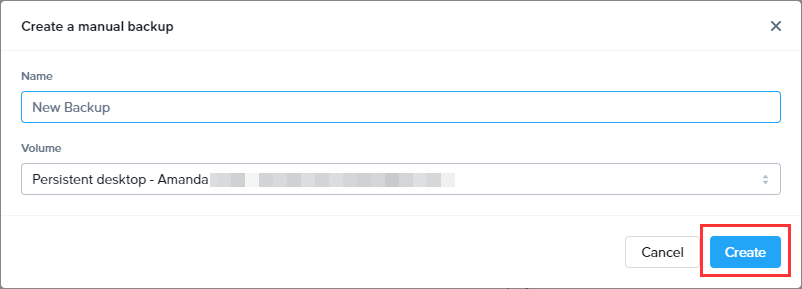
<p class="callout info"> Any changes made to keyboard profiles will take effect after the next session start for end users. Administrators are not required to publish their Sandbox to see changes propagate to end user sessions.</p>

## Edit a Keyboard Mapping

1. To edit a keyboard mapping, simply click on the component of the mapping you wish to change (the client shortcut or the remote shortcut/action) and modify as desired.

<figure id="bkmrk--7">![Edit a Keyboard Mapping](https://docs.difr.com/uploads/images/gallery/2025-10/keyboard-map-edit1.png)

<figcaption>  
</figcaption></figure>2. Click "Save" when you are finished.

<figure id="bkmrk--8">![Saved a Keyboard Mapping](https://docs.difr.com/uploads/images/gallery/2025-10/keyboard-map-edit2.png)

<figcaption>  
</figcaption></figure>3. Click "Save" when you are done editing the Keyboard Profile.

## Troubleshooting

In the event that an administrator has correctly configured a keyboard profile and finds that one or more of their shortcuts is not working in the session, there are some tools available for Windows-based accounts to verify that the shortcut is passing through to the session from the local endpoint. If your Sandbox and workloads are running Windows, consider following the steps below before filing a support case. If you are using a different operating system, please reach out to our support team for help.

1. First, download and run KeyboardStateView for Windows from [NirSoft's website](https://www.nirsoft.net/utils/keyboard_state_view.html). This application displays the current state and virtual key code of every key you press and does not require any installation process or additional files.

<p class="callout info"> Additional  
 LanguagesNirSoft provides instructions and zip files for additional languages on their website. Dutch, French, German, Greek, Japanese, Portuguese, and many other languages are available for testing.</p>

2. KeyboardStateView will display every key that you press in the application's UI, even when the application is not in focus. If you want to view the state of all keys, simply turn off the 'Show Only Keys Pressed In Last seconds' option under the "Options" menu.

You can use this tool to provide more specific information to your Frame support personnel when creating a support case.

# Mouse Modes

Since Frame is accessible from any device with a modern web browser, we've set up multiple mouse modes to navigate a Frame session. While our standard mouse configuration works for most use cases, there are some scenarios where a different mouse mode could be helpful. We'll outline different mouse modes and their corresponding use cases below.

## Enable Mouse Mode Selection

1. Navigate to the "Settings" page in your Dashboard to enable the mouse mode selection option. Click on the "Session" tab and scroll down to the "Advanced options" dialog.

Enter the following string in the "Advanced Terminal Arguments" field:

```powershell
    *features*mouseModes*isEnabled*=true

```

<figure id="bkmrk-enabling-mouse-mode-">![Enabling Mouse Mode Selection](https://docs.difr.com/uploads/images/gallery/2025-10/mouse-mode1.png)

<figcaption>Enabling Mouse Mode Selection</figcaption></figure>If you already have another string in the Advanced Terminal Arguments text area, simply separate the strings with a space. Be sure to click “Save” on this page when you're done to save your addition to the Advanced Terminal Arguments.

## Mouse Mode Selection in Frame Terminal

Once enabled, your users can change their mouse mode in the Frame session by clicking on the Mouse Mode icon on the right side of their Frame status bar.

<figure id="bkmrk-">[![image.png](https://docs.difr.com/uploads/images/gallery/2026-01/scaled-1680-/m6Gimage.png)](https://docs.difr.com/uploads/images/gallery/2026-01/m6Gimage.png)

<figcaption>  
</figcaption></figure>When the Mouse Mode icon is clicked, the Mouse Mode selection dialog window will appear.

<figure id="bkmrk--1">[![image.png](https://docs.difr.com/uploads/images/gallery/2026-01/scaled-1680-/wqeimage.png)](https://docs.difr.com/uploads/images/gallery/2026-01/wqeimage.png)

<figcaption>  
</figcaption></figure>## Types of Mouse Modes

### Standard

By default, a Frame session uses Standard mouse mode. In this mode, you can expect the same functionality and appearance you'd expect when using a regular PC. This mode is meant for normal use with most applications.

Standard mode with a touch-enabled device (such as an iPad) allows you to navigate the session using touch alone. For instance, you can move open windows in your session by holding your finger down on the title bar of the window and dragging it.

### Touchpad

Touchpad mode was created to provide extra precision when accessing a Frame session on touch-enabled devices. With Touchpad mode, you'll see a special gray cursor that you can move by pressing anywhere on the screen and dragging.

<figure id="bkmrk-touchpad-mode-cursor">![Touchpad Mode Cursor](https://docs.difr.com/uploads/images/gallery/2025-10/mouse-mode4.png)

<figcaption>Touchpad Mode Cursor</figcaption></figure>To left-click, tap once anywhere on the screen with the cursor placed in the area you'd like to click. To right-click, tap with two fingers anywhere on the screen. The cursor will show which button-click you are performing. For instance, a left-click in Touchpad mode looks like this:

<figure id="bkmrk-left-click-in-touchp">![Left Click in Touchpad Mode](https://docs.difr.com/uploads/images/gallery/2025-10/mouse-mode5.png)

<figcaption>Left Click in Touchpad Mode</figcaption></figure>### Relative

Relative mouse mode is intended for gaming and 3D world navigation. You'll want to first launch the application you're going to use, and then switch to relative mouse mode when you need to navigate a 3D environment. Once enabled, your cursor will disappear and you will be able to navigate your app like you would with any first-person point-of-view game.

To exit relative mouse mode, hit ESC on your keyboard.

# Multi-language Configuration

Configuring end user experiences for multiple languages in Frame requires careful consideration and planning. Microsoft Windows operating system can be configured to handle different keyboards/characters in addition to multiple display languages. Beyond the operating system, individual applications might require further configuration if the display language is not automatically detected by the application.

Customers who need to deliver a specific display language and keyboard layout on a per-session basis will need to dynamically alter the operating system of a VM before a Frame session is started using [pre-session scripts](https://docs.difr.com/scripting).

## Keyboard Layouts

Support for multiple keyboard layouts allows end users to choose a language to match the keys and characters on their keyboard. Keyboard layouts also determine which on-screen keyboard is used within the Windows environment if physical keyboards cannot be used (for touch displays, tablets, etc).

In a traditional Windows desktop environment, it is fairly easy to switch between multiple keyboard layouts by clicking on the keyboard icon located in the system tray. The keyboard switcher button will be in the bottom right corner of the keyboard.

<figure id="bkmrk-">[![image.png](https://docs.difr.com/uploads/images/gallery/2026-01/scaled-1680-/TBIimage.png)](https://docs.difr.com/uploads/images/gallery/2026-01/TBIimage.png)

<figcaption>  
</figcaption></figure>However, in cases where the end user only has access to individual applications through an Application Launchpad, the Windows system tray will not be visible and the Microsoft Windows keyboard layout switcher (Input Indicator or Language bar) may no longer be available. To accommodate cases where the Windows keyboard layout switcher is not available, Frame has placed a Frame Language swticher on the right side of the Frame status bar.

<figure id="bkmrk--1">[![image.png](https://docs.difr.com/uploads/images/gallery/2026-01/scaled-1680-/EFdimage.png)](https://docs.difr.com/uploads/images/gallery/2026-01/EFdimage.png)

<figcaption>  
</figcaption></figure><p class="callout info"> Note about Keyboard Layouts and Certain Keyboard ShortcutsCertain keyboard shortcuts can conflict with the native Windows keyboard shortcut that switches the current keyboard layout. For example, on macOS device, you can use a keyboard shortcut CMD + SHIFT + 3 to take a screenshot. The key combination to do this sends ALT + SHIFT to the Frame session and will switch the system's keyboard layout to another keyboard layout that is available  
  
 Conflicting shortcuts for OS X that may switch the keyboard layout include:  
 - Screenshot tool: CMD + SHIFT + 3  
 - Screenshot snip tool: CMD + SHIFT + 4  
 - Go to next tab: CMD + SHIFT +   
 - Go to previous tab: CMD + SHIFT + </p>

## Using a Single Language

The most common configuration would be to prepare your account's Sandbox with a default display language and a default keyboard layout other than US English.

You only need to change these settings once within the Sandbox desktop environment to permanently apply the changes to your account. After these adjustments are made and published, all production sessions will use the updated display language and keyboard layout.

## Changing the Default Display Language

The default display language setting can be configured in the "Language" section of the control panel on your Sandbox.

<figure id="bkmrk-windows-server-2016-">![Windows Server 2016 Control Panel - Language](https://docs.difr.com/uploads/images/gallery/2025-10/keyboard3.png)

<figcaption>Windows Server 2016 Control Panel - Language</figcaption></figure>From the “Language” section, you can specify the Windows display language by clicking on the Windows display language dropdown or set the default app language by promoting the specific language to be the first language on the list using the Up arrow.

<figure id="bkmrk-windows-server-2016--1">![Windows Server 2016 Control Panel - Promoting a Language](https://docs.difr.com/uploads/images/gallery/2025-10/keyboard4.png)

<figcaption>Windows Server 2016 Control Panel - Promoting a Language</figcaption></figure>You will then be asked to log off and then log back in to apply the changes.

<p class="callout info"> The above explanation assumes that you have already installed all language keyboards/packs that you require for your applications on the OS.</p>

## Change the Default Keyboard Layout

The default keyboard layout setting can be configured in the "Typing" section of the control panel on your Sandbox.

<figure id="bkmrk-windows-server-2016--2">![Windows Server 2016 Control Panel - Typing](https://docs.difr.com/uploads/images/gallery/2025-10/language1.png)

<figcaption>Windows Server 2016 Control Panel - Typing</figcaption></figure>Scroll down and select "Advanced keyboard settings" and then the keyboard layout from the “Override for default input method” dropdown list.

<figure id="bkmrk-windows-server-2016--3">![Windows Server 2016 Control Panel - Advanced keyboard settings](https://docs.difr.com/uploads/images/gallery/2025-10/language2.png)

<figcaption>Windows Server 2016 Control Panel - Advanced keyboard settings</figcaption></figure><p class="callout info"> The above explanation assumes that you have already installed all language keyboards/packs that you require for your applications on the OS.</p>

# Banners and Classification Labeling

## Custom Terminal Banner

Terminal banners display custom messages across the top of a user's Frame session. Banners can be used as a reminder to the user that they are using a special type of environment. This feature is often used for high security environments such as government, medical, and finance organizations. Administrators can specify the color and text of the banner for their own classification purposes.

1. To enable this feature within your Frame Account, navigate to the **General** tab listed under the **Settings** section of your Dashboard.

<figure id="bkmrk-dashboard-%3E-settings">[![image.png](https://docs.difr.com/uploads/images/gallery/2026-01/scaled-1680-/Zz7image.png)](https://docs.difr.com/uploads/images/gallery/2026-01/Zz7image.png)

<figcaption>Dashboard &gt; Settings &gt; General Settings</figcaption></figure>2. From there, you should see a section titled **Custom Banners**. Under this section, click on the **Enable Custom Terminal Banner** toggle to enable it. A new set of options will appear.
3. Set the banner color and text color by entering hex color codes in each field or clicking on the field to open the color chooser. Specify what you would like your banner to say by entering it in the **Message Text** field. Click **Save** to apply your changes.

<figure id="bkmrk-custom-terminal-bann-1">![Custom Terminal Banner Configuration](https://docs.difr.com/uploads/images/gallery/2025-10/banner2.png)

<figcaption>Custom Terminal Banner Configuration</figcaption></figure>4. Your banner can now be seen at the top of the Frame session.

<figure id="bkmrk-">[![image.png](https://docs.difr.com/uploads/images/gallery/2026-01/scaled-1680-/SXcimage.png)](https://docs.difr.com/uploads/images/gallery/2026-01/SXcimage.png)

<figcaption>  
</figcaption></figure>## Custom Login Banner

From the same section, you can also create a custom login banner for your users. Use the custom login banner to give your users special instructions or an important message if necessary. The end user must "accept" to continue to their Launchpad.

1. To enable this feature within your Frame Account, navigate to the **General** tab listed under the **Settings** section of your Dashboard.
2. From there, you should see a section titled **Custom Banners**. Under the this section, click on the **Enable Custom Login Banner** toggle to enable it. A new set of options will appear.
3. Set the title for your custom login banner and specify what you would want the users to agree to by entering the message in the **Message Text** field. Click **Save** to apply your changes.

<figure id="bkmrk-custom-login-banner-">![Custom Login Banner Configuration](https://docs.difr.com/uploads/images/gallery/2025-10/loginbanner.png)

<figcaption>Custom Login Banner Configuration</figcaption></figure>After your user logs in, they will see a white page displaying your message. They will need to click **I Accept** to be taken to their Launchpad.

<figure id="bkmrk--1">![Custom Login Banner](https://docs.difr.com/uploads/images/gallery/2025-10/loginbanner2.png)

<figcaption>  
</figcaption></figure>## Leveraging the Platform Hierarchy

Administrators with the appropriate role can set a default custom terminal or login banner at the Customer or Organization entity level. The custom terminal and login banner configurations are available on the Admin Console under Settings &gt; Settings at both the Customer or Organization entity levels.

<figure id="bkmrk-custom-login-banner--1">![Custom Login Banner at Customer Entity Level](https://docs.difr.com/uploads/images/gallery/2025-10/terminalbanner2.png)

<figcaption>Custom Login Banner at Customer Entity Level</figcaption></figure>Custom banners set at the Customer entity level will be copied to an Organization entity when the Organization entity is created. A custom banner set at the Organization entity level will be copied to the Frame account settings when a new Frame account is created.

<p class="callout info"> Custom banner definitions are \*\*not\*\* dynamically inherited from higher levels to lower levels of the Frame platform hierarchy. If you wish to leverage a custom banner at a lower level of the platform hierarchy, be sure to configure the custom banner first in the parent entity before creating the child entity.</p>

# Scripting

Frame Guest Agent (FGA) gives customers the ability to tailor the behavior of their workload VMs (e.g., Sandbox, shadow, production, utility server, etc.) to execute scripts at different event-points of a VM and/or user session. These events are defined as “lifecycle hooks.”

Once a Frame account is created, the Frame administrator can place custom scripts (PowerShell for Windows, Bash scripts for Linux) in the Sandbox and then publish the Sandbox to make them available to the workload VMs.

### Custom Script Location

<p class="callout info"> In the context of scripts, spaces are not valid characters. For example `script1.ps1` is a valid script name, while `script 1.ps1` is \*not\* valid.</p>

FGA scripts must be placed into a specific directory. The FGA Users Scripts directory for **Windows** VMs is:

`C:\ProgramData\Nutanix\Frame\FGA\Scripts\User`

Example valid script paths for **Windows**:

- `C:\ProgramData\Nutanix\Frame\FGA\Scripts\User\powershell\my_custom_script.ps1`
- `C:\ProgramData\Nutanix\Frame\FGA\Scripts\User\my_custom_script.ps1`
- `C:\ProgramData\Nutanix\Frame\FGA\Scripts\User\a\b\c\d\my_custom_script.ps1`

For **Linux** VMs, the FGA Users Scripts directory is:

`/opt/nutanix/frame/fga/scripts/user`

Example valid script paths for **Linux**:

- `/opt/nutanix/frame/fga/scripts/user/powershell/my_custom_script.sh`
- `/opt/nutanix/frame/fga/scripts/user/my_custom_script.sh`
- `/opt/nutanix/frame/fga/scripts/user/a/b/c/d/my_custom_script.sh`

### Script Invocation

Invoking or executing custom scripts requires a definition.yml file (case sensitive) to be present in the FGA User Scripts directory. For example, this path for Windows would be `C:\ProgramData\Nutanix\Frame\FGA\Scripts\User\definition.yml`. FGA reads this file at each lifecycle hook and will invoke scripts as defined in this file.

### Definition.yml

The `definition.yml` file describes detailed script context and execution information:

- Script **groups** -- a convenient way to group multiple scripts based on their context.
- Lifecycle hooks or **run-policies** -- phases in Frame's lifecycle of VMs and Sessions.
- Script **paths** and filenames -- only use relative paths (from the FGA Users Script directory) or filenames. Look out for typos!
- **Pool-types** -- specifies which type of Frame VMs you'd like the scripts to execute on (Sandbox, Production, etc.)
- **Error policies** -- specifies the behavior FGA should follow if an error is encountered: [continue or abort](#error-policy).

Below is an example of a definition.yml file.

```yaml
    groups:
    -
      desc: Scripts on first boot
      name: first-boot
      timeout: 30
      run-policy: first-boot
      pool-type:
        - sandbox
        - production
      scripts:
        -
          desc: My script A
          path: A.ps1
          error-policy: continue
          timeout: 10
        -
          desc: My script B
          path: B.ps1
          error-policy: continue
          timeout: 10
    -
      desc: Scripts on each boot
      name: every-boot
      timeout: 30
      run-policy: every-boot
      pool-type:
        - sandbox
        - production
      scripts:
        -
          desc: My script C
          path: C.ps1
          error-policy: continue
          timeout: 10
        -
          desc: My script D
          path: D.ps1
          error-policy: continue
          timeout: 10
    -
      desc: Scripts before session is started
      name: pre-session
      timeout: 30
      run-policy: pre-session
      pool-type:
        - sandbox
        - production
      scripts:
        -
          desc: My script before sessions is started
          path: before-session.ps1
          error-policy: continue
          timeout: 20
    -
      desc: Scripts after session is closed
      name: post-session
      timeout: 30
      run-policy: post-session
      pool-type:
        - sandbox
        - production
      scripts:
        -
          desc: My script after sessions is closed
          path: after-session.ps1
          error-policy: continue
          timeout: 20

```

## Script Execution Order

Order in the definition.yml file is important. When executing the scripts, FGA iterates through the definition.yml file and executes scripts in order from top to bottom. This also applies to Script Groups. If you provide two script groups of the same type (pre-session, post-session, etc), the group that is higher in the YAML file will get executed before any groups that are lower in the file.

In the following definition.yml example, Group 3 will get executed before Group 1 (since Group 3 is higher in the file). Also, `before-session-3.ps1` will get executed prior to `before-session-2.ps1` for the same reason:

```yaml
    groups:
    -
      desc: Group 3 - Scripts before session is started
      name: Group 3 Pre-session
      timeout: 30
      run-policy: pre-session
      pool-type:
        - production
      scripts:
        -
          desc: The 3 pre-session script
          path: before-session-3.ps1
          error-policy: continue
          timeout: 20
        -
          desc: The 2 pre-session script
          path: before-session-2.ps1
          error-policy: continue
          timeout: 20
    -
      desc: Group 1 - Scripts after session is closed
      name: Group 1 pre-session
      timeout: 30
      run-policy: pre-session
      pool-type:
        - production
      scripts:
        -
          desc: My script after sessions is closed
          path: after-session.ps1
          error-policy: continue
          timeout: 20

```

<p class="callout warning"> **Important!**  Each script will need to be fully completed before the next script is executed. (Sequential execution vs. parallel execution)</p>

## Frame Lifecycle Hooks

The following table outlines various Frame Lifecycle Hooks, used as values for run-policy in a definition.yml script group. Each lifecycle hook is optional.

### VM Lifecycle Hooks

<table id="bkmrk-%3Cdiv-style%3D%7B-%7Bwidth%3A"><thead><tr><th>Hook Name</th><th>Description</th><th>Applicable pool groups</th><th>User Context</th></tr></thead><tbody><tr><td>`pre-generalization`</td><td>Executed before Domain-Join generalization process (which includes sysprep) is started.</td><td>shadow, persistent\_desktop\_shadow</td><td>**Frame** user</td></tr><tr><td>`post-generalization`</td><td>Executed after Domain-Join generalization process (which includes sysprep) is finished.</td><td>shadow, persistent\_desktop\_shadow</td><td>**Frame** user</td></tr><tr><td>`first-boot`</td><td>Executed only on the very first boot of the virtual machine, after it is created. This hook is available for all instance types, allowing scripts to make stateful changes right after instances are provisioned/created. For domain joined instances and enterprise profiles, the local user `frameuser` needs to have elevated privileges.</td><td>shadow, production, persistent\_desktop\_shadow, persistent\_desktop\_production</td><td>**Frame** user</td></tr><tr><td>`every-boot`</td><td>Executed upon every system/OS boot. This hook can be used to update the image before non-persistence is enabled (on shadow/production instances).</td><td>shadow, production, sandbox, utility</td><td>**Frame** user</td></tr></tbody></table>

### Session Lifecycle Hooks

<table id="bkmrk-%3Cdiv-style%3D%7B-%7Bwidth%3A-1"><thead><tr><th>Hook Name</th><th>Description</th><th>Applicable pool groups</th><th>User Context</th></tr></thead><tbody><tr><td>`pre-session`</td><td>Executed right before a user session is started.  
 **User Context info:**  
For example, if the workload VM is joined to the domain and the user authenticates to the Windows domain, then the scripts would run in the domain user context. Pre-session scripts are executed after the Windows login screen and before the onboarded application or desktop is displayed. Pre-session scripts never run in SYSTEM context.</td><td>sandbox, production, persistent\_desktop\_production, utility</td><td>**Currently logged in user**</td></tr><tr><td>`on-idle`</td><td>Executed when session goes to idle state (workload stops streaming).</td><td>sandbox, production, persistent\_desktop\_production, utility</td><td>**Currently logged in user**</td></tr><tr><td>`on-active`</td><td>Executed when session goes from idle to active state (workload resumes streaming).</td><td>sandbox, production, persistent\_desktop\_production, utility</td><td>**Currently logged in user**</td></tr><tr><td>`post-session`</td><td>Executed immediately after a session is closed. This occurs after the session has stopped streaming and before both the Windows logoff process and the profile disk unmount process.</td><td>sandbox, production, persistent\_desktop\_production, utility</td><td>**Currently logged in user**</td></tr></tbody></table>

### Script User Context (Windows)

It is important for Frame administrators to know which Windows user is running which script. Refer to the table above to see each lifecycle hook and their associated execution context. Frame's default `Frame` user is a member of the local Windows administrator group.

To determine the user context, you can execute `whoami` within your script and it will print out the current script context.

### Script Group Properties

#### desc

> A detailed description of the group.

#### name

> A descriptive name of the group.

#### timeout

> Integer value in seconds. Defines the maximum amount of time for *all scripts executing within a group*. If the execution time of the scripts exceeds this timeout value, FGA will kill the currently running script and skip any remaining the scripts in the group.

#### run-policy

> Defines the Frame Lifecycle Hook that will execute the scripts.

#### pool-type

> Defines target pool types on which the scripts in the group are going to be applied. If none of the pool types is set, FGA will execute the script on all pool types.
> 
> **Pool types and descriptions**
> 
> - `sandbox` - Scripts are going to be applied only on sandbox VMs
> - `production` - Scripts are going to be applied only on production VMs
> - `shadow` - Scripts are going to be applied only on shadow VMs that are part of the publishing process
> - `utility` - Scripts are going to be applied only on utility VMs
> - `persistent_desktop_production` - Scripts are going to be applied on persistent desktops
> - `persistent_desktop_shadow` - Scripts are going to be applied on freshly provisioned persistent desktops that are not yet assigned

<p class="callout info"> Newly published VMs that have been placed in the production pool will still be marked as `shadow` until they are rebooted.</p>

#### scripts

> Specifies the list of scripts that needs to be executed.

<p class="callout success"> **Did you know?**  A “pool” in Frame's context is a grouping of VMs/instances associated with a Frame account.</p>

### Script Item Properties

#### desc

> Description of the script.

#### path

> Script file location, relative to base user scripts directory.

#### error-policy

> Defines FGA strategies when script fails.
> 
> Follow these three simple steps to get started creating scripts and customizing the VMs on first boot (or every boot) and your Frame sessions.
> 
> **Error-policy values**
> 
> - `continue` - FGA to proceed on even if the script fails.
> - `abort` - FGA to abort the task if script fails; **use with caution.**
>     - For Session Lifecycle hooks, this will immediately end the session for the end-user.
>     - For VM Lifecycle hooks, this can prevent publishes from completing, or spinning up new instances when the pool's capacity is expanded

#### timeout{#script-timeouts}

> Integer value in seconds. Defines the maximum amount of time for the script to run. If the execution time of the script exceeds the timeout value, FGA will kill the running script. **Be sure that your script's combined timeouts are less than or equal to the group's timeout duration.**

## Getting Started

Follow these three simple steps to get started creating scripts and customizing the VMs on first boot (or every boot) and your Frame sessions.

### 1. Create a Simple Script

Create a new PowerShell file (hello-world.ps1) in the FGA Scripts User directory.

```powershell
# Writing a simple text file with warm greeting.
$timestamp = Get-Date -Format "dddd MM/dd/yyyy HH:mm K"
"$timestamp - Hello, World!" | Out-File "C:\ProgramData\Nutanix\Frame\Logs\sandbox_greeting.txt" -Append

```

### 2. Your *definition.yml*

Next, you need to communicate to FGA about this script via a `definition.yml` file to specify which Frame Session Lifecycle hook will trigger this script, timeout settings, the pool type(s), etc.

```yaml
groups:
-
  desc: Simple script example
  name: A very simple pre-session script.
  timeout: 10
  run-policy: pre-session
  pool-type:
    - sandbox
  scripts:
    -
      desc: Frame Hello World Example script!
      path: hello-world.ps1
      error-policy: continue
      timeout: 10

```

The `definition.yml` file specifies that we have one script group that only executes during the pre-session Lifecycle Hook. We also specify that this group should only execute on the sandbox instance *pool*. Next, we specify a single script called `hello-world.ps1`. This script can run for a maximum of 10 seconds before reaching either timeout value, causing FGA to quit waiting and continue on.

### 3. Testing and Debugging

Finally, double-check to make sure the files are saved, named correctly, and are located in the correct locations. Next, quit your sandbox session. Now we're ready to test!

Testing our script is simple. When starting a new Sandbox Session, you should see a file populated at `C:/sandbox_greeting.txt`, showing our execution timestamp and our greeting.

## Logging and Troubleshooting

Logging can be incredibly useful for debugging. However, if you're using non-persistent desktops and trying to debug scripts in production, any logging you do on the VM is wiped out after the session.

### Logging tips for various environments

1. **Sandbox and Persistent Desktops**: Create any text file somewhere on C: with the output of your logs.
2. **Non-persistent Shadow and Production VMs**: External logging service, either on the public internet (like Loggly, Splunk, etc.) or perhaps a service running on an accessible Utility Server.

### Troubleshooting Tips

- Be mindful of about [group](#group-timeouts) and [script](#script-timeouts) timeouts, how they're different, and that your values don't overlap.
- Always take backups before scripting.
- If your scripts reference any file paths, be sure to use absolute filepaths, even for files residing in the FGA User Scripts folder.
- If possible, test by executing the Powershell code in the Sandbox using PowerShell ISE.
- If your scripts contain any sensitive information or credentials, be sure to write a cleanup pre-session script that can execute after your credentials are used and *delete the sensitive script/files* before users are connected to a Session.
- Use identifying elements from Frame environment variables to help understand who and when (if needed).
- You can set and get environment variables or registry entries to help communicate between scripts and lifecycle hooks.
- Avoid using `error-policy: abort` for sandbox scripts, as failing scripts can make the Sandbox inaccessible, requiring a restoration from a backup or termination (and recreation) of the Sandbox.
- If your scripts need to run with Elevated Privilege in Windows 10, make sure that the below registry key value is set to `0`. Otherwise, your scripts will fail due to Microsoft Windows User Account Controls (UAC) preventing the script from executing in an elevated context.
    
    
    - Key: `SOFTWARE\Microsoft\Windows\CurrentVersion\Policies\System`
    - Value: "EnableLUA"
    - Type: `REG_DWORD`

### Environment Variables

FGA populates environment variables via registry entries to `HKCU/Environment`. These values are dynamically set for each Frame session and are useful when used with logging.

<table id="bkmrk-env-variable-descrip"><thead><tr><th>Env Variable</th><th>Description</th></tr></thead><tbody><tr><td>`FRAME_VENDOR_ID`</td><td>A unique identifier tied to the Frame Account the VM is associated with.</td></tr><tr><td>`FRAME_VENDOR_NAME`</td><td>The name of the instance's Account.</td></tr><tr><td>`FRAME_USER_EMAIL`</td><td>The current session user's email address.</td></tr><tr><td>`FRAME_SESSION_ID`</td><td>The unique Session ID associated with the current session. Useful for debugging and support purposes.</td></tr><tr><td>`FRAME_SESSION_INFO`</td><td>Provides additional session information represented within a JSON object: `colorspace` (`YUV420` or `YUV444`), `protocol` (`FRP7` or `FRP8`), and `connectionType` (`tcp` or `udp`)</td></tr><tr><td>`FRAME_SESSION_LABEL`</td><td>Custom value set in Session Settings through the [Advanced Server Argument](https://docs.difr.com/platform/session/session-settings#advanced-arguments) `-frame-session-label`</td></tr><tr><td>`FRAME_SESSION_TOKEN`</td><td>Unique token specific to the session. This token can be used to query user assertion/claims data, or base64 decoded to access various user and authentication-related data.</td></tr><tr><td>`FRAME_VENDOR_EMAIL`</td><td>Contrary to the name, this value is the unique GUID associated to the Frame account the VM belongs to.</td></tr><tr><td>`FRAME_MAX_SESSION_DURATION`</td><td>The maximum amount of time (in seconds) the user can be in the session. This value is set in the Account, Launchpad, Sandbox, and Utility Server session settings.</td></tr><tr><td>`FRAME_SESSION_START_TIME`</td><td>The date/time when the session started.</td></tr><tr><td>`FRAME_POOL_GROUP_TYPE`</td><td>Type of pool group the session is currently connected to (`sandbox`, `production`, `test`, `utility`).</td></tr><tr><td>`FRAME_POOL_NAME`</td><td>Name of instance pool the session is currently connected to as defined within *Dashboard* &gt; *Capacity*</td></tr><tr><td>`FRAME_INSTANCE_TYPE`</td><td>The instance type name of the current instance.</td></tr><tr><td>`FRAME_IMAGE_FAMILY`</td><td>Image Family Name that the instance is based off of.</td></tr><tr><td>`FRAME_DATACENTER`</td><td>Name of the datacenter where the instance is located.</td></tr><tr><td>`FRAME_CLOUD_PROVIDER`</td><td>Name of the infrastructure provider (`ahv`, `azure`, `gcp`, `amazon`).</td></tr></tbody></table>

## Frame Script Helper Tool

Frame Script Helper is a tool designed for the creation and maintenance of the ***definition.yml*** file. Frame Script Helper can be found in `C:\ProgamData\Nutanix\Frame\Tools`. Key tool features include the import, validation, editing, and export of definition.yml files.

<p class="callout info"> As this tool was written for Windows, it only supports `.ps1` scripts.</p>

### Import and Validation of the Definition.yml File

Importing the definition.yml file can be accomplished in two ways:

- **Automatically**: When launched the tool will search for a definition.yml file in `C:\ProgramData\Nutanix\Frame\FGA\Scripts\User`
- **Manually**: By using the import section from toolbar menu: Configuration&gt;Import

<p class="callout info"> The file will not be imported until any errors are resolved.</p>

If the tool cannot find a definition.yml file at startup, it will display a prompt; you can still continue using the tool. All changes will be saved afterwards into a new definition.yml file.

### Edit the Definition.yml File

All available Frame Lifecycle hooks ([see above](#-frame-lifecycle-hooks) for hook definitions) are displayed to the left of the tool window.

To begin, select one of the hooks. By default, "first-fga-boot" is selected. Next to the name of the hook are two numbers. The first number represents the number of pool-type groups, the second represents the total number of scripts assigned to that hook.

To attach your scripts to the selected hook, drag scripts files from File Explorer into the drop area at the top of the screen.

<p class="callout info"> Another way to import the scripts is to directly drag their file onto the existing pool-type group.</p>

Next, a prompt will ask you to specify the pool-type groups for your scripts. Check the box next to each desired pool and click “Next” when all desired options are checked.

![Frame Script Helper Tool - Pool Types](https://docs.difr.com/uploads/images/gallery/2025-10/shelper2.png)

### Changing Script Order

To change the order of the scripts, simply drag a script to desired position in the pool-type group.

<p class="callout info"> Scripts can only be moved within the current group, not to another.</p>

### Rearranging the Pool-Type Groups

Order of the pool-types can be also changed. Each of the pool-type group "box" can be dragged over the other group.

### Export the Definition.yml File

After making your changes, you can save your file by clicking “File” and then “Save”, or even export it to a new file from **Configuration &gt; Export**.

![](https://docs.difr.com/uploads/images/gallery/2025-10/shelperconfiguration.png)

## Advanced Scripting

### Update Script (Windows only)

If found, FGA will execute an “update” script right after a VM boots, but *before FGA User scripts are executed*. This allows Frame administrators to create custom update scripts to automated or dynamic maintenance operations on their custom scripts and files before user scripts defined in definition.yml are executed. The update script must be in the following path:

`C:\ProgramData\Nutanix\Frame\FGA\Scripts\User\update.ps1`

Updating the user scripts might include completely new packages of scripts or just a new definition.yml file. The following are best practices when it comes to updating your custom scripts using the Update script feature.

1. Make sure your updated scripts and/or definition.yml are packaged in a bundle.
2. Make sure your workload VMs are able to access and download that bundle.
3. Create an update script that downloads the package and checks if there is a need for the update to be applied. 
    - If not, the "update" script should just exit.
    - If yes, the "update" script should perform the update (it can delete existing definition.yml and all script files and then recreate definition.yml file and/or scripts).
4. Place the update script content inside the update.ps1 (for Windows) and update.sh (for Linux).

When the VM gets into boot phase, FGA is going to search for the "update" script. If it does not find the script, FGA will read the definition.yml file and run the scripts as they are defined in the definition.yml file. If the FGA finds the "update" script, FGA will execute the script first. Once the script is executed, FGA will proceed to execute the custom scripts following the definition.yml file.

If the update script on Windows OS takes more than 10 minutes to execute, FGA will timeout and continue with its startup workflow.

## Example Scripts

Below are some example use cases where a custom script and associated definition.yml file can customize the end user experience.

### Mount a Network Volume

**Scenario**: A Frame administrator would like to mount an existing read-only file share once a user starts a Frame session in either the Sandbox (Frame administrator) or a production workload VM (user).

The following simple PowerShell script "mount-read-only-volume.ps1" is placed in the scripts folder to be executed:

```batch
echo off
net use * /delete /Y
net use K: \\10.0.0.5\Fileshare /user:username password

```

The corresponding **definition.yml** file:

```yaml
groups:
-
  desc: Scripts before session is started in either Sandbox or production workload VMs
  name: pre-session
  timeout: 30
  run-policy: pre-session
  pool-type:
    - sandbox
    - production
  scripts:
    -
      desc: Pre-session script to mount a read-only volume
      path: mount-read-only-volume.ps1
      error-policy: continue
      timeout: 20

```

### Exclusion/Inclusion Rules for Enterprise Profiles

**Scenario**: A Frame administrator wishes to exclude specific folders from persisting and/or include specific folders to persist in users' enterprise profiles. The following PowerShell script “exclude-include-folders.ps1” is placed in the scripts folder to be executed:

```powershell
# Exclude four folders in the %USERPROFILE%
Add-ProfileDiskExclusion -SourcePath $env:USERPROFILE\Downloads -TargetPath C:\_Profile
Add-ProfileDiskExclusion -SourcePath $env:USERPROFILE\Music -TargetPath C:\_Profile
Add-ProfileDiskExclusion -SourcePath $env:LOCALAPPDATA\Autodesk -TargetPath C:\_Profile
Add-ProfileDiskExclusion -SourcePath $env:LOCALAPPDATA\Spotify -TargetPath C:\_Profile

# Include two separate folders C:\MyData and C:\MoreData to the user's enterprise profile.
Add-ProfileDiskInclusion -SourcePath C:\MyData
Add-ProfileDiskInclusion -SourcePath C:\MoreData

```

The corresponding definition.yml file specifies that this PowerShell script should only be executed in the context of production workload VMs where the user's enterprise profile volume is used (in a non-persistent Frame account):

```yaml
groups:
-
  desc: Scripts before session is started in production workload VMs
  name: pre-session
  timeout: 30
  run-policy: pre-session
  pool-type:
    - production
  scripts:
    -
      desc: Pre-session script to include/exclude folders from the user's enterprise profile
      path: exclude-include-folders.ps1
      error-policy: continue
      timeout: 20

```

### Autohide the Windows Task Bar in App Mode 2.0

**Scenario**: A Frame administrator wants to have the Windows Task Bar automatically hidden when using an Application Launchpad with App Mode 2.0. The Windows registry key that controls this behavior is at `HKEY_CURRENT_USER\Software\Microsoft\Windows\CurrentVersion\Explorer\StuckRects3`. The following PowerShell script is placed in the scripts folder to be executed:

```powershell
$p='HKCU:SOFTWARE\Microsoft\Windows\CurrentVersion\Explorer\StuckRects3';
$v=(Get-ItemProperty -Path $p).Settings;
$v[8]=1;
Set-ItemProperty -Path $p -Name Settings -Value $v;
Stop-Process -f -ProcessName explorer

```

The corresponding definition.yml file specifies that this PowerShell script should only be executed in the context of production workload VMs:

```yaml
groups:
-
  desc: Scripts before session is started in production workload VMs
  name: pre-session
  timeout: 30
  run-policy: pre-session
  pool-type:
    - production
  scripts:
    -
      desc: Pre-session script to autohide the Windows Task Bar
      path: autohide-taskbar.ps1
      error-policy: continue
      timeout: 20

```

If you wish to show the Windows Task Bar, then the PowerShell script can be used:

```powershell
$p='HKCU:SOFTWARE\Microsoft\Windows\CurrentVersion\Explorer\StuckRects3';
$v=(Get-ItemProperty -Path $p).Settings;
$v[8]=2;
Set-ItemProperty -Path $p -Name Settings -Value $v;
Stop-Process -f -ProcessName explorer

```

### Add Applications dynamically to the Frame Taskbar in App Mode 2.0

**Scenario**: A Frame administrator needs to dynamically add an application shortcut/launch link to the Frame Taskbar in App Mode 2.0. App Mode 2.0 allows you to dynamically modify the Frame Taskbar to any configuration you need (in real time).

The following PowerShell script should be placed in the scripts folder to be executed. This is designed as a pre-session script that modifies the Frame Taskbar configuration before the session starts. The script will override any of the default Frame Taskbar configuration and show Notepad only (update-taskbar.ps1):

<p class="callout info"> Notice that any URI path requires two backslashes in the path (Within the JSON file only)</p>

```powershell
$jsonFilePath = 'C:\ProgramData\Nutanix\Frame\Config\server_launchpad_override.json'

$jsonOverrideContent = @"
{
    "name": "root",
    "order": 0,
    "applications": [
        {
            "name": "Frame",
            "path": "C:\\Windows\\System32\\notepad.exe",
            "icon_url": "",
            "order": 0,
	    "arguments": ""
        }
    ],
    "folders": []
}
"@

Set-Content -Path $jsonFilePath -Value $jsonOverrideContent

```

The corresponding definition.yml file specifies that this PowerShell script should only be executed in the context of production workload VMs:

```yaml
groups:
-
  desc: Scripts before session is started in production workload VMs
  name: pre-session
  timeout: 30
  run-policy: pre-session
  pool-type:
    - production
  scripts:
    -
      desc: Pre-session script to add Notepad into the Frame Taskbar icon/shortcut list 
      path: update-taskbar.ps1
      error-policy: continue
      timeout: 20

```

## Playing in the Sandbox

In this example, we'll create a few more scripts, each set to execute at common session lifecycle hooks.

<p class="callout info"> Before continuing with any changes to your sandbox, please make a backup first! Sandbox scripts, if improperly configured, can cause undesired behaviors and in some cases can cause the sandbox to become unresponsive, requiring restoration from a backup or a fresh sandbox.</p>

To get started, grab your shovel and connect to your Sandbox. Then, open up your favorite text editor and create the following **five** files in the **FGA User Scripts Directory**.

**Pre-session script: pre-session.ps1**

To test this, the scripts will create or append to a single log file created at `.\logs\sandbox_bucket.txt` with a timestamp and message from the script.

```powershell
$RootPath = "C:\ProgramData\Nutanix\Frame\FGA\Scripts\User"
If (!(test-path "$RootPath\logs")){ New-Item -Path "$RootPath\logs" -Type Directory }
$timestamp = Get-Date -Format "dddd MM/dd/yyyy HH:mm K"
"$timestamp - Hello from pre-session.ps1" | Out-File "$RootPath\logs\sandbox_bucket.txt" -Append

```

**Session Disconnect script: on-idle.ps1**

```powershell
$RootPath = "C:\ProgramData\Nutanix\Frame\FGA\Scripts\User"
If (!(test-path "$RootPath\logs")){ New-Item -Path "$RootPath\logs" -Type Directory }
$timestamp = Get-Date -Format "dddd MM/dd/yyyy HH:mm K"
"$timestamp - Hello from on-idle.ps1" | Out-File "$RootPath\logs\sandbox_bucket.txt" -Append

```

**Session Resume script: on-active.ps1**

```powershell
$RootPath = "C:\ProgramData\Nutanix\Frame\FGA\Scripts\User"
If (!(test-path "$RootPath\logs")){ New-Item -Path "$RootPath\logs" -Type Directory }
$timestamp = Get-Date -Format "dddd MM/dd/yyyy HH:mm K"
"$timestamp - Hello from on-active.ps1" | Out-File "$RootPath\logs\sandbox_bucket.txt" -Append

```

**Post-session script: post-session.ps1**

```powershell
$RootPath = "C:\ProgramData\Nutanix\Frame\FGA\Scripts\User"
If (!(test-path "$RootPath\logs")){ New-Item -Path "$RootPath\logs" -Type Directory }
$timestamp = Get-Date -Format "dddd MM/dd/yyyy HH:mm K"
"$timestamp - Hello from post-session.ps1" | Out-File "$RootPath\logs\sandbox_bucket.txt" -Append

```

Let's walk through each line in these files.

- **Line 1**: This line declares the root path as a variable variable. We could also use `Set-Location`.
- **Line 2**: Creates the log folder inside of the root path if it doesn't exist.
- **Line 3**: Gets a timestamp in a readable format (based on the Sandbox's local time).
- **Line 4**: Writes our timestamp and hello message to the specified "sandbox\_bucket" txt file.

**Defining our scripts: definition.yml**

We'll create four different script *groups* (one for each lifecycle hook). These scripts will only execute on the Sandbox; each will have a total of 5 seconds to execute (timeout); and if these scripts fail for any reason, FGA will continue with the next lifecycle procedures.

```yaml
groups:
-
  desc: Pre-session script
  name: Pre-session script group
  timeout: 5
  run-policy: pre-session
  pool-type:
    - sandbox
  scripts:
    -
      desc: Example sandbox pre-session script.
      path: pre-session.ps1
      error-policy: continue
      timeout: 5
-
  desc: On-idle disconnect script
  name: On-idle script group
  timeout: 5
  run-policy: on-idle
  pool-type:
    - sandbox
  scripts:
    -
      desc: Example sandbox on-idle script.
      path: on-idle.ps1
      error-policy: continue
      timeout: 5
-
  desc: On-active resume script
  name: On-active script group
  timeout: 5
  run-policy: on-active
  pool-type:
    - sandbox
  scripts:
    -
      desc: Example sandbox on-active script.
      path: on-active.ps1
      error-policy: continue
      timeout: 5
-
  desc: Post-session script
  name: Post-session script group
  timeout: 5
  run-policy: post-session
  pool-type:
    - sandbox
  scripts:
    -
      desc: Example sandbox post-session script.
      path: post-session.ps1
      error-policy: continue
      timeout: 5

```

<p class="callout info"> Notice that we're only setting `- sandbox` for each \*\*pool-type\*\*. Publishing this Sandbox configured like this would ensure that these scripts will not execute on any other VM on this account (Shadow, non-persistent Production, Persistent VM instances).</p>

### Testing our Sandbox scripts

You made it this far, you have your scripts and definition.yml file in place on the Sandbox, great! Let's test. Before we do, **changes to the definition.yml are active in real-time**. The Frame Guest Agent (FGA) does a fresh read of the definition.yml at each Session lifecycle hook. This means that if you are in your Sandbox session right now, we can test the disconnect and resume scripts by disconnecting from your Sandbox using the Gear menu at the bottom left corner of the Frame Session. Next, resume the session -- we should see two new log entries in our `/logs/sandbox_bucket.txt` files.

Let's test all four lifecycle hooks.

1. This time, **quit the session** via the Gear menu. Wait for the session to fully close.
2. Once you can, **start a new session**.
3. **Disconnect** from the Gear Menu. This will fire our disconnect or "on-idle" script.
4. **Resume the Session**. This will trigger our resume or "on-active" script.
5. **Close the session**.
6. Finally, **start one more session** to verify our `sandbox_bucket.txt` file contains messages and timestamps in order.

That's it! If you run into any problems, here are a few basic troubleshooting steps before contacting Support:

1. Please ensure that your files are in the correct paths.
2. Please ensure that the file names match in the directory as well as in the definition.yml file.
3. Test your PowerShell scripts manually from the Sandbox.

<p class="callout success"> **Cleanup**  Once you're done with testing these scripts and scenarios, all you need to do is remove the scripts from the definition.yml, delete the files, or customize them to your liking!</p>

## Onboarding Applications via CLI

Onboarding Windows applications to a Sandbox can be automated. If the applications are present on the Sandbox, we have a command-line utility that can be used to onboard a single application, multiple applications, or multiple apps defined in a file.

Introducing ShellHandler! Find and run `ShellHandler.exe` located in `C:\Program Files\Nutanix\Frame\Server\`. Using the command-line arguments listed below, you can onboard applications in a number of ways:

### ShellHandler Arguments

<table id="bkmrk-%3Cdiv-style%3D%7B-%7Bwidth%3A-2"><thead><tr><th>&lt;div style={ {width: "150px"} }&gt;Command-line Argument</th><th>Description</th></tr></thead><tbody><tr><td>`onboard`</td><td>Instructs the ShellHandler that we're onboarding an application or more. onboard must be the first argument and proceeded next by one of the three following onboard options.   
  
**Example:**  
`ShellHandler.exe onboard -i C:\MyApp.exe -s`</td></tr><tr><td>`--item` or `-i`</td><td>Onboard a single application item by filepath.   
  
**Example:**  
`ShellHandler.exe onboard --item C:\MyApp.exe -s`</td></tr><tr><td>`--list` or `-l`</td><td>Onboard multiple applications via a list of application filepaths.   
  
**Example:**  
`ShellHandler.exe onboard --list "C:\MyApp1.exe, C:\MyApp2.exe, C:\MyApp3.exe" -s`</td></tr><tr><td>`--file` or `-f`</td><td>Onboard multiple applications via a file containing a list of application filepaths.   
**C:\\ExampleAppList.txt:**   
C:\\MyApp1.exe   
C:\\MyApp2.exe   
C:\\Program Files\\TestApp\\HelloWorld.exe   
  
**Example:**  
`ShellHandler.exe onboard --file C:\ExampleAppList.txt -s`</td></tr><tr><td>`--silent` or `-s`</td><td>If present, application(s) filepaths will be onboarded without any user prompt.   
  
**Example:**  
`ShellHandler.exe onboard -i C:\MyApp.exe --silent`</td></tr></tbody></table>

# USB Peripheral Support

The **Frame Platform** provides flexible peripheral support to meet diverse enterprise needs through both **browser-based** and **Frame App** deployment options.

For standard office peripherals like keyboards, mice, webcams, and microphones, users can access their devices directly through **browser-based Frame sessions**.

For organizations requiring support for specialized industry devices - common in education, financial services, healthcare, and professional design environments, **Frame App** offers enhanced USB support.

This dual approach ensures organizations can choose the deployment method that best matches their peripheral requirements while maintaining **security and performance**.

# Considerations

Before implementing Frame Platform’s peripheral support, it’s important to assess your organization’s specific needs. Consider the types of devices your users require, their work patterns and any industry-specific requirements.

This discovery process will help determine whether browser-based Frame or Frame App is the most suitable deployment option for your environment.

## Key Questions

- Are your users primarily using standard keyboards, mice, webcams, and microphones?
- Do your users need to connect specialized USB devices (healthcare peripherals, security dongles, CAD controllers)?
- Will users need access to smart card readers or document scanners?
- Is basic browser-based peripheral support sufficient for your workflows?
- Do you require enhanced USB device support beyond standard input/output devices?

**Supported Peripheral Use Cases**

<table border="0" cellpadding="0" cellspacing="3" class="MsoNormalTable" id="bkmrk-user-type-required-p" style="mso-cellspacing: 1.5pt; mso-yfti-tbllook: 1184;"><thead><tr style="mso-yfti-irow: 0; mso-yfti-firstrow: yes;"><td style="padding: .75pt .75pt .75pt .75pt;">**User Type**

</td><td style="padding: .75pt .75pt .75pt .75pt;">**Required Peripherals**

</td><td style="padding: .75pt .75pt .75pt .75pt;">**Recommended Approach**

</td><td style="padding: .75pt .75pt .75pt .75pt;">**Additional Details**

</td></tr></thead><tbody><tr style="mso-yfti-irow: 1;"><td style="padding: .75pt .75pt .75pt .75pt;">**Standard Office User**

</td><td style="padding: .75pt .75pt .75pt .75pt;">• Standard keyboards and mice   
• Webcams   
• Headsets/microphones   
• Basic document scanners

</td><td style="padding: .75pt .75pt .75pt .75pt;">**Frame in browser**

</td><td style="padding: .75pt .75pt .75pt .75pt;">• Provides standard peripheral support through browser APIs   
• Ideal for common office peripherals   
• Simplest deployment option   
• No additional software required

</td></tr><tr style="mso-yfti-irow: 2;"><td style="padding: .75pt .75pt .75pt .75pt;">**CAD/AEC Professional**

</td><td style="padding: .75pt .75pt .75pt .75pt;">• 3D mice/Space mice   
• Drawing tablets   
• Hardware security keys/dongles   
• Professional-grade input devices

</td><td style="padding: .75pt .75pt .75pt .75pt;">**Frame App 7 with Generic USB enabled**

</td><td style="padding: .75pt .75pt .75pt .75pt;">• Required for specialized input devices and security dongles   
• Ensures compatibility with professional design peripherals   
• Supports high-precision input requirements   
• Enables advanced device features

</td></tr><tr style="mso-yfti-irow: 3; mso-yfti-lastrow: yes;"><td style="padding: .75pt .75pt .75pt .75pt;">**Financial Services Professional**

</td><td style="padding: .75pt .75pt .75pt .75pt;">• Smart card readers   
• Security tokens   
• Signature pads   
• Multi-card readers   
• Document scanners

</td><td style="padding: .75pt .75pt .75pt .75pt;">**Frame App 7 with Generic USB enabled**

</td><td style="padding: .75pt .75pt .75pt .75pt;">• Required for secure authentication devices   
• Ensures compliance with financial security requirements   
• Supports specialized financial hardware   
• Enables secure peripheral access

</td></tr></tbody></table>

After determining your peripheral requirements and recommended deployment approach, it’s important to understand the technical capabilities and limitations of each solution.

Browser-based Frame sessions utilize modern web standards, such as WebHID APIs and MediaDevices APIs, to enable peripheral support directly through the browser. In contrast, **Frame App 7** provides enhanced USB device compatibility through its client architecture.

# Understanding Peripheral Support

This section provides a high-level look at how end-user device peripherals communicate with the Frame session when accessing via **Frame App** or a **compatible browser**.  
We’ll review how devices are supported and what to keep in mind when using each environment.

## Frame in a Browser

Frame utilizes several standard browser APIs for peripheral support:

- **WebHID API:** Enables direct communication with Human Interface Devices (HID) such as keyboards, mice, and game controllers.
- **MediaDevices API:** Manages audio and video peripherals like webcams, microphones, and speakers.
- **WebUSB API:** Provides access to certain USB devices in Chromium-based browsers on macOS and Linux.

**Note:**  
Some peripheral features require enabling experimental web platform features in certain browsers. This is particularly relevant for USB and HID device support in Chrome-based browsers.  
Instructions will be provided later in this document.

<table border="0" cellpadding="0" cellspacing="3" class="MsoNormalTable" id="bkmrk-operating-system-chr" style="width: 100%; height: 99.6875px;"><thead><tr style="height: 19.9375px;"><td style="padding: 0.75pt; width: 24.9801%; height: 19.9375px;">**Operating System**

</td><td style="padding: 0.75pt; width: 24.9801%; height: 19.9375px;">**Chrome/Edge**

</td><td style="padding: 0.75pt; width: 24.9801%; height: 19.9375px;">**Firefox**

</td><td style="padding: 0.75pt; width: 24.9801%; height: 19.9375px;">**Safari**

</td></tr></thead><tbody><tr style="height: 19.9375px;"><td style="padding: 0.75pt; width: 24.9801%; height: 19.9375px;">Windows

</td><td style="padding: 0.75pt; width: 24.9801%; height: 19.9375px;">Full peripheral support

</td><td style="padding: 0.75pt; width: 24.9801%; height: 19.9375px;">Basic peripheral support\*

</td><td style="padding: 0.75pt; width: 24.9801%; height: 19.9375px;">Not supported

</td></tr><tr style="height: 19.9375px;"><td style="padding: 0.75pt; width: 24.9801%; height: 19.9375px;">macOS

</td><td style="padding: 0.75pt; width: 24.9801%; height: 19.9375px;">Full peripheral support

</td><td style="padding: 0.75pt; width: 24.9801%; height: 19.9375px;">Basic peripheral support\*

</td><td style="padding: 0.75pt; width: 24.9801%; height: 19.9375px;">Basic peripheral support\*

</td></tr><tr style="height: 19.9375px;"><td style="padding: 0.75pt; width: 24.9801%; height: 19.9375px;">Linux

</td><td style="padding: 0.75pt; width: 24.9801%; height: 19.9375px;">Full peripheral support

</td><td style="padding: 0.75pt; width: 24.9801%; height: 19.9375px;">Basic peripheral support\*

</td><td style="padding: 0.75pt; width: 24.9801%; height: 19.9375px;">Not supported

</td></tr><tr style="height: 19.9375px;"><td style="padding: 0.75pt; width: 24.9801%; height: 19.9375px;">iOS/Android

</td><td style="padding: 0.75pt; width: 24.9801%; height: 19.9375px;">Limited support\*\*

</td><td style="padding: 0.75pt; width: 24.9801%; height: 19.9375px;">Limited support\*\*

</td><td style="padding: 0.75pt; width: 24.9801%; height: 19.9375px;">Limited support\*\*

</td></tr></tbody></table>

\* Basic support includes standard audio/video devices only.  
\*\* Mobile devices support touch input and basic audio/video features.

## Frame App 7

The communication flow between a user's local device and the Frame Workload VM begins with the **Frame App**, where a device type check determines compatibility.

- **WebHID-compatible devices** are routed through **WebHID** or **MediaDevices APIs**.
- Other devices undergo a **WebUSB compatibility check**.
- If compatible, the device connects via **WebUSB API**.
- If incompatible, drivers are replaced with WinUSB.sys on Windows or libUSB on macOS/Linux before routing to WebUSB.

Once connected, the physical USB device communicates with the **VirtualUSB Driver** on the Frame Workload VM, which integrates with the Frame Session to enable optimal peripheral functionality.

This process ensures support for a wide range of peripherals across different devices and operating systems.

<span style="mso-no-proof: yes;">![A green screen with black text

AI-generated content may be incorrect.](https://docs.difr.com/uploads/images/gallery/2025-10/embedded-image-ryiiupdn.png)</span>

# Browser-Based Frame Compatibility

This section provides administrators with a high-level overview of how Frame supports peripherals and workflows in browser-based sessions. By leveraging technologies such as WebUSB and WebHID, Frame enables functionality for printers, scanners, and USB HID devices, alongside secure, browser-native file transfer capabilities. It also outlines limitations tied to operating systems and browsers, offering guidance to help organizations optimize peripheral compatibility for their users.

**NOTE:** Compatibility for peripherals and features in Frame can vary depending on the end user's device, operating system, and the browser used to access Frame. While we strive to provide broad support across platforms, some functionality may be limited or optimized for specific environments.

For assistance in ensuring the best experience for your users or to address specific compatibility questions, we encourage you to work closely with your Dizzion Account Team. They can help you evaluate your needs and recommend the best configurations for your organization.

**Printers**

Frame supports two options for printing from a session:

<span style="mso-no-proof: yes;">![A screenshot of a computer

AI-generated content may be incorrect.](https://docs.difr.com/uploads/images/gallery/2025-10/embedded-image-jaeommcq.png)</span>

Printing within a Frame session

1. **Frame Printer:** When an end user initiates a print from any application, the default option will be the Frame Printer. Frame Printer uses WebUSB technology to enable direct printing from the Frame session through your local browser to your USB-connected printer. The print job is processed locally on your device, similar to a "Print to PDF" workflow. The Frame Printer is automatically installed and configured on all Frame Workload VMs, requiring no additional setup on the VM side. Users simply need a USB or network-connected printer on their local device to utilize this functionality.
2. **Network Printing:** Network printing directly from a VM is possible for accounts leveraging Domain Joined Instances where network printer policies are set by the Windows sytem Admin through their domain controller. Organizations interested in leveraging this option can discuss with their Dizzion Account Team.

## Mass Storage and File Transfer

Frame handles file transfers through native browser-based upload and download capabilities rather than direct mass storage access. For security and data integrity, Frame does not support local disk passthrough or direct access to external storage devices (such as USB drives or external hard drives).

<span style="mso-no-proof: yes;">![A screenshot of a computer

AI-generated content may be incorrect.](https://docs.difr.com/uploads/images/gallery/2025-10/embedded-image-weg5vogm.png)</span>

Users can transfer files efficiently using intuitive browser-based workflows, including drag-and-drop functionality between their local device and Frame sessions. This approach ensures consistent file handling while maintaining data integrity across sessions.

**NOTE:** Frame does not support operations requiring **asynchronous file transfers**. All file operations are handled through direct browser-based upload and download processes.

# HID Device Support

Frame supports **USB Human Interface Devices (HID)**, enabling seamless integration for devices such as keyboards, mice, game controllers, and specialty input devices.

When using **Frame App**, USB HID devices (mouse, keyboard, touchpad, headset, speakers) are supported without requiring users to manually select them.  
Specialized HID devices (joysticks, gamepads, fingerprint scanners, driving and flight simulators) may require manual selection from the menu to enable access and use within the Frame session.

To jump ahead to the high-level compatibility chart, click here. (link missing)

# Frame App Compatibility

Frame App provides robust support for a variety of peripheral devices, offering administrators and end users a reliable and seamless experience. Designed to accommodate the needs of modern enterprise environments, Frame App ensures that USB peripherals integrate effortlessly into virtual sessions with minimal setup. The peripherals listed below require Frame App 7 to connect to a Frame session from the user's local device.

## WIA Scanners

Frame enables seamless integration with document WIA scanners through USB redirection, offering a smooth scanning experience within virtual desktop sessions. Users can connect a scanner to their local device, where the operating system typically detects and installs the necessary drivers automatically. Once in a Frame session, the scanner can be virtually attached using the "Add USB Device" feature in Frame Terminal.

After the scanner is recognized within the virtual session, applications running in the Frame environment can access the scanner as though it were directly connected. This allows users to perform tasks like document scanning without the need for complex configurations or manual driver installations. Supported scanners, such as Fujitsu/Ricoh models, have been successfully used in scenarios involving Frame App and Windows-based sessions.

For tailored recommendations or assistance with scanner compatibility, we encourage you to collaborate with your Dizzion Support Team.

**NOTE:** Scanners that rely on the TWAIN standard are not supported.

# USB to Web Serial Redirection on Frame

The **Web Serial** feature allows end users to connect and redirect serial devices through the browser within a Frame session.  
This enables communication with devices such as sensors, barcode scanners, and industrial controllers directly from within the virtual environment. **Example use case:** A user connects a local COM device to a remote application that requires serial communication.

<span style="mso-no-proof: yes;">![A diagram of a remote work flow

AI-generated content may be incorrect.](https://docs.difr.com/uploads/images/gallery/2025-10/embedded-image-bnuwok6v.png)</span>

## Prerequisites

Before using Web Serial, make sure the environment meets the following requirements:

- Use **Frame Server version 9.4 or higher**, along with **Frame Terminal version 7.0.0.15rc1.1 or newer**.
- **Frame App**<span style="text-indent: -0.25in;"> should be at least </span>**version 7.9**<span style="text-indent: -0.25in;">.</span>
- <span style="text-indent: -0.25in;">Additionally, the </span>**Com0Com driver**<span style="text-indent: -0.25in;"> must be installed on the remote machine. This driver can be downloaded from </span>[https://sourceforge.net/projects/com0com/](https://sourceforge.net/projects/com0com/)<span style="text-indent: -0.25in;">, or — preferably - installed automatically using the </span>**Frame Agent Setup Tool (FAST)**<span style="text-indent: -0.25in;">.</span>

Once these components are in place, you can proceed with configuring Web Serial redirection.

## Setup Guide

#### Step 1 – Create a Virtual Port Pair (Com0Com)

After installing the Com0Com driver, create a **virtual port pair** that links two emulated serial ports - for example, COM4 and COM5.  
These ports will appear automatically in Windows Device Manager under “Ports (COM &amp; LPT).” The paired ports act as two ends of a communication channel, enabling redirection between your local serial device and the remote application running inside the Frame session.

#### Step 2 – Enable Web Serial Redirection

To enable Web Serial, make sure that USB Redirection is turned on. This feature must be active for the serial connection to function correctly within a Frame session.

Next, specific advanced arguments must be configured on both the server and the terminal.  
On the server side, you should include the argument that defines the virtual port name used for redirection. The argument is written as *“-comPortNames”* followed by the name of the virtual port {nameOdVirtualPort}. For example, if your virtual port is COM4, the argument would reference that port.

On the terminal side, two arguments must be added. The first one, *“allowSerialRedirection =true”* enables serial redirection itself. The second one, “*serialPortBaudRate={the desired baud rate}”* specifies the communication speed for the redirected serial device. For most devices, a baud rate of 115200 is commonly used.

<span style="mso-no-proof: yes;">![A screenshot of a computer

AI-generated content may be incorrect.](https://docs.difr.com/uploads/images/gallery/2025-10/embedded-image-faumdssp.png)</span>

Together, these server and terminal arguments instruct the Frame environment which port to use and how quickly to communicate with the device. When properly configured, the remote application inside the Frame session will be able to access and exchange data with the connected serial device through the browser.

#### Step 3 – Additional Server Arguments

If needed, you can fine-tune serial communication by adding the following additional server arguments. Each one adjusts how data is read or written through the serial port.

<table border="0" cellpadding="0" cellspacing="3" class="MsoNormalTable" id="bkmrk-argument-type-descri" style="mso-cellspacing: 1.5pt; mso-yfti-tbllook: 1184;"><thead><tr style="mso-yfti-irow: 0; mso-yfti-firstrow: yes;"><td style="padding: .75pt .75pt .75pt .75pt;">**Argument**

</td><td style="width: 75.3pt; padding: .75pt .75pt .75pt .75pt;" width="100">**Type**

</td><td style="width: 209.0pt; padding: .75pt .75pt .75pt .75pt;" width="279">**Description**

</td></tr></thead><tbody><tr style="mso-yfti-irow: 1;"><td style="padding: .75pt .75pt .75pt .75pt;">-serialReadIntervalTimeout

</td><td style="width: 75.3pt; padding: .75pt .75pt .75pt .75pt;" width="100">int

</td><td style="width: 209.0pt; padding: .75pt .75pt .75pt .75pt;" width="279">Maximum read time in milliseconds between two bytes

</td></tr><tr style="mso-yfti-irow: 2;"><td style="padding: .75pt .75pt .75pt .75pt;">-serialReadTotalTimeoutMultiplier

</td><td style="width: 75.3pt; padding: .75pt .75pt .75pt .75pt;" width="100">int

</td><td style="width: 209.0pt; padding: .75pt .75pt .75pt .75pt;" width="279">Read multiplier

</td></tr><tr style="mso-yfti-irow: 3;"><td style="padding: .75pt .75pt .75pt .75pt;">-serialReadTotalTimeoutConstant

</td><td style="width: 75.3pt; padding: .75pt .75pt .75pt .75pt;" width="100">int

</td><td style="width: 209.0pt; padding: .75pt .75pt .75pt .75pt;" width="279">Total read time in milliseconds

</td></tr><tr style="mso-yfti-irow: 4;"><td style="padding: .75pt .75pt .75pt .75pt;">-serialWriteTotalTimeoutConstant

</td><td style="width: 75.3pt; padding: .75pt .75pt .75pt .75pt;" width="100">int

</td><td style="width: 209.0pt; padding: .75pt .75pt .75pt .75pt;" width="279">Total write time in milliseconds

</td></tr><tr style="mso-yfti-irow: 5; mso-yfti-lastrow: yes;"><td style="padding: .75pt .75pt .75pt .75pt;">-serialWriteTotalTimeoutMultiplier

</td><td style="width: 75.3pt; padding: .75pt .75pt .75pt .75pt;" width="100">int

</td><td style="width: 209.0pt; padding: .75pt .75pt .75pt .75pt;" width="279">Write multiplier

</td></tr></tbody></table>

<span style="mso-spacerun: yes;"> </span>These arguments are optional but can be used to optimize serial performance for specific devices or workloads.

#### Step 4 – Additional Terminal Arguments

You can also define advanced settings for the serial port directly in the terminal arguments.  
The available parameters are:

<table border="0" cellpadding="0" cellspacing="3" class="MsoNormalTable" id="bkmrk-argument-type-descri-1" style="mso-cellspacing: 1.5pt; mso-yfti-tbllook: 1184;"><thead><tr style="mso-yfti-irow: 0; mso-yfti-firstrow: yes;"><td style="width: 107.95pt; padding: .75pt .75pt .75pt .75pt;" width="144">**Argument**

</td><td style="width: 54.55pt; padding: .75pt .75pt .75pt .75pt;" width="73">**Type**

</td><td style="width: 143.15pt; padding: .75pt .75pt .75pt .75pt;" width="191">**Description**

</td></tr></thead><tbody><tr style="mso-yfti-irow: 1;"><td style="width: 107.95pt; padding: .75pt .75pt .75pt .75pt;" width="144">serialPortDataBits

</td><td style="width: 54.55pt; padding: .75pt .75pt .75pt .75pt;" width="73">int

</td><td style="width: 143.15pt; padding: .75pt .75pt .75pt .75pt;" width="191">Default 8

</td></tr><tr style="mso-yfti-irow: 2;"><td style="width: 107.95pt; padding: .75pt .75pt .75pt .75pt;" width="144">serialPortStopBits

</td><td style="width: 54.55pt; padding: .75pt .75pt .75pt .75pt;" width="73">int

</td><td style="width: 143.15pt; padding: .75pt .75pt .75pt .75pt;" width="191">Default 1

</td></tr><tr style="mso-yfti-irow: 3; mso-yfti-lastrow: yes;"><td style="width: 107.95pt; padding: .75pt .75pt .75pt .75pt;" width="144">serialPortParity

</td><td style="width: 54.55pt; padding: .75pt .75pt .75pt .75pt;" width="73">string

</td><td style="width: 143.15pt; padding: .75pt .75pt .75pt .75pt;" width="191">Default ‘none’

</td></tr></tbody></table>

These parameters determine how data is framed and transmitted over the serial connection. The default values are typically suitable for most devices.

#### Step 5 – Connecting the Serial Device

Once everything is configured correctly, an **“Add Serial Device”** option will appear in the USB menu within the Frame session.  
<span style="mso-no-proof: yes;">![A screenshot of a computer

AI-generated content may be incorrect.](https://docs.difr.com/uploads/images/gallery/2025-10/embedded-image-sxsdroy6.png)</span>

When you click **Add Serial Device**, you will be prompted to select a local serial device for redirection.  
The server will use the virtual port defined in its advanced arguments (for example, COM4), while the remote application will connect to the corresponding paired port (for example, COM5). Once connected, your application can communicate directly with the redirected serial device.

## Troubleshooting on Ubuntu Client

If you encounter the error message **“failed to open device with network error”** when connecting from an Ubuntu client, it usually indicates a permission issue.  
To fix this, run the following command in the terminal:

*sudo usermod -a -G dialout $USER*

After executing this command, log out and log back in to apply the permission change.

# Suspend and Resume

Suspend and Resume with Persistent and Non-persistent Accounts

# Suspend and Resume

The Frame Suspend and Resume feature allows users to pause their session and pick up right where they left off at a later time. When a session is suspended, its state is saved to disk and restored upon resumption, ensuring continuity. This functionality is similar to putting a laptop to sleep and waking it up to continue working without losing progress. Frame supports Suspend and Resume across AWS, Azure, and GCP.

Suspending a user session is a big improvement in user experience. This feature not only ensures session continuity but also reduces costs, as suspended compute instances are not billed[\*](#considerations) by public cloud providers.

## Considerations

Before enabling Suspend/Resume, consider the following factors to ensure optimal use and avoid potential issues:

- **Billing:** While public cloud providers do not charge for suspended compute instances, **storage providers continue to bill for the boot disk**.\*
- **Terminology:** In this document, we will use the term **"Suspend,"** although AWS and Azure use "Hibernate." GCP also refers to this as "Suspend".
- **Feature Interaction:**
    - **Admins:** VM states **must be managed exclusively through Frame interfaces**. Using built-in Windows functions or cloud provider tools may cause Suspend/Resume failures. All OS and cloud interactions should be handled via Frame.
    - **End Users:** End users must initiate Suspend/Resume through Frame Terminal controls. Using Windows sleep or hibernate functions may cause session state loss and potential data corruption.
- **Product Release Stage:** Suspend/Resume has been available for Persistent Desktops for some time. However, support for default, Non-Persistent Accounts is a newly introduced &lt;StatusBadge type="Early Access"/&gt; feature. As a result, functionality may be subject to change. To provide clearer guidance, this documentation is now split into separate sections for Persistent and Non-Persistent environments. Be sure to refer to the correct section based on your Frame account type.

<p class="callout warning"> **Caution!**   
 Availability Notice Suspend/Resume is not universally available across all instance types. Supported instance types vary by cloud provider (AWS, Azure, GCP). Refer to the **[Cloud Provider-specific Requirements section](https://docs.difr.com/books/platform-administrators-guide/chapter/cloud-providers-daas-only)** for more details.</p>

## Requirements

In order to use the Suspend/Resume feature, the following requirements must be satisfied:

- A [Persistent Desktop](https://docs.difr.com/books/platform-administrators-guide/page/persistent-desktops-administration) or **Default, non-persistent** Frame Account using AWS, Azure, or GCP.
- CPU-only instances. GPU-backed instances are currently not supported by any of the infrastructure providers.
- Only available on Windows operating systems.
- Ensure sufficient free disk space, equal to or greater than the instance's RAM, to store session data during suspension.
- Frame Administrators must have [sufficient permissions](https://docs.difr.com/books/platform-administrators-guide/page/authorization) to use Suspend/Resume through the Frame Account Dashboard.

### Cloud Provider-specific Requirements

In addition to the Frame requirements mentioned above, each public cloud provider has its own requirements. You are expected to review and understand your cloud provider’s specific requirements.

**AWS offers Hibernation for most instance types, *except for EC2 instance types that have more than 16 GB of RAM or any EC2 instance type that is GPU-enabled.* Please review the following:**

- [Prerequisites for Amazon EC2 Instance Hibernation](https://docs.aws.amazon.com/AWSEC2/latest/UserGuide/hibernating-prerequisites.html)
- [Hibernate your Amazon EC2 Instance](https://docs.aws.amazon.com/AWSEC2/latest/UserGuide/Hibernate.html)

**Azure offers Hibernation for limited instance types. Please review the following:**

- [Overview](https://learn.microsoft.com/en-us/azure/virtual-machines/hibernate-resume)
- [Supported VM Sizes](https://learn.microsoft.com/en-us/azure/virtual-machines/hibernate-resume#supported-vm-sizes)

**Google Cloud Platform offers Suspend functionality across most instance types. One important limitation of GCP is that *if a machine is suspended for more than 60 days it will be terminated.***

- [Suspend or Resume](https://cloud.google.com/compute/docs/instances/suspend-resume-instance)

## Functionality &amp; User Experience

### How Suspend/Resume Works

Suspend/Resume allows users to pause their session and continue from the same point later. This feature works the same for both Persistent and Default, Non-Persistent accounts and can be initiated in two ways:

#### Timers (Automatic Suspension)

- **User Inactivity Timeout:** If a user is inactive for a set period, the system disconnects the session and starts the Idle Timeout countdown. Once the countdown expires, the session is automatically suspended.

#### User and Administrator Actions (Manual Suspension)

- **User Actions:** Users can manually suspend their session by using the Frame status bar controls. To resume a session, they return to the Launchpad and select Resume.
- **Administrator Actions:** Admins can suspend or resume sessions from the "VMs" page in the Frame Account Dashboard.

## User Experience

Once the feature is enabled, users can easily suspend their session from the Frame Terminal or resume a session from Launchpad.

## Administration

While the functionality and end-user experience remain the same, the configuration and administration steps differ based on the frame account type.

# Persistent

## Suspend/Resume Administration

The administrator can control the timeouts that will suspend a persistent desktop VM and they can also manually suspend or resume a session on a persistent desktop VM.

<p class="callout info"> Enabling Suspend/Resume requires specific configurations. **Please review the [Requirements and Considerations](https://docs.difr.com/books/platform-administrators-guide/page/suspend-and-resume#bkmrk-requirements) before proceeding** to avoid unexpected issues.</p>

### Time-based Suspend

Within the Frame Account Dashboard, navigate to **Settings &gt; Session Settings**. Under **Time Limits**, you can adjust the two values:

- **User Inactivity Timeout**: Upon reaching this timeout value, the session will become disconnected.
- **Idle Timeout**: Upon reaching this timeout value after a session is disconnected, the session will automatically be suspended.
    
    <figure>[![image.png](https://docs.difr.com/uploads/images/gallery/2026-01/scaled-1680-/UW0image.png)](https://docs.difr.com/uploads/images/gallery/2026-01/UW0image.png)
    
    <figcaption>Session Settings - Time Limits</figcaption></figure>

### Manual Suspend and Resume

Within the Frame Account Dashboard, navigate to **VMs** in the left-hand navigation column.

To suspend a session on a production workload VM with a status of `In session`, click the kebab menu to the right of the `Status` column and click **Suspend**. If the user is in session when the administrator suspends their desktop, the user will be disconnected from their session and returned to their Launchpad. The Launchpad will indicate that the session is being suspended.

<figure class="admin-ui" id="bkmrk-vms---manual-suspend">![VMs - Manual Suspend of Session](https://docs.difr.com/uploads/images/gallery/2025-10/persistent-new2.png)

<figcaption>VMs - Manual Suspend of Session</figcaption></figure>To resume a suspended session, click the ellipsis to the right of the `Status` column and click **Resume**. If the user is at their Launchpad, they will see the message “Your session is resuming” (instead of the “Resume” button) after the administrator has clicked **Resume**.

# Non-Persistent

## Suspend/Resume Administration

This feature introduces a new deployment model that combines the user experience benefits of persistent accounts with the centralized image management advantages of non-persistent accounts. Admins can now enable Suspend/Resume on a per-Instance Pool basis by navigating to: `_Capacity > Select Pool > Suspend Preferences_.`

Additionally, admins can configure a custom reboot schedule to automatically restart idle VMs and those with suspended sessions at regular intervals. To enhance visibility, the **VMs page now displays an "S" icon** to indicate which VMs have Suspend enabled.

![VMs Page](https://docs.difr.com/uploads/images/gallery/2025-10/np-vms-page.png)

Account Dashboard &gt; VMs Page

<details id="bkmrk-important%21-enabling-"><summary>Important!</summary>

Enabling Suspend/Resume requires specific configurations. Please review the Requirements and Considerations before proceeding to avoid unexpected issues.

</details>## Additional Considerations

Before proceeding, review the additional considerations listed below that are specific to non-persistent Frame deployments:

- **Capacity:** Max Capacity for Instance Pools with this feature enabled will likely need to be adjusted. Max Capacity should be equal to the number of unique users that use the pool on a monthly basis. **Customers with Per VM subscription entitlements enabling this feature may require an increase in entitlements and/or result in overage.**
- **Idle Timeout:** When this feature is enabled, the default behavior when Idle Timeout is reached is to suspend the session instead of closing the session.
- **Automatic Reboot:** For security purposes, we require customers to schedule an automatic reboot of suspended, non-persistent VMs **at least once every 4 weeks** if a Publish was run since the last reboot. Any idle VMs and VMs with a suspended session will be rebooted at the time of scheduled reboot. VMs with an active session will not be rebooted.

## Enable Suspend/Resume

### Existing Pools

To enable the Suspend/Resume feature for an existing pool, navigate to the Capacity page of your Account Dashboard. From there, select the desired pool. Lastly, click the kebab menu and choose **Suspend Preferences** as shown below:

<figure id="bkmrk-navigate-to-the-capa">![Enable - Existing](https://docs.difr.com/uploads/images/gallery/2025-10/existing-pool.png)

<figcaption>Navigate to the Capacity page. Note in the screenshot the pool with Suspend/Resume already enabled is marked with an **"S"** icon.</figcaption></figure>From there, simply enable the toggle and click **Confirm**. A new window will appear where Suspend Preferences can be configured. If you're ready to proceed, skip ahead to the next section.

### New Pools

To enable the Suspend/Resume feature for a New Pool, navigate to the Capacity page of your Account Dashboard. Click **+ Add Instance Pool** at the top of the page.

<figure id="bkmrk-click-%2B-add-instance">![Suspend Preferences - Add Pool](https://docs.difr.com/uploads/images/gallery/2025-10/add-pool.png)

<figcaption>Click **+ Add Instance Pool**</figcaption></figure>From there, a configuration window will appear. Enable the **Suspend** toggle.

<figure id="bkmrk--1">![Suspend Preferences](https://docs.difr.com/uploads/images/gallery/2025-10/pool-mar2025.png)

</figure><details id="bkmrk-reminder-as-mentione"><summary>Reminder</summary>

As mentioned in the "Additional Considerations" section above:

- The **Max Capacity** for Instance Pools with this feature enable will **likely need to be adjusted**. Max Capacity should be equal to the number of unique users that use the pool on a monthly basis.
- Customers with **Per VM subscription entitlements** enabling this feature **may require an increase in entitlements and/or result in overage**.

</details>Move on to the section below to learn how to configure your Suspend Preferences.

## Configure Suspend Preferences

For security purposes, customers *must* schedule an automatic reboot for suspended non-persistent VMs at least once every four weeks. To prevent data loss, we recommend notifying end users in advance of scheduled reboots.

<figure id="bkmrk-configure-your-prefe">![Suspend Preferences - Existing](https://docs.difr.com/uploads/images/gallery/2025-10/pool-mar2025.png)

<figcaption>Configure your preferences.</figcaption></figure>Next, we'll configure scheduled reboots for suspended VMs. Below are the available settings:

- **Scheduled Reboot Day:** Select the day of the week when VMs will automatically reboot.
- **Scheduled Reboot Time:** Specify the exact time for the reboot to occur.
- **Scheduled Reboot Time Zone:** Choose the time zone for the scheduled reboot.
- **Scheduled Reboot Interval:** Set how often the reboot should occur: 
    - Weekly (every 1 week)
    - Bi-weekly (every 2 weeks)
    - Every 3 weeks
    - Every 4 weeks
- **Reboot Notification Period:** The time period when **Dizzion DaaS** should start notifying end users about the imminent **VM reboot**.
- **Skip if No Publish Was Run Since Last Reboot:**
    - **Unchecked:** The reboot will occur at the scheduled time, regardless of whether a publish has been performed.
    - **Checked:** The reboot will only occur if a publish was completed within the selected interval. If no publish occurs, the reboot will be skipped but rescheduled for the next cycle.

Once the desired settings are configured, click **Confirm** to save your changes.

And that's it! You have successfully configured Suspend/Resume for your non-persistent Frame account.

# Frame App

Frame App Getting Started, Configuration, IGEL, IGEL Profiles

# Introduction to Frame App

Dizzion DaaS and Cloud PC are built on a **browser-first foundation**. From day one, accessing virtual desktops and applications through a standard web browser has been core to the Frame experience—not a fallback option. While many other virtual desktop solutions treat the browser for accessing Virtual Desktops and Apps as a “Plan B,” Frame delivers a high-performance experience directly in the browser via our Frame Remoting Protocol (FRP). No plugins. No Workspace App, No Receiver, No clients required.

With just a modern browser, users can take advantage of rich capabilities such as multi-monitor support, copy/paste, local printing, audio and video playback, webcam and microphone redirection, file upload/download, and WIA scanner redirection. This makes it easy to work from any device, anywhere, without installation or configuration.

### Why use the Frame App?

Most users will find everything they need in a browser. However, certain advanced use cases require capabilities that a browser cannot fully support today. This is where the **Frame App** comes in.

The Frame App provides all the benefits of browser access, plus additional features—most notably **generic USB redirection** for specific peripherals (e.g., serial devices, USB authentication keys, unique scanners). For organizations with specialized hardware needs or standardized thin-client deployments, the Frame App delivers an optimal fit.

### Platform Support

The Frame App is available for:

- **Microsoft Windows**
- **Apple MacOS (Intel and ARM based)**
- **Linux** — widely used on thin clients such as IGEL, Stratodesk, 10ZIG, ZeeTim, HP, Dell, and more.

**In summary:** choose the browser for maximum flexibility and instant access from any device. Choose the Frame App when your environment requires enhanced USB or endpoint hardware capabilities. Either way, you get the same seamless, secure virtual desktop and app experience powered by Dizzion.

# Getting Started

Deploying Frame App for your end users can be done in a few steps. The following guide will outline how to download, install, update Frame App.

## Installer Downloads

Frame App installation and setup are uncomplicated and should only take a few minutes.

#### Frame App Installer Download by Administrator

Frame administrators can download the Frame App Installer for Linux, macOS, and Windows in two ways:

1. They can log in to the Frame Console and go to their customer entity, click on the kebab icon, and go to Update &gt; Settings. On the Settings page, they can download the Frame App installers for their desired operating system(s) and share the installer(s) with their end users.
2. Or, they can download the Frame App installers for their desired operating system(s) from our [Downloads page,](https://files.difr.com/) and share the installer(s) with their end user

<figure id="bkmrk-frame-console---fram">![Frame Console - Frame App Installer Downloads](https://docs.difr.com/uploads/images/gallery/2025-10/frameapp-gsg1.png)<figcaption style="padding-left: 240px;">*Frame Console - Frame App Installer Downloads*</figcaption>  
</figure>#### Frame App Installer Download by User

<figure id="bkmrk-frame-administrators-1">Frame Administrators can enable the ability for their end users to download the Frame App installer from the Launchpad. This can be done by enabling the "Enable Frame App download from Launchpad" toggle on their Frame Customer entity settings.![Frame Console - Frame App Installer Downloads](https://docs.difr.com/uploads/images/gallery/2025-10/frameapp-gsg1.png)</figure><figure id="bkmrk-frame-console---fram-1"><figcaption style="padding-left: 240px;">*Frame Console - Frame App Installer Downloads*</figcaption>1\. Once this toggle is enabled, end users can navigate to their Launchpad in a browser to their profile name.

</figure><figure id="bkmrk-frame-launchpad---us">[![image.png](https://docs.difr.com/uploads/images/gallery/2026-01/scaled-1680-/IeRimage.png)](https://docs.difr.com/uploads/images/gallery/2026-01/IeRimage.png)

<figcaption>  
  
</figcaption>2\. The end users would click on their profile name and select “Download Frame App for ---” from the menu. The browser will automatically detect the endpoint device operating system and show the appropriate Frame App installer.

</figure><figure id="bkmrk-">[![image.png](https://docs.difr.com/uploads/images/gallery/2026-01/scaled-1680-/SuAimage.png)](https://docs.difr.com/uploads/images/gallery/2026-01/SuAimage.png)

</figure><figure id="bkmrk-frame-launchpad---fr"><figcaption>  
</figcaption>3. If the user wishes to download the Frame App installer for a different operating system, they can click on the down arrow next to the “Download Frame App for **\\\_**” and one of the other Frame App installers can be selected.</figure><figure id="bkmrk--1"></figure>## Installation

#### Windows Installer

<figure id="bkmrk-1.-once-the-frame-ap">1. Once the Frame App Installer for Windows is downloaded, run the installer.\\n\\n</figure><figure id="bkmrk--2">![Frame App Installer for Windows - Welcome](https://docs.difr.com/uploads/images/gallery/2025-10/frameapp-win-installer1.png)</figure>*Frame App Installer for Windows - Welcome*

Follow the prompts provided by the setup wizard, you will be asked to define the directory where you want the application installed.\\n3. Click “Finish” after running through the installation wizard.

<figure id="bkmrk-frame-app-installer--3">![Frame App Installer for Windows - Complete](https://docs.difr.com/uploads/images/gallery/2025-10/frameapp-win-installer2.png)<figcaption style="padding-left: 120px;">*Frame App Installer for Windows - Complete*</figcaption>  
</figure>#### Silent Installation for Windows

Customers wishing to deploy Frame App through a silent installation process for Windows can do so by invoking `msiexec` as a Windows administrator with the Frame App MSI package, starting with Frame App 5.11. A basic silent install of Frame App 6.11 would have a command line: `msiexec /i Frame-app.msi /qn\n`

To generate an installation log during the silent install, a sample command line would be:`msiexec /i Frame-app.msi /L*V "FrameApp.log" /qn\n`

Note that the following msiexec.exe commands can be used:

<table class="apiTable_e8hp" id="bkmrk-argument-details-%2Fi-"><thead><tr><th><span style="color: rgb(255, 255, 255);">Argument</span></th><th><span style="color: rgb(255, 255, 255);">Details</span></th></tr></thead><tbody><tr id="bkmrk-%2Fi-normal-install" tabindex="0"><td>`/i`</td><td>Normal install</td></tr><tr id="bkmrk-%2Fnorestart-do-not-re" tabindex="0"><td>`/norestart`</td><td>Do not restart the device after the installation completes.</td></tr><tr id="bkmrk-%2Fqn-no-ui-during-the" tabindex="0"><td>`/qn`</td><td>No UI during the installation process</td></tr><tr id="bkmrk-%2Fquiet-no-user-inter" tabindex="0"><td>`/quiet`</td><td>No user interaction required</td></tr></tbody></table>

#### MacOS Installer

1. Once the Frame installer dmg file is downloaded, double click on the dmg file.
2. Drag the file into the applications folder.
3. Before starting Frame App, navigate to your System Preferences &gt; Security &amp; Privacy. Scroll down to Input Monitoring, unlock the dialog to make changes, and check the box next to Frame. Lock in your preferences. This is critical if USB devices are to be used in a Frame session.
4. Scroll down to Input Monitoring, unlock the dialog to make changes, and check the box next to Frame. Lock in your preferences. This is critical if USB devices are to be used in a Frame session
5. Launch Frame App when you're ready to begin using it.

[![image.png](https://docs.difr.com/uploads/images/gallery/2025-11/scaled-1680-/image.png)](https://docs.difr.com/uploads/images/gallery/2025-11/image.png)

#### Linux Installer

<p class="callout info"> Frame App for Linux is only supported on Ubuntu and Ubuntu-based thin client OS that are Frame Ready validated (e.g. IGEL OS, Stratodesk NoTouch OS, Zeetim ZeeOS, and 10ZiG PeakOS)</p>

1. On your Linux endpoint, open a terminal window and navigate to the location where you have downloaded Frame App. Take note of the version number of Frame App.
2. Run sudo apt install plus the file name/location, as shown below.
3. Once installed, you should be able to access Frame App from your App Launcher.
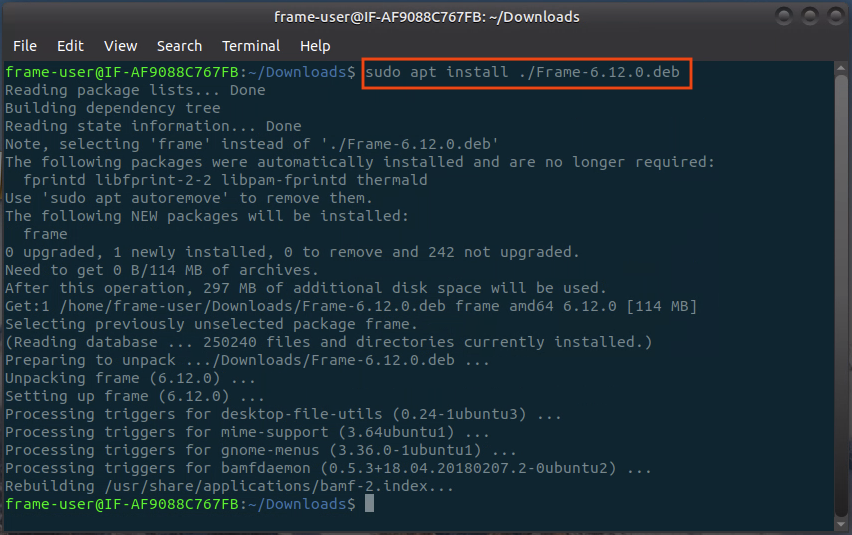
![Installing Frame App for Linux](https://docs.difr.com/uploads/images/gallery/2025-10/frameapp-linux-installer1.png)

#### Updates

Once installed, Frame App will automatically check for updates every time you launch it. You will be prompted to update your version of Frame App if any newer versions are available. To check your version of Frame App, simply click on the **Frame** menu and select **About**.
![About Frame](https://docs.difr.com/uploads/images/gallery/2025-10/frapp-gsg4.png)  
<span style="font-family: -apple-system, BlinkMacSystemFont, 'Segoe UI', Oxygen, Ubuntu, Roboto, Cantarell, 'Fira Sans', 'Droid Sans', 'Helvetica Neue', sans-serif; font-size: 1.7rem; font-weight: 400;">  
</span>

# Configuring Frame App

Frame App behavior can be configured on startup of the application (Command Line Arguments) and through configuration files/Windows registry keys. If you are installing Frame App on Windows endpoints and would like to configure the silent installation process, you can find additional documentation [here](https://docs.difr.com/books/platform-administrators-guide/page/configuring-frame-app).

## Command Line Arguments

Command line arguments or “launch arguments” are parameters that are automatically passed to a program (via command line) to modify its behavior. Some organizations may choose to use these modifiers to better fit their use case. We will start by providing a list of the available command line arguments and then explain how to configure them based on your operating system.

To launch Frame App with certain command line arguments, start by opening command prompt/terminal on your local machine. Specify the file path for Frame App (include the executable). Append your command line argument(s) after file path.

You may launch Frame App with the specified parameters. Use the table below to understand command line argument options and their syntax.

### Frame App 7

#### Launch Frame App with arguments following the pattern:

```bash
# Starting in "/usr/bin/"

# Single argument
./frame --arg=value

# OR

# Multiple Arguments
./frame --arg1 --arg2=value

```

<table id="bkmrk-command-line-argumen-2"><thead><tr><th>Command Line Argument</th><th>Description and Syntax Example</th></tr></thead><tbody><tr><td>`--startup-url`</td><td><div class="description">Designates the startup URL, as you would on the "Preferences" page of Frame App.</div>---

Single Argument Example:

```
./frame --startup-url="https://use.difr.com/"
```

</td></tr><tr><td>`--check-for-updates-on-startup`</td><td><div class="description">Frame App will check for updates on startup when this argument is set to **ON**.</div>---

Single Argument Example:

```
./frame --check-for-updates-on-startup=on
```

</td></tr><tr><td>`--clear-cache-on-startup`</td><td><div class="description">Frame App will automatically clear the local cache on startup when argument is set to **ON**.</div>---

Single Argument Example:

```
./frame --clear-cache-on-startup=on
```

</td></tr><tr><td>`--enable-camera`</td><td><div class="description">Frame App will launch with camera functionality enabled when this argument is set to **ON**.</div>---

Single Argument Example:

```
./frame --enable-camera=on
```

</td></tr><tr><td>`--enable-microphone`</td><td><div class="description">Frame App will launch with microphone functionality enabled when this argument is set to **ON**.</div>---

Single Argument Example:

```
./frame --enable-microphone=on
```

</td></tr><tr><td>`--full-screen`</td><td><div class="description">Instructs Frame App to launch in full screen when this argument is set to **ON**.</div>---

Single Argument Example:

```
./frame --full-screen=on
```

</td></tr><tr><td>`--start-session-in-full-screen`</td><td><div class="description">Instructs Frame App to start a session in full screen when this argument is set to **ON**.</div>---

Single Argument Example:

```
./frame --start-session-in-full-screen=on
```

</td></tr><tr><td>`--help`</td><td><div class="description">Provides a help menu. This command must be called on the precise application executable.</div>---

Single Argument Example:

```
/usr/bin/frame --help
```

</td></tr><tr><td>`--version`</td><td><div class="description">Shows Frame App version.</div>---

Single Argument Example:

```
./frame --version
```

</td></tr><tr><td>`--hide-menu-bar=on`</td><td><div class="description">Hide Menu Bar. Useful in kiosk mode scenarios.</div>---

Single Argument Example:

```
./frame --hide-menu-bar=on
```

</td></tr><tr><td>`--hide-toggle-fullscreen=on`</td><td><div class="description">Hide toggle-fullscreen option from the View menu. Also used for kiosk mode scenarios.</div>---

Single Argument Example:

```
./frame --hide-toggle-fullscreen=on
```

</td></tr><tr><td>`--use-experimental-gpu-flags=on`</td><td><div class="description">Enable Hardware Acceleration. Mainly used on IGEL client devices.</div>---

Single Argument Example:

```
./frame --use-experimental-gpu-flags=on
```

</td></tr></tbody></table>

<table id="bkmrk-command-line-argumen-3"><thead><tr><th>Command Line Arguments</th><th>Description and Syntax Example</th></tr></thead><tbody><tr><td>`displays-auto-arrange`</td><td>Frame App will launch with virtual displays configured to match your local environment.   
  
*Example:*  
`./Frame --displays-auto-arrange`</td></tr><tr><td>`kiosk`</td><td>Instructs Frame App to launch in full screen, also known as “Kiosk mode.”   
  
*Example:*  
`./Frame --kiosk`</td></tr><tr><td>`url`</td><td>Designates the startup URL, as you would on the “Preferences” page of Frame App.   
  
*Example:*  
`./Frame --url=console.nutanix.com`</td></tr><tr><td>`x11-window`</td><td>Switch from GTK (default) to X11 Windows. This argument should be used with HP ThinPro OS clients.   
  
*Example:*  
`./Frame --x11-window`</td></tr></tbody></table>

### Frame App 7

#### Launch Frame App with arguments following the pattern:

```bash
# Starting in "/Applications/Frame.app/Contents/MacOS/"

# Single argument
./Frame --arg=value

# OR

# Multiple Arguments
./Frame --arg1 --arg2=value

```

<table id="bkmrk-command-line-argumen-4"><thead><tr><th>Command Line Argument</th><th>Description and Syntax Example</th></tr></thead><tbody><tr><td>`--startup-url`</td><td><div class="description">Designates the startup URL, as you would on the "Preferences" page of Frame App.</div>---

Single Argument Example:

```
./Frame --startup-url="https://use.difr.com/"
```

</td></tr><tr><td>`--check-for-updates-on-startup`</td><td><div class="description">Frame App will check for updates on startup when this argument is set to **ON**.</div>---

Single Argument Example:

```
./Frame --check-for-updates-on-startup=on
```

</td></tr><tr><td>`--clear-cache-on-startup`</td><td><div class="description">Frame App will automatically clear the local cache on startup when argument is set to **ON**.</div>---

Single Argument Example:

```
./Frame --clear-cache-on-startup=on
```

</td></tr><tr><td>`--enable-camera`</td><td><div class="description">Frame App will launch with camera functionality enabled when this argument is set to **ON**.</div>---

Single Argument Example:

```
./Frame --enable-camera=on
```

</td></tr><tr><td>`--enable-microphone`</td><td><div class="description">Frame App will launch with microphone functionality enabled when this argument is set to **ON**.</div>---

Single Argument Example:

```
./Frame --enable-microphone=on
```

</td></tr><tr><td>`--full-screen`</td><td><div class="description">Instructs Frame App to launch in full screen when this argument is set to **ON**.</div>---

Single Argument Example:

```
./Frame --full-screen=on
```

</td></tr><tr><td>`--start-session-in-full-screen`</td><td><div class="description">Instructs Frame App to start a session in full screen when this argument is set to **ON**.</div>---

Single Argument Example:

```
./Frame --start-session-in-full-screen=on
```

</td></tr><tr><td>`--help`</td><td><div class="description">Provides a help menu. This command must be called on the precise application executable.</div>---

Single Argument Example:

```
/Applications/Frame.app/Contents/MacOS/Frame --help
```

</td></tr><tr><td>`--version`</td><td><div class="description">Shows Frame App version.</div>---

Single Argument Example:

```
./Frame --version
```

</td></tr><tr><td>`--hide-menu-bar=on`</td><td><div class="description">Hide Menu Bar. Useful in kiosk mode scenarios.</div>---

Single Argument Example:

```
./Frame --hide-menu-bar=on
```

</td></tr><tr><td>`--hide-toggle-fullscreen=on`</td><td><div class="description">Hide toggle-fullscreen option from the View menu. Also used for kiosk mode scenarios.</div>---

Single Argument Example:

```
./Frame --hide-toggle-fullscreen=on
```

</td></tr><tr><td>`--use-experimental-gpu-flags=on`</td><td><div class="description">Enable Hardware Acceleration. Mainly used on IGEL client devices.</div>---

Single Argument Example:

```
./Frame --use-experimental-gpu-flags=on
```

</td></tr></tbody></table>

<figure id="bkmrk-">![Starting Frame App in the macOS Terminal](https://docs.difr.com/uploads/images/gallery/2025-10/frapp-mac1.png)

<figcaption></figcaption></figure>### Frame App 7

#### Launch Frame App with arguments following the pattern:

```powershell
# Starting in "C:\Program Files\Frame>"

# Single argument (Requires -- before flag)
& ./Frame.exe -- --arg=value 

# OR

# Multiple Arguments
& ./Frame.exe --arg1 --arg2=value 

```

<table id="bkmrk-command-line-argumen-5"><thead><tr><th>Command Line Argument</th><th>Description and Syntax Example</th></tr></thead><tbody><tr><td>`--startup-url`</td><td><div class="description">Designates the startup URL, as you would on the “Preferences” page of Frame App.</div>---

Single Argument Example:

```
& ./Frame.exe -- --startup-url="https://console.nutanix.com/"
```

</td></tr><tr><td>`--check-for-updates-on-startup`</td><td><div class="description">Frame App will check for updates on startup when this argument is set to **ON**.</div>---

Single Argument Example:

```
 & ./Frame.exe -- --check-for-updates-on-startup=on
```

</td></tr><tr><td>`--clear-cache-on-startup`</td><td><div class="description">Frame App will automatically clear the local cache on startup when argument is set to **ON**.</div>---

Single Argument Example:

```
& ./Frame.exe -- --clear-cache-on-startup=on
```

</td></tr><tr><td>`--enable-camera`</td><td><div class="description">Frame App will launch with camera functionality enabled when this argument is set to **ON**.</div>---

Single Argument Example:

```
 & ./Frame.exe -- --enable-camera=on
```

</td></tr><tr><td>`--enable-microphone`</td><td><div class="description">Frame App will launch with microphone functionality enabled when this argument is set to **ON**.</div>---

Single Argument Example:

```
 & ./Frame.exe -- --enable-microphone=on
```

</td></tr><tr><td>`--full-screen`</td><td><div class="description">Instructs Frame App to launch in full screen when this argument is set to **ON**.</div>---

Single Argument Example:

```
 & ./Frame.exe -- --full-screen=on
```

</td></tr><tr><td>`--start-session-in-full-screen`</td><td><div class="description">Instructs Frame App to start a session in full screen when this argument is set to **ON**.</div>---

Single Argument Example:

```
 & ./Frame.exe -- --start-session-in-full-screen=on
```

</td></tr><tr><td>`--help`</td><td><div class="description">Provides a help menu. This command must be called on the precise application executable.</div>---

Single Argument Example:

```
C:\Program Files\Frame\app-7.5.0\Frame.exe -- --help
```

</td></tr><tr><td>`--version`</td><td><div class="description">Shows Frame App version. Requires `| Write-Output` modifier.</div>---

Single Argument Example:

```
& ./Frame.exe -- --version | Write-Output
```

</td></tr><tr><td>`--hide-menu-bar=on`</td><td><div class="description">Hide Menu Bar. Useful in kiosk mode scenarios.</div>---

Single Argument Example:

```
& ./Frame.exe -- --hide-menu-bar=on
```

</td></tr><tr><td>`--hide-toggle-fullscreen=on`</td><td><div class="description">Hide toggle-fullscreen option from the View menu. Also used for kiosk mode scenarios.</div>---

Single Argument Example:

```
& ./Frame.exe -- --hide-toggle-fullscreen=on
```

</td></tr><tr><td>`--use-experimental-gpu-flags=on`</td><td><div class="description">Enable Hardware Acceleration. Mainly used on IGEL client devices.</div>---

Single Argument Example:

```
& ./Frame.exe -- --use-experimental-gpu-flags=on
```

</td></tr></tbody></table>

<figure id="bkmrk--1">![Starting Frame App on the Windows command line](https://docs.difr.com/uploads/images/gallery/2025-10/frapp-windows1.png)

<figcaption></figcaption></figure>---

## User Preference Policies

Frame Administrators can enforce user preference policies across all installations of Frame App for Linux, Frame App for macOS, and/or Frame App for Windows through a preferences.conf file (Linux), plist (macOS), and group policy objects (Windows), respectively.

### Frame App 7

For Frame App for Linux 7 and greater, Frame administrators can control user preferences by creating and saving a configuration file at the location `/etc/frame/preferences.conf`.

The conf file contains name-value pairs in the format `KEY` = `VALUE`. Spaces will be ignored. The list of supported keys and associated values are described in the following table.

```bash
STARTUP_URL=https://use.difr.com/
CLEAR_CACHE_ON_STARTUP=ON

```

<table id="bkmrk-key-name-description"><thead><tr><th>Key Name</th><th>Description</th><th>Value(s)</th></tr></thead><tbody><tr><td>`STARTUP_URL`</td><td>Designates the startup Uniform Resource Location (URL).   
  
Default Value: `https://console.nutanix.com/`</td><td>URL</td></tr><tr><td>`CHECK_FOR_UPDATES_ON_STARTUP`</td><td>Frame App will check for updates on startup when this argument is set to **ON**. If there is an update available, Frame App will ask the user if they wish to download and install the update.   
  
Default Value: `ON`</td><td>`ON` or `OFF`</td></tr><tr><td>`CLEAR_CACHE_ON_STARTUP`</td><td>Frame App will automatically clear local cache on startup when this argument is set to **ON**.  
  
Default Value: `ON`</td><td>`ON` or `OFF`</td></tr><tr><td>`ENABLE_CAMERA`</td><td>Frame App will launch with camera functionality enabled when this argument is set to **ON**.  
  
Default Value: `ON`</td><td>`ON` or `OFF`</td></tr><tr><td>`ENABLE_MICROPHONE`</td><td>Frame App will launch with microphone functionality enabled when this argument is set to **ON**.  
  
Default Value: `ON`</td><td>`ON` or `OFF`</td></tr><tr><td>`FULL_SCREEN`</td><td>Instructs Frame App to launch in full screen when this argument is set to **ON**.   
  
Default Value: `OFF`</td><td>`ON` or `OFF`</td></tr><tr><td>`START_SESSION_IN_FULL_SCREEN`</td><td>Instructs Frame App to start a session in full screen when this argument is set to **ON**.   
  
Default Value: `OFF`</td><td>`ON` or `OFF`</td></tr></tbody></table>

### Frame App 7

For Frame App for macOS 7 and greater, Frame administrators can control user preferences by creating and saving a plist file at the location `/Users/Shared/frame/preferences.plist`.

The plist file contains name-value pairs in the format:

```xml
<key>VALID_KEY</key>
<string>VALID_VALUE</string>

```

An example plist file would be:

```xml
<?xml version="1.0" encoding="UTF-8"?>

<plist version="1.0">
  <dict>
    <key>STARTUP_URL</key>
    <string>https://console.nutanix.com/</string>
    <key>CLEAR_CACHE_ON_STARTUP</key>
    <string>ON</string>
  </dict>
</plist>

```

<table id="bkmrk-key-name-description-1"><thead><tr><th>Key Name</th><th>Description</th><th>Value(s)</th></tr></thead><tbody><tr><td>`STARTUP_URL`</td><td>Designates the startup Uniform Resource Location (URL).   
  
Default Value: `https://console.nutanix.com/`</td><td>URL</td></tr><tr><td>`CHECK_FOR_UPDATES_ON_STARTUP`</td><td>Frame App will check for updates on startup when this argument is set to **ON**. If there is an update available, Frame App will ask the user if they wish to download and install the update.   
  
Default Value: `ON`</td><td>`ON` or `OFF`</td></tr><tr><td>`CLEAR_CACHE_ON_STARTUP`</td><td>Frame App will automatically clear local cache on startup when this argument is set to **ON**.  
  
Default Value: `ON`</td><td>`ON` or `OFF`</td></tr><tr><td>`ENABLE_CAMERA`</td><td>Frame App will launch with camera functionality enabled when this argument is set to **ON**.  
  
Default Value: `ON`</td><td>`ON` or `OFF`</td></tr><tr><td>`ENABLE_MICROPHONE`</td><td>Frame App will launch with microphone functionality enabled when this argument is set to **ON**.  
  
Default Value: `ON`</td><td>`ON` or `OFF`</td></tr><tr><td>`FULL_SCREEN`</td><td>Instructs Frame App to launch in full screen when this argument is set to **ON**.   
  
Default Value: `OFF`</td><td>`ON` or `OFF`</td></tr><tr><td>`START_SESSION_IN_FULL_SCREEN`</td><td>Instructs Frame App to start a session in full screen when this argument is set to **ON**.   
  
Default Value: `OFF`</td><td>`ON` or `OFF`</td></tr></tbody></table>

### Frame App 7

Frame App for Windows (version 7 or greater) enables Windows administrators to set user preferences via group policy objects (GPOs). This allows Windows administrators to use Windows GPOs to change those preferences for all users or specific users.

Administrators can update Frame App user preferences either in `HKEY_LOCAL_MACHINE` or `HKEY_CURRENT_USER`. If user preference registry keys are set in `HKEY_LOCAL_MACHINE`, those user preferences will take precedence as they will apply to all users. The relative path to the registry keys is `\SOFTWARE\Frame\Preferences`.

<figure id="bkmrk-user-preferences-in-">![User Preferences in Windows Registry](https://docs.difr.com/uploads/images/gallery/2025-10/frapp-windows-registry.png)

<figcaption>User Preferences in Windows Registry</figcaption></figure>```bash
STARTUP_URL=https://console.nutanix.com/
CLEAR_CACHE_ON_STARTUP=ON

```

### Frame App 7

<table id="bkmrk-key-name-description-2"><thead><tr><th>Key Name</th><th>Description</th><th>Value(s)</th></tr></thead><tbody><tr><td>`STARTUP_URL`</td><td>Designates the startup Uniform Resource Location (URL).   
  
Default Value: `https://console.nutanix.com/`</td><td>URL</td></tr><tr><td>`CHECK_FOR_UPDATES_ON_STARTUP`</td><td>Frame App will check for updates on startup when this argument is set to **ON**. If there is an update available, Frame App will ask the user if they wish to download and install the update.   
  
Default Value: `ON`</td><td>`ON` or `OFF`</td></tr><tr><td>`CLEAR_CACHE_ON_STARTUP`</td><td>Frame App will automatically clear local cache on startup when this argument is set to **ON**.  
  
Default Value: `ON`</td><td>`ON` or `OFF`</td></tr><tr><td>`ENABLE_CAMERA`</td><td>Frame App will launch with camera functionality enabled when this argument is set to **ON**.  
  
Default Value: `ON`</td><td>`ON` or `OFF`</td></tr><tr><td>`ENABLE_MICROPHONE`</td><td>Frame App will launch with microphone functionality enabled when this argument is set to **ON**.  
  
Default Value: `ON`</td><td>`ON` or `OFF`</td></tr><tr><td>`FULL_SCREEN`</td><td>Instructs Frame App to launch in full screen when this argument is set to **ON**.   
  
Default Value: `OFF`</td><td>`ON` or `OFF`</td></tr><tr><td>`START_SESSION_IN_FULL_SCREEN`</td><td>Instructs Frame App to start a session in full screen when this argument is set to **ON**.   
  
Default Value: `OFF`</td><td>`ON` or `OFF`</td></tr></tbody></table>

## Local Cache

Frame App functions similarly to web browsers. Frame App contains a local cache that saves cookies, session tokens, and specific user preferences (e.g., automatically use all local displays). The cache can be deleted manually when required.

Follow the steps below based on the operating system on which Frame App is installed. Replace `$USER` with the name of your user.

#### Frame App 7.X Linux

```bash
/home/$USER/.config/Frame/cache

```

#### Frame App 7.X MacOS

```bash
/Users/$USER/Library/Application Support/Frame/cache

```

#### Frame App 7.X Windows

```bash
C:\Users\$USER\AppData\Roaming\Frame\cache

```

<p class="callout info"> The removal of the local cache will not remove the Startup URL value as this is stored either in the Preferences database or  
 in the registry (for Windows).</p>

## Log Location

Frame App writes its logs to the following locations. Replace `username` with the name of your user.

#### Frame App 7.X Linux

```bash
/home/$USER/.config/Frame/Logs

```

#### Frame App 7.X MacOS

```bash
/Users/$USER/Library/Application Support/Frame/Logs

```

#### Frame App 7.X Windows

```bash
C:\Users\$USER\AppData\Roaming\Frame\Logs

```

# IGEL

Frame provides a convenient Custom Partition for IGEL OS bundled with UMS Profiles for easy and secure integration with IGEL OS and management with IGEL's UMS. The included UMS Profiles allow admins to quickly and easily deploy Frame App tailored for your users and use-case(s).

## Version Requirements

- Frame App 7.4.x+ is compatible with IGEL OS 12
- IGEL UMS 11 or higher

## Frame App Custom Partition

You can bundle Frame App into an IGEL Custom Partition for use with IGEL OS 12 following the instructions below. *Building the custom partition bundle currently requires Ubuntu 18.04 with IGEL OS 11*.

### Frame App IGEL Bundling instructions For Ubuntu 18.04

1. Download the latest [Frame App for Linux (Debian)](https://files.difr.com/) to your `~/Downloads` directory.
2. Download and unzip `Frame.zip` from [https://github.com/IGEL-Community/IGEL-Custom-Partitions/raw/master/CP\_Packages/Apps/Frame.zip](https://github.com/IGEL-Community/IGEL-Custom-Partitions/blob/master/CP_Packages/Apps/Frame.zip).
3. Using a terminal, navigate to the unzipped directory to `/target/build/` and execute `build-frame-cp.sh`
4. Copy `frame.ini` and `frame.tar.bz2` from `/target/` to a new Frame folder in the UMS "ums\_filetransfer" path depending on your OS: 
    - UMS upload path on Linux: `/opt/IGEL/RemoteManager/rmguiserver/webapps/ums_filetransfer/Frame/`
    - UMS upload path on Windows: `C:/Program Files/IGEL/RemoteManager/rmguiserver/webapps/ums_filetransfer/Frame/`
5. Import Frame's Custom Profile(s) from `/igel/*`
6. Edit the profile and set up *Firmware Customization -&gt; Custom Partition -&gt; Download* with your UMS server info and credentials.
7. Setup env variables as instructed in the guides below.

Building the bundle will provide you with a zip file relative to the version of Frame App that was bundled. This bundle also includes Frame-provided UMS Profiles that you can quickly import and begin using with your Frame Custom Partition.

<p class="callout info"> The UMS Profiles provided by Frame serve as starting points for your implementation. However, they don't limit your options for customization. Frame is highly extensible, allowing for extensive customization of various aspects including authentication, Role-Based Access Control (RBAC), and user interface (UI). Advanced customizations can be achieved through: - Orchestrating Secure Anonymous Tokens for fine-grained control over authentication flows and RBAC - Leveraging the Session API to manage how, when, and where customers interact with your Frame resources</p>

These tools enable you to tailor the Frame experience to your specific needs, going beyond the default configurations provided in the UMS Profiles.

## Frame-Provided Profiles

Frame-provided UMS Profiles offer various configuration options to customize and optimize your IGEL environment. These profiles range from basic Frame App desktop integration to specialized kiosk modes supporting SAML2 and Secure Anonymous Tokens (SAT) authentication.

## Testing New Versions of Frame App

When a new version of Frame App comes out, admins should test the new version of Frame App on a small subset of devices before rolling it out to the rest of their users. In order to configure multiple versions of Frame App in your UMS, you need to follow a few steps below to add a custom installation path of a test Frame App Custom Partition.

<p class="callout info"> When building the custom partition for Frame App 7.x+, make sure to use the `build-frame-cp.sh` script.</p>

1. Create a new folder in your UMS file transfer server, something like `Frame-Test`. This would result in a folder at the following path:
    
    `/IGEL/RemoteManager/rmguiserver/webapps/ums_filetransfer/Frame-Test/`
2. Once that's complete, import or create a copy of an existing profile and edit it. Navigate to **Firmware Customization &gt; Custom Partition &gt; Download** and edit the download URL to reference the same path.
    
    For our example: `https://[YOUR_UMS_SERVER]:8443/ums_filetransfer/Frame-Test/frame.inf`
3. That's it! Assign the profile to your devices and they should download the new partition accordingly.

<p class="callout info"> Multiple versions of Frame App are not currently available on the same IGEL device. Admins must assign only one Frame App Custom Partition to a device at a time.</p>

## Troubleshooting

As of now, there are no specific common issues reported for Frame App 7 on IGEL OS. However, we are continuously monitoring user feedback and will update this section with any relevant troubleshooting information as it becomes available.

If you encounter any issues, please [contact our support team](https://docs.difr.com/books/dizzion-support/page/contact-support) for assistance.

# Frame-Provided IGEL Profiles

## Profile Options

Frame-provided UMS Profiles offer various configuration options to customize and optimize your IGEL environment. These profiles range from basic Frame App desktop integration to specialized kiosk modes supporting SAML2 and Secure Anonymous Tokens (SAT) authentication. [Click here](https://docs.difr.com/books/platform-administrators-guide/page/frame-provided-igel-profiles#bkmrk-import-a-frame-app-p) to skip ahead to instructions on how to import Frame App into UMS 12.

### Basic Frame App Profile

Bundle location: `igel/frame-app-basic-profile.xml`
![Frame App Basic Custom Partition](https://docs.difr.com/uploads/images/gallery/2025-10/frame-app-basic-custom-partition.png)

![Blender in Frame App on an IGEL Device](https://docs.difr.com/uploads/images/gallery/2025-10/scaled-1680-/frame-app-basic-custom-partition-session.png)

This "basic" UMS Profile simply enables a Frame App icon on the IGEL Desktop.

Admins can customize the default settings and launch parameters by adding command line arguments in your UMS by editing the Frame App Basic Profile Settings: **Firmware Customization &gt; Custom Application &gt; Frame &gt; Settings**.

<p class="callout info"> When configuring the profile, you need to specify the Frame App version in the command field, use `/custom/frame/frame- sat-kiosk-launcher.sh v7`</p>

Please refer to our [Linux command-line arguments for Frame App](https://docs.difr.com/link/161#bkmrk-frame-app-7) for more information.

### Frame SAML2 Kiosk Mode Profile

Bundle location: `igel/frame-saml2-kiosk-profile.xml`

This profile is designed to support a specific end user workflow and assumes a particular Frame configuration.
![Frame App Kiosk with SAML](https://docs.difr.com/uploads/images/gallery/2025-10/frame-app-kiosk-saml-custom-partition.png)

#### SAML2 Kiosk Mode User Experience

The SAML2 Kiosk Mode provides a seamless and secure user experience, integrating Frame App with third-party identity providers. Here's what users can expect:

```mermaid

graph TD
    Start([Start]) --> A[Frame App Launch]
    A -->|Clear cache| B[Present Kiosk Mode Interface]
    B --> C[Show Identity Provider Login]
    C --> D{Authentication Successful?}
    D -->|Yes| E{Launch Link Configuration}
    E -->|Desktop| F[Full-screen Desktop Session]
    E -->|Application| G[Full-screen Application Session]
    F --> H{User Action}
    G --> H
    H -->|Disconnect or Inactivity timeout| I[Show Resume Option]
    I -->|Within timeout| F
    I -->|Timeout expires| C
    H -->|End Session| J[Close Session]
    J -->|Configure Frame to redirect to IdP| C
    C -->|New user| C
    
    classDef default fill:#f9f,stroke:#333,stroke-width:2px;
    classDef decision fill:#ccf,stroke:#333,stroke-width:2px;
    class D,E,H decision;


```

1. Upon launch, Frame App clears its cache to ensure a fresh session and secure authentication.
2. Users are presented with a full-screen Kiosk Mode interface, supporting multiple monitors. The login screen of the configured third-party identity provider appears, prompting for credentials.
3. After successful authentication, Frame App directs users to either a desktop or specific application, based on the Launch Link configuration.
4. The Frame session begins in full-screen mode, providing an immersive remote desktop experience.
5. If users disconnect, either manually or due to inactivity, they have the option to resume their session within the account's or Launchpad's [configured idle timeout](https://docs.difr.com/books/platform-administrators-guide/page/session-settings#bkmrk-idle-timeout).
6. When users end their session (by quitting or shutting down the Windows instance), they are logged out and returned to the identity provider's login screen, ready for the next user.

This workflow ensures a secure, stateless experience for shared devices while maintaining ease of use for end-users.

#### SAML2 + Kiosk Mode Requirements

To set up the SAML2 Kiosk Mode, ensure you have the following:

- A *Published* Launchpad
- A configured identity provider with associated roles/permissions allowing access to the desired Frame Account
- A Frame Launch Link with the additional ["Quit and log out"](https://docs.difr.com/books/platform-administrators-guide/page/advanced-integrations) URL parameter: `&qlo=1`
- (Optional) Frame account production workload VMs joined to a Windows domain, if desired

Additionally, you need to configure the IGEL UMS Custom Profile:

1. Navigate to:
    
    > System &gt; Firmware Customization &gt; Environment Variables &gt; Predefined
2. Add the following environment variable:
    
    
    - `FRAME_LAUNCH_URL`: This is your Launch Link, obtained from the Account's *Dashboard &gt; Launchpad &gt; Advanced Integrations*. You'll find a configurable dialog with Launch Links there.

<p class="callout info"> While we recommend using Launch Links for Kiosk scenarios, you can also use a standard Launchpad URL for the FRAME\_LAUNCH\_URL value if needed.</p>

This configuration ensures that your SAML2 Kiosk Mode is properly set up and integrated with your Frame Account and IGEL environment.

#### SAML2 + Kiosk Mode Configuration

1. Import the SAML2 kiosk launcher profile template (with .ipm extension) into your UMS12.
2. After importing, update the template values with your specific configuration.
3. Follow the existing steps for setting up the environment variables.

### Frame SAT Kiosk Mode Profile

Bundle location: `igel/frame-sat-kiosk-profile.xml`

The Frame SAT Kiosk Custom Profile is designed to support a specific end user workflow relying on Frame's [Secure Anonymous Tokens (SAT)](https://docs.difr.com/books/platform-administrators-guide/page/secure-anonymous-tokens) for authentication. This flow also assumes a particular Frame configuration to support the kiosk experience as defined below.
![Frame App Kiosk powered by SAT](https://docs.difr.com/uploads/images/gallery/2025-10/scaled-1680-/frame-app-kiosk-sat-custom-partition-session.png)

![Frame App Kiosk with Windows Login](https://docs.difr.com/uploads/images/gallery/2025-10/frame-app-kiosk-sat-dji-custom-partition.png)

#### SAT Kiosk Mode User Experience

With the SAT Kiosk Mode user experience, end users will not authenticate to a SAML2-based identity provider (this script uses the Frame Secure Anonymous Token (SAT) functionality for session authentication).

```mermaid
graph TD
    1[1. Launch Frame App in kiosk mode]
    2[2. Clear user cache]
    3[3. Authenticate using SAT]
    4[4. Direct to desktop or application]
    5[5. Start remote desktop in full-screen]
    6[6. Session ends]
    7[7. Restart Frame App with new SAT token]

    1 --> 2
    2 --> 3
    3 --> 4
    4 --> 5
    5 --> 6
    6 --> 7
    7 -.-> 1

```

1. Frame App will launch in "kiosk mode" (full screen).
2. User cache is cleared prior to start and exit of Frame App to ensure no user preference settings have persisted since the prior use of Frame App.
3. End users are authenticated using Frame Secure Anonymous Token (SAT) functionality.
4. Frame App directs the end user directly to the desktop or application (depending on the [Launch Link](https://docs.difr.com/books/platform-administrators-guide/page/advanced-integrations#bkmrk-what-are-launch-link) configuration).
5. When a Frame session starts, the remote desktop will be in full-screen mode.
6. Upon session disconnect or closure, Frame App will restarts with a new SAT token.
    
    <p class="callout info">**NOTE:**  
    Disconnect behavior is configurable from [Session Settings](https://docs.difr.com/books/platform-administrators-guide/page/session-settings).</p>

#### SAT + Kiosk Configuration Requirements

- A *Published* Launchpad.
- API Provider configured at the Organization entity.
- Secure Anonymous Token Provider at the Account entity level granting a role of Launchpad User for a specific Launchpad in a Frame account (under the Organization entity).
- Frame [Launch Link](https://docs.difr.com/books/platform-administrators-guide/page/advanced-integrations#bkmrk-what-are-launch-link) is used, rather than a Launchpad URL to support automatic start of the user's session and to simplify the UX.
- *Optional:* The Frame account production workload VMs can be joined to a Windows domain, if desired.
- The Environment Variables listed below:

#### Environment Variables

The following environment variables must be configured in the IGEL Custom Profile for this profile to work.

1. **Edit your IGEL UMS Custom Profile and go to**:
    
    > System &gt; Firmware Customization &gt; Environment Variables &gt; Predefined
2. **Set the following environment variables:**

<table class="wrap-table" id="bkmrk-environment-variable-1"><thead><tr><th>Environment Variable</th><th>Description</th></tr></thead><tbody><tr><td>`FRAME_CLIENT_ID`</td><td>Obtained from the API provider when a set of API credentials are created.</td></tr><tr><td>`FRAME_CLIENT_SECRET`</td><td>Obtained from the API provider when a set of API credentials are created.</td></tr><tr><td>`FRAME_SAT_URL`</td><td>URL obtainable from the Playground.  
  
For example:  
https://api.console.nutanix.com/v1/accounts/XXXXXXXX-XXXX-XXXX-XXXX-31d09e2881cd/secure-anonymous/secure-anon-XXXXXXXX-XXXX-XXXX-XXXX-c5e2dc93df1e/tokens.</td></tr><tr><td>`FRAME_ACCOUNT_ID`</td><td>Sign in to [Frane Console](https://console.nutanix.com) as an Admin. Locate your account, click the three-dot menu, and select "update" to view the Account's entity settings. Next, copy the Account UUID from the browser's URL bar. For example:  
`https://console.nutanix.com/frame/account/YOUR-FRAME-ACCOUNT-UUID-HERE/basic-info` or use the [Admin API to List Accounts](https://docs.difr.com/dev-hub/admin-api/account).</td></tr><tr><td>`FRAME_EMAIL_DOMAIN`</td><td>Email domain name used to create the anonymous user email addresses that will be visible in the Session Trail.  
Example: frame.igel.mycompany.com</td></tr><tr><td>`FRAME_LAUNCH_URL`</td><td>Obtained from an Account's Dashboard &gt; Launchpad &gt; Advanced Integrations to get a configurable dialog with Launch Links. While we recommend Launch Links for Kiosk scenarios, the value of FRAME\_LAUNCH\_URL could instead be a standard Launchpad URL.</td></tr><tr><td>`FRAME_TERMINAL_CONFIG_ID`</td><td>Obtainable from the Launch Link URL.</td></tr><tr><td>`FRAME_LOGOUT_URL`</td><td>Optional. Allows configuration of the "logout" behavior by specifying a URL. Useful when using a Frame Launch Link with additional "Quit and log out" url parameter: &amp;qlo=1.</td></tr></tbody></table>

#### Frame Admin API and SAT Quick Setup Guide

1. Enable API access
    
    > Account &gt; Users &gt; Authentication
    
    ![Enable API](https://docs.difr.com/uploads/images/gallery/2025-10/igel-frame-04.png)
2. Add an API
    
    > Account &gt; Users &gt; API
    
    Create an API integration with with the ability to generate anonymous tokens and manage your account as an Account Administrator. These roles are **mandatory** for this custom partition's scripts; they use account-based Admin API calls to validate the current status of sessions (statuses such as "initializing", "open", "closing", etc.).
    
    ![API - Generate](https://docs.difr.com/uploads/images/gallery/2025-10/igel-frame-05.png)
3. Create a set of credentials for use with the Custom Profile.
    
    <figure>![Manage Credentials](https://docs.difr.com/uploads/images/gallery/2025-10/igel-frame-06.png)
    
    <figcaption>Manage Credentials</figcaption></figure><figure>![Create new API key](https://docs.difr.com/uploads/images/gallery/2025-10/igel-frame-07.png)
    
    <figcaption>Create new API key</figcaption></figure><figure>![Copy the credentials. Keep it secret; keep it safe.](https://docs.difr.com/uploads/images/gallery/2025-10/igel-frame-08.png)
    
    <figcaption>Copy the credentials for use in the IGEL Environment Variables. Keep it secret; keep it safe.</figcaption></figure>

#### Secure Anonymous Access Setup

1. Enable "Secure Anonymous" access

> Account &gt; Users &gt; Authentication

![Secure Anonymous](https://docs.difr.com/uploads/images/gallery/2025-10/igel-frame-01.png)

2. Create Anonymous Access Provider

> Account &gt; Users &gt; Secure Anonymous

![Add Provider](https://docs.difr.com/uploads/images/gallery/2025-10/igel-frame-02.png)

3. Add the Launchpad User role to the Provider

![Add Provider](https://docs.difr.com/uploads/images/gallery/2025-10/igel-frame-03.png)

**Note:** If Launchpad User Role is not visible on the list, be sure you've created a launchpad first. If you have, refresh the page and try again.

4. Copy Provide URL from Playground Examples

![Anon Provider Playground](https://docs.difr.com/uploads/images/gallery/2025-10/igel-frame-09.png)

Easily find and copy your SAT Provider URI:

![Copy Provider URI](https://docs.difr.com/uploads/images/gallery/2025-10/igel-frame-10.png)

## Import a Frame App Profile

Follow these simple steps to import the Frame App profile into your IGEL environment and configure it according to your needs.

**Step 1: Import the Frame App Profile**

![Import the Frame App Profile](https://docs.difr.com/uploads/images/gallery/2025-10/ums1.png)

1. **Navigate to the IGEL App Portal** in the UMS server.
2. Go to the **Apps** tab (yellow tab at the top).
3. In the **left panel**, select **Cloud**.
4. Locate and select **Frame App**.

**Step 2: Create a New Frame App Profile**

![Create a New Frame App Profile](https://docs.difr.com/uploads/images/gallery/2025-10/ums2.png)

1. Click on the **"Create new profile"** button.
2. In the **dialog box** that appears: 
    - Enter a **Name** (e.g., "FrameApp-Test").
    - Enter a **Description** (optional, e.g., "Frame App application").
    - Select the **Location** (e.g., under "Profiles").
3. Click **Save** to confirm.

**Step 3: Configure the Frame App Profile**

![Configure the Frame App Profile](https://docs.difr.com/uploads/images/gallery/2025-10/ums4.png)

1. Once the Frame App profile is created, click the **Edit Configuration** button.
2. Update the profile settings based on your requirements. Some configuration options include: 
    - **Check for updates on startup**
    - **Clear cache before starting**
    - **Enable kiosk mode**
    - **Set kiosk timeout behavior**

Refer to your specific Frame use case to determine which options need to be enabled or customized.

### Example Configuration

![Configure the Frame App Profile](https://docs.difr.com/uploads/images/gallery/2025-10/ums3.png)

The final configuration may look similar to the following:

- A created profile named **FrameApp-Test**.
- Key settings such as startup behavior, cache clearing, and kiosk options enabled.

Frame-provided UMS profiles options are detailed at the top of the page. Pick a UMS Profile that sounds best for your IGEL use-case and import it to try it out.

# Troubleshooting

Common Information and Error Codes, RDP Debug Mode

# Common Informational and Error Codes

There are inevitably going to be situations where you receive a code for either informational or error conditions. Below is a table that covers the most common codes and messages you may receive.

These error messages will show up either in pop-up messages during your session, or in an event log that is being analyzed post-session.

<table id="bkmrk-error-%2F-exit-code-ty"><thead><tr><th>Error / Exit Code</th><th>Type</th><th>Description</th><th>Frame Component</th><th>FRP Version</th></tr></thead><tbody><tr><td>4000</td><td>Info</td><td>User initiated close to the session. This occurs mostly through choosing "Close Session" in the gear menu.</td><td>Server</td><td>FRP 7/8</td></tr><tr><td>4001</td><td>Error</td><td>An unknown critical error occurred on the server.</td><td>Server</td><td>FRP 7/8</td></tr><tr><td>4002</td><td>Error</td><td>Connection rejected due to Unmatched Server and Terminal session configuration detected. Either the wrong data was sent from the Terminal, or the data was corrupted.</td><td>Server</td><td>FRP 7/8</td></tr><tr><td>4003</td><td>Error</td><td>Server Send Buffer Overflow.</td><td>Server</td><td>FRP 7/8</td></tr><tr><td>4004</td><td>Error</td><td>An unknown critical error occurred on the server.</td><td>Server</td><td>FRP 7/8</td></tr><tr><td>4005</td><td>Error</td><td>Similar to 4004. An unknown critical error occurred on the server.</td><td>Server</td><td>FRP 7/8</td></tr><tr><td>4006</td><td>Info</td><td>The end user is already in another session. This could be due to two tabs open on the same machine, or two machines sharing the same token owner (Identified email address).</td><td>Server</td><td>FRP 7/8</td></tr><tr><td>4008</td><td>Info</td><td>Max session timeout reached. This setting is set in the "Session Settings" section of an account or in the "Session Settings" section of a launchpad's settings (Override the account settings).</td><td>Server</td><td>FRP 7/8</td></tr><tr><td>4009</td><td>Info</td><td>IDLE Connection timeout. This occurs when a disconnected session has not been reconnected within the allotted time specified in "Settings Settings" for an account or launchpad.</td><td>Server</td><td>FRP 7/8</td></tr><tr><td>4011</td><td>Error</td><td>Error occurred in the video stream of an active session. Please attempt to reconnect and contact Frame support if you continue to have problems.</td><td>Server</td><td>FRP 7/8</td></tr><tr><td>4015</td><td>Info</td><td>The end user or a script shut down the VM (Windows and Linux).</td><td>Server</td><td>FRP 7/8</td></tr><tr><td>4018</td><td>Info</td><td>The end user or a script logged off from the VM (Windows and Linux).</td><td>Server</td><td>FRP 7/8</td></tr><tr><td>4019</td><td>Info</td><td>The VM from which the session is running has been externally shutdown, or the session was closed remotely. This can occur from an Admin API, manual session close in the account dashboard, or through an expected Frame automation.</td><td>Server</td><td>FRP 7/8</td></tr><tr><td>4022</td><td>Error</td><td>On a domain-joined instance, the end user's profile failed to mount.</td><td>Server</td><td>FRP 7/8</td></tr><tr><td>4023</td><td>Error</td><td>The server closed the connection due to too many registered receive timeouts.</td><td>Server</td><td>FRP 7/8</td></tr><tr><td>4024</td><td>Error</td><td>The server registered an error in the `receive` thread.</td><td>Server</td><td>FRP 7/8</td></tr><tr><td>4025</td><td>Error</td><td>The server registered an error in the `send` thread.</td><td>Server</td><td>FRP 7/8</td></tr><tr><td>4026</td><td>Error</td><td>An unknown error occured in the FRP8 connection.</td><td>Server</td><td>FRP 8</td></tr><tr><td>4027</td><td>Error</td><td>The virtual display is not in the correct state during session start (Virtual display failed, or is not ready)</td><td>Server</td><td>FRP 7/8</td></tr><tr><td>4028</td><td>Error</td><td>The session connection to the secondary monitor/display closed when not responding to a change request.</td><td>Server</td><td>FRP 7/8</td></tr><tr><td>4029</td><td>Error</td><td>The session connection closed unexpectedly.</td><td>Server</td><td>FRP 7/8</td></tr><tr><td>4101</td><td>Error</td><td>Terminal failed to connect to the server within the window of the allotted connection time (Connection Timeout).</td><td>Terminal</td><td>FRP 7/8</td></tr><tr><td>4102</td><td>Error</td><td>The connection between terminal and server appears to have been severed by the network connection.</td><td>Terminal</td><td>FRP 7/8</td></tr><tr><td>4103</td><td>Info</td><td>Terminal is attempting to reconnect after a disconnect</td><td>Terminal</td><td>FRP 7/8</td></tr><tr><td>4106</td><td>Error</td><td>Terminal failed to reconnect to a server after a disconnect</td><td>Terminal</td><td>FRP 7/8</td></tr><tr><td>4107</td><td>Error</td><td>Signaling Peer Timeout. The signaling server did not get the server peer ID within the allotted time.</td><td>Terminal</td><td>FRP 8</td></tr><tr><td>4108</td><td>Error</td><td>The WebRTC ICE connection has been disconnected.</td><td>Terminal</td><td>FRP 8</td></tr><tr><td>5006</td><td>Error</td><td>The WebRTC ICE connection failed due to network issues or a misconfiguration.</td><td>Variable</td><td>FRP 8</td></tr><tr><td>5007</td><td>Error</td><td>The WebRTC negotiation process timed out.</td><td>Variable</td><td>FRP 8</td></tr><tr><td>5008</td><td>Error</td><td>The WebRTC peer connection failed to connect.</td><td>Variable</td><td>FRP 8</td></tr><tr><td>5009</td><td>Error</td><td>The STUN server could not be reached within the allotted time.</td><td>Variable</td><td>FRP 8</td></tr><tr><td>5010</td><td>Error</td><td>The TURN server could not be reached within the allotted time.</td><td>Variable</td><td>FRP 8</td></tr><tr><td>5019</td><td>Error</td><td>FRP8 could not connect to either the STUN or TURN server.</td><td>Variable</td><td>FRP 8</td></tr></tbody></table>

# RDP Debug Mode

A Frame administrator may encounter the need to access a persistent VM (Sandbox, Utility Server, or persistent desktop) using Microsoft Remote Desktop Protocol (RDP) for a number of scenarios.

- Unable to access the Sandbox VM using Frame Remoting Protocol (FRP)
- Perform a task that requires RDP
- Troubleshoot a persistent desktop VM

If RDP sessions are necessary, Frame provides administrators with the RDP Debug Mode feature to enable a non-persistent or persistent VM to be powered up and to allow an RDP session to be established.

While a VM is in RDP Debug mode, a user will not be able to access the VM using FRP.

## Using Debug Mode

1. From the Frame Account Dashboard, browse to the **VMs** page.

<figure id="bkmrk-dashboard-%3E-vms">![Dashboard > Status](https://docs.difr.com/uploads/images/gallery/2025-10/rdp-debug1.png)

<figcaption>Dashboard &gt; VMs</figcaption></figure>2. Find the machine you wish to debug and click the kebab menu on the far right, then choose Enable RDP Debug.

The machine must be powered down prior to enabling RDP Debug. If the machine is not powered down first, the administrator will see a notice "The server must be in stopped state".

<figure id="bkmrk-dashboard-%3E-vms-%3E-ke">![Dashboard > Status, Enable RDP Debug](https://docs.difr.com/uploads/images/gallery/2025-10/rdp-debug2.png)

<figcaption>Dashboard &gt; VMs &gt; Kebab Menu &gt; Enable RDP Debug</figcaption></figure>3. In the RDP Debug mode window, enter the IP address of the machine you want RDP access from. The administrator’s Public IP address will automatically populate. Enter additional IP addresses if multiple administrators require access. Click **Enable** to enable RDP Debug Mode.

<figure id="bkmrk-enable-rdp-debug---a">![Enable RDP Debug - Allowed IP Addresses](https://docs.difr.com/uploads/images/gallery/2025-10/rdp-debug3.png)

<figcaption>Enable RDP Debug - Allowed IP Addresses</figcaption></figure>Tip

The Whitelisting workflow only applies to Public Cloud with Frame Managed Public Networking. If using an SGA, you will RDP into the Private IP address of the machine and you will not have direct RDP access to the machine over the Internet. You must have access to RDP to the Private IP address. One way to accomplish this is to launch a Frame session in the same Account and then RDP into the machine using the information provided once RDP debug mode is enabled within the Frame session.

4. When the Enable button is clicked, Frame Control Plane will kick off the orchestration to boot the VM in RDP Debug mode.

<figure id="bkmrk-enable-rdp-debug---s">![Enable RDP Debug - Starting VM in RDP Debug mode](https://docs.difr.com/uploads/images/gallery/2025-10/rdp-debug4.png)

<figcaption>Enable RDP Debug - Starting VM in RDP Debug mode</figcaption></figure>5. When the VM is powered on and ready to accept an RDP session request, the Enable RDP Debug mode window will display RDP information required to accerss the VM using RDP. Each of the fields has a copy icon next to the field value so you can easily copy the information to your RDP client.

<figure id="bkmrk-enable-rdp-debug---r">![Enable RDP Debug - RDP Connection Information](https://docs.difr.com/uploads/images/gallery/2025-10/rdp-debug5.png)

<figcaption>Enable RDP Debug - RDP Connection Information</figcaption></figure>The fields are:

- **Server IP**: IP address of the VM
- **Server public hostname**: Fully qualified domain name of the VM
- **User**: Local Windows user that you can use to RDP into the VM. If this Frame account was created with a BYO image, you can use the user account that you created when preparing the template image.
- **Password**: Password for the local Windows user. This password is valid until the VM is powered off or rebooted. Once the VM is powered on again, the password will no longer be valid.

6. Using your RDP client, connect to the VM using the VM's IP address. Depending on your [deployment model](https://docs.difr.com/books/platform-administrators-guide/page/deployment-groups), the VM's IP address may be a private or public IP address. You will be asked to confirm the VM's public key certificate before reaching the Windows login screen.

<figure id="bkmrk-enable-rdp-debug---c">![Enable RDP Debug - Confirm VM Public Key Certificate](https://docs.difr.com/uploads/images/gallery/2025-10/rdp-debug6.png)

<figcaption>Enable RDP Debug - Confirm VM Public Key Certificate</figcaption></figure><p class="callout info">The RDP Debug mode lasts until the VM is powered down or rebooted. If you log out of an RDP debug session, but don't power down or reboot the VM, you can start a new RDP session using the same RDP information.</p>

# Security

<span>Security Basics, Proxy Server Support, HIPAA Compliance, Frame Data Residency, </span>

# Security Basics

# Security Basics

Sometimes users reside behind corporate networks that have strict network access policies. Connection issues can arise if certain domains are being blocked. To avoid this, administrators ensure that the [Network Configuration Requirements](https://docs.difr.com/books/platform-administrators-guide/page/requirements) for their deployment architecture are met.

## Anti-virus Software on Frame

Frame images do not include anti-virus or anti-spyware tools. Administrators are responsible for installing and configuring their own choice of AV/AS tools. For non-persistent Frame accounts, systems are stateless. As long as administrators are diligent about their work in the Sandbox servers, “exposed” production systems that are infected will be reverted on reboot. In the case where Frame provides the initial base image (public cloud infrastructure only), Frame ensures that all base images are scanned before customers use them to create their Frame accounts.

While many anti-virus software packages will work on Frame, due to the large number of anti-virus packages, and the possible complexity of configuration, interoperability is not guaranteed. Anti-virus software that prevents components of the Frame service from executing may cause loss of functionality within a Frame session, up to and including a complete inability to connect to sessions. Prior to installing an anti-virus package, a backup of your account's Sandbox should be taken in the event that issues occur. Since most Frame customers use stateless systems, all anti-virus database updates will download each time a production instance is started. This can be avoided either by maintaining the Sandbox image (updating the Sandbox and publishing to production instances regularly) or using [Persistent Desktops](https://docs.difr.com/books/platform-administrators-guide/page/account-types#persistent-desktop-accounts-overview).

### Exclusion Rules

Any anti-virus software used on Frame-managed workloads must be configured to allow the following directories and associated sub-directories:

- `C:\\ProgramData\\Nutanix\\Frame\\`
    
    > Contains libraries and utilities for Frame Service, Server, and logs (FGA 8.x).
- `C:\\Program Files\\Nutanix\\Frame\\`
    
    > Contains Frame Service executables which provide communication to the Frame Platform for orchestration (FGA 8.x).
- `C:\\Program Files\\OFS\\`
    
    > Contains Frame file system driver and control application.
- `C:\\OFS\\`
    
    > Contains Frame file system driver components.

If you intend to use Enterprise Profiles, please allow the following folders and files:

**Folders:**

- `C:\\Program Files\\ProfileUnity\\` and all subfolders
- `C:\\Windows\\Temp\\ProfileUnity\\`
- `C:\\FADIA-T\\`
- `C:\\ProfileDiskMounts\\`

**Files:**

- `C:\\Windows\\System32\\drivers\\Cbfltfs3.sys`
- `C:\\Windows\\System32\\drivers\\Cbfltfs4.sys`
- `C:\\Windows\\System32\\drivers\\Cbreg.sys`
- `C:\\Windows\\System32\\drivers\\cbfsfilter2017.sys`
- `C:\\Windows\\System32\\drivers\\cbfsregistry2017.sys`
- `C:\\Windows\\System32\\drivers\\cbregistry20.sys`
- `C:\\Windows\\System32\\OFS_x64.dll`
- `C:\\Windows\\System32\\drivers\\OFS.sys`

<p class="callout warning"> Please ensure that anti-virus "Tamper protection" is disabled during the publishing process.</p>

<p class="callout warning"> During a Sandbox publish, Frame will clone the Sandbox disk image to create production workload VMs. If the Frame account is configured for domain-joined instances, then the Sandbox disk image is cloned and the cloned Sandbox disk image is used to create a new VM ("Generalized Sandbox VM"). This Generalized Sandbox VM is powered on and generalized using sysprep before creating the domain-joined production workload VMs. Consult with your anti-virus solution provider to determine if your anti-virus solution must be configured to account for either of the two Frame publishing workflows.</p>

## SSL Break and Inspect

Frame Remoting Protocol (FRP) is an H.264-based bi-directional communication protocol between the end user and the workload VM. This communication consists audio/video streamed from the workload VM to the user's endpoint and keyboard/mouse/peripheral input from the end user's endpoint to the workload VM. With FRP 7.0, the protocol uses Secure WebSocket (WSS) over Transport Layer Security (TLS). With FRP 8.0, the protocol builds on WebRTC, a real-time communication protocol using UDP and Datagram Transport Layer Security (DTLS). Customers can use out-of-band monitoring solutions to monitor these FRP streams; however, inline or in-band solutions that break and inspect FRP traffic are not supported as they either prevent FRP from functioning or introduce latency that degrades the end user experience. From the end user's perspective, SSL break/inspect can result in sluggish desktop behavior, the display video skipping frames, and abrupt disconnects of the video stream while in session.

From a security perspective, the FRP streams does not add an inherent risk as it is a video/audio stream from workload to endpoint. If clipboard synchronization, file upload/downloads, microphone input, and remote printing are disabled for the users' Frame sessions, then the only data being sent to the user endpoint is the audio/video display of the desktop and keyboard/mouse events from the user to the workload VM. Breaking and inspecting the traffic will only reveal raw data streams (H.264 encoded display pixels) and keyboard/mouse events.

Frame orchestration and brokering management communication between Frame Guest Agent (FGA) on the workloads and Frame Platform as well as from Prism Central/Element to Frame Platform originates within the customer's private network from the workloads and Cloud Connector Appliance (CCA) VMs as HTTPS requests, switching over to Secure WebSocket over TCP or WebRTC over UDP for bidirectional communication. FGA on the workload VMs and CCAs can be configured to support outbound HTTPS/Secure WebSocket proxy servers.

# Outbound Proxy Server Support

Frame Guest Agent (FGA) and Cloud Connector Appliance (CCA) have native support for outbound proxy server if a proxy server is required from a VM inside a private network to communicate to the Internet. The outbound proxy server must support both HTTPS and Secure WebSocket (WSS) traffic. This Frame proxy server configuration is independent of the proxy server configuration of the operating system.

## Frame Guest Agent

Windows administrators must explicitly set the FGA proxy settings and have those settings persist in the test and production pool VMs. The approach to setting these FGA proxy settings will depend on the Frame account type and configuration:

1. For non-domain-joined, non-persistent Frame accounts, the FGA proxy settings can be updated in the Sandbox and then published to the test and production pools.
2. For domain-joined, non-persistent Frame accounts or with persistent desktop Frame accounts, administrators must persist these FGA proxy settings using a [post-generalization script](https://docs.difr.com/books/platform-administrators-guide/page/scripting#post-generalization) or via domain GPOs (for domain-joined Frame accounts). For these two Frame account configurations, Frame executes a Microsoft Sysprep during the publish process to prepare the test and production pool VMs.

The FGA proxy configuration does not affect the Windows OS, user, or third-party application proxy settings.

### Configuration

1. Back up your Sandbox before making any changes to the FGA proxy settings.
2. Using the **FrameProxyHelper tool** which is available in `C:\\ProgramData\\Nutanix\\Frame\\Tools`, configure all required fields and verify the configuration by clicking the "Start test" button. The images below show a successful proxy test.

<figure id="bkmrk-">![](https://docs.difr.com/uploads/images/gallery/2025-10/proxy1.jpg)

</figure>3. Depending on your environment, you can test predefined Commercial or Government endpoints. You can also use custom endpoints by clicking on the “Custom” button, adding your endpoints to the list and confirming with the green check mark button.

<figure id="bkmrk--1">![](https://docs.difr.com/uploads/images/gallery/2025-10/proxy2.jpg)

</figure>4. Lastly, save your settings by clicking the "Save Settings" button. Reboot the VM in order for your changes to take effect.

<figure id="bkmrk--2">![](https://docs.difr.com/uploads/images/gallery/2025-10/proxy3.jpg)

</figure><p class="callout warning"> For AHV, we recommend this proxy server configuration be done in the Windows template images. If sysprep removes the proxy server settings, you will have to connect into the Sandbox using RDP, after the Frame account is created, to update the FGA's proxy server settings.</p>

### Troubleshooting

To remove the Frame Guest Agent proxy server configuration to troubleshoot, restore your Sandbox backup or go to the Sandbox and (using regedit) delete the contents of:

```
HKLM\\Software\\Nutanix\\Frame\\Fga\\ProxySettings\\
```

## Cloud Connector Appliance

The AHV administrator can configure each CCA VM to use an outbound proxy server. Step-by-step instructions for enabling outbound proxy server support are discussed in the [Configuring your CCA VM](https://docs.difr.com/books/platform-administrators-guide/page/ahv#configuring-your-cca-vm) instructions.

# HIPAA Compliance

HIPAA and the later adoption of the HITECH Act established through the Department of Health and Human Services is a set of Privacy and Security Rules governing the handling of Protected Health Information (PHI). Under these rules, "Covered Entities"\[^1\] are required to meet certain security and data requirements in order to keep PHI safe.\[^2\] Covered Entities who utilize third-party entities (such as a Service Provider) who will "create, receive, maintain or transmit" PHI in providing a function, activity, or service on behalf of that Covered Entity are defined as a "Business Associate." In most cases, any Business Associate must enter into a Business Associate Agreement (BAA) with the Covered Entity.

Security and privacy for our customers is one of the key tenants of our Frame Desktop as a Service (DaaS) platform. Our security and compliance team, in coordination with Frame Legal, has determined the necessary deployment models, responsibilities, and actions a Covered Entity or Business Associate of Frame must follow in order for Frame to execute BAAs.

The architectural design requirements for Frame described below are required for Frame to enter into a BAA.

## Deployment Requirements

- Covered Entities may use Frame-supported public cloud platforms or on-premises Nutanix infrastructure. Public cloud Frame deployments must utilize the Bring Your Own (BYO) infrastructure capability.
- Covered Entities must leverage the full Private Networking configuration option when deploying Frame. Any ingress into the Frame-managed workload VMs and egress from the workload VMs must be controlled through the customers' security appliances.
- If applicable, Frame deployments may use Enterprise Profiles.
- Covered Entities must bring their own SAML2-based identity provider (IdP). These entities may not use my.nutanix.com or the Frame IdP as identity providers.
- User authorization to PHI must be enforced by the Covered Entity's applications. These entities may not rely solely on Frame's Role-based Access Control (RBAC) to determine which users have access to PHI.
- Frame Support access must be disabled at the Frame Customer entity level by the Covered Entity. Frame Support personnel will then be restricted from accessing any of the accounts, their configurations, activity logs/reports, virtualized desktops/applications, or data within the Covered Entity's Frame-managed infrastructure.
- Application icons and background images may not contain any protected health information.
- Covered Entities may not use the Persistent Desktop feature or Frame Utility Servers to store PHI.

<p class="callout info"> Note on ePHI Data Storage and Processing:  
 Covered Entities may not store or process ePHI on Frame-owned or managed infrastructure.</p>

## Customer Requirements

As with all cloud services, there is a shared responsibility between cloud service providers and end customers. To support HIPAA requirements, customers (Covered Entities) are responsible for the following:

- Policy controls and HIPAA compliance of their environment and workloads.
- Utilize Frame's Bring Your Own (BYO) infrastructure capabilities with either: 
    - On-premises Nutanix AHV infrastructure or
    - A public IaaS provider cloud account (Covered Entity must enter into a Business Associate Agreement with their IaaS provider)
- Monitor their DaaS workloads and supporting network infrastructure.
- Ensure the security of their own DaaS workload configurations.
- Security and monitoring of their own IaaS provider configurations.
- Implement user authentication and authorization *prior* to enabling user access to HIPAA data/PHI via Frame.
- Configure Frame workloads and supporting infrastructure to meet availability requirements.
- Implement all technical and administrative controls necessary to govern access to ePHI data.
- Collect and retain audit logs for ePHI access.
- Restrict cloud credentials provided to Frame to ensure Frame does not have access to ePHI data.
- Enter into a Business Associate Agreement (BAA) with Frame.

## BAA Scope

Frame will only enter BAAs scoped to our cloud service and supporting infrastructure. The scope of these Business Associate Agreements will not include the customer DaaS workload environments. Covered Entities are responsible for independently entering into a BAA with their cloud or data center service providers that host their DaaS workloads. Please reference the links below for more information about BAAs with currently supported cloud providers:

- [Amazon Web Services (AWS)](https://aws.amazon.com/blogs/security/accept-a-baa-with-aws-for-all-accounts-in-your-organization/)
- [Microsoft Azure](https://www.microsoft.com/en-us/trustcenter/Compliance/hipaa)
- [Google Cloud Platform (GCP)](https://cloud.google.com/security/compliance/hipaa/)

\[^1\]: A "Covered Entity" is a "Health Care Plan, Health Care Provider, or Healthcare Clearing House". Please note that Business Associates may also have downstream Business Associates who would need to comply with these requirements, (e.g., AWS as the platform hosting a SaaS application).

Refer to [https://www.hhs.gov/hipaa/for-professionals/privacy/laws-regulations/index.html](https://www.hhs.gov/hipaa/for-professionals/privacy/laws-regulations/index.html) for the definition of protected health information.

# Frame Data Residency

Frame, a cloud-based Desktop as a Service (DaaS) and Platform as a Service (PaaS), enables customers to deliver virtualized applications and desktops hosted in either public and/or private clouds to end users. End users only need an HTML5 browser on a connected device. Frame operates and maintains the Frame Platform which provides customers with automated cloud resource orchestration, user session brokering, and environment administration.

With a distributed system such as Frame, customers must understand how their data, particularly customer data and personal information is collected, processed, transmitted, stored, and safeguarded. Data residency defines the physical location(s) of an organization's data, usually for regulatory reasons.

This document outlines what Frame-specific operational data, customer data, and customer-provided personal information is generated, collected, and transmitted. This document also describes the data safeguarding measures Frame and customers must implement to ensure the data is secured.

## What Data is Stored Where?

The figure below is a visual representation of the different domains where data is accessed and transmitted during a Frame session.
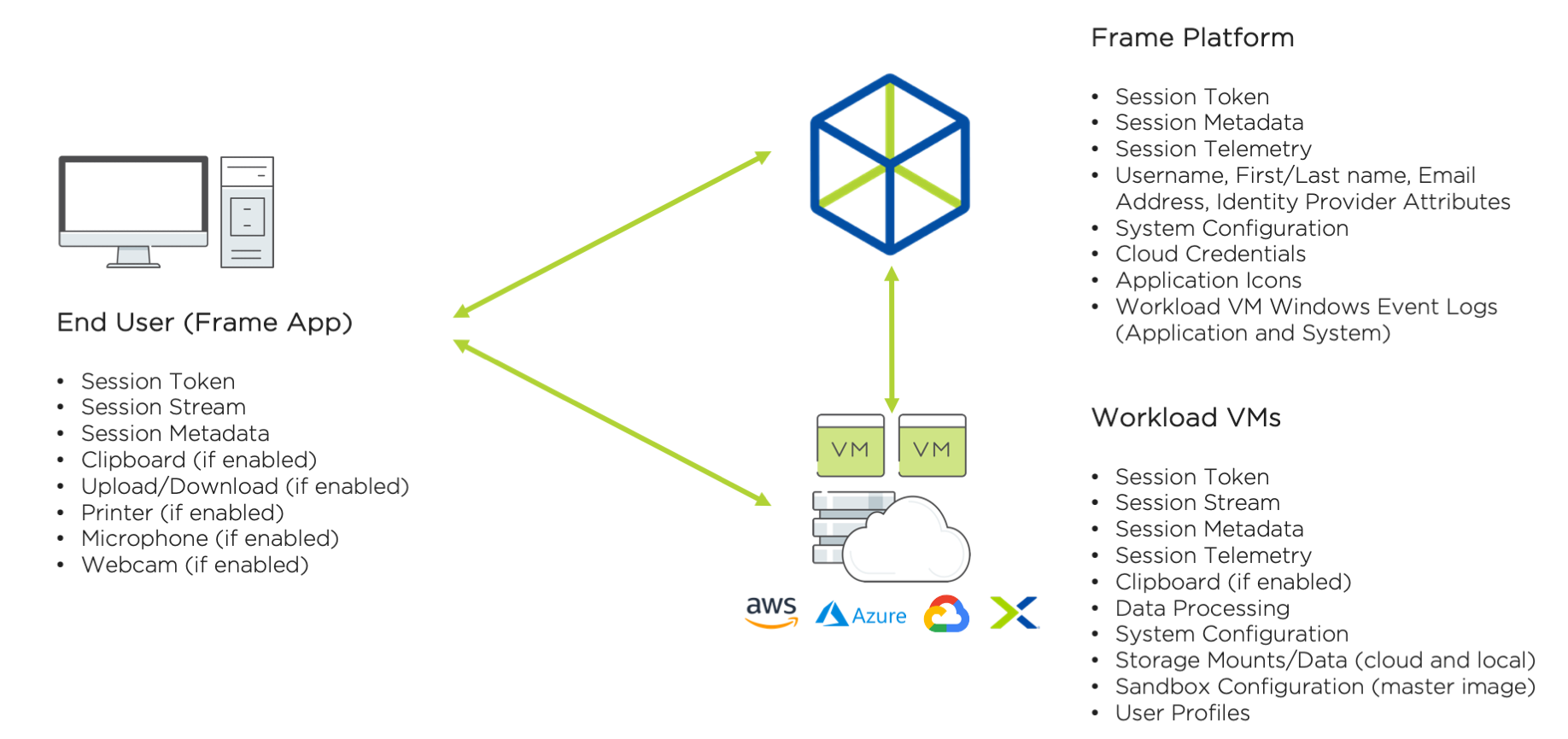
![Frame Data Redundancy](https://docs.difr.com/uploads/images/gallery/2025-10/data-r1.png)

This section defines the data generated, received, transmitted, and/or stored on the end user's device.

- **Authentication Token**: A security token, generated by the Frame identity service, granted to a user once the user is authenticated based on the validity of the SAML2 or OAuth2 assertion. The security token is valid up to the Authentication token expiration value configured in the Frame SAML2 authentication provider configuration. If the user is inactive for the configured amount of time, Frame Console will logout the user. If the user is active within the console (e.g., clicks on hyperlinks, moves the mouse/cursor, scrolls, or presses keys), the token will be renewed just before the token expires. If the user is in a Frame session, the token is automatically renewed so the user is not disconnected while in session. For customers using SAML2 identity providers, roles (authorization) assigned to the user are based on the SAML claim(s) that are provided by the customer's identity provider.
- **Session Token**: A Frame session security token, generated by Frame Platform and provided to the user's browser, after an authenticated and authorized user has started a session. The session token is presented by the user browser to Frame Platform, Streaming Gateway Appliance (if deployed as a reverse proxy server), and the assigned workload VM. The user is only allowed to access the protected resource once the user's session token is validated by the Frame Control Plane. The session token can only be used with the assigned workload VM and is valid up to the max session duration time configured within the Dashboard.
- **Session Stream**: Session Stream is the video stream of the display(s) and audio, encoded in the Frame Remoting Protocol, an H.264-based video stream, sent from the workload virtual machine (VM) to the user's browser. Any keyboard/mouse events, input audio (if microphone is enabled), and input video (if webcam is enabled) is sent from the user to the workload VM. The Frame Remoting Protocol (FRP) 7 uses Secure WebSocket (tcp/443, TLS) and FRP8 uses WebRTC (udp/3478 or udp/4503-4509, DTLS) to communicate between end user and workload VM.
- **Session Metadata**: Session metadata refers to the generation of details in the end user's device that are collected by Frame Platform when various operations are performed during a Frame session. The data can be used to identify users, session start times and durations, instance type used, session type (desktop or published applications), published applications used, as well as other operational details. Below are the data inputs that represent the session metadata: 
    - **User device and workload VM IP addresses**: Identifies the Internet Protocol (IP) address of the user's device and the workload VMs accessed by the user during a Frame session. Both IP addresses may be private (private networking) or public.
    - **User identifier**: This description identifies the user in the session. This identifier is in the form of an email address. Depending on the customer, this user identifier may be an actual or fictitious email address, provided by the customer's identity provider or Frame Secure Anonymous Token feature.
    - **Session ID**: The numeric identifier of a specific virtual Frame session.
    - **Session Type**: Desktop or Application
    - **Published application launched**: This describes the application(s) in-use by the user.
- **Clipboard**: End users have the ability to copy and paste bidirectionally between the user's device and the workload VM or unidirectionally, if the administrator enables the feature in Session Settings for a Frame Account.
- **Upload/Download**: End users have the ability to upload and/or download files between the user's device and the workload VM, if the administrator enables the feature in Session Settings for a Frame Account.
- **Printer**: End users have the ability to print on printers locally accessed by the user's device, if the administrator enables the feature in Session Settings for a Frame Account.
- **Microphone**: The end user can send input audio from the microphone on their endpoint to the workload VM, if the administrator enables the feature in Session Settings for a Frame Account.
- **Webcam**: The end user can send input video from the webcam on their endpoint to the workload VM, if the administrator enables the feature in Session Settings for a Frame Account.

## Frame Platform Data

For all Frame (Commercial) deployments, both US domestic and international, Frame Platform data is stored in the AWS US East region. For Government Cloud (FedRAMP), Frame Platform data is stored in AWS GovCloud (US West 1).

In addition to the data types transmitted to/from the end user described in the above section, the following data is received, transmitted, generated, and/or stored by Frame Platform as part of the service.

- **User identity and attributes**: Depending on the customer's choice of identity provider and what personal information the identity provider passes to Frame Platform, Frame Platform will store user identity and attributes for authorization and activity logging, Common parameters provided as part of any user authentication event are:
    
    
    - First name and last name
    - Email address
    - Associated groups

<p class="callout warning"> Some customers can choose to anonymize user identities during user authentication events by providing fictitious first name, last name, and email addresses to Frame Platform. However, that may result in anonymous activity logs or require customers to correlate Frame activity logs with their own system logs.</p>

- **System Configuration**: Frame Platform also stores system configurations for each customer in order for customers to be able to customize their environments and user session behavior. These configuration options include:
    
    
    - **Role-based access control (RBAC) settings**: Allows the customer to grant access to features and functionality based on the user's role within Frame Platform once the user has authenticated to Frame via a customer-selected identity provider.
    - **Capacity settings**: Provides the customer with the ability to specify the number of virtual machines for a given instance type and the power management schedule of these virtual machines.
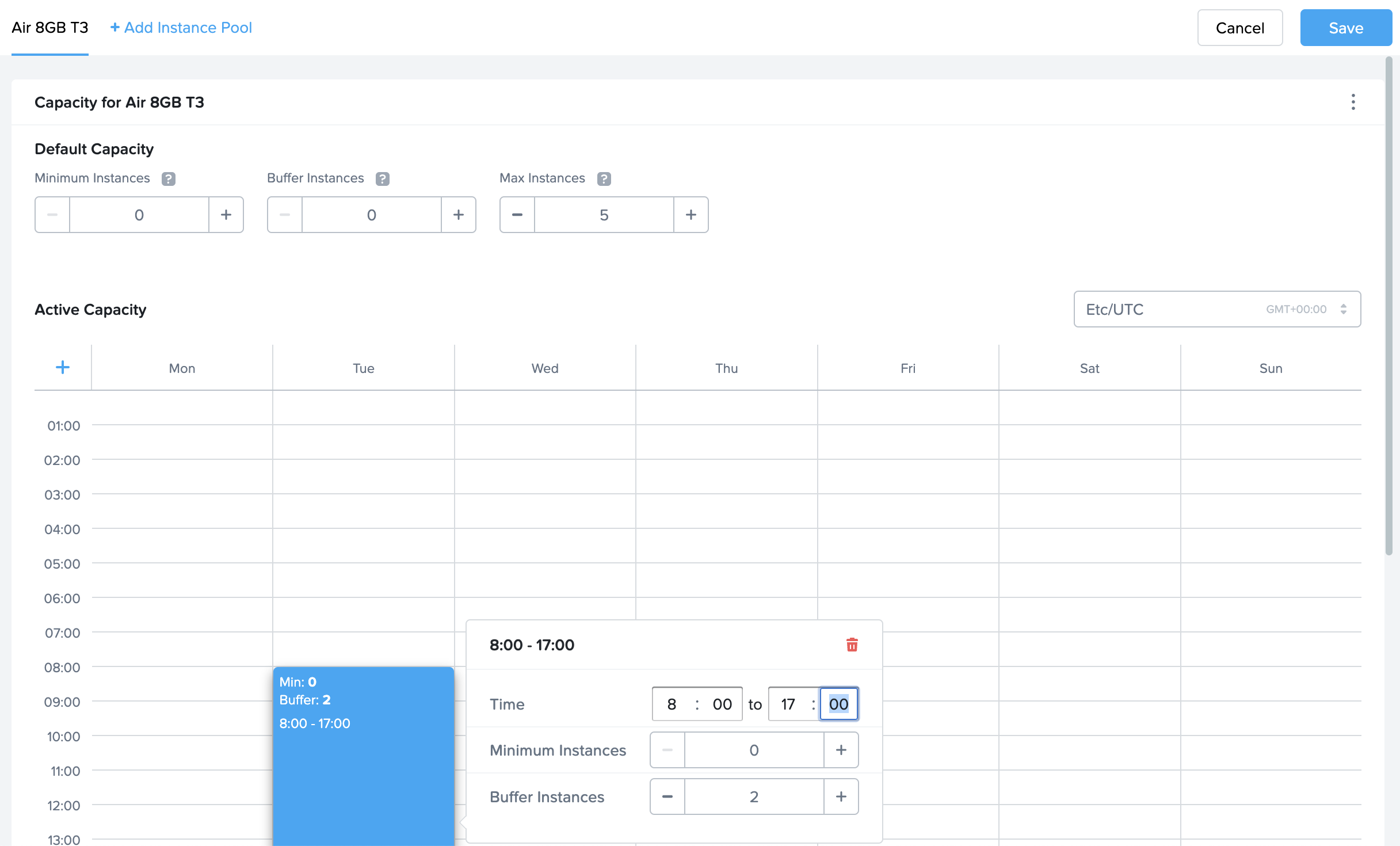
        
        ![](https://docs.difr.com/uploads/images/gallery/2025-10/data-r2.png)
    - **Session settings**: Enables user features, session timeout policies, and Quality of Service settings at the account level or on specific Launchpads.[![data-r3 (1).jpg](https://docs.difr.com/uploads/images/gallery/2026-01/scaled-1680-/data-r3-1.jpg)](https://docs.difr.com/uploads/images/gallery/2026-01/data-r3-1.jpg)
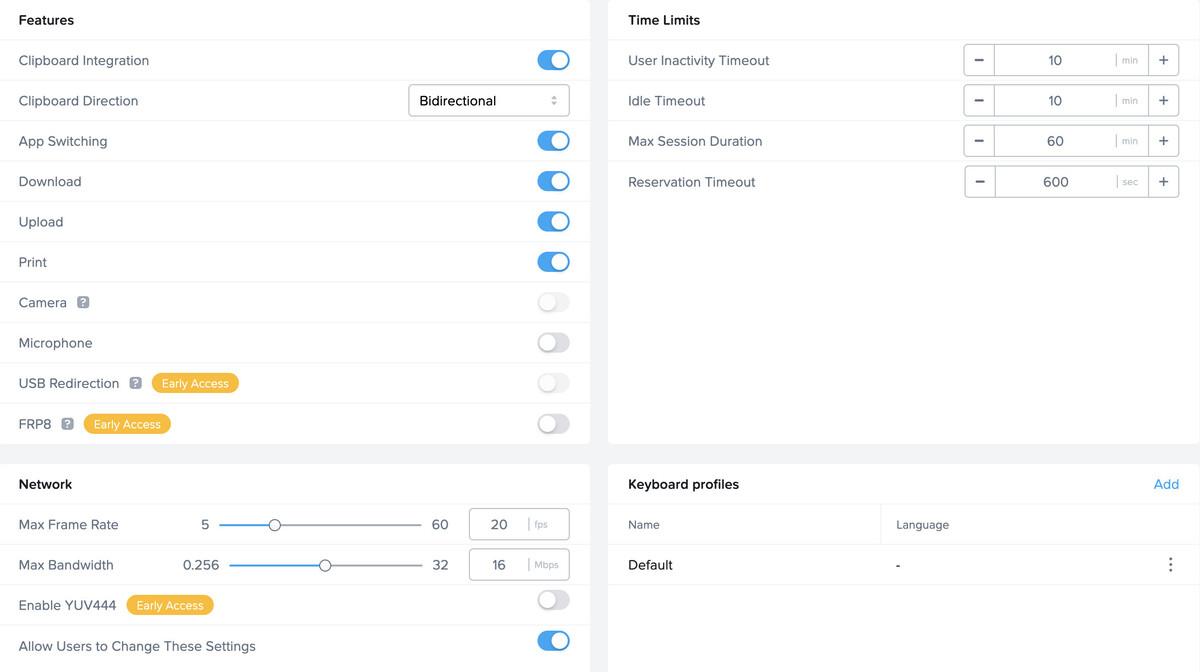
    
    
    - **Cloud/data center configurations**: Determines the public cloud regions or Nutanix AHV clusters that will be used to provision Frame accounts.[![data-r4 (1).jpg](https://docs.difr.com/uploads/images/gallery/2026-01/scaled-1680-/data-r4-1.jpg)](https://docs.difr.com/uploads/images/gallery/2026-01/data-r4-1.jpg)
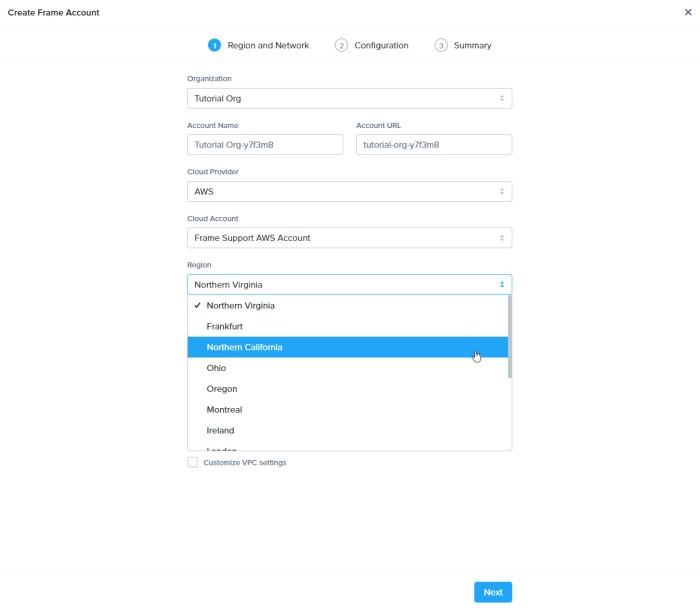
    
    
    - **Cloud Credentials**: Holds the information required for interacting with the public IaaS API gateways. For AWS, it is an IAM role created by the customer using a Frame-supplied Cloud Formation template. In the case of Azure, it is an Azure Active Directory app registration. For Google, it is a Google Project ID.
    - **Onboarded Application Information**: Stores information about the onboarded applications (i.e., published applications). Specifically, the application icon, application executable path, working directory, and command line arguments.
    - **Windows Events**: The Frame Guest Agent will parse and send specific Windows Logs (Application and System) to the Frame Logging endpoint to assist Customer Support and Customer Success with troubleshooting workload issues. This data is retained for 21 days. Customers may opt out by [contacting Support](https://docs.difr.com/books/dizzion-support/page/contact-support) if they prefer these Windows Logs to not be collected.
    
    ```
    By default, the event sources are:
    
      + _Windows Logs > Application:_
        + _MsiInstaller_
        + _Application Error_
        + _Windows Error_
        + _RestartManager_
        + _FrameLogonScript_
        + _FrameTaskbar_
        + _.Net Runtime_
        + _User Profile Service_
      + _Windows Logs > System:_
        + _Service Control Manager_
        + _User32_
        + _WindowsUpdateClient_
      + _Applications and Services Logs > Microsoft > Windows:_
        + _User Device Registration_
        + _AAD_
        + _HelloForBusiness_
    
    ```

## Workload VM Data

- **Session Token**: described in the [prior section](#what-data-is-stored-where)
- **Session Stream**: described in the [prior section](#what-data-is-stored-where)
- **Session Metadata**: described in the [prior section](#what-data-is-stored-where)
- **Session Telemetry**: Session telemetry refers to the measurement of session characteristics between the end user's browser and the Frame workload VM (e.g., bandwidth, latency) and the reporting of workload VM performance metrics (e.g., CPU, memory). This data is collected by Frame Platform and used to evaluate session performance and quality of the experience for the user. The two key metrics are:
    
    
    - **Bandwidth**: Refers to the real-time data transmission capacity of the network between the user and the workload VM. When a user is in a Frame session, the real-time bandwidth is displayed on the left of the Frame status bar. 5 indicator dots next to the Frame gear menu icon give a visual representation of the user's current bandwidth measurement:
        
        
        - *Red dots*: 1 to 2 Mbps
        - *Yellow dots*: 2 to 4 Mbps
        - *Green dots*: 4 to 8+ Mbps
    - **Latency**: Refers to the delay before a transfer of data begins following an instruction for its transfer. This is the time it takes for a single packet of data to go from the user's browser to the workload VM.
- **Clipboard**: described in the [prior section](#what-data-is-stored-where)
- **Upload/Download**: described in the [prior section](#what-data-is-stored-where)
- **Data Processing**: All applications installed by the customer or its users execute on the workload VMs. The customer has the option of offloading the processing of data to other compute infrastructure (e.g., rendering engines, machine learning servers, application servers) controlled, managed, and/or selected by the customer.
- **Storage Mounts/Data**: Any data generated by these applications remains within the workload VM until the user saves the data in persistent storage (profile disk, personal drive, file server, cloud storage). The customer determines what persistent storage options the end user may use (and where the persistent storage is located).
- **Sandbox Configuration (template image)**: Each Frame account has one Sandbox, a VM that manages the master image for the account. Customer administrators use the Sandbox to install and update their applications and manage the operating system. When the administrator publishes the Sandbox, a snapshot of the Sandbox image is backed up and cloned to create the production VMs of the Frame account. The Sandbox VM is persistent. Any applications or files stored in the Sandbox image will be included in the production VM images.
- **User Profiles**: For non-persistent Frame accounts, customer administrators can enable the Frame Enterprise Profile feature in order for user application profiles and user folders (e.g., Documents, Desktop, Downloads, etc.) to be redirected to user profile disks. This profile disk is mounted when a user enters a Frame session and unmounted when a user closes their Frame session. User profile disks are stored as part of the Frame account. The user can backup and restore their own user profile disk.
- **Personal Drives**: Customer administrators can configure a Frame account to provision and manage a personal drive for each user. User personal drives are stored as part of the Frame account. The user can backup and restore personal drives.

## Safeguarding Data

Cloud services is a shared-responsibility model. Frame and customers each have a shared responsibility to ensure the data is protected. Frame is responsible for the security of Frame Platform. Customers are responsible for the security of the users' endpoints, their infrastructure they bring to Frame, including the workload VMs, and any use of application and storage services they provide to their users.

## Confidentiality

In general, Frame stores all data at rest in an encrypted form using the underlying infrastructure's storage encryption capabilities, including the safeguarding of the storage encryption/decryption keys. The encrypted data includes data stored within Frame Platform as well all data stored in the workload VM disks, profile disks, and personal drives.

All communications between the system components are encrypted using TLS 1.2 (HTTPS and Secure WebSocket) and DTLS (FRP8, WebRTC).

### Authentication

Frame supports the ability for customers to integrate their own enterprise SAML2 or OAuth2 identity provider with their Frame customer (or an organization) entity. Customers may integrate as many identity providers as they wish at the customer or organization entity levels.

### Authorization

Frame provides customers who integrate an enterprise SAML2 or OAuth2 identity provider the ability to define authorization rules which grants users (or groups of users) the specified privileges to access or perform operations on specific protected resources.