Suspend and Resume
Suspend and Resume with Persistent and Non-persistent Accounts
Suspend and Resume
The Frame Suspend and Resume feature allows users to pause their session and pick up right where they left off at a later time. When a session is suspended, its state is saved to disk and restored upon resumption, ensuring continuity. This functionality is similar to putting a laptop to sleep and waking it up to continue working without losing progress. Frame supports Suspend and Resume across AWS, Azure, and GCP.
Suspending a user session is a big improvement in user experience. This feature not only ensures session continuity but also reduces costs, as suspended compute instances are not billed* by public cloud providers.
Considerations
Before enabling Suspend/Resume, consider the following factors to ensure optimal use and avoid potential issues:
- Billing: While public cloud providers do not charge for suspended compute instances, storage providers continue to bill for the boot disk.*
- Terminology: In this document, we will use the term "Suspend," although AWS and Azure use "Hibernate." GCP also refers to this as "Suspend".
- Feature Interaction:
- Admins: VM states must be managed exclusively through Frame interfaces. Using built-in Windows functions or cloud provider tools may cause Suspend/Resume failures. All OS and cloud interactions should be handled via Frame.
- End Users: End users must initiate Suspend/Resume through Frame Terminal controls. Using Windows sleep or hibernate functions may cause session state loss and potential data corruption.
- Product Release Stage: Suspend/Resume has been available for Persistent Desktops for some time. However, support for default, Non-Persistent Accounts is a newly introduced <StatusBadge type="Early Access"/> feature. As a result, functionality may be subject to change. To provide clearer guidance, this documentation is now split into separate sections for Persistent and Non-Persistent environments. Be sure to refer to the correct section based on your Frame account type.
Caution!
Availability Notice Suspend/Resume is not universally available across all instance types. Supported instance types vary by cloud provider (AWS, Azure, GCP). Refer to the Cloud Provider-specific Requirements section for more details.
Requirements
In order to use the Suspend/Resume feature, the following requirements must be satisfied:
- A Persistent Desktop or Default, non-persistent Frame Account using AWS, Azure, or GCP.
- CPU-only instances. GPU-backed instances are currently not supported by any of the infrastructure providers.
- Only available on Windows operating systems.
- Ensure sufficient free disk space, equal to or greater than the instance's RAM, to store session data during suspension.
- Frame Administrators must have sufficient permissions to use Suspend/Resume through the Frame Account Dashboard.
Cloud Provider-specific Requirements
In addition to the Frame requirements mentioned above, each public cloud provider has its own requirements. You are expected to review and understand your cloud provider’s specific requirements.
AWS offers Hibernation for most instance types, except for EC2 instance types that have more than 16 GB of RAM or any EC2 instance type that is GPU-enabled. Please review the following:
Azure offers Hibernation for limited instance types. Please review the following:
Google Cloud Platform offers Suspend functionality across most instance types. One important limitation of GCP is that if a machine is suspended for more than 60 days it will be terminated.
Functionality & User Experience
How Suspend/Resume Works
Suspend/Resume allows users to pause their session and continue from the same point later. This feature works the same for both Persistent and Default, Non-Persistent accounts and can be initiated in two ways:
Timers (Automatic Suspension)
- User Inactivity Timeout: If a user is inactive for a set period, the system disconnects the session and starts the Idle Timeout countdown. Once the countdown expires, the session is automatically suspended.
User and Administrator Actions (Manual Suspension)
- User Actions: Users can manually suspend their session by using the Frame status bar controls. To resume a session, they return to the Launchpad and select Resume.
- Administrator Actions: Admins can suspend or resume sessions from the "VMs" page in the Frame Account Dashboard.
User Experience
Once the feature is enabled, users can easily suspend their session from the Frame Terminal or resume a session from Launchpad.
Administration
While the functionality and end-user experience remain the same, the configuration and administration steps differ based on the frame account type.
Persistent
Suspend/Resume Administration
The administrator can control the timeouts that will suspend a persistent desktop VM and they can also manually suspend or resume a session on a persistent desktop VM.
Enabling Suspend/Resume requires specific configurations. Please review the Requirements and Considerations before proceeding to avoid unexpected issues.
Time-based Suspend
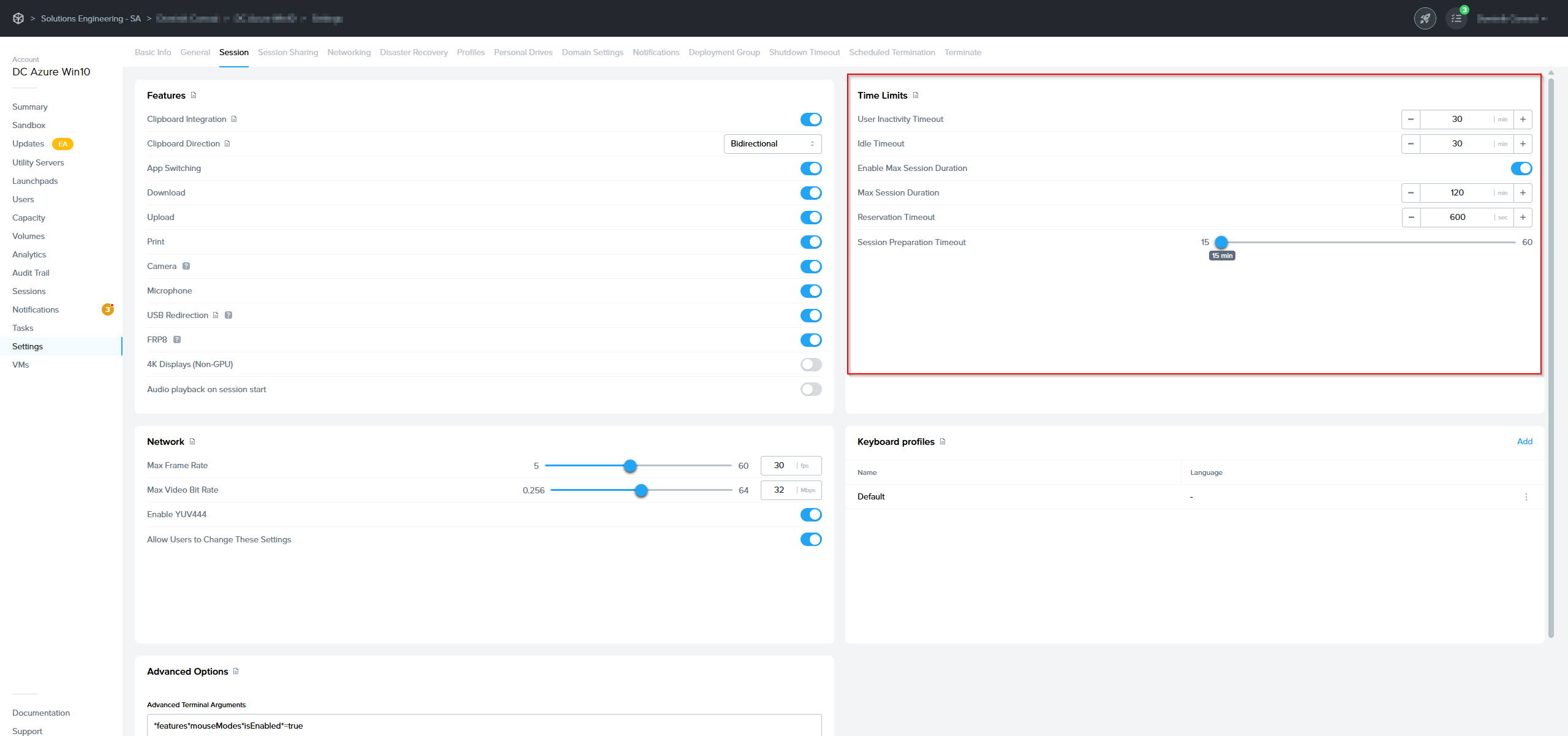
Within the Frame Account Dashboard, navigate to Settings > Session Settings. Under Time Limits, you can adjust the two values:
-
User Inactivity Timeout: Upon reaching this timeout value, the session will become disconnected.
-
Idle Timeout: Upon reaching this timeout value after a session is disconnected, the session will automatically be suspended.

Session Settings - Time Limits
Manual Suspend and Resume
Within the Frame Account Dashboard, navigate to VMs in the left-hand navigation column.
To suspend a session on a production workload VM with a status of In session, click the kebab menu to the right of the Status column and click Suspend. If the user is in session when the administrator suspends their desktop, the user will be disconnected from their session and returned to their Launchpad. The Launchpad will indicate that the session is being suspended.

To resume a suspended session, click the ellipsis to the right of the Status column and click Resume. If the user is at their Launchpad, they will see the message “Your session is resuming” (instead of the “Resume” button) after the administrator has clicked Resume.
Non-Persistent
Suspend/Resume Administration
This feature introduces a new deployment model that combines the user experience benefits of persistent accounts with the centralized image management advantages of non-persistent accounts. Admins can now enable Suspend/Resume on a per-Instance Pool basis by navigating to: _Capacity > Select Pool > Suspend Preferences_.
Additionally, admins can configure a custom reboot schedule to automatically restart idle VMs and those with suspended sessions at regular intervals. To enhance visibility, the VMs page now displays an "S" icon to indicate which VMs have Suspend enabled.

Account Dashboard > VMs Page
Important!
Enabling Suspend/Resume requires specific configurations. Please review the Requirements and Considerations before proceeding to avoid unexpected issues.
Additional Considerations
Before proceeding, review the additional considerations listed below that are specific to non-persistent Frame deployments:
- Capacity: Max Capacity for Instance Pools with this feature enabled will likely need to be adjusted. Max Capacity should be equal to the number of unique users that use the pool on a monthly basis. Customers with Per VM subscription entitlements enabling this feature may require an increase in entitlements and/or result in overage.
- Idle Timeout: When this feature is enabled, the default behavior when Idle Timeout is reached is to suspend the session instead of closing the session.
- Automatic Reboot: For security purposes, we require customers to schedule an automatic reboot of suspended, non-persistent VMs at least once every 4 weeks if a Publish was run since the last reboot. Any idle VMs and VMs with a suspended session will be rebooted at the time of scheduled reboot. VMs with an active session will not be rebooted.
Enable Suspend/Resume
Existing Pools
To enable the Suspend/Resume feature for an existing pool, navigate to the Capacity page of your Account Dashboard. From there, select the desired pool. Lastly, click the kebab menu and choose Suspend Preferences as shown below:

From there, simply enable the toggle and click Confirm. A new window will appear where Suspend Preferences can be configured. If you're ready to proceed, skip ahead to the next section.
New Pools
To enable the Suspend/Resume feature for a New Pool, navigate to the Capacity page of your Account Dashboard. Click + Add Instance Pool at the top of the page.

From there, a configuration window will appear. Enable the Suspend toggle.

Reminder
As mentioned in the "Additional Considerations" section above:
- The Max Capacity for Instance Pools with this feature enable will likely need to be adjusted. Max Capacity should be equal to the number of unique users that use the pool on a monthly basis.
- Customers with Per VM subscription entitlements enabling this feature may require an increase in entitlements and/or result in overage.
Move on to the section below to learn how to configure your Suspend Preferences.
Configure Suspend Preferences
For security purposes, customers must schedule an automatic reboot for suspended non-persistent VMs at least once every four weeks. To prevent data loss, we recommend notifying end users in advance of scheduled reboots.
Next, we'll configure scheduled reboots for suspended VMs. Below are the available settings:
- Scheduled Reboot Day: Select the day of the week when VMs will automatically reboot.
- Scheduled Reboot Time: Specify the exact time for the reboot to occur.
- Scheduled Reboot Time Zone: Choose the time zone for the scheduled reboot.
- Scheduled Reboot Interval: Set how often the reboot should occur:
- Weekly (every 1 week)
- Bi-weekly (every 2 weeks)
- Every 3 weeks
- Every 4 weeks
- Reboot Notification Period: The time period when Dizzion DaaS should start notifying end users about the imminent VM reboot.
- Skip if No Publish Was Run Since Last Reboot:
- Unchecked: The reboot will occur at the scheduled time, regardless of whether a publish has been performed.
- Checked: The reboot will only occur if a publish was completed within the selected interval. If no publish occurs, the reboot will be skipped but rescheduled for the next cycle.
Once the desired settings are configured, click Confirm to save your changes.
And that's it! You have successfully configured Suspend/Resume for your non-persistent Frame account.